96For a bound printed copy of the latest version of this User Guide
(printed in B&W) go to LULU.com
Up and Running:
A REAPER User Guide v 7.81
Version 7.81
September 2026
This guide will be updated regularly as the software itself is further improved and developed.
Check for updates and other information at
http://www.cockos.com/reaper/
This document has been produced, compiled and rendered to PDF format using the
wonderful LibreOffice Writer software.
For more information about LibreOffice go to https://www.libreoffice.org/
How to Use This Guide
REAPER is a complex program and there is no single obvious or easy way or order to present all of the
information contained in this guide. If you need more information about any topic than appears on any particular
page, try searching! The PDF edition is bookmarked, and your PDF reader includes a
Find
or
Search
feature on
its toolbar. Also, both the PDF and printed editions include an index.
Note: The What’s New In This Edition summary can now be found on Page 13.
© Geoffrey Francis, 2008-2026, All rights reserved
Not to be republished or replicated in whole or in part in any format, including electronic format,
without my expressed permission.
1

Up and Running: A REAPER User Guide v 7.81
ReaRead: REAPER books and training manuals printed and spiral bound are now available from
http://www.lulu.com/spotlight/glazfolk
Up and Running: A REAPER User Guide
The essential and definitive guide to recording, editing and mixing with REAPER. Fully updated for each dot
version. Includes sample project files and step by step examples to help you learn how to use many
features of REAPER. Includes special sections on routing and audio channel splitting, as well as numerous
examples of how to use and apply many of the supplied FX plug-ins.
"
Up and Running
is not only a comprehensive guide to using REAPER, it's also full of an amazing amount of
information on audio recording and engineering. I simply cannot recommend it enough!" - Justin Frankel
(COCKOS Inc and REAPER Developer).
ReaMix: Breaking the Barriers with REAPER
This book does much more than just teach you how to use basic tools (such as volume, panning, EQ, gates,
compressors, delay, reverb etc.) to get an OK mix. It also guides you thru the relationships – some simple,
some complex – that exist between the dimensions of sound and the dimensions of space to transform your
OK mixes into great mixes. Although not light on theory, it has a definite practical emphasis, with links to
archives containing some 40 or so project files, with step by step examples to help you put your knowledge
into practice.
"Wow! So much good stuff - from mindbending advanced techniques to solid sensible advice. This guide
should have a positive effect on just about anybody interested in mixing (and especially those using
REAPER)!" - Justin Frankel, Cockos Inc, developer of REAPER.
REAPER Web Resources
The REAPER project is a live, dynamic and ongoing one. Be sure to check these web sites often:
http://www.cockos.com/reaper/ The REAPER Home Page
http://www.cockos.com/reaper/download.php The REAPER Downloads Page
http://www.cockos.com/reaper/about.php REAPER Features summary
http://www.cockos.com/forum/forumdisplay.php?f=20 The REAPER Forums
http://www.cockos.com/wiki/ The REAPER Wiki
Sample Project Files
These are available for download from http://www.cockos.com/wiki/index.php/REAPER_User_Guide
The links are case sensitive. After unzipping the files, follow the instructions in README.txt to install. The media
files are in .MP3 format. Some of the examples outlined in this book require recording further tracks in MP3
format. In order to be able to do this, you will need to have an MP3 encoder installed in your REAPER program
directory. The Lame encoder included in the REAPER install package will by default be installed there.
Acknowledgements
Much thanks goes out to the many people who have assisted with or contributed to the production of this guide
over the last dozen years or so. There are so many of you that that if I was to attempt to list names I’d be sure
to miss some out! Thank you very much – you know who you are!
Disclaimer
This document is intended to introduce you to REAPER and to assist you in learning and understanding how to
use this software. It is not, nor is it intended to serve as, a 100% comprehensive encyclopaedic repository of
every detail, every aspect or every application of all of REAPER’s many, many features.
This User Guide is not intended to serve as a comprehensive generic and universal guide to the world of digital
audio. If you feel you need a better understanding of the meaning of terms like bit, byte, amplitude, fast fourier
transformation (FFT), and so on, you can post your questions on the REAPER forums, or find your answers by
searching the internet.
2

Contents
1 Setting Up and Getting Started...........................................................................................15
1.1 Downloading REAPER.................................................................................................................. 15
1.2 Installing REAPER on a MacOS..................................................................................................... 15
1.3 Installing REAPER on a Windows PC.............................................................................................15
1.4 The Install Options (Windows only)..............................................................................................16
1.5 REAPER’s Default Settings and Preferences...................................................................................16
1.6 REAPER Software Updates........................................................................................................... 17
1.7 Starting REAPER......................................................................................................................... 17
1.8 REAPER Startup Tips................................................................................................................... 17
1.9 REAPER Selections, Controls and Commands.................................................................................17
1.10 The REAPER Screen................................................................................................................... 18
1.11 Introducing the Master Track.....................................................................................................19
1.12 Introducing the Track and Track Controls....................................................................................19
1.13 Arrange View and Mixer View.....................................................................................................20
1.14 Track, Master Track and Mixer Panels: Tips and Layouts..............................................................20
1.15 Setting Up For Audio................................................................................................................. 21
1.16 Input Aliasing............................................................................................................................ 22
1.17 Output Aliasing......................................................................................................................... 22
1.18 Setting Up For MIDI.................................................................................................................. 23
1.19 VST, CLAP and LV2 Plug-ins....................................................................................................... 24
1.20 REAPER’s Installed Folders and File Location...............................................................................25
1.21 Localization and Language Packs................................................................................................ 27
1.22 Backing Up Settings................................................................................................................... 27
1.23 Running REAPER on a Flash Drive.............................................................................................. 27
1.24 REAPER Start Menu Options (Windows only)...............................................................................28
1.25 REAPER File Types.................................................................................................................... 29
1.26 Ruler Display Options................................................................................................................ 29
1.27 Adjusting Font Size.................................................................................................................... 29
1.28 User License Information........................................................................................................... 30
1.29 Pops and Clicks......................................................................................................................... 30
1.30 Uninstalling REAPER.................................................................................................................. 30
1.31 Relative Paths........................................................................................................................... 30
2 REAPER Project Basics........................................................................................................31
2.1 Opening an Existing Project......................................................................................................... 31
2.2 Project Settings........................................................................................................................... 32
2.3 The Transport Bar....................................................................................................................... 34
2.4 Using the Track Controls.............................................................................................................. 35
2.5 Pan Law and Pan Mode............................................................................................................... 36
2.6 Navigation and Zooming.............................................................................................................. 36
2.7 The Visual Track Spacer.............................................................................................................. 38
2.8 Directing Audio and MIDI Output.................................................................................................. 38
2.9 Using the Navigator..................................................................................................................... 38
2.10 Track FX Basics......................................................................................................................... 39
2.11 Using the Supplied FX Presets....................................................................................................40
2.12 Controlling Track FX.................................................................................................................. 40
2.13 FX Window and Keyboard Shortcuts............................................................................................ 42
2.14 Using an FX Bus........................................................................................................................ 43
2.15 Managing the Play Cursor.......................................................................................................... 44
2.16 Analyzing FX Performance.......................................................................................................... 45
2.17 Time Selections and Time Loops.................................................................................................46
2.18 Managing Time and Loop Selections...........................................................................................46
2.19 Navigating by Jumping.............................................................................................................. 47
2.20 Time and Loop Selections and the Transport Bar.........................................................................48
2.21 REAPER Routing Essentials......................................................................................................... 48
2.22 Showing Sends in the Track Panel.............................................................................................. 49
2.23 The Routing Matrix.................................................................................................................... 49
3

Up and Running: A REAPER User Guide v 7.81
2.24 Managing Tracks....................................................................................................................... 50
2.25 Keeping a Window on Top......................................................................................................... 51
2.26 The Track Wiring View............................................................................................................... 51
2.27 Docking and Floating................................................................................................................. 53
2.28 The Undo History Window.......................................................................................................... 53
2.29 Multiple Project Tabs................................................................................................................. 54
2.30 Item Names, Buttons and Icons.................................................................................................55
2.31 Online and Offline Media Items.................................................................................................. 55
2.32 Advanced Track Settings............................................................................................................ 55
2.33 Reset REAPER to Factory Defaults..............................................................................................55
2.34 The Big Clock Plus..................................................................................................................... 55
3 Recording Audio and MIDI.................................................................................................57
3.1 Creating a New Project................................................................................................................ 57
3.2 Setting Media Project Options...................................................................................................... 58
3.3 Saving the Project File................................................................................................................. 58
3.4 Creating and Naming Tracks........................................................................................................ 59
3.5 To Prepare and Record One Track................................................................................................ 59
3.6 To Prepare and Record Multiple Tracks.........................................................................................60
3.7 Auto Arming Tracks..................................................................................................................... 61
3.8 Using the Metronome.................................................................................................................. 61
3.9 Recording Stereo Tracks.............................................................................................................. 62
3.10 Multi-Channel Recording............................................................................................................ 62
3.11 Track Templates....................................................................................................................... 63
3.12 Importing an Existing Project..................................................................................................... 63
3.13 Project Templates..................................................................................................................... 63
3.14 Layered Recording..................................................................................................................... 64
3.15 Overdubbing and Punch Recording.............................................................................................64
3.16 Non-Destructive Punch Recording...............................................................................................65
3.17 Destructive Punch Recording......................................................................................................66
3.18 Fades and Crossfades................................................................................................................ 66
3.19 Recording Multiple Takes........................................................................................................... 66
3.20 Displaying Multiple Takes........................................................................................................... 67
3.21 Using Color Coded Takes........................................................................................................... 67
3.22 Working With Multiple Takes......................................................................................................68
3.23 Overlapping Items..................................................................................................................... 68
3.24 Recording Multiple Additional Items............................................................................................69
3.25 Recording with Empty Events..................................................................................................... 69
3.26 Recording with Input FX Plug-ins................................................................................................70
3.27 Input Monitoring without Recording............................................................................................70
3.28 Preserve PDC Delayed Monitoring in Recorded Items...................................................................70
3.29 Recording a Track’s Output........................................................................................................ 71
3.30 Recording FX Bus Output........................................................................................................... 71
3.31 Recording MIDI......................................................................................................................... 71
3.32 Other MIDI Recording Modes.....................................................................................................73
3.33 Recording With a Virtual Instrument...........................................................................................73
3.34 Using Microsoft GS Wavetable SW Synth.....................................................................................74
3.35 Looped Overdubbing and Looped Time Selection Recording..........................................................74
3.36 Recording with External Hardware FX.........................................................................................75
3.37 Preference Settings for Recording...............................................................................................76
3.38 Track Preferences for Recording.................................................................................................77
3.39 Other Track Recording Settings..................................................................................................77
3.40 REAPER Audio Recording Checklist.............................................................................................78
3.41 Recording MIDI From Keyboard Checklist....................................................................................78
3.42 Recording an Internet Audio Stream...........................................................................................79
3.43 Converting Audio Media Item Format..........................................................................................79
3.44 Recording Live Windows Output................................................................................................. 80
4 Managing Media: The Media Explorer.................................................................................81
4
4.1 Introduction and Overview........................................................................................................... 81
4.2 Media Explorer Basics.................................................................................................................. 82
4.3 File Management......................................................................................................................... 83
4.4 Working With Metadata............................................................................................................... 84
4.5 Creating and Using Databases...................................................................................................... 84
4.6 Media Item Preview..................................................................................................................... 85
4.7 Inserting Audio Files, Samples and FX...........................................................................................87
4.8 Import Media File Types.............................................................................................................. 90
4.9 Importing REAPER Project Files.................................................................................................... 90
4.10 Previewing and Importing MIDI Files.......................................................................................... 90
4.11 Media Explorer Options and Other Actions...................................................................................91
4.12 REX and Similar File Support......................................................................................................92
5 Project Arrangement Basics...............................................................................................93
5.1 Managing Tracks......................................................................................................................... 93
5.2 Track Control Modifiers................................................................................................................ 94
5.3 Mute/Solo In Front...................................................................................................................... 95
5.4 Auto-Naming Multiple Tracks........................................................................................................ 95
5.5 Searching the Preferences Settings...............................................................................................95
5.6 Track Colors............................................................................................................................... 96
5.7 Track Icons................................................................................................................................ 96
5.8 Track Meter Options.................................................................................................................... 96
5.9 Track Layouts............................................................................................................................. 97
5.10 Displaying Grid Lines................................................................................................................. 97
5.11 Headphone Monitoring and Headphone Mixing............................................................................97
5.12 Understanding Sends, Buses, Submixes and Folders.....................................................................98
5.13 Track Folder Essentials.............................................................................................................. 99
5.14 Track and Track Parameter Grouping.......................................................................................... 102
5.15 Temporary Track Grouping without the Grouping Matrix...............................................................106
5.16 VCA Grouping........................................................................................................................... 107
5.17 Track Group Management from the Track Panel..........................................................................108
5.18 The Track Group Manager.......................................................................................................... 109
5.19 The Main Toolbar...................................................................................................................... 109
5.20 Track Panel and Mixer Panel Layout Options................................................................................110
6 Managing Track and Item FX............................................................................................111
6.1 Grouping FX in Folders................................................................................................................ 111
6.2 Using Boolean Search Filters........................................................................................................ 112
6.3 FX Browser Options..................................................................................................................... 113
6.4 Item Take FX.............................................................................................................................. 113
6.5 Managing FX: Tips and Tricks....................................................................................................... 114
6.6 Controlling FX from the TCP......................................................................................................... 115
6.7 Managing FX Parameters............................................................................................................. 115
6.8 Serial vs Parallel FX Chains.......................................................................................................... 116
6.9 Duplicate Plug-in Priorities........................................................................................................... 116
6.10 Advanced Plug-in Defaults.......................................................................................................... 117
6.11 Advanced Floated FX Window Options........................................................................................117
6.12 Embedding FX GUI in TCP or MCP..............................................................................................118
6.13 Hardware Output FX Monitoring................................................................................................. 118
6.14 Optimizing FX Performance........................................................................................................ 118
6.15 Plug-in Delay Compensation....................................................................................................... 118
6.16 Opening a File in Recovery Mode................................................................................................ 119
6.17 Freezing and Unfreezing Tracks.................................................................................................. 119
6.18 The JS Analysis Loudness Meter.................................................................................................120
6.19 VST and VST3 FX Compatibility Settings......................................................................................120
6.20 Missing Items............................................................................................................................ 121
6.21 Installing Extra JS Plug-ins......................................................................................................... 121
6.22 ReaEffects User Guide Supplement.............................................................................................121
6.23 Audio Signal Flow Chart: Master Track........................................................................................121
5
Up and Running: A REAPER User Guide v 7.81
6.24 Audio Signal Flow Chart: Tracks and Folders................................................................................122
7 Managing and Editing Media Items..................................................................................123
7.1 Using an External Editor.............................................................................................................. 123
7.2 Editing Media Items in REAPER.................................................................................................... 123
7.3 Power Editing with Mouse Modifier Overrides................................................................................126
7.4 Auto Trim/Split Items.................................................................................................................. 128
7.5 Media Item Editing with Track Group Items...................................................................................128
7.6 Simple Item Grouping.................................................................................................................. 133
7.7 Storing and Recalling Item Groups...............................................................................................133
7.8 Media Item Properties................................................................................................................. 134
7.9 Media Item Appearance Preferences.............................................................................................135
7.10 Editing Behavior Preferences...................................................................................................... 136
7.11 Overlapping Media Items...........................................................................................................136
7.12 Separating Loop Selection from Time Selection............................................................................136
7.13 Slip Editing............................................................................................................................... 136
7.14 Insert Space in Selection............................................................................................................ 137
7.15 Trim Behind When Editing.......................................................................................................... 137
7.16 Changing a Media Item’s Timebase.............................................................................................137
7.17 Creating and Copying Items in Pencil Mode.................................................................................138
7.18 Propagating Items..................................................................................................................... 138
7.19 Implode Items To One Track...................................................................................................... 139
7.20 Ripple Editing............................................................................................................................ 139
7.21 Trim to Selected Area................................................................................................................ 140
7.22 Item Mute and Solo Actions....................................................................................................... 140
7.23 Displaying the Item Ruler........................................................................................................... 141
7.24 Take Media Source.................................................................................................................... 141
7.25 Normalizing Items..................................................................................................................... 141
7.26 Snapping with Combined Snap/Grid Settings...............................................................................141
7.27 Separate Snap and Grid Settings................................................................................................142
7.28 Free Item Positioning................................................................................................................. 142
7.29 The Nudge/Set Items Window.................................................................................................... 143
7.30 Item Channel Mode and Channel Mapping...................................................................................144
7.31 Adjusting Media Item Fades....................................................................................................... 144
7.32 Crossfades and the Crossfade Editor...........................................................................................145
7.33 Glue Selected Items.................................................................................................................. 148
7.34 Coloring Individual Items........................................................................................................... 148
7.35 Customising Mouse Modifiers.....................................................................................................148
7.36 Dynamic Splitting - Remove Silent Passages................................................................................150
7.37 Item Peak Display Basics........................................................................................................... 152
7.38 Normal Peaks and Spectral Peaks: Display Basics.........................................................................152
7.39 Spectrogram View and Spectral Editing.......................................................................................155
7.40 Loudness Unit Full Scale Modes (LUFS).......................................................................................156
7.41 Sample Editing.......................................................................................................................... 157
7.42 Spectral Repair.......................................................................................................................... 158
7.43 The Pop and Click Remover........................................................................................................ 158
7.44 The Color Picker........................................................................................................................ 159
8 Managing, Comping and Editing Takes.............................................................................161
8.1 Using Item FX with Individual Takes............................................................................................. 161
8.2 Exploding Takes to Multiple Tracks...............................................................................................161
8.3 Crossfades with Takes................................................................................................................. 162
8.4 Exploding Takes in Place.............................................................................................................. 162
8.5 Play All Takes............................................................................................................................. 162
8.6 Editing and Comping Multiple Takes and Multiple Tracks................................................................162
8.7 Take Menu Command Summary................................................................................................... 164
8.8 Propagating Takes...................................................................................................................... 165
8.9 More Take Commands and Actions............................................................................................... 165
8.10 Item Take Markers.................................................................................................................... 166
6
8.11 Comping with Ranked Take Markers...........................................................................................167
8.12 Fixed Media Item Lanes............................................................................................................. 169
9 Tempo Based Production, Loops, Markers and Regions...................................................175
9.1 Creating Loops............................................................................................................................ 175
9.2 Creating and Navigating with Project Markers................................................................................176
9.3 Time Selection Start/End Markers................................................................................................. 177
9.4 Snapping to Markers................................................................................................................... 177
9.5 Removing Markers...................................................................................................................... 178
9.6 Show/Hide Regions/Markers in Grid.............................................................................................. 178
9.7 Marker Actions............................................................................................................................ 178
9.8 Creating and Using Regions......................................................................................................... 179
9.9 The Region/Marker Manager........................................................................................................ 180
9.10 Regions and Markers: Ruler Lanes.............................................................................................. 181
9.11 Custom Ruler Region Lanes........................................................................................................ 181
9.12 Project Building with Regions.....................................................................................................182
9.13 More About Ruler Lanes............................................................................................................. 183
9.14 Markers and Media Cues............................................................................................................ 184
9.15 Changing the Project Timebase.................................................................................................. 184
9.16 Tempo Based Music Production.................................................................................................. 185
9.17 Embedding Transient Information when Rendering......................................................................187
9.18 Quantizing Items....................................................................................................................... 188
9.19 Dynamic Splitting...................................................................................................................... 188
9.20 Ruler Display Options................................................................................................................ 191
10 Pitch and Time Manipulation..........................................................................................193
10.1 Changing the Project Play Rate................................................................................................... 193
10.2 Changing Pitch for Individual Media Items...................................................................................193
10.3 Using the ReaPitch Plug-in......................................................................................................... 194
10.4 Using ReaPitch with Multiple Tracks............................................................................................195
10.5 Time Stretching......................................................................................................................... 195
10.6 Pitch Correction with ReaTune.................................................................................................... 196
10.7 Stretch Markers......................................................................................................................... 196
10.8 Time Signature/Tempo Changes and Markers..............................................................................199
10.9 Timeline Display: Negative Timecodes........................................................................................200
10.10 Playback Time Offset with Routing............................................................................................200
10.11 Audio Jogging and Scrubbing...................................................................................................201
10.12 REAPER Integration with ARA................................................................................................... 201
10.13 Phase Alignment...................................................................................................................... 204
11 The Mixer and The Master..............................................................................................205
11.1 Introduction.............................................................................................................................. 205
11.2 Alternative Mixer Layouts........................................................................................................... 207
11.3 Tweaking the Mixer Display........................................................................................................ 207
11.4 Managing Parent/Child Tracks.................................................................................................... 208
11.5 Working with FX in the Mixer...................................................................................................... 209
11.6 Working with Sends in the Mixer................................................................................................. 210
11.7 VU Meters on Multichannel Tracks..............................................................................................211
11.8 Track Control Functions............................................................................................................. 212
11.9 Stereo Panning and Dual Panning...............................................................................................212
11.10 Master Track Options and Settings............................................................................................ 214
11.11 Master Hardware Outputs........................................................................................................215
11.12 Master Track Channels............................................................................................................. 215
11.13 Solo Buses.............................................................................................................................. 216
11.14 Using FX Slots......................................................................................................................... 216
12 Managing The Overall Project.........................................................................................219
12.1 Introduction.............................................................................................................................. 219
12.2 Project Timebase, Time Signature and Related Settings................................................................219
12.3 Crop to Selection and Remove Contents of Selection....................................................................219
12.4 Project Lock Settings................................................................................................................. 220
7
Up and Running: A REAPER User Guide v 7.81
12.5 The Theme Development Tweaker.............................................................................................221
12.6 The Project Media/FX Bay.......................................................................................................... 221
12.7 The Track Manager................................................................................................................... 226
12.8 Track View Screen Sets.............................................................................................................. 228
12.9 Windows Screensets.................................................................................................................. 229
12.10 Auto Saving Screen Sets.......................................................................................................... 230
12.11 Creating a Text Track.............................................................................................................. 230
12.12 Item Selection Sets.................................................................................................................. 231
12.13 Track, Mixer, Transport and Envelope Layouts...........................................................................231
12.14 Moving Track Panel Position.....................................................................................................232
12.15 Play/Stop Cursor Options......................................................................................................... 232
12.16 SWS Extensions....................................................................................................................... 232
12.17 Using FX Parameter MIDI Learn................................................................................................ 232
12.18 Track Templates Revisited........................................................................................................ 233
12.19 Track Control Panel and Menu Bar Help.....................................................................................234
12.20 Associating Rendered WAV Files with Source Project Files...........................................................234
12.21 Multiple Project Backup Versions............................................................................................... 234
12.22 Using Multiple Dockers............................................................................................................. 234
12.23 Saving New Project Versions....................................................................................................236
12.24 Projects and Subprojects..........................................................................................................236
12.25 Working with Multiple Instances of REAPER...............................................................................240
13 Working with MIDI Items...............................................................................................241
13.1 Introduction.............................................................................................................................. 241
13.2 Monitoring an External Synthesizer.............................................................................................241
13.3 Using Track Controls with MIDI..................................................................................................241
13.4 Controlling MIDI Data Sends...................................................................................................... 241
13.5 Configuring and Accessing the MIDI Editor..................................................................................242
13.6 The MIDI Editor Window............................................................................................................ 242
13.7 Control Change Messages.......................................................................................................... 245
13.8 Control Change Basics............................................................................................................... 246
13.9 MIDI Editor CC Lanes................................................................................................................ 247
13.10 MIDI CC Lanes: Tips & Tricks................................................................................................... 249
13.11 Navigating the MIDI Editor Main Window..................................................................................250
13.12 Basic Note Selection and Manipulation.......................................................................................250
13.13 Loop/Time Selections and Smart Editing....................................................................................251
13.14 The MIDI Editor Menus............................................................................................................ 251
13.15 Note Creating and Editing........................................................................................................ 256
13.16 Using the Keyboard................................................................................................................. 257
13.17 Transposing Notes................................................................................................................... 258
13.18 General MIDI Program Patches.................................................................................................258
13.19 MIDI Preview Scrub................................................................................................................. 258
13.20 F3 - The Panic Button..............................................................................................................258
13.21 M0IDI Editor Modes and Views................................................................................................. 259
13.22 Arrange View MIDI Processing Options......................................................................................260
13.23 Quantizing MIDI Data0............................................................................................................ 261
13.24 Input Quantization................................................................................................................... 262
13.25 Humanize Notes...................................................................................................................... 263
13.26 Step Recording........................................................................................................................ 263
13.27 Working with Multiple MID0I Tracks and/or Items (Overview).....................................................264
13.28 Managing Multiple MIDI Tracks and Items.................................................................................265
13.29 Optimizing MIDI Editor Workflow.............................................................................................. 266
13.30 Editing Multiple MIDI Items...................................................................................................... 266
13.31 MIDI Editor Mouse Modifiers..................................................................................................... 267
13.32 MIDI Editor Actions.................................................................................................................. 267
13.33 MIDI Output Direct to an External Synth...................................................................................269
13.34 In-Line MIDI Editing................................................................................................................ 270
13.35 Copying MIDI Items in Arrange View......................................................................................... 270
13.36 Joining MIDI Items.................................................................................................................. 271
8
13.37 Audio Items and MIDI Items: Essential Editing Differences.........................................................271
13.38 MIDI Preferences Settings........................................................................................................ 272
13.39 Exporting Project MIDI............................................................................................................. 272
13.40 MIDI Routing, MIDI Buses and ReWire......................................................................................272
13.41 ReaControlMIDI....................................................................................................................... 273
13.42 Some MIDI Plug-ins................................................................................................................. 273
13.43 MIDI Controlled Pitch Shift with ReaVoice..................................................................................274
13.44 The Scale Finder...................................................................................................................... 275
13.45 MIDI Item Source Properties.................................................................................................... 276
13.46 Feedback Routing with MIDI Tracks..........................................................................................276
13.47 Working with Piano Roll Synced to Project Arrange View.............................................................276
13.48 Sequencer Megababy............................................................................................................... 276
13.49 Using MIDI CC Messages to Control FX Presets..........................................................................278
13.50 Custom MIDI Note and CC Names............................................................................................ 279
13.51 Recording and Routing thru MIDI Channels...............................................................................279
13.52 Retroactive MIDI Recording...................................................................................................... 280
14 Music Notation and REAPER's Notation Editor...............................................................281
14.1 A Brief Introduction to Notation.................................................................................................. 281
14.2 REAPER's Notation Editor: a First Look........................................................................................282
14.3 Opening MIDI Items in the Notation Editor..................................................................................284
14.4 REAPER's Notation Editor: A Closer Look.....................................................................................284
14.5 Notation Editor View Options...................................................................................................... 285
14.6 Basic Note Selection and MIDI Editor Tasks.................................................................................286
14.7 Notation Editor Specific Tasks and Functions...............................................................................287
14.8 Working with Notes and Note Selections.....................................................................................294
14.9 Editing Notation Events in Other Views.......................................................................................298
14.10 Exporting MusicXML and PDF Files............................................................................................298
14.11 XML Import............................................................................................................................. 298
14.12 Making a Notation Editor Toolbar.............................................................................................. 298
15 Customization: Actions, Mouse Modifiers, Menus and More..........................................299
15.1 Introduction.............................................................................................................................. 299
15.2 REAPER Actions Essentials......................................................................................................... 299
15.3 The Action List Editor Environment............................................................................................. 299
15.4 The Actions List Context Menu................................................................................................... 302
15.5 Creating a New Keyboard Shortcut.............................................................................................302
15.6 Global Shortcut Overrides.......................................................................................................... 303
15.7 Removing a Shortcut or Changing a Key Assignment....................................................................303
15.8 Action List Sections.................................................................................................................... 304
15.9 Deprecated Actions................................................................................................................... 305
15.10 Keyboard Shortcuts for Recording............................................................................................. 305
15.11 Keyboard Shortcuts for the MIDI Editor.....................................................................................305
15.12 Keyboard Shortcuts for FX and FX Chains..................................................................................306
15.13 Assigning Actions to the Mousewheel........................................................................................306
15.14 Exporting and Importing Key Maps...........................................................................................307
15.15 Creating Custom Action Macros................................................................................................307
15.16 Importing and Loading Scripts.................................................................................................. 308
15.17 Introducing ReaPack................................................................................................................ 308
15.18 Meta Actions........................................................................................................................... 309
15.19 Mouse Modifiers...................................................................................................................... 309
15.20 TCP and MCP Mousewheel Modifiers.........................................................................................311
15.21 Saving and Restoring Mouse Modifier Settings...........................................................................311
15.22 MIDI Editor Mouse Modifiers..................................................................................................... 311
15.23 Customizing the REAPER Menus............................................................................................... 313
15.24 Customizing the REAPER Toolbars............................................................................................315
15.25 Additional Custom Toolbars...................................................................................................... 318
15.26 Toolbar Display Options........................................................................................................... 319
15.27 Smart Tools and Armed Actions................................................................................................ 319
9
Up and Running: A REAPER User Guide v 7.81
15.28 The Toolbar Docker................................................................................................................. 320
15.29 Toolbar Appearance Preferences............................................................................................... 320
15.30 Using a Control Device with REAPER.........................................................................................321
15.31 Controlling REAPER with a Web Browser Interface.....................................................................323
15.32 Customizing Track Panel Area Width......................................................................................... 324
15.33 Reset VU Meter Peaks.............................................................................................................. 324
15.34 The Theme Adjuster (Overview)...............................................................................................324
16 REAPER Plug-ins in Action..............................................................................................325
16.1 What Are Plug-ins?.................................................................................................................... 325
16.2 Five Types of Plug-in................................................................................................................. 325
16.3 Adjusting Plug-in Parameter Controls..........................................................................................325
16.4 Sound Shaping Effects: ReaEQ...................................................................................................326
16.5 Time Based Effects: Delay.......................................................................................................... 327
16.6 Analytical Plug-ins: the Frequency Spectrum Analyzer Meter.........................................................328
16.7 The JS Master Limiter and ReaLimit............................................................................................328
16.8 Using FX Presets....................................................................................................................... 329
16.9 Volume Control with Compression: ReaComp..............................................................................329
16.10 Volume Control with a Noise Gate.............................................................................................331
16.11 Time Based Effects: ReaVerb.................................................................................................... 331
16.12 Noise Reduction with ReaFir..................................................................................................... 333
16.13 Multiband Compression with ReaXComp....................................................................................334
16.14 ReaLimit: The Brickwall Limiter.................................................................................................335
16.15 ReaTune Revisited................................................................................................................... 336
16.16 JS Plug-Ins and ReaPack: an Overview......................................................................................336
16.17 Summary Examples of JS Plug-In Categories.............................................................................337
16.18 Bridging and VST Plug-in Run Mode..........................................................................................337
16.19 Controlling FX Parameters on the Fly.........................................................................................338
16.20 Sending FX Output to a Different Track.....................................................................................338
16.21 Third Party Plug-in Presets....................................................................................................... 338
16.22 FX and FX Chain Options.......................................................................................................... 338
17 More Routing Examples..................................................................................................339
17.1 Understanding REAPER’s Channel Routing...................................................................................339
17.2 The Track Routing Button.......................................................................................................... 339
17.3 Send and Receive Types............................................................................................................ 339
17.4 Pin Connectors and Channel Mapping.........................................................................................339
17.5 Sidechaining and Audio Ducking.................................................................................................340
17.6 FX Containers and Parallel FX Processing.....................................................................................341
17.7 Multi-mono/Multi-stereo FX........................................................................................................344
17.8 Sending FX Output to Another Track...........................................................................................345
17.9 Other Channel Routing/Mixing Plug-ins (Overview)......................................................................345
17.10 Further VSTi Signal Routing...................................................................................................... 345
17.11 Round-Robin Multisampling...................................................................................................... 346
17.12 ReaSamplomatic and ReaDrums...............................................................................................346
17.13 REAPER’s Routing Interface...................................................................................................... 348
17.14 Surround Panning with ReaSurround and ReaSurroundPan.........................................................349
17.15 Routing to/from Other Applications with ReWire.........................................................................353
17.16 MIDI Routing and MIDI Buses.................................................................................................. 354
17.17 Multichannel Parent-Child Relationships.....................................................................................356
17.18 Multi Output VSTi Plug-ins........................................................................................................ 357
17.19 Pre-receive Sends and Multichannel Routing..............................................................................358
18 Automation – Envelopes and More.................................................................................359
18.1 Understanding Automation......................................................................................................... 359
18.2 The Track Envelopes Window..................................................................................................... 359
18.3 Automation Envelope Methods................................................................................................... 360
18.4 Available Track and Send Envelopes...........................................................................................360
18.5 Writing Automation................................................................................................................... 360
18.6 Envelope Points Options............................................................................................................ 361
10
18.7 Writing Mute Automation........................................................................................................... 362
18.8 Automation Modes.................................................................................................................... 362
18.9 Latch Preview Mode.................................................................................................................. 363
18.10 Global Automation Override...................................................................................................... 364
18.11 Envelope Panel and Track Menu Controls..................................................................................364
18.12 The Track Envelopes Window Revisited.....................................................................................364
18.13 The Envelope Manager............................................................................................................ 366
18.14 Manually Editing Envelopes...................................................................................................... 367
18.15 Using the Mouse with Envelopes............................................................................................... 368
18.16 Managing Automation Envelope Display....................................................................................368
18.17 Envelope Shapes..................................................................................................................... 369
18.18 Envelope Edit Mouse Modifiers.................................................................................................. 369
18.19 The Envelope Panel Controls.................................................................................................... 370
18.20 Managing and Manipulating Envelopes......................................................................................370
18.21 Envelope Preferences0............................................................................................................. 372
18.22 Using an Envelopes Toolbar..................................................................................................... 372
18.23 Moving and Copying Envelopes with Items................................................................................372
18.24 Copying Points From One Envelope to Another..........................................................................373
18.25 Automation with Trim Volume Envelopes...................................................................................373
18.26 Locking Envelopes................................................................................................................... 373
18.27 Automation with Grouped Track Parameters..............................................................................374
18.28 Automation of FX Parameters................................................................................................... 374
18.29 Automation of Container FX Parameters....................................................................................374
18.30 FX Automation: Learn Mode..................................................................................................... 375
18.31 Automating a VST with MIDI CC Messages................................................................................375
18.32 Automating FX Parameters on the Fly.......................................................................................375
18.33 Automation with Item Take and Take FX Parameters..................................................................375
18.34 Automation with Hardware Output Sends..................................................................................376
18.35 Automating the Metronome......................................................................................................377
18.36 Tempo/Time Signature and Play Speed Envelopes......................................................................377
18.37 More Envelope Tips................................................................................................................. 378
18.38 Razor Editing with Automation Envelopes..................................................................................378
18.39 Automation with Hardware Output Sends..................................................................................380
18.40 Automation Items.................................................................................................................... 380
18.41 Automation and Envelope Tips..................................................................................................384
19 Parameter Modulation....................................................................................................387
19.1 The Concept............................................................................................................................. 387
19.2 The Interface............................................................................................................................ 387
19.3 Defining a Parameter for Modulation........................................................................................... 387
19.4 Defining a Parameter for Modification.........................................................................................389
19.5 Parameter Modulation with Audio Control....................................................................................390
19.6 Using an LFO Shape with Parameter Modulation..........................................................................391
19.7 Using Parameter Modulation for Dynamic Compression................................................................392
19.8 Bypass Mode............................................................................................................................ 392
19.9 Parameter Modulation Under Parameter Control..........................................................................393
19.10 Using Parameter Modulation with an Envelope...........................................................................393
19.11 Parameter Modulation under Sidechain Audio Control.................................................................394
19.12 Using MIDI Links for Parameter Modulation...............................................................................395
19.13 Further Applications................................................................................................................. 397
19.14 Managing FX Parameters in the Project Bay...............................................................................397
20 Using REAPER with Video...............................................................................................399
20.1 Simple Video Editing.................................................................................................................. 399
20.2 Video Effects............................................................................................................................. 401
20.3 Working with Multiple Video Tracks.............................................................................................402
20.4 Video Processor Parameter Controls............................................................................................ 406
20.5 Supplied Video Effects Presets.................................................................................................... 406
20.6 Video CPU Load........................................................................................................................ 406
11
Up and Running: A REAPER User Guide v 7.81
20.7 Understanding Video Formats.....................................................................................................407
20.8 REAPER Video Processing Tips...................................................................................................407
20.9 REAPER Video Settings and Preferences......................................................................................408
20.10 Video Workflow Tips................................................................................................................ 409
20.11 Making a Home Music Video on a Budget..................................................................................410
21 Exporting Files, Mixing Down and Rendering.................................................................411
21.1 Introduction.............................................................................................................................. 411
21.2 Consolidating and Exporting.......................................................................................................412
21.3 Rendering A Project................................................................................................................... 413
21.4 Dry Run Render Stats and Options.............................................................................................. 416
21.5 Render to File: Source Options................................................................................................... 417
21.6 Project Rendering Examples.......................................................................................................417
21.7 Rendering a Finished Song......................................................................................................... 418
21.8 Rendering a Group of Tracks to a Single Track............................................................................418
21.9 Queued File Rendering.............................................................................................................. 418
21.10 Rendering Regions................................................................................................................... 419
21.11 Batch File/Item Converter........................................................................................................ 421
21.12 Burning an Audio CD with REAPER............................................................................................422
21.13 Saving Live Output to Disk....................................................................................................... 424
21.14 Surround Rendering................................................................................................................. 425
21.15 Rendering a Video Project........................................................................................................ 425
21.16 Stem Rendering Media Items....................................................................................................426
22 REAPER's Preferences and Other Settings.....................................................................427
22.1 Introduction.............................................................................................................................. 427
22.2 General Preferences.................................................................................................................. 427
22.3 Main Project Preferences............................................................................................................ 429
22.4 Audio Configuration and Settings................................................................................................ 432
22.5 Audio Glitches and Related Issues..............................................................................................433
22.6 Audio Preferences..................................................................................................................... 434
22.7 Appearance Preferences............................................................................................................ 437
22.8 Editing Behavior Preferences...................................................................................................... 442
22.9 Media Preferences.................................................................................................................... 446
22.10 Plug-ins Preferences................................................................................................................ 448
22.11 Project and File Management................................................................................................... 450
22.12 Customizing the Performance Meter..........................................................................................451
22.13 Customizing Undo History Behavior........................................................................................... 451
22.14 Custom UI Tweaks (PC)........................................................................................................... 452
22.15 Custom UI Tweaks (Mac).........................................................................................................452
23 U7sing REAPER with Other Applications and Devices (Overview).................................455
23.1 Introducing ReaRoute (PC Only).................................................................................................455
23.2 Setting Up Applications for ReaRoute.......................................................................................... 455
23.3 S7ending Audio from REAPER to Another Application...................................................................455
23.4 Sending Audio From Another DAW App to REAPER......................................................................456
23.5 Using REAPER With a Synth Workstation.....................................................................................456
23.6 Syncing to an External Device....................................................................................................456
23.7 Generating and Sending Timecode..............................................................................................457
23.8 REAPER as Client to MIDI Sequencer Software............................................................................457
23.9 ReaScript.................................................................................................................................. 458
Index....................................................................................................................................459
12

For a spiral bound printed copy of the latest version of this User Guide
(printed in B&W) go to LULU.com
What's New In This Edition ….
The table below summarizes the
main
feature changes introduced in the most recent REAPER updates. It may include
features that were previously undocumented, but not bug fixes, performance improvements and minor changes. See
the official REAPER changelog for full details (Help, Changelog).
Main Changes in 7.74 (June 2026)
File, Open: option to open file in read only mode.................................................................Page 31
Sample editing: various performance improvements.............................................................Page 156
Multi mono and multi stereo FX..........................................................................................Page 338
Main Changes in 7.75 (June 2026)
Navigator: now displays envelope lanes and virtual spacers..................................................Page 38
Sample edits: additional menu options................................................................................Page 156
Sample edits: spectral repair...............................................................................................Page 157
Track FX: using and managing FX slots...............................................................................Page 215
Preferences: whether to limit TCP spacer height to track size...............................................Page 433
Preferences: option to auto zoom to time selection when running sample edit actions...........Page 438
Main Changes in 7.77 (July 2026)
Sample edits: actions added to delete all sample edits...............................................................Page 156
FX slots: enabling/disabling this feature from context menus......................................................Page 215
Main Changes in 7.78 (July 2026)
Paths: relative paths supported................................................................................................Page 30
Spectral repair: repairing audio in spectogram view...................................................................Page 157
Ruler lanes: up to 48 ruler lanes permitted................................................................................Page 181
Mixer: options to mute send for all/selected tracks added to context menus.................................Page 209
Mixer: options to bypass FX slot for selected tracks/all tracks......................................................Page 215
Routing: pre receive sends and multichannel routing..................................................................Page 316
Preferences: Appearance Media Items pref to use faster/less precise item background display......Page 437
Main Changes in 7.79 (August 2026)
Importing files: various seamless changes to simplify/improve tempo-matching behavior ......Pages 87-90
FX slots: various assignable actions to manage mixer/tcp FX slots.........................................Page 215
Actions: actions added to calculate loudness of selected tracks via dry run rende..................Page 414
Preferences: Plug-ins, Extensions page added.....................................................................Page 449
Mac only: option to disable retina drawing for arrange view.................................................Page 437
Main Changes in 7.80 (September 2026)
Item editing: direct sample editing enabled.........................................................................Page 157
Item editing: pop and click remover....................................................................................Page 157
Main Changes in 7.81 (October 2026)
MIDI input: options to dedicate specific channels for control messages on separate devices...Page 23
Fades/crosssfades: various customization improvements......................................................Page 145
Peaks display normal + spect’gm settings: option for peaks overlap spect’gm opacity............Page 153
Colors: new custom color picker..........................................................................................Page 159
Preferences: option to customize fade/crossfade default shapes...........................................Page 432
Preferences: option to hide curve handles when curve is too small........................................Page 440
For detailed list of all changes, go to Help, Changelog.
13
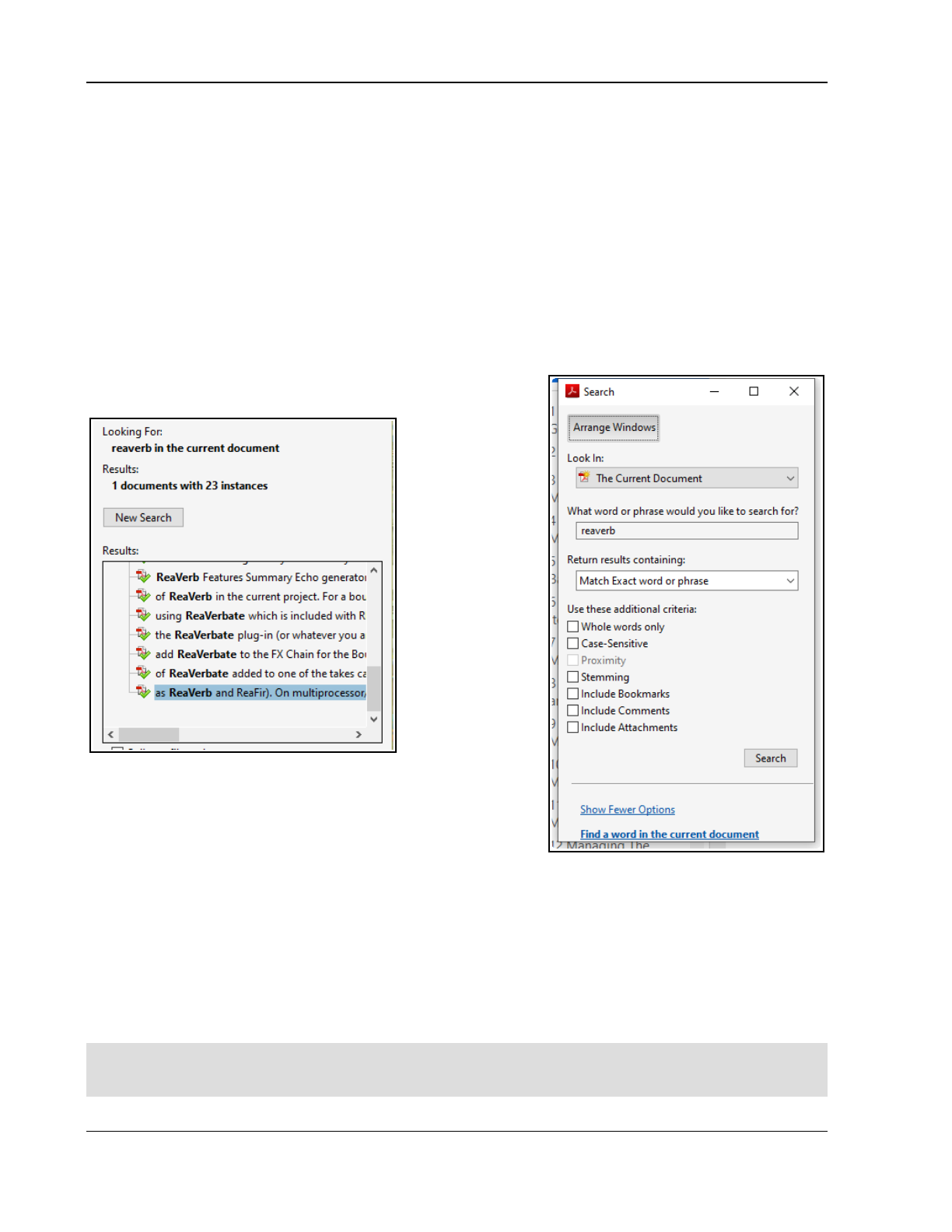
Up and Running: A REAPER User Guide v 7.81
How To Search This PDF Guide
This document is optimised for use with PDF-Xchange Editor, Adobe or Foxit. Internal document hyperlinks are
available: click on the hyperlink to jump straight to that part of the document, then use Alt Left-Arrow to return to
where you were.
Most PDF readers allow you to search this (and other) PDF documents. My personal preference is for PDF-
Xchange Editor, which has remarkably powerful and flexible search options. For users of Adobe, detailed
instructions can be found here: https://helpx.adobe.com/acrobat/using/searching-pdfs.html
That page includes various further links, including one to Advanced Search Options, including:
Press Ctrl F to open a simple search window which enables you to find a word or exact phrase. For example,
type reacomp and press enter to find the first occurrence of reacomp. Two arrows will be displayed to enable
you to move thru the document to the next or previous occurrence. This is not case sensitive.
Similarly, you could search for automation envelopes or Ctrl Alt R to find either of those phrases. Simple
search, however will only find exact matches. For example, a search for track color would find track color or
track colors or track coloring, but not color track
That's where advanced search comes in handy. Press Ctrl Shift F
to open the
Advanced Search
Window (shown on
the far right). This
will find and list in
its context every
instance of your
search string. An
example – after
searching for
reaverb
- is shown
here (immediate
right). Thus, you
are able to jump
straight to any one
of them.
Advanced Search
has many more
features than can
be detailed here:
indeed, the link at the start of this section leads to what is virtually a
manual in its own right! However, in overview, click on Show more
options or (depending on which Adobe version you are using) Use
advanced search options (at foot of window) to enable a whole
assortment of options, including.
Match any of the words. For example, type color tint to find all occurrence of color or tint, and their
derivatives (e.g. colors, tinting).
Whole words only to exclude derivatives (e.g. to find reaverb but not reaverbate), and Case
sensitive to force case sensitivity.
Match exact word or phrase, for example to find frequency spectrum only when both words occur
together.
Other supported features include boolean searches, although for this feature to be available you need to select
the directory where your PDF is stored (rather than Current Document) from the Look In drop down. To learn
more about these and other features, including Search preferences, follow the link at the start of this section.
Note: With REAPER's rapid rate of development, this edition may not be 100% up to date. For a full list of new
and recent features, choose the Help, Changelog command from the REAPER menu. To check for the latest
versions of both REAPER and this User Guide, go to http://www.cockos.com/reaper/download.php
14
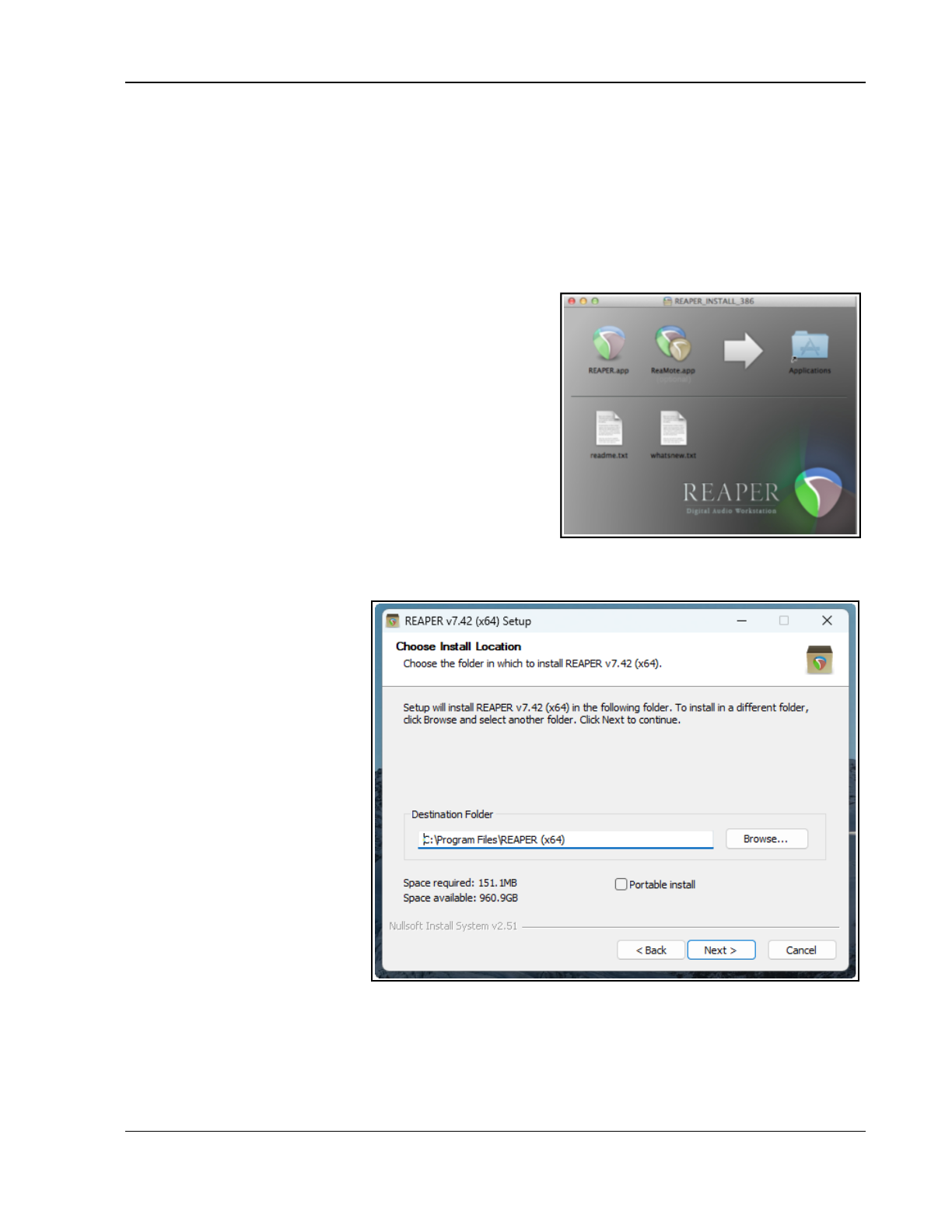
Setting Up and Getting Started
1 Setting Up and Getting Started
1.1 Downloading REAPER
To download REAPER, visit the download page http://www.cockos.com/reaper/download.php. Read the on-
screen information carefully (especially about 32 bit and 64-bit) and be sure to select the correct version for your
computer. If you keep the program for more than 60 days then you must purchase a license. To purchase your
REAPER license, go to http://www.cockos.com/reaper/purchase.php
After downloading you will need to install the program. There are differences in the installation process for
MacOS (Mac) and for Windows (PC).
1.2 Installing REAPER on a MacOS
To install REAPER on a Mac (MacOS) follow this procedure.
1. Double-click on the REAPER disk image (.dmg) file to open
it.
2. If you agree to accept the licence conditions, click on
Agree to open this file.
3. Drag and drop the REAPER icon (shown right) into your
Applications folder.
To pin REAPER to the dock, simply drag and drop the REAPER
icon from the Applications folder on to the Dock. We strongly
recommend that you should also, under System Preferences,
ensure that for your Mouse right click is enabled as a
secondary button.
1.3 Installing REAPER on a Windows PC
To install REAPER on a PC with
Windows you should follow this
sequence:
1. In Windows Explorer, find
the install file. The file
name includes the current
version number, e.g.
reaper70-install.exe.
2. Double click on this file to
start the install program.
3. Click the I Agree button to
accept the conditions and
continue.
4. For a normal install, accept
the default folder offered to
you (but see note below) -
for example, C:\Program
Files\REAPER (x64).
5. If you need to, enable the
Portable install option
(see note below), then click
Next.
6. Select which elements you wish to install (if in doubt accept the default settings - see also section 1.4
below) and click on Install.
7. Wait while the program installs. When prompted, click on Close to close the Install program. You will be
asked if you wish to run the program now: in this case, choose No.
8. Follow any other on-screen instructions.
15
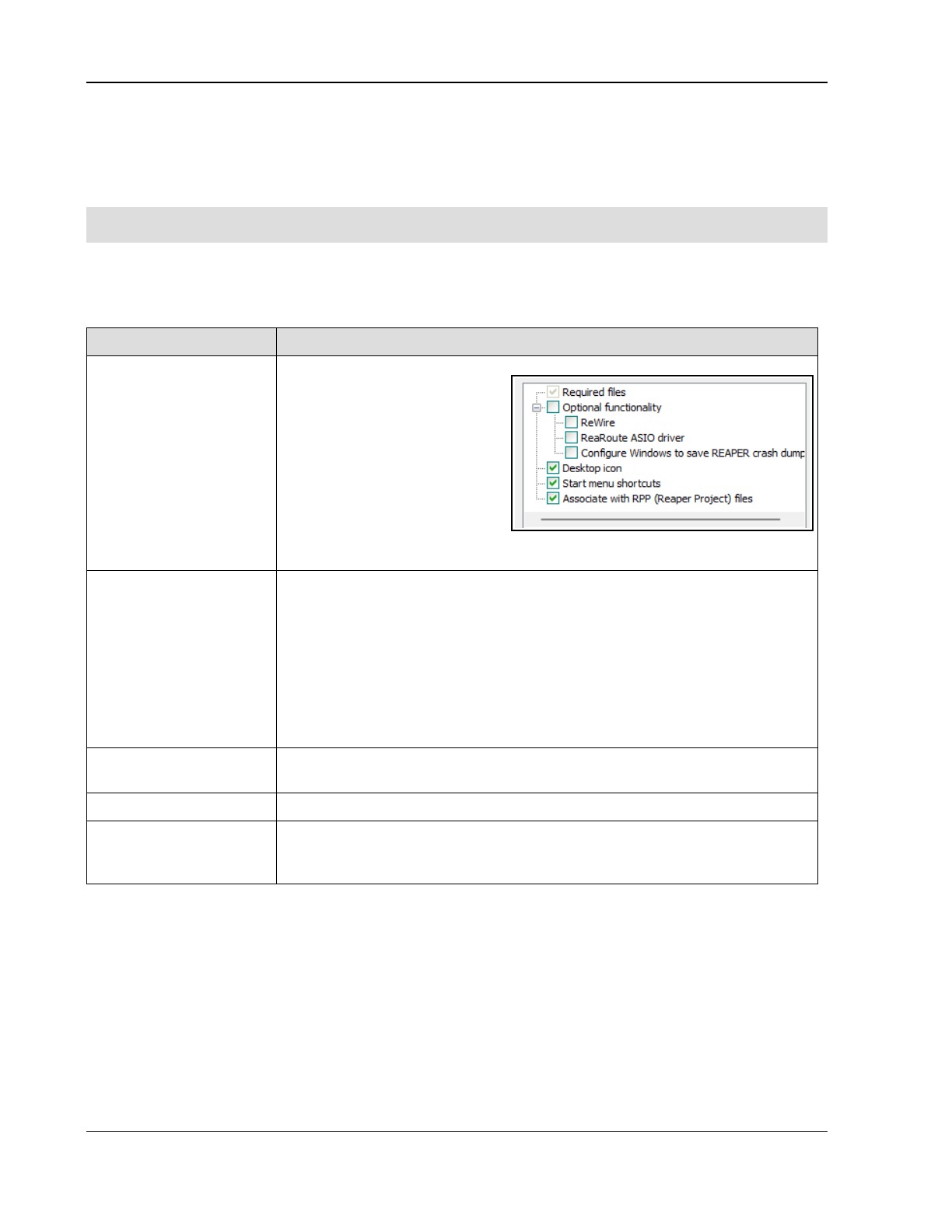
Up and Running: A REAPER User Guide v 7.81
Note: If installing REAPER for the first time, or if you wish to replace an existing installed version of REAPER
with this one, you should accept the default destination folder and not enable portable install. If you wish to
install this alongside an existing installed version (such as 7.xx), then change the destination directory (e.g. to \
REAPER7) and enable portable install. Existing settings and preferences will be preserved separately.
For more information about portable instals, see Relative Paths.
Tip: If you choose not to install some of the REAPER program elements or options, you can later change your
mind by simply running the install program again.
1.4 The Install Options (Windows only)
The Install screen lets you decide which REAPER elements you choose to install and which ones you prefer not to
install. Listed below is a summary of your main options. By default, most of them are enabled.
Item Explanation
Required files
These are the files that
REAPER needs in order to
perform effectively. You have
no choice but to install these.
A number of optional
functions are also available
(shown right and explained
below).
Make sure the boxes of any
that you require are ticked,
and that those you don’t want are unticked..
Optional Functionality ReWire
ReaRoute ASIO driver
These options enable REAPER's various advanced routing capabilities, such as
controlling the passing of audio/MIDI material between REAPER and other
programs. If you choose not to install these, you can reinstall REAPER to add
them at any time in the future.
Configure Windows to save REAPER crash dumps. This option causes
diagnostic information to be saved in the event of REAPER crashing. By default
this option is set to off.
Desktop Icon Leaving this option selected ensures that a REAPER shortcut icon will be placed
on your Windows desktop.
Start Menu Shortcuts Leave this option ticked for REAPER to be added to your Windows Start Menu.
Associate with RPP
Files
Ticking this option will enable you to open REAPER with any of your REAPER
Project files direct from Windows Explorer or any desktop shortcut that you
might create for your projects.
1.5 REAPER’s Default Settings and Preferences
Throughout this guide you will find frequent references to various preferences and settings that help determine
REAPER’s behavior.
● If you are installing REAPER on your computer for the first time, the default settings and preferences
described throughout this document will be applied.
● If you are installing REAPER over the top of, and replacing, an earlier version of REAPER, your existing
settings and preferences will be ported across to the new installation.
For example, for a brand new installation of REAPER 7, the REAPER 7 default color theme will be selected.
However, if you are installing it over an earlier version, such as REAPER 6.xx, then your previously selected
theme will be applied. You could change this using the Themes command from the Options menu.
16
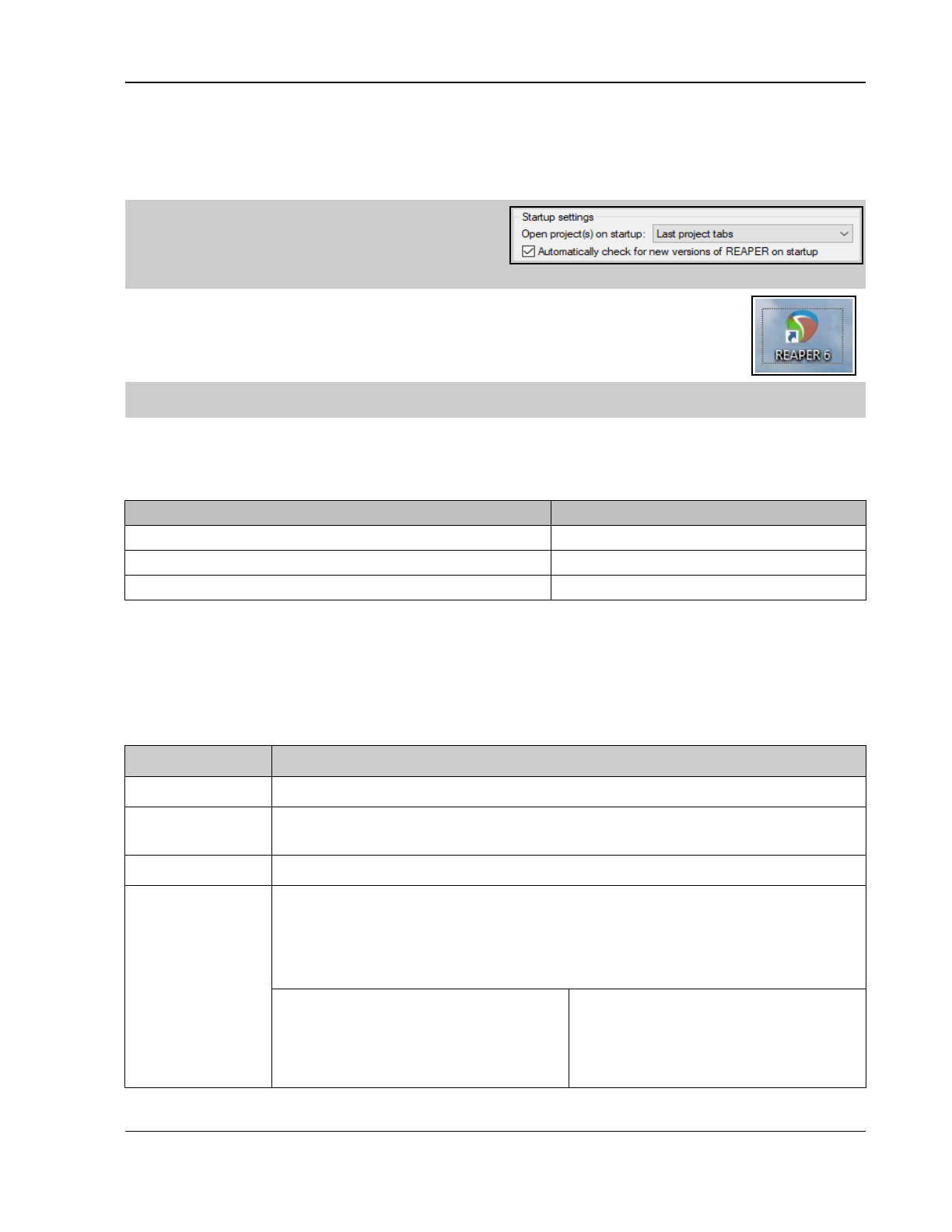
Setting Up and Getting Started
1.6 REAPER Software Updates
REAPER is updated frequently with bug fixes, new features and other enhancements. You can check for updates
at any time by visiting http://www.reaper.fm/ Simply download and install. There is no need to first
uninstall any previous version. Existing preferences and settings will automatically be carried over.
Tip: An option is available under Options,
Preferences, General (Startup Settings) to have
REAPER automatically check for updates each time the
program is started. By default, this option is enabled. If
you do not wish to be notified whenever a new version is available, you can disable it.
1.7 Starting REAPER
To start REAPER, just double click on the REAPER desktop icon. You might also wish to
consider creating a keyboard shortcut for this. For Windows users, this is done using the
Shortcut tab of the icon's Properties dialog box. Right-click over the icon to display this.
Tip: If REAPER fails to open but instead returns an error message then this is most likely because of an issue
with a third party plug-in. Try opening it using either of the methods described below (section 1.8).
1.8 REAPER Startup Tips
By default, REAPER opens with the last used project. As you will see in Chapter 22 (Preferences, General), you
can disable this behavior. Also, you can use hot keys when starting REAPER to override the default behavior:
Action Booster Key(s)
Open REAPER without loading last project. Shift (while starting REAPER)
Open REAPER without loading any default project template. Ctrl Shift (while starting REAPER)
Open REAPER without scanning new/updated VST plugins. Ctrl (while starting REAPER).
1.9 REAPER Selections, Controls and Commands
Working in REAPER involves making selections and giving commands. For example, to copy a single item you
would select the item (usually using your mouse) and then give the command for REAPER to copy it. Other
times, you will use commands that affect the whole project file without any selection. For example, you might
wish to save all your work. In that case, there would be no need to select anything – you would only need to
give the necessary command. There are four main methods commonly used to give commands in REAPER:
Method Comment
The Main Menu As with other applications, this is accessed by the mouse or keyboard.
Context Menus Click your right mouse button over an item or area of the screen to display a context
menu relevant to where you have clicked.
Toolbars Click your mouse on any toolbar button for its command to be executed.
Keyboard
Shortcuts
Many commands and actions can be accessed by keyboard shortcuts. You can also
assign your own shortcuts to other commands and actions. Chapter 15 explains this.
In some cases, different modifier keys are used for the PC and for the Mac. The
examples used throughout this guide are PC (Windows) shortcuts. Mac users should refer
to the summary table of similarities and differences shown below:
PC (Windows) Key
Shift
Control (Ctrl)
Alt
Windows
Mac (MacOS) Key Equivalent
Shift
Command (Cmd)
Option
Control
17
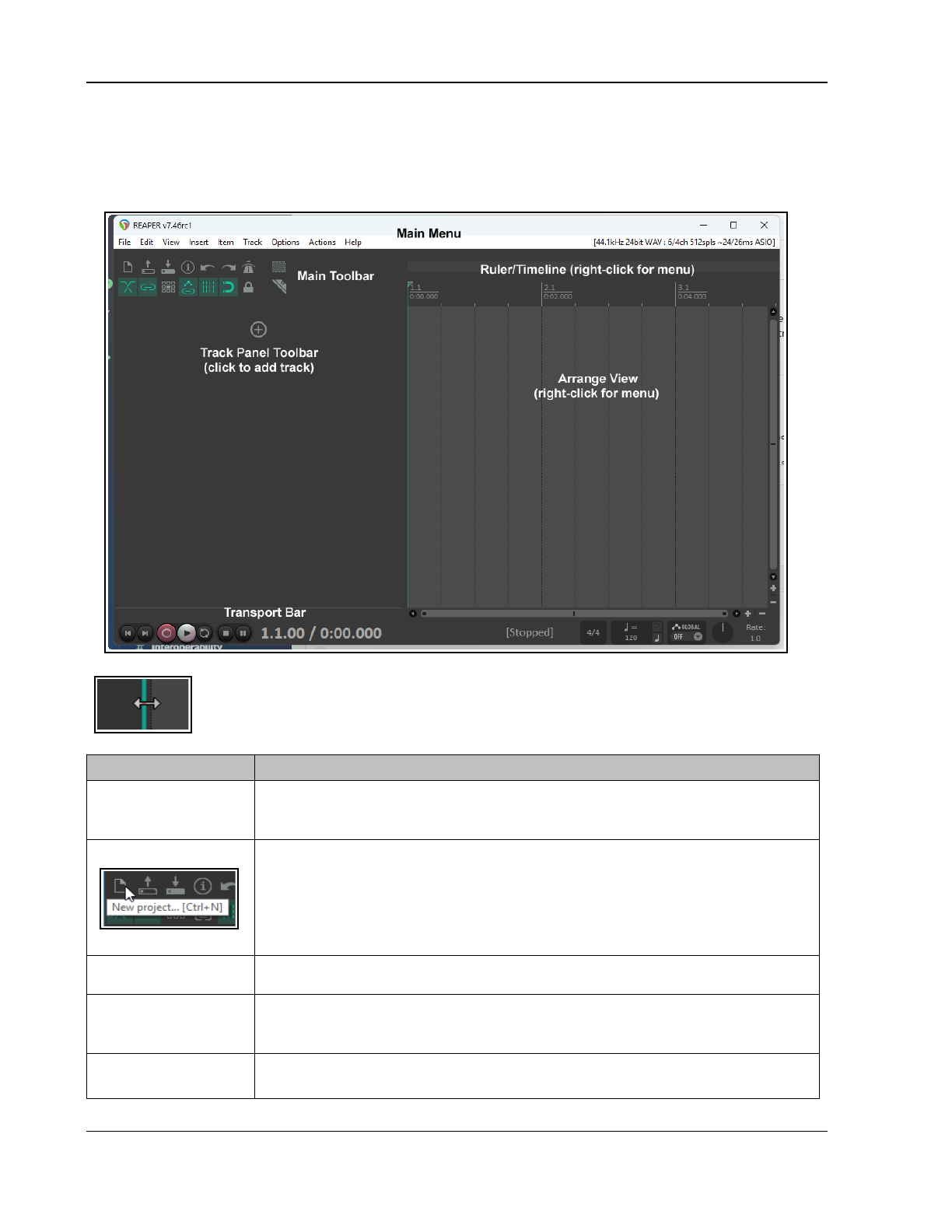
Up and Running: A REAPER User Guide v 7.81
1.10 The REAPER Screen
The screen shots shown throughout this book mostly use the REAPER 7 default theme.
When you start REAPER, it displays a screen similar to that shown below. The table below the illustration
introduces briefly each of the main screen elements.
Note: You can adjust the boundary between the arrange view and the track panel so as to
allocate screen space between the two as you wish. Hover the mouse over the border between
the track panel and arrange view to display a horizontal double-headed arrow across a light
blue vertical line. You can then drag the boundary left or right as you wish.
Element Explanation
The Menu Bar This displays the Main Menu near the top as a row of commands – File, Edit,
View, Insert, Item, Track and so on. As in other Mac and Windows applications,
the menu is used to give commands.
The Main Toolbar Just below the menu are two rows of buttons. This is the REAPER Main Toolbar.
You can hover your mouse over any button to obtain a tooltip (see example, left).
Some of the tools might appear animated. Don't worry about this for now. The
various icons are introduced and explained throughout this guide as they are
needed, and summarized at the end of Chapter 5. In Chapter 15 you will be shown
how you can customize this toolbar and/or create your own toolbars.
The Master Track
This is where the audio output of your track mix is processed before being sent to
your headphones and/or speakers.
The Track Control
Panel (TCP)
This area displays and manages the behavior of your audio and MIDI tracks - in
the example above, the project does nob yet include any tracks. Clicking on the +
sign (in the circle) will add a track.
The TCP Toolbar
This is the + sign enclosed in a circle, just below the main toolbar. Click on this to
add a new track to your project. Right click for a menu of other options.
18
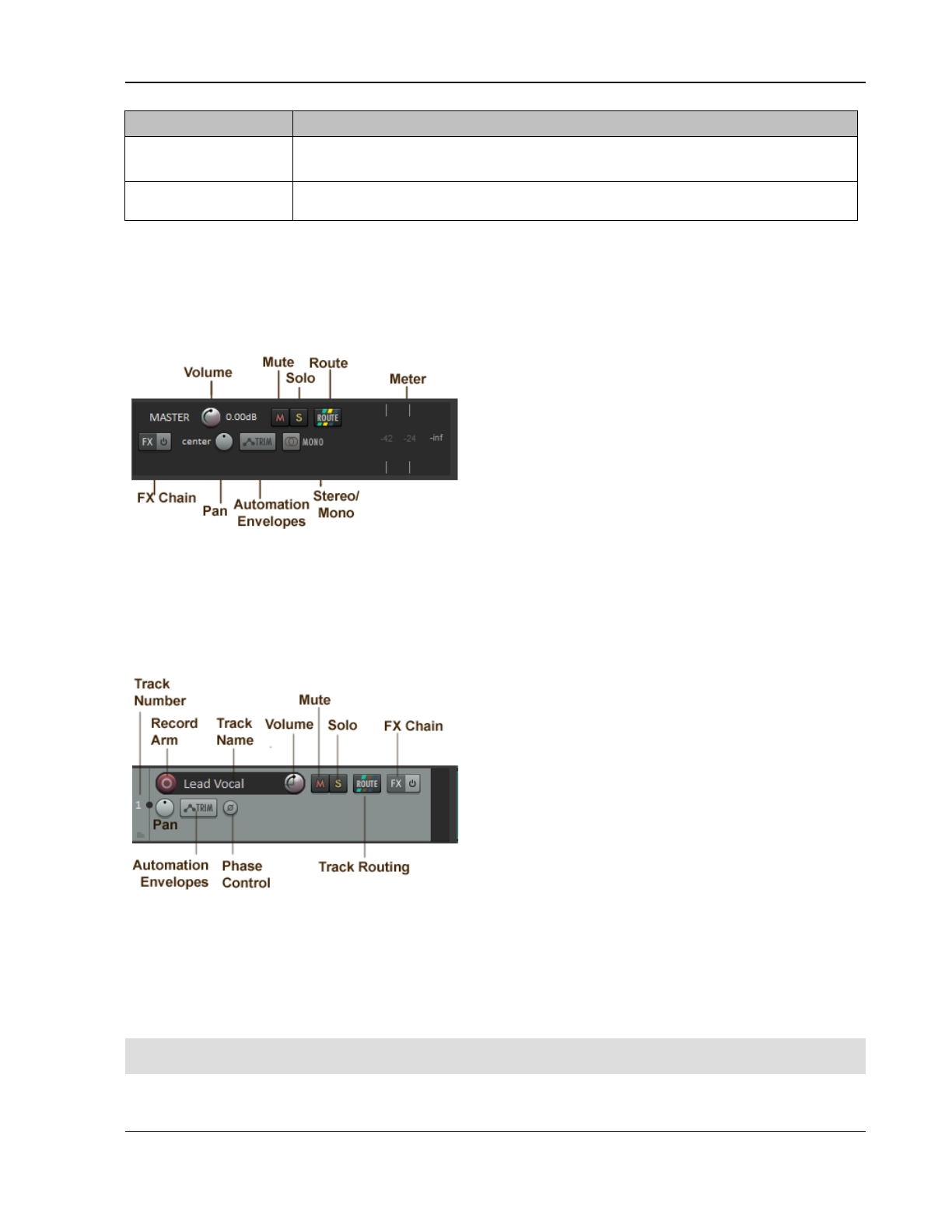
Setting Up and Getting Started
Element Explanation
The Arrange Area:
Main Window
To the right of the TCP, this contains a track's media items (audio and/or MIDI
and/or video).
The Transport Bar
This is used to control recording and playback – for example, to start and stop
recording. We'll look at this in detail in Chapter 2 and Chapter 3.
Don’t be surprised if your screen doesn’t look exactly the same as that shown. The REAPER screen can be
customized to suit your individual needs. All this will be explained as we go along!
1.11 Introducing the Master Track
The functions of the track master can appear overwhelming. Experienced hands will find this information useful:
for others, everything mentioned in this section will be explored and explained in detail later in this User Guide.
To show the master track in arrange view, choose the
command View, Master Track or press Ctrl Alt M. This
will toggle display of the master track. As its name implies,
the master track controls the output of your mix to
speakers, headphones, etc.
The functions of the volume, mute and solo controls are
self-explanatory. The route button opens a window where
you can individually control the volume and panning of the
signal sent to different paired outputs – for example, to
studio monitors and to headphones.
You can add a FX chain and control panning. As well as
simple left/right pan, right click on the pan pot for other options, e.g. to specify a pan mode and/or pan law. The
trim button gives you access to REAPER’s envelope manager, where you can automate changes to, for example,
volume, panning and various FX parameters. Finally, the Mono/Stereo button lets you specify mono or stereo
output, with various options available for mono. All these issues will be explained in detail throughout this guide.
By default the master track is pinned to the top, and will remain there even as you scroll down through a project.
1.12 Introducing the Track and Track Controls
Tracks are created by clicking on the + sign in the track
panel, or by double-clicking in the empty space that
surrounds it.. Right click for an option to add several tracks.
Shown here are REAPER's default track controls and layout.
The exact appearance may vary according to factors such
as the track height and the track control panel width.
By default, some of the available controls might not
be visible in the TCP when you first start REAPER.
This is because some controls are only needed (and
therefore only displayed) when you are preparing to record
or recording. We'll get to these in Chapter3.
The function of most of these controls is self-explanatory,
although some (such as mute and solo) can be assigned subtle variations, as you will see shortly.
Double click in the track name area to enter a name.
The record arm button is used when you nwish to record on to that track.
The track routing button opens a window for routing track output to other tracks (such as perhaps an FX bus).
The FX Chain can be opened to add FX plug-ins (such as EQ or delay) to a track. The trim button opens the
envelope manager where you can add automation for controls such as volume and pan, and for FX parameters.
The pan button adjusts the balance between left and right speakers. Phase control is used to invert phase.
Note: By default, the volume and pan controls work with audio items, not MIDI. To change this for any track(s),
choose MIDI track controls, Link track volume/pan to all MIDI channels from the right-click menu.
19
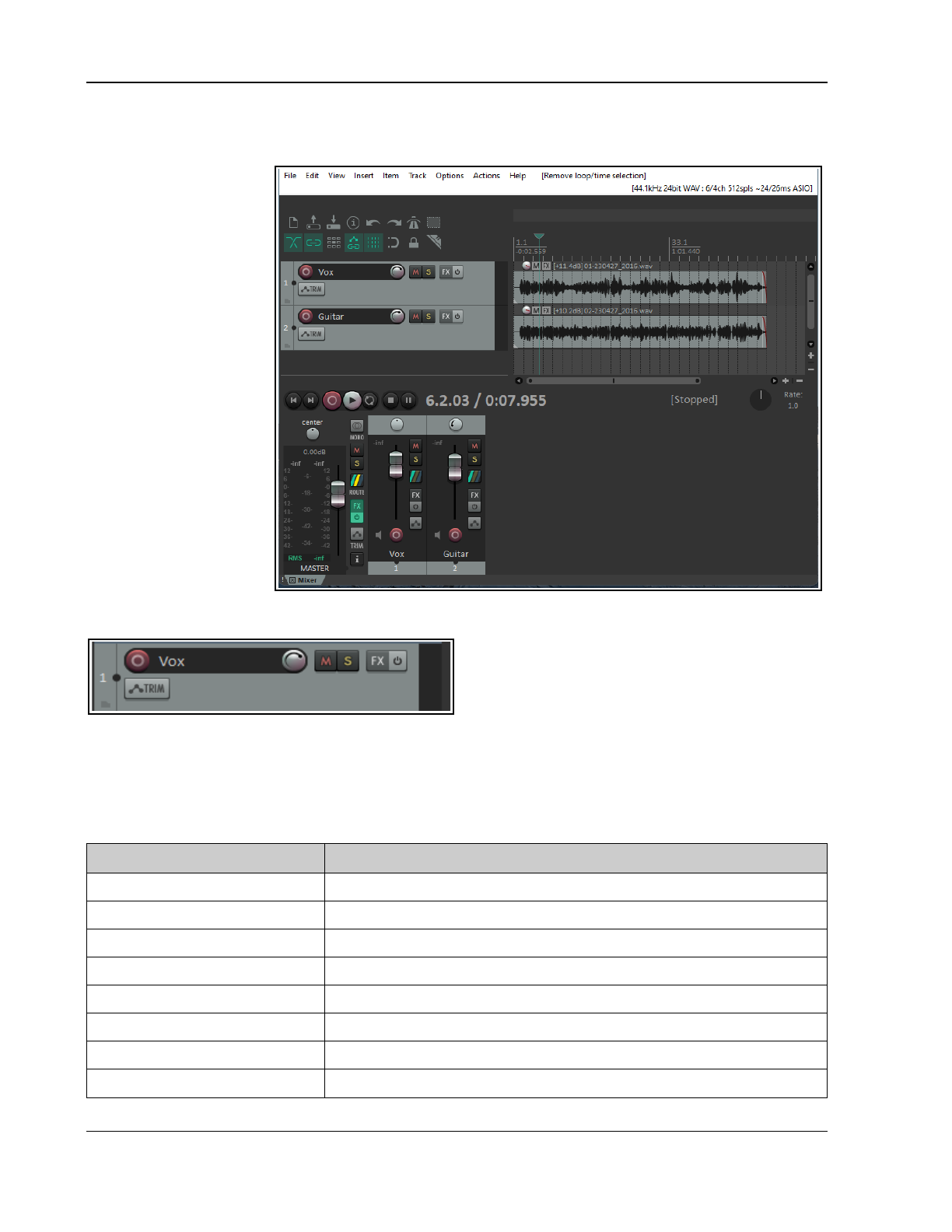
Up and Running: A REAPER User Guide v 7.81
1.13 Arrange View and Mixer View
As you become more used to working with REAPER you will need to understan d the basics of the relationship
between arrange view
(which we have already
examined) and mixer
view. Ctrl M toggles
display of the mixer. An
overview of REAPER's
mixer view is shown
here (right).
The mixer duplicates all
of the functionality of
the track panel as well
as providing a number
of additional features.
As its name implies,
arrange view is
generally the preferred
way of working when
you are building your
project – laying down
and recording tracks,
adding FX, etc.
Mixer view is at its most
useful, also as its name
implies, whenyou have
substantially finished building your project and are ready to mix it down to produce a finished project. You don't
need to know a lot about it when you are starting out. We'll explore it in detail in Chapter11.
That said, note that if you do open the mixer then
some controls will by default not be shown in the
track panel. (as shown here). These include the
routing button and the pan button. This brings us to
our next topic ...
1.14 Track, Master Track and Mixer Panels: Tips and Layouts
REAPER includes a theme adjuster module which (amongst many other things) can be used to customize your
track and mixer panel layouts. It comes with three pre-defined layouts – A, B and C - for each of these.
The default layout for the mixer is A, as shown above. The default layout for track panels is A when the mixer is
displayed, B when the mixer is closed. Layout B shows all controls. To summarize:
To do this … You can do this ...
Toggle display of master track Press Ctrl Alt M.
Toggle pin master track to top Right click over master, choose Pin tracks to top of arrange view.
Toggle pin any track to top Right click on track panel, choose Pin tracks to top of arrange view.
Insert a new track Double click in empty track panel area or empty mixer view area.
Delete an existing track Select track in panel in arrange or mixer view. Press Delete.
Toggle display of mixer Press Ctrl M.
Select a track panel layout From menu choose Options, Layouts, Track Panel, then A, B, or C
Select a mixer panel layout From menu choose Options, Layouts, Mixer Panel, then A, B, or C
20
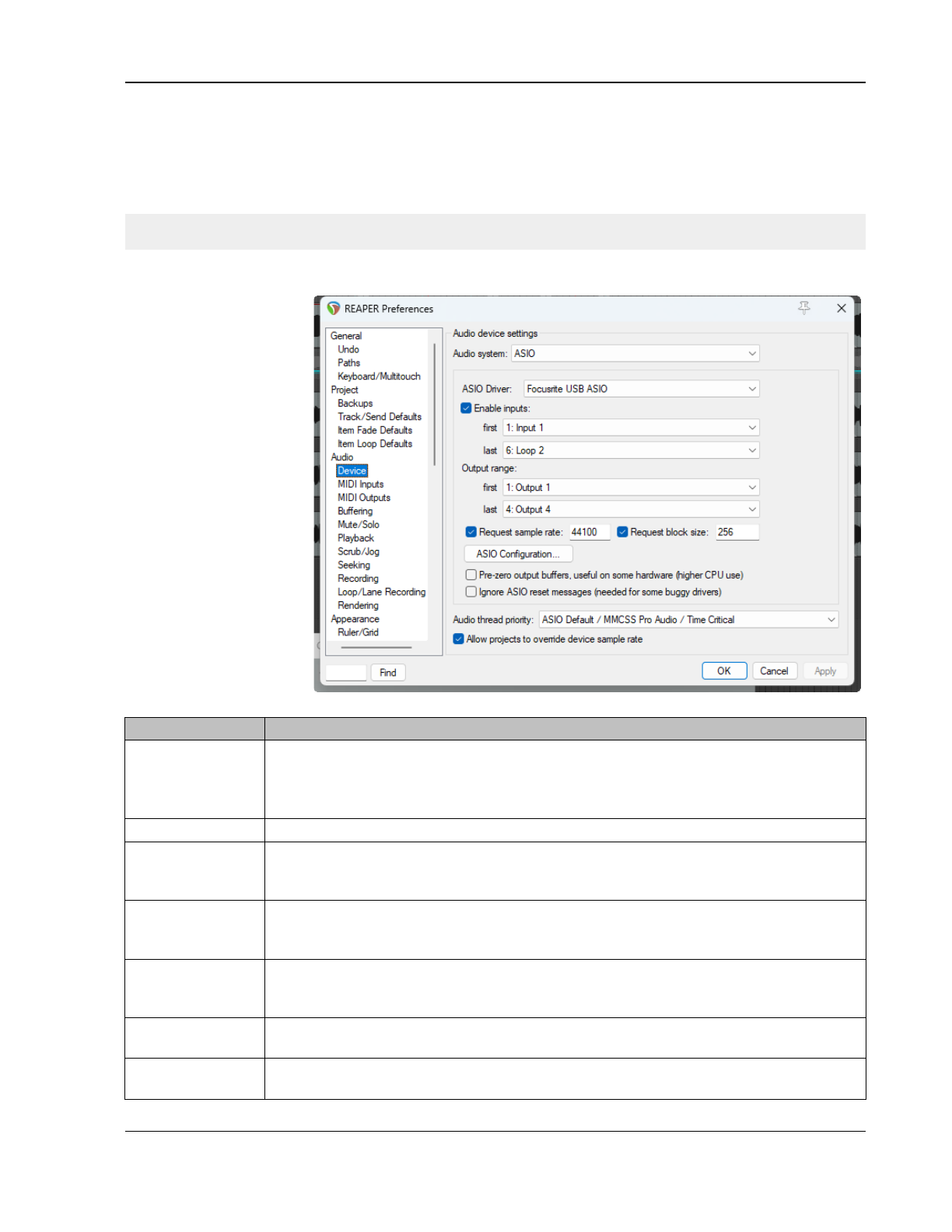
Setting Up and Getting Started
1.15 Setting Up For Audio
Before you can record or play anything you will need to set up your audio preferences. This is needed to tell
REAPER which audio device(s) you have, and how you wish to use them. There are differences in how you
should do this for a Mac under MacOS and a PC under Windows. It is also advisable to disable System Sounds.
For MacOS users, this is done in System Preferences. Windows users should use the Control Panel.
Even if you work exclusively with MIDI, you will need to set up audio to enable (for example) metronome
sounds and to use synths to play back your MIDI material.
1.15.1 Setting Up For Audio (PC Windows)
To set up your Audio
Device, first choose
Options, Preferences
from REAPER's Main Menu,
then under Audio select
Device.
If using the PC's internal
sound card, get to know its
control software (opened
from the Windows Control
Panel). This can prevent
previously recorded
material from being mixed
back in and re-recorded
with new material when
new tracks are overlaid. If
your sound card includes
its own ASIO drivers then
these are usually
preferred. On the Audio
Device Preferences screen,
you should set the
following options:
Item Comment
Audio System The other items on this screen will vary with the audio system selected. Choose ASIO
and ASIO drivers if they are available for your sound card or Firewire or USB device.
Otherwise, WASAPI or WaveOut will usually give better performance than will the
Direct Sound setting: you might need to set WASAPI to Exclusive mode.
Enable Inputs This option needs to be turned on (ticked) if you wish to use REAPER for recording.
Input Range If your device has multiple inputs (up to 512), specify the first and last that you want to
be available. In this example, eight inputs are available, allowing up to eight
microphones or lines (in any combination) to be used simultaneously for recording.
Output Range If your device has multiple outputs (up to 512), specify the first and last that you wish to
be available. Usually, your MASTER bus will direct output to a single pair of outputs, but
you can use the others also if you wish.
Request sample
rate/block size
Tick these to set sample rate and block size for your audio device here (generally
preferred), or leave these blank if you wish to use your sound card's own control
software to set these. If unsure, start with 44100 and 512.
ASIO
Configuration
If your sound card/audio device uses ASIO drivers, then clicking this button will give you
direct access to the control software for your sound card/audio device.
Audio Thread
Priority
Assigning a higher priority will ensure that audio threads will be processed ahead of
other threads (e.g. graphics).
21
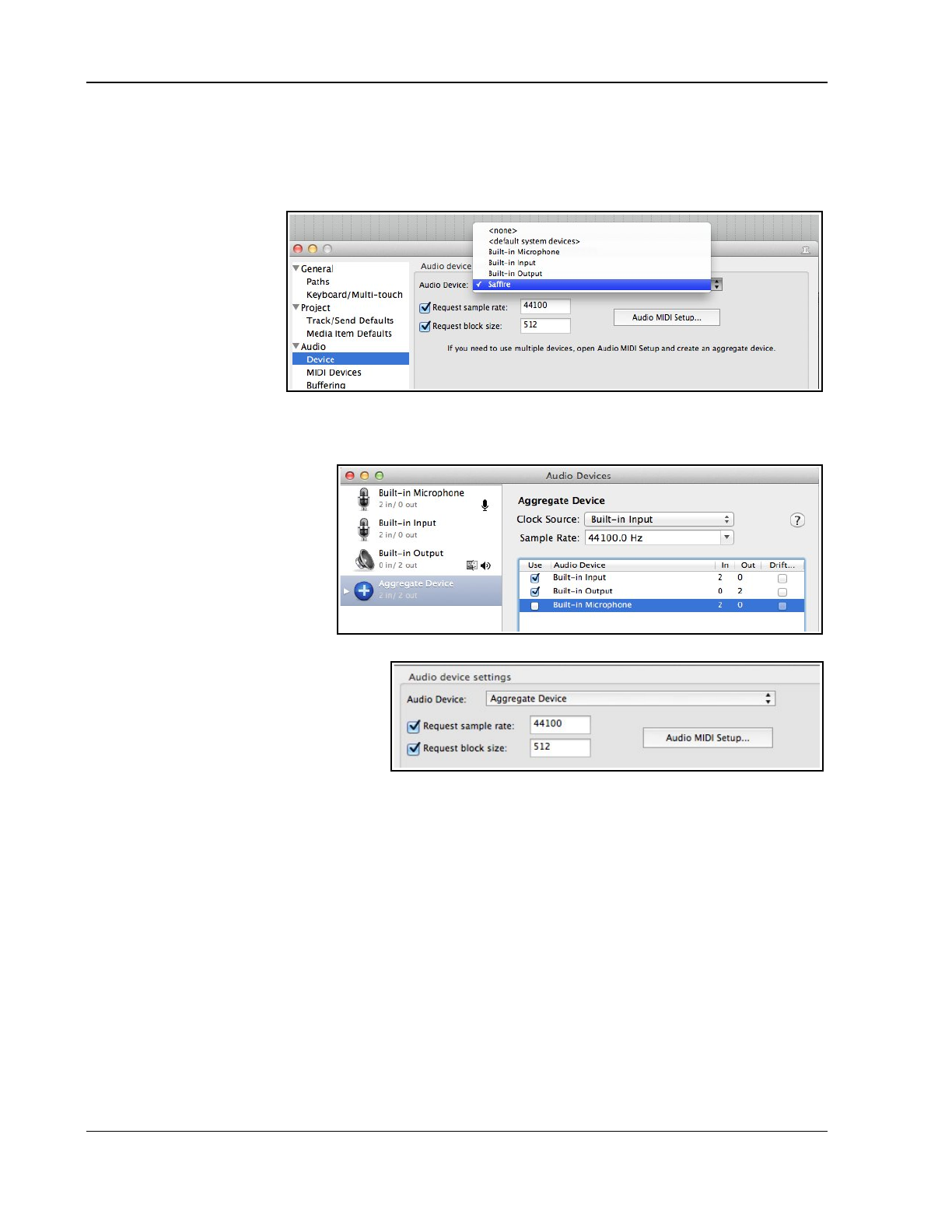
Up and Running: A REAPER User Guide v 7.81
1.15.2 Setting Up For Audio (MacOS)
Audio devices on the MacOS are set up and selected in the MacOS Audio MIDI Setup. Make sure you have first
downloaded and installed the latest Mac updates You should also check your Audio Device in REAPER. To do
this, start REAPER and choose the Options, Preferences command from REAPER's Main Menu, then under
Audio select Device from the list of headers in the column on the left.
In the first example shown
below, a USB Saffire device
(a Focusrite Saffire Pro 40)
has been installed. Saffire
has therefore been selected
so as to ensure that this
device is used for both
input and output. You can
(as shown here) set the
sample rate and block size
(which helps determine
latency) here, or you can independently open the device's own control panel and set them there. If unsure, set
these at 44100 and 512 to begin with.
If using the Mac's internal sound card, you need to prevent existing material being mixed back into, and re-
recorded with, any tracks that are
added later.
To do this, you will need an
aggregate device. Open the OS X
Audio MIDI Setup then click on
the + in the bottom left corner of
the window to create such a device.
Add to this aggregate device the
built in input and built in output as
shown here. If you wish to rename
it, double click on the text Aggregate Device.
Next, in REAPER's Audio, Device
preferences screen, select your aggregate
device and Apply your changes. You will
now be able to use your headphones with
the computer's audio out socket and your
microphone with its audio in socket. Using
an aggregate device can also resolve
routing issues which can arise if using built-in inputs and outputs.
1.16 Input Aliasing
REAPER supports Input Aliasing. This is the ability to give your own names to your audio inputs. It can be
used to shorten the long names that the system will often give to these inputs, especially when your device
supports multiple inputs. An example of the use of this feature might be to change names like Analog In 1
Delta 1010 (1), Analog In 2 Delta 1010 (1) and so on to just Mic/Line 1, Mic/Line 2, etc.
Input Aliasing is accessed from the Audio Preferences screen. Select Input Channel Name
Aliasing/Remapping. The method is similar to that used for output aliasing – see section below.
1.17 Output Aliasing
REAPER also supports Output Aliasing. This enables you to give names to your audio outputs, names that
make sense to you. This is especially useful if your sound card or other audio device provides multiple outputs.
For example, one pair of outputs might be connected to your control room monitors, another to studio monitors,
and a third pair to a multi-output headphone monitor. By default, your outputs will have names something like
those shown here (below right). Clearly, these names are not very useful to you.
Assigning aliases to outputs can ensure that whenever you see them listed (e.g, when specifying the output to
be used by your Master) your own names will be displayed, instead of the hardware device output numbers.
22
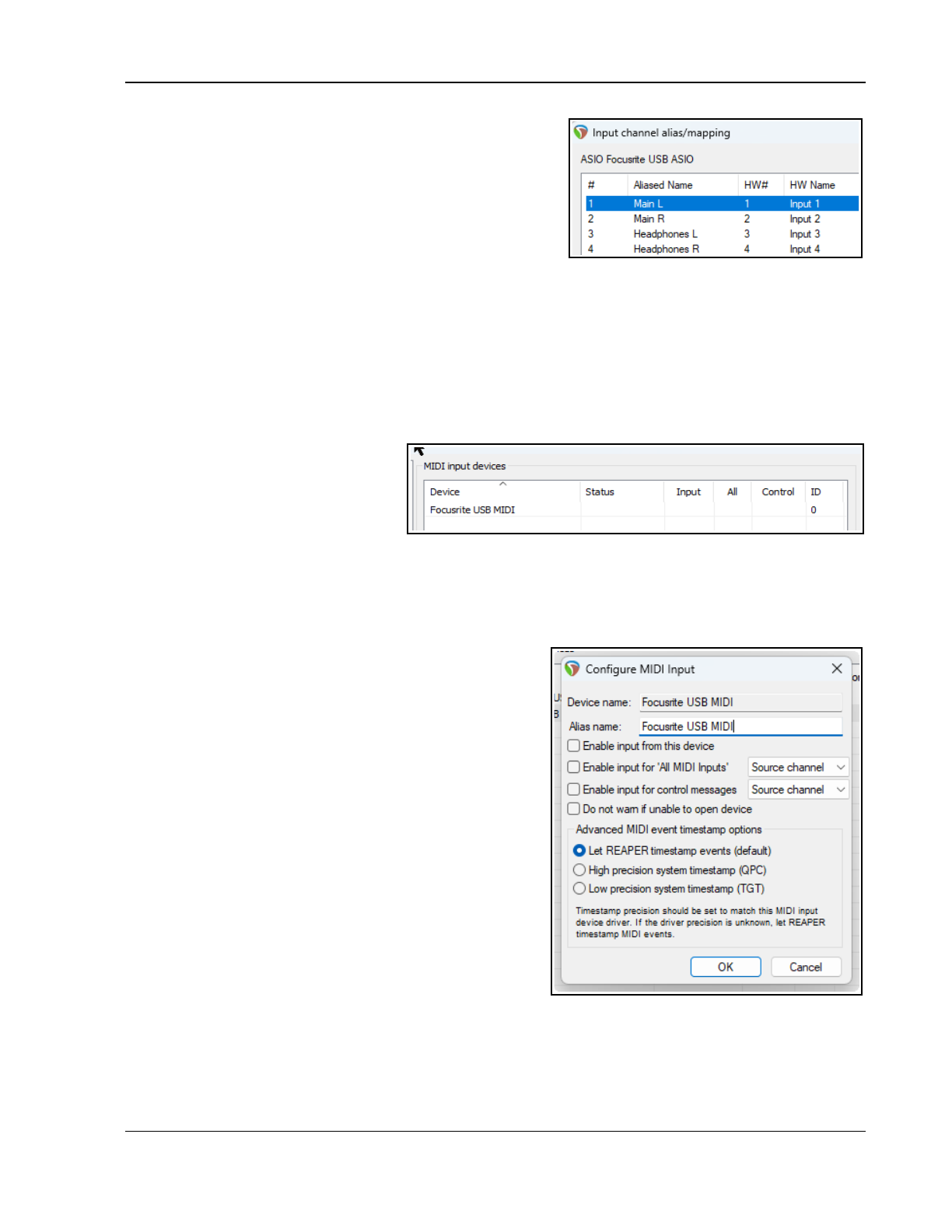
Setting Up and Getting Started
Example
To create output aliases:
1. Choose the Options, Preferences command.
2. Display the Audio page. In the section Channel Naming/
Mapping tick the option Output Channel Name
Aliasing/Remapping.
3. Click on the Edit Names/Map button.
4. Double-click in the Aliased Names column on each item in
turn to edit them, then click on OK to return to the Output Channel Alias/Mapping window.
5. Click on OK to return to the Preferences dialog box, then OK to close the dialog box.
Your specified names will be automatically used throughout REAPER. The topic of assigning outputs to tracks will
be covered later, beginning with Chapter 2.
1.18 Setting Up For MIDI
To use MIDI, you need to enable your MIDI devices. Many PCI sound cards and USB audio devices include MIDI
input and output ports (for use, for example, with a MIDI Keyboard). For beginners you should be able to simply
enable the devices and accept the default settings. Other options are available for more advanced users.
MIDI Input
Choose Options, Preferences from the
Main Menu, then Audio, MIDI Inputs.
You can select in turn each of your MIDI
Input devices, right-click over its name,
then choose Enable input for track
record input. You can double-click on any input device name to display its Configure MIDI Input settings
(see below right). This enables you to assign your own name (or alias) for the device, or to specify your
advanced timestamp options (if required). You can also Enable input for control messages if you wish to use
the device as a MIDI controller – see also Chapter 15.
Where several devices are present (input or output) you can click on any column header (Device, Mode or ID) to
sort the device list in that order. If the device list includes
items no longer present right click over its name and choose
the option to Ignore device.
To assign your own name or to specify a time offset for any
MIDI Input or Output device, double click over the device
name in the MIDI input devices list.
Enable input for all MIDI inputs lets you specify an input
channel when recording MIDI.
To use a Control Surface, such as a Presonus Faderport, with
REAPER, you should double-click on its name to open the
dialog box shown here, then choose Enable input for
control messages. If you are working with several devices
you can thus ensure that any device’s input will always be
received on its own specified channel. The use of Control
Devices will be explained later in this guide, notably in
Chapters 12 and 15.
Reset: Near the foot of the MIDI Input Devices preferences
window there is the options for Reset all MIDI devices.
Loopback: The Add virtual MIDI button includes an option
to Add loopback MIDI device. This allows a device to
receive the MIDI of the matching output, with a delay of one audio block. This option is best avoided by
beginners.
If you wish to use a joystick with REAPER you should click on the Add virtual MIDI button on the MIDI input
devices screen, then Add joystick MIDI, then select the device name and processing script. You can also
specify whether you wish to use it for Virtual MIDI Keyboard input an/or as a MIDI control/learn device.
23
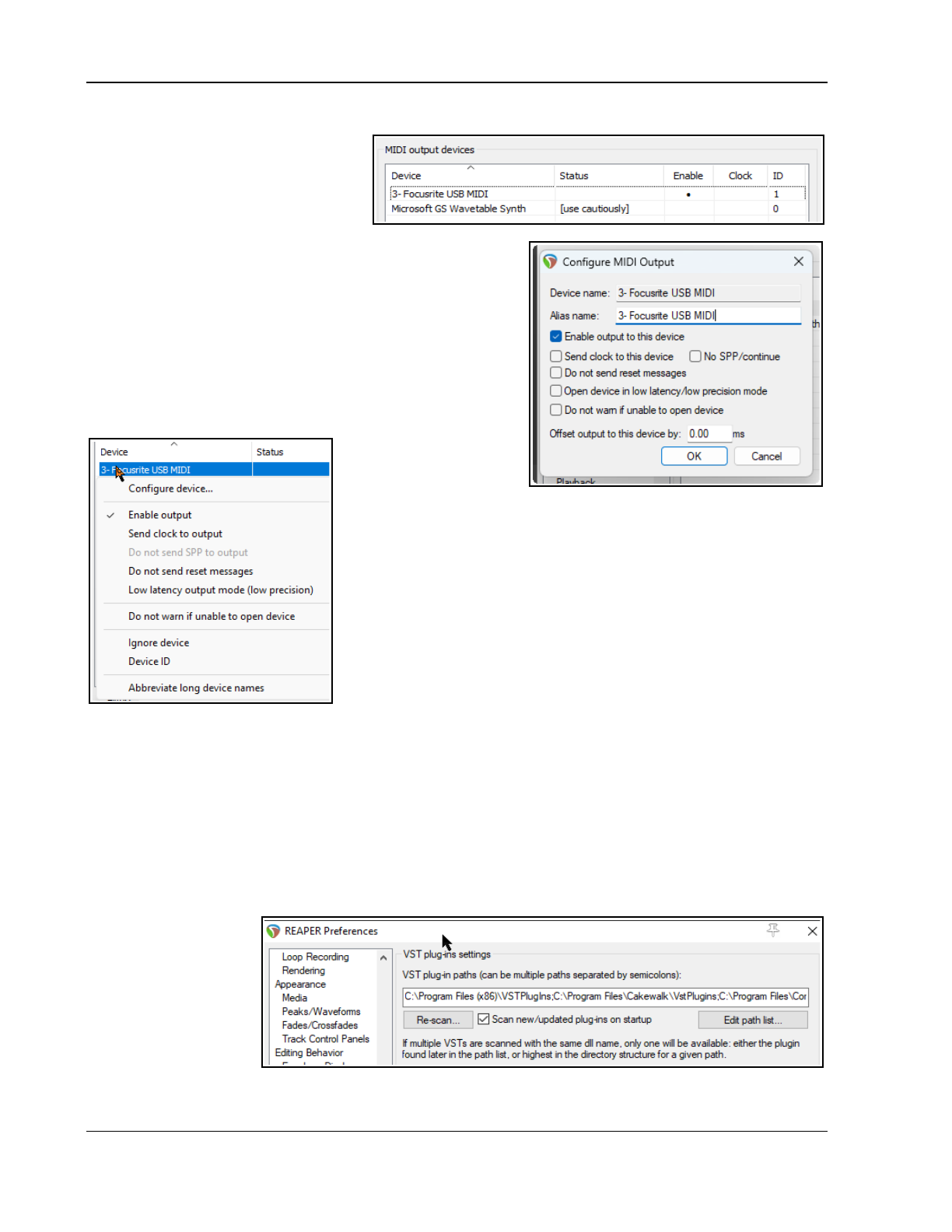
Up and Running: A REAPER User Guide v 7.81
MIDI Output
Choose Options, Preferences from the
Main Menu, then display the MIDI
Outputs screen (under Audio). You can
select in turn each of your MIDI Input
devices, right-click over its name, then
choose Enable Output. You can double-
click on any input device name to display its Configure MIDI
Output settings (right).You can assign a name (or alias) for the
device, or specify your advanced timestamp options (if required).
Experienced users might wish to note that these options are also
available on the context menu that is displayed by right-clicking
on the device (shown below).
This screen also presents several checkbox options: Restrict
MIDI output to one thread, and options to determine how and
when to Reset. Leave these at their default settings.
Other Audio Preferences.
Other Audio Preference
screens including
Buffering, Playback
and Recording will be
dealt with later in this User Guide, particularly in Chapter 22. For now
leave these settings at their defaults: you can change them later if the
need arises. Clicking on OK will close the Preferences box and cause
your settings to be remembered.
This section has covered the general issues involved in setting up your
system for working with MIDI. For project specific settings and options,
see Chapter 2. In particular, if you are working primarily with MIDI
material you may wish to change the default project timebase setting.
This too is explained in Chapter 2.
1.19 VST, CLAP and LV2 Plug-ins
There’s one further Preferences screen you will probably want to visit
before you get started – VST Plug-ins. REAPER has several pages of Plug-in Preference screens, but most can
(at first at least) be left to their default settings. However, if you have a collection of VST and/or VSTi Plug-ins
(including VST3), REAPER needs to be told where to find them. Note that VST3 plug-ins should be kept in
directories separate from other plug-ins.
Choose Options, Preferences , then select VST in the Plug-ins section. You can use the Edit path list…
button to locate your plug-ins. This offers you a number of options. Add system VST paths will detect and
select those directories used by default for installing many plug-ins. You can also use the Add path... option to
identify and add other folders. You can leave most other settings as they are (at least for now).
MacOS uses two “built in” folders for installing shared plug-ins. These are Library/Audio/Plug-Ins and
Users/<your account>/Library/Audio/Plug-Ins. REAPER will scan these by default: you should, however,
check that they are
automatically listed as
your VST plug-in paths.
If not, you should add
them.
By default, REAPER will
scan the specified
directories to look for
new plug-ins each time
it starts up. You can
disable this by turning off the option Scan new/updated plug-ins on startup.
24
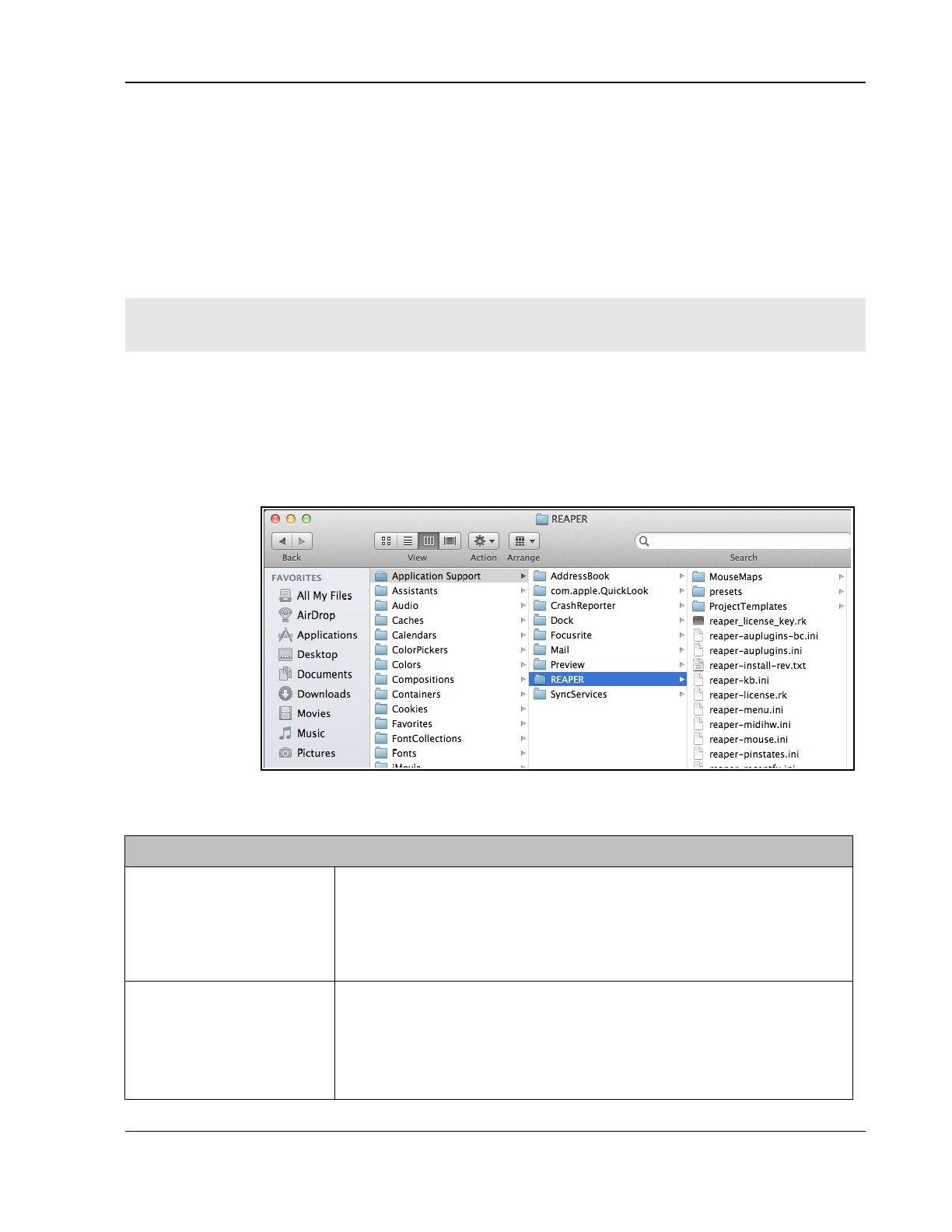
Setting Up and Getting Started
Windows by default uses C:\Program Files\Common Files\VST3, but if your VST plug-ins are spread across
several folders it might not be able to locate all of these for you. In this case you may need to use the Add path
... option several times, each time selecting one of your folders. Use the OK button in the Browse for folder
window each time after selecting the folder name. Clicking the Re-scan button in the above window will then
make the contents of your VST and VSTi folder(s) available immediately. REAPER will also scan any subfolders.
Re-scan… button will also check for any listed plug-ins that failed to scan earlier.
REAPER will automatically scan your VST folders each time the program is launched. You can also return to this
screen at any time and add more VST folders later. Specify the extra location(s) of your VST plug-ins, then Re-
scan then Apply then OK to close this screen and cause your new settings to be remembered. You can find
more information about the various VST Preferences settings and options in Chapter 22.
VST and VST3: important note: REAPER scans for VST plug-ins according to your directory list, from left to
right. If a VST3 plugin is named even slightly differently from its VST version, both will be installed. If both are
named identically, only the last one found will be installed. Consider making your VST3 directory last in the list.
Of special use to Linux users, REAPER will also automatically scan for LV2 plug-ins, and install any that it finds.
Various options for managing LV2 plugins are available on the Options, Preferences, Plug-ins, LV2/CLAP page.
REAPER also supports Clever Audio Plugin format (CLAP) plug-ins. Options for scanning and installing these are
also available on the LV2/CLAP preferences page.
1.20 REAPER’s Installed Folders and File Location
The locations to which REAPER's various resources are installed will depend on whether you are using OS X or
Windows, and
even then which
version: for
example,
Windows 11
behaves
differently from 7.
To identify where
the various files
are located,
choose Show
REAPER
resource path in
explorer/ finder
from the Options
menu.
Shown here is an example of the OSX Finder path. The Windows Explorer display is similar. Several of these files
will be referenced elsewhere in this guide. Meanwhile, you might find the following table helpful:
REAPER’s Installed Folders and File Locations
The Registry
(Windows only)
Windows users note: REAPER does
not
store any install data, settings or
preferences in your Windows Registry. Windows will set up an item for
REAPER under HKEY_ LOCAL_MACHINE, Software but it contains no data
other than keeping a record of your file movements in Registry areas such
as its MUICache and creating file associations, so that you can open .RPP
files (for example, in Windows Explorer) by double-clicking on them.
The REAPER Install
Directory – MacOS
MacOS installs REAPER to its Applications folder. Copy any PDF files (such
as this User Guide) that you want to be able to access from REAPER's Help
Menu to:
/Users/<username>/Library/Application Support/REAPER
With some versions (e.g. Lion) you may need to hold down the Options key
while displaying the Go menu to make this path accessible.
25
Up and Running: A REAPER User Guide v 7.81
REAPER’s Installed Folders and File Locations
The REAPER Install
Directory - Windows
By default, REAPER on Windows installs to C:\Program Files\REAPER
Copy into this directory any PDF files (such as this User Guide) that you
want to be able to access from REAPER's Help Menu.
Some of the optional install items are held in sub-folders of C:\Program
Files\REAPER. These include the COCKOS ReaPlug VST plug-ins and (if
installed) the SWS Extensions. Anything stored in this directory is accessible
to all users of REAPER on this computer.
Most REAPER features (such as configuration files and custom settings) are
placed into an Applications Data or AppData folder. The location of this will
depend upon which version of Windows you are using.
The Application Data/
Support Directory
To access the REAPER AppData or Application Support folder, choose
Options, Show REAPER resource path... from REAPER's main menu.
Some of the main items you can expect to find there are listed below.
Sub Directories You should find that you have a number of sub-directories here, such as:
Color Themes
Configurations
Cursors
Data
Effects
FXChains
KeyMaps
MenuSets
Plug-ins
Presets
Project Bays
ProjectTemplates
QueuedRenders
Scripts
TrackTemplates
User Plugins
Many of these are self-explanatory, especially those which contain the
various files and items that you can create yourself as an aid to managing
your REAPER projects. For example, any FX Chains that you create will be
stored on the FXChains sub-directory. Custom menu and toolbar data is
stored in the MenuSets sub-directory, and so on.
Topics such as creating FX Chains and Custom Menus are covered
elsewhere in this user guide.
Information held in the Data directory includes track icons and toolbar
icons. The Effects folder is where your JS effects are stored.
preset-vst-
plugname
.ini
For each VST plug-in, a separate file is used to store any presets that you
have created or imported.
REAPER.ini
This includes all of your Options, Preferences settings, information about
your last screen layout, and your recently used projects history.
reaper-dxplug-ins.ini
reaper-vstplug-ins.ini
These files store information about your installed plug-ins.
reaper-reginfo.dat
reaper-reginfo.ini
Store your product registration data
reaper-recentfx.ini
This file stores a list of your recently used FX: this list is used to produce the
Recently Used FX submenu that is available in the Mixer.
screensets.ini
This file stores details of your windows screen sets. Note that track screen
sets are stored with the relevant .RPP file.
Specify Default Paths for
Saving new projects,
Recording and Rendering
(see also Chapter 3 and
Chapter 22).
You can use the General, Paths page of your Options, Preferences to
specify default paths saving new projects and for your recorded media
items. For recorded media, however, any path specified in your Project
Settings will take precedence over this.
You can also specify default paths for your waveform peak files and for
project rendering.
26
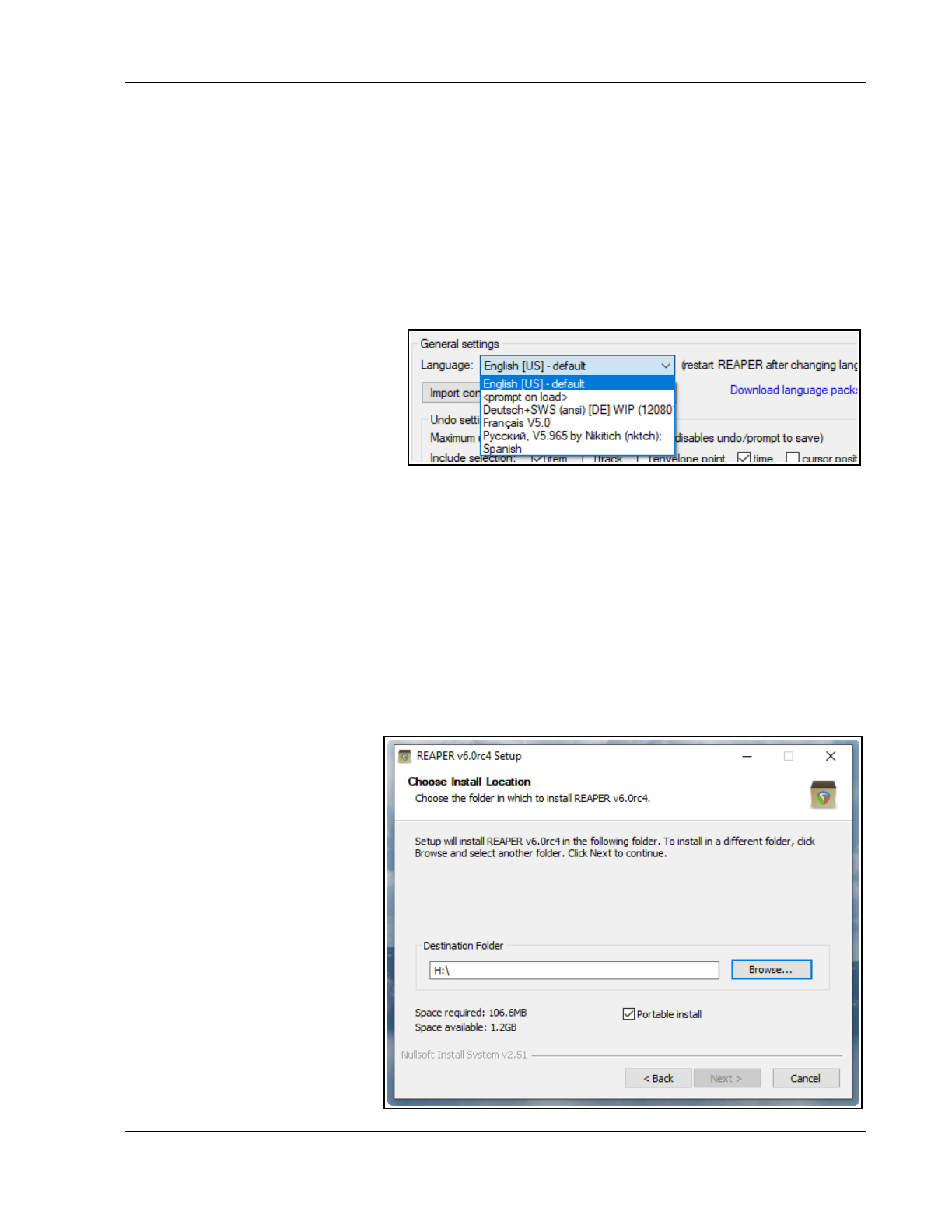
Setting Up and Getting Started
There’s one more thing that might interest you here. All of the settings, preferences and custom files are text
files. Any of them can be opened and modified using a text editor such as Notepad. This even applies to
REAPER’s project files, with .RPP extension. Of course, most probably you will never need to do this, and if you
do, you should always take a copy first, just in case of any errors or accidents. However, you should never try
to use a text editing program to open, view or edit any file ending in .app, .dmg, .exe or .dll
1.21 Localization and Language Packs
You can select a language pack for REAPER to use for its menus, dialog boxes, tool tips, and so on. The default
language is U.S. English. Language packs are managed from the General page of REAPER's Preferences.
To see what language packs are available, and to download any, click on the link Download language packs
(see below). This will take you to a URL where you can follow the links (including to REAPER Stash) to find your
language. After downloading, close the
Preferences window and use the
command Options, Show REAPER
resource path in Explorer/Finder to
display REAPER's resource folders. Next,
drag and drop the downloaded file(s)
into the LangPack folder.
To select a language pack other than
U.S. English, select from the drop down
list (right) and click on OK. You will need to restart REAPER for the language to take effect.
1.22 Backing Up Settings
In this chapter you have been introduced to some of REAPER's settings and preferences. As you progress, you
will find many more. You can back up these settings and preferences at any time. This can be a good precaution
to take against system failure, and can also be used to ensure identical REAPER installations on two or more
machines. The procedure for doing this is explained in REAPER’s General Settings (Chapter 22) in the categories
Import Configuration and Export Configuration. Don't be concerned if you do not yet understand the meaning of
many of the options. Just keep it in mind that this facility is always available.
If uncertain about what to back up, it can be a sensible precaution to backup all your configuration settings from
time to time, each time to a new ReaperConfig.zip file. How often you should do this really depends on how
often you make changes to any of your settings, and how important those changes are to you. Remember to
keep a copy of your ReaperConfig.zip files off line, for example on an external drive or a USB flash drive.
1.23 Running REAPER on
a Flash Drive
You can install REAPER on a USB
flash device, or other external drive.
This ensures, for example, that if
you are going to be away from
home or your normal workplace,
you can take your USB Stick (or
external drive) with you, plug it in
to a computer, and away you go.
Before you can install REAPER on a
flash drive, it makes sense to first
install it on your hard drive. When
you then install REAPER to an
external device in this way, all your
settings, preferences etc. are also
migrated.
The install method is different for
MacOS and Windows users.
27
Up and Running: A REAPER User Guide v 7.81
MacOS
1. Insert the flash drive into a USB port. Create a new folder on this flash drive, e.g. REAPER4. In this folder
create an empty text file called reaper.ini
2. Open the Mac folder containing the REAPER disk image (.dmg) file: this will most likely be Downloads.
3. Double click on this file to open it. Drag and drop the REAPER icon to the new folder on the flash drive.
4. Be patient. There is a large number of files to be transferred. This can take 10 minutes or more.
Windows
1. Insert your external device into an available USB port on your PC. Note its drive letter (e.g. E:, F:. G:, H:.
I:. etc.). This will depend how many internal hard drives, disk partitions, external hard drives, DVD
burners, etc. you have already installed.
2. Double click on the REAPER install file to start the install process.
3. Click on I Agree to accept the license agreement. The Choose Install Location window will be displayed.
4. Enable the option for Portable install.
5. Click on Browse. Select your flash drive and click on Make New Folder. Name the folder (e.g. REAPER)
and press Enter.
6. On returning to the screen shown here, work your way thru the installation process in the normal way.
7. Wait while the various files are installed. There are a lot of files and this might take quite a few minutes.
1.24 REAPER Start Menu Options (Windows only)
Normally to start REAPER you can simply double-click on your Windows desktop shortcut. This will cause REAPER
to be started in accordance with your existing preferences and settings. However, for times when you do not
wish to do this, you should also be aware of other options available from the Windows Start menu.
Click on the Start button, then All Programs then REAPER (or REAPER x64, as appropriate) to be presented
with a flyout menu of choices:
Menu Command Explanation
Install REAPER to USB key This can be used to install REAPER to a Flash drive or similar device.
However, the method described earlier in this Chapter is simpler!
REAPER Starts REAPER normally, with last project.
REAPER (create new project) Starts REAPER with a new project file.
REAPER (reset configuration to
factory defaults)
Starts REAPER and resets all settings, options and preferences to factory
defaults. Use this with caution!
REAPER (ReWire client mode) Opens REAPER as a ReWire client. This is beyond the scope of this User
Guide, but is discussed in overview towards the end of Chapter 17.
REAPER (show audio
configuration on startup)
Starts REAPER with the Audio settings Preferences page.
REAPER EULA Displays License information.
Uninstall REAPER Uninstalls REAPER. If you need to uninstall REAPER for any reason, you
should always use this method.
Whatsnew.txt Opens the text file displaying a history of new features and changes
introduced in each version of REAPER.
28
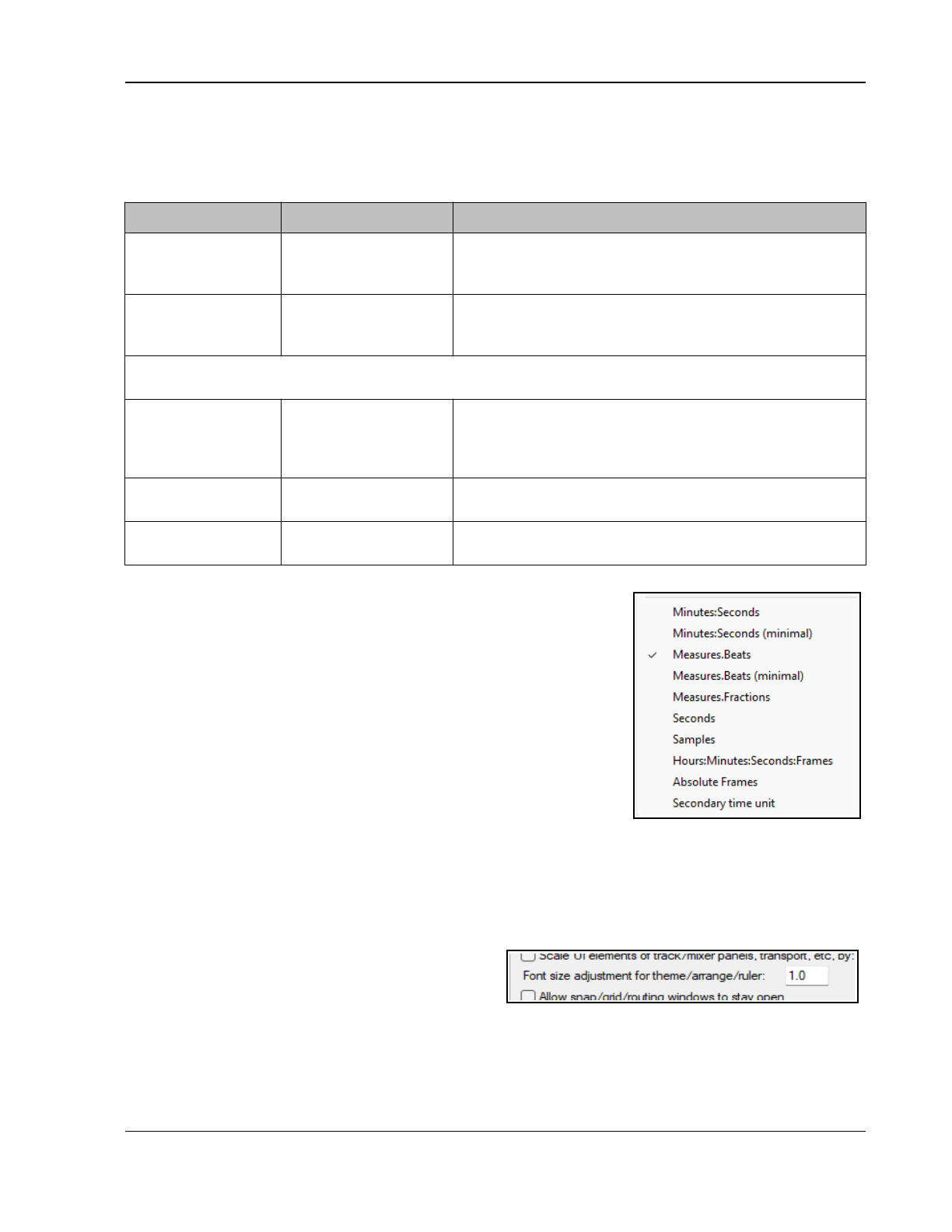
Setting Up and Getting Started
1.25 REAPER File Types
Like any other program, REAPER creates a series of files that it uses to store your work. Some of the main file
types and their purposes are described in the table below, along with other useful information.
File Type Example Explanation
.RPP
REAPER Project File
Alone.RPP
This file is the core of your project. It holds all the
information about your tracks, your media and their
settings. .RPP files are stored in text format.
.RPP-bak
Project Backup File
Alone.RPP-bak
When you save an existing project file, the previous version
is saved with the .RPP-bak extension. You can recover a
project from its previous state by opening the backup file.
Note: Sooner or later you should familiarise yourself with REAPER’s project backup options (see section
22.3.1 of this guide) for managing and organising your backup files.
.RPP-UNDO
Undo History File
Alone.RPP-UNDO
This file type will be created if the option to save undo
history with your project files is enabled in the Undo
Settings section of the General section in your Options,
Preferences window. See Chapter 2 for more information.
.reapeaks
REAPER Peaks File
Vox.wav.reapeaks
Contain the information necessary to enable REAPER to
draw the waveforms etc. on your media items.
.reapindex
REAPER Peaks File
Vox.wav.reapindex
These files contain index information about your individual
media items.
1.26 Ruler Display Options
You can choose which units of measurement you prefer to use from the
Arrange View context menu. Right click your mouse over the ruler and
choose from any of the options at the bottom of the menu, shown here.
The default setting is Measures.Beats.
Minutes.Seconds Seconds
Minutes.Seconds (minimal) Samples
Measures.Beats Hours.Minutes.Seconds.Frames
Measures.Beats (minimaal) Absolute Frames
Measures.Fractions Secondary time unit
1.27 Adjusting Font Size
New users are advised to proceed with caution here!
For the most part this chapter is not the ideal place to be discussing advanced topics. However, there is one that
can be so important for the visually impaired as to merit consideration right up front.
Go to Options, Preferences, General and click on the button Advanced UI/system tweaks…
Look for the text Font size adjustment for
theme/arrange/ruler. The default setting is 1.0.
You can change this: for example, a value of 1.1 will
increase font size for these elements by 10% when
you click OK and close this window. This can make it easier to read, for example the track panel, ruler and
transport bar.
If you make a mistake or change your mind the Restore to defaults button will get you out of jail!
You can learn more about Advanced UI/System tweaks in section 22.14
29

Up and Running: A REAPER User Guide v 7.81
1.28 User License Information
By default, REAPER's title bar will display license information such as the registered user’s name. This can be
changed on the Purchase tab of the window that is opened by the Help, About REAPER command.
Alternately, you can set your display to full screen mode – this is toggled on and off in Windows by pressing
F11, in OS/X by Cmd F11.
1.29 Pops and Clicks
You're nearly ready to start making music with REAPER! Before you do, though, you should take a few moments
to read this section, which deals with the not uncommon problem of unwanted pops and clicks being heard when
you play back your music. This is a computer issue rather than a REAPER specific issue, and is generally less
likely to occur with a Mac than with a PC.
If you encounter unwanted pops and clicks when you play back a song in REAPER, then most probably all it
means is that your audio device settings are not right for your computer. As a quick fix, try adjusting the block
size (Preferences, Audio, Device), starting at 128 and working up thru, 256, 512, 768 or 1024 to find the
lowest setting for your system at which you can play back your music without any pops or clicks getting in the
way. If you do encounter this problem, you should also read Chapter 22 to learn more about this topic.
1.30 Uninstalling REAPER
There is no need to uninstall your current version of REAPER before installing a new one. Your existing
installation will automatically be upgraded from the new installation. However, should you wish to uninstall
REAPER for any reason, MacOS users should simply drag the REAPER icon into Trash and then remove the folder
~/Library/Application Support/REAPER. Windows users should follow this procedure:
1. Click on the Windows Start button, then All Programs, then REAPER then Uninstall REAPER.
2. When the REAPER Uninstall Wizard is displayed, click on Uninstall.
3. When the uninstall process is finished, click on Close.
4. When prompted, choose Yes if you wish to see which files have been left on your Hard Drive, otherwise
choose No.
Tip: If you are likely to be reinstalling REAPER at some later date, do not remove these files. This will ensure
that yor previous settings and preferences will be recalled when it is reinstalled.
1.31 Relative Paths
This section is recommended for users who might be new to REAPER but are experienced Windows or Mac
users.
REAPER’s Preferences (Options, Preferences) enable you to customize many aspects of REAPER’;s appearance
and behavior. These are referenced at several places in this document, and detailed in their own chapter
(Chapter 22). The General, Paths page lets you specify default locations for saving new projects, recording,
and more.
For example, the wildcard $project can be used to ensure that a project will be saved in a directory or
subdirectory bearing the same name as the project. This can be especially useful when you are working with a
portable installation.
Suppose that you're using a portable instal: if you create a new project and haven't saved it yet, and want to
have any recorded media to go to <portable path>/Recordings, you'd set Default recording path, when
project is unsaved and no recording path is configured to Recordings
For a comprehensive listing of available wildcards, choose the File, Render command then click on the
Wildcards button.
You can exit the Render dialog without rendering the file.
30
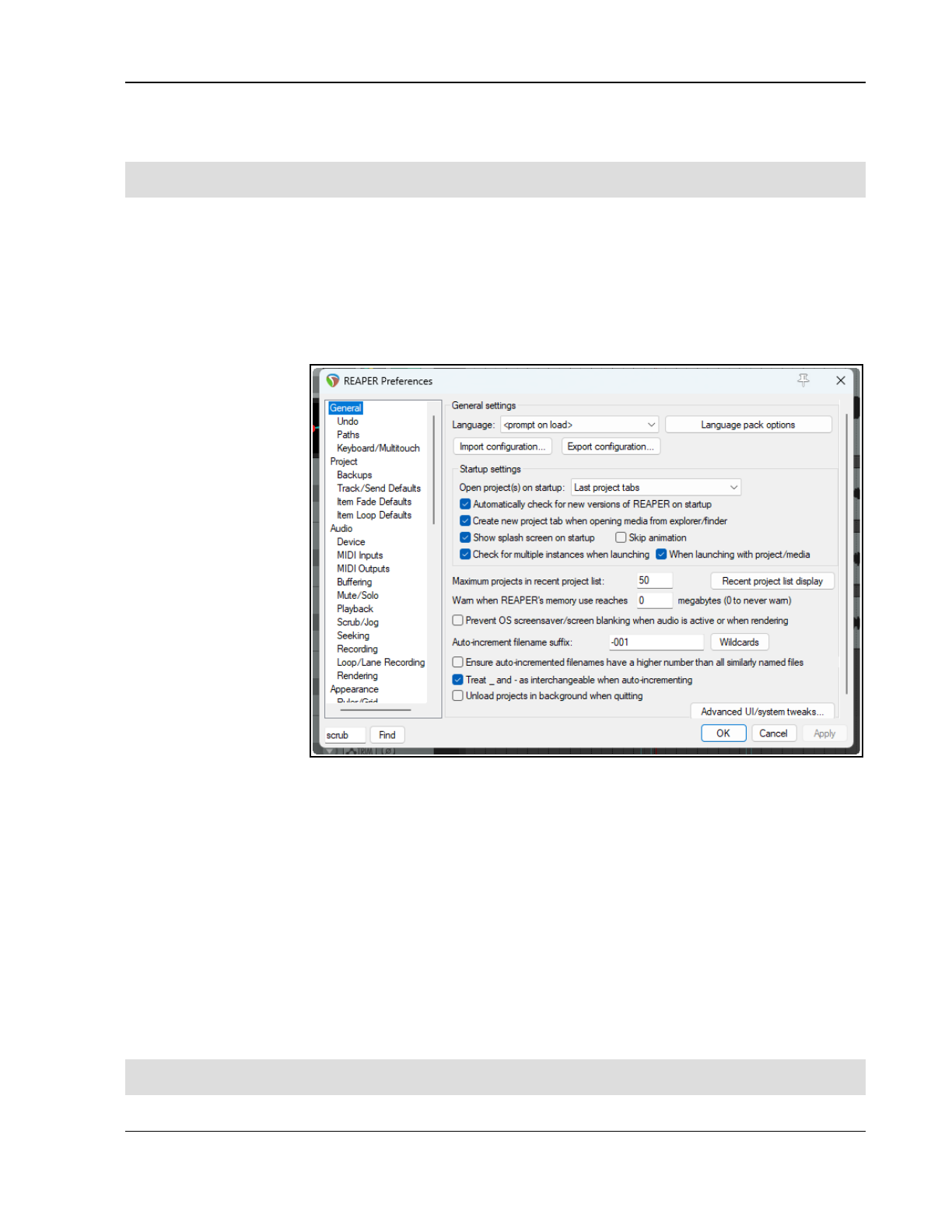
REAPER Project Basics
2 REAPER Project Basics
In this chapter you will be shown the basic essentials of working with a project file in REAPER.
Track Panel and Mixer Panel Layouts. By default, REAPER uses Layout A for both panels. With this layout,
when the mixer is open, some track panel controls are not visible: when it is closed, all track controls are visible
2.1 Opening an Existing Project
To open an existing REAPER Project File, use the File, Open Project command, or the keyboard shortcut
Ctrl O. There is an option to open the file as Read only. You will need to navigate to the appropriate folder to
find your project. Recently used projects can be opened using the File, Recent Projects command. This
displays a list of up to the last 100 recently used project files. You can then select any file from that list.
The General page of your Options, Preferences window offers a number of options. At this stage there
should be no need for you to dig deeply into these, but be aware that they are there. In particular, you can:
● Select a language
other than English
● Manage Export and
Import configs, to
copy REAPER prefs
and settings between
computers.
● Startup settings.
Options are to open
the Last project
tabs (projects open
when REAPER was
closed), or a New
project or to Prompt
every time.
● Specify whether to
Automatically
check for new
versions of REAPER
on startup.
● Whether to Create a
new project tab for
projects opened from
explorer/finder.
● Whether to Show splash screen on startup and if so, whether to Skip the animation.
● Whether to Check for multiple instances of REAPER on startup. If enabled this will prevent you from
opening another instance of REAPER when one is already open.
● Determine number of files shown on the Recent project list and what to display (e.g. file name only, file
name and path, with options which include Clear recent list and Remove missing projects from list).
● Whether to warn you when REAPER’s memory usage reaches a specified level.
● Option to Prevent OS screensaver from blanking when audio is active or when rendering.
● Optionally, format to use when auto-increment file names ii enabled. Also to Ensure auto-incremented
filenames have higher number than all similarly named files.
● There is an option to Treat _ and – as interchangeable when auto-incrementing.
● Option to automatically Unload projects in background when quitting.
Notice too the command Continuous scrolling on REAPER’s main Options menu. If disabled (the default), the
play cursor will scroll from left to right during playback. If enabled, this cursor will find and then remain
stationary in the center of the arrange window during playback, while the media items scroll across the screen.
The examples used throughout this guide use the project file All Through The Night.RPP. This can be
downloaded from www.cockos.com/wiki/index.php/REAPER_User_Guide.
31
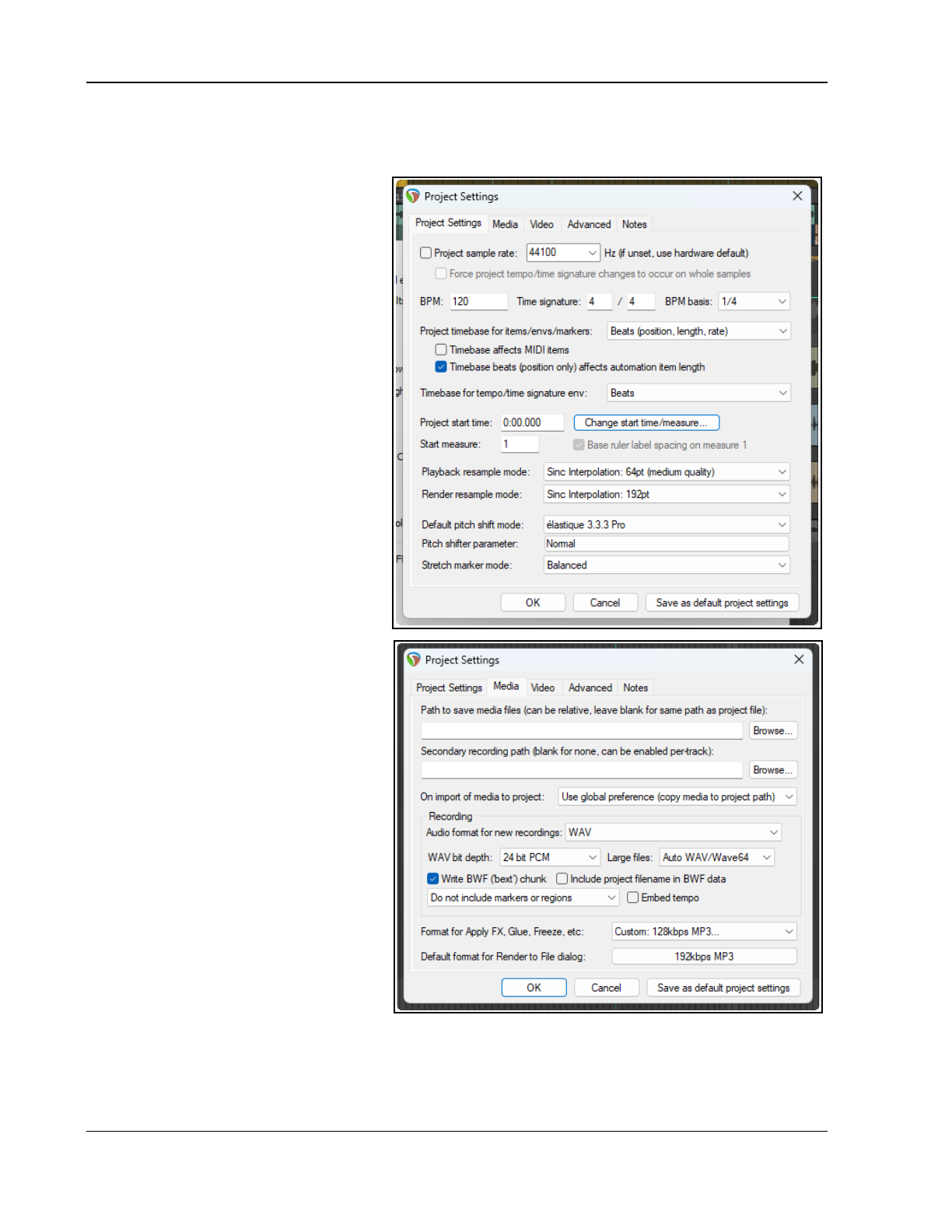
Up and Running: A REAPER User Guide v 7.81
2.2 Project Settings
Project settings can be varied for individual projects. Use the File, Project Settings command, or by pressing
Alt Enter. The five pages of settings are- Project Settings, Media, Video, Advanced and Notes.
Project Settings: Project Settings
● Project Sample Rate: e.g., 44100
Hz (CD standard) 48000 Hz (DVD)
● Option to force the time signature to
beats or whole samples.
● Project beats per minute, time
signature and beat basis.
● Whether timebase affects MIDI
items and/or automation items,
● Timebase setting for items/
envelopes, markers and for tempo/
time siig: Time, Beats (position,
length rate) or Beats (position only).
● Project start time and measure
(includes option to Base ruler
spacing on measure 1). Leave
these at their defaults.
● There is an option to Base ruler
markings off any specified start
measure. The default is the first.
● Playback and render resample
mode – from Lowest (point
sampling) thru Medium (64 Sinc) to
Extreme HQ (768 HQ Sinc).
● Default modes and parameter
to be used for pitch shifting and
stretch markers See Chapter 10.
Project Settings: Media
These include:
● Paths (primary and secondary) to
store media files, as a sub-folder of
the project folder. If left blank, the
project file folder will be used.
● Option to use or over-ride the
global preference for copy media
on import. Media items can be
copied to the project file folder.
● Recording format - typically WAV
or MP3, but there are others , e.g.
AIFF, DDP, FLAC, OGG Vorbis Video
(GIF) and WavPack. Each HAS its
own set of options and settings.
● Settings and specifications for
chosen recording format – e.g. for
WAV files this includes Bit Depth.
● Whether to include markers and/or regions and whether to embed the project tempo.
● Preferred media formats when FX are applied, or items are glued or frozen, and when media items are
rendered. Also, default media format for project and regions. You have the same range of formats,
options and settings as you have for recording format.
32
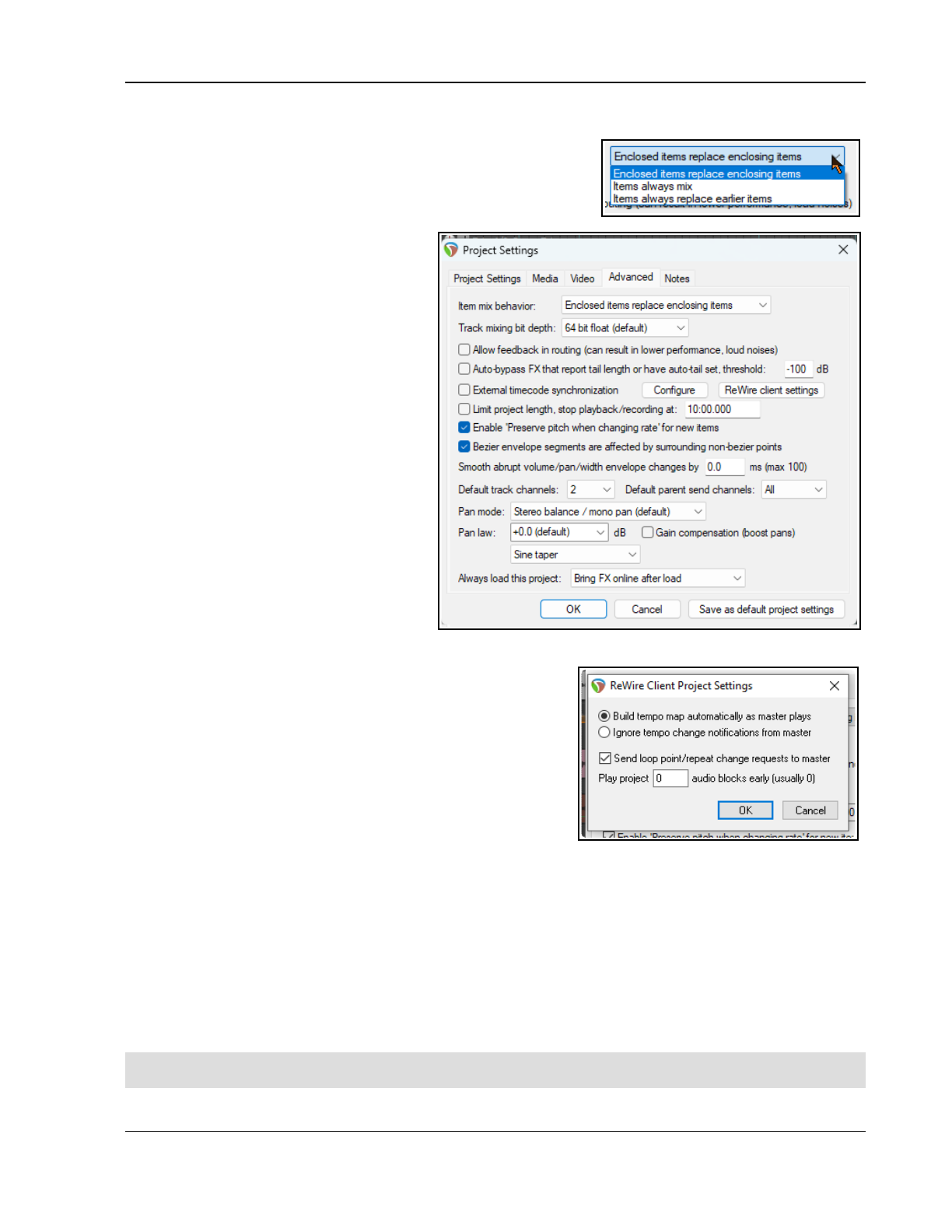
REAPER Project Basics
Project Settings: Advanced
● Item Mix Behavior. See right. Determines behavior when one
media item is placed on top of another.
● Track mixing depth. If unsure, leave at the default setting.
● Allow feedback in routing. Be careful.
See end of Chapter 3
.
● Auto-bypass FX that report tail
length or have autotail set ...
● … threshold. Establishes dB floor
below which a FX where this option
has been enabled should be bypassed.
● The option to synchronize project
with an external device timecode.
● Rewire client settings. These are
shown below right.
● There are options to limit project
length and recording time, also to
set the default state for Preserve
pitch when changing rate.
● Option to prevent bezier envelope
segments being affected by
surrounding non-bezier points.
● Smooth abrupt
volume/pan/width envelope
changes: applies square envelope
points less abruptly.
● Default number of track channels
and parent send channels for new
projects (up to 128).
● Specifying a track default pan law . The pan law determines how relative track volume behaves when a
track is panned more to one side or the other.
● Gain compensation boost can be enabled or disabled.
This is discussed in more depth later in Chapter 2.
● Default track pan mode. You have choice of pan modes,
some mono, some stereo. See Chapter 11.
● Project load FX options: Use the dropdoiwn to choose
Bring FX online after load (default), With FX offline, or
Bring FX online after load
.
Project Settings: Video: Explained in Chapter 20.
The Project Timebase Settings
The project timebase determines REAPER’s behavior when project tempo changes. Get this right
before
you
record or import any items. The default is Beats (position, length, rate) for items/envelopes/markers and
Beats for tempo/time sig envelopes. See the menu command Help then Project timebase help.
You can over-ride the project timebase setting for individual tracks: select the track(s) and choose Track
timebase from the track control panel context menu: or select an item then press F2 to display the Item
Properties dialog box.
Project Settings: Notes
Notes and comments can be included with your project file. Options include automatic word wrap and automatic
display of notes each time the project is opened. By default, word wrap is turned on for new projects. Text saved
as the Title or Author can be used with the $title or $author wildcards as metadata when rendering.
Save as default project settings: click this button if you wish to save all your project settings as defaults for
new projects: options can be changed for individual projects.
33
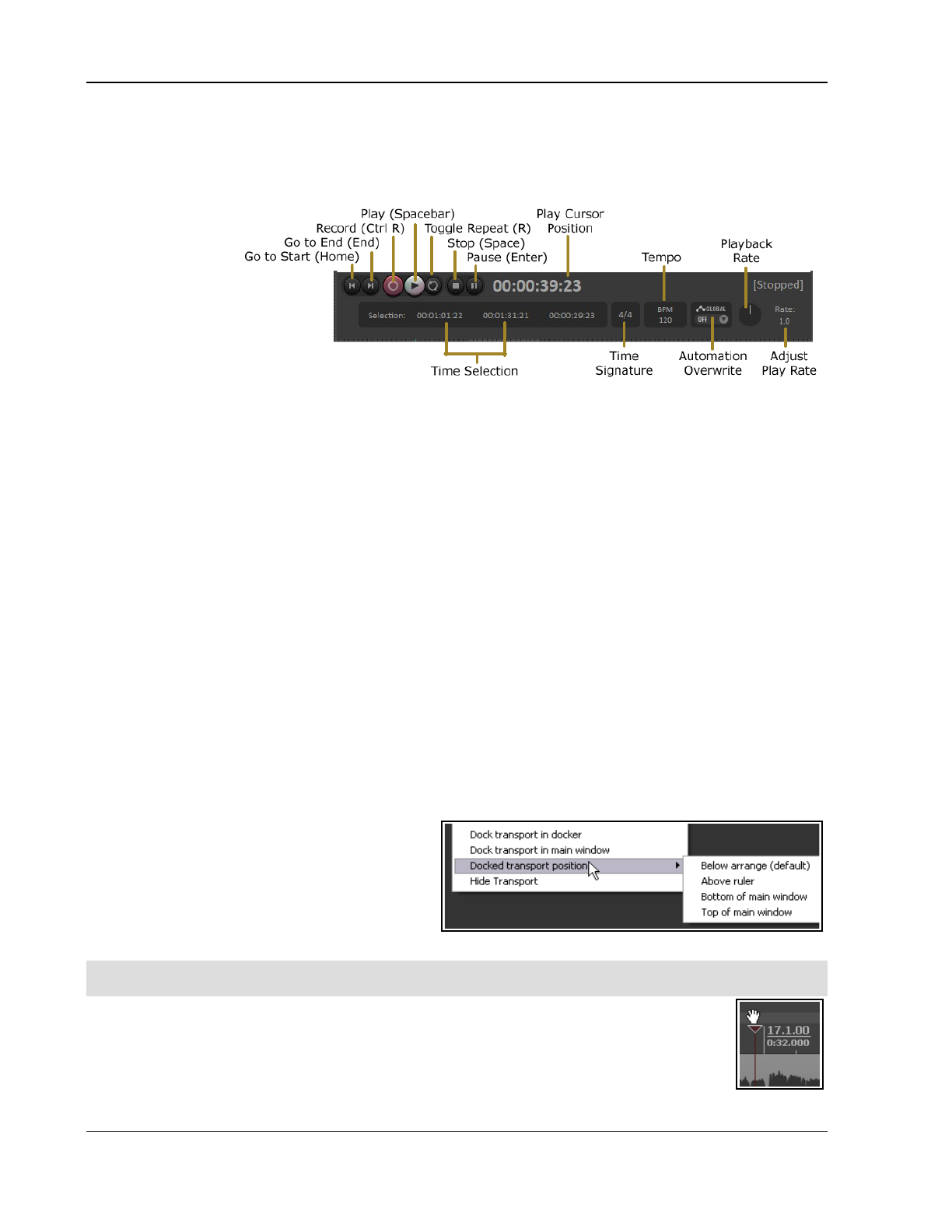
Up and Running: A REAPER User Guide v 7.81
2.3 The Transport Bar
If the Transport Bar is not visible in your REAPER window, use the View, Transport command to display it, or
use the keyboard shortcut Ctrl Alt T. The Transport Bar appears docked just below arrange view, or, as shown
here, as a floating window (undocked) inside REAPER. The main Transport Controls are shown here, though
your exact layout
might not be identical.
The four standard
transport buttons are
Go to Start, Go to
End, Record and
Play. After these
come Toggle Repeat
loop, Stop and
Pause. The Stop
button stops playback
and returns the play cursor to the position it was in when playback started. The Pause button pauses playback
without moving the play cursor.
If the material being played is too long for all of it to be displayed at once then the display will scroll as
necessary, provided that Options, Automatically display view during playback is enabled.
The Record button starts and stops recording, without stopping playback. Clicking on the Stop button when
recording will stop both playback and recording. The Toggle Repeat button turns on and off the option for any
looped time selection to be played over and over again during playback.
The Global Automation Override feature will be explained in Chapter 18. Further to the left of this the current
time selection is shown (start position, end position and length).
The current play cursor position is also shown: in the above example this is 7.1.00/0:12.000. Above this and
in the center is the playback status (Playing, Paused or Stopped). Notice also edit boxes that show the project
Tempo (BPM) and Time Signature values. To change the value of either box click in the box and type the
new value. Depending on your mouse preferences (Chapter 22), you can also use your mousewheel to adjust
this. The beat basis (quarter note, eighth note, etc)) is displayed above the tempo, and can be changed at the
current cursor position from the menu that is displayed by right clicking in this area.
Finally (in the above layout) is the playback rate. This can be made faster or slower by adjusting the fader
knob. If adjusted, this knob is colored green. Double-clicking resets the rate to 1.0. You can also hover your
mouse over the box and use your mousewheel to increase (up) or decrease (down) the value.
Three other useful transport control keys are Ctrl Left (go back a little), Ctrl Right (go forward a little) and Alt
Space (play, skipping loop selection.
Right clicking over the Transport Bar displays a context menu. This may seem slightly intimidating at first. We'll
get to the more advanced stuff in Chapter 10, but for now just notice that there are menu options available to:
Select your preferred time display format.
Dock or Undock the transport in the Main
Window. You can choose the main docker or
any of four other positions – Below arrange
view, Above ruler, Bottom of main window
or Top of main window.
Flash transport status as yellow if a possible
audio under-run is detected.
Note: The transport bar appearancecan be modified using the theme adjuster, for example to hide any
controls surplus to your requirements. See Chapter 15.
Scrubbing
The top of the edit cursor is marked by an upside down triangle. You can grab this with your
mouse and drag to move the edit cursor without affecting playback. Depending on your
preferences settings, you may need to hold down the Shift key. If you do this when the project
is not playing, it will “scrub” your audio -see Chapter 10 of this User Guide.
34
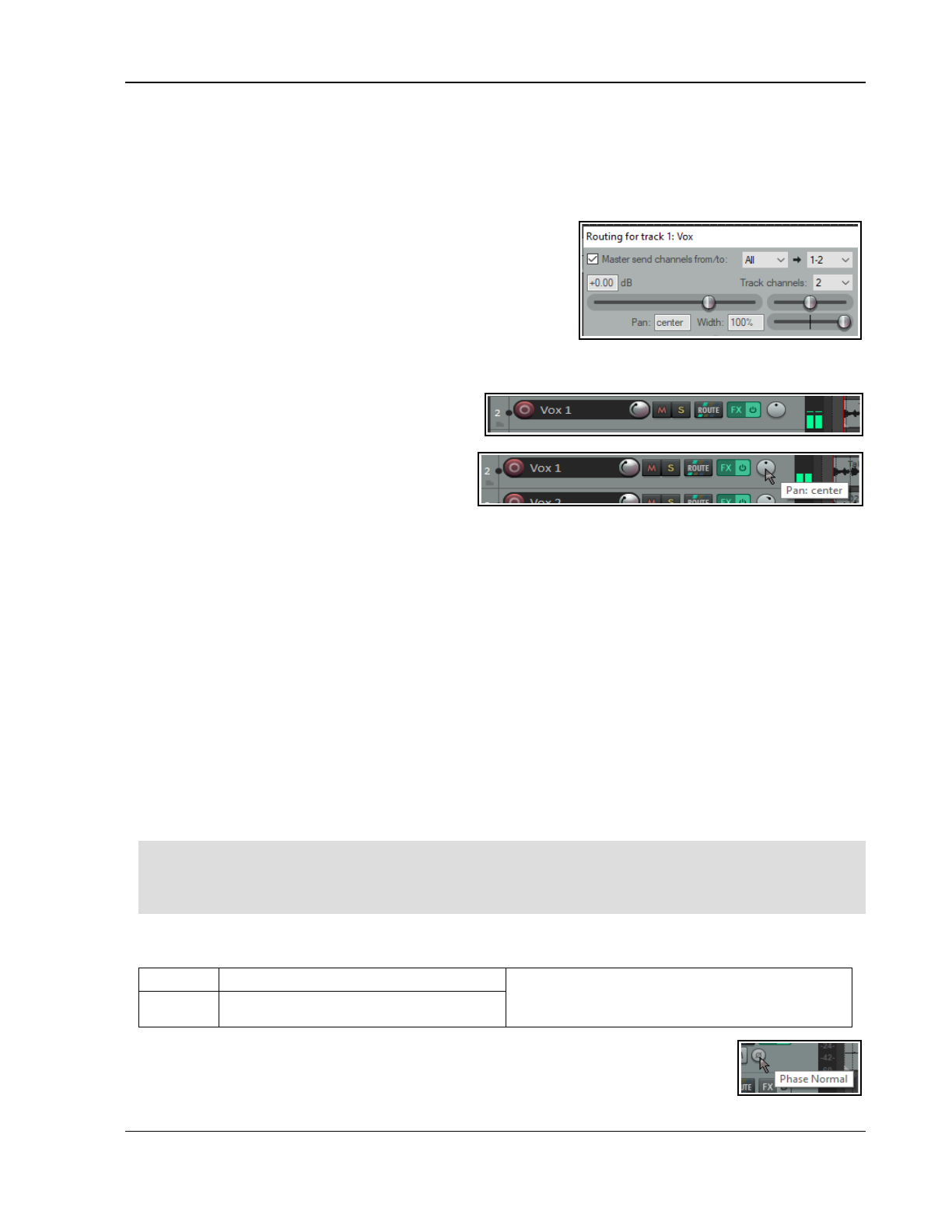
REAPER Project Basics
2.4 Using the Track Controls
Basics
First, make sure that you are using REAPER’s default theme – to do this choose Options, Themes, Default.
As things stand, when you play back a project the same sound comes out equally from both speakers. That’s
because no adjustments have been made to any track's Volume or Pan controls.
Which faders are visible in the track panel is determined by your
chosen track layout: in these examples, the default Layout A has
been used: with the mixer closed, all controls are visible.
If, despite this, some controls are still not visible, you might need
to enlarge your track panel. Hover the mouse over the panel’s
right edge and left drag out to the right.
Clicking on a track’s Route button reveals that by default all
output goes to the Master via parent channels 1/2. If this is not so, adjust the track settings accordingly and
check that your audio device output settings are correct.
The first rotary fader shown here adjusts a track’s
volume. With some layouts, this is shown as a
horizontal fader. The other rotary adjusts the
panning, sending the signal more to the left or
the right as preferred. If you see a second pan
control, ignore it for now. This is used with some
pan modes to control stereo width, a more
advanced concept covered in Chapter 11. To
adjust any horizontal, vertical or rotary faders in REAPER, you can:
Left click-drag faders in the direction required, releasing the mouse when finished. For rotary faders, drag
up to rotate clockwise, down for anti-clockwise. Hold Ctrl while doing this for more subtle adjustments.
Hover your mouse over the fader, use the Scroll Wheel to adjust the level down/up. To enable this
feature, go to Options, Preferences, Editing Behavior, Mouse and deselect Ignore mousewheel
on track panel faders and on all faders. See also mouse behavior preferences in Chapter 22.
Metering
By default, a track's VU meter shows the signal after being adjusted by the volume fader. If you wish
instead to show the pre-fader level, choose from the Options menu Pre-fader track metering. There is
an option in Preferences, Appearance, Track Meters for all track meters to display pre fader levels.
Routing
Clicking on the Route control opens the routing dialog box (shown top right of page). You can enter values as
dB for volume (e.g. -6) and as percentages for pan (e.g., 25R for 25% right) and width directly into this box.
By default, volume and pan controls apply to a track's audio output. If you want to use these to control its
MIDI signal, right-click on the track n umber in the TCP, then choose MIDI track controls, then Link track
volume pan to all MIDI channels from the context menu.
Tip: To audition possible changes, hold down the Alt key while dragging the fader with the mouse. When you
release the mouse, it will then return to its original position.
Tip: To work with more than one track, hold down Ctrl while clicking in the Track control panel on each track
number required. Then release Ctrl. Any fader or other movement will be applied to all selected tracks.
Mute/Solo
The two buttons on the right of each track’s control panel have these functions:
Mute Toggles Mute on/off for selected track(s) Note: Both the Mute and Solo controls can also
be used with modifier keys such as Alt and Ctrl for
various functions. See Chapter 5 for details.
Solo
Toggles Solo on/off selected track(s)
By default, Solo causes the output of both the track and any sends to be heard. This is
known as Solo in place. Thus, a soloed in place track with a send to a reverb track will
play with the reverb. To hear only the track without its sends, hold the Alt key while
soloing the track. The phase control button can be used to invert phase.
35
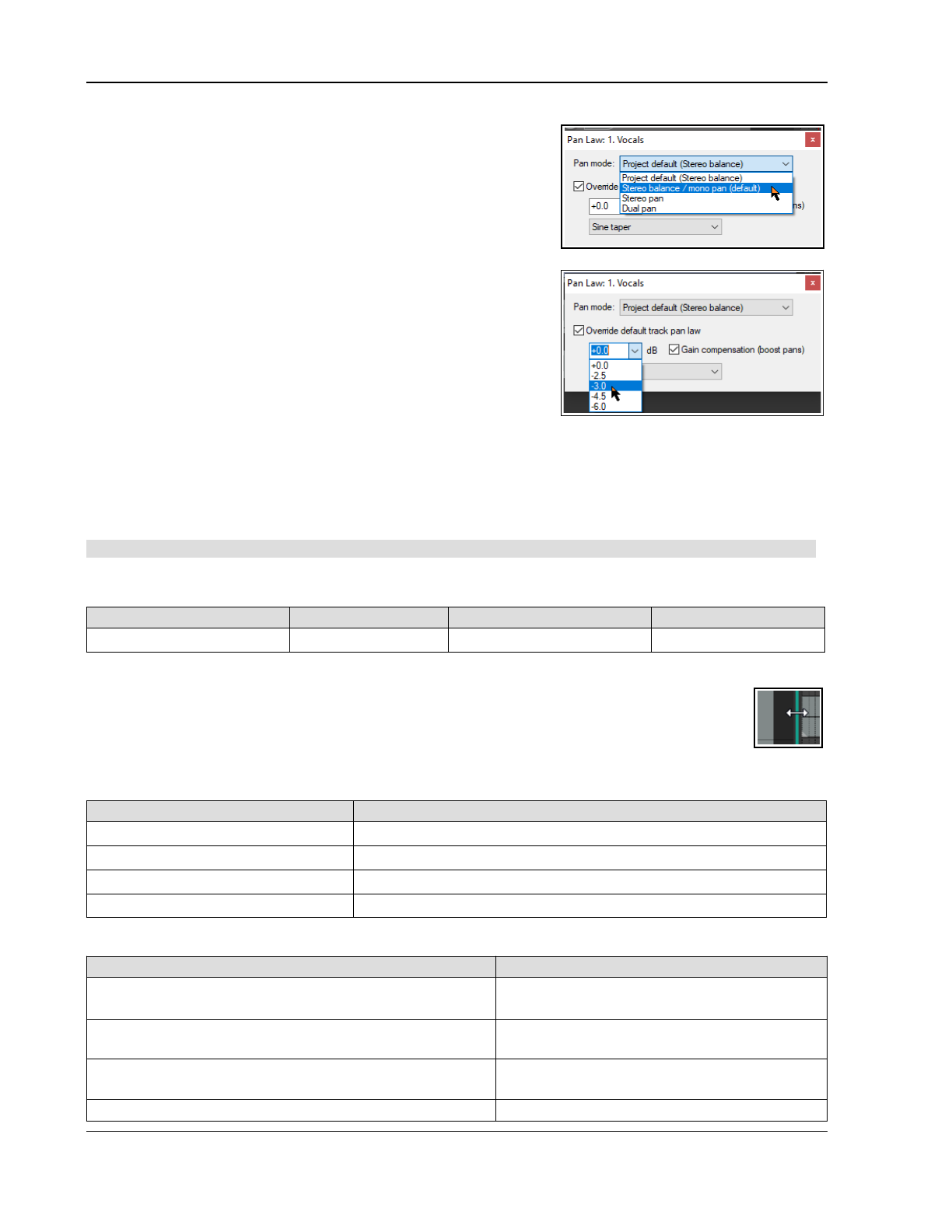
Up and Running: A REAPER User Guide v 7.81
2.5 Pan Law and Pan Mode
When two channels are mixed the result is louder if both are panned
dead center than if they are each panned to the extreme left and
right. Pan laws enable you to compensate for this. You can choose a
default pan law for new tracks in your advanced project settings.
Right-click on the pan control to choose a pan mode (see right).
Pan modes are explained more fully in Chapter 11 when we look at
stereo panning. In brief, however, you have a number of options –
Stereo balance/mono pan is the default (see Project Settings).
This is equivalent to the mode used in versions before REAPER 4.
You can change the pan law for individual tracks. Right-clicking over
a track’s pan fader opens a window with an option to Override
default track pan law. Selecting from the list (in a range 0.0 dB to
-6.0 dB) or type in your own value. A negative setting causes the
signal at the center to be attenuated as panning increases.
The Gain compensation (boost pans) option if enabled causes
the signal's audio strength to be boosted as it is panned further away
from the center. The -3 dB and -6 dB settings correspond exactly to equal power and equal gain respectively.
The pan law dropdown options are sine taper, linear taper and hybrid taper. The default is hybrid taper. With
linear taper the overall sound increases as you pan towards the center. Non-linear tapers seek to compensate for
this. There is morel information about pan laws here: https://samplecraze.com/tutorials/the-pan-law/
2.6 Navigation and Zooming
Mac users: remember you should substitute Cmd for Ctrl and Opt for Alt when using booster keys.
Navigating within the Track Control Panel (TCP)
The following keyboard shortcuts can be used to navigate within the Track Control Panel:
Function Keystroke Function Keystroke
Go to next track. Ctrl Alt Down Go to previous track. Ctrl Alt Up
Adjusting Panel Width with Mouse
To adjust the width of the track panel area, hover your mouse over the vertical border separating
the TCP from the main area. The cursor changes to a horizontal double headed arrow. Drag the
border left or right to decrease/increase track panel width and release the button when the desired
track control panel width is reached. Double-clicking on this vertical border will toggle track panel
visibility on and off.
Adjusting Track Height with Mouse
Function Action
Adjust height of single track Click/drag up/down on lower track boundary
Adjust height of selected tracks Alt + click/drag up/down on lower track boundary
Adjust height of all tracks. Ctrl + click/drag up/down on any lower track boundary
Adjust height of all tracks. Click/drag up/down between + and – on vertical scrollbar
Toggling Track Height with Keyboard or Mouse
Function Keystroke
Minimise height of all tracks: if already minimised,
restore to most recent previous height.
` (this is the key immediately to the left of 1,
usually directly above the Tab key).
Maximise height of all tracks: if already
maximised, restore to previous height.
~ (on most keyboards, this is the Shift key in
combination with the ` key).
Increase height of selected tracks, minimise
others. Repeat to restore previous track height.
! (on most keyboards, this is the Shift key in
combination with the 1 key).
Minimise all tracks. @ (on most keyboards, Shift with the 2 key).
36
REAPER Project Basics
Function Keystroke
Increase/decrease height of all tracks Ctrl click on +/- at foot of vertical scrollbar.
Toggle height of all tracks between minimised,
normal and maximised.
Double click mouse on vertical scroll bar.
Make selected track(s) unaffected by track height
adjustment and vertical zoom shortcut keys.
Use Lock track height command on track
right-click context menu.
Lock/unlock track controls (volume, pan, etc.)
including the FX chain.
Use Lock track controls command on track
right-click context menu.
Zooming In and Out from the Main Menu or with Keyboard Shortcuts
Several zoom actions are available on the View, Zoom menu. Keyboard shortcuts are available as follows:
Function Keystroke
Zoom in/out (horizontally) + (plus) or up arrow/ - (minus) or down arrow
Zoom to time selection Ctrl Num Pad +
Zoom to selected media item(s) (No default shortcut)
All tracks to same height and size up Page Up
All tracks to same height and size down Page Down
Toggle track heights to minimum `
Toggle track heights to maximum ~
Expand selected track, minimize others !
Minimize all tracks @
Scrolling with the Keyboard
The following keyboard shortcuts can be used for scrolling within a project:
Function Keystrokes Function Keystrokes
Scroll View down Alt Down Scroll View left Alt Left
Scroll View up Alt Up Scroll View right Alt Right
Zooming and Scrolling with the Mousewheel
The mousewheel can also be used for zooming in and out when you are navigating a project file:
Behavior Modifier Key for Mousewheel
Horizontal Zoom (no modifier)
Zoom management options (e.g. set zoom center, max zoom level), are
set in your Preferences, Appearance, Zoom/Scroll/Offset (Chapter 22).
REAPER remembers zoom/scroll activity: the Actions List includes
assignable zoom options, e.g. to restore previous zoom level or
restore previous zoom/scroll position, and to restore next zoom
level or restore next zoom/scroll position.
Vertical Zoom Ctrl
Horizontal Scroll Alt
Vertical Scroll Ctrl Alt
You can change any default keyboard and mousewheel assignments. For example, you could use just the
Down and Up arrows (without Ctrl Alt) to go to the next or previous track, or the mousewheel without a
modifier to scroll rather than zoom. Mouse modifiers are covered in Chapter 15.
Tip: Making and using a zoom/navigate toolbar. Zooming and navigating are much used activities. You
can make your own Zoom/Navigate custom toolbar. Creating custom toolbars is explained in Chapter
15.Keyboard Shortcut and Mouse Defaults
The command Help, Keybindings and Mouse Modifiers (Shift+F1) will open your web browser with a list of
REAPER's mouse modifiers and keyboard shortcuts. As you will see in Chapter 15, you can also define your own
mouse modifiers, keyboard shortcuts and action keys, so as better to suit your own workflow.
Tip: REAPER makes extensive use of context menus, which also show keyboard shortcuts. These are accessed
by clicking the right mouse button. For example, for commands relevant to the track panel, right click over the
track panel. For a media item. Right click over that item … and so on.
37
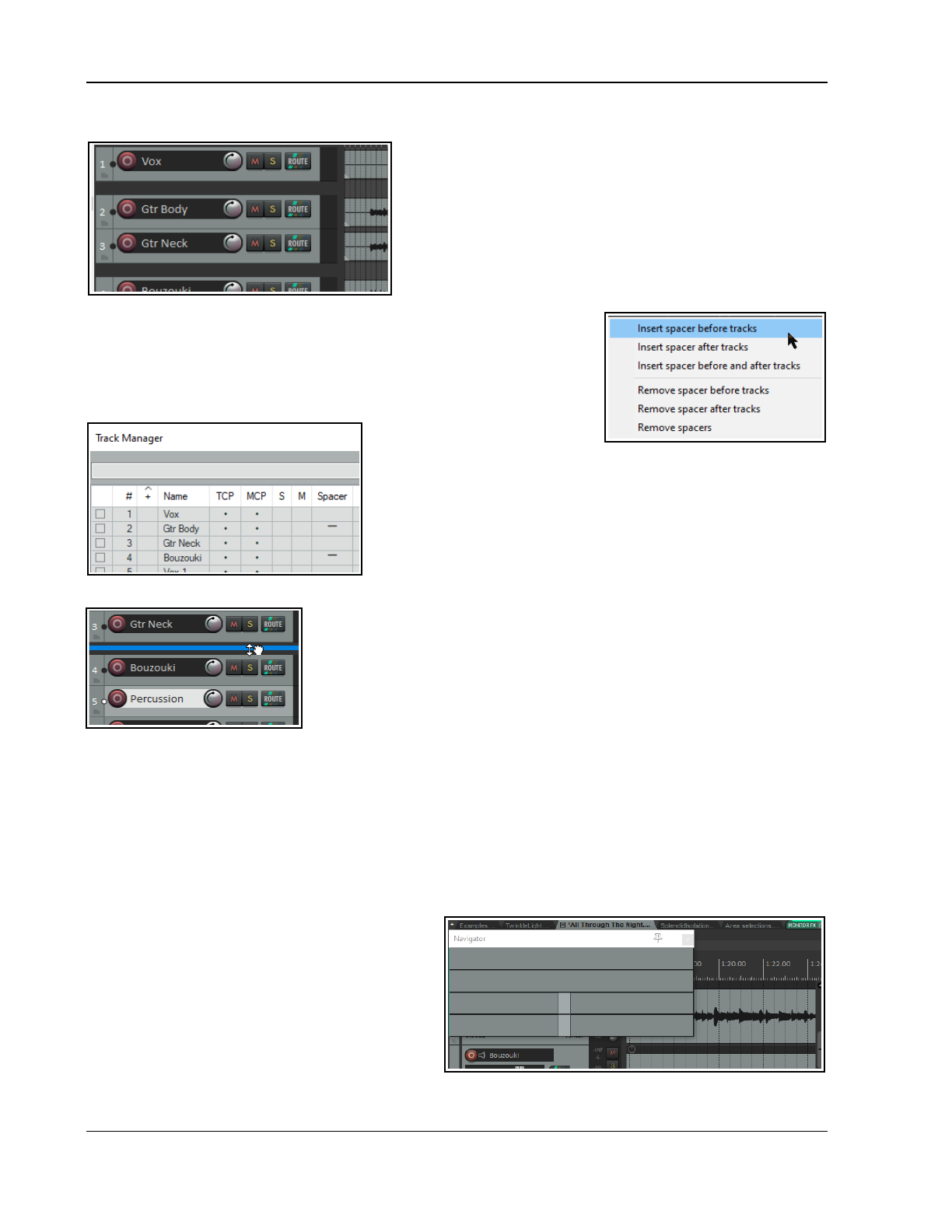
Up and Running: A REAPER User Guide v 7.81
2.7 The Visual Track Spacer
REAPER’s visual track spacer can be used to insert a spacer
between any tracks, as required. This can help0 identifying in a
project tracks which belong together, or simply to prevent
screen clutter. A simple example is shown here.
Shown left are a vocal track and two guitar tracks. A spacer has
been inserted above the first and after the second guitar track
to visually separate them from the other tracks.
Default track spacer height is 16 pixels: you can change this
value in your Options, Preferences, Appearance settings.
Spacing is added in arrange view by right clicking over a track’s track panel
and choosing Virtual spacer from the context menu. Options are to add a
spacer before or after the track, or both, or to remove existing spacers.
To add a spacer after or before a number of adjacent tracks, simply select
all of the required tracks and right click over any one of their track panels:
choose Virtual spacer from the menu, then make your selection as before.
Note that if multiple tracks are
selected, the space will be
added before the first track in the selection, or after the last track,
or both, depending on your menu selection.
A quick and easy way of adding or removing spacers between
tracks is within the track manager. The track manager is covered
in detail in Chapter 12.
For now, note that spacers can be added above any track or tracks.
Simply click in the Spacer column for each track where you require
spacing to be added: click again to remove the spacer (see above left).
If you are moving a track or track selection up or down the track order, you
can drop the track below a spacer to place it after the spacer, above a spacer
to place it before the spacer, or in the middle of a spacer (as shown here) to
show spacers both above and below it.
To move a spacer from one track to another, use Left drag up or down. To
copy a spacer from one track to another, use Ctrl left drag up or down.
2.8 Directing Audio and MIDI Output
Audio output will by default go from your master to the first available pair of outputs on your soundcard (usually
outputs 1 and 2), and only to this pair. If your sound card has multiple pairs of outputs and you wish to change
this, you can do so via the Routing Matrix (View, Routing Matrix or Alt R).
MIDI Output can be directed to an external hardware or virtual synth (such as Microsoft GS Wavetable) or to a
VSTi Instrument plug-in. For the former. Open the track’s routing window and select the required synth from the
MIDI Hardware Output drop down list. Alternately, to use an instrument plug-in, insert the required VSTi in the
track’s FX chain. This will usually be the first item in the chain.
2.9 Using the Navigator
The REAPER Navigator shows an overview of your
project. It can be zoomed in or out to display a
selected area area of your project.
To display the Navigator, choose the View,
Navigator command. Use Ctrl Alt V to toggle the
Navigator display on and off.
You can also use the Navigator to scroll thru your
project. Simply position the mouse over the box
within the navigator window that represents the on-screen area of your project. Then hold down the left mouse
38
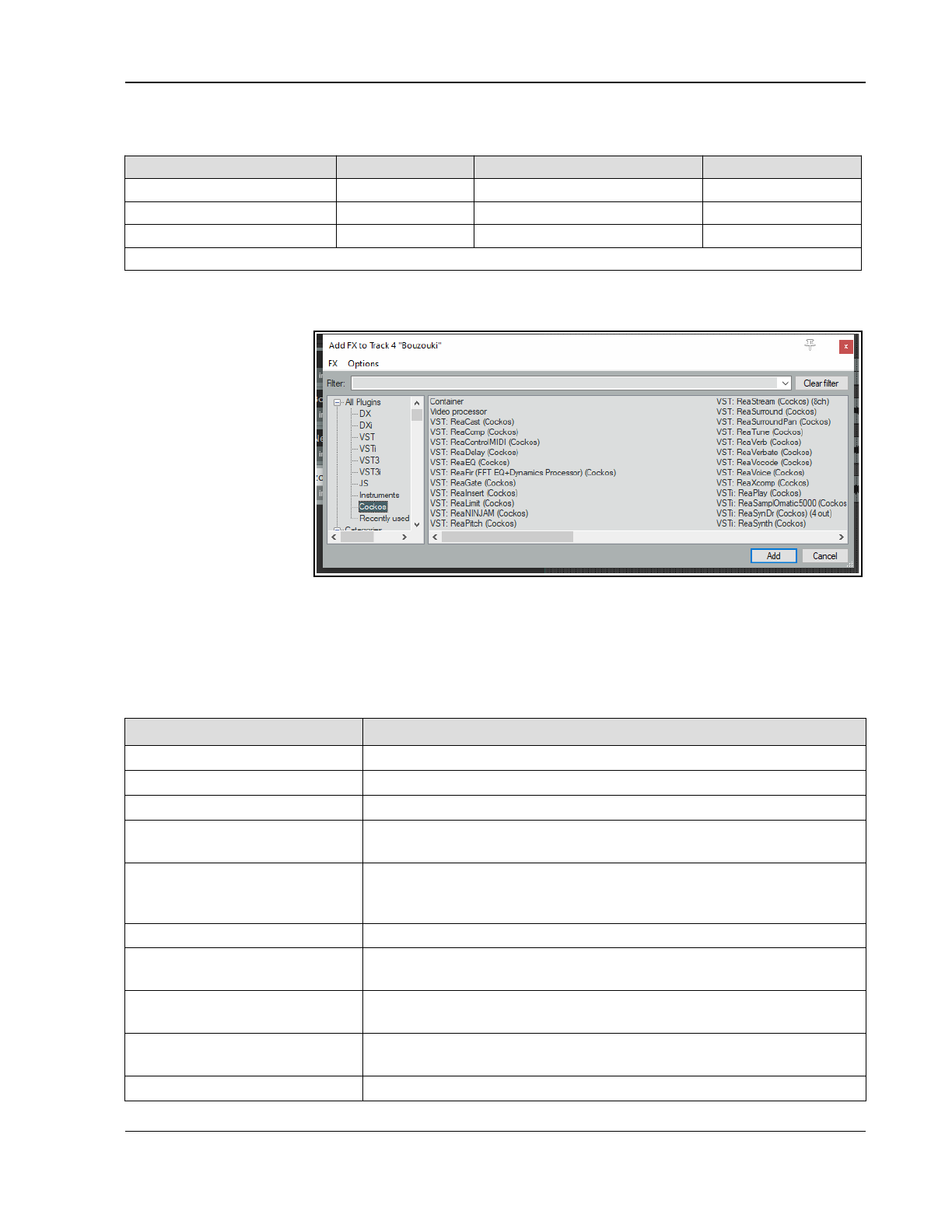
REAPER Project Basics
button, and click and drag to scroll the display. Release the mouse button when finished. The navigator will
display media items, envelope lanes and visual spacers. Other ways of using the Navigator are:
Activity Method Activity Method
Define area to display Right drag Zoom in/out tracks only Alt right drag
Reposition display area. Left click Zoom in/out time only Ctrl right drag
Move display area. Left drag Move play area and cursor Ctrl left click
Note also that the mousewheel can be use to scroll and/or zoom as in workspace itself.
2.10 Track FX Basics
FX can be used with
REAPER, for purposes
such as EQ, compression,
chorus, reverb and more.
Track FX (JS, VST, VST3
and DX, VSTi , VST3i and
DXi, and, for Mac users,
AU) can be added to
tracks and media items
from the FX browser or by
directly inserting them into
the track or item FX
Chain. Media item FX are
explained in Chapter 6.
Many FX plug-ins are
supplied with REAPER, including Jesusonic and Cockos effects. We'll examine many of these later in this User
Guide, especially in Chapters 6 and 16. For now, let's just focus on some general aspects of how audio FX fit in
to the REAPER scheme of things. To access any of these FX, simply follow these procedures:
FX can be added to any track or item FX directly from the main FX Browser window. Each track and item also
has its own FX window: these are most suitable for managing the individual FX parameters and the FX chain
itself, although FX can also be added to individual track and item FX from within this window.
From the FX browser… You can do this …
Open the FX Browser Choose View, FX Browser command or press Shift F.
Add FX to a track or item Drag and drop FX from FX Browser to track panel or mixer panel or item.
Add FX with preset Right click on FX name, choose Add with preset from menu.
Add several FX to a track or
item
Use Ctrl left click to build selection. Drag and drop selection from FX
Browser window to track panel or mixer panel or item.
Add one or more FX to a
number of tracks or items
Select the tracks (track panel) or items (arrange view). Select the FX.
Right click over any selected FX, choose Add to selected tracks or Add
to active takes of selected items.
Rename the FX Right click on FX name, choose Rename FX… from menu.
Create keyboard shortcut Right click on FX name, choose Create shortcut … from menu. This
shortcut can now be used to insert that FX into any track or media item.
Set default preset for FX Right-click on FX name, choose Set default preset and select a preset
from the list.
Insert previously saved FX
chain in a track or item.
In FX Browser, select Chains in left hand panel. Drag and drop required
chain to track panel or mixer panel or item.
Create new track and add FX Drag FX from FX browser window to empty area of track panel.
39
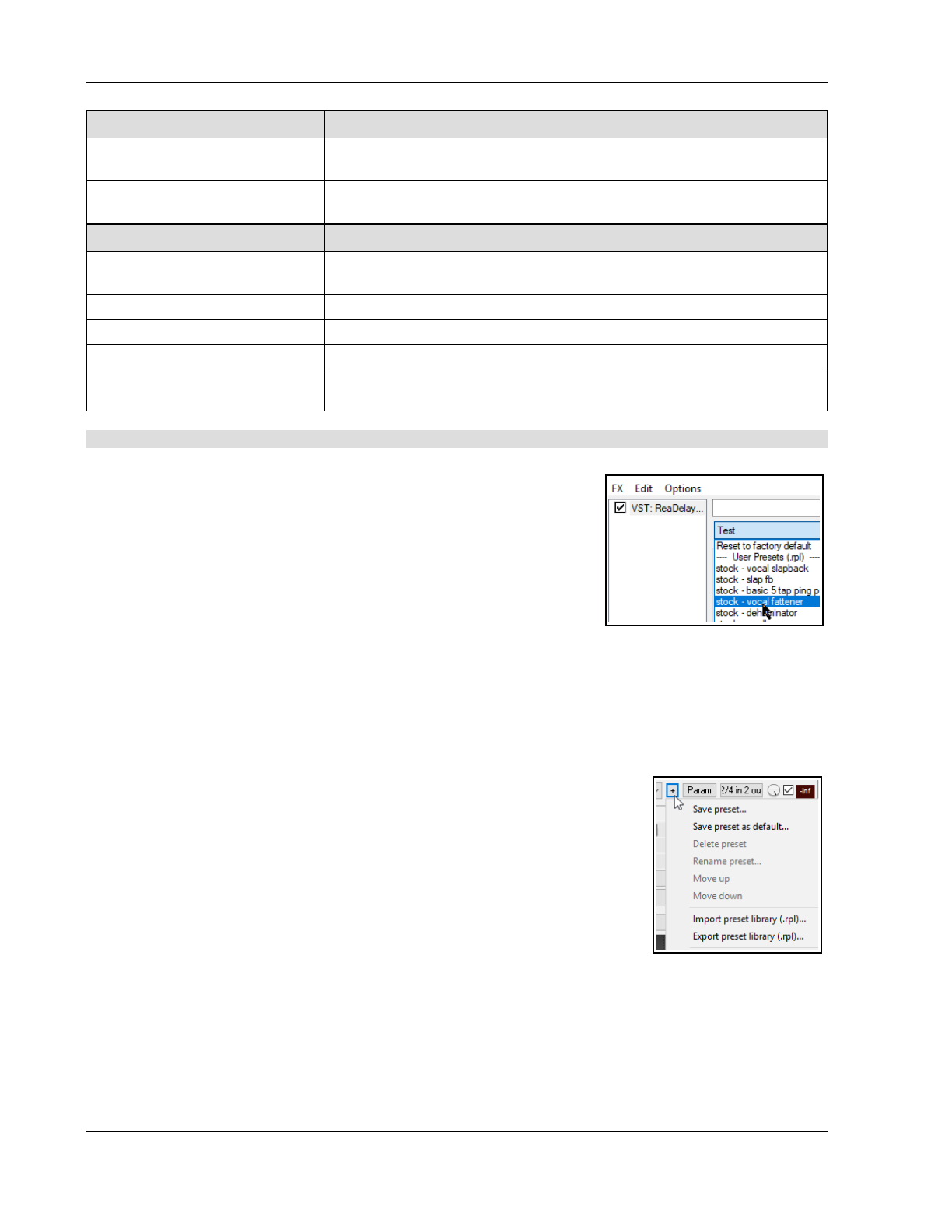
Up and Running: A REAPER User Guide v 7.81
From the FX browser… You can do this …
Dock FX Browser Right click on title bar, choose Dock FX browser in docker To undock,
right-click on browser tab and deselect Dock FX browser in docker.
Advanced technical default
options
More advanced technical options are documented in the section
Advanced plug-in defaults.
From a track FX window... You can do this …
Open a track’s FX window Click on track’s FX button. If no FX chain already exists for this track, click
on Add button.
Add FX to track FX chain Double-click on the required FX in FX browser window.
Add several FX Use Ctrl click to build selection, then click on FX browser Add button.
Set FX to bypass (toggle) In the FX chain, click on the FX name, press Ctrl B.
Set FX to offline (toggle) In the FX chain, click on the FX name, press Ctrl Alt B. Unlike bypassed
FX, offline FX will consume no CPU.
Note: Any plug-in added to an FX chain will then be displayed in the FX Browser's Recently Used FX folder.
2.11 Using the Supplied FX Presets
To get started you might wish to explore some of the presets that come
with these plug-ins. For example, Cockos ReaDelay includes presets which
you can try with your various tracks. Simply display the drop down list and
select the item that you want (example shown right).
Most of the Rea plug-ins include presets, which you can explore for yourself.
Of course, you can also make any adjustments and changes to these that
you like, in order to customize them more precisely to your own needs.
To set any FX preset as the default for that FX
1. Select the required preset from the drop down list.
2. Click on the + button to the right of the list and choose Save preset as default from the menu.
3. Type your own name for the preset and click on OK.
To download more presets, go to http://stash.reaper.fm/ and follow the link to FX Preset Libraries.
To import downloaded presets into REAPER, follow this sequence:
1. Insert an instance of the plug-in into any track.
2. Click on the + button (next to the Param button in the FX Chain window).
3. Choose Import Preset Library.
4. Navigate to and select the required .RPL file then click on Open (or, to insert
several files, use Ctrl click to build your list before clicking on Open.)
To select a preset when loading an FX
1. Open the track FX window and click on the Add button.
2. Select required category (e.g. Cockos) and required FX (e.g. ReaEQ).
3. Right click on the FX and choose Add to… from the context menu.
4. In the FX window, click on the + button then select the required preset.
2.12 Controlling Track FX
REAPER provides you with a number of tools to help you manage your Track FX. For example, you can:
Change the order in which they are applied.
Copy or move any FX from one track to another.
Save (and retrieve) any sequence of FX as a chain that can be easily inserted into other tracks.
Bypass individual FX or an entire FX chain.
Specify a default set of FX to be automatically inserted into new tracks for your project.
40
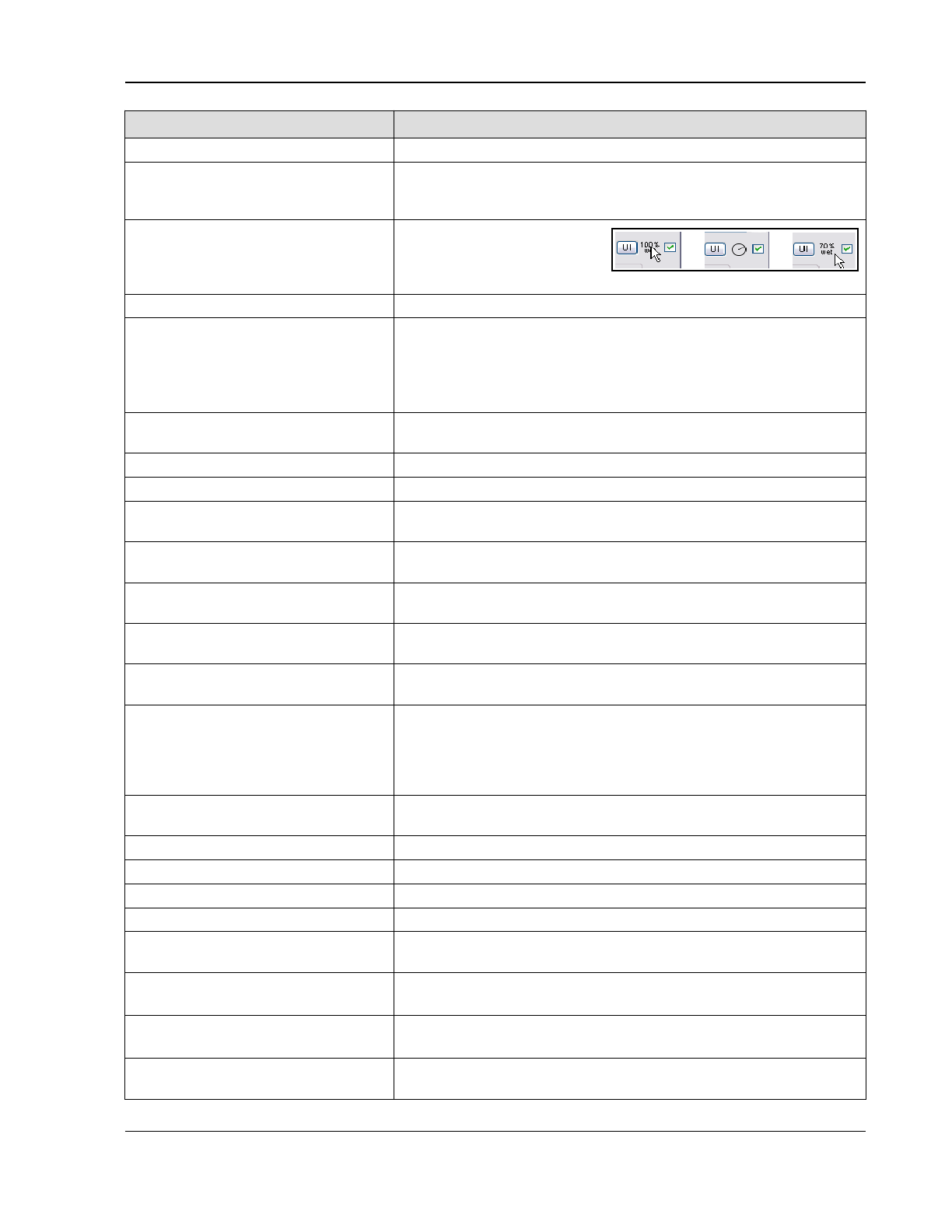
REAPER Project Basics
In order to do this … You need to do this …
Dock the FX Chain Choose the FX, Dock FX Window in Docker command.
Adjust the values for track FX
parameters
Drag with the mouse, or scroll mouse wheel over, the parameter control
fader. For fine adjustments, hold Ctrl key while you do this, or click once
on the control and use up/down keys on keyboard.
Adjust the wet/dry mix of any FX Select the plug-in in the FX
chain, then use the mouse to
adjust the small rotary control
next to the UI button. 0% (completely dry) to 100% (completely wet).
Change the FX Order Drag and drop FX name up or down within the track FX window.
Float an FX window Right-click on FX button in TCP and select the FX, or ...
Double-click on the FX name in the FX Chain window (toggles). The title
bar of the floated window will display the track name, the FX name, and
its place in the track FX chain. For example: VST: ReaEQ, Track 1
“Vocal” [2/3],i.e. the 2nd FX in a chain of 3.
Advanced floated FX window
options
For more advanced floated FX window options, see the section
Advanced Floated FX Window Options.
Keep FX/Add FX window on top Click on the pin symbol at right of title bar.
Close a floating FX window Double-click on FX window title bar.
Copy an FX (or FX selection) from
one track to another.
Ctrl drag the FX from to the track panel to another track. To copy
automation envelopes with the FX, use Shift Ctrl drag.
Move an FX (or FX selection) from
one track to another.
Hold down Alt, drag the FX from the source track FX window and drop
on the track panel for any other track.
Rename an FX Instance Select the FX name in the FX Chain and press F2, or right-click and
choose Rename FX instance from the context menu.
Bypass an FX (toggle) Click either the FX check box next to the FX name in the FX chain or the
check box in the top right corner of the FX window.
Set an FX offline (toggle) Ctrl Click either the FX check box next to the FX name in the FX chain
or the check box in the top right corner of the FX window.
Replace one FX with another,
preserving any existing routing
configuration
In Track FX window,
either
click on Add to display FX browser. Select
required FX, then Alt left drag to Track FX window and drop over the
FX to be replaced,
or
… Select the FX in the FX chain and press Ctrl R. In the Replace FX
window (now displayed) double-click on the replacement FX.
Make the current track FX the
default for new tracks
Within the Track FX window, choose FX, Save Chain as default for
new tracks.
Open an FX from track panel Right click on FX button, then left click on the required FX name.
Remove an FX from a track Select FX in the track FX chain then click on the Remove button.
Remove all FX from a track Hold Alt while clicking on the track’s FX button in the TCP.
Search for an FX Enter text in the Filter List at the bottom of the FX window.
Save the current sequence of Track
FX as a chain
In the Track FX window, choose the FX, Save FX Chain command. FX
parameter settings are saved with the chain.
Insert additional FX within an
existing FX chain
Drag and drop the required FX from the FX window to the required
position in the FX chain.
Save selected track FX as a chain Select the names of the FX to be included in the chain (use Ctrl Click),
then choose FX, Save Selected FX as Chain.
Retrieve a previously saved FX
Chain (from FX menu)
Within Track FX window, choose FX, Add FX Chain or within the TCP
right-click over the FX button and select Add FX Chain from the menu.
41
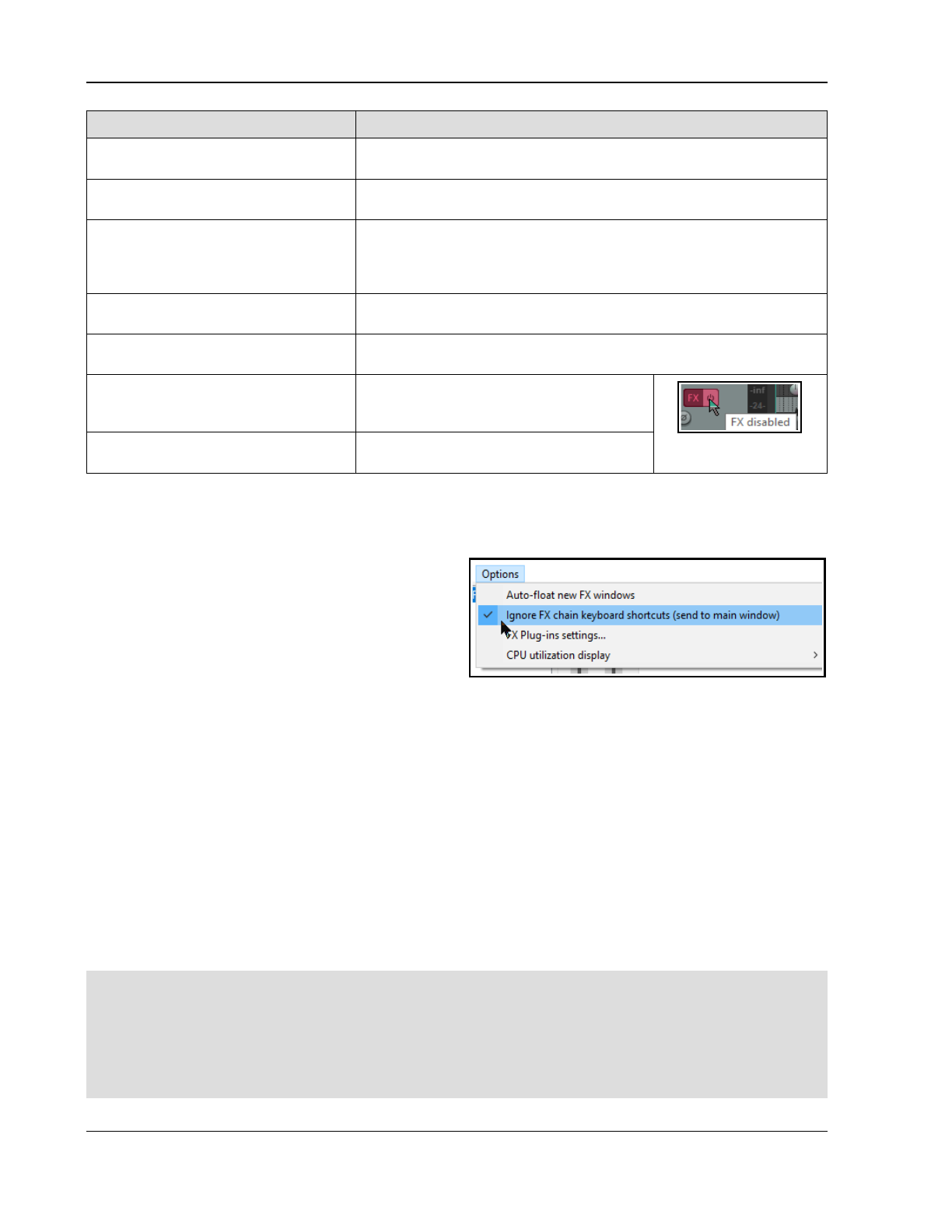
Up and Running: A REAPER User Guide v 7.81
In order to do this … You need to do this …
Retrieve a previously saved FX
Chain (from Media Explorer))
Drag and drop the chain from Media Explorer window: hold Alt key while
dragging to replace existing FX.
Save track FX as the default chain
for new tracks
From the Track FX menu, choose FX then Save chain as default for
new tracks.
Override default FX load options
when opening project file
In Open Project dialog (File, Open project) optionally select Open
with FX offline (recovery mode), or Bring FX online after load, or
neither of these (default).
See also Advanced page of Project Settings.
Load your default FX Chain In Track FX window, click on Add then choose FX, Load Default Track
Chain command.
Access the FX Preferences settings Within the Track FX window, choose the Options, FX Plug-in Settings
command. These are discussed in Chapter 22.
Bypass all FX for a track In the Track Control Panel, click on the FX
Enable/Disable toggle button. Click again
to reverse this.
Turns red in bypass
mode.
Bypass all FX (all tracks) Hold Ctrl while clicking on FX
Enable/Disable toggle button.
2.13 FX Window and Keyboard Shortcuts
The FX window includes various keyboard shortcuts, such as Down and Up to select next/previous FX in chain
and command shortcuts (such as Ctrl S to Save FX chain...).
You might prefer to instead use arrange view shortcuts
even when you are working in the FX window, so that
(for example) Ctrl S can still be used to save the
project file and the Down and Up arrows to zoom
out/in horizontally. In this case, you should enable the
menu option Ignore FX chain keyboard shortcuts
(send to main window).
Example
In this example, we will create a default FX chain consisting of ReaEQ and ReaComp, both set to bypass mode.
1. Open any project file and add a new track at the end. We will use this track to create our FX chain.
2. Click on the FX button for this track to open the FX Window. In the first (left) column of the Add FX
window, click on Cockos.
3. Select in turn, first ReaEQ (Cockos) and then ReaComp (Cockos). In each case, either use the OK
button to add the plug-in to the track FX chain, or drag and drop them into the chain.
4. Make sure that both these FX are unticked – this sets them to bypass.
5. Right click over one of the FX and from the context menu, choose FX Chain, Save all FX as default
for new tracks.
6. Close the FX window. You can now exit REAPER. There is no need to save changes to the project file.
7. Re-open REAPER, open any project file and insert a new track anywhere you wish.
8. Open the FX window for your new tracks. You should see that the two plug-ins, ReaEQ and ReaComp
have already been inserted into this FX bin, in bypass mode.
Tip 1: If you wish to make changes to the contents of your default FX chain, simply repeat the process
described above, this time with the changed set of plug-ins, or (to remove it) with no plug-ins at all.
Tip 2: If you hold down the Ctrl Shift keys when opening a project file, the file will be opened with its FX off
line. This can be useful if you need to conserve CPU, or if there is a plug-in which might be causing problems.
Tip 3: If you switch the FX to bypass mode before saving your FX chain, then the FX chain will be saved in
bypass mode. This means that the FX in your new tracks will not require any CPU usage until such time as you
open the FX window and enable them.
42
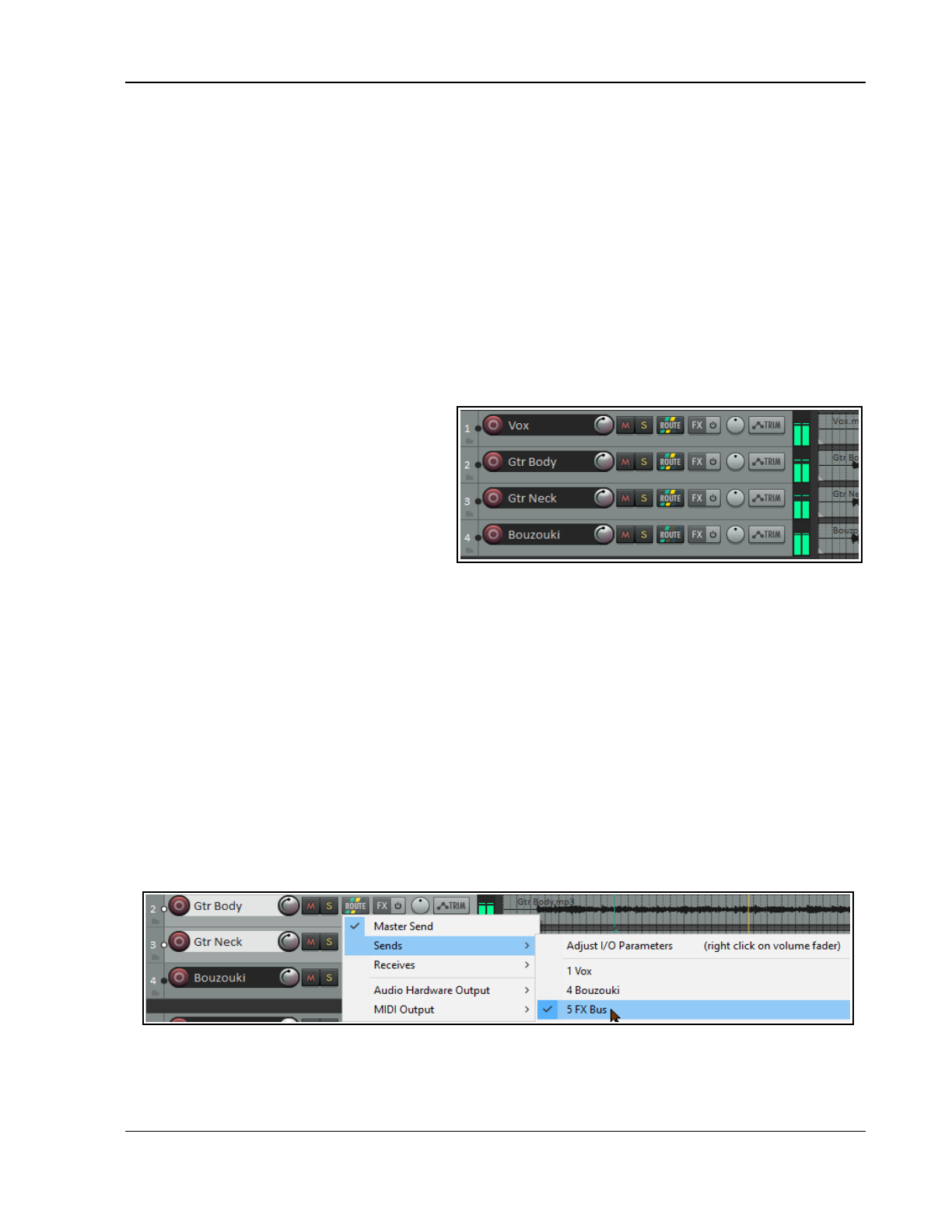
REAPER Project Basics
2.14 Using an FX Bus
If you have used other DAW software, or an analog (tape) recording and mixing desk, you are probably already
familiar with the concept of a Bus. The exact meaning of the term can have several variations, but most
commonly (and in this example), a Bus is used to enable a number of tracks to share the same resource (such as
perhaps Reverb or Chorus FX).
This saves on valuable computer resources such as CPU. For example, instead of requiring multiple instances of
the same FX in perhaps three or four tracks or more, by using a Bus you can ensure that only one instance of
the FX is required. Note that when you use a Bus in this way:
The output of each track is still directed to the Master.
In addition, a copy of the signal from each track is directed to the FX Bus.
At some stage, the output of the FX Bus is then mixed back in with the original signal. Typically (and in the
example shown here) this is achieved by directing the output of the FX Bus to the Master, although other
more complex routing arrangements are also possible.
The Bus track can be inserted wherever you like. In this example, we will place it just after the last track. This
example uses the sample project file All
Through The Night.RPP. Open this file, then
save a copy to a new name such as All
Through The Night with Bus.RPP before
embarking on this example.
We are now going to create an FX Bus and
insert into that bus a Chorus effect. We will
then ensure that both of our guitar tracks use
the chorus.
REAPER differs from many DAWs in that it
makes no inherent distinction between a Bus and a Track. The difference is determined solely by how you use it.
For a more pleasing sound, you might wish to pan the guitar tracks have been panned somewhat to the left and
right respectively.
To Create the Bus and add the FX to it:
● Select track 4 (in the Track Control Panel).
● To insert a new track either choose the Track, Insert New Track command, or press Ctrl T or double
click in the vacant track control panel area beneath the last track.
● To name this new track, click in the area where the name is to go, type FX Bus then press Enter.
● To insert the Chorus FX into this bus, click on the bus’s FX button. From the list of plug-in types, select
JS, then in the list of plug-ins double click on JS: Chorus (Guitar chorus). Close the FX window.
To Create Sends from the two guitar tracks to the Bus:
● To select the two guitar tracks in the TCP, click on the panel for Gtr Body, then Ctrl click on the panel for
Gtr Neck. Right-click over the ROUTE button for either of these tracks.
● From the context menu, choose Sends then Track 5: FX Bus.
For every send there is an equivalent receive, and vice versa. For example, if you now open the Routing window
for Track 5 (click on the track's ROUTE button) you will see that it has a receive from each guitar track. You'll
learn more about REAPER's routing later in this chapter (Routing Essentials) as well as in Chapters 5 and 17.
43
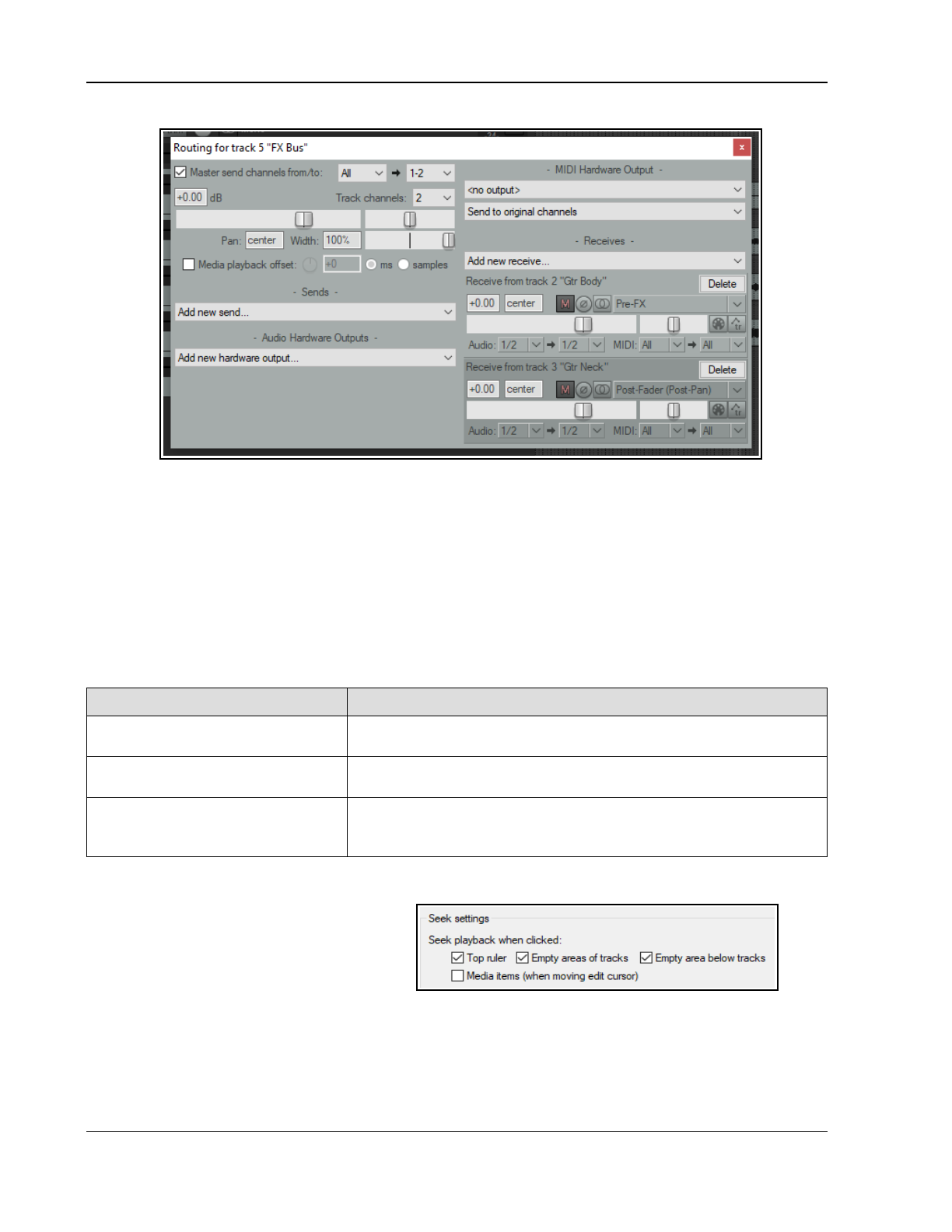
Up and Running: A REAPER User Guide v 7.81
You might have noticed a Media playback offset option. This allows you to compensate for possible latency
introduced by third party VST instruments. For now you can ignore this: it will be explained in Chapter 10.
Making Adjustments
When you now play the song, you’ll probably find that there’s more chorus on the guitar tracks than you would
like. There are four main ways to adjust this. Experiment until you find what gives you the results you want:
1. Adjust the chorus FX parameters. In this case, you could lower the amount of Wet signal in the mix.
2. Adjust the levels of one or both of the receives in the FX bus routing window.
3. Display the routing window for either guitar track and adjust the send levels for that track.
4. Adjust output volume fader for the track called FX Bus.
Speed Tips
In Order To Do This ... Do This
Toggle on/off send from track to
Master
Hold Alt while clicking on ROUTE button. Works with single track or
multiple track selection.
Create a quick send on the fly
from one track to another.
In TCP or MCP, drag and drop from send track ROUTE button to
receive track’s. See Chapter 11 for a the full range of options.
Send output of track or selection
of tracks direct to any hardware
output.
Select track(s). Right-click on ROUTE button and select Audio
Hardware Output or MIDI output (as required) then choose from the
sub-menu. This is independent of the track's master send status.
2.15 Managing the Play Cursor
By default, when a project is playing, pressing
Stop (or Spacebar) will stop playback and
return the play cursor to its previous starting
position. Pressing Pause (or Enter) will pause
playback at the current play cursor position.
You can also specify that the play cursor should be moved when you click on the Time Ruler, an empty area of
any track and/or in the empty area below tracks. These three options can be enabled/disabled in your Seek
playback when clicked. (Options, Preferences, Audio, Seeking settings).
44
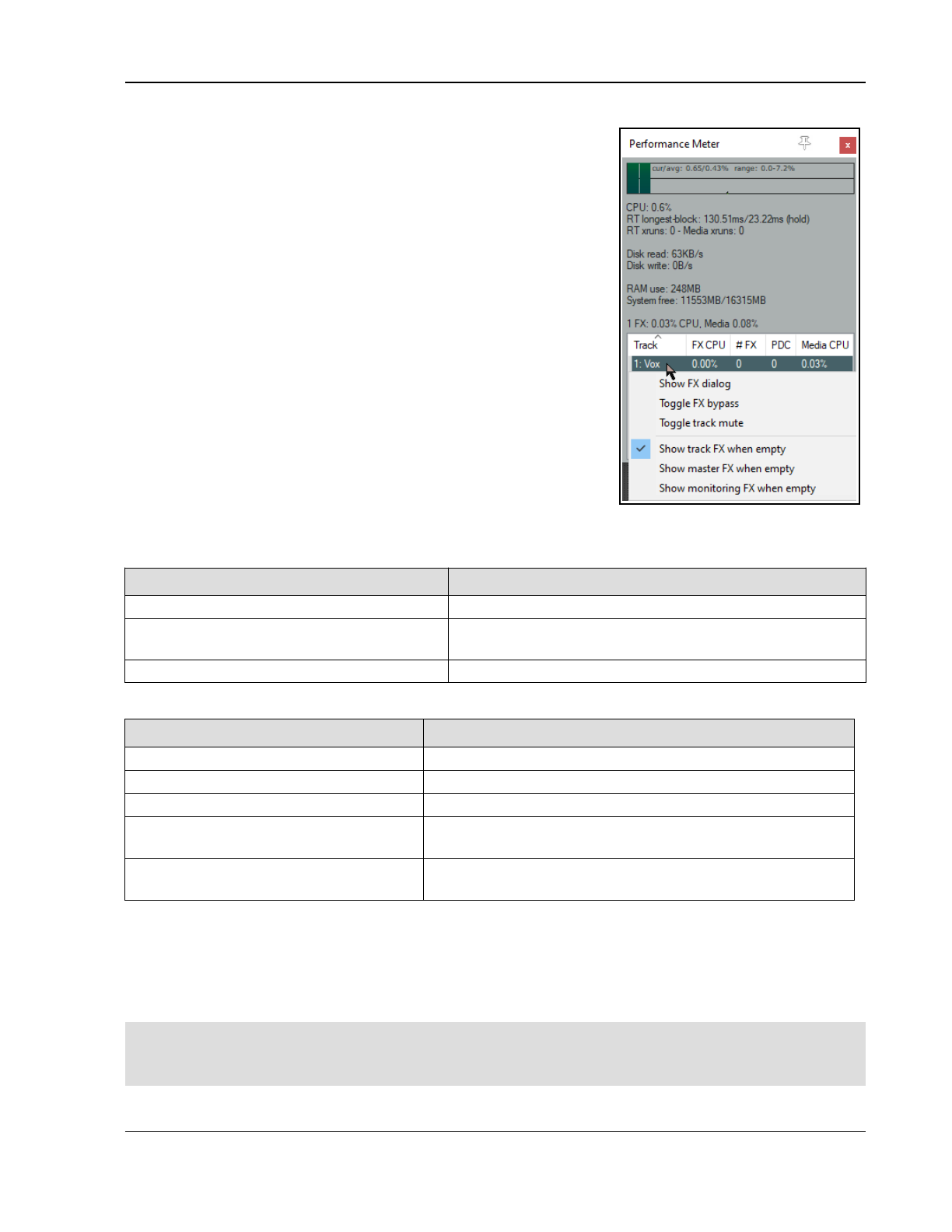
REAPER Project Basics
2.16 Analyzing FX Performance
FX plug-ins can impose a heavy load on your computer’s CPU. To help
you overcome this, you can use the Performance Meter to closely
monitor your FX in the following ways:
● You can check how much CPU is being used by the FX in your
various tracks and in the master.
● You can disable and enable FX chains for individual tracks,
quickly, easily and conveniently, all together in one place.
● You can toggle on and off the mute status for your tracks, again
all in one convenient place.
To display the Performance Meter, press Ctrl Alt P, or use the View,
Performance Meter command.
Example
In the example shown (right), the Master track with 3 plug-ins is using
0.05% and the Vocals, with four plug-ins, is using 0.23%. Media items
on this track are using a further 0.01%.
If any track shows an unexpectedly high reading examine the track FX f
to help identify the reason for this. To open a track FX chain, double
click on the track name or number in the Performance Meter window.
This feature is useful if a project has many tracks. You can use the
Performance Meter window to browse your project file, checking it track
by track, without having to scroll or navigate thru Track View. You can also toggle FX Bypass for any track,
selection of tracks, or all tracks in the Track View or Mixer View. The table below summarises these options.
In order to do this … In Mixer or Track View, do this …
Toggle FX Bypass On/Off for that track. Click the FX Bypass button for any track.
Toggle FX Bypass On/Off for all tracks in
the selection.
Select a number of tracks (Ctrl Click) then click the FX
Bypass button for any track in the selection.
Toggle FX Bypass On/Off for all tracks. Hold Ctrl key while clicking any track’s FX Bypass button.
The first of the performance meter’s two right click menus is accessed by right clicking in the track list area.
In order to do this … In the Performance Meter window do this …
Open FX Window for that track. Right click on track name, choose Show FX Dialog.
Toggle FX Bypass On/Off. Right click on track name, choose Toggle FX Bypass.
Toggle track mute for that track. Right click over any track, choose Toggle Track Mute.
Show in/hide from Performance
Meter (PM) list tracks with no FX.
Right click on any track, enable/disable Show track FX when
empty.
Show hide in PM master track/
monitoring when these have no FX.
Right click on a track, enable/disable Show master FX when
empty and/or Show monitoring FX when empty.
The other menu selects what you want shown or not shown in the window. Most options are enabled by default.
Right click anywhere in the main Performance Meter area to display this. For example, you can choose to display
(or not) the CPU graph, Real time CPU on the graph, CPU use, Real time longest block processing
time, Disk use, RAM use, Video load, FX and media item CPU use, and more.
You can also use this menu to move the window to the docker.
Tip: You can select several tracks – using Ctrl Click – then right click over any of their track numbers in the
Performance Meter to Toggle FX bypass and/or Track Mute status for all tracks in the selection.
Note: You’ll find more information about the REAPER Performance Meter in Chapter 22 of this guide.
45
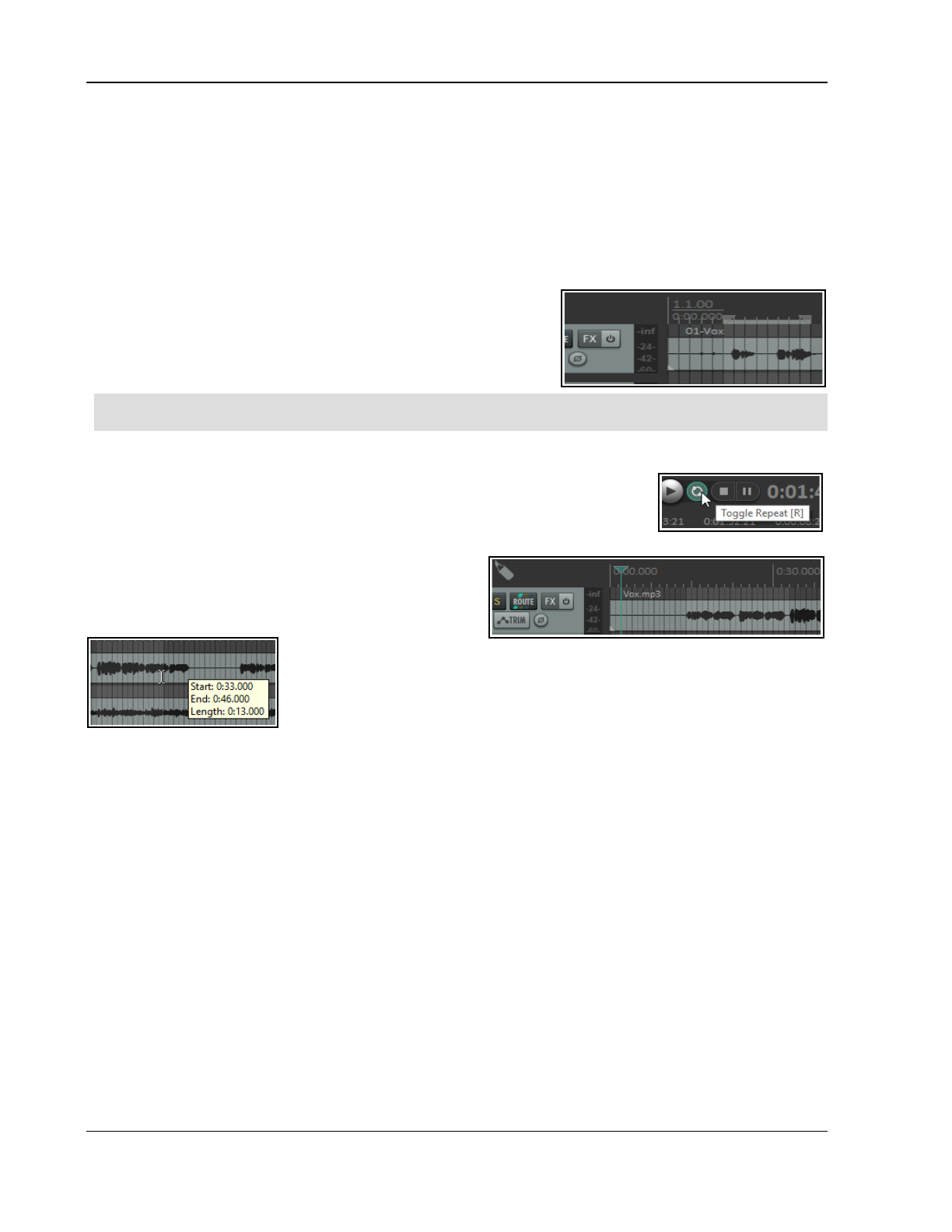
Up and Running: A REAPER User Guide v 7.81
2.17 Time Selections and Time Loops
You might need to work on just a part of your project for a while. To do this, first check the Options menu to
see if Loop Points Linked to Time Selection is enabled. If it is, then making a time selection and defining a
loop are the same thing. If not, then making a time selection and defining a loop become two different things.
Either way, to define a loop area click and drag along the timeline. The start and end of the loop are marked by
two small equilateral triangular indents.
Stop the playback at or near the point where you want your loop to begin (or click your mouse in the
background area) to move the Edit Cursor there.
Place your mouse over the Timeline (above the first track), then click/drag along it, releasing the mouse to
define the area to be looped. This is shown here. The start and
end of the loop are marked by two small triangles.
If when you
attempt this the selection snaps outwards to define a larger
area than you want, then REAPER has snapping enabled.
Snapping will be discussed in detail in Chapter 7: The shortcut
keys Alt S toggle snapping on and off.
Tip: To set the loop selection to match a media item, hold Ctrl while you double click on that item.
To set the time selection to match a media item, hold Shift while you double-click on the item.
Now when you play the project, provided that the loop (toggle repeat) button on the transport bar is engaged, it
will replay over again the area selected for your Loop. If loop points are linked to
time selection, the start time, finish time and duration of the selection are also
shown on the Transport Bar. Pressing the R key toggles this repeat function on
and off. There is also the option (under Options, Preferences on the Playback
page) to stop playback at the end of a loop when the repeat function is disabled.
To change the area defined as your loop, repeat the
original procedure. To clear the loop altogether, without
defining a new one, press the Escape key.
If loop points are not linked to time selection, you can
define a time selection by
clicking and dragging in the space underneath or between the media items, in
the arrange view background area.
Note that when you mark a time selection, a tooltip pops up which shows the
start position, end position and length of your selection.
Right clicking on the Timeline then gives you a menu of commands which you
can apply to a time selection, including Zoom Selection. You can use this menu to change the units used on
the timeline – for example, Minutes:Seconds, Measures:Beats, Measures:Beats ,
a
Measures.Beats
(minimal), Measures.Beats (minimal). Measures.Fractions, Seconds, Samples,
Hours:Minutes:Seconds:Frames or Absolute Frames. You can also specify as a secondary time unit
Minutes:Seconds, Seconds, Samples, Hours:Minutes:Seconds:Frames or Absolute Frames.
The other commands on this menu will be discussed elsewhere in this User Guide, as the need arises. These are
features that you are likely to find useful when editing your files. Incidentally, to zoom out of a time selection
and restore a whole project length to view, press Ctrl PgDown.
There's more about loops and time selections elsewhere in this guide, e.g. Chapter 9.
2.18 Managing Time and Loop Selections
In the previous section you learnt how to click and drag within an empty area of the track view to define a time
selection. This may or may not also change the loop selection, depending on your Options, Loop points
linked to time selection setting. As you progress thru this User Guide, you will see that time selection plays an
important role in REAPER, for example when it comes to editing your media items. You’ll probably find at first
that it’s too easy to perhaps select too large an area, or to miss part of the area that you intended to select.
To modify a loop selection using the mouse, hover the mouse over the edge at the start or finish of the loop
selection on the timeline, then click and drag left or right. Dragging left from the start of the selected area
extends the selection left, dragging right shortens it. Dragging right from the finish of the selected area extends
it to the right, dragging left shortens it. Holding Ctrl while you do this cause any snap settings to be ignored.
46
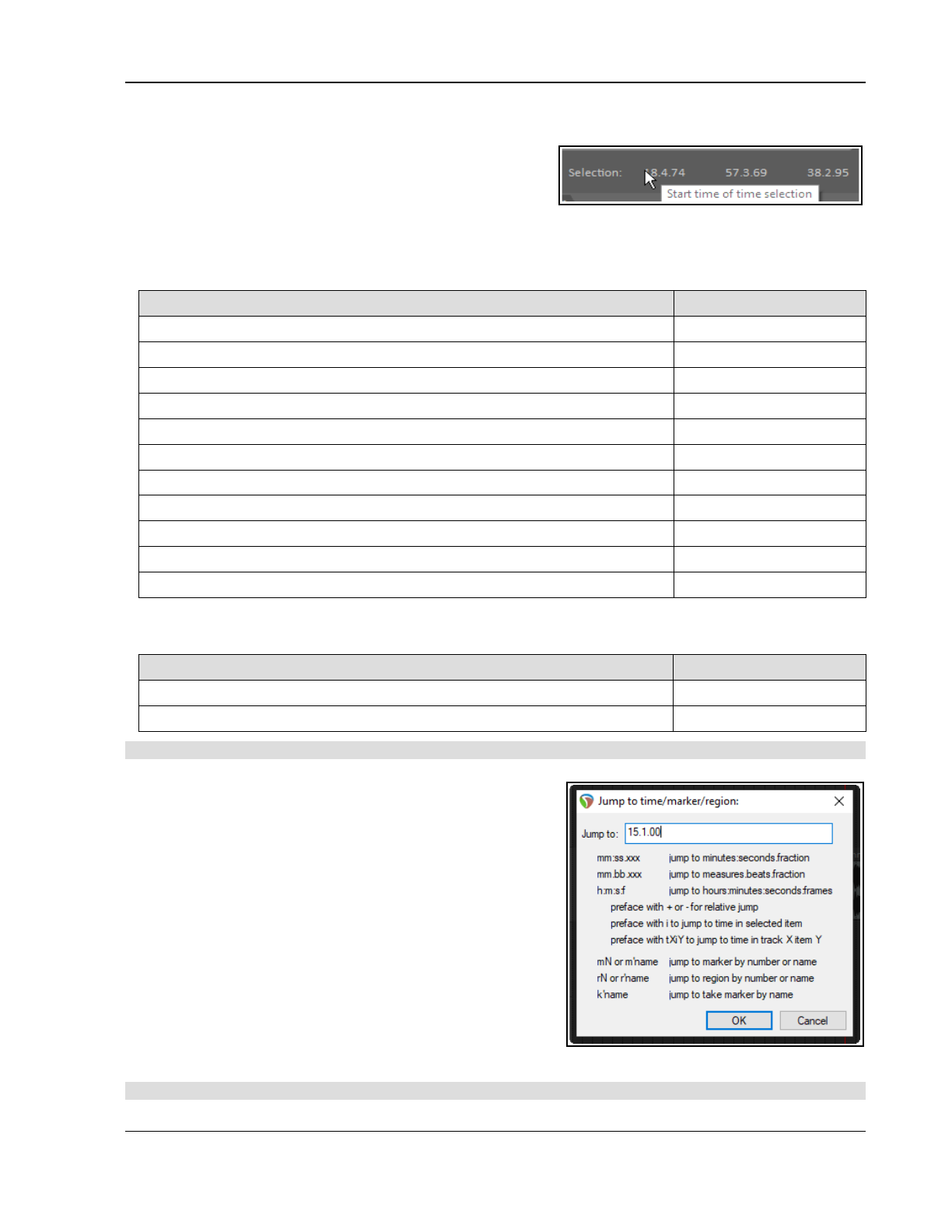
REAPER Project Basics
To move a loop selection, hold the mouse over the selected area on the time line, then hold down Shift while
clicking and dragging the mouse left or right.
You can also modify a time selection by first clicking then
scrolling the mousewheel over the Selection area of the
Transport Bar. Scroll over the start area to adjust start time,
end area to adjust end time, or over the length of selection
area to move the entire selection. If you wish, you can enter actual times in the start and end time boxes. There
are also several keyboard shortcuts you can use for managing Time Selections, summarised below. If loop
points are linked to the time selection, then the loop area will also be modified.
Function Keystroke
Nudge Entire Time Selection left a little. , (comma)
Nudge Entire Time Selection right a little. . (period or full stop)
Extend Time Selection to left by nudging left edge left a little. Ctrl ,
Shrink Time Selection from right by nudging right edge left a little. Ctrl Alt ,
Extend Time Selection from left by nudging right edge right a little. Ctrl Alt .
Move Time Selection left by time selection length. Shift ,
Move Time Selection right by time selection length. Shift .
Copy portions of selected media items in Time Selection. Ctrl Shift C
Remove (Unselect) Time Selection. Esc
Zoom to Time Selection. Ctrl PageUp
Zoom back to Project. Ctrl PageDown
If you wish, you can use the keyboard rather than the mouse to manage your time selections. First you need to
position the cursor at either the start or the end of the loop, then use one of these:
Function Keystroke
Drag cursor to the left and create time selection. Shift Left Arrow
Drag cursor to the right and create time selection. Shift Right Arrow
Tip:
If your cursor will not stay exactly where you wish when creating a selection, make sure snapping is off.
2.19 Navigating by Jumping
You can jump to any point on the timeline using the View, Go
To, Jump To command or the keyboard shortcut Ctrl J. In
typing the place to jump to you should use the same format as
the timeline. In the example used here, the timeline displays
Measures and below it Minutes and Seconds. You could
therefore use either format, e.g. 33.1 or 1:04.
To jump to an absolute position in a project, simply enter the
required position as in the example shown.
To jump forward or back relative to the current cursor position,
enter a + or – followed by a value – e.g. -2.0
To jump to a specific time in an item, type I followed by the
time, e.g. i0:30
If you are using markers and/or regions, you can jump to any
maker or region – e.g., typing M1 will cause it to jump to
marker 1, R2 to jump to the start of region 2, and so on. Markers and regions are explored in Chapter 9.
Tip: Another easy way to open the Jump to dialog box is to double-click on the time on the transport bar.
47
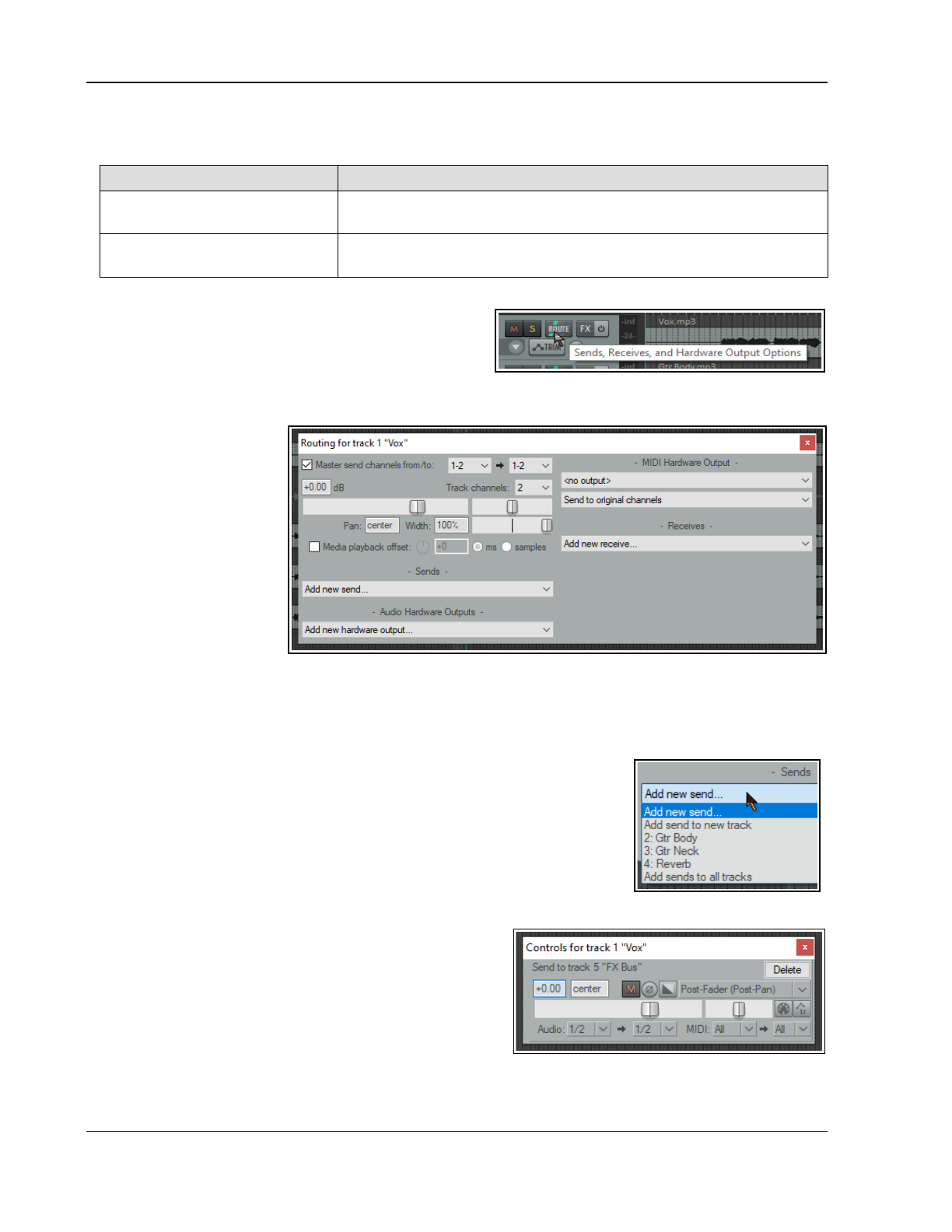
Up and Running: A REAPER User Guide v 7.81
2.20 Time and Loop Selections and the Transport Bar
There are two special ways in which the transport bar can be used with a loop selection or a time selection.
In order to do this ... … you should do this
Repeatedly play the selection
over and over
Make the loop selection, make sure Repeat is enabled (next to Record
on the Transport Bar), with the cursor inside the loop press Space.
Play back project skipping
over time selection
Make the required time selection and position the play cursor anywhere
before the start of that selection. Press Alt Space.
2.21 REAPER Routing Essentials
Routing directs media output (audio and/or MIDI) to
another track in addition to (not instead of) the track itself.
Routing can be simple or complex – and anything in
between. This section explains basic routing concepts. More
complex options will be covered later in this chapter, also in Chapter 5 , Chapter 17, and elsewhere.
Each track panel includes a
Routing Button. Hover the
mouse over this button to
display a tool tip listing any
sends and/or receives
associated with that track.
Clicking the button opens the
track’s routing window. To
close the routing window,
Escape, or click on the X in
the top right corner of the
window, or click anywhere
outside the window.
Routing window display
depends on project structure and DAW hardware setup (e.g. audio devices, MIDI devices). Depending on the
nature of your project, your display should be
similar
to that shown here, but not necessarily identical. Note:
● Master send channels: these direct the track’s output to the Master. In most cases you will want to
direct the output of channels 1-2 directly to the Master, as shown for Track 1 (above).
● Parent channels - The example shown above directs audio to the master
via channels 1 and 2 (stereo): this is the default. If you wish to send a
mono signal to the master, select 1 from the first drop down, then a single
channel from the parent channels drop down (e.g. channel 1 or 2 only).
● Sends – In the FX Bus example earlier in this chapter you created sends.
A track's output can be routed via a send from any track to any other
track(s) or to a new track This will be covered in more detail later.
● Audio Hardware Outputs – as well as (or instead of) directing output to
your Master Bus, you can direct output of any track directly to hardware outputs on your audio device. If
this device has multiple outputs, this can be useful, for
example, for creating a headphone mix, or a series of
separate headphone mixes.
● MIDI Hardware Output – Directs MIDI output to an
external device.
● Receives – For every send (source) track there will be
a receive (destination) track.
● Playback time offset – Can be used to compensate
for any latency that might be created (for example) by a third party VST instrument. See also Chapter 10.
Notice (above) that a send includes volume and pan faders, and options to send audio or MIDI output, or both.
48
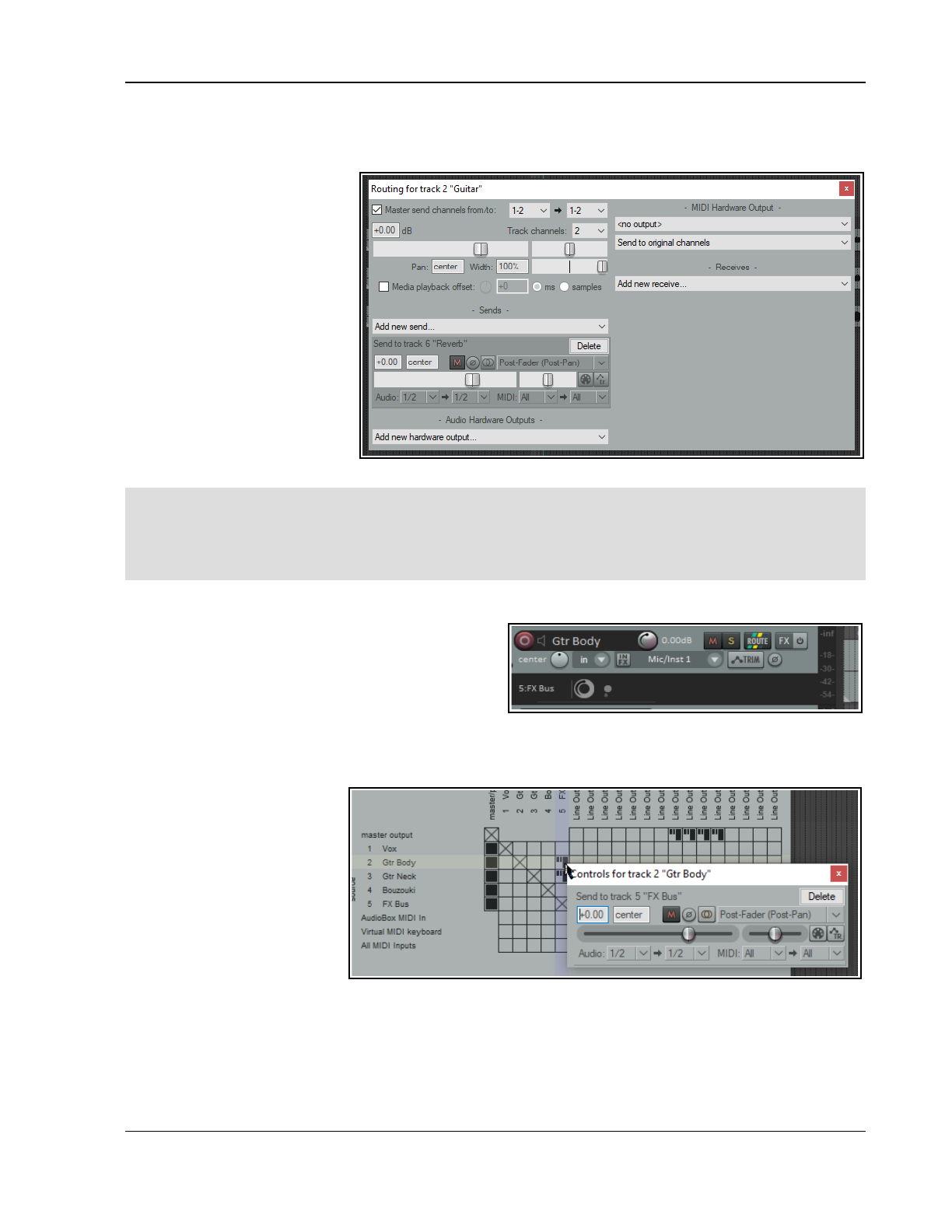
REAPER Project Basics
When you create a new project, by default the output of each new track is routed to the Master and from there
to the output of your sound card. REAPER’s routing capabilities go beyond this. In the example below a trackhas
both a send and a receive. You will be shown how to do this later in this User Guide, starting at Chapter 5.
The early chapters of this User
Guide will take you thru basic
track routing. After mastering
these, you will find more complex
examples in the later chapters,
especially in Chapter 17.
Note: Sends and Receives can
be any of three types - Post
Fader (Post Pan), Pre-Fader
(Post FX) and Pre Fader (Pre
FX). The differences will be
discussed in Chapter 17.
The default is Post-Fader (Post
Pan), but you can change this in
Options, Preferences,
Project, Track/Send Defaults.
See also the flow charts in Chapter 6.
Tip 1: Drag and drop routing. A quick way to create a send from one track to another is to drag and drop
from the route button on the source track to the track panel of the destination track -- see also Chapter 17.
Tip 2: Track I/O (Route) button context menu. This offers you a number of handy shortcuts. Right click on
this button, choose Sends or Receives then select the required track: this will add a new send or receive
to/from an existing or new track. This menu can also be used to remove an existing send or receive.
2.22 Showing Sends in the Track Panel
Options, Show sends in TCP (when size permits)
displays your sends in the track panel (as shown here).
You can make adjustments (without opening the routing
window. You can click on the send to access all the
send controls, or right click for a menu which includes
Mute send, Remove send, Show track routing
window and Go to destination track.
2.23 The Routing Matrix
REAPER's Routing Matrix is a
one stop window for managing
a project's entire routing
needs.: you can add and delete
sends and receives and manage
their parameter controls.
Alt R opens the routing matrix.
For the file All Through The
Night with Bus it should be
similar to that shown here.
Observe the cell in the matrix
where the Gtr Body row
intersects with the FX Bus column. It contains two small blobs.Right click over this cell to display controls which
determine how the signal from the Gtr Body track is sent to the FX Bus (see above).
REAPER’s Routing Matrix default display of paired outputs might include several that you do not want. You might
want to only “natural” pairs (e.g. 1/2 for your speakers, 3/4 for a headphone amp). Non-standard pairs like 2/3
can be removed using Options, Preferences, Audio. Turn off Show non-standard stereo channel pairs .
49
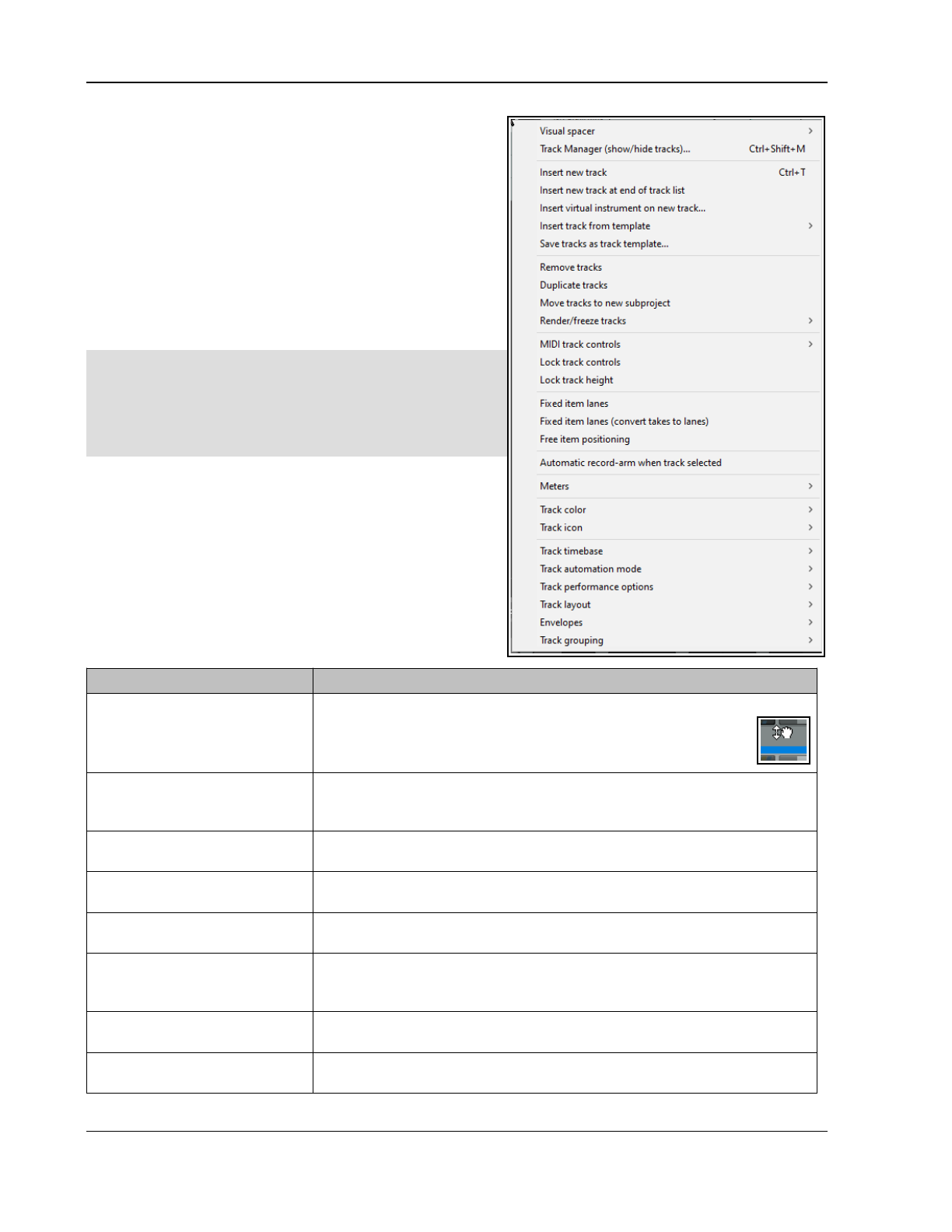
Up and Running: A REAPER User Guide v 7.81
2.24 Managing Tracks
You have already encountered basic REAPER track
management features, such as Volume, Panning, Mute and
Solo. We can now explore these features in more depth and
introduce others, e.g. moving and removing tracks,’ track
folders and track grouping.
Many of the relevant commands and actions are available
from the menu that is displayed when you right click over
any track number (see right). Ctrl Z can be used to undo
your last action.
PC or Mac?
Booster keys are used frequently throughout this User
Guide. Booster keys on the macOS are not the same as
they are in Windows (PC). This user guide references PC
(Windows) booster keys. For OS users, please refer to the
table in Chapter 1, Selections, Controls and Commands for
a table of booster key equivalents.
Tip: Before continuing, you might wish to open the project
file All Through The Night.RPP and save it to a new
name, e.g. All Through The Night EDITS.RPP. You can
use this file to experiment with some of the ideas
presented in this section.
Basic Track Management
A number of techniques can be used for carrying out these
various track management tasks.
To do this … You should do this ...
Move a track up or down
the track order
Click inside the track panel and drag the track up or down the track list
until the cursor is just inside the required track, then release the
mouse. Media items are moved with the track.
Make sure the mouse displays a hand before you release it.
Move two or more adjacent
tracks up or down
Click in the first track panel as above, then hold Shift while clicking
likewise inside the panel of the last track to be selected. Release the Shift
key, then click and drag up or down. Media items move with the tracks.
Delete a track Click on or around the track number, the press Delete, or right click and
choose Remove tracks. All media items are removed with the track.
Delete two or more tracks Use Ctrl click to make your selection, then press Delete, or right click
and choose Remove tracks. Media items are removed with the tracks.
Copy a track or tracks as
the next track(s)
Select track(s). Right click on one, choose Duplicate tracks. Media items
are duplicated with the track.
Copy a track to a specified
location
Click on the track number. Press Ctrl C. Move to the required location
then press Ctrl V. All media items are duplicated with the tracks. To do
this with more than one track, select all required tracks first.
Display the Master in Track
View
Right click anywhere in the Track Control Panel area, below the last track.
Choose Show master track, or use the keys Ctrl Alt M to toggle.
Make the Track Control
Panel wider/narrower
Click and drag right/left on the boundary between the TCP and the
arrange area. A narrow TCP might cause some controls to be hidden.
50
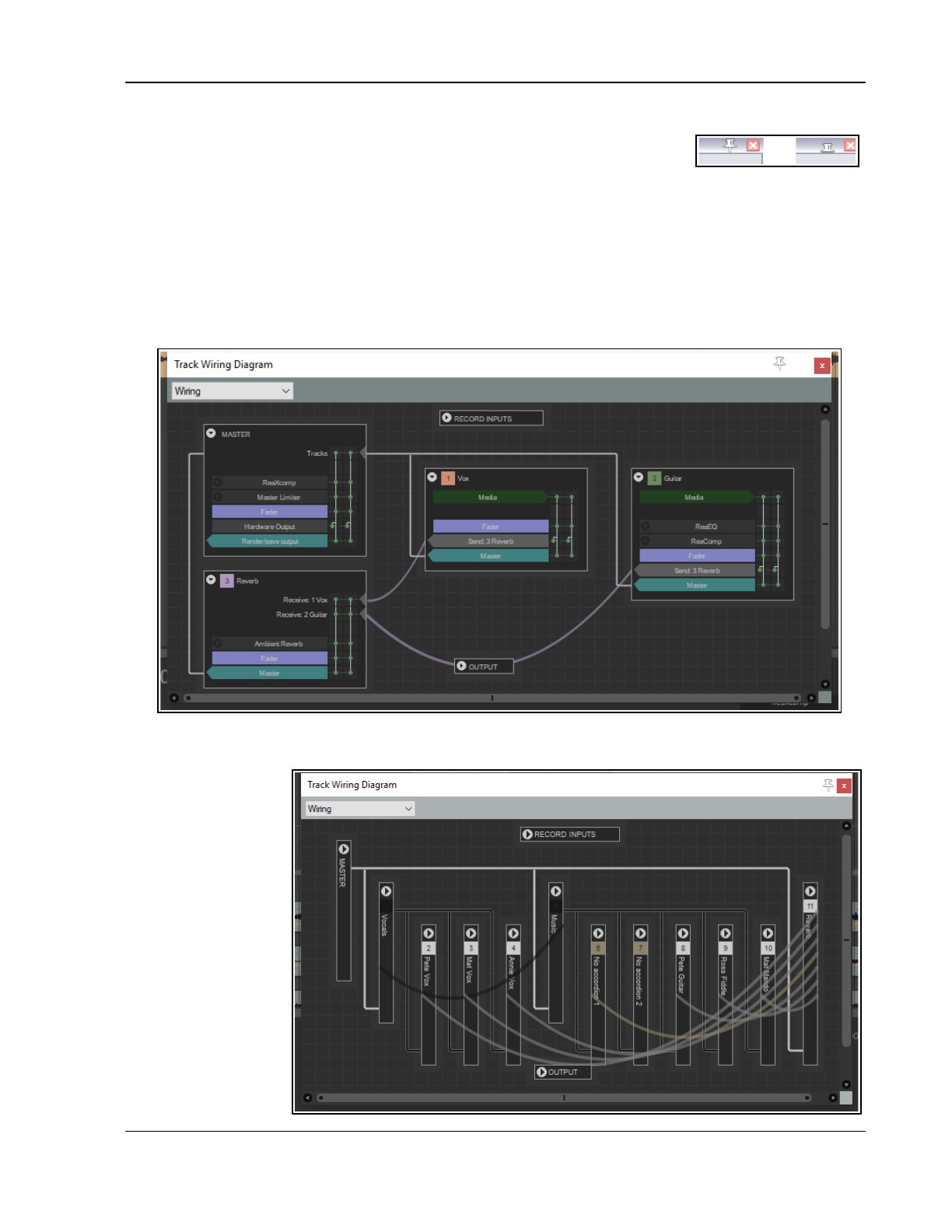
REAPER Project Basics
2.25 Keeping a Window on Top
The small pin on a window’s title bar (just before the X) can be used to keep it on
top. Click to toggle its on top status on and off (as shown here).
2.26 The Track Wiring View
Until now, there have been three main ways of managing track routing within REAPER, i.e. drag and drop in TCP
or MCP view, using a track’s routing window. Or using the Routing Matrix.
Now you have a fourth option – Track Wiring. Track Wiring view cannot just be used to create routing: it also
gives you an overview of your project’s routing, and allows you to manage it. For example, it can help you to
identify any routing you may have created and forgotten about, but which needs to be deleted.
This section introduces you to Track Wiring and explores its environment. Track Wiring is accessed directly from
the View menu. Let’s start with a simple example.
Above you see the track wiring view for a project with two recorded tracks and one reverb track.
● The solid straight white lines depict sends to the master.
● Click and hold on
any track name
to drag and drop
it around at will.
● The curved lines
represent sends
from one track to
another (from
each recorded
track to the
reverb track.
● The little arrow
next to the track
number can be
used to collapse/
expand the
display of detailed
track information
for individual
51
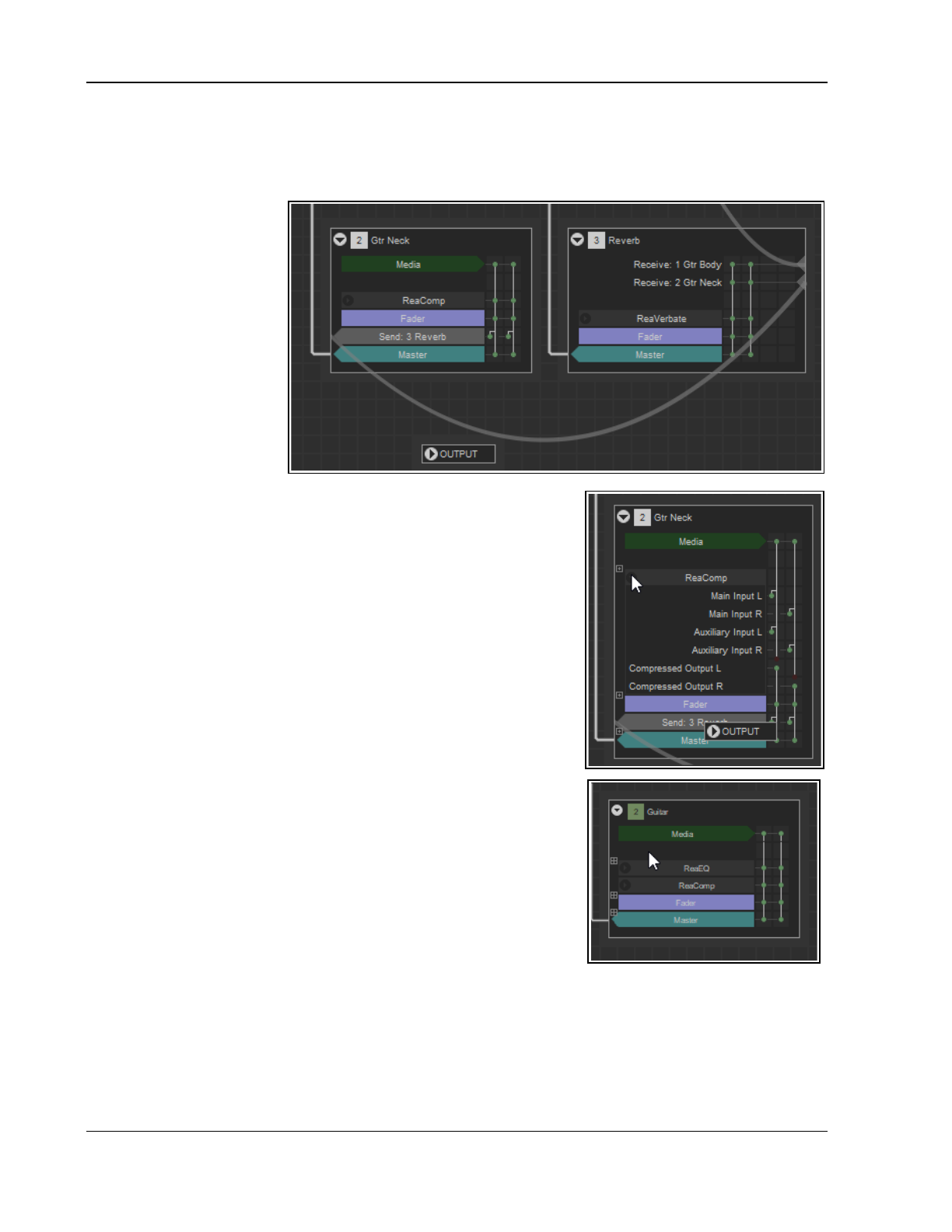
Up and Running: A REAPER User Guide v 7.81
tracks. This can be especially useful if your file has a large number of tracks and/or more complex routing
(as shown in the second example above). Notice also how the two folders (Vocals and Music) and their
child tracks are depicted.
In “normal” mode for each track the following overview information is displayed: track number and name, media,
fx, fader information,
channels and any sends.
Here is an example (right).
The Gtr Neck track shown
here contains media, one FX
(ReaComp) one send (to the
Reverb track) and a send to
the master. It uses two
channels (hence the two
vertical lines on the right).
The Reverb track contains
no media, has receives from
tracks 1 and 2, contains
ReaVerbate and also directs
its output to the master.
● Click on any FX name
to open its UI – you can then adjust any of its parameters, and/or
access its the pin connector. Click where shown here (right) to
show all routing information for that FX.
● Click on the text “Fader” to open the routing window for that track:
this has the same effect as clicking on the Route button in the TCP
or MCP. You can modify, add or delete track sends and/or receives.
● You can click and drag in Track Wiring view to create new sends
between tracks. The send type will be determined by exactly where
you position the mouse before dragging:
Hover the mouse over the “body” of any track box (see below right)
to see three boxed tiny + symbols on the left side of the track box.
Click and drag from the symbol beside the first FX in the FX chain to
the destination track to create a Pre fader (Pre FX) send.
Click and drag from the symbol beside the box labeled “Fader” to
the destination track to create a Pre fader (Post FX) send.
Click and drag from the symbol beside the box labeled “Master” to
the destination track to create a Post fader (Post FX) send.
You can also modify MASTER settings in Track Wiring view:
● Click on any FX listed within the MASTER box to open its UI, where
you can adjust any of its parameters.
● Within the MASTER box, click on the text “Fader” to open its
hardware outputs window, Here you can add, adjust, or remove
hardware outputs.
● Within any track box, click on the text “Send” to open its control
window. You can modify or delete this send, e.g. to change the send
type, adjust volume and/or pan, or specify destination channels.
● The more complex the project, the more complex the track wiring diagram. This is where the context menu
can be helpful. Right click anywhere in the Track Wiring window to display the menu shown below.
● You can “unclutter” the diagram using any or all of the three toggle options shown:
Only show wires on track on mouseover
Only show hardware output/input wires on track mouseover
Show routing controls when creating send/hardware output.
52
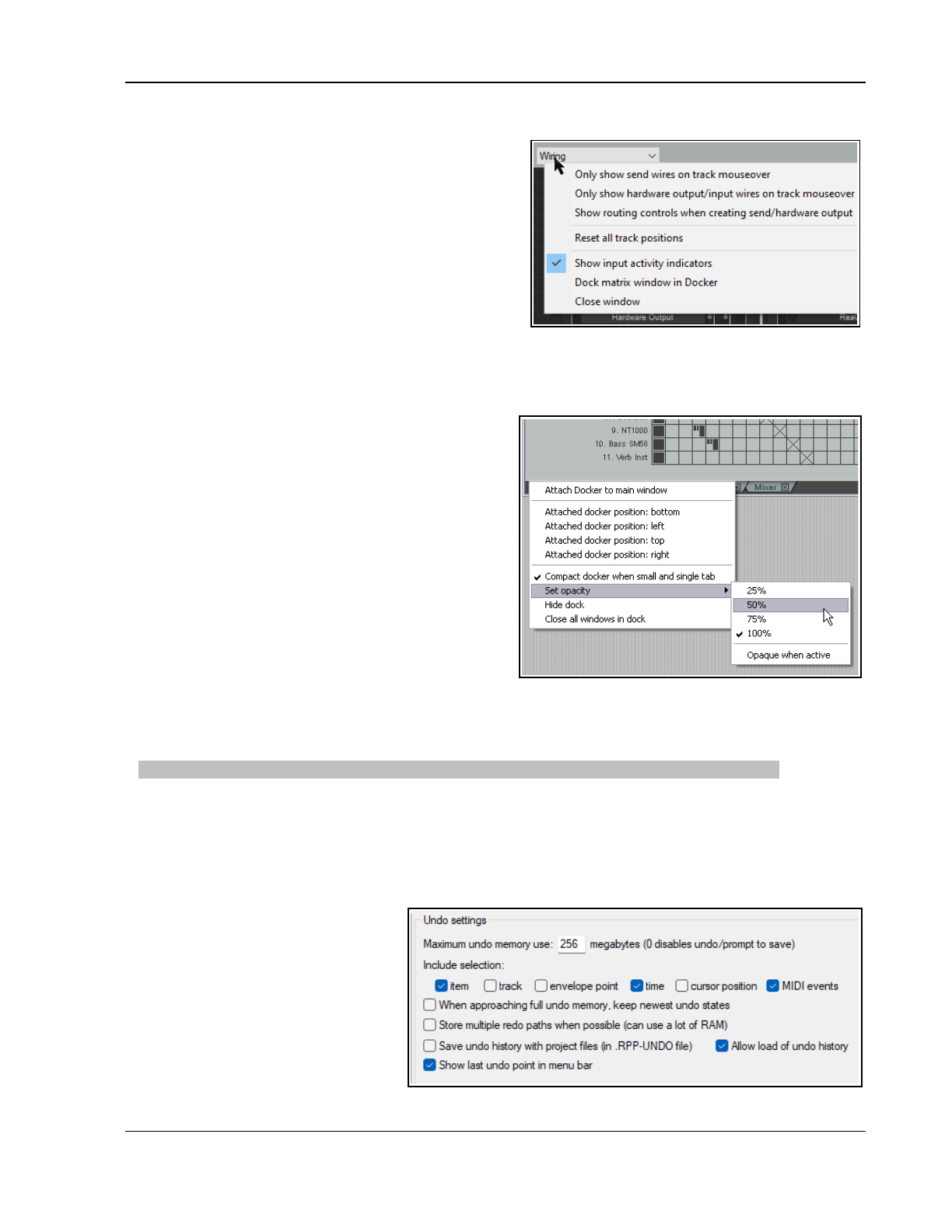
REAPER Project Basics
● If you get into a tangle after dragging and dropping Reset all track positions will get you out of trouble!
● The option Show input activity indicators, if
enabled, will cause MIDI and audio inputs to light up
in response to any input signal.
● You can use the dropdown list (top left corner of
window) to switch between any of the four listed
view modes - routing matrix, wiring, track grouping
matrix, and region render matrix.
This can be especially useful for switching between
the track wiring diagram and the routing matrix.
This menu includes an option to Dock /Undock the
window. Docking is explained ibelow.
2.27 Docking and Floating
REAPER’s docker can help you to avoid screen clutter. Right clicking over the title bar or background area of
most windows opens a context menu relevant to that window. Look for either the option Dock in Docker or
Dock Window. When multiple windows are docked, at
the foot of the Docker you will see a series of tabs, used
to select which window is displayed at any time.
● If a Window is closed while it is closed, next time it
is opened it will still be docked.
● To undock a window, right click over the
background or tab area of the window and deselect
the Dock in Docker or Dock Window option.
● The Docker can itself be attached to the main
window or detached and floated. Click over the
small exclamation mark in the bottom left corner of
the Docker and use the option to Attach Docker
to Main Window to toggle.
By default the docker will be attached to the
bottom of the main window. You can use the same
menu to change this position to left, top or right.
● Clicking over the exclamation mark after detaching the Docker from the Main Menu will also give you
access to the Set Opacity feature. This can be used to ensure that when floated and not in focus, the
Docker is transparent. Opacity can be set between 25% and 100%.
Tip: The keyboard shortcut Alt D can be used as a toggle to show or hide the Docker or Dockers.
For more experienced users, you can work with multiple dockers (see Chapter 12).
As an alternative to docking windows, you can use the toggle command View, Show/hide all floating
windows to manage screen clutter. Another useful command can be View, Cascade all floating windows.
2.28 The Undo History Window
REAPER’s Undo feature is very powerful. The Edit, Undo History command (or use Ctrl Alt Z) toggles open
and closed the Undo History
Window.
The Undo settings page of Options,
Preferences, General includes
options to manage your undo history.
Settings options are shown below. In
particular, you can:
● Specify the maximum amount of
memory to be allocated to
Undo.
● Specify whether to include item,
track, envelope point and/or time selection and/or cursor positions changes in the undo history.
53
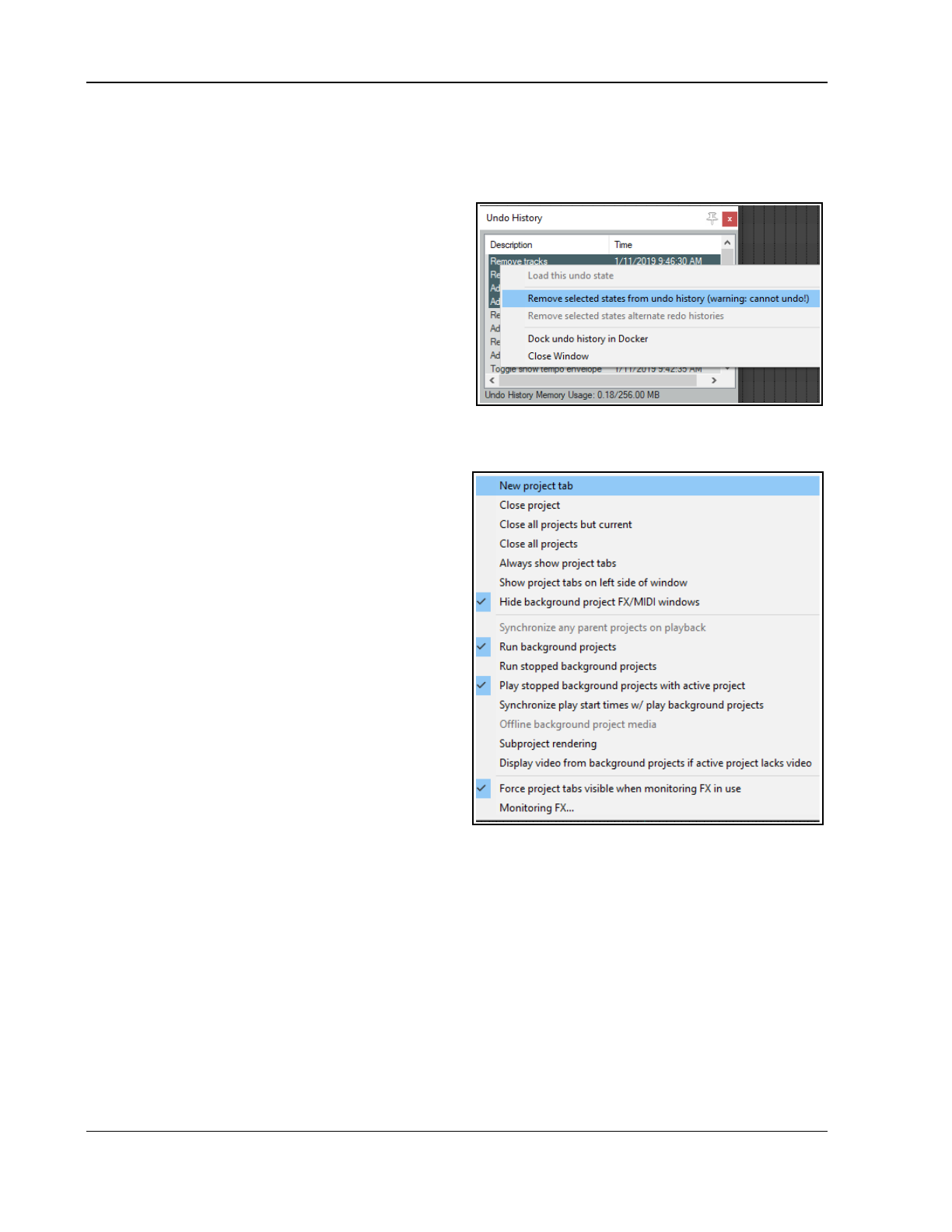
Up and Running: A REAPER User Guide v 7.81
● Ensure that if the allocated undo area becomes full, the most recent actions will be retained.
● Save your Undo History with the Project File to ensure that this file is loaded with the project. Even
at some later date, you will still be able to revert the project to an earlier state if you wish.
Store multiple undo/redo paths. You can even store alternate sequences of commands and actions,
then switch between them!
Show last undo point in menu bar.
You can double click on any event displayed in the undo
history window to load that undo state. This option is
also available on the undo history window’s right-click
menu. Other menu options menu include Remove
selected state(s) from undo history (can apply to a
selection of actions), and Dock/ undock the undo
history in the docker.
2.29 Multiple Project Tabs
Project tabs allow you to keep up to 1000 projects open
at the same time, thus enabling you to jump between
them when working on more than one song, or to move or copy media items (audio and/or MIDI) from one
project to another. To add a new project tab when you already have a file open, use the File, New Project Tab
command (Ctrl Alt N). A new tab will be opened
(labelled Unsaved), but the previous project will also
remain open on its own tab. You can jump between
projects simply clicking on the tab.
To open a file in an existing project tab, select that tab,
then use the File, Open Project command in the usual
way. To open it in a new project tab, select this option
from the dialog box when opening the project. Right
click over any project tab for the project tab menu:
New project tab, This inserts a new tab. A quicker
way of doing this is to double click in the project tab
area to the immediate right of the last tab.
Close project. Closes the current project and its
tab - or click on the X at the end of the tab.
Close all projects but current. Closes all project
tabs except current one.
Close all projects. Closes all open projects.
Always show project tabs. Shows project tabs,
even if only one project is currently open (toggle).
Show project tabs on left side of window.
Toggles displays tabs on left of window..
Hide background project FX/MIDI windows. Ensures that when one of a number of open project tabs is
selected, any open FX windows etc. belonging to other open projects are not displayed on top of it.
Run background projects. This allows you to play the project in one tab while working on another.
Run stopped background projects. Commences playback of projects in tabs not currently selected.
Play stopped background projects with active project: Causes background projects (open on other
tabs) to be played with the current project. When this is enabled, you can also select
Synchronize play start times w/play background projects. This will ensure that all open projects are
played/stopped in synch.
Offline background project media will set media items in background projects offline.
To copy or move tracks and/or items from one project to another, first select the required tracks/items, then
press Ctrl C (copy) or Ctrl X (cut). Next, click on the tab of the destination project and press Ctrl V.
There is a Subproject rendering submenu with four options – Do not automatically render subprojects,
Prompt before automatic render, Defer rendering of subprojects, and Leave subproject open in tab
after automatic open and render. Subprojects and these options are explained in Chapter 12.
Display video from background projects if active project lacks video. See Chapter 20.
54
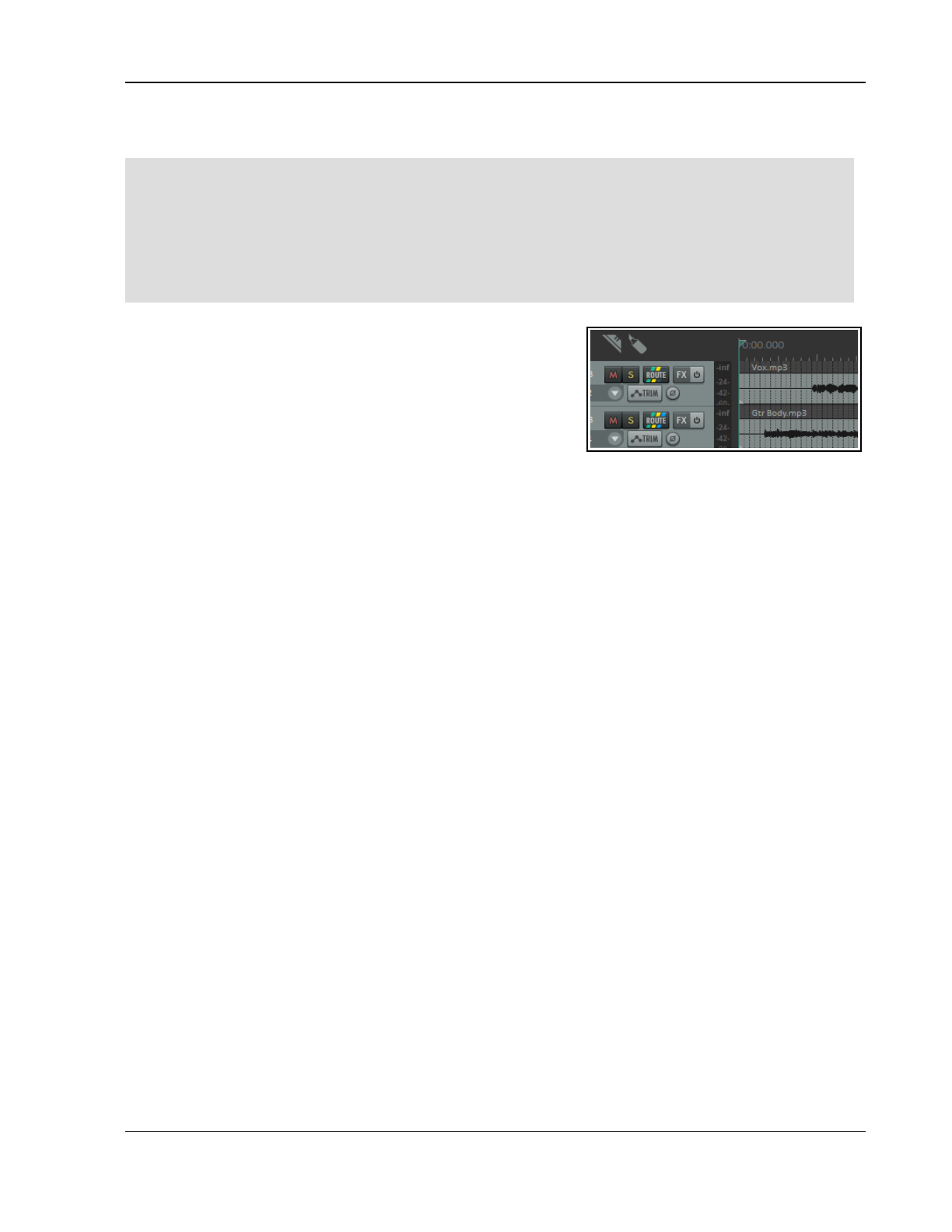
REAPER Project Basics
Force project tabs visible when monitoring FX in use. Displays tabs whenever FX monitoring is active.
Monitoring FX … This opens the monitoring FX window.
Tips: Multiple project tabs can be reordered using drag and drop. Also, you can use the
File, Close All
Projects command to close all open projects at once. Note that the small X button used to close a project tab
can be positioned to the left or the right: just drag and drop according to your preference.
A project can be opened on a new project tab directly from the File, Recent projects menu by holding down
the Shift key while clicking on the project file name. You can open several projects together at the same time,
each in its own project tab, provided all the .RPP files are in the same folder. Simply use the File, Open
project command, then navigate to the required folder. Use Ctrl Click to build your selection, ensure Open
in new project tab is ticked, then click on Open.
2.30 Item Names, Buttons and Icons
Depending on Appearance, Media preference settings, you may
(or may not) see item names displayed above the media item
rather than on it (see right).
You might also see some media item icons (or buttons). You'll
learn more about this when we examine media items in Chapter 7.
2.31 Online and Offline Media Items
By default, REAPER sets all media items offline when the program loses focus. To change this disable the option
(Options. Preferences, Media) to Set media items offline when program is not active. You can also use
the Item, Media command from REAPER’s main menu to set all or selected media items on or off line.
If any media items are still flagged as offline even when REAPER is active, or when a project is loaded, this is
likely to mean either that the media files are to be found in a directory and/or drive other than the project
directory, or that it has been deleted altogether. Note that REAPER’s editing is will never delete files.
2.32 Advanced Track Settings
Time to get technical! A number of technical settings are available for individual tracks: if you find yourself
getting out of your depth at all just steer clear of those settings and accept the project defaults.
Timebase: The project timebase is determined in your project settings: as the wording implies, this becomes
the default timebase for the entire project. However, you can change this for individual tracks via the context
menu Track timebase command. Options are Time, Beat (position, length rate), or Beat (position only).
Other settings can be found in your global preferences – Options, Preferences, or Ctrl P.
Media buffering for the project can be set in your Audio Buffering preferences. To override these for individual
tracks, choose Track performance options from the track’s context menu. Here you can also enable or disable
anticipative FX for the individual track.
There are also options to Enable/disable track metering (enabled by default) and Prevent spectral
peaks/spectrograms for the individual track.
2.33 Reset REAPER to Factory Defaults
If you get into a mess with your preferences and settings, you might want to consider resetting REAPER settings
to their factory defaults. Windows users should click the Start button, then scroll thru the list to find REAPER (or
REAPER64), then choose REAPER (reset configuration to factory defaults).
Before doing this, consider exporting your current configuration settings, as a backup. lsoconsider trying
REAPER (create new project) in case your problems lie with something in the last used project.
2.34 The Big Clock Plus
This section introduces the Big Clock Plus, which can be used to display information about the project on which
you are currently working. Its basic functionality is quite simple: it also has additional features which might prove
to be somewhat complex for a novice user.
The View, Big Clock Plus command (Alt C) toggles on/off the display of the Big Clock. This can be resized and
moved in the same way as other windows.
The clock initially displays only the current edit cursor position. This changes as the song is played. Right click on
the clock for a context menu of options. Shown here is the big clock with some options enabled. You can:
55
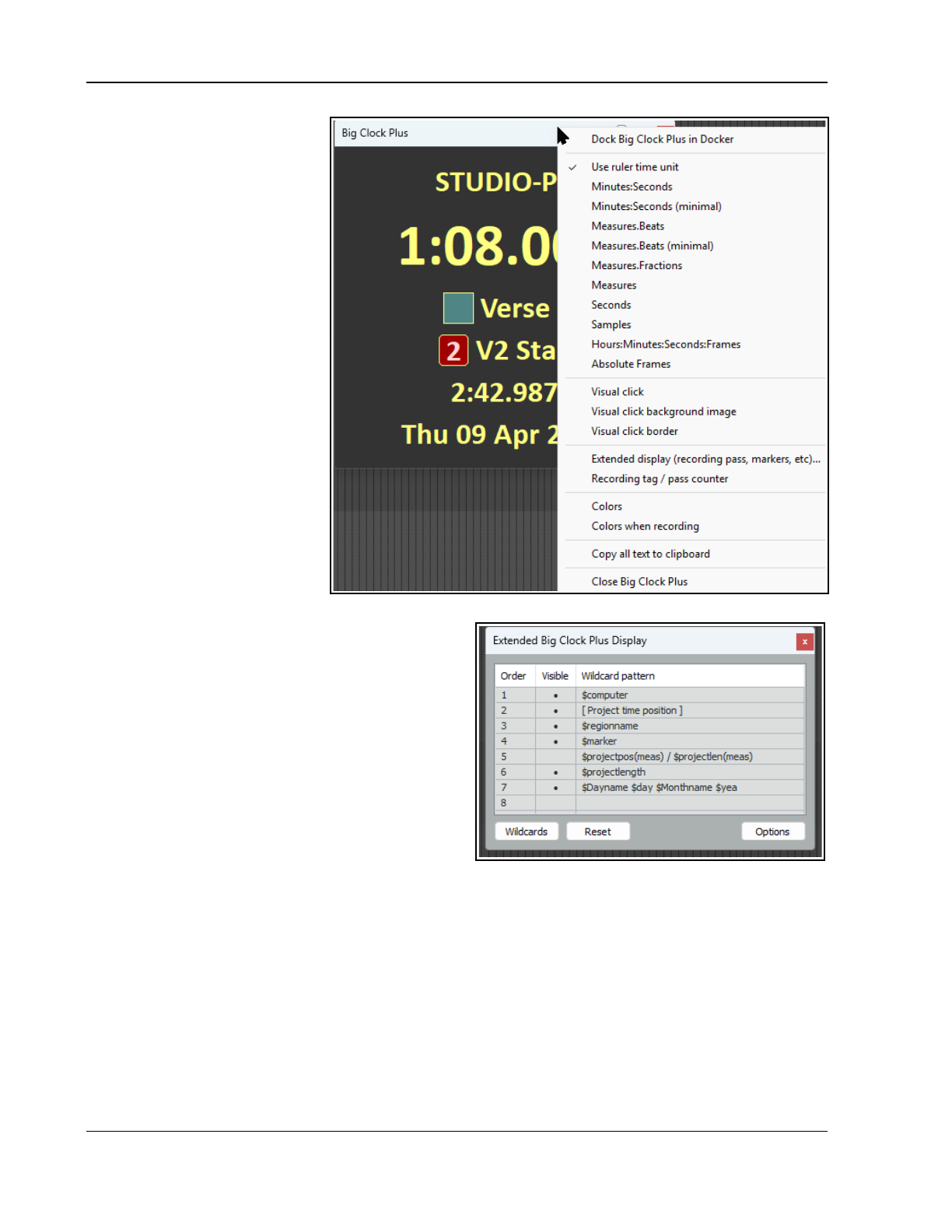
Up and Running: A REAPER User Guide v 7.81
Specify units to be used for
display.
Display a visual click. This
can be as a numeric count or
by a flashing border, as
determined by the time
signature.
Use wildcards to display
information, including, such
as, project and/or media
item information, date and
time, and markers and/or
regions. See below.
Set and display a recording
pass counter and/or
Recording tag counter.
Specify custom colors for
normal text and background
display.’
Specify different colors to be
used for text and
background display when
recording.
Choose and set a visual click
background image,
optionally with beat count
overlayed.
Using Wildcards for Extended Display
Wildcards are used to show on the clock information
about the project. Double-click on the clock background
area or choose Extended display from the context
menu to open the window shown right.
Double-click in the wildcard pattern cell to edit any of the
eight available rows. You can enter actual text (e.g. your
name) or click on the Wildcards button to select and
add wildcards from any of eight categories, with up to
eight rows permitted. These are Project info,
Regions/Markers, Media Items, Recording, Date/
Time, Logic/Control Flow, Computer info, and
Recent wildcard patterns. Wildcard help displays
more information.
For example, $project will cause the project name to be shown, $projectlength displays the length of the
current pproject, $localtime will display the current date and time, $regionname will show the name of any
region that is currently being played. Similar useful wildcards include $regionprev, $regionnext, $marker,
$markerprev and $markernext. Where $regionname,$region, $markername or $marker is shown,
double-click on its color square to edit the region/marker.
$masterpeak and $masterloudness cause real time peak/loudness levels to be displayed.
The wildcard $trackitem displays the name of the media item file currently playing. It can be especially useful
when you are monitoring a single track made up of a “chain” of several items. Select a single track and the name
of the item currently playing will be displayed.
Reset all will restore the wildcards display to REAPER’s defaults. The visible column defines any or all of your
five rows as visible or hidden. You can drag columns up our down the list to change their order.
More information about wildcards can be found at the beginning of Chapter 21.
56
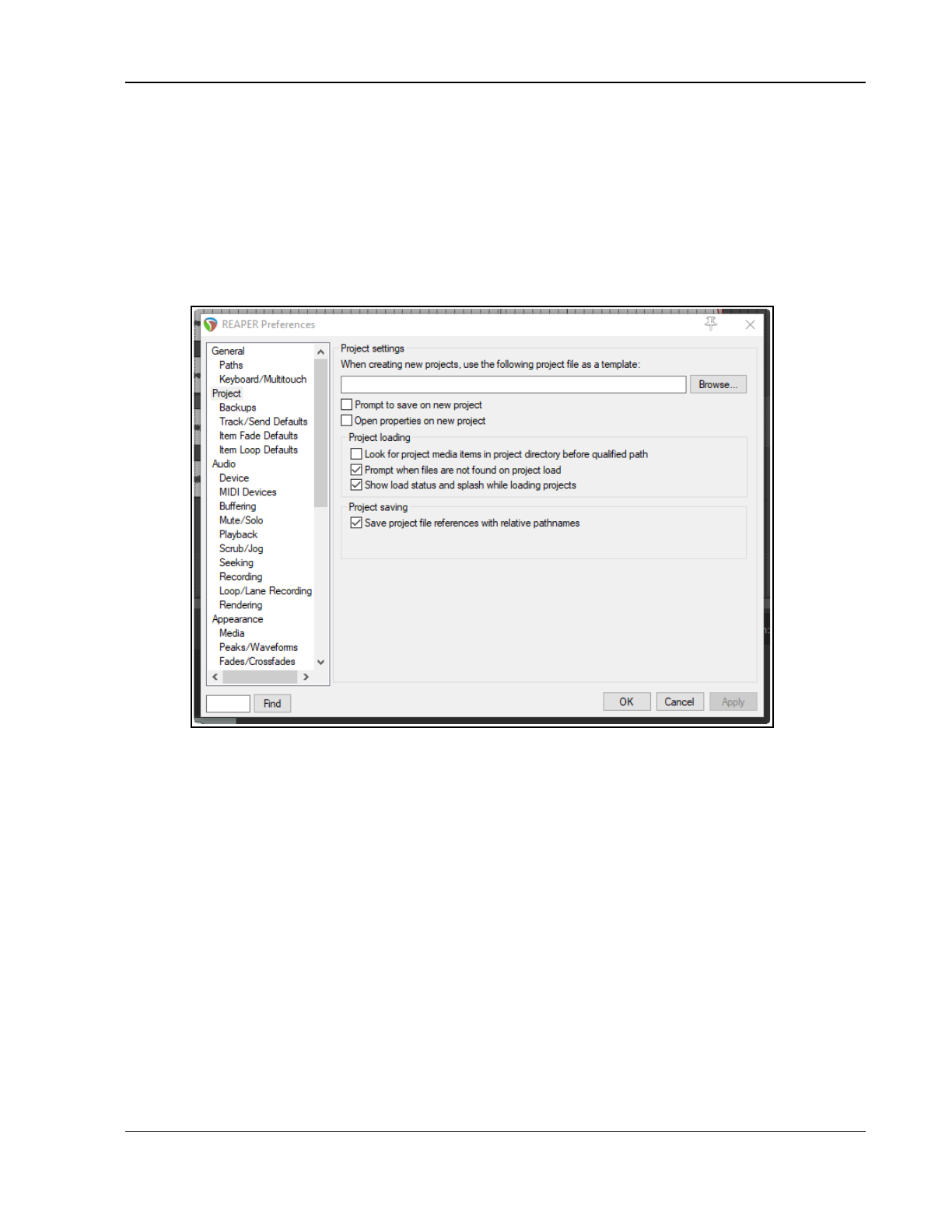
Recording Audio and MIDI
3 Recording Audio and MIDI
This chapter will take you thru what you need to know to get started with recording in REAPER. At the end of
the chapter, you will find a helpful checklist.
3.1 Creating a New Project
To create a new project file, you can either use the File, New Project command, or press Ctrl N.
The Project page within the Options, Preferences dialog box can be used to determine how REAPER behaves
each time you create a new project:
Amongst the most useful options on this screen are the following:
Use project file as a template. This enables you to use an existing project file as a template for new
projects. All tracks, FX, tracks, buses, routing etc. will be copied into the new file from the template file.
Prompt to save on new project. If you enable this option, you will be prompted to save your new
projects immediately they are created.
Open properties on new project. If this option is selected, the Project Options dialog box will
automatically be displayed every time you create a new project. This can help ensure that you select the
correct recording format and other settings that you require.
In addition, the Options, Preferences, Project, Backups (See Section 22.3.1) page offers you various options
for backing up your projects, such as:
Whether to preserve previously saved versions of the project. This helps protect you against
accidental loss of work. There are several options for managing this
Whether to automatically save to a timestamped file at intervals you specify. Again, there are
several options for how you would like to implement this. T
This can help to protect you from the consequences of an unforeseen circumstance such as a power outage or a
computer crash. You can save these files to the project directory and/or an additional directory. You can
also specify the frequency (in minutes) of automatic saving, and whether to apply this when not recording,
when stopped, or at any time.
57
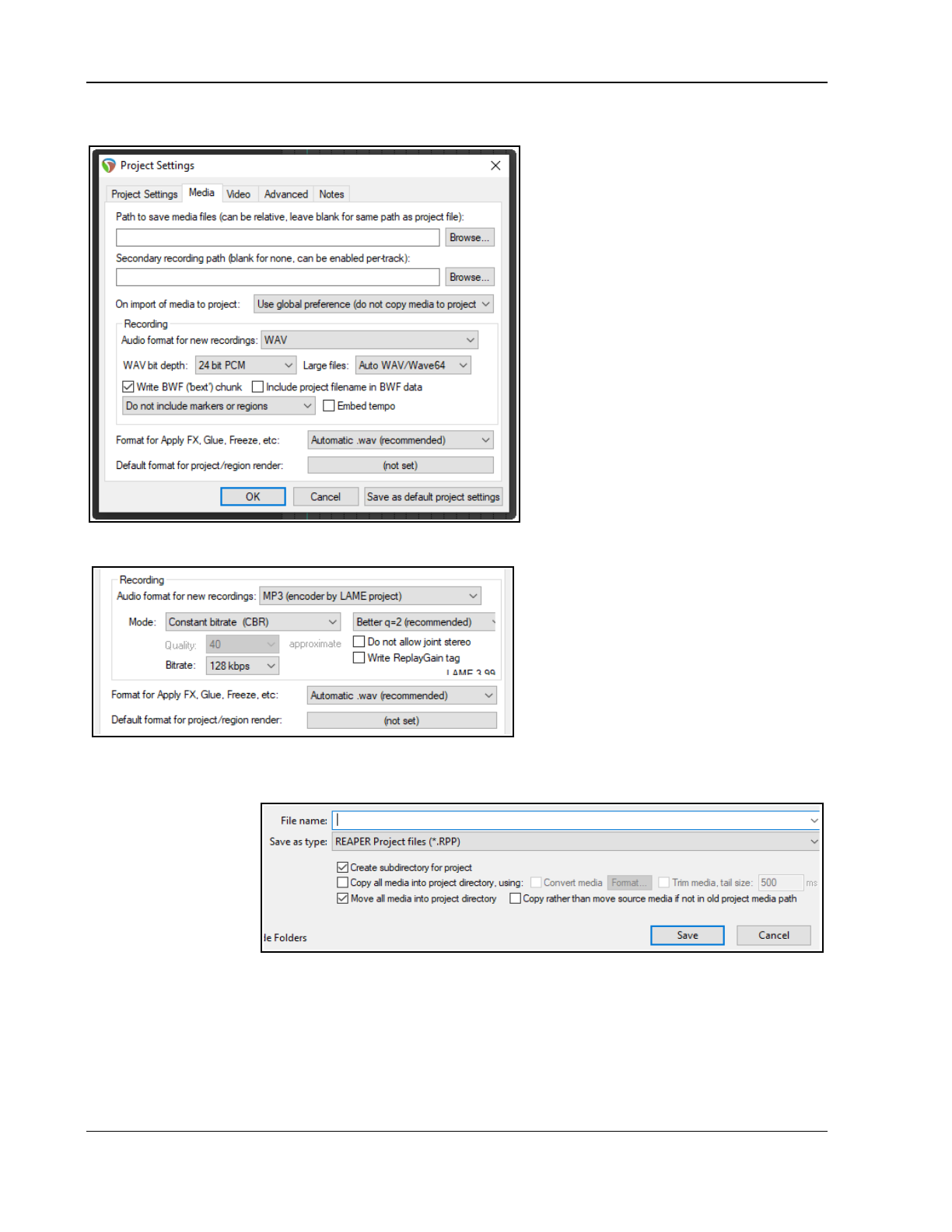
Up and Running: A REAPER User Guide v 7.81
3.2 Setting Media Project Options
You can display the file’s Project
Settings window – Alt Enter – to ensure
you are using your preferred Media
Settings. In particular, check the audio
format. If you are not sure, for CD quality
select .WAV, with settings similar to those
shown here. If you wish later to use some
other format (such as .MP3) you can
render your files in that format.
The settings shown would be suitable
when the output is to be rendered to CD
audio. As a rule, 24 bit is preferred for
recording, 16 bit for rendering. If the
recording is to be finalised in DVD format
rather than CD, you should consider a
sample rate of 48000 instead of 44100.
This is specified on the main Project
Settings page.
Some people prefer to sample at 88200
for CD and 96000 for DVD. Increasing
sample rate also increases media item file
size and might slow down processing.
Other formats.
You can record using any of a number of
compressed formats, including MP3, OGG
and WavPack. Any of these will present you
with further options appropriate to that
format. For example, for MP3 you will need
also to specify your required bitrate.
There is also a drop down list where you
choose to write as cues to your recorded
media files markers and regions, either one
of these, or none of these, or only markers/
regions whose name begins with #. See Chapter 9 for more about markers and regions.
3.3 Saving the Project File
After creating a file,
use the File, Save
Project command (or
Ctrl S) to save it. You
will need to specify a
project file name.
When saving a new file
you are offered a
number of options.
You can choose to Create subdirectory for project. If you also select Copy all media into project
directory you may also specify a format for these items to be converted.
If you select Move all media into project directory , then by default all media files used by the project will
be moved into the project subdirectory. Optionally you can ask to Copy rather than move source media if
not in old project media path. You would be likely to choose this, for example, if your project uses files from
a samples library, to ensure that the samples are not removed from the library.
You should also make sure that you get into the habit of frequently resaving your project after making changes.
The easiest way to do this is simply to press Ctrl S.
58
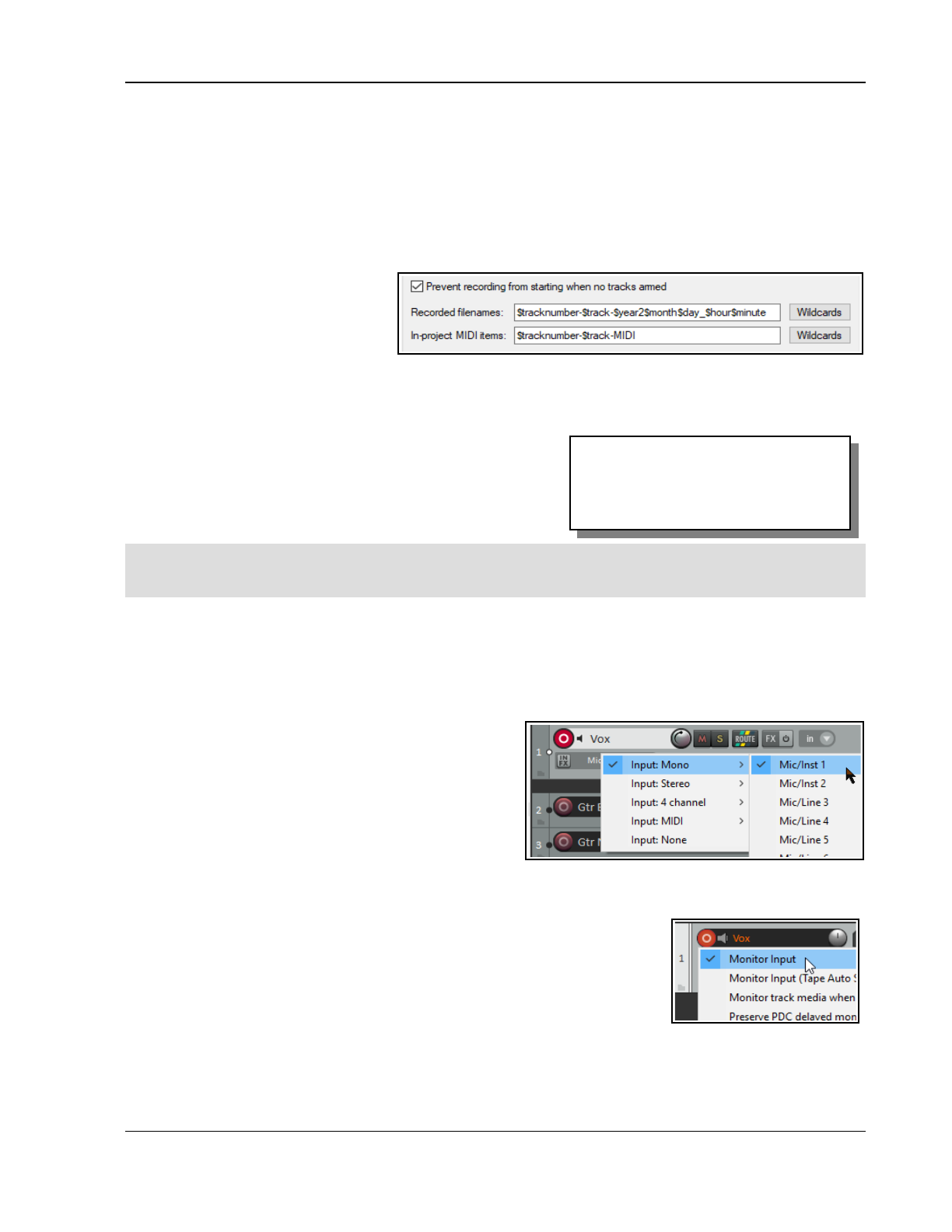
Recording Audio and MIDI
3.4 Creating and Naming Tracks
A project can contain as many or as few tracks as you want. Tracks are added by using the Track, Insert new
track command, by pressing Ctrl T, or by double-clicking in the empty track panel area. The new track is
inserted immediately below any currently selected track. To insert a track after the last track, double-click in the
track control panel below the last track or choose Track, Insert new track at end of track list from the main
menu. Another option is from the track menu to choose Insert new track as first track.
It is advisable to name the tracks before you start recording. Double-click in the track name area, type the name
and press Enter. The media file created when you record will then be given a name that matches the track.
Under Options, Preferences you can
display the Recording settings page
and select from the Wildcards list
any other items to be automatically
included in your track’s file names.
These can for example include track
number and the date and time of the recording. We'll look at more of these recording preferences shortly.
REAPER supports multitrack recording. The number of different sources that you can record at the same time is
limited by the number of enabled inputs (under Preferences, Audio, Device) on your audio soundcard. Before
commencing recording, for each track you will need to:
Arm the track for recording.
Assign the Input that is being used.
Check that the sound level is right for recording.
Check your input monitoring setting (default is on).
Optionally, select a format other than the default.
Note: You do not need to specify whether a track is to be stereo or mono. When assigning the track input for
recording, you can use either a single mono input or a stereo pair. Stereo and mono tracks can be panned
between the left and right speakers as you wish. Panning is discussed throughout this guide, e.g. in Chapter 5.
3.5 To Prepare and Record One Track
Before commencing this exercise, make sure that the default track type is set to normal. This is how REAPER is
set up to work “out of the box.” You can make sure by going to Options, Preferences, Project, Track/Send
Defaults and making sure that neither Free item positioning nor Fixed item lanes are enabled.
1. Check the Options menu to make sure that Record mode: Normal is selected. We'll examine the other
modes as this chapter progresses.
2. Click on the Record Arm button for that track (on
the left) The button should now appear red. If using
the REAPER 7 default theme, this will also make the
Input settings button visible.
3. Click the mouse over the Input settings for that
track to display a menu. Menu options will be
determined by your sound card and audio device(s).
4. Select the required input from the menu. This will be
the one to which the microphone or line that you are using for recording is connected. In most cases, this is
likely to be one of the Input: Mono options. If you are not sure which option to pick, choose Mono when
recording from a single microphone or lead.
5. By default, Input Monitoring should be on. This is the first item (Monitor
Input) on the Record arm button right-click context menu. If your sound
card supports direct monitoring you will probably wish to use that, in which
case you should turn off REAPER's input monitoring. Check the sound card's
documentation.. If your card does not support direct monitoring, then you
should leave REAPER's input monitoring enabled. There's more about input
monitoring in sections 3.14 and 3.15.
6. Audition the sound while you adjust the volume on your audio desk or sound input device, so as to get a
good strong signal without clipping. If in doubt, aim to peak at about –10dB.
Note that the recording level
cannot be controlled by adjusting the Track’s volume fader: that controls only the playback level.
59
REAPER's Preferences include
Project Track/Send defaults which
you can use to set track defaults
(e.g. default volume fader level).
These are explained in Chapter 22.
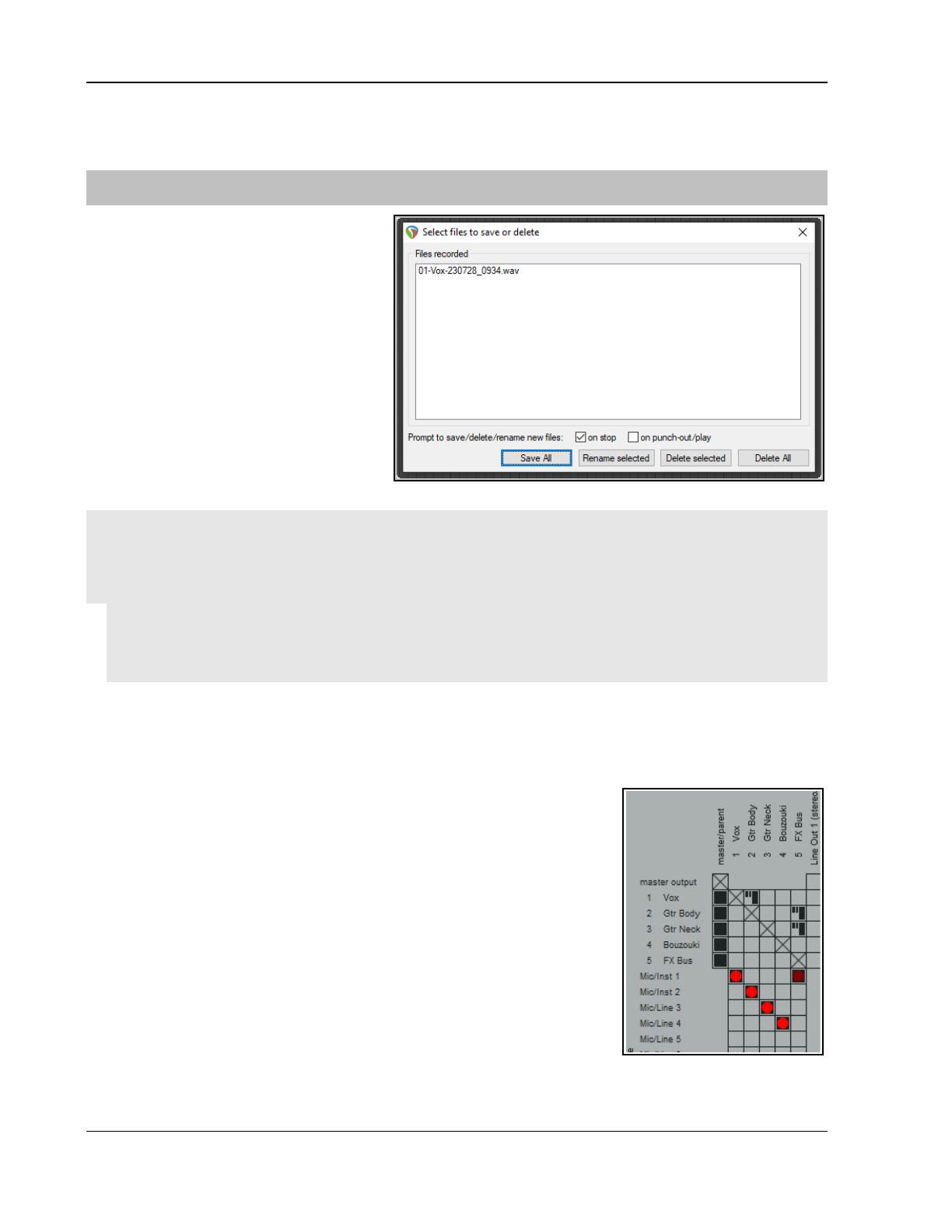
Up and Running: A REAPER User Guide v 7.81
7. Press the Record button on the Transport, or use the keyboard shortcut Ctrl R.
8. To finish recording, either press Stop on the Transport, or press Space, or press the Record button again,
or press Ctrl R. Now click on the Record Arm button for this track to “disarm” it.
Tip: The Input menu (shown above) includes an item Input: None. This can be used to prevent material from
ever being accidentally recorded onto a track where it is not wanted, such as perhaps an FX bus or a folder.
Note 1:
If you use the Record button or Ctrl R to
stop recording, recorded items are
automatically saved.
If you press Space or Stop, the dialog box
shown will let you save or delete any or all
of your newly recorded media items.
Note 2:
REAPER supports “on the fly recording”.
This means you can also arm additional
tracks after the recording has started.
Those tracks will then also be recorded
from the point at which you arm them.
Similarly, if recording more than one track,
you can stop recording one while continuing
to record the others by clicking on the Record Arm/Disarm button to disarm just that track.
Tip: Track/Send Default Preferences. The Track/Send Defaults page of REAPER's preferences can be used
specify record configuration defaults for future tracks and projects, including turning input monitoring off and
selecting default inputs – see Chapter 22.
Tip: When recording, make sure that the incoming signal is not too loud, or you can damage your recording
equipment. Here’s what to do:
1. Turn the input or gain control on your input device (e.g. firewire device or desk) all the way down.
2. If recording an instrument in-line, insert one end of the line into the instrument and the other end into
your input device. Turn the output on the instrument fully up
3. Audition the instrument, slowly raising the input or gain control on your input device until it sounds right.
3.6 To Prepare and Record Multiple Tracks
To prepare multiple tracks for recording you could repeat all of the necessary steps as many times as you require
tracks, but that might be tedious – and besides, it’s too easy to make a mistake when selecting your audio
inputs. You could end up with one input being recorded more than once, and perhaps another input being
accidentally missed out. To avoid this problem, you can follow this sequence:
1. Use the Insert, Multiple tracks command to insert as many tracks as
you require. The Insert tracks dialog will be displayed. Select the number
of tracks required and choose to insert them After the last touched
track or At end of project. Click on OK. Name your new tracks.
2. Select all tracks to be recorded. After making your selection, click on the
Record Arm button of any one of them to arm the entire selection.
3. One method is to use the Routing Matrix (Alt R). Click in the
appropriate cells in the Routing Matrix to assign each track to a different
input .
The example shown uses audio inputs - Input 1 is to go to Track 1, Input
2 to Track 2 and so on. MIDI inputs may also be selected – these are
listed below the audio inputs. You can also right click over any red cell to
access the Record Input menu should you wish to do so.
4. Monitor the strength of the signals and record as before.
Another option is to use the TCP to set up and record your tracks:
60
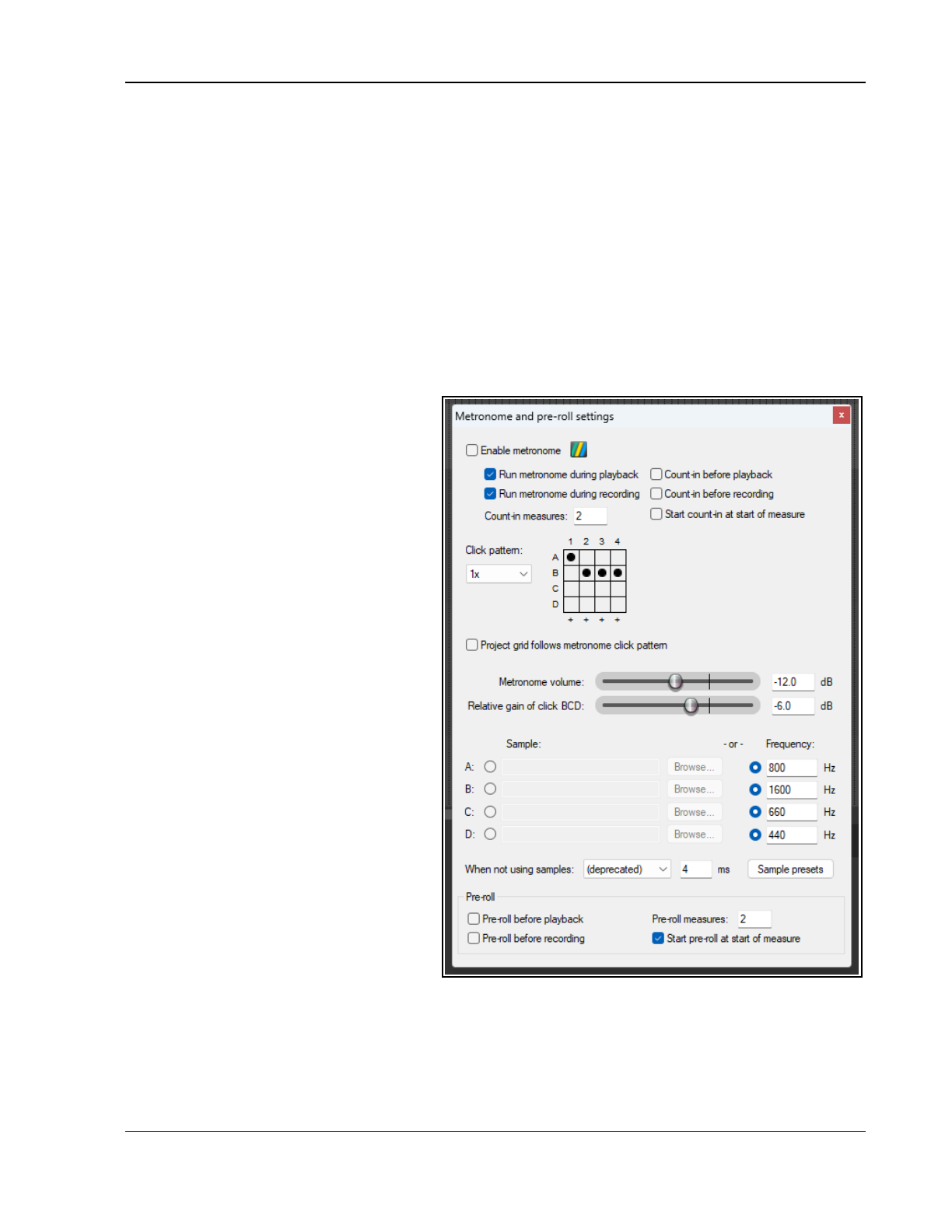
Recording Audio and MIDI
1. To define the same record settings for multiple tracks, select the tracks, right-click on the arm record button,
then make your choices from the menu. Holding Shift will over-ride this and apply your menu choices to the one
track only. Inputs can be assigned to a selection of tracks in a similar way by clicking on the Input button.
2. To assign a series of mono inputs in sequence to a set of tracks, select the tracks then click the Input button
of any track in the selection. Next, select Assign inputs sequentially then your required inputs – e.g. in the
above example, this would be Mono, Input 1 to Input 4.
3. To insert a new track at the end of your project, you can simply double click in the Track Control Panel area,
just below the last existing track.
3.7 Auto Arming Tracks
You can ensure that tracks are automatically armed for recording when selected and unarmed when deselected.
Select the track(s) then right click over the record arm button for any selected track iand choose Automatic
record arm when track selected. This command can be toggled on and off.
The main menu Track command includes an option Set all tracks to automatic record arm when selected.
3.8 Using the Metronome
You can set up and use a metronome when
using REAPER for recording. Use the
Options, Metronome enabled command
to turn it on and off (or left-click the
metronome button on the toolbar), and the
Options, Metronome/ pre-roll settings
command to set up your metronome (or
right-click on the metronome button on the
toolbar).
The Metronome Settings
Enable metronome: This turns the built-
in metronome on or off.
The Output Button: To the immediate
right of
Enable Metronome
, this allows
metronome output to be sent to the device
of your choice. If your headphones are
connected to (say) Outputs 7/8 then you
would probably wish to choose these as
your outputs.
Run during playback: This will turn the
metronome on during playback.
Run during recording: This will turn the
metronome on during recording.
Count-in before playback : This will
enable a count-in before playback.
Count-in before recording: This will
enable a count-in before recording. Useful if
you are recording yourself. It ensures that
when you press Ctrl R the recording will
not actually start until after the specified
count-in. This gives you time to get back to
the microphone and pick up your instrument.
Count-in measures: This defines the number of measures a count in should be. If it is the very beginning of a
project, it will wait those number of measures before starting to record. If you select a place to record within a
project, it will start the count in this many measures before the time that you want to record at. Optionally you
can choose to Start count-in at start of measure.
The number of cells in the click grid will be determined by the time signature: that shown here represents a 4/4
time signature: a time signature of 3/4,, for example, would display a grid of three columns and four rows.
61
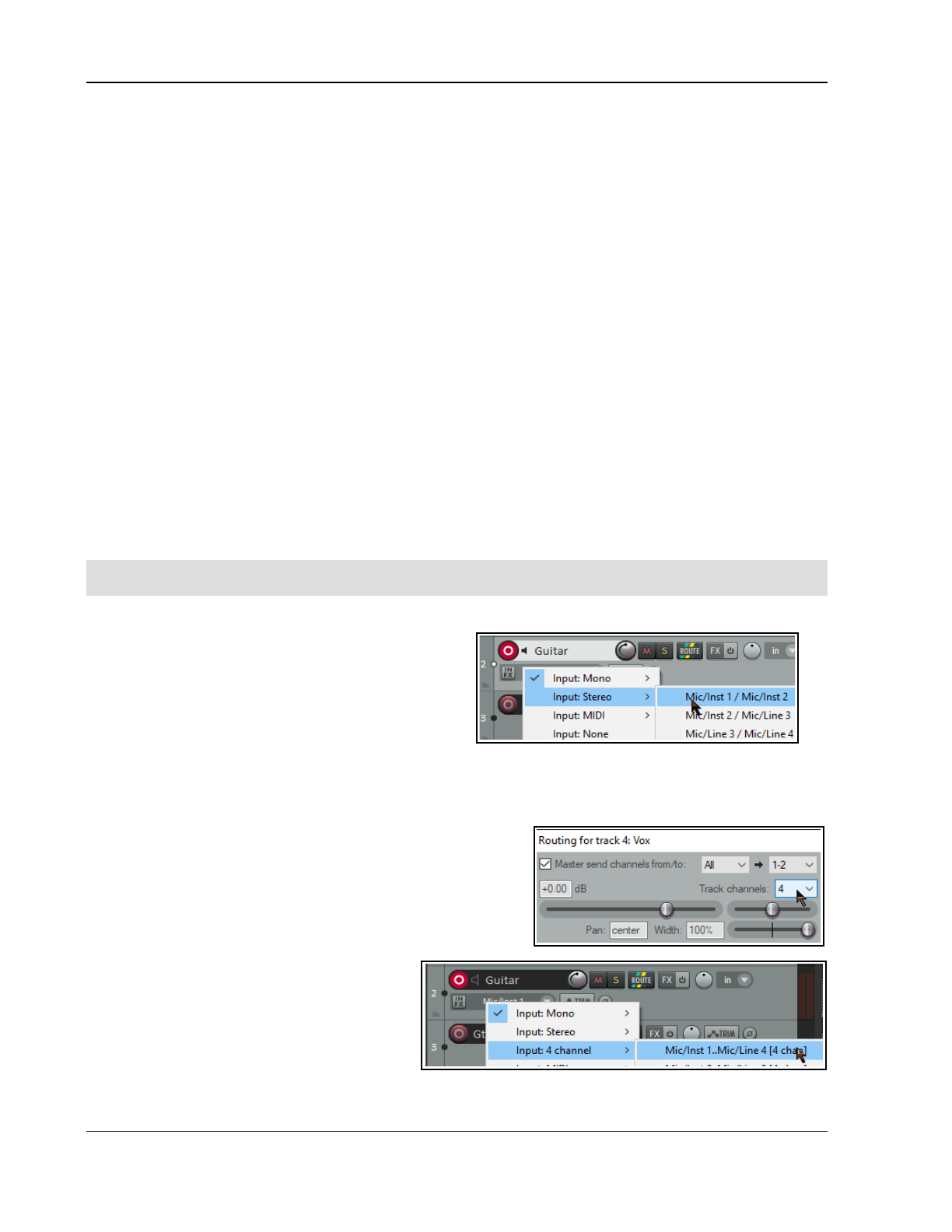
Up and Running: A REAPER User Guide v 7.81
The default click pattern is 1x: options are 0.5x, 1x, 2x and 4x. Selecting any option other than the default will
change both the number of columns and the click speed. Notice also an option Project grid follows click
pattern.
The two horizontal faders adjust the metronome volume and the relative gain of clicks BCD respectively.
Let’s now consider what those black dots represent.
You can load up to four sound files into the metronome. In the example shown, we have used just two. Any
option that is left blank (in this example C and D) would use a default metronome sound at whatever frequency
you select. In the example shown above, sound A would be played for each first click, sound B for clicks two,
three and four.
You can select how the sound is to be shaped when not using samples: select from the drop-down list – sine,
triangle square or sine+square. There is also a button to Reset frequencies to their default.
The Pre-roll settings can be used so that when you start recording, or playback, the metronome will play for the
specified number of measures before recording or playback actually begins.
You can also save, recall, rename and/or delete sample presets of your metronome settings. Options here
include Use project metronome samples/frequencies.
Recording during audio pre-roll
To record audio during audio pre-roll, the Audio, Recording preference to record audio during pre-roll
option will need to be enabled.
Then, Enable metronome and the metronome settings options Run metronome during recording and Pre-
roll before recording. After the recording is finished, drag the left edge of the recorded item to the left to
reveal what has been recorded.
Note that some metro settings can be changed within the Tempo/Time Signature Marker window which is
displayed when you Insert Tempo/Time signature marker on the timeline.
Tip: The default Metronome Time Base is determined by the Project Settings. Press Alt Enter and display the
Project Settings page if you need to change this.
3.9 Recording Stereo Tracks
You can record from two inputs direct to a stereo track,
for example, if you are recording stereo paired
microphones. Follow a similar procedure to that
explained in section 3.5, selecting a stereo input instead
of mono. The signal from paired stereo inputs can be
recorded on to a single stereo item on a single track.
As has already explained in Chapter 2, it is advisable to
open the Audio page of your Preferences settings and turn off the option to Show Non-Standard Stereo
Channel Pairs. This will reduce your available stereo paired inputs to a more logical selection such as that
shown above.
3.10 Multi-Channel Recording
If in its routing window you define a track as multichannel (for
example, perhaps 4, 6 or 8 channels) then your recording input
context menu for that track will include an option for multichannel
recording. You can, for example, record from four, six or eight
microphones simultaneously, each to a separate channel on the
one track. Up to a maximum of 128.
This method is suited, for example, for use with
four channel ambisonic microphone arrays as
used in surround sound production.
For multichannel tracks, there is also a toggle
command on the record arm context menu
Meters, Multichannel peaks. This should be
automatically enabled.
62
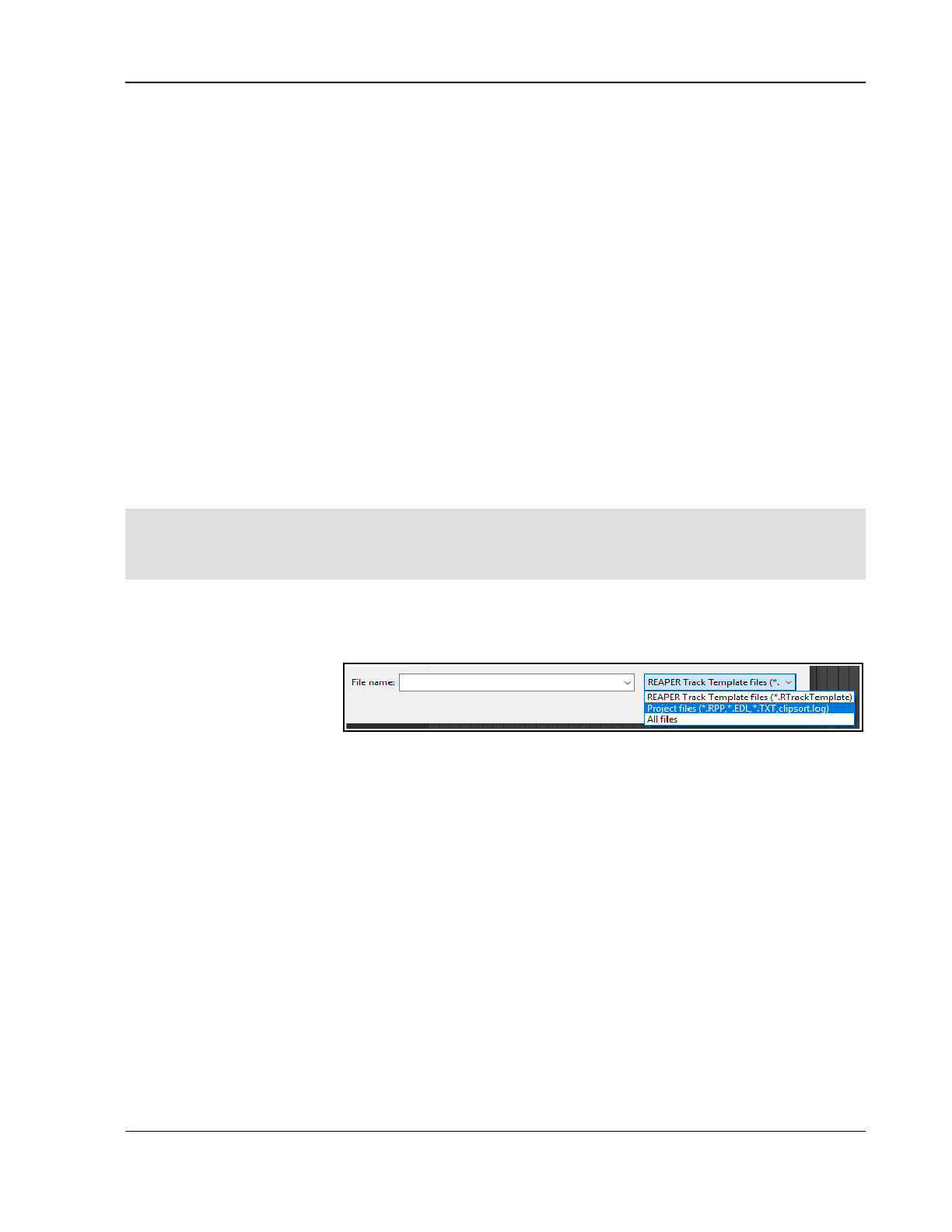
Recording Audio and MIDI
3.11 Track Templates
After you have set up a track (or a number of tracks) for recording, you might think that you may wish to use
this same track exactly as it is again in some future projects. This can be done using Track Templates. To
create a track template from an existing track (or selection of tracks):
1. Select the track or tracks.
2. Choose the Track, Save tracks as track template command.
3. When prompted, type a template name. If you wish, you can select the option to Include track items
in the template. If so, any audio and MIDI items on the track will be included. You may also choose to
Include envelopes in template. (Envelopes will be explained in Chapter 18).
4. Click on Save.
To import an existing track template into a project:
1. From the REAPER menu, choose the Track, Insert track from template command.
2. Depending on how your templates are stored, either select the required template from the menu, or
choose Open template, then choose the required template and click on Open.
The Insert track from template sub-menu includes Offset template items by edit cursor. If enabled, any
media items and/or envelopes saved with the original template will be inserted at the edit cursor position. There
is also an option to Insert track templates at end of project.
Note: Track properties and settings are saved into the template, including track name, inputs and outputs, any
FX plug-ins (with any parameter settings, parameter modulation, and track controls), sends and receives.
However, sends to or receives from any tracks outside the template are not saved into the track template.
Tip: Organizing track templates. You can find where your track templates are stored by using the Options,
Show REAPER resource path … command (see Chapter 1). Here you can create subdirectories within the
TrackTemplates folder where you to store and arrange your track templates as you please. Your subdirectories
and their contents will automatically be shown on the Insert track from template sub menu.
3.12 Importing an Existing Project
The Track, Insert track from template, Open template command will import an entire REAPER project into
your current project. All aspects of the tracks are imported – media items, track settings, FX, routing, etc.
However, items that are not
track specific (such as
markers) are not imported.
To do this, select Project
Files as the File Type when
the Open Track Template dialog box is displayed, navigate to select the file you wish to import, then click on
Open. The tracks from the imported project file are inserted immediately below the currently selected tracks.
3.13 Project Templates
A project template goes further than a track template: it can be used to create an entire project file, based upon
the structure and settings of the template file. For example, tracks and their parameters (name, color, pan
setting, FX chain etc.), project settings (including media settings) are saved with a project template, along with
the screen layout, which views are open, how they are sized, whether they are docked, and so on. Delete
unwanted media items from a file
before
saving it as a project template, otherwise every time the template is
used to create a new file, these will be inserted.
To create a Project Template:
With the source project file open, choose the File, Project Templates, Save As Project Template
command. When prompted, give the template a name, then click on Save.
To create a new file based on a Project Template
Choose the File, Project Templates command, then click on the name of the required project template.
To use an existing file as a template for all new projects:
Choose the Options, Preferences command, then Project.
Click on the Browse button labeled “When creating new projects, use the following file as a template”.
The contents of the project templates folder will be displayed.
63
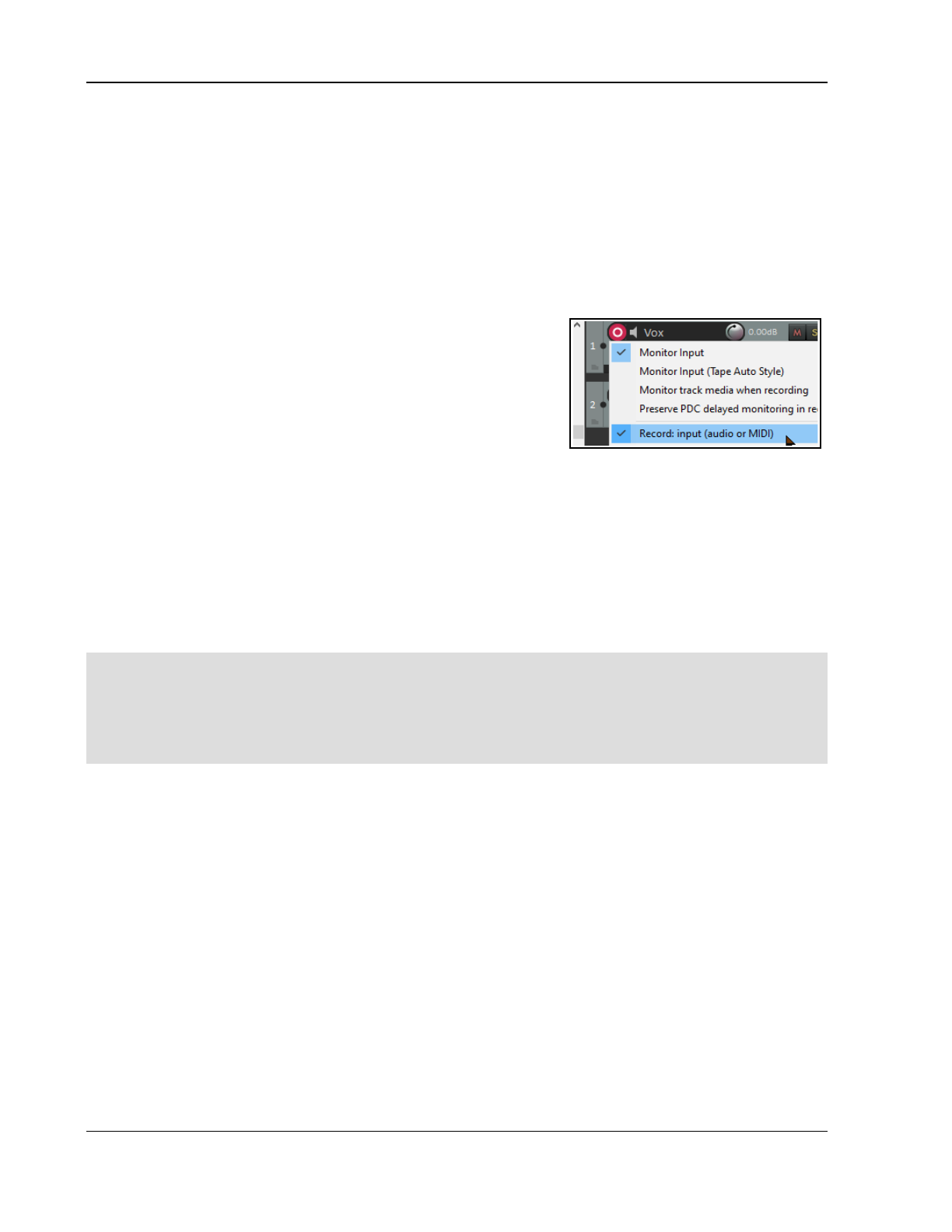
Up and Running: A REAPER User Guide v 7.81
Select the required file, then click on Open.
Click on OK to close the Preferences window.
3.14 Layered Recording
The term
layering
refers to a recording technique in which two or more instruments and/or voices are recorded
for the same song, but not all at once. The tracks can be recorded one at a time. An initial track is laid down –
this is often a guide track which will be discarded at the end of the recording process. Then each other track is
recorded while the musician or singer listens thru headphones to a mix of what has already been recorded and
what she is recording now. In order to use this layered recording method:
1. With Record Mode set to Normal, record the initial track, as explained earlier.
2. After recording, make sure the output of this track is directed to the Master.
Make sure also that you
“disarm” this track.
3. Make sure that the Master is directed to whichever hardware
outputs are connected to your headphones or headphone amp.
4. Add another track. Name it. Arm this track for recording.
Select the Input used by the microphone or line that is to be
used to record this new track.
5. Make sure that Record: input (audio or MIDI) is selected
and (if your soundcard does not support direct monitoring)
that Input Monitoring is turned on for this track (see above). This will enable the person being
recorded and the recording engineer to hear in their headphones a mix of previously recorded material
with that being recorded now.
6. Adjust the Volume levels of the previously recorded track (using the track fader) and the volume level of
the incoming signal (using your external mixer desk or audio device, or audio device control software)
until you are happy with your headphone mix.
7. Press Ctrl R to start recording, and Ctrl R again to stop when finished. Again, disarm this track when
you have finished recording on it.
8. Repeat this procedure for all other tracks to be layered. At step 6. you can feed into your Master a mix of
all tracks previously recorded up to that point.
Note: If you notice an echo type delay in your headphones it will be because latency is too high. Lowering the
block size (see 1.12) to 256 or 128 can improve this. On consumer quality built in sound cards, however, this
might cause pops and clicks. For Windows users, the use of ASIO drivers might help resolve this.
Tip: Many sound cards and USB or Firewire audio devices come with software that can be used for zero latency
input monitoring and headphone mixing, especially those devices with multiple inputs and outputs. If you use
that software for input monitoring, then you should turn off the input monitoring option within REAPER.
Try it now! Open the supplied project file All Through The Night.RPP and save it as All Through The
Night LAYERS.RPP. Have a go at recording another instrumental track of your choice to go into this project -
any instrument you choose!
Note 1: Monitor Input (Tape Auto Style). This option differs from normal input monitoring in that it
monitors input only when the transport has stopped or when you are recording. During playback you will hear
only the timeline audio, not the input.
Note 2: If you are monitoring an armed track when an existing track uses a plug-in (such as ReaFir) that has
latency, you may wish to consider enabling the option Preserve PDC delayed monitoring in recorded
items. This more advanced topic will be explained in more detail later in this chapter.
3.15 Overdubbing and Punch Recording
You can go over an existing track to re-record sections with which you are not satisfied, to correct perhaps just a
few notes of an instrument, or a line or two of a vocal. Use punch recording for this. You can play back in your
headphones previously recorded material along with any other tracks while you record. At the point where you
want recording to begin, the track on which you are recording will cut out, and the recording will begin. At
another point specified by you, the recording will stop, and the existing recording will come back in.
The technique can be applied with both audio and MIDI items. MIDI is discussed later in this chapter when
looped time selection recording is also explained.
64
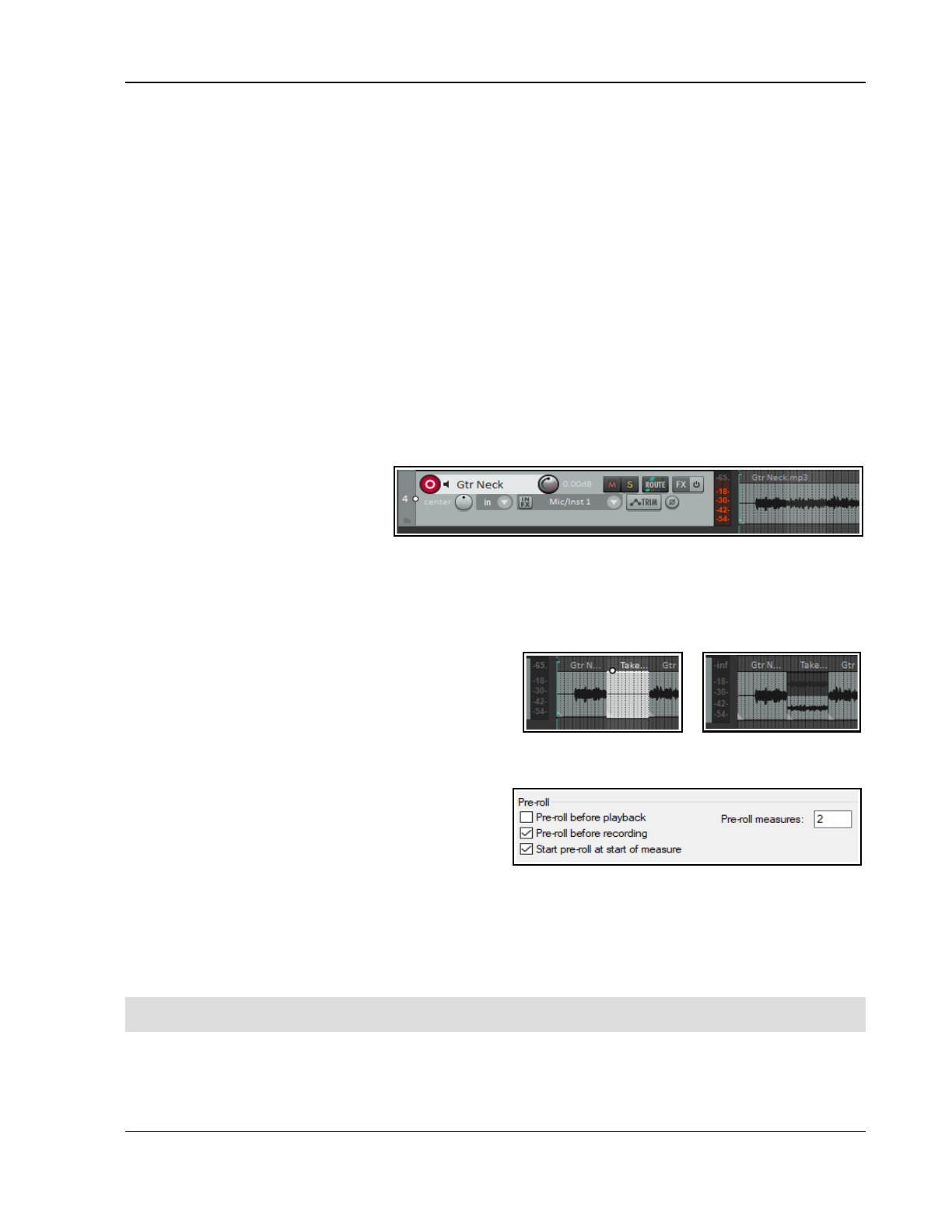
Recording Audio and MIDI
Note: This technique involves creating more than one take for a track, and then comping the required output
from whichever takes you prefer. REAPER makes available two ways you can do this – traditional takes and
media item lanes. The former is less complex: the latter is more powerful and offers more options. Throughout
this chapter we will focus on the takes method: media item lanes will be covered in a later chapter.
3.16 Non-Destructive Punch Recording
By default, punch recording is not destructive: it creates a new take, but does not destroy the original. To use
punch recording, follow this sequence:
1. From the Options menu choose Record mode: time selection auto punch. Set New recording
that overlaps existing material to Split existing items and add takes (default). All other options
on this submenu should be turned off. Disable toggle repeat on the transport toolbar.
2. Select the track and arm it for recording. Right click on the track panel to open the context menu: make
sure that both Fixed item lanes or Free item positioning are both turned off.
3. View the Options menu and for now ensure that Show all takes (when room) is
not
selected. We'll
look at this shortly. Also, for this example, make sure that Loop points linked to time selection is not
enabled.
4. Make sure that the track output is sent to the Master and (if not using direct monitoring) that Input
Monitoring is enabled.
5. Make sure that the Master output is directed to the audio hardware outputs to which your headphones
are connected.
6. Click once on the existing
media item to select it. Click
and drag along the arrange
background area to select the
region that you want to be re-recorded (see above).
7. Press Home or W to rewind the track to the start of the track. Press Esc to clear the time selection.
8. Press Ctrl R. You will hear the recorded material up to the start of the defined region, where you can re-
record that passage. Press Space to stop when you have finished recording. Accept the option to save
your recorded media. Restore normal recording mode when you have finished punch recording.
Your track now contains two media items. What's
happened to the originally recorded passage? Well, it's
still there and you can still use it if you like. Pressing Ctrl
L toggles the display of all takes or active take only (see
above). We'll learn more about this soon.
What if you prefer to use the original recording after all? In that case, simply click on it to select it.
Non-destructive punch recording with pre-roll
The metronome can be used to engage pre-roll before
recording starts. This help you to know exactly when
to come in when punch recording.
Enable the metronome on your toolbar, then right click
over the metronome button to access its settings.
Enable Pre-roll before recording and (preferably) Start pre-roll at start of measure. You should also
specify the number of measures through which you want the pre-roll to play: the default is two.
Note: The record button context menu includes the option Monitor track media when recording. If you
enable this when punching in, say, a guitar or vocals, regular Monitor Input will cause you to hear both the
existing and the new material right up to the punch, and during the punch. Monitor Input (tape auto style)
will monitor only the existing materials up to the punch, but both existing and new during the punch.
Tip: If you make a mistake or change your mind when overdubbing, you can use Ctrl Z to undo the recording
or you can select the unwanted media item and use the Delete key to remove it.
Getting to grips with REAPER's various record modes and in particular how they work in combination with other
options (such as monitoring) can be somewhat bewildering for new users. An Appendix includes a summary
table Troubleshooting Record Modes and Monitoring.
65
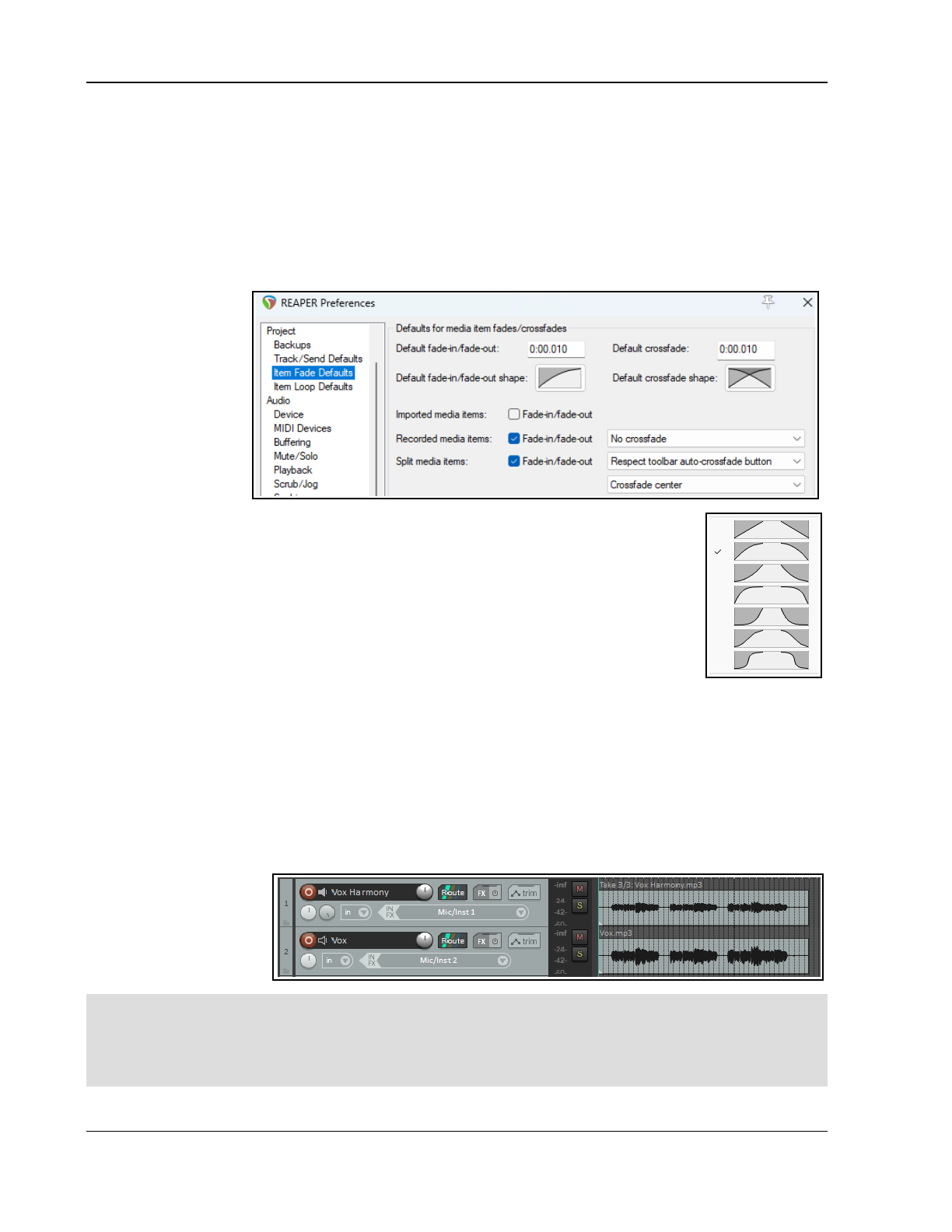
Up and Running: A REAPER User Guide v 7.81
3.17 Destructive Punch Recording
You have the option when punch recording of actually removing from the existing track the previously recorded
material if you wish. If this is what you want, use the Options, Overlapping recording behavior command
on REAPER’s main menu to turn on the toggle option Trims existing items (tape mode). Be careful how you
use this. You can restore this option to its default setting by choosing Splits existing items and creates new
takes from the same menu.
This menu also allows non-destructive options to Add lanes (all lanes play) or Add media items in layers.
3.18 Fades and Crossfades
REAPER allows you
to apply automatic
crossfades and fades
in and out of your
recorded items. This
feature can be
turned on and off or
customized thru the
Options,
Preferences, Project,
Item Fade Defaults.
You can select a
preferred shape and
duration (length) for your fade curves. Clicking on the image of the curve (shown above)
opens up a number of choices (see right). You can easily change the default fade type
and/or length for individual media items (see Chapter 7). There is also an option for
overlapping recorded media items whether to apply crossfades to the left, right or center.
There are also numerous actions available in the actions list relating to the use and
management of fades and crossfades.
3.19 Recording Multiple Takes
REAPER’s multiple takes feature can help you when you want to record several versions of
a track to see which you prefer. It works like this:
1. Set record mode to normal (Options, Record Mode: Normal).
2. Set Options, Overlapping recording behavior to Split existing items and add takes.
3. Make sure that on the Options, Overlapping recording behavior menu both of the Add lanes options
are off. Make sure that Do not add lanes is selected.
4. Use the TCP right click context menu to make sure that both Free item positioning (FIPM) and Fixed
item lanes are
not
enabled (i.e., not ticked) for the tracks being recorded (see Note 2 below)
5. Record your first take of the track.
6. Rewind to the start then record your next take.
In the example shown, an initial vocal track has been recorded, then above it three takes have been made of a
vocal harmony track.
Notice the text displayed
with the name of the
media item displayed for
the Harmony Vox track.
It begins with the text
Take 3/3.
Note1: Under Options, Preferences, Appearance, Peaks/Waveforms there is a setting to Automatically color
any recording pass that adds new takes to existing items. When you are recording multiple takes to two
or more tracks, enabling this option can help you to visually identify which takes belong in the same set.
Note2: Before recording multiple takes in this way, you can go to Options, Preferences, Project,
Track/Send Defaults and make sure that both Free item positioning and Fixed Item Lanes are not enabled.
66
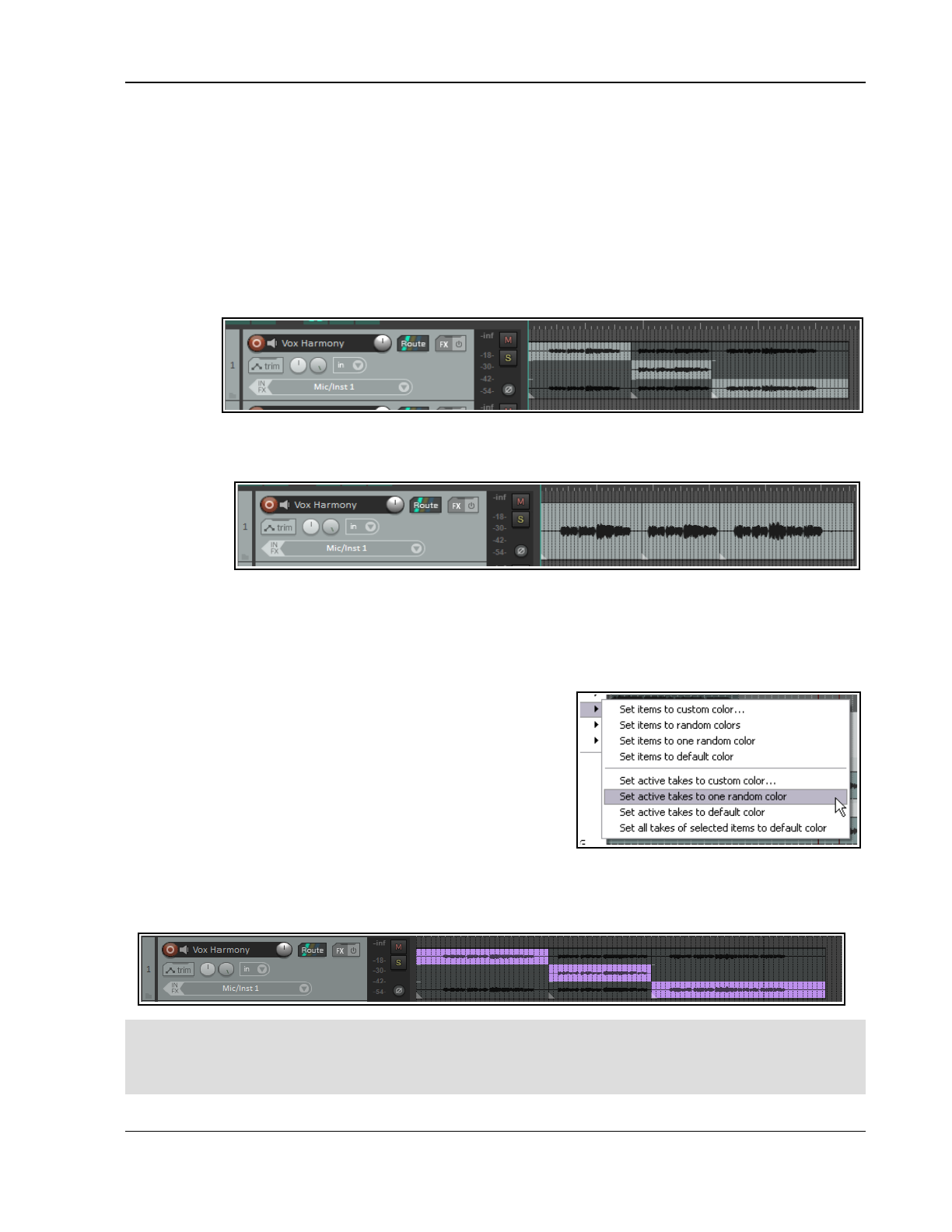
Recording Audio and MIDI
3.20 Displaying Multiple Takes
Optionally, when you have multiple takes, you may choose to have them all displayed together. This of course
takes up more room on the screen, but has the advantage that it makes it easier to see for your various tracks
which take is currently selected. This option is toggled on and off by pressing Ctrl L or by choosing Options,
Show all takes (when room) from the Main Menu.
In the first example (shown right), three takes have been made of a vocal. The first and third are complete
takes, the second is a punched-in overdub of only the middle section.
In this case, the option to Display empty takes (Options, Take behavior menu) has been enabled. This
ensures that the short overdubbed section is given its own distinct space. This makes it easier for you to keep
track visually of which parts of each take belong together.
In order to
be able to
choose the
best parts
from each
take, we
have split
the media items. To do this, select the track, position the cursor at the required spot and press S.
We can then make our selection as shown above.
In this
second
illustration,
we press
Ctrl L to turn
display of
lanes off. Only those segments that we have selected can now be seen.
Note: When you create multiple alternative takes in this way you will later be able to easily pick the best
passages from each of your takes and join them together as a single item. The method for doing this will be
explained in Chapter 8 of this User Guide.
3.21 Using Color Coded Takes
REAPER's Item, Item and take colors command (REAPER
main menu) offers severalways that you can use color when
working with takes and items (see right). We'll look at this whole
topic in detail in Chapter7, but for now notice the command Set
active takes to one random color. Double-click in track panel
to select the entire media item before giving this command.
If after making your preferred working selection of takes for any
track you double-click on that track in the Track Control Panel
then all media items in that track will be selected.
Choosing Set active take to one random color will now produce an effect similar to that shown below.
Choosing to set a custom color for either items or active takes will cause the Color Picker to be opened – see
Chapter 7
The section that follows, along with most subsequent sections in this chapter, uses images that show an earlier
default color theme.
However, you should have no difficulty applying the instructions using the REAPER 7 default theme, or any
other theme of your choice.
67
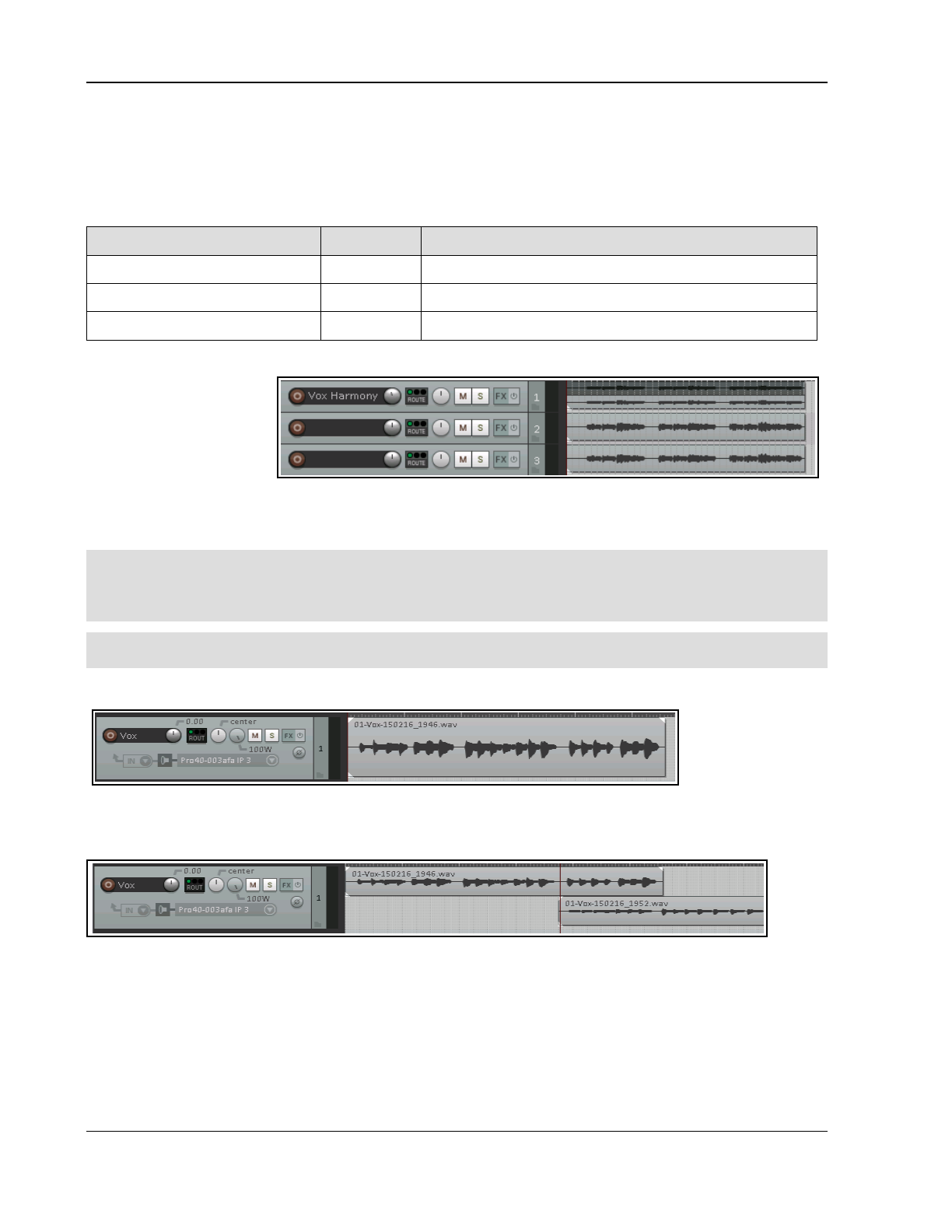
Up and Running: A REAPER User Guide v 7.81
3.22 Working With Multiple Takes
Where an item includes more than one take, you can right click over any take and use the Take command to
control and manage your multiple takes. The Take submenu is quite extensive - we'll explore most of its features
in Chapter 8. For the time being, however, you should be aware of the following, especially if your takes are not
displayed in lanes.
Command Shortcut Effect
Next Take T Displays next take for selected track(s).
Previous Take Shift T Displays previous take for selected track(s).
Explode All Takes to New Tracks Creates a separate track for each take (see below).
Explode All Takes to
New Tracks differs from
Show All Takes in that
it lets you treat each take
separately as a separate
track. The picture on the
right illustrates this.
Track 1 consists of two
takes which are shown in lanes. After exploding these takes to new tracks we have (in addition to the original
track) two new additional tracks, one for each take.
Caution:
One look at the Take submenu (on the media item's right-click context menu) will show you that there
are commands available for deleting takes and cropping to active take. You are advised to avoid these until you
have worked thru Chapter 8 of this guide. In particular, avoid using the Delete key when selecting takes: you
are likely to delete more than just the take that you don't want!
Try it now! Open the project file All Through The Night LAYERS.RPP (which you saved earlier) and add a
vocal harmony track to this project. Use this track to record three takes – then save the file.
3.23 Overlapping Items
You have already
been shown two of
the three
overdubbing
options on the
Options menu command New recording that overlaps with existing media, i.e. Split existing items
and add takes (default) and Trim existing items (tape mode). A third option is to Add lanes (layer new
lanes).
This example shows this. In the first illustration (top) a part of a track has been recorded. In the second
illustration (above), we have returned to this track and with the option Add lanes (layer new lanes) enabled
we have re-recorded the last part again, together with some new material.
In this case, the second take is to all intents and purposes a separate media item. You can choose which of
these media items are and are not played.
There is also an Options menu command to Offset overlapping media items vertically. This will display
overlapping items one above the other, provided, of course, there is sufficient track height to do so.
This general topic will be addressed again later in this guide, especially throughout Chapters 4, 5 and 7.
68
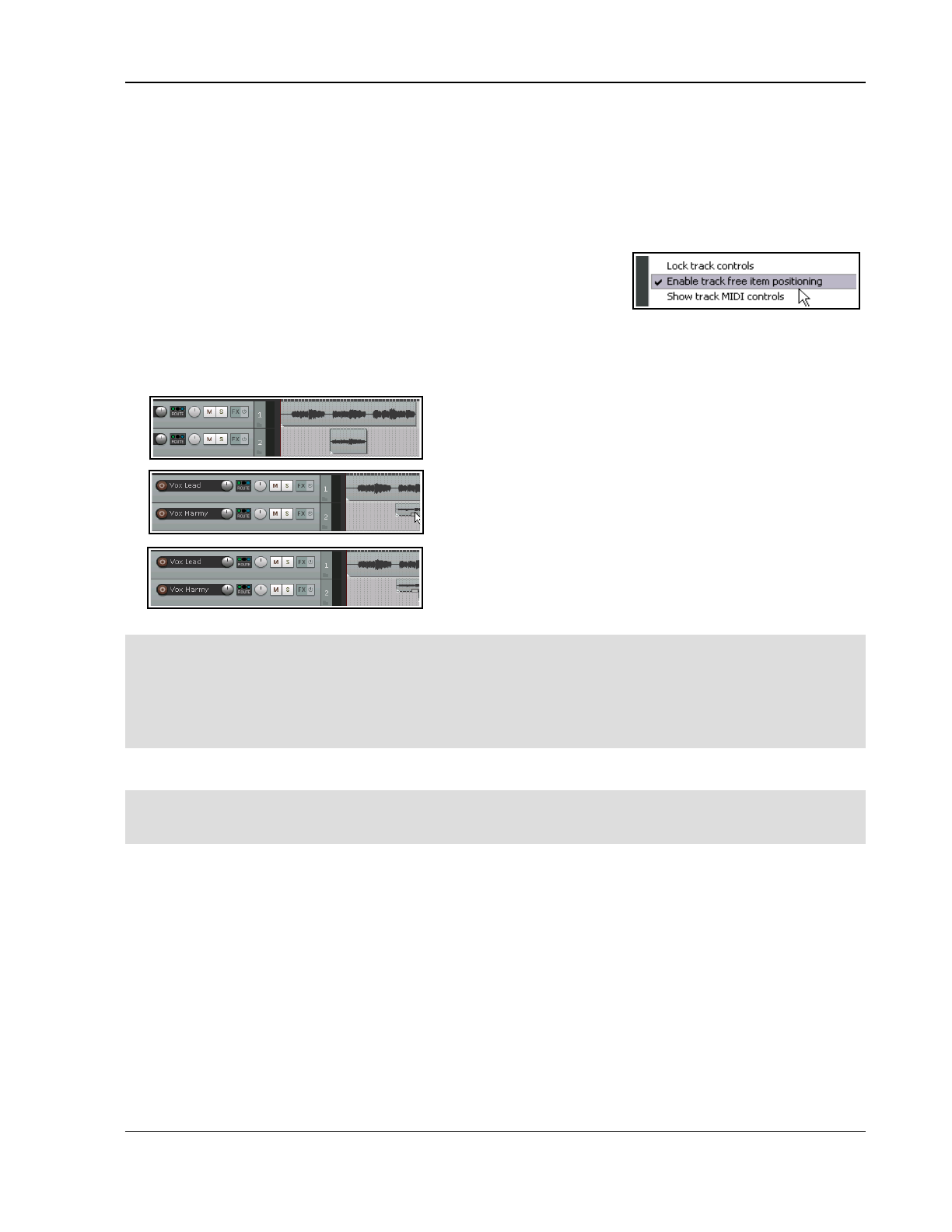
Recording Audio and MIDI
3.24 Recording Multiple Additional Items
We have seen how to use REAPER to record multiple takes on the same tracks. Later, Chapter 8 explains how to
organise and edit these, taking the best parts from various takes and patching them together into a single take.
Instead of using multiple takes, however, you may wish to record new items onto an existing track, perhaps
overlapping. This is one case where free item positioning gives you greater flexibility. By default, free item
positioning is disabled. To record extra items (rather than takes) on to an existing track, follow this sequence:
1. Set record mode to normal (Options, Record Mode: Normal).
2. Turn on Free Item Positioning (FIPM) for the track being
recorded. Right click on the track’s Track Control Panel and select
Free item positioning if this is not already ticked.
3. Record your first item for the track.-
4. Position the cursor at the point where you wish to record the second item. Record this item.
5. Repeat step 4. as often as required.
Example
7
In the first screen shot here, Track 1 contains a Vocal Track
and Track 2 a Vocal Harmony for part of the song.
In the second, the option for Free item positioning
(FIPM) has been enabled for Track 2. The mouse cursor
shows a small handle that can be used to adjust the height
of this media item.
In the third screen shot, a second Vocal Harmony has been
recorded on to Track 2, overlapping the original harmony.
Notice that this is not an alternative take of the first
harmony, but an
additional
media item.
Note 1: Enabling Offset overlapping media items vertically (Options menu) will ensure that overlapping
items are shown this way, whether editing or recording.
Note 2: Options, Preferences, Project, Track/Sends Defaults includes an option to make free item
positioning enabled for your tracks by default.
Note 3: Options, Preferences, Project, Item Fade Defaults includes an option whether or not to crossfade
overlapping recorded items.
3.25 Recording with Empty Events
This section, along with most subsequent sections in this chapter, uses images showing the REAPER 5 default
color theme. If you wish to use this theme, choose Options, Themes, Default_5 from the main menu. Otherwise,
you should have no difficulty applying the instructions using the REAPER 6 default theme.
Empty events are a device which can be helpful when you are overdubbing or layering. If you know exactly the
regions where you want recording to start and stop, you can define these regions by inserting empty events.
Then, when recording is commenced, only those regions defined by the empty events will actually be recorded.
Let’s take an example where a vocal track has already been recorded, and we want to lay down a harmony
vocal, where this harmony is only used for the chorus line of the song. This is how you would do this:
1. Insert a new track to be used for the vocal harmony. Ideally, you should name this track straight away.
2. Arm the track for recording. Assign an audio input in the usual way. Turn on Monitor Input for this track,
and make sure the output from the Master is directed to your headphones.
3. Use the Options menu to ensure that Record mode: auto punch selected items is chosen. Notice the
appearance of the Record button in the transport bar changes.
4. To create an empty item, first make sure that your new track is selected. Click and drag to define a time
selection, then use the Insert, Empty item command to create the empty item. Repeat this as often as
required. If necessary, click and drag to adjust their exact positions. An example is shown here.
69
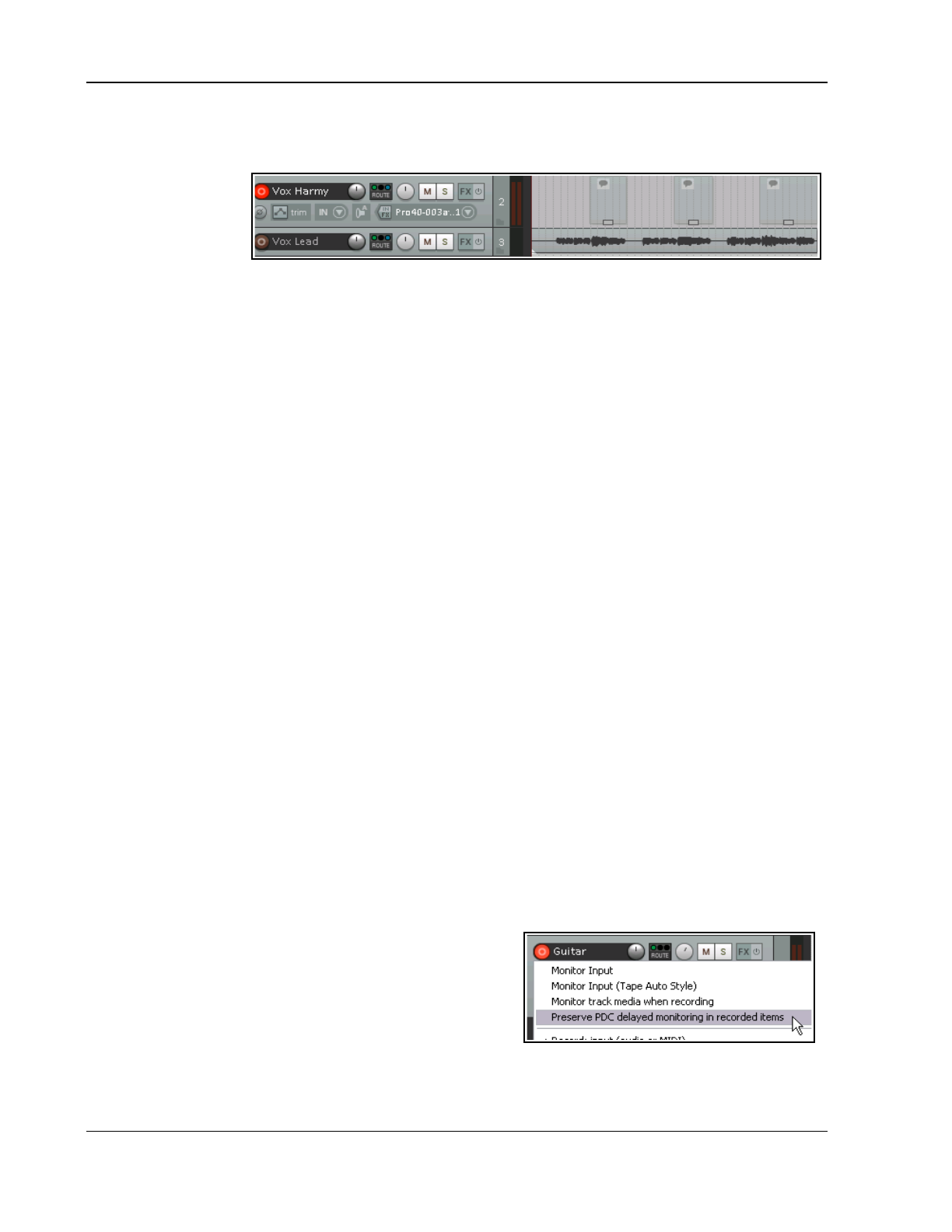
Up and Running: A REAPER User Guide v 7.81
5. If you need to resize any of them, hover the mouse over the border between the end of the event and the
background, about half way up. Click hold and drag to the left to make it shorter, or to the right to make it
longer, then release the mouse.
6. To select all the
required events,
hold the Ctrl
key while
clicking on each
in turn. If you
need to reposition the play cursor before recording, click on the Timeline. Arm the track for recording.
7. Press Ctrl R to start recording. When finished, press Ctrl R again to stop. If prompted, accept the option
to save all files. Your previously empty media items will have been replaced with your newly recorded
material. Disarm the track.
3.26 Recording with Input FX Plug-ins
Audio effects (FX) are usually added to a track later in the production process, after the material has been
recorded. This subject was introduced in Chapter 2, and you'll find more about it elsewhere (for example, in
Chapter 16). You are also able to apply plug-ins to material as it is being recorded. Use this facility with caution,
as once an effect has been added in this way it effectively cannot be easily reversed (if at all). This technique is
sometimes used, for example, when experimenting with different FX. The procedure is as follows:
1. Arm the track for recording and select the required audio or MIDI input device in the usual way.
2. Right-click on the Record Arm button and choose Track input FX chain from the context menu. This
causes the Add FX to Track window to be displayed.
3. Select any effect required, then click on Add. Set the parameters for this effect.
4. Use the Add button to add any additional effects.
5. Close the FX window.
6. Audition the performance and the effects as necessary, then record the track in the usual way.
Effects placed in a track's input FX chain only use resources when the track is armed, and are applied
destructively to the media item during recording. Most probably, before doing this you will want to audition the
instrument or voice being recorded together with these FX so that you can get the parameter settings right. To
do this, you simply need to keep the track armed and turn on input monitoring while you listen to the live
material and adjust the FX parameters to suit. Input monitoring is explained elsewhere in this guide, for example
in the sections dealing with layered and overdub recording.
3.27 Input Monitoring without Recording
You might wish to monitor an incoming signal (perhaps with input FX enabled) to ensure that you have the
sound exactly as you want it before actually recording anything. Set up the track input in the normal way; then
follow this sequence:
1. Click on the track’s Record arm button.
2. Right-click on this button.
3. From the context menu, choose Record disable (input monitoring only).
From this point, proceed as if you were actually recording. You will hear exactly what would have been recorded.
3.28 Preserve PDC Delayed Monitoring in Recorded Items
When monitoring audio on an armed track against previously
recorded tracks any of which uses a plug-in that has latency
(such as, ReaFir) this will cause the output to be delayed. In
this case you may wish to have the recorded output sound
exactly as you are hearing it while recording. For example, you
might be playing the notes early to make it sound right.
With this option on, it will play back the same way you heard it
as you played it, with the option off it will be earlier (as the PDC of the plug-in will take effect). In the recorded
clip, the PDC amount is indicated by by two small right-angled triangular indents.
70
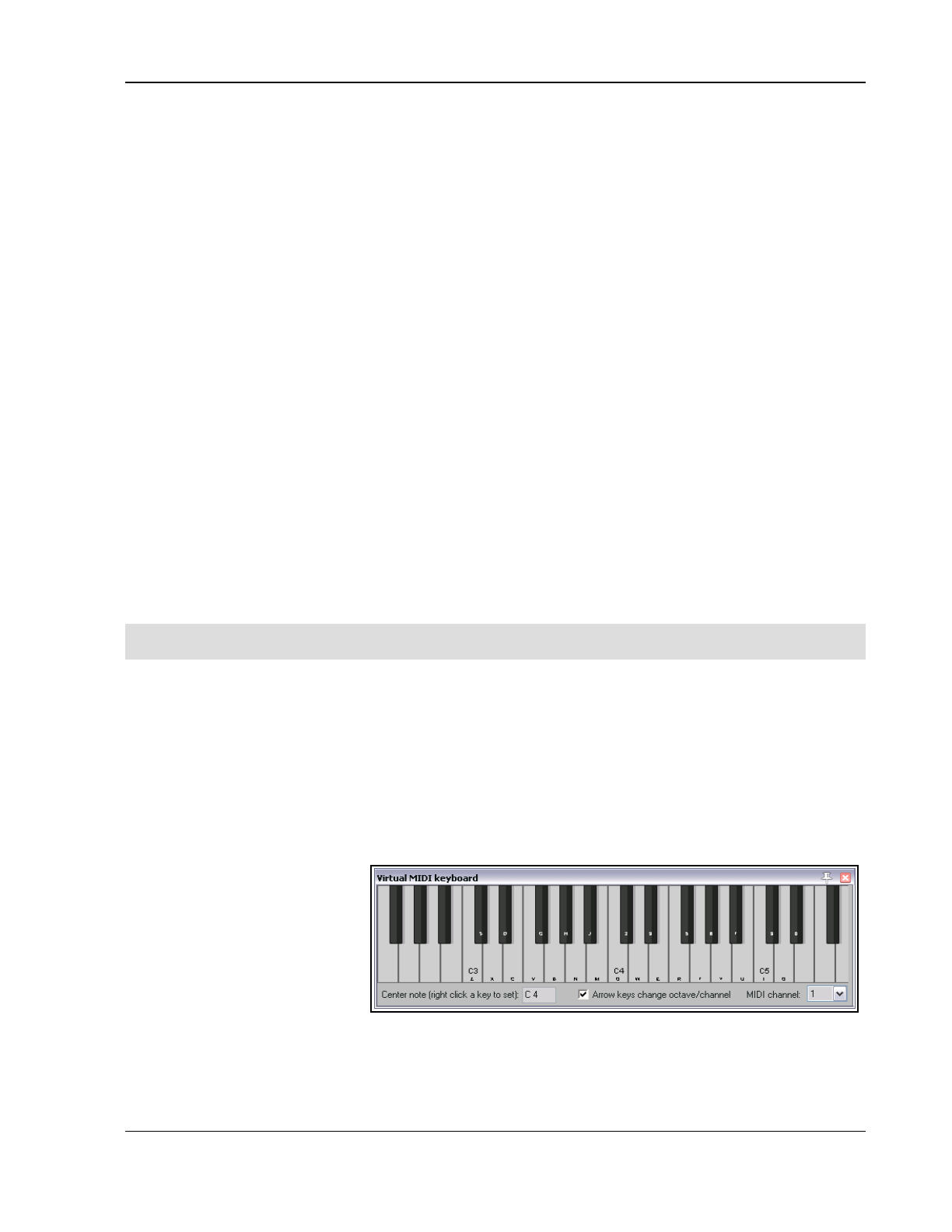
Recording Audio and MIDI
3.29 Recording a Track’s Output
There are a number of reasons why you might wish to record a track's audio output. One example might be to
record the output from an external synthesizer directly onto an audio track. Another might be to record the
output generated by a receive from another track.. Here is an example of how you might do this:
1. If recording from an external synth, connect the MIDI keyboard to your PC. Make sure it is enabled in
your MIDI device preferences.
2. Create a new track. Name it and arm it for recording. Enable input monitoring.
3. From the record arm context menu select Record: output then your required channel options. Most
often this is likely to be mono, latency compensated, but options are also available for stereo and
multichannel, with or without latency compensation.
4. From the same menu select your required output mode. Available options are post fader (the default),
post-fx/pre-fader or pre fx.
5. If recording from an external synth, select Input: MIDI, then select your input device from the menu .
6. Make such adjustments as you might need (e.g. to the synth parameters) while you audition the music.
7. When ready, record.
8. Stop recording when finished.
3.30 Recording FX Bus Output
You can record the output of an FX bus track. For example, you could record the output of a reverb bus to a
stereo audio track, then use stereo or dual panning to adjust its positioning in your mix. Here's how:
1. Set up a FX Bus track, select it, and arm it for recording.
2. You might wish to also turn up the track’s Receives to get a good strong signal – you can always turn
down the volume when playing it back later.
3. On the record arm context menu, set the track to Monitor Input and chose a Recording Mode. This is
likely to be Output, Stereo. Output mode will most likely want to be Post fader.
4. Play the song and monitor the signal level.
5. Rewind to start and press Record. Stop recording when finished.
Tip: After doing this you will most likely want to mute the sends to the bus and set the bus FX to bypass. It can
still be a good idea to leave the FX inserted in the bus, as a record of how the output was produced.
3.31 Recording MIDI
You have a number of options for recording MIDI, depending on what equipment you have and how it is set up.
In every case, however, the principle is the same:
You will need to use either REAPER's virtual keyboard or a MIDI input device, such as a keyboard attached
via a MIDI In port on your sound card or other audio device.
You will need to create a track (or assign an existing one) for your MIDI recording.
You will need to assign an output device for your track.
You will need to assign a Channel for the MIDI item.
You will need to turn Input Monitoring on to be able to hear what you are playing.
REAPER's Virtual MIDI
Keyboard, can be played using
your mouse or PC keyboard. This
keyboard is displayed using the
command View, Virtual MIDI
Keyboard. The shortcut keys Alt
B can be used to toggle display
on and off.
MIDI Ports: MIDI architecture
imposes a limit of 16 channels per device. However, you can use a MIDI patch bay to work round this restriction
by allowing multiple devices to be connected. REAPER allows up to 62 MIDI ports for input and 64 for output.
Virtual MIDI ports can be defined and used via software such as MIDI Yoke or loopMIDI.
71
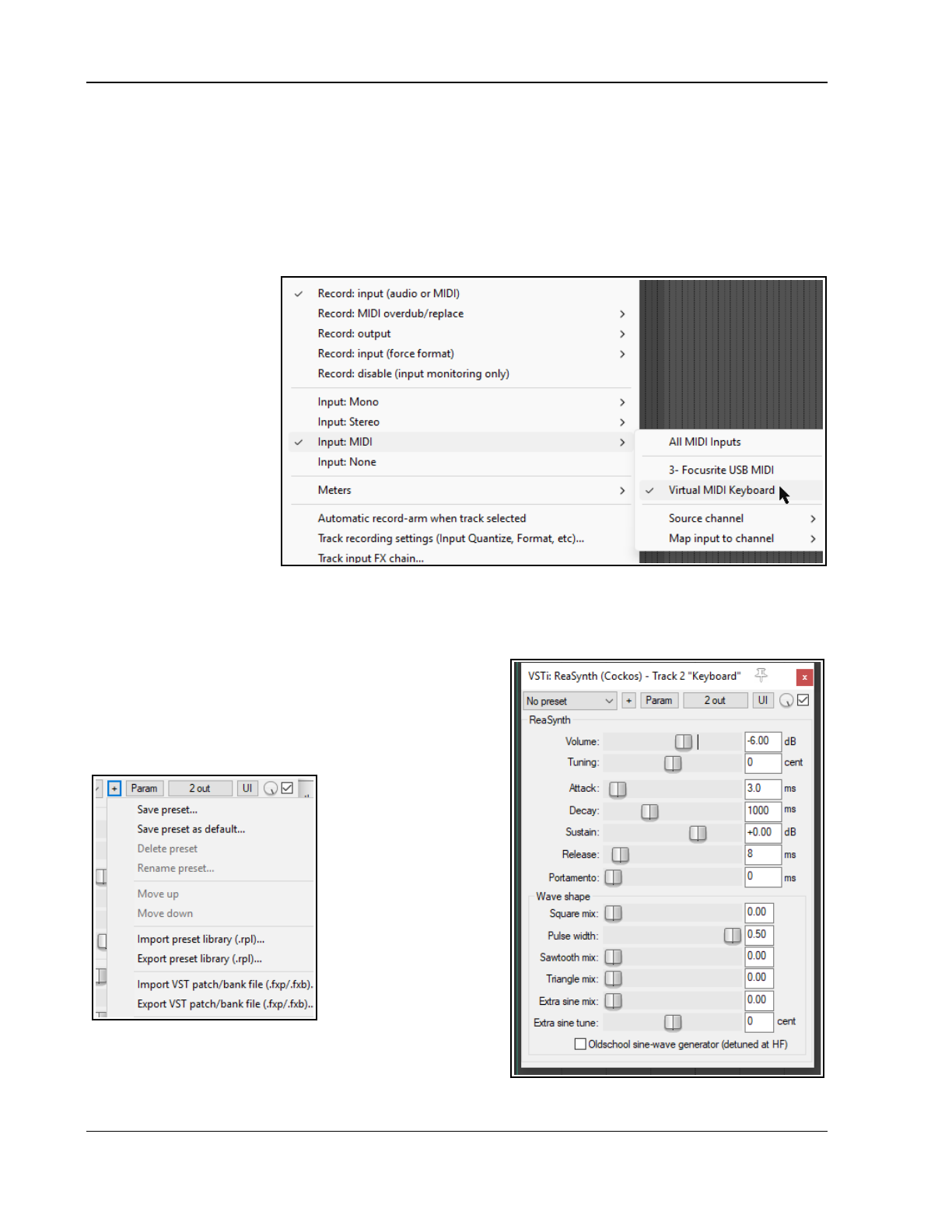
Up and Running: A REAPER User Guide v 7.81
Procedure for Recording to a new MIDI Track
1. Insert a new track into a project file. Arm this track for recording.
2. Ensure that your MIDI keyboard is connected to the computer, MIDI Input of your sound card or Audio
Device and that it is switched on. In this example, we will use the REAPER Virtual MIDI Keyboard. If
this is not visible, press Alt B. Right click over any key that you wish to be your centre note.
3. Right click on the track’s arm record button Select both Monitor Input and Record Input (Audio or
MIDI): Select Input MIDI and choose the Virtual MIDI Keyboard . Select a Source Channels (e.g.
channel 1) and a channel for mapped output from the Map output to menu (e.g., also channel 1).
4. Make sure the track’s
output goes to the
master, and that the
master output goes
to your hardware
audio outputs.
5. Open the FX Window
for this track. Insert a
Synthesizer such as
the VSTi ReaSynth
(Cockos). Leave the
ReaS.ynth
parameters at their
default settings.
6. Press Ctrl R to start
recording. Play a
simple tune on the
Virtual Keyboard. Use your mouse or PC Keyboard – e.g., zxcvbvcxz will play half a scale up and down.
When finished. Press Ctrl R again to stop recording. If prompted, save your media item.
See also Recording MIDI from keyboard checklist later in this chapter.
In Chapter 13 we will see how your MIDI data can be edited
using REAPER's built in midi editor.
Procedure for Playing Back a MIDI Item
Play the track. As it plays, you can alter the nature and
shape of the sound by adjusting the soft synth parameters.
When you have found a sound you like, you can click on the
+ button in the FX
Window (indicated by
the mouse cursor,
shown left) and then
choose Save Preset
to name and
Save that set of
parameters. Your
named preset can be
recalled from the
preset drop down list
any time. You can
use presets for all FX
Plug-ins and Synths.
With VSTi synths, you
can also import and export patch/bank files (see above).
For more information including troubleshooting, see the
section Recording Thru MIDI Channels.
72
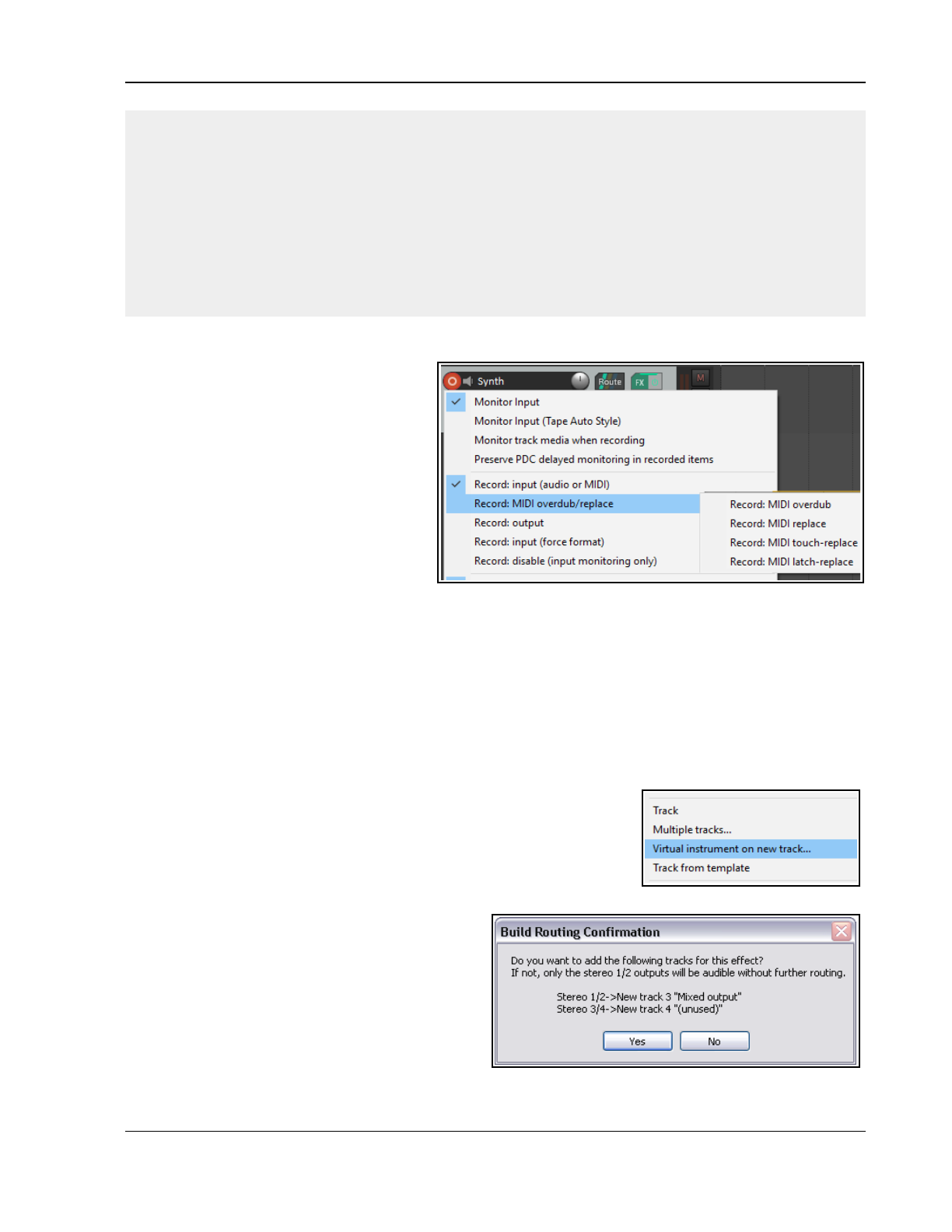
Recording Audio and MIDI
Note: The example above demonstrates an important difference between MIDI and Audio. With Audio the
actual sounds made by the instrument or voice are recorded. It is possible to use FX like EQ and Compression to
alter how the audio item sounds when played back, but the audio item itself stays the same.
With MIDI, you are essentially recording a series of instructions that by themselves have no sound. The music is
created when those instructions are fed to a synthesizer. By changing the parameters of the synthesizer's
settings – or even by changing the synthesizer – we are able to produce a completely different sound.
Despite these differences, both audio and MIDI items can be included on the same track.
Note: Before recording, you can assign sequential input channels to a number of MIDI tracks in one action.
Select the tracks, then click on the Input button for any one of them. From the menu, choose first Assign
inputs sequentially, then MIDI (sequential inputs or channels), then select the MIDI device, then the
channel selection (e.g. for four tracks, perhaps channels 1 to 4).
3.32 Other MIDI Recording Modes
When recording MIDI, you should select one
of six modes. In the above example, we
used Record Input. With this mode, any
existing events will be retained: the new
material will be recorded as a new take.
Four of the other five are Record: MIDI
overdub replace modes (in project MIDI
items only):
Record MIDI overdub: adds new
notes on any channel within existing
items, preserving what is already there.
Record MIDI replace : from the time
you start recording until you stop, existing
MIDI notes will be removed and any new material played on any channel will be recorded in their place.
Record MIDI touch-replace: existing MIDI notes will be replaced by any new notes played over them on
the same channel as the original material. All other existing material will remain as it is.
Record MIDI latch-replace: existing MIDI material remains unchanged until you strike the first note. All of
the old material will then be replaced with notes played on the same channel as the original material until
recording is stopped.
Record Output -> Record: output (MIDI): Similar to the input mode, but records the MIDI signal coming
out of the FX chain.
Note that these options can often be used effectively with time selection recording (see sections 3.16 to 3.18)
and looped time selection recording (see below).
3.33 Recording With a Virtual Instrument
To use a virtual instrument (such as a VSTi or DXi plug-in) for recording a
MIDI track, you can use the main menu Insert, Insert virtual
instrument on new track… command. You will then be presented with a
selection of all the virtual instruments that you have installed on your
system. Double-click on the required item. The track
will be created, armed and named and the
instrument displayed.
If you prefer, you can instead drag and drop the
instrument from an open FX Browser window to an
empty area of the track control panel.
The example shown here is for ReaSynDr, which
requires four outputs. If the item selected (like this
one) requires multiple outputs then REAPER will
create the initial track and prompt to ask you if you
would like the other required tracks to be automatically built. If you select Yes the entire output chain will be
73
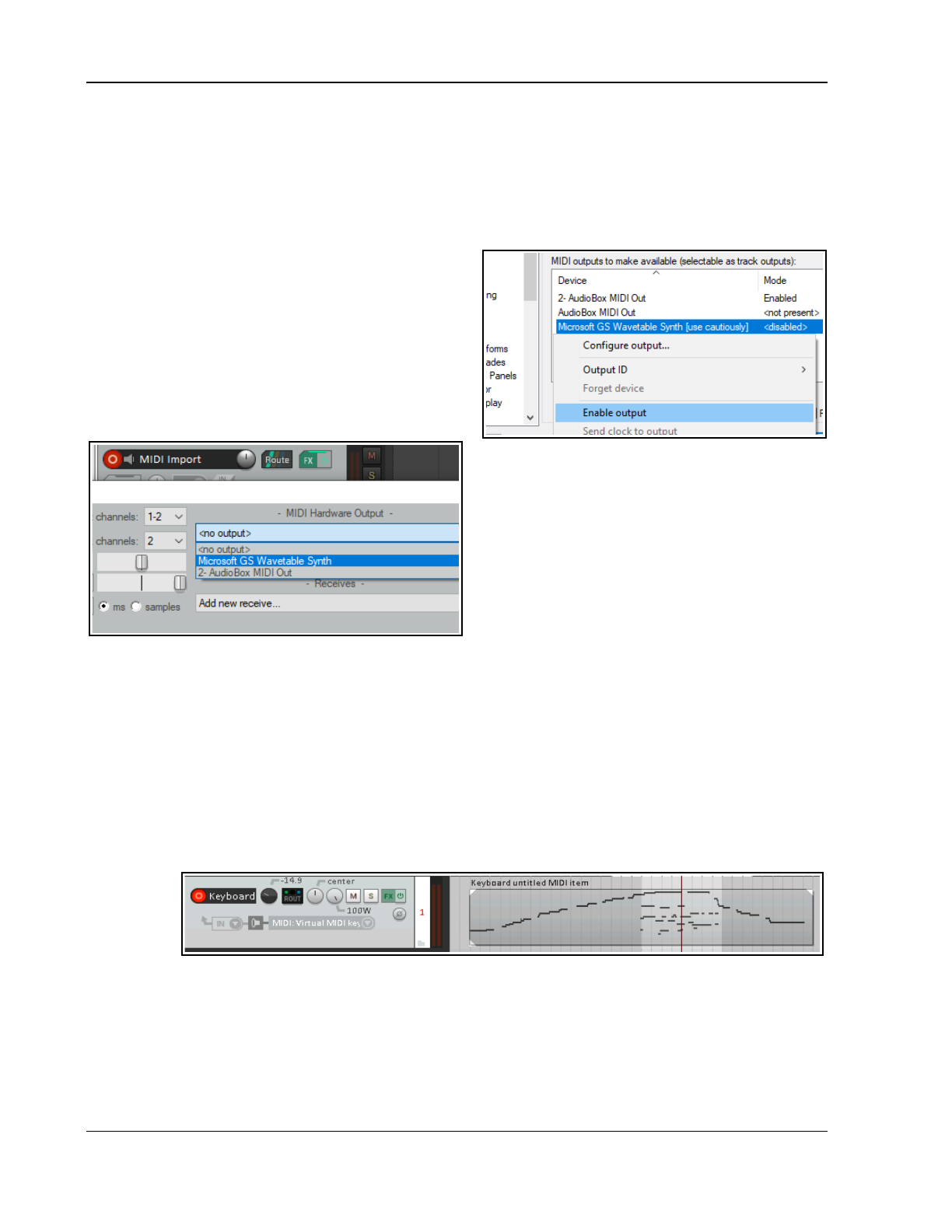
Up and Running: A REAPER User Guide v 7.81
built for you. What exactly this produces will, of course, depend upon which Virtual Instrument you have
selected.
Monitoring an External Synthesizer
If you are working with an external hardware synthesizer then it is likely that at times you may wish to monitor
its output in REAPER. This topic is covered in Chapter 13, Manipulating and Editing MIDI Items.
3.34 Using Microsoft GS Wavetable SW Synth
You can use the Microsoft GS Wavetable Synth if it is
included with your Windows version. It can be used to
play MIDI files that you import into REAPER. You will be
shown how to import files in Chapter 4.
To enable the Microsoft GS Wavetable SW Synth:
1. Go to Options, Preferences and display the
Audio, MIDI Devices screen.
2. Under MIDI Outputs, right click on Microsoft GS
Wavetable SW Synth and select Enable output.
3. Click on Apply, then on OK.
This Synth will now be available as a MIDI
Hardware Output.
You can if you wish now use the Microsoft GS
Wavetable SW Synth as your output device
instead of using a software synth (see above right).
However, be aware that this output device is known
to create issues with latency.
3.35 Looped Overdubbing and Looped Time Selection Recording
Loop overdubbing allows you to make repeated overdubs of a section of recorded material without having to be
repeatedly stopping and starting. The technique can be used with both audio and MIDI. In both cases, you will
need to check your Options, Preferences, Audio, Loop Recording settings. Set When recording and
looped add recorded media to project to On stop. Usually you will also want to enable In loop recording,
discard incomplete first or last takes if at least one full loop was recorded. You should also (from
REAPER's main Options menu) disable Loop points linked to time selection and enable Record mode:
Time selection auto-punch.
Now arm your track for recording, select your record options and make your time selection just as you would for
normal punch recording. Click and drag along the timeline to create the loop – this should enclose the time
selection, as shown below. Make sure Toggle repeat (next to Record button) is enabled on the Transport Bar.
When
Record
input
(audio or
MIDI) is
selected,
then both audio and MIDI essentially behave in a similar way. When you record, new material will be recorded
within the time selection (and added to the MIDI item) for each pass over the loop until you press Stop. The
loop is used to audition material immediately before and after the section being recorded.
For example, you might choose Monitor input and Record Input (audio or MIDI) and Input MIDI then
your MIDI device. If so, the outcome will be similar to that shown here.
Audio material recorded with Input MONO rather than Input MIDI would produce a similar result, except of
course the media items would be audio instead of MIDI. You will, however, get significantly different outcomes if
74
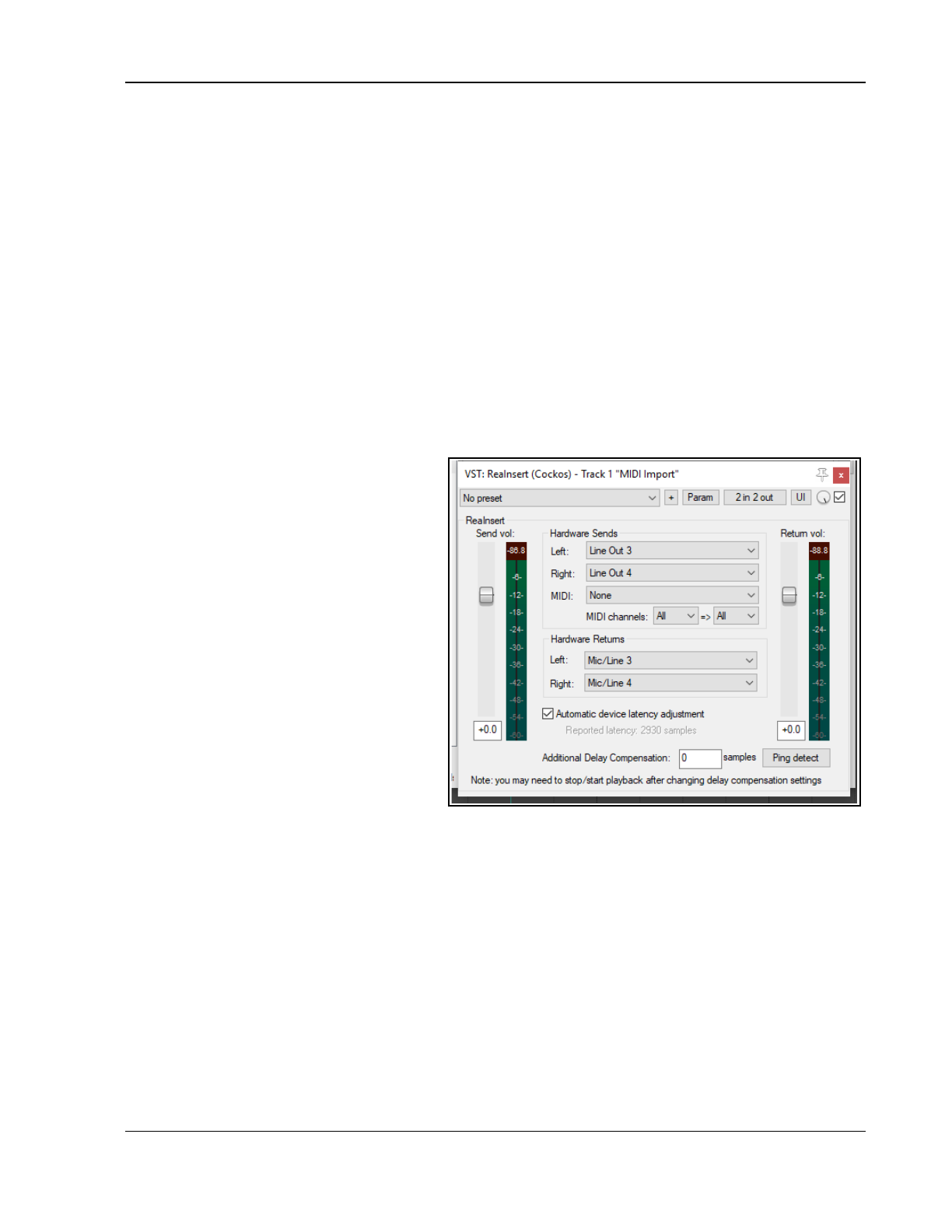
Recording Audio and MIDI
you use any of the Record: MIDI overdub/replace options with looped time selection recording. In each
case, new takes will not be created. Instead, the existing take will be edited. For example:
Record: MIDI Overdub: with each loop, the new material will be added to the existing material within the time
selection.
Record: MIDI Replace: with each loop, all previous material within the time selection will be replaced with
new material. For example, the first loop will replace existing events within the time selection. Second time
around it will replace the material recorded in the first loop with new events, and so on. Only the most recent
material will be saved.
Record: MIDI Touch-replace: Each time you play a note within the time selection any existing material
concurrent with that note will be replaced with new material is on the same channel. For example, if you play
correctly except for one wrong note first time, you can correct just that one note second time round.
Record: MIDI Latch-replace: Each time round the loop all existing material in the time selection will be
replaced with new material if on the same channel only from the moment you press your first note. This
technique can be useful, for example, if you are replacing existing material little by little.
3.36 Recording with External Hardware FX
REAPER can record a track with an external hardware FX device in much the same way as you might use an
external device as an insert when recording
on an analog desk. You use a plug-in called
ReaInsert. If you want to try it out step by
step, create a new REAPER project file, insert
a track, then get your FX device ready.
Example
1. Connect an otherwise unused audio
output to the input for your FX device.
Connect the output of your FX device
to an otherwise unused audio input.
2. Create a new REAPER project file and
add a single audio track. Give this
track a suitable name. Let’s record a
vocal with the FX on it.
3. Connect your microphone to an
otherwise unused audio input. Switch
on the FX Device.
4. Arm the track for recording.
5. Select the input device (to which the
line or microphone is attached), select
Monitor track media when recording and specify that you want to Record output and choose your
required option (such as Mono, latency compensated), just as we did in the section Recording a
Track's Output.
6. Now display the FX Window for this track, and add the FX VST: ReaInsert to this window (see right).
7. Specify the actual Hardware Sends and Returns that you set up at steps 1. and 3.
8. Make sure the FX Device mix is set to 100% Dry, and within ReaInsert enable the option Automatic
device latency adjustment. This allows REAPER to calculate delay compensation as required.
9. With the track’s output directed to your headphones, monitor the required Volume and FX Levels, including
the FX Wet/Dry mix.
10. When you are ready, Record.
11. When finished, don’t forget to disarm the track and set the ReaInsert plug-in status to Bypass.
75
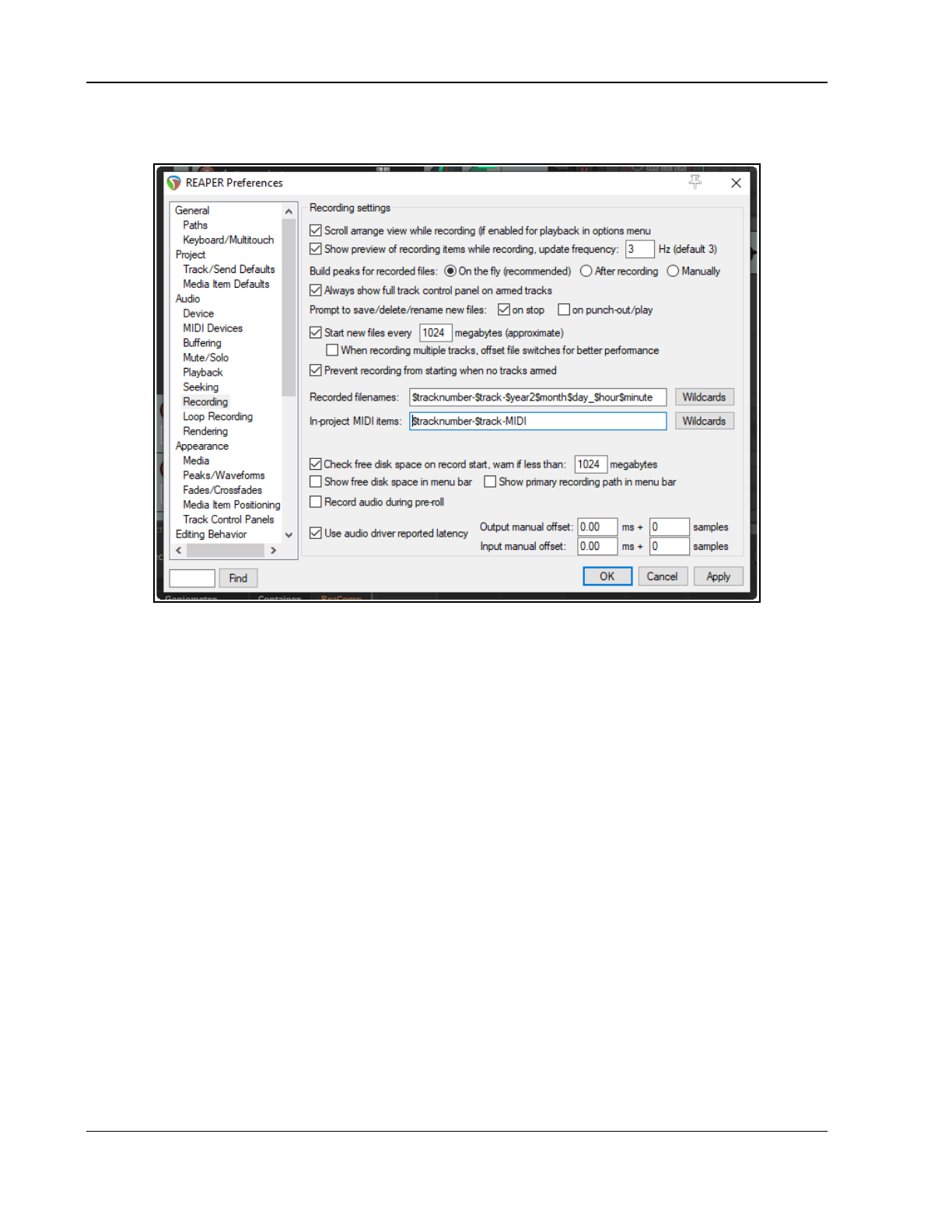
Up and Running: A REAPER User Guide v 7.81
3.37 Preference Settings for Recording
The Recording page of Options, Preferences determines REAPER’s recording behavior, including:
To scroll track view while recording.
To display a preview of media item peaks as they are being recorded. This confirms that you really are
recording and haven’t forgotten to arm your tracks. You can also specify a screen update frequency.
When to build the peaks for recorded media files.
To automatically display the whole Track Control Panel (including VU meters) when a track is armed.
Whether to prompt to save/delete/rename files when recording is stopped. If you disable this option, files
are automatically saved.
Whether to prompt to save/delete/rename files on punch out. If you disable this option, files recorded by
this method are automatically saved.
Whether to start recording to a new file after a specified number of megabytes. This can help to make
data secure when recording a long live performance,.
Prevent recording from starting if no track is armed. You may wish to turn this off if you are using layered
recording for a track (or tracks) where recording is not required to start until some way into the song.
Which items to automatically include in the file names for recorded media – by default these include the
track number, year, month, day, hour and minute. Many other options (including project name and track
name) are available by clicking on the Wildcards button.
Which items to automatically include in names for MIDI items created within the project – by default these
include the track number and track name. Many other options (including project name) are available by
clicking on the Wildcards button.
To check for free disk space before recording, and to display the amount of free disk space and/or
recording path on the menu bar.
Whether to record audio during pre-roll.
Whether to use audio driver reported latency: this automatically adjusts media positioning to compensate
for the audio driver's reported latency. There are also options for this to be manually adjusted. Beginners
especially should leave these at their default settings.
76
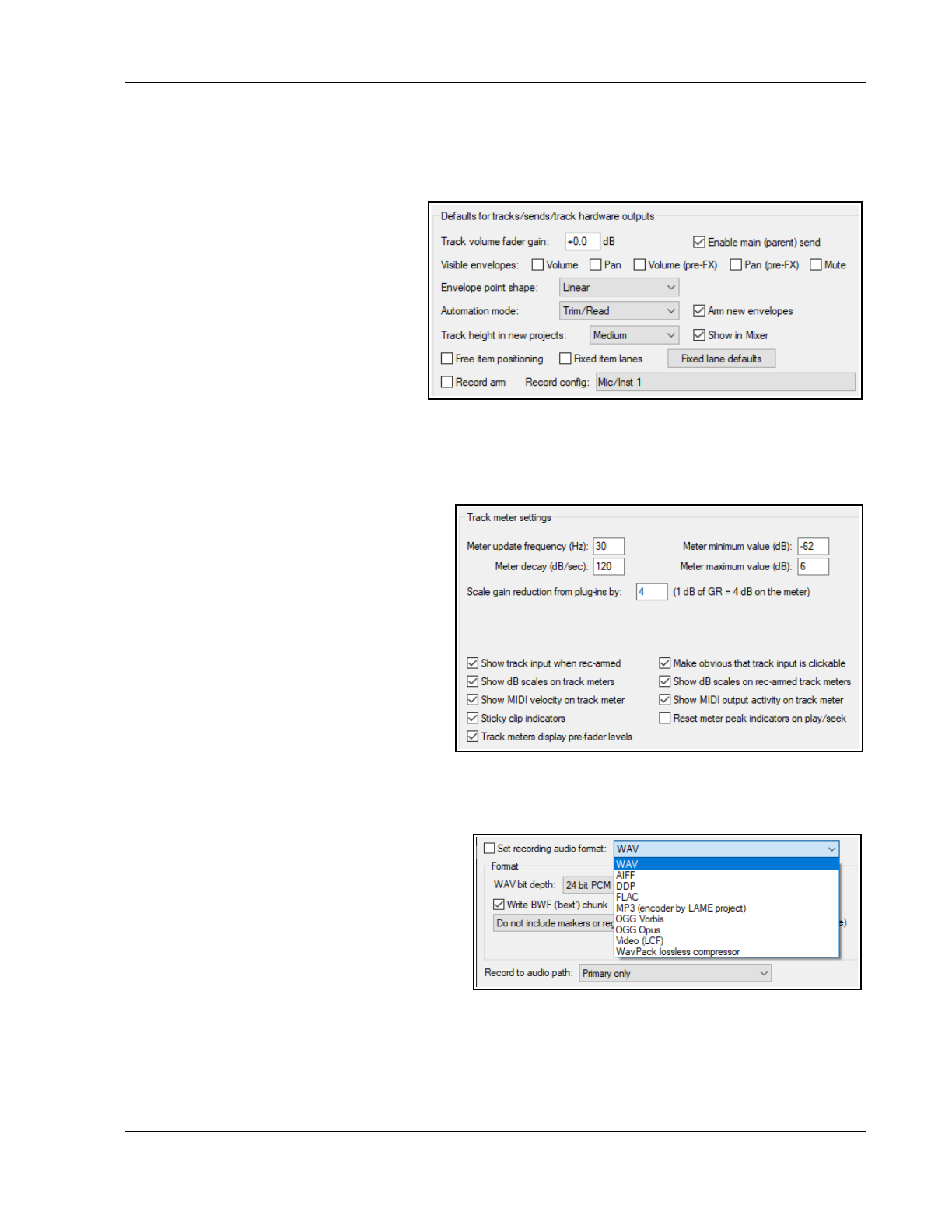
Recording Audio and MIDI
3.38 Track Preferences for Recording
The REAPER Track Defaults settings includes a number of items that you can use to help make the recording
process a little easier. These settings can be found on the Project, Track/Send Defaults page of the Options,
Preferences window. Settings on this page include:
The default volume fader gain.
Whether output should be routed to
the Main send.
The default new track height.
Whether to enable by default Free
item positioning or Fixed item lanes.
Unless you specifically need it to be
otherwise, leave both these off.
Whether to automatically arm new
tracks for recording.
A Record Config option to set
defaults for the Record Arm context
menu. Options include, to turn on by default Input Monitoring and specify default record input settings.
Notice also that under Options, Preferences, Appearance, Track Meters there are settings which together
determine how your track VU meters are presented.
For example, you can choose whether or not to Show track input when record armed and to Make
obvious that track input is clickable.
Disabling this latter option may improve the
clarity of the display on your VU meters.
Enabling Show dB scales on record armed
track meters and Sticky Clip Indicators
helps you to monitor peak levels. MIDI users
may wish to Show MIDI velocity on track
VU and/or Show MIDI output activity on
track VU.
You can also specify whether to Reset peak
indicators on play/seek. If enabled, the
numeric peak indicators on track and master
VU meters will cleared when playback is
restarted or the play cursor moved.
There is also a global option for Track meters
display pre-fader levels. This setting is also available from REAPER’s Options menu.
3.39 Other Track Recording Settings
REAPER allows you to use different audio formats
for different tracks in the same file. The default
format for new tracks will be determined by your
Project Settings. To change these for any track,
simply right click over either the track’s record
arm button or its record options button, then from
the menu choose Track recording settings.
You can choose any of the formats WAV, AIFF,
DDP, FLAC, MP3, OGG Vorbis, Video (GIF) or
WavPack lossless compressor.
Depending on the format you choose, you will be presented with a range of options appropriate to that format.
There is also an option to include markers/and or regions in the recorded material.
77
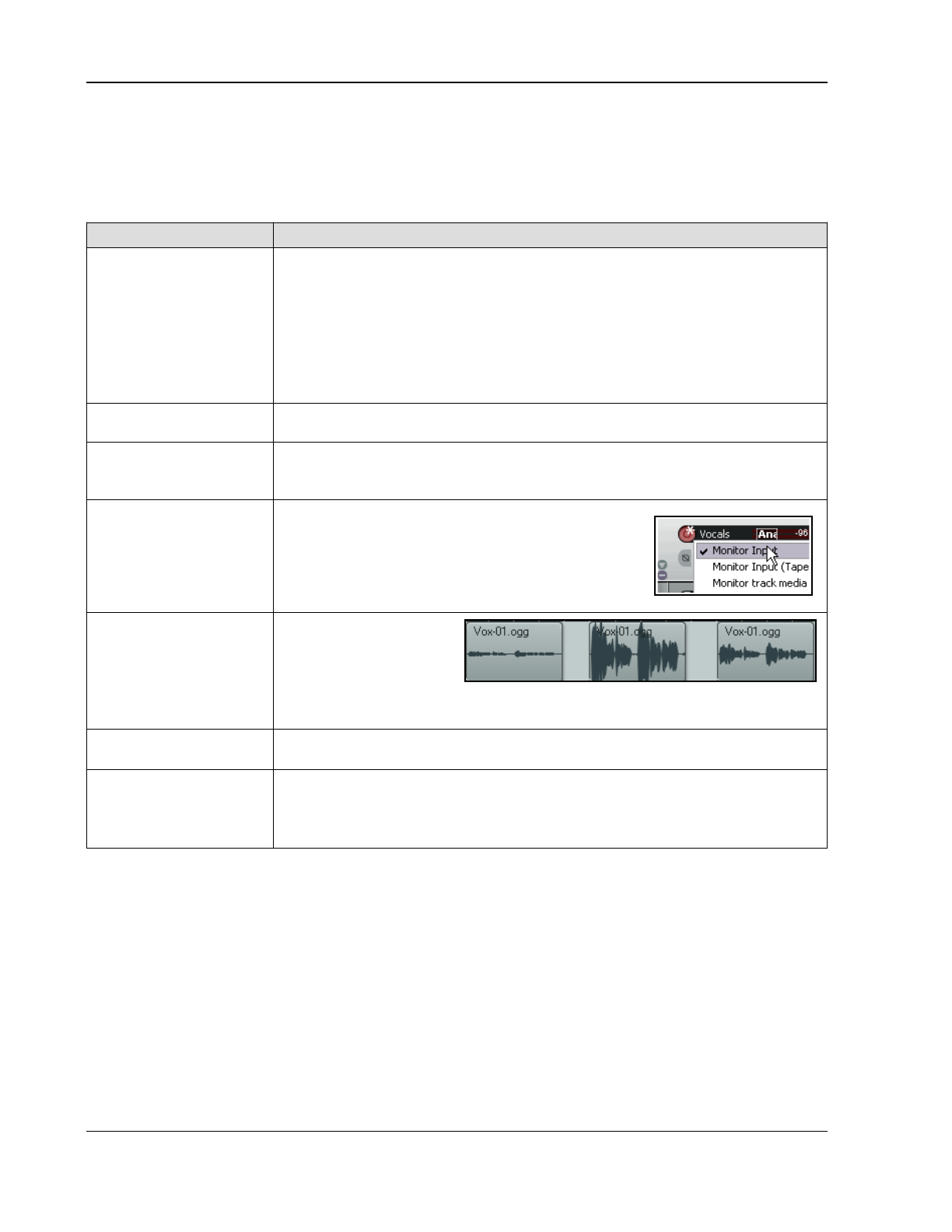
Up and Running: A REAPER User Guide v 7.81
3.40 REAPER Audio Recording Checklist
The following checklist is for guidance only. In some cases you may vary the suggested order (e.g., you can
switch on your PC and start REAPER before getting together your microphone and leads). In other cases the
order is critical (e.g. you should always connect your microphone to your preamp before turning on the phantom
power supply). If you are not sure, keep to the exact same sequence outlined here.
Item Comment
Preparation
Set up all external recording equipment needed (microphones, stands etc.).
All faders and gain controls on mixer and/or sound device turned right down.
Phantom power (if available) turned off.
Everything connected that needs to be connected (e.g. microphone leads to mixer
or sound device).
Turn equipment on, but check volume on speakers isn't too loud.
Connect headphones to headphone amp or sound device.
If phantom power required (for condenser microphone), turn it on.
PC Preliminaries
Turn on PC and wait for Windows to open.
Open REAPER with required project file. Save file.
Project Settings
Check recording format and settings – e.g. 24 bit WAV at 44100 Hz.
Is a different format required for this track?
Make sure Record Mode is set to Normal.
Track Settings
Named and armed for recording?
Track Input Monitoring on or off?
Use the Sound Card’s direct input monitoring if
available in preference to REAPER’s.
Record Input selected?
Correct input channel selected?
Test Recording Levels
Start low and work up.
Record a small sample
to test levels: the three
examples here show
(left to right) too low, too high and about right.
It is better to be too low than to be too high.
Recording
Press Ctrl R to record and again to stop recording when finished. Save media
items. Press Ctrl S to save project file.
Evaluating
Unarm track before playing back recorded tracks to evaluate them.
Especially if listening thru headphones, disable Input Monitoring (or turn faders
and gain controls on the input device right down), to prevent live ambient sounds
from being mixed in with your recorded material.
3.41 Recording MIDI From Keyboard Checklist
Newcomers sometimes run in to trouble when recording MIDI from an external MIDI keyboard. If you find things
aren't happening as you would like them to, here are some things to check:
● Is the keyboard sending MIDI on the required MIDI channel?
● Is the keyboard device enabled in Preferences for Input/Control?
● Is the keyboard selected as the input device for the track?
● If needed, is the correct MIDI channel from the keyboard selected?
● If needed, is the input mapped to the correct MIDI channel?
● Is record arm enabled?
● Is input monitoring enabled?
● If needed, is the plug-in “listening” to the required MIDI channel.
78
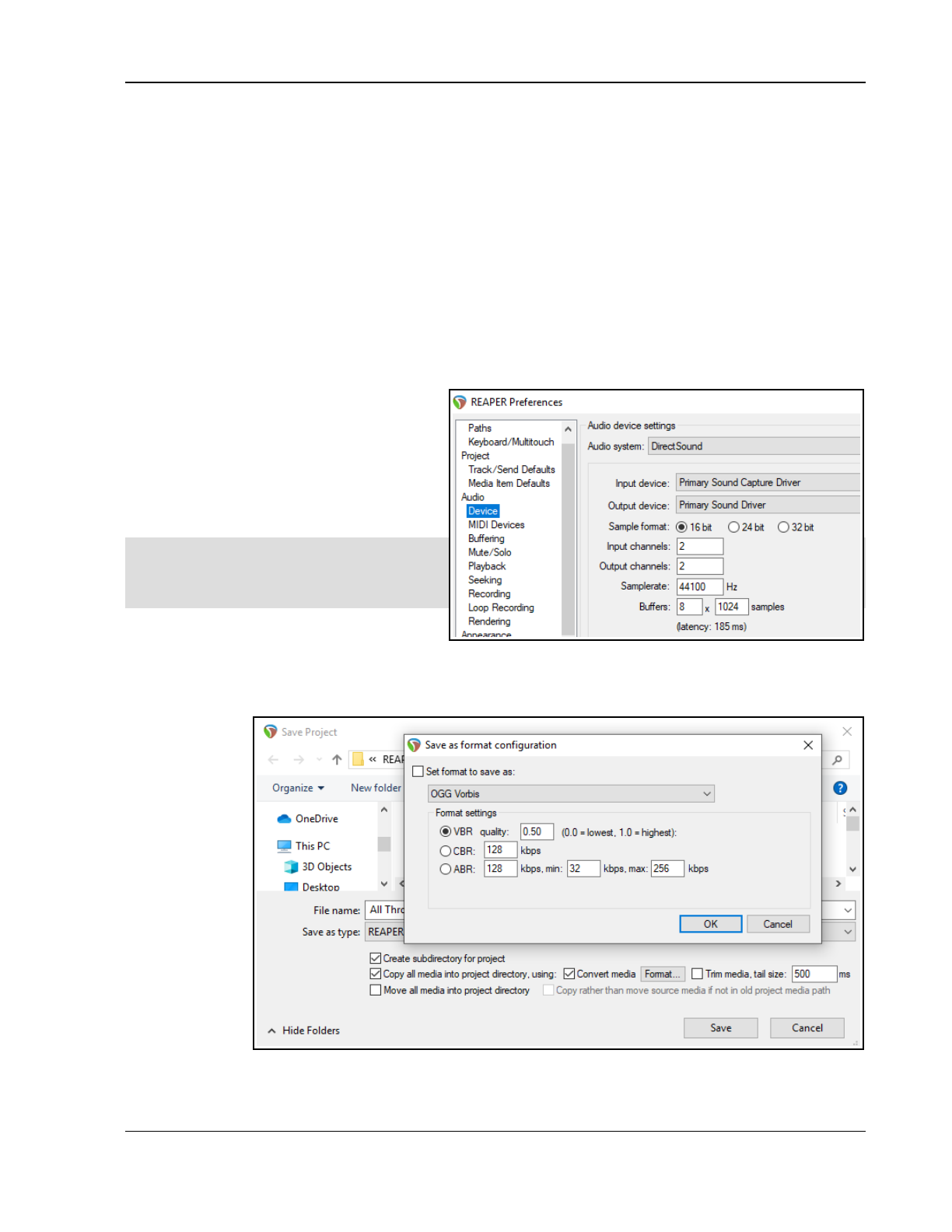
Recording Audio and MIDI
3.42 Recording an Internet Audio Stream
You can use REAPER to record an audio stream from the internet. Before doing so you should make sure that
you are not in breach of any copyright restrictions. The exact method will depend on your hardware setup,
including your sound card. Your sound card should include some sort of software for changing its settings. This
may or may not have its own icon within the Windows Control Panel. If you are not sure how to access it, you
can click on the Windows Start button, choose Run, then type sndvol32 –r and press Enter. In overview,
these are the steps that you will need to perform.
1. Access your sound cards control software and modify its settings to select (depending on the options
available) the required option. You should probably temporarily disable input from all other sources
(Microphone, Line, etc).
2. Open your web browser and find the page containing the item that you wish to record.
3. Open REAPER, create a new file and add a track.
4. The next step may require a little experimentation. Depending on the equipment you are using, it might be
necessary to change your Options, Preferences, Audio, Devices settings to Direct Sound. An example
is shown here. These settings may not
be the best for your particular system.
5. Arm your track for recording: be sure to
select the correct input.
6. Press Ctrl R to start recording. In your
web browser, play the item that you
wish to record. When finished, stop
recording and save your work.
Note: Don’t forget when you have finished,
to restore both your Sound Card Recording
Control options and REAPER’s Audio Device
Preferences to their previous settings.
3.43 Converting Audio Media
Item Format
In this internet age it is becoming increasingly common for musicians to want to collaborate on projects all the
way across the world. Consider this scenario. You have a part recorded project of perhaps 50 or more 24 bit
wave files. In
some far off
land you have a
friend who has
offered to lay
down a track
such as a flute.
You'd like to get
your source files
to her, so that
she can do this
for you, layering
it down against
whatever
headphone mix
best suits her.
However, your
recorded
material so far
comes to over 3
GB and she doesn't have a particularly fast internet connection.
79
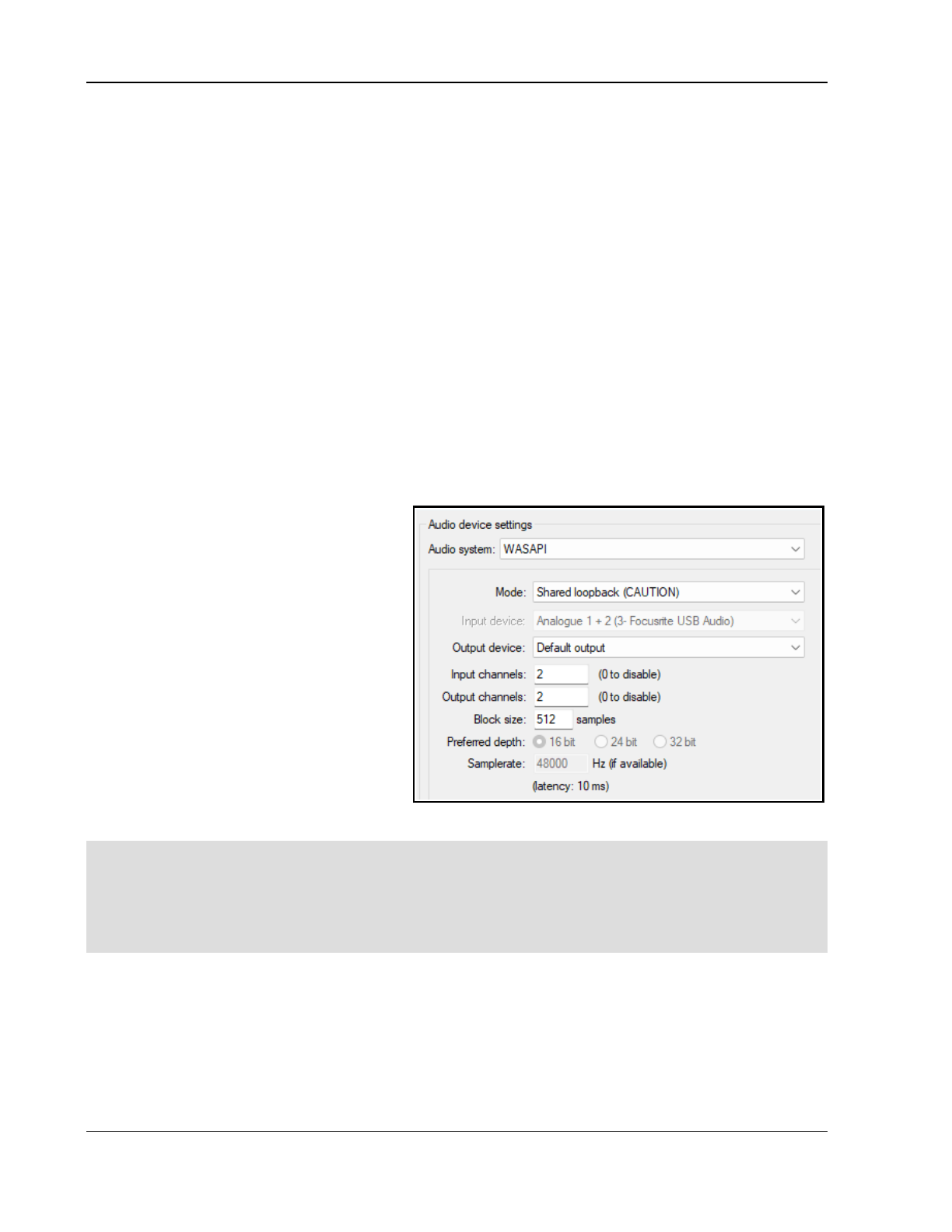
Up and Running: A REAPER User Guide v 7.81
One solution could be to convert the files to a compressed format and send her those. There's a quick way to do
this, using the File, Save project as … command. Choose this command and follow these steps.
1. If you wish, navigate to a required parent folder.
2. Enable the three options to Create subdirectory for project, Copy all media into project
directory, and Convert media.
3. Click on the Format... button to display the settings box shown above.
4. Enable the option (top left) Set format to save as.
5. Select your required format (e.g. FLAC, MP3 or, as shown here, OGG Vorbis).
6. Specify your preferred format settings.
7. Click OK then Save.
All audio media items in the project will be converted to the specified format as they are copied across. The
format of the original items will remain unchanged.
You can also convert and export selected individual media items from one format to another without having to
convert the whole project. This topic is covered in Chapter 21.
3.44 Recording Live Windows Output
Windows users (Vista/7/8/10 and 11) can use WASAPI drivers to record live Windows output (for example,
subject to copyright constraints, a YouTube video). This requires the use of feedback looping, so you should
proceed with caution beyond this point. This is not recommended for beginners.
First, create a new project file. Display the
project settings (Alt Enter) and on the
Advanced page enable Allow feedback
routing. This is also known as “loopback
recording.” See Notes below.
Next, display your Preferences, Audio,
Device window and select WASAPI as your
audio system. Select Shared loopback mode
(see right). Your block size and sample rate
will need to match those of your sound device,
as set in the Windows Control Panel.
Finally, you simply add a new track and arm it
for recording. You will probably want to set
input to stereo.
Mute the track’s audio output and press Ctrl R
to record whatever you are currently playing in
Windows. For example, this might be a
YouTube video that you are currently listening to over your speakers.
Note 1: Always proceed with caution when considering the use of feedback routing. Inappropriate use can result
in damage to your hearing, your equipment or both. Definitely not recommended for beginners..
Note 2: If your computer has both an internal sound card and an external one (such as Focusrite Audio Box or
Presonus Studio) you might need to resolve any possible conflict before doing this. One way could be to access
your Window Control Panel’s sound settings and to temporarily disable the internal sound card and/or make the
external card the default.
80
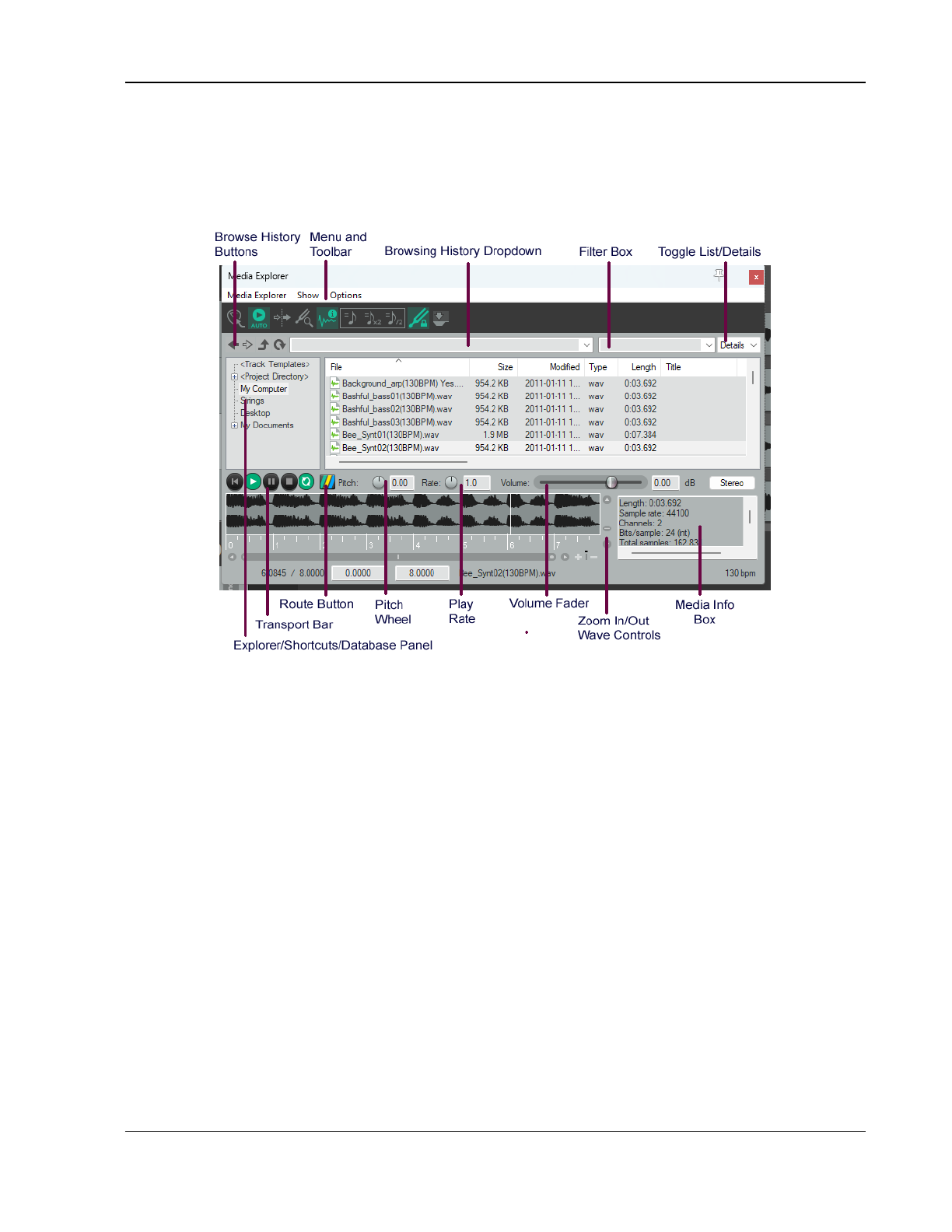
Managing Media: The Media Explorer
4 Managing Media: The Media Explorer
4.1 Introduction and Overview
To open the Media Explorer, use the View, Media Explorer command, or the shortcut Ctrl Alt X. Its interface
is shown in the diagram below. Like many other windows, the Media Explorer is dockable. To do this, click the
last button on the toolbar, or right click on the title bar and choose Dock media explorer in docker.
The Media Explorer can be used to preview and import items into your projects. It can assist you in organising
and managing your media files. This includes creating and using databases (libraries), and adding or editing
media file metadata. First, let’s look at the various elements of the Media Explorer window:
Toolbar buttons (L to R): Insert item in project, Auto play, Start on bar, Detect Pitch and Media
information box toggle options: Tempo match options. Set tempo match off, or on, or to double, or
to half. Preserve pitch toggle option: Dock media explorer toggle.
Explorer/Shortcuts/Databases panel. Used to navigate your directories and files, rather like
Windows Explorer or Mac Finder. you can add shortcuts for any folders and set up/manage databases.
Browsing history buttons. Four buttons - previous, next, up a level and refresh – to use for browsing.
Browsing history dropdown. This stores (and can display) a list of recently visited folders and
databases. You can select from this list to access any of these folders.
Filter box. Use this to type a text string to filter the displayed file list.
List/Details (Windows only). Selects whether file details (size, date, etc.) or only file names are shown.
Transport bar. Works on selected media item. Controls are Rewind/Home, Play, Pause, Stop & Repeat.
Route button. Directs output to any audio output, or to play thru any track selected in Arrange View.
Pitch control: Adjusts pitch of selected item on playback.
Rate control: Adjusts play rate of selected item on playback.
Volume control. Adjusts volume of playback of selected item.
Preview window: Displays peaks (waveforms) of currently selected item, including ruler display.
Preview scroll bars: Horizontal and vertical bars allow you to zoom in/out of the preview window. The
action list includes an option to toggle this on/off.
Although more commonly used for organising, finding and inserting media files, the media explorer can also be
used to find, preview and open existing .RPP project files.
81
Up and Running: A REAPER User Guide v 7.81
4.2 Media Explorer Basics
REAPER's Media Explorer allows you to create your own folders and databases. Folders and subfolders that you
create in REAPER’s media explorer will be real folders, stored in Windows Explorer or Mac Finder. Databases,
however, will exist only in the media explorer, and have no purpose outside of REAPER’s media explorer.
The media explorer can be used to manage not only audio items (.WAV, .MP3, etc) but also midi files (.MID),
automation items (.ReaperAutoItem) and even REAPER project files (.RPP).
In order to do this … Do this ….
Generally manage
Media Explorer
Right click on title bar for menu which includes Dock media explorer in docker,
Show action list, and Close window on escape key (see also section 4.11).
Browse thru your
folders
Use the Explorer/Navigation panel in conjunction with the main panel. For
example, click on My Computer (Windows) or Home (Mac) in the left hand
panel, then use the main panel to browse thru and to open your folders.
Create shortcut for
any folder
In the main (right hand) panel, right click on folder name and choose Add to
shortcut list from menu. Shortcuts are displayed in the left hand panel.
Rename folder
shortcut
In the shortcuts (left hand) panel, right click on shortcut, choose Rename
shortcut. Type a name and press Enter or click OK .
Reorder shortcuts Drag and drop shortcut name(s) up or down the list in the shortcuts (left) panel.
Remove shortcut In the left hand panel, right click on shortcut, choose Remove shortcut.
Create a subfolder
on shortcuts list.
Right click on folder name in shortcuts panel. Choose Create subfolder. Type a
name then press Enter or click OK.
Copy to subfolder Drag and drop files from main (right hand) panel.
Select/restrict
columns displayed
Right-click on any column header then Show/hide columns for a columns list:
tick/untick to select columns. Available fields are Favorite, Mark, File Name, File
Size, File Modified Date, File Type, Title, Artist, Album, Track number, Date, Genre,
Comment, Description, BPM, Key, Custom Tags, Length, Channels. Sample Rate,
Bits/Bitrate, Start Offset, Peak Volume and Loudness. There are actions available
to calculate peak volume and loudness statistics.
Add user column allows inclusion of other read only metadata or your own text.
Column order
presets
The column header context menu includes options to Save, Load and Delete
column order presets, and to Restore columns to default order/width.
Change column
order
Drag column header, left or right as required, or right-click on column header and
use Move column to far left (Ctrl shift click) from context menu.
Manage folder/file
display
Click on any header to sort by that column – e.g. File or Size. Click again to
reverse the sort order. If Custom tag column is displayed, double-click in this
column for any file displayed to edit the custom tag. This can be any plain text
that has meaning to you, such as Instrument or Quality.
Right-click on any column header for option to Show/hide columns. Drag/drop
header left or right to change column order. There are also context menu options
to Group favorites on top and/or Group folders on top and to Reset
columns to default order/width.
Use search/filter file
list
See also the section
Using Search Filters for
advanced options.
Type text string (e.g. bass) in the filter box (left of the list/details dropdown) to
filter file display. Boolean search (AND, OR, NOT) is supported, e.g.:
kick OR snare: for file names that include either
kick
or
snare
such as
Pop_Dance_Snare 02.wav, Pop_Dance_Kick 05.wav
urban AND kick: for file names including both
kick
and
urban
such as Urban_Kick
01.wav, Urban_pop_Kick 03.wav but not Kick.wav
Use ^, $ and quotes to match start/end/whole word – e.g. ^bass, bass$, “bass“.
Delete the text string to remove the filter.
Right click on filter box for a field list to limit search to selected field(s).
82
Managing Media: The Media Explorer
In order to do this … Do this ….
Fav / Mark (toggle)
Double click in either of these columns to label a file as Fav or Mark.
Restrict file
information display
options
The Show menu toggles on or off what the media explorer will display:
All files (otherwise only media files such as .wav. ,mp3. .mid are shown)
Folders and/or File extensions even when file type displayed
Leading path or Full paths in databases and searches
Toolbar and/or Media information box
Path dropdown box and/or Shortcut list
Vertical layout (toggle navigation panel above rather than left of files list)
Restrict search
options
The Search submenu (Options menu) toggles customization features on/off:
Search fields (make searchable any or all of: File name, Leading path, Title,
Artist, Album, Year, Genre, Comment. Description, BPM, Key, Custom tags).
Folder searches (any/all of Search in metadata, Search in subfolders, Include
matching folders). Read file metadata is another option.
Include matching folders (shows sub-folder names in search results)
Whether to Update searches only when the ENTER key is pressed.
Add to shortcuts list
Right click on folder name in main panel, choose Add to shortcut list.
Change date format
Right-click on any column header, choose Set date/time format ...
Other Options,
Search toggles
Update search only when Enter key is pressed
Clear search when browsing to new folder or database
Navigate thru
browsing history
Open browsing history dropdown: all folders and directories visited during your
current session will be listed. Additionally, the buttons located to the left of this
dropdown can be used to move back and forwards thru your browsing history.
Show/hide media
information box
Use the second toolbar icon, or the Show, Media information box command. –
typically shows length, sample rate, etc. Right click for a context menu.
Manage toolbar
Use toolbar context menu commands to Open or Switch to a different toolbar, or
Position toolbar (in media ex, float, dock or close) or Customize it.
4.3 File Management
File management in media explorer appears similar to Explorer or Finder, but with several enhancements.
In order to do this … Do this ….
Copy a file from one
folder to another
Ctrl left drag the file from the file list (right hand panel) to destination folder in
the left hand panel,
or …
Right click on file name, choose Copy. Select destination
folder in left panel, right click in right panel and choose Paste.
Copy file into media
explorer
Ctrl Alt left drag file from arrange view into media explorer main area. Renders
item to a new file, applying any item FX etc..
Rename a file Right click on file, choose Rename from menu. Type new name, press Enter.
Delete file Right-click on file name, then choose Delete then OK to send to recycle bin.
Show file properties Right click on file name, choose Show media source properties from menu.
Mark file as favorite Right click on file name (media or non-media), Set as favorite.
Show file list in
Explorer or Finder
Right click on any file name in list, choose Show in explorer/finder. (Windows
Explorer or Mac Finder).
Working with non
media files
Enable Try to open non media files (Options, Default action menu): double
clicking on files such as .jpg,.doc will then if possible cause them to be opened.
Cause them to open
actions list
Show action list (Media Explorer menu) opens the media explorer actions list,
in order to run other actions and/or assign keyboard shortcuts. See section 4.11 .
Customize menu For example, to add actions to the media explorer menu, choose Options,
Customize menus. See Chapter 15 for more about menu customization.
83
Up and Running: A REAPER User Guide v 7.81
4.4 Working With Metadata
Metadata is information about your files that can be embedded within the files. Categories of metadata
recognised by REAPER’s media explorer include Title, Artist, Album, Date, Genre, Comment, Description, BPM
and Key, as well as Custom Tags. Custom tags can be used for other information that you might wish to include.
Metadata can be added to both media and non media files.
Before looking more closely at how the media explorer handles metadata, there are some basic issues that you
should understand. These are:
● Existing metadata already embedded in files that you purchase and/or download will be displayed in media
explorer provided, of course, that you have made those columns visible.
● You can sort, search and filter the list of files displayed using the contents of any metadata field, provided
these are enabled in your Options, Search options. There is also an option to Group favorites on top.
● Within media explorer you can add metadata to most kinds of audio files, including .WAV, .MP3, .OGG.
and .FLAC.
● Metadata that you add to any files in media explorer, including your own recorded material, will be
displayed in media explorer and can be used for searching etc., but by default will not be embedded in the
files. You do, however, have an option to write the metadata into the file so that it will then be embedded.
● Some metadata fields will be displayed in popular music software (such as Windows Media Player and
Groove Music) and portable MP3 players and will be displayed as the music is played. Typically, these will
include Title, Artist and Album.
In order to do this … Do this ….
Enter/Edit metadata
in a single file
Double-click in the required column (e.g. Title) for that file, type the metadata and
press Enter.
Enter/Edit metadata
in several files.
Make file selection in the main panel file list. Right click over any file in selection,
choose Edit metadata tag then select required field (e.g. Artist), type the text
and press Enter.
Restore metadata to
last saved state
Select file or files. Right-click over any selected file, choose Re-read metadata
from media files.
Embed metadata in
a single file or
several files
Select file or files. Right-click over any selected file, choose Write edited
metadata to files.
4.5 Creating and Using Databases
You can create your own databases to manage your samples and media files. This lets you display together files
that have a common theme but might be stored in different folders. A database can contain a selection of files,
entire directories, or both. Think of databases as being for file reference and retrieval rather than storage.
Individual files can be referenced from more than one database. For example, you could create a database called
“Drums Various” for all your drum samples. You could also create separate databases each for toms, snare, kick,
etc. Databases are set up and managed using right-click context menus in the left-hand Shortcuts panel.
In order to do this … Do this ….
Create a new empty database Right-click over empty area in left (shortcuts) panel. Choose Create new
database... from menu. Type name, press Enter.
Add file(s) to database Select file(s) in media explorer's main window, then drag and drop to the
database name in the shortcuts panel. Note that the same file(s) can be
added to more than one database if you wish.
Mark files as favorites
(toggle)
Select item, double-click in Fav column to mark. By default, this is the first
column in the folder/file display area. Repeat this to unmark. One use for
this is to be able sort file display to show favorites first.
84
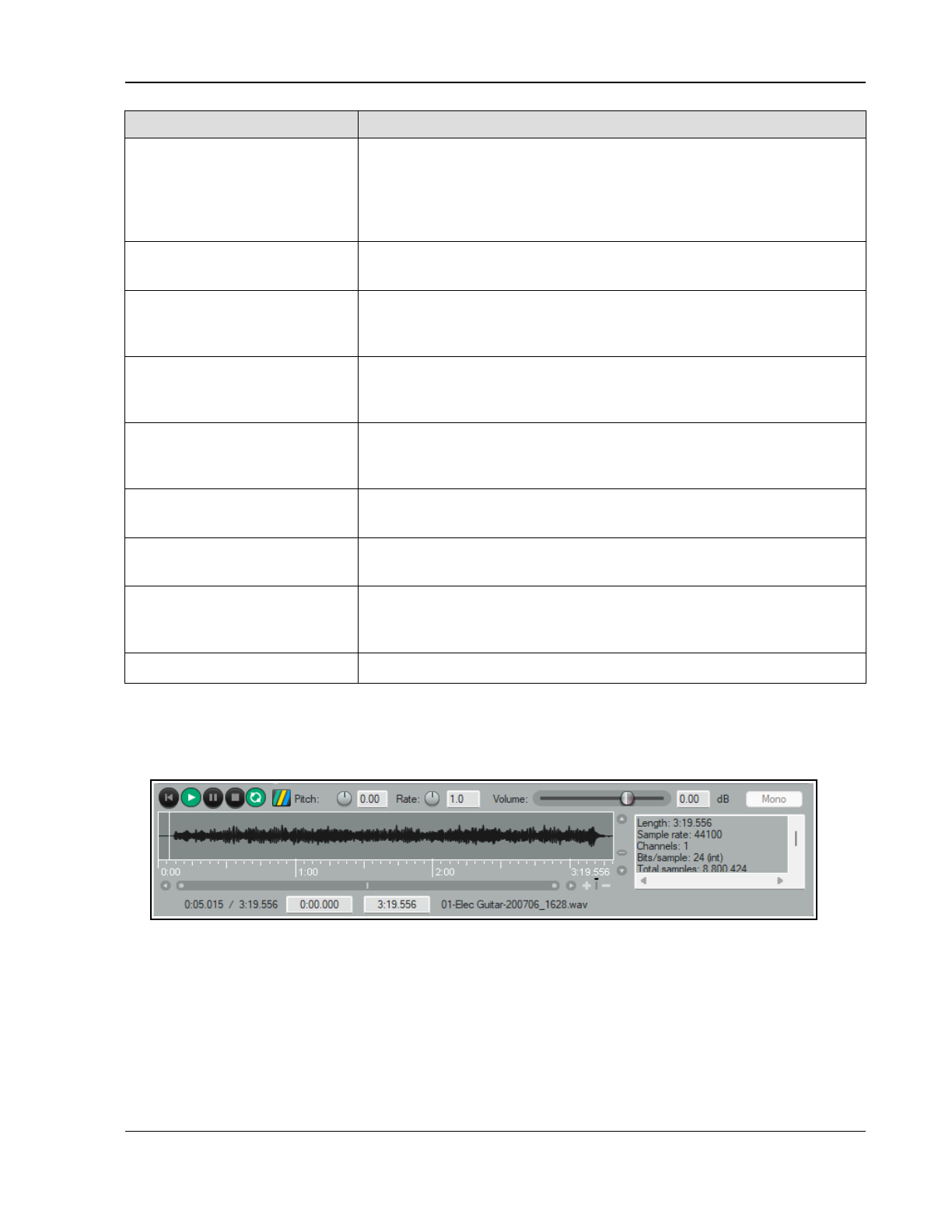
Managing Media: The Media Explorer
In order to do this … Do this ….
Add folder (directory) with
contents to database
EITHER …
Select database in Shortcuts column. Right-click over its name
and choose Add path to database … from menu. Navigate to required
folder, select it and click on OK. Repeat this to add more folders.
OR...
Drag and drop folder from windows explorer or mac finder, or media
explorer's main window on to the database name in the shortcuts panel.
Change shortcut name of
folder in database
Right-click on folder name in shortcut panel, choose Rename shortcut...
Does not change folder name on hard disk.
Create a new database from a
folder
In right hand panel, right-click on folder, choose Make database from
folder. By default, the database will take the folder name, prefixed DB:
and will be included in the list in the left panel.
Change order in which
databases are listed in
shortcuts panel
Drag and drop database name up or down.
Remove a folder contents
from database
Select database in Shortcuts column. Right-click over its name and choose
Remove path from database... from menu. From the flyout list, select
the folder that you want removed.
Remove item(s) from
database
Select item(s) in media explorer window. Right-click over selection, choose
Remove items from database.
Change database name Select database in Shortcuts column. Use Rename database... command
on context menu. Does
not
erase items from disk.
Update database contents to
reflect changes in folder
contents
Select database in Shortcuts column. From context menu use Scan
database for new files to find and add new files, Remove missing files
from database to remove deleted files.
Remove a database Right-click on database in Shortcuts column, choose Remove database.
Media explorer databases can be included in your export configuration settings (Options, Preferences,
General): see also Chapter 22.
4.6 Media Item Preview
Usually you will want to audition items before inserting them into a project. The media explorer allows you to do
this. The Auto play option (on the toolbar) can be used to ensure that by default an item is automatically played
when you select it. You also have a number of options available which determine exactly how the preview
feature will behave. Also, as you will see in the section that follows this one, you have a great number of options
for determining just how items are inserted into your project.
Use the Media Information tool (on Media Explorer toolbar) to toggle display of the media information box.
Also, identify the main playback controls. The Transport Bar buttons (L to R) are Rewind/Home, Play, Pause,
Stop and Toggle Repeat. The horizontal fader (far right) adjusts the volume of playback. Now make yourself
familiar with the following features:
85
Up and Running: A REAPER User Guide v 7.81
In order to do this … Do this ….
Select a file to audition Use the Explorer Panel to select directory or database. Use the keyboard
up/down arrow keys to move thru file list.
Preview an .RPP file Enable Preview REAPER.RPP projects in Options menu. Select .RPP file within
media explorer. You can also enable Do not auto-render .RPP proxy.
Select a preview panel
display option
Use Display preview position options on Display menu – e.g. beats using
embedded tempo, whole or fractional beats or seconds.
Audition a file: play and stop Select file in main panel. To start, click Play button in preview panel, or press the
right arrow key or spacebar on your computer keyboard. To stop, click on the Stop
button in the preview panel, or press the left arrow key or spacebar.
Restart playback from most
recent start point
Press Play on Media Explorer transport bar while media is playing.
Return to start of current
item/media file and play
Click first button on Media Explorer transport bar.
Calculate/show loudness
stats for item
Choose Calculate peak volume and loudness (LUFS-1) for media from the
item right click context menu.
Play item as a loop Enable the toggle repeat button on the preview toolbar.
Preview with start on bar
enabled
Enable Start on bar (on toolbar). Optionally, enable When start on bar
enabled, wait for next bar to start preview (Options menu)
Audition only a portion of a
file
Make time selection and use spacebar to start/stop. Drag and drop from either end
of selection to extend/shorten it.
Zoom in/out of waveform Scroll mousewheel up/down.
Scroll zoomed waveform Shift drag left/right, or Shift mousewheel up/down.
Adjust height of peaks
display
Hover mouse over top of display area to show mouse cursor as a double-headed
arrow. Drag up or down.
Play all files in sequence
(needs repeat to be off)
Select Auto advance to next file after preview from the Options menu.
Press Spacebar.
Auto audition selected file Enable the Auto play tick box.
Synchronize to current
project
Enabling Start on bar will ensure that in auditioning the item during project
playback, the item playback will be co-ordinated so as to start on a bar.
Audition item within current
project
Click on the Routing button and enable Play thru … selected track.
Insert a new track into your project. Kep it selected. Playback will be thru this track
– you can experiment with volume, panning, track FX, etc..
Use fades when stopping or
switching preview
The Options menu has an option Fade in Fade Out Settings. The fade length
(in milliseconds), can be set for Fade in on play, Fade out on stop and/or Fade
on pause/unpause,s
Tempo match (use toolbar to
toggle and choose options)
With this on, the tempo of the selected item is matched to that of the project.
Other options include Tempo match half and Tempo match double.
Modify volume Use Options menu to Apply preview volume to inserted media.
Pitch/Rate rotaries and
Volume fader
Use these to make adjustments while auditioning, or type values in edit boxes next
to the controls. The Detect pitch toolbar button displays the pitch in the preview
window when auditioning. Enable Options, Apply preview pitch rate to
inserted media items to apply pitch when inserting a media item.
Normalized volume options The Options menu includes Normalize preview volume [to -0 dB or -12 LU] if
peak volume has been calculated, and Apply normalized volume to
inserted media items. See also Media Explorer Actions.
86
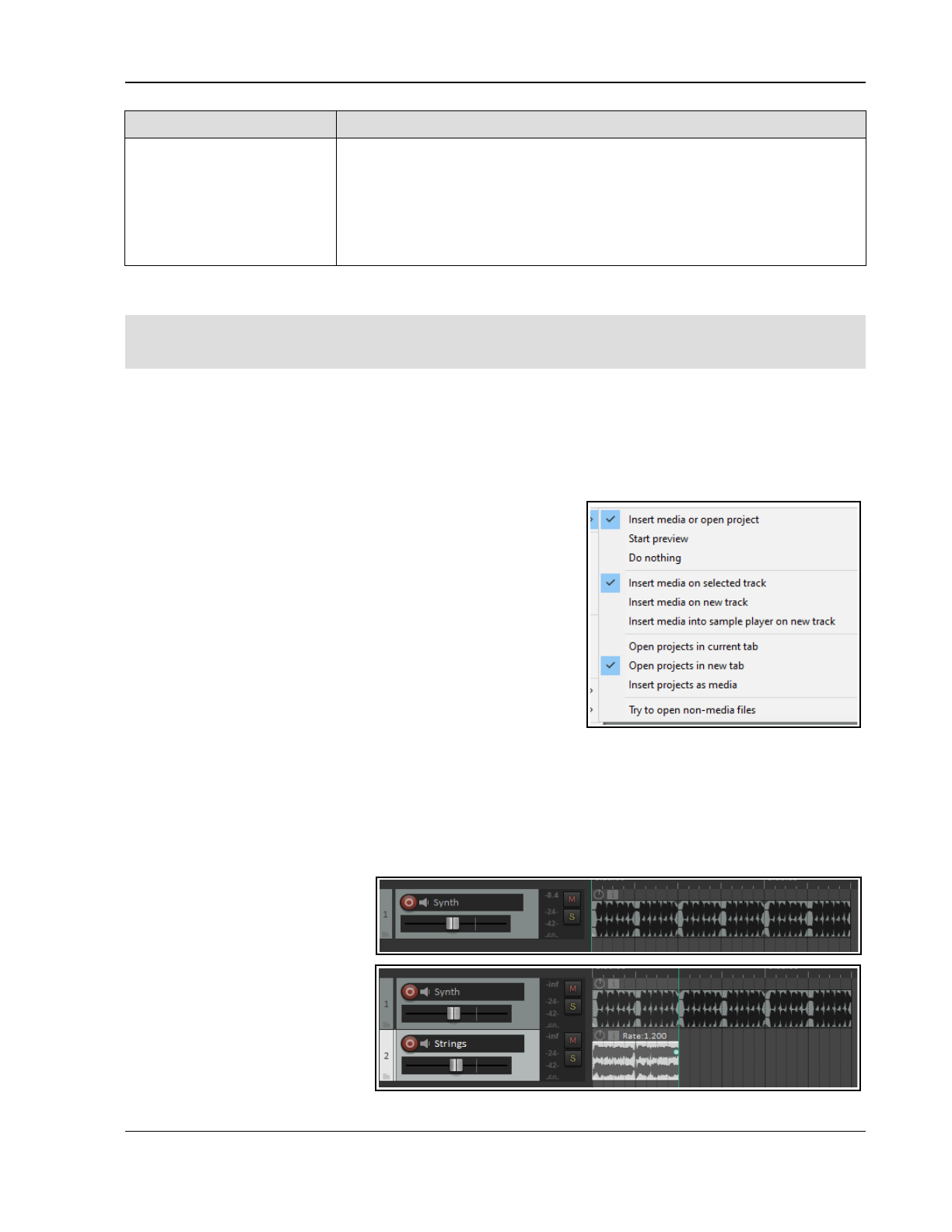
Managing Media: The Media Explorer
In order to do this … Do this ….
Pitch and rate options Right click on either the pitch or the rate control knob for a context menu of
options, also available from the Media Explorer Options menu:
Preserve pitch when tempo-matching or changing play-rate (toggle)
Reset pitch and rate when changing media (toggle)
Pitch shift knob behavior (options are Continuous, Cents, Quarter tones,
Semitones)
Pitch shift knob range (options are +/- 2, 6 or 12 semitones).
4.7 Inserting Audio Files, Samples and FX
Note: With REAPER v 7.79 various background changes were made to simplify and improve tempo matching
behavior when importing files. These are for the most part seamless and do not impact on user actions or
behavior. These are outlined in the official 7.79 changelog.
Selected media items can be inserted into the current project either from the media explorer's toolbar, or from
the main window by right-clicking on the file name and choosing one of the options (see below). These are:
Insert into project (on currently selected track, at current cursor position).
Insert at time selection (stretch/loop to fit) (if a time selection is currently active).
Insert on a new track (at current cursor position).
Insert into sample player (on new track, or reusing existing sample player).
Insert in selected item (as new take, replacing media source,
or replace media source -stretch/loop to fit: when replacing
source media only the active take will be stretched).
As a shortcut, you can specify one of these options (or something
else) as your default behavior, then apply that to a selected item by
double-clicking or pressing Enter.
You can set your default behavior preference using the Options,
Default action (double-click or enter key) command. This
menu is shown here (right). The default settings are to Insert
media on selected track (media items) or (for .RPP files) Open
projects in new tab. We’ll get to .RPP files shortly.
To disable this shortcut altogether, choose Do nothing. To assign
your own shortcuts to any command, go to the media explorer
section of the actions list: right-click over the Media Explorer title
bar and choose Show action list from the context menu.
Some of these options appear might self-explanatory. For example, Insert on a new track creates a new track
and inserts the selected item there, at the current cursor position. Alternatively, we could just drag and drop.
Sounds simple? Not always, because we might need to ensure that the item we are inserting syncs with our
other instruments. Let’s look at how to use the media explorer to our best advantage in this and other situations.
Example 1 – Insert at time selection
Here we have inserted a synth
sample and looped it as shown. We
wish to add some strings. We find
a sample that we like, but it needs
to be synchronized with the synth.
We make a time selection equal to
the first instance of our synth. We
set Tempo match on and then
Insert at time selection
(stretch/loop to fit). The new
track syncs with the existing
material and can itself be looped.
87
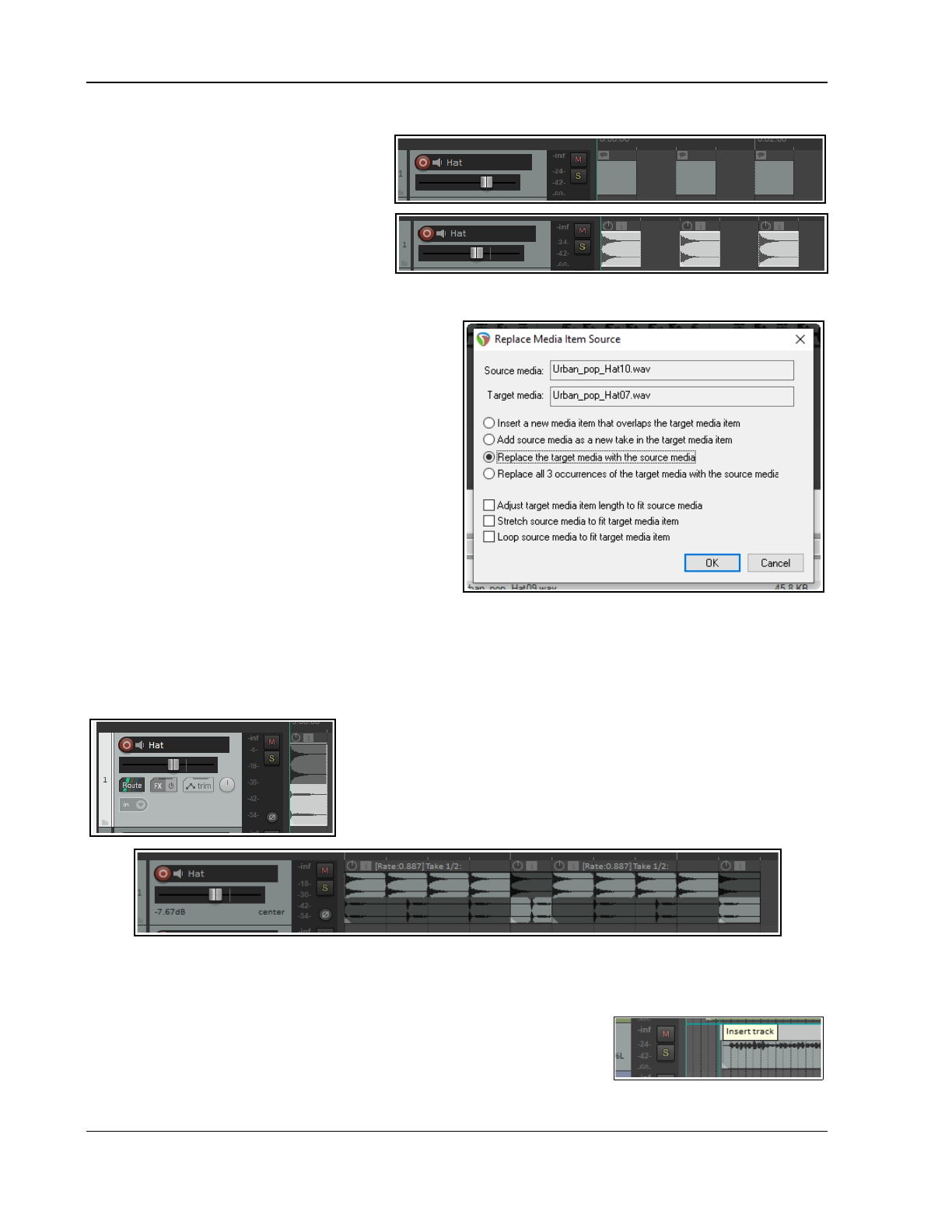
Up and Running: A REAPER User Guide v 7.81
Example 2 - Insert in selected media items (Replace media source)
We have inserted a series of empty media
items to mark where we want a hat to go .
We select all the media items, choose a
sample, and with tempo match on choose
Insert in selected media items, Replace
media source (stretch/loop to fit).
This command could be used to replace one
sample throughout a song with another.
Example 3– Replace source media using drag and drop
1. Select the item in media explorer.
2. Hold Ctrl Alt while you drag and drop to the
media item whose source is to be replaced.
Make sure that the start position of the item to
be inserted does not occur before the start
position of the existing item.
3. The dialog box shown here will pop up. You can
choose Insert new media item that
overlaps target media item, Add source
media as new take in target media item,
Replace target media with source media
or (if there is more than one instance of the
item) Replace all x occurrences of the
target media with source media.
4. Specify your preference as to whether to
Adjust target media item length to fit
source media, Stretch source media to fit target media item, or Loop source media to fit target
media.
When media is dragged into a project, media explorer settings to preserve pitch when changing rate or tempo-
matching will be respected.
Example 4 – Inserting an item as a new take
In this example, after inserting one sample into a track, a second has
been inserted using Insert in selected media items (Insert as new
take).
This item can now be looped, copied, pasted, split, etc just like any
other and any desired permutation of the takes can be selected (as
shown, for example, below).
Example 5 – Inserting an item as new track immediately above an existing track
You can drag and drop a media item to insert it on a new track which will be created above an existing one. The
Options, Preferences, Media option to Allow drag import to insert tracks needs to have been enabled.
Drag and drop the item so that the mouse is hovered in arrange view on and
near to the top of the existing item above which you wish to insert it, and at
the position in the timeline where you want it inserted.
A tooltip Insert track will be displayed. Release the mouse, and the item will
be inserted on a new track immediately above the track containing the existing item.
88
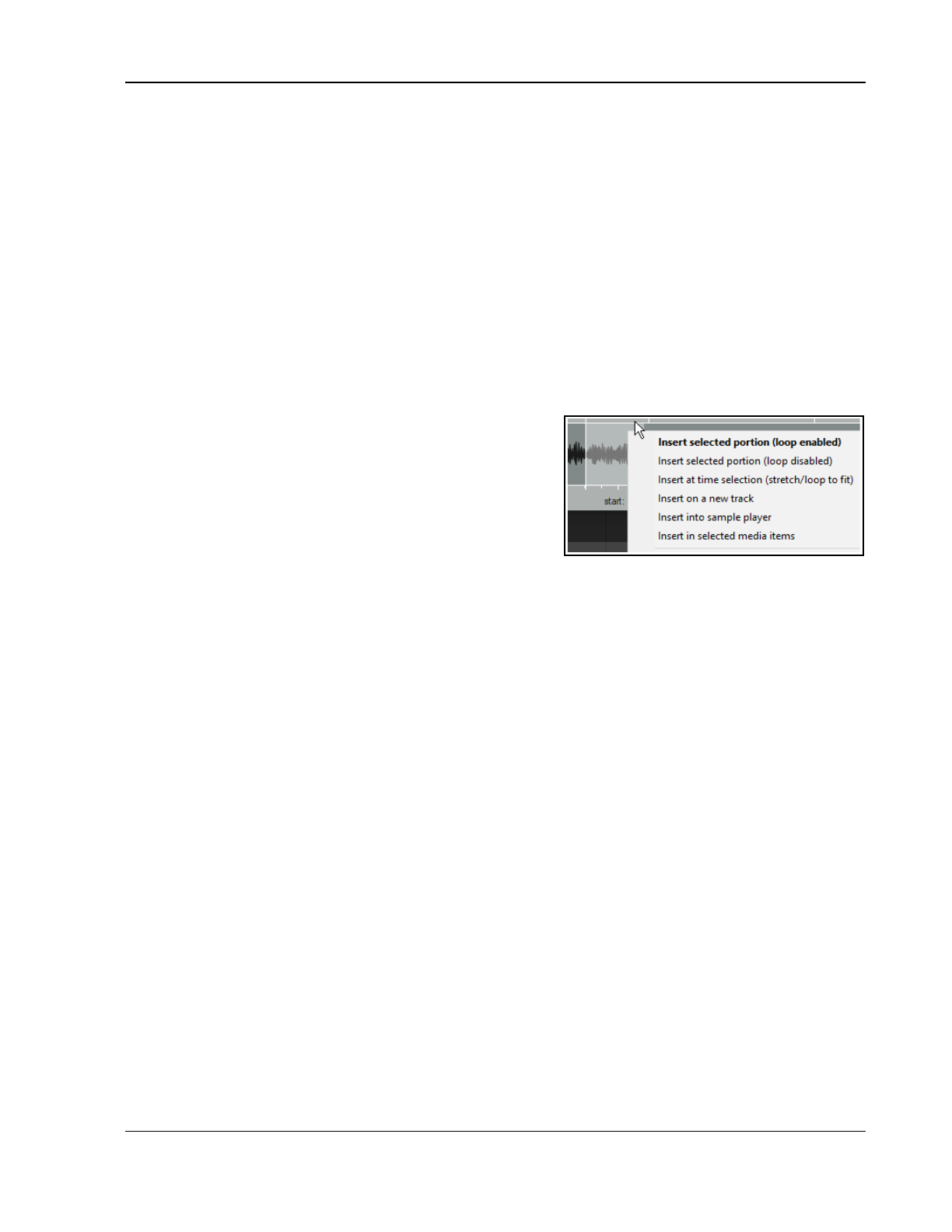
Managing Media: The Media Explorer
Example 6 – Insert an item into sample player
Selecting a sample and then choosing Insert into sample player (insert sample player on new track) will
cause a new track to be created with ReaSamplomatic5000 inserted into its FX chain, pre loaded with the
selected sample.
To replace the sample with another simply select the track, select the required replacement sample and choose
Insert into sample player (reuse active sample player).
The Options menu includes several options for Assign MIDI when inserting into a sampler. These are:
Assign detected pitch
Assign MIDI note C4 (60) and increment if new track …
Assign MIDI channel and increment if new track and
Do not assign pitch, note or channel (the default)
Example 7 – Inserting an automation item
Automation items can be previewed in, and inserted into projects from, the Media Explorer in the same way as
other media items, and with the same appropriate options. See also Chapter 18 for more information.
Example 8– Insert part of a media item into a project
1. In the preview window select the portion of the waveform.
2. Right click over the selected portion and choose one of the
items from the context menu.
3. The item can be loop enabled or disabled. It can be
inserted at a time selection, on a new track, or as a new
take on a selected item. Also, a portion can be dragged
and dropped into the project, in which case your default
settings will be applied.
Note: The Options menu allows you to Enable looping when inserting selected portion of items.
Example 9 - Insert multiple media item into a project
1. Use Ctrl click to build your selection.
2. Right-click over the selection and choose from the menu.
3. Alternatively, drag and drop the selection into the project. Unless you have changed the default setting,
you will be prompted to select whether you want the items inserted on one or separate tracks.
Note: The Media page in REAPER’s Preferences includes a default setting when inserting multiple items:
Insert in one track (advancing time) – each is placed one after the other.
Insert across tracks – each item is placed in a separate track, all starting together.
Decide automatically – if files are of the same length (file size) they will be placed in separate tracks,
otherwise they will be inserted sequentially in the same track.
Prompt user – you will be prompted each time to specify your preference.
If in doubt, set this to Prompt User. Other useful options include whether or not imported media items should
be copied to the project media directory. See Chapter 22 for more details. Note also that the action list includes
options to set media item start, end or both to match source media.
Example 10– Insert multichannel audio files
Multichannel audio files are imported into REAPER in exactly the same way as any other item. An example of
such a file (in this case six channels) is shown here.
You can split such a file into its individual channels, to produce one track per channel. This allows for each
channel to be edited independently of the others. To do this, right-click on the item and choose Item
processing, Explode multichannel audio or MIDI items to new one channel items.
Example 11 – Inserting an FX chain into a track or item.
Make sure that the option (Show menu) to Show all files is enabled.
To add the FX to any existing chain, drag and drop any FX chain to the track panel, or onto any media item to
insert the chain into that item.
Hold Alt while dragging to replace existing FX with the chain.
89
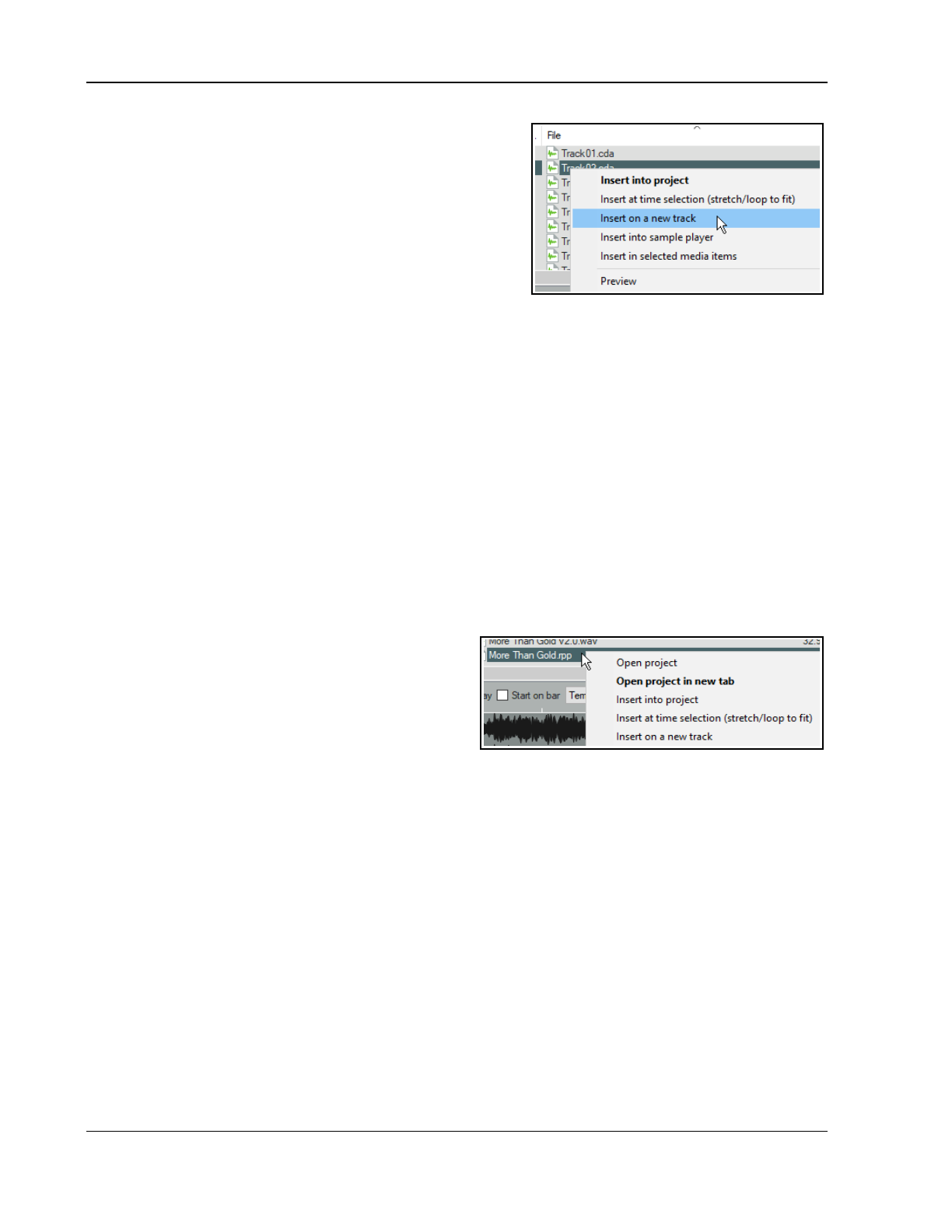
Up and Running: A REAPER User Guide v 7.81
Example 12 – Importing tracks from an audio CD
To import material from an audio CD :
1. Insert the audio CD into your PC CD drive.
2. Display media explorer, select My Computer in the left
panel, then double-click in the main panel on the letter
representing CD drive. Its contents will be listed.
3. To play (preview) any track from the CD, right click over it
and choose Preview from the menu.
4. To insert a CD track into your project as a media item, in
media explorer’s main panel right click over that track and
choose one of the other commands from the menu. Each of these commands works as explained earlier.
Note: By default, fade settings as specified in Preferences, Project, Item Fade Defaults are applied to all
imported media items. You can disable this option on the Item Fade Defaults settings page.
4.8 Import Media File Types
Media files of any of the following types can be imported into REAPER in any of the following formats.
AIFF (.AIF, .AIFF)
AVI Video (.AVI)
CAF (.CAF, .CAFF)
CD Audio (.CDA)
DDP (.DAT)
FLAC (.FLAC)
GIF (.GIF)
MIDI (.MID)
MIDI Karaoke (.KAR)
MIDI System Exclusive Message
(.SYX)
MPEG Video (.MG, .MPEG)
LCF Capture Video (.LCF)
MKV Video (.MKV)
MPEG Audio (,MP2, .MP3)
MusicXML (.XML, .MUSICXML, .MXL)
OGG Opus (.OPUS)
OGG Vorbis (.OGG, .MOGG)
PCM Audio (.PCM .L, .R)
Quicktime (.MOV, .QT, .M4V, .MP4)
Recycle (.RX2, .REX, .RCY)
RAW audio (.RAW)
Sound Designer II (.SD2)
WAV (.WAV, .W64, .BWF)
WAVPACK (.WV)
WebM (.WebM)
WMV/WMA Video (.WMA, .WMV)
Matroska Audio Container files (.MKA) also supported ifif the encoder is found.
4.9 Importing REAPER Project Files
The media explorer allows you to either open an
existing .RPP project on a new project tab, or to insert it
into the currently active project.
In the latter case, REAPER renders the file thru its
master and insert the rendered item into your project on
a new track. You can insert the entire file, or whatever
time selection you choose to make in the preview panel.
Unless you disable these options on the Options menu, when inserting the file REAPER will apply all relevant
media explorer options, such as whether to tempo match and any pitch and/or play rate adjustments.
4.10 Previewing and Importing MIDI Files
A MIDI file selected in the Media Explorer can be played back either through a dedicated track named Media
Explorer Preview, or through another selected track. In either case, the playback track will need a virtual
instrument in its FX chain. To preview a MIDI file in media explorer and import it into a project:
1. Add a new track and insert a virtual instrument or synthesizer into that track's FX chain. If you wish, name
the track Media Explorer Preview, otherwise you need to keep this track selected.
2. In media explorer, click the Route button and select Play through first track named “Media Explorer
Preview” or first selected track.
3. Select any MIDI file in the media explorer and preview it in the normal way. If you wish, you can also select
any part of a MIDI file before importing, by dragging within the displayed MIDI event preview.
4. Right-click over the file name or selected portion to choose one of the insert options, or just drag and drop.
You can also import MIDI files by dragging and dropping from Windows Explorer, or use the Insert,
Media file... command.
Unless you disable these options on the Options menu, any adjustments made to pitch in media explorer
preview will cause the notes to be transposed when the file is imported into REAPER.
90
Managing Media: The Media Explorer
MIDI File Types
The two main types of MIDI file are Type 0 and Type 1. REAPER recognises both.
Type 1 MIDI
With Type 0, all MIDI events and data are stored in one track, but individual channel data is retained. A single
track Type 0 MIDI file can contain up to 16 channels of data on the one track.
Type 1 files can contain any number of tracks, with each track containing data on one or more channels. Type 1
is more suited than Type 0 to larger arrangements.
When you import a type 1 multitrack MIDI file into REAPER, you are asked if you wish to Expand the MIDI
tracks to new REAPER tracks and if you wish to Import MIDI tempo map. If you enable this option and
click on OK, you will then be presented with options for Multichannel items on a single track or Single
channel items on multiple tracks.
Type 0 MIDI
When you import the type 0 MIDI file into your project you are simply asked whether you wish to place a
Multichannel item on a single track or Single channel items on multiple tracks.
4.11 Media Explorer Options and Other Actions
Here is a summary of the commands that appear on the Media Explorer Options menu. Many are self-explanatory:
others are described in the main body of this chapter.
Command/Action Options/Description
Default action (double
click or Enter)
Insert media (on selected track, new track or sample player) or Open
project (in current tab, new tab, or sample player), Start preview, Do
nothing, or Attempt to open non-media files.
Search Specify searchable fields: option to update search only when Enter is pressed.
When start on bar enabled, wait for next measure to start preview – self-explanatory.
When selecting media … Auto-play selected media, Stop preview and display waveform peaks
for selected media, or Continue preview of previously selected media.
Display preview in fractional seconds – self explanatory.
Auto-advance to next file after preview (requires repeat off) – self-explanatory.
Preview .RPP projects – toggle on/off: self explanatory.
Do not auto-render
REAPER.RPP proxy
Suppresses project tab preference.
Auto-stop preview when dragging media – self-explanatory.
Auto-stop preview when inserting media – self-explanatory.
Enable looping when inserting selected position of media – self-explanatory.
Apply preview pitch/rate to inserted media item – self-explanatory.
Apply preview volume to inserted media item – self explanatory.
Normalize preview volume if peak volume has been calculated – self-explanatory
Apply normalized volume to inserted media item – self-explanatory.
Detect pitch (toolbar
toggle button)
Detects pitch during preview, and displays it on the right hand side of the
preview window.
Quick render part of
media item in open
project
Make time selection on timeline (above project). Select the media item,
then Ctrl Alt Drag into media explorer main window.
91
Up and Running: A REAPER User Guide v 7.81
REAPER’s Actions List includes many options pertinent to the Media Explorer but not included in the REAPER menus.
To access these, choose Actions, Show actions list… from REAPER’s main menu, and select Media Explorer from
the Section drop down list. Here are some examples:
For Browser Navigation:
Go to next folder in history Go to previous folder in history
Go to next shortcut in list Go to previous shortcut in list
Go to parent folder Go to shortcut [1 thru 20]
Browser display options
Show all files / Show supported media only Clear all temporary marks
Search: search in metadata, various fields Reread metadata from media
Use vertical layout (toggle) Actions to sort file list by columns (File , Date, etc.)
Actions to load column order presets 1 to 10.
Loudness/peak volume calculate options
Calculate loudness stats for media dry run render
Calculate peak volume and loudness (LUFS-I) for media/all media
Calculate peak volume and loudness (LUFS-I) for media (force recalculation)
Displays results for selected items in Loudness column in Media Explorer window)
Preview actions
Auto set temporary mark when previewing file Fast forward a little bit / Rewind a little bit
Preview random file in current folder/database Display fractional seconds (toggle)
Zoom to selection / Zoom out full Reset preview pitch
Reverse preview playback / Play (cancel reverse playback)
Adjust pitch by [+ or – 1 cent or semitone]
Media/file/database management actions
Insert into project (loop disabled) Calculate peak volume for media
Edit: rename file Remove missing files from database/all databases
Scan database for new files / Scan all databases for new files
File: Delete options: no recycle / Recycle / Recycle, no confirm /Delete immediately – no recycle, no confirm
More general information about the Actions List (including how to assign keyboard shortcuts) can be found in the
Customization chapter of this user guide.
4.12 REX and Similar File Support
REAPER facilitates working with files that consist of sets of groove slices, such as REX files. These are created in
and exported from programs such as Recycle, to be used in the creation of tempo based music. You can import
these files into REAPER either using the Insert, Media command or by dragging and dropping from the Media
Explorer. When you do this, they will automatically position themselves according to the current tempo.
Once you have imported your files into REAPER, you can manipulate and use them in exactly the same ways as
you can use other media items that have had dynamic splitting applied within REAPER. For example, imported
REX slices can be made to keep their beat location even if the project tempo is changed.
In your Preferences settings, under Media, Import, there are a number of options for how these files are to be
treated. There are several options for interpreting embedded slice information, or you can choose Always
prompt. There are also options to determine how Slice tails are handled. Similarly, you can specify how media
with embedded tempo information is to be handled. Refer to the information in Chapter 21 more details.
The Action list also includes a useful action Item: explode REX item into beat slices. This can be assigned its own
shortcut key if you wish.
92
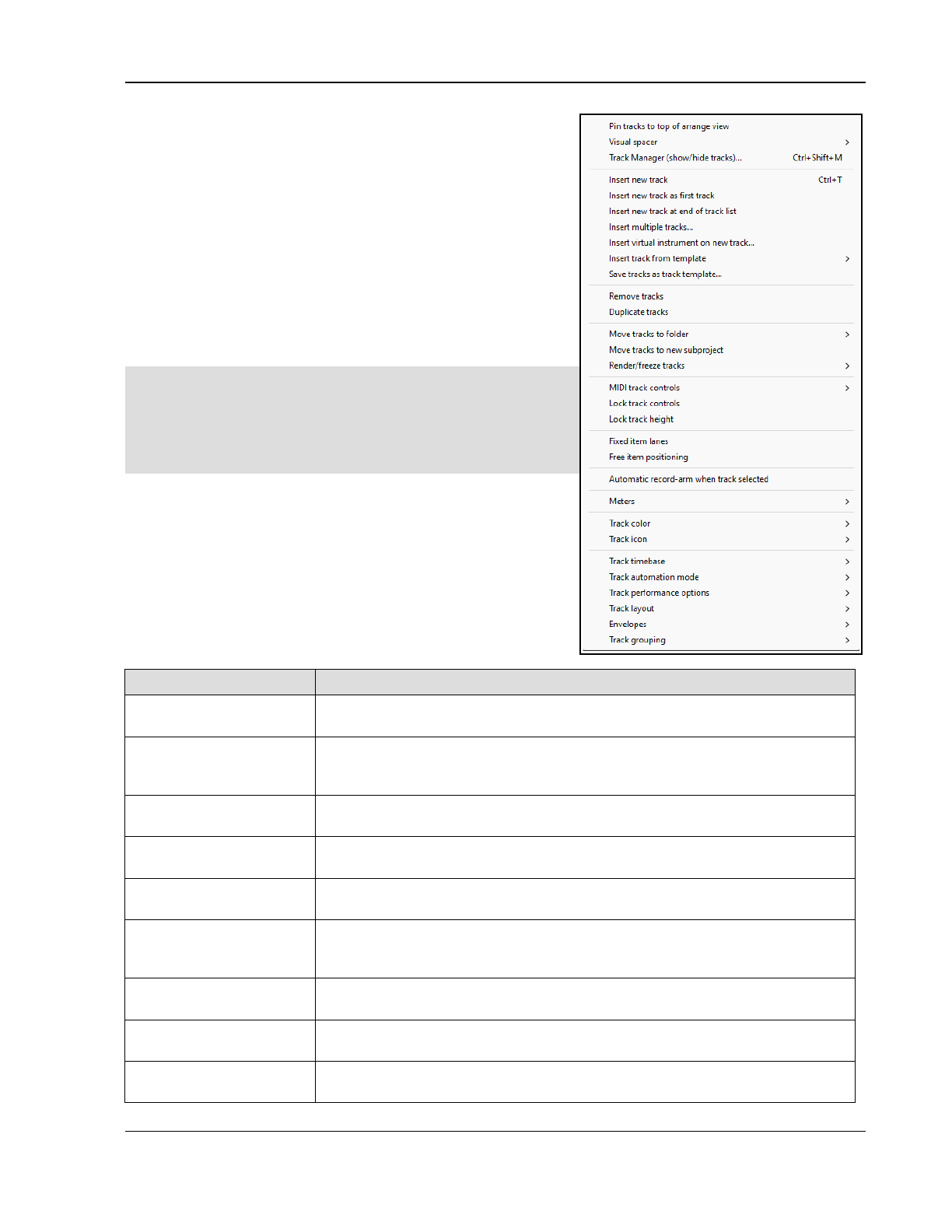
Project Arrangement Basics
5 Project Arrangement Basics
5.1 Managing Tracks
In Section 2, we introduced basic REAPER track management
features, such as Volume, Panning, Mute and Solo. This section
will explore these features in more depth and introduce others,
e.g. moving and removing tracks,’ track folders and track
grouping.
Many of the relevant commands and actions are available from
the menu that is displayed when you right click over any track
number (see right). Ctrl Z can be used to undo your last action,
as described in more detail in Chapter 2.
PC or Mac?
Booster keys are used frequently throughout this User Guide.
Booster keys on the macOS are not the same as they are in
Windows (PC). This user guide references PC (Windows) booster
keys. For OS users, please refer to the table in Chapter 1,
Selections, Controls and Commands for a table of booster key
equivalents.
Tip: Before continuing, you might wish to open the project file
All Through The Night.RPP and save it to a new name, e.g.
All Through The Night EDITS.RPP. You can use this file to
experiment with some of the ideas presented in this section.
Basic Track Management
A number of techniques can be used for carrying out these
various track management tasks.
To do this … You should do this ...
Move a track up or
down the track order
Click inside the track panel, then drag up or down the track list, releasing the mouse
just inside the destination panel. Media items are moved with the track.
Move two or more
adjacent tracks up or
down
Click in first track panel as above, then hold Shift while clicking likewise on the
track number(s) of the last track to be selected. Then click and drag up or down.
Again. all media items are moved with the tracks.
Delete a track Click on or around the track number, the press Delete, or right click and choose
Remove tracks. All media items are removed with the track.
Delete two or more
tracks
Use Ctrl click to make your selection, then press Delete, or right click and choose
Remove tracks. Media items are removed with the tracks.
Copy a track as the next
track
Right click on panel, choose Duplicate track. Media items are duplicated with the
track. For several tracks, select all required tracks first.
Copy a track to a
specified location
Click on the track number. Press Ctrl C. Move to the required location then press
Ctrl V. All media items are duplicated with the tracks. To do this with more than
one track, select all required tracks first.
Pin track(s) to the top
of arrange view (toggle)
Select track panel(s) for required tracks. Right click over any track panel in
selection. Choose Pin tracks to top of arrange view from menu.
Display the Master in
Track View
Right click anywhere in the Track Control Panel area, below the last track. Choose
Show master track, or use the keys Ctrl Alt M to toggle.
Make the Track Control
Panel wider/narrower
Click and drag right/left on the boundary between the TCP and the arrange area. As
the TCP becomes narrower, some controls may disappear from view.
93
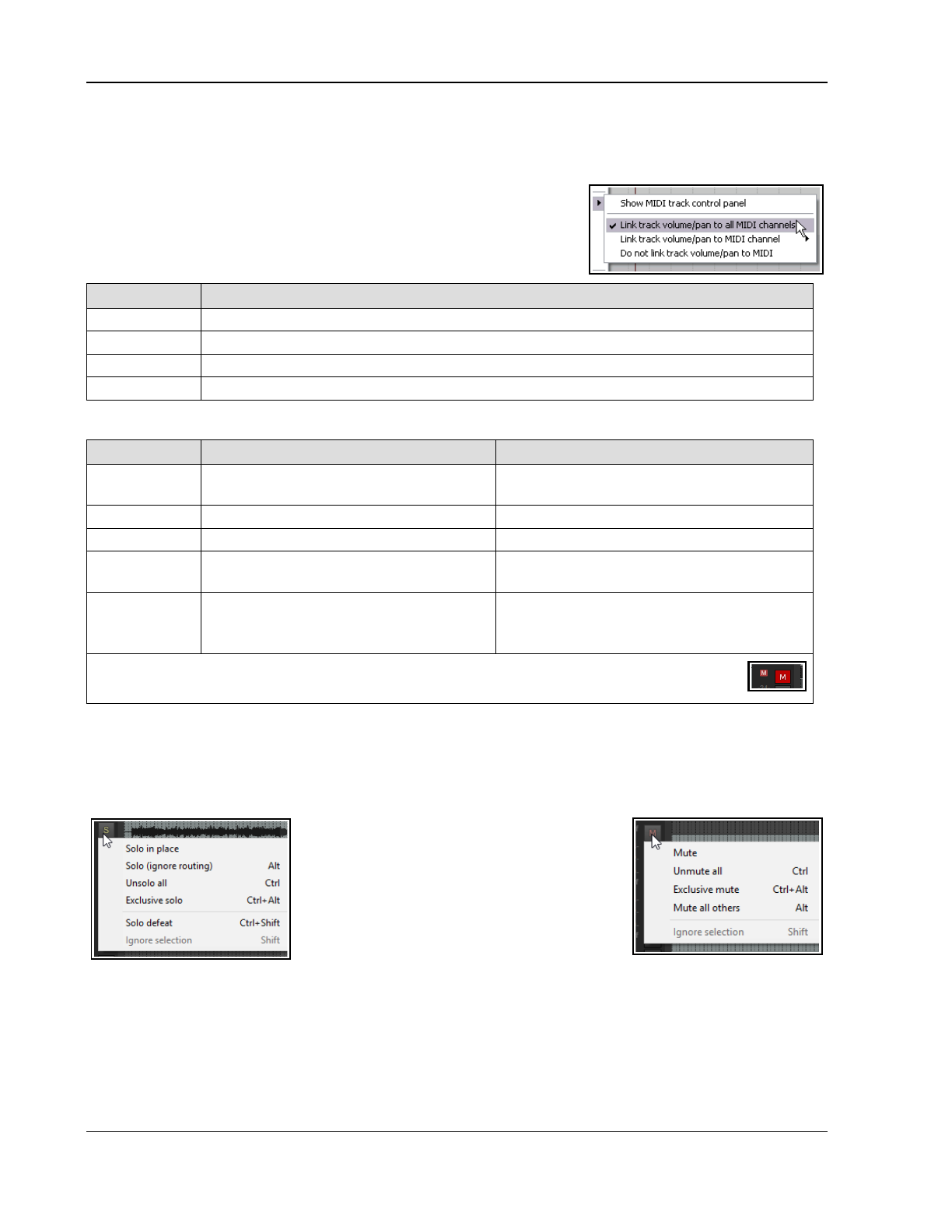
Up and Running: A REAPER User Guide v 7.81
5.2 Track Control Modifiers
The Volume, Pan, Mute and Solo controls were introduced in Chapter 2. As well as pan, a Width control will
be shown shown if you select the stereo pan or dual pan mode - see Chapter 11.
By default, volume and pan faders control audio output. To use them
instead for MIDI data for any track(s), right-click over the track number
and choose MIDI track controls then one of the Link track
volume/pan to MIDI options from the menu (see Chapter 13).
Volume and Pan Controls
Modifier Key with Volume Fader or Pan Rotary
Alt When mouse is released, fader returns to its original position.
Ctrl Shift With more than one track selected, only the current track is affected.
Ctrl Allows more precise control of fader level.
Double click Reset to zero (fader) or center (rotary).
Mute and Solo Controls
Modifier Key with Mute Button with Solo Button
Shift When more than one track is selected,
only the current track is toggled.
When more than one track is selected, only
the current track is toggled.
Ctrl Clears all mutes. Clears all solos.
Alt Unmutes selected track(s), mutes others. Solo selected tracks, excluding any sends.
Ctrl Alt Mutes selected track(s), unmutes others. Solo exclusive: Solos selected track(s),
unsolos all others.
Ctrl Shift Not applicable
Toggles
Solo Defeat
mode. The track(s) will
still be heard even when another track or
track selection is soloed exclusive.
Note: When a track is muted, a small red M icon is shown in its VU meter. A !S icon indicates
that the track is not being heard because another track or tracks is or are soloed.
Solo vs Solo in place
Clicking a track’s solo button engages solo in place: as well as the track, the output of any sends from that
track (e.g. to a reverb bus) will also be heard. Alt click on the solo button of an already soloed track toggles
between this state and plain solo, when only the track will be heard, without any sends.
The Mute and Solo control context menus
The options shown above are also available by
right-clicking over the Mute and Solo buttons
respectively. These context menus are shown
on the right. They can be applied to an
individual track or to a selection of tracks.
Bulk Track Mute/Solo
To mute or solo a range of tracks, click and
drag in the TCP from the button of the first
track to the same button on the last track, then release the mouse. Repeat this action to reverse this.
Track Control Panel Modifiers
By default, the following mouse modifiers can be used with the track control panel itself:
Double-click Select all media items on track.
Shift double-click Add all media items on track to selection.
Ctrl double-click Toggle selection of all media items on track.
94
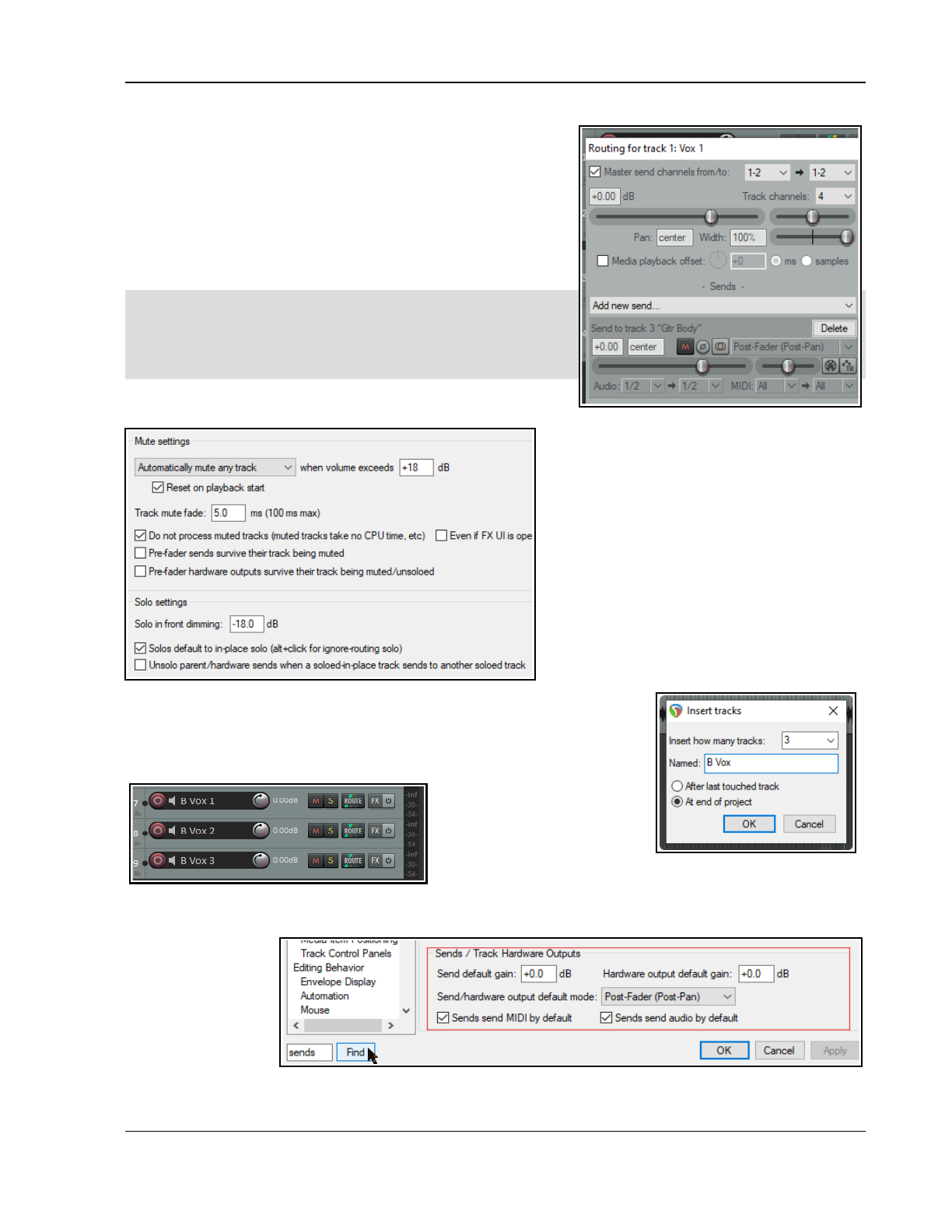
Project Arrangement Basics
Sends and Receives
Right clicking over the volume fader of any track or folder will open
a window displaying volume and pan faders not only for the track
itself but also for any sends and receives associated with that
track. An example is shown here.
Right clicking over the Pan fader opens a window which can be
used to change that track's pan law. This subject was discussed in
Chapter 2.
Tip: By default, double-clicking on a track number in the track
control panel will cause all media items in that track to be selected.
You can change this behavior if you wish on the Mouse Modifiers
page of your Preferences. For more information about
customizing mouse modifiers, see Chapter 15.
5.3 Mute/Solo In Front
Mute settings include the option to
automatically mute tracks when their volume
exceeds a specified level.
Solo in front lets you to hear the other tracks
quietly in the background when one track or a
track selection is soloed. This is toggled on and
off by the Options, Solo In Front command.
These options are set on the Options,
Preferences, Audio, Mute/Solo settings
page. This setting (in the example shown it is
set at 18dB) determines by how much the
background mix is
reduced
. This means that the
higher the setting the quieter will be the
background mix.
5.4 Auto-Naming Multiple Tracks
In one action you can create and automatically name any number of tracks,
(either after the last touched track or at the end of the project) that serve a
common purpose – for example, a number of backing vocal or percussion
tracks. Use the Insert,
Multiple tracks...
command.
In this example shown, we
are creating three Backing
Vocals tracks at the end of the track list. These will be
automatically named B Vox 1, B Vox 2 and B Vox 3.
5.5 Searching the Preferences Settings
You have already
come across a
number of REAPER’s
preferences settings.
For example, we
have looked at some
of the preferences
settings for Audio
Devices, MIDI Devices, Recording and Projects. The more you work with REAPER, the more you will realise how
95
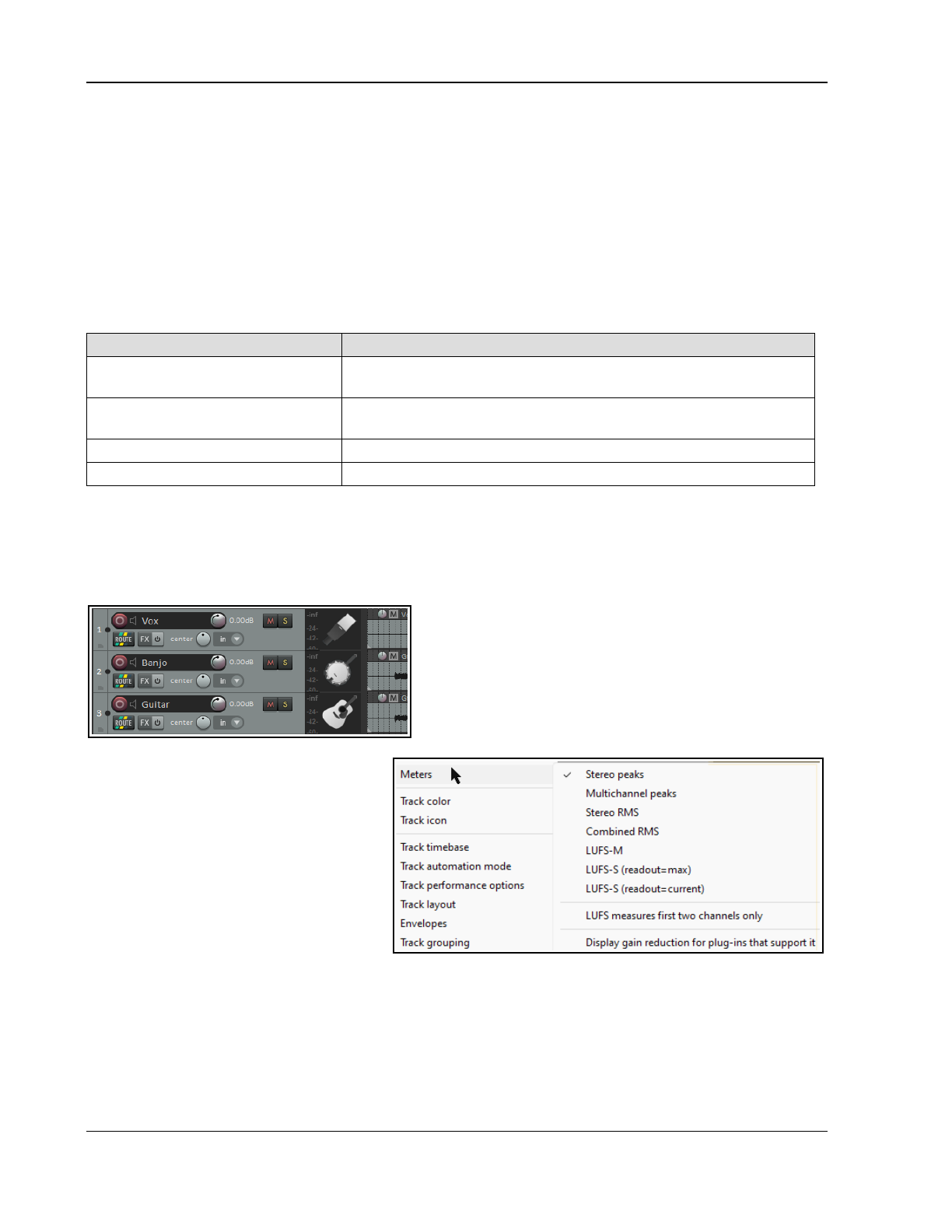
Up and Running: A REAPER User Guide v 7.81
very many preferences settings there are, so many that it can sometimes be difficult to remember where to go
for a particular setting.
To help you there is a text box and a Find button near the bottom of the Preferences window. You can enter
any word or phrase in the box, click on Find and the first occurrence of that word or phrase will be shown. Each
time you click the Find button the next occurrence of that word or phrase will be shown. The item will be
displayed with a colored highlight. In the example shown here, a search for sends has turned up some
information about various options for setting the default parameters for track sends when they are created.
5.6 Track Colors
Windows users can also use the Windows color picker for making “on the fly” changes to track colors. To do this,
simply select the track (or tracks) in the Track Control Panel, then right click, choose the Track Color command,
then use any of these commands from the submenu.
Command Effect
Set tracks to custom color… Opens the Color Picker dialog for you to choose a color for the
track panel and track media items.
Set tracks to random colors Sets media items for each track in the selection to a different
randomly chosen color.
Set tracks to one random color Sets media items for all selected tracks to a randomly chosen color.
Set tracks to default color Restores track color to the default for the current color theme.
5.7 Track Icons
To add icons to tracks you can drag your own .PNG or .JPG files from Windows Explorer and drop them on to
any track control panel, or right click over the track number and choose Track Icon then Set track icon... from
the track menu to use any of those supplied with REAPER. This opens the Load Image Resource dialog box.
You can view the icons as thumbnails, tiles, or a list. Make your selection and click on Open.
Shown left is a project with track icons. Icons are saved
with track templates. To display icons in the Mixer, choose
Show Track Icons in Mixer from its context menu. To
remove icons from any track or selection of tracks, first
select the tracks (in either the TCP or MCP) then right-click
over any track icon and choose Remove Track Icon from
the menu. Additional track icon sets can be downloaded
from the REAPER stash, at stash.reaper.fm
5.8 Track Meter Options
The track control panel and track meter
context menus include track meter display
options which can be applied to a single
track, or to a track selection. See also
Master track options and settings:
Stereo peaks – separate loudness peaks
for each channel.
Multichannel peaks – separate peaks for
each of more thasn two channels.
Stereo RMS – individual root mean
squared loudness of each stereo channel
Combined RMS – the combined RMS loudness of all audio channels
LUFS-M – Loudness Units Full Scale (momentary)
LUFS-S - Loudness Units Full Scale (short sampled), maximum or current
LUFS measures first two channels only
Display gain reduction for plug-ins that support it.
Your Preferences, Appearance, Track Meter settings includes various other options which help determine track
meter behavior, including oner for track meters to display pre fader levels.
96
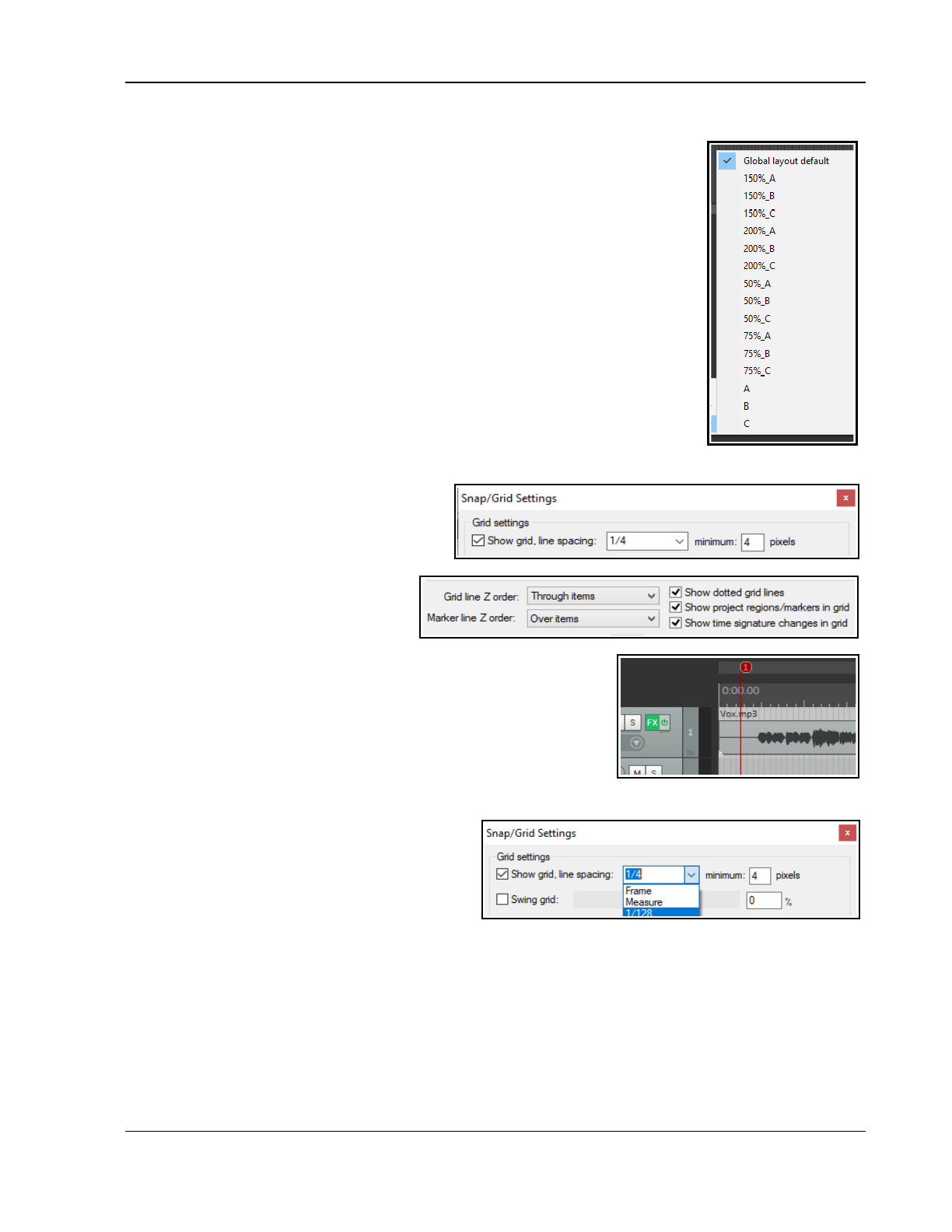
Project Arrangement Basics
5.9 Track Layouts
The theme adjuster will be explained in Chapter 11. Meanwhile, in arrange view you
can select and apply any of the default layouts available for the track panel, master
track panel, mixer panel, master mixer panel, envelope panel or transport bar.
Any of the three layouts A, B or C as defined in the theme adjuster can be applied to
selected track at either “normal” size, or larger (150% or 200%) or smaller (75% or
50%). Note that depending on your graphics card, some scaling options might not
be available. To do this, simply:
1. Make your track selection in the Track Control Panel. Use Ctrl A to select all
tracks in the project.
2. From REAPER’s main menu, choose the command Options, Layouts , Track
Panel to display a list of available options (see right).
3. Click on the option of your choice.
To restore the global default layout to a track or selection of tracks, choose Global
Layout Default from this same menu.
To choose a layout from a different theme (e.g. REAPER 6), use the Options,
Themes command to select a theme. Note that some Track Layout options might
not be available.
5.10 Displaying Grid Lines
REAPER offers a number of options for
displaying grid lines Grid settings and spacing
are defined in the Snap/grid settings
window: choose Options, Snap grid, Snap/
grid settings from the main menu or
press Alt L. Spacing options are shown
above: other settings will be explained in
the sections dealing with Snapping with
Snap/Grid Settings.
Grid lines are toggled on/off using the toolbar Grid button, or the
Options, Snap/grid, Show grid command, or the shortcut Alt G. Grid
line display options can be found in the Appearance page of your
Preferences (above right).
Grid and marker lines can be displayed over, thru, or under media
items in any permutation. In the example shown here, grid lines go
under and marker lines over the media items.
You also have an option to set the grid line spacing to frame or measure rather than to a fraction of a beat.
Frame can be useful when working with video
media. (Frame rate is set in Project Settings, see
Chapter 2). If measure is selected, the grid setting
will be determined by the time signature.
Later in this guide (Chapter 7), you will be shown
how to use grid settings to automatically snap
various objects and items into position.
5.11 Headphone Monitoring and Headphone Mixing
Most would agree that when mixing it is better to use the monitors (speakers) in your studio or control room.
However, you may wish also to use headphones from time to time, perhaps for those occasions when you need
to focus in detail on a particular track or media item. Assuming that you have a PCI sound card or other audio
device (Firewire or USB) which supports multiple outputs, here’s a neat little trick.
1. Assign Output Aliases to your outputs, as explained in Chapter 1.
2. Display the Routing Matrix. Assign the output from the Master to the Control Room speakers.
3. Put on your headphones.
97
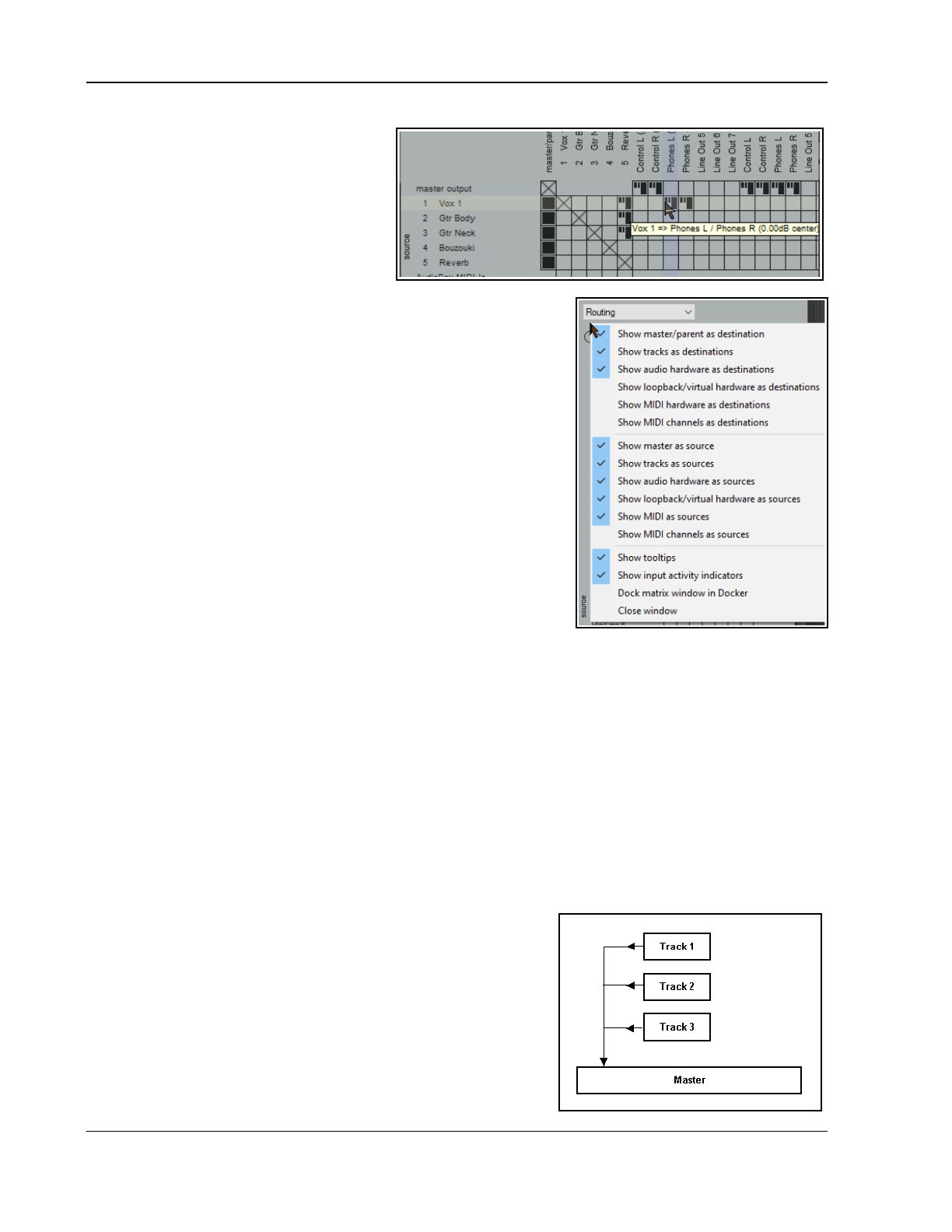
Up and Running: A REAPER User Guide v 7.81
4. As you play the song, click on the
appropriate cells on the routing
matrix to also direct any particular
track on which you wish to focus to
your headphones. You can change
from track to track, or add as many
or as few as you want at any time.
In the example above, the entire mix (from
the Master) is being heard through the
Main Speakers, but only track 1 Vox is
also being heard through the headphones.
Remember you can right click over this grid cell to display the controls
for this send (such as Volume). This can be useful when a musician
who wants to particularly hear only some tracks when recording.
When you are mixing down, you might not wish to see all of the
available routing information available – it can get quite complex. You
might wish to keep the routing matrix display as simple as possible for
the job in hand. For example, if you are focussed purely on mixing,
you might not need to see all the various input assignments.
Right clicking over the background area lets you customize its display.
In the example shown here, by unchecking Show audio hardware
as sources we have simplified the display. If you have installed
ReaRoute, consider also disabling the options to Show ReaRoute as
destinations and Show ReaRoute as sources.
Creating a Headphone Mix
Provided your sound card includes at least two pairs of outputs, we
can make the process of headphone monitoring easier and more
flexible by creating a headphone mix. This is how it is done.
1. Connect your Headphones to your Headphone Amp. Assign the Headphone Amp to one pair of outputs.
2. Create a new track and name it Headphone Mix.
3. Create sends to this track for any and all tracks that you want to be able to monitor thru your headphone
mix. If you wish to include all tracks in the headphone mix, open that track’s routing window, and choose
Add receives from all tracks from the receives drop down list.
4. Choose the Options, Preferences command, select the heading General then click on the Advanced
UI/System tweaks … button. Enable Allow track envelope/routing windows to stay open.
5. Click OK then OK again to close the Preferences window.
6. Select your Headphone Mix track. Open the Routing Window. Add an Audio Hardware Output to
the paired outputs connected to your Headphone Amp. Disable the Master/Parent Send for this track.
7. You can now use the Pan and Volume faders for your receives, together with the Mute buttons, to control
your headphone mix.
5.12 Understanding Sends, Buses, Submixes and Folders
You have already seen that each of the tracks in your projects has
its audio output routed by default to the master, and that from here
the audio signal is directed to your preferred output device or
devices, such as speakers or headphones. The signal flow that
occurs here within REAPER can be represented by the first diagram
on the right, which shows a simple project with just three tracks.
In Chapter2 you were shown how to use a track as an effects bus,
for example to add the same reverb effect to a number of tracks.
The signal flow for this arrangement can be represented by the
second flow chart (below right).
98
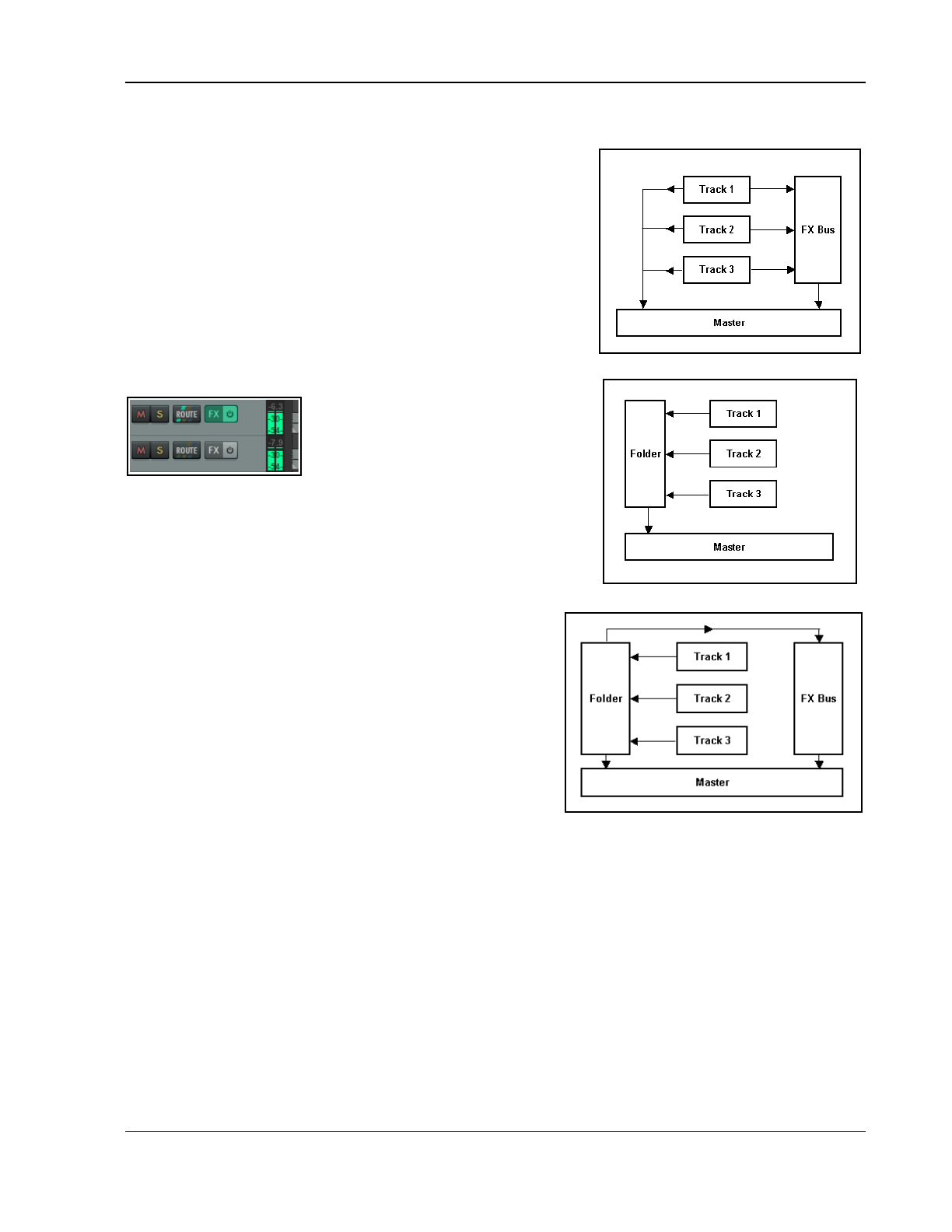
Project Arrangement Basics
Each track’s send carries a signal to the bus track which applies the effect, and then sends the processed (wet)
signal on to the Master. As long as the Send Master/Parent option
remains enabled, the dry signal for each track is also sent directly to
the master. Here it is finally mixed together with the “wet” signal
from the bus before being directed to your speakers and/or
headphones.
These two examples use routing arrangements that you would find in
most DAW programs. However, we are now about to enter territory
where REAPER may be substantially different from other software
that you may have used before. This concerns how you can create
and use submixes.
With most programs, to create a submix (perhaps for drum tracks or
vocal harmonies) you will need to create a bus, add sends from each
track that is to be included in the submix, and then disable the direct
sends to the master from each of these tracks.
You can use this method in REAPER.
Holding Alt while clicking on a track's
ROUTE button toggles on and off the
direct send to the master. If output to
the master is enabled the first of the
stripes on the ROUTE button is colored.
If disabled, it is gray. This distinction is shown here. In the first track,
the output from the track to the master is enabled, in the second
track, it has been disabled.
However, a smarter and potentially more powerful way of creating a
submix is to use folders (sometimes called track folders). We'll look at
how this is done shortly.
A folder track is created initially in the same way as any other
track. You then tell REAPER to treat this as a folder track - and
essentially that's it. You now have your submix (as shown here
on the right). Direct output to the master from the individual
“child” tracks within the folder is automatically disabled. Instead,
they are passed thru the folder. You should not manually disable
the master/parent send for child tracks within a folder, or their
output will no longer go to the folder track.
Anything that you do to the folder will be done to the entire
submix. For example, if you adjust the volume up or down, the
volume of the submix will be adjusted up or down. If you add an
effect such as a compressor to the folder then that effect will be
applied to the submix.
Before we see exactly how a folder and its child tracks are set up, there's one more scenario to consider. Even
when you have a folder which contains a submix of other tracks, you can still use buses for the folder itself or for
individual tracks inside the folder (see right). In this case our folder (submix) still consists of the same three
tracks as before. In addition, however, a send has been created from the folder to an FX bus, perhaps to add
reverb to the submix. We'll see an example of this soon.
There are three types of send – Post-Fader (Post Pan), Pre-Fader (Post FX) and Pre FX. These are
explained in Chapter 17 and illustrated by the flow charts at the end of Chapter 6. For the time being, accept the
default option, Post-Fader (Post Pan).
5.13 Track Folder Essentials
When a number of tracks are collected into a folder, you will probably want to use both the individual track
controls and the folder controls. For example, you can use the Volume controls for individual tracks within a
folder to set the volume levels for the different tracks relative to each other. You can then use the Volume
control for the folder itself to control the overall combined volume level of the tracks in that folder. In fact, you
can use all of the folder track controls (mute, solo, etc.) to manage tracks within the folder.
99
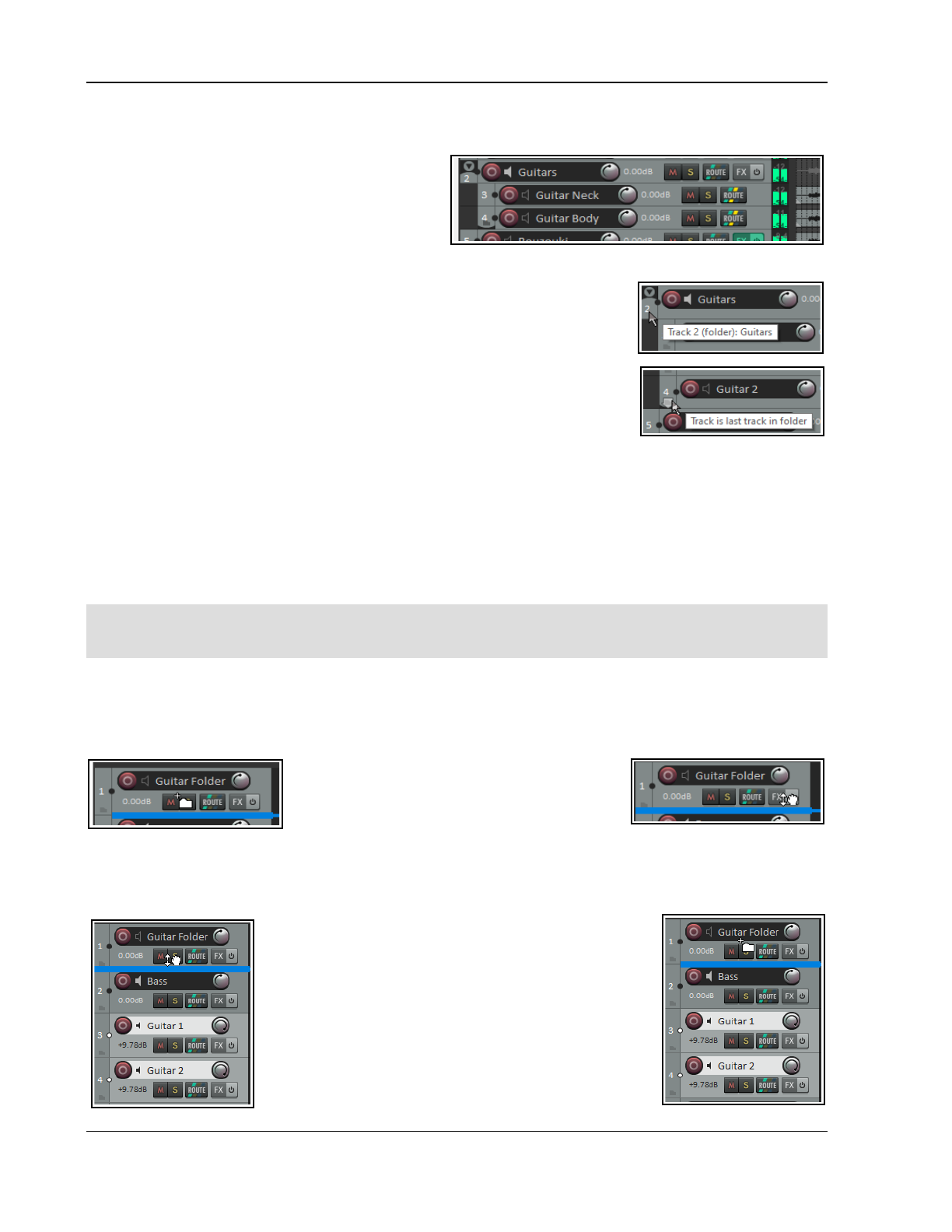
Up and Running: A REAPER User Guide v 7.81
The example shown (below right) shows that a folder called Guitars has been added to our All Through the
Night project. This folder contains the two guitar tracks. The faint peaks that you will see in the folder's lane in
arrange view represent the combined contents of
the folder's child tracks.
This can be disabled on your Preferences,
Appearance, Peaks/Waveforms page. Identify
the little icons that you can see below the track
number of each item in the track control panel.
These are used to determine a track's folder status. Identify each of these three states:
● An ordinary top level track (the default). The icon shows a faint image
of a folder. Hover the mouse over this image and it changes to a+ sign.
● A folder track. This is displayed as in the Guitars track above, as a
stronger image of a folder. Hover the mouse over this image for a
tooltip (above right).
● The last track in a folder. A folder icon is shown and the track is nested.
Hover over this icon and it displays a tooltip (right).
If you need to restore a folder to being a normal track, click on the folder control
icon as many or as few times as are required to cycle thru the various options
until you see the one that you want.
You can click on this icon to set a track's status. Let's look at an example.
Example (Optional)
Open the file All Through The Night and save it as All Through the Night FOLDER.
Select track 1 and press Ctrl T to add a track below this, as track 2. Name this track Guitars. Click on the
track’s + button once to make this track a folder. Click on the Gtr Neck track’s + button twice to make it the last
track in the folder. Save the file.
Note: For child tracks enclosed within a folder – as in the above example – the parent will be not the master but
the folder track. Their output will by default be directed to the parent (folder) track (where, for example, FX can
be applied) and from the folder track to the master.
5.13.1 Drag and Drop Folder Management
Another way of creating folders is by dragging and dropping. You identify which track is to be the folder, which
are to be its children, then select and drag and drop the children into the folder.
This method can be tricky unless you are precise in your mouse movements. You might recall that in Section
2.28 Managing Tracks we saw that dragging
and dropping track panels up or down the track
display can move them and park them in a new
position. This time, however, that’s not what we
want.
The trick is to drop the tracks inside the zone used for creating folders. The exact area and size of this drop zone
will vary with track height and track width: as a guide, think of it as occupying roughly the vertical middle of the
track panel. You’ll know when you’re there because the mouse cursor will display a folder (as shown above left)
rather than a hand (as shown above right). Here’s an example.
Tracks 3 and 4 have been selected and are to be to be
dragged up to Track 1, which is to be their folder
container track.
As they are dragged up, shown left the mouse displays a
hand because the cursor is too far below the vertical
center. This would just move the tracks up the order but
would not place them in a folder. We need to be in the
drop zone, closer to the center, as shown in the second
picture (above right). Notice the mouse cursor is now
shown as a folder.
100
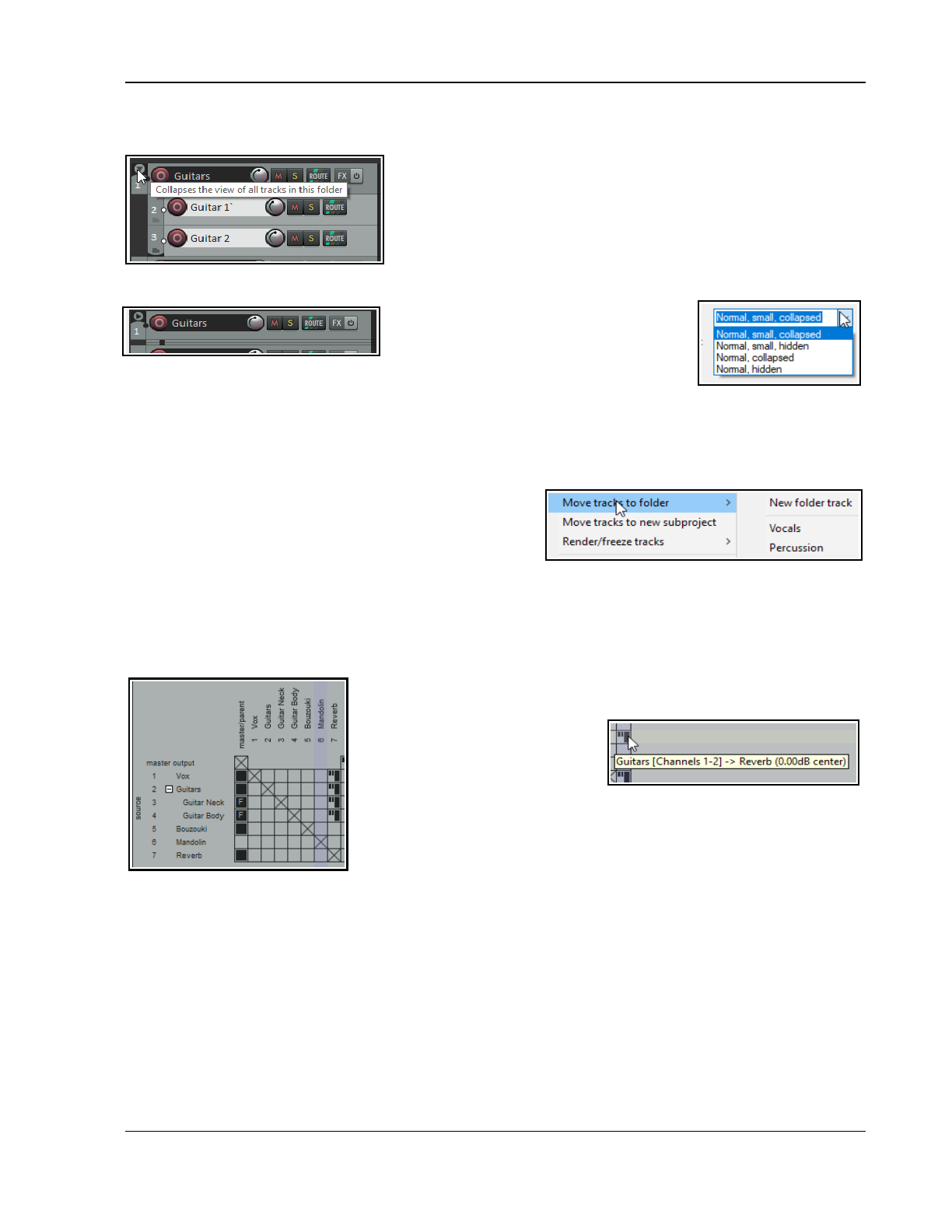
Project Arrangement Basics
From this position we release the mouse, and the two guitar tracks are now placed inside a new folder, with
Track 1 as the containing folder track (as shown below).
Note: You can start your drag and drop from any part of the track
panel (apart, of course, from the controls themselves), but to place the
tracks into a folder you must move the mouse cursor to the folder drop
zone before releasing it.
Notice the small down pointing arrow just above the track number of
the folder track (in this case Track 1). By default, this can be used to
toggle the display of child tracks in the folder between normal (as
shown by default), minimized and collapsed. Shown below is the same folder with its child tracks collapsed.
In Preferences, Appearance, Track
Control Panel there is an option to include
hidden in the cycle options (see right). This
allows you to hide child tracks altogether.
If you prefer not to use the above method for drag and drop there are other options
available. You can go to Options, Preferences, Editing Behavior, Mouse and select one of the three other
options available, including holding Shift while you drag and drop.
Simple drag and drop will still move tracks: holding Shift while doing so will create a folder and place adjacent
tracks into it without any need to find the folder drop zone.
5.13.2 Context Menu Folder Options
Another option for moving tracks into folders can be found on
the track panel context menu. The panel’s context menu
includes a Move to folder command that will place a
selection of tracks into a new or existing folder.
First, select the tracks that you wish to move into a folder, then from the right click context menu choose Move
tracks to folder. You can then select from the list of existing folders or choose New folder track to insert the
tracks into a new as yet unnamed folder, immediately above the first track in the selection.
You can then name the folder track by double-clicking in its name area.
5.13.3 Routing Matrix Display
Notice how folders and their child tracks (as well as any track colors) are
displayed when when you view the routing matrix. Child track names are
indented within the folder tracks
names, and the square box
beside the folder name can be
used to hide or display child
tracks in the matrix, as required.
The letter F in the first column indicates that the track is contained within a
folder. In the example shown, the one folder contains two child tracks.
Note also that hovering the mouse over any send graphic will display a
tooltip with information about that send (above right).
5.13.4 Hidden Child Tracks
The Actions List includes an action Track, Move all media items to new hidden child track. As its wording
implies, this will convert a selected track into a folder and move all media items currently on that track to a new
child track within that folder. Note that:
The child track itself will be hidden, although its waveforms and peaks will be “ghosted” on the folder track.
Hidden tracks can be displayed by clicking in the TCP column in the Track Manager.
All settings on the original track (e.g. volume, pan, FX chain) will remain on what is now the folder track.
This process can be reversed by selecting the folder track and running the action Track: Move all media items
from all hidden child tracks.
101
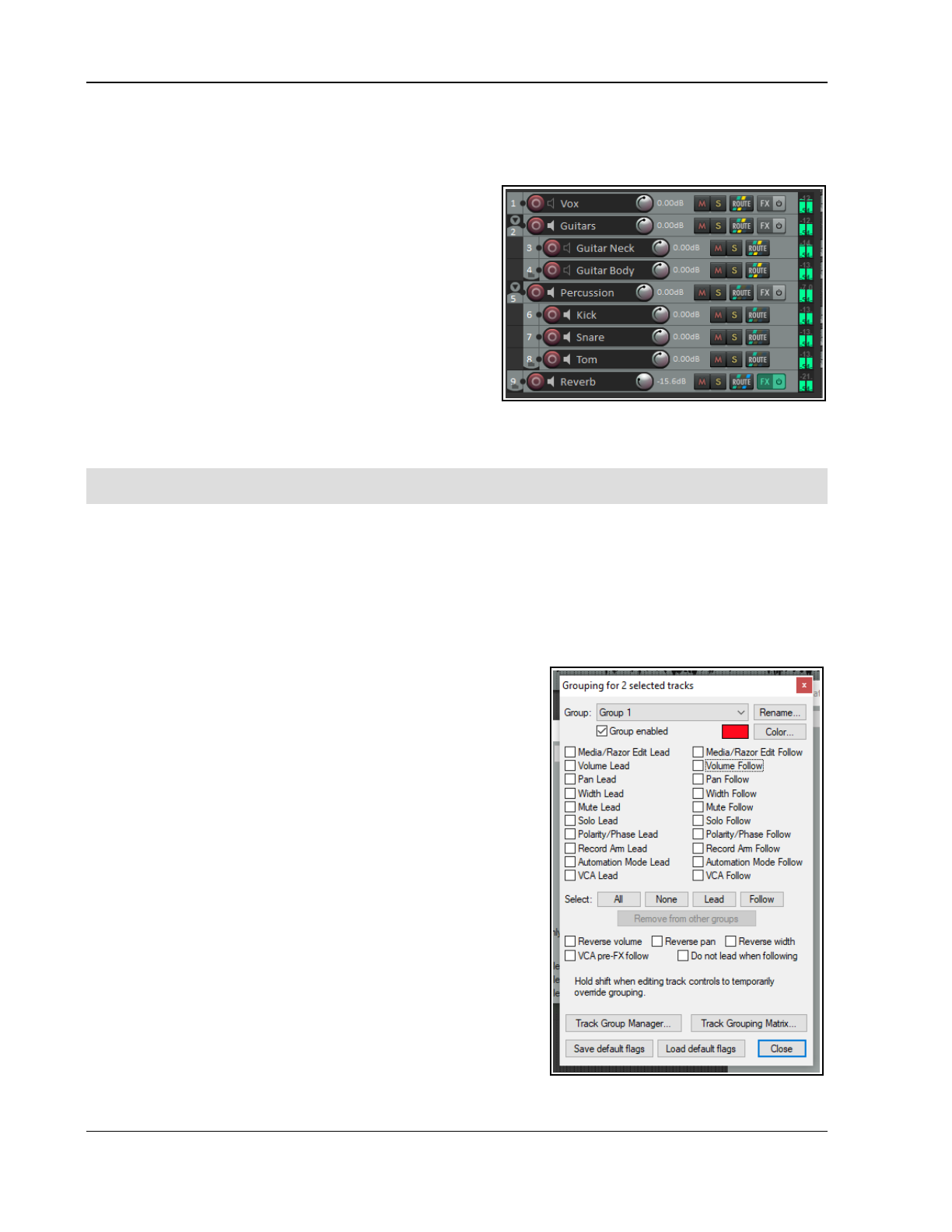
Up and Running: A REAPER User Guide v 7.81
5.13.5 Nested Folders
REAPER allows you to nest folders within folders, to as many levels as you like. This feature is probably more
suited to relatively experienced DAW users than it is to newcomers.
To create a nested folder, first create an empty track
within an existing top level folder, then use the folder
control icon to make that track into a folder. Because the
track is itself contained within an existing top level folder, it
will automatically be made into a second level folder.
Shown here is an example. Notice that:
There is a top level folder called Instruments which
holds two sub-folders (Guitars and Percussion).
Both second level folders contain child tracks.
Any action taken on a folder will effect its entire contents.
For example, if in this case you were to mute the
Instruments folder, then the Guitars and Percussion folders
and their child tracks would also be muted.
REAPER does not limit you two levels of folders. You can have more if you like.
5.14 Track and Track Parameter Grouping
Note: As well as conventional grouping, REAPER supports VCA (Voltage Controlled Amplifier) grouping. To help
avoid confusion, VCA grouping will be considered as a separate topic later in this chapter.
By using track and parameter grouping you are able to define relationships between different tracks and their
controls so that when you make a change to one control in the group, changes are also made to other tracks.
The nature of these relationships can vary from being quite simple to rather complex. Here are some examples.
● You might have two tracks that you wish to keep at a constant volume relative to each other. In this
case, you could ensure that whenever one is faded up or down then so is the other.
● You might have two tracks that need to be panned opposite each other. In this case, you can ensure
that when one is panned in one direction, the other is automatically panned in the other.
● You might have two or more tracks that you wish to be always soled or muted together.
In a moment, we'll work thru some examples. There are two main
ways to create and manage your groups. This can be done either
using the Track Control Panel or the Track Grouping Matrix.
Here is an overview of both methods.
Method 1 uses the Grouping dialog box (shown right), which can be
accessed from the Track Control Panel, the Mixer Control Panel:
● In the TCP or MCP, select the tracks whose parameters you
wish to group. Right-click over any track number in the group
and choose Track grouping then Track grouping
parameters from the menu (or press Shift G).
● When the Grouping window is displayed (see right) specify
those parameters that you want to group. Optionally, you can
change the group name from its default, which will be Group
1, Group 2, etc. Click on Close when finished.
● Make sure that the option Track grouping enabled on the
TCP or MCP menu is selected (ticked).
You can use this same method later to make changes to your
grouped parameter definitions.
This interface might appear strange at first. For this reason, it may
be easier, especially at first, to use the second method. Method 2
uses the Track Grouping Matrix.
The track grouping matrix, which can be docked, can manage up to
128 groups. To display this, choose the View, Track Grouping
Matrix command, or press Ctrl Alt G. We can create a special project file for our examples. You can then group
102
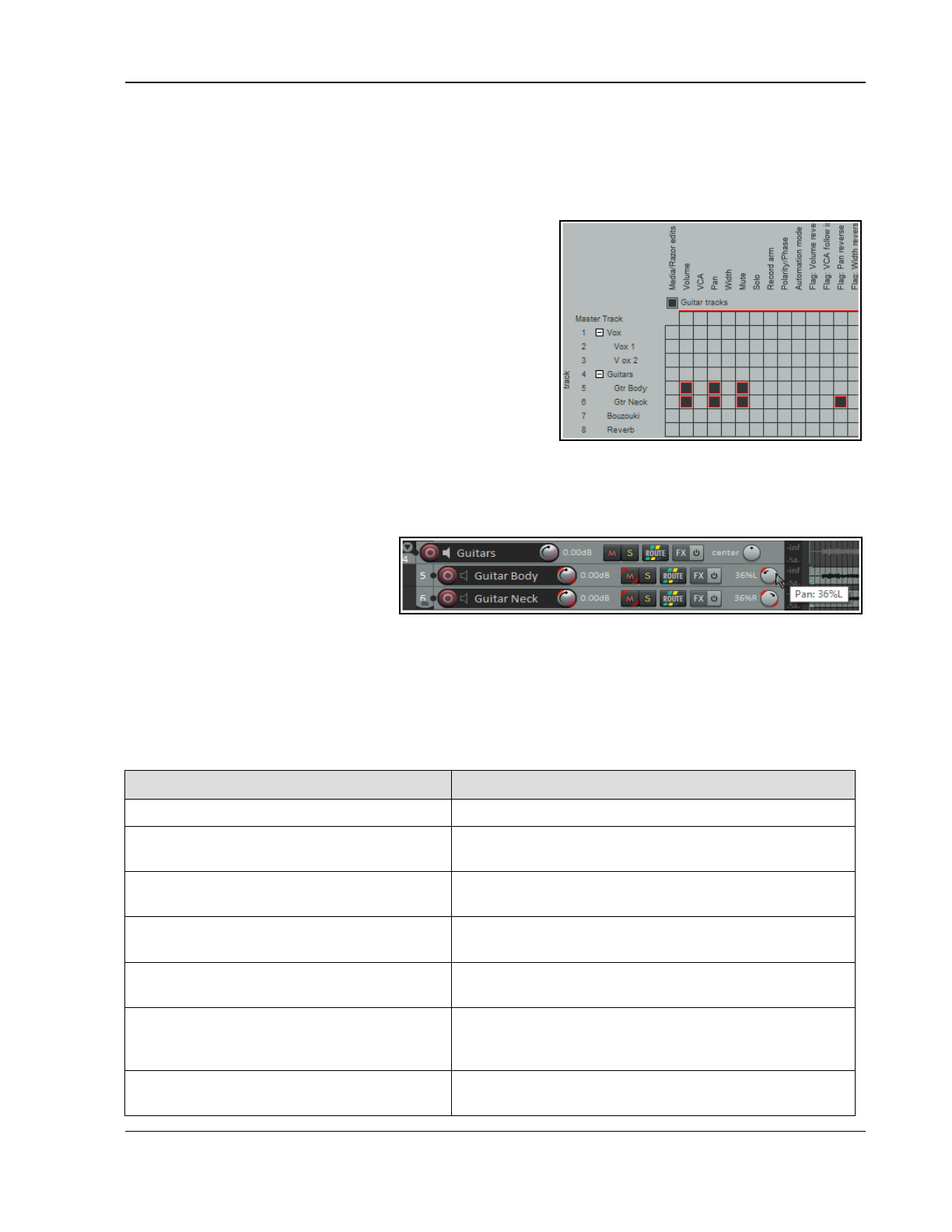
Project Arrangement Basics
any selection of tracks that you like: in this example, we will be working with the two guitar tracks enclosed
within the track folder. Note that you do not need to place tracks in a folder in order to be able to group them.
First, you should note that track grouping globally is turned on and off using the Track, Track grouping
enabled command. When this is ticked, grouping is enabled. This command can be used to temporarily disable
track grouping without the need for you to redefine or modify your groups.
5.14.1 Basic Track Grouping
Example
Open the sample file All Through The Night FOLDER. Save it
as All Through The Night GROUPS1. Use the View,
Grouping Matrix command to display the matrix..
Each column except the first represents a control that can be
grouped - volume, pan, mute, solo, etc. Each row represents a
project track. Clicking inside the grid defines the tracks and
parameters to be linked. In this example:
● The volume controls of the two guitar tracks are linked.
Raising or lowering either volume control will automatically
do the same to the other.
● The mute controls are linked. Muting either guitar track will
automatically mute both.
● The pan controls are also linked – but note that for one of these tracks the pan reverse option is also
enabled. This ensures that when one of these is panned, the other is be panned in the opposite direction!
Notes:
1. The TCP shows colored ribbons for
grouped parameters (see right). The
Appearance, Track Control Panel
preferences page includes an option to
change this to edge lines or none.
2. To temporarily over-ride the grouping, hold Shift while adjusting the parameter of any one group member.
3. You can right click on any track name in the matrix to open the track grouping window for that track.
4. Notice the first Grouping Matrix column, headed Media/Razor Edits. This is a more complex topic and deals
with matters such as the group editing of media items within a track group or across several groups. This will be
explained in Chapter 7, Managing and Editing Media Items. The Track Group Manager, accessed by a
button located above the matrix, will also be discussed and explained in that context.
5.14.2 Track Grouping Matrix Basic Controls
In order to do this …
Using the Track Grouping Matrix
Display Help window Click on the ? Button (top left corner of window).
Define the tracks in a new group Display the Track Grouping Matrix. Select at least one
parameter (such as Pan) for each track in the group.
Adjust all linked faders for a group In Mixer or Track Arrange view, adjust the fader for any
one track in the group.
Adjust the fader for only one track in a
group containing linked faders
In Mixer or Track Arrange view, hold Shift while adjusting
the single fader.
Define a pan or volume relationship as
reverse for a track within a group
In the track row, click on the intersection cell for Pan
Reverse or Volume Reverse.
Change an existing toggle parameter
relationship (such as Solo, Mute or
Record Arm) into a reverse one
In Mixer view, hold Shift while clicking on the appropriate
button (such as Solo or Mute) for the individual track. Use
Shift again to restore the positive relationship.
Display grouping window settings for an
individual track
Right click over the track name in the track grouping
matrix.
103
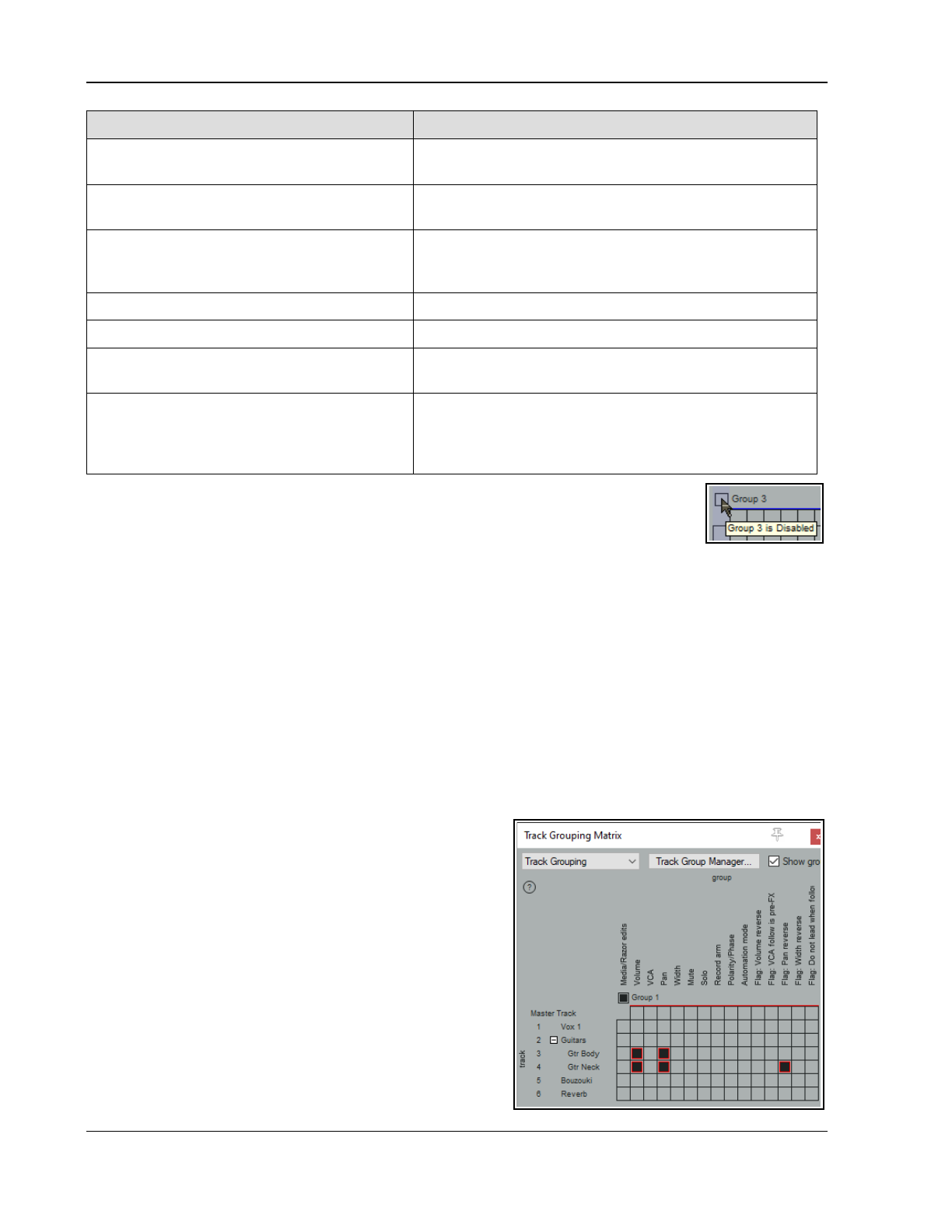
Up and Running: A REAPER User Guide v 7.81
In order to do this …
Using the Track Grouping Matrix
Link more parameters for tracks in an
existing group
Click on the intersection cells where the required
parameter column meets the track rows.
Add another track to an existing group Click on intersection cell where the required parameter
column meets the row for the track that is being added.
Remove a track from an existing group Click once, twice or three times on the appropriate
intersection cell until it shows blank. If more than one
parameter is linked, do this for each parameter.
Enable/Disable group Click in the group's Enable/Disable box.
Select all tracks in a group Click on the group name.
Ensure automation mode of follow tracks
automatically follows that of lead
Use the Automation Mode column of for tracks in the
group.
Fine tune behavior of groups which share
common tracks.
Use the Flag: Do not lead when following settings to
ensure, for example, that a track which is a lead in group 1
and a follow in group 2 will not act as a lead in group 1
when being a follow in group 2.
Note: By default, all 64 possible groups are enabled. If this leads to screen clutter, consider
disabling those that you are not using by unchecking the box shown here.
5.14.3 Lead and Follow Group Relationships
Each parameter that is included in a grouped relationship can take one of three states – Lead/Follow (the
default), Lead only, or Follow only. The different ways in which this affects that parameter's behavior are:
● A Lead/Follow item can control other Lead/Follow and Follow only items, but not Lead only items. It can
itself be controlled by other Lead/Follow and Lead only items. This is the default type, indicated in the
matrix by solid black.
● A Lead only item can control other Lead/Follow and Follow only items, but not Lead only items. It
cannot be controlled by any other item. This is represented in the matrix by the letter L.
● A Follow only item cannot control any other item, but can itself be controlled by Lead/Follow items and
Lead only items. This is represented in the matrix by the letter F.
In the previous exercise, all items within our group had Lead/Follow status. This meant, for example, that when
you adjusted the panning or the volume on either of the two guitar tracks, the equivalent parameter on the
other guitar track would move according to the defined relationship. This happened regardless of which of the
two tracks you used to make the adjustment. Let's now look at some different scenarios.
Example
This example illustrates a relatively simple case of how track
parameters can be flexibly linked. Again, use the file All
Through The Night GROUPS1.
The Guitars folder and the Bouzouki track solo controls have
been linked, Guitar as lead, the Bouzouki as follow.
Click twice on the Guitars/Solo cell to set it to lead, three times
on the Bouzouki/Solo to set it to follow only. A fourth click
would clear the cell altogethr.
You will now find that if you solo the Guitars folder, the
Bazouki track will also be soloed.
If you unsolo this and then solo the Bouzouki track, however,
you will hear only the Bouzouki track.
Save the file as All Through The Night GROUPS 1A.
104
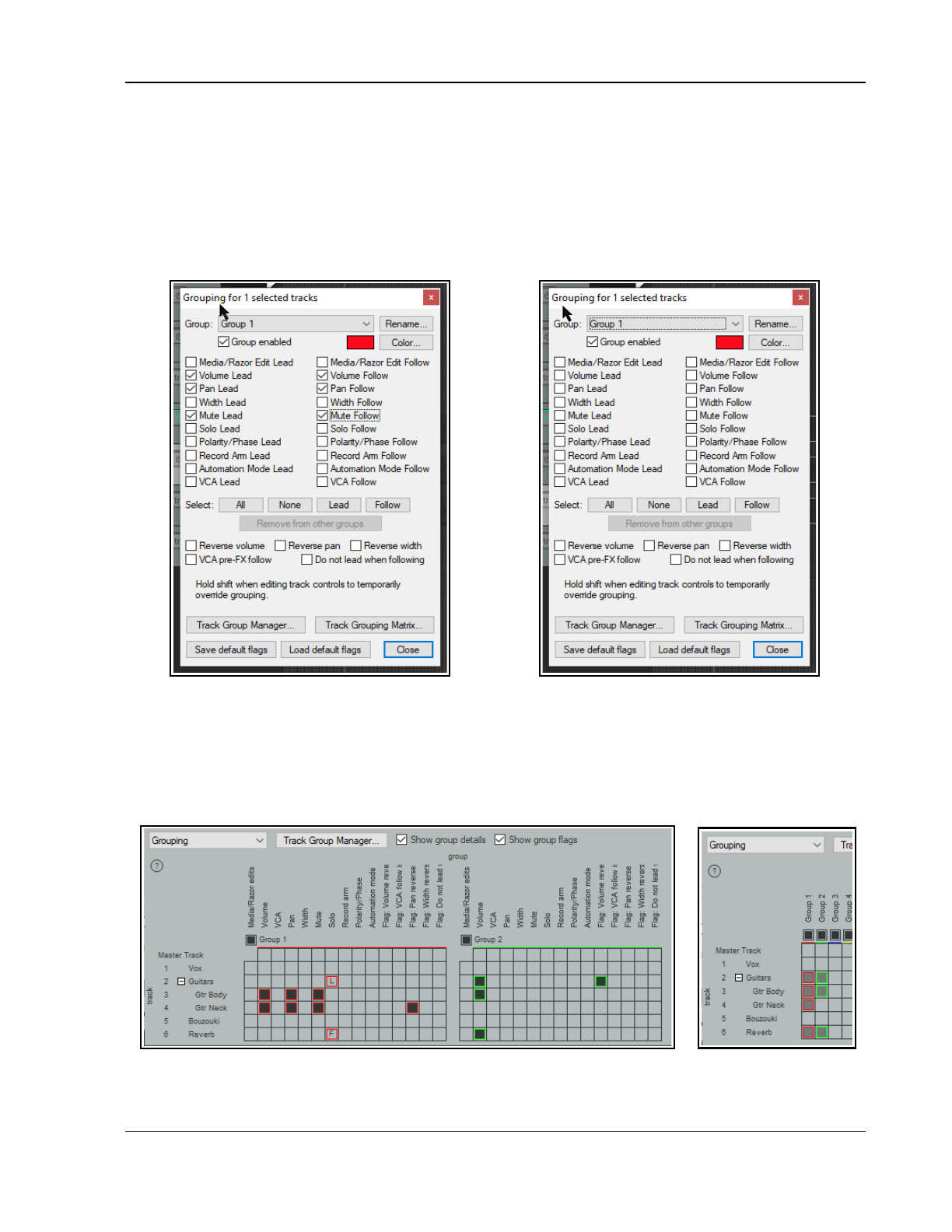
Project Arrangement Basics
5.14.4 Track Grouping Window
The Track Grouping window displays all group information about the various parameters for any selected track or
selection of tracks. Most commonly (and most usefully) it makes sense to use it with individual tracks, one track
at a time. Again, this will be more readily understood if you work thru an example.
Example
Open the project file All Through The Night GROUPS1A.RPP. Select the Gtr Neck track in the TCP. Either
right-click over the track number and choose Track Grouping Parameters … from the context menu, or press
Shift G. This causes the Grouping window for the selected track to be displayed (see below left).
In the TCP, select the Bouzouki track. The display in the Grouping window changes (above right), to show the
currently grouped parameters for the bouzouki. In this dialog box, click and select Mute Lead. This is confirmed
by the display in the track grouping matrix.
You can define up to 128 groups in a project file. The actions list includes actions to select all tracks in any of
these groups. In the example below, a second group has been added, to help when adjusting the balance
between the volume of the vocal track and the various instruments.
Note: The first of the two check boxes above the matrix allows you to toggle on (above left) or off (right) the
option to Show group details. The second allows you to show or hide the Group flags columns.
105
Up and Running: A REAPER User Guide v 7.81
5.14.5 Track Grouping Window Basic Controls
In order to do this … Using the Track Control Panel
Define the tracks in a new group
Select the tracks in the Track Control Panel, press Shift
G then select at least one parameter.
Name a group
Press Shift G, select the required group number and
click on Rename.
Adjust all linked faders for a group
Adjust the fader for any one track in the group.
Adjust the fader for only one track in a
group containing linked faders
Hold Shift while adjusting the single fader.
Define a pan or volume relationship as
reverse for a track within a group
Select track in the TCP and press Shift G. Click on
Reverse Volume or Reverse Pan as required.
Change an existing toggle parameter
relationship (such as Solo, Mute or Record
Arm) into a reverse one
Hold Shift while clicking on the appropriate button
(such as Solo or Mute) for the individual track.
Link more parameters for tracks in an
existing group
Open the Grouping dialog box for the group and select
the required parameters.
Reset a track's volume, pan or width to its
default value and adjust settings for other
group members accordingly
Double-click on the volume, pan or width value
displayed in the track panel.
Add another track to an existing group
Select the track in the Track Control Panel and press
Shift G. Display the drop down group list and select the
required group. Select the required parameters.
Remove a track from an existing group
Select the track in the TCP and press Shift G
Unselect all selected items except Group enabled
Enable/Disable group
Press Shift G, select the group from the drop down list
then click in the Group enabled box.
Tip: When playing back a song, you may from time to time wish to reset your VU Peaks without needing to stop
and restart playback. To clear one peak, simply click on the peak number shown at the right hand end of the VU
meter in the TCP or top of the VU in the MCP. To clear all peaks, hold down the Control key while you do this.
5.15 Temporary Track Grouping without the Grouping Matrix
You can make any selection you wish of any number of tracks (in the TCP or MCP), and as long as they all
remain selected you can operate their track controls as a temporary group. All will act as Lead/Follow.
In order to do this … Do this ...
Define and link any number of
contiguous tracks in a temporary group
Click in TCP of first track to be selected. Shift-click on last
track to be included in the selection.
Define and link any number of non
contiguous tracks in a temporary group
Click in TCP on first track to be selected. Ctrl click one by
one on each other track to be included in the selection.
Adjust a TCP control for all tracks in
temporary group (e.g. Volume, Mute)
Adjust fader or rotary (Volume, Pan) or just click (e.g. Mute,
Solo) for any one track in the group.
Adjust control for only one track
without deselecting the group
Hold Shift while you adjust fader or rotary (Volume, Pan) or
just click (e.g. Mute, Solo) for any one track in the group.
Unlink and ungroup tracks in a
temporary group
Click in TCP of any one track.
106
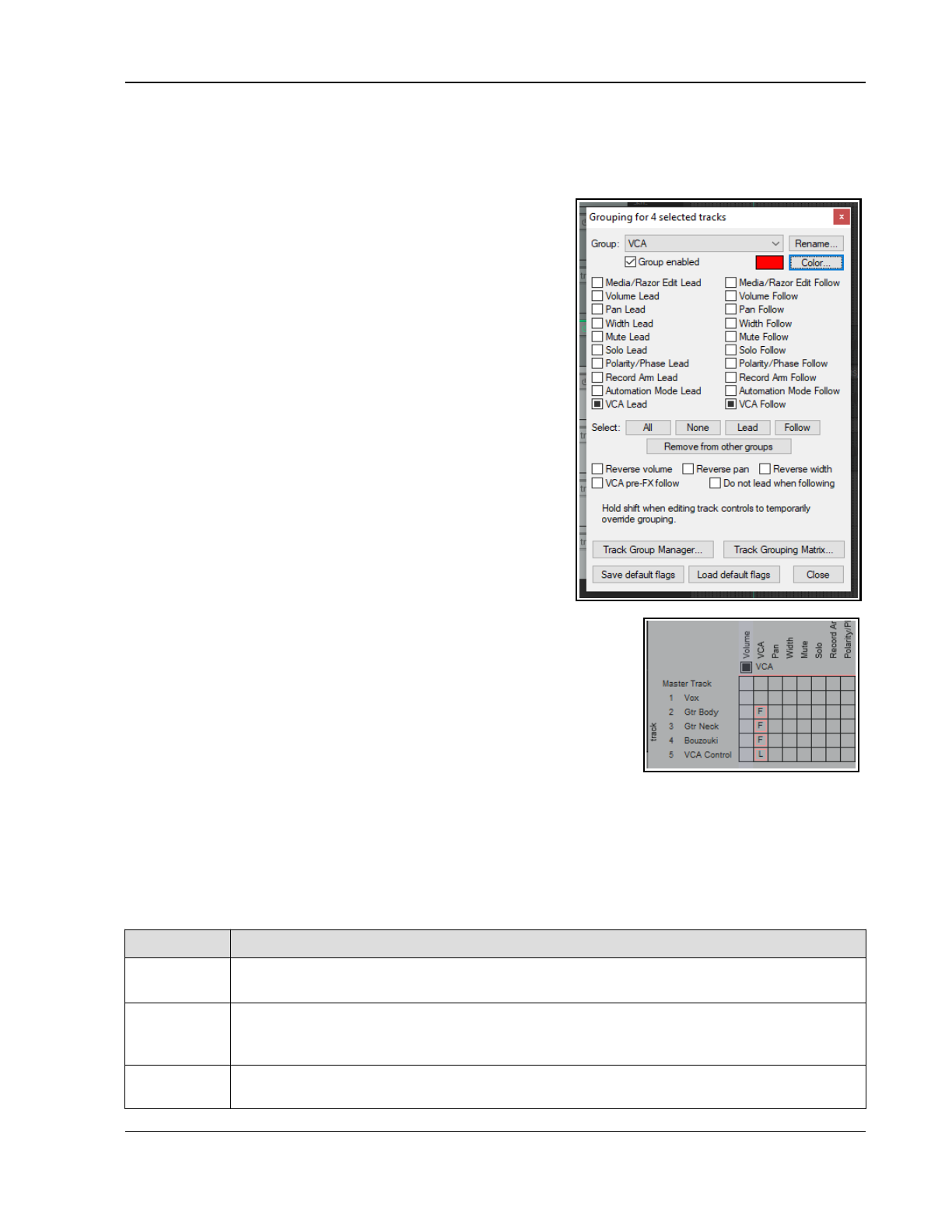
Project Arrangement Basics
5.16 VCA Grouping
VCAs (Voltage Controlled Amplifiers) predate digital audio. By analogy, VCAs in REAPER are a form of track
grouping which allows tracks to be followers within a group to a single track lead. VCA follow tracks will have
their volume dBs added to that of the VCA lead track: thus, the process is additive. With conventional grouping,
nothing is added, the tracks are simply linked.
VCA groups can be set up and managed using the same track
grouping matrix as in 5.16. The basic set up procedure is:
1. Add a new track at the end of your project and give it a
suitable name, such as VCA Control. Ordinarily, this track
should contain no media items.
2. Display the track grouping matrix for this track and select a
currently unused group. Name this group VCA.
3. Set the VCA status in this group for your VCA Control track
to L (for lead).
4. Set the VCA status in this group for any tracks that you
want it to control to F (for Follow).
Example
Open the file All Through The Night.RPP and save it as All
Through The Night VCA.RPP.
Pan the first guitar track 35% left and the other 35% right. Add a
new track (Track 5) and name it VCA Control.
Display the track grouping matrix (Ctrl Alt G). Make sure that the
other tracks are in the same order as shown here, below right.
Right-click over the text Group “n” to open the Grouping dialog
box (above). Click the Rename button, then type VCA, then on
OK, then Close the dialog box.
Set up this group as shown (right), so that track 5 is your VCA lead track
and tracks 2, 3 and 4 are VCA follow tracks.
Play the song. As you raise the volume fader on the VCA control track, the
three instrument tracks will each become louder. As you turn down the
volume on track 5, the instruments will become quieter.
Notice that the VU meter levels on the follow instrument tracks will change.
The adjusted volume of these tracks (added to that of any audio produced
by any items in VCA control track itself) is sent to the lead. Thus, the lead's
VU meter levels change as the VCA control track fader is adjusted.
Now let's try something different. Make sure that the pan law for all tracks is set to Stereo balance/mono
pan. This is done by right clicking over the track's pan control and selecting from the pan law drop down list.
Click on the Bouzouki/VCA matrix cell to remove it from the group. Now play the song again. As you do so,
adjust the pan setting on the VCA control track. You will find that the panning of the three instrument tracks will
each be adjusted accordingly. Save the file.
VCA Grouping Parameters
This table summarizes the VCA track grouping matrix options and parameters:
Parameter Comment
Volume Adjust the volume fader on the VCA lead to adjust the volume of all follow tracks in the VCA
group. Note that the follow track faders themselves will not be moved.
Pan Provided either Stereo balance/mono pan or Stereo pan has been selected as the pan law,
changing the panning on the VCA lead will cause the panning of all follow tracks in the group to
be changed. The pan faders on the follow tracks, however will not be moved.
Pre FX Follow If the track grouping matrix option Flag: VCA pre-FX follow is selected for any VCA follow track,
then the signal volume will be adjusted before it is fed into the that track's FX chain.
107
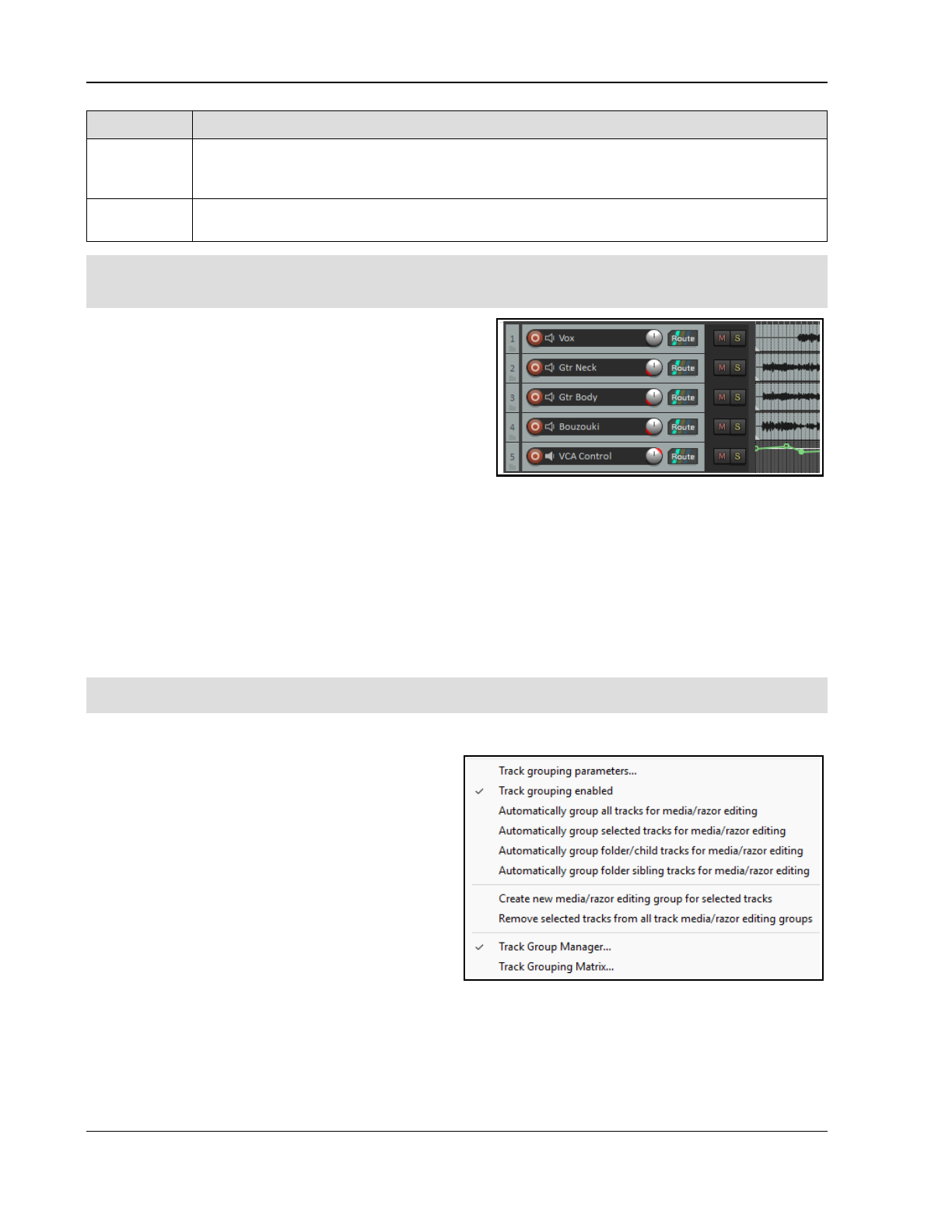
Up and Running: A REAPER User Guide v 7.81
Parameter Comment
Automation Volume, pan and width changes on follow tracks can be automated by adding envelopes to the VCA
control track. The envelopes will be applied to all follow tracks in the group. Follow tracks may also
have their own automation envelopes. Chapter 18 includes more about envelopes.
Mute A mute envelope can be added to the VCA lead. This envelope will be applied to all VCA follow tracks
in the group. Automation envelopes are explained in Chapter 18.
Note: Defining a track as a VCA lead causes that track's volume and pan faders to control volume and panning
on all of its follow tracks. Keep in mind that a VCA control track is
not
a track folder or submix. No audio passes
thru a VCA lead/control track. It would make no sense to add audio FX directly to a VCA control track.
VCA with Automation Envelopes
Conventional automation does not work well with ordinary
groups. For example, a volume or pan envelope on a group
lead track will, on playback, adjust the volume or pan
settings on that one track only, not on its follows.
With VCA grouping an envelope on a VCA control track will
be applied to the summed total of its follow tracks. You can
have separate automation envelopes on both the VCA lead
and any of the follow tracks within the group. Shown here is
the same project as in the previous example, with the same
groups as before, and with volume envelopes added to the VCA control track and one of the follow tracks
(Bouzouki). The summed levels of both follow and lead envelopes will, on playback, be sent to the lead.
VCA with Overlapping Groups
Conventional grouping does not fully allow for overlapping group membership. For example, tracks 1 to 3 volume
faders could be grouped as leads and follows in one group, tracks 4 to 6 in a second group, but you could not
have another group to control volume faders on, say, tracks 1 and 6 only.
VCA grouping makes this possible. You could create two ordinary groups – one each for volume control on tracks
1 to 3 and 4 to 6. You could then create a VCA group (Lead) to control volume on tracks 1 and 6 only (Follows).
Chaining: this is when a track is a VCA lead in one group and a follow in another VCA group:.
Tip: Pressing Alt Shift G will toggle on and off item and track media grouping. This can be useful if you want to
temporarily disable track grouping, then later re-enable it.anaging Groups from the Track Panel.
5.17 Track Group Management from the Track Panel
The Track Grouping command (track panel context
menu) provides options for managing track grouping,
First select the panels of the tracks that you wish to
group, then display this menu and choose Track
grouping enable/ With the track panels still selected
use Track grouping parameters… to open the
grouping parameters box. Here, for example, you can
link volume (lead/follow) and/or pan (lead/follow).
An important feature in this menu is the ability to
Create new media/razor editing group for
selected tracks and to subsequently Remove
selected tracks from all track media/razor
editing groups. There are also options to:
Automatically group all/selected tracks for media/razor editing.
Automatically group folder/child tracks for media/razor editing
Automatically group folder/sibling tracks for media/razor editing.
Razor editing and its many benefits are explained in detail in Chapter 7.
This menu can also be used to access the Track Group Manager.
108
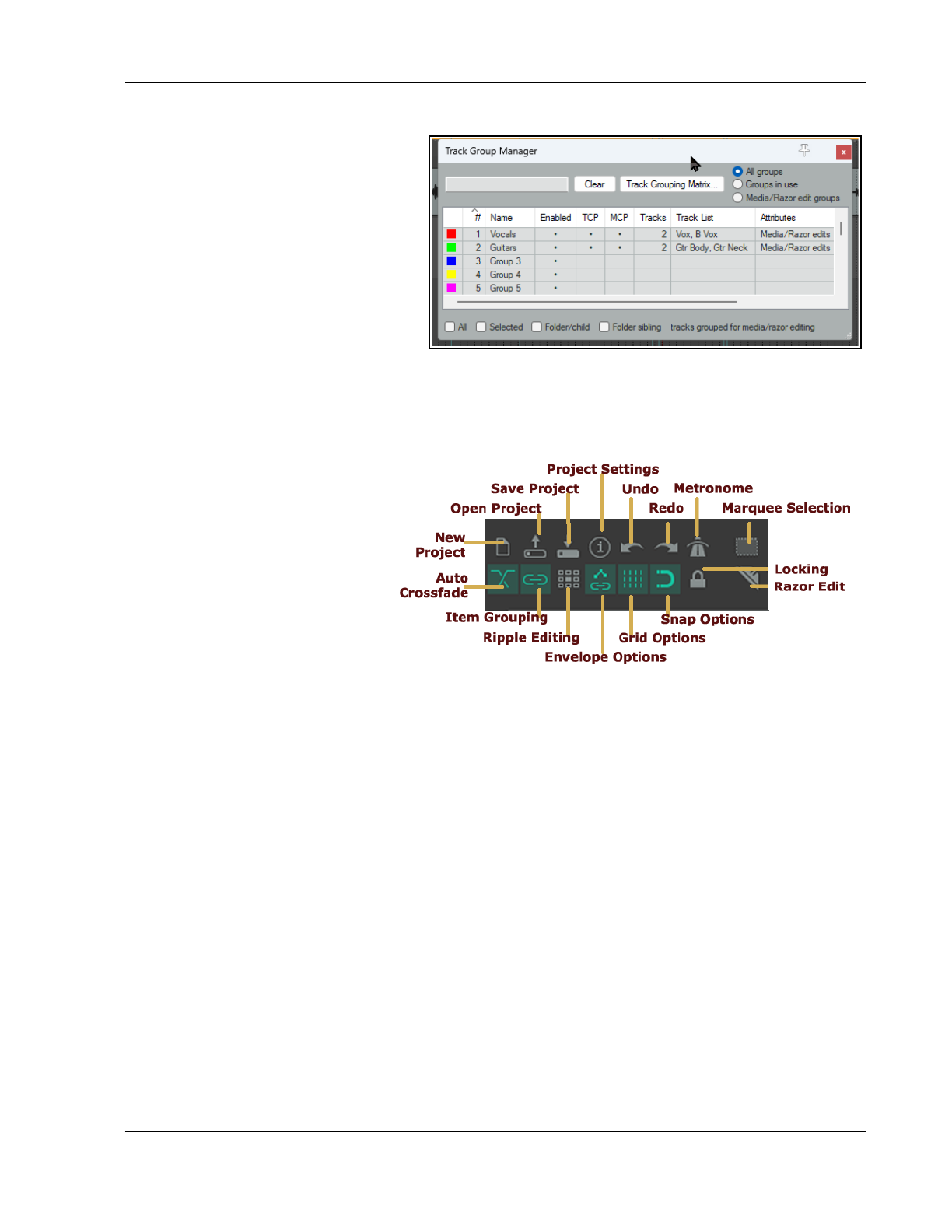
Project Arrangement Basics
5.18 The Track Group Manager
This can be opened from the main View
menu or from the track group management
context menu. The radio buttons in the top
right corner allow you to use it to work with
all groups, only groups in use, or only
media/razor edit groups. Here, tracks in
individual groups can be displayed or
hidden in the TCP and//or the MCP.
Most of the columns are self-explanatory:
for example, double-click on any row in the
Name column to name or rename a group.
Double-click on a header (such as Name) to
sort by that group.
In addition, a series of check boxes allow you to specify which groups you want included for media/razor
editing.
5.19 The Main Toolbar
REAPER's default toolbar is located near
the top left corner of the screen. The
various tools and their functions are
introduced throughout this guide as
required. The icons might appear
different if you are using a theme other
than REAPER’s default.
You can edit this toolbar, for example
adding more tools for other commands
and actions. You can also create
additional toolbars of your own. This
topic is covered in Chapter 15.
New Project: Ctrl N
Open Project: Ctrl O
Save Project: Ctrl S
Project Settings: Alt Enter
Undo: Ctrl Z to undo last action
Right click to view undo history
Redo: Ctrl Shift Z to redo last action
Right click to view undo history
Metronome: no default shortcut:
Left click to toggle on/off, Right click for settings
Marquee Selection: On/Off
Auto Crossfade: Alt X to toggle on/off
Item Grouping: Alt Shift G to toggle on/off
Right click for menu
Ripple Editing: Alt P to cycle between disabled, per
track and all tracks.
Right click for menu. Options include
Ripple edit all
affect s tempo map
and
Ripple edit all affects envelopes on all tracks
.
Envelopes, move points with media items:
Left click to toggle on/off
Right click for menu of Envelope points, Automation
items and Razor edits options.
Grid Lines Options: Alt G to toggle on off
Right click for settings dialog
Snap: Alt S to toggle on/off: Right click for settings
Locking: L to toggle on off. Right click for settings
Razor Edit: On/Off
Note 1: Right-clicking on some of these tools (e.g. Ripple Editing, Item Grouping, Snap Options, Envelope
Options) offer more functionality – such as a sub-menu, or a dialog box.
Note 2: The two icons flagged with an asterisk (*) - Marquee selection and Razor edit - are mutually exclusive.
They determine how mouse modifiers will behave in each of these contexts.
5.19.1 Animated Toolbar Icons
Some toolbar icons are animated by default. Many icons, including toggle icons and those that you add yourself,
can be animated. The main exceptions are tools that simply execute a command, such as New Project. The item
109
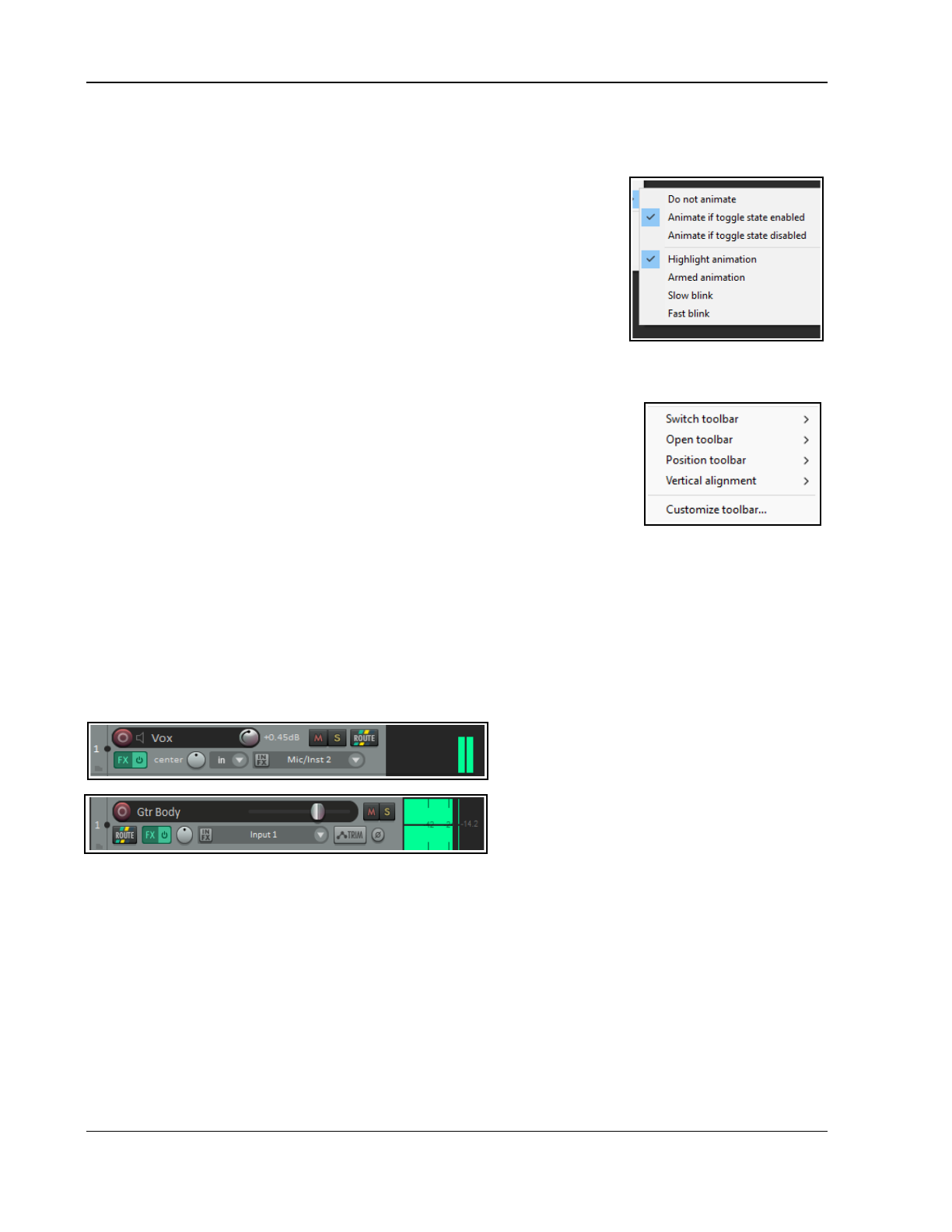
Up and Running: A REAPER User Guide v 7.81
grouping and move envelope points with media items tool are animated by default. Toolbar animation is
managed in the Customize menus/toolbars dialog (see Customizing REAPER Toolbars).
1. Right click over the toolbar background area and choose Customize toolbar … from the menu. This will
open the Customize menus/toolbar dialog with Main toolbar selected.
2. In the first column, right-click on the name of the tool that you wish to
modify. From the context menu choose Highlight with animation
based on toggle state.
3. Choose an option from the displayed submenu of options.
4. Click the Apply button. When finished, click on OK.
Animation submenu options
Do not animate, Animate if toggle state enabled, Animate if toggle
state disabled: these three options are self-explanatory and mutually
exclusive. Select whichever you require.
Highlight animation or Armed animation: you can select either one of these visual effects, or one of the
blink options Slow blink or Fast blink: these cause the selected tool to blink, or flash, between two color
states. In the default theme these are red and green.
5.19.2 The Main Toolbar: Context Menu
Right-click over the background area of the main toolbar to open a context menu.
(right). These commands enable you, amongst other things, to edit and customize
your toolbars. This topic is covered in Chapter 15.
For now, however, notice the command Vertical alignment. This allows you the
options of aligning your toolbar (within its dedicated area) top, center or bottom.
5.20 Track Panel and Mixer Panel Layout Options
REAPER’s default theme offers you a choice of several track and mixer layouts. There are six main areas of
interest – the track panel, the master track panel, the mixer panel, the master mixer panel, the transport panel
and the envelope panel. This section will introduce you to track layout options.
Later in this user guide you’ll be introduced to the Theme Adjuster which you can use to customize these
layouts to suit your individual preferences. By default, REAPER selects Layout A for the track panel. This layout:
Potentially shows all track controls when the mixer is closed (but see next point).
Shows the Record input and Input controls only when the Record button is armed.
Shows only a limited selection of track controls when the mixer is open
Layout B shows all track controls on all tracks if
there is sufficient room.
Layout C shows the controls as shown here,
together with a larger VU meter.
To select a layout for all tracks first make sure no tracks are selected: to select a layout for particular tracks, first
select the track(s) as required. Then, from the menu choose Options, Layouts, Track Panel then A, B, or C,
or, to restore default layouts choose Default layout.
Note that for the Master Track Panel only option A is available, the default.
110
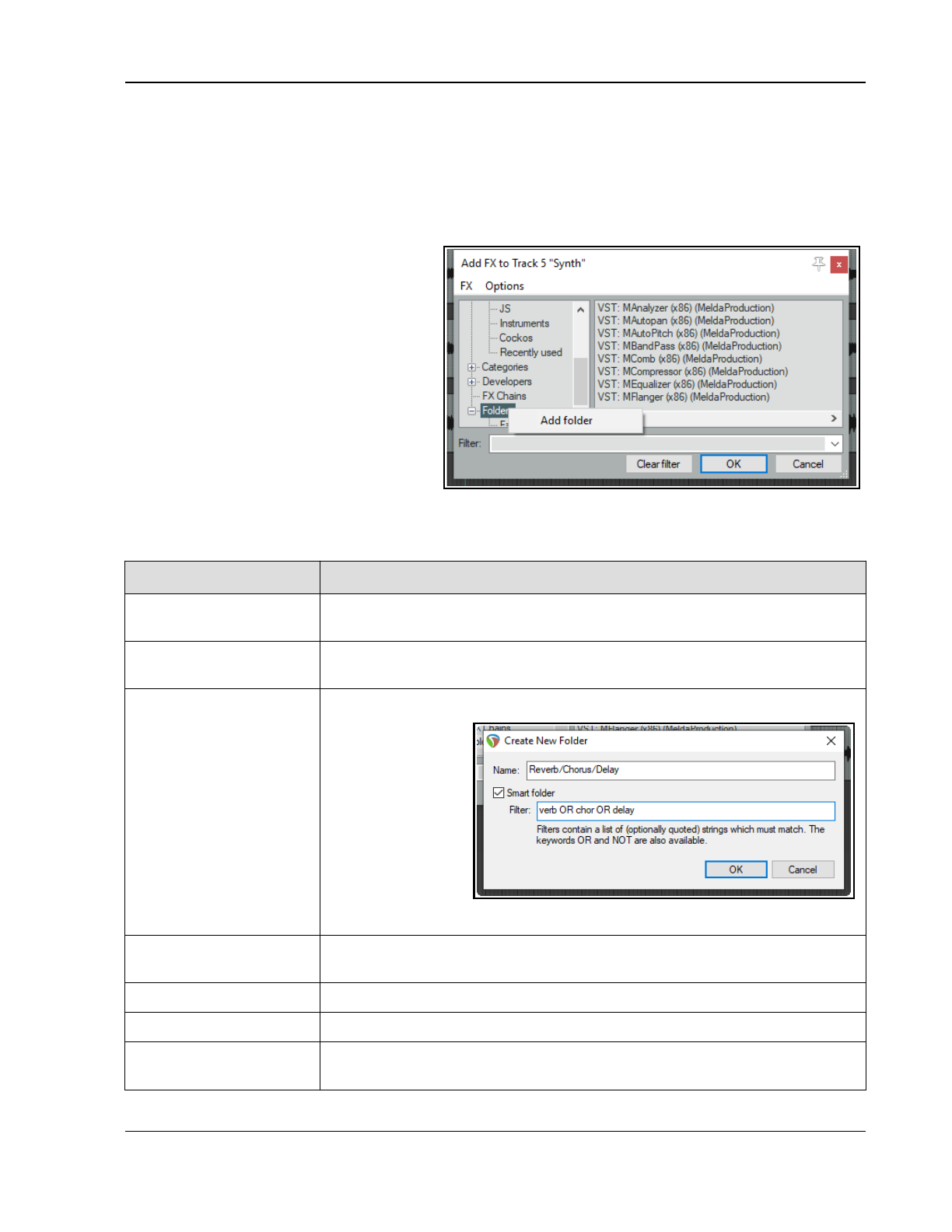
Managing Track and Item FX
6 Managing Track and Item FX
We have already covered the basic techniques involved in using effects on your REAPER tracks. We are now
going to look at some of the options available to help manage and use your FX more effectively. We'll be looking
in more detail at how you use some of the more important individual effects later (Chapter 16): in this section
we're mainly concerned with the broader issues of managing and organising plug-ins.
6.1 Grouping FX in Folders
REAPER automatically groups your FX in
various ways – by type (VSTi, VST, JS, etc.),
by category (Analyzer, Dynamics, EQ, etc.)
and by developers (e.g. Melda, Voxengo,
Wave Arts). In addition, you can create your
own group folders.
FX can be grouped as you wish. For example,
you might wish to create a folder called
Chorus/Delay/Reverb to display these plug-
ins together. You can create as many folders
as you wish, and the same plug-in can be
placed in more than one folder.
The use of smart folders can make this job
easier (by automatically adding plug-ins to
your folders for you). You can also drag and drop selected FX into your folders. The table below summarizes how
to work with folders.
In order to do this … You need to do this ...
Expand/collapse folder
contents list
Use the +/- button to the left of top level folder names.
Add a new folder Right click over Folders (see above) and choose Add folder. Type a name in the
Create New Folder text edit box and click OK.
Add a new smart folder Right click over Folders (see above) and choose Add folder. Type a name in the
Create New
Folder text edit
box. Type your filter
in the Filter text edit
box. OR and NOT
can be used as
keywords. An
example is shown
here.
For more about
filters, see Using Search Filters.
Add FX to a folder
(including smart folders)
Drag and drop from FX list in right-hand pane. Ctrl click can be used to build a
selection.
Display folder contents Click on folder name in left hand pane.
Add FX to track or item Double click on FX name in right-hand pane.
Change order in which
folders are listed
Drag and drop folder name up or down, or select and use Ctrl Up and Ctrl
Down.
111
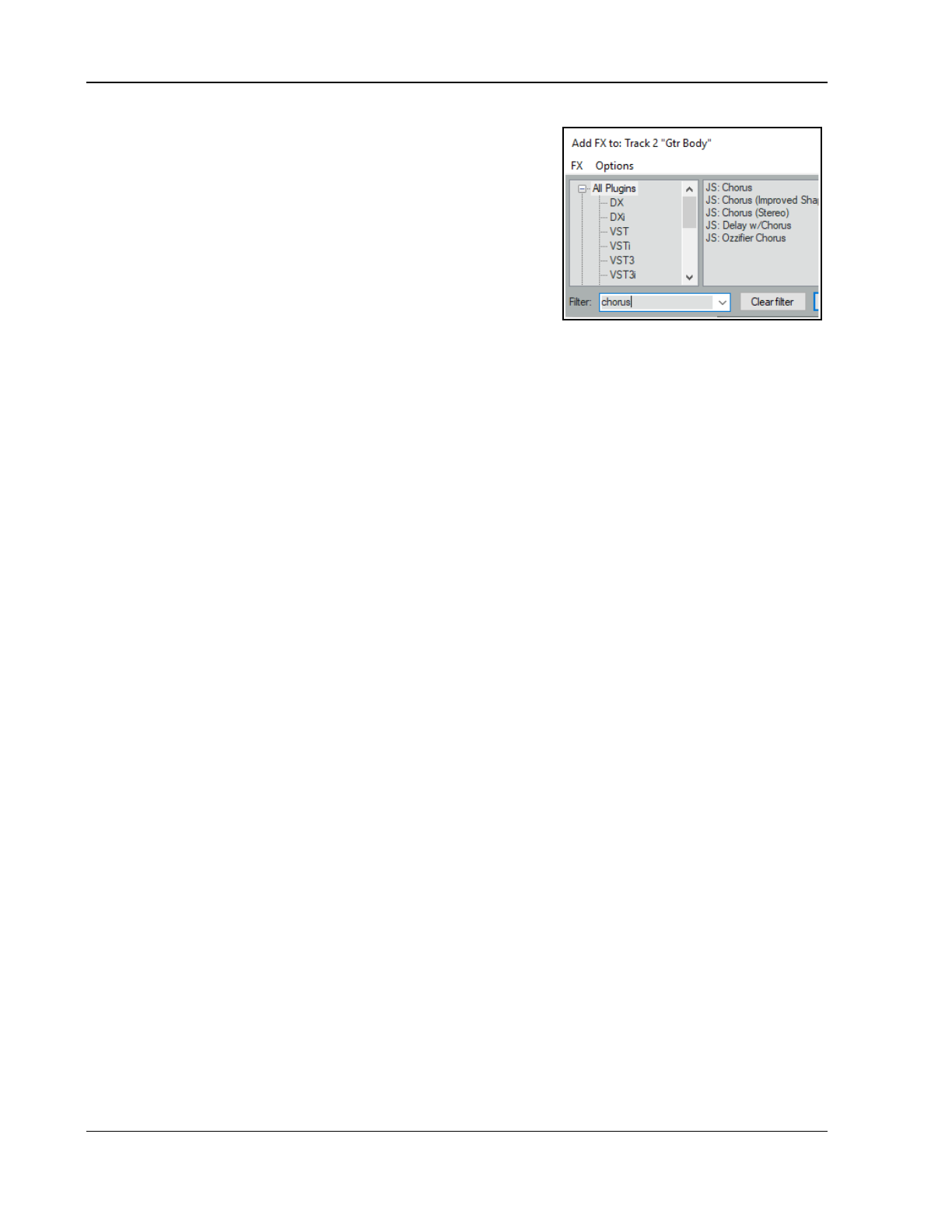
Up and Running: A REAPER User Guide v 7.81
6.2 Using Boolean Search Filters
Search filters can be used to help find exactly what you are looking
for. In this case, you can filter the FX list to show only those items
which include a specified string, such as verb or eq. The techniques
explained in this section can also be used elsewhere in REAPER
where filtering is available – for example, the media explorer, the
track manager, the actions list, the region/marker manager, the
project bay, envelope color overrides and the theme development
tweaker.
By entering a text string in the Filter list text box in the bottom left
corner of the Add FX window (also known as the FX browser),
you can display a list of those list items which match your criteria.
Before doing this, you can select either All Plugins from the list of plugin folders, or any particular folder if you
wish to restrict your search to that folder. In the example shown above, we have applied the text string
chorus
as a filter, in order to see what chorus plug-ins we have available. The search string is not case sensitive.
You can search for more than one string within the same names. For example:
eq stereo
will find all plugins with both
eq
and
stereo
anywhere in their name, regardless of the order in
which they appear.
eq AND stereo
would produce exactly the same results.
Remember, you can rename individual plug-ins. This might make your searches more useful.
The filter also supports other Boolean search terms notably OR and NOT, and the use of parentheses, e.g.:
comp OR lim
finds and lists all plugins with
comp
or
lim
in their name.
eq ( cockos OR melda )
finds all Cockos and Melda plug-ins with
eq
in their name. You must leave a space
both before and after the parentheses.
cockos ( eq OR comp )
finds all Cockos plug-ins with
eq
or
comp
in their name.
blue cat NOT ( flange OR phase )
finds and lists all Blue Cat plug-ins except those with
flange
or
phase
in
their name.
( chorus OR delay ) NOT ( DX: OR JS: )
finds all effects with
chorus
or
delay
in their name except Direct
X and JS ones.
There are some additional techniques that you can use to make your searches more finely tuned.
Enclosing a search string in quotes will find only those plug-ins where the text is matched exactly. For example:
“sony noise”
would find Sony Noise Gate but not Sony Express FX Noise Gate. Likewise “
reaverb”
would
find ReaVerb but not ReaVerbate.
Typing a space immediately after the opening quotes mark will limit the search to those items where the
specified string is at the very beginning of a word. For example:
“ volu”
will find plug-ins which include the word
volume
but not
convolution
..
Similarly, typing a space at the end of the string will only find those items where one of the words in the FX
name ends with that string.
Starting a search string with ^ will find only those items whose name begins with the specified string, and using
a $ at the end of a string will find only those names that end with that string.
For example, when working in the media explorer, using
^blues
as a filter would list only those items whose
names begin with
blues
.
Similarly, in the track manager, a filter such as
guitar$
would display tracks with names such as
lead guitar
or
rhythm guitar
but not
guitar solo
.
The Clear Filter button can be used to remove the filter and restore all plug-ins to view.
You also have two options (on the Options menu – see below) which if enabled will ensure that your filters are
automatically cleared for you. These are Auto clear search field on folder change and Auto clear search
field on close. This latter option refers to closing the FX browser window, not closing REAPER.
REAPER will remember your previous filters. You can access it from the filter drop down list, by clicking on the
down pointing arrow located on the edge right of the
Filter list
box.
In REAPER's Plug-ins Preferences (Chapter 22) there is an option to apply a global filter to all browser views.
112
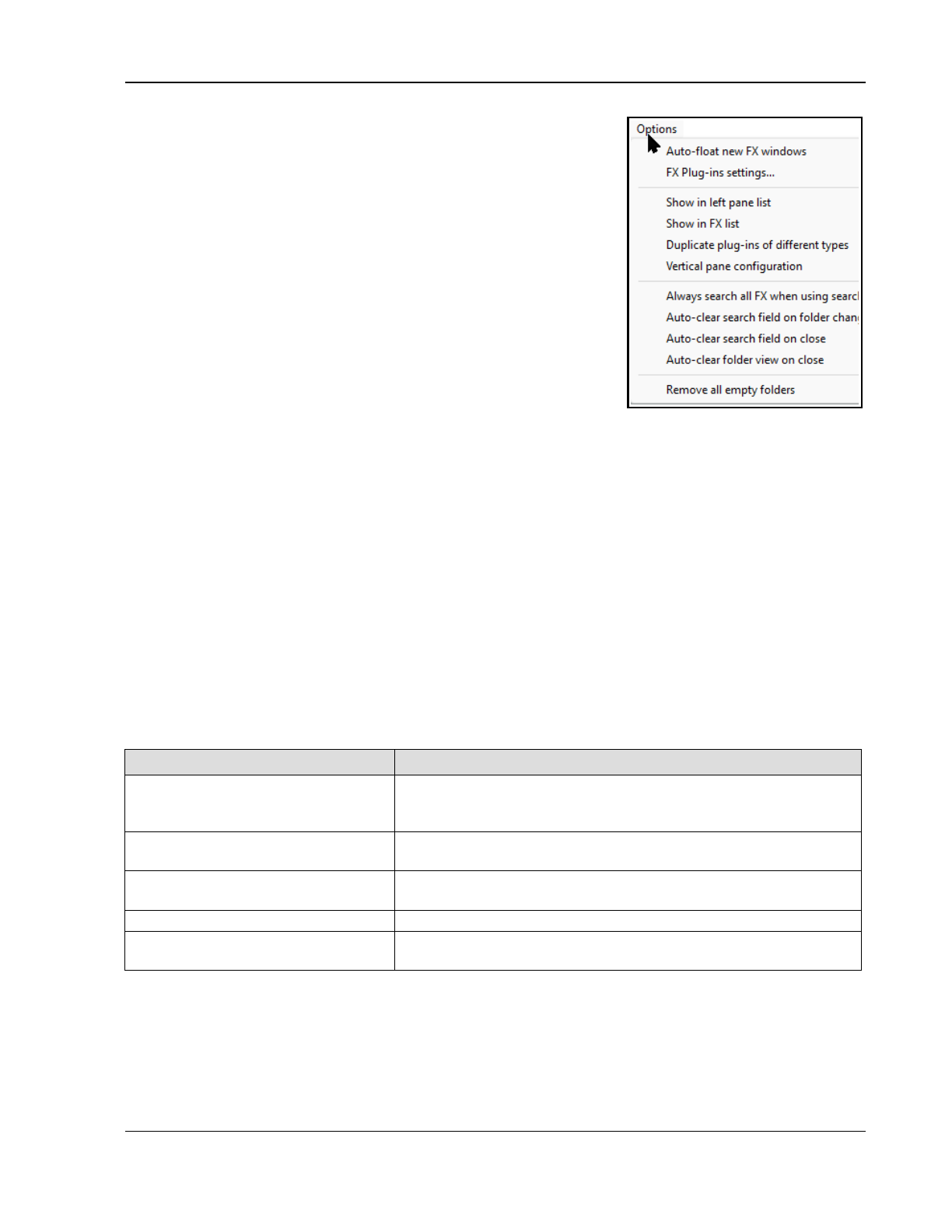
Managing Track and Item FX
6.3 FX Browser Options
The Add FX window Options menu is shown here. Commands include:
Auto-float new FX windows. If enabled, FX will be opened and
displayed in their own separate window when they are added.
FX Plug-ins settings... Displays Options, Preferences, Plug-ins
settings page (see Chapter 22).
Remove all empty folders. Removes all empty folders.
Show in left pane list. Displays a sub-menu to select plug-in categories
to be displayed in the left pane of the FX browser window.
DX, DXi, VST, VSTi, VST3, VST3i, AU, AUi, JS, Rewire, Cockos
Instruments all virtual instruments will be listed as well as in their
native folders (VSTi, DXi, etc) if these are also selected.
Recent causes all plug-ins recently used to be displayed here, as well
as in their native folders.
VST folders causes all folders with VST plugins to be listed in the left
pane under My folders.
Categories causes plug-ins also to be displayed grouped by function (e.g. Delay, EQ, Reverb, etc.).
Developers enables plug-ins also to be grouped by developers. FX Chains will cause FX chains to be listed.
Show in FX list
In the displayed FX list you can show any Default preset (along with the FX name), FX shortcuts,
descriptions, or file names, or both for JS FX, the Video processor (see Chapter 20), and/or plug-ins whose
name begins with a #. Renaming a plug-in to begin with a # hides it in the FX browser's FX list.
Always search all FX when using search field. If enabled, all FX will be searched, even if one type or
category has been selected in the left pane.
There are also two Auto clear search field (filter) options – when you change your selected folder, and/or
when you close the FX browser. Enabling the option Auto-clear folder view on close ensures that the next
time the Add FX browser is opened All Plugins will be selected in the left panel.
6.4 Item Take FX
REAPER allows you to apply FX directly to media item takes within a track. For example, you might wish to add
reverb to just part of a track: split the media item into several items and apply the FX only where it is wanted. If
you have selected the option to display the Per take FX and No FX item icons (Options, Preferences,
Appearance, Media Item Buttons) you can click on any item take's FX button to open its FX window.
Otherwise you can select a media item and use the default keyboard shortcut Shift E.
In order to do this … You need to do this …
Add plug-in to an item's FX chain Press Shift E to open the item's FX window, or drag and drop FX
from the FX browser on to the item take, or right-click on item FX
button (if displayed).
Delete an item’s FX chain
altogether
Select the first item in the chain then hold Shift while selecting the
last item. Then press Delete.
Copy an FX or entire FX chain to
another item
Ctrl drag FX from an item's FX chain to snother item. Ctrl drag to
copy the entire FX chain. Ctrl Shift to include envelopes.
Move FX from one item to another Hold Alt while dragging and dropping the FX.
Manage item take FX Take FX windows include the same commands (toggle bypass,
toggle offline, etc.) as track FX windows. Actions are also available.
Your Appearance, Media Item Buttons preferences settings determine if and how the various buttons are
displayed for individual media items. These are covered in detail in Chapter 22, but for now just notice that
available item icons (buttons) include its lock and mute status, its FX chain, its notes and properties.
If you enable the option Draw labels above the item rather than within the item then the buttons will be
displayed (with the item name) above the item. You can, however, also specify as an exception that When
media item height is less than label height the label should be moved to inside the media item. If you
disable these options, the labels (if displayed) will always be superimposed on the media item itself.
113
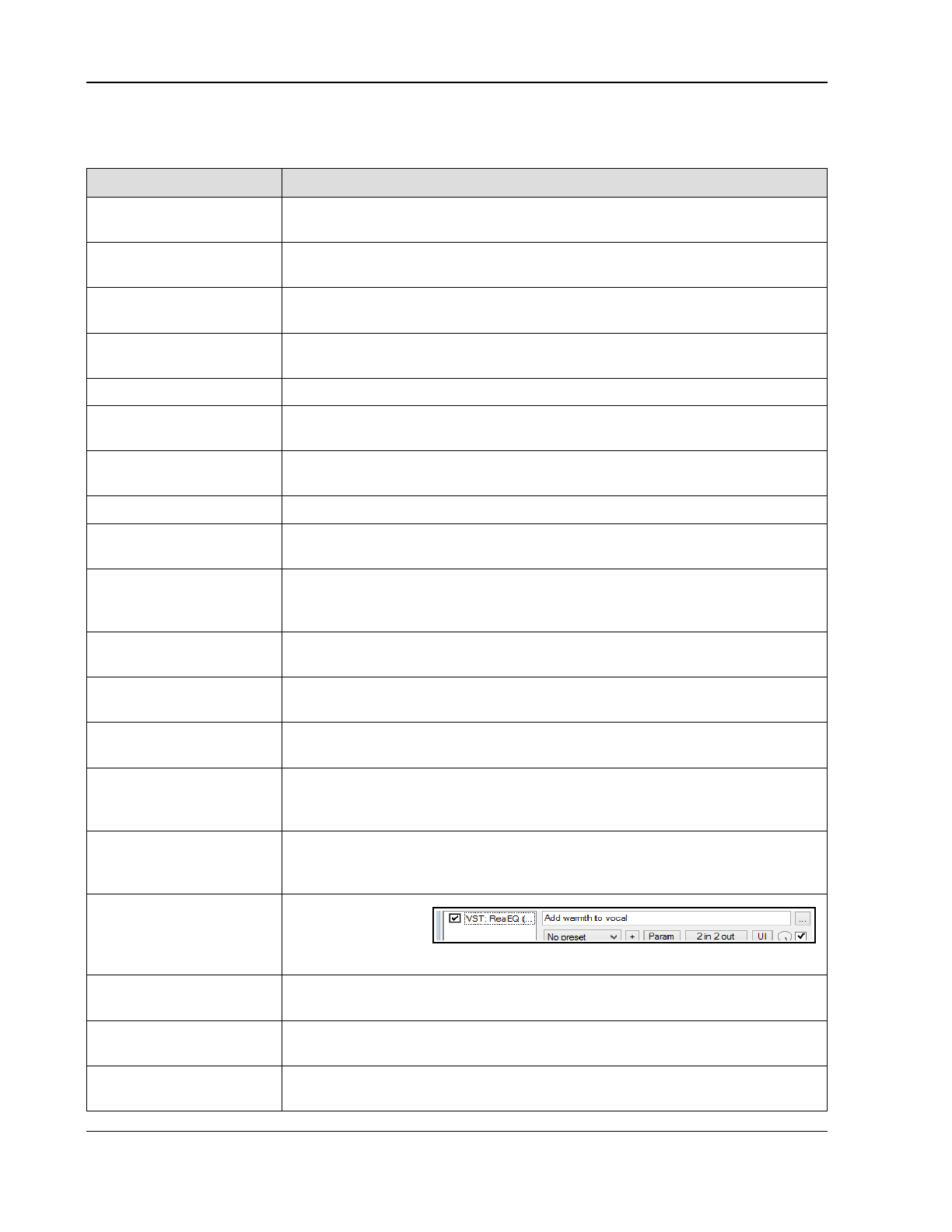
Up and Running: A REAPER User Guide v 7.81
6.5 Managing FX: Tips and Tricks
These techniques are available when working with track and item FX, unless the track or item is locked.
In order to do this … You need to do this ...
Customize FX chain
window appearance
Options, Preferences, Plug-ins has options to Show FX list on right side of
window and/or Show FX chain buttons above FX list.
Toggle Add FX vertical/
horizontal display
Use the Options, Vertical pane configuration toggle command.
See track/item FX chain
overview
Hover mouse over track or mouse FX button, without clicking. A tooltip will
appear listing contents of the track/item FX chain.
Open FX from
track/item FX chain
Right-click on track FX button (arrange or mixer view) to display list of FX on
track/item FX chain. Left-click on required FX.
Rename an FX Right click on FX in the Add FX window, choose Rename FX … from the menu.
Replace an FX with
another
Right-click over the FX in the track or item FX chain. From the context menu
choose Replace FX … Select required FX from the list displayed and click OK.
Copy an FX from one
track/ item to another
Drag and drop the FX from the track or item FX chain to the track control panel of
the destination track, or to the destination item.
Move FX Hold Alt while dragging and dropping from source to destination track or item.
Move/Copy FX including
automation
Right click on FX name in browser left panel choose Copy or Cut selected FX
(including automation). Paste into destination track/item FX chain.
Insert multiple FX to a
track at once.
Use Ctrl click to build selection, then click OK. If you need to set (or unset) HiDPI
compatibility mode, before clicking OK, right click over any item in the selection
and choose HiDPI compatibility mode when floating windows.
Copy multiple FX to
another track/item
Use Ctrl click to make selection from the source FX chain, then drag and drop to
the destination track or item.
Add FX to track directly
from track panel.
Right-click over FX button, select FX from menu, or from one of the submenus
(e.g. Recently used, Categories).
Add FX directly from FX
browser window.
Drag and drop from the Add FX browser window directly to track panel or to
item take.
Adjust FX parameter
controls (faders, knobs)
For Cockos and JS plugins, these work in the same way as do track controls:
Drag for normal adjustment. Ctrl drag to adjust in smaller increments. Alt drag
to snap back to previous setting when mouse is released.
Create FX shortcut keys Right-click on FX name in FX browser. Choose Create shortcut from menu. To
open the Keyboard/MIDI/OSC Input. Press the required key combination on
keyboard (e.g. Ctrl Alt A) and click on OK.
Add notes to an FX
instance
Click in text edit box
above presets list.
Type your notes/
comments. For longer entries, click on the … (top right) to open a text box.
Rename FX track/item
instances
Right-click over the FX instance in track/item FX chain. Choose Rename FX
instance from menu. Type new name, press Enter.
Change default FX name Right-click over FX name in FX browser window. Choose Rename from menu.
Type new name then press Enter. Cannot be used with JS effects.
Change FX default
parameter settings
Set FX parameter values as required. Click on + button just above the FX gui.
Choose Save preset as default, type a name then press Enter.
114
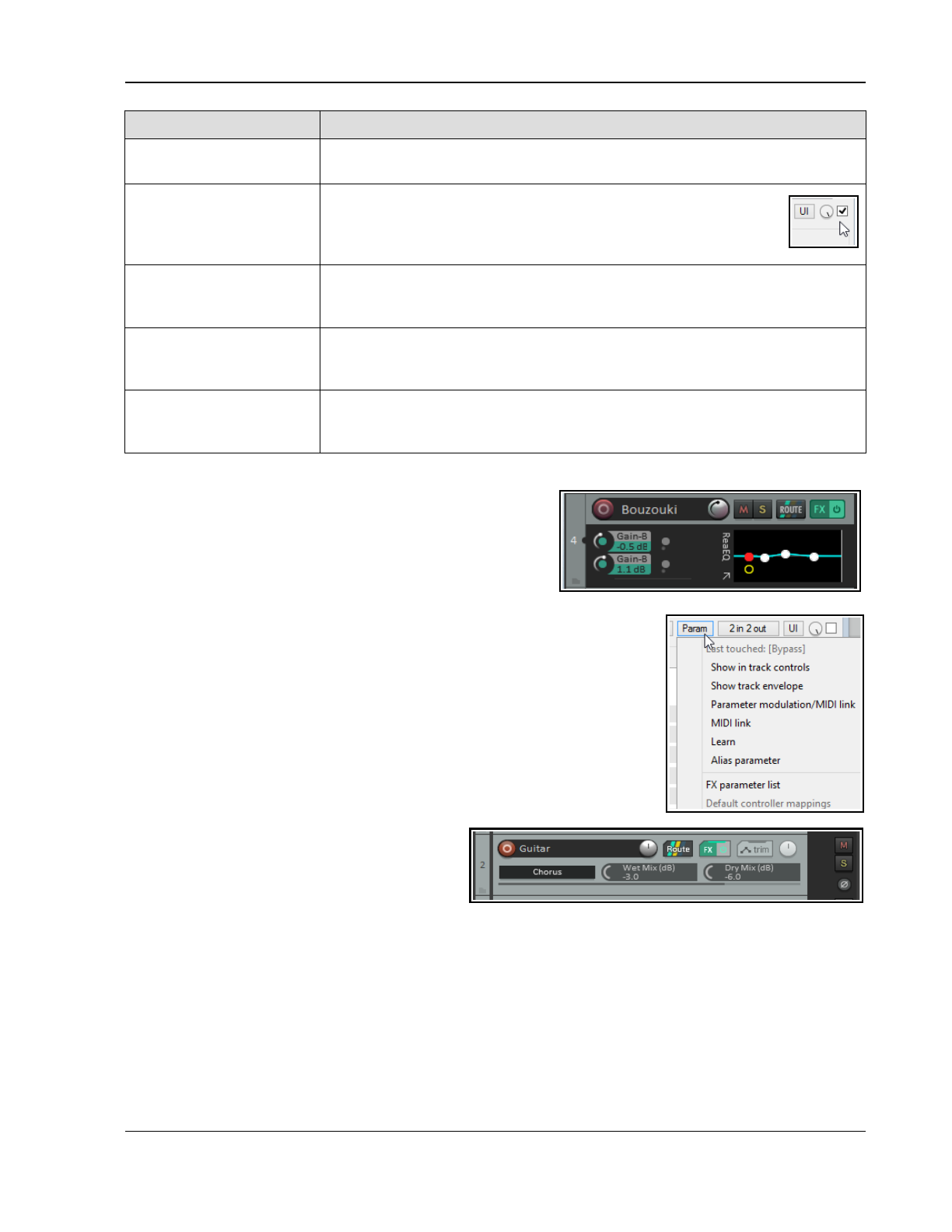
Managing Track and Item FX
In order to do this … You need to do this ...
Restore original FX
default settings
Click on down arrow (next to + button) to display preset list. Choose Reset to
factory default. Click on +, choose Save preset as default.
FX Wet/Dry mix and FX
bypass
The rotary Wet/Dry mix button (to the right of the UI button)
controls how much of the wet signal (i.e. with FX) is mixed in with
the dry (i.e. pre FX) signal. The default is 100% wet. The checkbox
to its immediate right can be used to bypass the FX altogether.
Force auto-bypass on
silence
Right click on plug-in name (left column) and select this option from menu. This,
for example, can be used to prevent a reverb tail during a silent passage. The
silence threshold is defined in advanced project settings.
Back up FX chains and
presets
These can be backed up and restored using the export/import configuration
buttons in REAPER's Preferences (General settings). See Chapter 22 for more
information about importing and exporting configuration setting
Other FX Options The FX window menu includes several advanced options dealing with PDC mode,
oversampling, and more. These are discussed at the end of the REAPER Plug-
ins in Action chapter.
6.6 Controlling FX from the TCP
Rea plugins with their controls can be displayed in the TCP.
Right-click over the FX name in the FX chain panel and choose
Show embedded UI in TCP. The FX will be displayed as
shown here, with a number of slots to its left.
Right click over any slot, select the FX from the menu, then the
control to be displayed. This is illustrated on the right.
6.7 Managing FX Parameters
Click on the Param button then FX parameter list in any FX window for a
range of FX parameter management option, or click on any parameter control
in the FX window then on the Param button to open a menu (right).
Show in track controls. This adds a control knob for any parameter to both
the Track Control Panel (TCP) and the Mixer Control Panel (MCP).
Alternately, choose this command without first touching any control to display a
list of parameters for this particular FX. An example (using two parameters
from JS Chorus) is shown here (below right). To remove any of these controls,
right-click over the control and choose Remove from list from the menu.
Show track envelope. Automation envelopes can be added for any FX
parameters. These can be displayed in their own
lanes. See Chapter 18.
Parameter Modulation. This is an advanced
topic. Parameter modulation allows you to define
a relationship between two parameters so that
one is controlled by the other. For example, you might want a threshold's ratio to automatically increase as the
threshold is lowered. This topic is explained in Chapter 19.
MIDI link. This lets you map track MIDI (not control MIDI) to the parameter. Thus, for example, you could use
recorded MIDI CC as automation. This is explained in the chapter dealing with Parameter Modulation.
Learn. If using an external MIDI control device you can assign FX parameters to controls (such as knobs or
faders) on that external device. This topic is covered in detail in Chapters 12 and 19.
Alias parameter. This allows you to change for the single instance the name of a parameter.
FX parameter list. This can be used to assign track controls, a track envelope, parameter modulation, MIDI
link, Learn or an Alias name directly from the menu to any of the FX’s parameters.
115
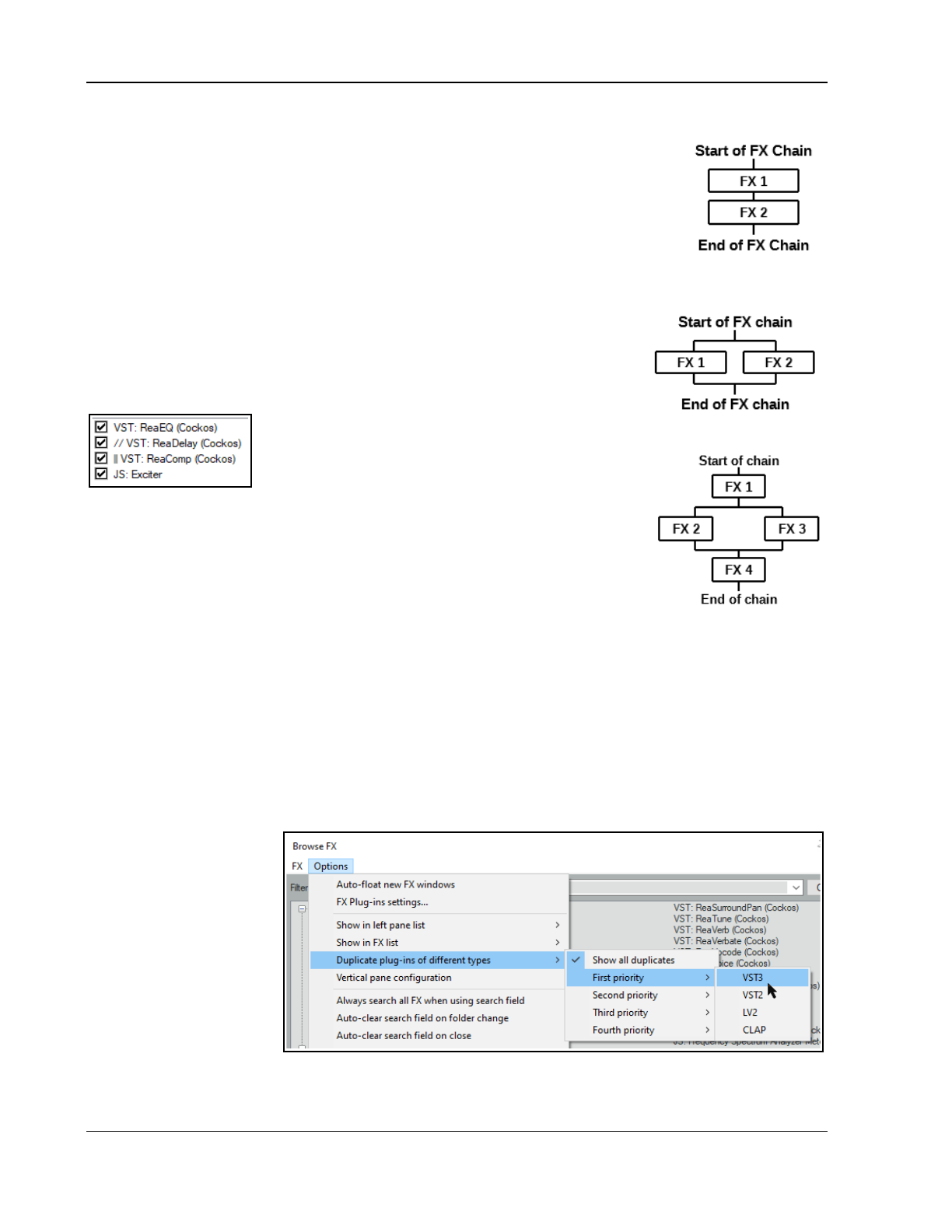
Up and Running: A REAPER User Guide v 7.81
6.8 Serial vs Parallel FX Chains
By default, the plugins in a track or item FX chain are processed in serial – that is, one
after each other. For example, if you insert both ReaEq and then ReaComp into an FX
chain, the audio is passed first through the EQ. With EQ added, it is then passed though
the compressor. This concept is illustrated on the right. This is how most often you are
likely to want to have your FX processed.
However, there may be instances when rather than processing effects in serial you wish
to process them in parallel. That is, you wish to process two or more effects (in this
example, EQ and compression) each independently of the other, with the separately EQ’d and compressed audio
then mixed back together. Using this method, you can avoid applying the compressor to the EQ’d signal.
This concept is illustrated in the second diagram on the right.
The steps required to run two effects in parallel are simple:
Insert both of the FX into the track or item’s FX chain.
Right click over the second of these FX and from the context menu choose
Run selected FX in parallel with previous FX.
This is illustrated in the chain shown on the left. The
two sets of lines indicate that after passing through ReaEQ the audio stream will be
processed by ReaComp in parallel with ReaDelay before
being passed on through the JS Exciter.
This technique can be used in any number of cases to
explore creative effects. For example, you could use it to apply reverb and
compression independently of each other to an instrument, or two separate
instances of compression to a vocal.
Parallel FX processing can also occur within more complex models. Consider the
third illustration shown on the right.
Here we have four FX in a chain: the audio is first processed through FX1, then FX 2
and FX 3 (and only FX 2 and FX 3) are processed in parallel. To achieve this, FX 3 (and only FX 3) needs to be
set to run in parallel to its immediately previous FX. Finally, the signals for FX2 and FX3 are merged and passed
through FX 4.
More complex models are available: more examples, including FX containers, are considered in Chapter 17.
Note: If MIDI items are being processed through midi FX in parallel which filter their own events you should
instead use the command option Run selected FX in parallel with previous FX (merge MIDI). This should
prevent MIDI data from being excluded.
6.9 Duplicate Plug-in Priorities
REAPER supports plug-ins of different types – on the PC, for example, VST2, VST3, CLAP and LV2 are supported.
In the FX browser window, you can specify your order of priorities for identical plug-ins of different types.
From the FX Browser
window, choose Options,
Duplicate plug-ins of
different types, then
whether or not to Show all
duplicates
You can also specify when
such duplicates of different
types are found which is to
be first, second, third and
fourth priorities.
This can be especially
useful, for example, if you
regularly use both VST2
and VST3 plug-ins.
116
Managing Track and Item FX
6.10 Advanced Plug-in Defaults
There are a number of options available in the Add FX browser which you can use to define default settings for
individual plug-ins. These will automatically be applied to that plug-in instance whenever it is added to a track or
media item.
Most of these deal with advanced technical matters: if you a relative newcomer to digital audio, you might wish
to skip over this section.
You can access these by right-clicking over any plug-in name in the FX browser list.
Right-click on any FX in the FX browser for a menu of options. Most of these are explained in the section Track
FX Basics. In addition, the following options allow you to set individual plug-in defaults.
Menu Item Submenu options
Run as The default setting is Automatic, but you can change this to any of Separate
process, Dedicated process, Native only (prevent bridging. There is also
an option to Embed the bridged UI.
For more information, see Bridging and VST Plug-in Run Mode.
Compatibility settings This is especially useful for plug-ins that might have known or suspected
compatibility issues. You can enable or
Options available are Save minimal undo state, Avoid loading undo states
where possible, Inform plug-in when track channel count changes, Hard
reset on playback start, Hard reset on playback start, Save state as VST
bank, Buggy plug-in compatibility mode, HiDPI compatibility mode
when floating windows.
There is also a further sub-menu to manage Automation notifications. Options
are Defaults (set in preferences), Ignore when plug-in window not open,
Ignore when not from UI thread, Ignore all notifications, Process all
notifications.
For more information about some of these options, see the section VST and VST3
FX Compatibility Settings.
Default settings for new
instances
Any of these options can be enabled if you wish them to be automatically applied
whenever the particular FX is added to a track or item:
Send all keyboard input to plug-in, Show embedded UI in TCP or MCP (if
supported), as well as a sub-menu of options for FX instance oversampling.
Options are Up to 88.2k/96k, Up to 176.4k/192k, 352.8k/384k, or Up to
705.6k/768k.
The section FX Chain and FX Chain Options
explains oversampling.
6.11 Advanced Floated FX Window Options
The essentials of floating individual FX windows have been covered in Chapter 2: see Controlling Track FX. In
addition, a number of more advanced options are available from a context menu (right-click on the title bar).
Menu Item Submenu options
Embed UI in TCP or MCP Where appropriate, these options will be enabled. See the section Embedding FX
GUI in TCP or MCP.
Send all keyboard input
to plug-in
Enabling this will ensure that keystrokes such as up and down arrows will be
applied within the FX window rather than arrange view.
Chain/FX instance
oversampling
This allows oversampling to be applied just to the individual FX instance, or to the
track or item FX chain. Options are the same as in the table immediately above
this one.
117
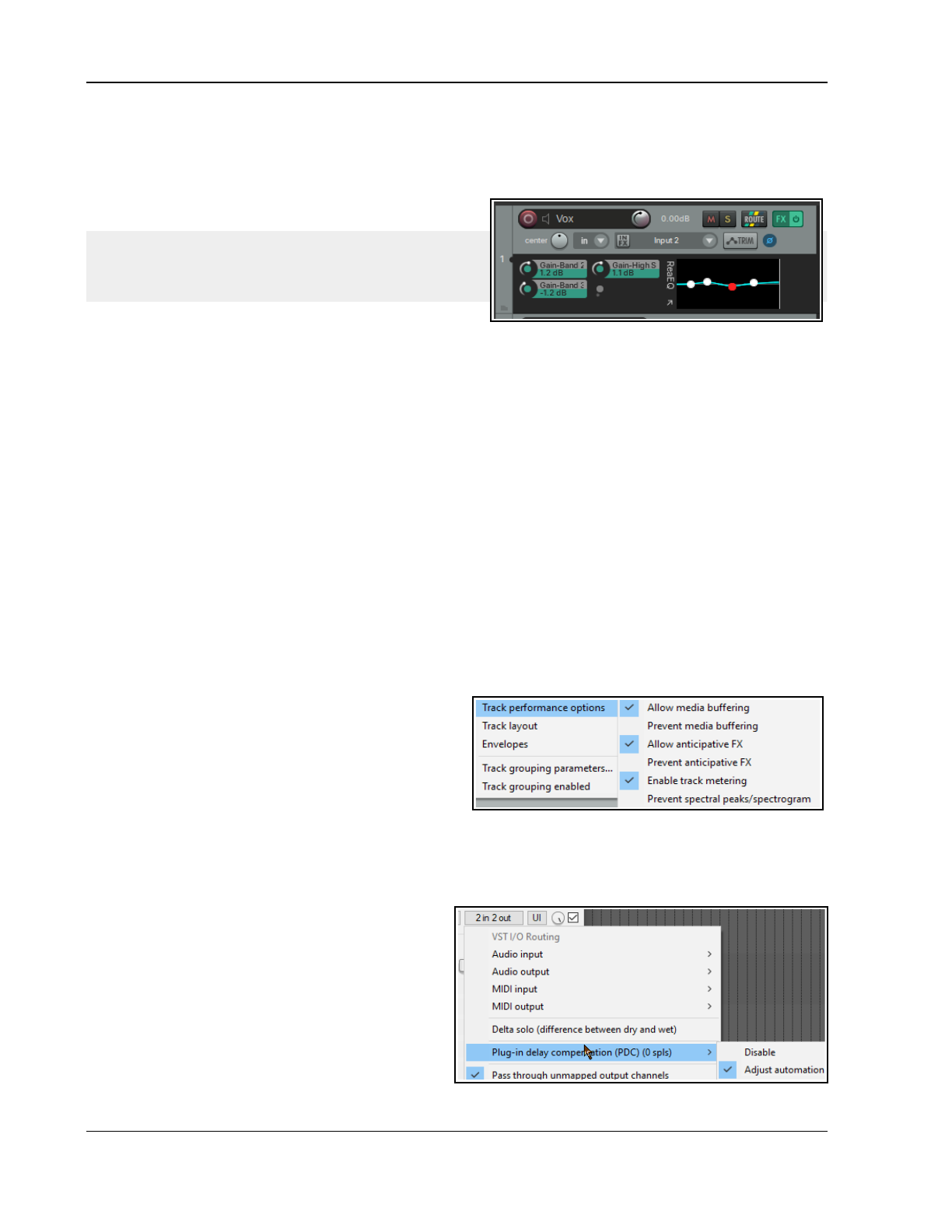
Up and Running: A REAPER User Guide v 7.81
6.12 Embedding FX GUI in TCP or MCP
You can embed the GUI of some FX (e.g. ReaEQ, ReaComp, ReaXComp, ReaSurround and ReaFir, and some JS
plugins) in the TCP/MCP, including graphical waveshapers, the spectrograph and the goniometer.
Right-click on the FX in a track’s FX chain and choose Show embedded UI in TCP or MCP. For example, you
could adjust visible ReaEQ parameters within the TCP and/
or add parameter controls, as shown here.
Tip: An FX embedded in a track’s UI can be saved as a FX
chain (from the FX window menu). Inserting that chain into
any other track will cause the FX to be automatically
embedded in that track’s UI.
6.13 Hardware Output FX Monitoring
To open the FX: Monitoring window use the View, Monitoring FX command from the main menu, or hold
Shift while clicking the FX button of the Master track. You can specify any FX for your hardware outputs. These
do not show up in renders, do not affect the metronome and are not stored in the project file. You can use this
to run analysis FX, or to compensate for the acoustic characteristics of a particular room. Within the
FX:Monitoring window, click on the Param button then Learn to assign control to an external control device.
6.14 Optimizing FX Performance
Some plug-ins can be quite greedy in their use of CPU, especially delay based FX, such as delay, chorus, and
especially reverb. REAPER provides a number of options which you can use to minimize the drain placed on your
computer resources by your plug-ins. These options can be found in the REAPER Preferences window (Ctrl P)
under the heading Audio, Buffering. This window is shown and discussed further in Chapter 22.
There is no “one size fits all” optimal group of settings. What is best for you depends on various factors,
including which processor(s) you are using and which plug-ins. Note in particular the following:
You can try using the default settings for Media Buffering at first. You can adjust them later if needs be.
Allow live FX multiprocessing. Try turning this on if your PC has multiprocessors.
Anticipative FX processing. This can reduce CPU usage, but too aggressive a setting can cause pops and
crackles on playback. If working with UAD-1,for best results, both Synchronous FX and UAD-1 Synchronous
modes should be enabled. Anticipative FX should be disabled. UAD-2, however, is compatible with
Anticipative FX mode and this is recommended for best low latency performance..
Optimize buffering for low latency hardware.
If a plug-in has problems with media buffering or
anticipative FX processing, you can disable either or both
for individual tracks using the Track Performance
Options on the TCP right-click menu. Options include
enable/disable media buffering, anticipative FX, track
metering, and/or display of spectral peaks.
6.15 Plug-in Delay Compensation
By default, REAPER uses plug-in delay compensation (PDC) to ensure that the audio from your tracks remains
time aligned. This, for example, is likely to be needed when one or more FX chains includes a plug-in such as
reverb.
In most circumstances it would be unwise to alter REAPER’s default PDC settings
.
Nevertheless the FX chain FX menu allows you to
manage Chain PDC mode for an item or track by
setting it to Per chain compensation, Per FX
compensation or to Ignore plug-in delay.
For the master track, there is also an option to select
Hardware output compensation. This ignores the
PDC for the master track, and a) compensates for
that amount of delay when recording as if it was
interface latency, and b) delays any other hardware
outputs (from tracks, etc) by that amount so that
they are in sync .
118
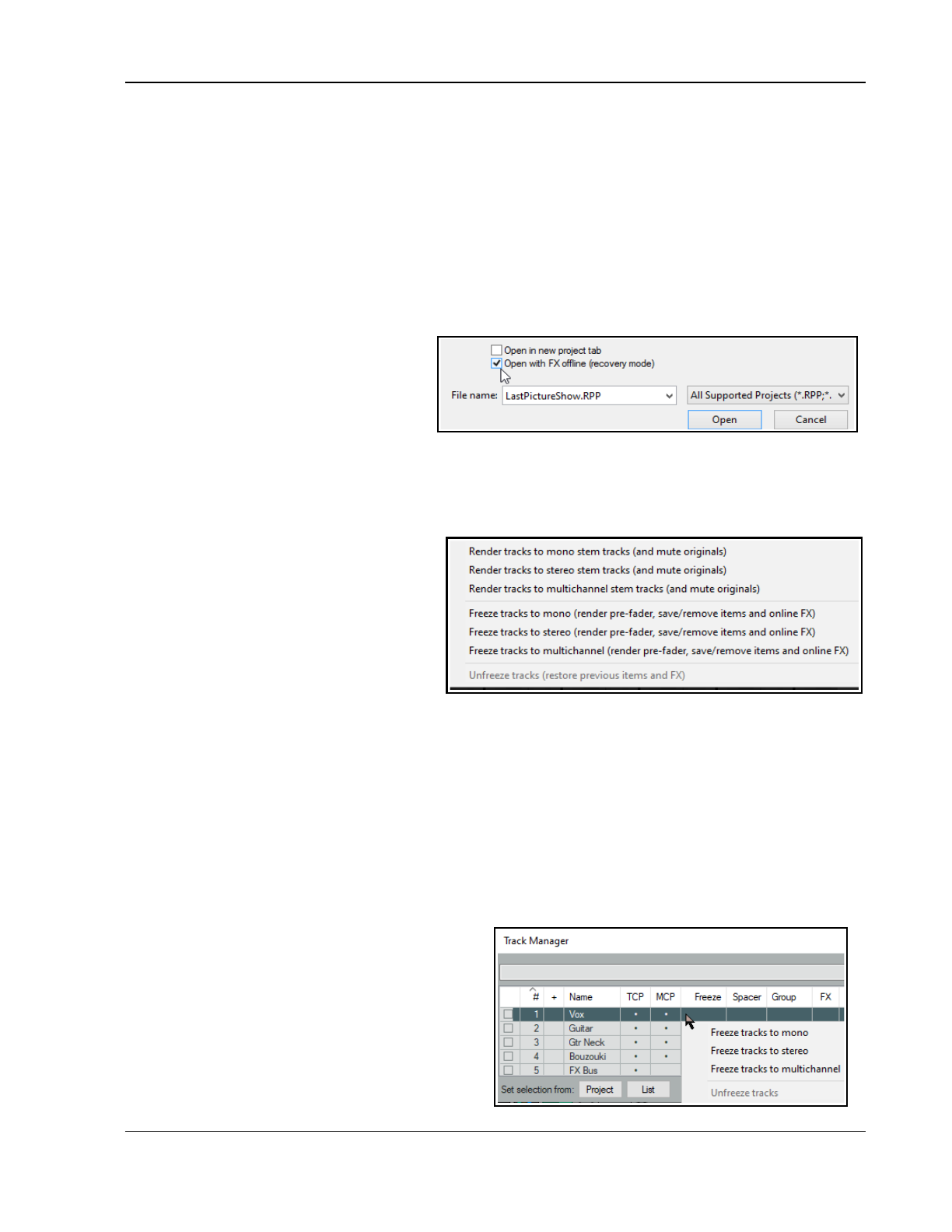
Managing Track and Item FX
The performance improvement will be more significant at smaller blocksizes, and more significant with more
delay to be compensated (without any master-track PDC, then it would have no effect).
An option to add or disable PDC is also available from the
x
in/
x
out button context menu of individual plug-ins.
Adjustments can compensate for any latency caused by a plug-in. The latency for any track is displayed in the
bottom left corner of its FX chain window. The track media is read in advance, so as to be heard at the correct
time, but input monitoring is delayed.
If you find that PDC is creating problems (for examples, dropouts or excessive latency) then it can be disabled
for any plug-in from the pin connector button (shown above labelled “2 in+ out”) context menu. Note too that
PDC is disabled when feedback routing is employed.
6.16 Opening a File in Recovery Mode
Any computer program will crash given the right (or wrong?) circumstances. This can be because of a problem
with some third party plug-in. If this
happens, you should enable the option to
Open with FX offline (recovery mode)
when re-opening the file from the File,
Open project dialog box (see right).
This will open the file with all FX set offline.
By reintroducing them online one at a time, you should be able to identify which one is causing the problem. To
then fix the problem you should remove this plug-in and replace it with another of equivalent functionality.
Another method is to hold down Alt while you open a file from the File, Recent projects menu.
6.17 Freezing and Unfreezing Tracks
The Freeze tracks actions (from the track
panel right click menu Render/freeze tracks
command) freeze any track in place, replacing
its contents with a single rendered audio item.
The first action (right) produces a mono audio
item for each track frozen, the second stereo
and the third multichannel (according to the
number of track channels). If multiple tracks
are selected, each will be rendered separately.
On line FX are applied to the rendered item, as
is the content of any signals sent to the rendered channels from other tracks. MIDI data or items will be
rendered as audio. On line FX and receives are removed from the track. A MIDI item with no synth will be
rendered as silence. Where a synth is present, it is the output of the synth that will be rendered.
With frozen tracks, Unfreeze tracks will appear on the menu: this will restore the track to its state at the point
in time that it was frozen. Both the FX chain and any receives will be restored. Other points to note are:
● A track can have further FX and receives added to it after it has been frozen. In this case, if you then
freeze the track again, these FX (along with audio and or MIDI material from the new receives) will be
rendered together with the existing frozen material to another new audio item.
● Each unfreeze action will remove the previous freeze on that track and restore it to its state at the time of
that freeze action. Thus, if a track has been frozen, had more effects added and been frozen again, then
you will need to unfreeze it twice if you wish to restore it its state immediately before first being frozen.
Using the Track Manager
Freezing can also be handled using the Track Manager
(View menu). Select any track(s) from the list then
click on the Freeze button to select an option (mono,
stereo or multichannel). The number of times any
track has been frozen will be shown in the Freeze
column. An Unfreeze command will be available on
the Freeze menu when that menu is displayed with a
frozen track selected. This will include an option to
display the freeze details for that track.
119
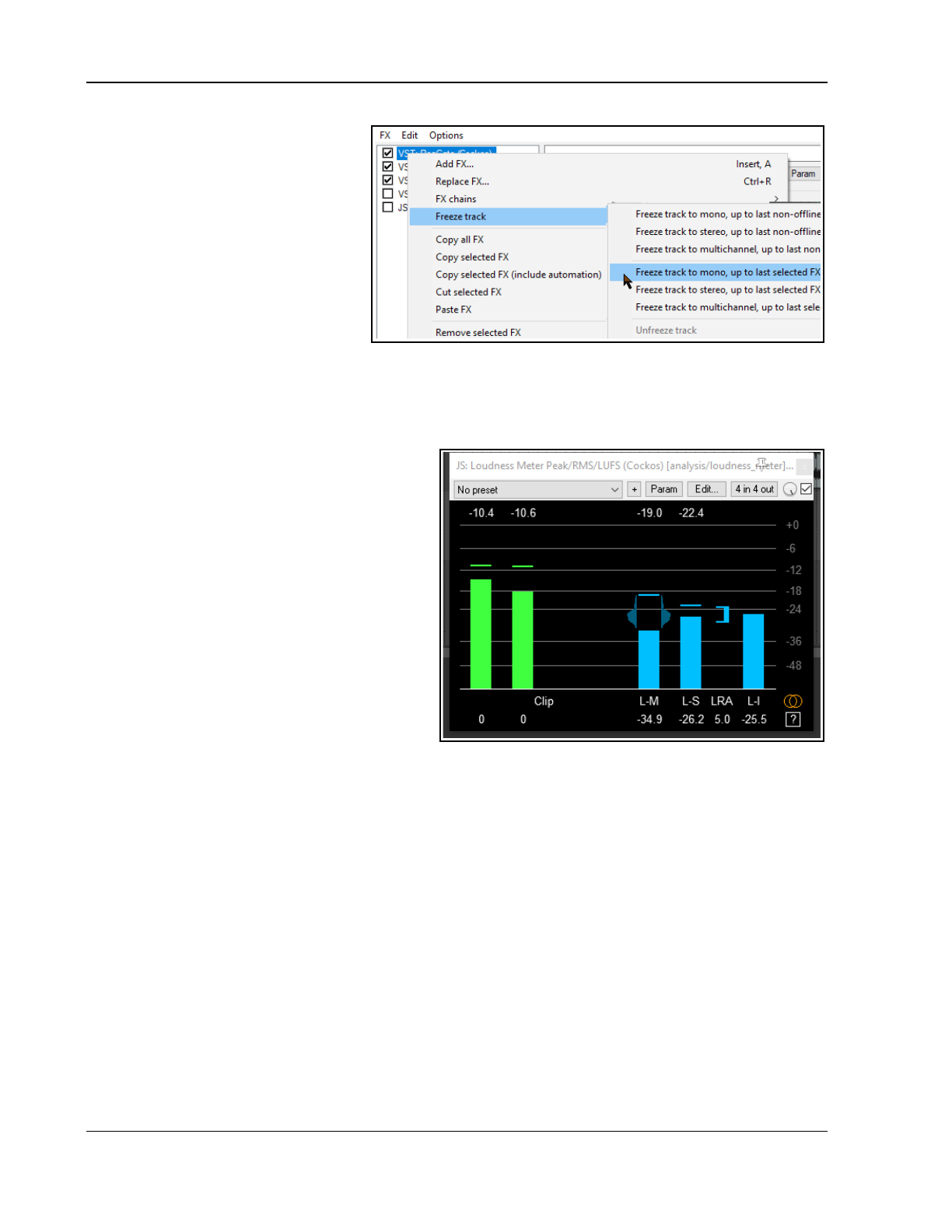
Up and Running: A REAPER User Guide v 7.81
Selected FX Freeze
Other FX chain right click menu options
are to freeze a track up to its last on-line
or selected FX, as you wish - see right. In
this case, only the first three FX have
been selected. The action Freeze track
to stereo, up to last selected FX will
cause these three FX to be frozen on to
the track. These FX will be removed from
the track's FX chain. The other effects
will not be rendered to the new audio
item. If this track is later unfrozen, the
removed FX will be restored.
One useful action (accessible from REAPER's Action List window) is View: Show track freeze details. This can
be used to display freeze history and details for any frozen track. Chapter 15 explains in detail more about
actions and about how you can assign them to toolbars or to your own shortcut keys.
6.18 The JS Analysis Loudness Meter
Elsewhere in this guide you will be introduced to
various JS plug-ins. One worth looking at now is
the Loudness Meter. This can display visual
feedback about LUFS (loudness unit full scale),
RMS (root mean squared) and True Peak loudness.
Insert it into any track or master just as you would
any other plug in.
Peak: Highest actual level of the audio signal..
True peak: Highest level of the oversampled
signal. Intended to estimate the highest level the
signal could reach after resampling to any sample
rate.
LUFS: The loudness of the digital signal, after
applying filters intended to adjust for how humans
perceive different frequencies.
LUFS-M: Momentary loudness measured over a
400ms window.
LUFS-S: Short-term loudness measured over a 3 second window.
LUFS-I: Integrated loudness of the entire audio signal, beginning to end.
LRA: Loudness range, the dynamic range of the entire audio signal, measured as the statistical difference
between the lowest and highest LUFS-S measurements.
Click on the settings (question mark) symbol (bottom right) to toggle display of options/controls, including what
data to display and y-axis scaling and text size. See also Chapter 11. The various parameters can also be
automated (see Chapter 18). There is also an option for output loudness values as automation to be inverted.
The small orange symbol above the ? can be used to toggle between stereo (default) and mono analysis.
If you’re unsure as to what to display, leave the settings at their defaults.
The Actions List (see Chapter 15) includes several actions to calculate and display the loudness of the master
mix, selected tracks, and/or selected items, according to various criteria. Use the search filter calculate.
6.19 VST and VST3 FX Compatibility Settings
Various compatibility settings are available for VST FX plug-ins. These are available by clicking on the + button
in the plug-in’s window (immediately left of the Param) button and choosing Compatibility settings at the
foot of the menu that is displayed.
For example, you can Save minimal undo states if you wish, and/or Avoid loading undo states where
possible. Other options include Inform plug-in when track channel count changes, Hard reset on
playback, Save state as VST bank and Buggy plug-in compatibility mode.
120
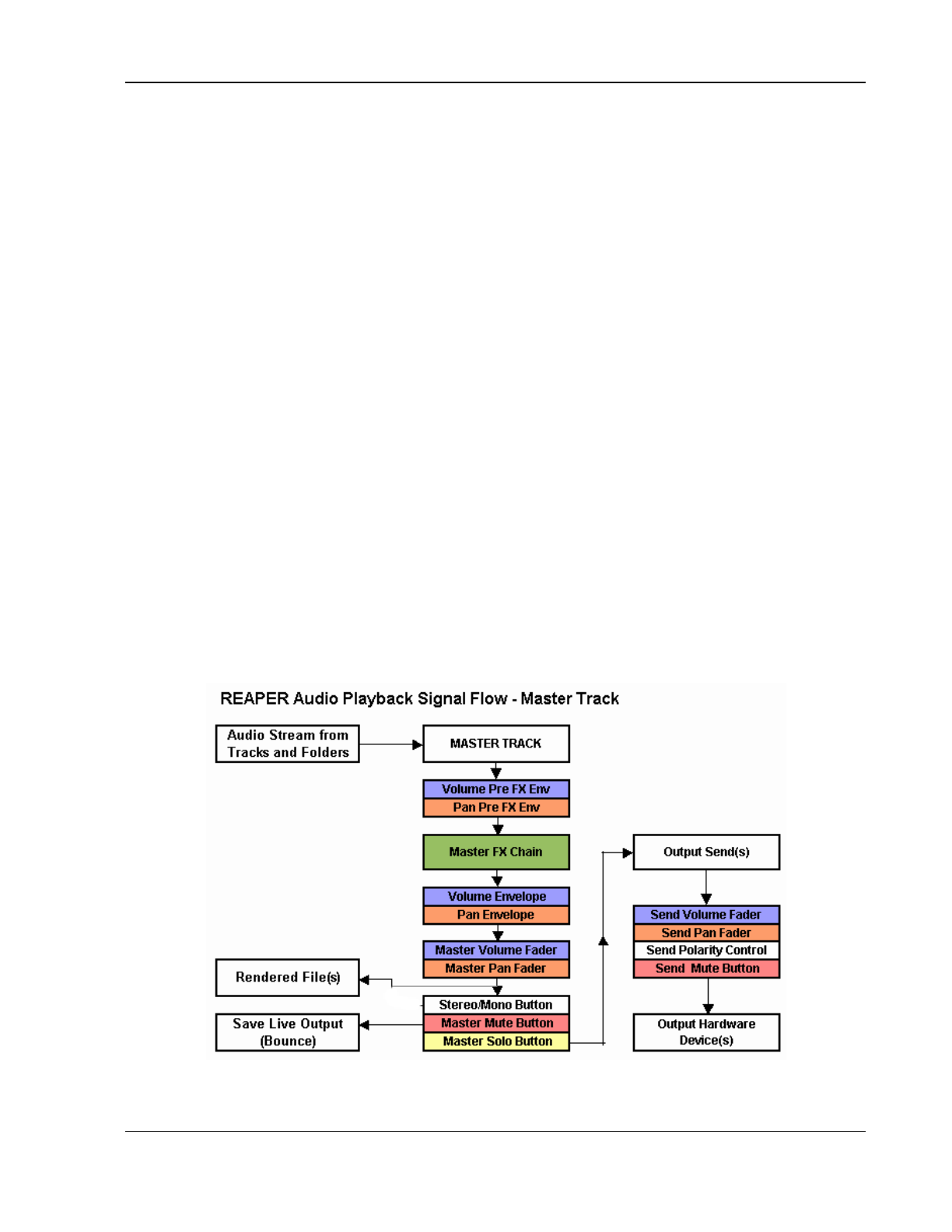
Managing Track and Item FX
The Automation notification options let you over ride various VST preferences settings for specific plug-ins.
For VST3 plug-ins, if using sidechaining you may need to Request VST3 bus channel count to inform the
plugin how to interpret the channels REAPER is sending This is because REAPER does not have dedicated
sidechain buses. This command is available on the plug-in’s right-click In/Out menu, next to the Param button.
6.20 Missing Items
If since saving a project file you have deleted from your hard drive, or moved, any VST or other FX used in that
project, then when you next open that project REAPER will give you a message about missing items. You can still
load the project file, the FX will still be listed in the track FX chain but it will not be available. You can remove the
FX from the chain and replace it with another, or reinstall the missing FX on your computer and then insert it.
6.21 Installing Extra JS Plug-ins
More free JS plug-ins are available at stash.reaper.fm/tag/JS-Effects. To install any of these:
1. Download the effect. If the JS effect file has a .txt extension, edit the file name to remove this.
2. Copy the effect to your REAPER Application Data Effects folder. To find this choose the command
Options, Show REAPER resource path … You can place it in a sub-folder within the Effects folder.
3. Close and restart REAPER.
Some JS FX come with other files (such as data files or image files). As a rule, data files are placed in a sub-
folder in the Application Data Data folder, and other files are placed relative to the JS FX file. In most cases
where this is necessary, the JS effect developer will supply specific instructions with the effect.
6.22 ReaEffects User Guide Supplement
You will find many examples in this User Guide of the use of various COCKOS effects, especially in Chapter 16. In
addition, a free PDF ReaEffects Summary guide can be downloaded from this case sensitive URL:
https://dlz.reaper.fm/userguide/REAPEREffectsGuide2021.pdf
6.23 Audio Signal Flow Chart: Master Track
This diagram illustrates how audio signals flow thru REAPER's tracks to the master and to your output devices.
Some of the items shown in these charts (e.g. Item/Take settings) have not yet been discussed in this User
Guide. They will be covered throughout Chapter 7. This first diagram illustrates specifically the audio flow for the
Master Track.
121
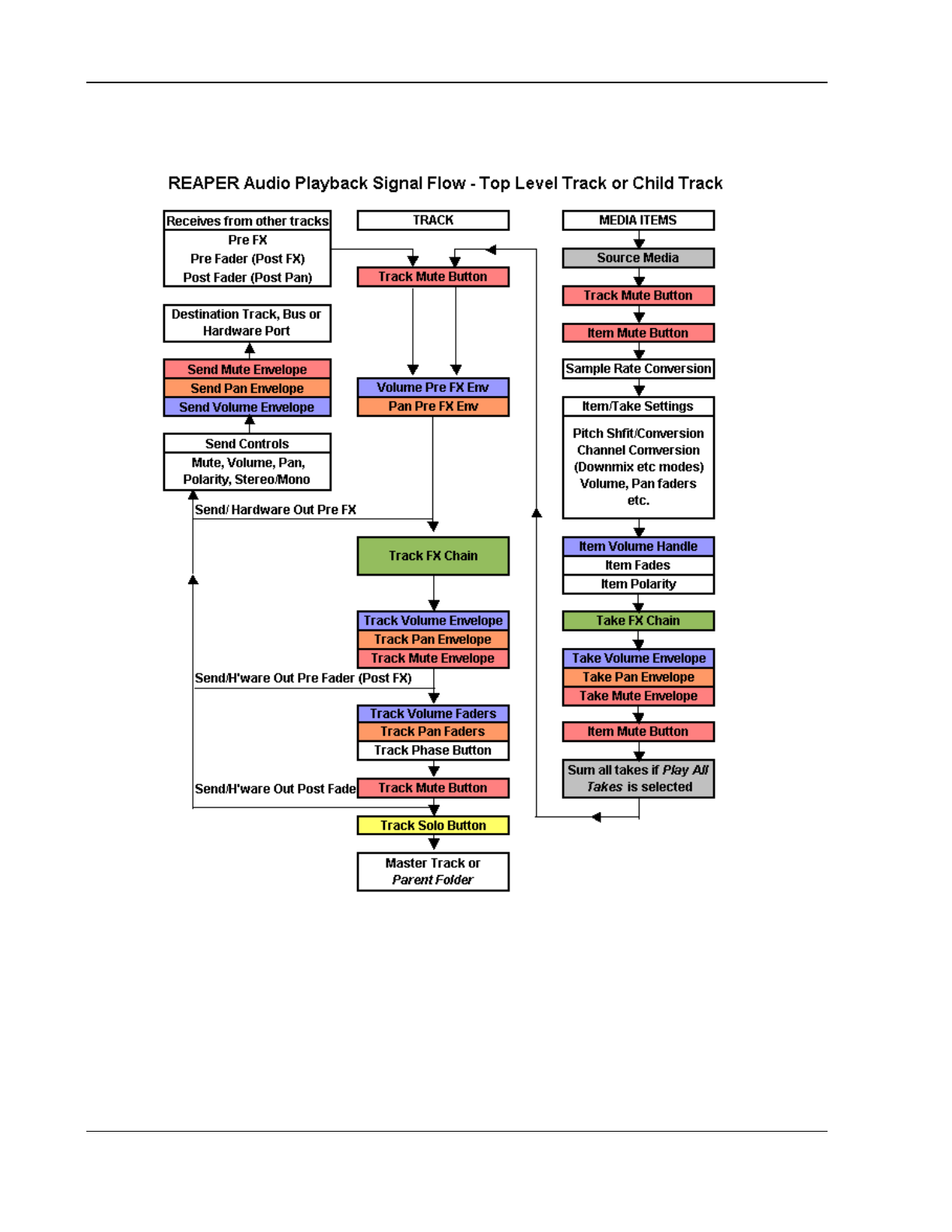
Up and Running: A REAPER User Guide v 7.81
6.24 Audio Signal Flow Chart: Tracks and Folders
This diagram illustrates specifically the audio flow for tracks and folders.
Notes:
1. The Trim Volume envelope (not shown) comes after the Track Volume envelope and before the
Send/Hardware Out Pre Fader (Post FX).
2. The track mute button is shown more than once (near the beginning and near the end of the chain). This is
because it does not only mute at the beginning (so that for example, all media items are effectively muted), it
also mutes at the end (so that, for example, a synth in the track FX chain that is fed MIDI data via a receive
from another track is also muted).
3. If track mute and track solo buttons are both enabled, then solo overrides the mute.
4. If the Master is soloed, direct outputs to hardware from tracks/folders will not be processed.
122
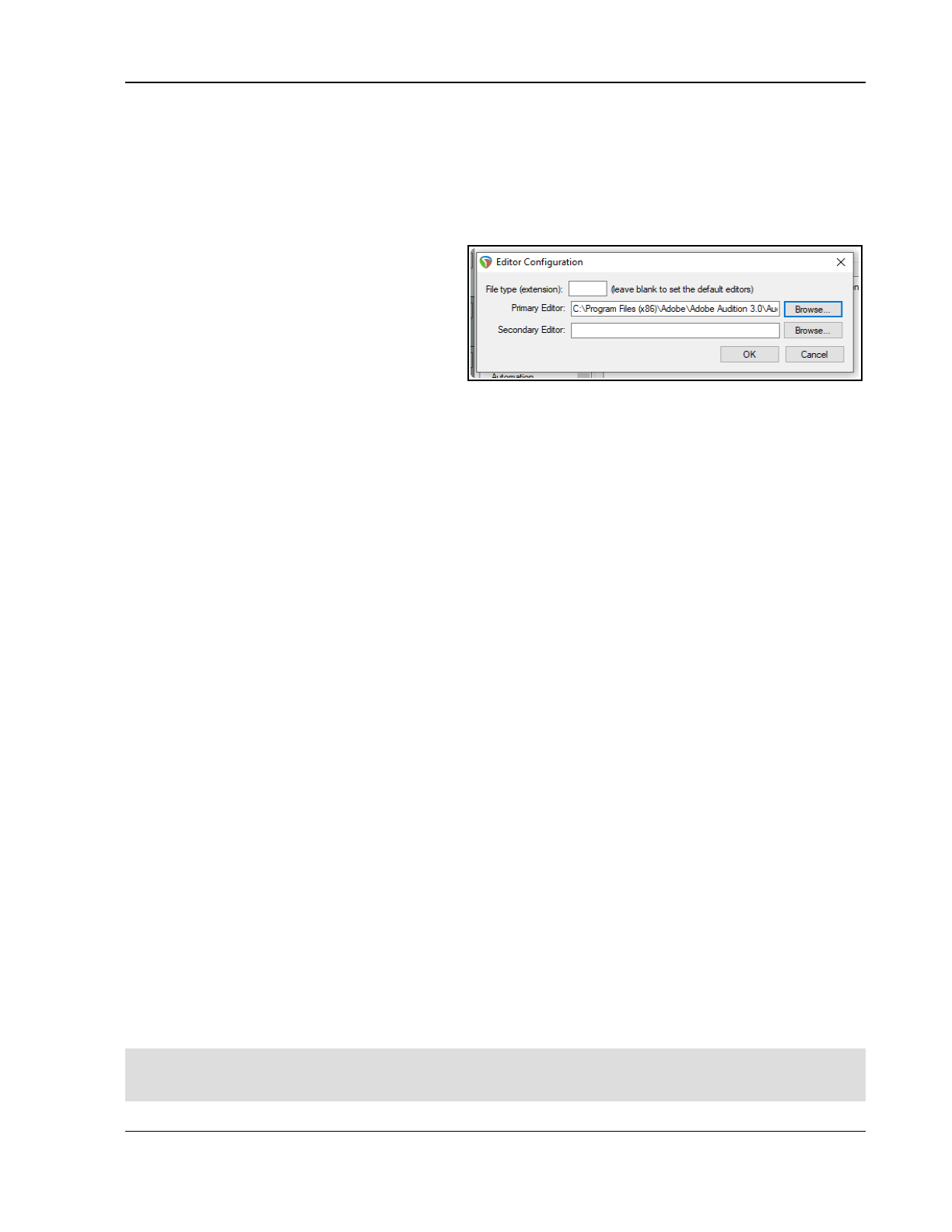
Managing and Editing Media Items
7 Managing and Editing Media Items
7.1 Using an External Editor
REAPER’s native media item editing features are likely to be more than capable of meeting your needs. However,
if you prefer to use a different application for editing you can specify up to two external programs (such as
Adobe Audition, Audacity, Wavosaur or Sound Forge) for this purpose. To do this:
1. Choose the Options, Preferences command, then from the left column External Editors.
2. Click on the Add button.
3. Use the Browse buttons (see right) to
identify and select your preferred editor(s).
4. Click on OK, then OK to close the 4window.
Notice that you can specify different editors for
different file types, e.g. WAV, or MP3.
To use your external wave editor:
There are two main ways you can access your
preferred external editing program from within REAPER:
Select the media item and press Ctrl Alt E.
Right click over the media item. From the menu, choose either Open Items in editor then, from the sub-
menu, select either the option to open the item itself or to open a copy of the item.
Unlike versions of REAPER earlier than 4.0, by default double-clicking on an audio media item will no longer open
it with your primary editor. This behavior can be changed thru the Preferences, Editing Behavior, Mouse
Modifiers page if you wish. Select the context Media item, double-click and change the behavior as you
wish. This topic is covered in Chapter 15. If the external editor works destructively on your files then the safer
option is to open a copy. This copy will then be inserted into your track when you save it, close the editor and
return to REAPER. But first, take a look at some of REAPER’s item editing capabilities …
7.2 Editing Media Items in REAPER
This topic is a big one! REAPER features a comprehensive range of editing techniques for use with your media
items and more. These techniques include (but are not limited to):
● Basic editing of media items.
● Time selection and item editing.
● Razor selection and razor editing.
● Spectral editing (covered at the end of this chapter).
Before exploring these, there are some basic concepts which you will need to understand about how REAPER’
behaves when editing items: we can then go on to learn the different editing techniques. For example:
● All editing in REAPER is non-destructive. Edits made to items are unique to the in project item and do not
in any way modify the source file. You can experiment knowing that your original recorded files are safe.
● Item editing in REAPER basically consists of selecting an item, or a portion of an item (range), then doing
something to it – such as splitting it, deleting it, copying it or moving it.
● REAPER offers you two basic ways of editing media items – Simple editing, using shortcut key
combinations only, and smart editing, using your mouse in conjunction with various modifier keys (Alt/Opt,
Ctrl/Cmd, etc). Some functions are common to both methods, but, as a general rule, smart editing offers
more sophisticated options than does simple editing. This chapter will explore and explain both methods.
● Razor editing offers a greater range of options and flexibility than do the other methods.
● Sometimes a number of steps might be required to achieve an editing task. If so, you can assign a single
keyboard shortcut to the entire sequence. Just how to do this is covered in Chapter 15.
● To a large extent, you can customize REAPER’s editing behavior thru the editing settings and mouse
modifiers within your Options, Preferences window. We'll get to this later in this section.
Remember that when editing you have available both the Edit, Undo command and the Undo History window
(covered in Chapter 2). This Undo History window can be used to restore a project file to any earlier state.
Important note: automation envelopes: Automation envelopes are covered in detail in Chapter 18. For now
note that the option Move envelope points with media items (toggled on/off by clicking on the toolbar
envelope tool) will determine whether envelopes and their points are moved/copied with their media items.
123
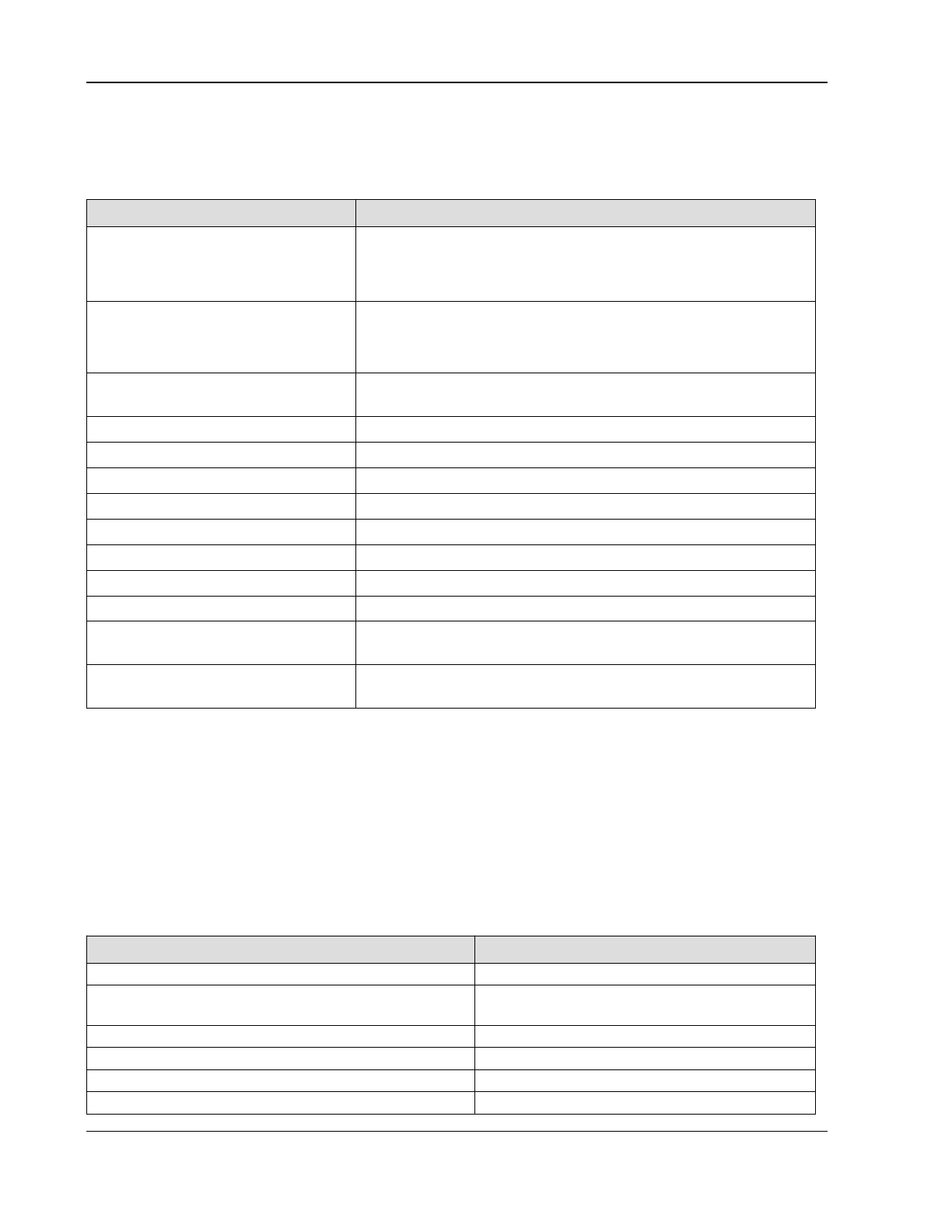
Up and Running: A REAPER User Guide v 7.81
7.2.1 Basic Editing: Media Items
Some, but not all, of REAPER’s basic item editing tasks use familiar standard Windows procedures. These are
mainly suited to simple tasks, such as moving or splitting media items, or joining items together. Shown below
is a summary table. Remember, for Mac OS2 users, equivalent booster keys are Cmd for Ctrl and Opt for Alt.
To do this … You need to do this …
Select media items
To select a single item, Left click. To add more items to the
selection, Ctrl left click.
To select a range of adjacent items, Left click on first item in
range, Shift left click on last.
Split item(s) at edit cursor
position
To split all items, make sure no item is selected, press S.
To split one selected item or a selection of items, press S.
Item FX will be applied to both items unless Media Preferences
option Duplicate take FX when splitting items is disabled.
Split item (s) at prior zero
crossing
Select item(s) at the approximate point in time that you want to
split. Press Alt Z.
To join split items together (heal) Select items. Choose Heal splits in items from the context menu.
To join selection of items (glue) Choose Glue from the context menu (renders to new file).
To move item(s) with contents Select item(s). Use Num Pad 4 (left), 6 (right), 2 (down), 8 (up).
To slide contents within item Select item(s). Use Num Pad 1 (left), 3 (right).
To move item but not contents Select item(s). Use Num Pad 7 (left), 0 (right).
To delete selected item(s) Press Delete or chose Remove items from context menu
To cut/paste selected item(s) Press Ctrl X. Re-position edit cursor, press Ctrl V.
To copy/paste selected item(s) Press Ctrl C. Re-position edit cursor, press Ctrl V.
To cut that part of selected
item(s) defined by time selection
Press Ctrl Shift X or choose Cut selected area of items from
context menu. Re-position edit cursor, press Ctrl V.
To copy that part of selected
item(s) defined by time selection
Press Ctrl Shift C or choose Copy selected area of items from
context menu. Re-position edit cursor, press Ctrl V.
Vertically stacking overlapping items
You might wish to crossfade overlapping media items. This can be done manually, or automatically, by enabling
the Auto Crossfade tool on the toolbar. Crossfade behavior can also be managed using the Crossfade Editor
which will be examined later in this chapter. You can Offset overlapping items vertically (Options menu).
7.2.2 REAPER's Smart Editing
REAPER's smart editing lets you do some more complex editing tasks quickly and easily. In this section, we will
look at smart editing techniques for moving, copying and deleting media items, selections of media items and
parts of media items. To use them, make sure that the option Loop Points Linked to Time Selection is
disabled. The tables below describe default behaviors: MacOS users should use Opt for Alt and Cmd for Ctrl.
Smart Editing with Media Item Selections
To do this with an item or selection of items … You need to do this …
Select a single item Click on the item.
Select several items or part of several items Make any time selection. Right drag to marquee
items, or Ctrl click for non-adjacent items.
Delete selected item or items Select item(s), press Delete.
Delete part of selected item or items Select item, make time selection. Press Ctrl Del.
Move item/items, ignore any time selection Select items and drag.
Move item/items, ignore snap and time selection Select items and Shift drag.
124
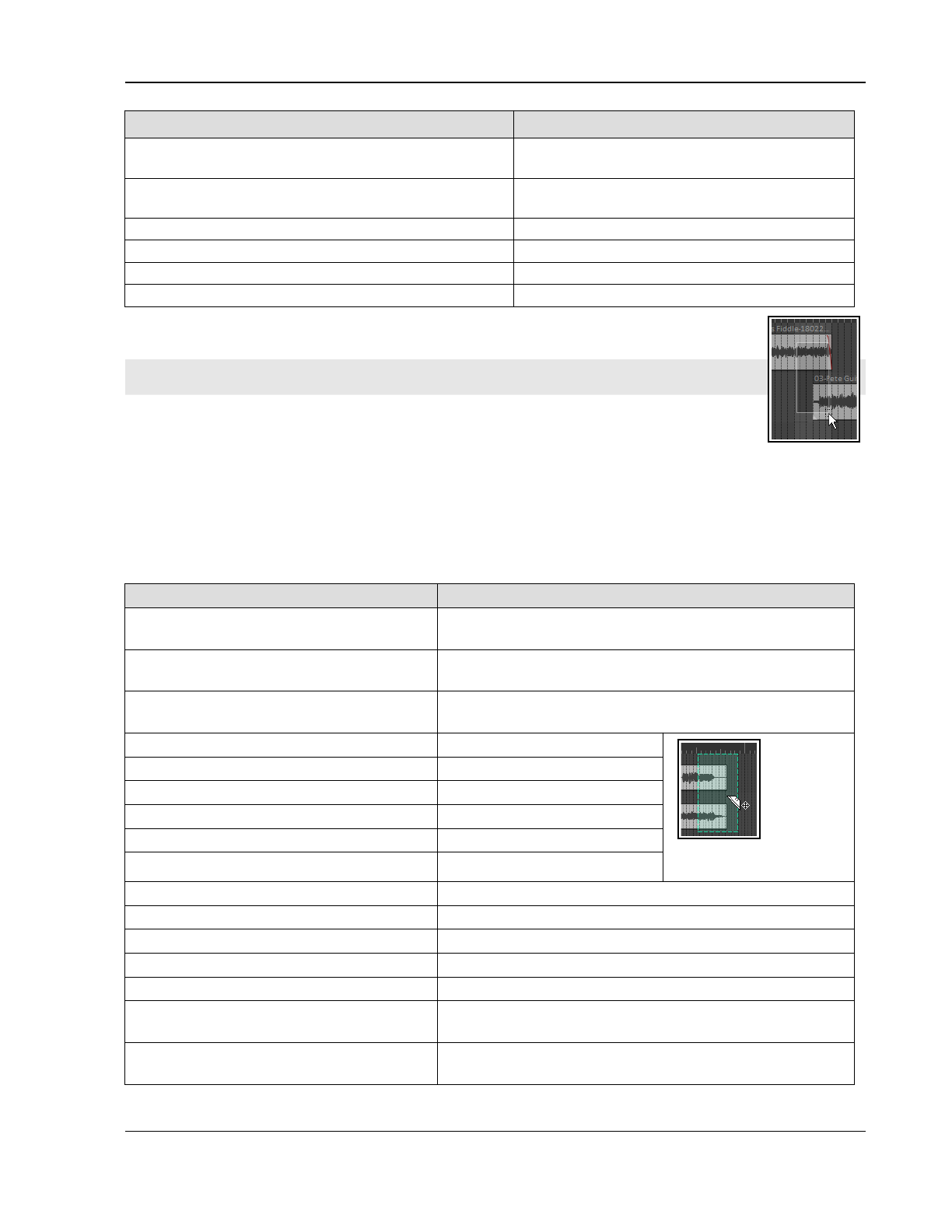
Managing and Editing Media Items
To do this with an item or selection of items … You need to do this …
Copy selected portion of item or items Click on one item within time section and Ctrl
drag. Shift Ctrl drag to ignore snap.
Copy entire item or selected items (ignore time
selection)
Click on one item outside time section and Ctrl
drag. Shift Ctrl drag to ignore snap.
Move item contents (within item) Alt drag.
Adjust item pitch fine Shift Alt drag up or down.
Render item to new file Ctrl Alt drag.
Copy item, pooling MIDI source data Shift Ctrl Alt drag.
To include an entire item in a marquee selection you need only to touch it with your mouse. In
the example shown here, both media items would be included in the selection.
Tip: If you accidentally move an item, to return it to its original position choose Item
processing then Move item to source preferred position from its right-click menu.
7.2.3 Smart Editing with Razor Edits
Razor selection and razor editing take smart editing further: they allow you, for example, to
make selections of areas that can span multiple tracks/items, including non contiguous selections and even
spaces. Your selections can include entire items, portions of items, automation envelopes, automation items,
spaces before, after or between items and any combination of these – all without moving the edit or play cursor.
For more about razor editing with envelopes and automation items see Chapter 18. Meanwhile, note that unless
you want envelopes automatically always included and moved/copied/stretched/deleted with your razor edit
media selections, you should disable (on the envelope tool on the default toolbar) the option Razor edits in
media item lane affect all track envelopes.
To do this with a razor selection … You need to do this …
Create razor edit area from any
selection of media items
SeleCreatect media items. Right-click on timeline, choose
Enclose media items in razor edit from the menu.
Create razor edit area from a track
selection
Use track panel context track grouping menu. See Chapter 5.
Remove track(s) from an existing razor
edit area.
Use track panel context track grouping menu. See Chapter 5.
Create razor selection area by marquee In arrange view Alt right drag. The
selected
area is
enclosed
in broken
lines, the
mouse cursor becomes a
razor blade.
Add to existing razor selection area Shift Alt right drag.
Split area item(s) at area edges Shift left click.
Deselect one part of razor selection Alt left click.
Deselect entire razor selection Shift Alt left click.
Delete contents of selected area Shift Ctrl Alt left click.
Drag/move contents of razor selection Left drag (Shift left drag to ignore snap).
Drag/copy contents of razor selection Ctrl left drag (Shift Ctrl left drag to ignore snap).
Move/copy selected area to new track Drag (move) or Ctrl drag (copy) to below last track.
Move razor selection edges Left drag either edge (Shift left drag to ignore snap).
Stretch razor selection area Alt left drag either edge (Shift Alt left drag to ignore snap).
Render razor edit areas using the File,
Render command
See Chapter 21.4. Track and take envelopes and FX are
applied. Each razor edit area is rendered as a separate item.
Select all media items within razor edit
area
This action can be executed from the actions list, or
assigned to a mouse modifier (Razor edit area, left click).
125
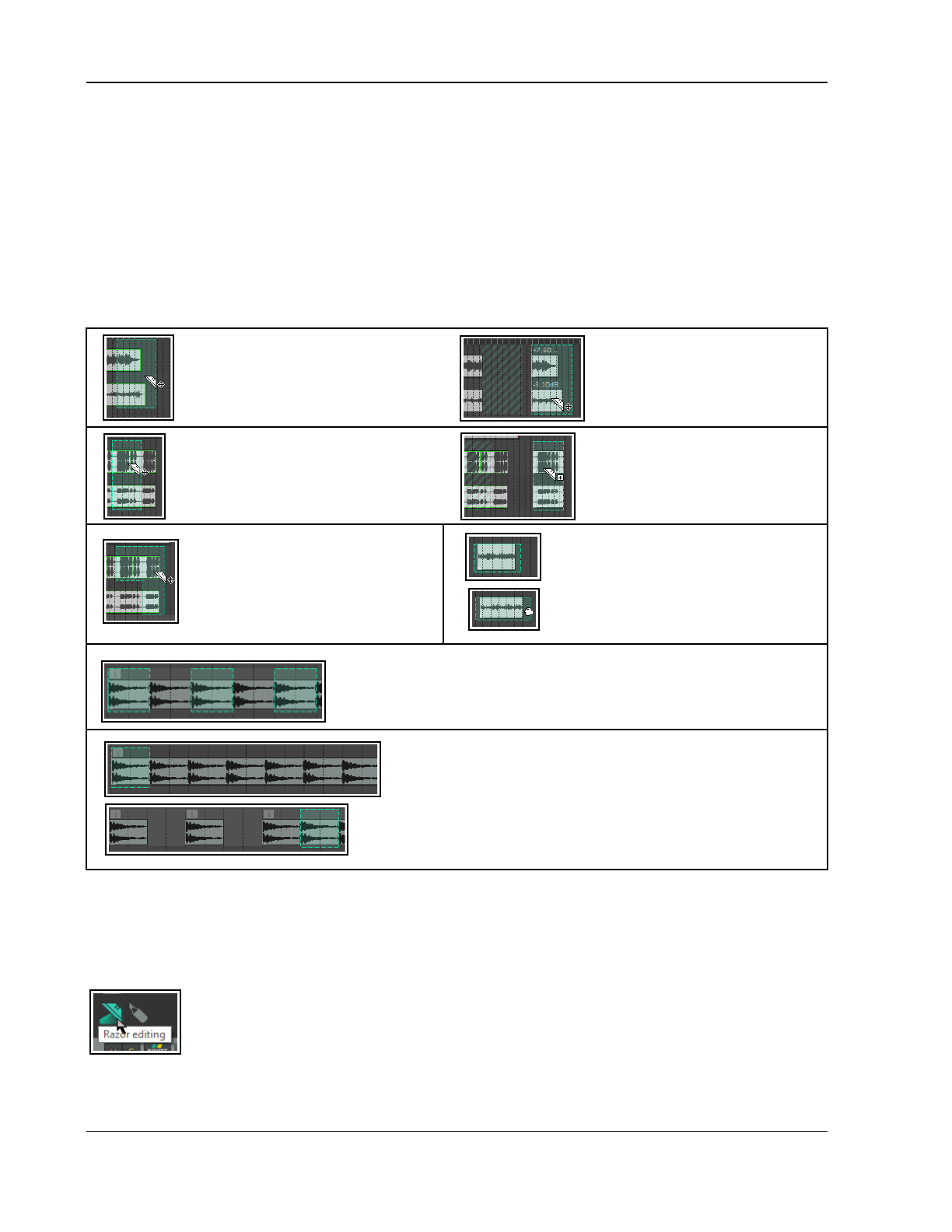
Up and Running: A REAPER User Guide v 7.81
Razor edit mouse modifiers and actions
Razor edit mouse modifiers can be customised via Options, Preferences, Editing behavior, Mouse
modifiers. For example, modifiers can be applied to move an area in one direction (horizontal or vertical) only,
or without moving contents, or ignoring envelope type or with or without ripple editing. For Arrange view, Right
drag, an action is available to also set the time selection when selecting the razor edit area. See also the Razor
edit area, Razor edit envelope area, Razor edge and Arrange view contexts on the Mouse Modifiers
page of your Preferences. Also, REAPER’s action list includes assignable actions (to shortcut keys and/or
toolbars) and/or menus (see also sections 15.22 and 15.23). Search the Actions List. For example, one action
allows you to Create area from cursor to mouse, another to Move nearest area edge to edit cursor.
These examples show razor selections involving media items and areas only (i.e. without envelopes or
automation items). For razor selection of automation, with or without media items, Chapter 18.
In this example, Alt right drag has
been used to define an area which
includes a portion of two media items
on two different tracks.
The selected area is being moved
to the right using Left drag.
In this example, Alt right drag is used
to define a razor edit selection which
spans two media items on two tracks.
Ctrl left drag is used to copy the
entire selection as required.
A razor selection is made using Alt
right drag. A further selection is
added to it, using Shift Alt right
drag. The composite area can be
copied or moved as required.
Here Alt left drag is applied to a
selected area to stretch the area, in this
case stretching it to the right. There is
an option (Preferences, Editing
behavior) to add stretch markers if you
wish.
Here non contiguous areas are made into a one razor selection using
Shift Alt right drag. They can be moved/copied together.
Note, however, that if ripple editing is enabled it will be applied
whenever a selected area is moved or deleted.
Here a sample has been looped for an entire track: we might
wish to thin it out, removing every second occurrence. Alt right
drag defines the area. Ctrl left click inside the selection moves
the selection forward to the next instance.
Shift Ctrl Alt left click deletes its contents. Ctrl left click moves
the selection forward again, and then again. Shift Ctrl Alt left click
deletes again. Ctrl left click moves forward again … and so on.
7.3 Power Editing with Mouse Modifier Overrides
You have already encountered several of REAPER’s mouse modifiers: these are what gives you the ability to use
your mouse to perform so many tasks: for example, when razor editing – Alt right drag to make a selection,
Ctrl left drag to copy a selection, and so on. There’s a section dedicated to mouse modifiers in more detail
later in this chapter.
REAPER’s mouse modifiers have to handle so many diverse tasks beyond just razor editing that
finding your way around them can be a clumsy process. A solution to this is to be able to create
your own alternative set of modifiers all relevant to a particular task (in this case razor editing),
so that you can focus on that task alone.
By clicking on the razor edit toolbar icon (shown above) you are able to activate an alternative set of arrange
view modifiers dedicated specifically to razor editing, all using the left mouse button. The button lights up and
becomes animated. You can define the various modifiers as you wish.
126
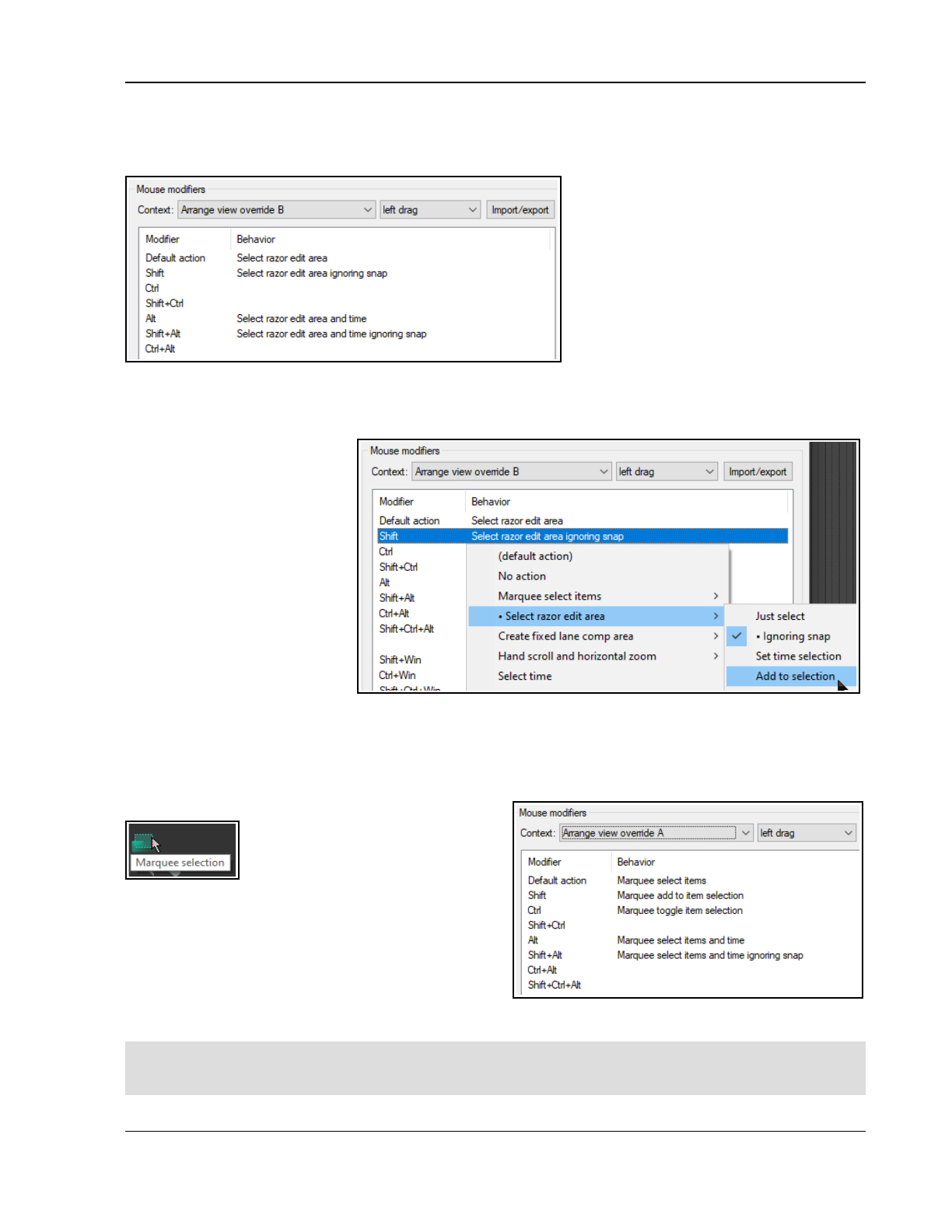
Managing and Editing Media Items
7.3.1 Power Editing with Razor Edits
There are four alternative Arrange View sets available (for different types of activity), as explained later in the
Mouse Modifiers section. Razor editing uses alternative set B. Options, Preferences, Editing Behavior,
Mouse modifiers, opens the mouse
modifiers page. From the Context list,
select Arrange view override B.
As you can see, some tasks have already
been defined – for example, left drag will
Select the razor edit area,
You can change any of the default
assignments, and/or assign tasks to those
that are currently not used. For example, to
change Shift left drag to Add to the
current selection you would do this:
1. Double click in the Behavior column in the Ctrl row. This will display a menu of tasks and commands. Click
on Select razor edit area then Add to selection.
2. Click on Apply.
Assignments can be made to
unassigned modifiers (such as
Ctrl) in the same way.
One benefit of this is that you
can now do all your razor
editing without needing to
engage the right mouse button.
To remove any of your
assignments, double click on it
in the Behavior column and
select Default action.
REAPER’s default assignments
for other contexts – such as
Razor edit area will still apply.
For example, Ctrl left drag will still move a selected razor edit area. These assignments too can be changed.
To disable the Arrange View B mouse modifiers and restore REAPER’s default assignments, simply click the razor
editing button on the task bar again. The button will cease to be illuminated or animated.
7.3.2 Power Editing with General Editing
Power editing when using marquee is even simpler than
it is for razor editing. Click on the
marquee button on the toolbar to
activate it. The button will become
illuminated and animated.
The various marquee tasks that you have been
performing with your right mouse button can now be
accomplished using the left button. Choose Options,
Preferences, Mouse Modifiers and select Arrange
view override A if you wish to change any of these.
Also as with Arrange view override B, click on the
marquee button again to deactivate it and restore
REAPER’s default assignments. The button will cease to be illuminated or animated.
Tip: Even if you prefer not to use these alternative mouse modifiers A and/or B for marquee/razor editing, you
might still find them handy. There are many other tasks you can assign them to (e.g. scrolling, scrubbing), in
which case they can be activated/deactivated from the Actions List and assigned to toolbar buttons.
127
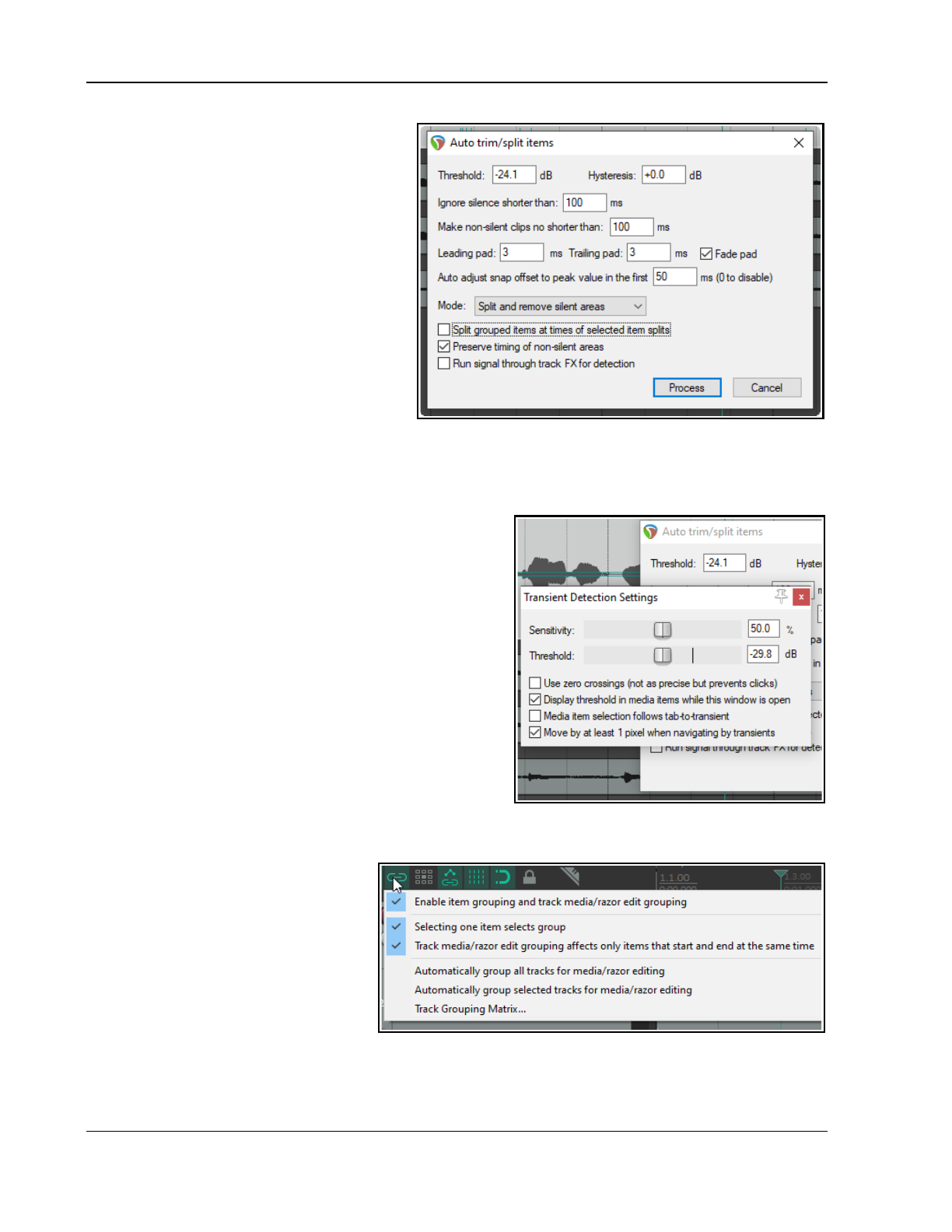
Up and Running: A REAPER User Guide v 7.81
7.4 Auto Trim/Split Items
REAPER's action list contains literally hundreds
of commands and actions, many of which are
not shown on any menus. Actions are covered
in more depth in Chapter 15. Two actions
worth looking at here are Item: Auto
trim/split items (remove silence) and
Transient detection sensitivity/threshold
(adjust). These two can work together.
Actions are run by first choosing the Actions,
Show actions list command from the main
menu, then selecting the required action and
clicking Run. Note both that the Actions menu
includes an option to Show recent actions
on menu, and that within the Actions list you
can use the Filter box to help find an action.
Auto trim/split items is similar to using
dynamic splitting to remove silence, except that it supplies you with some additional options. Selecting an item
and running this action opens the dialog box shown here.
Threshold and Hysteresis control the noise gate to determine the level below which passages are removed,
and the degree of sensitivity applied – the same as with dynamic splitting. Similarly, the controls Ignore
silence..., Make non-silent clips no shorter than..., Pad
controls and Auto adjust snap... all work in the same way
as their equivalent dynamic splitting options.
The Mode drop-down has four options – Split and remove
silent areas, Split and keep silent areas, Split only
before non-silence and Split only before silence.
If working with a set of grouped items, you have the option to
Split grouped items at times of selected item splits.
You can also set the gate to be applied post-FX by enabling
the option Run signal through track FX for detection. This,
for example, could be used to avoid chopping off any delay or
reverb tails caused by track FX.
If you also run the action Transient detection
sensitivity/threshold a pair of faint horizontal lines will be
displayed to give you visual feedback on your gate settings.
Another option is Use zero crossings when splitting. This
can prevent audio clicks on playback.
7.5 Media Item Editing with Track Group Items
In Chapter 5 we looked at track grouping,
including the track grouping matrix. That
covered grouping track controls such as
volume and pan. Here we are looking at
grouping not track controls but media
items within and across the tracks, so that
an item selection can be edited together.
For example, you might want to adjust the
item volume handle for a selection of
items, or move or copy them together
across several tracks.
Track item grouping behavior can in part be managed via the item and track media grouping tool on the main
toolbar. Right-clicking over this tool displays the menu shown above.
128
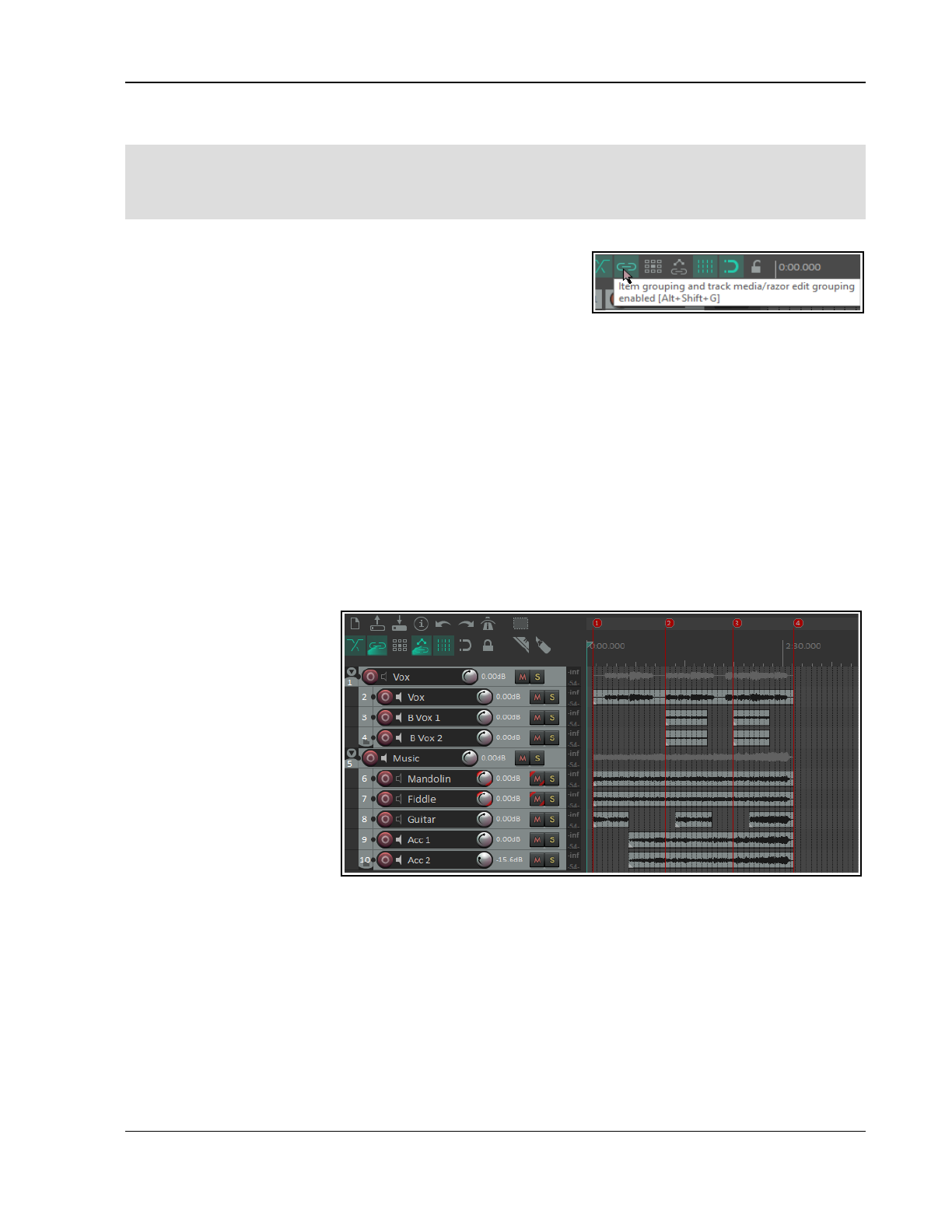
Managing and Editing Media Items
7.5.1 The Item and Track Media/Razor Edit Grouping Toolbar
This section requires you to have a basic working knowledge of both Track Grouping and Editing Media Items
It looks at working with sometimes complex group selections, often temporary groups. It also examines grouping
a number of items across tracks permanently so that (for example) when one item is moved they all move
together, or that razor edits can be easily applied to all group members.
You should familiarise yourself with these grouping toolbar options/commands and their meaning:
Enable item grouping and track media/razor edit grouping:
this needs to be set to on whenever you wish to group items for
any reason. Alt Shift G is a nifty way to toggle it on and off.
Selecting one item selects group: With this option on you can
select all items in a group (defined in the track grouping matrix) by clicking on any one item in the group.
Track media/razor edit grouping affects only items that start and end at the same time: This option
is on by default but can be turned off if you need to.
Automatically group all tracks for media/razor editing: With this option on, any razor editing time
selection that you make will automatically include media items in all tracks.
Automatically group selected tracks for media/razor editing: With this option on, razor edits or other
media editing activity will automatically include all currently selected tracks, including those tracks included
in any active track grouping matrix group or groups.
Track grouping matrix …: This toggle option will open the track grouping matrix if it is not already open, or
close it if it is currently open.
We’re now going to look at a relatively simple example, without yet employing either the Track Group Matrix
or another useful tool, the Track Group Manager. After that, we’ll go on to examine some of the extra benefits
available from also using these tools. The examples chosen in this section are solely for the purpose of
illustrating how these features can be used and have no other significance.
Note 1: In the examples that
follow, which specific
instruments/voices are
contained in which tracks is
not important. The examples
have been constructed solely
for the purpose of illustration.
Note 2: For convenience and
for illustration purposes, this
model uses markers and
snap to marker has been
enabled. This is not essential.
For these examples, we would need to ensure that all group toolbar toggle options except Automatically
group all tracks for media/razor editing are enabled.
Examples
For the examples that follow, make sure that Automatically group selected tracks for media/razor
editing is enabled (on the grouping tool).
In this example, we want to copy the contents of tracks 2, 6 and 8 to continue to build the song.
1. In the track control panel, we click on the track 2 media item, then repeat Control click to select each of
the media items on tracks 6 and 8 in turn. White highlights will be displayed around the track names.
2. We now simply use Ctrl left drag to drag the media item on track 2 to the right to copy them all to their
respective required positions (shown below).
129
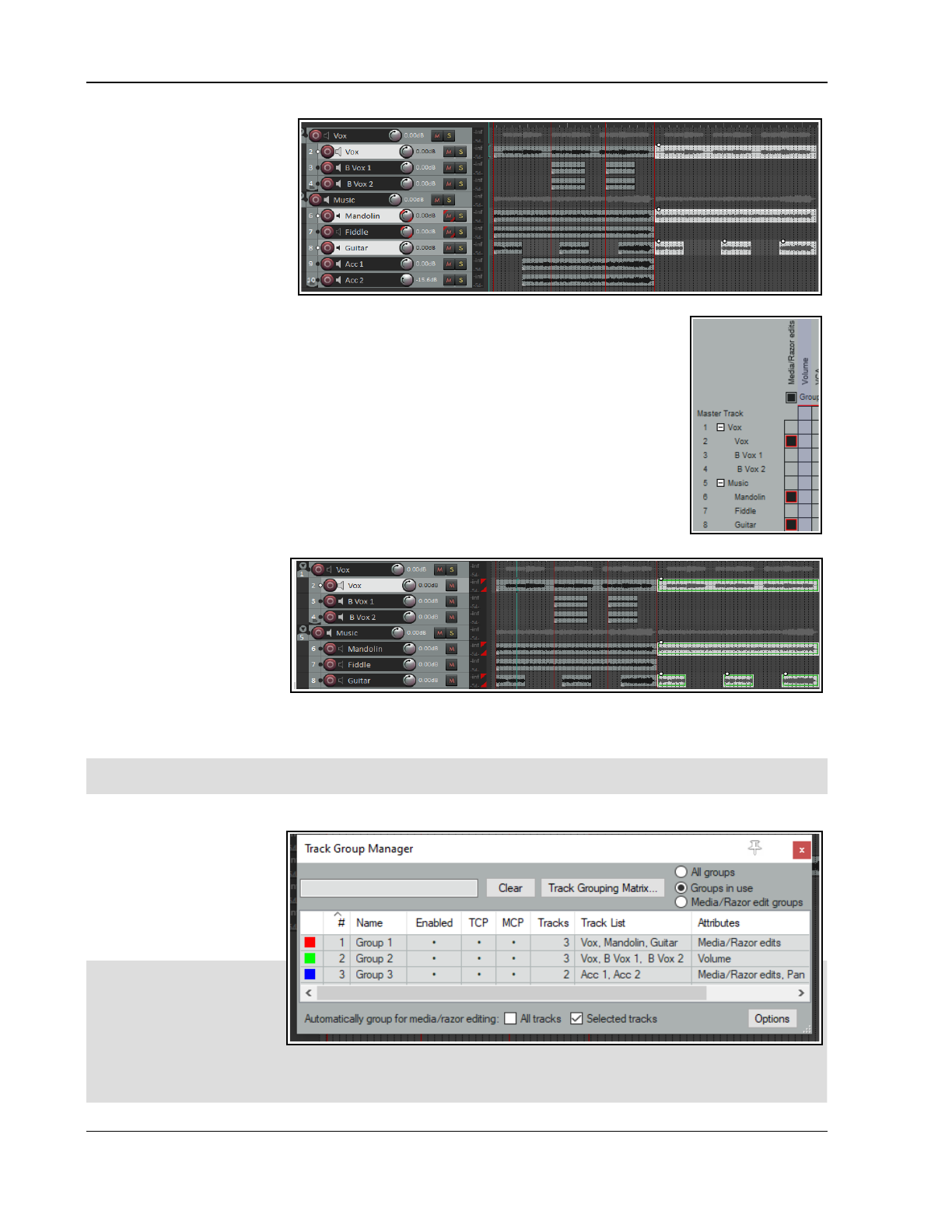
Up and Running: A REAPER User Guide v 7.81
However, what if we regularly
need to need to perform
editing tasks on these three
tracks together? You don’t
want to be constantly
redefining the track selection –
especially if your project has
many tracks.
The answer lies in track
grouping. Instead of what we
have just done, we can do
this:
1. To open the Track Grouping Matrix we can press Ctrl Alt G.
2. We group tracks 2, 6 and 7 and enable Media/Razor edits in the first column of
this group. As shown here, both tracks are set to Lead/Follow (indicated by the solid
black boxes). This will ensure that we can select media items on any of these tracks
in order to edit the equivalent items on all tracks in the group.
3. Colored flags will now be displayed for each of these tracks, just inside the right
hand edge of the track panel (shown below).
4. We left click on the item on track 2 – as long as Automatically group selected
tracks for media/razor editing is enabled then the items on tracks 6 and 8 are
also selected.
5. Next we use Ctrl left drag to copy the required items.
6. We click anywhere in arrange view to clear the selection.
7. In this simple example
we have just two tracks
in our group, but
remember that this
could be a much larger
number.
8. We might now
encounter the opposite
problem from that which we had before – i.e. we might now want to make changes to one media item only,
without affecting the other items in the group. This can be done by temporarily disabling the group, in either
the Track Grouping Matrix or the Track Group Manager.
Note: Items grouped for media/razor edits will behave as follows: mouse edits to lead items will affect follow
items in the group whether or not they are selected: actions will affect only selected items.
7.5.2 The Track Group Manager
The Track Group Manager is
opened from the View
menu or from a button on
the Grouping Matrix.
It lets you manage the
groups created in the
Grouping Matrix.
Tip: If you have any
track(s) enabled for
media/razor edits in more
than one group then most
likely only one of those
groups should be enabled at any one time. Otherwise changes made to items on a track in one group could also
affect items on other groups. You should also be wary of any hidden tracks that might be included in a group:
group edits would include items on those tracks also!
130
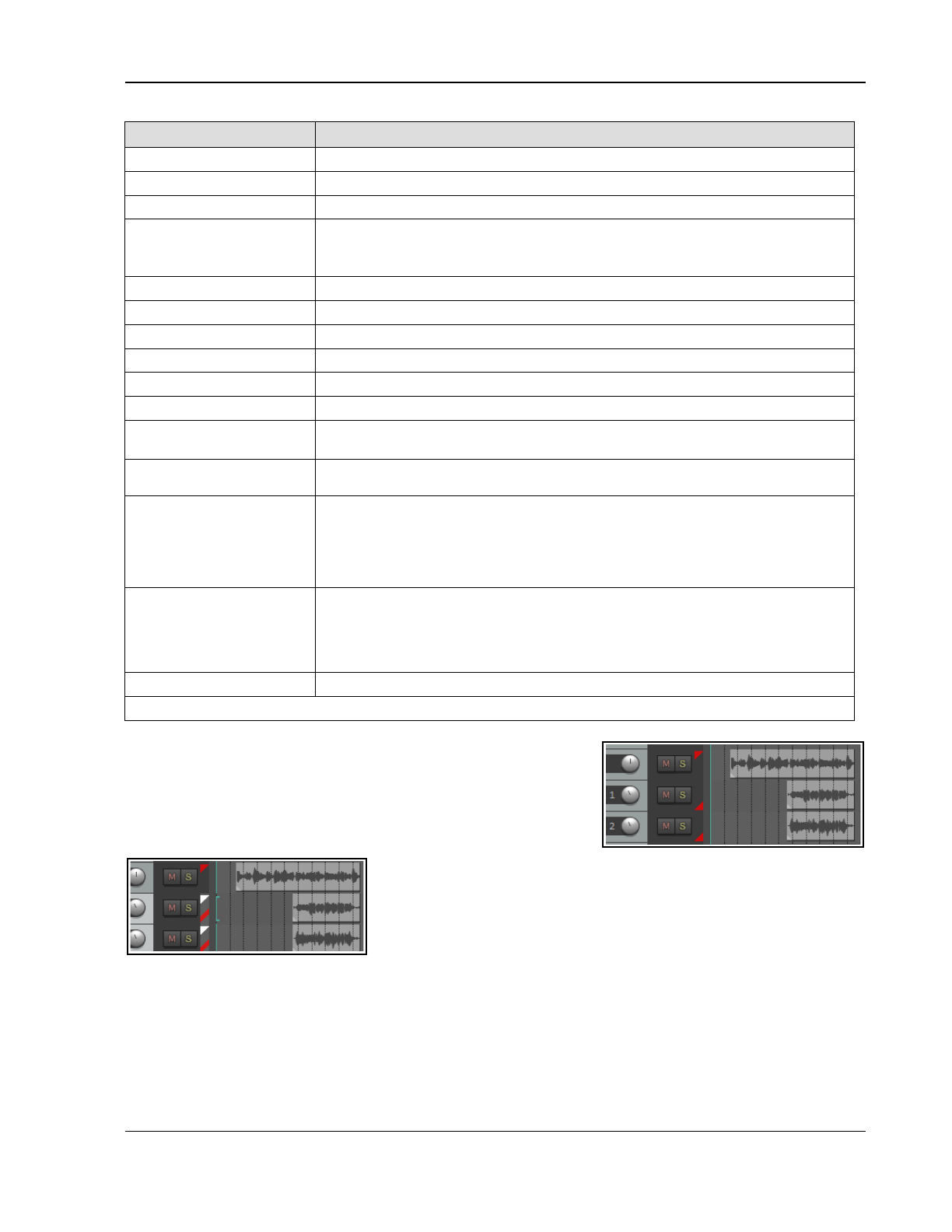
Managing and Editing Media Items
Use this… To do this ...
Filter Box (top left)
Filter list of groups, by group name, according to whatever text you input.
Clear button
Clear any current filter, makes all groups available.
Track Grouping Matrix
Click this button to open and display the Track Grouping Matrix.
All groups, Groups in
use or Media/Razor edit
groups
Determine whether to list all groups, only those currently active/enabled, or only
those where one or more tracks are active in the Media/Razor edits column.
1
st
Column
Click to set color via the color picker, set a random color, or reset color to default.
Name column
Click once to select the group: double-click to rename it.
Enabled column
Toggle group status to enabled/disabled.
TCP
Specify whether to display these tracks in the track panel in arrange view.
MCP
Specify whether to display these tracks in the mixer panel in mixer view.
Tracks
Indicate number of tracks in each group.
Grouped track list
List all tracks in a group. Double click for menu to add tracks to, or remove tracks
from, the group.
Group attributes
Lists which controls/features are enabled for the group – e.g. Volume, Pan, Mute,
Solo. Double-click to open grouping window to edit group attributes.
Automatically group
options
Toggle options to choose whether to automatically group for media/razor editing all
tracks in the project, selected tracks only or no tracks. Can be used, for example, to
temporarily group all tracks in a file.
Note: When automatically group selected tracks is enabled, clicking a media item
will change the selection only if that track is not already selected.
Options button
Display menu of toggle options to:
Select tracks in group when selecting group
Add/remove child tracks when adding/removing parent folder
Show track dropdown list nested by folders
Dock Track Group Manager window in docker
Sort group list
Double-click on any column header to sort list by that column.
Note: Changes made here are automatically carried over to the Track Grouping Matrix and vice versa.
Lead/Follow Track Group Edits
When a track group enabled for media/razor edits includes different
lead/follow relationships on different tracks then the following applies:
Changes made on items in a lead track will also be applied to the
follow tracks. Changes made to a follow track will only be applied to
items in other tracks if those tracks are also selected.
Consider this example (shown above right). Three tracks are grouped.
The positioning of the red flags shows that the first of these (at the top
of the track’s panel) is lead only while the other two (at the bottom of
the track’s panel) are follow only. If we apply, say, a fadeout to an item
in the leader track it will be applied to all three.
A fadeout applied to an item in the second or third track in the group
would, however, be applied to that one item only. However, if you first select both tracks, as shown by the white
flags on the left, you could apply the fadeout to either follower track and it would still be applied to both.
7.5.3 Groups, Items and Mouse Modifiers
Where grouped tracks have grouping enabled for media/razor edits then editing actions made to an item in any
one of those tracks will generally also be applied to appropriate items on the other group tracks. Appropriate
items are those that start and finish within the time bounds of the selected item. Here’s an example.
131
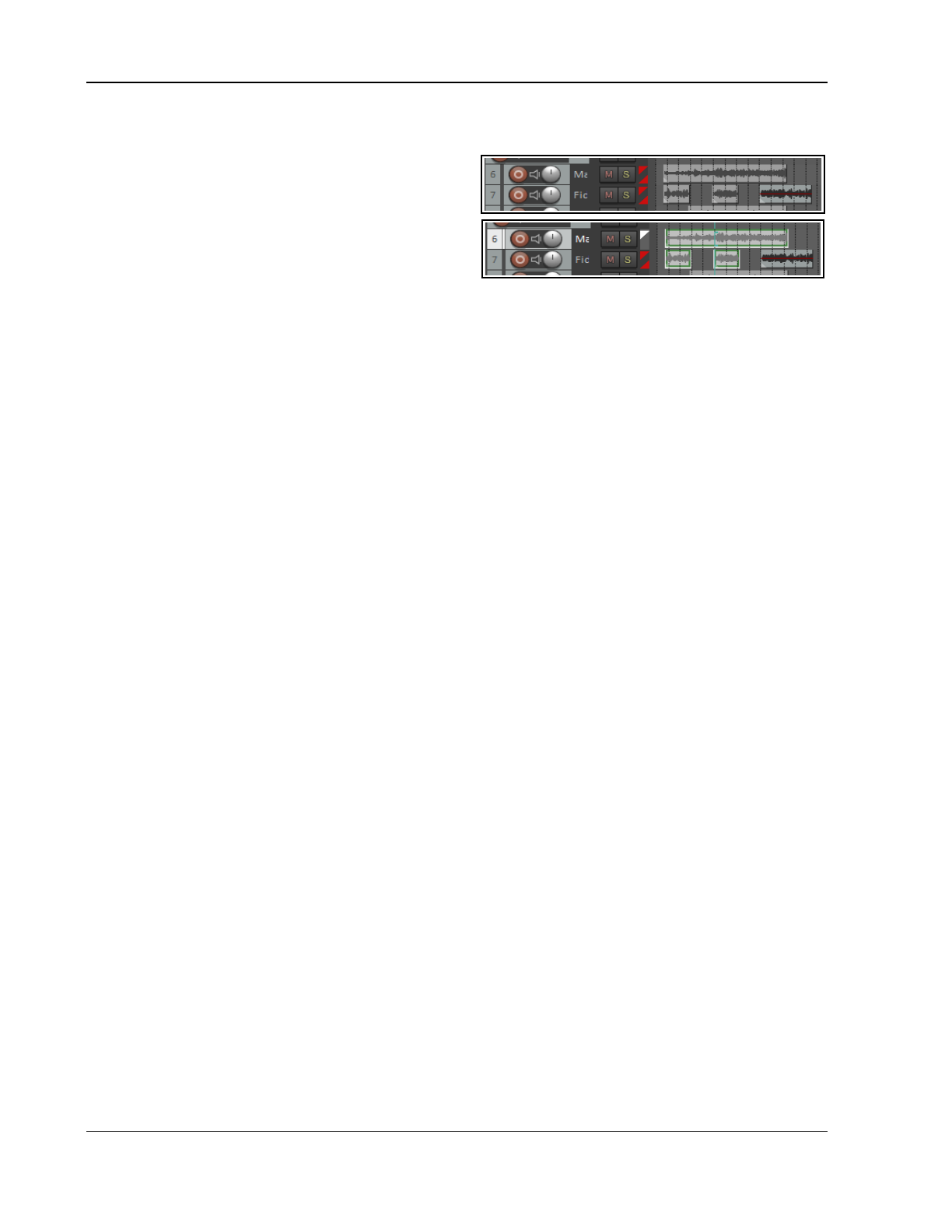
Up and Running: A REAPER User Guide v 7.81
Example
These two tracks have been grouped in the track grouping matrix, with grouped media/razor edits enabled.
If we select the item on track 6, only the first two of the
items on track 7 are also selected, because they are fully
enclosed within the bounds of the selected item.
Note: Locked media items within a track group will not
be included in track group edits. Lock settings enabled on
the toolbar will also restrict track group editing options.
Media Editing Mouse Modifiers
Sometimes you will want a particular mouse editing action to behave differently from normal.. Mouse modifiers
can come to your aid by using a booster key (or combination of booster keys), such as Shift or Control.
REAPER has literally hundreds of such modifiers, and many are discussed throughout this user guide. There’s a
general introduction later in this chapter. Below are listed some commonly used item editing examples. This list
is not comprehensive. You can find more at Options, Preferences, Editing Behavior, Mouse Modifiers.
Media item, left click Media item, fade/autocrossfade, left drag
(default)
Shift
Ctrl
Alt
Select item and move cursor
Add items to selection
Toggle item selection
Select item ignoring grouping
(default)
Shift
Ctrl
Ctrl Alt **
Move fade, ignoring snap
Move crossfade, ignoring snap
Move fade, no snap, ignore selection
Move fade no snap (relative edge edit)
Media item edge, left drag Media item, fade intersection, left drag
(default)
Ctrl
Alt
Move edge, relative edge edit
Move edge ignore group, selection
Stretch item
(default)
Ctrl
Alt
Move both fades
Adjust fade lengths, preserve intersection
Move fade curves horizontally/vertically
Media item, double click Media item, left drag
(default)
Shift
Ctrl
Open item preferences window
Set time selection to item
Set loop points to item
Ctrl
Alt
Ctrl Alt
Copy item
Move item contents ignoring snap
Render item to new file
Arrange view, right drag Razor edit area, left click
(default)
Shift
Shift Ctrl
Alt
Shift Alt
Marquee selected items
Marquee, add to selection
Create fixed lane comp area
Select razor edit area
Add to razor edit area
Shift
Shift Ctrl
Alt
Shift Alt
Shift Ctrl Alt
Split media items at area edges
Create fixed lane comp area
Remove one area
Remove all areas
Delete area contents
Razor edit edge, left drag Razor edit envelope area
(default)
Alt
Move edges
Stretch area contents
(default)
Ctrl
Move or tilt envelope vertically
Expand or compress envelope range
Track (background area), left drag Track (background area), left click
(default)
Shift
Select time range
Move time selection
(default)
Shift
Deselect all items, move edit cursor
Extend time selection
** Allows a fade to be applied to a selection of items whose start and/or end points do not align. With track edit
grouping this will only apply if the grouped item lines up with the start/end of the item being edited.
Note that there are many available actions and behaviors that by default are not assigned to any modifier.
Double-click in the Preferences, Mouse Modifiers behavior column for any context modifier to explore these. For
example, you can assign any booster key to the Media item, left drag context to move an item either only
horizontally or only vertically.
Track Grouping Actions
REAPER’s Actions List includes several track grouping actions which you can access via the list, or for which
you can create your own keyboard shortcuts, toolbar buttons, or menu items. Some examples are shown here:
Create new track media/razor editing group from selected tracks
Remove selected tracks from all track media/razor editing groups
Toggle all track grouping enabled
132
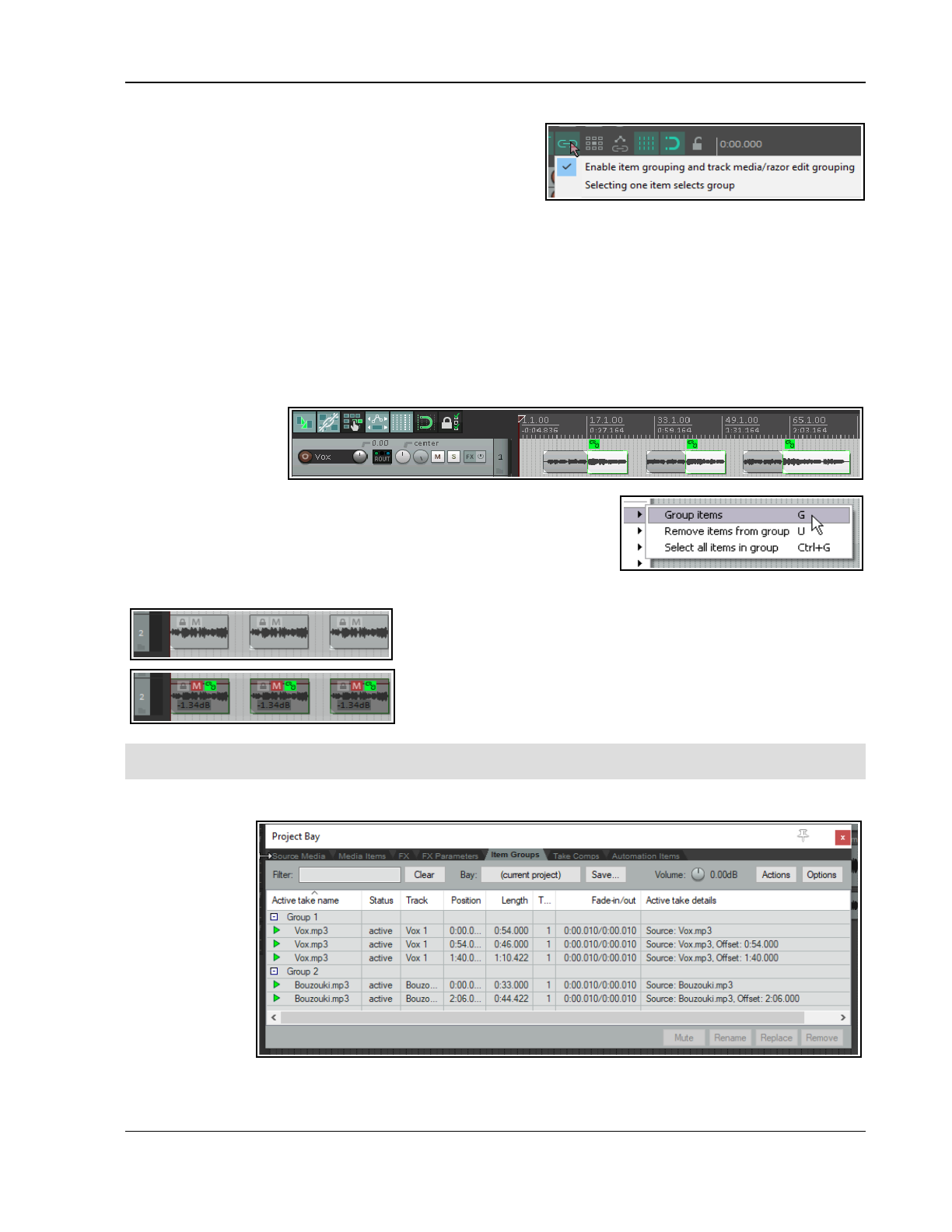
Managing and Editing Media Items
7.6 Simple Item Grouping
You won’t always need the powerful features of media item
editing with track group items. If your needs are relatively
simple there is no need to set up track group relationships in
order to group and edit items.
Provided that grouping is enabled – Options, Item and track media razor/edit grouping, Enable
command, or Alt Shift G – items can be grouped together to facilitate working with them. For example, you can
move them together, set them all to a common color, mute and unmute them, and so on).
Select the items and use G to add them to a group. If you prefer, you can use the Item grouping button on
the REAPER toolbar to toggle grouping on and off. For easier group management, select any item in a group
then right click and choose Group, Set group name or Set group color (using the color picker). The group
name will be displayed above each item in the group.
In the example shown below, three of the six items have been grouped. For grouped items a Grouped icon will
be displayed if this has been enabled in Preferences, Appearance, Media. Even when this preference is disabled,
you will see a thin colored bar above and below all items that have been grouped (see right).
Further items can be
added to a group.
Select any item in the
group, then press Ctrl
G to select the entire
group. Hold the Ctrl key while you click on those items that you wish to
add to the group, then release Ctrl and press G. Note that U removes a
selected item from a group. You can also use the Group commands on
the right click item menu to manage groups.
Example
Here is a simple example. Grouping is enabled as is Selecting one item selects group on the item
grouping menu on the item grouping tool on the main toolbar.
Here are three media items that we want to group. We select all three
items and press G to group them.
We make some changes to one item (e.g. lower volume, mute) and
these changes are applied to all items in the group.
To learn more about item grouping, look at the section Storing and
recalling item groups.
Note: Grouped items will behave as follows: mouse edits to one items will affect all items in the group whether
or not they are selected: actions will affect only selected items.
7.7 Storing and Recalling Item Groups
Different item
groups can be
saved and
recalled using the
Item Groups
tab of REAPER's
Project Bay. The
Project Bay will
be explored in
more detail in
Chapter 12. To
open it usw the
View, Project
Media/FX Bay
command, and then select the Item Groups tab. To create and save multiple groups, simply use this method:
133
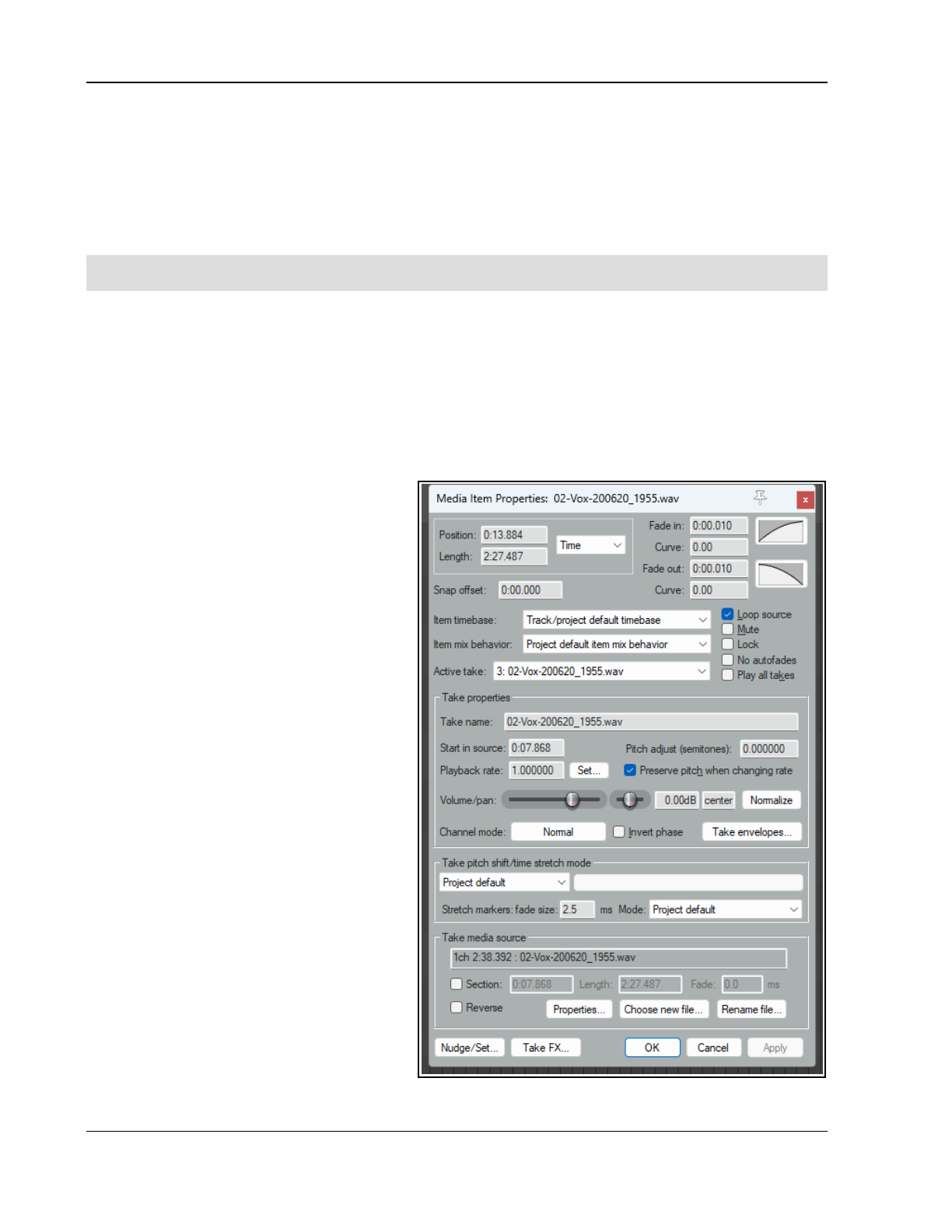
Up and Running: A REAPER User Guide v 7.81
● Open the Project Bay and select the Item Groups tab.
● In arrange view, select the items for your first group then right click over one of them and choose Group
then Group items from the menu. A group will automatically be created in the Project Bay. You can right
click over the group name and choose Rename group to give it your own name.
● Repeat this step to create subsequent groups. The example here shows a project with two item groups.
To select all items in a group, you can now right click over its group name in the project bay and choose Select
group from the menu. To remove a group, use the Delete group, keep items command on the same menu.
Tip: To adjust the volume of all items in a selected group, hold Ctrl and Alt while adjusting the item volume
button or item volume handle of any one of the items in that group.
7.8 Media Item Properties
All media items have a page of property settings which help determine the behavior of that item.
To display an item's properties, select it then press F2, or right click and choose Item Properties, or click on its
properties button (if visible). For audio (but not MIDI) items, you can also double-click on the item to do this.
The Media Item Properties box will stay open until you close it. If you leave it open, its contents will reflect the
properties of whichever item or items is/are currently selected at any time.
You don’t need to understand every one of these properties before you get started, just to know where this
information is accessed and changed. The main properties contained within this dialog box are:
Position: can be edited to change the
position.
Length of media item (Position and
Length: time, beats, HMSF or
samples).
Fade In and Fade Out: you can define
both the length and the shape of these.
The setting crossfades source media at
the loop point but is limited to the
amount of source media available.
Snap offset: Offset from the default
snap position if snapping is enabled.
Item timebase: Defaults to project
timebase but can be changed. Options
are Track/project default. Time,
Beats (position, length, rate), Beats
(position only), and Beats (auto-
stretch at tempo changes).
Item mix: Effectively whether to replace
or mix when an item is placed over
another. Defaults to project default.
Loop source: whether item is a loop.
Mute status: mute/unmute item.
Item lock status: whether locked.
Whether or not to apply autofades at
item start and end.
Whether or not to play all takes (if two
or more takes exist).
Active take file name.
Active take name. By default this is the
file name, but you can change this.
Pitch adjustment.
Start in source: sets start time.
Playback rate. For example, type x2 to double play rate of selected items.
Whether to preserve item pitch when the playback rate is changed.
134
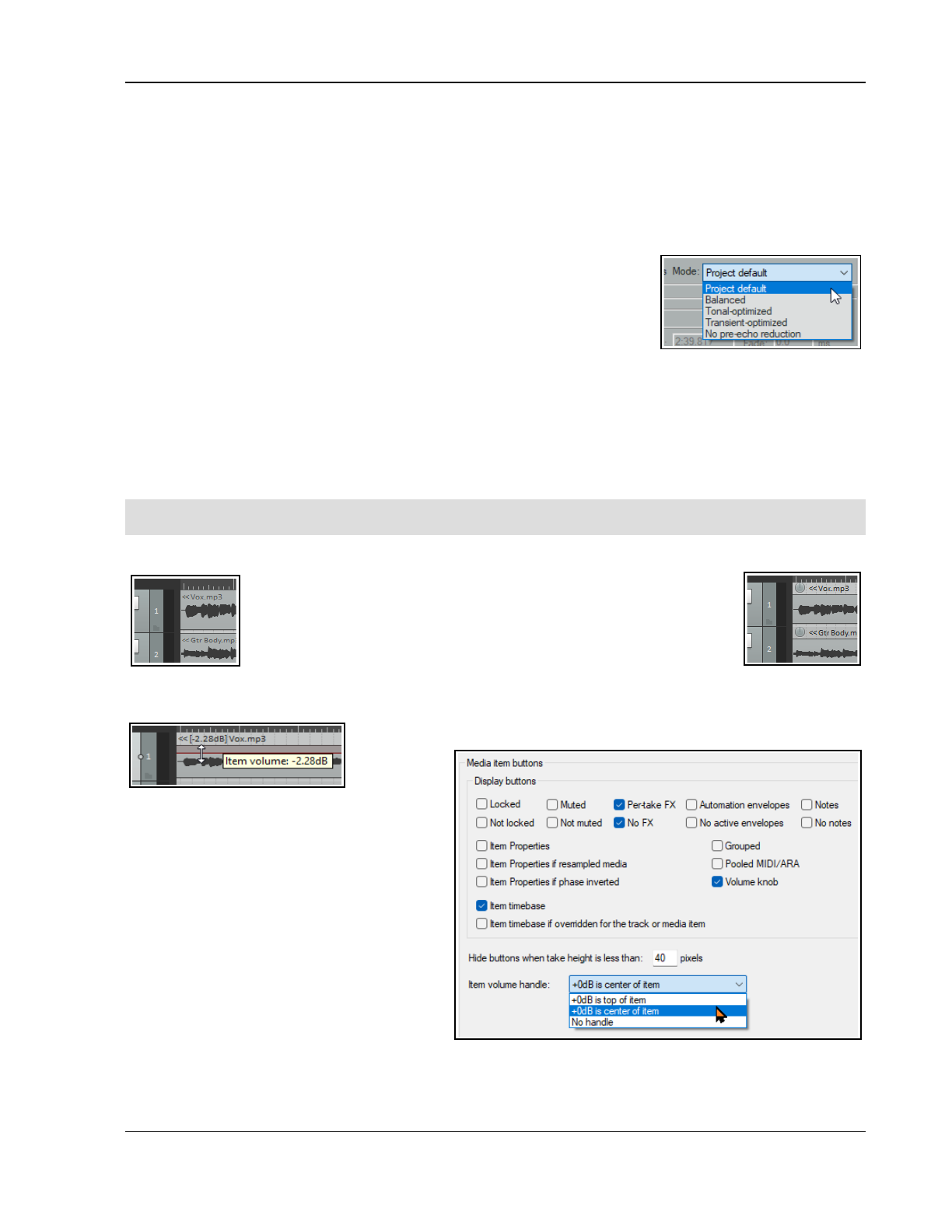
Managing and Editing Media Items
Adjust Volume and/or Pan: use faders or type values in edit boxes.
Option to Normalize to LUFS, RMS, Peak or True Peak.
Channel mode: discussed shortly.
Whether to invert phase.
Add or remove Take envelopes.
Which algorithm is to be used for pitch shift and time stretch.
Stretch marker default fade size and preferred Mode (see below right).
The option to use only a section of the media item.
Options to reverse the item.
Display the media item source file properties.
Choose a new file to replace the existing source file.
Rename the source file.
Access the Nudge/Set dialog box for this item.
Open the Take FX Chain window for this take/item.
After making any changes, use the Apply button to apply them and leave the window open, or OK to apply
them and close the window, or Cancel to close the window without applying changes. There is also an option
(right-click on title bar) to Apply changes after 2 seconds of inactivity that you can enable if you wish.
Some of these options – such as Loop Source and Channel Mode (examined later in this chapter)– are also on
the Item Settings menu. For many of them Keyboard Shortcuts already exist or can be defined. You will be
shown how to assign keyboard shortcuts in Chapter 15 when we examine the Actions List Editor.
Tip: To change a property (e.g. playback rate) of several items at once, simply select all of the items then, with
one Media Properties window open, make whatever changes you require.
7.9 Media Item Appearance Preferences
Your Appearance, Media and Appearance, Media Item Buttons settings
(Chapter 22) determine how items are displayed in arrange view. Note:
Media item labels (including pitch/playrate and gain) can be displayed,
within (as shown here, left) or above the media item. You may also show
the item pitch/playrate and/or the item gain (if any).
Another feature is Item volume handle. This is shown by default as a
bar which can be dragged up/down to adjust its volume. Hover the mouse over the top edge of the item to
display a vertical double-headed arrow (see below). To raise the level above 0.0 dB hold Shift while dragging up.
The level can be shown by a line on the top or middle of the media item, or a
knob, or
both.
Get to know
the Media item buttons which can be
displayed above the media items. These
include the items’ locked status, its mute
status, show FX, automation, notes and item
properties. Buttons can be used, for example,
to toggle an item’s mute state on and off, or to
open its FX chain window.
A locked item cannot be moved or deleted,
but its properties can be modified.
The Notes button opens a window. You can
type notes or upload a picture as a background
graphic. There are options to use word wrap,
or display a graphic as a Centered/tiled
image, Full height image or Stretched
image, or not to display it at all. The window can be left open when focus is elsewhere. There is an option to
use the Enter key to close the notes window. Multiple notes windows can be left open at the same time.
Windows can be resized and open notes window positions will be retained when the file is saved.
135
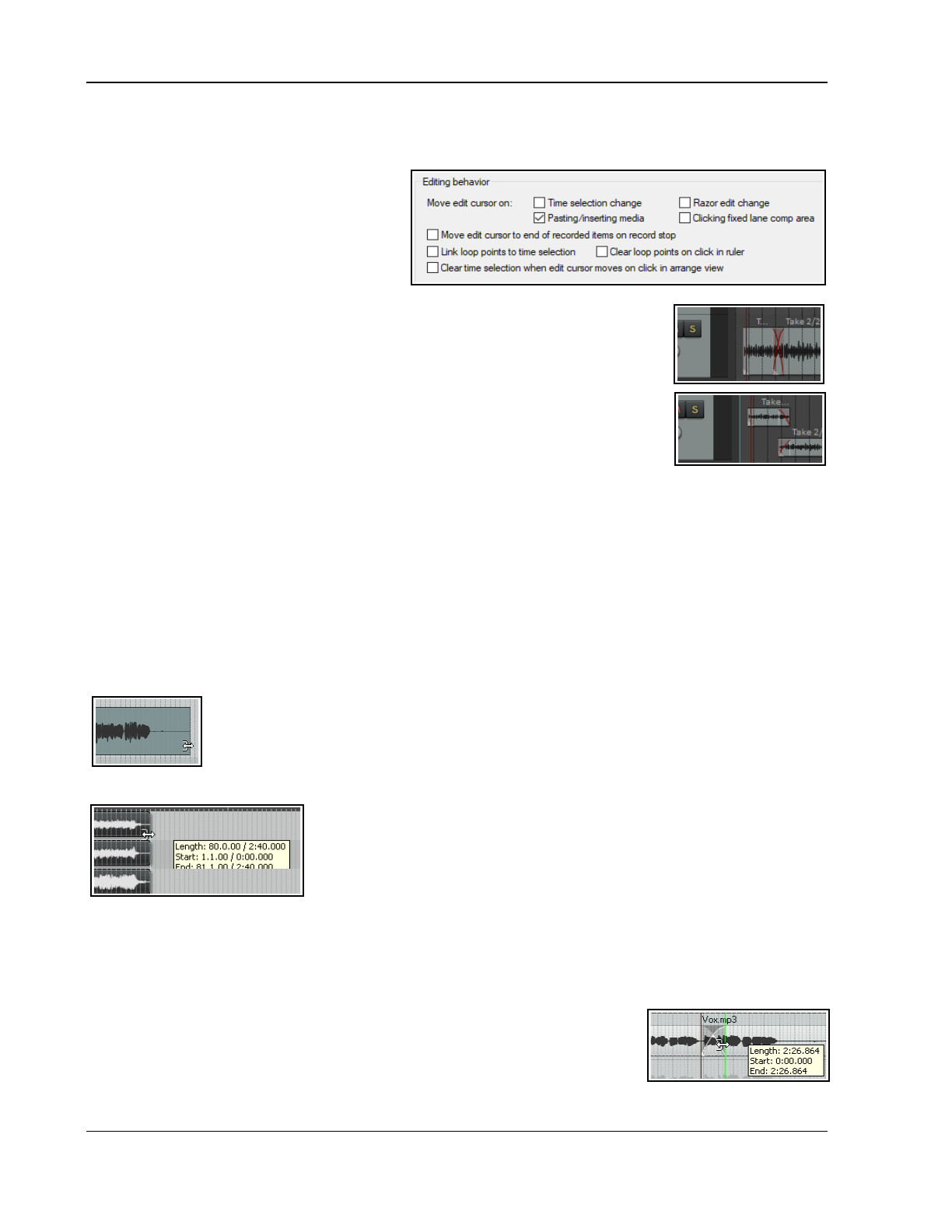
Up and Running: A REAPER User Guide v 7.81
7.10 Editing Behavior Preferences
These are displayed on the Editing Behavior page of Preferences and include whether to:
● Move edit cursor when changing time
selection, inserting media, razor editing,
or clicking in fixed lane comping areas.
● Link loop points to time selection.
● Clear loop points/time selection on
clicking in ruler or arrange area.
7.11 Overlapping Media Items
Media items can be overlapped by dragging and dropping one over the other.
Crossfades: Automatic cross fades (shown here) are enabled by enabling auto-
crossfades on the toolbar. Crossfades can also be adjusted manually and managed
using REAPER’s crossfade editor, explained later in this chapter.
Offset overlapping media items vertically: This option (Options menu) does
what it says (see right).
When showing overlapping items vertically stacked, you might wish to check out
further options in Preferences, Appearance, Zoom/Scroll/Offset.
7.12 Separating Loop Selection from Time Selection
If the setting Link loop points to time selection (on your Preferences, Editing Behavior page) is enabled then
when you make a new time selection the loop selection changes with it. The toggle command Loop points
linked to time selection on REAPER's main Options menu turns this preference on and off.
With this option disabled, you can define a loop by clicking and dragging along the timeline, and a time selection
by clicking and dragging within arrange view. You can use the Alt key while you click and drag along the
timeline to set both the time selection and the loop selection together.
Note: The Actions List (chapter 15) include actions to move or copy the contents of a time selection to the
cursor position. These are Time selection: move contents of time selection to edit cursor (moving later
items) and Time selection: copy contents of time selection to edit cursor (moving later items).
7.13 Slip Editing
You can slip-edit unwanted passages from the start or end of a media item as follows:
Hover your mouse over the lower part of an item’s left or right edge so that the mouse
appears as a double headed horizontal arrow with a square bracket (as shown here).
Click and drag to the right or left (as appropriate), then release the mouse.
Slip Editing Multiple Items
To slip edit several items in different tracks, select all the media items
required (for example, hold the Ctrl key while clicking in turn on each item,
or use the marquee method), then slip edit any selected item. The change
will be applied to all items in the selection (see left), relative to their
individual positions on the timeline. You can use Ctrl left drag if instead of
this if you want only one item to be edited.
You can use the Mouse Modifiers page of your Preferences to customize mouse modifiers if you wosh.. This
topic is covered in Chapter 15.
Take care when slip-editing adjacent items, especially when they are touching each other. If you click and drag
on one of the items so as to create a space between the two, then slip editing will take place in the usual way.
However, if you slip edit in such a way as to overlap the items, you will create a crossfade.
This is illustrated here, where the end of the first (further left) of the two adjacent
items has been slip-edited to the right, overlapping the other item. This behavior
can be modified in two ways. Disabling auto-crosssfade (on the toolbar) will stop
the crossfade, but both items will still be heard. Enabling Trim content behind
media items when editing (Options menu) will ensure that only the slip-
edited item (the item on top) will be heard during the overlap.
136
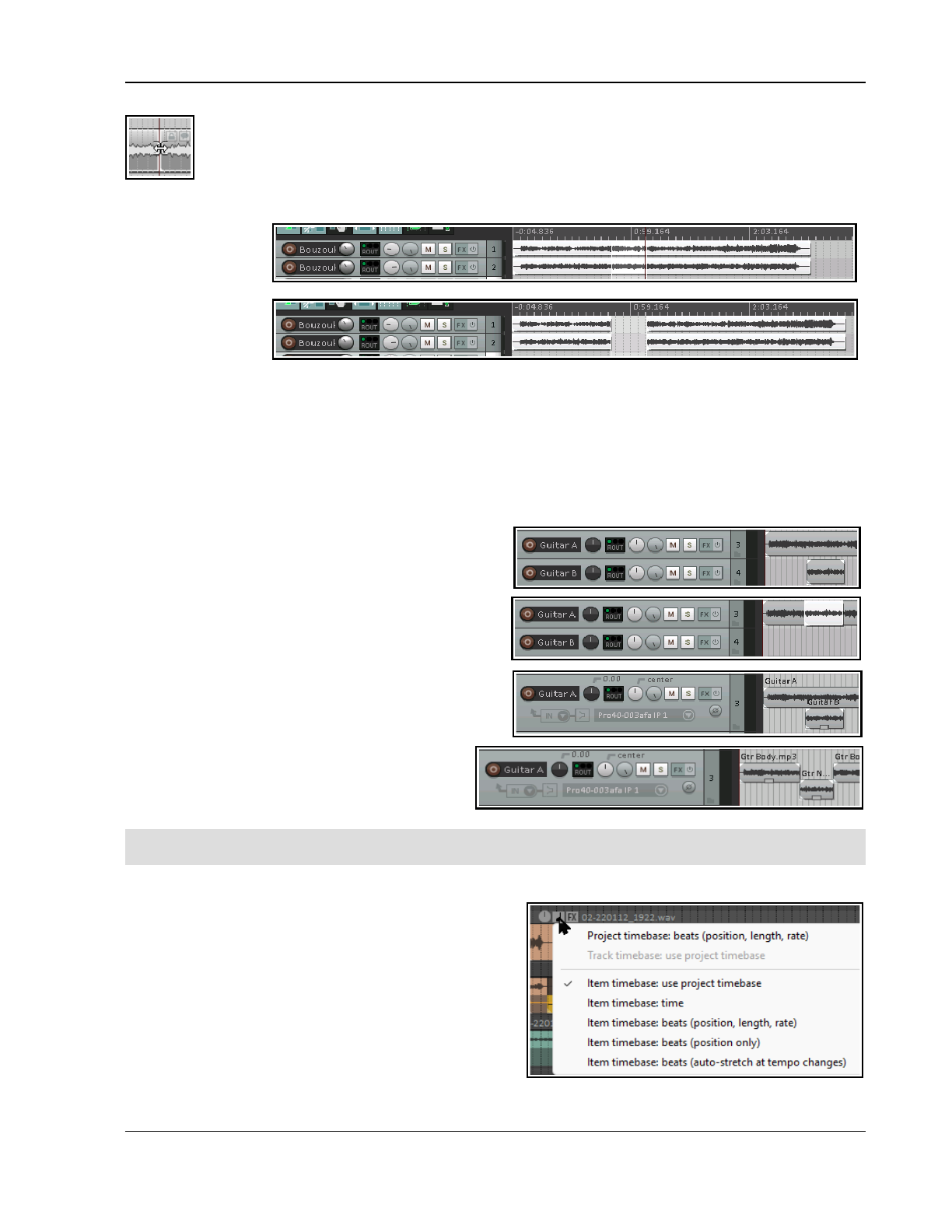
Managing and Editing Media Items
Another technique is to use slip-editing to move the boundary between two adjacent items
(perhaps when an original item has been split). Select both items and hover your mouse over the
boundary between the items to see the symbol shown here. You can then click and drag left or
right to move the boundary.
7.14 Insert Space in Selection
The command
Insert, Empty
space at time
selection will create
a gap in your song.
Make your time
selection, then use
this command. The
space is applied to
all tracks (as shown here). Existing material is moved to the right.
7.15 Trim Behind When Editing
The toggle command Options, Trim content behind media items when editing can be used to ensure that
existing material is effectively replaced by any new material that is placed over it. To understand this feature,
let’s see what happens when you move one item onto another with “trim behind” disabled and enabled. First,
note that trim behind when editing cannot work unless auto-crossfade is disabled.
This is how REAPER behaves with trim behind disabled (the default setting). Shown here are two guitar tracks.
1. We drag and drop the item from the second track
over the top of the first.
2. If we now enable free item positioning on the track
and increase the track height, by dragging the item on
top below the original media item, we can see both the
original and the new item stored in this track.
Let's repeat this, but this time with Trim content
behind media items when editing enabled.
Steps one and two would appear to be the same as
before. But look what now happens at step 3. This time,
when we allow free item positioning and drag the new
item down, there is nothing behind it! The new
item has replaced the original.
Note that you do not have to usefree item
positioning in oder to work with “trim behind”
enabled.
Note: When razor editing, trimming behind is by default always applied when an item or part of one item is
placed over another. To change this, disable Always trim content behind razor edits on the Options menu.
7.16 Changing a Media Item’s Timebase
By default your media items will take their timebase from
your project settings. However, provided you have
enabled display of your item timebase buttons in your
preferences (Appearance, Media item buttons) you can
change this for individual media items.
Select the media item(s), then click on the item timebase
button shown above any item in your selection. Your
options are shown here – Use project timebase (the
default), time, beats (position, length, rate), beats
(position only), or beats (auto stretch at tempo
change).
137
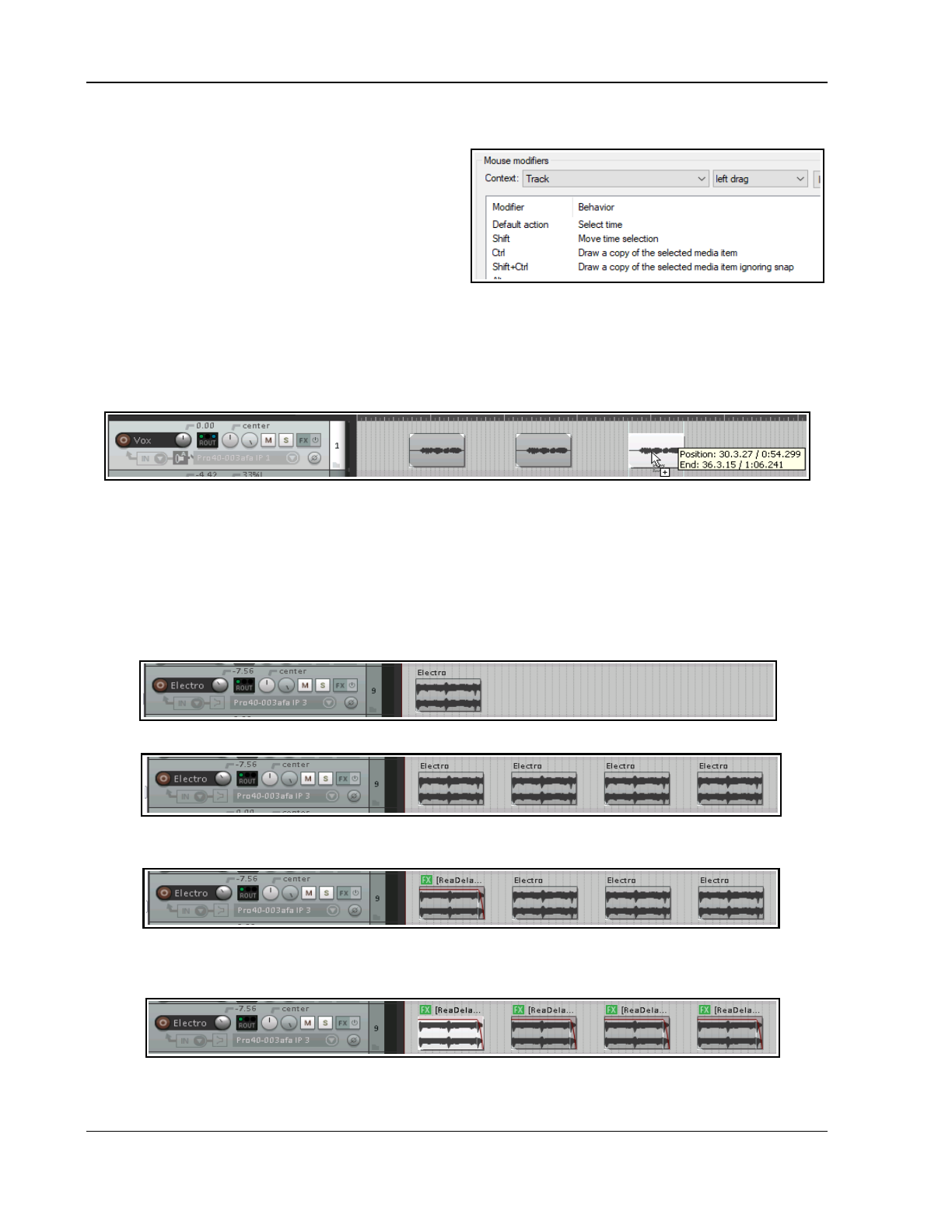
Up and Running: A REAPER User Guide v 7.81
7.17 Creating and Copying Items in Pencil Mode
REAPER’s pencil mode that can be used to create new
media items or make copies of existing ones. How the
feature works is determined by your Track left drag
settings on the Mouse Modifiers page of your
Preferences window.
In Chapter 15 you will learn how to change these
settings to suit your own needs. For example, you
could assign the Shift modifier to be used to draw a
new item. For now, we will be looking at the default settings. These default settings are shown here.
By default, the following modifiers can be used when clicking and dragging in an empty area in Arrange view:
Ctrl – draws a copy of currently selected media item. Snapping will be applied if enabled.
Ctrl Shift - draws a copy of currently selected media item, will not snap.
Ctrl Alt - draws a copy of currently selected media item pooling MIDI source data with snapping (if enabled).
Shift Ctrl Alt - draws a copy of currently selected media item pooling MIDI source data, will not snap.
The illustration above is an example of this. The first of two existing media items on a track has been selected.
By holding Ctrl while clicking and dragging further along that track, a copy of that media item is made.
7.18 Propagating Items
Two media item context menu commands, Propagate item to similarly named items on track and
Propagate item to similarly named items (all tracks), can be used to copy the settings and features of one
media item to other items on the same track and which share the same item name. Let's look at two examples:
Example 1
1. In this example, we have imported a sample into our project and placed it on a new track:
2. Next we have copied it as required across the track:
3. Some time later, we decide to make some edits to the first item. These include an adjustment to the item
volume handle, some FX, and a fade out.
4. Finally, we right-click over this first item and choose Item processing, Propagate item to similarly
named items on track to copy these edits to the other items. Any instances of this item on other tracks
will not be affected.
Example 2
138
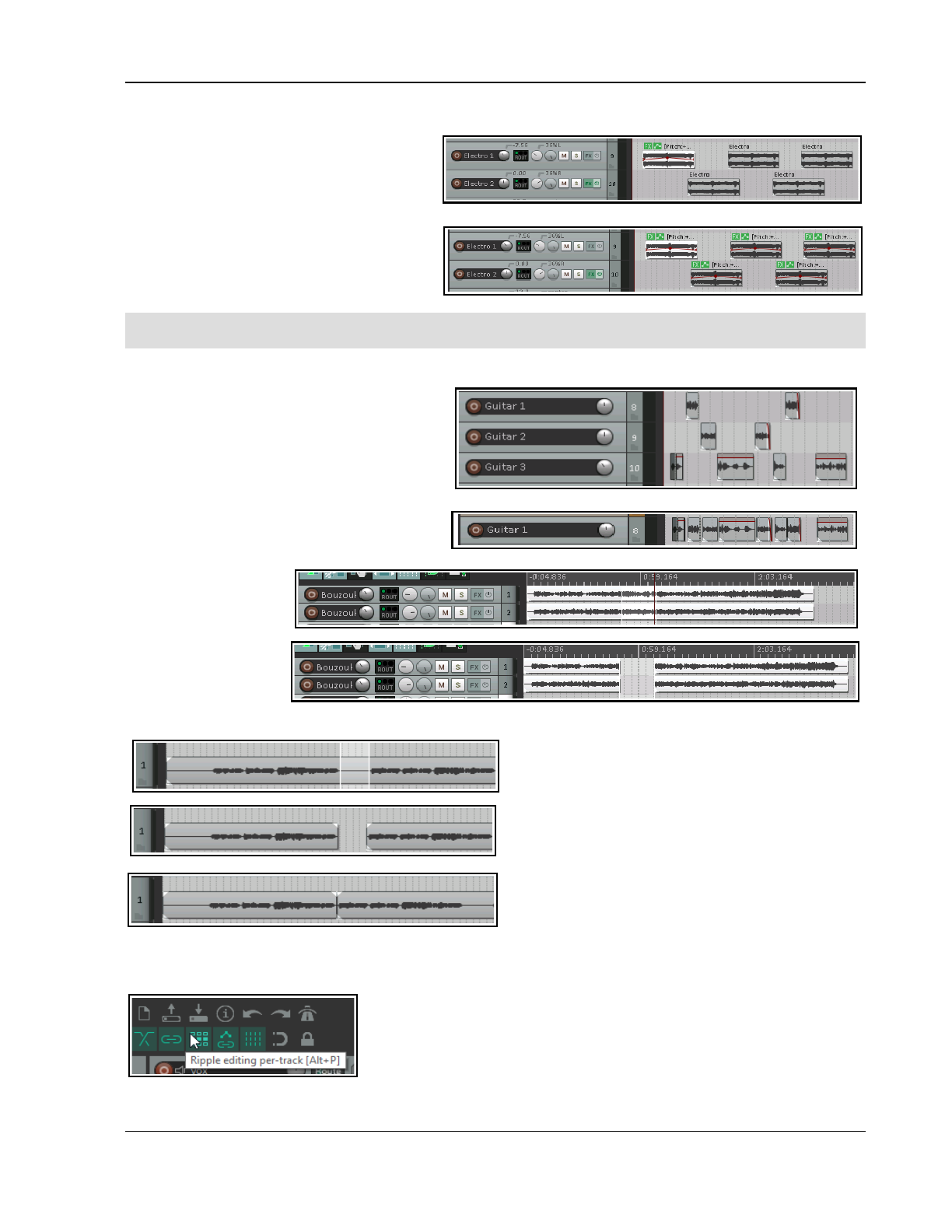
Managing and Editing Media Items
1. In this next example, the original item has been copied to create several media items across two tracks.
Each track has its individual settings,
such as different panning and FX on
only one item. As well as this, the
original media item has its own FX,
volume envelope and pitch adjustment.
2. The Item processing, Propagate
item to similarly named items
command has been used copy the
features of the original item to all other
similarly named items in the project.
Tip: You can assign one name to several media items all in one go. Select all of the items, press F2 to open the
Item Properties dialog box, type the name in the take name edit box and click on OK.
7.19 Implode Items To One Track
Where you have built up a number of items
that belong together but are spread across
several tracks (as shown top right) you can
select them all, right-click over any track in the
selection and choose Item processing,
Implode items across tracks into items on
one track.
This will move them to a single track (right).
7.20 Ripple Editing
Usually, when you
delete part of a media
item, a gap is left on
the track where the
deleted item used to
be. With ripple
editing, the material
on the track is moved
over to fill that gap. This is illustrated in the three screen shots below.
This first picture (left) shows a media item selected
with a time selection highlighted.
With ripple editing off, deleting the selected area of
the selected media item has the effect shown here.
With per track ripple editing enabled, deleting the
selected area of the selected media item has the
effect shown here.
Two ripple editing options are available on the
Options menu, or by right-clicking on the ripple edit button on the default toolbar. These are Ripple edit per
track and Ripple edit all tracks. By default, both of these are off. Either one or the other (but not both at the
same time) can be turned on from this menu.
Both off: In this default mode items will not shift when you edit a track.
Ripple edit per track: With this enabled, ripple editing will be applied
when you are editing the currently selected track(s) but not to any other.
Ripple edit all tracks: If this is enabled, all tracks will be subject to
ripple editing. This means any editing you do to any of the items on any
track will also be applied to all other tracks. This can be used, for example, for deleting entire sections of songs.
139
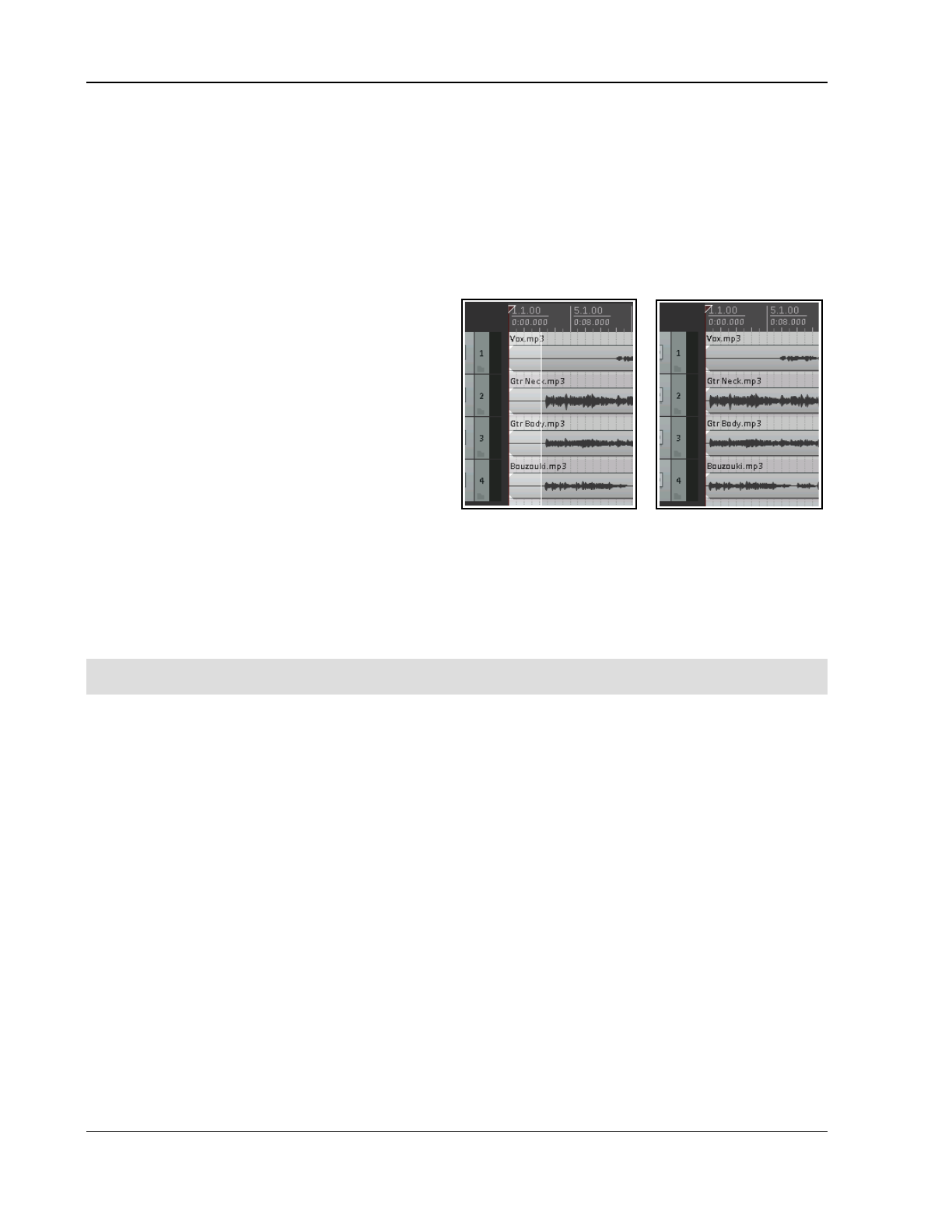
Up and Running: A REAPER User Guide v 7.81
The keyboard shortcut Alt P cycles between the three ripple editing modes, as can the Ripple Editing button
on the default toolbar. The right-click menu on this button also includes the options Ripple edit all affects
tempo map and Add edge points when ripple editing or inserting time. By default both are disabled.
In this mode, markers and automation are locked to the items that they relate to, so as you move items the
associated markers and automation move too. Using this mode on multiple tracks is very useful for editing
multitrack recordings of live material - everything that belongs together stays together in sync as you edit.
For instance, if you split the item at a couple of places (so you now have three items) then delete the middle
piece, the remaining pieces join up, but unlike with a normal stereo editor, you can adjust the join by dragging
the ends of the items appropriately. If you want to move material from one place to another, you can split at the
insertion point, drag the material to the right of the
insertion out of the way, then make the insertion and
drag the displaced material to join it.
All items to the right of the dragged item will stay
together: markers and automation will also move.
Below is shown an example with ripple editing on all
tracks. Ripple Editing, all tracks is enabled. In the first
picture the silence before the music starts is selected.
The command Cut selected area of items is then
applied. The selected area is cut from all tracks, and
the remaining material is moved to the project start.
Note 1: Complications can arise if locked items are
included in the selection that is to be ripple edited. In
particular, REAPER needs to know whether the ripple editing should be applied to the locked items. The Editing
Behavior preferences page includes options for dealing with this – see Chapter 22.
Note 2: Complications can arise when ripple editing if your project includes tempo changes. To ensure that
these changes are moved with your material, right click on the ripple edit icon on the toolbar and choose Ripple
edit all affects tempo map.
Note 3: Right click the ripple edit toolbar button for a number of further options such as whether to apply ripple
editing When editing media item edges, and Whether to affect envelopes on all tracks.
Tip: Shortly we will get to using mouse modifiers to determine REAPER’s behavior when an item or item
selection is dragged. This includes applyimg any of the three ripple editing states.
7.21 Trim to Selected Area
To trim a media item or track from both the start and the finish at the same time follow this sequence:
1. Select the media item (or items).
2. Click and drag in the track background area to select the area that you want to keep.
3. Right click over a selected media item and choose Trim items to selected area.
If Ripple Editing is turned on, the area that is trimmed will also be removed from the timeline, otherwise some
empty space will be left. If your Snap/Grid Settings are set to include Media Items, then provided that
snapping is enabled, snapping will be applied when you select the area to be trimmed.
Tip: The action list includes two actions which allow you to click your edit cursor on an item, then trim the item
removing either everything before or after the cursor. These are:
Item: Trim items left of cursor, and
Item: Trim items right of cursor
For more information about the Action List see Chapter 15.
7.22 Item Mute and Solo Actions
As well as item buttons, the actions list (chapter 15) includes several actions for muting or soloing individual
items or groups of items. Any of these can be assigned to your own keyboard shortcuts or toolbars if you wish.
Item properties: Mute Item properties: Solo Item properties: Solo exclusive
Item properties: Unmute Item properties: Unsolo (solos item and unsolos any other
Item properties: Toggle mute Item properties: Toggle solo items already soloed)
Item properties: Unmute all items Item properties: Unsolo all
140
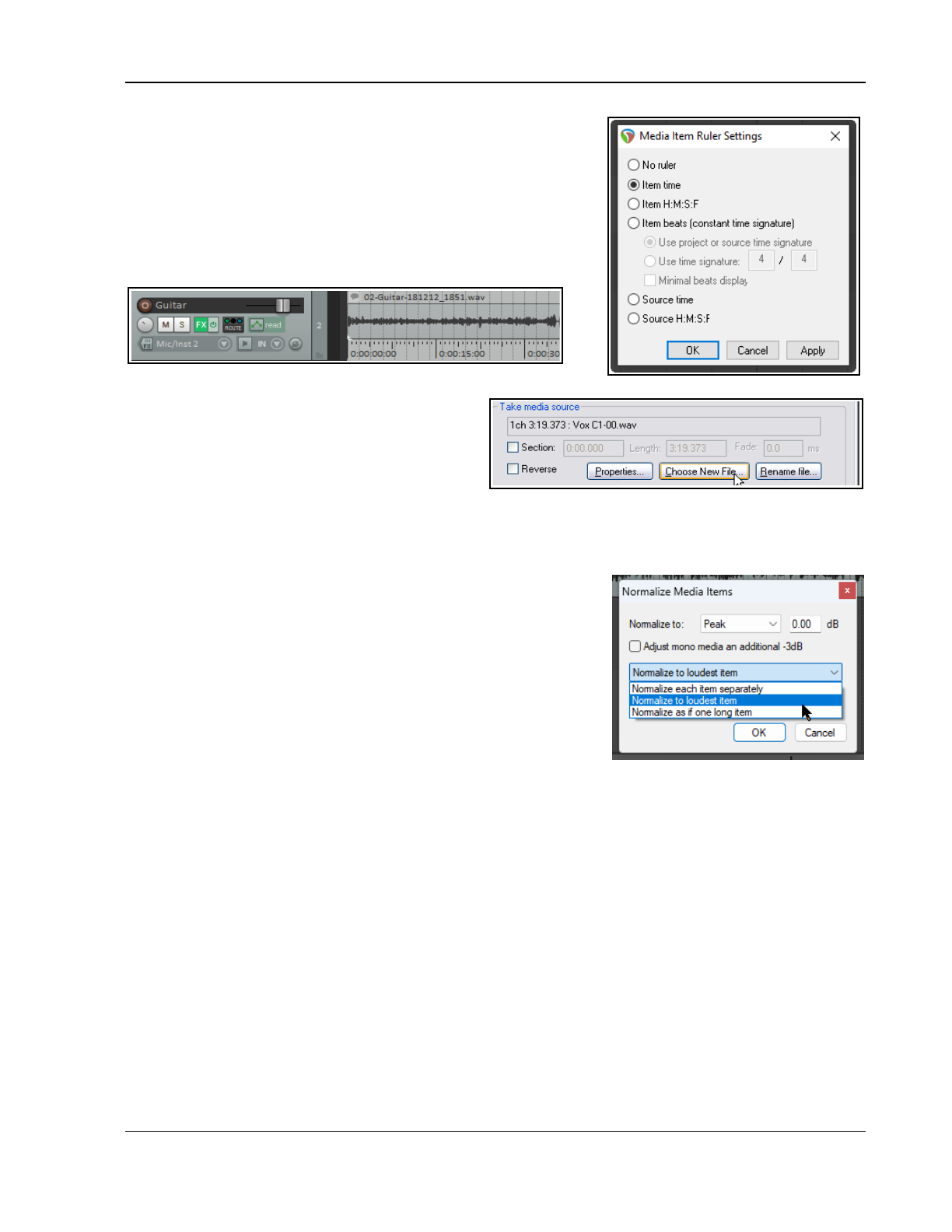
Managing and Editing Media Items
7.23 Displaying the Item Ruler
You can display a ruler on individual media items by selecting the
item(s) then right-clicking and choosing Item settings, Display item
ruler, Item ruler settings from the menu. Your options are Item
time, Item H:M↓S:F. Item beats (constant time signature),
Item beats, Minimal, Source time or Source time H:M:S:F.
There is also an option to display the Item ruler settings dialog
(shown here). This, for example, allows you to specify a time signature
other than the project/source time signature if you wish.
7.24 Take Media Source
The Take media source section of the Media
Item Properties dialog box (F2) can be used to
view the properties of the currently selected take,
or to change or rename its source file. To change
the media item contents click on Choose New
File, or to rename it use the Rename File option.
Click on the Properties button for information about the source audio file or MIDI item. In the case of MIDI
items, you can also modify some properties, such as Transpose “n” semitones, Only play specified
channels, Ignore project tempo, and Chase CC/pitch/program before start offset.
7.25 Normalizing Items
Normalizing
adjusts the volume of an item (or item selection) to a
standard level. Select the item(s): from the right-click context menu
choose Item processing then Normalize items (Peak/RMS/LUFS).
You can optimize to LUFS-1, RMS-1, Peak, True Peak, LUFS_M
max or LUFS-S max, as per JS Analysis Loudness Meter options.
Normalize as if one long item raises the level of all items relative to
each other. At 0.00 dB this will be as far as is possible without clipping.
If you Normalize each item separately it can be expected to result in
a greater increase in volume for some items than for others. With
Normalize to loudest item is selected the relative volime of media items to each other will stay the same.
There is also an option to Adjust mono media items an additional -3dB.
Items can also be normalised by clicking the Normalize button inside the Item Properties dialog. Also, you are
able to normalize items or regions when rendering selected media items not through the master via the File,
Render dialog.
7.26 Snapping with Combined Snap/Grid Settings
You have already learnt (Chapter 5) how to define grid settings to determine if and how a grid is shown in
arrange view. The Snap/Grid Settings window (below) lets you ensure that various actions (including time or
loop selection) and/or items are automatically snapped into position according to your settings.
Options, Snap/Grid, Snap/Grid Settings open this dialog, or use Alt L, or right click on the toolbar Grid
button . Alt S toggles snap on and off. Grid snapping can be applied in a number of ways, including:
Swing grid: Option to use swing grid, adjusting all or only selected items when changing swing. There is also
an option to Use the same grid division in arrange view and MIDI editor.
Other options include Snap media items, selection and/or cursor to selection/markers/ cursor and/or grid,
and whether Grid snap settings follow grid visibility. Option to Snap media items to nearby media
items and options to Snap automation items and/or Razor edits to automation items or media items.
Snap to project sample rate: Items may be snapped to items samples, cursor, markers, loop points and
envelope points to snap to samples.
141
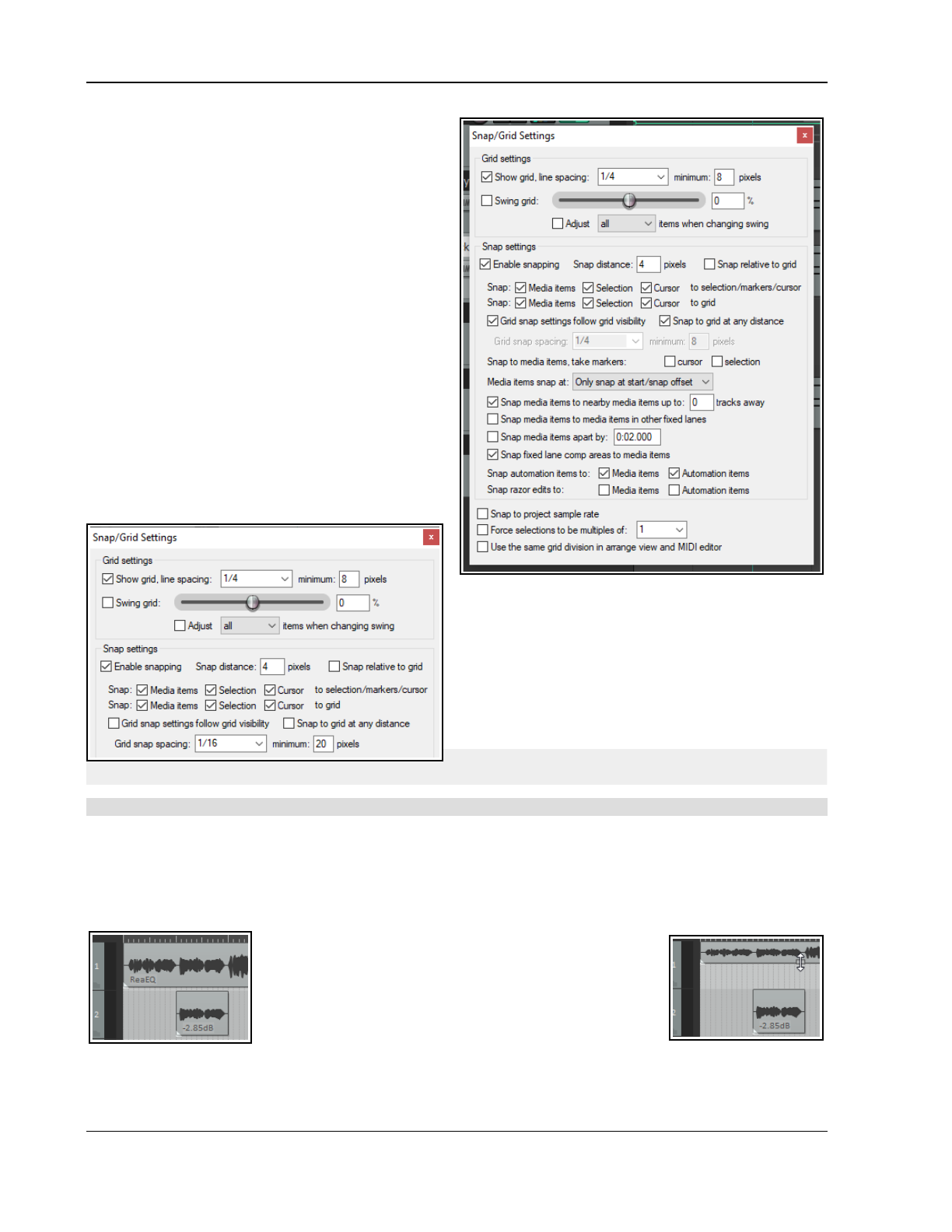
Up and Running: A REAPER User Guide v 7.81
Snap Distance settings enable you to be more
flexible. For example, with grid spacing at 50 pixels
and snap distance at 5 pixels, the option to Snap to
grid at any distance off, snapping to grid will occur
only within 5 pixels of any grid line. Otherwise, the
cursor will be placed wherever the mouse is clicked.
Also, snapping can be made Relative to Grid.
Note: The snap behavior of ruler markers and regions
will follow cursor snap settings.
7.27 Separate Snap and Grid Settings
The above examples use the same set of snap
parameters for grid display as is used for snapping. In
other words, the snapping would take place to the
nearest grid position. Let's now see what we can do if
we disable the option Grid snap settings follow
grid visibility.
We have also changed the minimum pixels setting
for grid line spacing, in this case to 20 pixels, whilst
still specifying (at the point where the cursor is shown
on the screen shot) a grid snap spacing of one
sixteenth beats.
This produces a less cluttered display on the screen.
Provided you have zoomed into your project
sufficiently, gridlines will be shown for every quarter
beat but snapping will take place between as well as
on the gridlines, at every sixteenth beat.
The Media items snap to option can be set to Snap
both start/end, Only snap at start/snap offset or
Mouse position dependent (i.e. at the mouse
position nearer at the time, the start or the end).
Tip: When snapping is enabled, this can be over
ridden when selecting a loop along the timeline by holding down the Ctrl key while you make the selection.
Note: The action list includes an action Item: Set snap offset for item under mouse to mouse position.
7.28 Free Item Positioning
Free item positioning enables you to move your media items around freely within a track or tracks. This
allows, for example, two or more items to play simultaneously or to overlap on the same track:
1. Select the track (or tracks) for which you wish to allow free item positioning.
2. Right click over the Track Control Panel. From the menu, choose Free item positioning.
These illustrations demonstrate an example of this. In the
first image (left) we have a Lead Vocal and a Harmony
Vocal on different tracks. We might find it convenient to
place these together on the same track.
In the second image (right) we have enabled Free Item
Positioning for the lead vocal track. Notice that there is a
small handle (shown by the mouse cursor) which can be
used to adjust the height of this media item.
In the third image (below left) the media item for the harmony vocal has been dragged and dropped into the
lead vocal track (with Shift key held down). When this track is played, both media items will play together. In
142
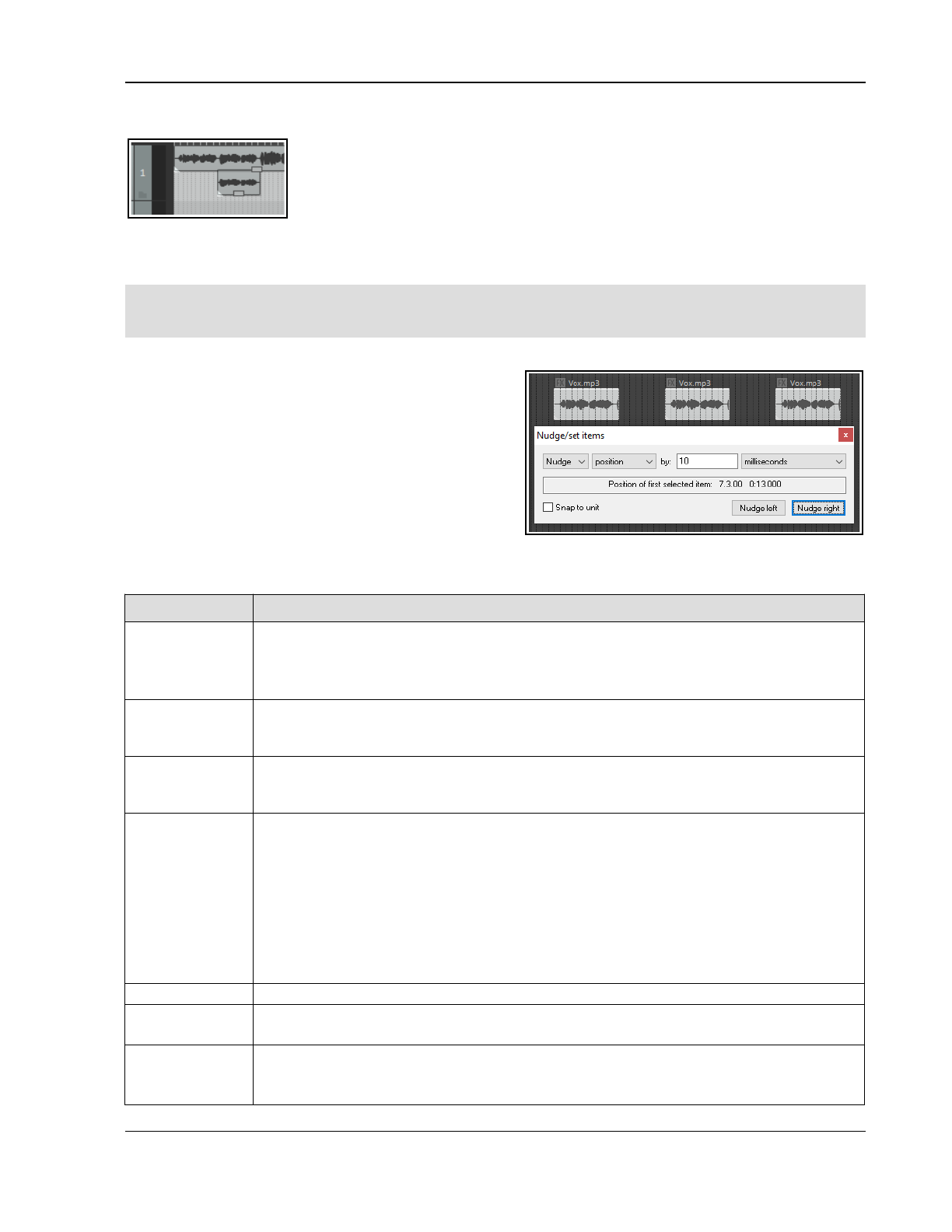
Managing and Editing Media Items
fact, in this example, the previous harmony vocal track (now empty) can now be deleted.
Each item is independent of the other. Either or both can be muted/unmuted, have FX
added, and so on. You can use the Media Item Properties dialog box (F2) or the
right-click menu for this.
Note 1: Free item positioning can be made the default for all new tracks by enabling
it at Options, Preferences, Track/Send Defaults.
Note 2: If auto-crossfade is enabled, media items that overlap vertically will crossfade. Otherwise, the vertical
positioning of media items does not affect playback. The
preferences for item mix behavior are ignored;
items
always mix on free item positioning tracks.
Tip: As you move items around in free item positioning mode you can sometimes find that items are placed
awkwardly or untidily: this can make editing difficult. If this happens, select the items, right-click and choose
Item processing, Auto-reposition items in free item positioning mode.
7.29 The Nudge/Set Items Window
The Nudge/set items window is opened from a media
item’s right-click menu or from REAPER’s Edit menu.
In the Actions editor you can assign this action to shortcut
keys, and/or use the Menus/Toolbars editor to assign it to
a toolbar. Both the Actions List editor and the Customize
Menus/Toolbars editor are covered in Chapter 15.
This window stays open until closed. You can select any
item (or a number of items) to be nudged or moved to a
set position. The behavior respects your other settings
(e.g. snap and whether the item is loop enabled). The
main options and parameters in this window are described in the table below, moving from left to right.
Item Explanation
Action
Choose Nudge or Set to determine how REAPER will interpret the Unit information.
Nudge causes the item to be moved according to the unit specified
by
the amount
specified. In the example above, the item is moved 10 ms left or right (depending on
which Nudge button is clicked). Set causes the item to be moved
to
the position specified.
Unit Value Determines the number of units by which the item will be nudged. This information needs
to be interpreted together with the Unit Type selection. In the example shown above, the
unit type is milliseconds and the unit value is 10.
Unit Type Options include milliseconds, seconds, grid units, measures/beats, samples, frames, pixels,
item lengths, item selections and notes. If notes is selected, an additional drop down list
offering various fractions of a note (from 1/256 to whole) is also displayed.
Nudge/Set
Definition
Determines exactly
what
will be nudged or set. Your choices are:
Position Whole item: the whole item will be physically moved
Left Trim The item is trimmed from the left
Left Edge/Right Edge The left edge or right edge is moved
Contents The item itself remains static, its contents are moved within it
Duplicate Creates duplicate item(s)
Edit Cursor Moves edit cursor
Whether the movement is left or right will depend on which button is clicked. If Duplicate
and Nudge are selected, you will be able to specify number of copies.
Snap to Unit Whether to enable or disable snapping.
Nudge Left
Nudge Right
These buttons are displayed only if Nudge is selected. They determine whether to nudge
the item(s) to the left or to the right.
Get Cursor
Apply Move
These buttons are only displayed when Set is selected. Get Cursor returns the current
cursor position and writes it in the “to:” box. Apply Move moves the item according to
the various options and settings, including the position specified in the “to:” box.
143
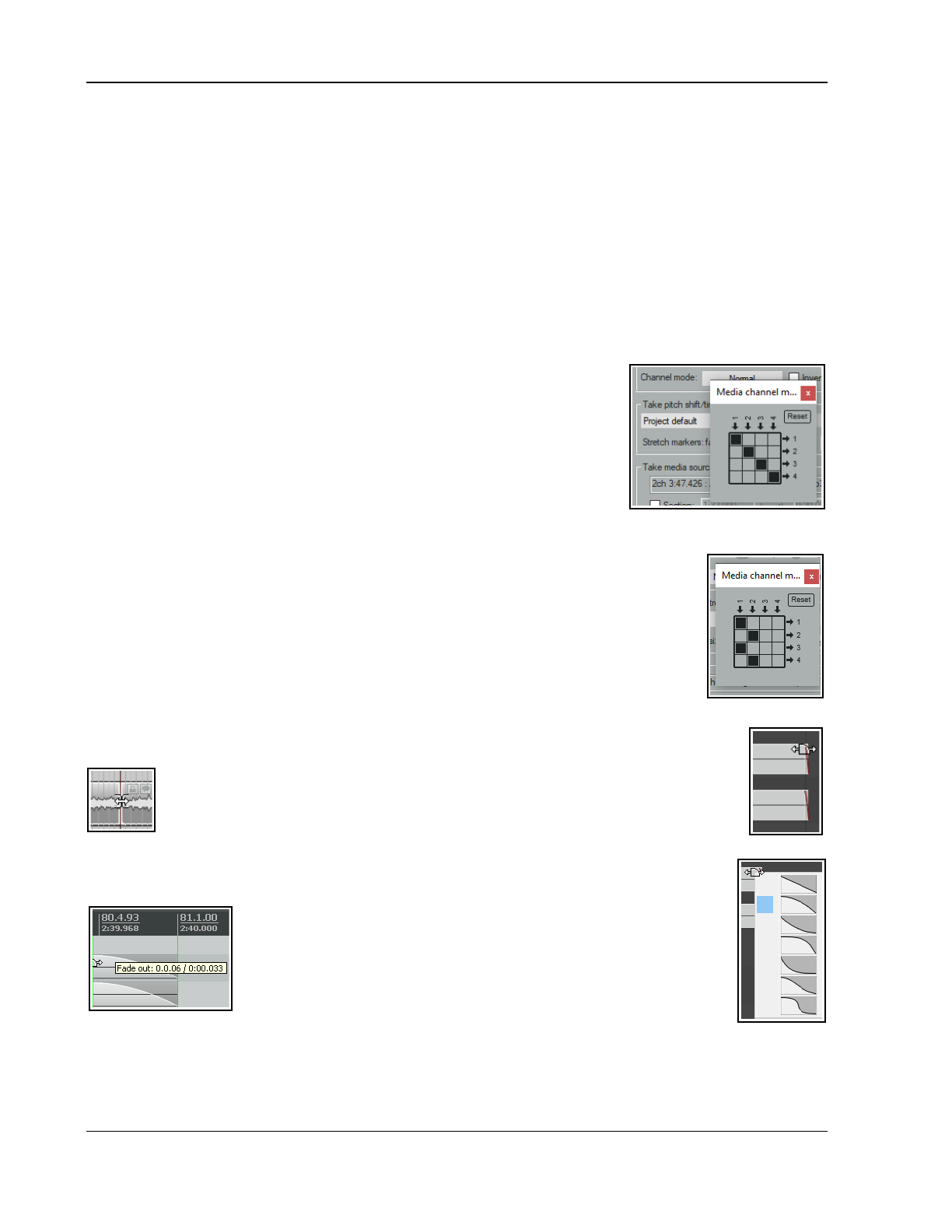
Up and Running: A REAPER User Guide v 7.81
7.30 Item Channel Mode and Channel Mapping
Select Channel mode from a media item’s properties dialog to see a menu of options. These include:
Normal: maintains or returns the stereo item to its original channel state.
Reverse Stereo: swaps left and right channels.
Mono (Mix L + R): combines both left and right channels into a single mono channel.
Mono (Left): produces a single mono channel using only the output from the original left channel only.
Mono (Right): produces a single mono channel using the output from the original right channel only.
Mono (3-128) or Stereo (1-128): maps output to a single mono channel or paired stereo channels.
For multichannel items (see Chapter 3) you may mix down in mono or stereo to channels other than 1 and
2.Item Channel Mapping
The Channel mode menu includes an option Open channel mapper (also in the Actions list). It allows you to
map item output to other channels (e.g. 3/4) as well as or instead of the default channels 1/2. For example:
For a track containing several items, to send only some of these items to
another track (e.g.) a reverb bus. An example is shown below.
When mixing in a surround format such as 5.1 and you wish to send the
output to a particular channel or channels.
Example
Suppose a track (say, track 2) contains four items, two of which need to be sent
to a reverb bus on, say, track 5. Of course, these could be any two tracks.
1. Use the track routing window to ensure that both tracks (2 and 5) are
assigned four channels each, i.e. channels 1-4 (see right)
2. Select the two items in track 2 and press F2 to open their Item Properties window. Display the channel
mode menu and choose Open channel mapper (changes take effect
immediately). The display should appear as shown above right. By default, any media
on each channel will go to its equivalent output – 1 to 1, 2 to 2 and so on. Here we
want the media on channels 1 and 2 to go to both 1/2 and 3/4. We therefore change pin
connector settings as shown here (right). This 0also adds the JS: Channel Mapper
plug-in to each item’s FX chain: this plug-in can be used at any time to adjust any of the
channel mapping settings (there’s more about this channel mapper in Chapter 17).
3. Finally, open the track routing window for the Reverb track and add a receive from (in
this case) track 2 channels 3/4 to channels 1/2 on this reverb track.
Note: If you make a mistake use the Reset button to restore default settings.
7.31 Adjusting Media Item Fades
If you select any item in a track and zoom in close enough, you will see a tiny
fadeout curve at the end of that item. You can change both the shape and duration
of this curve, either using the mouse, or thru the Item Properties dialog box.
1. Select the rightmost item on one or more tracks. In this example (right) two
tracks have been selected. These items might be, but need not be, vertically aligned.
2. Hover your mouse over the vertical white line that marks the start of the fade. The mouse
changes to display a curved shape.
3. Click and hold down the left button. Drag left to increase the
fadeout length (see below left) then release the mouse. Notice
that the fadeout curve is now more gradual but it keeps its shape.
4. Make sure that your media items are still selected.
5. Right-click over the vertical line that marks the start of the
fadeout. A menu of different curves will be displayed (see right).
You can select any of these.
Instead of using a mouse, you can use the Items Properties dialog box (press F2) and make changes there.
Also, you can use Alt left click to delete a fade, or Ctrl left click to cycle thru the different shapes.
The Options, Preferences dialog box includes an option on the Project, Item Fade Defaults screen to specify
default fade and crossfade length, overlap, and shape characteristics.
144
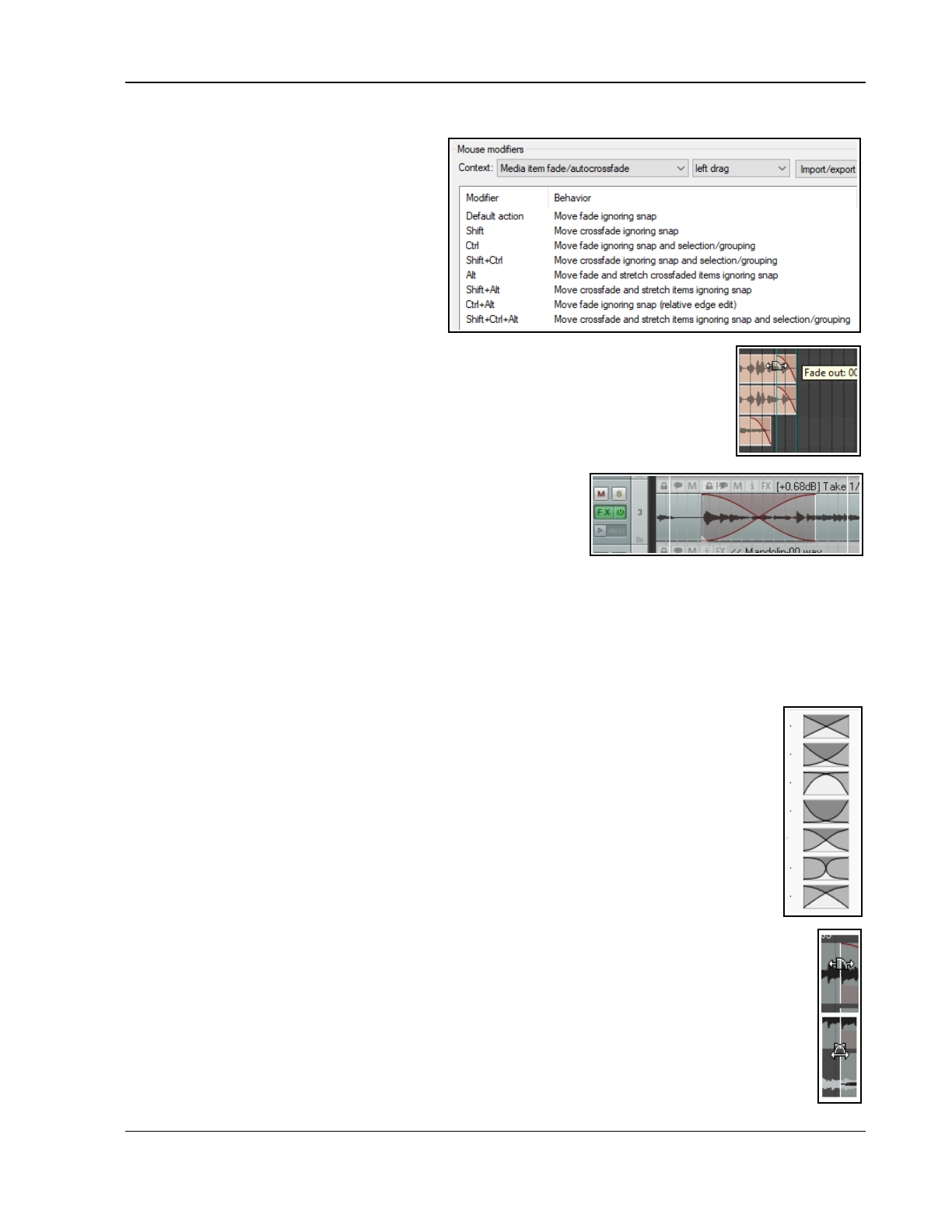
Managing and Editing Media Items
In addition, the Preferences Mouse Modifiers page (shown below) gives you additional functionality by using
modifier keys with your mouse when working
with fades and crossfades. Options are
available for left click, left drag and double-
click.
For example, holding Shift while dragging the
mouse left or right will move a crossfade left
or right. Alt drag will move and stretch the
fade. Other default settings are shown above.
These actions can be used on a single media
item, or on a selection of media items, and
can be customized (see Chapter 15).
Relative vs Absolute Edge Edits
Unless defined as relative, media item fade edits work in absolute mode: this means that
within a selection, only those items whose edges align exactly along the timeline will be
affected. Actions which work in relative mode (e.g. in this context, Ctrl Alt left drag)
will be applied to all selected items, regardless of where they lie on the project timeline.
In the example shown here (right), relative edge fading is being applied to three tracks by
using Ctrl Alt left drag. All three are edited, even though their positions do not all align.
7.32 Crossfades and the Crossfade Editor
Typically, a crossfade is used to transition gradually from one
media item on a track to another. As the first item is gradually
faded down, the second is faded up.
In the example shown (right), two media items overlap each other
with a crossfade. Use Alt X or the toolbar crossfade button to toggle auto-crossfade mode on and off. When
enabled, dragging the start of one media item over the end of another (or vice versa) will automatically create a
crossfade. Default crossfade parameters (including fade and crossfade shapes) are set in the Item Fade
Defaults page of REAPER's preferences.
Various crossfade elements (such as shape, start and finish) can be edited with your mouse in much the same
way as you might edit a simple fade. Often this might be all you need to do. However, the Crossfade Editor gives
you more control over your crossfade characteristics. After selecting the items crossfade, this is opened using
the Edit, Crossfade Editor command or by double-clicking near the top of the crossfade.
On the next page you can see the crossfade editor open. The crossfade area has been selected
(by clicking anywhere on the crossfade curve). The crossfade editor displays the fade parameter
information for the selected media items.
Use a copy of your project file to experiment, until you become familiar with the many controls.
Let’s first introduce the basic, or essential, features, before examining the more advanced ones.
Crossfade Editor: Basic Controls
● The four arrows (left, right, up, down) are used to select the previous/next crossfade on the
same track, or to move to work with crossfades on the previous/next track.
● The fader units can be set to time (seconds), beats, H:M↓F, or samples. Shown overleaf it
is set to beats.
● Any of the seven shapes shown (above right) can be selected for fade out, fade in, or both
together After choosing a shape, you can use the mouse directly on the crossfaded media items.
Drag either curve left/right to adjust the fade, or at the diamond intersection to move the point
where the fades cross and thus both fades simultaneously.
● To adjust the start/end position of the crossfade, hover the mouse over its left/.right edge and
drag left or right. Placed over the item edge it will adjust only the start (left edge) or finish (right
edge) only, a shown top right. Placed between the two items it will adjust both the crossfade
start and finish simultaneously as shown bottom right.
● The position of the media items shown inside the crossfade editor window can be adjusted by
dragging them left or right.
145
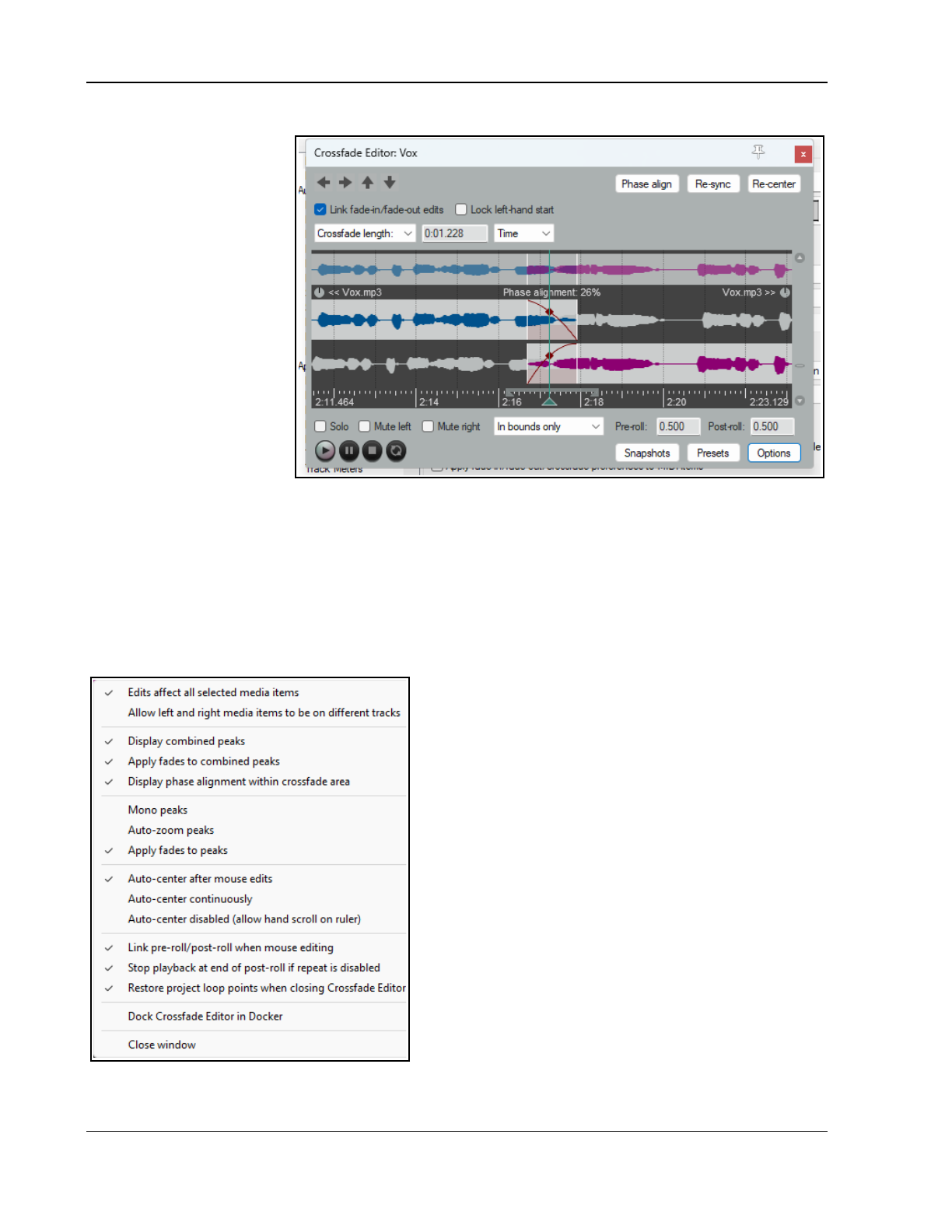
Up and Running: A REAPER User Guide v 7.81
Crossfade Editor: Digging Deeper
Click on the Options button
to open a context menu (see
below).
You have options for Edits
to affect all selected
media items and to Allow
left and right media
items to be on different
tracks.
The next two commands –
Display combined peaks
and Apply fades to
combined peaks - add a
lane showing the effect of
applying the crossfade to the
two items.
An option box enables you to
Link fade in/fade/out
edits. This effectively locks
the center of the crossfade
in place so that as you adjust the starting position of the crossfade the end position is adjusted by an equal
amount. However, if you Lock left hand start then you can adjust the end position without the start position
changing.
The Display phase alignment option causes any phasing issue to be displayed, as shown here. The Phase
align button is used to specify whether you want phase alignment issues corrected by adjusting left item
position, left item contents, right item position or right item contents,.
Immediately above the visual display you can choose to show crossfade length (as in the example above),
fadeout (start, end or length), fadein (start,end or length) left volume or right volume. Values can also be
entered here – for example, to specify a crossfade length of 4 seconds.
From time to time you might find that your edits have
caused the crossfade to get out of sync, The Re-sync can
be used to resolve this, by Sync crossfade to media
edges, Sync fade-in to fade-out or Sync fade-out to
fade-in. Re-center will reposition your crossfade, if
necessary, to re-center it.
Other menu options are largely self-explanatory. You can
choose to use Mono peaks, to Auto-zoom to peaks
when editing, Apply fades to peaks, Auto-center
[crossfade area) after mouse edits, and/or Auto-center
continuously. Alternatively you can Allow hand scroll on
the ruler – this disables auto-centrer.
Other options are to Link pre-roll/post-roll when mouse
editing, Stop playback at end of post-roll if repeat is
disabled and/or to Restore project loop points when
closing Crossfade Editor.
The Crossfade Editor Transport Bar
Most controls here are self-explanatory. Notice the four
buttons – play, pause, stop and repeat. Also:
Preroll and Postroll: start playback of the preroll seconds
before the crossfade, and continue for the postroll period
after the crossfade.
Other options are to Solo crossfaded items, and to mute left (pre crossfade) or right (post crossfade). These
can be applied in bounds only, out of bounds only, to top lane only, or to bottom lane only.
146
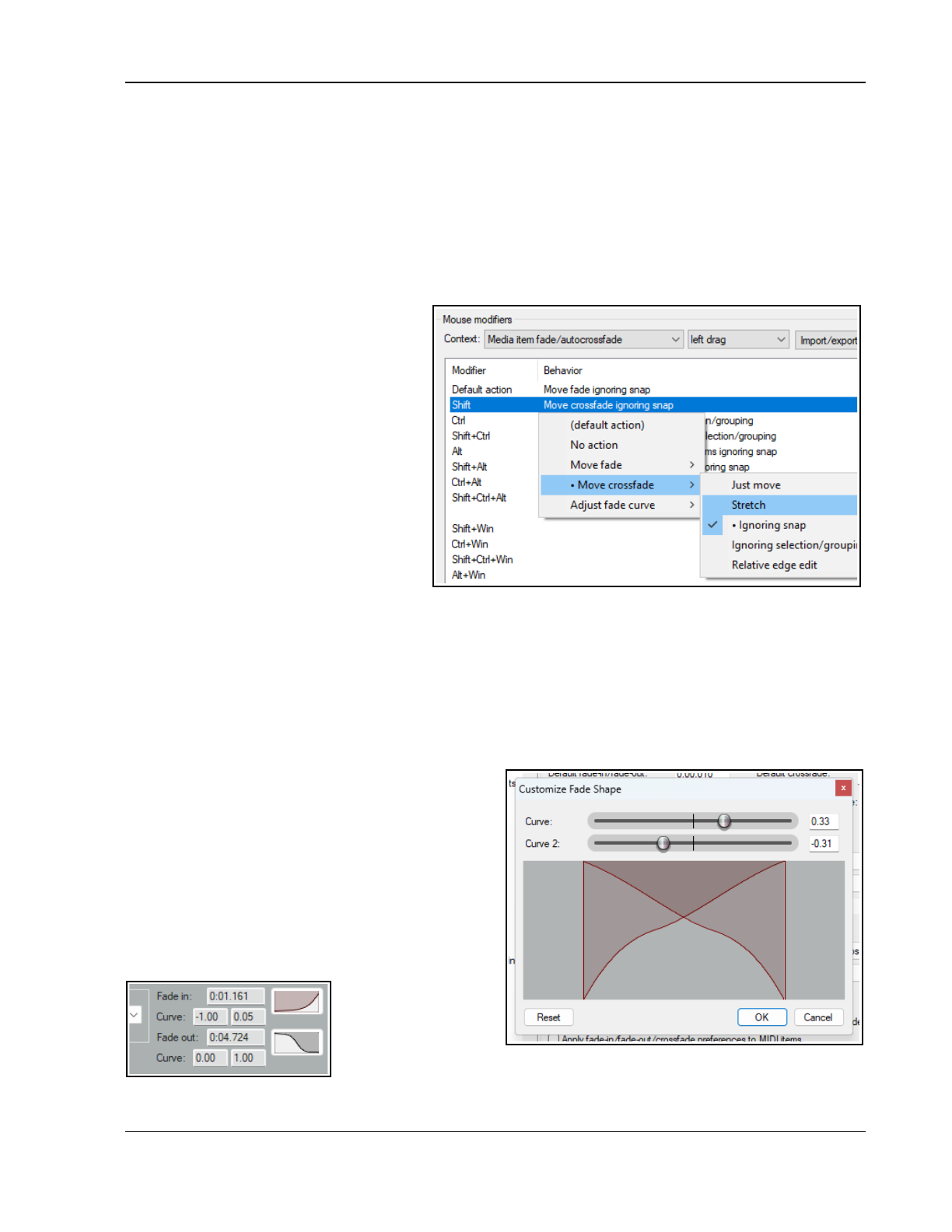
Managing and Editing Media Items
Snapshots and Presets
Taking Snapshots will save your crossfade settings exactly as they are at that time,
but only for the crossfade
on which you are currently working
. Use the Snapshots button to save up to four snapshots as Snapshot 1,
Snapshot 2, etc. These can be recalled from this menu.
Presets are global. Current settings can be saved (and named) from the presets button menu. Presets are
saved globally and added to this menu, able to be recalled for crossfades in this or other projects as required..
Fade/Crossfade Mouse Modifiers and Actions
Both media item fade intersection and fade/autocrossfade mouse modifiers can be defined separately for
left click, left drag and double click actions. The left drag modifiers are of particular interest.
The context Media item
fade/autocrosfade uses modifiers to
manage the intersection itself.
These can be used with fades/crossfades,
e.g., to enable or disable options such as
whether to ignore snap and/or selection/
grouping, whether to stretch items, or to
assign actions (such as adjusting the fade
curve). Other options allow fade curves to
be adjusted with the mouse.
Left click and double click modifiers can be
used to apply any of a number of additional
fade intersection or auto crossfade actions
from REAPER's Actions list.
Open the Actions list (Actions menu) and
from its Section drop down menu choose
Crossfade Editor for a complete list of
available actions.
These include actions to load presets and snapshots, change fade/crossfade shapes, to adjust curves horizontally
only or both horizontally and vertically, for managing crossfades on splits, various pre-roll and preview actions,
and actions to modify fades in various ways. Other actions allow you to mute/unmute left item or right item, or
to solo crossfaded items. See also Chapter 15.
Running the action to Calculate loudness of selected items via dry run render (optionally including take
and track FX) will cause that item’s loudness stats to be displayed. For more information about loudness analysis
see the JS Analysis Loudness Meter, and for the Actions List see Chapter 15.
Customizing Default Crossfade Shapes
REAPER’s preferences (Options, Preferences,
Project, Item fade defaults) allow you to customize
your default fade/crossfade shapes.
Click on either image to display a menu of seven
shapes plus an option to Customize fade. Use the
Curve and Curve 2 faders in the displayed dialog to
adjust the curves as you wish. Reset will restore
defaults, OK will save your changes.
Then, in the Preferences, Item fade defaults
window, click on Apply.
Fade/crossfade
properties (including
curve shapes) for
selected media
item(s) can also be
edited for selected item(s)in the Media item properties dialog – press F2.
This supports the use of two parameter fades.
147
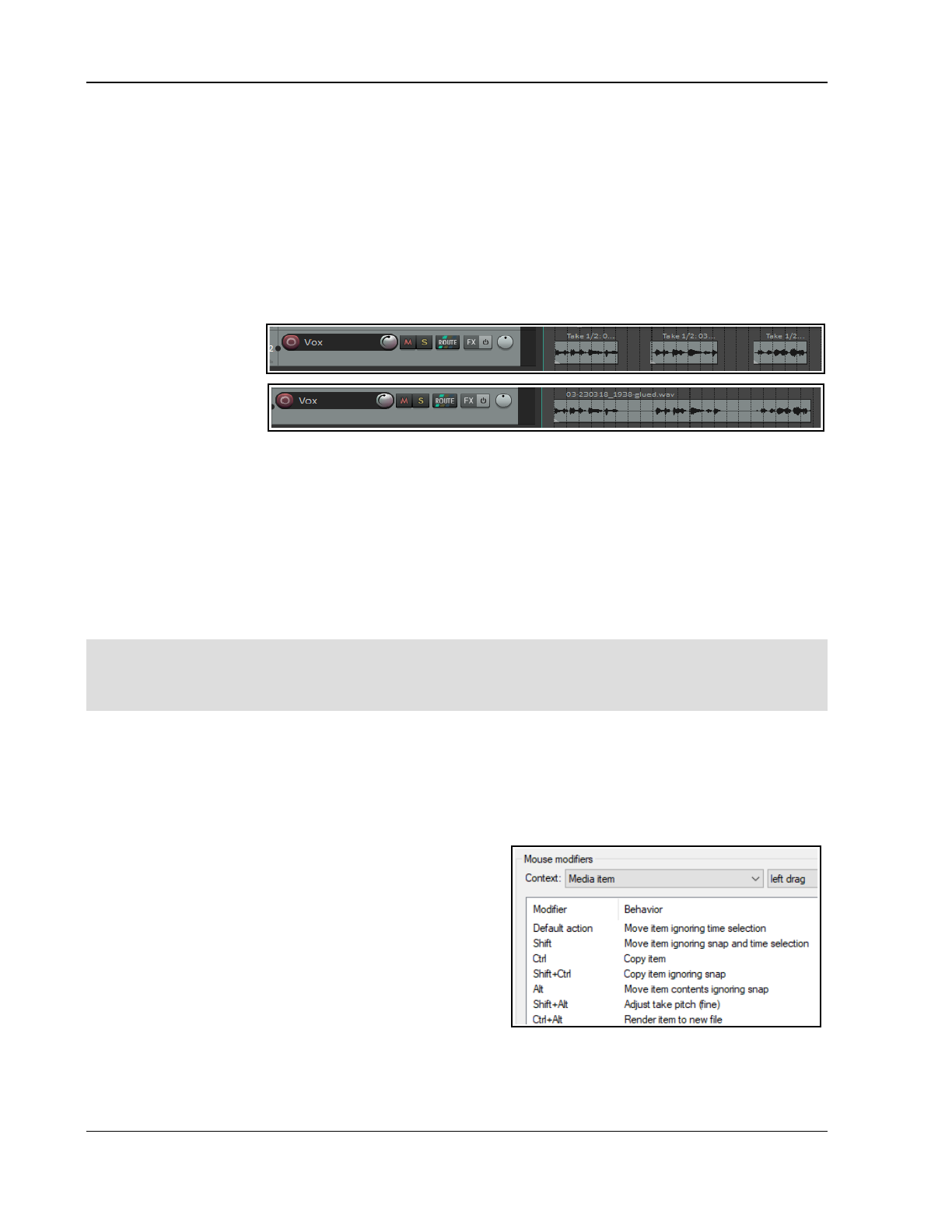
Up and Running: A REAPER User Guide v 7.81
7.33 Glue Selected Items
A number of items in a track can be joined into one using the Glue items command. This creates a new media
item: the original items are not damaged. For example, two MIDI items glued together will automatically and
always open together in the same MIDI Editor window. Two glued audio items will now share one common set
of item properties. Glued items can later be split, for example if you later need to adjust one or more properties
of a portion of that item. To glue together a number of adjacent items in a track, follow this procedure:
1. Select the items to be to glued (to do this, right click and drag the mouse across the items).
2. Right click over any item in the selection and choose Glue items from the context menu.
Example
In the example below, a track is made up of three media items. Right click over the first item, then drag to the
last item before releasing
the mouse. This ensures
that all items are
selected.
Next, right click over any
of these items and
choose Glue items
from the menu to join them as one.
One application for gluing items is to join several items together into a new loop source. You'll learn more about
working with loops in Chapter 9. Another use for glue is to render an item, for example, incorporating item gain
and item take FX into the new media item and setting the FX to bypass. When a selection of two or more items
are glued in this way, the FX and so on will be applied to the appropriate sections of the new item.
Note 1: When MIDI items are glued, any item that includes take FX such as a VSTi synth is rendered as audio.
Note 2: Actions are available in the Actions List (see Chapter 15) to ensure that when an item is glued, its
channels will be increased if necessary to accommodate the output of any item FX. For example, if the action
Item: Glue items (auto increase channel count with take FX) is applied to an item with FX which use two
channels for output, then that item will be rendered in stereo (two channels) when glued.
Tip: You can ensure that a period of silence will be added before and/or after the items that are to be glued. For
this, there is no need to select the items. Instead, select the track and click/drag in arrange view to enclose the
items in a time selection, including any time you require for silence before and/or after the items. Then right-
click over the time selection and choose Glue items within time selection from the menu.
7.34 Coloring Individual Items
You can change the colors of individual media items (or selections of media items) by first selecting the items
and then displaying their context menu and choosing Item and take colors, then Set items to custom color
or Set items to random colors or Set items to one random color. See also Track Colors in Chapter 5.
7.35 Customising Mouse Modifiers
You have already encountered many examples of how
REAPER uses the mouse with and without modifiers to
perform a whole range of tasks. These have so far included
making loop and time selections, copying and moving media
items, slip editing media items, using item pencil mode, and
so on. In Chapter 15, you'll learn more about how you can
modify any of these if you wish, and even create your own.
Meanwhile, you can find out more about the various Mouse
Modifier default settings by browsing thru the Editing
Behavior, Mouse Modifiers section of your REAPER
Preferences.
From the Context list, select a topic, such as Media item left
click, Media item left drag, Track click, Ruler click, Arrange view right-click, etc. A list of default mouse actions
relevant to that context will be shown. Double-click on any entry in the Modifier column to assign an action to
that modifier.
148
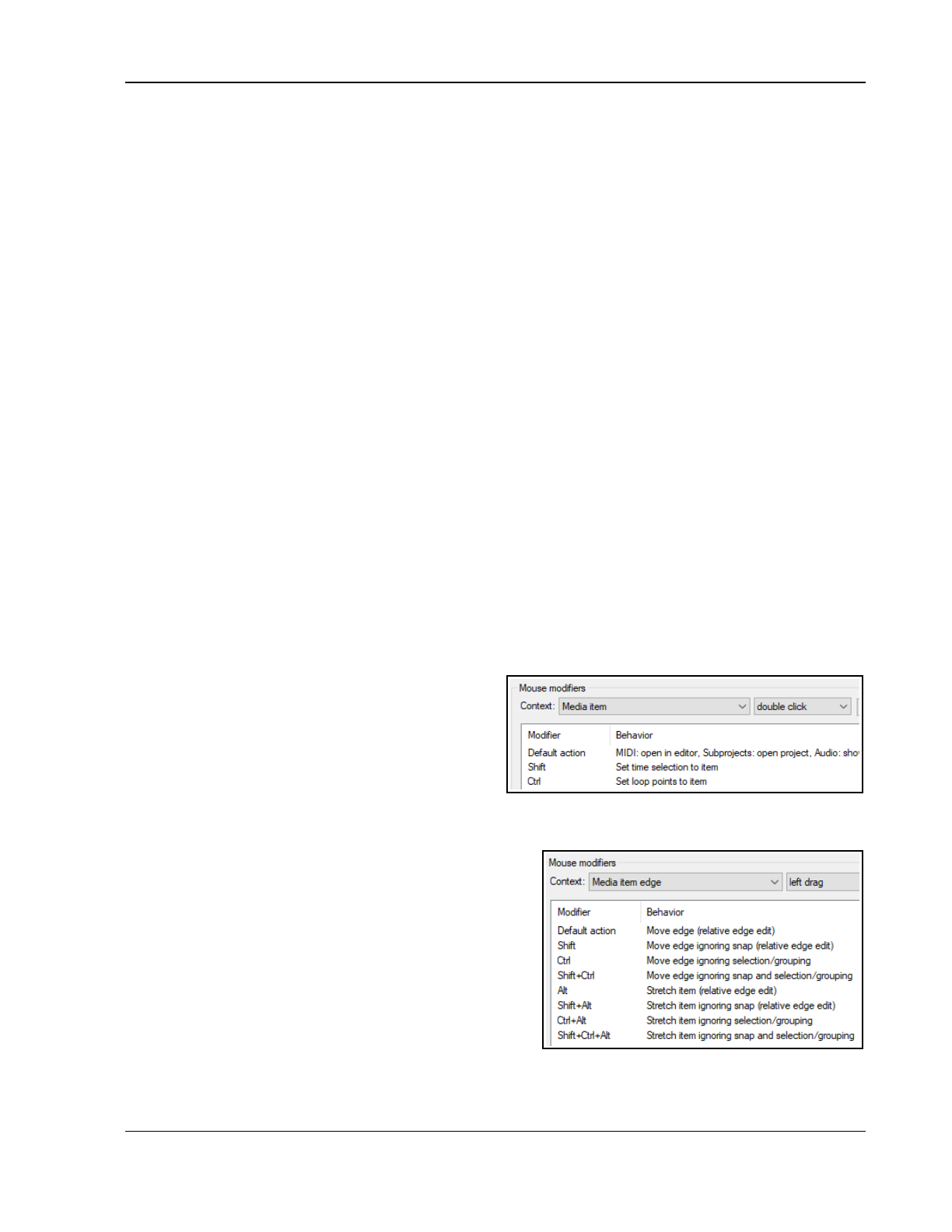
Managing and Editing Media Items
Shown abve right are some of the default actions associated with the Media item left drag context. For
example, by default dragging a media item will move it, ignoring any time selection. Holding Ctrl as you do so
will copy it – and so on.
You can change the behavior of any modifier: select it and double-click in the behavior column for a list of
options. For double-click actions, there is also the option of choosing an action from REAPER’s Action List.
For example, you could define Shift Win to restrict item movement to vertical only when moved or copied,
and/or Ctrl Win for adjusting an item's volume, and so on. To do either of these, you would need to double-
click on the modifier in the list, then make your choice from the list of commands and actions offered.
The Context drop down list includes the following basic contexts for working with media items.
Media item (left click, left drag and double-click)
Media item bottom half (left click, left drag and double-click)
Media item edge (left drag and double-click)
Media item fade/autocrossfade (left click, left drag and double-click)
Media item fade intersection (left click, left drag and double-click)
Media item stretch marker (left drag, double-click)
Media item stretch marker rate (left drag)
Many contexts have an option associated with them: this will be displayed below the table, just above the OK
button. In the example above, you have the option whether or not to treat the label area above the item as
empty track space.
The Import/export button can be used to save or recall your mouse modifier actions, either for the currently
selected context or for all contexts.
Media Item Left Click Modifiers
Examples of default mouse behaviors when you click on a media item are:
A simple click will Select item and move edit cursor. Alt Click will select the item ignoring grouping.
Ctrl click will Toggle item selection. See also Preferences, Mouse modifiers, Media item, Left click window.
You can change or swap over any existing assignments, for example so that a simple click will just select the
media item without moving the edit cursor. You can also change any assignment to any of the available options.
To do this, just double-click in the list on the item that you wish to change, then select your preference from the
list. For more information about customizing mouse modifiers see Chapter 15.
Media Item Double-Click
Some of the default modifiers and actions for this
context are shown here (right). Of course, you can
change any of these, as you wish.
Media Item Edge Left Drag
Shown here (below right) are some of the default
mouse modifier settings that are used when clicking
and dragging on the edge of any media item(s).
Chapter 15 includes a step by step example showing how you can change any of these.
The Media Item Edge context pages also include a
checkbox option to Limit edits to source media content
for unlooped media items
Media Item Bottom Half
There are separate mouse modifier contexts available for
clicking on the bottom half of media items from those used
when clicking on the top part.
Any that modifier behavior that is not defined will
automatically follow the behavior for the top half.
Note: When the context Media item bottom half is
selected, an option is displayed to Disable targeting of
bottom part of media when take height is less than
xx
pixels. By default this is set to 44. You will need to change this if you want to use these context actions with
media items less than 44 pixels high.
149
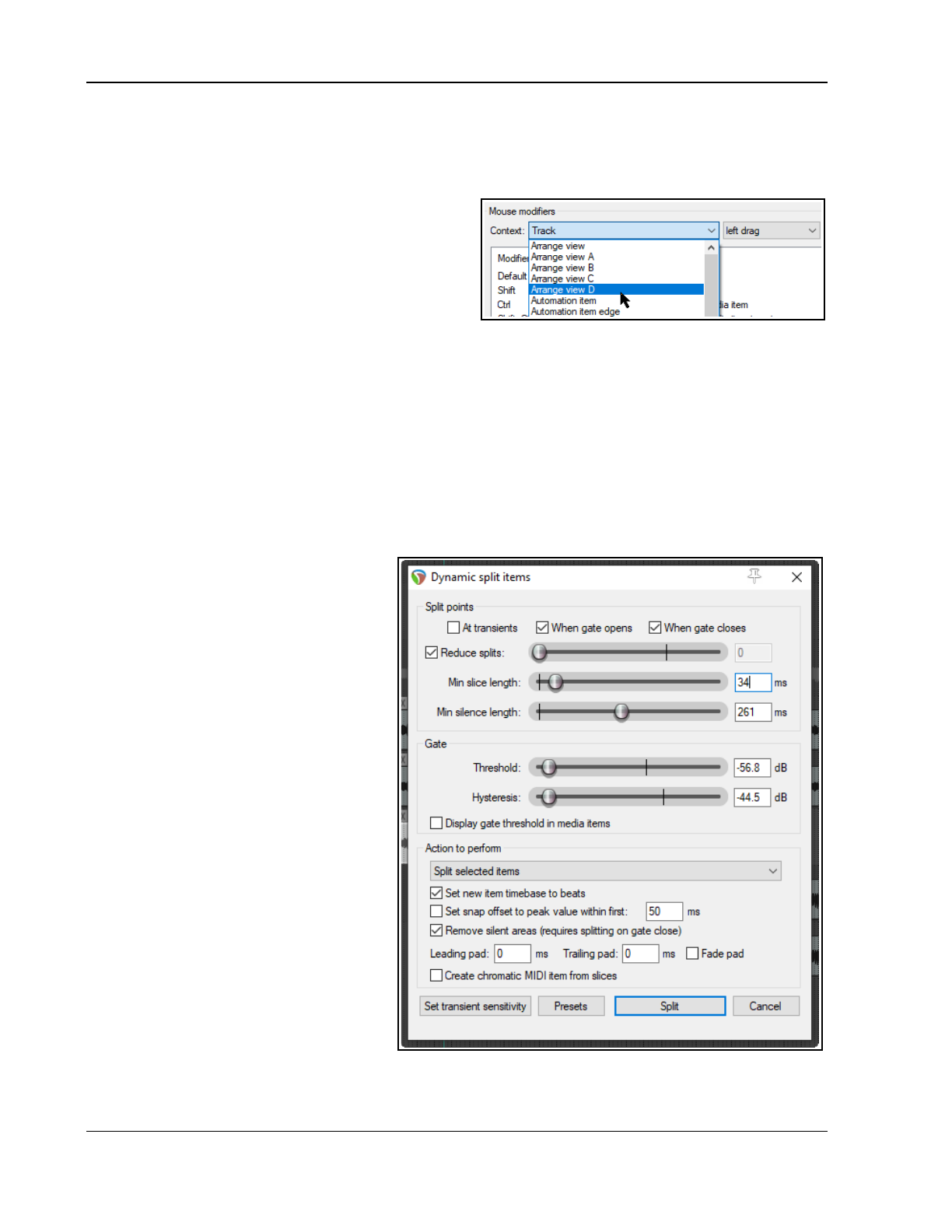
Up and Running: A REAPER User Guide v 7.81
Arrange View Alternative Mouse Modifiers
You might have noticed that there are no mouse modifiers listed for left drag in the arrange view category. This
is basically because their actions are “hard-wired” into REAPER for some core tasks, such as:
Left drag Remove any existing time selection and create new one
Ctrl Left drag Create empty media item
However, REAPER recognizes that these might not be
suitable for your particular workflow. For this reason, you
can create up to four alternative sets of arrange view
mouse modifiers – A, B, C and D.
By default:
Set A includes options suitable for use with marquee.
Set B includes options suitable for use with razor editing.
Set C can be used when fixed lane comping.
Set D includes options for making time selections.
You can, of course, change or modify any of these assignments, for example, if you prefer to use them in some
other context.
Sets A and B are usually activated/deactivated for marquee (Set A) or razor editing (Set B) from the toolbar.
Set C is usually activated/deactivated from the Fixed Menu Lanes context menu.
There are also individual actions to activate/deactivate all four sets. Probably most useful are the Toggle
arrange view override mouse modifiers {A, B, C or D, as required] on/off.
7.36 Dynamic Splitting - Remove Silent Passages
REAPER's Dynamic Splitting has applications
beyond tempo based composition, such as
to clean up a track and remove any sound
from passages that should be silent - for
example, with a vocal track, to clean up
passages between verses which might
contain breathing or shuffling sounds.
With dynamic splitting you can tell REAPER
to go thru a take and clean up all the
passages where the vocalist isn't singing
and you want the take to be silent.
To do this, first select the media item then
right click over it and choose Item
processing, Dynamic split items… . You
then need to select the required parameters
before splitting.
Each potential split point is indicated by a
colored vertical line and those areas marked
for removal are shown as darker.
Dynamic splitting will be examined in more
detail in Chapter 9, in the context of tempo
based music production, but it can also be
used as explained in the table below.
Start with settings similar to those shown
here and adjust then as necessary.
When used in this way, dynamic splitting
basically employs a noise gate to tell
REAPER how often and where to split
your media items and which areas are to
be removed.
150
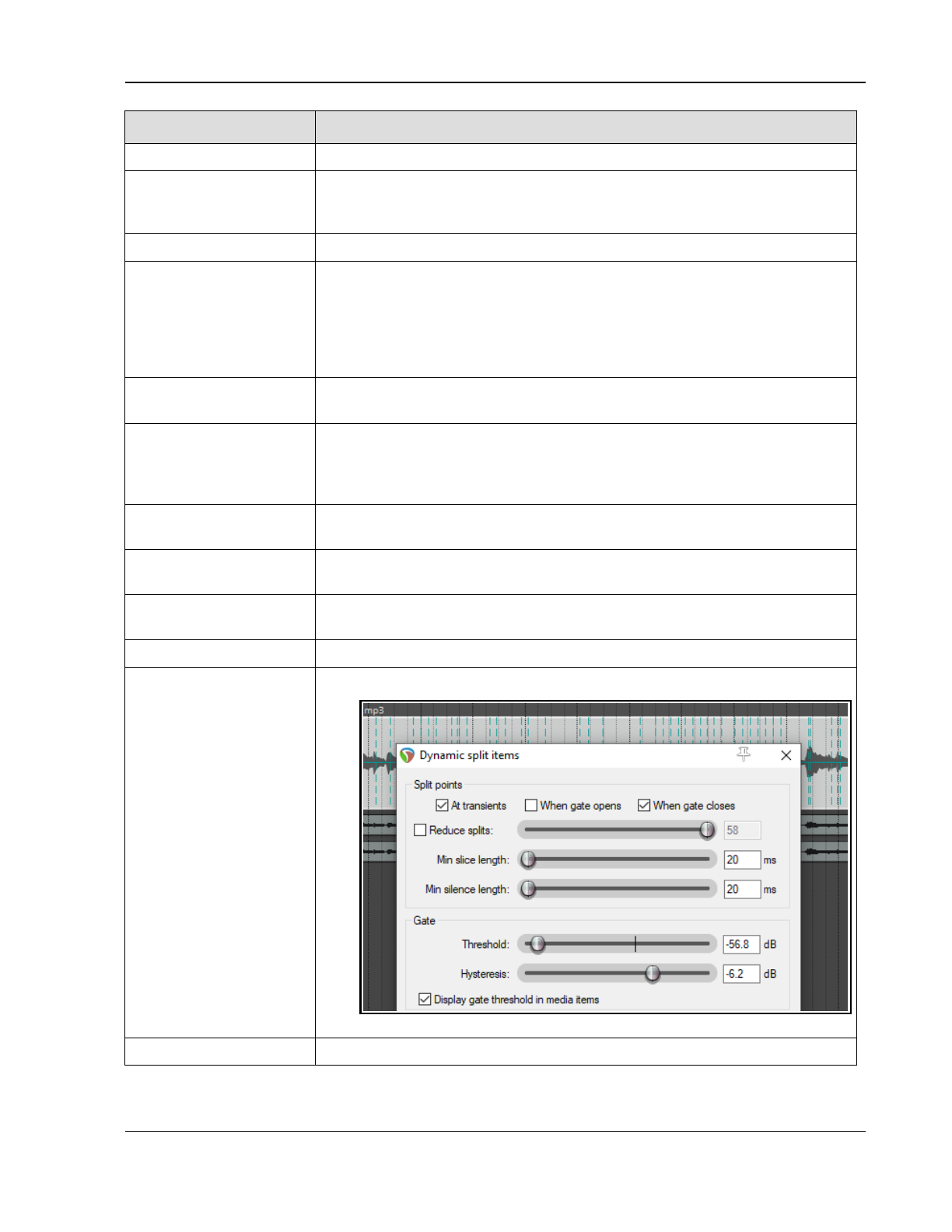
Managing and Editing Media Items
Dynamic Split Option Setting to Remove Silent Passages
At transients Deselect this when using dynamic splitting to remove silent passages.
When gate opens
When gate closes
You would be unlikely to select one of these options without the other. Both of
these options need to be turned on, so that REAPER can work out the beginning
and end of each passage that is to be removed.
Reduce split When using dynamic splitting for this purpose this should usually be deselected.
Min slice length This sets the shortest length for any slice. You will probably need to experiment
to get it right. Usually, this should be set to a low value. Happily, REAPER's
dynamic splitting interface gives you immediate visual feedback. You can see by
looking at the screen when your settings are right. The illustration below shows
the effect of setting this value too high. Notice that it can result in some
recorded passages also being removed
Min silence length This is another parameter that will require fine tuning. Set too high it will fail to
catch all the periods of silence,
Threshold This setting is important, but usually has a reasonable range of acceptable
values. If made too low, unwanted sounds might pass thru the noise gate. If
set too high, you risk deleting quieter passages of the recorded material. Start
around -50dB and make any necessary adjustments from there.
Hysteresis Used to adjust the level at which the gate closes relative to that at which it
opens. Setting this closer to or even above 0dB will create more splits.
Display gate threshold
in media items
If enabled, this causes faint lines to be superimposed on the selected media
items to show the threshold level.
Remove silent areas This option should be enabled. Note that when ripple editing is enabled it will
be applied as silent passages are removed.
Fade pads Enabling fade pads can ensure a smoother transition from/to silence..
Other settings Leave them as shown here.
Presets Enables you to save and later recall any combinations of settings as presets.
151
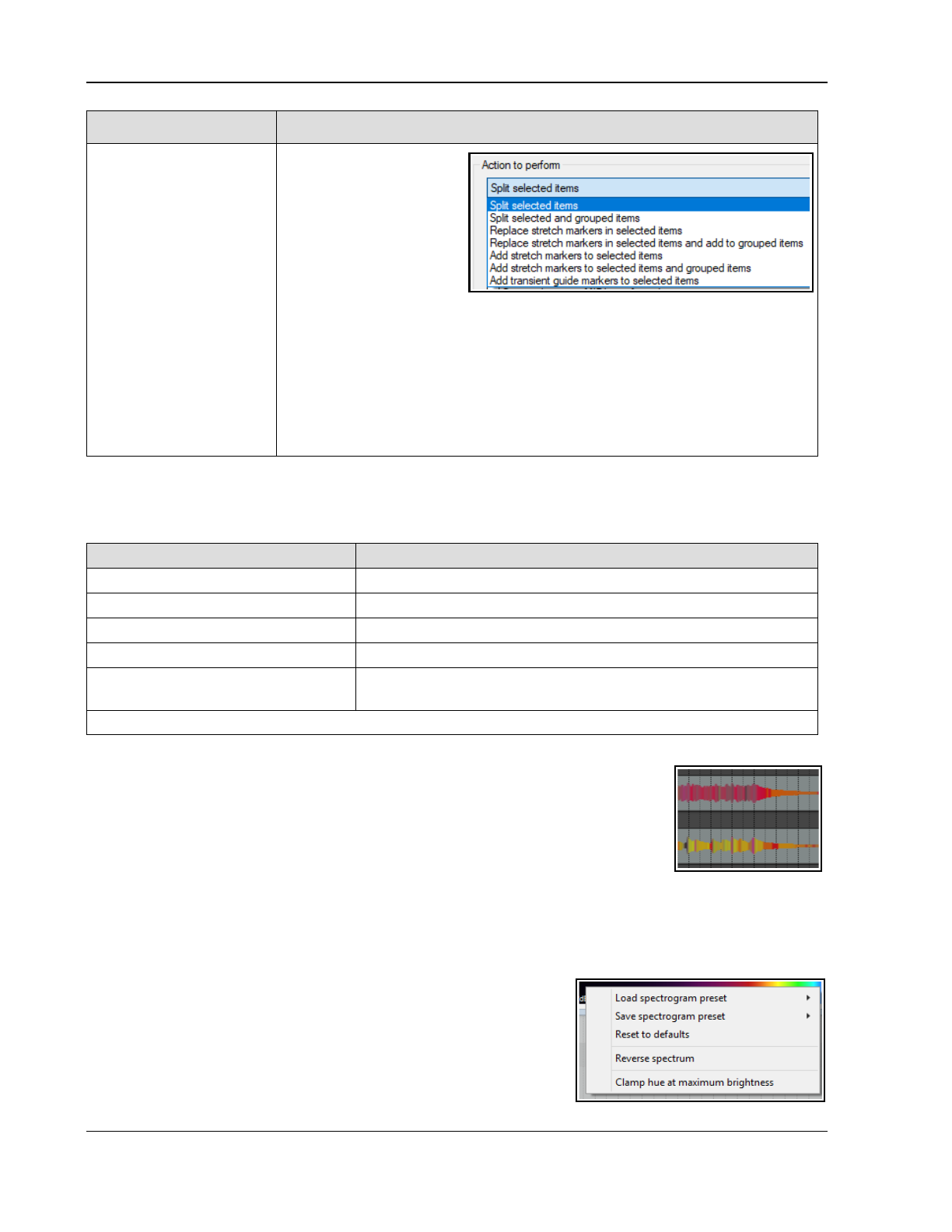
Up and Running: A REAPER User Guide v 7.81
Dynamic Split Option Setting to Remove Silent Passages
Action to perform Split selected items
splits only selected items.
Split selected and
grouped items. Uses
the selected item(s) to
determine where on the
timeline the split will
occur. Also splits any
other group members.
Replace stretch markers in selected items or Replace stretch markers
in selected items and add to grouped items.
A group of items is defined by selecting them and pressing G, or by choosing
Group, Group items from the media item right-click menu.
Add stretch markers to selected items, or to selected items and
grouped items: stretch markers are explained in Chapter10.
Add transient guide markers to items: causes transients guide lines
(vertical broken lines) to be added to selected item(s), without splitting themt.
7.37 Item Peak Display Basics
REAPER’s default item waveform peaks display can be adjusted according to your wishes.
Note that any changes
you make to the peak display affect only the display, not the actual volume of the item
.
To do this … You need to do this ...
Increase/decrease peaks height Click in arrange view, press Shift Up arrow/Shift Down arrow.
Restore any missing peaks Run action Peaks: Build any missing peaks.
Rebuild all peaks Run action Peaks: Rebuild all peaks.
Restore original peak heights Run action Peaks: Reset peaks display zoom for project.
Restore peak height for selected
items
Run either Peaks: Rebuild any missing peaks for selected
items, or Peaks: Rebuild peaks for selected items.
Note: The actions list includes several more actions related to peaks and peaks display.
7.38 Normal Peaks and Spectral Peaks: Display Basics
Audio media items in arrange view are normally displayed as waveforms only based on
dB levels. You can change this to a spectral display in which the media item is colored
according to its audio frequencies, and in particular the most dominant frequency as it
changes thru time. An example is shown here (right).
Note that it is a diagnostic tool, designed to help identify and resolve issues in your
mix. It is
not
a silver bullet, nor does is it offer an instant fix for all your problems. Nor
is it intended that your eyes should replace your ears! By viewing your waveforms as a range of colors, you
might more readily be able to identify critical frequencies, especially where your ears are already telling you that
you have a problem, or at least a decision to make.
Spectral peaks can be helpful in recognizing content. For example, the lower and upper registers of a clarinet will
show as different colors. A flute will be different again. Some other
possible uses are:
● To identify and pinpoint precisely unwanted noise (such as low
end hum), or frequency spikes that you can hear in a track, or a
particular event in a track, such as a percussion hit.
● To identify the precise location of a note (e.g. when a distorted
guitar has been recorded).
152
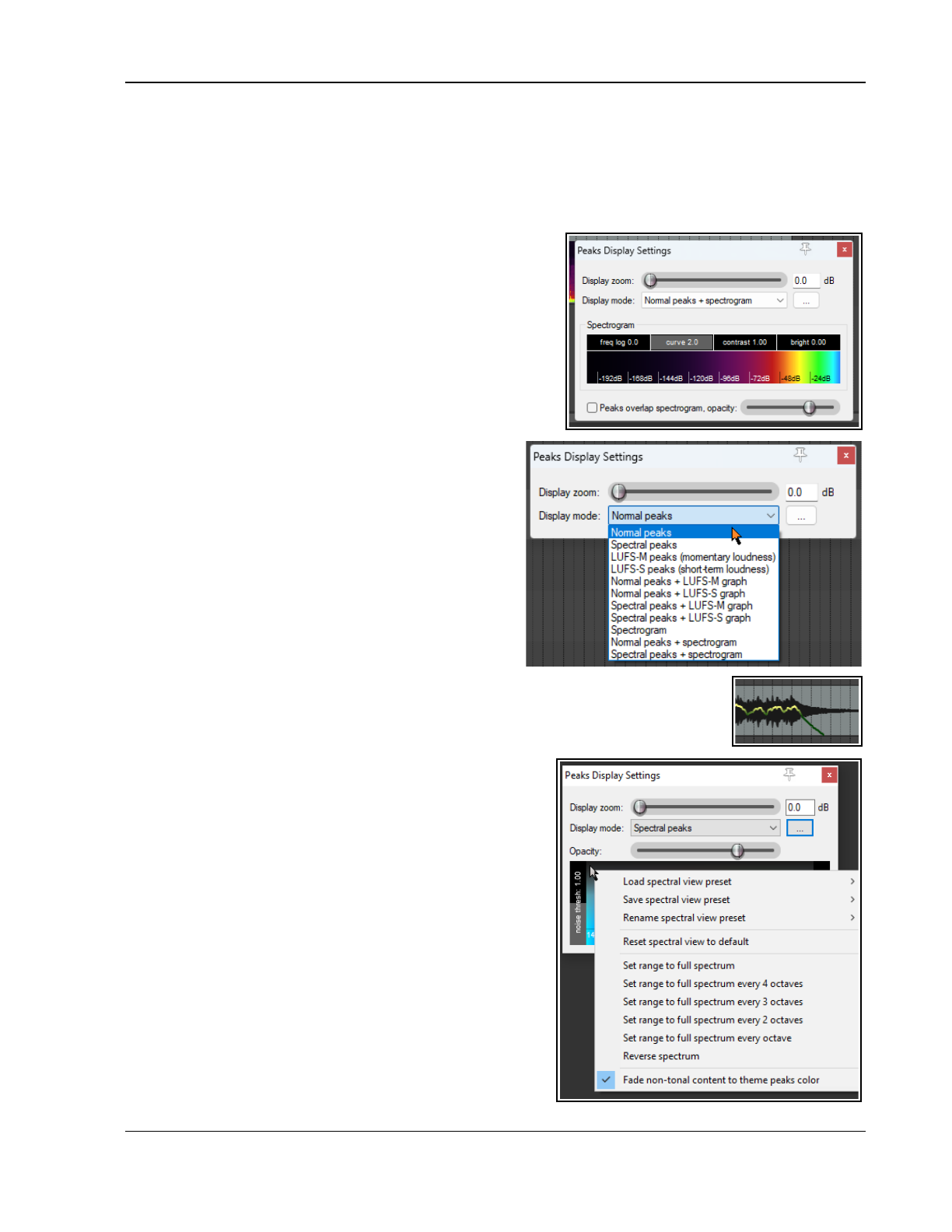
Managing and Editing Media Items
● To check the frequency at which a track's sounds are peaking for possible conflict with other tracks, or to
identify precisely where frequencies may need to be EQ'd.
● To check (for example) bass instruments for notes that are too quiet or too loud.
You can learn more about these concepts here
www.mat.ucsb.edu/~b.sturm/MAT201A/presentations/Fri/OhnandPark.pdf:
The command Options, Peak display mode gives you eleven options for choosing how peaks are to be
displayed, a further option to Scale peaks by squqare root
(half of range is 12 dBb rather than 6 dBb), and the option
to open your Peak Display Settings. The eleven display options
are also available from within the peak display settings window
(as shown below),
Use the Options, Peak display mode, Show spectral peaks
command to turn the display of spectral peaks on and Options,
Peak display mode, Normal peaks to turn them off. Another
peaks display mode option is Spectrogram: this will be
considered in the next section.
View, Peaks Display Settings opens this window (right).
● Display mode These include Normal Peaks, Spectral
Peaks, Momentary loudness and Short term loudness.
There are also options to display various
permutations.
● In Normal peaks + spectogram mode (above
right), the Peaks Display Settings window will include
an option to determine peaks display opacity.
● There are options to (… menu) Scale peaks by sq
root and to Open peak generation and caching
sdettings.
● The Display gain slider can be used to increase or
decrease the peak height, but do not affect volume.
● In any mode except Peaks, right-click on the color
display to open a context menu. Options are available to save, load, rename
loudness view presets.
Fade non-tonal content to theme peaks color: the color of audio that is
completely tonal will be determined by the frequency: noise will be the same color as
that assigned to the normal peak. In most cases, this will
result in a blend of the two.
● In Spectrogram+peaks mode the four horizontal controls
freq log, curve, contrast, and bright can be used to
modify the display – e.g. to emphasise low frequencies,
drag the freq log fader fully to the right.
Enabling spectral peaks will roughly double peak file size.
Generating these peaks uses a lot of RAM, especially if spectral
peaks are displayed while recording. Spectral peaks can be
enabled/disabled on a per track basis via a Track performance
option (Prevent spectral peaks/spectrograms) on the right-click
TCP context menu.
Shown here (right) is an example where Normal peaks +
LUFS-M graph has been selected. Options on the Media,
Peaks Generation page of Preferences which affect
spectral peak behaviour include several options to specify in
which circumstances spectral peaks should or should not be
generated.
153
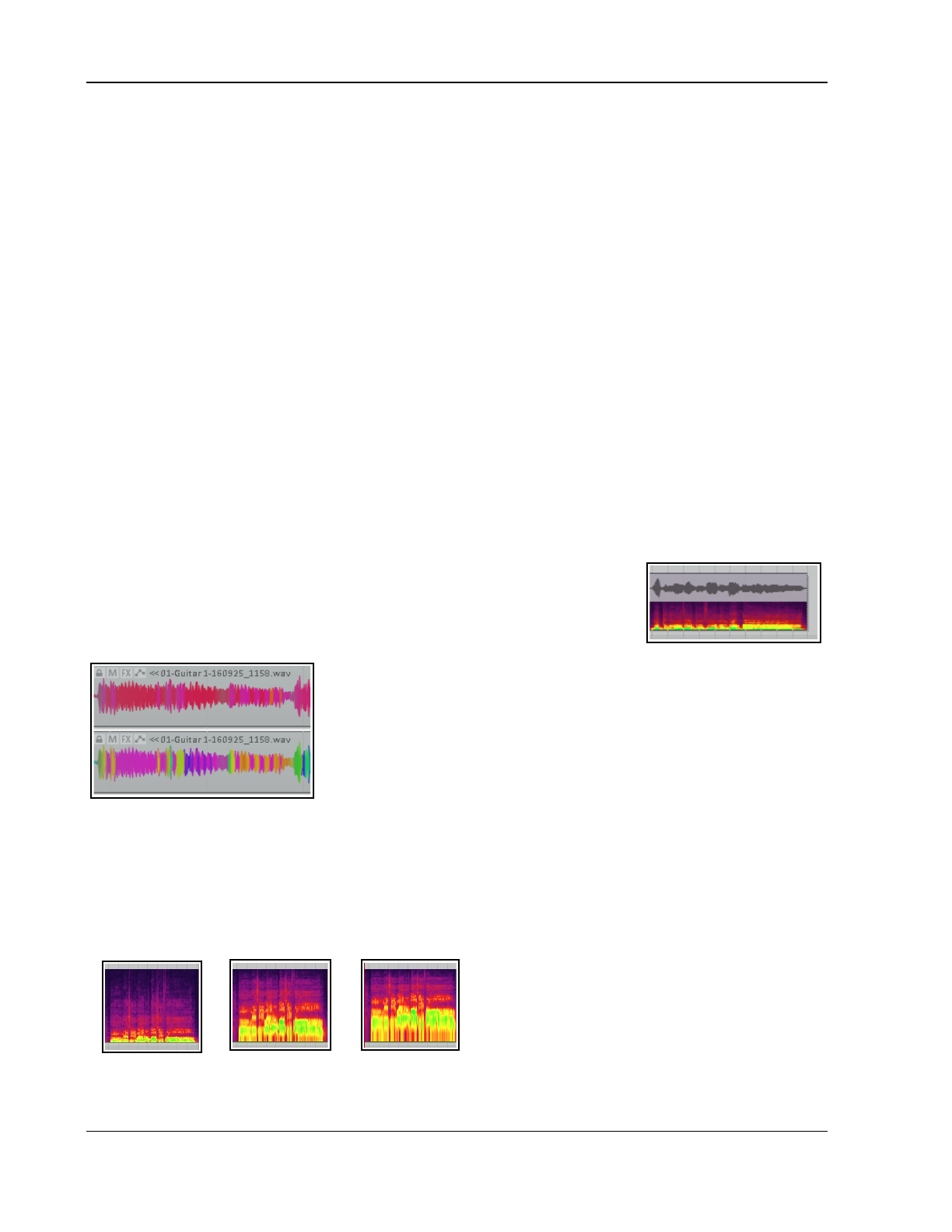
Up and Running: A REAPER User Guide v 7.81
Peak Display Controls
In order to use this tool effectively you will need to understand and master its various controls. For example, if
you are focussing on low end rumble you will probably want the display to focus on the lower end of the
frequency spectrum. If dealing with high end resonance, you will wish to concentrate on higher frequencies.
Here is a summary of the controls available, in many cases by clicking and dragging your mouse. Getting to grips
with them all can be a bit tricky at first … you always have the Reset to defaults option!
A media item is made up of a whole range of frequencies (as can be seen, for example, if you place, say, ReaEq
in a track's FX chain). Spectral peaks are used to identify only the most dominant frequency at any point in time.
Note that the peak display settings window imclude s sliders that allow you to fine tune both the opacity and
the zoom factor used when displaying the peaks.
The Frequency Range (20hz to 10khz)
The display is divided into seven frequency bands. To adjust how the frequency range is divided between
these bands, click and drag the mouse left or right on the border between any two bands. Dragging right
helps you focus on higher frequencies, left on lower ones.
To adjust all colors used in the display, click and drag left or right over the color display.
To adjust only low colors, click and drag on left edge of color display.
To adjust only high colors, click and drag on right edge of color display.
Double click to restore the default display.
Presets (right click on graphic display area or click the … button)
The Save spectral view and Load spectral view commands allow you to save and recall up to ten
configurations as presets. The first five of these can also be loaded using actions (and therefore can be added
to custom toolbars and/or menus, and/or be assigned keyboard shortcuts.)
Spectrogram + Peaks Mode
In spectrogram + peaks mode, media items are displayed as both peaks and
spectograms, as shown on the right.
Spectral Peaks Mode
In spectral peaks mode, media item waveforms are colored dynamically
according to the dominant frequency.
By default, the color spectrum occupies the whole frequency range. You
can change this, for example, to use the entire color range for each
individual octave: this can help focus on smaller variations in frequency.
As an example, both of these images (below left) depict the same media
item. The first (top) example uses Set range to full spectrum. The
second example uses Set range to full spectrum every octave.
These options are available on the right-click menu above right) as well as a Reverse spectrum option.
Monetary Loudness and Short Term Loudness Modes
Loudness modes (LUFS-M and LUFS-S) are a more advanced topic, explained in the last section of this chapter.
Spectrogram Mode
In this mode, media items are displayed as a spectrogram. You can use for spectral editing. The display faders
(freq log, curve, contrast and bright) are useful here, especially the freq log control. Here is an example:
Shown here is the same media item with freq log
set to 0.0 (left), 5.0 (center) and 10.0 (right). Notice
that in the third image, the lower frequencies take
up about half the area of the display.
154
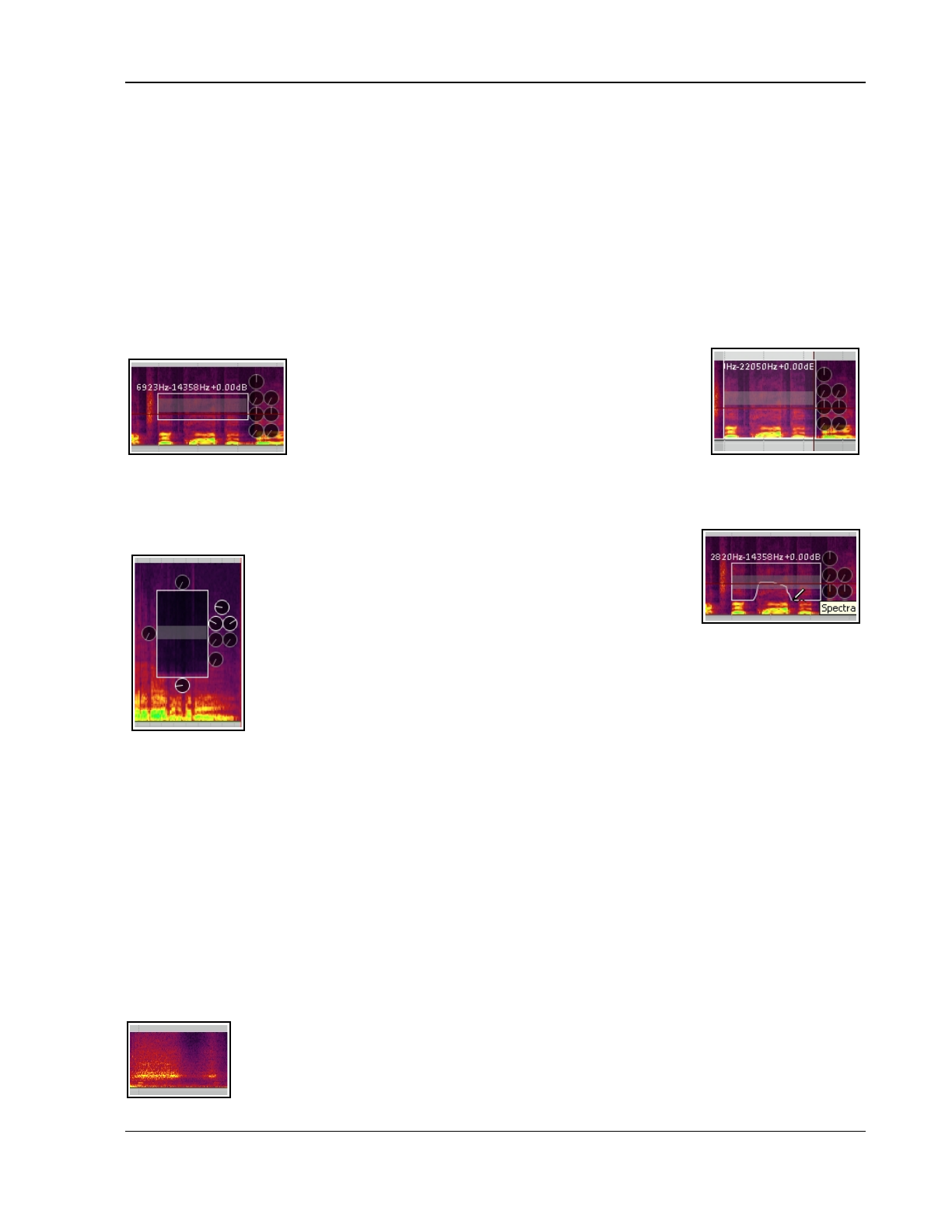
Managing and Editing Media Items
7.39 Spectrogram View and Spectral Editing
Spectrogram view shows you a visual representation of all of an item's sound frequencies as they vary through
time, unlike spectral peaks which display only the dominant frequency .
Spectrogram view can be turned on globally either by choosing Show spectrogram from the Options, Peaks
display mode menu, or by selecting Spectrogram from the Peaks Display Settings window. This window
will be examined in more detail shortly. Using this global option can, however, be resource intensive. You might
wish to consider leaving this off, instead turning the option on only for media items as required, by choosing
Spectral edits, Show spectrogram from the media item's right-click context menu.
Spectral editing allows you to make edits to selected frequencies within an item, for example to remove
breathing sounds or sibilance, whilst leaving other frequencies intact. Shortly, we'll look an example of how this
can work in practise: first, a summary of its basics.
Defining an area within a media item for spectral editing.
Make a time selection, then right click on the item and from
the menu choose Spectral edits, Add spectral edits to
item. A box will be drawn around the selected area of the
item, as shown on the right. Click on the edge of a spectral
edit item (or on the shaded bar that runs left to right across
its center) to make its rotary controls visible.
Drag the edges of the box left or right to increase or decrease the time selection. Drag up or down from the top
or bottom to increase or decrease the frequency range. This can be done from the sides or the corners. An
example of this is shown above left.
Holding down Ctrl over any part of an edit item's top or bottom edge changes the
mouse cursor into a pencil. You can then make freehand
changes to the item area by clicking and dragging. An example
of this is shown on the right.
Holding Alt over any part of an item's edge changes the mouse
cursor to an X. You can use this (by dragging) to remove any
freehand drawn edges, replacing them automatically with a straight line (or lines).
Drag from the center of the item in any direction to move the selected area up or down
(change frequency range) and/or left or right (change time selection).
Let's now look at the eight rotary controls that operate on the selected area, located around
the box. Moving clockwise from the 12 o’clock position, these are:
High frequency fade: fades up or down the high frequencies. Works in conjunction with
the Spectral region gain knob.
Spectral region gain: fades up or down the gain level for the selected region.
The next two knobs together act as a compressor on the selected area: threshold (left) and ratio (right)
Moving threshold down to the left of the 12 o'clock position changes it into an expander.
The next two knobs act as a gate on the selected area: threshold (left) and floor (right). Below that, the
Spectral region fade out knob lets you control the rate at which the spectral edit item settings are faded out.
At the bottom is the Low frequency Fade: the knob at 9 o’clock controls the rate of spectral edit fade in.
All buttons: Right-click over any button (or on the center bar) for a menu of options (below right) which include
Delete spectral edit (removes the spectral edit box, does not delete media).
Bypass spectral edit and Solo spectral edit (for comparison). A submenu selects FFT size.
There is also an option in the Peak Display Settings to view both the peaks and the spectrogram, in parallel.
Note: Spectral display is pre track FX but post take settings. For example, it reflects changes in pitch from the
Item Properties dialog box or from a take pitch envelope, but not from a VST plug-in such as ReaPitch.
Example
This picture (left) shows the vocal at the end of a line that ends with a “T” sound. The
rightmost small shaded area represents an unpleasant “TT” where the singer has not let go of
the word. If we mute or remove the whole area, we will create a hole. The trick is to find and
remove only the unwanted part.
155
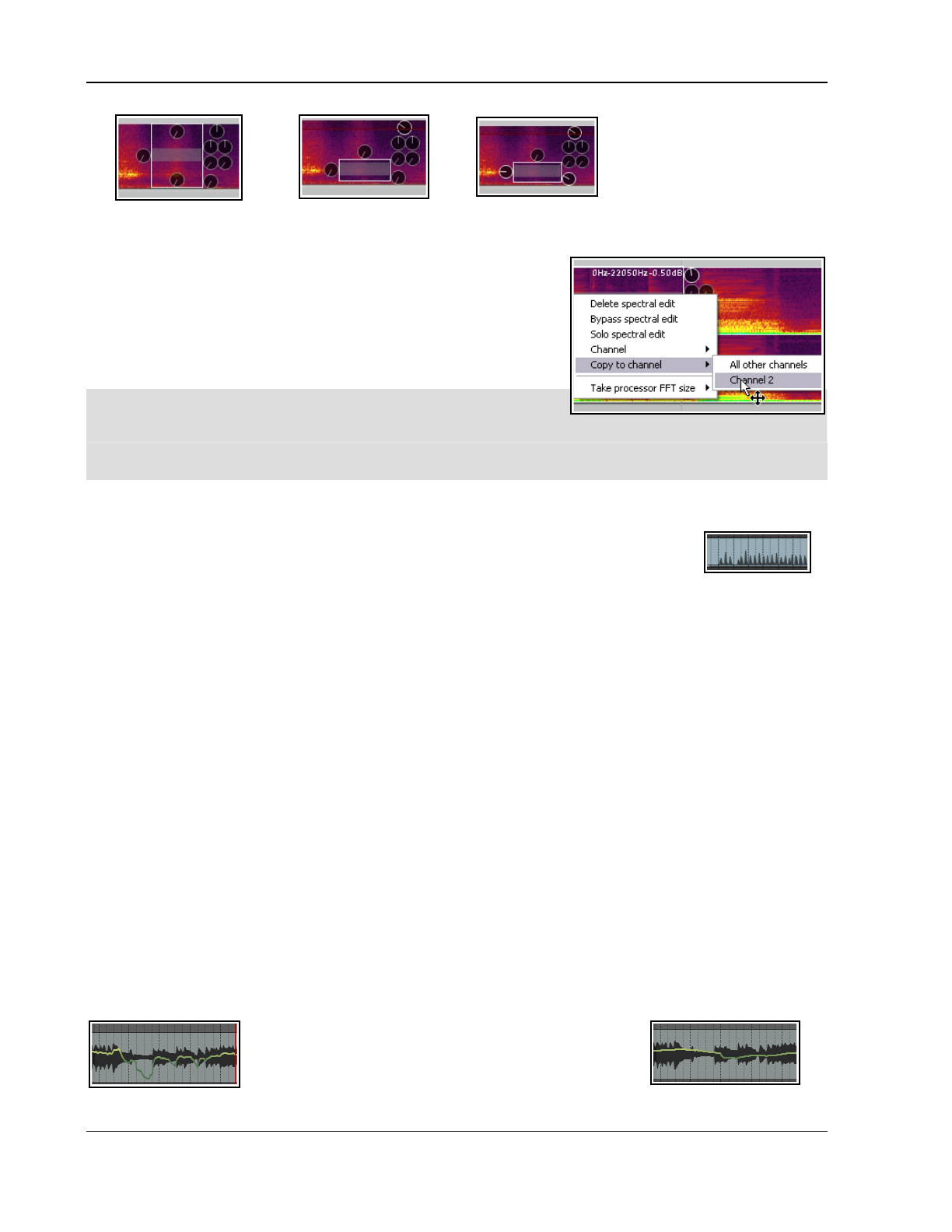
Up and Running: A REAPER User Guide v 7.81
First, add a spectral edit to
the problem area.
Now adjust area and lower
gain until it sounds right.
Introduce fades to both time
and frequency selections.
Throughout this
process, we make use
of the Bypass spectral
edit and Solo spectral
edit options during
playback, for
comparison purposes.
Stereo and Multichannel Items
When a spectral edit is added to a stereo or multichannel item
separate edit items are added to every channel, each with its own set
of controls. By default, changes made to one will be made to all.
However, the context menu allows you to select a single channel,
thereby leaving the item only on that channel. You can then right-click
again (shown right) and copy this item to all or any other channel.
Tp: Glue items will make your edits permanent and remove the
spectral editing box. Glueing creates a new media file but does not
remove the original file from your hard drive.
Tip: Spectrogram display can be enabled/disabled on a per track basis using the Track performance
options, Prevent spectral peaks/spectrograms option on the right-click TCP context menu.
Peaks Display Options and Actions
Options, Peaks display mode main menu options include:
Show normal peaks Show spectrogram
Show spectral peaks Show spectrogram and peaks
Show loudness peaks ** Scale peaks by square root (toggle)
Show loudness graph ** Rectify peaks (shown right) %%
%% Rectify peaks limits display to the top half of the waveform – handy if you have limited track height.
** Loudness graph and Loudness peaks options are covered in the next section. Note that the Actions List
includes many actions for peaks management: any of these can be assigned to toolbars, menus or shortcut keys.
Of special interest are a series of Toggle actions which can be used as a quick and easy way of switching
between display options – spectral peaks, spectrogram, spectrogram and peaks, rectify peaks, etc.
Spectral Edits: Mouse Modifiers, Preferences and other speed tips
You can use mouse modifiers (Options, Preferences) to define either or both of the actions Add spectral edits
to one/all channels to the left drag context for either Media item or Media item bottom half. Another speed tip
is that the shortcut Ctrl click on edits will allow multiple edits to be selected. Additionally, the actions list
includes numerous spectral editing actions that can be assigned to keyboard shortcuts.
REAPER’s preferences include a page Editing Behavior, Spectral Edits. You can specify default values for:
Fade-in (%, 0 default), Fade-out (%, 0), Low frequency fade (%, 0), High frequency fade (%, 0),
Gain (dB, 0), Compression (dB, 0), Compression ratio (:1. 1.0), Gate threshold (dB, -inf),
Gate floor (dB, -inf)
There are also options to Solo new spectral edits and specify a Default FFT size for take processors.
7.40 Loudness Unit Full Scale Modes (LUFS)
Unlike simple peaks, LUFS takes into account psycho acoustics rather than decibels alone. Thus, LFMS can reflect
more accurately how the listener will perceive the audio volume.
LUFS-S reports changes in loudness over very short time spans whereas LUFS-M reports a running average
through time, thus producing a smoother curve. Both options are available from the Options, Peaks display
mode menu and within the Options, Peaks display mode, Peaks display settings dialog.
The first illustration (left) displays LUFS-S measurement,
so that the graphical display responds quickly to rapid
changes in volume. The second illustration displays LUFS-
M measurement: such changes are largely evened out.
156
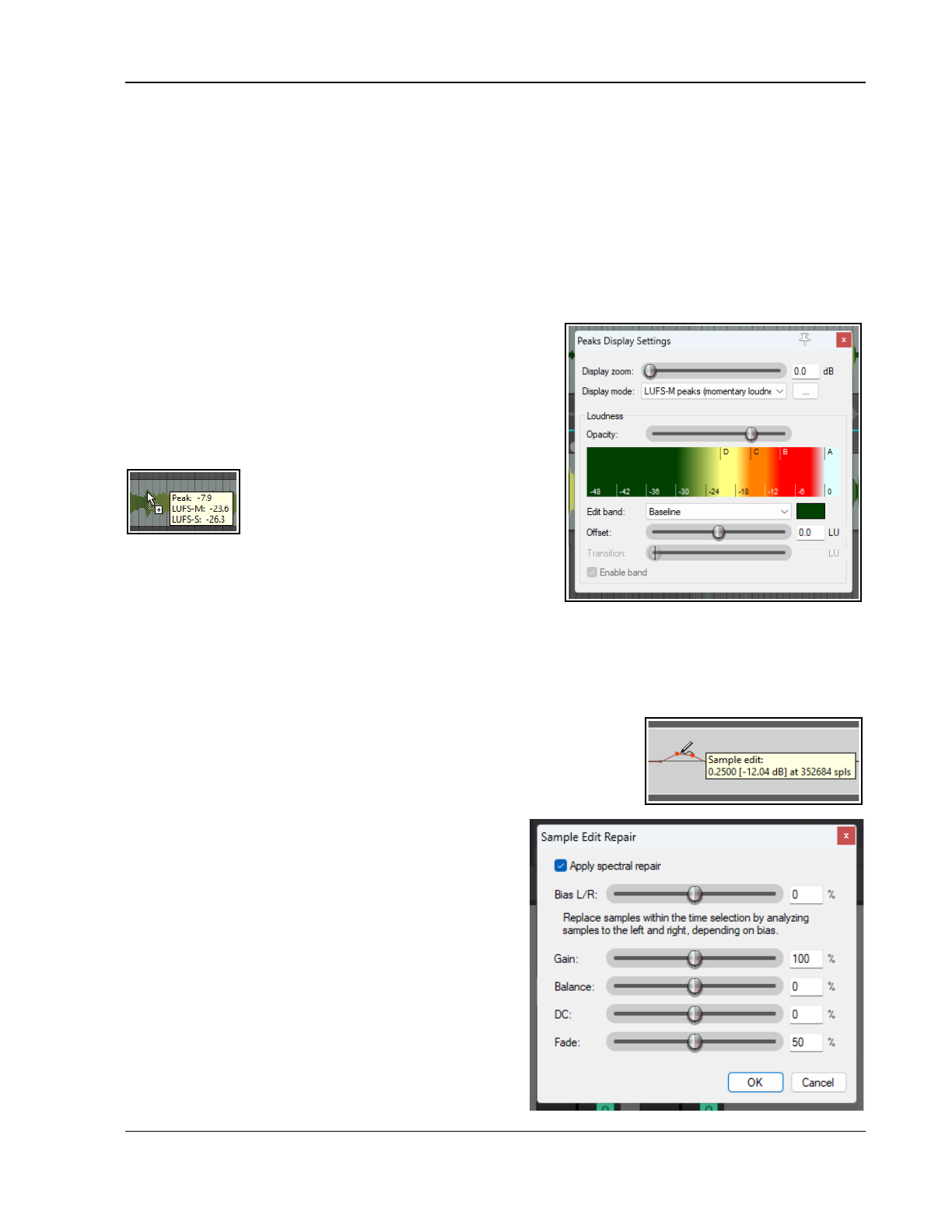
Managing and Editing Media Items
Peaks Display Settings LUFS-M and LUFS-S
Display zoom (dB): adjusts height of peaks.
Display mode: selects one of the six available display modes, including LUFS-M and LUFS-S. Includes options
to show graph.
Opacity (color peaks only): adjusts opacity of the peaks.
The frequency range contains seven bands – a baseline, and six others, A to F. For each band you can specify its
color and:
- for bands A to E, the LU value at which the band starts.
- an LU value (sets the rate at which you transition into it (not for baseline, which is assigned an offset
LU value).
- whether or not that band is enabled.
You can save up to 10 presets for each view. There are
options to Discard recent edits, Reset loudness view to
default and Reset display preview window zoom/scroll.
REAPER’s Preferences, Appearance settings allow you to
enable tooltips displaying peak and loudness values above
waveforms. Presets can be managed from the … button menu,
along with an option to Open peaks generation and
caching settings in your preferences.
For spectral peaks the hue is based on the
dominant frequency and the saturation is
based on the signal’s tonality. The more
significant the dominant frequency is relative
to the whole signal, the more saturated will be the color.
Something very noisy will be close to a shade of grey: similarly
a sine wave will be a more deeply saturated color.
Get to know the Audio peak/waveform appearance page of
REAPER’s preferences. Options include:
Whether to display peaks, in which circumstances and in how much detail.
Whether to display MIDI cc lanes in arrange view, and if so how to present them.
Whether to display high resolution spectogram when zoomed in, and if so to what specifications..
Whether to tint media waveform peaks and/or media item, background, and to what specifications.
7.41 Sample Editing
Direct sample editing allows you to use your mouse as a pencil to draw edits
on to your audio items, as shown below. To access sample editing, select
the item and zoom right in to sample level. To enable this feature, select the
toggle command Take, Take sample edits from the context menu: your
mouse becomes a pencil which you can use to draw in
edits by dragging. Right click for a context menu which
includes:
Delete sample edit (or use Alt left drag)
Set sample value to zero (or use Shift Alt left
drag)
Delete sample edits in time selection
Set sample values in time selection to:
Zero, A straight line or An interpolated
curve
Spectral repair sample values in time
selection: see next section.
Scale sample values in time selection (to any
value between 0% and 200%)
Clear all sample edits
Bypass sample edits
157
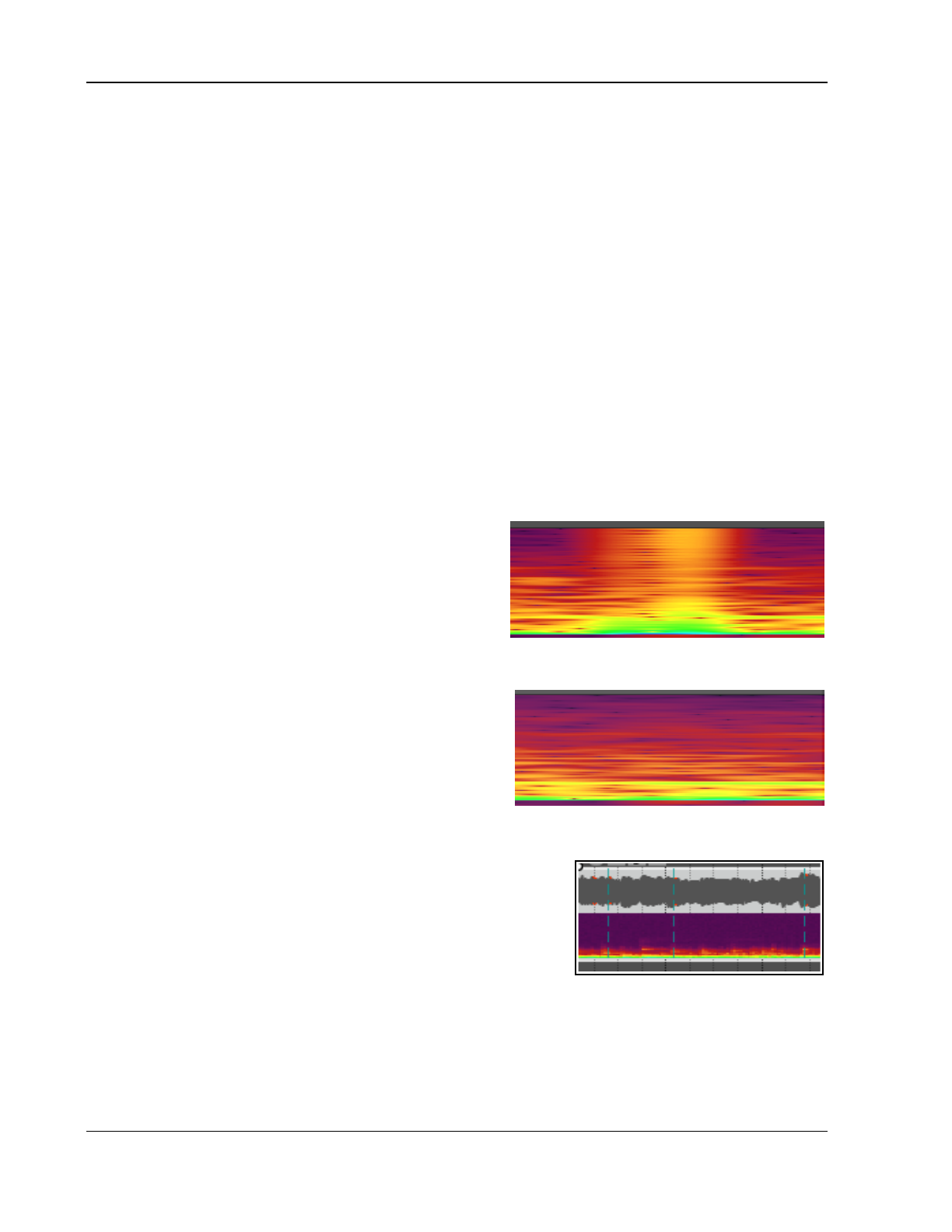
Up and Running: A REAPER User Guide v 7.81
Zooming out again will automatically disable sample editing.
REAPER’s editing behavior preferences include an option to Automatically zoom to time selection when
running sample edits.
Check out the actions list for various actions which can be assigned to keyboard shortcuts. These include actions
to delete all sample edits, optionally for all channels.
7.42 Spectral Repair
Spectral repair can be useful, for example, for fixing pops and clicks present in a recording. It works by analyzing
the audio before and after the time selection and fixing the problem by adjusting the audio segment based on
the surrounding audio.
In spectogram view make your time selection and from the context menu choose Spectral edits, Spectral
repair samples in time selection. This opens the dialog shown here.
The Bias L/R slider determines whether content before or after the time selection is weighted more when
synthesizing.
The other faders adjust the values for scale, balance, DC and fade. In brief, their functions are:
Gain: This adjusts the width/range of the algorithm's influence across the frequency bands. Higher values
provide more detailed frequency precision, while lower values offer better time resolution.
Balance: This determines whether the resynthesized audio matches the surrounding audio perfectly (in terms
of amplitude and frequency) or if it relies more heavily on the original signal.
DC/Fade: These apply a fade-in or fade-out to the
boundary between the processed selection and the original
audio to avoid pops, clicks, or phase cancellation during the
edit.
Consider an example. We have detected unwanted noise on
an item. First, select the item in spectogram view (Options,
Peak display mode, Spectogram). The noise is clearly
visible, as shown (right).
We can make a time selection to select the offending area and then with the item still selected choose the
command Spectral edits, Spectral repair samples in time
selection.
This alone might be enough to fix the problem (right), but if
necessary you can adjust the parameters as required to get an
improved result.
The actions list includes several spectral repair actions, able to
be used when working in pencil sample edit mode.
7.43 The Pop and Click Remover
Pops and clicks can occur when recording if your buffer size (Options,
Preferences, Audio, Device, Request block size) is set too low,
thus making your computer work too hard when processing an audio
stream. A workable solution is to increase the buffer size as necessary,
e.g. to 128, 256 or 512. Note though that an increased buffer size will
increase latency.
Pops and clicks on your recordings can be removed using REAPER’s pop
and click remover. The process is:
1. Select the media item and choose the Edit, Repair Pops/Click command. This will open the Repair
Pops/Clicks dialog (shown below). The various options are explained below.
2. If you wish to specify detection settings (such as sensitivity) other than the defaults, click your mouse
on the Detection settings button. This will open the Pop/Click Detection Settings dialog. Again,
the various options are explained below.
158
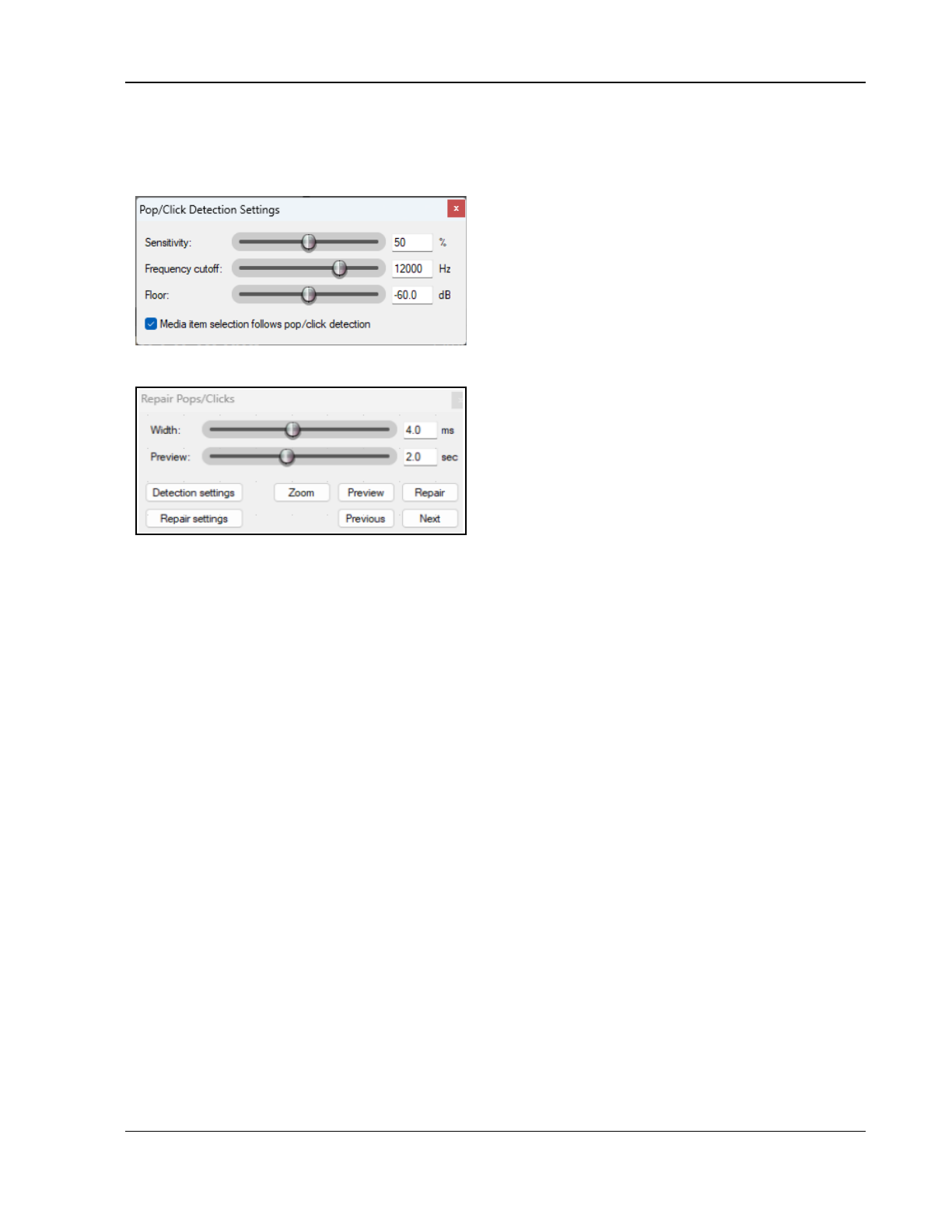
Managing and Editing Media Items
3. If you wish to specify repair settings other than the defaults, click on the Repair settings button. This
opens the Sample Edit Repair dialog. This is the same dialog as that used in the spectral repair
process shown above (section 7.41).
The Pop/Click Detection Settings dialog
sensitivity: the higher the sensitivity, the more clicks
will be detected.
frequency cutoff: clicks with a primary frequency
below this level will be ignored.
floor: clicks below this dB level will be ignored .
media item selection check box: if checked, then at
the end of the currently selected media item, the next
item will be selected and the process continued.
The Repair Pops/Clicks dialog
width: when a click is detected, a repair this wide is
created.
preview fader: when a click is detected, this is the
preview time that is played back on either side.
zoom: zoom in to the detected click.
preview button: preview the click, with the repair
applied if any.
repair: apply the repair.
previous/next: find the previous/next click.
The Sample Edit Repair dialog
This is explained in a section before this one, Spectral Repair.
Method
1. Select the media item that you wish to work on and position the play cursor at the start. If you wish,
use the Options, Peaks display mode command to choose a display mode (e.g. spectogram). Do
not
play the item!
2. With the item still selected, choose Repair pops/clicks from the main Edit menu.
3. Click on the Detection settings button to open the Pop/Click Detection Settings window, and
make any adjustments that you wish.
4. With the item still selected. Click on Next in the Repair Pops/Clicks window. The play cursor will
advance to the first pop/click that it finds.
5. Optionally, click on the Repair settings button to open the Sample Edit Repair dialog and make any
adjustments to the settings that you want.
6. In the Repair Pops/Clicks dialog click on Preview to audition the audio with the repair settings
applied. This enables you to tweak the various settings if you wish until you are satisfied.
7. When you are satisfied, click on the Repair button. Otherwise, adjust the Sample Edit Repair
parameters as required.
8. Click on Next (Repair Pops/Clicks dialog) to move on to the next pop/click detected.
Tip:
If you are unsure about this process, perhaps when using it for the first time, take a copy of the media item and
practice on that.
7.44 The Color Picker
You will encounter the color picker when using any of REAPER’s color options, such as coloring media items, the
track panel, or item notes, or using the theme adjustment tweaker. It opens up for you an extraordinary range
of color options which allow you to personalize REAPER’s appearance.
The color picker by default lets you use REAPER’s color palette to make your color choices. If you wish you can
choose instead to use any one of fourteen other color schemes available from the Palette drop down. If you do
159
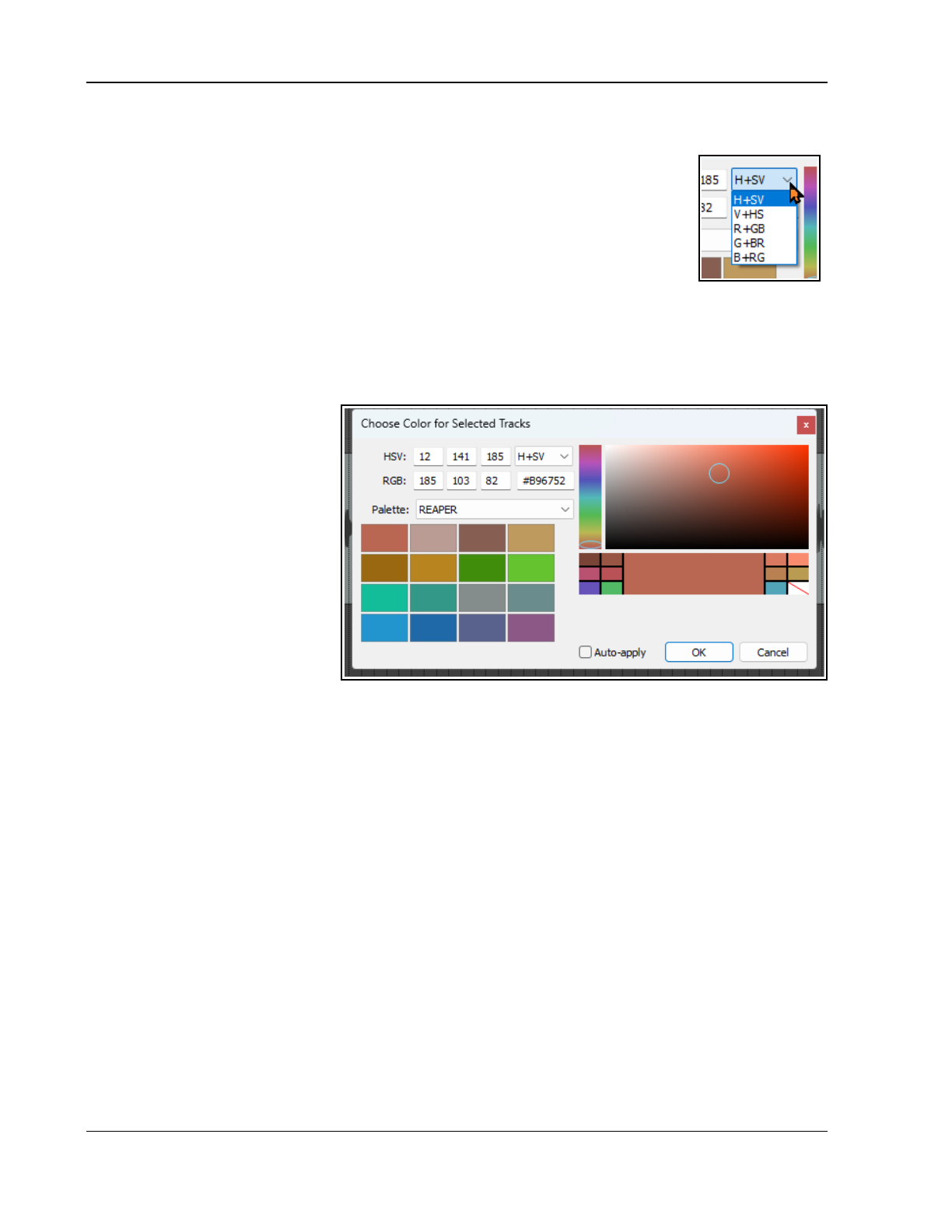
Up and Running: A REAPER User Guide v 7.81
this, then dragging the bottom border of the dialog box down (to make it larger) will allow you to display both
palettes. This will give you further choices.
The HSV drop down list (defaulting to H+SV) lets you choose from five color models –
H+SV (Hue+Saturation+Value), V+HS, R+GB (Red+Green+Blue), G+BR, and B+RG. The
color display in the main palette will change with your selection. The fascinating science
behind color modeling is beyond the scope of this documentation: you do not need to
understand it in order to be able to choose your preferred colors.
Click on any of the 16 or (if you have chosen to display a second palette) 32 small color
squares to change the display in the main palette. Clicking anywhere on the vertical color
bar (immediately left of the main palette will also change the main palette display.
With auto-apply enabled, you are able preview your color choices in real time by right-clicking over any location
in the main palette area or any of the 16 smaller color boxes displayed in each selected palette.
The chosen color will be saved to your selected panels//tracks/items, etc. only when you choose OK. Choosing
Cancel will close the dialog without applying any changes.
User Defined Palettes
In all probability, many users will
find that all the options they need,
and more, are available from the
eleven pre-defined palettes that are
available.
However, if you do need to create a
user defined palette then follow this
simple method.
Select a user palette (User 1 to
User 4) from the Palette drop
down list.
As you scroll across the main
palette area, shift-click to add
any selected color to your
palette.
160
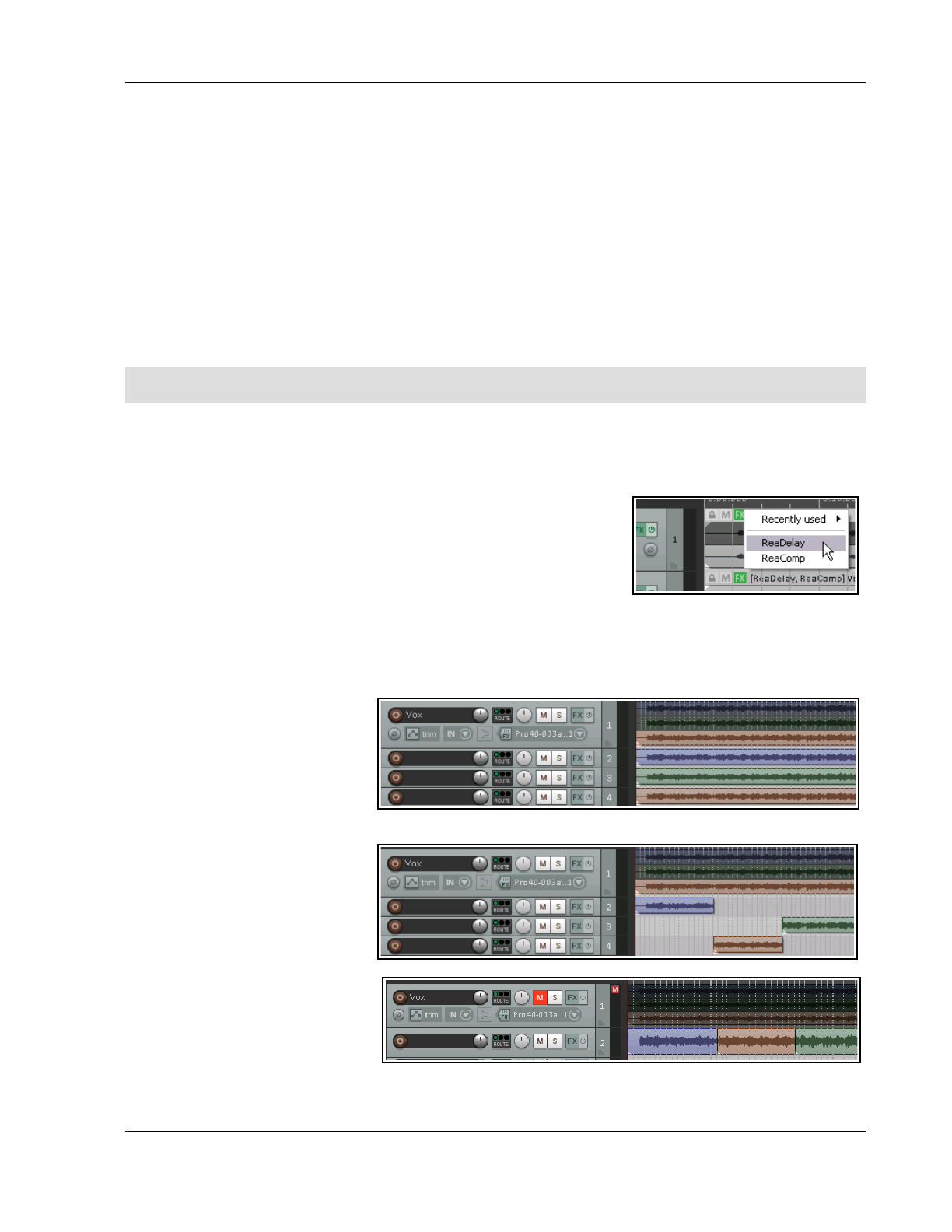
Managing, Comping and Editing Takes
8 Managing, Comping and Editing Takes
In Chapter 3 we saw how to create multiple takes when recording. In particular, make sure you are familiar with
the sections that cover Displaying multiple takes, Using Color Coded Takes and Working With Multiple Takes.
Editing techniques covered in Chapter 7 can be applied to editing a project with multiple takes. You have two
main methods at your disposal. You can:
Explode all takes to new ordinary tracks. You can then work on and edit each track separately and (if
you wish) join them all back to a single track when you have finished,
or
Explode all takes in place to fixed media item lanes. Fixed media item lanes will be considered from
section 8.12 onwards.
Work on and edit the various takes all within the single track on which they were recorded. We'll get to
this method later in this section.
Unless stated otherwise, the examples in this section assume that you have free item positioning and fixed item
lanes disabled for your tracks, and in preferences (Project, Track/Send Defaults). This is the REAPER default.
Note: Most of the images shown in this chapter use the REAPER 5 color theme: the instructions, however, are
exactly the same regardless of which theme you are using.
8.1 Using Item FX with Individual Takes
In Chapter 7 you learnt how FX can be added to individual media items. Where multiple takes exist on a track,
each take can be assigned its own FX and FX chain. You can insert separate FX plug-ins into individual takes, as
shown in the example here. Select the required take, then press Shift E to open the take add FX window.
If you have enabled the options Display media item take name and
Draw labels above the item (both under Preferences, Appearance,
Media), then any FX chain for the currently selected take will be included
in the information displayed. In the example shown on the right, Take 2 is
currently active: the FX names displayed are those FX assigned to Take 2.
If you wish, you can insert the same FX into each take and apply different
parameter settings for each one.
8.2 Exploding Takes to Multiple Tracks
We'll start by looking at the first of these two methods. Let’s suppose that we have recorded three takes of a
vocal track. We can right click over the item and use the Take, Explode all takes to new tracks command.
This command creates (in this case)
three extra as yet unnamed tracks –
the original track with its three
takes is still intact. Now suppose
that after auditioning we have
decided which parts we want to use
from each take. In the next
illustration, we have edited the various takes to leave only the portion of each take that we wish to keep. This
has been done using various
editing techniques that have been
covered in Chapter 7.
Finally, we select the various items
from tracks 3 and 4 and use the
Num Lock 8 key to move them up
to track 2. Track 1 is now muted
and could of course be hidden.
Tracks 3 and 4 could be deleted.
You could now select all of the items
in track 2 and use the Glue Items
command to bind them together as
one media item. Note that the
original muted track with the three takes on it is still available. This makes it easy at some later time for us to
change our mind about what to include in the vocal track if we wish.
161
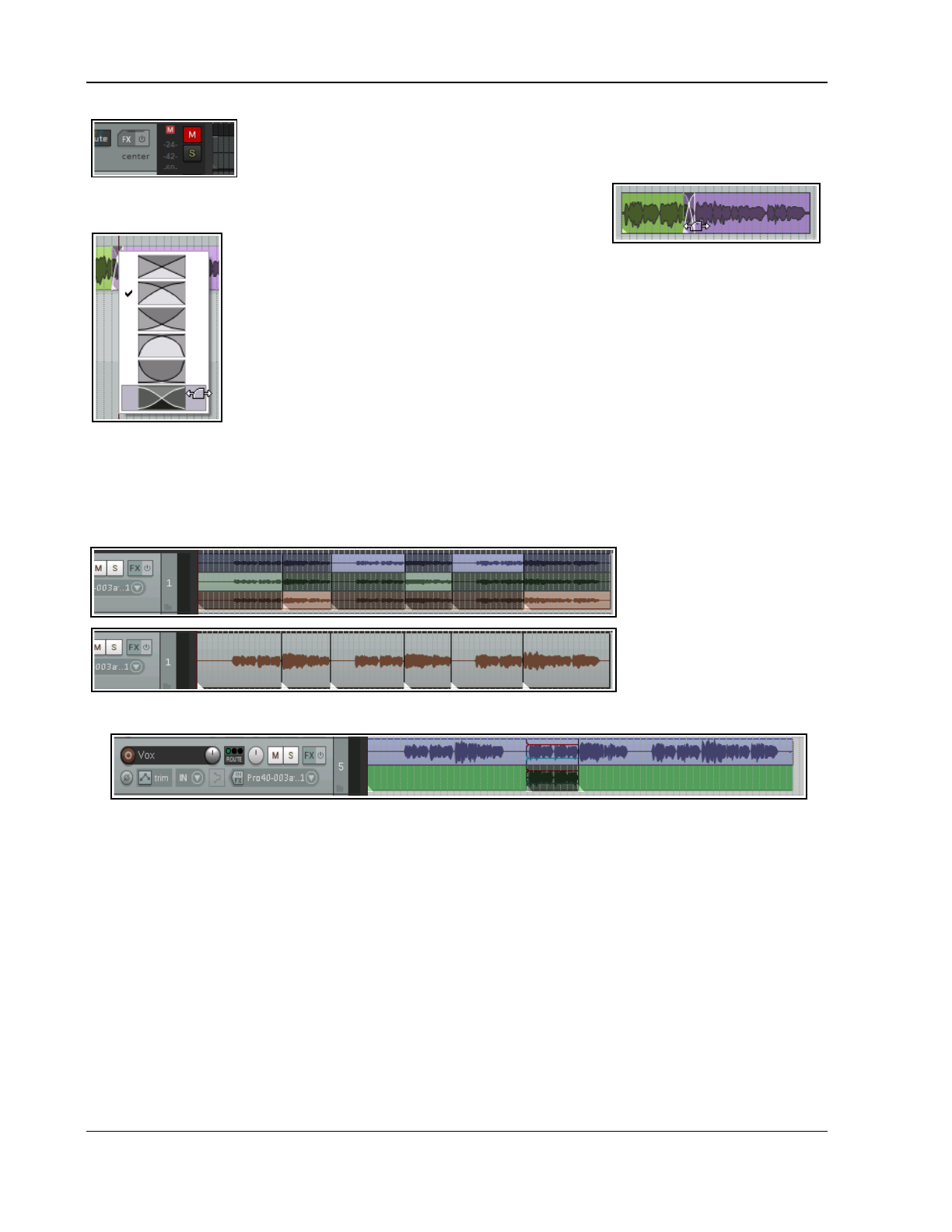
Up and Running: A REAPER User Guide v 7.81
Note: If you are using the REAPER 6 color theme default layout, the mute button is
located on the top right corner of the track panel, as shown here.
8.3 Crossfades with Takes
If you intend to arrange your media items so that
they overlap, then you should first decide whether or
not you want REAPER to add a crossfade. This feature is turned on and off using the
Auto Crossfade button on the main toolbar (or the keyboard shortcut, Alt X).
The curves of crossfades can be edited. You can extend the crossfade in either direction
by dragging the vertical fade bars. If you hold Shift while doing this, you can move the
crossfade itself left or right to a new position. Right-clicking over the crossfade reveals a
menu of different crossfade shape options (see left). Using these techniques can ensure
that an otherwise abrupt edit is made into a gradual transition at the best edit point.
Various options are available to you for customizing mouse behavior when crossfade
editing. These can be selected from the Editing Behavior, Mouse Modifiers page of your
Preferences – see also Chapter 15. An example of this shown here. For more advanced
crossfade editing, you might wish to use the Crossfade Editor (see Chapter 7)
8.4 Exploding Takes in Place
Another option is to use the Take, Explode all takes (in place) command. This has the effect of merging all
takes on the track into a single lane. Here's an example of when you might wish to do this. The track shown
here includes three lead vocal takes. You have made your selection of the best parts of each take. These have
had their individual item
properties (such as volume)
adjusted to give you the
sound that you want.
By exploding all takes in
place, the selected items are
placed over the other takes
in a single lane.
8.5 Play All Takes
Here's a really interesting trick you can do with takes. Shown here is a vocal track with an overdubbed vocal
harmony for just a short part. Both takes at that point have had individual pan and volume envelopes added, and
some delay and perhaps pitch shift FX to the second take's FX chain.
After selecting both these media items, right-click over either one of them and choose Item settings then Play
all takes. We can thus have our complete vocal and harmony mix on one single track! This setting is also
available from within the Item Properties window.
8.6 Editing and Comping Multiple Takes and Multiple Tracks
You don't need to explode takes to multiple tracks in order to manage them. In this section we'll see some of the
ways in which you can manage your takes all within a single track. In overview, this essentially consists of
selecting the best parts of each take and comping them together into a single take of your preferred selections.
Slice and Dice
When you choose the Option to Show all takes (when room) there is a neat technique known as
slice and
dice
that helps you combine the best of each take together, to play as one track. To do this, you simply Split the
track in as many places (and at the exact points) that you think appropriate, then select from each slice your
preferred section. The different methods that you can use for splitting are explained in Chapter 7.
162
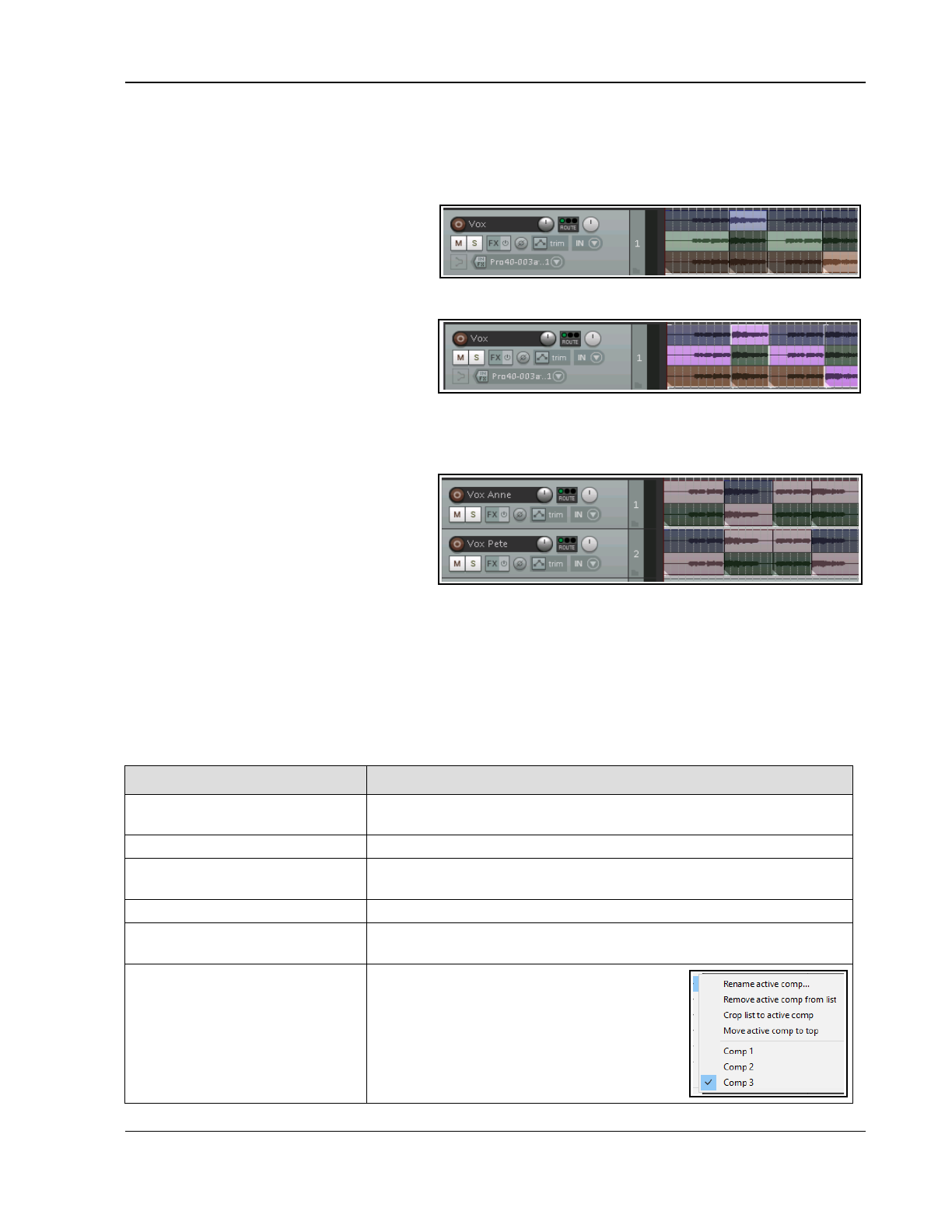
Managing, Comping and Editing Takes
A clever trick is to make all of the items that together make up a complete set of preferred takes a different color
from the others. To do this, first choose your takes and select all of the media items (use marquee to do this),
then choose from the right-click menu Item and take colors, then Set active take to custom color (via the
Color Picker) or Set active take to one random color. These commands are also available from the media
item right-click context menu. An example of how this can be used is shown below.
Suppose that one of these takes consists of
an overdub of just a small portion of the
song. The option to Display empty takes
(Options, Take behavior menu) can be
enabled to ensure that your takes are
displayed more clearly. An empty part of a take (such as exist in Take 2 here) cannot be selected unless you
enable Allow selecting empty takes
(Options, Take behavior menu).
Note 1: If you prefer not to see the empty
takes, you can hide them by disabling
Display empty takes (Options, Take
behavior menu).
Note 2: When using “slice and dice” with MIDI takes, you should disable the option Allow trim of MIDI items
(Preferences, Media, MIDI), especially if you will need to adjust split positions.
Composite Take (Comp) Sets
Any sliced and diced item (as shown above),
or selection of such items (as shown right)
can be saved as a composite take (comp),
and recalled later if required. You can create
and save multiple comps for such items.
You can save multiple comp sets for
individual tracks (as shown above) and for multiple tracks (as shown right), where two tracks have been sliced
and diced differently.
With all media items in this set selected (use marquee), you can right-click over the selection and choose
Comps then Save as new comp from the context menu. You will be prompted for a name: this will be added
to the Comps menu and can be used to recall this comp. This makes it easier for you to compare different take
combinations.
Saved comp sets can be applied by selecting the media items (all takes) of the relevant tracks in arrange view,
then right c licking over the selection and choosing Comps then the comp name from the context menu. Here is
a summary of the commands on the Comps sub-menu.
Command Explanation
Save as new comp Saves your current selection of takes on all currently selected tracks as
a new comp set. You will be prompted for a name.
Rename active comp Lets you change the name of current active comp set.
Remove active comp Deletes selected comp set and removes it from the Comps menu. Does
not remove any takes or media items from the project itself.
Crop list to active comp Removes other comp sets from comps menu list.
Move active comp to the top Moves all items in take selection to the top of its track. This action
respects both item grouping and undo.
Comp names
Your comps will be listed at the end of the
Comps menu (see example right). Choosing
any of these will cause that set of takes to
be selected.
163
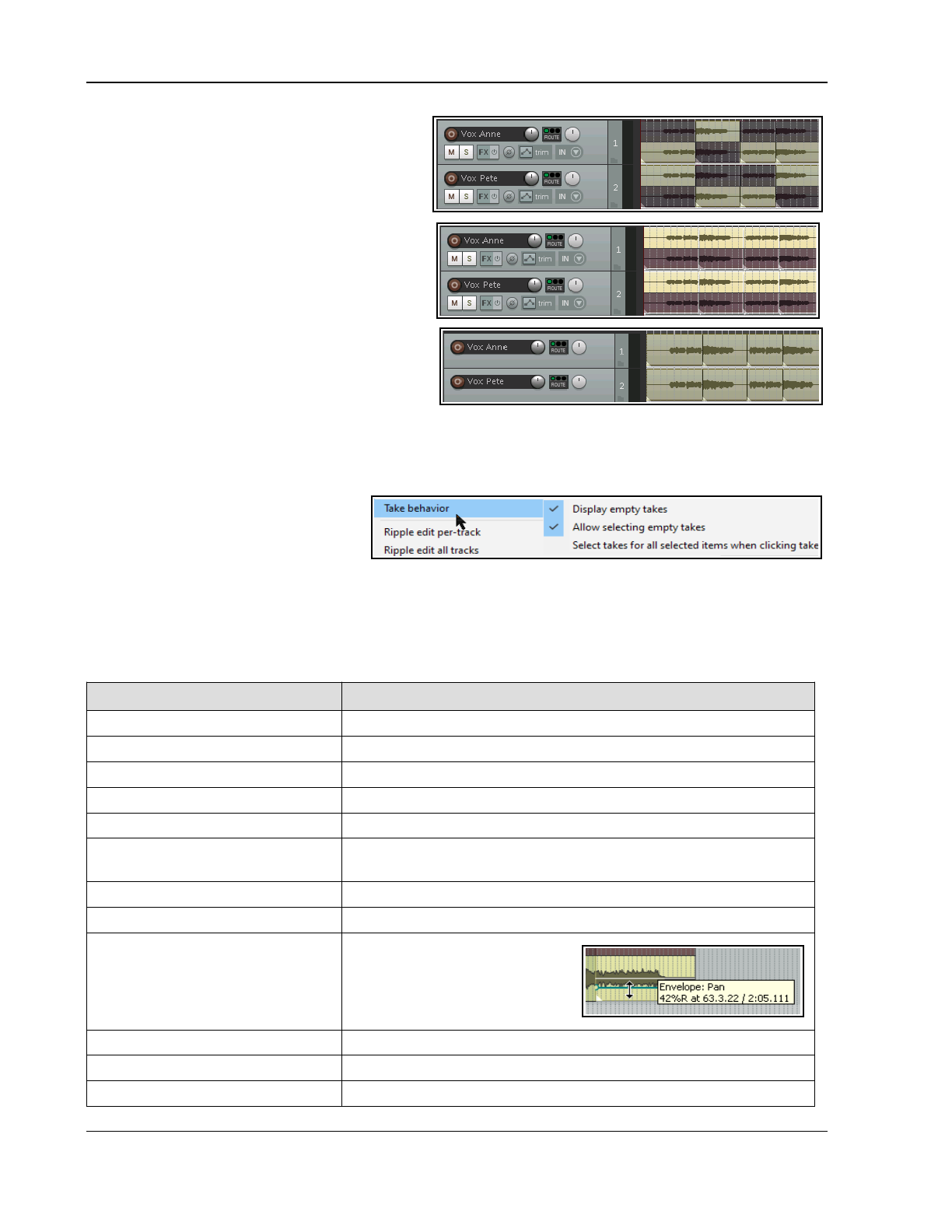
Up and Running: A REAPER User Guide v 7.81
In this example, we have created a second comp
set and colored it green. We can now switch
between comp sets at will.
Below right, with our preferred comp set selected
we use the command Move active comp to top.
Don't forget also that by pressing Ctrl L you can
toggle the display of vertically stacked takes on
and off, as shown below.
Tip: When you slice and dice lanes in this way,
you can use the Num Pad keys 1 and 3 to slide
items left or right if their timing is slightly out of
sync. The exact amount by which these keys will
slide your selected media item(s) will depend on
how closely you are zoomed in or out.
In the earlier stages of post production you might
want to use comp sets for individual tracks rather
than for groups of tracks. This gives you a more
flexibility in “mixing and matching” your various tracks together. Note also that comps are preserved when items
are split. Moreover, as your mix progresses towards its completion, you may find that it more advantageous to
save comped sets for whole selections of tracks, so that they can be recalled and used together.
Take Behavior Options
Note the three take behavior toggle
options on the Options menu. These
are mostly self-explanatory:
Display empty takes, Allow
selecting empty takes and Select takes for all selected items when clicking takes. Disabling this last
option allows you to work with takes on individual tracks within a track selection without losing the selection.
8.7 Take Menu Command Summary
The table below summarizes other Take menu management commands that are available to you:
Command (Shortcut) Explanation
Next take (T) Makes next take the active take for all selected media items.
Previous take (Shift T) Makes previous take the active take for all selected media items.
Delete active take (X) Deletes currently selected take on all currently selected media items.
Crop to active take (Alt Shift T) Removes all non-active takes from currently selected media items.
Duplicate active take Adds a copy of the active take to the item as a new take.
Lock to active take (toggle) Locks the current active take selection. When locked, a take cannot
be changed unless this toggle is used to unlock it.
Show FX chain for active take Opens FX browser to allow you to add FX to the active take.
Remove FX for active take Removes FX previously added to a take's FX chain.
Take envelopes... Opens a window from which you
can choose to add a volume, pan,
mute and/or pitch, and/or any
take FX parameter automation
envelope. (see Chapter 18)
Take markers See section later in this chapter.
Explode all takes to new tracks Copies each take to a new track.
Explode all takes in place Places takes on top of each other, so that all will play at once.
164
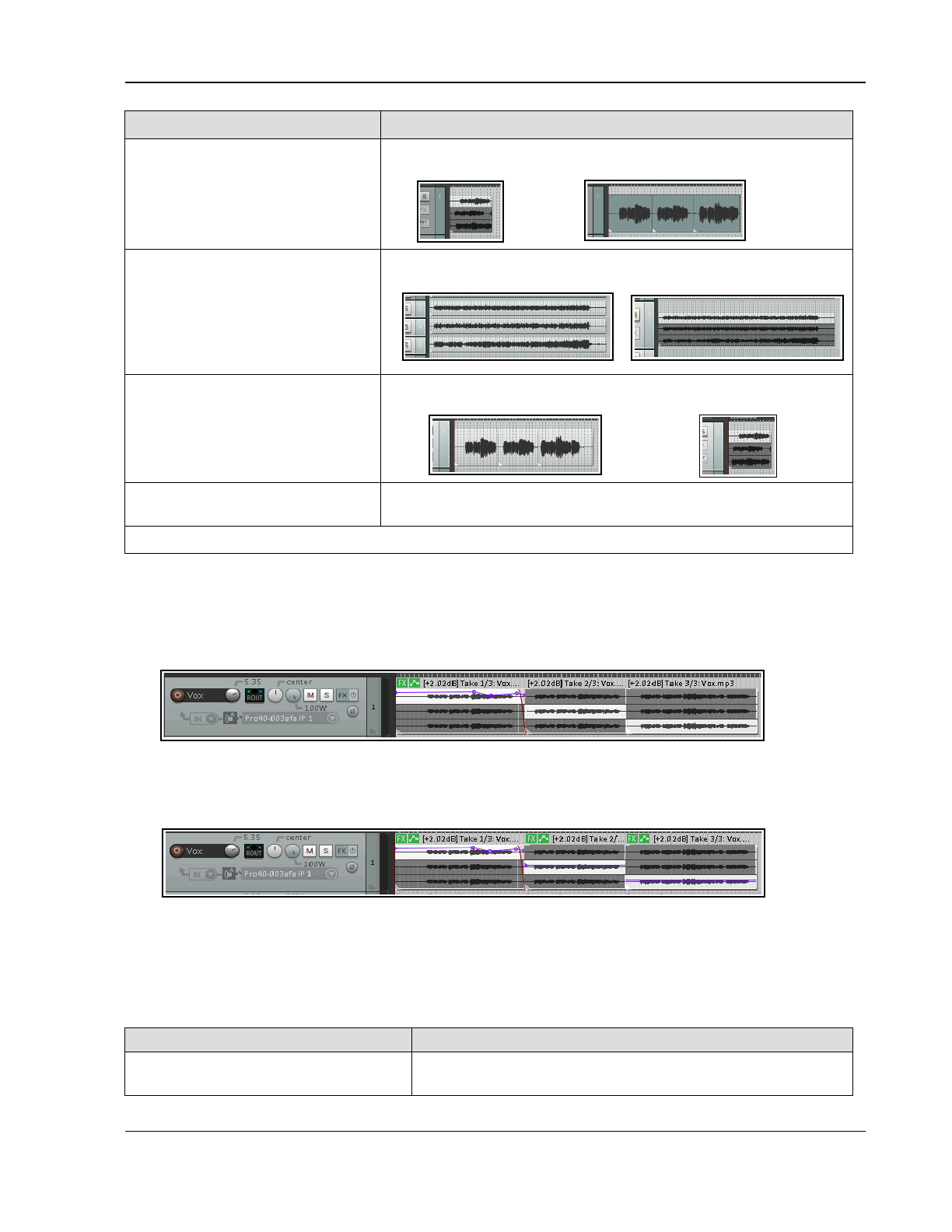
Managing, Comping and Editing Takes
Command (Shortcut) Explanation
Explode all takes (in order) Places selected takes on the same track in sequence.
This command turns this …. into this:
Implode items across tracks
into takes:
Copies all selected items to a single track as a series of takes. This
command turns this ….……..… into this:
Implode items on same track
into takes:
Moves all selected items to the same start time as a series of takes
on the same track. This command turns this …. into this:
Paste to takes in items Pastes previously selected and cut or copied takes into selected
tracks as a new item.
There are also additional actions, not shown on the menu, that are available in the Actions List.
8.8 Propagating Takes
In Chapter 7 you were shown how to copy a media item's properties and characteristics to all similar media items
on the same track or on all tracks. The same principle can be applied to takes, using either of the Item
processing commands Propagate take to similarly named active takes on track or Propagate take to
similarly named active takes (all tracks). Here is an example.
In this example, three takes of a media item have been split into three sections. All takes share the same name
(Vox.mp3). FX have been added to the active take for the first section, as have an envelope and a fade out. By
choosing Item processing, Propagate take to similarly named active takes on track from the context
menu, we ensure that these features are copied to the other active takes on this track:
Notice that although the envelope is copied, the envelope points are not.
8.9 More Take Commands and Actions
The Items context menu includes six commands which create a new take from an existing item. The first four of
these all involve applying track effects to an existing media item: the first three create a new audio take and the
fourth creates a new MIDI take. The table below summarizes these commands.
Command Explanation
Render items as new take Renders the existing media item as a new take. Any MIDI items
with take FX (such as VSTi) will be rendered as audio.
165
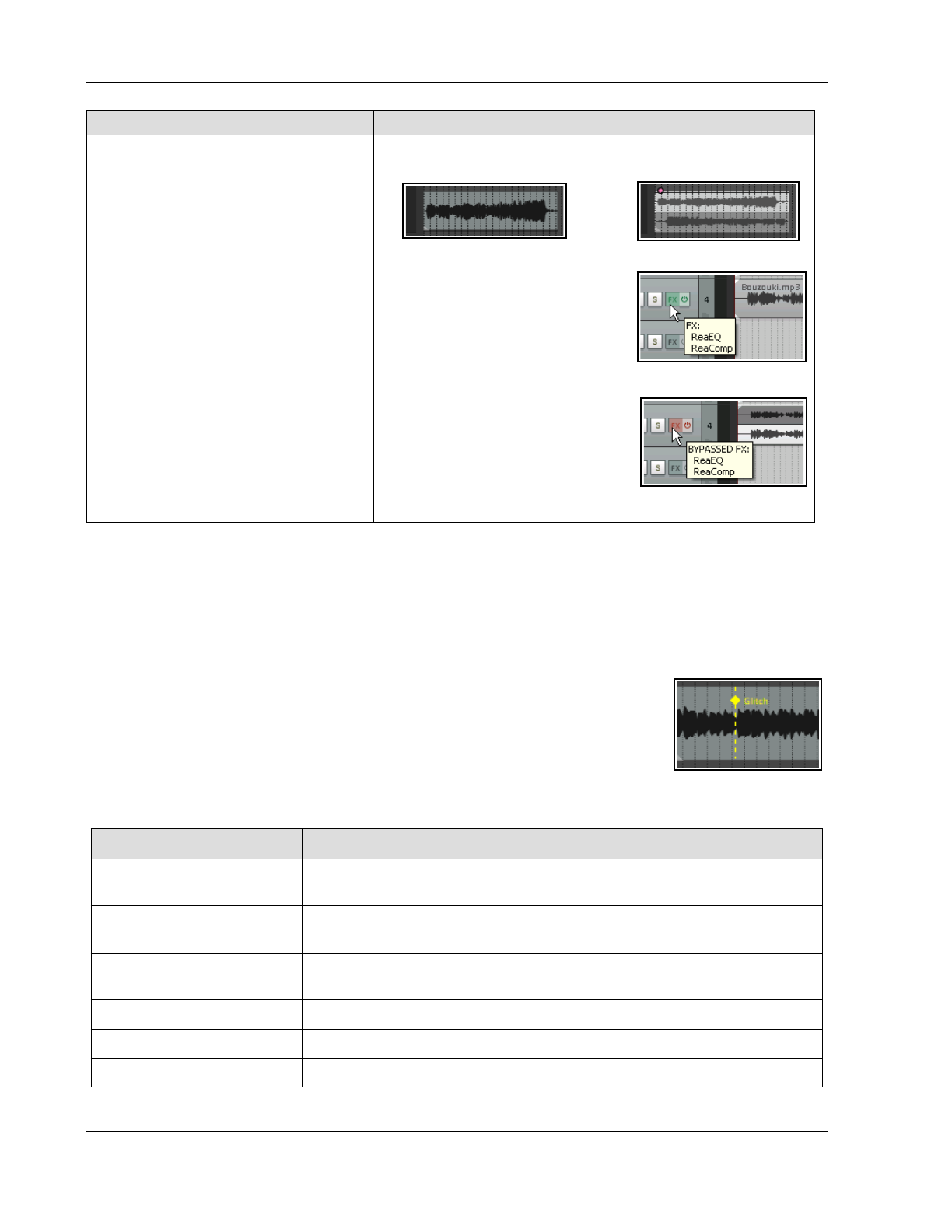
Up and Running: A REAPER User Guide v 7.81
Command Explanation
Reverse items as new take Adds a new take to the media item with the content reversed.
Here's an example. Starting with this … we end up with this:
Apply track/take FX to items as new
take - creates a new stereo take for the
selected item.
Apply track/take FX to items as new
take (mono output) – creates a new
mono take for the selected item.
Apply track/take FX to items as new
take (multichannel output) – creates
a new take for the selected item, with
the same number of channels as are
defined in the track's routing window.
Apply track/take FX to items as new
take (MIDI output) – creates a new
MIDI take on selected MIDI item.
One use for these commands is to
free up CPU if your system is
becoming stressed. Consider an
example of a track with some FX in
its FX chain, say EQ and a
compressor:
After applying track FX (mono output), we have a new take with
the FX applied to it. The original FX
chain can now be set to bypass:
This reduces CPU overload, and
opens up creative options- e.g. you
can select Play all takes then use
pan and volume envelopes to vary
their placement and relative volume throughout the song.
8.10 Item Take Markers
REAPER supports project markers and take markers. Project markers are explained in Chapter 9. Take markers
are attached not to a point in time on the project timeline but to a specified location within a specific media item.
Thus, by using take markers you are easily be able to identify and jump to any marked point in any item or take.
If the media item is moved, the marker is moved with it. If the item is modified (e.g., by changes to its playback
rate or by stretching) then the marker position will be adjusted accordingly. To create a take marker:
●
Position the mouse cursor and select the media item or take: the play/edit cursor
should automatically jump to the required position. Choose Take markers,
Add/edit take marker at cursor (from either the main Item menu or the
media item right click context menu).
● In the Edit Take Marker dialog type a name and either set the color of your
choice or accept the default.
● Click on OK. The take marker will be displayed on the media item itself (as shown above).
In order to do this …
… you should do this.
Turn on/off snapping to
markers
Enable/disable snap to selection/markers/cursor in the snap dialog. Snap on
also requires that snap to media items be enabled.
Add a take marker to an
item
Follow the instructions above (from first bullet point).
If the item has multiple takes, select the required take before doing this.
Add take marker during
playback or recording *
Run the action Item: Quick add take marker at play position or edit
cursor. Double-click to edit it later if you wish to add a name.
Move a take marker Position mouse cursor over the diamond shaped mark then left click and drag.
Copy a take marker Use Ctrl left drag.
Edit a take marker Double-click on the diamond shaped mark (e.g. to change its name or color).
166
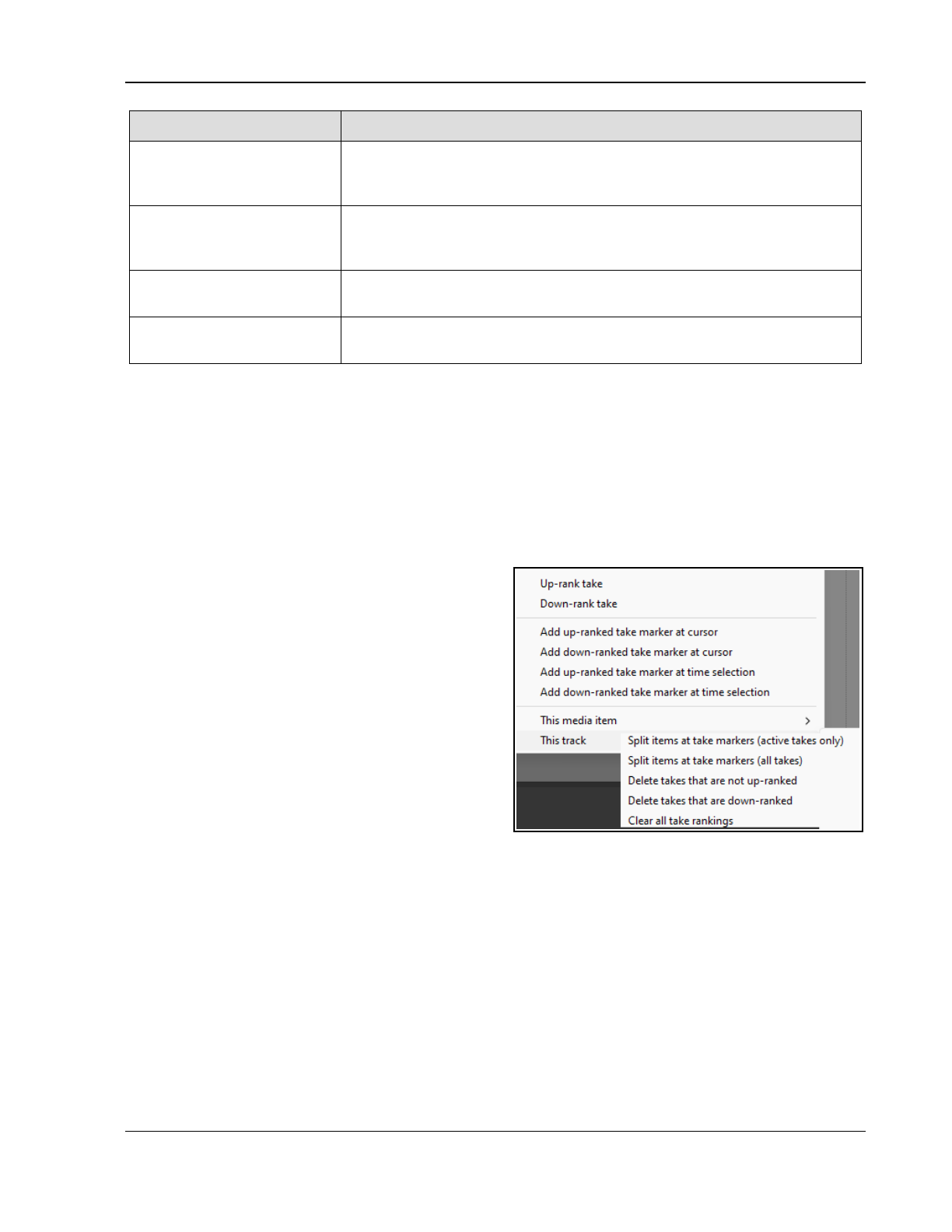
Managing, Comping and Editing Takes
In order to do this …
… you should do this.
Delete take marker * Alt click on marker,
or
Select take marker, then choose Delete take
marker at cursor or Delete take markers in time selection or Delete
take markers in item from Take markers menu.
Jump to take marker Press Ctrl J to open Jump to dialog. Type the letter k followed by an
apostrophe and the marker name to jump to a specified take marker. E.g. to
go to a take marker called
glitch
, you would type k’glitch in the jump to box.
Up-rank or Down-rank take
markers.
See Comping with Take Markers to see how take markers (including up-
ranked and down-ranked take markers) can be used as an aid to comping.
Move play cursor to next/
previous item take marker
Use actions in Action list. These can be assigned to keyboard shortcuts if you
wish. For other relevant actions search or
take marker
in the Actions List.
Tip 1: The Region/Marker Manager (Chapter 9) provides an environment where you are able to manage
your take markers – for example to edit or delete them, rename them, reposition them, change color, and so on.
Tip 2: The media item take marker section of your mouse modifiers enables you to customize take marker
behavior for left drag, left click and double click.
8.11 Comping with Ranked Take Markers
Ranked take markers can assist you in exploring and evaluating your options when comping, whether you are
using legacy takes or fixed media lanes. The example that follows uses legacy takes, but these techniques can
also be adapted to apply when working with fixed media lanes. (With fixed media lanes you will need to enable
Allow editing source media while comping from the right-click Comping menu.)
Take markers added to sections of each take can be up-
ranked (yellow face) or down-ranked (red face). This
can assist you in identifying where to slice and dice your
takes and in removing unwanted segments.
Note the section of the Take Markers context menu
shown on the right. These commands can be used to
add and work with up/down ranked take markers.
You might find it rather clumsy to work with the mouse
both to move around the mouse cursor and use right-
click context menus at the same time.
For this reason, you should familiarise yourself with
some of the keyboard shortcuts that are available
perform many of these tasks. Some examples of these
are listed below. You might also wish to add some of
your own to suit your own workflow.
Before we start, make sure that you are familiar with basic item take marker management techniques as outlined
earlier in this chapter. These include snapping to, moving and deleting take markers.
Examples of Default (**) and Suggested (##) Keyboard Shortcuts
Split item at edit or play cursor ** S Insert marker at current position ** M
Go to next take ** T Go to previous take Shift T
Up-rank take marker at play position or edit cursor ## Num + (see Tip 1 below)
Down-rank take marker at play position or edit cursor ## Num - (see Tip 1 below)
Delete take marker at mouse position ## K
Split items(s) at time selection or razor edit Shift S **
Tip 1 After assigning Num + and Num - you can still zoom in/out horizontally using the up and down arrows.
Tip 2: Consider keeping the Region/Marker Manager open as a secondary option when editing take markers.
167
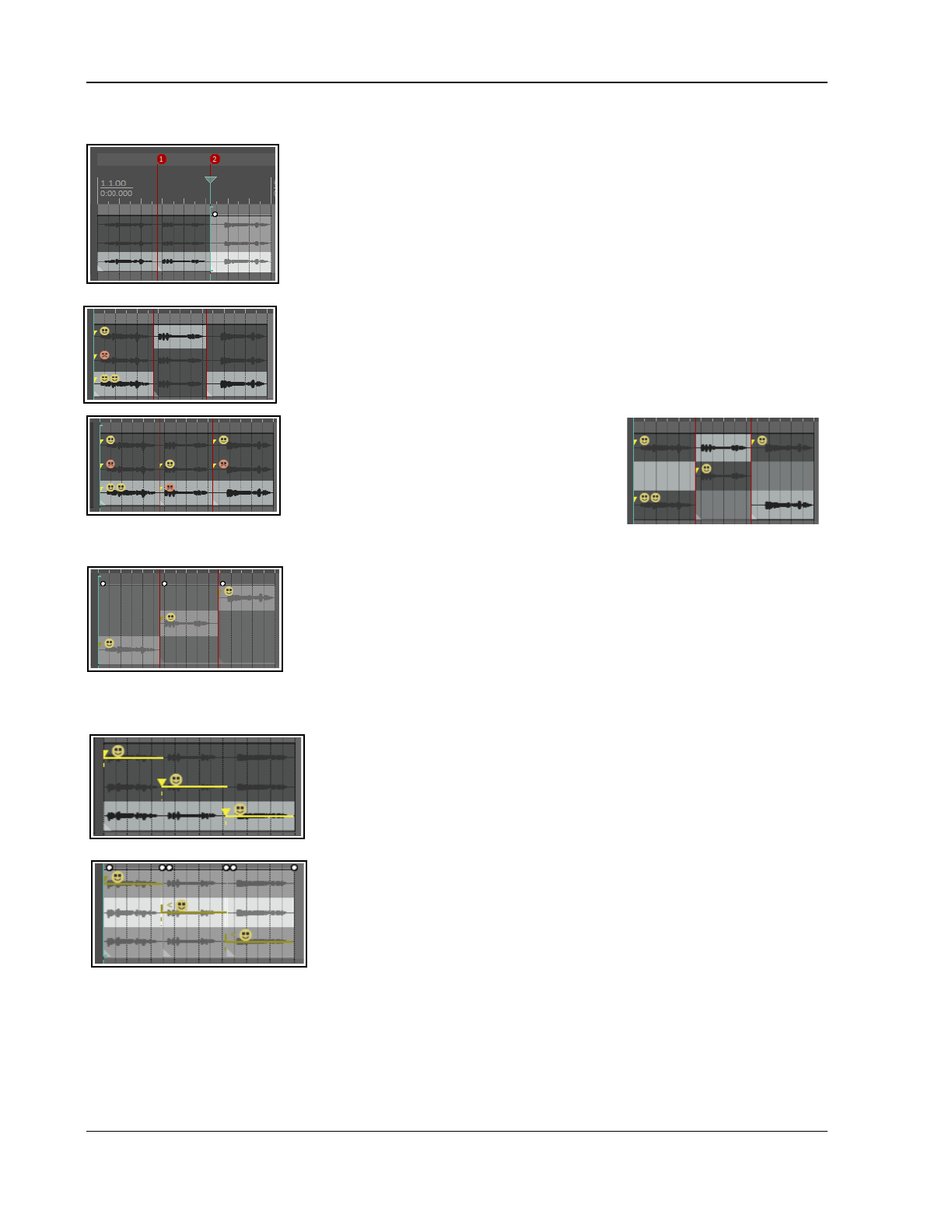
Up and Running: A REAPER User Guide v 7.81
Example
There is no “one size fits all” method of working with take markers. This example
outlines one possible approach to help you to understand some possibilities. It
shows a simple item with three takes. We can split it into segments then use take
markers to evaluate and ultimately select a preferred take in each segment.
1. We can split the item into segments adding a marker at each split. This makes
it easier to navigate accurately and quickly between segments. Pressing the
marker number key (e.g. 1, 2, or W to return to the beginning) will navigate us
to any required marker position.
2. We can select the first segment and press Home (or W) to move the cursor to
the start position. Pressing T will cycle through the takes for auditioning. Pressing
Num + will add an up-rank (yellow) marker at the current position. Pressing
Num - will add a down-rank (red) marker. For any we especially like, repeating
Num + will add an additional happy face marker, up to five.
3. We repeat this process for the other
segments. At any time we can go back and use
Alt click to remove unwanted markers or. We
can also add up-rank/down-rank take markers
anywhere else that we need to, not only at the
markers. Eventually we might end up with
something similar to that shown here (above right).
4. We can select the whole item and use the Take Markers context menu
command This track, Delete takes that are down-ranked to remove those
takes that we definitely do not like (as shown left).
After further auditioning we can delete any unwanted up-ranked take markers
so as to leave only one marker per segment. Then Take Markers, This track,
Delete takes that are not up-ranked will leave us with only the best take in
each segment (as shown left).
A Different Approach
Another approach is to define the take markers first and split the items
afterwards.
In this case, the three up-ranked markers have each been added individually
by making a time selection, selecting the required take and then choosing
from the Take markers context menu Add up-ranked marker at time
selection.
The Take markers context menu command This track, Split items at
take markers (all takes) will now split the item as shown on the right.
Take markers, This track, Delete takes that are not up-ranked can
now be applied to this item. Pressing Ctrl L will now cause your preferred
takes to be displayed in a single lane.
Note:
Up/down-ranked take markers added in this way can be lengthened or shortened by picking up the end with
your mouse and dragging to the right or left.
168
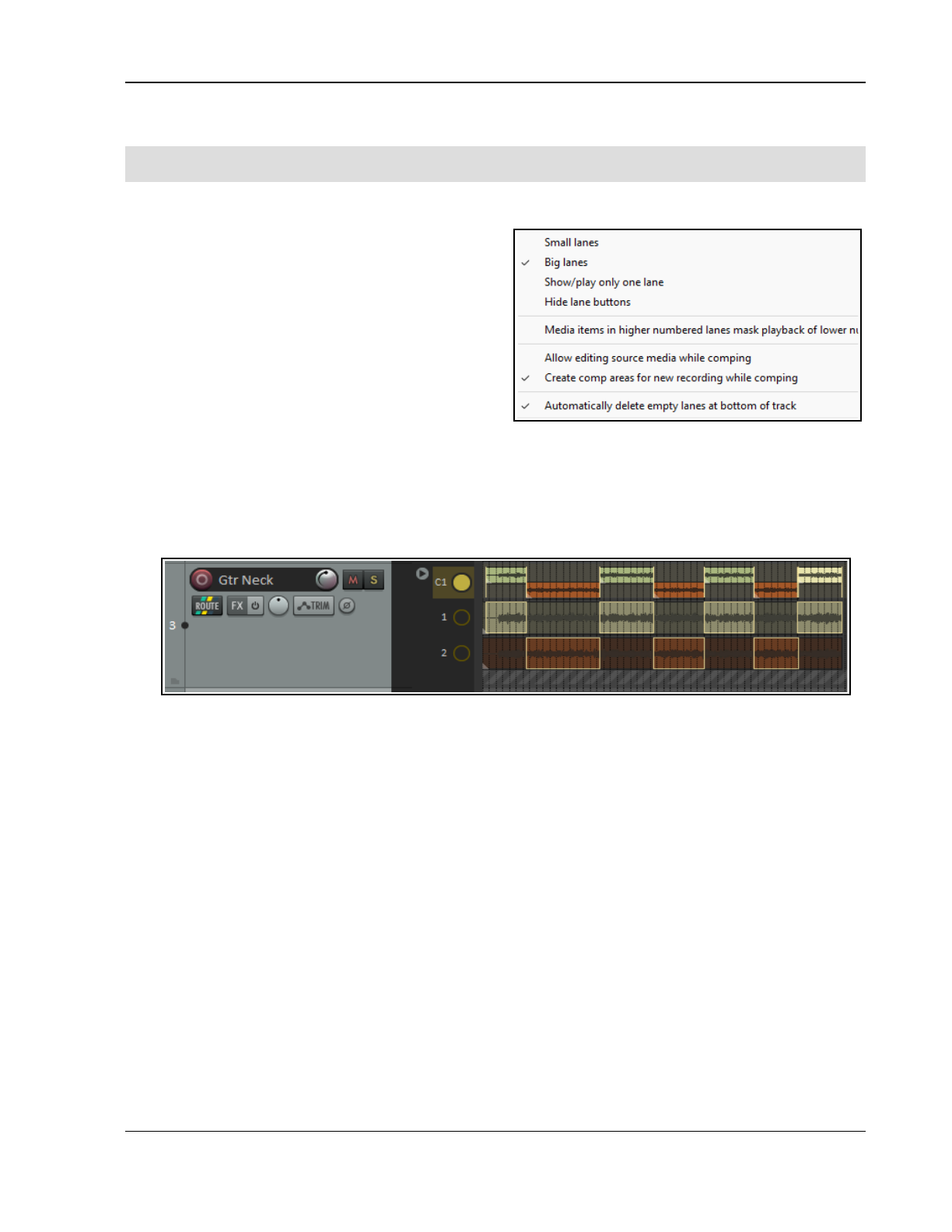
Managing, Comping and Editing Takes
8.12 Fixed Media Item Lanes
This section requires an understanding of REAPER’s recording techniques, including layered recording (see
sections 3.1 to 3.5 and 3.14. Some understanding of REAPER’s legacy takes system is also recommended.
Media item lanes offer you a way of working that goes beyond the limitations of REAPER’s basic track structure.
By default, media items will fill the entire vertical space of
the track on which they are recorded. If the media items
overlap, they are auto-arranged vertically based on your
media item properties settings. Media items that overlap
interact during playback according to the project
settings (Project settings, Advanced, Item mix
behavior), preferences settings (Preferences, Project,
Item fade defaults, Preferences, Project,
Track/Send Defaults (shown right), and Preferences,
Appearance, Zoom/Scroll/ Offset), track settings,
and/or media item properties for item mix behavior
(shown above right). If media item and project settings
differ from each other, media item settings will apply.
With free item positioning you can freely position and resize media items within the vertical space of the track.
However, this feature is not designed with project building in mind. Fixed media item lanes offer you various
tools and techniques for building projects. They can be used to record, layer, edit, manage and comp material.
They are effectively tracks within tracks, up to 256 lanes within a single track:. REAPER then gives you multiple
options to treat these tracks individually, linked by comping, or in other ways related.
To give you some idea of where we’re eventually going here is a relatively simple example::
Look at the above illustration. Notice:
The track shown comprises three lanes, labeled in a lanes panel (top to bottom) C1, 1 and 2.
Lanes 1 and 2 are two takes of the same tune. Lane C1 is a work in progress comp of the best parts of
lanes 1 and 2.
To the right of the track panel a new section has been added: this shows a labeled button for each lane
(in this example, three buttons) as well as housing its own right-click context menu. Those options whose
initial defaults are determined by your preferences settings can here be over-ridden for individual projects.
8.12.1 Recording and Layering Media Items -Example
We can begin by working through a relatively straightforward example, to help understand the basics, then go
on to consider more powerful and complex models.
1. Make sure that the following conditions are set on your Options menu:
Record mode normal
Offset overlapping media items vertically
Overlapping recording behavior then either Add lanes or (if you prefer) Add lanes (layer new
lanes). This latter option should only be chosen if you wish to play the new material along with any
existing lanes.
2. Create a new, empty project file (Ctrl N). Add a track and either (using an instrument of your choice)
record a tune for about a minute, or import an existing media file.
3. Insert a new track after your recorded track. Expand its height to be similar to that shown above.
4. Now record, one at a time, two takes of a second instrument, to go with your first track,
both on the
same track, one over the top of the other
. When finished, disarm the record button.
169
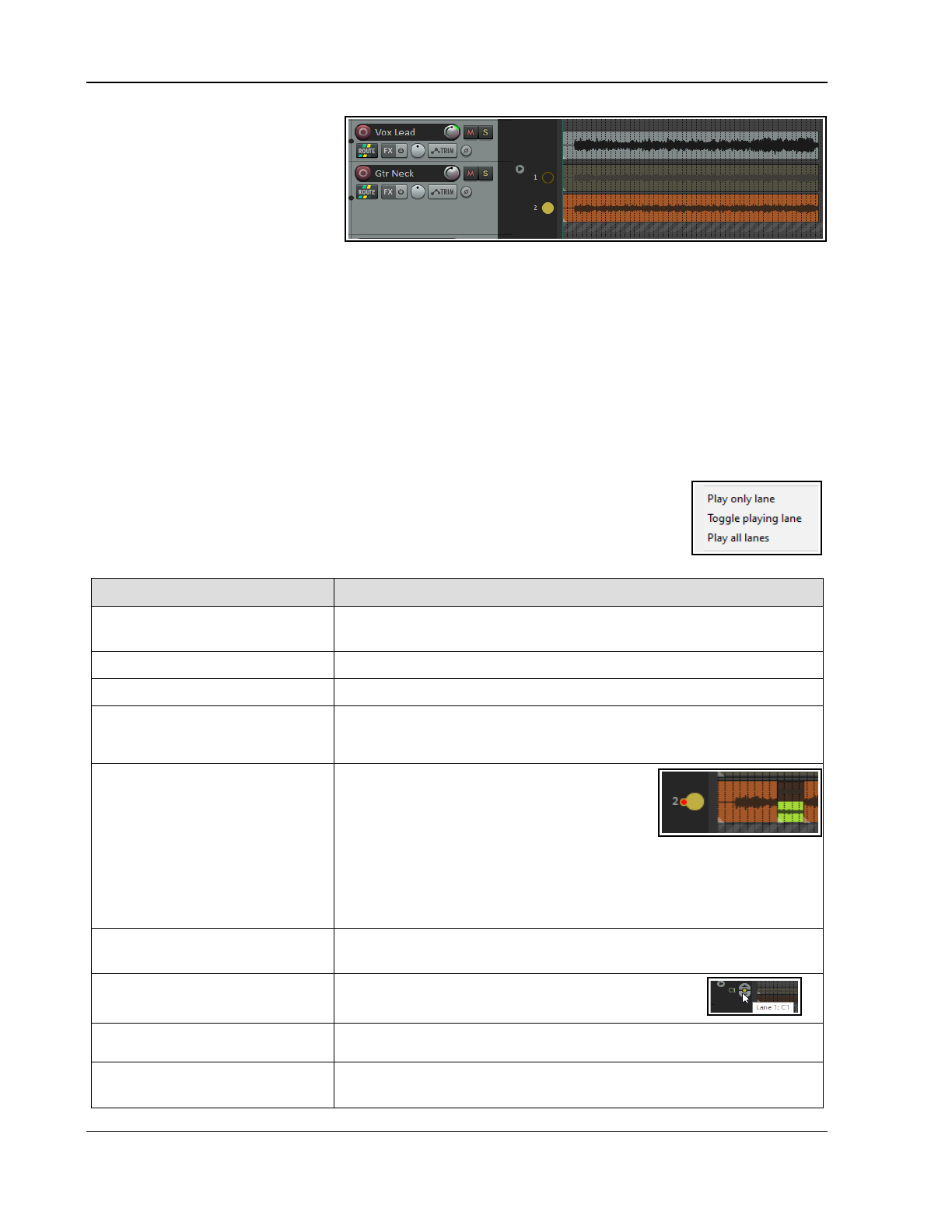
Up and Running: A REAPER User Guide v 7.81
Your arrange view display should
now be something like this (right).
There’s a lot to see here, including
those buttons, so let’s make sure we
understand what’s happened.
Two separate media items have been
recorded and are displayed in lanes
one above the other. By default, only
one item will play back: there are options to change this, for example, to play a selection of lanes, or all lanes.
They each exhibit all the properties of any media item, for example:
You can double click on any item to access and edit its media properties, such as pitch, pan, etc.
Keep in mind that Options, Preferences, Appearance, Media will allow you, for example, to add a volume
knob or FX button to items: you can then add FX and FX parameter envelopes.
You can split items and edit individual segments independently of each other.
Check out your Fixed Lane Default options at Preferences, Project, Track/Send Defaults). These include
small or big lanes, whether to show/play only one lane, hide lane buttons, for media items in higher
numbered lanes to mask playback of lower numbered lanes, to allow editing source media while comping,
to create comp areas for new recording while comping.
8.12.2 Managing and Editing Items
Right click over (or just below) either of the buttons to display a context menu. Note that
this includes a set of three playback commands – Play only (selected) lane, Toggle
playing lane and Play all lanes. Where there are multiple lanes, you can select any
number of lanes to be played back by Ctrl click on the lane names.
When layering, the tricks and techniques described below are at your disposal.
Menu option/Mouse option Comments
Select playback lane(s) from
menu
Click on a lane’s button/ Right click in lanes panel, select Play only
lane, Toggle playing lane or Play all lanes from menu.
Select lanes to play
Click on first lane’s button then use Ctrl click to build selection.
Select items
Selects all media items in currently selected lane.
Duplicate items to new lane
Copies all media items in currently selected lane into a new lane. Use
this, for example, if you have “dry” recorded material and you want to
experiment with editing and/or using FX,
Recording, Record into lane
Recording, Record into first
available lane
Recording, Layer new lanes
Select lane for recording and choose
Recording, Record into lane from menu. A
red dot will be displayed. Can be used, for
example, for overdub recording (shown here).
You can also enable Play only this lane.
If Record into first available lane is disabled, a new lane will be
created for every recording.
If Layer new lanes is enabled new lanes will play alongside any lanes
already playing: otherwise only the new lane will be played.
Toggle a track’s fixed item
lane status on/off
Right click over the track’s control panel and use the toggle command
Fixed item lanes on the context menu.
Change selected lane when
height is in collapsed state
Click on Up/Down arrows on the single displayed
track button.
Add empty lane at bottom
Adds lane as last lane in track. Media items can be dragged from
elsewhere and dropped inside this lane.
Delete, Auto delete empty
lanes at bottom of track
Will remove any unwanted empty lanes at bottom of track.
170
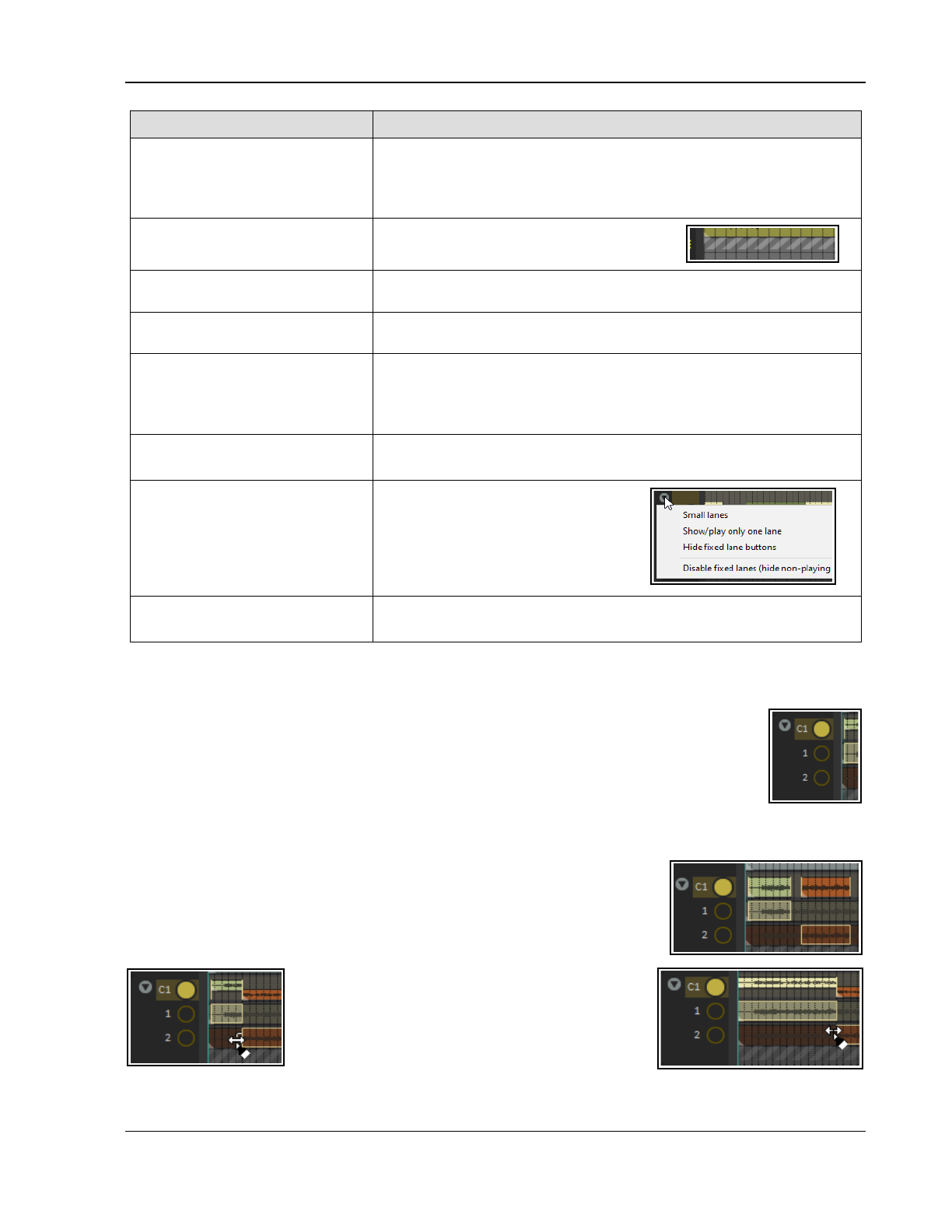
Managing, Comping and Editing Takes
Menu option/Mouse option Comments
Insert new empty lane above
this lane
Inserts an empty lane as specified. Use drag and drop to insert
previously recorded media items into this lane.
This could be a reference track to be played with new recorded items.
You can use Record into an existing lane to record into it.
Insert a media item into a
new lane.
Drag and drop item into the striped parking
area located below the last lane.
Rename lane
By default lanes are named in sequence – 1,2, 3 etc. To rename any
lane, double-click on the lane name, type the name and click OK.
Media item playback option
Option for Media items in higher numbered lanes to mask
playback of lower lanes.
Delete lanes (with submenu). Options to Delete lanes (inc media items), Delete all other lanes,
Delete all lanes with no media items, Delete lanes (inc media)
that are not playing, Delete lanes (inc media) with no comp
areas and Delete all lanes (inc media items).
Item colors (with submenu) Set all items that share the same media source to the same
random color or Set items in all lanes to one color per lane.
Manage lane display options
Disable/enable fixed lanes
Right-click on lane collapse button for
toggle options for Big/small lanes, to
Show/play only one lane (Shift
click), to Hide fixed lane buttons (Alt
click) and to Disable fixed lanes
(hide non-playing lanes).
Manage ripple edit options
(on toolbar)
Right click ripple edit tool on toolbar: turn on/off Ripple edit affects
each track lane separately.
8.12.3 Comping with Media Item Lanes
Using your mouse you can quickly and easily build a comp (or comps) from your media item lanes. One
important difference between this and REAPER’s legacy comping system is that
the material is
comped into new items
. Your original items are not modified in any way.
To turn comping on in a new lane, from the lane panel’s context menu choose Comping,
Comp into new empty lane. A new lane will be inserted above the existing lanes. Shown
here, it is labeled C1 – Rename lane from the context menu lets you change this.
To toggle comping on/off in an existing lane, double-click on the required lane button.
It’s a good practice to finish any edits on your source media items before you begin comping. Comping, Allow
editing source media while comping can be toggled on/off from the context menu. Even with this option
turned off you will still be able to perform edits on the contents of comped lanes.
Use left drag to define areas to be comped. Shown here an area has been
selected from each of the two media lanes. They do not meet up. To fix this,
simply drag the border on either of the two areas towards the other, as shown
below left. You can then if you wish drag this border either left or right to adjust
the relative comp areas, as shown below right.
The vertical yellow marker lines in comp lanes can
be used to adjust the borders between segments.
Note that comping actions copy the comped
segments as new media items. The items in comp
lanes can be edited (e.g. by adding FX or fades)
without affecting the original media in the source
lanes in any way. Below is a summary table of various comping tasks, commands and actions.
171
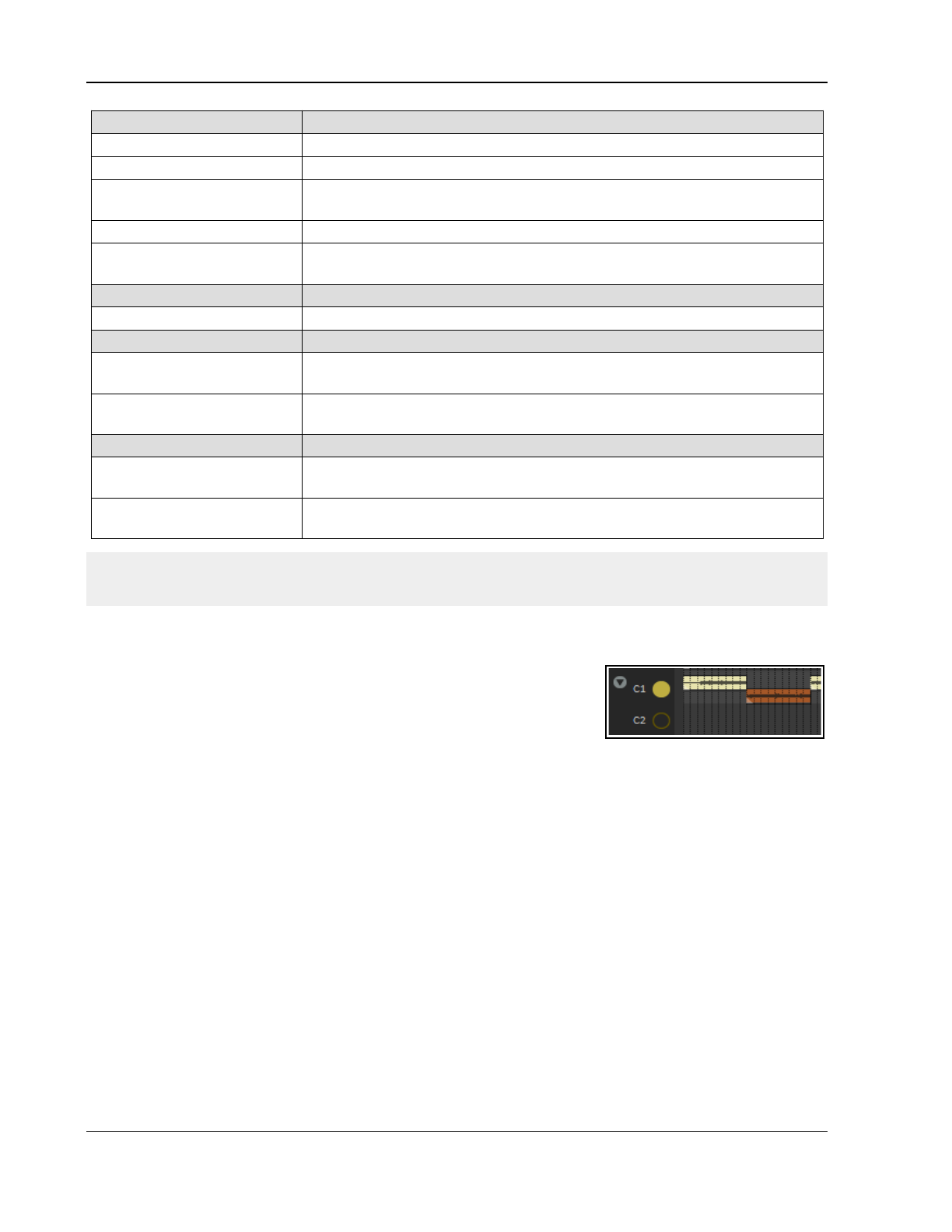
Up and Running: A REAPER User Guide v 7.81
Context menu command Items in Comp Lane - Comments
Split comp area here Splits comp area at current cursor position.
Delete comp area Deletes comp area under mouse cursor and removes media from comp.
Delete comp area but not
media items
Removes comp area but leaves media item in place.
Delete comp area edge Removes edge line between two comp areas in same lane.
Add comp area at time
selection
Adds a comp area matching current time selection.
Track panel context menu Comments
Fixed item lanes Toggles fixed item lanes status on/off.
Panel context menu Comments (see also Managing Comp Lanes, below)
Comping, Delete comp
area inc source media
Removes all comp areas from selected lane along with the actual media.
Comping, Turn off
comping
Turns comping off. To turn it back on, use one of the Comp into …
commands explained below.
REAPER Options menu Comments
Offset overlapping items
vertically
Can be toggled off if you wish to show cross-faded comped material
overlapping.
Snap/grid, Snap/grid
settings
Toggle options to Snap media items to media items in other fixed
lanes and Snap fixed lane comp area to media items.
Tip: Working with comp lanes can involve a lot of mouse movements, and especially dragging. It can be quite
tricky at first, and you might find that you slip up from time to time! A handy tip is to keep your Undo History
window open so that if you do get into strife you can easily go back to your last known safe spot.
8.12.4 Managing Multiple Comp Lanes
To add additional comp lanes, from the context menu choose Comp into a new empty lane. You can drag
and drop this new lane up or down the lane order.
To make a copy of a currently active comp lane for further editing either use
the context menu command Comping, Comp into a new empty lane,
automatically creating comp area. Note that this command prioritises
higher numbered lanes over lower numbered lanes.
These commands, as well as Comping, Comp into new copy of this lane and Comping, Comp into this
lane, are also available on the track panel’s right click context menu.
When you have multiple comping lanes to change which one is active Shift Ctrl click over the lane button.
To make an empty media lane into a comp lane, Double click on its panel button.
There is also a menu option Comping, Refresh comp areas with no matching media in comping lanes.
When working with multiple lanes which include material you might need to prioritise lanes. The context menu
toggle option Media items in higher numbered lanes mask playback of lower lanes can be useful here.
This can be turned on by default in your Project, Track/Send Defaults preferences settings.
See Mouse Modifiers for Power Users for a full list of relevant mouse modifiers.
Mouse Gestures in Comp Lanes and Media Lanes
By default you can edit media items in comp lanes in the same way as other media items. To make this possible
without interfering with your comping, you will see that comp lanes are horizontally divided into two areas.
When the comp lane is selected the larger upper area behaves like any normal track. You can make time
selections, edit media items and so on by using your mouse in this area. The smaller lower area can be used for
comping – for example, to drag and move comp borders.
You can make a time selection in the upper area, then right click in the lower area within that selection and Add
comp area at time selection. This inserts two yellow marker lines and creates an area that you can fill later.
This will not apply to your media lanes if you have Allow editing source media while comping disabled.
172
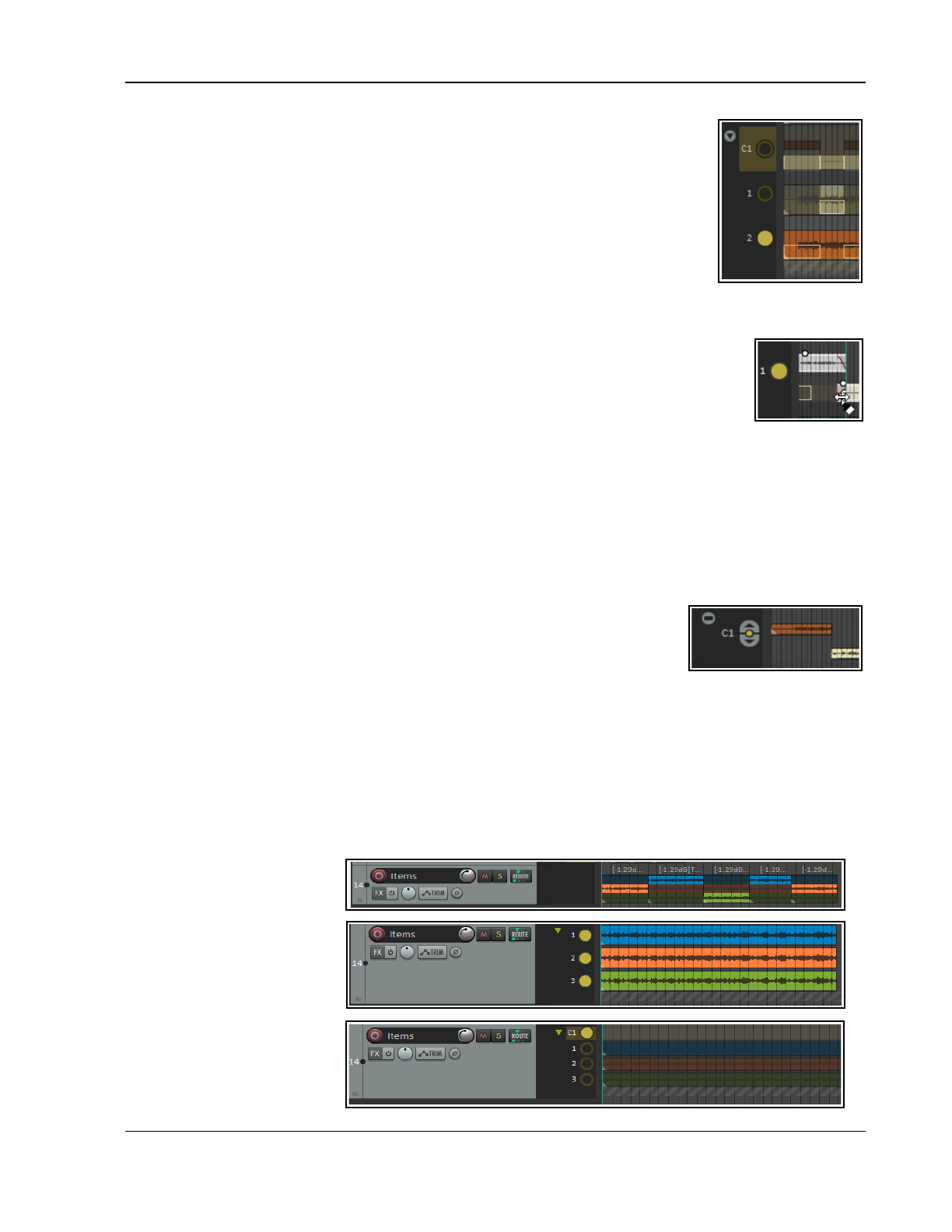
Managing, Comping and Editing Takes
8.12.5 Editing Media Items
Ideally you’ll want to finish media item edits before comping. However, you might need
to make edits to one or more of your items after you have begun comping.
In this case, you can enable editing using the context menu toggle command Comping,
Allow editing of source media while comping. The display changes, as shown on
the right. The top half of each source lane is where you make your edits. The bottom
half highlights your comped segments, as shown here (right).
Your editing can include fades and/or crossfades. Any fades/crossfades applied to media
in the source media lanes will also be applied in the comp lane. However, the fades in
the comp lane can be edited independently if you wish, as shown here (below right).
Double-click in the crossfade area if you want to access the crossfade editor.
It is possible that in making your edits your source item could now get out of sync with your your comp lane.
Happily, the area of the source lane that was originally copied to the comping lane will remain
highlighted: clicking there is one way to restore the original comp area and remove whatever
edits were made in that lane.
Another option is to use re-comping: choose Comping, Copy edited media items to new
lane and re-comp (Shift left click) from the comp area context menu. This will preserve
comp lane edits by moving them to a new source lane and creating a new comp area so that the edits are copied
right back to the comp lane. Thus, the edits become a new source lane alternative which is available for you to
use while comping.
Other options are Copy all edited media items to new lane and re-comp, Copy edited media items
back to source lane and re-comp and for unsynced media items Discard media item edits and recomp
from source lane.
When you have finished editing, remember to disable Allow editing of source media while comping.
8.12.6 Sealing the Deal
So … you’ve finished editing and comping your media items, what now? You might
wish to protect your comps from any accidental damage. You have a number of
options. For example, two possibilities are:
Right-click on the comp lane’s control button and choose Show only lane
from the context menu. This will collapse the track as shown here.
Marquee all items in the comp lane, press F2 to open the Media Item Properties window. Select
Lock then OK. From the track panel context menu disable Fixed Item Lanes for this track. ..or...
Marquee all items in the comp lane then Ctrl drag and drop to copy to a new track.
With all items still selected, press F2 to open the Media Item Properties window.
Select Lock then OK.
Use the Track Manager to mute and hide your original track.
8.12.7 Converting Takes to Lanes
Existing tracks that using REAPER’s legacy takes system can be converted to fixed item lanes. Select the track,
from the right click menu choose either Fixed item lanes or Fixed item lanes (convert takes to lanes).
Thus this …
Becomes this ...
Then, after turning on
Comping, Comp into new
empty lane.
173
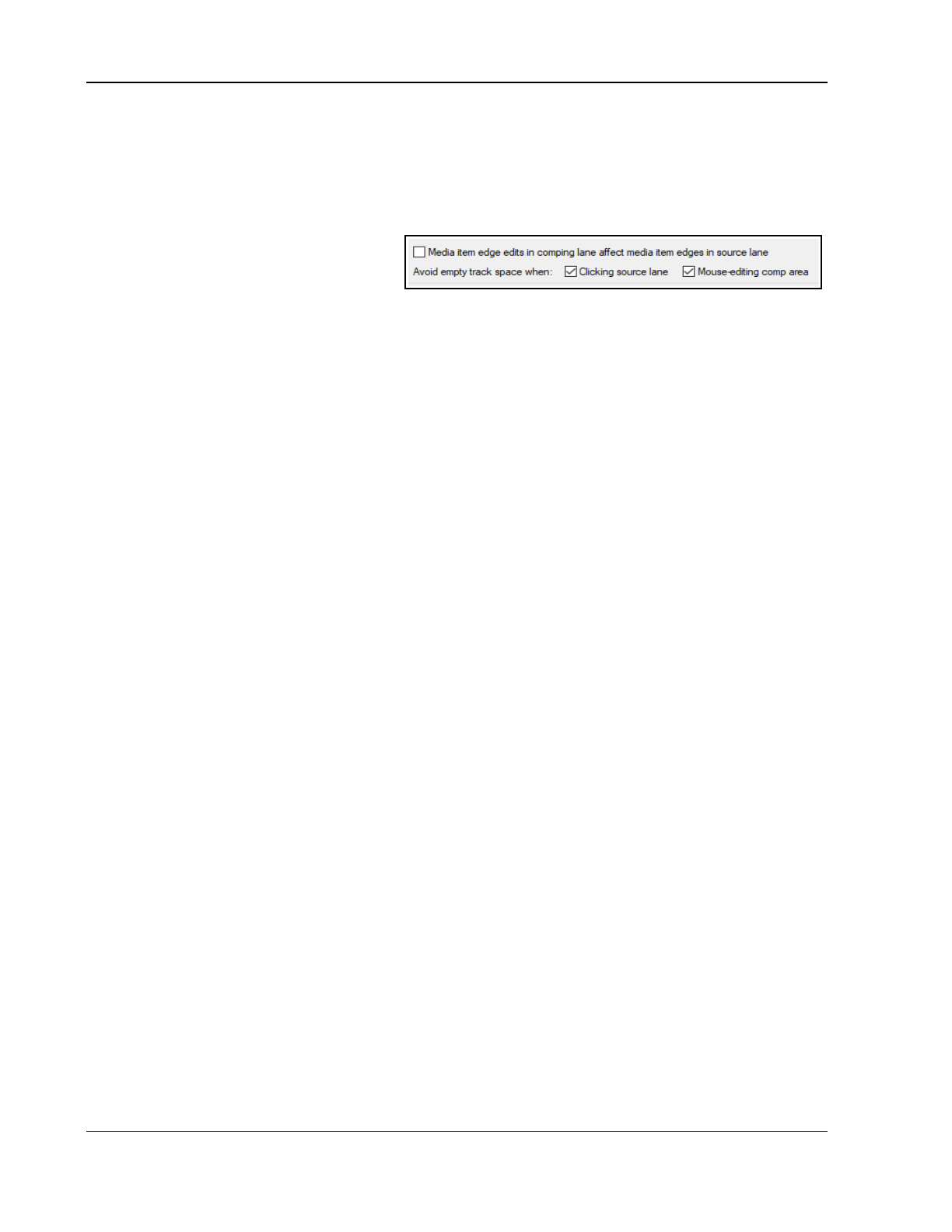
Up and Running: A REAPER User Guide v 7.81
8.12.8 Preferences and Options
REAPER’s Appearance, Track Control Panel preferences include an option to specify default behavior for the
fixed lane collapse button, to toggle between showing one or many lanes, and displaying lanes as big or small.
Project, Track/Send Defaults includes an option to make fixed item lanes the default for new tracks. Other
default options include small or big lanes, show/play only one lane, hide lane buttons, allow editing of source
media while comping, record into first available lane, create comp areas for new recording while comping.
Assignable Actions for Power Users
The actions list includes numerous fixed lane
comp area actions which can be assigned to
keyboard shortcuts, or toolbar buttons, or as
mouse modifiers. For more details of options, see the Actions List (Actions, Show actions list).
Add comp area for lane under mouse
Move comp area up/down
Set loop points
(inc with half or one second preroll/postroll)
Split comp area
Split media items
Move comp area
Razor edit: create comp area
Copy comp lane items
Delete comp areas
Play only most recent playing lane
Move items down to next available lane
Delete lanes
Turn comping on/off
Explode takes on selected tracks to fixed lanes
Set various options for all fixed lane tracks
Make all lanes big or small
Show only one lane or all lanes.
New recording adds lanes
New recording adds lanes in layers
New recording does not add lanes
Mouse Modifiers for Power Users
Fixed lane comp area – Left drag
Default action Move comp area.
Shift Move comp area ignoring snap.
Ctrl Copy both comp area & media item.
Shift Ctrl Dito, together ignoring snap.
Alt Move comp area and media items.
Shift Alt Move comp area & media items, no snap.
Shift Ctrl Alt Move comp area and a
Fixed lane comp area – Left click
Default action Move comp area to lane under mouse.
Shift Comping, Copy edited media items to
new lane and re-comp
Alt Delete comp area including media item.
Shift Alt Heal comp area with previous adjacent
comp area in same lane.
Ctrl Alt Delete comp area but not media item.
Shift Ctrl Alt Extend comp area to next comp area or
end of media.
Fixed lane comp area – Double click
Shift Set loop points to comp area.
Ctrl Extend comp area to next comp area
or end of media.
Fixed lane header button – Left click
Default Play only this lane.
Ctrl Toggle playing this lane.
Alt Play only this lane while mouse button
is pressed.
Fixed lane header button – Double click
Default action Comp into lane.
Shift Select items in lane.
Ctrl Toggle playing this lane.
Shift Ctrl Insert lane.
Alt Delete lane (including media items).
Fixed lane comping preferences:
The Editing behavior, Fixed lane comping section of preferences includes options to manage some of the
potentially trickier parts of aspects of fixed lane comping behavior.
Further explanations and help messages are included on that page.
174
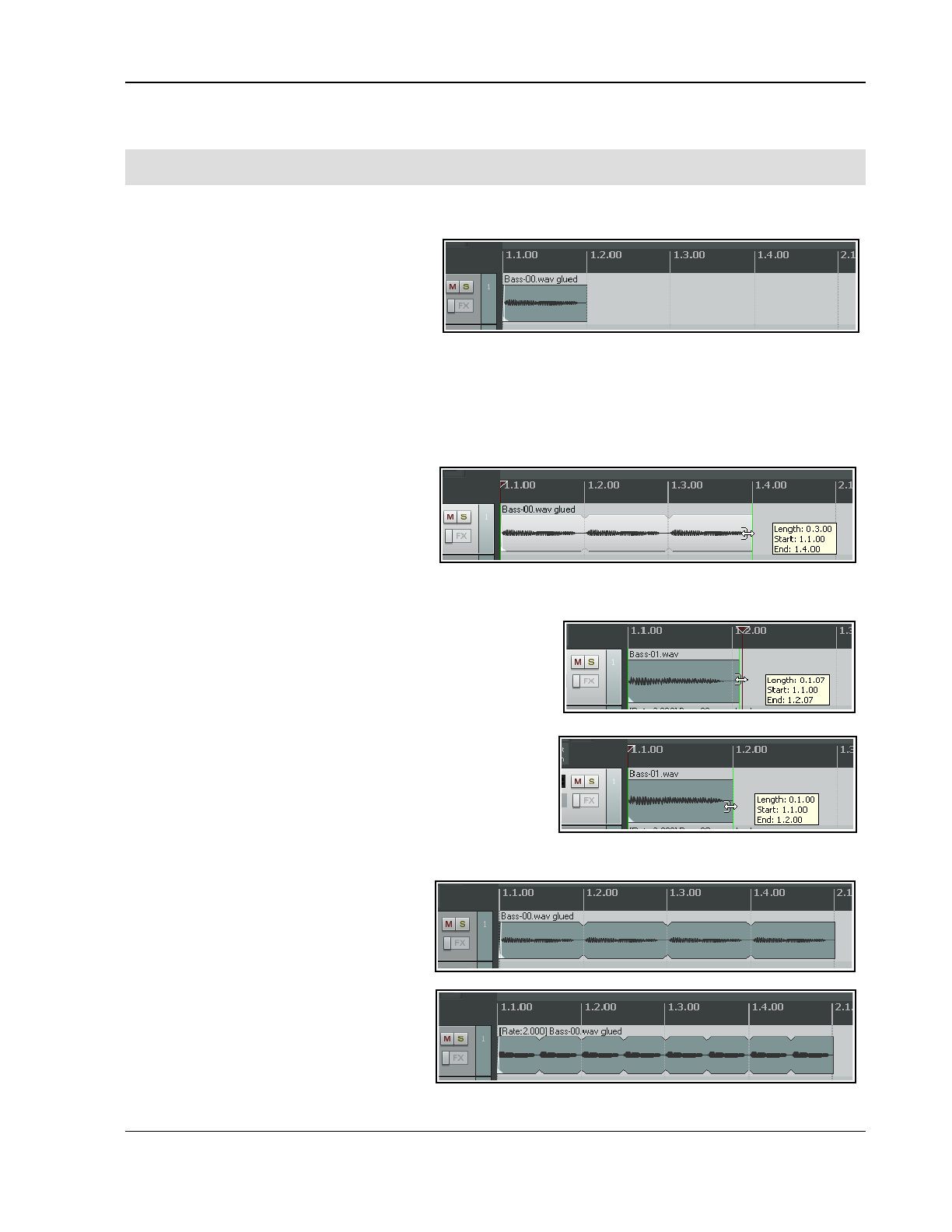
Tempo Based Production, Loops, Markers and Regions
9 Tempo Based Production, Loops, Markers and Regions
Note: Many of the arrange view illustrations used in this chapter use earlier REAPER default themes and color
schemes. The information and instructions, however, are still accurate and correct for REAPER 7.
9.1 Creating Loops
Any audio, MIDI or click source Item can be
looped. Indeed, by default REAPER media
items are loop enabled. You can disable this
for individual items in the Media Item
Properties dialog box, or globally (for MIDI
and imported items) on the Project, Item
Loop Defaults page of your Preferences.
The loop point is defined by the duration of the source media. If you insert an item that is four bars long, it will
loop every 4 bars, if it is 8 bars, it will loop every 8 bars, etc. Note that in the following examples, if you are
using beats for your timebase, the item must be an exact number of beats in length, or it will not loop in sync. If
necessary, adjust the playback rate (Media Properties) while preserving pitch, then glue the item to do this.
To Loop an entire Item:
1. Hover the mouse over the edge of an
Item until the Cursor changes to a
double-headed arrow (see right).
2. Drag the Cursor to extend the Item.
Each loop point will be indicated by a
notch in the item edges.
3. The length, start time and end time of the looped item will be displayed as you drag the edge of the loop.
Cropping and Looping:
If you wish to loop only part of an item, then one method is to
first crop and glue the item.
1. Make sure snapping is enabled. Hover the mouse over the
edge of the Item until the Cursor changes to a double-
headed arrow. Click and drag the mouse in on the item to
make it shorter, so that you are left with only that part of
the item that you want to use as the basis of the loop.
Release the mouse button.
2. Right click over the item and choose Glue items.
3. Now drag the Cursor to extend the Item. Each loop point
will again be indicated by a notch in the edges of the
item. Extend the loop as required.
Changing Playback Rate:
There may be times when you will wish to
change an item's playback rate, for
example to keep it in sync. Taking the
same example as above, you would first
display the Item Properties box, and most
probably make sure that Preserve pitch
when changing rate was selected. You
could then change the Playback rate (for
example, to 2.0). This would have the
effect shown here. The original item
(looped) as shown above has had its
playback rate modified (right).
175
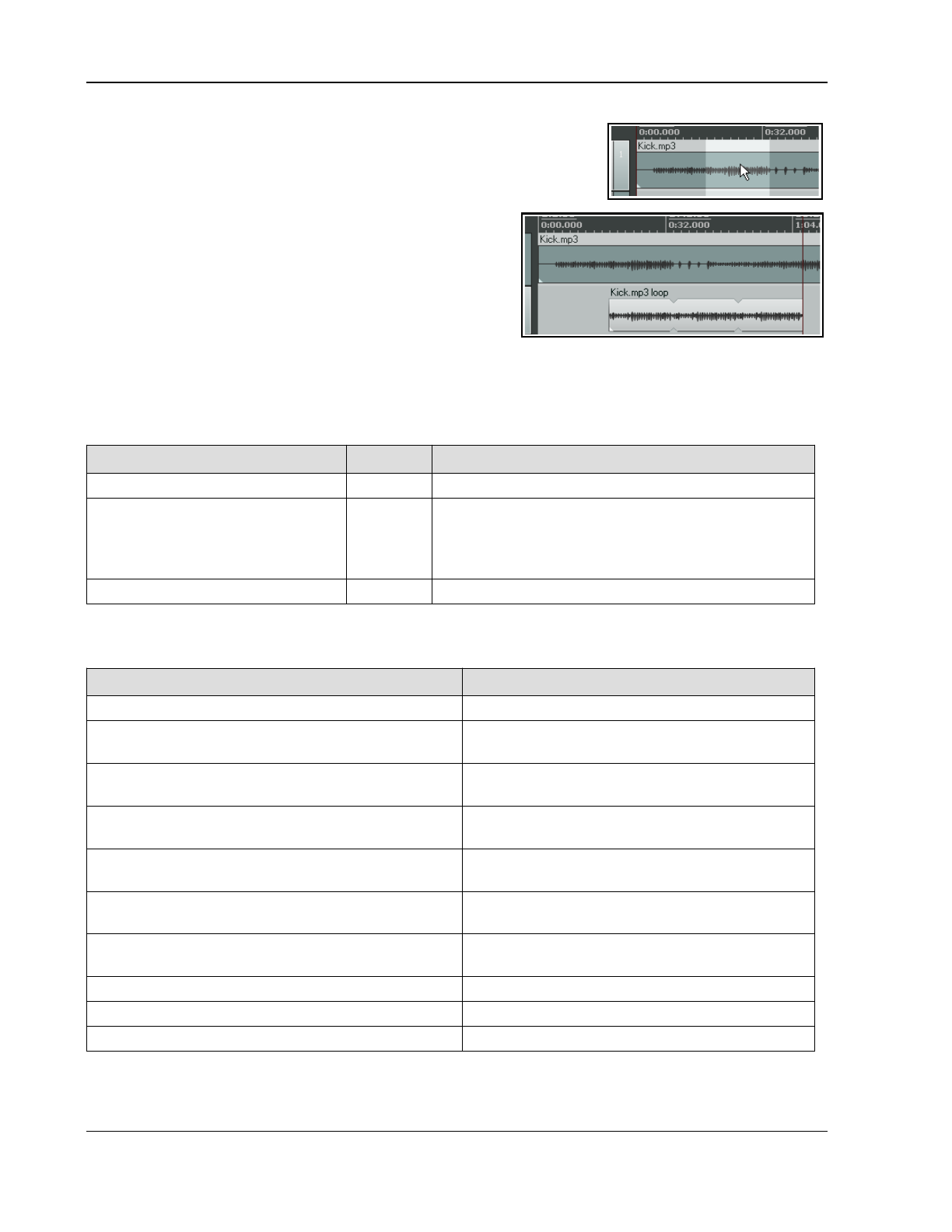
Up and Running: A REAPER User Guide v 7.81
Creating a Loop from a Time Selection
Another way of creating a loop from only part of an item is to select the
required item, highlight the required part of it as a time selection, right
click, choose Copy loop of selected area of items, remove the original,
then paste in the loop in its place. This is shown here:
1. Select first the source item, then select the area to be
looped (see above). Either press Ctrl Alt L or right click
and choose Copy loop of selected area of item.
2. Select the track and position to which you want the
item copied.
3. Press Ctrl V to paste in the area to be looped.
4. Drag the cursor from the edge of the item as before to
create the loop.
9.2 Creating and Navigating with Project Markers
Project Markers are like bookmarks. They can help you when you are navigating, arranging and editing your
projects. T can be inserted at the current Edit Cursor position, whether or not the project is being played.
Action Shortcut Effect
Insert, Marker command M Inserts numbered Marker at present position.
Insert, Marker ( prompt for
name) command
Shift M Inserts numbered Marker at present position and opens
dialog which prompts for a marker name.
Other options include Set color... to color the marker
via the Color picker.
Right click mouse over marker Displays menu to Edit Marker or Remove Marker.
Keyboard and Mouse Shortcuts
Default Keyboard and Mouse Shortcuts for creating and navigating with markers are:
To do this ... Mouse/Keystroke
Go to marker 1 thru 10. 1
thru 0
on main keyboard, not Num Pad.
Move marker 1 thru 10 to cursor position, or create
new marker if no marker of that number exists.
Ctrl 1
thru
Ctrl 9
and
Ctrl 0
Go to next marker/ project end or previous marker/
project start.
] or [
To jump to any marker. Ctrl J opens Jump To dialog. Type m and marker
name or number – e.g. m2 to jump to marker 2.
Jump to marker using the Transport Bar. Right click on Transport Bar then Jump to
marker
Open Edit marker dialog (e.g. to add or change
marker name or change marker color).
Shift double-click on marker number. Type a
new name, or click on Set color.
Make loop selection in REAPER's main arrange view or
in the MIDI Editor piano roll view.
Double-click on ruler between two markers
Select area between the two markers. Double click on timeline between markers
Move a marker. Click and drag marker along timeline
Remove a marker. Alt Click on marker
Example
This example illustrates the use of markers. Before you begin, on the Options menu, enable the option Loop
176
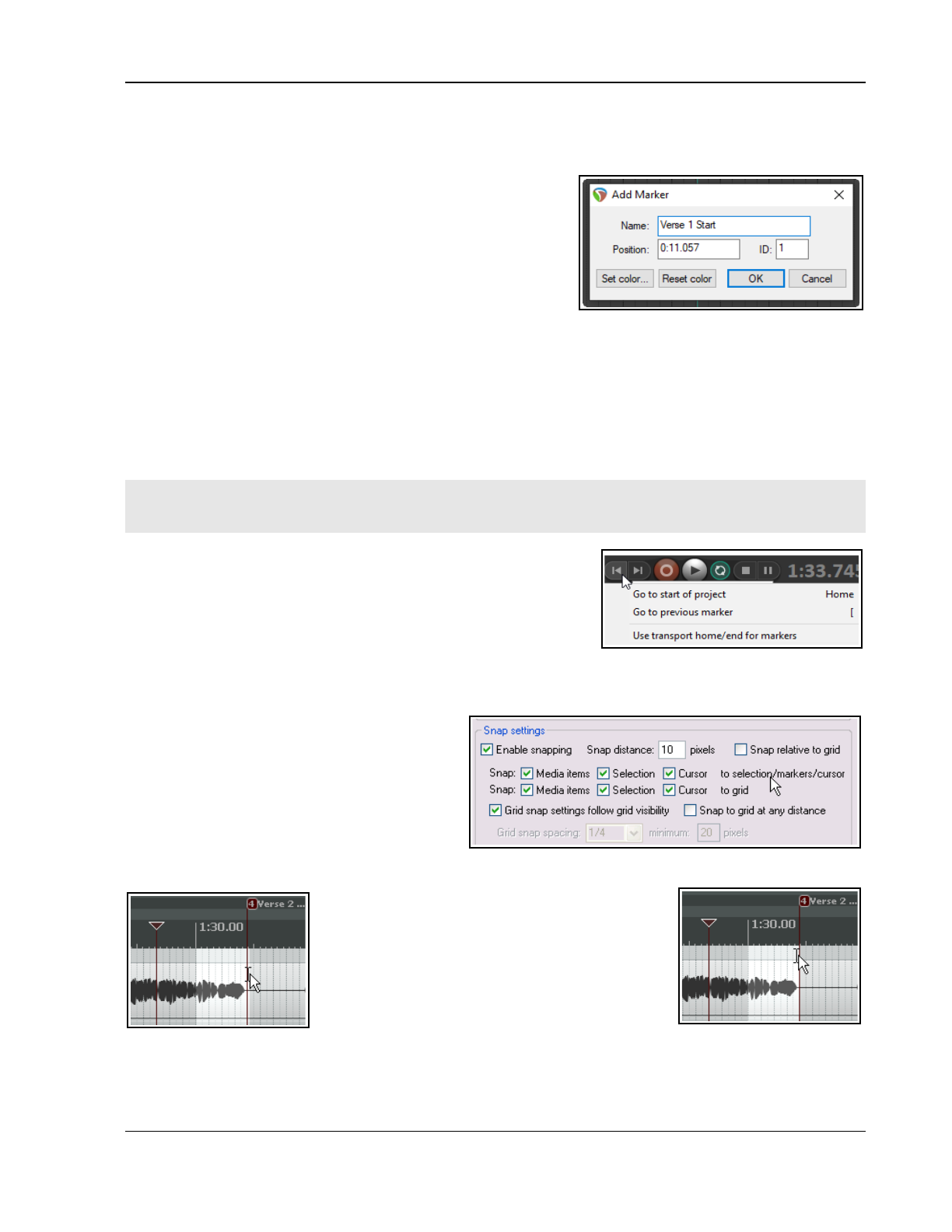
Tempo Based Production, Loops, Markers and Regions
points linked to time selection.
1. Open the sample file All Through The Night.RPP and immediately save it as All Through The Night
MARKERS.RPP
2. Play the song, pausing playback immediately before where
the vocal starts. Press Shift M. When prompted, type as
the name Verse 1 Start and press Enter
3. At the end of the first verse, press Shift M again, name this
marker Verse 1 End and press Enter.
4. Create similar markers for the start and finish of Verse 2 and
Verse 3. If you are displaying the ruler in minutes and
seconds these will be at or around 0:57, 1:35, 1:43 and
2:31. Save the file.
5. Press 1 on your keyboard (not the numeric keypad). Notice the edit cursor jumps to the start of Verse 1.
6. Press 2. Notice it jumps to the end of Verse 2.
7. Double click on the timeline ruler (not the markers row) between markers 2 and 3. Notice that this area is
now looped and will play repeatedly.
8. Right click over the timeline and choose Zoom selection. You could now do any close editing work
required for this selection.
9. Press Esc to clear the selection, then Ctrl PgDn to restore the whole project to view. Save the file.
Note: Do not use the names =START or =END when naming ordinary markers. These names should be used
only when creating special markers which can be used to denote the start and end of a project. This information
will be used by REAPER when rendering an entire project to audio media (see also Chapter 21).
9.3 Time Selection Start/End Markers
REAPER treats the start and end of any current time selection as
floating markers. The shortcut keys for Go to next marker and Go
to previous marker are ] and [. These will also find the start or end
of the current time selection and move the play cursor there.
You can also right-click over the Go to start button and enable the
option Use transport home/end for markers. The Go to start and Go to end buttons will now find the
previous/next marker or start/end of a time selection when one is current.
9.4 Snapping to Markers
You might wish to ensure that when you are
making a time selection, the boundaries of the
selection will automatically snap to nearby
markers at the start and/or end of the time
selection (if any such markers are present).
Consider the portion of the Snap/Grid
Settings shown on the right. Notice that
snapping has been enabled, with a snap distance of 10 pixels defined.
With snapping
disabled
, it can be quite difficult to
make a selection which starts or ends exactly at
a marker. When you attempt to make such a
selection, you might end up with the selection
shown in the first of the screen shots below.
Notice that the end of the selection doesn't quite
match the marker.
However, in the second example shown, with
snapping
enabled
and the settings shown above,
if you drag the selection to within 10 pixels of the marker position, the selection will automatically snap to the
marker when you release the mouse. Notice the effect of making exactly the same selection with the above snap
settings disabled (left) and enabled (right).
177
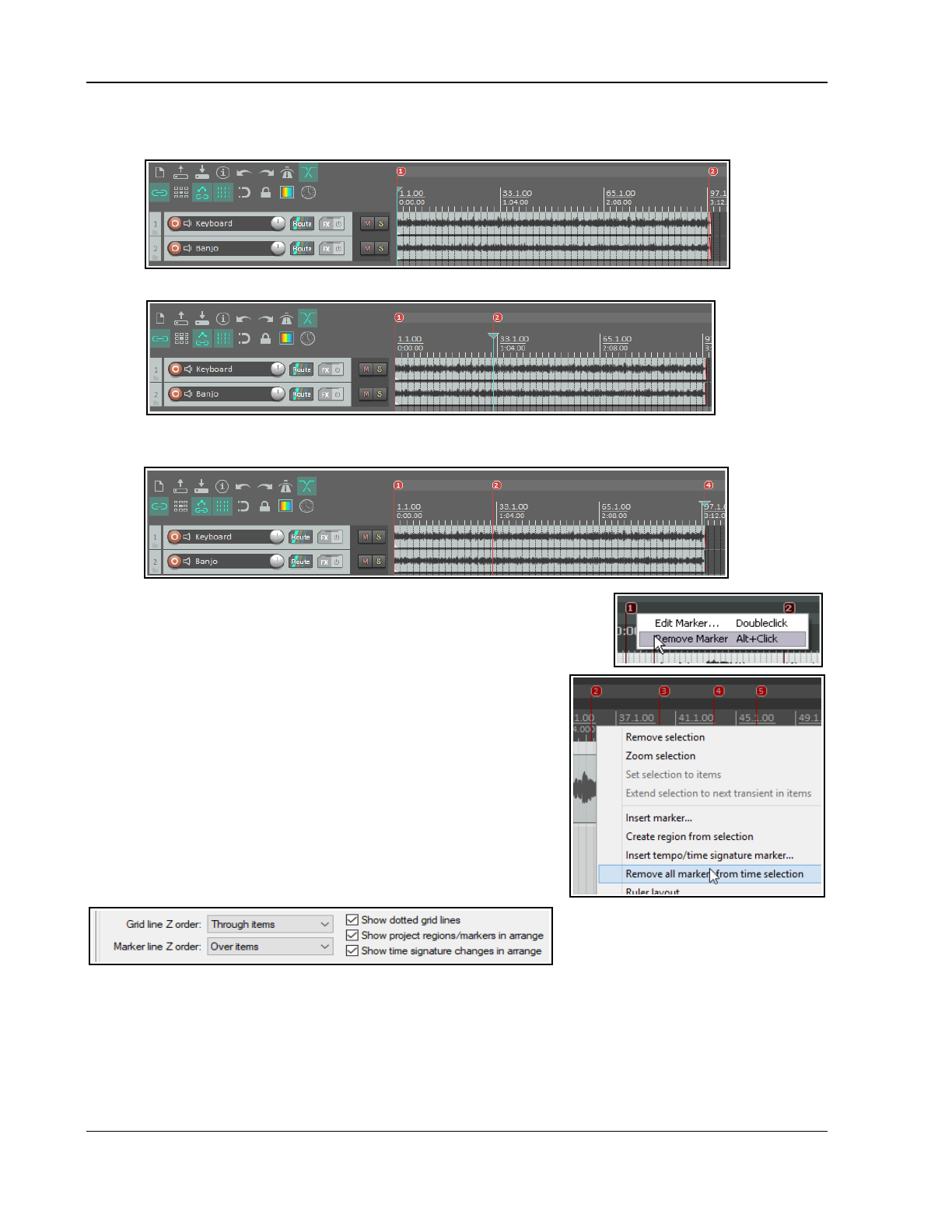
Up and Running: A REAPER User Guide v 7.81
Example
In the first screen shot (below), a project contains two markers, at the start and at the end of the project.
Suppose that you wish to reposition Marker 2. Simply position the edit cursor there and then press Ctrl 2.
Now let us suppose that you want to create Marker 4 at the end of the song, reserving Marker 3 for a position
as yet unspecified. You can position the edit cursor at the end of the song and press Ctrl 4.
9.5 Removing Markers
There are two main methods of removing unwanted markers.
To remove a single marker
Position the mouse over the marker “flag” and hold down the Alt
key while you click the left button. Alternatively, right-click over the
marker flag and choose Remove Marker from the context menu.
To remove a series of markers
Define a time selection that includes all of the markers that you
wish to remove. Right click over the space just above the marker
“flags” within the time selection, and choose Remove all markers
from time selection from the context menu.
9.6 Show/Hide Regions/Markers in Grid
You can choose whether or not to show project region/marker lines
and/or time signature changes on the grid by enabling or disabling the
relevant preferences. These can be found on the Options,
Preferences, Appearance, Ruler Grid settings page.
If your project does not include any time signature or tempo changes, you can gain a little more screen real
estate by choosing Ruler display, Hide tempo/time signature area if project has no time signature/
tempo changes from the arrange view context menu.
9.7 Marker Actions
The Actions List Editor includes actions to help manage markers. These include Markers: Delete marker near
cursor and Markers: Renumber all markers in timeline order. Chapter 15 explains in detail more about
actions and about how you can assign them to toolbars or to your own shortcut keys.
178
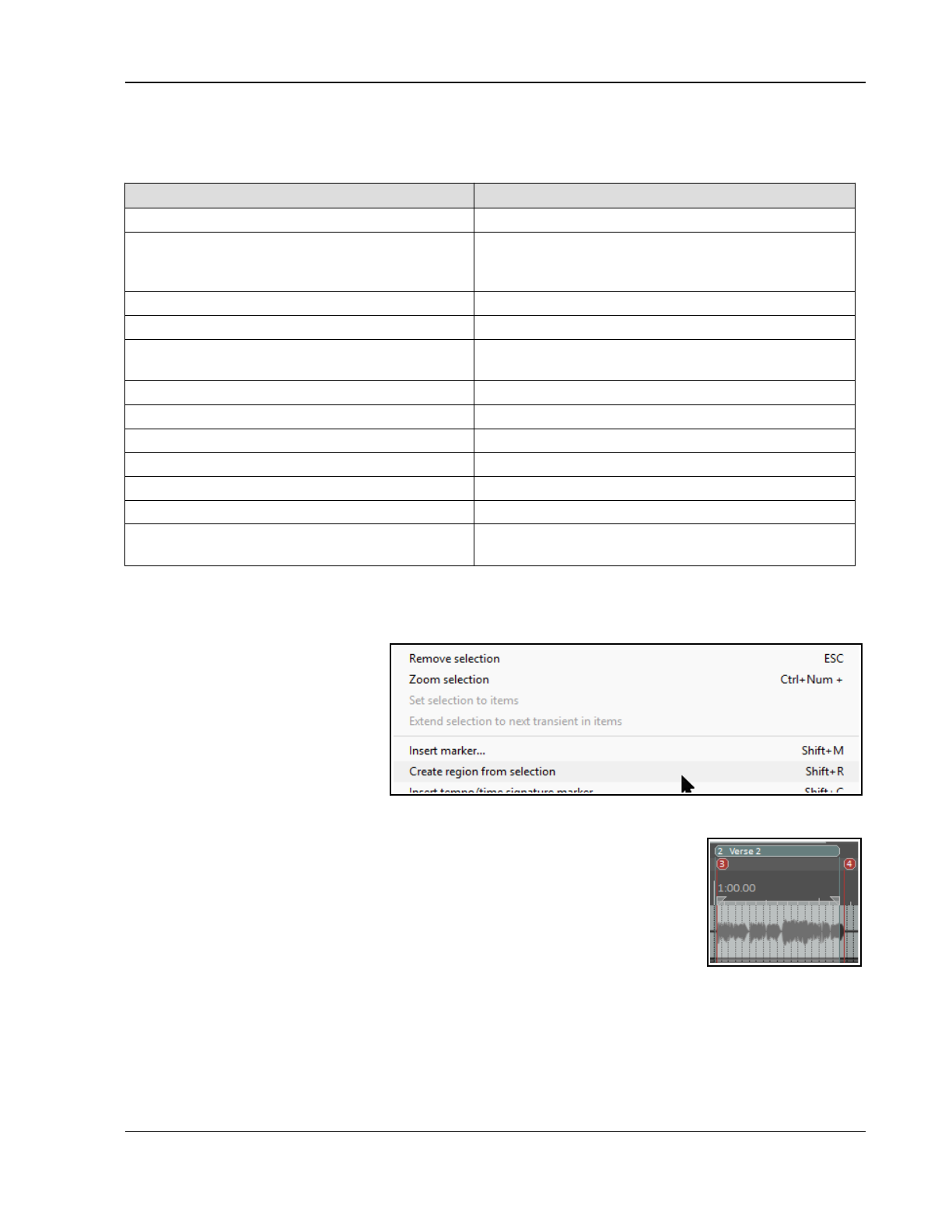
Tempo Based Production, Loops, Markers and Regions
9.8 Creating and Using Regions
Regions essentially take the idea of markers one step further. You can create regions for your projects, making it
easy to identify, select and work with different passages of a song.
To do this ... Mouse/Keystrokes/Command
Create a new region from time selection. Shift R or right click, Create Region from Selection
Create a region from two existing markers. Enable Loop points linked to time selection.
Double-click on timeline below the markers. Right-click,
choose Create region from selection from menu.
Create a new region by drawing on ruler Use Alt Left drag on ruler.
To change name or other properties of the region. Shift Double click on region icon, type name.
To specify a color for a region. Shift Double click on region icon then Set color to
open the color picker.
Adjust region start/finish point. Left drag on region edge.
To copy selected region(s) with contents. Ctrl left drag with mouse.
To copy a region without copying its contents. Ctrl Alt left drag with mouse.
To move selected region(s) with contents. Left drag with mouse.
To move region(s) without moving contents. Alt left drag with mouse.
Remove a region. Alt Click on region icon.
Render an individual region. Right-click over region name, from context menu
choose Render region ...
Example of working with Regions
1. Make sure that the Option for Loop points linked to time selection is enabled.
2. In the file All Through The
Night MARKERS.RPP, double
click on the timeline between
the first two markers to select
the area.
3. Right click over the timeline,
between the markers, and
choose Create Region from
Selection.
4. Hold Shift while you double-
click on the new region’s icon to display the Edit Region dialog. Type Verse 1 and press Enter.
5. Double click on the timeline between markers three and four to select this area.
Press Shift R to define a region. Right click over the icon for this region, choose
Edit Region, type Verse 2 and press Enter.
6. Repeat this process using the area between markers five and six to create a
Verse 3 region. Keep this region selected.
7. Press Ctrl with the + on the Numeric Pad to zoom in on that region.
8. Press Ctrl PgDn to restore the whole project to the screen.
9. Press Esc to remove the current selection. Save this file.
Many actions are available (in the Actions List editor) to help you create and manage regions. These include
Markers: Insert region from time selection and Markers: Insert region from selected items as well as
Regions: Go to next region after current region finishes playing.
Also, Region left drag and Marker/region edge actions can be customised/edited via your Preferences,
Mouse modifiers page. Chapter 15 explains in detail more about actions and how to assign them to toolbars or
to your own shortcut keys, and about mouse modifiers.
179
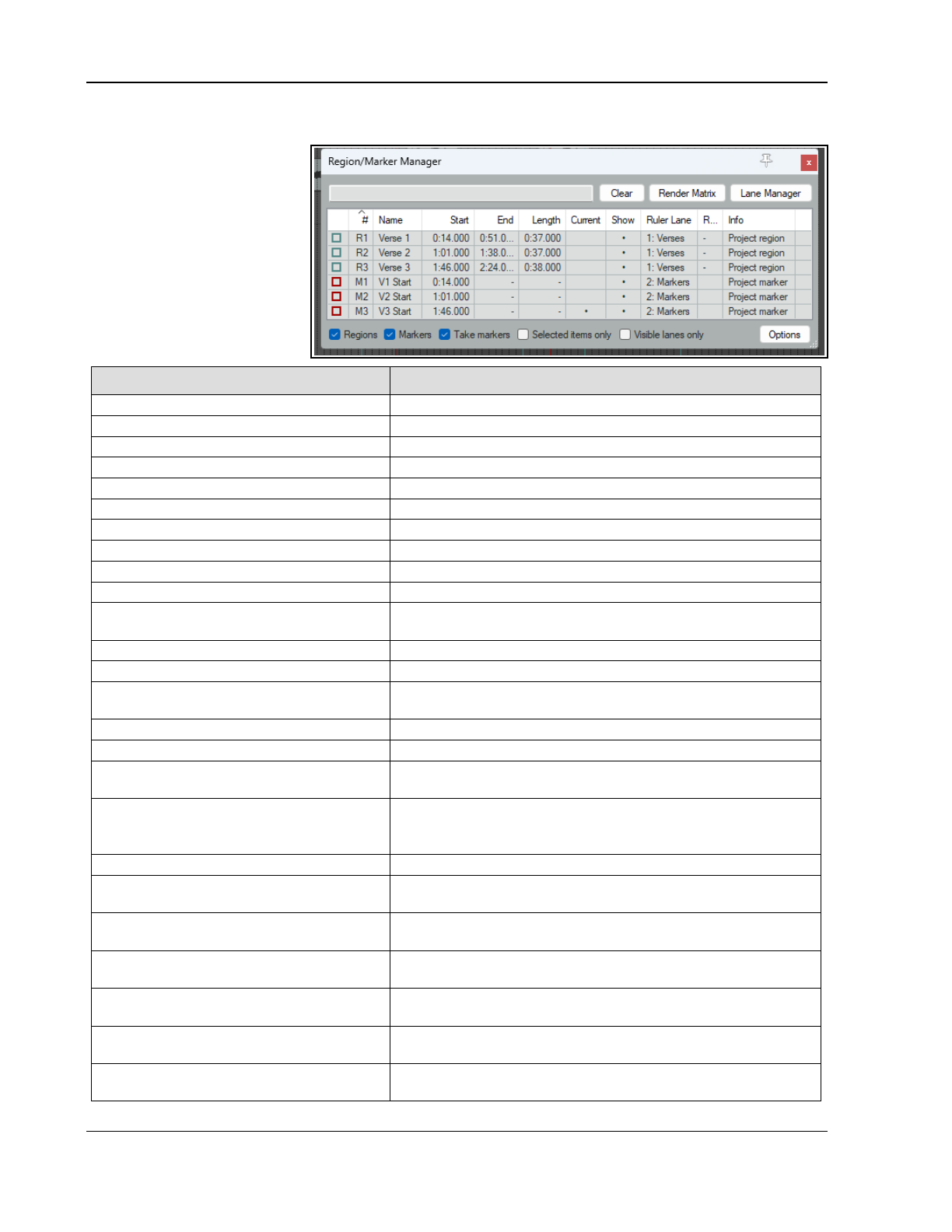
Up and Running: A REAPER User Guide v 7.81
9.9 The Region/Marker Manager
View, Region/Marker
Manager opens this window,
for managing regions and
markers (including take
markers).
This organises markers and
regions using its buttons,
controls and Options menu,
including access to the Render
Matrix menu for rendering.
See also Ruler Layout Options.
To do this … … you do this
Select region/marker types to display Use check boxes in the bottom of R/M Manager window.
Choose which columns to show/hide Right click on any column header, tick/untick on list.
Select markers/regions to display Toggle individual markers/regions on/off in the Show column.
List visible lanes only (toggle) Use visible lanes only checkbox.
Sort rows by any column header Click on column header, twice to reverse sort order.
Change column order Drag header(s) left or right.
Sort display list by any column Click on column header.
Edit marker/region name Double click on name.
Indicate current cursor position Shown in Current column.
Zoom to region in arrange view Double click region number.
Display take markers outside visible
media item
Select command from Region/Marker Manager context (right click)
menu. By default these are not displayed.
Highlight region or marker on ruler Double-click marker number or region name..
Select several markers/regions Click on first name, then Ctrl click on others to build selection.
Delete markers/regions (but not the
media items within them)
Make selection, press Delete.
Change region/marker color Click in box in first column, then Set color or Random Color.
Change region or marker name Double click on current name, enter new name.
Change marker/region start/end time
or length
Double click on current value, enter new value.
Filter marker region list using filter box
above the table.
See also Boolean Search Filters
Type text string– e.g.
verse
to list only markers/regions containing
that text string. Supports boolean search, e.g.
lead
OR
break
finds names including either of those strings.
Find marker/region in manager Click on marker/region name on ruler.
Specify tracks to be included when
region is rendered
Click on Render Matrix button to open the region render matrix.
Make your selection there. See Chapter 21.
Renumber markers, regions in timeline
order
Select command from the Region/Marker Manager context (right
click) menu.
List markers, take markers and regions
separately
Enable this option from the manager’s drop down menu.
Display and/or copy out total length of
selected regions
Choose this option from Options menu.
Import regions/markers from file
(.csv, .txt, or .rpp)
Choose Import merge or Import replace from context menu, or
drag from .csv file into region manager window.
Add/remove child tracks to render list
with parent
Enable this option in the context menu.
180
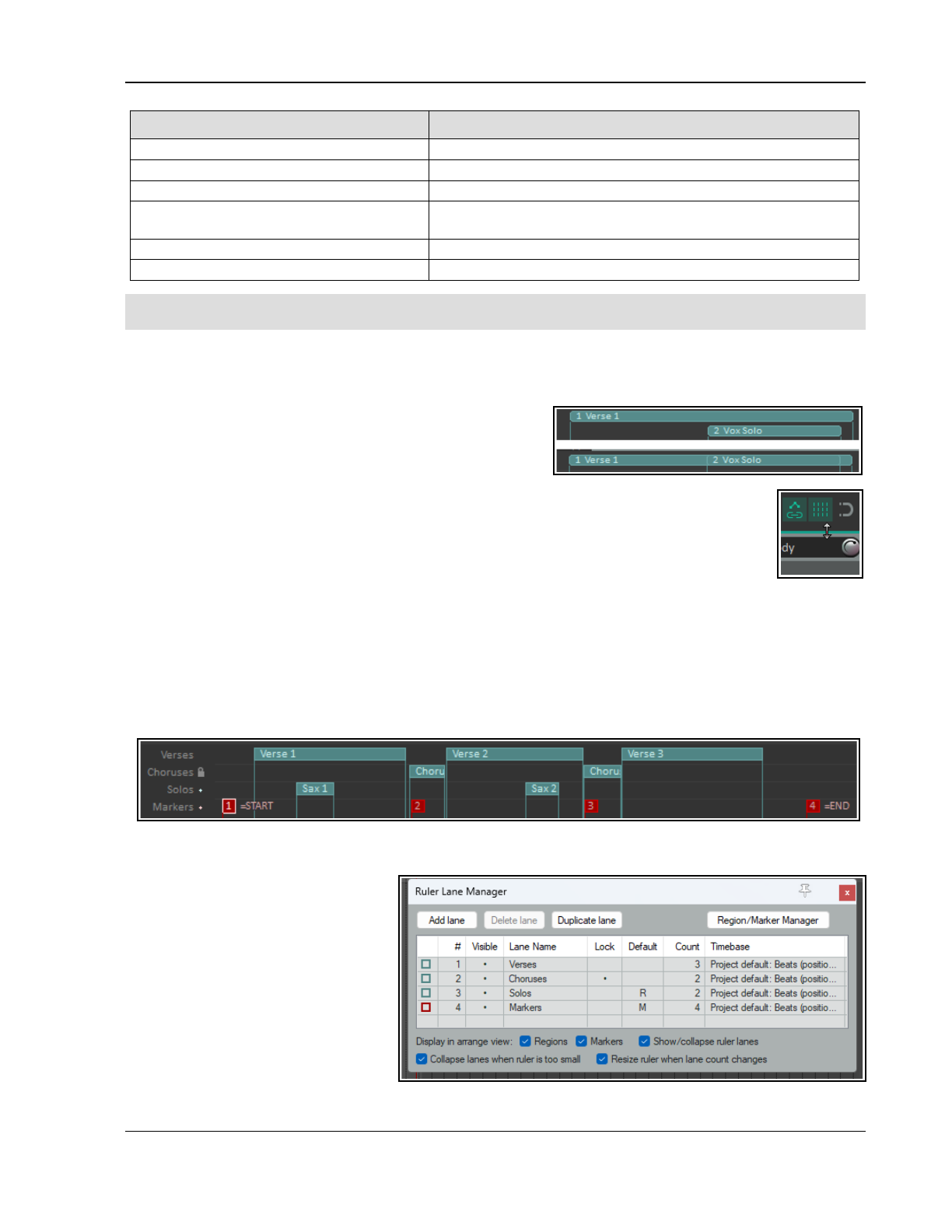
Tempo Based Production, Loops, Markers and Regions
To do this … … you do this
Export regions/markers to file Choose this command from context menu.
Dock R/M Manager in the docker Choose this command from the context menu.
Playback on marker/region selection Enable this option in context menu.
Automatically play region thru then
repeat or stop when selecting region
Enable this option in context menu.
Zoom to region in project Double-click in Info column.
Specify Ruler Lane/Customize lanes These will be discussed and explained below.
All region/marker mouse modifiers (left click and double-click) are listed at Options, Preferences, Mouse
modifiers, context Region/marker.
9.10 Regions and Markers: Ruler Lanes
Before exploring how rows and lanes can be used to manage the display of markers and regions on your ruler
we need to understand some basic ruler management techniques.
Region and marker placement: By default, REAPER will try
to display regions in a single ruler lane, and markers in a lane
underneath. However, provided the ruler height is sufficient,
when regions overlap a second region row underneath the first
will display the overlapping region. If there is insufficient row
height they will be placed one on top of the other. To fix this, you should increase ruler height.
To adjust ruler height, first hover the mouse over the boundary between the ruler area and the
top of the first track, (shown right). You can then drag the boundary up or down as you wish.
Often this default behavior will be what you want. However, with more complex projects, you
might need more control over your region and marker layouts. We explore this in the next section!
Ruler Display Preferences
The ruler Ruler/Grid appearance page of your preferences (Options, Preferences, Ruler/Grid
appearance) includes the following display options, and more. Familiarise yourself with this page.
Display regions/markers with square or round edges (as preferred)
Display region number/name when region edge is not visible
Display selected regions in front of unselected regions when overlapping
9.11 Custom Ruler Region Lanes
With custom ruler lanes you can create multiple region lanes, and specify which regions are to be displayed in
which lane. A simple example is shown here. You can display and hide lanes as you wish. In the example above,
ito (for example) focus on your Sax
Solos and Choruses, you could
temporarily hide all other lanes.
To manage your lanes, open the Ruler
Lane Manager window (shown right).
To do this, click on the Lane Manager
button in the Region/Marker Manager
window, or use View, Ruler Lane
Manager from the main menu.
Here the first column can be used to
change the color of all
markers/regions in that lane.
181
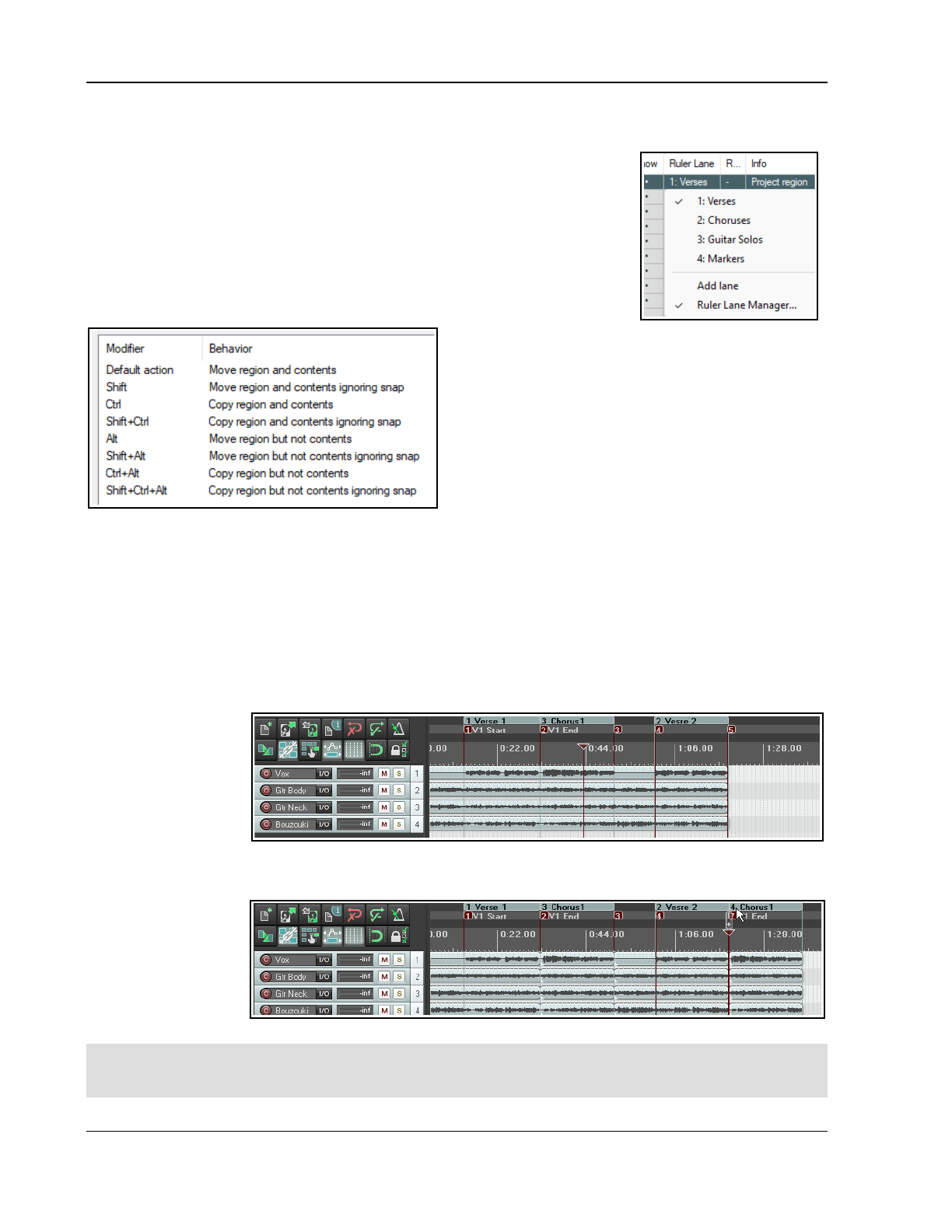
Up and Running: A REAPER User Guide v 7.81
Note that the options Collapse lanes when ruler is too small and Resize ruler when lane count changes
are applied on a per project basis.
Use the Add Lane button to add a marker lane or region lane or to your ruler. By
default, these will be numbered !, 2, 3 etc., but (as shown above) you can enter a
more meaningful name in the Lane Name column. Duplicate Lane will duplicate
whatever lane is currently selected.
Use the Visible column to toggle a lane’s display on the ruler on and off.
Markers and regions can be assigned to lanes in the Region/Marker Manager.
Double-click in the Ruler Lane column for the required marker or region row and
select from the popup menu (for example, see right).
This menu also gives you the option of creating a new lane for this region.
The default left drag mouse modifiers for working with
project regions on the ruler are as shown on the left.
Note in particular that you can drag lane names up or
down to change the order in which lanes are displayed
on the ruler.
Go to Options, Preferences, Mouse Modifiers,
Region then Left drag to edit.
The Ruler Lane Left drag context includes a number of
handy options. For example, the default action is to
Hand Scroll. Shift left drag will Add a marker and
Alt left drag will Draw a region.
The Ruler lane header context Double click section also contains several handy shortcuts, including
Double click to Select all regions/markers in lane. Ctrl-double-click to Toggle selection for all
regions/markers in lane and Alt double click to Delete lane, keep regions/markers.
9.12 Project Building with Regions
Regions can be used as a very powerful project building tool, especially when you are constructing a project
from samples and/or loops. Two especially powerful features of regions are:
● Drag and drop a region along the timeline to move a region's entire contents.
● Hold Ctrl while dragging and dropping to copy a region and its contents, or Ctrl Alt to copy the region
only, without its contents..
To illustrate this, take
a look at the image on
the right. We have
started building a
project, with an
introduction, then a
verse (which has been
made into a region), a
chorus (also a region) and a second verse. By holding the Ctrl key while clicking and dragging the icon for the
Chorus region to the right, to the end of verse 2, we are able to copy the entire chorus to that point (see below).
Notice that any
markers and time
signature markers
that are inside the
region will also be
copied or moved
when the region is
copied or moved.
Note: You can create separate regions for each item in a selection. Make your selection, then run the action
Markers: Insert separate regions for each selected item. This action can be assigned to a keyboard
shortcut, and/or added to a toolbar, and/or added to a menu – see Chapter 15.
182
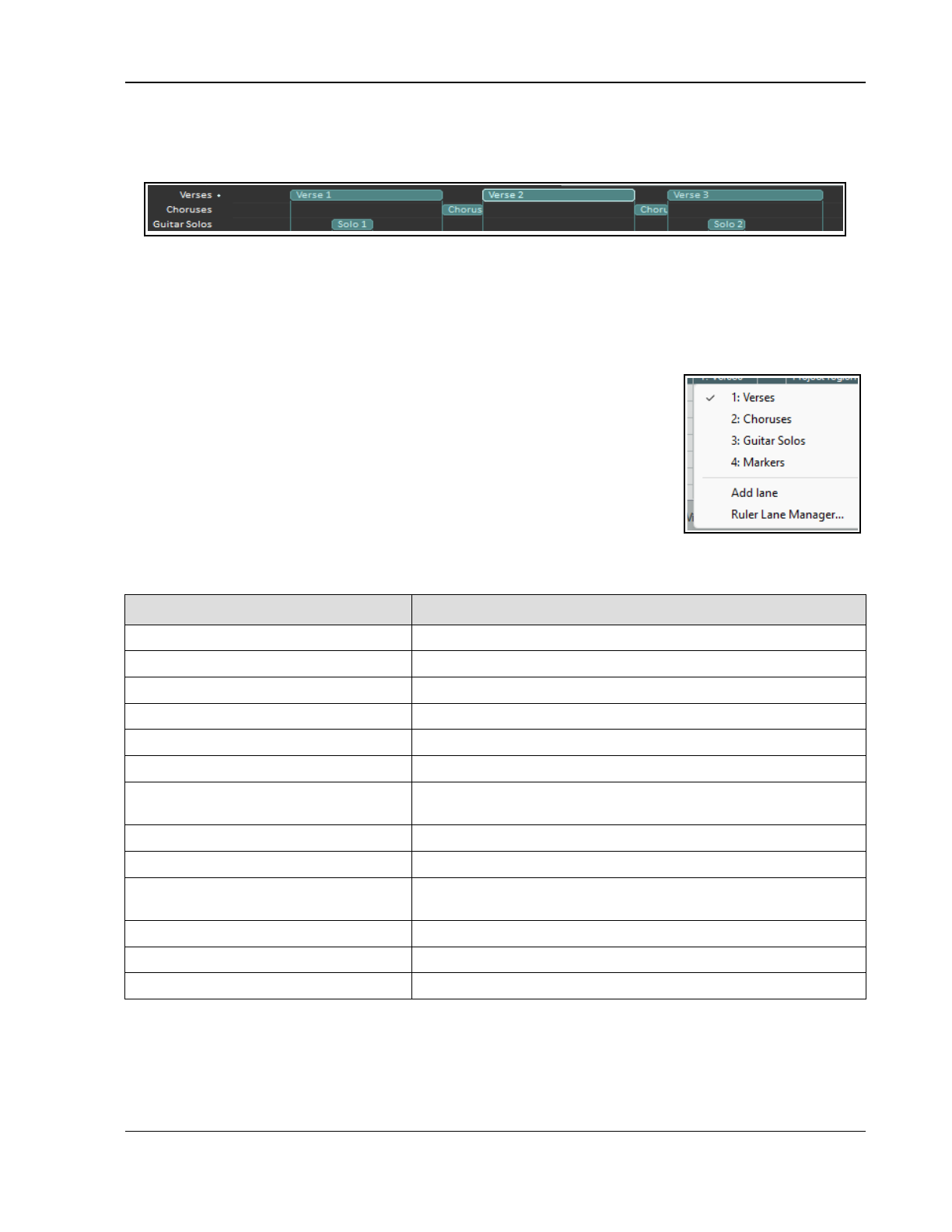
Tempo Based Production, Loops, Markers and Regions
9.13 More About Ruler Lanes
Multiple ruler lanes can be helpful for all but the simplest of projects. They make managing your project’s regions
and markers simpler and easier. Consider the example shown below.
This example project is really not complex, yet even here we can see that by using multiple lanes our project
structure is much easier to understand, organise and manage via the ruler.
Up to 48 lanes can be created in either the Region/Marker Manager or the Ruler Lane Manager. Let’s assume,
using the example in this section that we need to have three lanes – Verses, Choruses and Solos.
To create a new ruler lane from the Region/Marker Manager:
1. Open the Ruler Lane Manager (click on Lane Manager button). The Rule Lane Manager can also be
opened directly from the View menu.
2. In Ruler Lane Manager window, click Add Lane button, then Add Region
Lane or Add Marker Lane.
3. By default new lanes are numbered in sequence (e.g. 1, 2, 3, etc). To name
it, double click in the Lane Name column, type lane name and press Enter.
To assign regions to lanes from the Region/Marker Manager:
1. Use the Name column to select the required tab row.
2. Double-click in the Ruler Lane column to display a menu -as shown right.
3. Choose an existing lane, or choose Add Lane to create a new one.
Note: Regions can also be moved from one lane to another using drag and drop.
Further lane management features can be found in Ruler Lane manager window.
In order to do this … Do this
Add a lane Click on Add Lane button.
Delete a lane (with or without content) Select lane in Lane Manager, click Delete lane button, select option.
Show/hide a lane on ruler Click in Visible column (toggle).
Select multiple regions Use Shift + click to build selection.
Copy (duplicate) existing lane Select lane in LM window, click Duplicate lane button.
Rename a lane Double-click on lane name in Lane Name column, enter new name.
Change lane order Drag and drop lane names up or down list. Lanes will be shown on the
ruler in numeric order – e.g. lane 1 at top, then lane 2, and so on.
Lock/unlock lane Click in Lock column. Locked regions cannot be edited or moved.
Set default lane for regions/ markers Click in Default column. Select Regions, Markers, or Both.
Change a region’s timebase Select region name, click in Timebase column and select option
(project default, time, beats (position length, rate), beats only.
Manage ruler display options Use check boxes at bottom of window to show/hide regions/markers.
Open Region/Marker Manager menu Right-click on title bar. Menu includes export/import regions/markers.
Create new region by drawing Use Alt + Left drag along ruler.
The Ruler/Grid appearance page of Preferences, Appearance includes more ruler display options. Check
out also the Region, Ruler, and Ruler Lane pages of your Preferences, Mouse Modifiers pages.
183
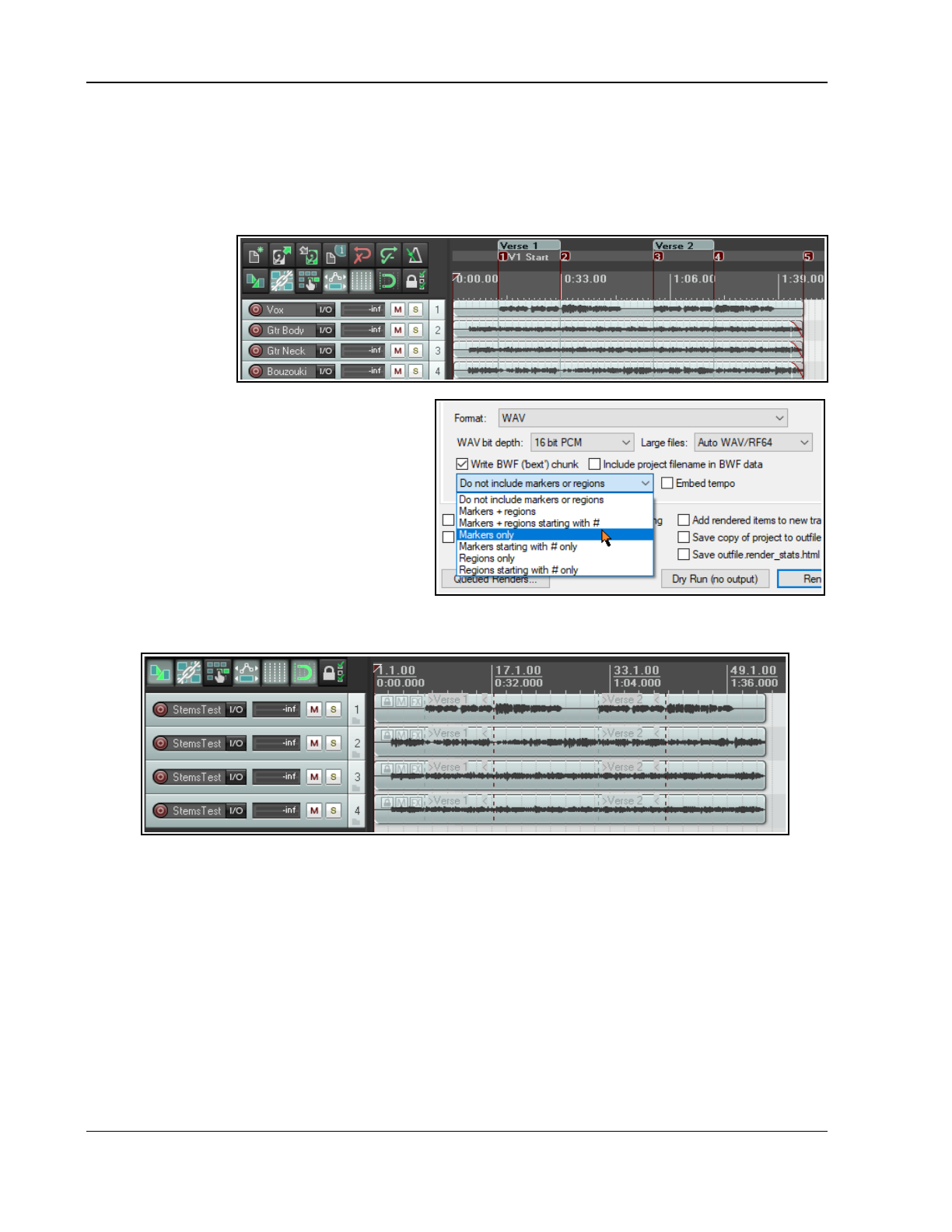
Up and Running: A REAPER User Guide v 7.81
9.14 Markers and Media Cues
If sharing your media files with applications that use media cues (e.g., Sound Forge) you can convert your
markers to media cues when rendering. File rendering is covered in detail in Chapter 21. REAPER also has an
option on the View menu (enabled by default) to show media cues where they exist on imported media items.
Moreover, you can use the Item Processing command to create markers within REAPER for these media cues.
Example
1. In the screen
shot shown
here, our
project
includes a
number of
markers.
2. We can now select the appropriate tracks
and render the file (using the File,
Render) command, selecting the source
option Stems (selected tracks) from the
Render drop down list, Mono channels,
and specifying which combination (if any)
of markers and regions we want written
into the output files as cues. In this
example, Markers only has been
selected.
3. If these rendered files were later imported
back into REAPER, we can see that the
media items contains cues which correspond exactly with the original markers. This is illustrated below.
Notice the series of vertical broken lines which indicate the positions of the media cues.
4. If we now select any of these media items then right click and choose Item processing then Import
media cues from items as project markers then a set of REAPER markers and regions is
automatically created for the project.
9.15 Changing the Project Timebase
You can select Time, Beats (position, length, rate) or Beats (position only) as the timebase for your envelopes,
events and markers. This is covered later in this chapter, but in short:
1. Press Alt Enter to display the Project Settings window. Click on the Project Settings tab.
2. Make a choice from the Timebase for items/envelopes/markers drop down list, then click on OK.
You can also change the beat by clicking in the BPM box (on the Transport Bar) and entering a number.
Note: The action list includes several actions for managing your project timebase, including Toggle project
timebase to time. This toggles the timebase between time and beats.
184
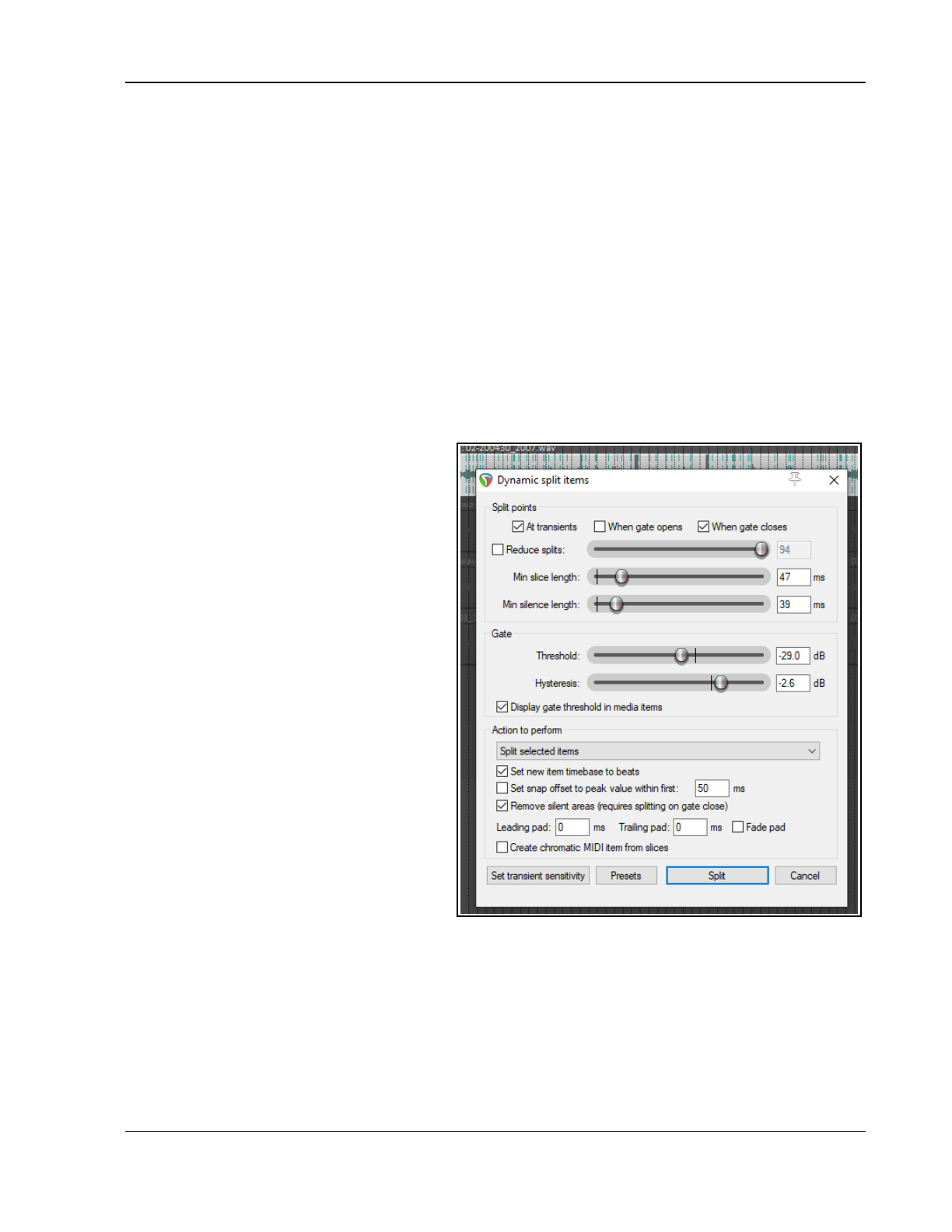
Tempo Based Production, Loops, Markers and Regions
9.16 Tempo Based Music Production
REAPER incorporates a number of features which make it a good choice for tempo based music production.
Some of these elements (such as creating loops and various item properties) have already been mentioned in
the context of other uses. Others have not yet been mentioned. In this section we will draw these elements
together to give you a flavour of how REAPER can be used for the production of tempo based music. Creating
tempo based music is a process that largely consists of creating and sequencing loops from audio samples.
These become the building blocks from which a work is created. Individually they can vary in length from a
single note to a complete rhythmical pattern, and anything in between.
One advantage that sampling has over MIDI is sound quality. There are any number of human performance
techniques and subtle variations that it are very difficult if not impossible to simulate with MIDI. However, until
recently MIDI held one big advantage over sampling. A MIDI track can easily be transposed without altering its
tempo, and its tempo can be changed without affecting its pitch. This has not always been the case with audio.
Take the example of drum loops. One of the biggest problems with using samplers to trigger drum loops has
been that when the tempo changes, so does the pitch. Samplers change pitch by slowing things down or
speeding things up. This means that as you play keys up and down your keyboard, you must at the same time
handle the issue of beat changes. It becomes almost impossible to get the exact tempo you want without having
to open the sampler and make adjustments to the loops.
Today, however, there are available many
tools that can do all this for you. The time and
pitch altering tools that come with REAPER use
high quality algorithms which give you all the
options you need to change or maintain such
factors as length and intonation. It thus
becomes possible to modify samples accurately
and without distorting their essential
characteristics.
ReCycle is one program that has become
popular because its REX grooves automatically
arrange themselves to the project tempo on
import Bring in a groove and it always fits the
song. Take a set of items representing slices in
a rhythmic groove, set their timebase to beats,
and change the tempo -- magic! They move
all over the place but remain exactly in
rhythmic time according to the tempo. Using
REX files you are able to play back loops at
different tempos without altering the pitch.
You're on your way to being able to create
drum loops and other sounds exactly the way
you want them, and with relatively little effort.
Later in this chapter we'll have more to say
about ReCycle, and indeed about REAPER's
own dynamic splitting capabilities which puts
this magic at your disposal. After dynamic
splitting, just double click in the BPM area of
the transport bar, enter a number and, hey presto! The whole track plays faster, or slower, in perfect pitch.
What's more, the whole track will speed up or slow down naturally, without glitches, pauses or stuttering.
9.16.1 Project Settings
Before creating any music, you should make sure that your project settings are specified correctly. To display the
project settings dialog box, press Alt Enter or choose the command File, Project Settings… from the main
menu. In particular, check the following:
Under Project Settings, Set project BPM.
Under Project Settings, Set time signature.
185
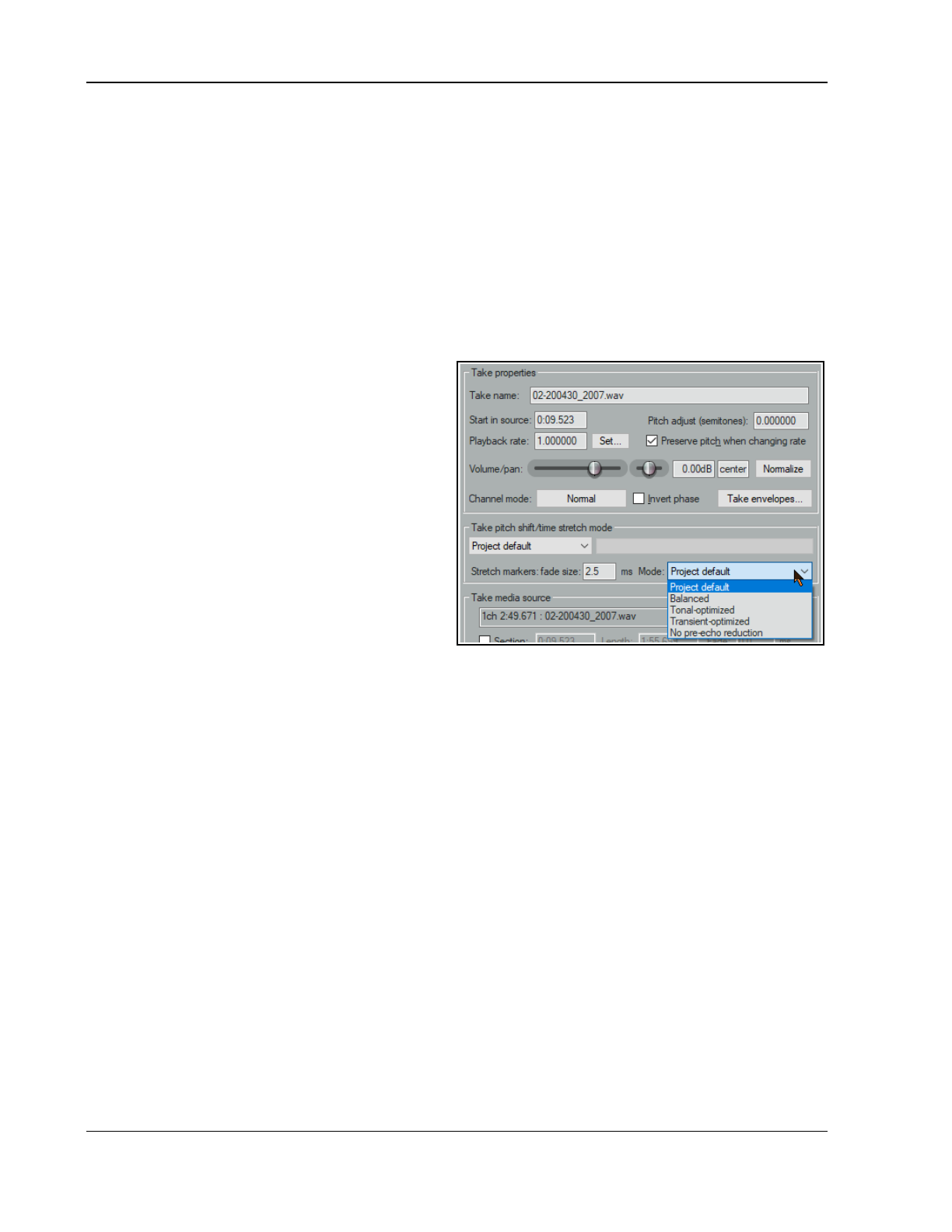
Up and Running: A REAPER User Guide v 7.81
Under Project Settings, Timebase for events. You can select Time, Beats (position, length, rate) or
Beats (position only). The former locks items to the timeline so that changes in tempo will cause items
to be resized and their play rate adjusted. With Beats (position only), the start of the item is locked to
the beat, but the item contents are not affected or modified by tempo changes.
Under Project Settings, Default pitch shift mode and parameter.
Remember that you can change the timebase for individual tracks (right-click, Track timebase) and for
individual media items (F2, Item timebase). You can also change properties such as Beats per Minute and Time
Signature as often as needed during the song. For example, you can increase the tempo for one passage then
restore it to its original setting at the end of that passage. Shortly we will see an example of how this is done.
9.16.2 Audio Media Item Properties
You can record your own media items or import them from existing files. You can also change various properties
such as playback rate and pitch for individual media items.
You can specify parameter settings for individual
media items and/or for selection of items. For
example, if you wish to change the pitch or playback
rate for several items you can select those items and
press F2 (or right click anywhere in the selection and
choose the Item properties… command).
In the example shown, we are increasing the
playback rate for the selected items by 5% and
preserving the original pitch.
You can override the project default pitch shift
mode. You may find that different algorithms work
better with different kinds of audio item (such as
vocal, snare, kick or bass guitar).
Set your Stretch marker fade size select your
preferred mode – Balanced, Tonal optimized,
Transient optimized or No pre-echo reduction.
More information about time stretching can be found
in the section Time and Pitch Manipulation.
9.16.3 Creating a Loop from a Time Selection
Remember that you are able to select any part of an existing media item and use it to create a loop. This subject
is covered earlier in this chapter.
Chapter 15 will introduce you to REAPER's actions and the action list editor. This can be used to assign keyboard
shortcuts to many actions that can be useful when you are working with loops and time selections. There are
actions, for example, to extend the time selection in either direction, to reduce it from either direction or nudge it
in either direction. Browsing and searching the action list will help you to identify those which are most useful to
you. Chapter 15 will show you how to bind these actions to your own shortcut keys.
9.16.4 Creating a Loop from Transients
Another method of selecting the area required for your loop is to use the transients in an existing media item.
The following actions are just some of the many that can be found within the Action List Editor (Chapter 15).
Where no existing keyboard shortcut exists, you can assign your own if you wish.
Item navigation: Move cursor to nearest transient in item Ctrl Tab
Item navigation: Move cursor to next transient in item Tab
Item navigation: Move cursor to previous transient in item Shift Tab
Time selection: Extend time selection to next transient in items
Assuming that you are using the default key bindings shown above, and that Ctrl Alt Tab has been assigned to
Extend time selection to next transient in items, you can select the item, navigate exactly from transient
to transient and select the exact area required. You can select the item, copy and paste it elsewhere, then right
click over it, choosing Copy loop of selected areas of items from the context menu.
186
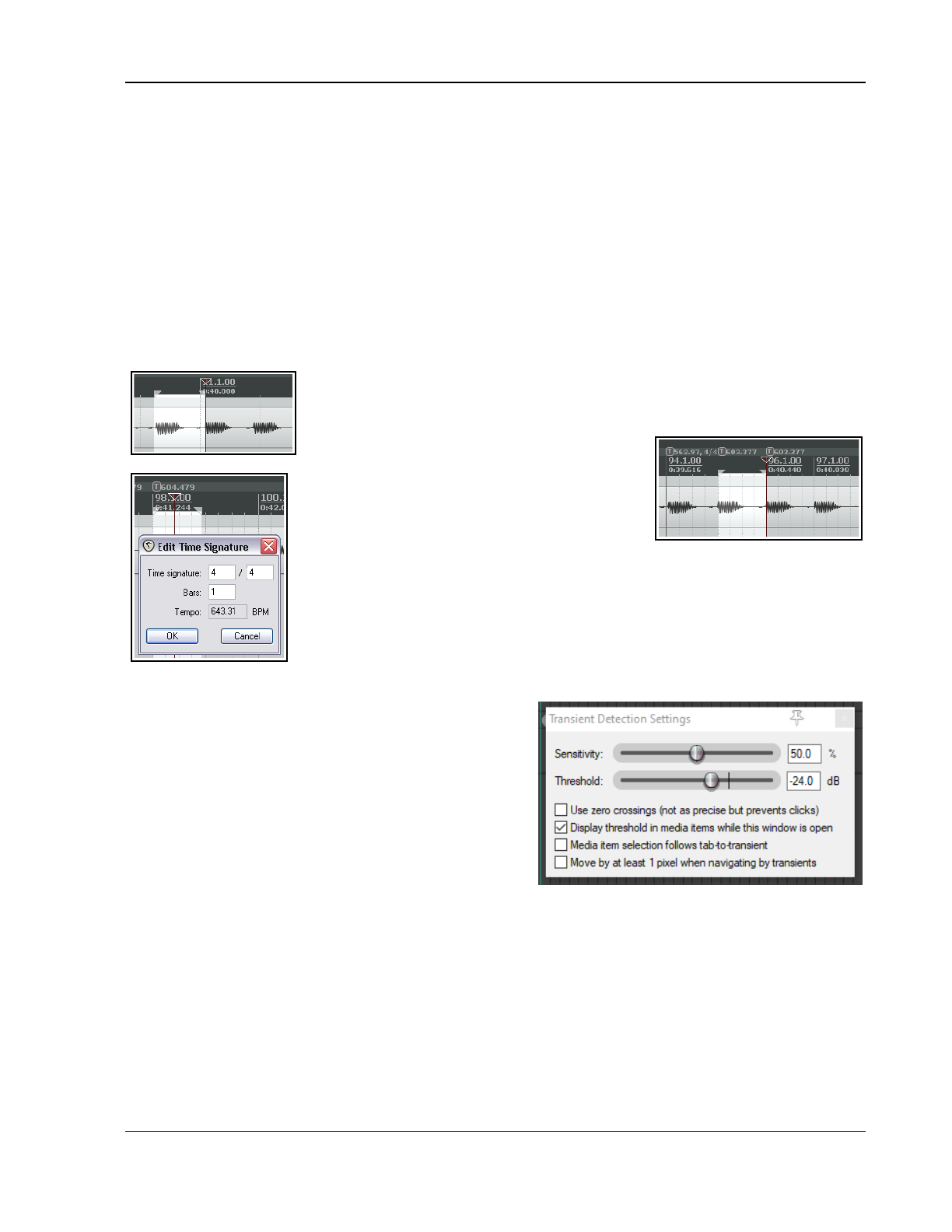
Tempo Based Production, Loops, Markers and Regions
These are just a few of the actions and commands that can be used to suit your own method of working when
creating your tempo-based projects. Explore the others and get to know them. They include:
Copy selected area of items
Trim items to selected area
Split items at prior zero crossings
9.16.5 Beat Correction
REAPER includes many actions to assist with beat detection and beat correction, e.g. to detect tempo, create
measures from time selections, extend or swap time selections to the next transient, and more. Some are on the
context menus and all are in the Action List. Any action can be assigned to toolbars, menus and/or shortcut keys,
or run directly from the action list window. More information about all of these can be found in Chapter 15.
How you string these actions together is up to you. For example, you might have a live performance that was
not done to a click. It is a simple process to go thru the track and manually tempo-map the whole performance.
Example
Here we have used our shortcuts to create and extend extend the selection out,
as required. We then choose Create measure from time selection (detect
tempo), either from the timeline's context menu or using the keyboard shortcut
Alt Shift C.
This process is repeated until we come to the
first place where a change of time signature is
required.
By right clicking over the timeline we display the context menu and select the
command Create measure from time selection (new time signature)...
This causes the Edit Time Signature dialog box to be opened, which you can edit
at will then click on OK.
This procedure can then be repeated up to the end of the performance.
9.16.6 Transient Detection Settings
The command Edit, Transient Detection Settings causes
the window shown here to be displayed.
This can be used to make your transient detection sound
more natural and human, by introducing subtle variations
in sensitivity and/or volume threshold. Enabling the zero
crossings option will help to prevent unwanted clicks.
9.17 Embedding Transient Information
when Rendering
Project rendering is covered in detail in Chapter 21. The
File, Render dialog includes an option to Embed stretch markers/transient guides when you are
rendering WAV or AIF files. Note that:
● WAV does this by adding acid chunks (where
chunk
is a term of art, rather like an extension for an audio
file):AIFF does this using apple loops chunks.
● REAPER calculates that tempo on export as the average tempo of the entire rendered media.
● When importing a WAV or AIFF file that has transient information embedded, reaper will recognize the
information and prompt if you would like to either import the file as beat slices (exactly like rex files),
or as a single item with transient markers, or just as plain media.
187
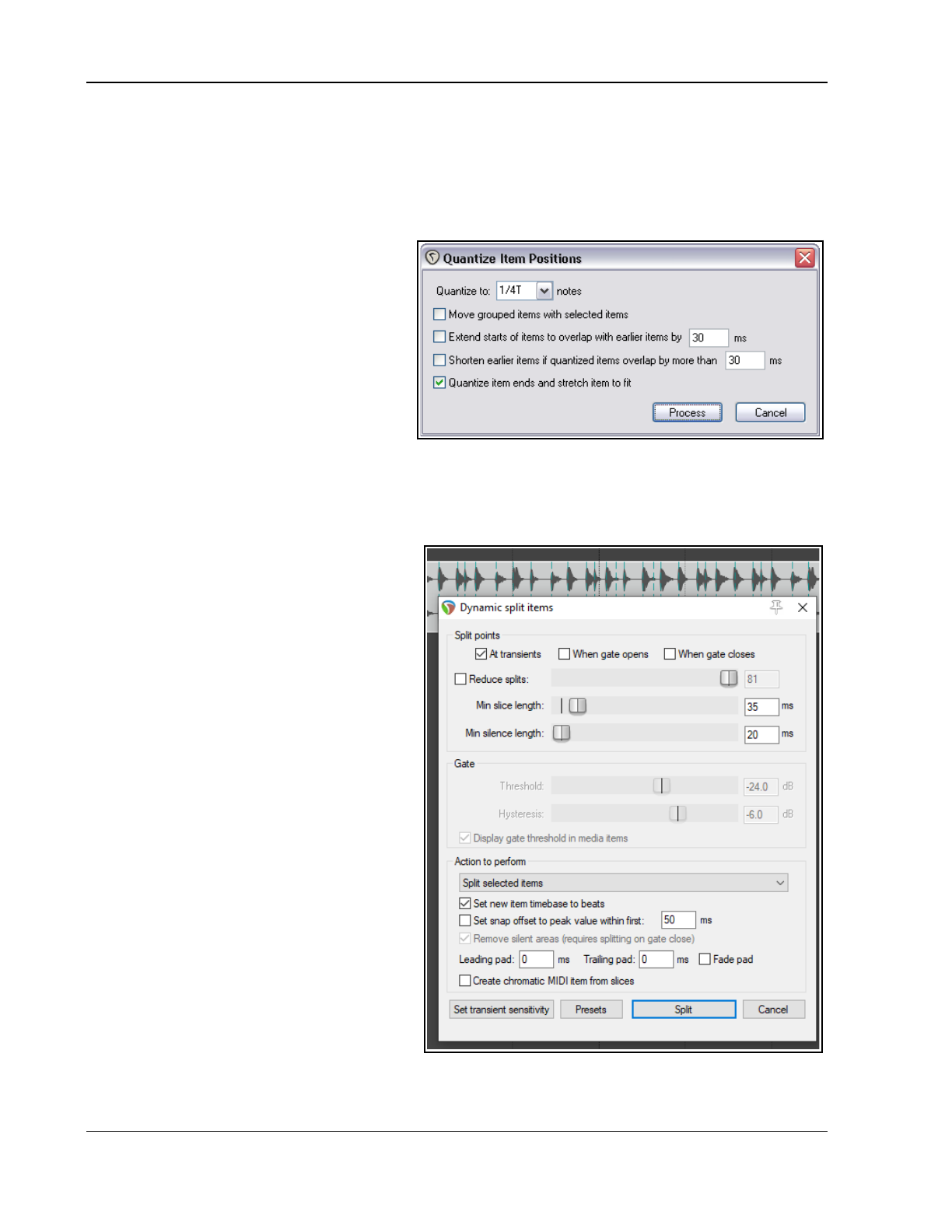
Up and Running: A REAPER User Guide v 7.81
9.18 Quantizing Items
REAPER allows you to quantize your audio items. This essentially means lining them up according to the project
tempo or time signature.
You might have a situation in which you have copied and pasted a sample several times within a track (or across
several tracks) and you need to ensure that they are correctly aligned. To ensure that all items are aligned to the
beat, you simply do this:
1. Double-click on the track in the Track
Control Panel to select all the media items
in the track. Alternatively, you could right
click drag with your mouse to marquee or
"lasso" them.
2. Right click over any of the items, then
choose Item Processing then Quantize
item positions to grid... This causes the
Quantize Item Positions dialog box to
be displayed.
3. Specify your required parameters,
including the note length setting (1/8, 1/4,
1/2, 1, 2, etc.) and whether you want the items stretched to fit. An example is shown on the right.
4. Click on Process for the quantizing to be done.
In the example above, the option to also quantize item ends and stretch to fit was enabled.
9.19 Dynamic Splitting
Dynamic splitting is a very powerful feature
which has a number of applications. You have
already seen (in Chapter 7) how it can be used
to remove silence. For example you might have
recorded a pretty good bass line that you'd like
to use for a song. Maybe it was recorded at 96
beats per minute. The timing might be a bit out
at times but on the whole you're pretty pleased
with it. The trouble is that you want to use 120
beats per minute for your new song.
Here's another example. Maybe you've recorded
a killer slide guitar track. You like it but think it
would be pretty clever to give the tune one or
two tempo changes. Dynamic splitting is the
answer to both these challenges. It works on
the principle that you can instruct REAPER to
split any media item (or selection of media
items) according to criteria that you specify.
Basically it works like this:
You first select the media item (or items)
to be split.
You right click over the item and choose
Item processing, Dynamic split
items… from the menu.
This causes the Dynamic split items
dialog box to be opened.
You give it the information that it needs
to work out where to split your items.
This will essentially either be to split the track at its transients or to use a noise gate to split whenever the
audio volume falls below a specified amount. As you will shortly see, each has its separate uses.
188
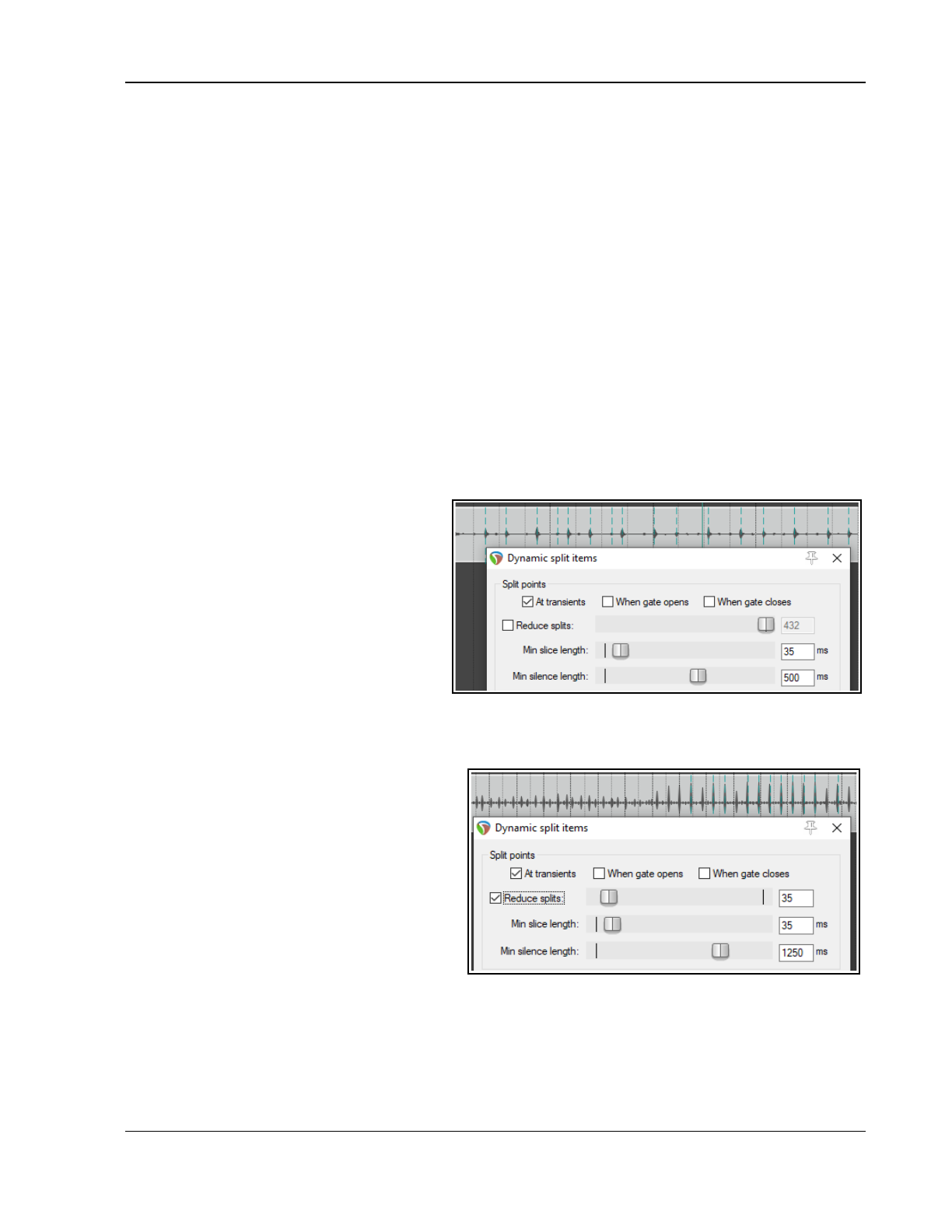
Tempo Based Production, Loops, Markers and Regions
REAPER then "shadow splits" your selected item(s). That is to say, it indicates with a row of colored bars
exactly all of the points at which the item will be split if the parameter settings are left as they are.
You make such adjustments as you wish to the parameter settings until satisfied that they are right.
You tell REAPER to split the items.
Once split, each slice of the original item will be set to the current timebase. You can set any of the splits
to any other timebase you choose. You can use the items together or individually, according to your needs.
Suddenly you've got a whole library of samples!
Dynamic splitting is non-destructive. This means that your original audio files (WAV, MP3, AIF or whatever)
remain intact. Nevertheless, if you are going to use this method to build a sample library, it's often a good idea
to work on a copy of the original track. This just makes it easier to go back to the original if you wish to use it to
make a fresh set of samples. Let's now take a look at an example or two.
9.19.1 Splitting a Media Item into Samples
In the examples below, a recording of a snare is selected. We have then chosen Item processing then
Dynamic split items from the context menu. Studying these examples will help you to understand how the
settings work. In every case, the At transients option should be enabled. These examples should be sufficient
to get you started. After that, it's up to you to experiment according to your particular needs.
Examples
Only a minimal number of options are used here.
If you specify a very low minimum slice length REAPER will seek out transients with a high degree of sensitivity.
This will result in our media item being split
into a very large number of items. This might
be suitable, for example, if we are intending
to introduce tempo changes to the song. The
larger the number of samples and the shorter
their length, the more sensitive and
immediate will be the track's response to any
such changes. Consider the two examples
shown.
Let's see what happens when we bring some
of the options into play.
In the case shown above right we have set a
largish minimum slice length with the result that our media items are quite longer. Other options have been left
at their default settings. This might be appropriate if we are creating samples to be used with a software
synthesizer.
However, we might want to do some more fine
tuning. In this next example (lower right), we
have increased the minimum slice length and
used the Reduced splits option to further
reduce the number of splits. In this particular
case, these settings might be about right for
creating our sample library from this track.
Before splitting it might in some instances be
worth considering whether you wish to enable the
noise gate settings to allow you to also remove
silence. Whether you would do this would depend
largely on the instrument in question and the
nature of the tune and arrangement. If the instrument is played continuously and produces an audio signal
similar to that shown above, then there may be little point in using the noise gate.
In either case, clicking on the Split button will cause the item to be split according to your settings. Below we
can see how part of our original media item might look after splitting.
189
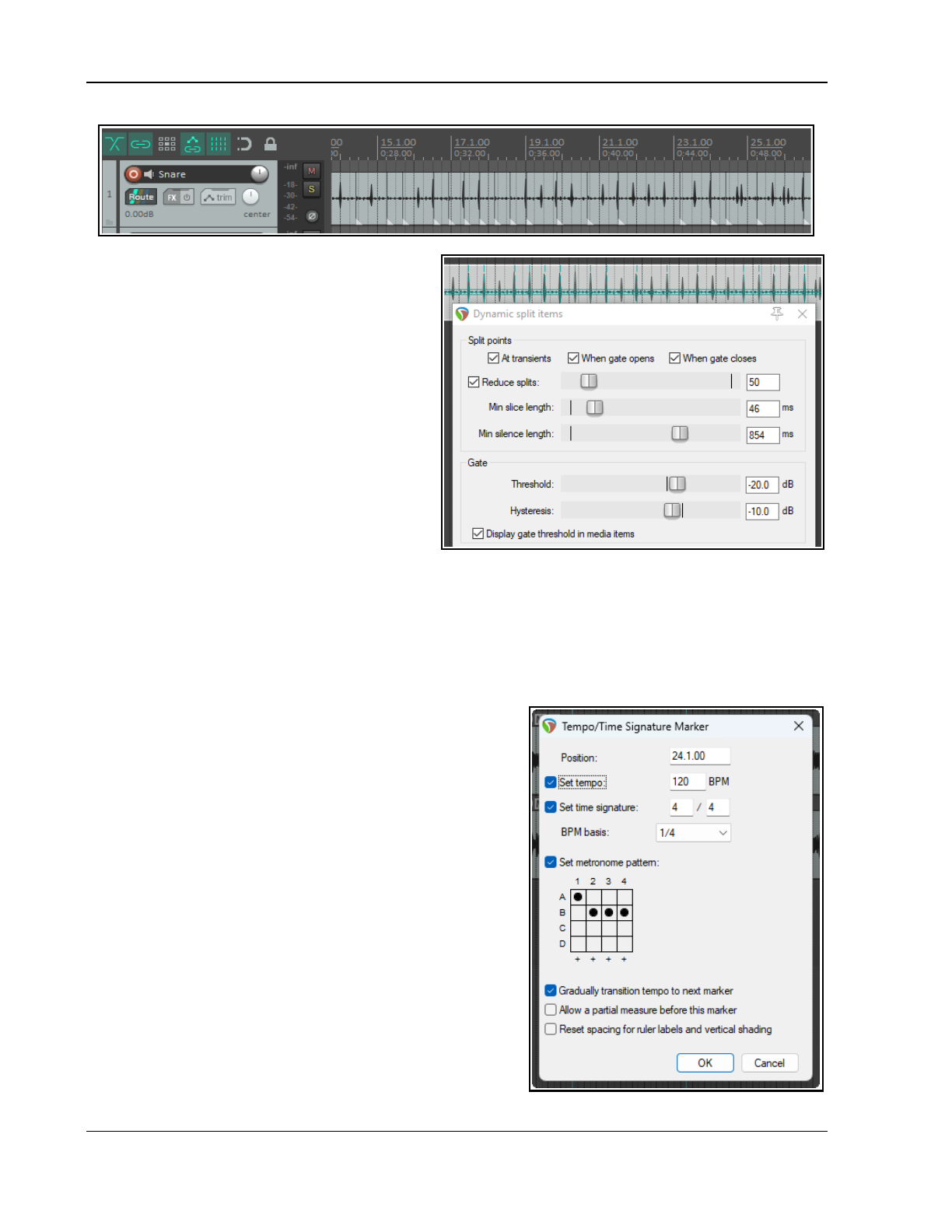
Up and Running: A REAPER User Guide v 7.81
This next example (right) shows splitting at
transients with a noise gate employed to remove
unwanted background sounds or even the sound of
the instrument decay.
In this example setting the gate threshold too low
might allow too many unwanted sounds to get thru.
Set it too high and we risk removing some quieter
recorded material. You may to need to experiment
to get the settings right.
Action to perform:
These examples have all used the default option
Split selected items.
Other options are:
Split selected and grouped items – items in
any group of which this media item is a member
will also be split.
Add stretch markers to selected items
Add stretch markers to selected and grouped items – stretch markers will be covered in Chapter 10.
Add transient guide markers to selected items – also covered in Chapter 10.
Other options:
Set new item to timebase beats
Set snap offset to peak value within first specified ms
Remove silent areas
Leading pad, Trailing pad and Fade pad
Create chromatic MIDI item from slices
The Presets button is used to save and recall your settings.
9.19.2 Changing the Tempo/Time Signature
When an item is dynamically split you can create time signature
markers for changes in tempo and/or time signature to which
your music will respond when played back. To create these:
1. Right click over the timeline and choose Insert
tempo/time signature marker… from the context
menu (or press Shift C).
2. Select Set Tempo and/or Set time signature. Specify
your required changes in Beats per Minute or time
signature.
3. If you wish, you can select the option for a gradual
tempo transition between markers.
4. For time signature markers you can also allow a partial
measure before the marker.
5. You can also optionally set a metronome pattern. For
more information on metronome patterns see chapter 3,
Using the metronome.
6. Click on OK.
190
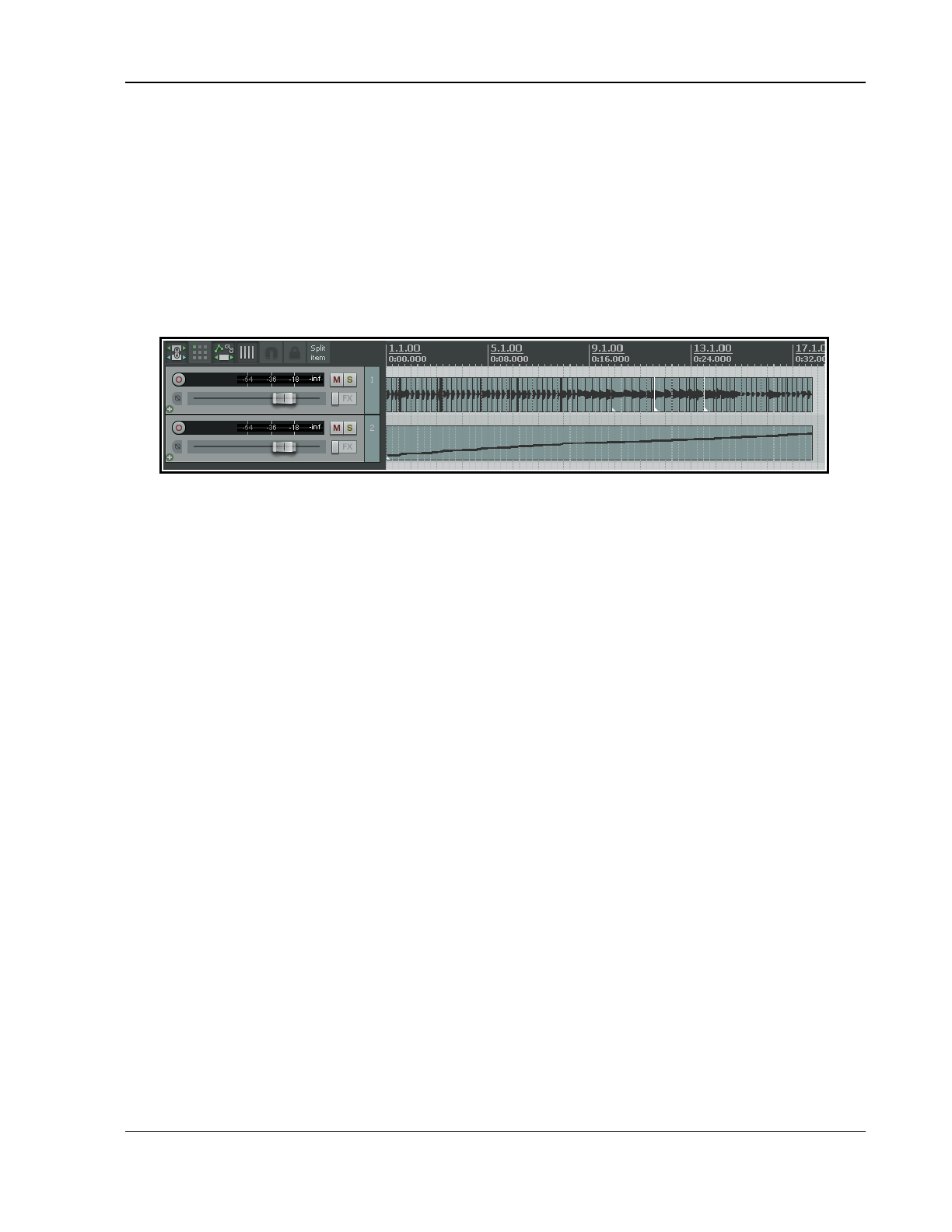
Tempo Based Production, Loops, Markers and Regions
You can double-click on any time signature or tempo change marker to edit its settings and you can drag it along
the timeline to change its position.
These settings, along with more information about time signature markers and their behavior (including editing
and moving markers), can be found in Changing the project timebase and Using Time Signature/Tempo Change
Markers.
Note that your Preferences. Appearance settings includes an option whether or not to display gridlines for
time signature changes.
9.19.3 Creating a Chromatic MIDI Item
When dynamic splitting you can select the option to Create chromatic MIDI item from slices.
This causes a MIDI item to be created that creates one MIDI event for each slice, moving up the chromatic
scale. One common application of this is for sample triggering.
Suppose that you have a groove that you have assembled from various items from different sources. You can
now create chromatic midi from the items and then load those items into a sample player, each mapped to the
next note in sequence. The midi will then play the groove. Moving the midi notes around changes the groove. It
is also quite easy to swap out exactly what it is that is being triggered.
Another example is hit replacement. You can dynamic split a drum part, creating chromatic midi from it. You
then have one velocity-sensitive midi note for each hit. It's then a straightforward job to delete a bad hit and
use the midi note to trigger a drum sample. Alternately, you can use the whole midi track to trigger a drum
sample to double a recorded part (thereby fattening it).
The chromatic MIDI item can, of course, be edited like any other MIDI item with the MIDI Editor, and used to
play any synthesizer or sample player. A comprehensive section on using the MIDI Editor can be found later in
this User Guide, at Chapter 13.
Leading Pad, Trailing Pad and Fade Pad settings
The examples used in this section have not made use of any of these three settings.
Leading pad is the amount in milliseconds (ms) by which the split point is pushed left of the transient or gate
open point when you click on Split. This works both with transient splits and gate open splits. Dynamic split
works out where to split and then pads it left by your ms value.
Trailing pad pushes the actual split point to the right by the number of ms specified., and by that same value to
the right of the gate close point in gated splits. The actual splits in this case will be to the left and right of the
dark area boundaries if you use both When gate opens and When gate closes.
The Fade pad option, if enabled, will fade in and out over the length of those pads.
9.19.4 Saving and Using Samples
After splitting, you can save any of the individual slices as samples. To save an individual sample, simply right
click over it and choose Glue items from the context menu. The sample wave file can then be imported for use
with any VSTi sampling plug-in, such as ReaSamplOmatic5000.
9.20 Ruler Display Options
The Ruler Display command on the ruler right-click context menu lets you decide what is displayed on the ruler
and how it is presented. Options pertaining specifically to regions and markers are discussed earlier in this
chapter. These include:
Display tempo changes
Display time signature changes
Display tempo/ time signature changes in separate lanes.
191
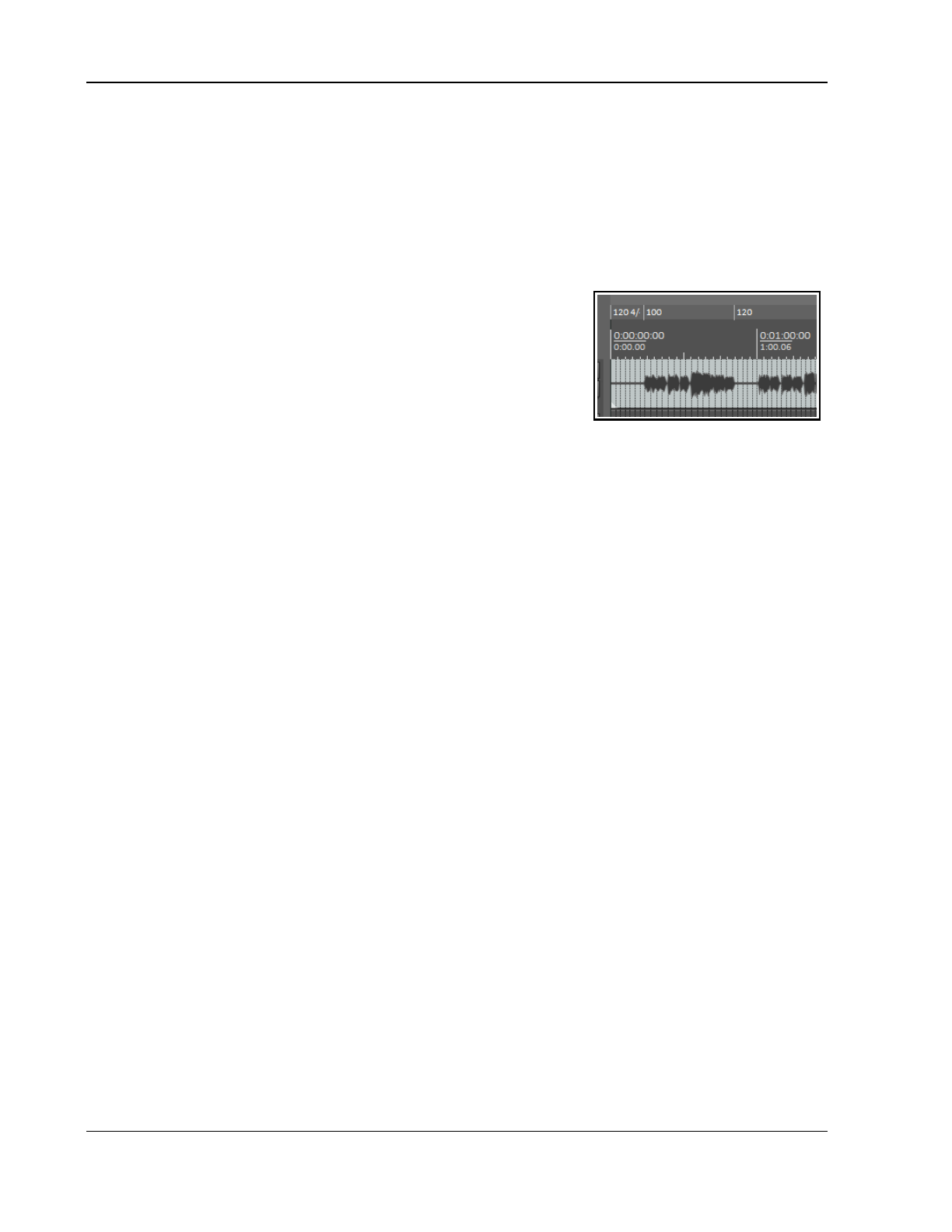
Up and Running: A REAPER User Guide v 7.81
By default both region numbers and names are shown on the ruler when the region is contained within the
visible area. Three toggle options to “tweak” these are:
Display region number even if region is named
Display region number/name when region edge is not visible
Display selected regions over unselected regions when overlapping
From this menu you can also open the Ruler Lane Manger.
Grid lines can be shown or not (as you wish) for project/region markers and time signature markers: these can
be enabled or disabled in your Appearance, Ruler Grid Preferences
Here you can also choose whether to also divide arrange view vertically by a specified number of
measures.
The ruler height can be adjusted using any of these methods:
● Left drag the mouse down or up on the boundary between the
toolbar and the track panel.
● If you have enabled the necessary Editing Behavior, Mouse
preferences option, left drag the mouse down or up on the
boundary between the ruler and arrange area.
● Other options are to use one or more of the Actions List actions
Ruler: Set to default height, Ruler: Set to maximum height and Ruler: Set to minimum height.
These, like any other actions, can be assigned to keyboard shortcuts and/or toolbars if you wish.
Some general tips for managing markers (project regions/markers and time signature/tempo markers) are:
● Alt click on a marker to delete it.
● Double-click on a marker to edit its settings.
● Click and drag a marker left or right to move it.
Under Preferences, Editing Behavior, Mouse modifiers you will find various left drag actions that you can
use (or change) when working with Project marker/region markers or Time signature/tempo change markers.
Further detailed instructions specific to managing time signature/tempo markers can be found in the section
Time Signature/Tempo Changes and Markers.
192
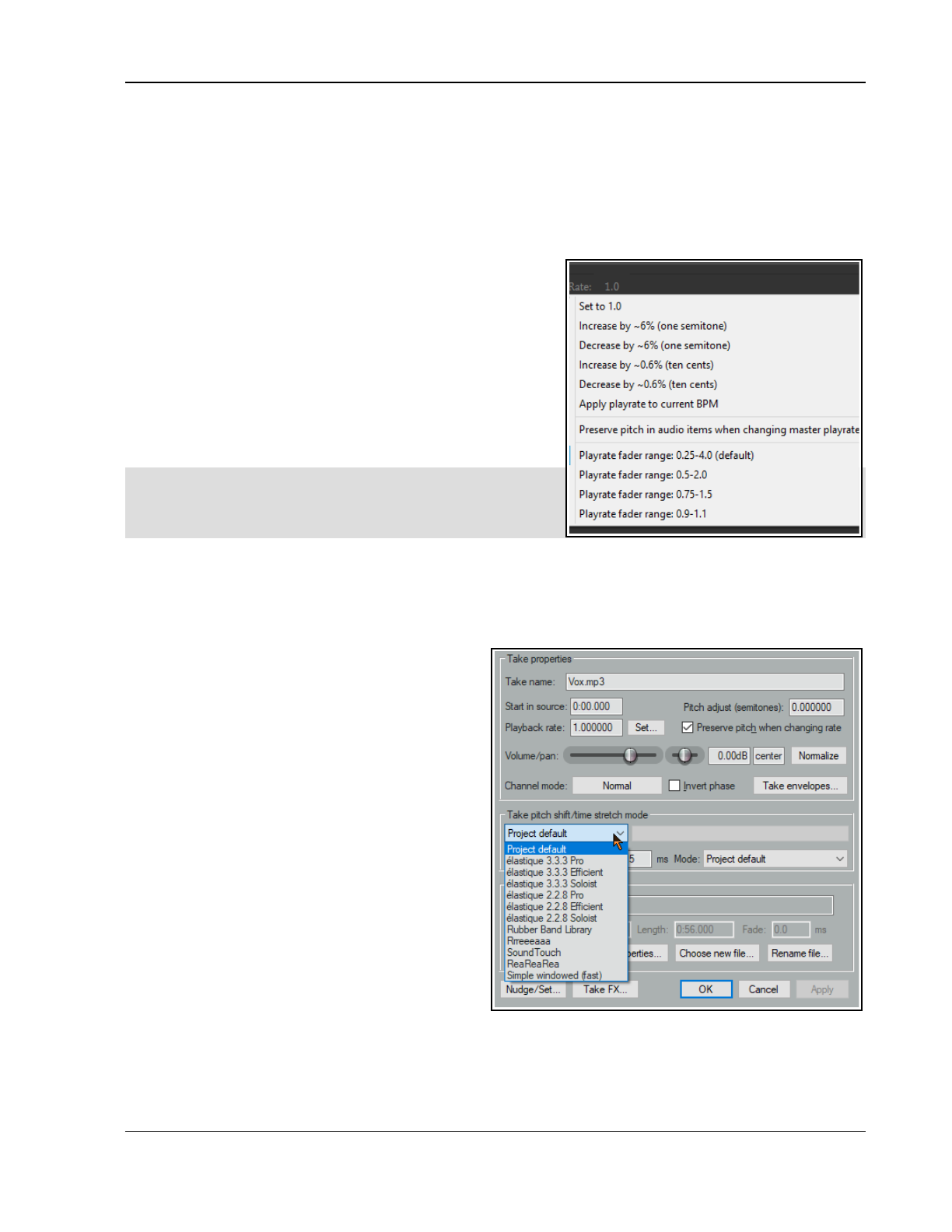
Pitch and Time Manipulation
10 Pitch and Time Manipulation
10.1 Changing the Project Play Rate
You can adjust the play rate for the whole project, using the Transport Bar. The project’s default pitch shift
mode will be applied. You can use any of these methods:
Click in the Rate edit box and type a new value (e.g., to speed up by 10% type 1.1)
Click the mouse in this edit box and scroll the mousewheel, up to increase or down to decrease play rate.
Drag the horizontal fader adjacent to the play rate edit box.
You can right click over this edit box and select one of the
Playrate options from the menu. From this menu you can:
Reset the playrate to 1.0.
Increase or decrease the playback rate by any listed value.
Enable or disable the option to Preserve pitch in audio
items when changing master playrate.
Apply play rate to the current BPM.
Set playrate fader range according to any available option.
The Actions List includes actions for each of these options: these
can be assigned to keyboard shortcuts if you wish.
Note: If the play rate fader is not visible in your transport bar,
you can display it by right-clicking over any part of the
Transport Bar background and selecting the option to Show
play rate control.
10.2 Changing Pitch for Individual Media Items
An item’s pitch can be changed from the Media Item Properties dialog. To open this for any item, select the item
and press F2. The pitch adjust value is measured in semitones. Enter a number to raise or lower the item’s
pitch, or type in a multiplier, such as x1.5.
Choose a pitch shift mode from the drop down list:
● Project default (from Project Settings).
● Élastique 2.2.8 or 3.3.3 Pro (best).
● Élastique 2.2.8 or 3.3.3 Efficient (less resource
intensive than elastique Pro).
● Élastique 2.2.8 or 3.3.3 SOLOIST (suitable for
monophonic items).
● Rubber band library.
● Rrreeeaaa.
● SoundTouch 1.9.0 (allows stretch rates up to
1,000 times and up to 128 channels).
● ReaReaRea.
● Simple windowed.
For any of the élastique modes, you should also
select an option from the adjacent Mode dropdown:
options will vary according to the mode selected.
Rrreeeaaa is useful if you want big stretches that
do not preserve transients. Application of this mode
is defined by an accompanying dropdown list which
lets you change FFT, analysis and synthesis options
from their defaults. It’s unlikely that you would want
to use this mode with stretch markers or ReaTune.
For rubber band library, available settings include transients, detector, pitch mode and window.
ReaReaRea is similar to a classic digital sampler timestretch algorithm. It processes independent of the signal
being stretched, and can be used creatively, being able to be configured in a tempo-synchronized fashion and
with different fades, shapes and randomization options.
193
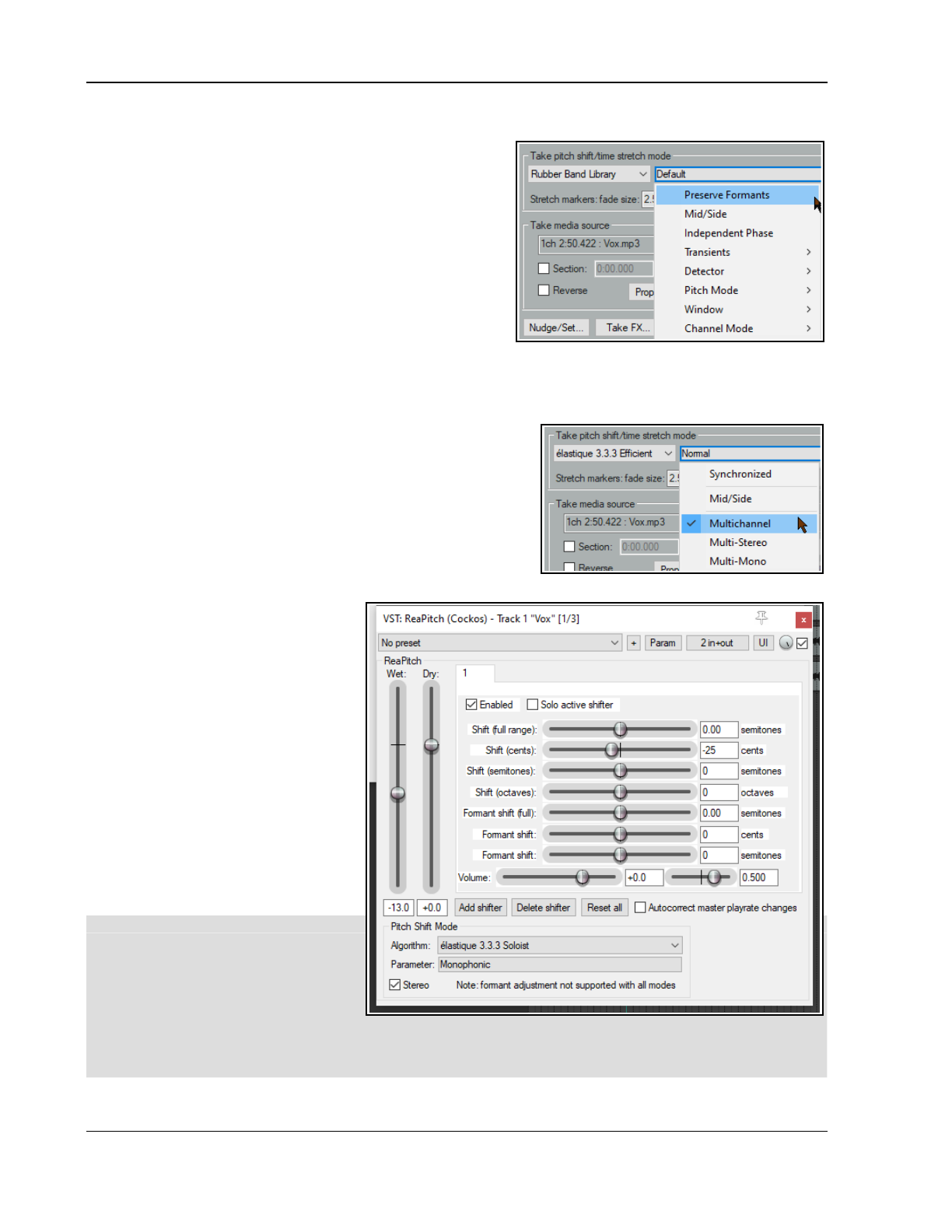
Up and Running: A REAPER User Guide v 7.81
Keyboard shortcuts allow you to easily and quickly change the pitch of any selected item or group of items
without needing to open the Media Item Properties box:
Shift 9: Move pitch down one semitone.
Shift 7: Move pitch down one cent.
Shift 0: Move pitch up one semitone.
Shift 8: Move pitch up one cent.
The Actions list includes an action (Item properties) to set the
item playrate (tempo/bpm) from your source media.
You can also use a take pitch envelope for pitch changes.
Right click on the take (or media item if only one take) and
choose Take, Take pitch envelope from the menu.
To adjust the pitch envelope settings, right-click on the
envelope and choose Envelope defaults, Pitch envelope
range/snap from the context menu. This opens a dialog where you can adjust the various parameters.
For more adventurous pitch shifting escapades you can try using one of the pitch manipulation plug-ins that are
supplied with REAPER. Simply open the FX window for a track, click on Add, then in the filter list type
pitch
to
discover what is available. Rubber Band Library.
One example is the JS Pitch: an Octave down plug-in. Search
the Add FX dialog to see what else is available. The most powerful
of the available pitch shift plug-ins is ReaPitch.
10.3 Using the ReaPitch Plug-in
Insert ReaPitch into a track’s FX chain and you have a powerful
pitch manipulation tool at your disposal. For example, you can use
ReaPitch to create vocal harmonies.
The illustration (right) shows ReaPitch in the FX chain for a vocal
track. The Elastique Soloist algorithm
has been selected, together with the
Monophonic parameter. The pitch has
been shifted down by 25 cents and the
effect panned 50% right.
You can use the Add shifter tab to add
more shifters, each with its own i
independent settings (including pan
and volume). Any one of these can be
Soloed. This can be helpful when
evaluating alternative options.
The Wet and Dry mix faders,
however, apply to the overall plug-in.
Note: REAPER also supports the use
of third party VST3 products such as
Melodyne 4.2+, provided that ARA is
enabled in your preferences.
Pitch Shifting/Channel Splitting
REAPER’s channel splitting capabilities
are explained in some detail in the
section More REAPER Routing
Examples (and elsewhere). With
channel splitting, you can, for example,
not only create several vocal
harmonies, but also apply different FX plug-ins or plug-in chains (such as Reverb or Delay) to each of your
different harmonies.
194
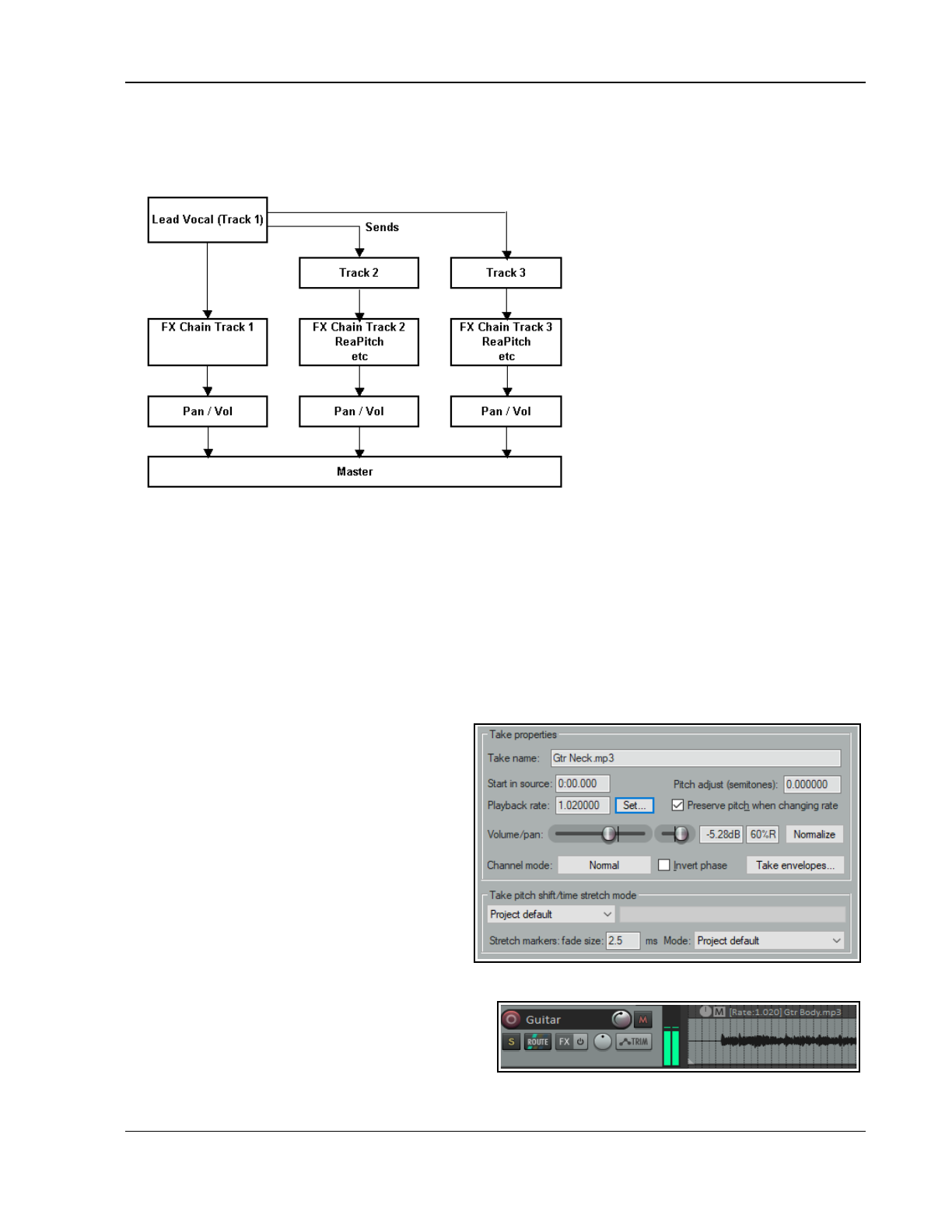
Pitch and Time Manipulation
10.4 Using ReaPitch with Multiple Tracks
We’ve previously looked at how REAPER can send audio streams from one track to another. Let’s now have a
look at how this feature might be used with ReaPitch.
In the example shown on the left,
sends are used to send a signal from a
Lead Vocal Track to two other tracks.
Each of these other tracks has its own
FX chain which includes ReaPitch, and
of course the pan and volume faders
for these tracks can be controlled
independently of each other and of the
lead vocal.
Chapter 17 will help you to understand
how to go about setting up a signal
flow such as this.
10.5 Time Stretching
The Take properties and Take pitch shift/time stretch mode sections of the Media Item Properties dialog
box (F2) can be used to stretch or shrink the time for an item. To do this, adjust the Playback Rate. In the
example shown (right), playback rate is being increased by 2% and the option to Preserve Pitch has been
selected. The project default has been selected for the algorithm to be used.
To open an item’s Item Properties dialog box, select the item, and press F2. To do this for a number of items:
1. Select all of the required items.
2. Press F2.
3. The Media Item Properties dialog will display properties where changes can be made to several items
at once. These include pitch adjust and playback rate (this section is shown below right).
4. Make your changes and click on OK.
When the Media Item Properties dialog is opened
for more then one item at once, some of the
options will been dimmed and are not available
when setting properties for multiple items. (such
as Take envelopes and Rename file). Most
options, however, are available.
Another method of adjusting the playback rate of
any selected items is this:
1. Hover mouse over the end of one of the
items until it turns to a double-headed
arrow, as you would for slip-editing. Hold
down Alt, click and drag mouse left to
speed up playback, right to slow it down.
2. Release mouse when finished.
If you enable the option Display media item pitch/
playrate if set (Preferences, Appearance, Media)
any changes to Pitch or Playback Rate will be
displayed on or above the Media Item(s) in Arrange
View.
195
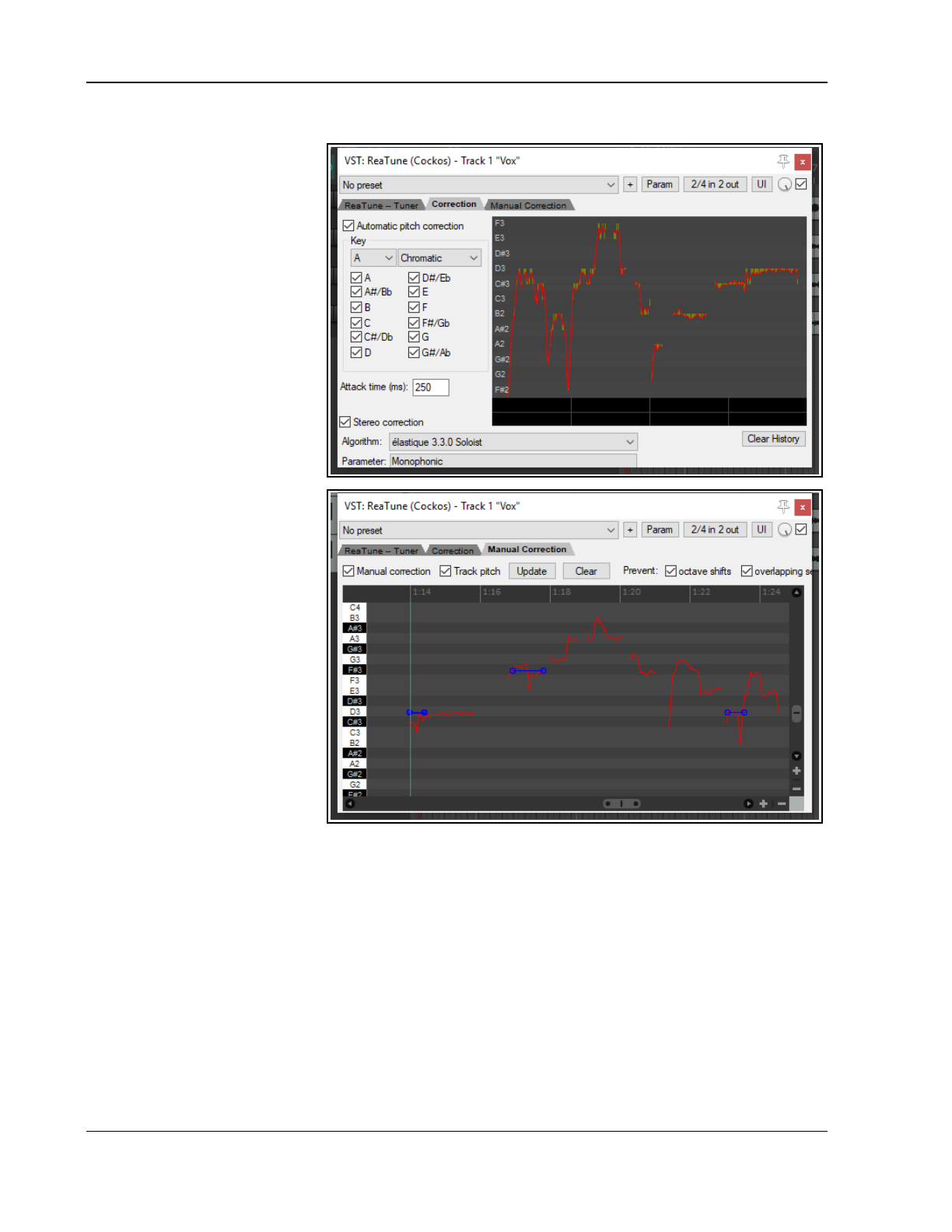
Up and Running: A REAPER User Guide v 7.81
10.6 Pitch Correction with ReaTune
The plug-in ReaTune can be
used for pitch correction, in
manual or automatic mode.
To use automatic mode (top
right), first insert ReaTune into a
track’s FX chain, then:
Select the page headed
Correction.
Enable the Automatic pitch
correction option.
Select the required algorithm
and parameter.
Specify the key and play.
To use manual mode (below
right) first insert the ReaTune
plug-in into a track’s FX window,
then:
Select the page headed
Manual Correction.
Enable the Manual pitch
correction option, and
other options as preferred.
Enable or disable the other
options as required. These
are Update, Prevent
octave shifts, and Prevent
overlapping segments.
Use your mouse (click and
drag) to draw your
corrections. To delete a
correction, select the line and
press Delete. The Clear
button will clear the entire
display.
10.7 Stretch Markers
Stretch markers can be used to speed up or slow down part of an audio item or selection or group of items. They
can be inserted at the current play cursor position or at the start and end of a time selection. Unlike standard
project markers (which apply to the project as a whole), stretch markers are only applied to the item(s) selected
at the time they are inserted. By dragging these markers left or right, the tempo of these items can be changed.
Creating and Using Stretch Markers
To create stretch markers, follow this sequence:
● Position the play cursor at the point where you want to insert a single marker, or make a time selection
starting and ending where you wish to insert two stretch markers.
● Select the item or items to which you want the marker(s) to be added
● Choose Item from the main menu (or right-click on the item to show the context menu).
● Choose Stretch markers then either Add stretch marker at cursor (Shift W) for a single marker or
Add stretch markers at time selection for a pair of markers at the start and end of a time selection.
196
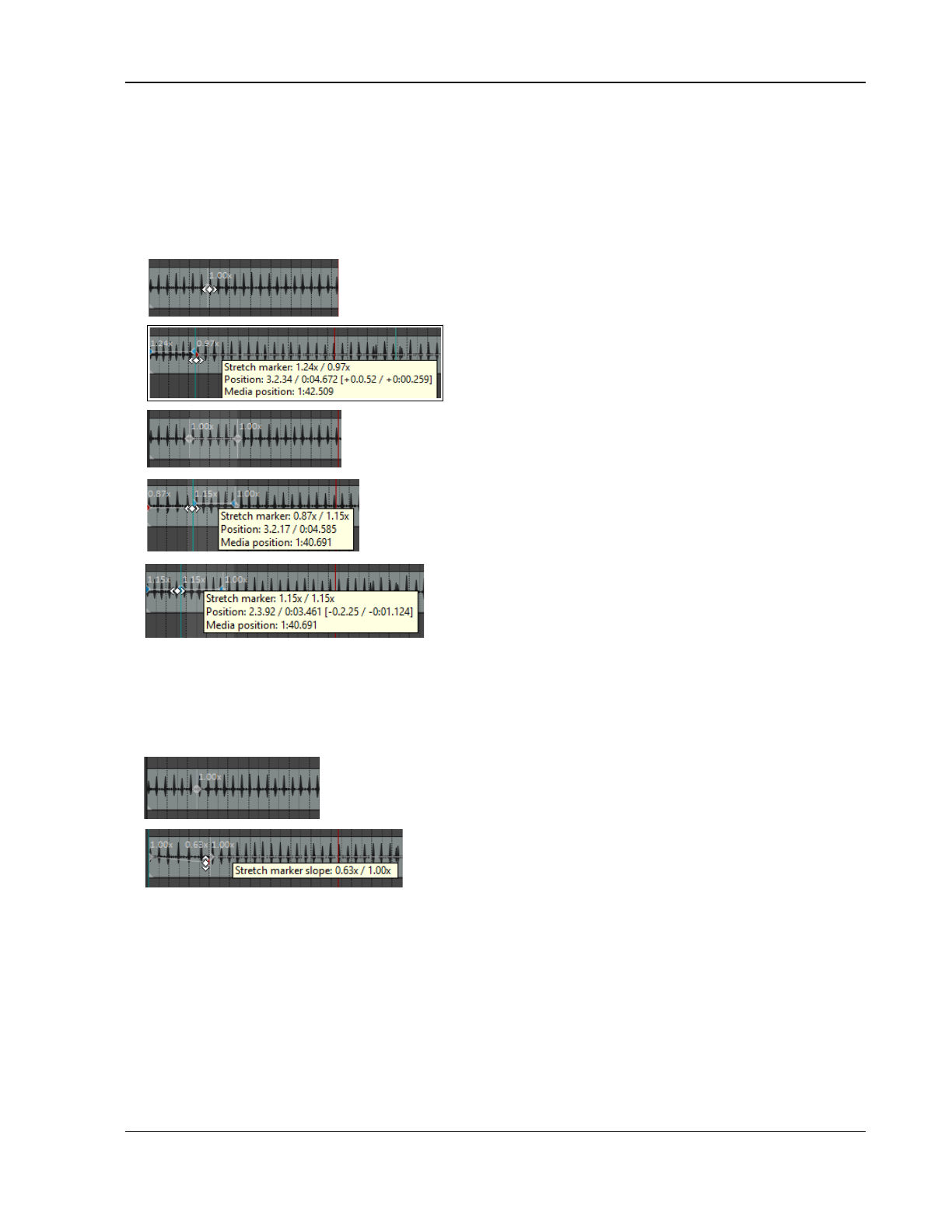
Pitch and Time Manipulation
Note that as an alternative to inserting stretch markers, the Stretch markers menu has options to calculate
transient guides: the same menu also has an option to clear these.
Hover the mouse over the stretch marker to display a horizontal (not vertical) double-headed mouse cursor as
shown in the examples below. Stretch markers can then be dragged left or right with the mouse to adjust timing.
Holding Shift Alt while dragging the first of a pair of stretch markers will move both markers together,
preserving the distance and timing between them. Other modifier keys are listed on the table on the next page.
Meanwhile, here are some examples showing how stretch markers can be manipulated.
7
A stretch marker is inserted in this item at the position
shown.
As it is dragged left, timing is made faster before (left of)
the marker and slower after (right of) the marker.
In this second example, stretch markers are added at a
time selection.
Left marker dragged right to speed up area between
markers, slowing down area before. Notice new stretch
markers are automatically added to the left and at the start
of the item.
The same marker is dragged further left as Shift Alt are
held. Timing before the marker changes but the timing
between the original two markers does not change, as both
markers and the area between them are dragged together.
Modifying Stretch Markers
If you hover your mouse slightly to the left or right of a stretch marker, your mouse cursor will change from a
horizontal arrow to a vertical one. This can be used to gradually speed up or slow down playback between any
two stretch markers (or before the first or after the last one) without affecting playback speed of any other part
of the item. Note that one consequence of this is that the overall item length will be shortened or lengthened.
Here a stretch marker has been inserted shortly after the
start of an item. We wish to gradually slow down the
introductory passage without affecting anything else.
Hovering the mouse just left of the stretch marker changes
the cursor into a vertical double headed arrow. We drag this
downwards so that the introductory passage gradually slows
down. Dragging it up would make it gradually speed up.
In the above example, holding Shift while dragging the mouse down would cause the item to speed up at the
beginning then gradually slow down. Dragging the mouse up would have the opposite effect.
Other Stretch Marker Modifiers
Various other modifier keys can be used in conjunction with your mouse (left drag) to modify the behavior when
a stretch markers are dragged. These defaults can be changed by selecting Media item stretch markers on the
Mouse Modifiers page of REAPER's preferences (see Chapter 15).
Default left drag mouse modifiers for context Media Item Stretch Markers
(none) Move stretch marker.
Shift Move stretch marker ignoring snap.
Ctrl Move stretch marker ignoring selection/grouping.
197
Up and Running: A REAPER User Guide v 7.81
Shift+Ctrl Move stretch marker ignoring snap and selection/grouping.
Alt Move contents under the stretch marker.
Shift+Alt Move stretch marker pair.
Ctrl+Alt Move contents under the stretch marker ignoring selection/grouping.
Shift+Ctrl+Alt Move stretch marker pair ignoring snap.
Other stretch marker mouse modifier choices are available from the Mouse Modifiers window, including
enabling or disabling the option to act on a pair of stretch markers.
You can also use your mouse (left drag) to modify stretch marker rates. First, hover your mouse over the
stretch markers so as to show a vertical double-headed arrow as in the examples below.
Default left drag mouse modifiers for context Media Item Stretch Marker Rate
(none) Edit stretch marker rate, ripple markers.
Shift Edit stretch marker rate.
Ctrl Edit stretch marker rate, move contents under marker.
Shift+Ctrl Edit stretch marker rate, move contents under marker, ripple markers.
Alt Edit stretch marker rates on both sides, ripple markers.
Shift+Alt Edit stretch marker rates on both sides.
Ctrl+Alt Edit stretch marker rate on both sides, preserving marker positions.
Shift+Ctrl+Alt Edit stretch marker rate on both sides, move contents under marker, ripple markers.
Other stretch marker rate mouse modifier choices are available from the Preferences, Editing Behavior,
Mouse Modifiers window, including the option to ignore selection/grouping.
Ctrl Double-click on a stretch marker to open a dialog where you can manually edit start rate, end rate, or
both, and (optionally) link start/end rates. Options can also be accessed from the context menu, using the
Stretch marker, Stretch marker at cursor command.
In addition to the commands and mouse actions explained above, note that:
● The Item Properties dialog box includes an option to optimize stretch markers for tonal content.
● The Dynamic Split Items dialog (see Chapter 9) has an option to Replace stretch markers. This
replaces existing stretch markers in the item(s) and replaced with dynamic splits.
● Several stretch marker Actions are available, for example to go to the nearest, next or previous stretch
marker. For more information about REAPER's Actions and Actions Editor, see Chapter 15.
● Double-click on a stretch marker to reset its value to 1.0.
The Stretch Markers Context Menu
● Stretch markers can be snapped to grid by choosing Snap to grid from the Stretch markers in selected
items or Snap stretch markers in selected items within time selection options on the Stretch
markers menu.
● A stretch marker can be removed by holding Alt while clicking on it. Markers can also be removed by
choosing Remove from the Stretch markers in selected items or Snap stretch markers in selected
items within time selection options on the Stretch markers menu. Removing stretch markers will
cause an item's timing to revert to its state before the markers were added. To make any changes to the
item permanent, instead of removing the stretch markers manually you can Glue the item (from the main
Item menu).
● Where a number of items have been selected, markers will be added to the items in that selection. As long
as they remain selected, moving one marker in the selection will also move the others. This can be over-
ridden by holding Ctrl while dragging the marker.
● Where items have been grouped, markers added to one item in the group will also be added to other items
in that group. By default they will be moved together when one is moved. This can be over-ridden by
holding Ctrl when dragging the marker. Grouping items is explained in Chapter 7. The following example
shows how stretch markers can be used with grouped items.
● Stretch markers can be any of four modes. These are Balanced mode, Tonal-optimized mode,
Transient optimised mode or No pre-echo reduction mode. Your preferred default mode can be
defined in the Project settings window.
198
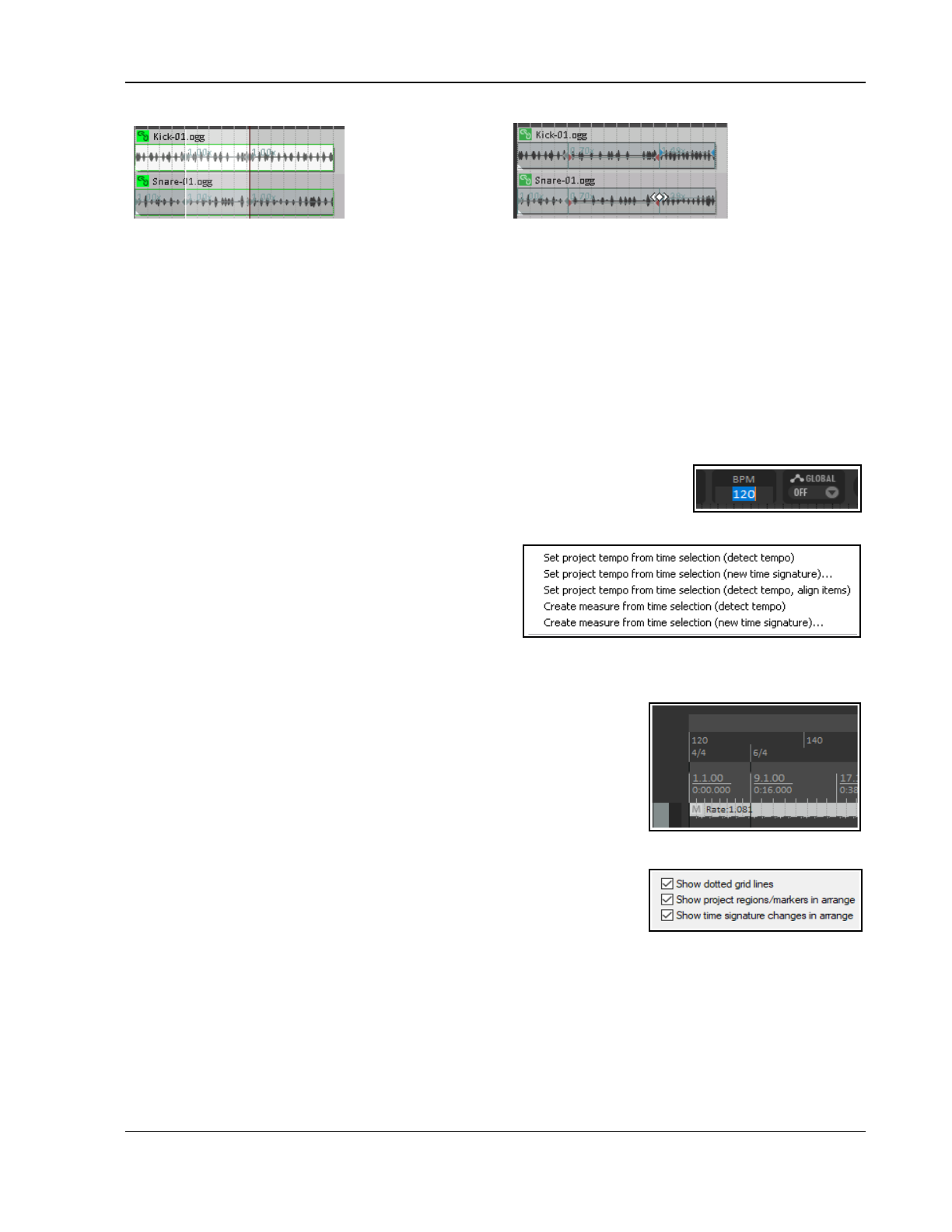
Pitch and Time Manipulation
These two items
have been grouped.
Selecting and adding
stretch markers to
either causes the
markers to also be
added to the other.
Adjusting the
marker position for
one item by
default makes the
same adjustment
on other items in
the group.
Stretch Marker Actions
Finally, remember the Action List! It includes actions for every stretch marker command: these can be added to
menus and/or toolbars if you wish, and/or assigned to keyboard shortcuts. In particular note these two actions:
Stretch markers at project tempo changes and to Clear and recalculate auto-stretch at project
tempo changes.
Neither of these appear on the media item context Stretch markers menu, but you could customize the media
item context menu if you wish.
10.8 Time Signature/Tempo Changes and Markers
The default project beats per minute and time signature for any project are determined by the values assigned
in the Project Settings window. You can make changes for the entire song by any of these methods:
Display the Project Settings window (Alt Enter) and change it there, or press
W to return the edit cursor to the start of the song, then either ...
Type your value in the BPM edit box (shown here) or Time Signature edit box
on the transport bar, or hover your mouse over the BPM edit box and scroll the mousewheel up or down.
Make a time selection, display the ruler context menu
and choose one of the options shown here.
You can also make changes to time signature and/or
tempo within a song, using either the project tempo
envelope or markers. If you intend to do this, first make
sure that your Project Settings are using the default
timebase setting Beats (position, length, rate). Pressing Alt Enter will display the project settings dialog and
give you the opportunity to change this if necessary.
The project tempo map envelope is explained in Chapter 18. This works
essentially like any other automation envelope. Note, however, that editing
multiple points at once on this envelope causes each point to be adjusted
pro rata
, not by a constant BPM value.
This section focuses on inserting time signature and/or tempo change
markers on the ruler to make changes within a song. An example is shown
here (right). These changes take effect immediately following the marker’s
position. Before looking at how to do this it’s worth noting that:
● Time signature markers and tempo markers are two separate entities but are both inserted on the ruler
using the same method.
● At any point along the timeline you can change either the time
signature, or the tempo, or both.
● By default, time signature changes are also displayed as a grid line in
arrange view. You can disable this on the Appearance page of your preferences if you wish.
● If you are using either time signature markers or tempo markers it is advisable to enable the relevant ruler
layout options (Chapter 9) to ensure these are displayed. If using both, you should consider also
enabling the option to display both types in separate lanes. These options are accessed by choosing Ruler
layout from the ruler’s right-click context menu.
Time Signature Markers
The various options and controls for the Tempo/Time Signature Markers window are explained in Chapter 9.
In brief, however:
199
Up and Running: A REAPER User Guide v 7.81
1. Position the edit cursor at the required place in the song. From the menu, choose the Insert command,
then Tempo/time signature marker (or press Shift C).
2. Set the metronome pattern.
3. From the dialog box make your choices – e.g. set BPM, whether to Gradually transition tempo to next
marker and/or Set time signature , Allow a partial measure before this marker
4. Click OK.
Alternatively, use an action to Insert a tempo marker at edit cursor without opening tempo edit dialog.
Remember, you can use markers to set time signature without also specifying a tempo change (or vice versa).
Markers can be modified, for example by editing (double-click on marker to open the dialog) or moving them
(see table below). Note also that:
● Tempo/time signature markers are by default pinned to the beat position (unless the project timebase is
set to time).
● Manually editing time signature markers requires them to be placed at the start of a measure.
● With snap enabled (Chapter 7), time signature changes snap to bars, tempo changes snap to beats.
● With snap disabled (Chapter 7), moving time signature markers will modify the preceding tempo if
necessary to ensure that the project contains only complete measures.
● Time signature changes that truncate the previous measure are marked with a *.
● Time signature correction may be problematic when a project contains linear tempo transitions.
● One tempo/time signature marker cannot be moved past another.
● Markers will turn red while they are being moved.
Managing Time sig/Tempo markers: to do this ... You need to do this …
Move a time signature or tempo marker. Left click/drag marker.
Move time signature marker, adjusting previous tempo as
necessary to preserve relative position of later tempo changes.
Left click/Ctrl drag marker.
Move tempo marker, adjusting its value and that of previous
tempo markers preserving position of later tempo changes.
Left click/Ctrl Shift drag marker.
Move marker, ignoring snap. Left click/Shift drag marker.
Footnotes:
● The above Project tempo/time sig marker left drag actions can be customised on your Preferences,
Editing behavior, Mouse modifiers settings page.
● After time signature or tempo change markers have been added to a project you will no longer be able to
set project tempo from a time selection within that project.
● The Preferences, Audio, Seeking page includes the toggle option Playback position follows project
timebase when changing tempo – see Chapter 22.
● The ripple edit toolbar button right-click menu includes the option Ripple edit all affects tempo map.
● Information about file tempo and transients can be embedded in WAV and AIF files when rendering. See
section Embedding Transient Information when Rendering for detailed information.
10.9 Timeline Display: Negative Timecodes
Your project settings includes an option to set project start time. Negative timecodes will be shown on the
REAPER timeline/ruler before the project start time if that start time (00:00:00.00) is set to some time into the
project.
For example, 10 seconds before project time zero is displayed as -01:59:50:00 because that position is in hour
number -1, the first hour to the left of zero, and that position is 59:50:00 into that hour.
Every element of the timecode runs forwards, but the hour field is allowed to be negative so it runs ...-2,-
1,0,1,2,... . In DF timecode mode frames are dropped predictably at the start of every minute that is not divisible
by 10. There is a consistent number of frames between any two H:M:S:F positions that have the same relative
difference between any two elements, for example -01:57:00:02 to 00:00:00:00 is the same number of frames
as 00:57:00:02 to 01:00:00:00.
200
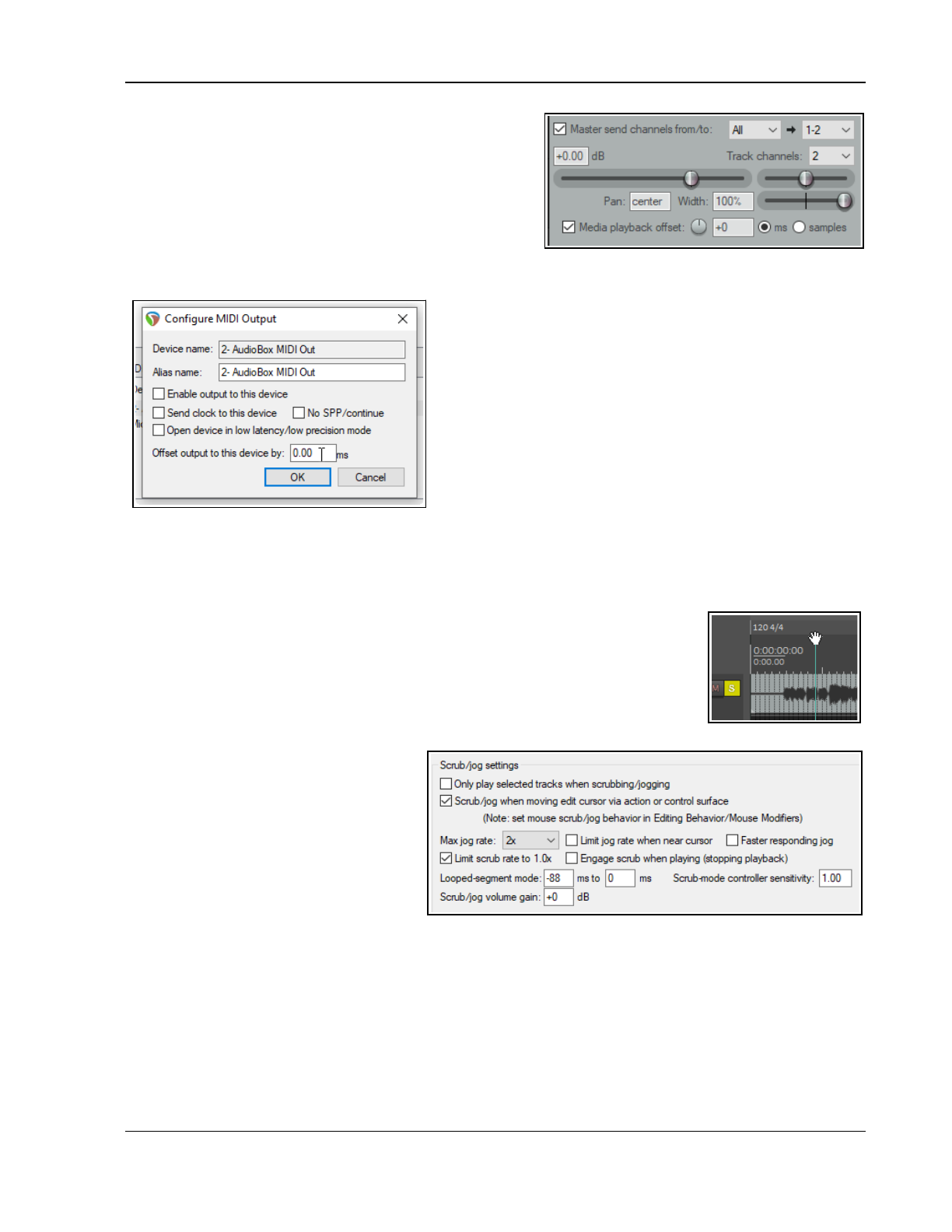
Pitch and Time Manipulation
10.10 Playback Time Offset with Routing
The track routing window includes an option to enable
media playback time offset (click the Route button on
the track): you can adjust individual tracks to play back
media earlier or later. this is commonly used to account for
MIDI latency but could be used for other purposes.
In addition, the Actions List now includes an action to
Convert embedded source transient information to
transient guides.
Being able to configure your MIDI output devices for optimum
performance is not a new feature of REAPER. A new
enhancement in REAPER 6, however, is that you are now able
to enter either a positive or a negative value for output offset
time.
This is entered in the Configure MIDI Output dialog, accessed
by right-clicking over the output device in the MIDI Devices
page of your Preferences and choosing Configure output …
from the context menu.
The Playback page of your Preferences now includes an
option to set Max MIDI playback speed when applying
negative track playback offset.
In addition, the Actions List includes an action to Bypass track playback offset.
10.11 Audio Jogging and Scrubbing
Jogging and scrubbing can help you to audition or locate a particular section within a project.
To jog a portion of a song, position your mouse over the triangle located on the top
of the edit cursor, as shown on the right. The mouse cursor changes to a white
hand. You can then click and drag in either direction. When jogging that you might
want to zoom in quite closely on your project. By default, holding down the Ctrl key
while jogging will enable Scrub mode. In this mode, playback will be much slower.
This can help when looking for very short glitches.
You can set your jog/scrub preferences in the Audio, Scrub/Jog page of the
Options, Preferences window, as shown
below. Amongst other options you can:
Limit the maximum jog/scrub rates
(speed) to no more than normal
playback speed.
Choose to allow jog/scrub mode to
over-ride normal playback.
Enable the Only play selected
tracks option, so that only those
tracks currently selected will be heard
during jogging or scrubbing.
Looped segment mode can be used to audition a section of your material as a loop. For example, if in
Playback preferences (above right) you specify a range of -1000 ms to 1000 ms, then holding Alt while you click
and drag the edit cursor handle briefly left or right will jog a two second portion of audio over and over for as
long as you hold down the mouse button.
You can also assign modifiers for jogging and/or scrubbing to your Arrange View middle mouse
button drag behavior. For more information about assigning mouse modifier preferences see
Chapter 15.
201
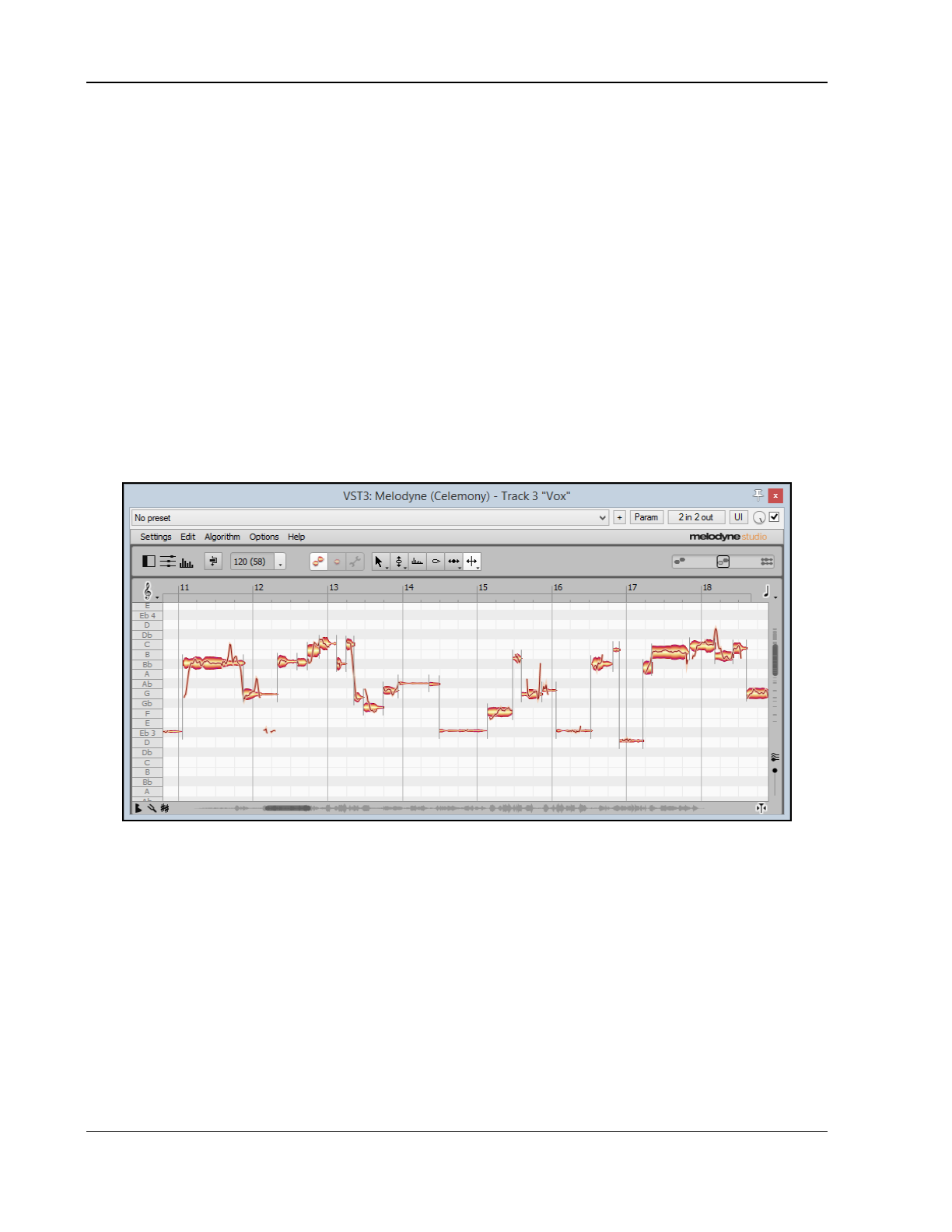
Up and Running: A REAPER User Guide v 7.81
10.12 REAPER Integration with ARA
REAPER (64 bit version) now supports Audio Random Access (commonly known as ARA). ARA is an extension
developed for use with certain VST3, AU and RTAS audio plug-ins. REAPER supports ARA compatible VST3 plug-
ins, but not AU or RTAS. Note that not all VST3 plug-ins are ARA compatible.
ARA provides improved communication between the DAW (REAPER) and the ARA compatible plug-in by allowing
information such as audio data, tempo, pitch, and rhythm to be exchanged for an entire track or item at a time,
rather than as it is played back. This is far more efficient, avoiding the need to be constantly transferring data
back and forth. The plug-in is closely integrated with REAPER, thus enabling more accurate outcomes.
Most commonly, ARA is used to enable REAPER to integrate with Celemony’s Melodyne program, although there
are other plug-ins that are ARA compatible (e.g. VocAlign Pro 4). Melodyne is a sound design program which
offers algorithms for a wide range of types of sound (vocals, instruments, percussion, etc.) and which allows you
to work on pitch, scales, tuning, timing, tempo, amplitude, and more.
Accessing Melodyne with ARA
Happily, ARA’s integration into REAPER is pretty much seamless. Make sure that the option Enable ARA for
VST3 plug-ins that support it (Options, Preferences, Plug-ins, ARA) is enabled and then restart REAPER. You
can then simply access the VST3 plug-in from the FX chain window in the normal way. Here is an example:
1. Add the required plug-in (e.g. Melodyne) to the track or item’s FX chain. This opens (within the FX chain) an
instance of the plug-in. Double-click on the plug-in name if you wish to open it in a separate window.
2. In the illustration above, Melodyne has been inserted directly into a take’s FX chain and then opened in a
separate window. In this example, the media item is a vocal take, but it could be any audio item or track,
such as a guitar, bass, violin or percussion instrument. The audio material is now displayed in Melodyne not
as a waveform but as a series of notes (events). Be aware that the process of initially interpreting your
audio material as a sequence of events such as this can take Melodyne several minutes.
3. You can now make whatever edits you require in Melodyne and these will be applied to your audio item on
playback. As with other plug-ins, the actual item itself will not be modified, although you can stem render it
with the FX to a new track if you wish.
You can close and reopen the Melodyne window as often as you wish without losing your changes. However, it
is always advisable to save the .RPP project file regularly and also when finished.
Tip: Edits made within the Melodyne (or other ARA plug-in) window will be recorded in your undo history, and
thus can be reversed from within the Undo History window. However, if you find that an ARA plug-in such as
Melodyne is straining your PC resources, you should consider enabling the option Compatibility settings, Save
minimal undo states from the presets drop down menu (see overleaf).
202
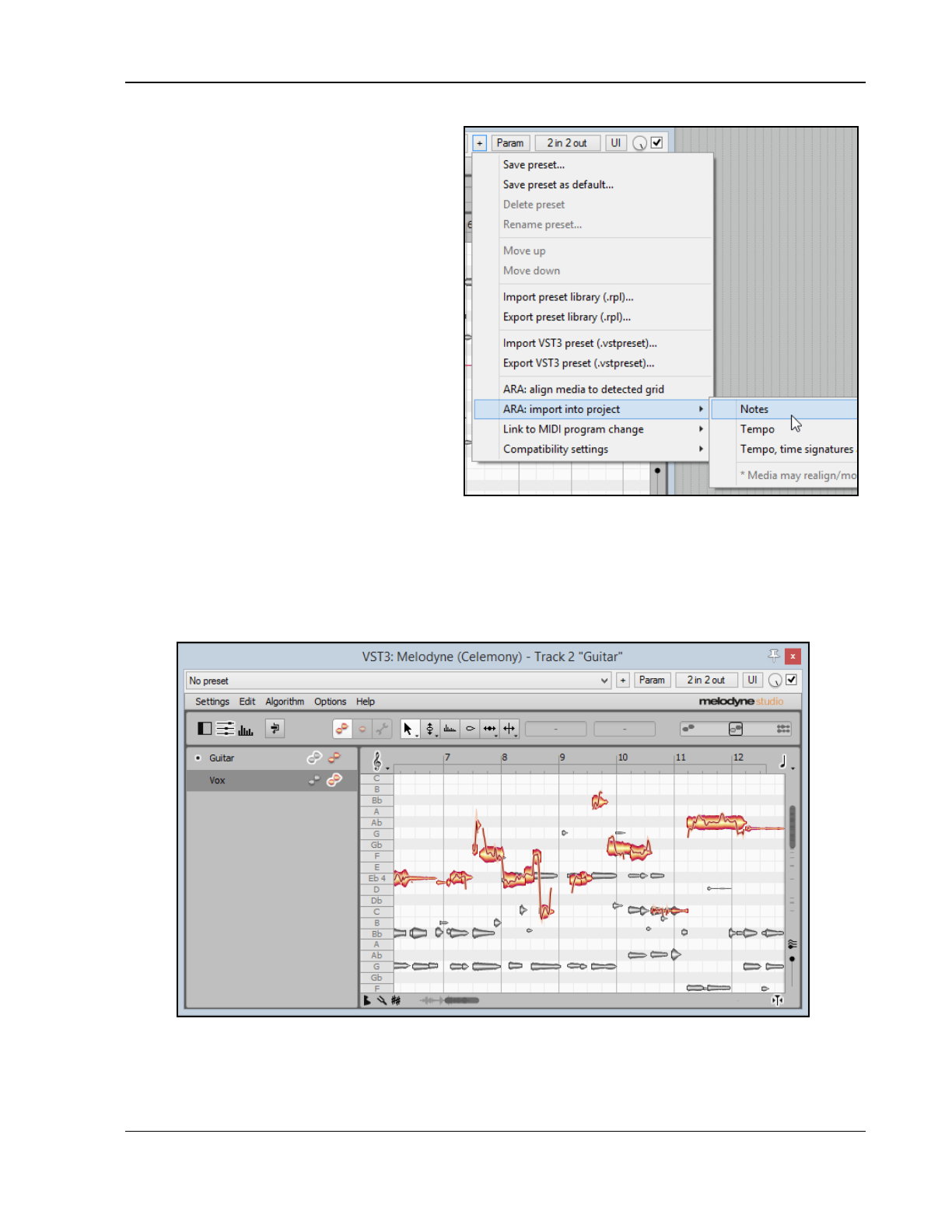
Pitch and Time Manipulation
Importing from Melodyne
An audio item’s sequence of notes, tempo, or
tempo with time signature and measure grid can
be imported into your REAPER project file. After
inserting Melodyne into your track(s) FX chain(s),
follow this sequence:
Within the Melodyne window, click on the +
sign to the immediate right of the presets
dropdown to open the menu shown here.
ARA compatible plug-ins will display two
extra commands on this menu – ARA: align
media to detected grid and ARA: import
into project.
If you intend to both align the media and
import tempo, it makes sense to choose the
option ARA: align media to detected
grid first.
To import the notes into your REAPER
project as a MIDI track directly beneath the
audio track, choose ARA: import into
project, then Notes. You could, for
example, open this MIDI file in the Notation Editor if you wish.
You also have the options to import Tempo or Tempo, time signatures and measure grid.
You can use Melodyne on several tracks in the one Melodyne window. Insert an instance of VST3
Melodyne on each of the tracks, then double-click on any one instance to open Melodyne in its own
window. Using the track list tool (second left, below) and the track pane icons, you can display and edit
at any one time the events for any one track or combination of tracks. An example is shown below.
For best performance, consider enabling the option (Preferences, Plug-ins) to Only allow one FX chain
window open at a time. You can find more about how to use Melodyne with REAPER here:
http://helpcenter.celemony.com/daw/reaper
203
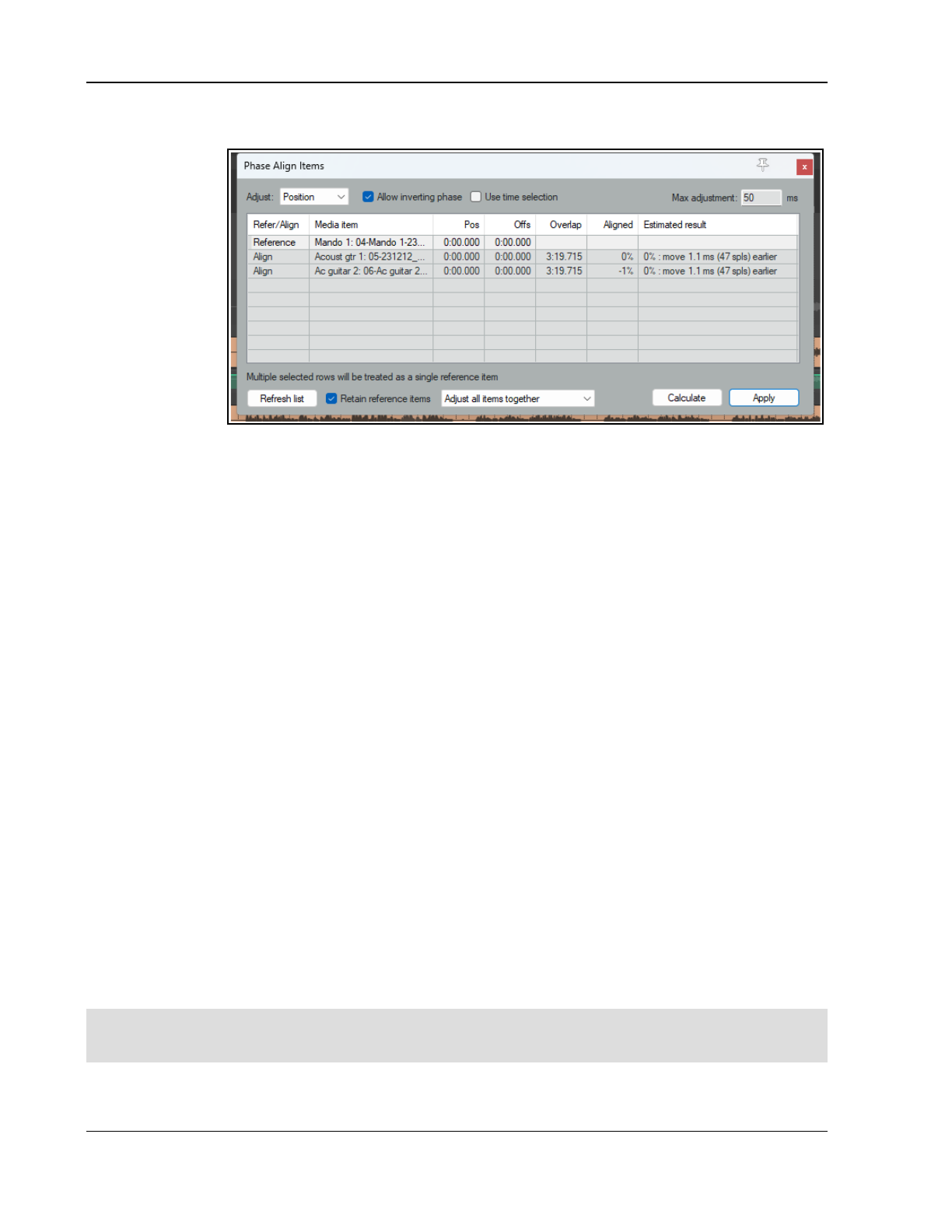
Up and Running: A REAPER User Guide v 7.81
10.13 Phase Alignment
Phasing issues can
occur when two or
more similar
sounds when
played back have a
very slight delay
between them: this
can occur, for
example, due to
differences in
microphone
placement at the
time of recording.
REAPER’s phase
alignment tool
allows you to
compare two or more media items in order to identify and if necessary correct any such issues.
To open this tool, choose Edit, Phase Align Items from REAPER’s main menu.
The Basics
The basic steps are:
1. Use Ctrl click to select the items that you wish to work with (and only those items). Select first the item
that you wish to use as the reference item.
2. If you wish to focus on a specific time selection, make that selection in arrange view and check the Use
time selection option in the phase alignment tool window.
3. Choose Edit, Phase Align Items from REAPER’s main menu. The item that you selected first
4. In any column, click on the item in the llist that you wish to make the reference item. Use Ctrl click if
you wish to select more than one reference item.
5. If you wish, you can use Ctrl click to add more items to the selection, or to remove an existing item.
6. Within the phase alignment dialog select your preferred options (see notes below).
7. If you wish to change the reference item, in any column click on the item that is to be used as the new
reference item The resulting changed calculations will then be displayed.
8. When you are ready, click on Calculate to apply the calculations to your selected items, and to display the
estimated results in the Result column.
9. Click Apply to implement the necessary adjustments, moving (as required) either the items themselves, or
the contents within the items.
Other Options and Parameters
To change to a different reference item click on its name within the Media Item column.
Use the Adjust dropdown to determine whether to adjust all items together, adjust each treck
separately, or adjust eah item separately.
Optionally, you can allow (or disallow) phase inversion.
You can specify the maximum adjustment length allowed (in milliseconds). The default is 50 ms.
Optionally, you can specify the same adjustment for all items in the selection.
You can Refresh the list at any time.
You can specify that you wish to retain the reference items even after the items are deselected
Tip: Phasing issues can be more noticeable in mono than in stereo, in part because they can cause probhlems
like sound cancellation and distortion. In stereo, these might be less obvious because of panning and stereo FX.
It therefore makes sense to regularly check your mix in mono, to help identify phasing issues.
204
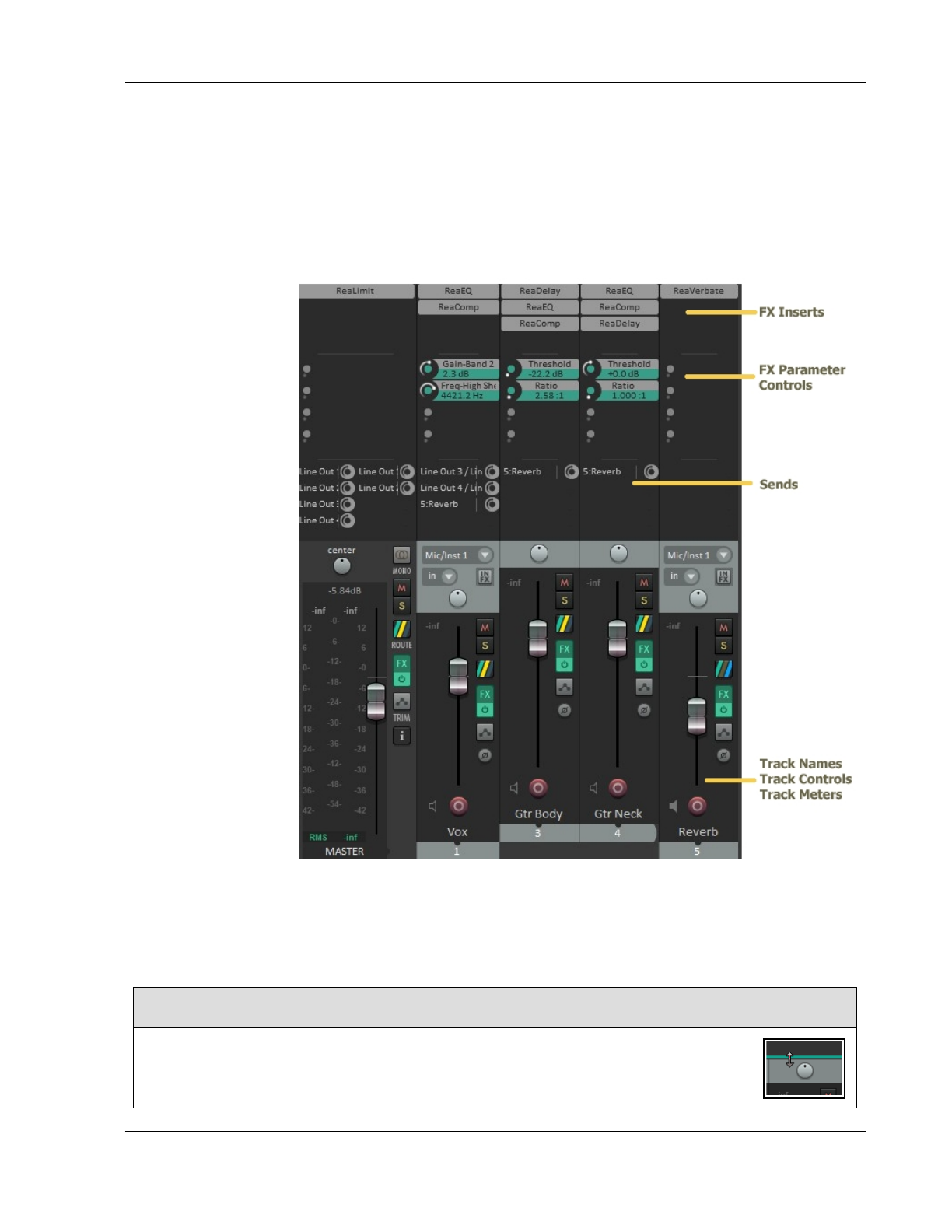
The Mixer and The Master
11 The Mixer and The Master
11.1 Introduction
Until now, most of the emphasis has been on Arrange View. This is hardly surprising, as this is REAPER’s core, if
you like, its powerhouse. This where you comp your takes, edit your media items, manipulate your regions and
so on – in short, build your projects. As your projects progress, however, you may find that the REAPER Mixer
becomes more important. As its name implies, it gives you control over mixing your projects which go well
beyond the suitability of Arrange View.
The contents of this
section should help to
familiarise you with
the REAPER Mixer and
its various features
and capabilities. These
offer you so much
control over your
tracks and their
features. You will also
learn more about how
to get the best out of
the REAPER Master.
Mixer display is
toggled on and off
using the View,
Mixer command (Ctrl
M). The default mixer
(Layout A) is illustrated
in Chapter One.
Here you can see a
relatively simple
example of how you
can customise its
layout to show much
more information and
to give you much more
control than at first
sight seems possible.
You can think of the
mixer as being a
control center for your
entire project: you can
create and modify
sends, add/remove FX, adjust FX parameters and more, as well as accessing all the usual track controls. If you
increase mixer panel height Let’s see how this is done.
First, notice that the mixer panel controls work in exactly the same way as their track panel equivalents. For
example, use the volume fader to adjust volume and the pan pot to adjust panning. Click on the FX button to
add FX, the solo button to solo, and so on. OK, let’s begin …
FX Management:
In order to do this ...
… you do this
Make room to display
sends, parameter
controls, and FX inserts in
docked mixer.
Hover mouse on top of panel, just above the pan pot.
When you see a double-headed vertical arrow, click and
drag (left drag) upwards then release the mouse.
205
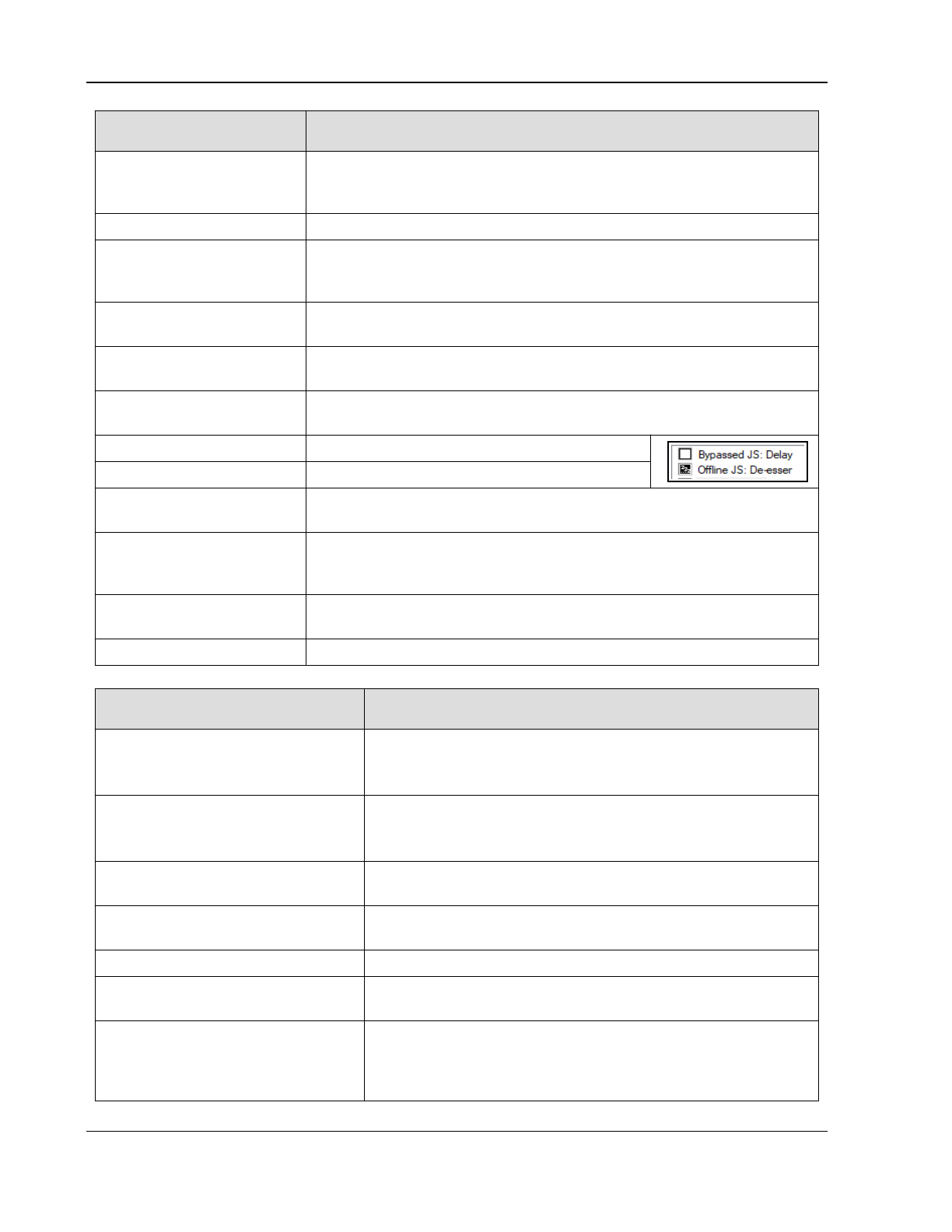
Up and Running: A REAPER User Guide v 7.81
FX Management:
In order to do this ...
… you do this
Show FX above the mixer
panel.
Right click anywhere in the empty area of the mixer – for example, to the
immediate right of the rightmost track. From the menu, choose Show FX
inserts (when size permits).
Add more FX to the panel. Right click on any FX name, choose Add FX … Select FX in the usual way.
Enable FX parameter
controls to be shown in
panel.
Right click anywhere in the empty area of the mixer – for example, to the
immediate right of the rightmost track. From the menu, choose Show FX
parameters (when size permits).
Select a parameter and
add it to the panel.
Right click over the FX name, from menu choose Show FX parameters in
panel, then select from list.
Adjust parameter value. Left click drag up/down on button. For small movements, hold Ctrl
while doing this.
Remove a parameter
from the panel list.
Press Alt left click over the parameter name.
Bypass FX (toggle). Press Shift click (shown in FX chain, right).
Set FX offline (toggle). Press Ctrl Shift click (shown in FX chain, right).
Run FX in parallel with
previous FX.
Right click on FX, choose Run FX in parallel with previous FX from
menu.
Show track icons. Right click anywhere in the empty area of the mixer – for example, to the
immediate right of the rightmost track. From the menu, choose Show
track icons in mixer.
Show FX parameters with
their FX (toggle).
Right click anywhere in the empty area of the mixer, from the menu choose
Group FX parameters with their inserts.
FX slot management See section Using FX slots.
Sends Management:
In order to do this ...
… you do this
Make room to display sends,
parameter controls, and FX
inserts (if not previously done)
Hover mouse on top of panel, just above the pan pot.
When you see a double-headed vertical arrow, click and drag (left
drag) upwards then release the mouse.
Show sends above the mixer
panel.
Right click anywhere in the empty area of the mixer – for
example, to the immediate right of the rightmost track.
From the menu, choose Show sends (when size permits).
Add a send. Drag and drop from Route button of source track to Route
button of destination tracks.
Modify send parameters. Click on send name, or right click and choose Show send
parameters. Adjust to suit, then close parameters window.
Mute a send (toggle). Shift click on send name, or Right click and choose Mute send.
Remove a send (toggle). Alt click on send name, or Right-click on the send, choose
Remove send or simply Alt click.
Adjust boundary between FX and
FX inserts or between FX inserts
and sends.
Hover mouse over boundary between FX and FX inserts or
between FX inserts and sends. To move boundary for one track,
left drag up or down. To move boundary for all tracks Ctrl left
drag up or down.
206
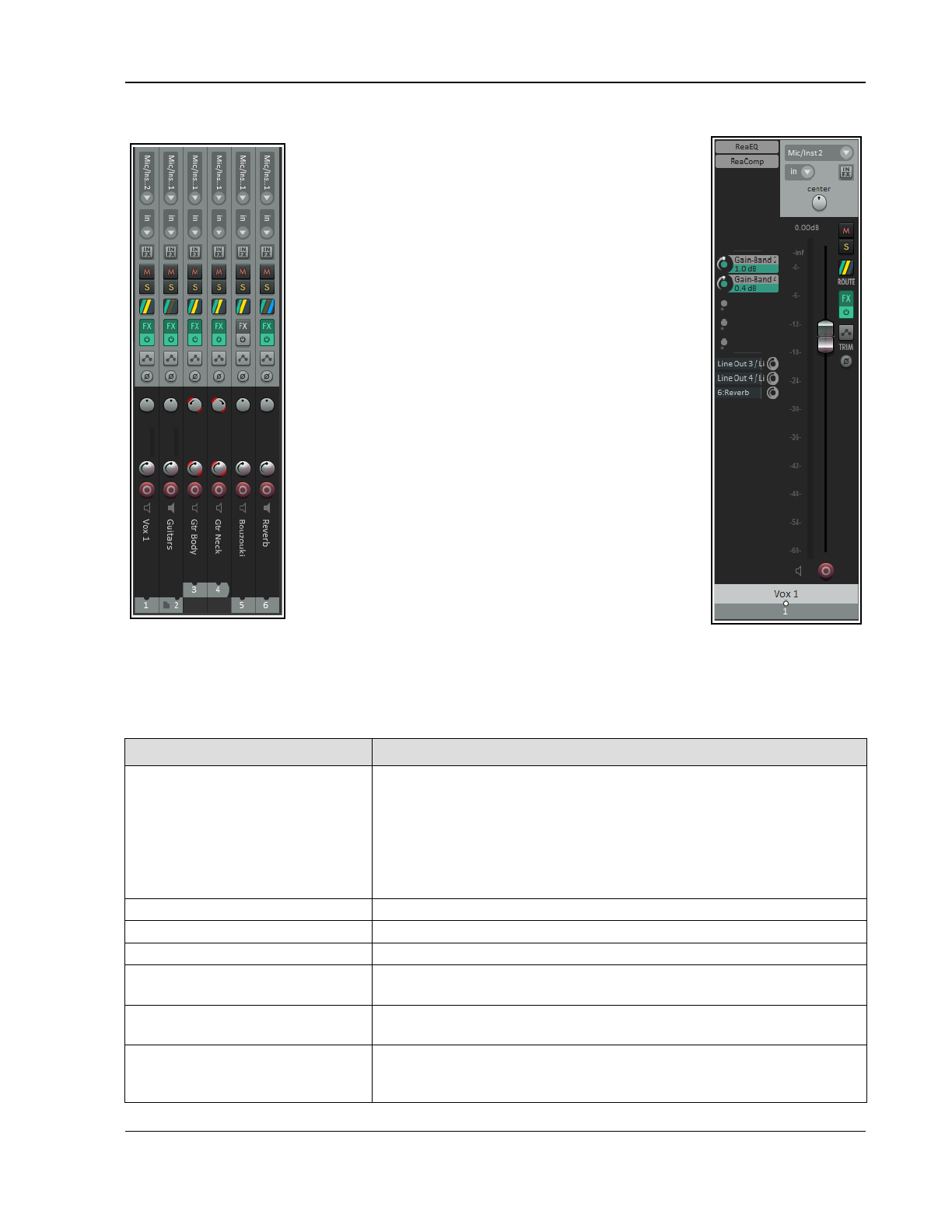
The Mixer and The Master
11.2 Alternative Mixer Layouts
As with the track panel, REAPER’s default theme includes
three mixer layouts – A, B and C.
Layout A is the default, and is the layout used for the
illustrations in this chapter so far. It shows all of the track
controls.
Layout B (left) displays the controls for each track as a
vertical strip, thereby enabling more tracks to be displayed
in the available space.
Layout C (right) uses a side panel to show FX inserts, FX
parameter controls and sends. This layout allows for the
maximum amount of information to be displayed per track
but has the obvious possible disadvantage of using more
screen space per track.
You can select one of these layouts by choosing from the
main menu Options, Layouts, Mixer Panel then B or C.
To restore the default layout, choose Options, Layouts,
Mixer Panel then Layout default.
11.3 Tweaking the Mixer Display
The mixer right-click context menu gives you many options for tweaking your display, for example, to add an
icon to folders so that child tracks can be hidden or displayed with a single click.
If the mixer is docked, this menu is also available by right clicking over the mixer’s docker tab.
Menu option Purpose
Master Track Leads to a sub-menu of toggle options for Master Track:
Show in mixer
Show on right side of mixer
Show in separate window
Show in docker
View, Floating Mixer Master (from REAPER's main menu) can be
used to also display the Mixer Master in its own window.
Show folders Determines whether track folders are shown.
Show normal top level tracks Determines whether tracks not in folders are shown.
Show tracks that are in folders Determines whether tracks in folders are shown.
Show tracks that have
receives
Determines whether tracks with receives are shown.
Scroll view when track
activated
If there is not sufficient room in Mixer view to display all tracks, the
mixer will scroll to follow the TCP track selection.
Auto-arrange tracks in Mixer Mixer track order will follow any changes to track order made in the TCP.
Disable this for different arrangements in the MCP and TCP. Drag tracks
left or right to change the order.
207
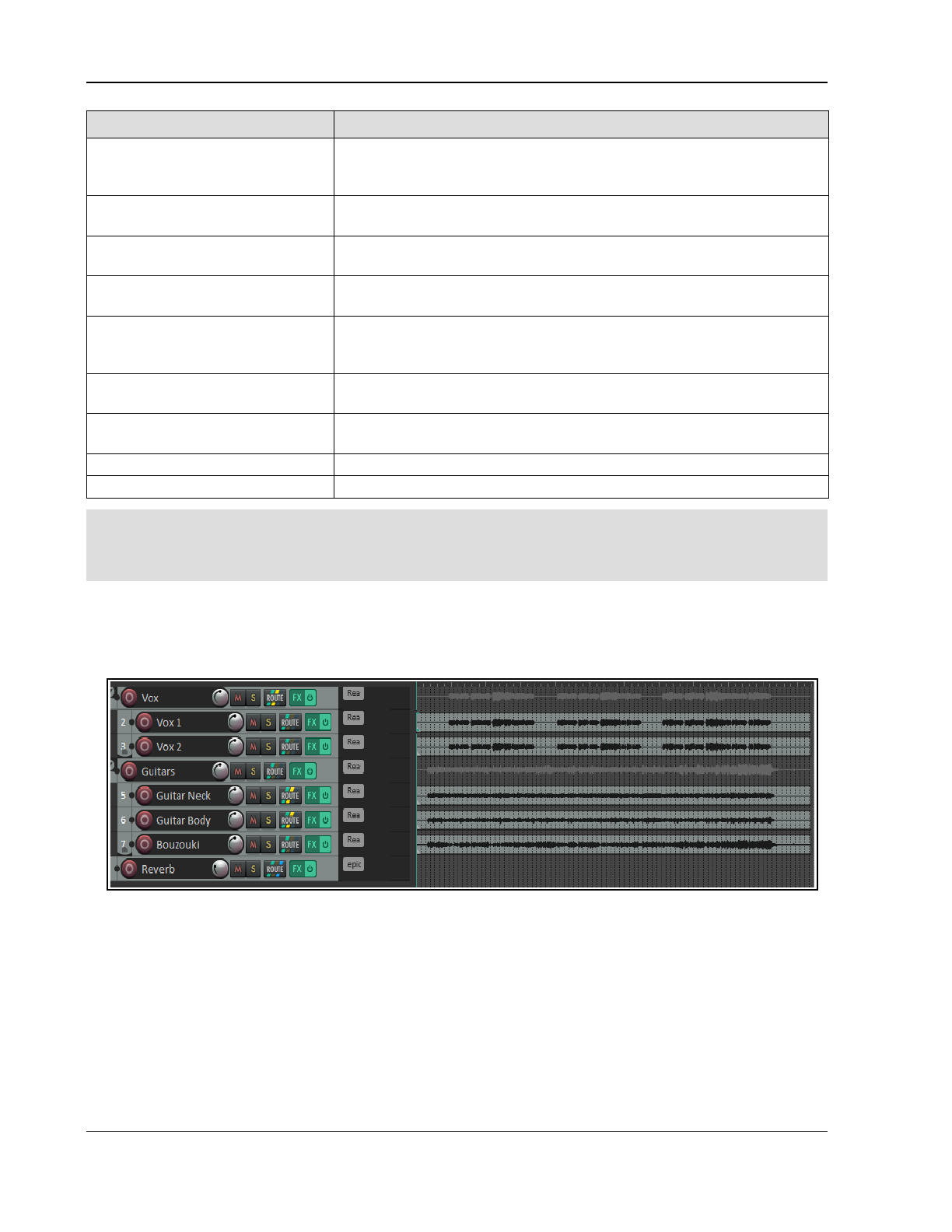
Up and Running: A REAPER User Guide v 7.81
Menu option Purpose
Group folders to left Places track folders to the left. This can be useful at times in bringing all
your submix folders, but confusing at other times for separating folders
from their child tracks.
Group tracks that have
receives to left
Places all tracks with receives to the left. Especially useful if the only
tracks with receives are all buses.
Clickable icon for folder tracks
to show/hide children
Enables folders to be opened/closed to show/hide child tracks.
Show multiple rows of tracks
where size permits
Shows tracks displayed in up to three rows when tracks will not fit in one
row and the mixer window has sufficient height.
Show maximum rows even
where tracks would fit in less
rows
Causes tracks to be displayed in as many rows as will fit in the track
height, regardless of how few tracks there are.
Show icon for last track in
folder
Displays the last track in folder icon for last track in folder.
Show track icons in the mixer Choose Show track icons from the right click menu. Use Track, Track
icon, Set track icon … from main menu to add icons.
Dock mixer in docker (toggle) Docks the mixer in the REAPER docker.
Close Closes the Mixer view.
Tip: Double-click on any track panel in the Mixer to toggle on and off zoom to track in the TCP. This behavior
can be changed on the Mouse Modifiers page of your preferences (see Chapter 15). You can also use the Mouse
Modifiers page to add further actions of your own. For example, you could assign Ctrl Double-click to the
action Track: Set to custom color … How to assign your own actions is also explained in Chapter 15.
11.4 Managing Parent/Child Tracks
You can see that the display options menu (above) includes several options for managing parent and child tracks
when your project makes use of folders. Let’s see an example of how this might work in practice.
Take as an example the above project.
It has two folders (or parents) - Vocals and Guitars, containing two and three child tracks respectively - and one
top level track, called Reverb. There are sends from the two folders to the Reverb track (which acts as a bus).
All of the tracks have some FX in them.
The first group of four “Show” commands on the Mixer menu are used to determine which
types
of track are
displayed and how they are displayed..
In the example shown here the Mixer is using layout A to display all tracks and folders, with indents and aligned
controls, with the master on the right. The track panel is also using layout A, but that is not really relevant.
208
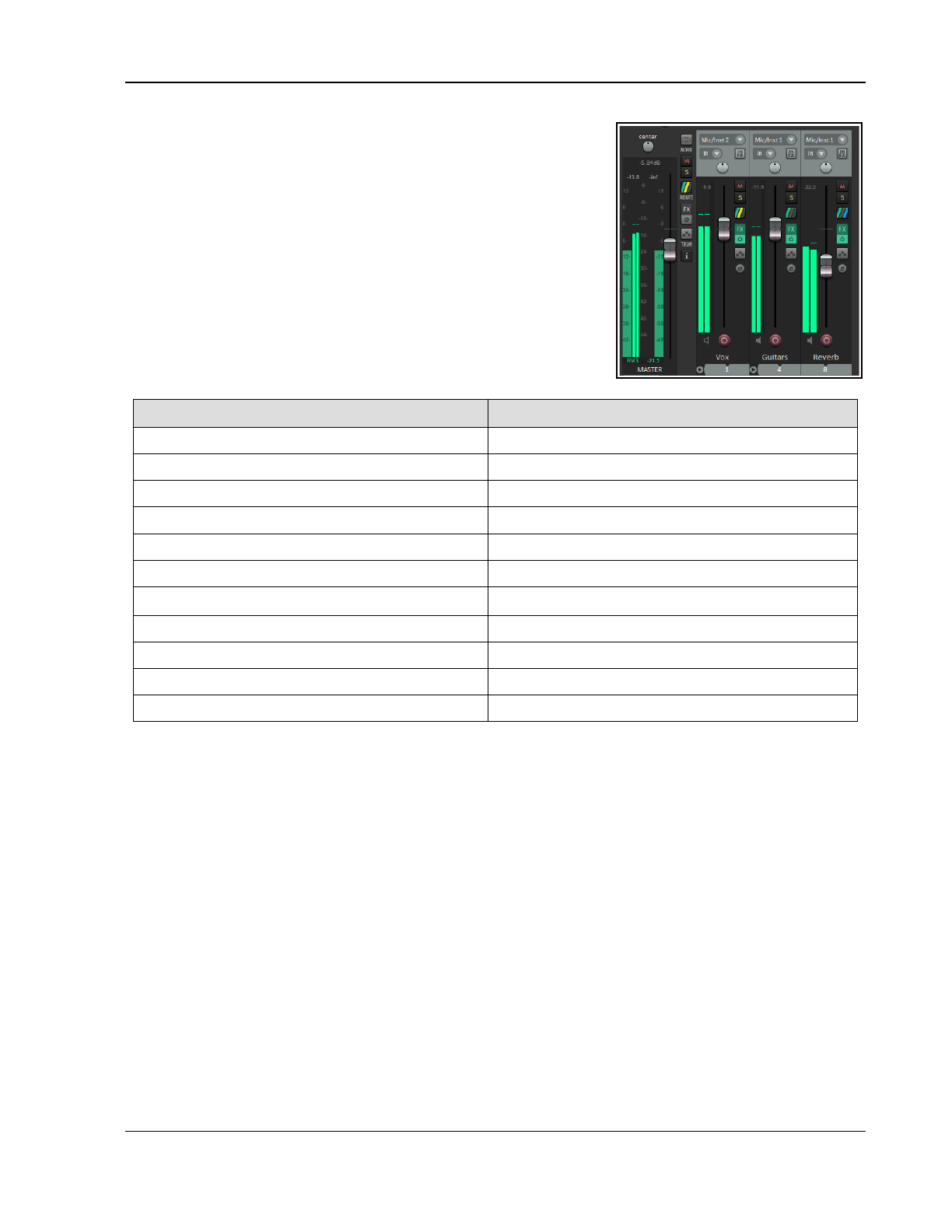
The Mixer and The Master
Now lsuppose that we wish to work with folders and top level tracks
only, not displaying child tracks. From the context menu deselect Show
tracks that are in folders.
The Mixer menu does not have any option to hide or unhide named
individual tracks. However, this can be done using the Track Manager.
The Track Manager will be explored in Chapter 12.
11.5 Working with FX in the Mixer
You can do much of your FX management working in Mixer view. You
can add FX to tracks, move or copy them from one track to another,
open the FX window for any plug-in, or open the track's FX chain for
more complete FX control.
For this to be possible, though, you need to enable on the Mixer menu
the option Show FX inserts when size permits. The table below
summarizes these and other activities.
In order to do this ... … you do this
Change the order of plug-ins in the FX Chain. Drag and drop up or down the order.
Copy FX from one track to another. Drag and drop FX to FX area on another track.
Display FX context menu. Right click on any displayed plug-in name.
Display the Add FX window. Click in any vacant area of the FX area.
Display the FX chain and its control window. Ctrl click on any displayed plug-in name.
Move FX from one track to another. Alt drag and drop to another track.
Open and float a plug-in’s control window. Click on the plug-in name.
Remove a plug-in from FX Chain. Alt click on plug-in name.
Remove all plug-ins from a track’s FX Chain. Alt click on track’s FX button.
Toggle offline status of a plug-in. Ctrl shift click on plug-in name.
Toggle bypass state for a plug-in. Shift click on plug-in name.
Right-click over the FX inserts area of any track in the Mixer for a context menu. We have already introduced
some of the most used commands (e.g. Add FX). Some commands (e.g. Copy FX) will not be available if you
click over an empty slot. Here is summary of all the commands …. :
Add FX... Opens FX browser for you to add any installed FX plug-in(s),
Quick Add FX Displays a sub-menu of recently used FX: you can select any item from this menu to add
to the track's FX chain.
Add FX Chain Displays a menu of FX chains, any of which you can select and insert in this track.
Replace FX... Opens FX browser for you to replace selected FX with any other: any existing routing
configuration will be preserved.
Quick replace FX... Opens sub-menu of recently used FX, from which you can choose any item to
replace the selected FX.
Copy FX Copies FX to clipboard so that it can be pasted to other tracks or items. Notice the option to
include automation envelopes. You can also use Ctrl drag to copy from one track to another, or Ctrl
Shift drag to copy the FX and its automation envelopes.
Show FX parameters in panel Opens up a submenu displaying all parameters associated with the
particular FX. You can select any parameter(s) to display its controls in the mixer, or choose All
parameters to display them all. Whether or not parameters are displayed with or apart from their host FX
will depend on whether the option to Group FX parameters with their inserts is enabled.
Paste FX/ Paste Replace FX Pastes FX in clipboard to the selected track, optionally replacing existing FX.
Float FX configuration Opens the FX window for the selected plug-in.
209
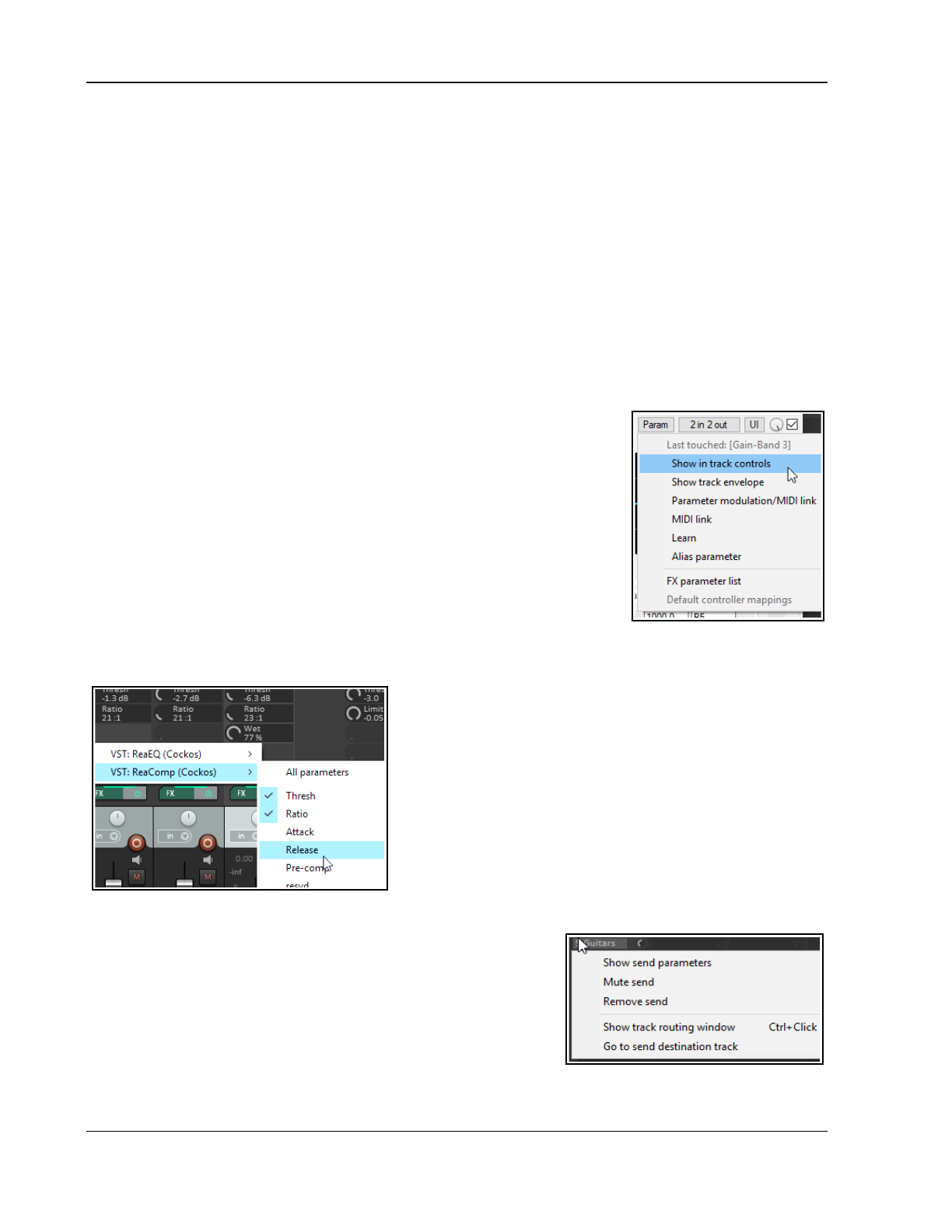
Up and Running: A REAPER User Guide v 7.81
Show FX chain (Ctrl click) Opens FX chain for the track: same as clicking on the track's FX button.
Bypass chain Sets FX chain for this track to bypass. Same as clicking on the FX enable/disable button.
Bypass FX (Shift click) Sets individual plug-in to bypass mode: it is removed from the FX chain but still
works – for example, it still consumes CPU. However, no audio is passed thru it.
Offline FX (Ctrl shift click) Sets individual plug-in offline: more of a “sledgehammer” approach than
bypass. The plugin is turned off (and may be unloaded). Any FX set to offline does not consume any CPU.
Its previous status is restored when it is put back online.
Delete FX (Alt click)Removes this plug-in from this track's FX chain.
Rename FX instance Allows you to give an individual name to this particular FX instance.
Bypass FX slot for selected tracks/all tracks See section Using FX Slots.
Example
You can use one of your existing project files for this example.
1. Open one of your earlier project files, for example, All Through the Night MARKERS and save it as All
Through the Night MIXER.
2. Display the Mixer. Undock it, and adjust the width and height of this
window as you prefer.
3. From the Mixer menu enable Show FX inserts when size permits and
Show FX parameters when size permits.
4. Insert into the first track an instance of ReaComp.
5. Select the Threshold control.
6. Click once on the gain fader control for this band, then click on the
Param button to display the Param menu.
7. Click on Show in track controls.
8. Select the Ratio control by clicking on the gain fader for this band.
9. Click on the Param button to display the Param menu. Click on Show in
track controls (see above). Close the ReaComp window.
10. In the mixer, you should see these two controls displayed for track 1.
Drag and drop the ReaComp from track 1 in turn to each of the other tracks. Save the file.
11. Notice that ReaComp, with the two threshold and ratio controls, has been added to the other tracks.
Note 1: These controls can also be assigned within the Mixer
strip. Right-click in the track’s parameter area, then choose
from the context menu (see left). Choose All parameters to
add a control for each of the FX parameters.
Note 2: These controls will also be added to the track control
panel. You can create as many controls as you like, not just
these two. This exercise is just an example.
Note 3: See also 11.14 Using FX Slots.
11.6 Working with Sends in the Mixer
Enabling the Show sends when size permits option from the Mixer
menu will cause your existing sends to be displayed, each with a small
rotary fader to enable you to adjust the send volume level directly
from the mixer panel. Right clicking over an existing send causes a
menu to be displayed with the options shown here. Right clicking over
an empty part of a track's sends area will produce a menu with only
one command – Show track routing window. This can also be
displayed by left clicking anywhere on the track's empty sends area.
210
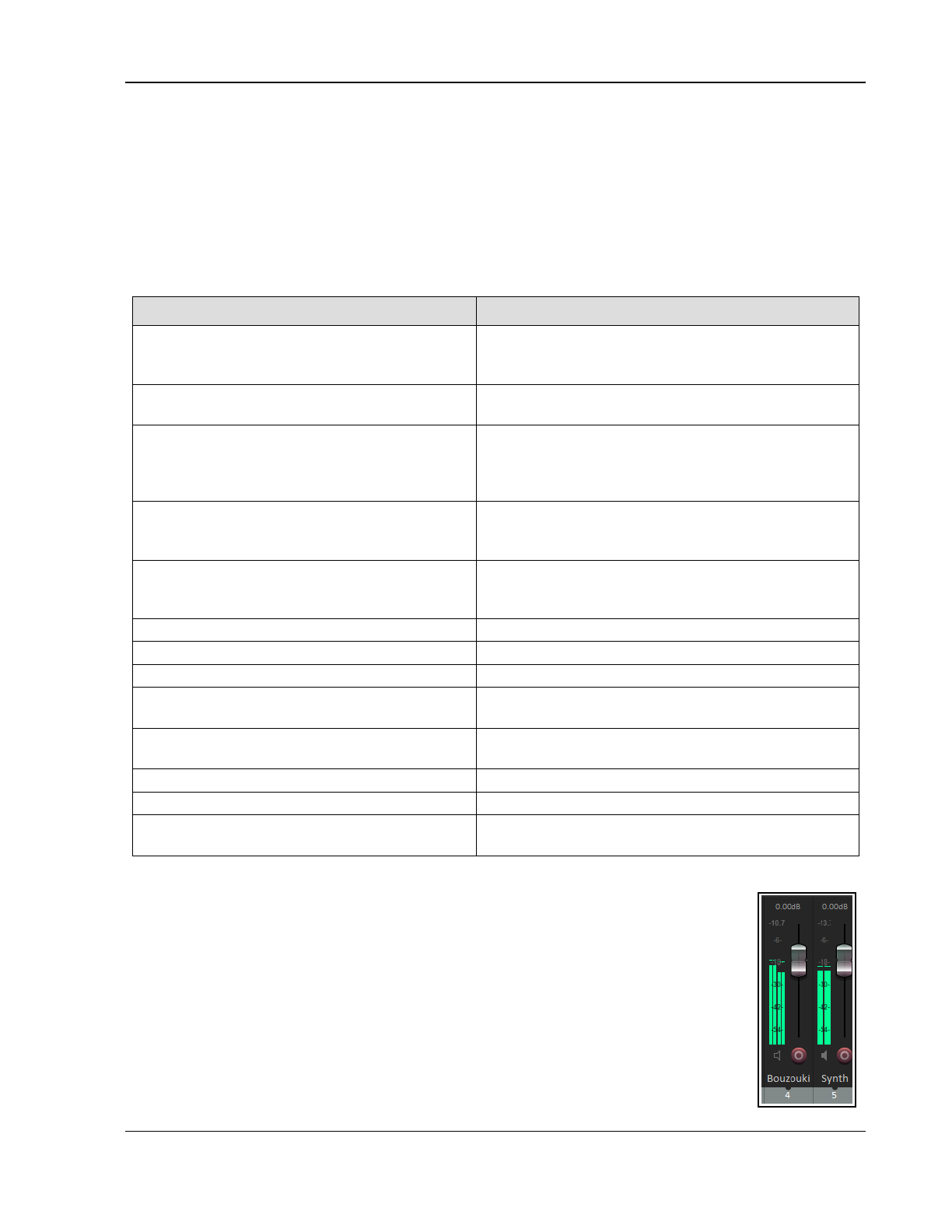
The Mixer and The Master
Show send parameters Opens a small window with parameters (volume, pan, etc.) for that send.
Mute send Toggles the send's mute status.
Remove send Deletes the send altogether.
Mute send slot for selected tracks/all tracks Mutes sends as specified. See section Using FX Slots.
Show track routing window Opens the track's routing window.
Go to send destination track Selects the send's destination track.
As well as this menu, other options are available for creating, editing and managing your sends. You can drag
and drop from the ROUTING button of one track to another (as in the TCP) to create sends, but using the sends
area of a track's channel strip for this purpose offers you more options. This can be seen in the following table:
In order to do this ... … you do this
Add a send from one track to another. Drag and drop from one track's send area or
ROUTING button to the other. In the latter case, a send
control window will be opened.
Add a send from one track to another and
open control window for that send.
Ctrl drag and drop from one track's send area or
ROUTING button to the other.
Add a send from one track to another and
disable send from first track to the master.
Alt drag and drop from one track's send area or
ROUTING button to the other. Use this method to
create sends from several source tracks to the same
destination track to create a traditional submix.
Add several sends to one track in one
action
Select all sending tracks. Hold Shift while dragging and
dropping from send area or ROUTING button of any
selected track to receiving track.
Add several receives to a track in one
action
Select all propose sending tracks. Hold Shift while drag
and dropping from ROUTING button of the receiving
track (unselected) to any of the selected tracks.
Copy a send from one track to another Drag and drop the send to another track.
Delete a send. Alt click on the send.
Display a context menu. Right click on any send
Open entire routing window for a track. Ctrl click on a send
or
Click in empty part of sends
area
or
Click on the ROUTING button.
Open the control window for a send. Click on the send – allows you to change volume and/
or pan, specify send/receive channels, mute etc.
Raise or lower the send volume level. Click and drag on a send’s control knob.
Toggle a send’s mute status on or off. Shift click on the send.
Add a send from a track directly to an FX
(e.g. for sidechaining).
Drag and drop directly from the track's ROUTING
button to the FX.
Note that the actions using the routing button can be carried out in both the Track Panel and the Mixer Panel.
Tip: You can create your own mouse modifier shortcuts for many mixer commands and
actions (Options, Preferences, Mouse Modifiers).
11.7 VU Meters on Multichannel Tracks
Where a track has more than two channels you have the option of showing the output of all
channels on the track's VU meters in the TCP and Mixer.
This feature is toggled on and off for any track or track selection by right-clicking over the
track or mixer panel area (for example, on the track number) and enabling or disabling
Meters, Multichannel peaks on the context menu. In the example shown here (right), this
option has been enabled for the first of the tracks shown but not for the second.
211
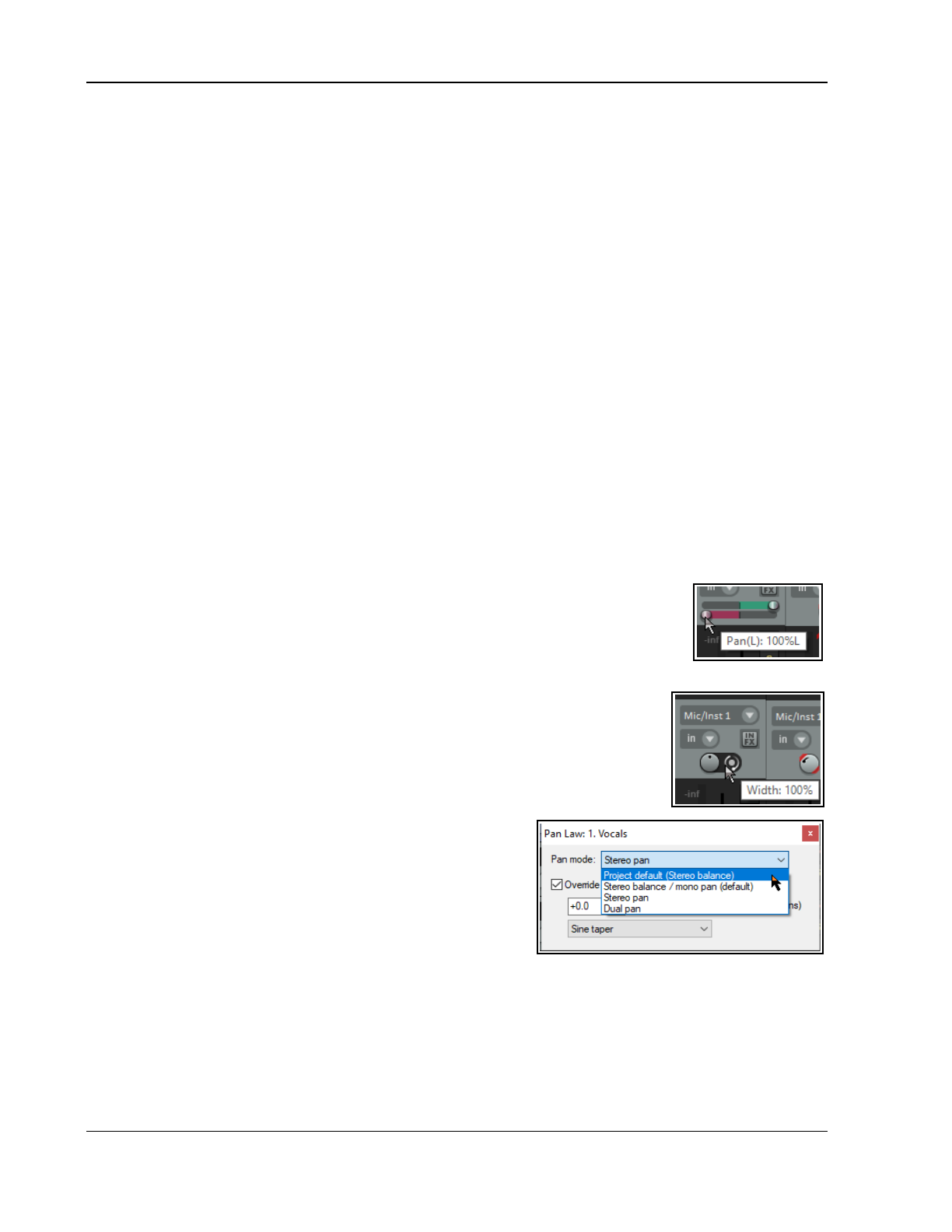
Up and Running: A REAPER User Guide v 7.81
11.8 Track Control Functions
The same functions that are available in the track control panels of your track view are generally also available in
the mixer control panels. These functions are covered in detail in Section 2 of this User Guide. For example:
Tracks can be armed in the Mixer for recording.
Clicking on a track’s ROUTING button displays the track’s Routing Window. Right clicking on this button
displays its routing menu.
Clicking on a track’s FX button displays the FX chain for that track. Right clicking opens a context menu.
Right clicking over a track’s volume or pan fader opens the Volume Control or Pan Law window.
Similarly, the Record Arm, Record Monitoring and Select Record Mode buttons serve the same purposes
as they do in Track View.
Tracks can also be muted or soloed in the Mixer view. Both buttons use the same mouse modifiers and
have the same context menus as they do in the TCP.
Right clicking over the background area or track name or track number for any track in the mixer opens
the track context menu. This includes the Track Layout, Mixer panel command which can be used to
apply any of the layouts A, B or C to any track selection.
11.9 Stereo Panning and Dual Panning
The stereo panner and the dual panner are designed to give you more control over how you pan stereo tracks.
They can also be useful with folders. The default pan mode (stereo balance/mono pan) gives you a single pan
control which moves the sound between the left and right speakers.
However, a stereo track is made up of two channels – left and right. You can see these on any stereo wave file
that you record or import into any project. The output of one channel (the top waveform) is normally routed
100% left, the other (bottom waveform) 100% right. Using the dual panner or the width panner you are able to
change this in one of two different ways.
The dual panner (shown below right)) is the easier of the two to understand. Each of the two pan controls
contains one of the channels. Pan the first of these 100% left and the second 100% right
and you will hear the first channel thru the left speaker only and the second thru the right
speaker only. Reverse these and you will now hear the first channel only thru the right
speaker and the second only thru the left channel. Pan both fully left and you will hear
both thru the left speaker only. You can adjust both pan controls independently to place
each channel exactly where you want it. For example, if you set both controls dead center you will hear exactly
the same mix of the two channels thru both speakers.
The stereo panner is in some respects more subtle. You can use the width control to
adjust the mix of the two individual channels of a stereo media item, folder or submix,
and the balance panner to position that overall mix further to the left or the right. Let's
work thru a relatively simple demonstration.
Displaying the Dual Panner or Stereo Panner
Any track's dual or stereo panner can be shown by right-clicking
over the pan fader and selecting the required pan mode. You are
most likely to want to do this for a track which contains stereo
media items, or which is a folder, or acts as a bus or submix.
Example
In this example we will first create a stereo file in order to help us
experiment with the use of the width panner. We will then get a
little more ambitious and use it on a submix. This will include
rendering the mono media items on two current tracks a single
stereo file. The topic of rendering will be covered in detail in Chapter 21.
1. Open the file All Through the Night.RPP and save it as All Through the Night WIDTH.RPP.
2. Mute all tracks except the Guitar Body and the Bouzouki.
3. Pan the Guitar Body 100% left and the Bouzouki 100% right.
4. Choose the Render command from the File menu. Rendering will be covered in detail in Chapter 21. For
this example, pay attention to the following settings:
5. Source should be Master mix. Bounds should be Entire project and Channels set to Stereo
Set Output format to MP3. Enable the option to Add rendered items to new tracks in project.
212
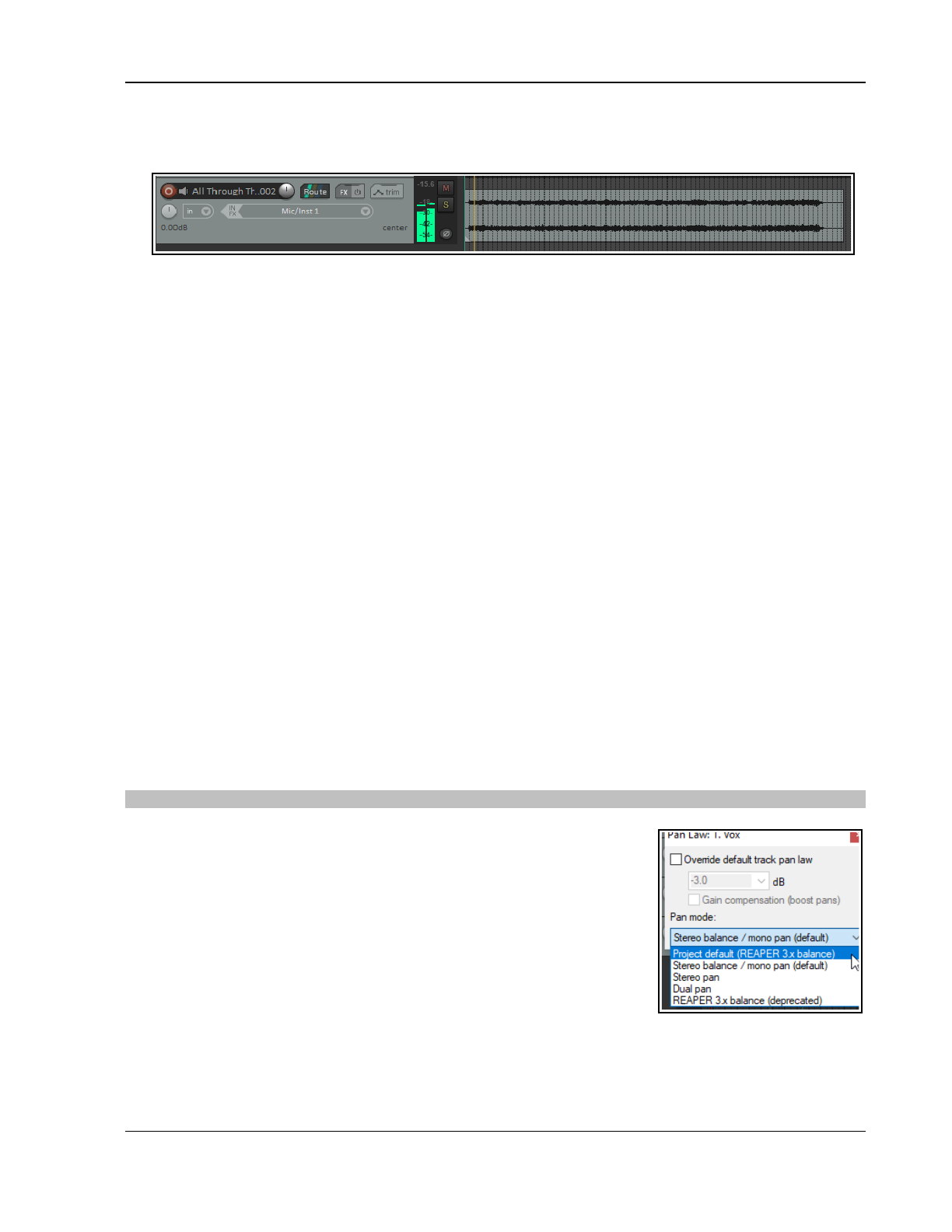
The Mixer and The Master
6. Click on Render 1 File.
7. After a few seconds, the rendered file will be added as a new track. Give the track a suitable name. It
should resemble that shown here.
8. In this rendered track, the guitar makes up the audio on one channel, the bouzouki on the other channel.
9. Solo and play this track.
10. Adjust the pan control slowly, first fully left, then fully right, then back to the center. As you do so, one
channel will gradually fade away. Panned full left you will hear only the guitar, full right only the bouzouki.
Move the pan back to the center.
11. Selected this track in the TCP, right click over the pan control and choose Dual Pan option from the pan
mode drop down list (explained overleaf).
12. Play the song. Slowly move the top pan control to 100% right. You will hear both instruments in the right
speaker only.
13. Move the lower pan control to 100%% left. Now you will hear the guitar in the right channel only, the
bouzouki in the left channel only – the opposite of what you started with.
14. Experiment moving these faders. When finished, move the top pan control to 100% left and the lower pan
control to 100% right. Save the file.
15. Now change the pan mode for this track to Stereo Pan.
16. Play the song. At first you will hear only the guitar in the left speaker, only the bouzouki in the right
speaker. Slowly move the lower (width) panner from 100% right towards the centre (0W). As you do so,
the two instruments will tend to blend more together.
17. With width set at 0%, move the top (pan) control fully left. The mix will now be heard thru one speaker
only. Move it back to the center. Save the file.
Now try this:
1. Unsolo and mute the stereo track.
2. Create a folder called Instruments just after the Vocal track. Select Stereo pan mode for this folder.
3. Make the two guitar tracks and the bouzouki tracks child tracks of this folder. Adjust the volumes and pan
settings of the individual tracks and the folder to get a nice mix. Pan the different tracks well apart.
4. Use the width control on the folder. Experiment with using this to bring the instruments closer together or
further apart. Use the pan control to position the overall mix further left or right. You can still adjust pan
settings for individual child tracks within the folder as well if you wish.
Tip: This technique can do wonders when you are mixing vocals, including vocal duets and vocal harmonies!
Pan Modes
By default, the stereo width is applied before the pan/balance control. To
select a different pan mode, right-click over either the pan or width control
fader and choose from the drop down list. The three modes are:
Stereo Balance/Mono Pan: The track is treated as mono, even if it
contains stereo media. Set to center, you hear the same signal equally
thru both speakers. Set hard right, you hear it in the right speaker only.
Stereo Pan Lets you control side (pan) and width separately. Side
means that the stereo image is set more to the left or right, and width
means how far apart the left and right channel are in the stereo image.
With side set to center and width set to 100%, you hear the left channel
in the left speaker and the right channel in the right speaker. With side set to center and width set to 0%,
you hear both channels equally in the left and right speakers. With side set hard right, you hear both
channels equally in the right speaker, regardless of width setting.
Dual Pan: Controls each channel separately. The left and right knobs set their respective channels more
left or right. With left set hard left and right set hard right, you hear the left channel in the left speaker and
213
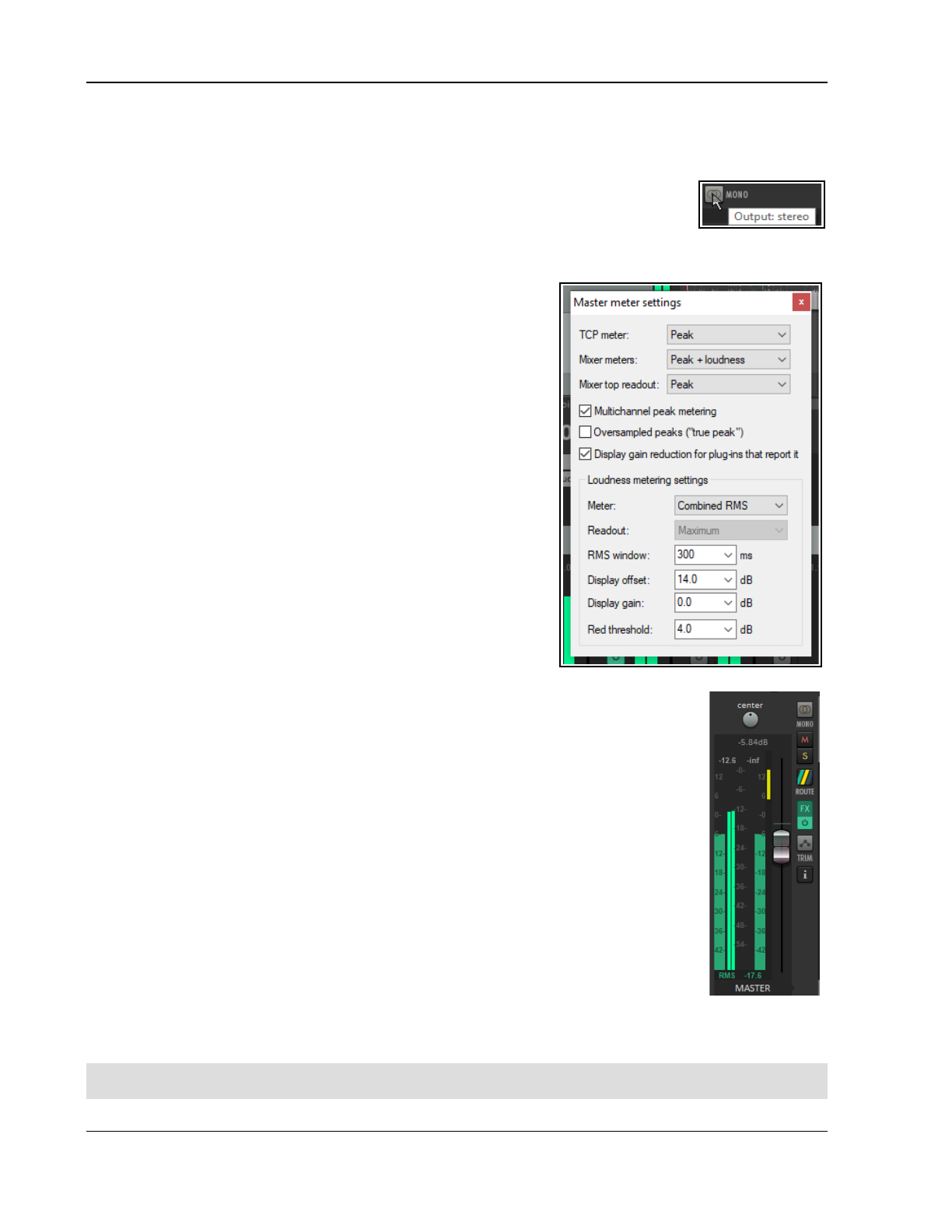
Up and Running: A REAPER User Guide v 7.81
the right channel in the right speaker. With left and right both set to center, you hear both channels
equally in the left and right speakers. With left and right both set hard right, you hear both channels
equally in the right speaker.
11.10 Master Track Options and Settings
The mixer Master Track main controls have the same functions as the Master Track which
can be shown via the Track Master in track view. Note the Output button (shown right):
Left click on the Output button to toggle between Stereo (gray) and Mono (orange) modes.
Right click on the Output button to set any one of four available Mono modes – Left + Right, Left only,
Right only, Left - Right.
Left click on the FX button to display the master FX Chain.
Right click on the FX button for the Add FX context menu.
If the Master FX chain is displayed, then you can use all and any
of the FX management keyboard shortcuts that you can use on
your tracks.
Right click on the VU area to display controls to manage the VU
meters display settings (right). Meter options for the master
when displayed in the TCP are Peak or Loudness: for the mixer,
these are Peak + Loudness (as shown here), Loudness Only or
Peak only. Options for loudness meter display are:
RMS (Root Mean Squared) stereo/max
or
RMS/Max only
Loudness Units relative to Full Scale momentary
(LUFS-M)/max
LUFS-M/LUFS-I (integrated) LUFS-S (short term)
/current
LUFS-S/ max (loudness range) LUFS-S/LRA
Optionally, you can choose for gain reduction to be displayed on
the meter (as a vertical bar descending from the top, as shown
below right). This can only be shown when you are using a third
party or native plug-in (such as ReaLimit) that calculates gain
reduction and reports it to the host.
Readout can be set to LUFS-I or Maximum.
LUFS, RMS and Peak issues are explained in Chapter 6.
There is an option to display multichannel peak metering.
Settings, where appropriate, available for managing the window include RMS window,
Display offset, Display gain and Red threshold.
This includes the option to display output in multichannel mode (e.g. when working
with surround sound). Disabling this option will ensure a two channel display.
Loudness meter settings include:
Meter display: Stereo RMS, Combined RMS, LUFS-M, or LUFS-S.
RMS Window: the length of time (in milliseconds) that should be used for RMS
calculation.
Display offset: offsets the coloring of the RMS metering, keeping the position constant.
Display gain: this applies gain to the RMS meter value: for example, if you set display
gain to, say, 6dB, a sine wave will show the RMS value a t a higher meter reading than
the peak value.
Red threshold: this determines the level at which the meter will turn red.
In the example shown above, if you were targeting -14dB LUFS or RMS, then with display
offset at 14dB the display would go green at -14dB, and with red threshold 4.0dB, it would go red at -10dB.
Power users: see also Solo Buses later in this chapter.
Note: There is an option in Appearance, Track Meter settings to scale gain reduction from plugins by a level
that you can specify.
214
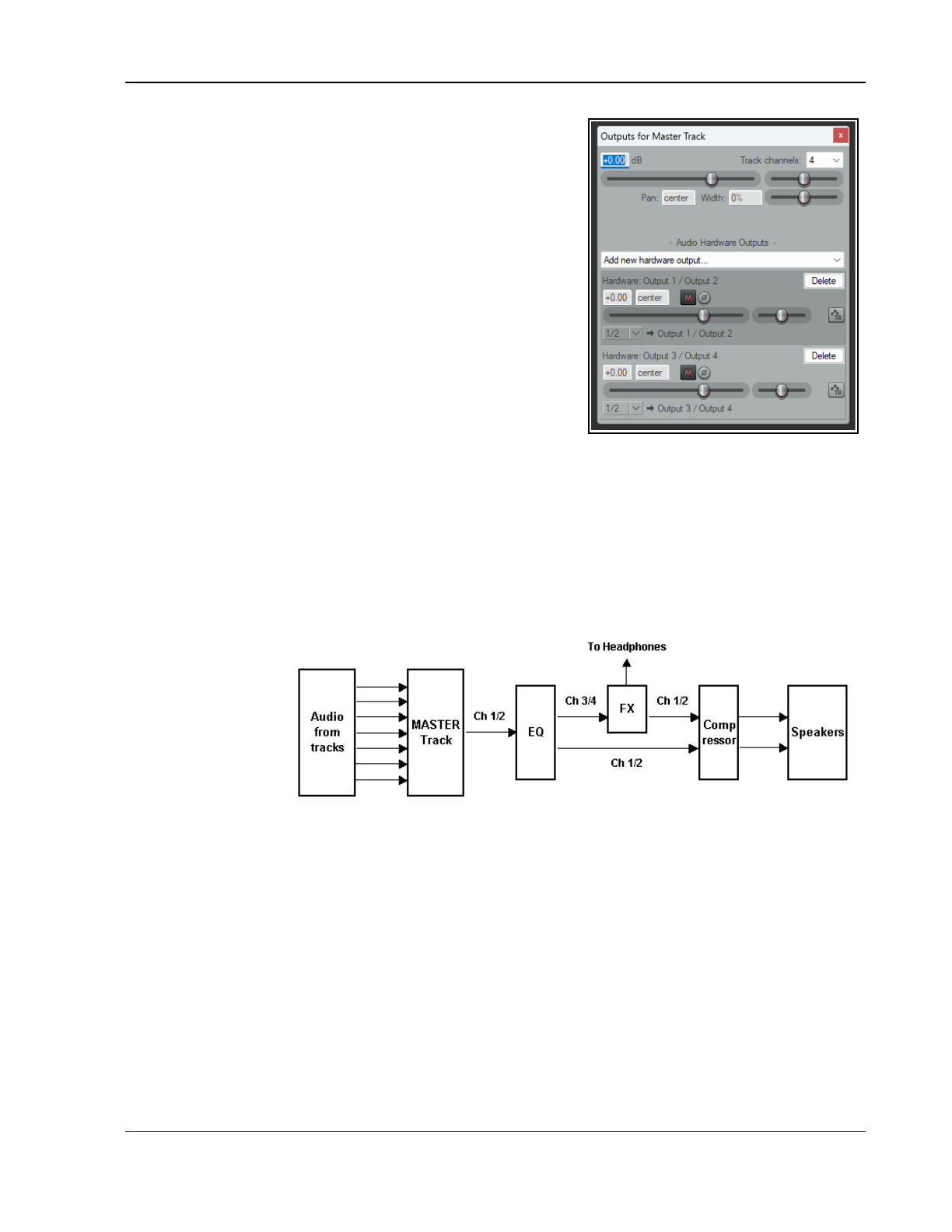
The Mixer and The Master
11.11 Master Hardware Outputs
Output from the master can be directed to one or more of your
available hardware outputs. This can be done using the routing
matrix. The master routing button (in the Mixer) can also be used to
set up and manage your hardware output or outputs.
Right click on the ROUTING button to display a menu of
hardware output options. These can be toggled on and off in
any permutation that you require.
Left Click on the ROUTING button to display the master track
outputs window. This can be used to control the levels and
panning of the signals to the hardware outputs.
For each output you can independently toggle mute on/off,
toggle phase invert, set volume level and set pan position.
11.12 Master Track Channels
The topic of routing and channel splitting i0recurs throughout this
user guide. The concept isrelatively simple, but its application can be
quite complex (see alsoChapter 17).
You can use channels to send the same signal to two or more different places. You can then process each
channel separately before joining them back up. Below is a
relatively
simple example designed to help you to
understand what channel splitting is about and how to do it.
This example uses multiple channels (two stereo pairs) for our master. We can thereby feed some effect (such
as reverb) into our signal chain, then send the effect (and only the effect) out to our headphones (to enable us
to assess it), while sending the overall final mix to our speakers. In order to work thru this example, you will
need a sound card with at least four audio outputs.
Example
This exercise is recommended for the more experienced only. Others return to it after studying Chapter 17
.
This diagram shows
what we are going to
achieve. The audio
signal flows from left
to right.
First we will create
the necessary extra
Channels for the
Master Track.
The audio coming into
our Master from the mix will be sent to both Channels 1/2 and Channels 3/4. The signal that is passed to
Channels 3/4 will be fed thru a Reverb plug-in then directly out to our headphones. It will also be passed back
into a Compressor plug-in, where it will be mixed back into the original incoming signal. The final mix will then
be fed to the speakers.
1. Open the file All Through The Night.rpp and save it as All Through The Night MASTER.RPP.
2. Pan the two guitar tracks roughly 40% left and 40% right respectively. Pan the Bouzouki about 15% left,
the Vox around 10% right. Quickly adjust the volume levels for each track to suit. Save the file.
3. View the Mixer and enable the options to Show FX inserts when size permits and Show sends when
size permits.
4. Make sure your Speakers and Headphones are each connected to different paired sound card outputs.
5. Right click over the ROUTING button in the Master and make sure that output is directed both to your
speakers and to your headphone amp.
6. To create the required channels, left click on the ROUTING button for the Master Track and set the
number of channels to 4 (as shown, below right).
7. Assign the output of channels 1/2 to your studio speakers and 3/4 to your headphones. Your settings
should appear similar, but of course not identical, to those shown below.
215
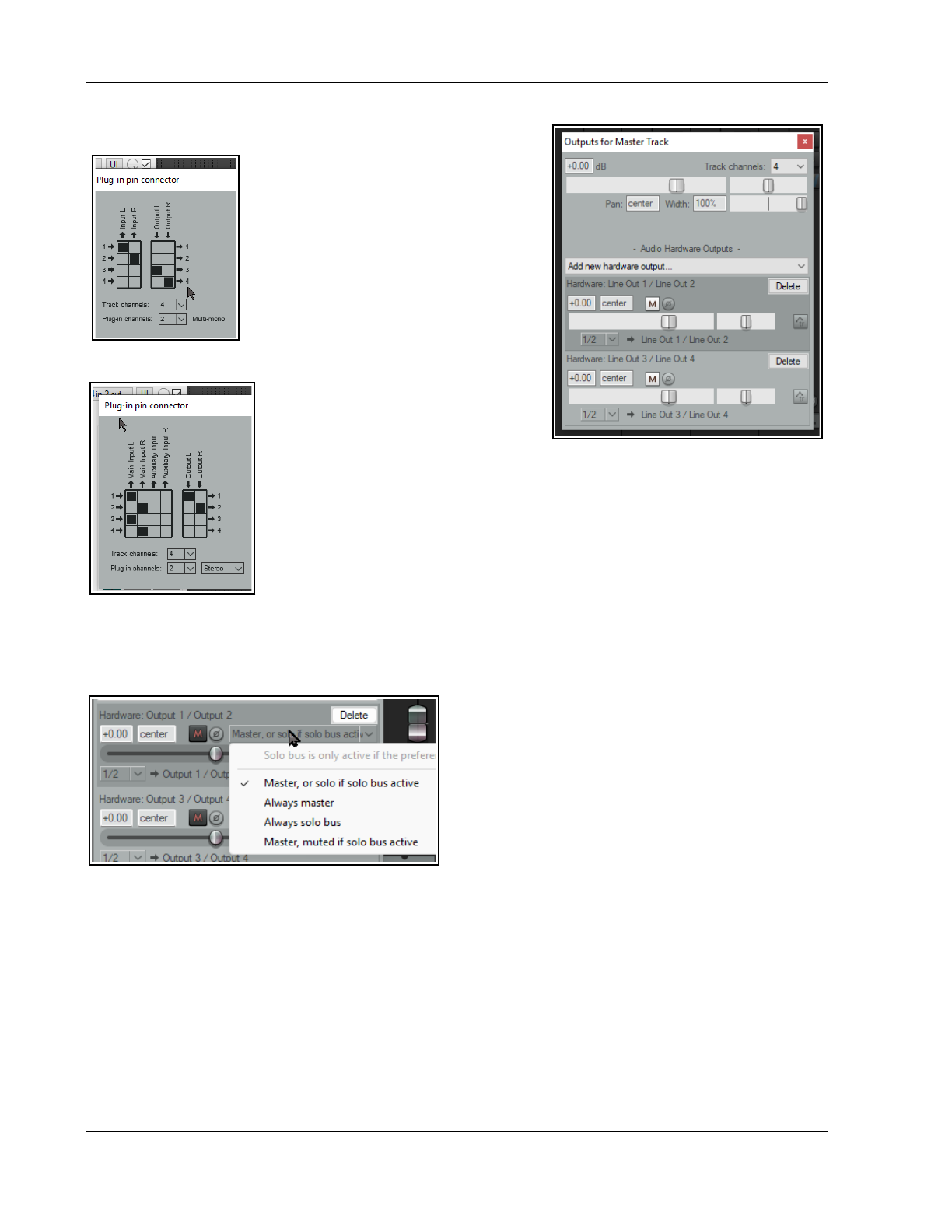
Up and Running: A REAPER User Guide v 7.81
8. Play the song. For now, it should be heard over the
speakers, but your headphones should still be silent.
9. In the Master FX chain, add the plug-
in ReaEQ: add a 2 dB gain on Band
2, a 1 dB drop on Band 3, and a 1dB
gain on Band 4.
10. In the Master FX chain, click just
below the ReaEQ and add
ReaVerbate. Leave the parameters
at their default settings. Click on the
FX In/Out button to open the pin
connector. Adjust the outputs from
this plug-in so that they are directed
left and right respectively to channels 3 and 4 only, as shown
above left.
11. Now play the song. The playback
thru the speakers will include the
effects of ReaEQ but not
ReaVerbate. In contrast, if you
listen thru the headphones, you will hear only the reverb.
12. Now click again in the master FX chain and add ReaComp after the reverb
plug-in. Adjust the pin connector settings for this plug-in so that Channels 1
and 3 are the Main Input for the left, and channels 2 and 4 are the Main Input
for the right, as illustrated (left).
13. Play the song. You can adjust the amount of reverb in the mix by adjusting the
vertical Wet and Dry faders in the ReaVerbate window. You can also adjust
the Threshold (vertical fader on the left) and Ratio settings for ReaComp.
14. Your speakers will now play the output signal from your Master Track’s FX chain, including the reverb
mixed in. Your headphones will still play only the direct output of the ReaVerbate plug-in. Save this file.
11.13 Solo Buses
This feature can be made available by enabling Solo
via dedicated solo bus on the Audio, Mute/Solo
page of your Preferences.
By creating a separate Solo Bus in the master track
output you will have the option of listening to only
soloed tracks or to the entire mix without having to be
constantly turning solo on and off in the main project.
Each hardware output that you specify in the Master
Outputs window can be directed (as shown here) to the
master or solo bus, as you wish. The options are:
Master, or solo if solo bus active (the default) Always solo bus
Always master Master, muted if solo bus active
Make your choice from the menu, accessed by right-clicking over the fader. An example of how this might be
used would be to set output 1 to Always master and output 2 to Always solo bus.
11.14 Using FX Slots
Managing a project’s track FX can be made visually easier by using FX slots. This method allows you to ensure
that any of your preferred FX will always be placed in the same slot across different tracks. For example, you
might with to place ReaEQ always in slot two, or ReaComp always in slot 4.
First enable the Options menu option Allow empty slots in TCP/MCP lists.
216
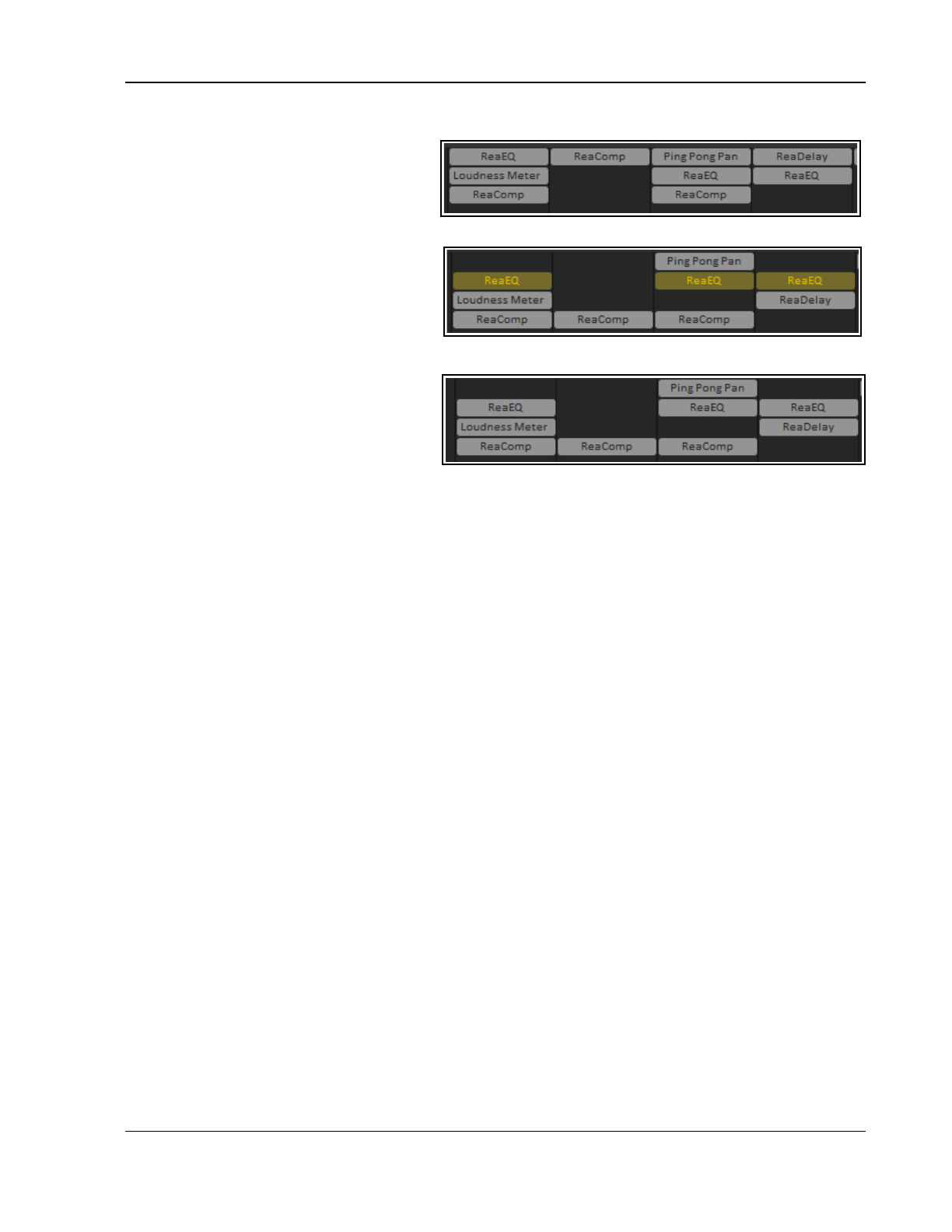
The Mixer and The Master
Make sure your FX inserts are displayed in mixer view: right click over any empty area of the mixer panel and
choose Show FX inserts from the menu.
You can then drag and drop individual FX up
or down to transform the display as shown
here on the right.
This example shows a project where each
track includes four FX slots. By adjusting the boundaries between the different mixer sections and the mixer
height itself you are able to increase or
decrease this number as you wish.
By using FX slots we are able to place (for
example) all EQ plug-ins in slot 2 and all
ReaComp instances slot 4. This is shown
here. Notice that to enhance this display
other slots can be left empty: these slots will simply be ignored
This technique works well in conjunction with
the Project Media/ FX Bay. For example,
display the FX page and select the required
FX in the first column, Plug-in name.
You can then use the Bypass command from
its right click menu to toggle Bypass for all
instance of that plug-in on and off.
This feature can be controlled from the Mixer and FX chain context menus. Right click over the empty area of the
mixer or the FX chain in the track FX window to access the commands:
Group sends with (before/after FX inserts
Allow empty slots in FX lists (grouping above must be disabled)
Allow reordering
empty slots in TCP
MCP end lists
The right-click context menu for any FX in the mixer also includes two commands to Bypass FX slot for
selected tracks/all tracks.
Actions and mouse modifiers
The Action List contains a number of actions which can be useful when working with FX slots. These include
Track: Open/close UI for FX [#1 thru #8] on last touched track.
There are also various bypass toggle options which can be assigned as mouse modifiers in the contexts Mixer
control panel and Track control panel. Essentially these are:
FX: Toggle bypass for FX in slot
n
for selected tracks
… where
n
will be a number between 1 and 10.
217
Up and Running: A REAPER User Guide v 7.81
218
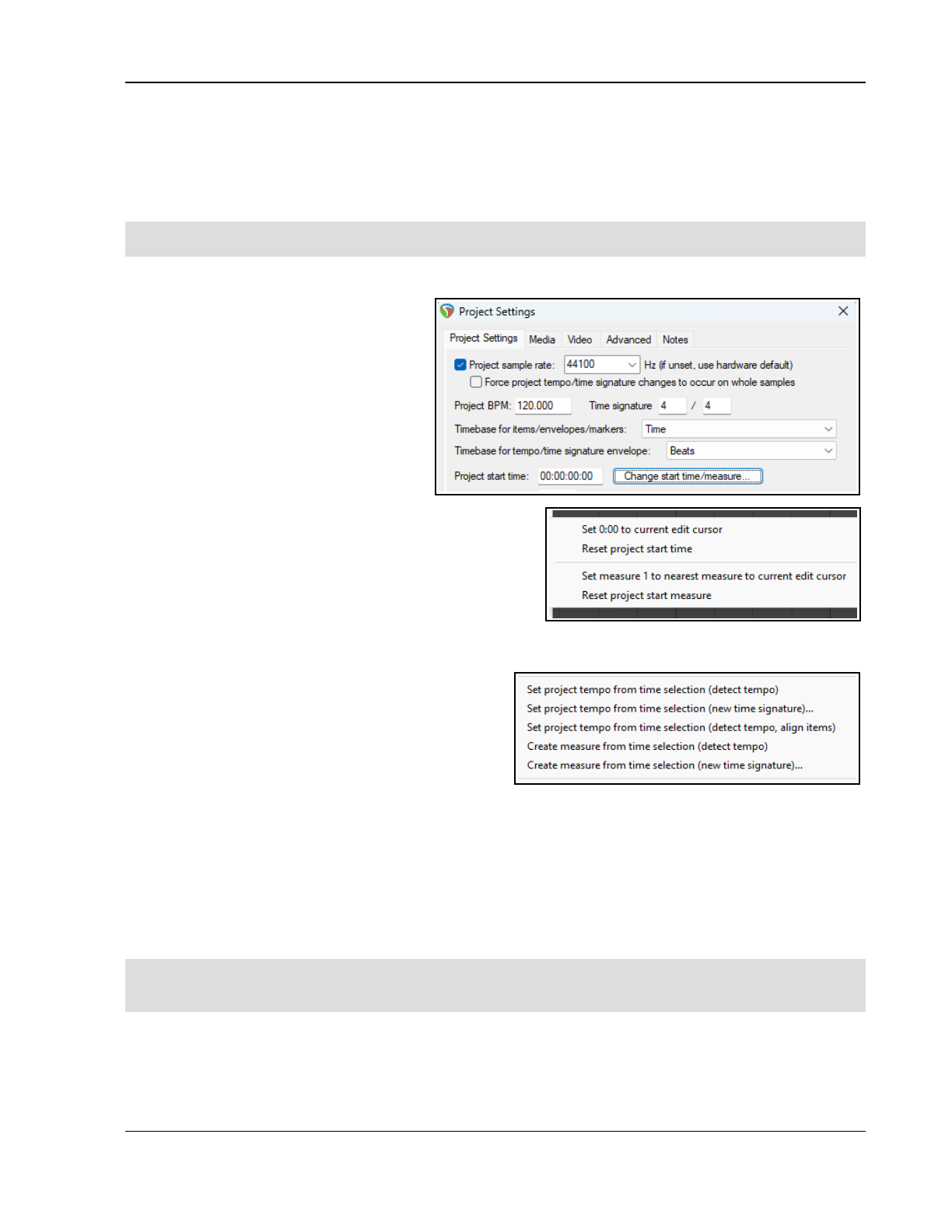
Managing The Overall Project
12 Managing The Overall Project
12.1 Introduction
This chapter covers some of the features of REAPER which are useful when managing your project as a whole
rather than focussing on individual tracks or items. Some of the illustrations in this chapter use REAPER 4 theme
and colors. The information and instructions, however, are still valid for REAPER 5 and REAPER 6.
Remember that this document uses the shortcut keys for PC (Windows) users: macOS users should refer back to
Chapter 1 if you are unsure of the equivalent keys to use.
12.2 Project Timebase, Time Signature and Related Settings
Basic project settings are initialised and
managed in the Project Settings window.
This can be accessed by pressing Alt Enter.
These settings include project BPM, time
signature, and timebase. Timebase options
are time, beats (position, length, rate) or
beats (position only). Options for tempo/time
signature envelope are time, beats or time
signature beats.tempo.time.
Project start time and start time measure
can be changed within the project settings
dialog, but a simpler method is to use the
timeline ruler’s context menu.
Position the edit cursor at the point where you wish to
make the change.
Right click on the ruler timeline and choose Change
start time/measure from the window.
Make your choice from the sub-menu (shown right) to
Set 0.00 to current edit cursor, Reset project start time, Set measure 1 to nearest measure to
current edit cursor, or Reset project start measure.
There are other options on this menu which enable you
to set the project tempo or create new measures from a
time selection.
These commands together with their various options are
shown here (right).
12.3 Crop to Selection and Remove
Contents of Selection
When recording, it’s not unusual to end up with a period of silence before your song starts, and/or periods of
silence at the end of your tracks, where you have allowed the recording to continue longer than necessary.
You could fix this by slip-editing your tracks individually, then dragging and dropping them to the start of your
timeline. A quicker way would be to Crop project to selection. This removes the unwanted portions.
To do this, first click and drag along the background area in arrange view to make a time selection of the area
that you want to keep. Then, right click over the Timeline and choose Crop project to selection from the
menu. If you wish, press Esc when this is done to remove the time selection.
Tip: If immediately after cropping to selection (and before pressing Esc) you again right click over the Timeline
and choose Zoom selection from the context menu (or use the shortcut keys Ctrl Numpad Plus your project
will expand horizontally to fit the width of your Track View window.
Another situation might be in which you wish to remove a passage from the body of your recording without
creating a “hole” in your project, or some tracks getting out of sync with others. In this case you can make the
time selection in arrange view, then right click and choose Remove contents of selection (moving later
items) from the context menu.
219
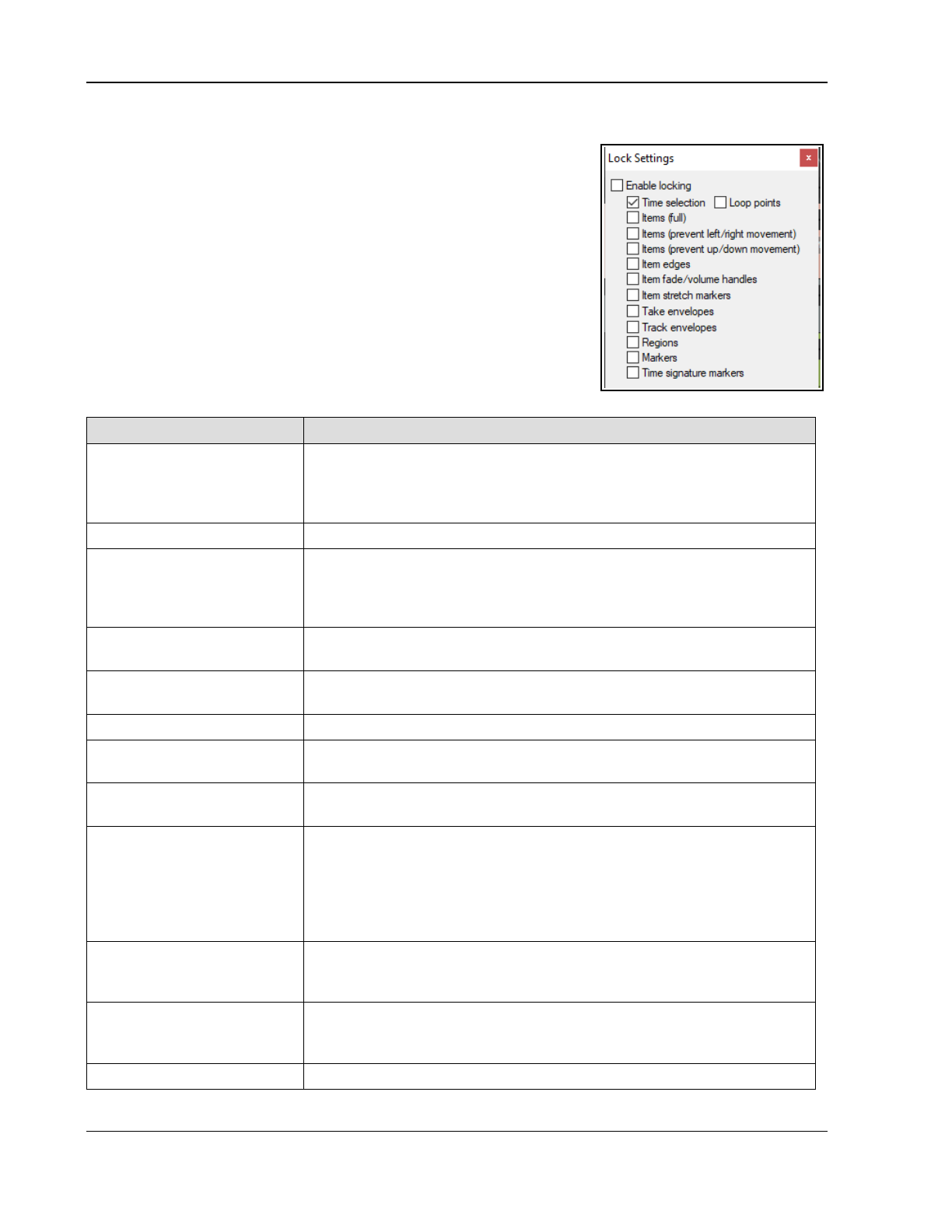
Up and Running: A REAPER User Guide v 7.81
12.4 Project Lock Settings
The Locking feature of REAPER can be used to effectively freeze certain
aspects of a project file to prevent something accidentally being changed
or deleted. There are two aspects to locking:
Deciding which project elements you would like to be locked.
Enabling or disabling the locking feature. The keyboard shortcut L
can be used to toggle this on and off.
To display the Lock Settings window (shown right), press Shift L or right
click over the lock button (the last item) on the toolbar. The table below
summarises some of the ways in which you are able to make use of this
feature. Select which ones you wish to lock, then Enable locking to
actually lock them.
Locking Option Comment
Time selection This locks the current time selection so that, for example, if you
accidentally click and drag at some other point along the timeline your time
selection will remain unchanged. You can remove a locked time selection
by pressing Esc then selecting OK when prompted.
Loop points Locks currently selected loop points.
Items full This option prevents you from making any changes at all to any of your
existing media items. For example, you cannot mute them, add FX to them,
delete them, move them, slip edit them, or even access the Item Properties
window or right click menu for any of your items.
Items (prevent left/right
movement)
This option allows you to make any other changes you like to your media
items except move them left or right.
Items (prevent up/down
movement)
This option allows you to make any other changes you like to your media
items except move them up or down.
Item edges This option disables actions such as slip editing.
Item fade/volume handles This option can be used to prevent any adjustments being made to any
item's volume handle or rotary fade controls.
Item stretch markers This option can be used to prevent any changes or movement from
occurring to any item's stretch markers.
Take envelopes
Track envelopes
This option ensures that when locking is enabled you will not be able to
make any changes to existing take and/or track envelopes. For example,
you will not be able to move or add points, or change shapes. You will still
be able to add new envelopes for faders and plug-in parameters, but you
will not be able to edit these in any way. For more about envelopes see
Chapter 18.
Regions Locking regions prevents you from changing (for example by moving,
deleting or renaming) existing regions. However, you will be able to create
new regions with Lock Regions enabled.
Markers Locking markers prevents you from changing (for example by moving,
deleting or renaming) existing markers. However, you will be able to create
new markers with Lock Markers enabled.
Time Signature Markers Locks time signature markers and prevents them from being modified.
220
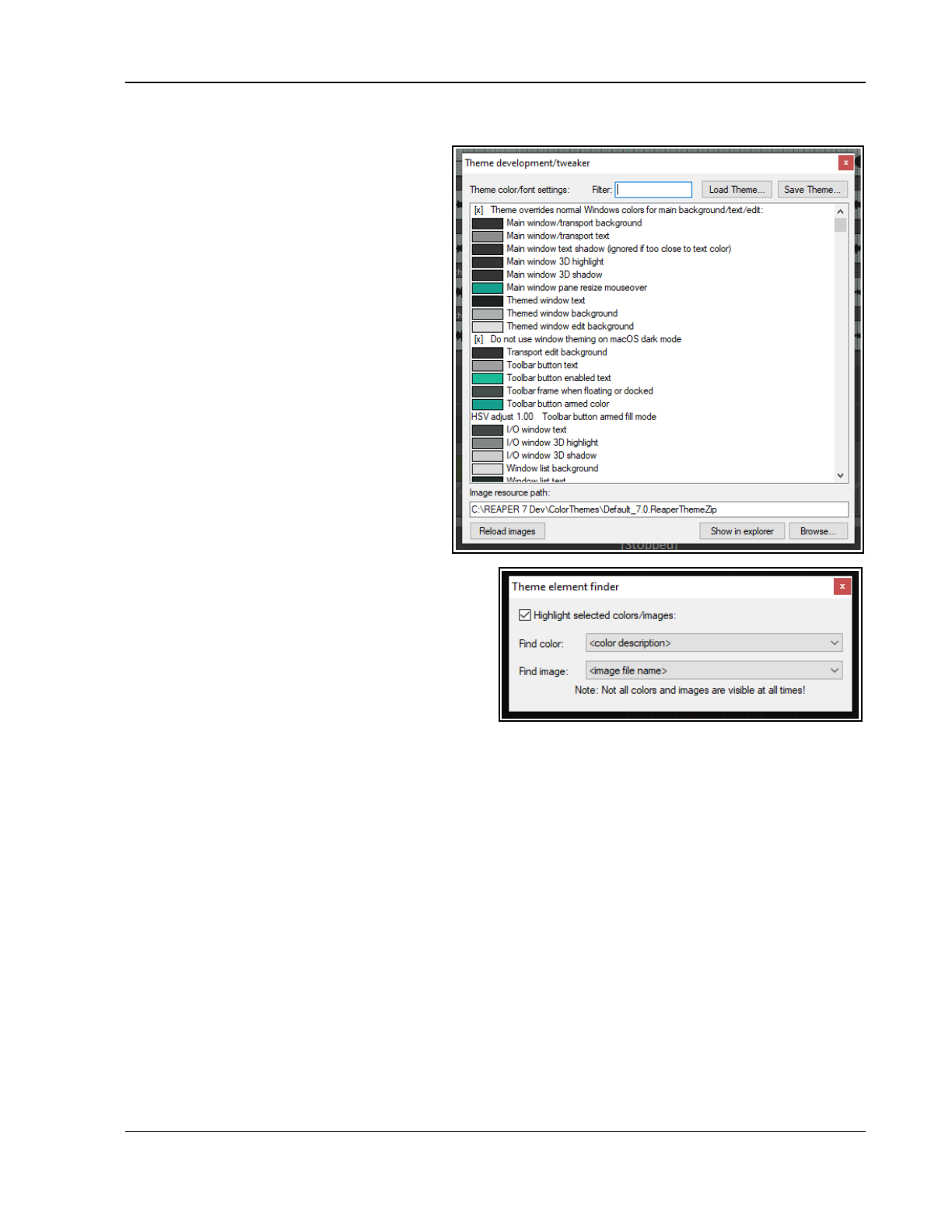
Managing The Overall Project
12.5 The Theme Development Tweaker
Chapter 15 covers REAPER's action list editor
in detail. One action that you might find useful
is the action Theme development: Show
theme tweak/configuration window.
Choose the main menu Actions, Show
action list... command. Type
tweak
in the
filter window then select and Run the action
Theme development: Show theme
tweak/configuration window.
Here you can change the colors assigned to
various elements.
Themes consist mainly of three elements:
image files, color/font definitions and Windows
settings. Image files provide, for example,
track control items such as the faders.
Definitions apply to items such as the fonts
and colors used for media items, track/mixer
panels, edit and play cursors, markers, VU
meters, envelopes, etc.
Use the filter box at the top to help find those
items that you wish to change. For example,
typing
item
will find all elements relating to
items. This find feature supports advanced
command syntax using operators such as AND,
OR and NOT. For details of these and how to use
them, see the section Using Search Filters. Selecting
an item will display the color picker where you can
select a color of your choice. Note that the terms
ruler and timeline are synonymous: you can search
for
ruler OR timeline
). Note also the first item listed,
an option Theme overrides normal Windows
colors for main background/text/edit. If unsure
what any of the listed items are, you can use the
Theme element finder to identify them (see below). To display this, enter
theme
in the action list filter window
then select and Run the action Theme development: Show theme element finder.
Additional themes can be downloaded from stash.reaper.fm. To install a downloaded ReaThemeZip file, drag and
drop it from Windows Explorer into REAPER's Arrange View (main view).
The Load Theme … button (in the theme development/tweaker dialog) can be used to select any available
theme. Scroll thru the Theme color/font settings list to see all of the items which you can change. Click on
any item to open (as appropriate) the color picker or font dialog box, where you can change its definition.
Finally, having chosen your fonts and colors, you can save them all together into a new theme by clicking the
Save theme... button and giving the modified theme a name.
12.6 The Project Media/FX Bay
Overview
The Project Media/FX Bay is a one stop center which you can use for managing and arranging a project's FX
and media items. It is opened from the main menu by the View, Project Media/FX Bay command. The
window contains seven tabs (pages). The Item Groups (Chapter 7) and Take Comps (Chapter 8) tabs have
already been introdu7ced. Automation Items are explained in detail in Chapter 18. The others are:
● Source Media. Lists media items available for use, or are already used in, the project. Each item will
occur only once in this list. If used more than once, this is indicated in the Usage column.
● Media Items. Lists only the items that are actually used in the project (i.e., active). An item will
appear in this list as many times as it is used in the project.
221
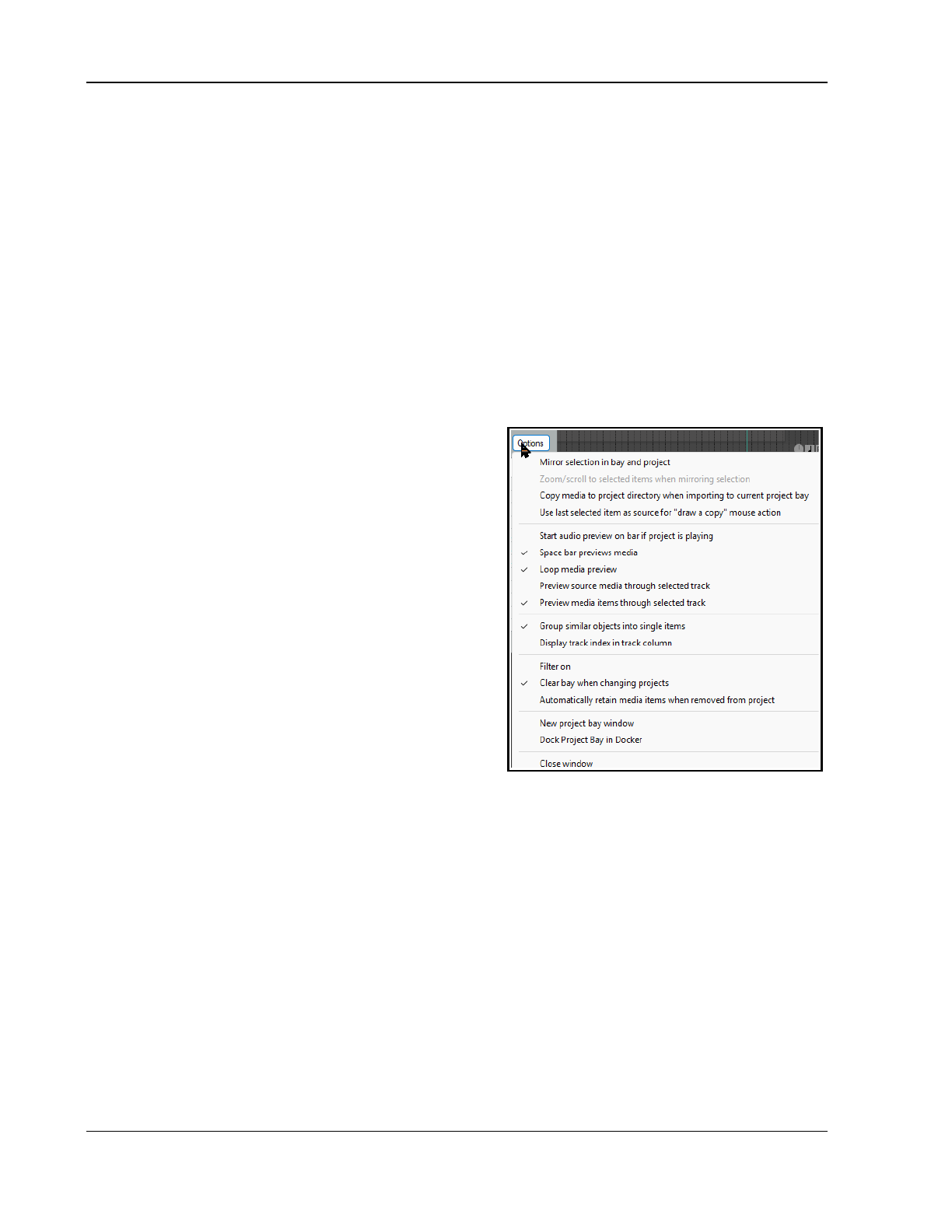
Up and Running: A REAPER User Guide v 7.81
● FX and FX Parameters. Lists FX plug-ins used and FX parameters available in the project. The FX
Parameters page is a “one stop shop” for managing any FX on any take or track within the project,
for example to add envelopes or track controls, or assign control to an external device. These
features are explained in the sections Managing FX Parameters and Using FX parameter MIDI Learn.
You can drag media files (e.g., from REAPER's Media Explorer or from Windows Explorer) or FX (e.g., from the
FX browser) into the Project Bay. These media items are added to the Source Media page. If the item is then
used in the project, it will be added to the Media Items page. FX items are added to the FX bay.
Items within the Project Bay can be renamed, all instances of a media file or FX within the project can be
selected: media/FX in the project can be replaced with any other media/FX from the Project Bay. You can also
mute/solo media items and bypass/bypass FX.
Media pages and the FX page include a Retain column. When you drag media items or FX into the project bay,
they are marked with a + in the retain column. This setting means that the entry will remain in the project bay
even if there are no instances of that media item or FX in the project.
When you add media (by recording or inserting) to the project, they will appear as entries in the media items
and source media bays, with the retain status unset. These entries will be automatically removed from the
project bay if they are removed from the project itself. If you want the entries to remain in the project bay even
after being removed from the project, you should enable
retain for those entries in the source media bay.
FX entries in the project bay include a Preset column. If you
change the selected in this column (from the right-click
menu), the change is applied to all instances of that FX in
the project with the previous preset. In addition, you can
retain an FX entry with a specific preset, or multiple entries
for the same FX with different presets, in the project bay.
The Project Bay includes the buttons Actions and Options.
Clicking on either of these displays a menu. As an example,
the Options menu is shown on the right. Most of these
commands require little explanation.
Copy media to project directory when importing to
current project bay, This option can be turned on or off.
Mirror selection in bay and project. This causes an item
selected in the project to also be selected in the bay, and
vice versa. You can also ensure that REAPER will zoom to a
selected item when this option is enabled.
Use last selected item as source for “draw a copy”
mouse action. This enables you to use pencil mode to
create copies of the last selected item.
Space bar previews media allows use of the space bar to play the currently selected media or source media
item. Loop media preview will allow any loop marked in the project to be applied. Preview (source or media
items) through selected track allows you to play back the item with, for example, any FX in a particular
track's FX chain, or any track envelopes, being applied.
There is an option to Group similar FX into single items and another to Display the track index (i.e. track
number) in the track column. The Filter can be set to use name, path or comment.
Make sure the option Clear bay when changing projects is enabled if you wish to make each Project Bay
project specific. Disable it if you want to carry over items in the current bay to the next project that you open or
create. You also have the option to Automatically retain media items when they are removed from
project. This ensures that retain status is automatically assigned when an item is removed from the project.
The Dock project bay and Close window commands are self-explanatory.
The commands on the Actions are shown right. They can be used with and applied to the items (media or FX)
on whichever bay page is currently selected.
New project bay window opens a new project bay window. You can use up to eight project bays in a single
project. You can then use this (for example) to load a different saved project bay, whilst keeping the original bay
open in the original window. This could be the case, for example, if you wish to sort/group media items into
folders in more than one way.
222
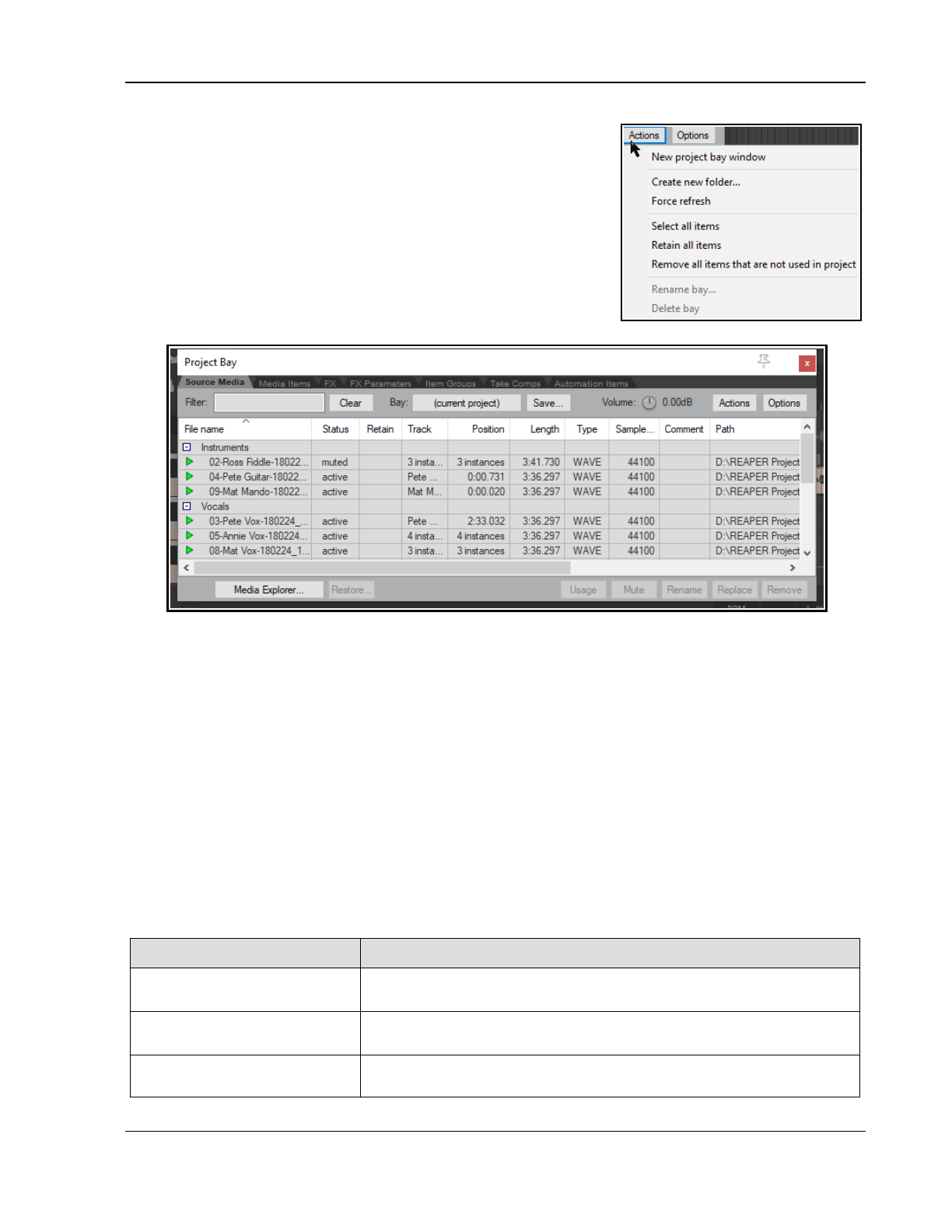
Managing The Overall Project
Create new folder. Individual project0 bay entries can be dragged
and dropped in or out of the folder (see example below, where two
folders have been created, Instruments and Vox). Folders can be used
for source media items (as shown below), media items (in project) or
FX. Double click left of the folder name to collapse or expand the folder.
Force refresh forces a refresh of the project bay display.
Select all items causes all items in the current tab to be selected.
Retain all items causes all items in the current tab to be marked to be
retained in the bay even when they are deleted from the project.
Remove all items from project will remove all items from the
project, and Remove all items that are not used in project will
remove from the media bay all items that are not used in the project.
The Media Explorer button (lower left) can be used to open the Media Explorer, from where media items
can be dragged and dropped into the project bay (as source media) or into the project itself. Complete
(untrimmed) items can also be dragged and dropped directly from Windows Explorer.
The rotary Volume control can be used to control the volume of any item being previewed when the
option to preview thru selected track has been disabled.
The Bay field serves three basic functions. You can use it to create a new project bay, to replace the
contents of the current bay with a previously saved one, or to merge the contents of a previously saved
project bay into the current one.
The Source Media Bay and the Media Items Bay
The techniques for working with media items in both of these bays are very similar. The main differences are:
● Items dragged into the Bay are placed in the Source Media Bay only, until such time as they are actually
added to the project. They are then automatically also listed in the Media Items bay.
● Only items which are active (and therefore included in the project) are shown in the Media Items Bay.
● Active items can be managed from either of these bays. Available items can only be managed from the
Source Media bay.
In order to do this … … you do this
Change the column order
Click and drag column header left or right. You can do this with any of
the five Project Bay tabs selected.
Hide/Show columns Right click on any header, deselect/select from list. Note that the Fades
column will show the length of fades in/out.
Add an item to Source Media
Bay
Drag and drop from Windows Explorer or REAPER's Media Explorer. You
can drag an entire item or (if using Media Explorer) a time selection.
223
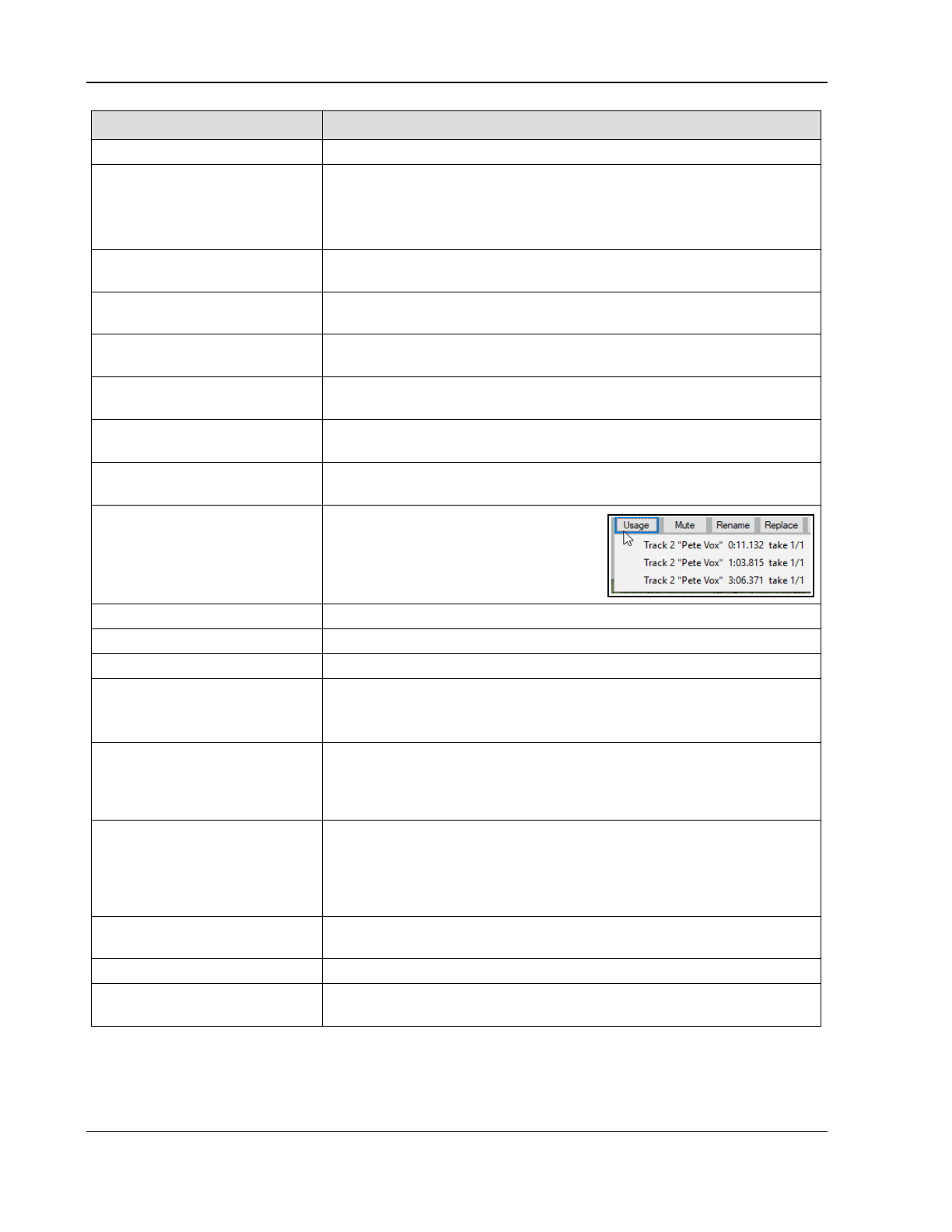
Up and Running: A REAPER User Guide v 7.81
In order to do this … … you do this
To preview an item Select the item then press Space.
To add an item from Source
Media or Media Items Bay to
a project
Either...
Drag and drop from Bay into the project arrange view window,
Or …
Select track and position cursor in Arrange view. Right-click on item
name in Bay and choose Insert into project from context menu.
If not already active, its status will now be made Active.
To remove an item from
within the project.
Select the item and use the Delete key, either from the arrange view
window or within the Media Bay.
To remove an inactive item
from Source Media Bay
Select item and press the Delete key, or right-click in item row in Retain
column (to left of item name), then choose Remove from bay.
To remove all unused items
from the Media bay
Right click on title bar, choose Remove all items that are not used in
project from the context menu.
To remove the retain status
of an active item
Select item in bay, right click in Retain column, choose Remove from
bay if removed from project.
To remove all instances of
an item from project
Right-click item in Retain column for the item, choose Remove from
project.
To reassign retain status to
an active item
Select item in Bay, right click in Retain column, choose Retain from
menu.
To locate a Media Items Bay
item or Source Media Bay
item in the project
Click on the item in the list then on the
Usage button. Click on any item in that
list in order to go to and select that
item.
To mute an item in project Right-click on item, choose Mute from the context menu (to toggle).
To rename any media item Select item in the Bay: click Rename button or use the context menu.
To add comment to an item Double click in the comments column of the item row.
To filter the media item list
See also section Using Search
Filters
for advanced options.
Type a text string in the Filter box (e.g. cox to see only media items
with cox in their name) then click on the Refresh button.
To clear a filter, click on Clear Filter button.
To replace a Source Media
or Media Items item with
another item
Select item name in Source Media or Media Items list. Right-click and
choose Replace in project. Then select from flyout menu, e.g. All
instances or any single instance: choose the replacement item. The
media format (e.g. MP3, WAV) need not be the same for both items.
To save an item set list from
the Bay (for possible use in
other projects)
Select item, click on Save: choose either Save selected items to a
new project bay, or Save all items as a new project bay. You will
be prompted for a new .Rea Bay file name. You also have the option to
Save and merge selected items to an existing project bay file, in
which case you will need to select the required file from the list.
To load a previously saved
item set list.
Click on the Bay button, choose a .Rea Bay file from the list. You may
Load and merge it with the current one, or replace the current one.
To sort Media Items list. Click on any column header to sort. Click again to reverse sort order.
Other Media Items page
columns
Other information displayed in the Media Items tab are the number of
Takes, Active take details, and Fade in/Fade out details.
224
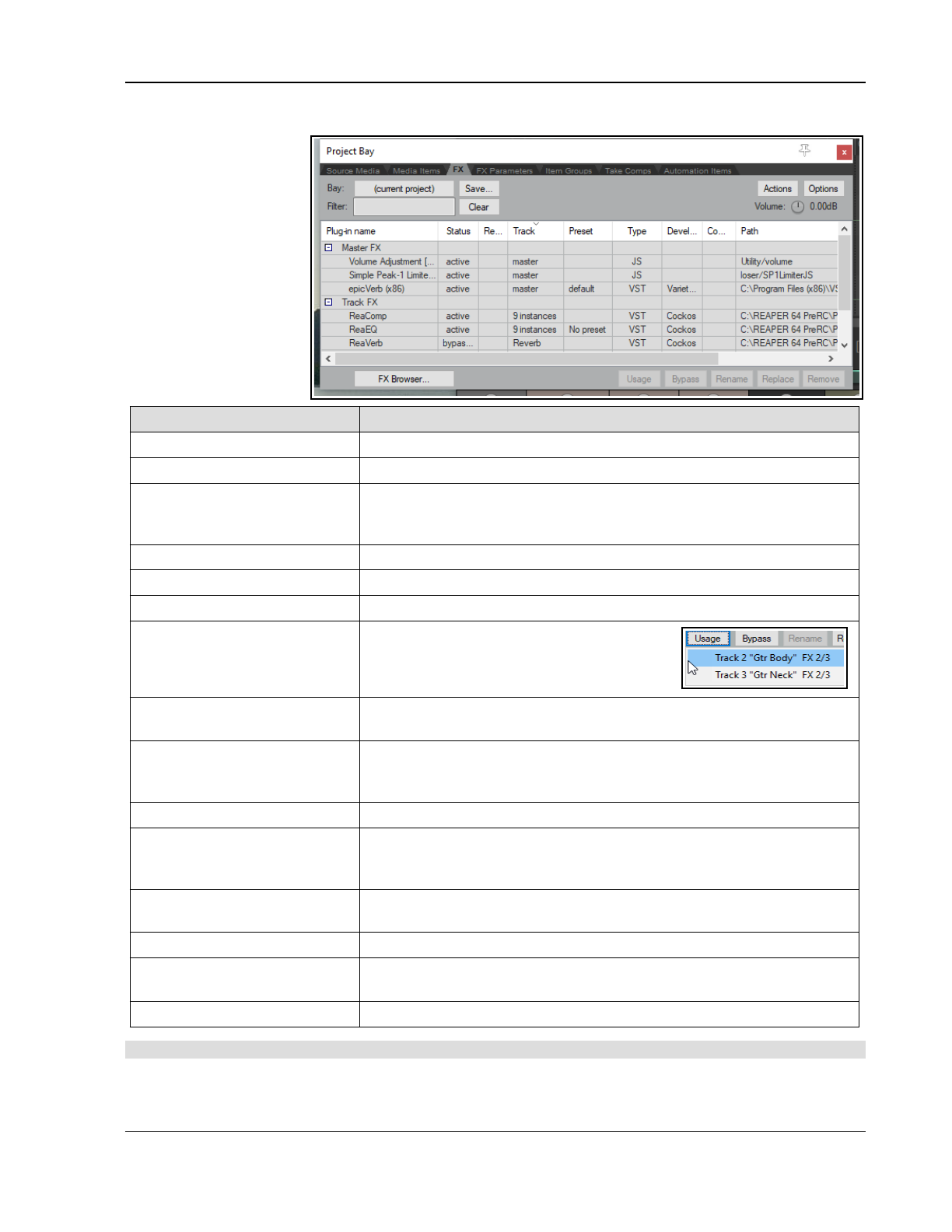
Managing The Overall Project
The FX Bay and FX Parameter Bay
Many commands are the
same as the Media Bay –
e.g. set retain status
on/off, apply/clear filters,
using folders, and
removing items from the
bay are handled in the
same way.
Aspects more specific to
the FX Bay itself are:
In order to do this … … you do this
Show FX performance stats Right click on any column header, select Performance.
Sort by any column header Click column header (twice for reverse sort).
Add FX from FX Bay to track
or media item in project
Either...
Select track or media item in Arrange view, right-click on plug-in
name in FX Bay, choose Insert into project
Or...
Drag and drop plug-in
from FX Bay to track panel or media item.
Open FX browser window Click on the FX Browser button.
Add FX to the FX Bay Drag and drop from FX Browser.
Mirror bay/project FX Enable Mirror selection in bay/project on Options menu.
Locate and open FX window
for any FX instance
Right click on track name in the Track column
then click on the required instance (or select
plug-in and click the Usage button).
Toggle any FX to bypass or
offline
Select the FX then choose Bypass or Offline from the right-click menu,
or
use the Bypass button (Shift-click for Offline.
Set all instances of
aparameter to bypass or
offline (toggle)
Right-click over FX name in Plug-in name column. From right click context
menu choose Bypass or Offline.
Assign a preset to an FX ** Right-click in the Preset column for the FX and select from the menu.
Manage any FX parameter Right-click on FX name, choose FX parameters then FX parameters
list, then select feature (e.g. Show in track controls or track envelope),
then select parameter from list.
Toggle auto-bypass on
silence for FX instance
Right-click on plug-in name, select Force auto-bypass on silence from
context menu. The silence threshold is set in project settings.
Change FX instance preset Right-click in the Preset column for the FX and select from the menu.
Replace one FX with
another project bay FX
Right-click on FX name, choose Replace in project then select from the
flyout menu of FX. You can replace all instances or a single instance.
Locate FX on hard drive This information is displayed in the Path column.
** Note: The same FX name will occur more than once in the same list if any presets have been assigned.
Next to the FX tab is the FX Parameters tab, used for managing FX parameter features such as envelopes, learn
mode and parameter modulation. Chapter 19 deals with parameter modulation.
225
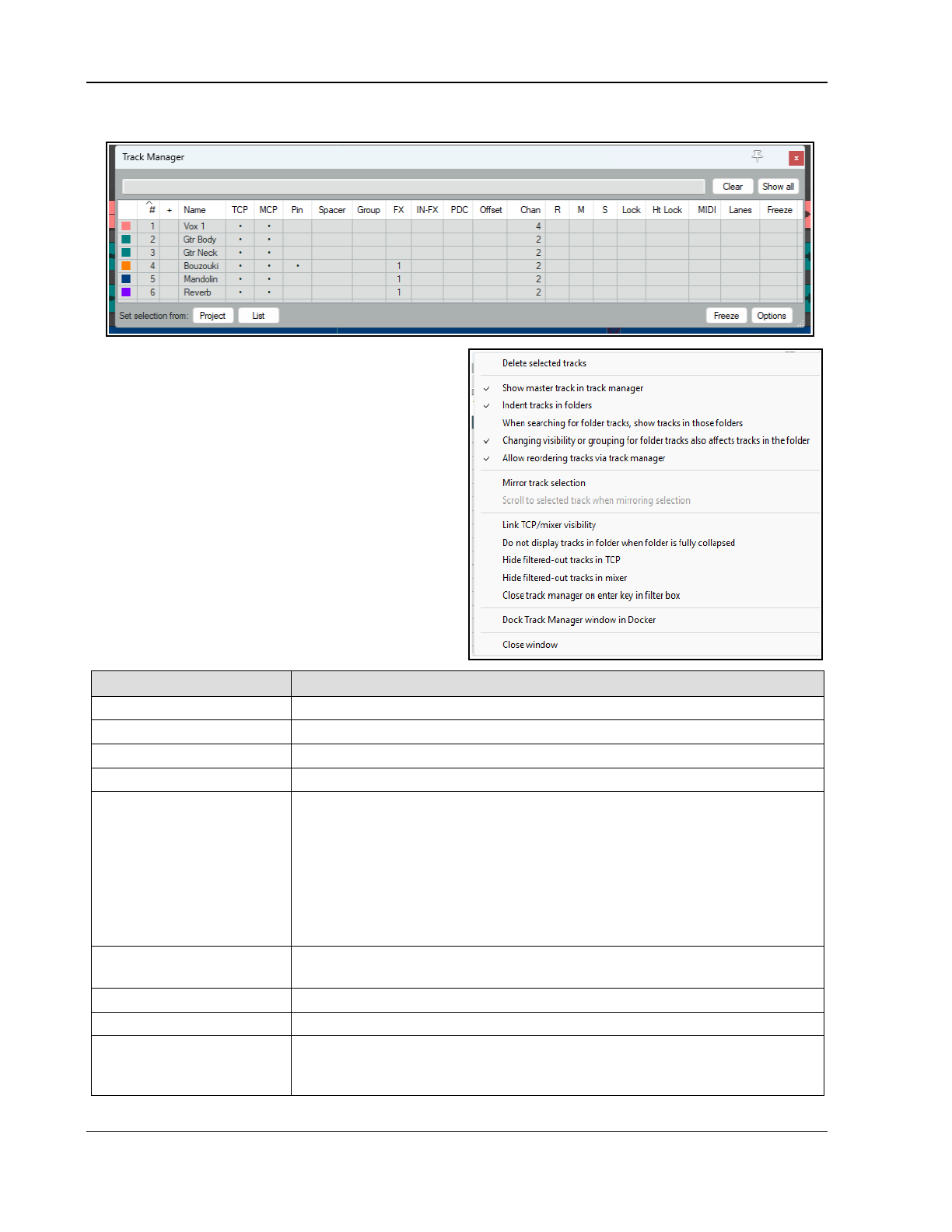
Up and Running: A REAPER User Guide v 7.81
12.7 The Track Manager
The Track Manager (View, Track Manager) gives
you control of your tracks. It shows a grid similar to a
table. The Show All button will display all tracks.
The Options menu includes Mirror track selection.
(i.e. a track selection made in either the Track Manager
or the TCP is also applied in the other) and, optionally,
to Scroll to selected track in TCP and mixer.
There is an option Changing visibility or grouping
for folder tracks also affects tracks in those
folders.
Folder/child tracks hierarchies are retained within the
track manager. The option to Indent tracks in
folders can be disabled from the Options menu.
Other Options button menu items are explained in the
table below, which also summarises the options within
the track manager window.
To do this … … you do this
Change column order Click and drag column header left or right.
Hide/Show columns Right click on any header, deselect/select from list.
Expand/collapse folders Click on the +/- symbol in the column headed +.
Adjust column width Click and drag left or right on boundaries between column headers,
Filter the track list by
name
See also the section Using
Search Filters for advanced
options.
Type text in filter box: e.g.” co” to list only those tracks whose name includes
co. Supports use of NOT and OR filters: e.g. “bass OR guit” will find all tracks
with either bass or guit as part of their track name.
Options menu commands include Hide filtered-out tracks in TCP and/or
Hide filtered-out tracks in mixer. The Clear button removes the filter.
There are options in this menu When searching for folder tracks make
sure child tracks in those folders are shown and to Close track
manager on enter key in filter box from the Options menu.
Change TCP track order
in track manager
Drag and drop tracks up or down. This can be disabled by disabling Allow
reordering tracks via track manager from the context menu.
Delete track Select track row and press Delete. You will be prompted to confirm this.
Show/hide Master Toggle Show master track in track manager in Options button menu.
Show/hide tracks in
TCP/MCP
Click in track row in TCP/MCP columns. You can use the toggle option (on the
Options button) to Link TCP/Mixer visibility to synchronize track display.
Supports “Swipe” (see last row of table).
226
Managing The Overall Project
To do this … … you do this
Set/change track color Click on square in the first column, then Set color (using the color picker)or
Set to random color.
Pim/unpin track to top Click in the track’s cell in the Pin column.
Open track grouping
dialog for any track
Double-click that track’s cell in the Group column.
Scroll track into view Double-click on track number in # column.
Open/show track FX
chain
The FX column shows the number of FX in each track's FX chain. Double-click
on that cell to open the FX chain for that track.
Add FX to track or open
an FX window
Right click over the track's FX cell and use context menu,
or
Drag and drop from the Add FX window to the track in the track manager.
Open/show track Input
FX chain
The IN-F column shows the number of FX in each track's Input FX chain.
Double-click on that cell to open the input FX chain for that track.
Monitor plug-in delay
compensation
Any plug-in delay compensation used by a track's FX will be indicated (in ms)
in the track's PDC cell. Clicking on this cell toggles track FX bypass.
Open a track’s routing
window
Double-click in the Chan (channels) column for that track.
Arm/unarm tracks for
recording
Click in the R column for any track(s) to arm for recording. The letter R will be
shown for armed tracks. Click again to unarm. Supports “Swipe” (below).
Right click on any cell in this column to display record menu for that track.
Mute/unmute tracks Click in the M column to toggle mute status. All the modifier keys used in the
TCP can be used here – e.g. Ctrl Mute to unmute all. Right-click for TCP mute
context menu – see Chapter 5. Also supports “Swipe” (see below).
Solo/unsolo tracks Click in the S column to toggle solo status. All the modifier keys used in the
TCP can be used here – e.g. Ctrl Alt Solo to solo exclusive. Right-click for TCP
solo context menu – see Chapter 5. Also supports “Swipe” (see below).
Lock/unlock track
controls
Click in the Lock column to toggle lock status. Locked tracks display a + sign.
Supports “Swipe” (see last row of table).
Lock track height Click in Ht Lock column to toggle.
Manage MIDI items Double-click a track's MIDI cell to open track MIDI items in new MIDI Editor.
If item is already open, double-click to close.
Right-click in cell for menu of options: Open in new MIDI editor, Open in
existing MIDI editor, Open in existing MIDI editor (clear editor first)
or Remove from MIDI editor. The third of these options removes from the
MIDI editor any tracks/items already open before opening this one.
Free Item Positioning
on/off toggle
Click in the Lanes column to toggle on/off Free Item Positioning. FIPM on
shows a + sign. Supports “Swipe” (see last row of table).
Insert/remove virtual
spacer above track
Click in the Spacer column for that track.
Freeze/unfreeze tracks Select track(s) in Track Manager window, then choose whichever action you
wish from the Freeze button menu. See also Chapter 6.
Sort Track Manager list Click on any column header. Click again to reverse sort order.
Manage track groups The track manager will respect grouped track parameters (Chapter 5). As with
the track grouping matrix, you can use Shift to temporarily over-ride these.
Swipe to toggle several
adjacent tracks
For example, to mute or solo or lock several adjacent tracks, click and
drag/sweep down the track list in the appropriate column.
227
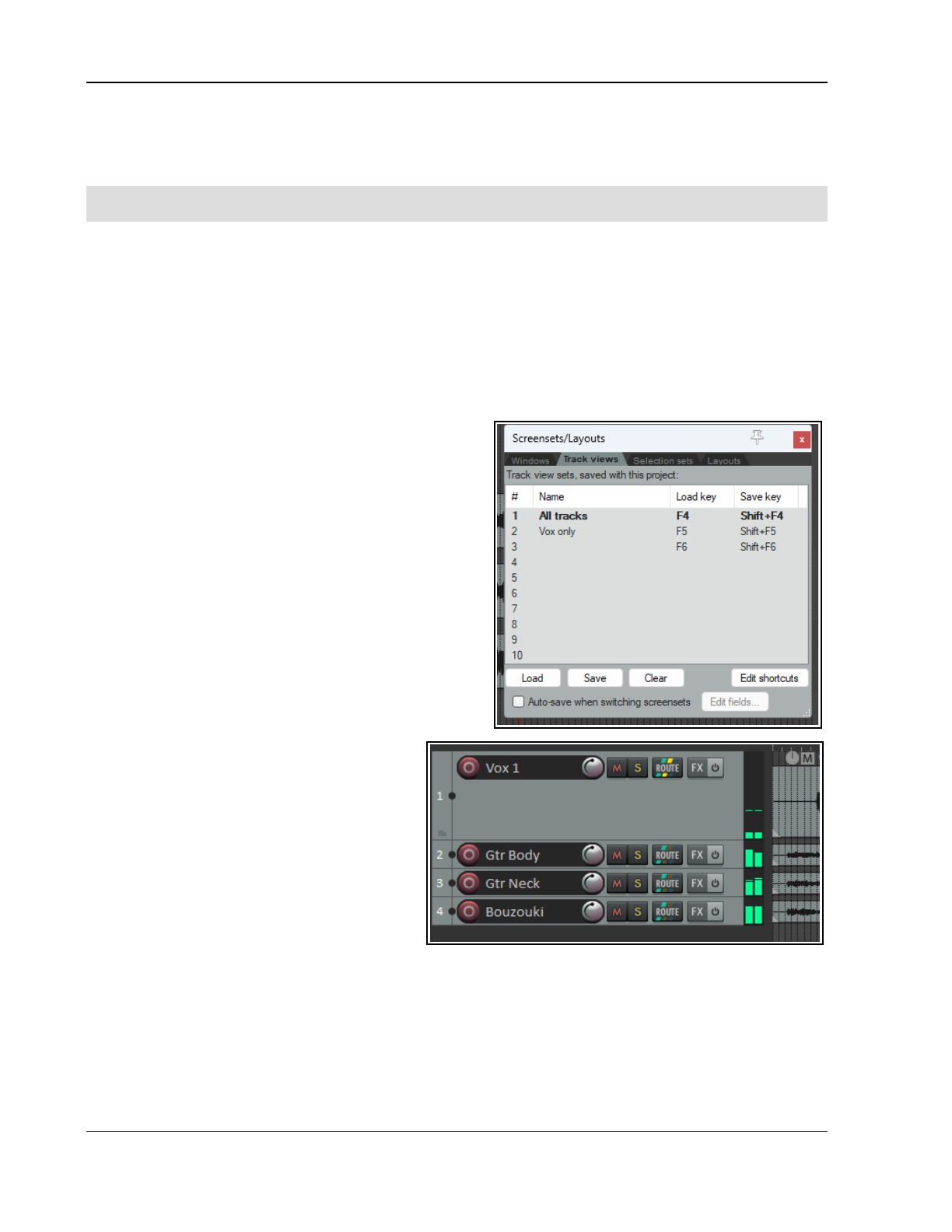
Up and Running: A REAPER User Guide v 7.81
In the example shown above this table, the Guitars folder is collapsed so that its child tracks (tracks 6 and 7)
are not displayed. It has two FX and four channels. The Bass track is locked. All tracks are accessible in the TCP
and MCP (although to view tracks 6 and 7 you would need to expand the folder). Both the Vox Ben and Vox
Amy tracks are soloed. They are also FIPM enabled and are grouped as group 1. The Reverb track has one FX.
Tip: You can use the Screensets window to save different sets of Track Manager settings as Track Views, any
of which can be recalled in an instant. Screen sets are explained later in this chapter.
12.8 Track View Screen Sets
Screen Sets enable you to save several different views of your project, so that you can easily select and recall
them when editing or arranging. There are two types of Screen Set – Track Views and Windows.
Track Views are created and saved on a per project basis – the screen set data is stored in the project's .RPP
file and can be recalled only when you are working with that project file. Using track view screen sets can be
especially useful when you are editing or in some other way working closely with media items.
Track view screen sets will include, for example, which tracks are displayed, together with their position, size
and layouts. Pinned tracks and virtual spacers will also be respected.
Windows screen sets are global and are stored in the Application Data screensets.ini file. They can be recalled
from, and applied to, any project file.
The procedure for creating track views is:
Use the View, Screensets/Layouts command (or
Ctrl E) to show the Screen Sets window (which is
dockable).
Adjust your track layouts to suit.
Select a number from the Track views page of the
Screen Sets window.
Click on Save and name the set.
You can create up to 10 track view screen sets per
project. To recall a view, double click on its name.
You can also assign keyboard shortcuts to individual
screen sets. By default, Shift F4 to Shift F6 are used to
save your first three track views, and F4 to F6 are
assigned to load each of these first three track views.
If you want to modify these, or assign shortcuts to other
track views, then you should click on the Edit
shortcuts button in the Screensets window.
This opens the Action List Editor. For
instructions on how to use the Action List Editor,
see Chapter 15.
There is also an option available to Auto save
when switching screen sets. If enabled, this
ensures when switching from one screen set to
another that any changes made to the layout of
the first of these screen sets will be saved. The
Edit fields... button can be used to “tweak”
this, so that only certain aspects of your changes
are automatically saved.
Example
1. Open the file All Through The Night.RPP and save it as All Through The Night TRACK
VIEWGRAPH.
2. Adjust the track height of your Vox track as shown here (above).
3. Choose the View, Screensets/Layouts command and display the Track Views page, click on 1, then
Save to open the Save Track View dialog (below).
4. Type: Vox View but do not yet press Enter.
228
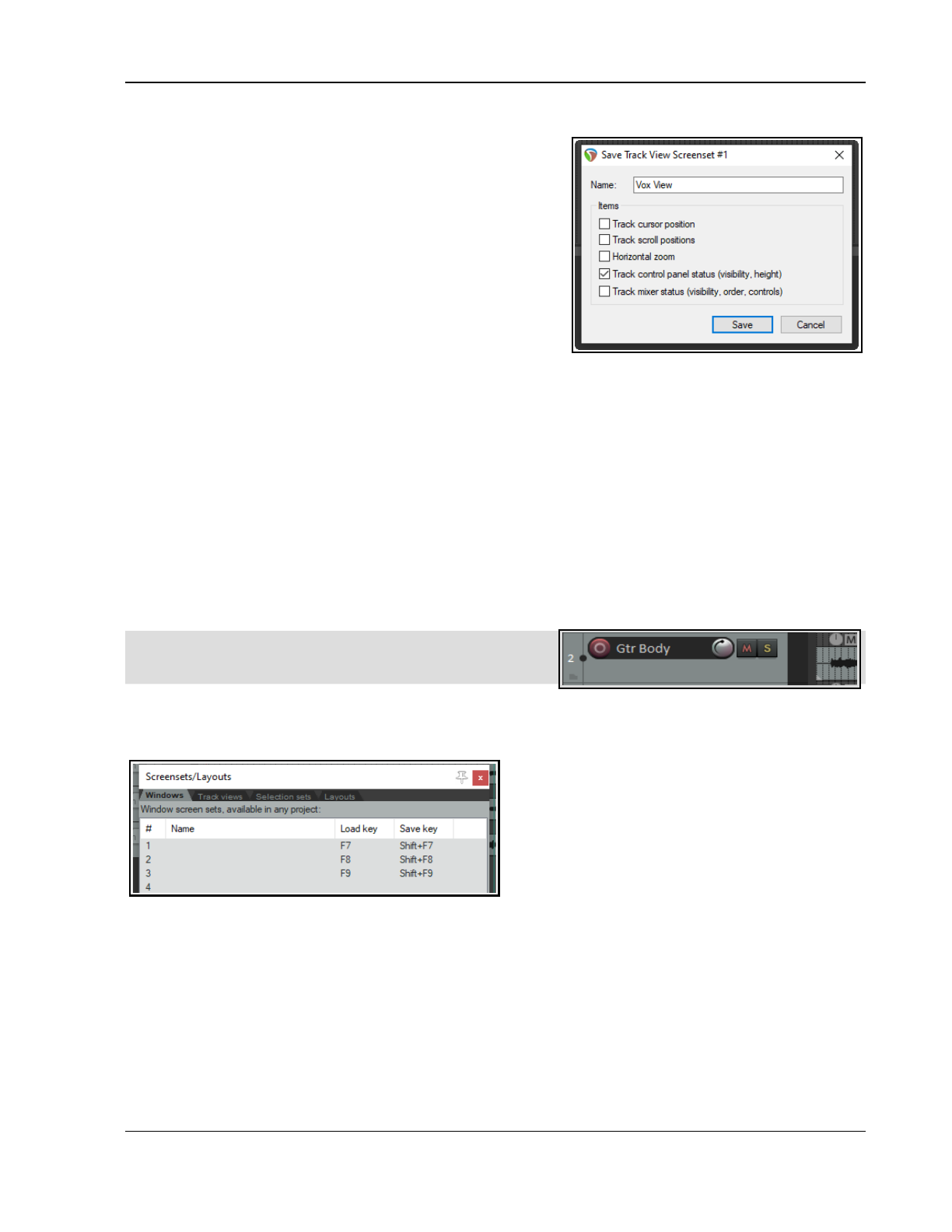
Managing The Overall Project
5. Take a look at the five options that are available. We'll examine these shortly. For this exercise, make sure
that only Track control panel status is selected.
6. Click on Save.
7. Now adjust the track heights so that all tracks are
minimized except the two guitar tracks. Make these two
tracks high enough to show all track controls.
8. In the Track views window, click on 2.
9. Click on Save to open the Save Track View window.
10. Again make sure that only Track control panel status is
enabled and type Guitars View. Press Enter.
11. To switch between these track layouts, double-click on their
names in the Screen Sets window.
This simple example has introduced you to screen sets and how
to use them. Because we selected only the option Track control panel status the project track layout was the
only information saved with this screen set. Notice the five options that you may choose to include in or exclude
from a track view:
Track Cursor Position Track Control Panel Status Horizontal Zoom
Track Scroll Position Track Mixer Status
To remove any screen set that you do not wish to keep, simply select it and click on the Clear button.
Track Mixer Status
Notice that one of the options that you have when saving track view screen sets is Track Mixer status. This
option can be used to save any Track Manager settings regarding which tracks are and are not displayed in the
Mixer at any time. Switching between different track views would then automatically select different selections of
tracks to be shown in the Mixer.
Do not confuse this with the option Mixer flags in Windows screen sets, which allows you to select not which
tracks but which mixer elements and options (FX inserts, sends, multiple rows, etc.) are applied.
Note: As you adjust track panel height and/or width, the
display area for track controls will become smaller or larger.
Some may disappear or reappear. An example is shown here.
12.9 Windows Screensets
At different stages of your project you are likely to need to use different combinations of views. For example,
you might not need to see the mixer when
recording but you might need the media explorer.
Later you may need the mixer and, perhaps, the
track manager but not the media explorer. This is
where Windows screen sets can useful.
Unlike track view Screen Sets, Windows Screen Sets
are not project specific, but can be applied to any
project. They are stored in the Application Data
folder in a file called screensets.ini. After opening
the Screensets/Layouts view (Ctrl E), to create Windows screen sets you should do this:
Decide which windows and views you want displayed, and arrange them on screen.
In the Screen Sets window, select the Windows tab, select a number, then click on Save. Type a name,
then select your options as you require (see below). Click the Save button.
To recall and open any screen set, double-click on its name, or select it and click on the Load button.
To change a screen set, open it, make the changes, then save it.
To remove a screen set, select it and click on the Clear button.
To rename a screen set, select it, click Clear, then Save, type new name, click Save.
229
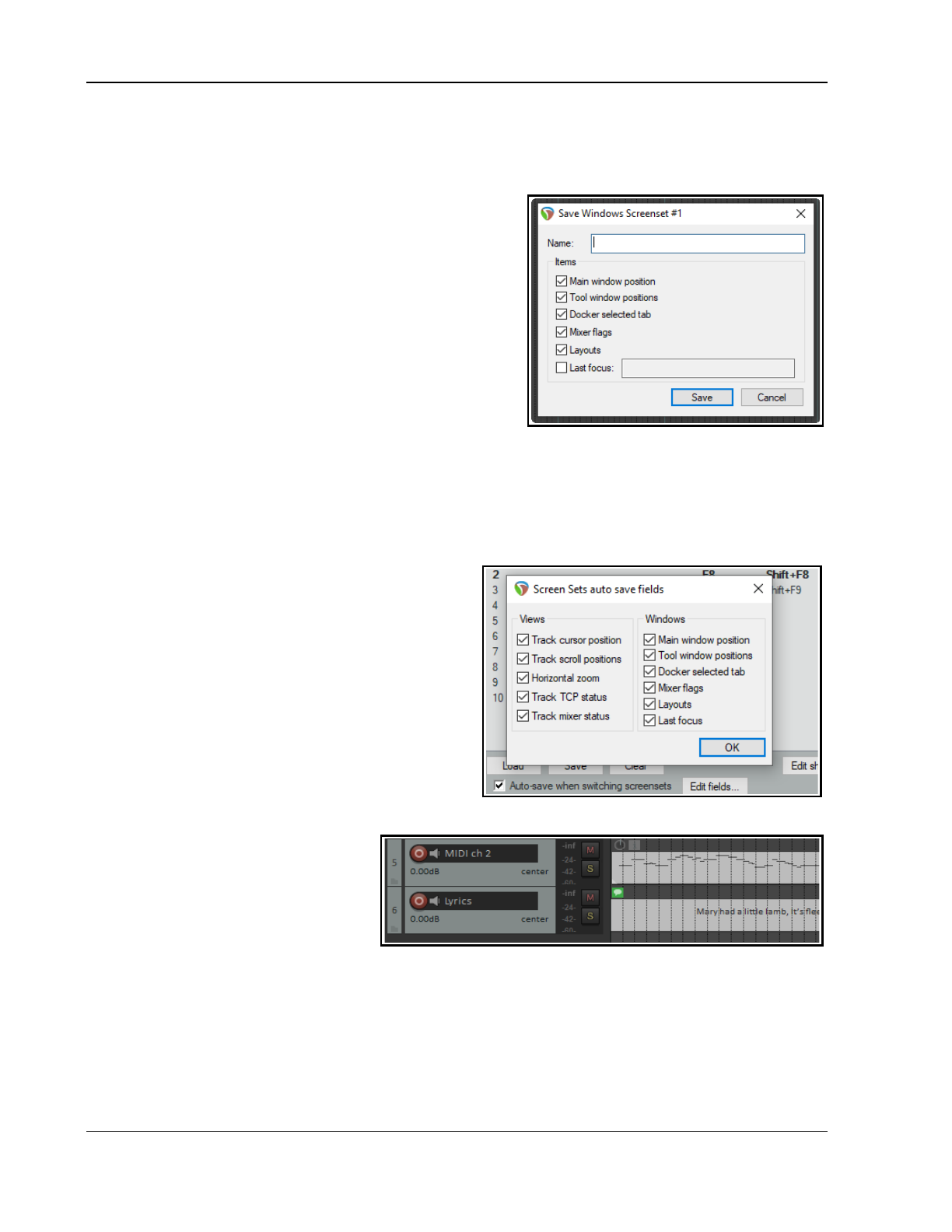
Up and Running: A REAPER User Guide v 7.81
You can also use keyboard shortcuts with Windows screen sets. By default, Shift F7 to Shift F9 are assigned
to saving Windows screen sets 1 to 3, and F7 to F9 to loading them. These assignments can be changed in the
Actions List Editor (see Chapter 15), accessed directly from the Screensets window by clicking Edit shortcuts.
The options that you may choose to include in or exclude from any screen set are:
Main Window Position Mixer Flags
Tool Window Positions Layouts
Docker Selected Tab Last focus
Some of these are self-explanatory. In addition, note that:
The tool window position option will cause the position of
those windows which are defined by Windows as tool items
(such as VST FX and the MIDI Editor) to be saved and recalled
with the screen set. For any particular project, however, this will
only be applied if that particular window exists in that project.
This option is useful, for example, if you use a set of standard
plug-ins in the Master and you want to easily be able to open
and close all these FX windows when working with any project.
Enabling docker selected tab will ensure that whichever
window in the docker is visible when the screen shot is saved will be visible when it is recalled.
The mixer flags option, if enabled, will save your various Mixer menu options (FX inserts, sends, folders, top
level tracks, position of master, etc.) with the screen set. These options are discussed in detail in Chapter 11.
We encountered layouts in Chapter 11, in the context of the Mixer. You'll find more information about Layouts
later in this chapter. Enabling this option will ensure that your layouts are saved with the screen set.
The last focus option causes a specified view view to be given focus whenever the Screen Set is loaded.
12.10 Auto Saving Screen Sets
You have the option to automatically save changes to
your Track Views or Windows screen set layouts. To do
this, simply ensure that the Auto-save when
switching screen sets option is selected (see below).
This can be used to ensure for example, that if you
change the selected tab to be displayed in the docker
before switching to a different Windows screen set,
when you return to the first screen set, REAPER will
have remembered which docker tab was last selected.
If using auto-save, consider using the Edit fields...
button to decide which elements for which you want
changes automatically saved (see right). The available
options are all items that were included in your options when you created your screen sets.
12.11 Creating a Text Track
You can create a text track that can be
used to display lyrics and/or any relevant
song notes (see right). To do this:
● Add a track and, with the track
selected, make a time selection
covering the length of the song.
● Choose the Insert, Empty item command.
● Double-click on the item to open it. Type your text, then click OK.
Tip: You can choose any installed font and font size for your media item label and empty item notes – for
example, to make them larger. Run the action Theme development: Show theme tweak/configuration
window and select a font of your choice.
Note: Notes can be added to individual media items. In Appearance, Media item buttons preferences,
ensure that the Notes and No notes buttons are both displayed.
230
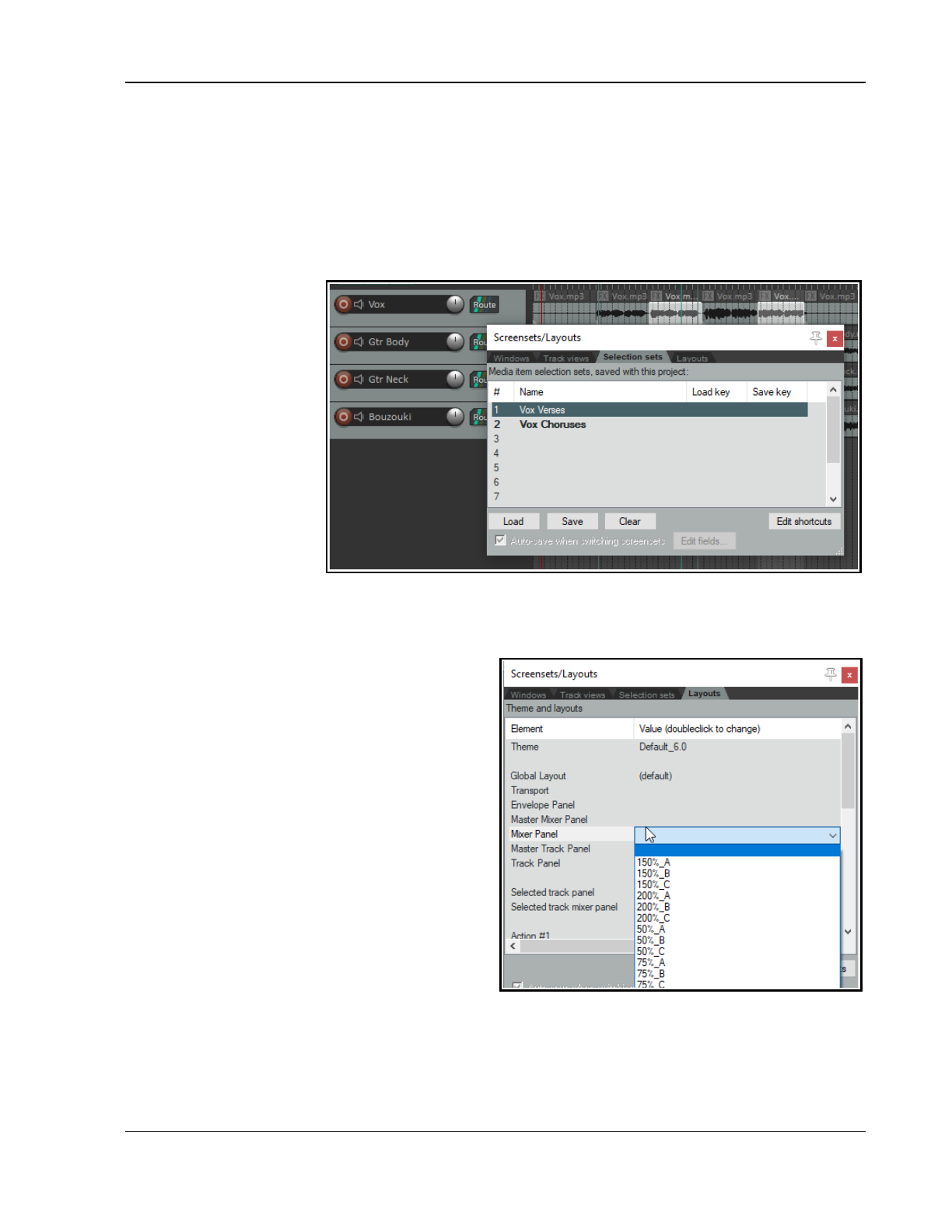
Managing The Overall Project
12.12 Item Selection Sets
By using item selection sets, you are able to create many different selections of items within a project file and
select all of the items in any set simply by selecting that set name. The procedure is as follows:
● Use the command View, Screensets/Layouts to display the Screensets window.
● Select the Selection sets tab.
● Within your project, select all of the items to be included in the group. These can be on a single track or
across any number of tracks.
● Select a set number,
then click on Save.
● Give the group a
name and press
Enter.
At any time you can now
recall that group by double-
clicking on its name, or by
selecting the name and
clicking on Load.
In the example shown here,
two selection sets have
been created, one for Vox
Verses and one for Vox
Choruses. Simply by double-
clicking on the required set
name, we can select all of
the items in either set.
12.13 Track, Mixer, Transport and Envelope Layouts
Layouts in general, and mixer layouts in particular,
were discussed in Chapter 11. Layouts are created,
stored and retrieved with individual themes. From the
Layouts tab of the Screensets/Layouts window you
can select any theme from the drop down theme list.
Layouts are designed and created for use with
individual themes. Therefore, the choice of layouts
available to you will be largely dependant on which
theme you are using. Themes can be downloaded
from stash.reaper.fm.
Layouts associated with your chosen theme will be
available to you from the various drop-down lists in
this window, such as track panel layouts and mixer
panel layouts. For earlier themes that do not include
any layouts, a number of standard layouts are
available.
Shown right is an example, in this case double-clicking
to display the Mixer Panel drop down list and to select
a mixer layout. This is an example only – the exact
range of choices available to you may not be exactly
the same as shown here. When one of these drop down lists is displayed you can hover your mouse over any
item to see how it looks, in this example in the mixer.
Here is a summary list of the main layout elements available:
231
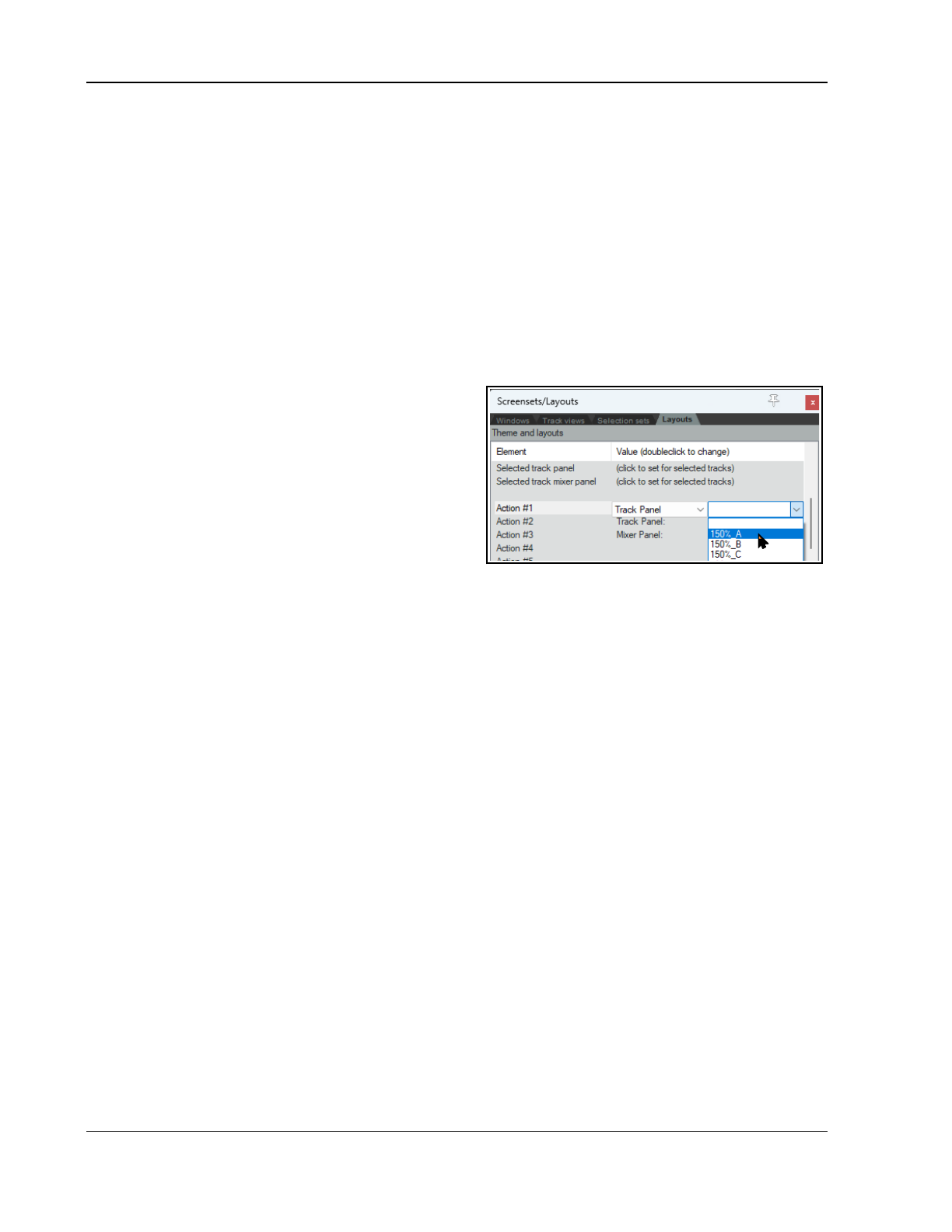
Up and Running: A REAPER User Guide v 7.81
Global Layout Selects theme defaults for all layout elements.
Transport Selects layout for the Transport bar.
Envelope Panel Selects a layout for track envelope panels. See Chapter 18.
Master Mi1xer Panel Selects a layout for the Master in the Mixer panel.
Mixer Panel Selects a layout for all tracks and folders in the Mixer panel.
Master Track Panel Selects a layout for the Master in the Track control panel.
Track Panel Selects a layout for all tracks and folders in the Track Control panel.
Selected track panel Selects a layout for selected tracks in the Track Control panel.
Selected track mixer panel Selects a layout for selected tracks in the Mixer panel.
The behavior and appearance of your various layout options are determined by whichever theme you are using.
If you are using REAPER’s default theme (Options. Themes. Default) then you can modifyb any of these
layouts using the Theme Adjuster – see Chapter 15.
You do not need to open the Layouts window to select layouts for a project. You can also use the Options,
Layouts command from the main menu or the Track layout command from the TCP or MCP context menu.
Assigning Actions to Layouts
Scroll down the Layouts screen to assign to shortcut key
combinations up to 20 actions which can be used to recall
any layout.
Double-click on any row (e.g. Action #1) to define its
context (e.g. track panel, mixer panel, global) and
definition (e.g. 150%_A). Click on the Edit shortcuts
button to then assign shortcuts to the Layout action.
12.14 Moving Track Panel Position
You can move the entire track panel to the right hand side of Arrange View if you wish. Right click in the empty
track panel area (below the last track) and choose the toggle command Show TCP on right side of arrange.
12.15 Play/Stop Cursor Options
By default, when you use the spacebar to start/stop playback, then on stopping the play cursor will return to join
the edit cursor at the position it was at when playback started. However, you also have an option to instead
leave the play cursor at its stop position when playback stoops, and to move the edit cursor forward to meet it.
Open the Actions List and find the action Transport: Play/stop (move edit cursor to stop). This can be
assigned to a combination of your choice (e.g. Shift Space).
12.16 SWS Extensions
REAPER’s screen sets are powerful, but the optional free SWS Extensions package adds even more
functionality. For example, it enables you to save and recall different entire mixes within a single project.
Also, as you get to know REAPER better you will find that there are a number of editing and related actions that
you will want to use frequently. This might include, for example, actions as diverse as lining up a number of
media items with the edit cursor, or setting the volume of an entire selection of media items in one action. You
will find that many of these actions – and more - are available by downloading and installing the SWS
Extensions Pack. To do this, you simply follow this sequence:
1. Go to https://www.sws-extension.org/
2. Follow the instructions to download the correct version for your operating system.
3. After downloading, run the install program, then start REAPER in the usual way.
The contents of this extension pack include not only hundreds of useful actions for editing and more but also
whole modules which bring extra functionality to REAPER, including improved marker management.
12.17 Using FX Parameter MIDI Learn
In Chapters 2 and 6 we looked at some uses for the Param button in REAPER's FX plug-in windows. In chapters
16 and 17 you'll see how this can also be used to create automation envelopes and for parameter modulation. In
this section, we will explain how to assign control of an FX parameter to an external device.
When you touch the control in the FX window with your mouse and then click on the Param button, then
choose Learn the Learn window is displayed (see below). Twiddling the control (such as fader or rotary) on your
232
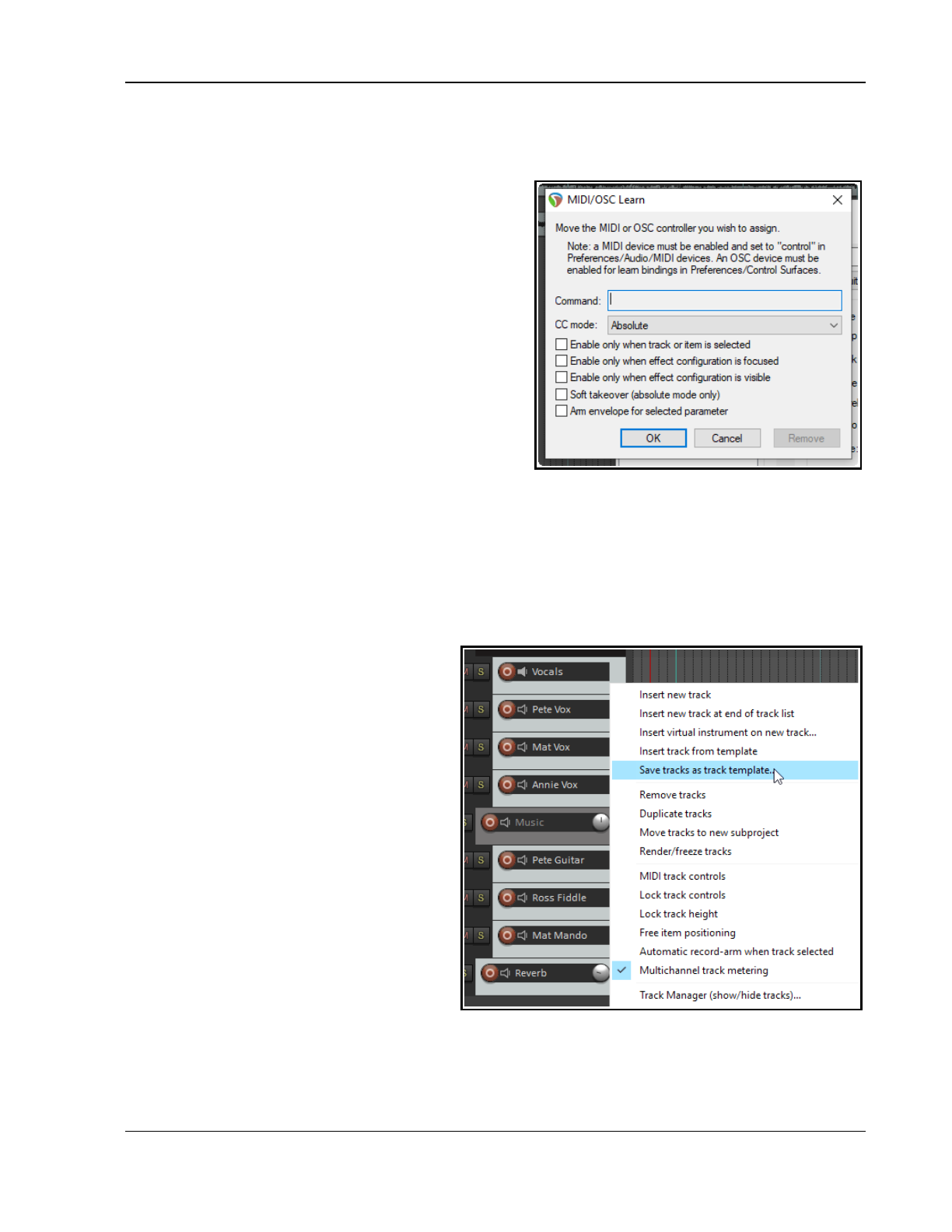
Managing The Overall Project
control surface device will cause information to be displayed in the Command window about the channel and
CC assignment for this control. This information is picked up from the control surface.
Choice of CC mode (absolute or relative) will depend on the parameter being assigned and your own control
device. In many cases, absolute mode with soft takeover
will be appropriate, but you may need to experiment.
Soft takeover: if enabled, the learned parameter will not
be changed by moving a MIDI knob or fader until the MIDI
knob/fader equals the value on the screen.
For example, if the current value of a parameter is (say)
100 and the controlling hardware slider is (say) 30, then
with soft takeover enabled moving the fader will not cause
any change to the parameter value until the value of the
fader itself nears 100. If the fader is then moved to (say)
120, then the parameter value will also be moved to 120.
The options to Enable only when effect configuration
is focused/visible can be used to ensure that this control
surface assignment will only be used when that plug-in has
focus and/or is visible. This enables you to assign the
same control surface fader to any number of different
functions with different plug-ins. For example, the same
fader used to control EQ gain in one plug-in could also be used to control the threshold setting on a compressor.
When one or more parameters in a plug-in has been assigned to a control surface, you will see an extra
command on the Param menu – Default controller mappings.
This leads to a flyout menu with three options – Use default, Save as default, and Clear default. You can
thus use this menu to save these settings as the default for this plug-in, so that these controls will be
automatically made available whenever that plug-in is loaded into other tracks.
12.18 Track Templates Revisited
Back in Chapter 3 when discussing recording,
we mentioned track templates and how useful
they can be. Now that you have discovered a
lot more about REAPER, it's worth revisiting this
topic. Track templates can be your best friend
when you are setting up your projects.
A track template can be made up of any track
or any selection of tracks. For example, you
might have a folder called Drums. This might
contain a series of child tracks – Kick, Snare,
Toms, Hi hat, etc. – all of which have their own
track FX with their own settings, and with
volume and pan faders set at their own levels.
You could save the entire folder (parent) with
its child tracks and all their settings into a
single track template called Drum Kit.
Items that get included in track templates7
include track name, track control settings, track
properties (color, icon, etc.), track FX (together
with their parameter settings), track controls,
FX alias names and FX parameter alias names,
parameter modulation, FX parameters, sends and receives, and more.
To save a track (or selection of tracks) as a track template, choose Track, Save tracks as track template
from the main menu. To insert tracks from a track template into a project, choose Insert track from template
then Open template from the same menu.
233
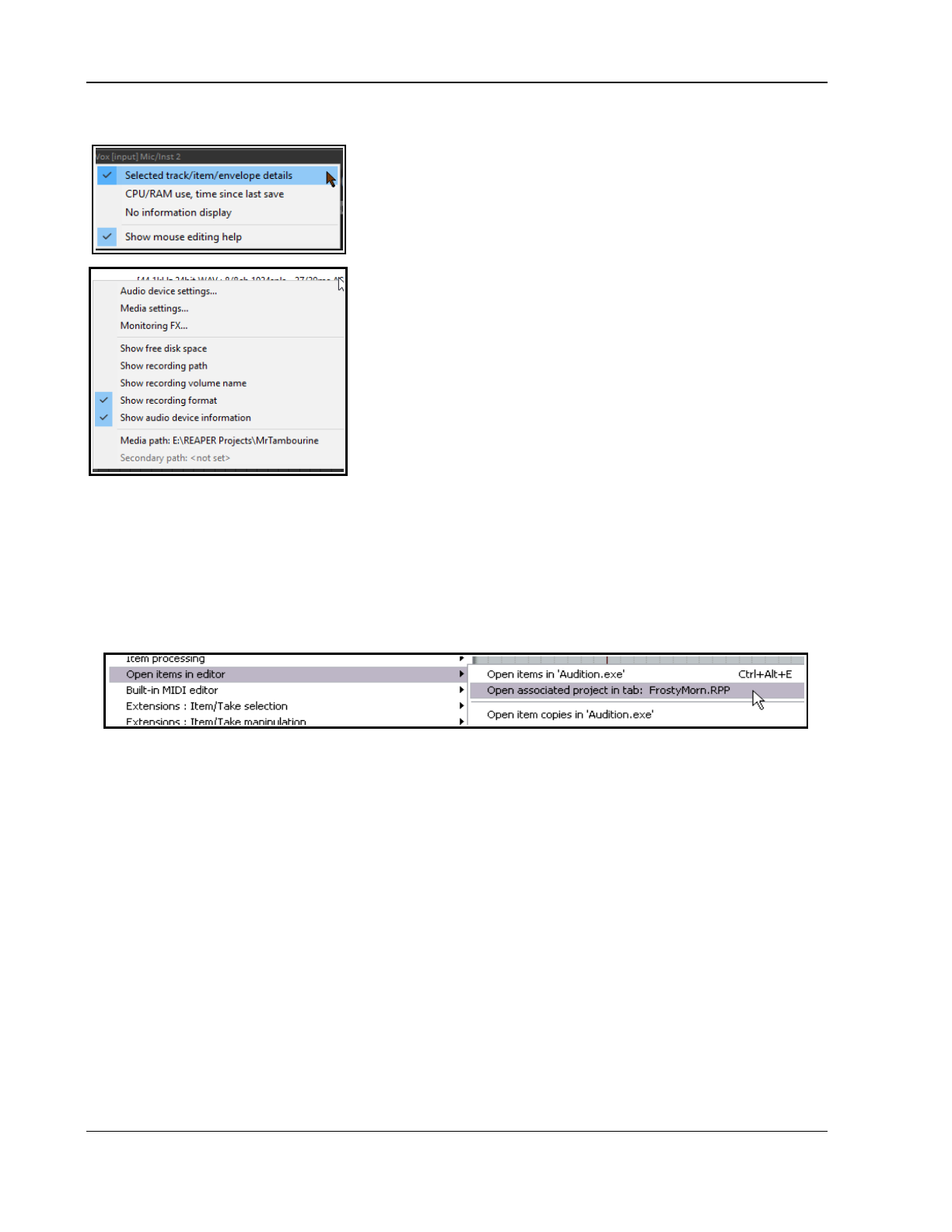
Up and Running: A REAPER User Guide v 7.81
12.19 Track Control Panel and Menu Bar Help
A selection of useful information can be displayed below the control
panel and at the end of the main menu bar. Right click just below the
track control panel and select from these options:
Selected track/item/envelope details
CPU/RAM usage, Time since last save
No information display
Show mouse editing help
The first three of these options are mutually exclusive: that is you can
select only one of them. In the case of the menu bar (right hand end),
you can select from the following options:
Show free disk space
Show recording path
Show recording volume name
Show recording format
Show audio device information
This menu also gives you access to the Audio Device page of your
preferences, the Media Settings page of your project settings, and
the Monitoring FX window.
12.20 Associating Rendered WAV Files with Source Project Files
When using the File, Render command to render a project (or part of a project) to .WAV file(s), there is an
option to Include project file name in BWF data. Rendering is explained in detail in Chapter 21. If this
option is enabled, the RPP project name will be embedded in the rendered file(s). This ensures that this RPP file
will remain associated with the rendered WAV file(s).
If any file rendered with this option enabled is subsequently inserted into another project, then the command
Open associated project in tab: xxx.RPP (where “xxx” represents the associated project file name) will
appear under Open items in editor on the media item context menu.
12.21 Multiple Project Backup Versions
The Project page of REAPER's Preferences includes an option when saving to create multiple rpp-bak backup
files. To do this, enable the option Keep multiple versions, with or without (as you wish) their own undo
histories. If enabled, using File, Save project as... to save a project (over writing the previous file) will cause a
new time and date stamped backup version to be created.
Opening the .RPP file will always open the most recently saved version. However, opening the RPP-BAK file will
cause a Choose version from backup file dialog to be displayed. Here you can select which version you
would like to load. With multiple project tabs you are able to have multiple versions open at the same time. This
can be used to create a new project tab into which it will open the associated RPP file.
12.22 Using Multiple Dockers
In Chapter 2 you were introduced to working with REAPER's docker as an aid to navigating your way thru
REAPER's various views and windows. In fact you are not restricted to just one docker: you can create up to 16
dockers if you wish. In the example shown here, we have two dockers attached to the bottom of the main
window and a floating docker. The first docker (bottom left) contains tabs for displaying the Routing matrix, the
Mixer, and the Media Explorer. The second is used to display at any time the Screensets window, the Track
Manager or the Undo History. The floating window is a third docker, and this contains tabs for displaying the FX
chains for four of the tracks in the current project. This is, of course, only an example.
234
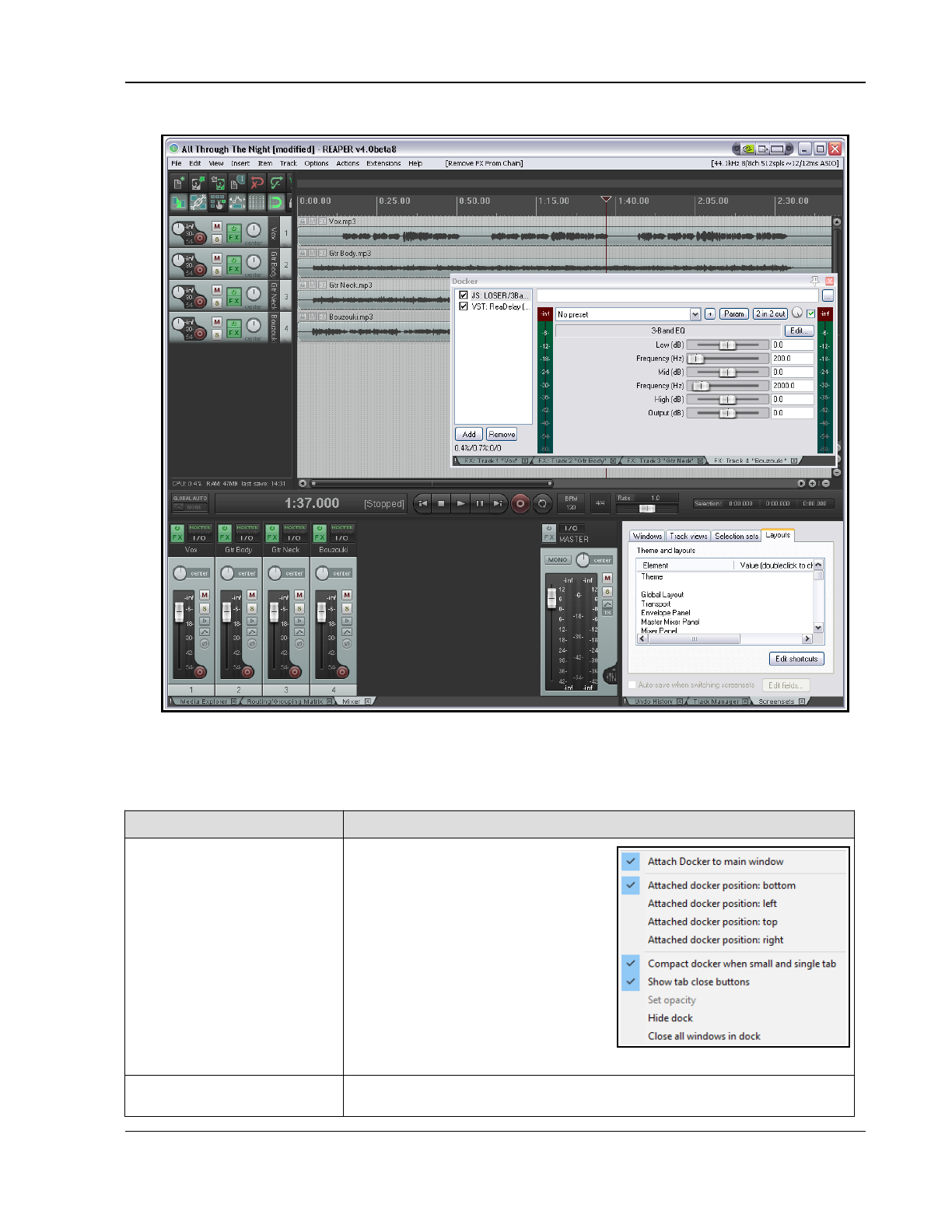
Managing The Overall Project
These instructions assume that you are already familiar with the basic techniques for docking and undocking
windows, and so on, as explained in Chapter 2. You can attach any docker to the main window in any of the four
positions. You can also choose the same position for more than one docker (for example, you might wish to
attach two dockers to the right).
To do this … You need to do this ...
Attach a docker to the
main window
Click on the ! to display the menu,
then choose Attach docker to main
window, then select a position
(bottom, lefts, top or right).
Several dockers can be attached to
any position. Click and drag on the
boundary between two dockers
docked in the same position to adjust
the position of the boundary between
them (and therefore the relative size
of the two dockers.
This menu also allows change to a docker position, e.g. from top to left.
Dock a window Right-click on the window's title bar and choose the command Dock … in
Docker.
235
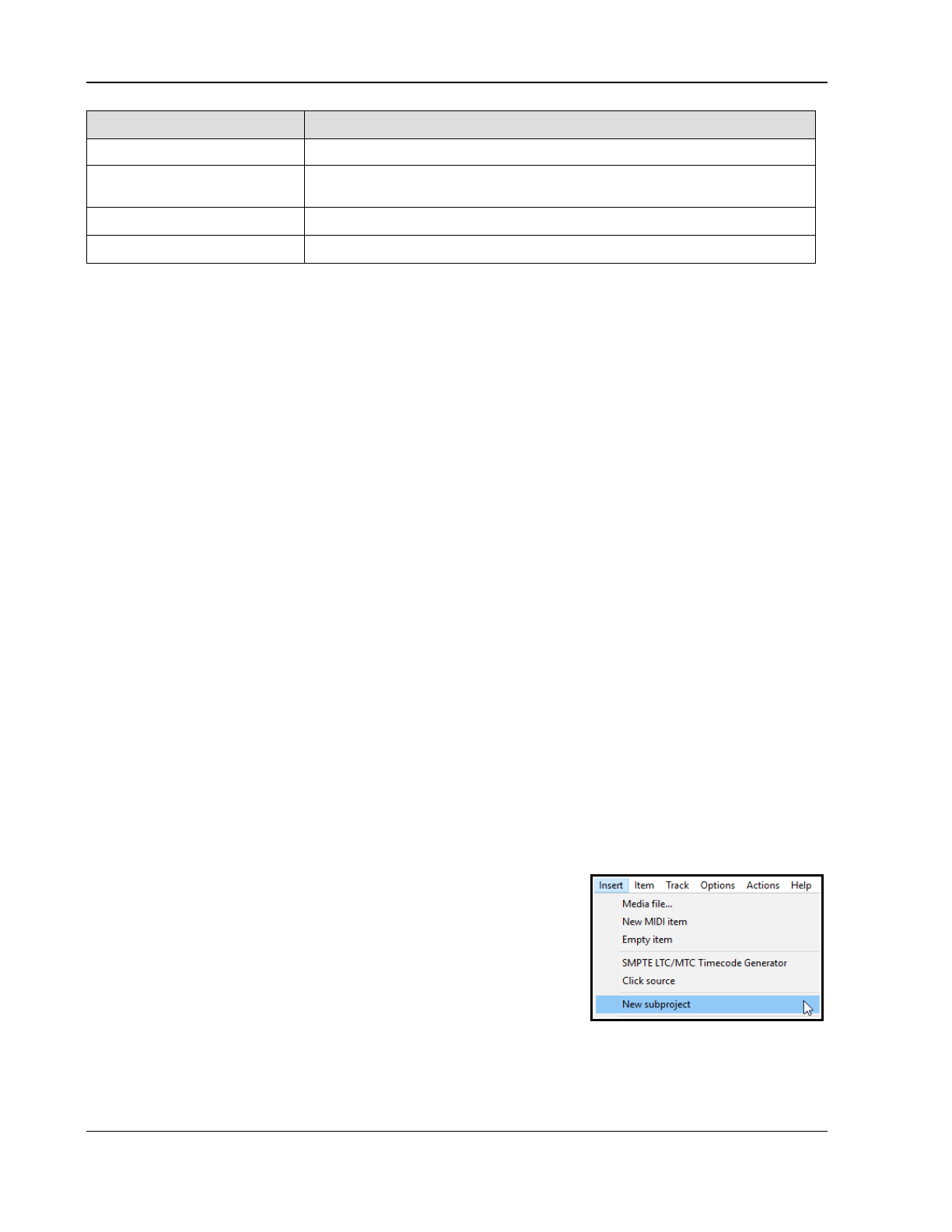
Up and Running: A REAPER User Guide v 7.81
To do this … You need to do this ...
Create a new docker Drag and drop any tab from an existing docker into the arrange view area.
Move a window from one
docker to another
Drag and drop the tab from its present docker to its new one.
Reorder tabs in any docker Drag and drop tabs left or right.
Close a docked tab Alt Click on tab, or click on tab x button.
12.23 Saving New Project Versions
REAPER's action list includes an action File: Save new version of project (automatically increment
project name) which by default is assigned to the keyboard shortcut Ctrl Alt Shift S. This causes a new .RPP
file to be created when you save a project. Thus, if, for example, you have a file open called WinterBlues.RPP
then running this action would cause this project in its current state to be saved as WinterBlues_1.RPP. Running
the action again would save it as WinterBlues_2.RPP, and so on.
12.24 Projects and Subprojects
A powerful feature of REAPER is the ability to build a master project that uses any number of subprojects, rather
than having to store all your individual tracks, folders and media items within a single project file. This has many
potential applications but is likely to be especially useful for projects which require a very large number of tracks
or for sound design projects where you might wish to use subprojects to build a single overall audio item. The
more the subprojects contain multiple media items which need intricate editing, or make use of features such as
automation, parameter modulation and FX, the greater the potential benefits (in terms of project management)
of using subprojects. Another example might be for a single subproject (or proxy) to be used in multiple projects
(for example, advertisements), so that when it is updated all of the “master” projects are automatically updated.
Before working with subprojects, however, you should first develop a solid knowledge and understanding of
REAPER's essential project building features, such as (but not confined to) audio and MIDI recording, the media
explorer, editing media items, track and item FX, and automation. In principle, subprojects are not too difficult to
understand. In overview, the
basic
steps involved in using it are as follows:
1. Create a new project file in the normal way (Ctrl N), and save it. In doing this, it is advisable to select the
option to create a subdirectory for the project. Consider also whether you wish to use one of the options
to copy or move all media into the project directory.
2. Create (either by recording or importing, or some combination of both) one or more tracks for this project,
such as some foundation tracks or a guide track. You do not have to do this before adding any
subprojects, but it can often make sense to do so.
3. Create a track to “hold” your subproject. The reason for this should become clear shortly. Name this track:
e.g., if it is for drums, call it Drums, or for strings, call it Strings, or for foley or sound effects call it Foley
or SFX, and so on.
4. Select this track and choose the command Insert, New subproject. If you wish, you can set the initial
length of the subproject by defining a time selection before doing this. When prompted, accept the default
name or make up a name (e.g. DrumsSub, StringsSub, etc.) and
click on Save.
5. A short media item will be inserted at the play cursor position. This
is (or represents) the subproject.
6. 07Double-click on this item to open the sub-project in a new tab.
Two markers are automatically created, (=START and =END) at the
start and end of the subproject. They define the rendered portion of
the subproject, and can be moved or deleted at any time.
7. Build your subproject by recording or importing media as required.
Various options that control playback behavior when working with multiple projects open are available on
the project tab context menu. We'll get round to explaining these shortly.
8. When finished, press Ctrl S to save the subproject. The media items will be rendered to a single file which
will appear as a single media item on its own track in the main project.
236
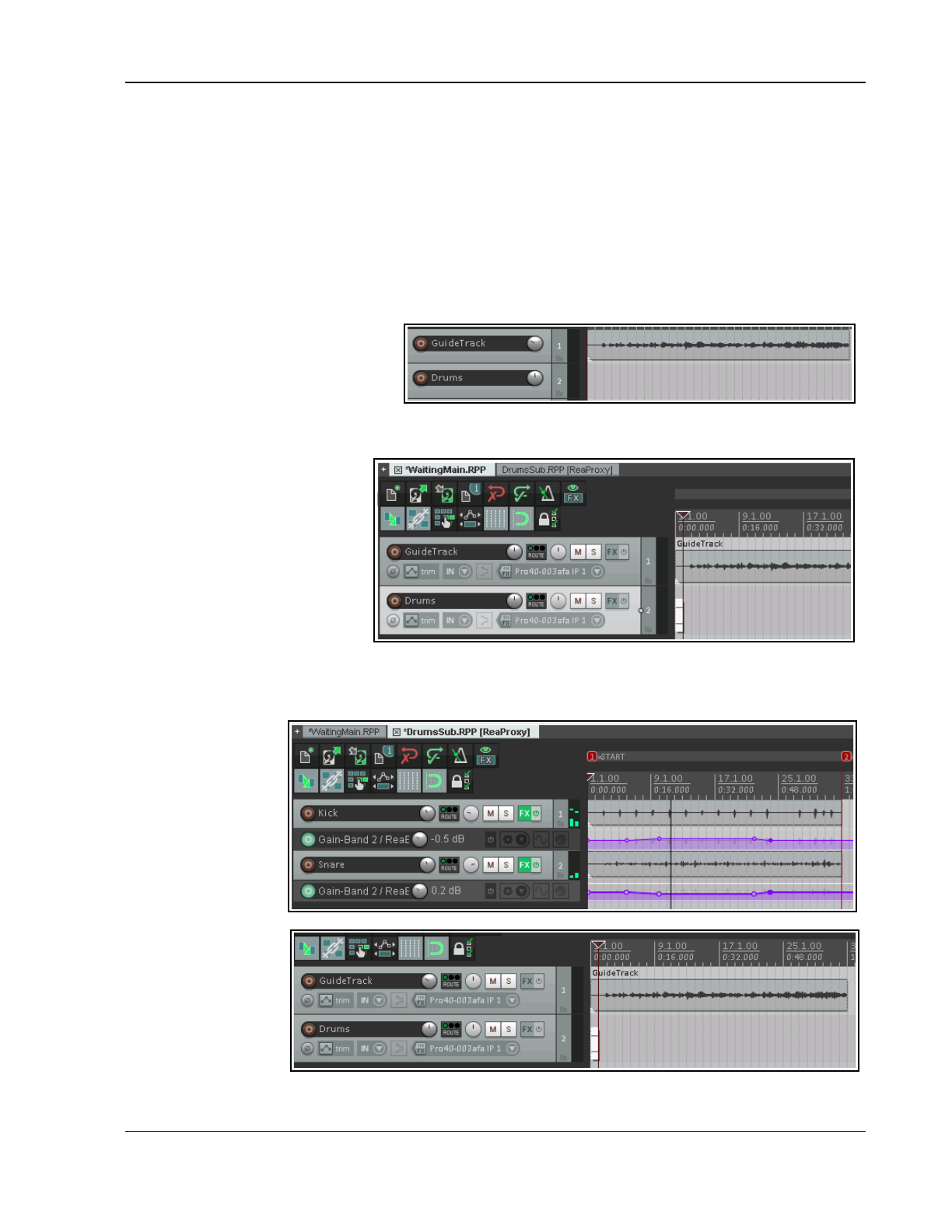
Managing The Overall Project
9. Display the main project (select its project tab). You may need to extend the length of the media item on
the sub project track to display its contents. You may now close the subproject file if you wish. It can be
re-opened by double-clicking on the media item in the main project file. With large projects (e.g. with
many sample based instruments) that are slow to load it can be simpler just to keep them open, although
doing so will use more RAM.
10. When you play the main project file, its output will now include the rendered contents of your subproject.
Example
Let's now look at an example of how this might be done in practice. To make it easier to understand, this
example will be kept to a simple project. After reading thru this, you might be able to then think of a further
example that you can try out for yourself using your own projects.
1. Here we have created a new project
file, and saved it into its own
subdirectory, calling it
WaitingMain.RPP, We have
recorded a guide track and added a
second track, called Drums.
2. After selecting the Drums track we used the command Insert, New subproject to insert a subproject
which we named and saved
as DrumsSub.RPP. Notice
both the short media item
that is automatically added
to the track and the new
project tab above the
toolbar.
3. Using DrumsSub.RPP we
build our drum tracks in the
normal way. For the sake of
simplicity, in this example we
have just added two tracks,
but of course we could have as many as we require. Whenever we play these back, the guide track in the
master project will also be heard. Track volume and pan settings are adjusted as required, FX and
envelopes are added, and so on. When finished, we move the =END marker to the end of the tracks.
5. We now save
this file. Notice
that audio
output is
rendered as the
file is saved. We
return to the
main project. At
first sight,
nothing seems
to have
changed:
6. However, when
we extend the
media item to
the right, we
can see the
rendered drums.
237
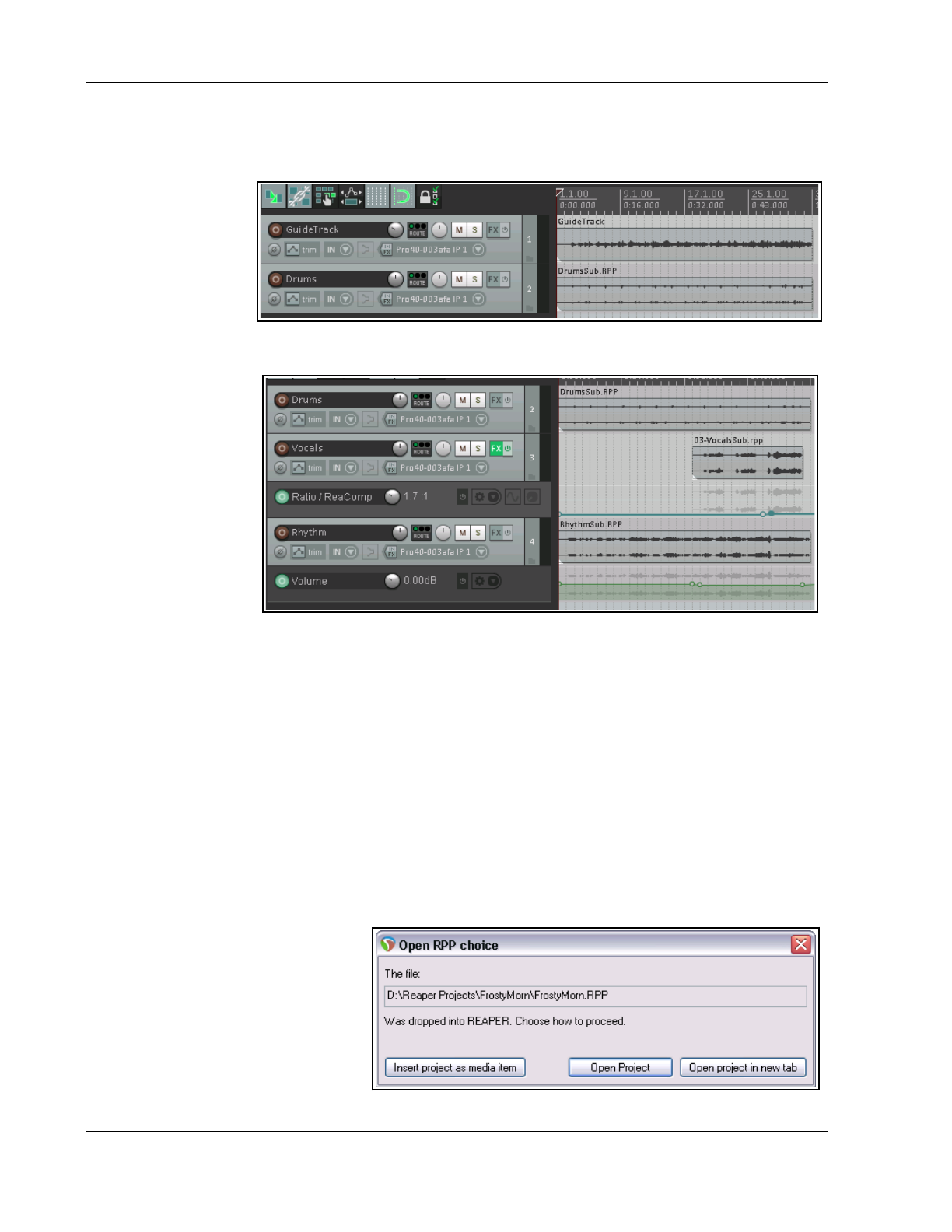
Up and Running: A REAPER User Guide v 7.81
7. If we close the DrumsSub project and play the main project file, the rendered drums can clearly be heard
along with the guide track.
8. Any later changes that we make to the DrumsSub project will be included in the audio file that is rendered
when the
subproject is
saved. Thus,
when the main
project is next
opened, the
audio item on the
Drums track will
include these
updates.
9. We can now add further subprojects, in this example one each for the vocals and the rhythm section. The
guide track is no
longer required: it
can be muted and
hidden. We can
also make further
edits, add FX, etc.
to the rendered
subproject tracks:
This example has been
kept simple for learning
purposes. In practise,
subprojects are most
useful when working
with complex and
intense applications such as movie scores, radio programs, large orchestral arrangements, game/video sound
design and electronic music production. Another potential application is in finalising an album, with each song
being inserted as a separate subproject within a master project.
Working with subprojects … some handy tips and hints
It's easy to stumble and make (sometimes elementary) mistakes when trying out something new. These
comments are not comprehensive but they are here to help you.
Creating a subproject file
● It's not the end of the world if you forget to position the edit cursor in the master project accurately before
creating a subproject. You can move the media item within the master project file later.
● You can specify the position and length of a subproject by defining a time selection before you create it.
● It usually pays to ensure that the master project is set up within a new folder, and the subprojects are all
stored in that same folder.
● Don't use the name of an existing file in the same folder as a subproject file name. If you do, you will
overwrite that file with a new empty one.
● Individual media items from an
existing project file can be
imported into a subproject file in
the usual way (e.g. using
REAPER's Insert, Media item
command, or via the media
explorer).
● An existing .RPP project file can
be imported into a master project
as a new subproject media item
(see right).
238
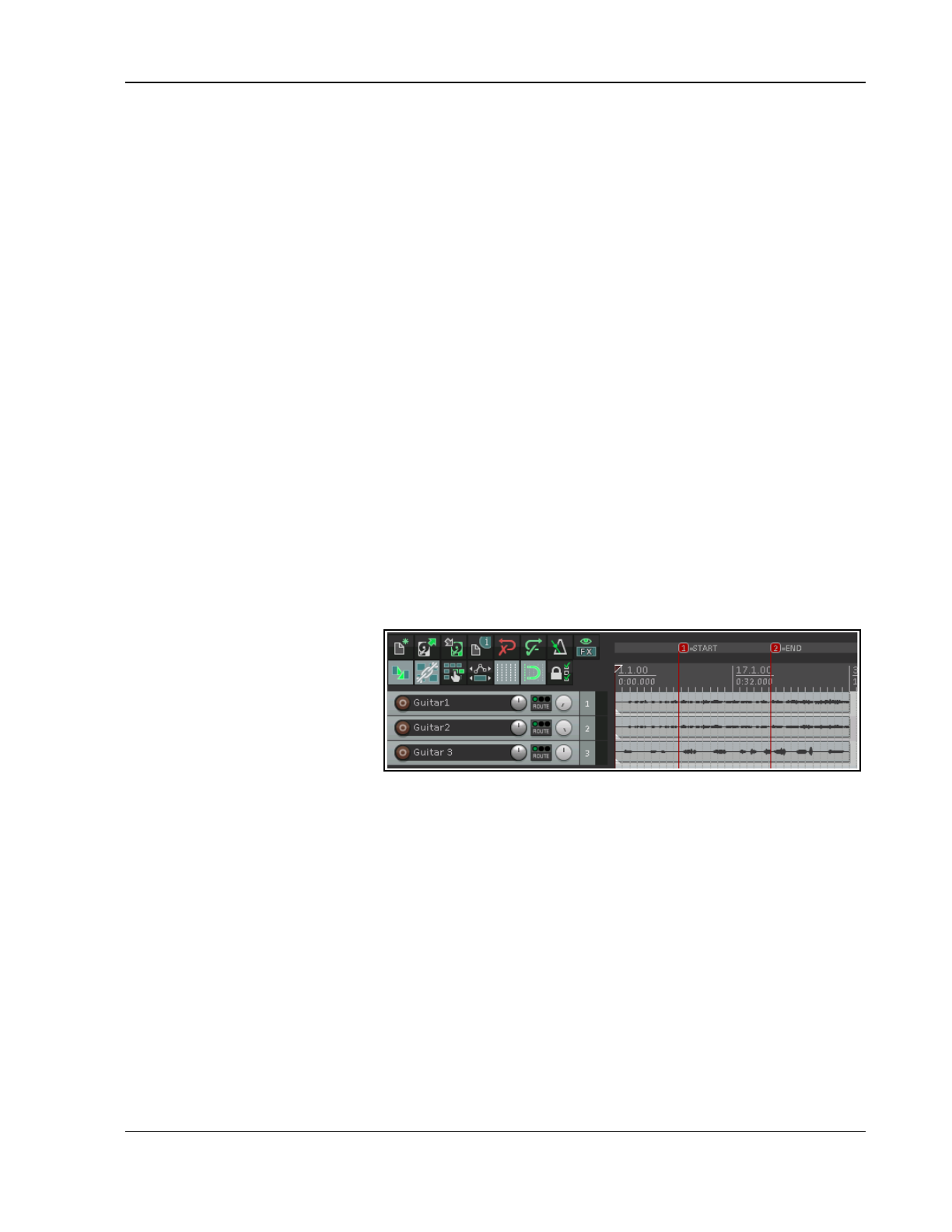
Managing The Overall Project
Either
drag and drop the .RPP file from media explorer into an empty track in the master file, and when
prompted choose Insert project as media item,
or
select the empty track and use the Insert, Media
file... command.
● An existing media item (or item selection) in a master project file can be moved from the master file to a
new subproject file. Right-click on the item(s) and choose Move items to new subproject. Items within
the selection on the same track will be moved to a single subproject file. Items on different tracks will be
each be moved into a separate subproject file. The subproject file is fully editable: its contents will appear
in the master project as a single item, which will be updated each time the subproject is saved.
● To convert an entire track or selection of tracks in a master project file into a subproject:
1. In the TCP, select the track or tracks. If enclosed in a folder, include the folder in your selection.
2. From the main menu, choose Track, Move tracks to new subproject.
The tracks (including any folders) will be moved and saved to a new subproject file: their output will
appear in the master file as a rendered single item on a single track. Note, however, that any
sends/receives between the selected tracks and any other tracks in the master file will be removed.
Working with subproject files
● If your master/subproject arrangements become very complicated, and you wish to be able to save
without having to wait for rendering to complete, click on one of the project tabs and enable the option
Defer rendering of subprojects (render on tab switch rather than on save).
● A new subproject file will take some project settings (e.g. BPM, time sig) from the master project file.
However, changes to master project settings will not be automatically applied to subprojects.
● You do not need to have the master file (or any other file) open when you are working on a subproject file.
The file will be automatically re-rendered when you save your changes, and it is this re-rendered version
that will be displayed when you next open the master file. However, often you will want to have the master
project file open, to give your subproject file(s) relevant context.
● The =START and =END markers can be used to ensure that only a portion of the material in a subproject
file is rendered and returned to the master file when the project is saved (shown below).
● If you delete these two
markers, the entire project
from the start (zero on
timeline) to the end of the last
item will be rendered when the
file is saved. This could lead to
the loss of reverb tails if the
reverb is intended to play
beyond the end of the last
item.
● When you play back a subproject file with Run background projects and Synchronize any parent
projects on playback enabled, the item takes in the master file that correspond with that subproject file
will be automatically muted, and remains so as long as that subproject remains the active project.. This
prevents the same material from being played twice.
● If when working on a subproject file you wish to hear only the contents of that file on playback, you should
disable the project tab option Synchronize any parent projects on playback.
● Be aware that if a subproject has been edited within the parent project (e.g. with FX, playrate changes,
etc.) the Synchronize any parent projects on playback option may not produce the same results as
playback of the parent project would provide.
● You have already learnt that when a subproject file is saved its contents are rendered to audio. This
process uses that file's project render realtime/online settings. Thus, if you wish you can use different
render settings for different subproject files.
● A subproject file can be auditioned in media explorer. Navigate to the correct folder, and select the .RPP
project in the usual way. The audio render will be played. This enables you to play it back in media
explorer without having to open it. Within media explorer, the Options menu includes Auto-render
proxy (subproject) to preview REAPER.RPP projects. If enabled, this ensures that when you select an
.RPP subproject view for preview, if it needs rendering it will automatically be rendered.
239
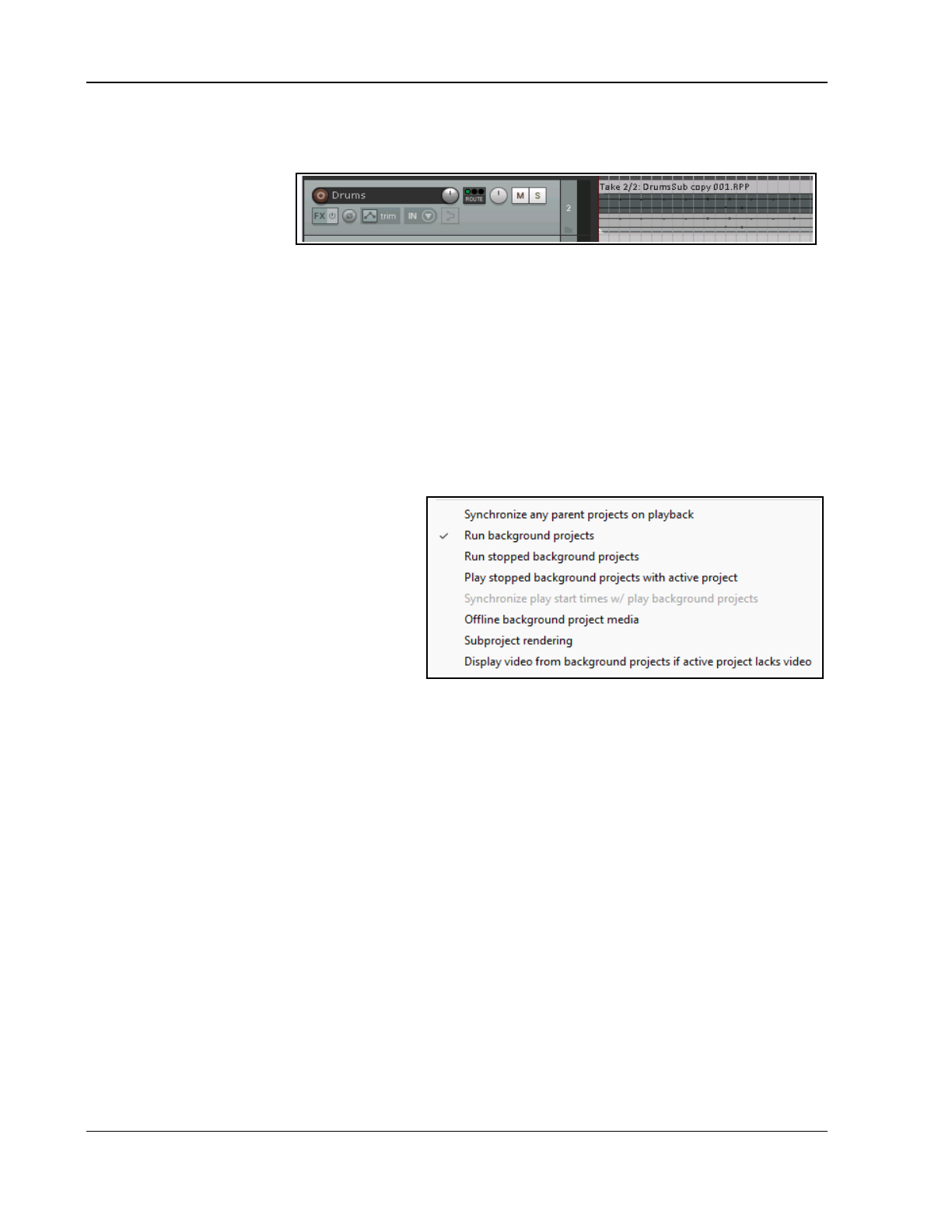
Up and Running: A REAPER User Guide v 7.81
● Within the main project file, you can create a new take of any subproject item. Just right-click on the
media item and from the context menu choose Open items in editor, then Open item copies in
subproject tab. You will now have two subproject files for this track. These two files can be edited
independently of each
other and will be
displayed in the master
project as two separate
takes. They can be
manipulated and edited in exactly the same way as any other takes.
● Your subproject files, like other project files, can include markers and regions, as you wish. On saving, any
regions will be identifiable within that subproject's rendered media item in the main project file.
● If the start time of a subproject does not coincide with its main project start time it can be useful to enable
from either its transport or ruler context menu the options Secondary time unit, Display parent
project time as secondary.
Summary of master and subproject project tab option
Parent projects:
If you enable the option Run background projects then you can fine tune how the background projects
should behave by enabling or disabling any or all of the options Run stopped background projects, Play
stopped background projects with active project and Synchronize play start times w/play
background projects.
Subprojects:
If you enable the option Run background
projects then you can fine tune how the
background projects should behave by
enabling or disabling any or all of the options
Synchronize any parent projects on
playback, Run stopped background
projects, Play stopped background
projects with active project and
Synchronize play start times w/play
background projects.
On both parent and subproject project tabs various Subproject rendering toggle options are available. These
are Do not automatically render subprojects (require manual render), Prompt before automatic
rerender of background subprojects, Defer rendering of subprojects (render on tab switch rather
than save) and Leave subproject open in tab after automatic open and render.
There is also an option to Display video from background projects if active parent lacks video.
12.25 Working with Multiple Instances of REAPER
If you wish, you can have more than one instance of REAPER open at the same time. This can be useful, for
example, if you have multiple monitors and need to work on two or more projects at the same time, with each
project kept always in view. With project tabs this is not possible, but there are two other ways of doing this:
Spawn new instance of REAPER.
Open the Action List and run the action File: Spawn new instance of REAPER. This is the simpler option and
will open a separate instance of REAPER in a new window and with its own preference options, but sharing the
same configuration file. You can, for example, copy and/or move media items between the two (or, indeed
more) instances. Each instance of REAPER is independent of the other. However, this method might not be
preferred if your monitors are running at different resolutions.
Make a separate portable install of REAPER.
A portable installation of REAPER (in a different directory from your main REAPER installation) will have its own
configuration file and settings. It can be run independently of, and alongside, your main REAPER version and
allow you to do everything that you can do with a spawned new instance.
240
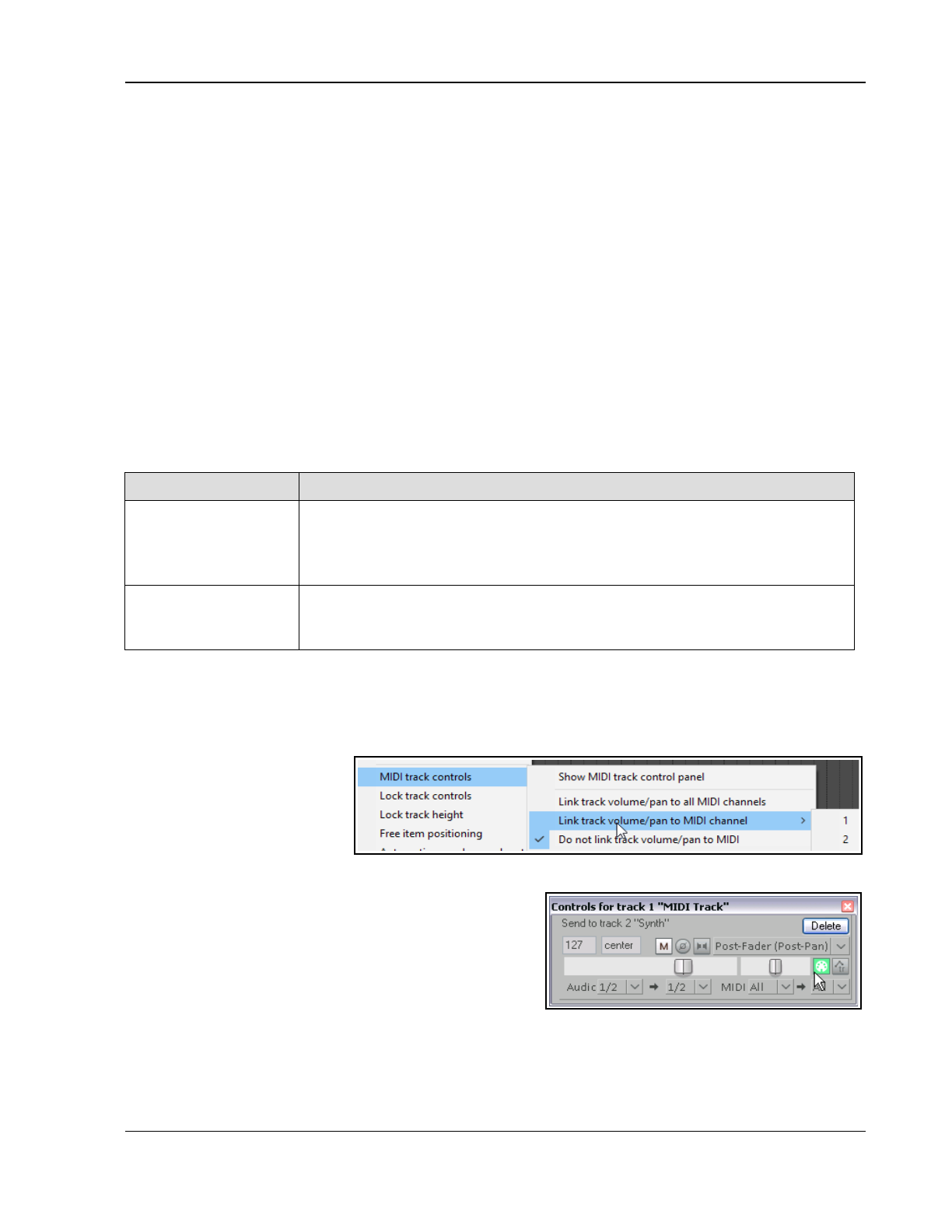
Working with MIDI Items
13 Working with MIDI Items
13.1 Introduction
REAPER has a number of techniques for manipulating and editing your MIDI items. In brief these are:
Many of the commands on the arrange view right-click media item context menu can be used with MIDI
items as much as they can with audio items – for example you can create and manipulate multiple
takes, add MIDI FX to a take’s FX chain, cut, copy and move items, and so on.
In addition, there are commands on the arrange view right-click item context menu that are specific to
MIDI items and only MIDI items. We’ll get to these soon enough.
You can open any MIDI items or selection of MIDI items in REAPER’s MIDI Editor for detailed ed0iting.
You can choose either to open a single item, several items together in the same single MIDI Editor
window, or to use a separate window for each item.
For quick MIDI editing, you can edit the track in-line. This makes the item’s content available for editing
without needing to open a separate MIDI editing window. This is covered near the end of this chapter.
Before looking at editing, however, we'll resolve a couple of other issues of importance to MIDI users.
13.2 Monitoring an External Synthesizer
An external synthesizer can be monitored using MIDI or audio input. Just do this:
Activity Procedures
Monitor using MIDI
Input
Insert a track and name it. Arm it for recording and turn record monitoring on
Set record mode to Disable (input monitoring only)
Select Input: MIDI, then the device, then the channel(s)
Open the track's routing (I/O) window, select your MIDI Hardware Output.
Monitor using Audio
Input
Insert a track and name it. Arm it for recording turn record monitoring on
Set record mode to Disable (input monitoring only)
Select the necessary mono or stereo audio input from the synth's audio interface.
13.3 Using Track Controls with MIDI
As mentioned in Chapter 5, REAPER's track volume and pan controls by default control a track's audio signals. If
you wish to use these for MIDI instead, you can do so. Right click on the track number in the TCP or MCP and
choose MIDI Track Controls then select one of the Link track volume/pan to MIDI options from the
menu. You can choose all
channels or any individual
channel.
You can also use the plug-in
ReaControl MIDI with any track.
This is explained in detail later
in this chapter.
13.4 Controlling MIDI Data Sends
REAPER's sends and receives can be used with audio items,
MIDI items, or both. You have already been introduced to
this topic (Chapter 5), and it is covered in more depth in
Chapter 17. Meanwhile, note that the button indicated on the
right can be used to ensure that a send's fader controls are
used to control the MIDI data.
With this button enabled, CC messages CC07 for Volume (127, max) and CC10 Pan (64, center) are sent on the
selected channels (by default, all channels). If there are any MIDI items (even empty ones) on the sending track,
they are sent when transport starts or stops, or play position changes. However be aware that not all synths and
plug-ins recognize this feature.
241
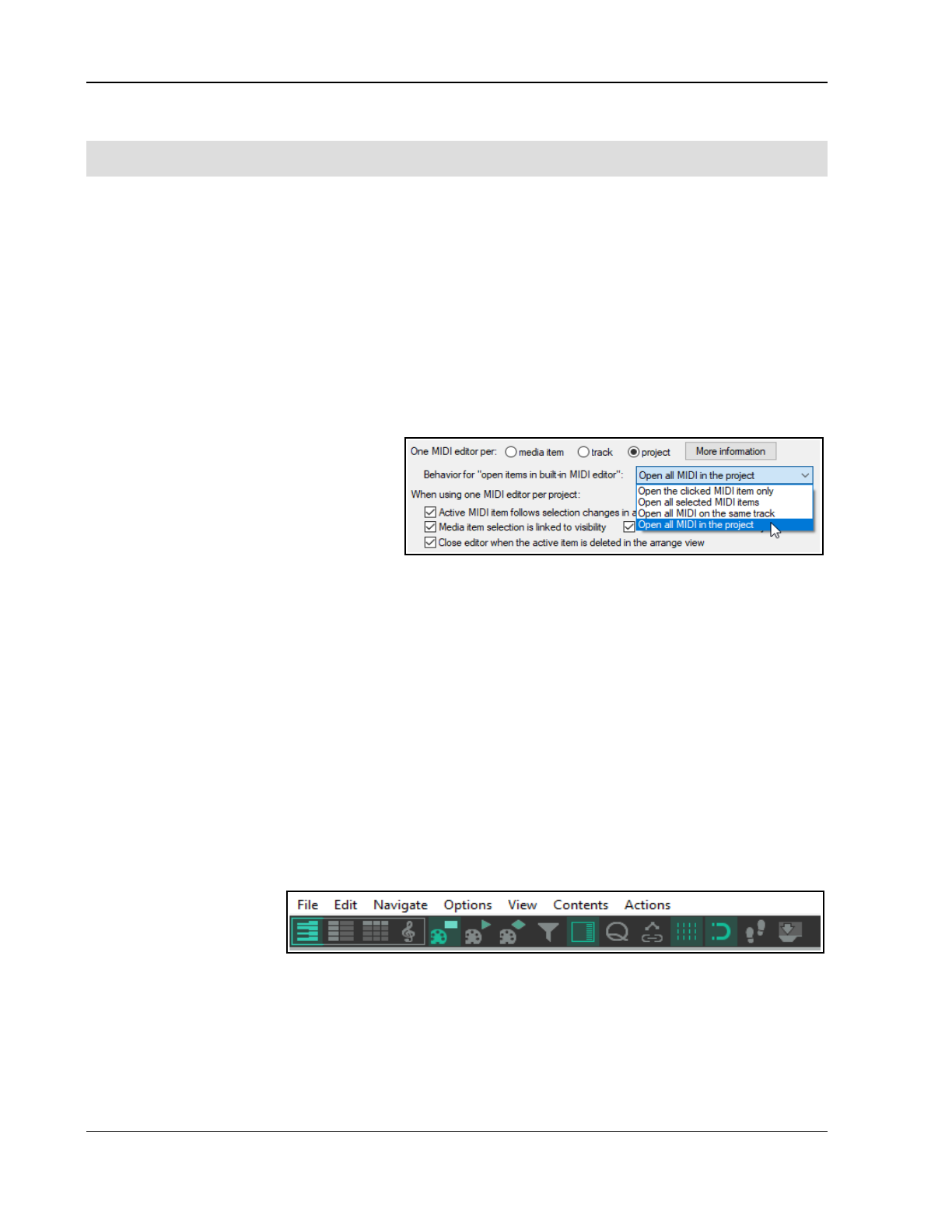
Up and Running: A REAPER User Guide v 7.81
13.5 Configuring and Accessing the MIDI Editor
Note: Many of the illustrations used in this chapter use the REAPER 4 default color theme. The instructions and
actions are nevertheless accurate for REAPER 5.
The MIDI Editor needs to be opened from an existing item. If you wish to open it with a “clean sheet” then you
must first create a new empty MIDI item. To do this, select the required track and (optionally) make your time
selection to define the length of the item. Then choose Insert, New MIDI Item from the main menu.
By default, MIDI items are loop enabled. You can change this individual items via their Media Item Properties
dialog box, or globally on the Preferences, Project, Item Loop Defaults page of your Preferences settings.
The MIDI Editor can be opened by any of these methods, using a single MIDI item (either recorded or empty):
● Unless you have changed your default mouse modifier preferences, double-click on the MIDI item, or
● Select the MIDI item and press Ctrl Alt E
● Right-click on the item and choose Open in built-in MIDI editor from the menu.
Exactly how the MIDI Editor will behave when opened will depend on your Preferences settings. Before delving
into the MIDI Editor, therefore, we really need to explore these preferences. Use the Options, Preferences
command, the choose Editing behavior, MIDI Editor from the list to access the MIDI Editor preferences.
The wider range of MIDI Editor preferences is explored in Chapter 22. For now, we just need to focus on these:
First, you can specify what by default will be
opened with the MIDI editor. This can be
clicked MIDI item only, all selected MIDI
items, all MIDI on the same track, or all
MIDI in the project. The default is All
selected MIDI items.
Clicking on More information will open a
screen explaining in more detail just how REAPER handles these options.
You can override the default settings at any time by opening the MIDI Editor by right-clicking on an item (or a
selection of items) and choosing Open items in editor, then, from the sub-menu, choosing either Open items
in built in MIDI editor, Open MIDI item in editor or Open item copies in built-in MIDI editor.0
You can also determine what is to happen when more than one MIDI item is open: you can choose to have a
separate MIDI editor instance per media item, per track or just one editor for the whole project.
13.6 The MIDI Editor Window
The next part of this User Guide focuses on how to work in the MIDI Editor with a single item. Later in this
chapter we will look at working in the MIDI Editor with multiple items, and with items on multiple tracks.
When you open an item in the MIDI Editor you will see a display similar to that shown below. It includes:
The Main Menu.
We’ll take a detailed look at the main menu, its various commands and actions shortly: for now, note that if
your MIDI Editor is docked, this menu is accessed by right-clicking on the windows docker tab. Meanwhile,
you need to understand some more about the interface and how to navigate it.
The MIDI Toolbar (below Main Menu)
Hover your mouse over
any button for a tooltip.
You can customize this
toolbar as you wish. (see
Chapter 15).
Select View Buttons
The first four buttons select which view will be displayed in the MIDI Editor. From left to right, these are
Piano roll (the default), Named note, Event list and Musical notation. The first three of these are
explained in detail throughout this chapter. Musical notation view is dealt with in the chapter following this one.
The next three buttons determine how notes are displayed and are mutually exclusive. The first (the default)
selects normal mode: the second and third, for use with drums, select triangular and diamond mode respectively.
242
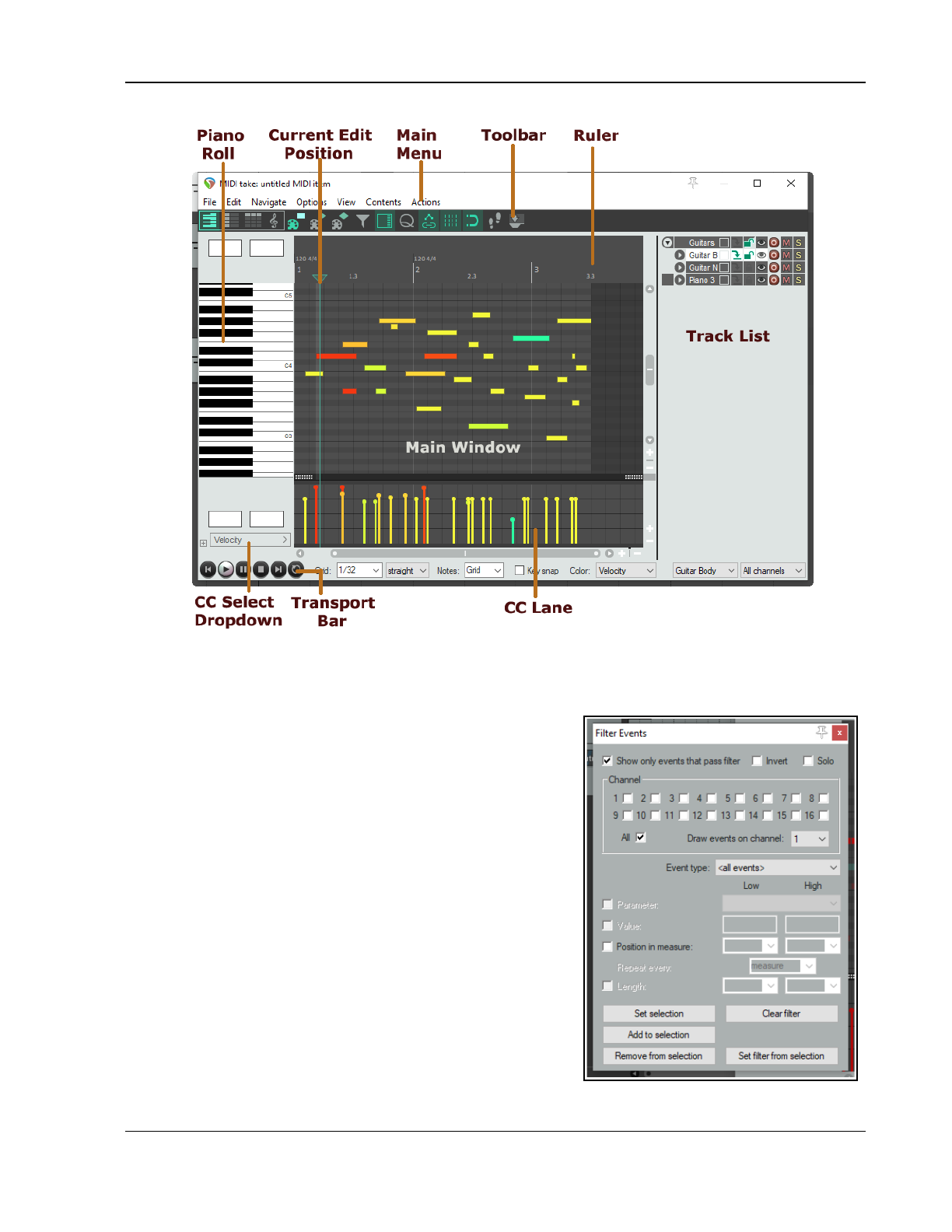
Working with MIDI Items
Filter Button
This is the eighth button shown on the toolbar above. It opens the Filter Events window to allow you to
decide what you want displayed in the MIDI Editor. The Show only events that pass filter box toggles
your filter settings on and off. Invert causes all notes to be
displayed
except
those defined by the filter settings. You can
choose to display all Channels, or any combination or
permutation of channels.
Enabling Solo will cause only events that pass through the
filter to be played.
Use the Event Type drop down to select any type of event as a
filter. The default is All events, but you can choose Note, Poly
Aftertouch, Control Change (CC), Program Change (PC), Channel
Aftertouch, Pitch, or Sysex/Meta.
The content of the Parameter drop down lists depend on the
event type selected. For example, for Note (as shown below), it
will display a list of notes, with options to filter on note (optionally
using the keys in piano roll) or note range, velocity, position in
measure and/or length. However, choosing Program Change (PC)
as event type will allow filtering only on program number and/or
position in measure. Pitch can be filtered on low/high values or
position in measure.
Position in measure behavior will vary with the event type. For
example, if the event type is Note, position in measure allows you
to restrict display to a range you define anywhere between 0 and
127. For PC, CC or Pitch, low and high position in measure values are set to any range within 1/32 and 1.
243
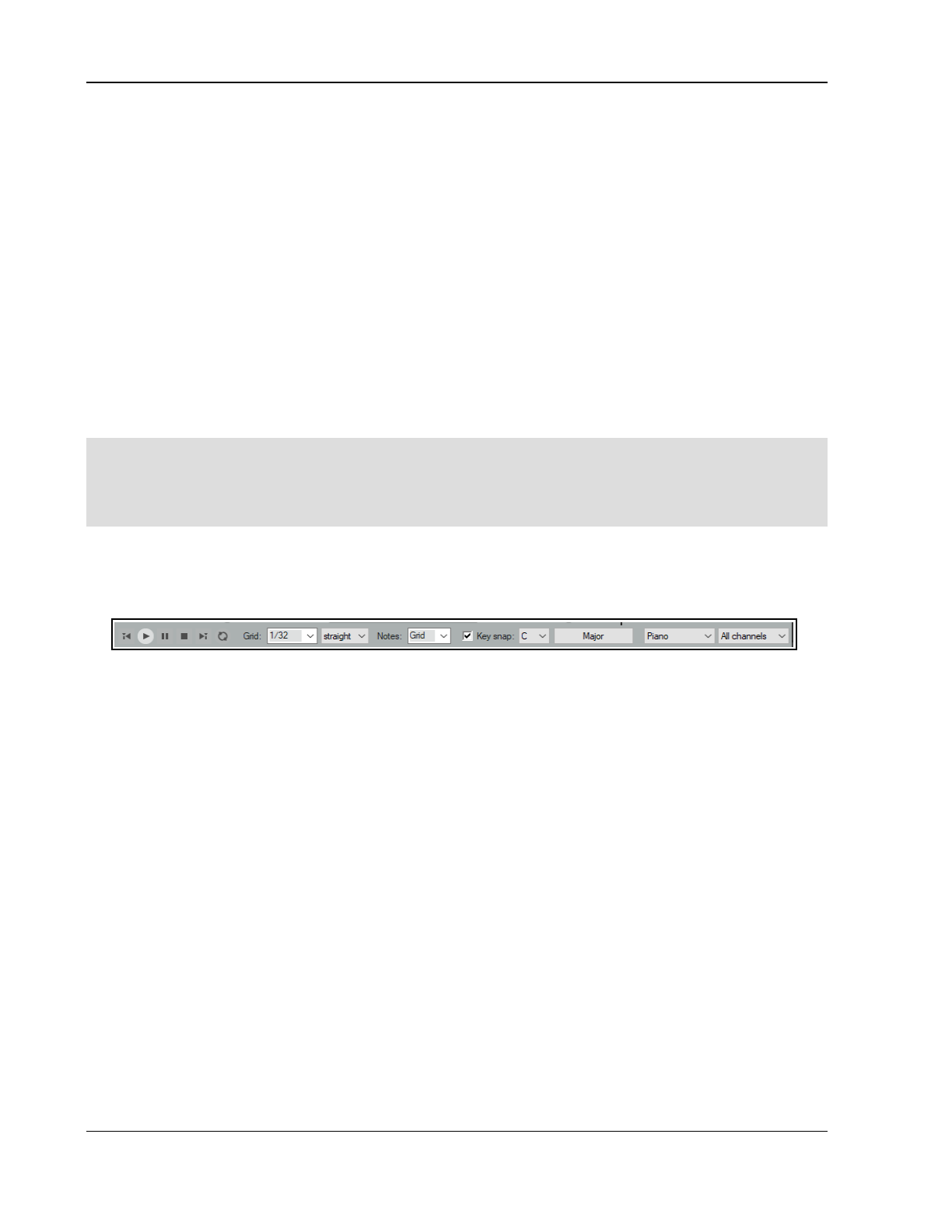
Up and Running: A REAPER User Guide v 7.81
Set selection causes current filter settings to be applied, and Add to selection lets you add to the existing
filter selection. For example, you can create a filter on Note then add to it one based on Pitch. You can also
specify settings to Remove from (current) Selection. Set filter from selection will automatically create a
new filter based on the current MIDI Editor note selection.
The Filter Button includes a right-click context menu which can be used to toggle on/.off the options Show
only events that pass filter, Invert filter and/or Solo.
Track List
This button opens (on) and closes (off) the Track List panel. This is explained in this chapter, in the section
Working with Multiple Tracks and/or Items. For the time being, leave this set to off.
To the right of the track list button are six toggle icons, Quantize (on/off), CC selection follows note
selection, Show grid, Snap to grid, Step Sequencing (use MIDI inputs for step recording, on/off) and
Dock editor. Right-click over the Snap to Grid button to set behavior for when snap is enabled – Always snap
notes to the left, Snap notes to end of grid (the default), or Snap relative to grid. The final icon Dock
editor can be used to dock and undock the MIDI Editor window.
Note: If both Media, MIDI preferences to Create new items as .MID files and Import existing MIDI files
as .MID file reference are enabled, the MIDI Editor toolbar will on the left display two further buttons - File,
Save MIDI file and File, Revert to saved MIDI file.
Tip: The View, Piano Roll Timebase command includes the options source beats, project beats and project
time. MIDI data is always defined in beat-based terms, but in the time view mode the grid is adjusted to reflect
any tempo changes in the project. If there are no tempo changes, the beat and time views will be identical. You
also have the option to select Project synced. This synchronizes the timeline of the project and MIDI item
together. It also ensures that both windows are synchronized during such actions as zooming and scrolling.
The Ruler
The MIDI Editor follows your Arrange view settings. For example, if the option Loop points linked to time
selection is enabled, click and drag along the MIDI Editor ruler will define both loop and time selection.
The Transport Bar
This is found at the bottom of the MIDI Editor window. It contains the transport buttons and a number of drop
down lists. The six buttons (not shown) are self explanatory – left to right they are rewind, start, pause playback,
stop playback, jump to end, and toggle repeat loop mode on/off. The loop area can be set on the timeline in
either the MIDI Editor or the Arrange window. The drop down lists (shown above) from L to R are:
Grid: The grid division box is used to set the grid division unit, in notes. Select a values between 1/128 and 4.
Grid spacing type: Options here are straight, triplet, dotted or swing. If you choose swing, several other
parameters will also be displayed on this bar. These are discussed later in the context of quantizing.
Notes: This is used to select the default note length (expressed as a fraction of a note) that is used when new
notes are added. In the example above, this has been set to be the same as the grid setting. It can be
overwritten using the main menu command Options, Drawing or selecting a note sets note length.
Scale and Chord: Enabling the key snap option allows you to select a scale and a chord from the two drop
down lists. You can also use the chords button (here labelled “Major”) to load a REAPER .reascale file.
Track List: Where more than one track contains MIDI item, this selects which track is to be made active in the
MIDI editor. This can also be used to show or hide the track list panel.
Channel: Use this to select a channel from 1 to 16 for current editing (or All). The Filter box modifies selected
channel behavior: when off, all channels are displayed, but the selected channel is still used for note entry.
The Main Window
The main window by default consists of two panels. The larger (top) panel displays your MIDI notes. Here you
do your editing. The default view is Piano Roll View. Click on any piano key to play that note. The smaller
(bottom) panel is the CC lane, used to display various information, such as note velocity or pitch.
Move your mouse over the main window area (where the notes are displayed) and you can see your mouse
cursor displayed as a pencil. This indicates the current edit position, for example for inserting notes. Both the
position on the timeline and that on the piano roll are shown in the top left corner, just beneath the toolbar.
244
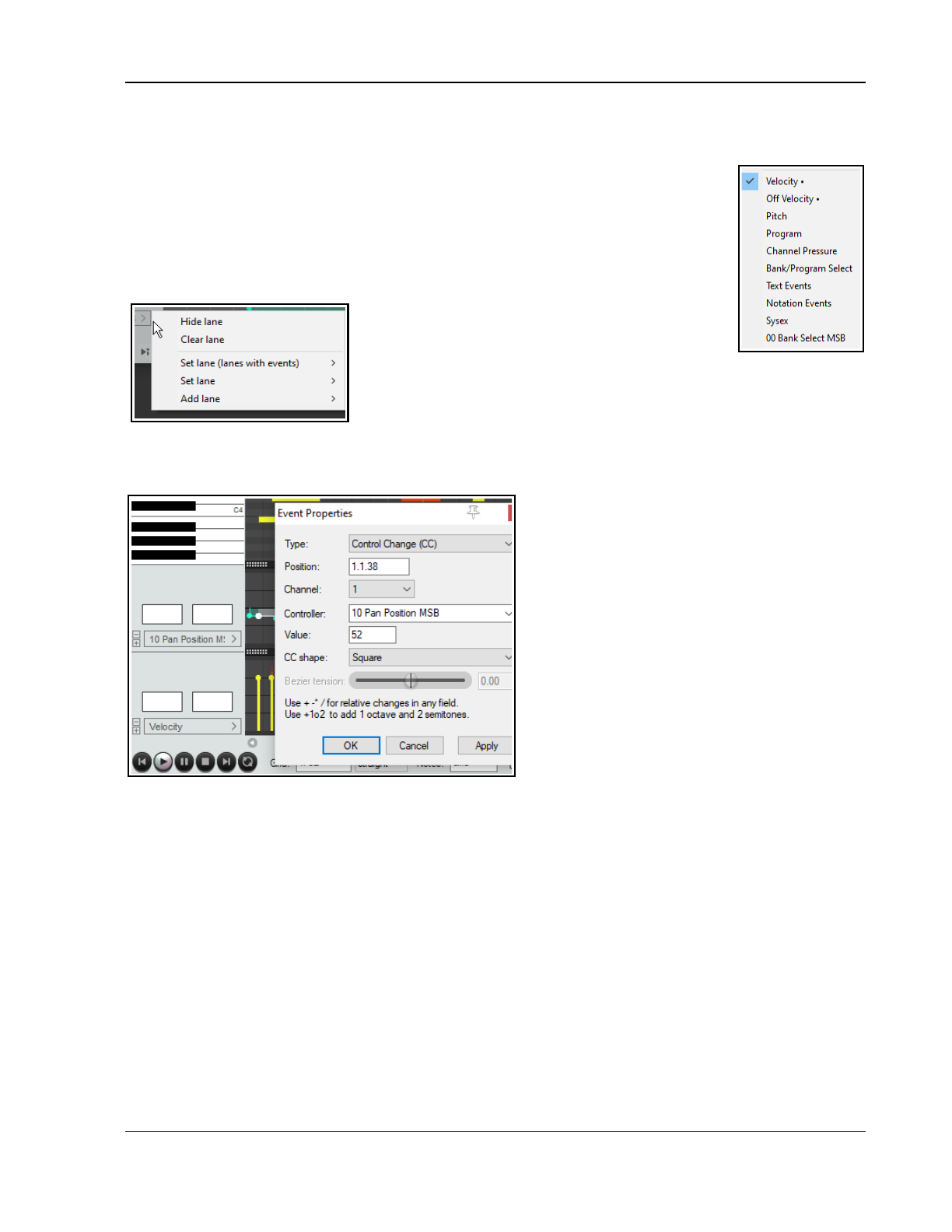
Working with MIDI Items
The Scroll Bars
The MIDI Editor window includes vertical and horizontal scroll bars which can be used to navigate and zoom in
and out of the contents of the MIDI item(s).
The CC Lane(s)
By default, Velocity information is shown in the CC lanes. This can now include a visual
display of the note length, as shown below (Options, CC/Velocity lane, Show note
length in velocity lane). To change to another item,
either
:
Click on the right pointing arrow (right) to see a menu of items (including standard
MIDI control messages) that you can choose to display in the CC Lane instead of
velocity. A small selection of the available choices
is shown on the right,
or
Click on the small + button next to the drop
down list arrow to add extra CC lanes. Select any
item from the list to display it in the selected lane.
Right-clicking over the shaded area at the edge of the top border of a CC
lane will produce the menu shown on the left. It can be used to hide a CC
lane, clear it, change its contents, or add an extra lane. You can choose
from sub-menus of either only those with existing events or one of all lanes.
To remove a lane from view, click on the small minus sign that appears to the immediate right of its drop down
arrow.
Provided the lane height is tall enough, the
existence of CC messages can also be seen on
the MIDI item in the main window (see left).
13.7 Control Change Messages
Control change messages are used to change the
status of a MIDI parameter. If using an actual
MIDI device, these messages can be used to
physically control the foot pedals, volume sliders,
modulation wheels, and other controls on
electronic instruments. Within REAPER, control
change messages can simulate this effect when
playing back your MIDI data thru a software
synthesizer.
Controller data is used for various purposes. The
different controller data streams are numbered
from 0 to 127. Some of these controller numbers are industry standard. For example, controller 7 is generally
used to control volume and controller 10 for panning. A control change message has two parts. The first is the
control change number, which determines which parameter is to be set. The second is the desired value for that
parameter. For example, first, you might send a CC #7 message to specify that you want to adjust volume. Next,
you send a value that sets the actual volume level required.
A control change message can act as either an
override
(setting the parameter to the exact value specified), or
an
offset
(adjusting the parameter up or down by the amount specified).
00MSB and LSB
MSB and LSB stand for
Most Significant Byte
and
Least Significant Byte
respectively. MSB control change
messages typically act as coarse controls, while LSB messages generally allow fine adjustments. Some control
change messages have both MSB and LSB versions. Most MIDI devices that contain sounds/patches respond to
both Bank Select MSB and LSB control change messages.
Some of the more commonly used cc parameters are listed below. Don’t worry if you don’t understand them all.
You should consult your MIDI device’s documentation for more details.
245
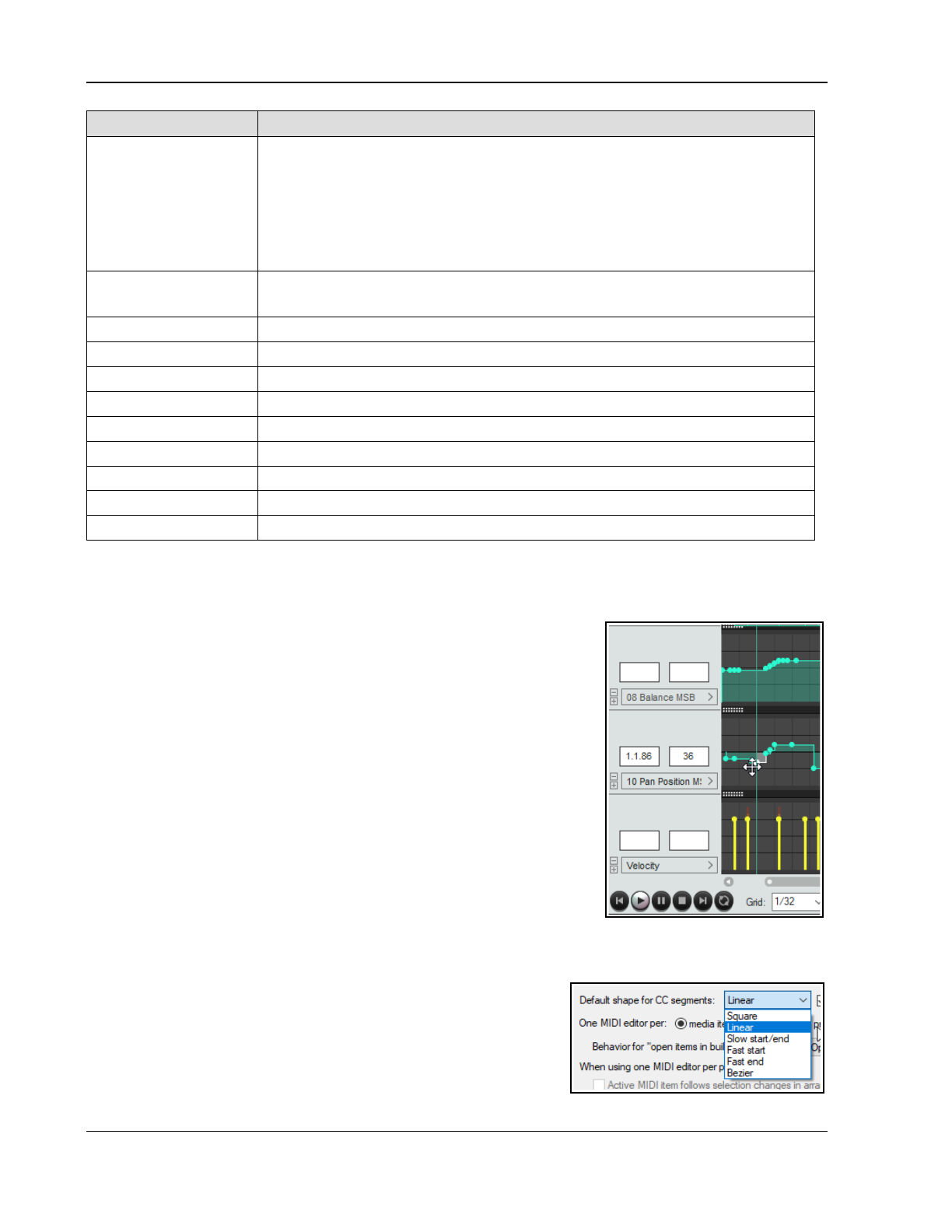
Up and Running: A REAPER User Guide v 7.81
Parameter Description
Bank Select MSB
Bank Select LSB
Many MIDI devices offer a total of more than 128 instruments, in which case
these instruments are grouped into banks. Thus, depending on the device, a full
program change message might consist of five parts – cc #0 (Bank Select),
followed by the Sound Bank MSB value, then cc #32 (Bank Select LSB) followed
by the Sound Bank LSB value, then finally the Program Change number.
Program change numbers are discussed in more detail in the sub sections that
follow after this one.
Velocity The measure of the speed with which a key on a keyboard is pressed.
A lane is also available for Note Off Velocity.
Mod Wheel This can add vibrato or other changes to a sound.
Breath Varies from 0 (no force) up to 127 (high force).
Portamento Determines the smoothness of the glide from note to note
Balance Typically used to adjust the volume of stereo parts without affecting the panning.
Expression Used to create relative volume changes.
Sound Timbre The property of a sound that gives it its unique “color”.
Sound Release Determines how long it takes for a sound to fade out.
Sound Attack Controls how long it takes for a sound to fade in.
Sound Brightness This adjusts a sound’s filter cutoff, allowing you to create filter “sweeps”.
13.8 Control Change Basics
MIDI Data Control Change (CC) messages can be recorded during live performance, and edited or manually
entered using the CC lane in the MIDI Editor. The CC Lane appears at the
bottom of the MIDI Editor. Data is displayed horizontally according to its
position on the Timeline, and vertically according to the value of the data.
Where it makes sense to do so, you can cut/copy/paste CC events from
one lane to another. Note that the edit cursor will be moved when you
click your mouse in a CC lane.
Most CC data has a value of 0 at the bottom of the CC Lane, and 127 at
the top of the CC Lane. The example (right) shows Velocity. Exceptions to
this rule include Pitch, Pan and Pan Position, which are displayed as
positive or negative variations from a centre line.
The information displayed in the CC Lane is selected from the drop-down
list at the left of the window. Most CC events are displayed as linear and
curved envelopes, similar to track envelopes (velocity being one
exception). The topic of envelopes is covered in depth in Chapter 18.
CC Data is entered or edited by double-clicking or clicking and dragging
the mouse. To delete an event, select it, then press Delete. The default
segment (point) shape is set on the Editing Behavior, MIDI Editor page of
your Preferences (see below right).
Notice that as you sweep your mouse along the lane, the values at the current mouse position are displayed in
the panel to its left.
The Mouse Modifiers page of REAPER's Preferences includes the
ability to customize left drag and double-click behavior when working
with MIDI CC events.
Some Notation Editor events can also be displayed in lanes, where
they can be edited, moved or deleted, or new such events added – see
Editing Notation Events in Other Views.
246
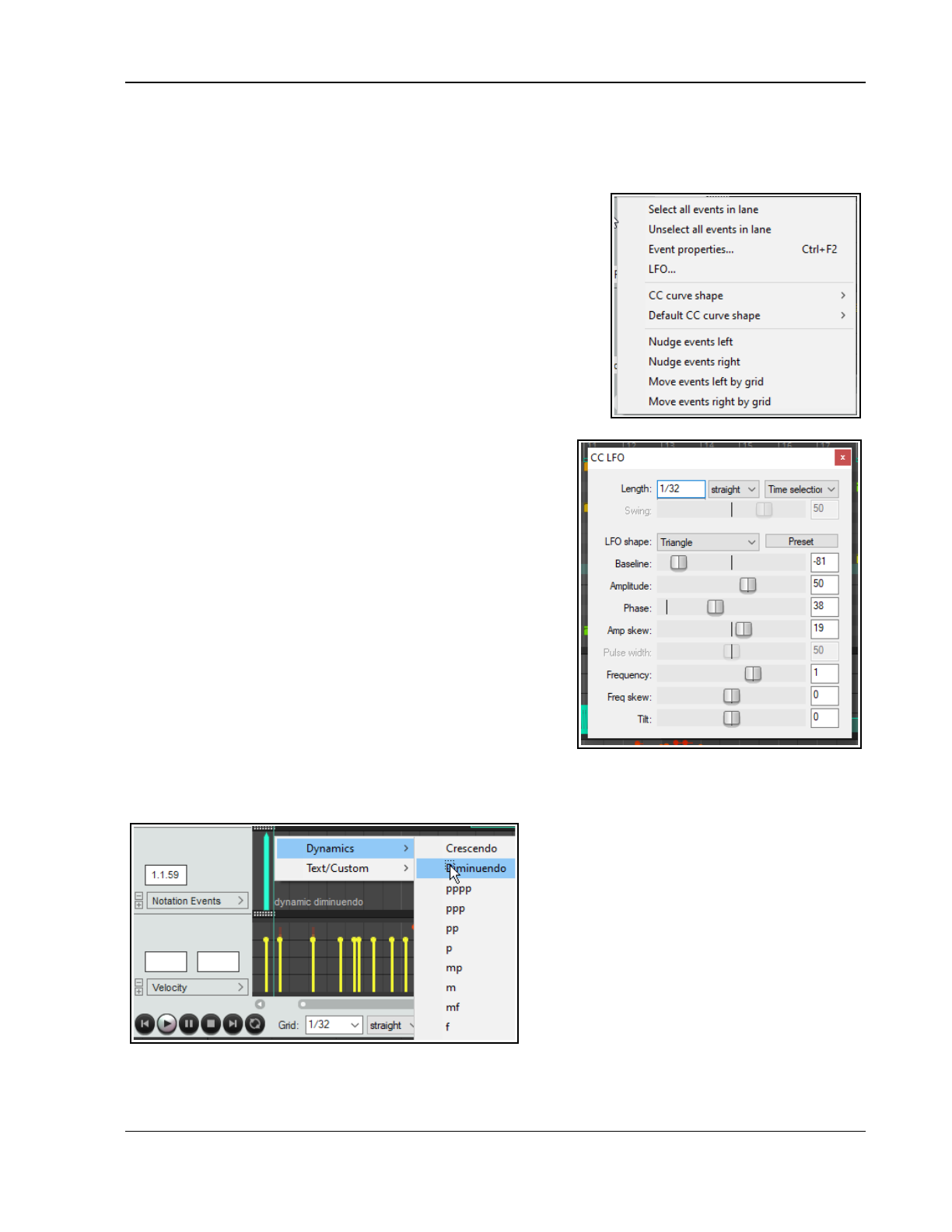
Working with MIDI Items
13.9 MIDI Editor CC Lanes
As discussed earlier, clicking on the small + (plus sign) to the right of the of the CC lane name will add a new
lane. Clicking on the down arrow will display a list CC lane types (Bank Select, Mod Wheel, etc) from which you
can make your choice.
Section 13.10 will show you the “nitty gritty” of working in these lanes
– adding events, deleting events, etc. First, though, let’s take a closer
look at the CC lane environment. Right click over the CC lane panel
area to display a menu of options.
Select all events in lane
Unselect all events in lane
These are self-explanatory
Event properties ...
Displays the event properties dialog for selected item.
CC curve shape
Allows you to change the CC curve (envelope) shape for selected
events. Available shapes are square, linear, square, slow start/end,
fast start, fast end and bezier. See also Chapter 18. Note that
for parameters whose value is either on or off (such as Off
Velocity) the only available shape is square.
Default CC curve shape
Allows you to change the default CC curve shape for new
events.
Nudge events left/right
Move events left/right by grid
Nudge/move selected events in lane left or right.
LFO...
Adds a low frequency oscillator to either the entire lane or
within the current time selection. LFO types are straight,
triplet, dotted or swing.
LFO parameters are as shown here
There are a few interesting items that you can display in your lane
or lanes that are worth a special mention, because they might
otherwise slip under your radar. These include Notation Events,
System Exclusive messages, Text Events, and Bank/Program Select.
13.9.1 Notation Events
A Notation Events lane will display certain
notation editor events, notably text and lyrics,
tuplets and dynamics.
These can be edited (double click), deleted (select
and press delete) or moved (drag).
You can also use this lane to add events to the
notation. Right click at the required point in the
CC lane and select from the menu.
The notation editor is explained in detail in the
chapter following this one.
247
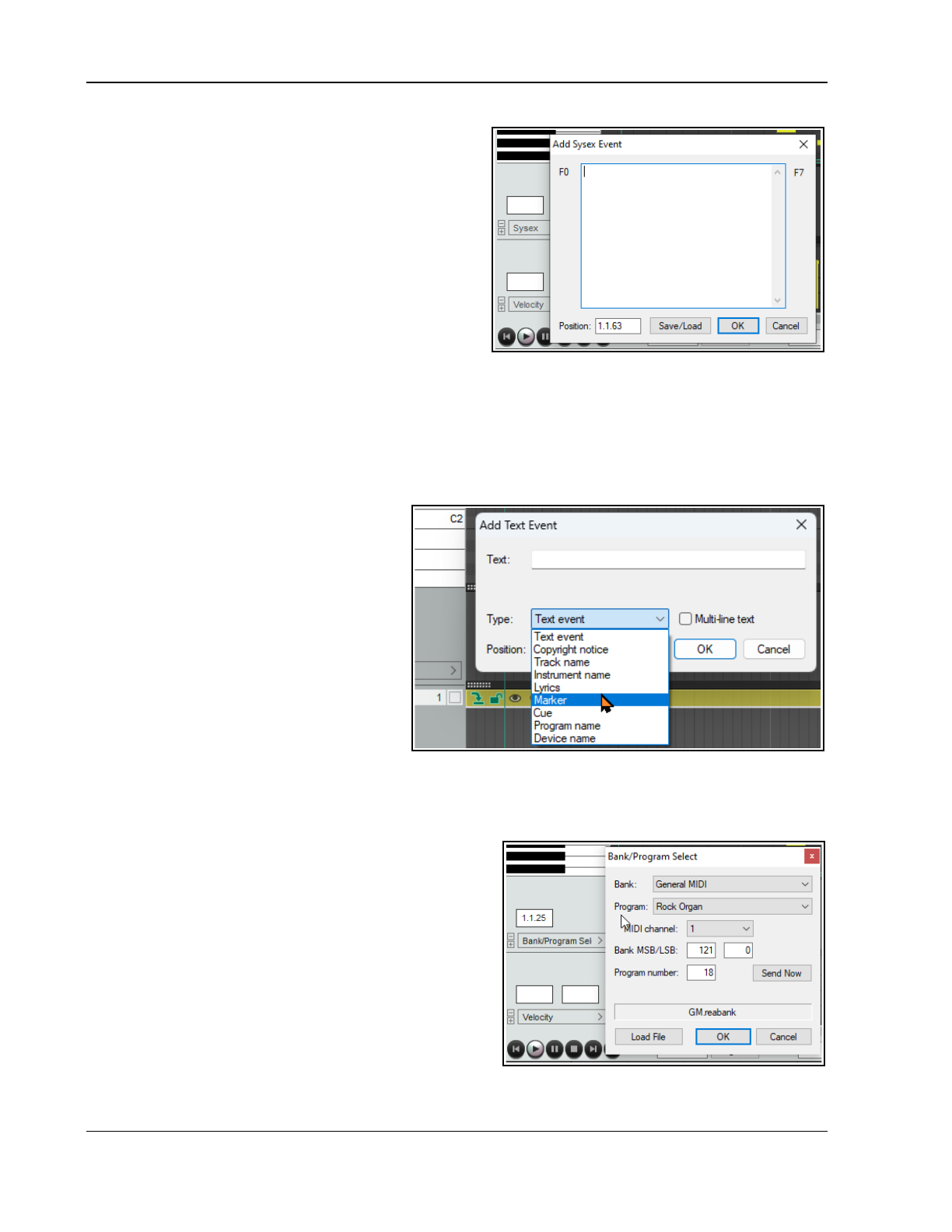
Up and Running: A REAPER User Guide v 7.81
13.9.2 Sysex Events
System exclusive (Sysex) messages are MIDI data that is
only understood by the make and model of the device that
created them. For example, all synthesizers should
respond to CC messages like Volume or Pan control, but
system exclusive messages created by a Roland
synthesizer would not be understood by, say, a Yamaha
synthesizer.
You can add a lane to manage system exclusive (Sysex)
messages. In this example, a Sysex lane is displayed in
addition to a Velocity lane.
Some MIDI hardware, especially older devices, can accept
sysex messages to initialize or change device settings.
Sysex messages are raw MIDI data, represented as a list of hexadecimal bytes.
Sysex events may be added, edited, moved, or deleted in the same way as text events (see below). Double click
in the lane to open the Add Sysex Event dialog box, enter the message and click on OK. Click, hold and drag
on any sysex event to move it, press Delete to delete it. Double click on any existing sysex event to edit it, or
right click for a menu of options which includes Cut, Copy, Paste, Delete and Select all. Other commands are
Right to left reading order, Show unicode control characters, Insert unicode control character, and
Open IME. Sysex events can be saved to, or loaded from, sysex (.syx) files, using the Save/Load button.
13.9.3 Text Events
The Text Events option uses a CC Lane to
display text in a lane below your MIDI notes.
This could be, for example, lyrics, or marker
information or any of the other available text
types (shown right). Note that this includes
an option for multi-line text events.
Just double click at any point in the lane to
open the Add Text Event dialog box, type
your text, specify its type, and click on OK. As
with system exclusive events, double click on
any existing text event to edit it, drag it to
move it, select and press Delete to delete it.
13.9.4 Bank/Program Select
When you choose the Bank/Program Select option for a CC lane, you can double click at any point to open
the Bank Program Select dialog box.
Here you can select any bank/program combination, and assign it to any channel. The combinations available to
you will depend on what instruments you are using (see
example, right).
If using a synthesizer which has its own instrument
definition files, you can load a file into the MIDI Editor by
clicking on the Load File button to open the Load MIDI
instrument bank/program file dialog. Navigate to the
correct directory and select the required file. There is an
option to set this file to be used as your default
bank/program file in future.
An example of program changes is shown here. To edit any
program change message, double click on its CC Lane bar.
This opens the Bank/Program Select window. Also, click and
drag to move a program change message, double-click to
edit it. To delete it, simply right click over its CC Lane bar.
248
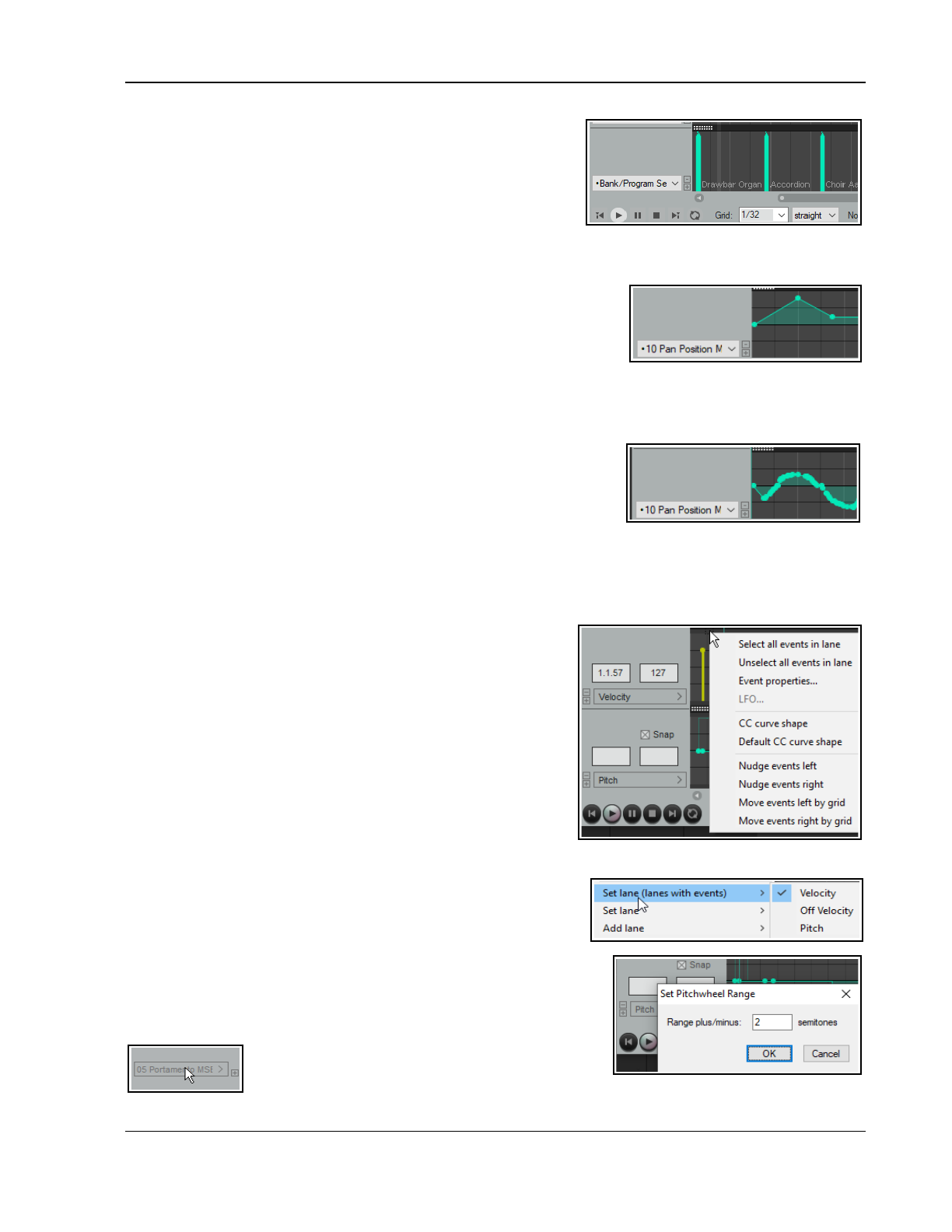
Working with MIDI Items
13.10 MIDI CC Lanes: Tips & Tricks
REAPER's MIDI CC lanes additional features are described here.
There are also a number of preferences to determine how – and
how many – CC lanes are displayed. At least one lane will always
be displayed in arrange view (space permitting).
13.10.1 General CC Lane Editing Techniques
Many of the CC message types – such as Mod Wheel, Breath, Portamento, Pan, Volume etc. – can be expressed
either as a continuous range of values or as discrete items . For messages of this type there are a number of
standard techniques you can use to enter, edit or delete them.
To make a single entry, double click in the appropriate CC lane at
the required point. The nearer the top of the lane, the higher the
value of the message. The entry point can then be dragged as
required (right). To delete a point, use Alt click.
To add a point to an existing envelope, Shift click on the
envelope. To edit a point and view/change any of its properties, Shift double-click.
To enter data as a continuous sweep, use mouse pencil to click and drag (below right).
To delete a message, right click over it. Alt right click sweep will delete a series of messages.
For items that take discrete values only (e.g. Velocity), double-
click to enter a data point, click drag up/down to change value.
Double-click in the CC lane header area (left of event display) to
select all events.
For vertical zoom within a CC lane use Ctrl Mouse wheel: for
horizontal zoom use Ctrl Alt Mouse wheel. For scroll use Alt Mouse wheel.
13.10.2 Right Click Marquee Selection
Right-click and drag within any CC lane to select multiple events. You can work with your selection in the CC
lane, as well as (if appropriate) in the piano view window. For example, if the CC lane displays Velocity, then
there will be one event shown in the CC lane for each note in the
piano view. Selecting events in the CC lane will select those same
events in piano roll view. You can work with selected events in
the MIDI Editor or in the CC lane itself. For example you can:
• Delete them or adjust their values (up or down).
• Right click over the CC lane for a context menu (see right),
including nudge or move events.
• Click and drag to move the selection left or right, control
click and drag to copy.
The exact behavior depends on whether individual CC events are
directly linked to individual notes. For example this would usually
apply to velocity events but not to pitch change events. Thus,
you would need to move the notes in the piano view window and
the velocity events would move with them. You would move pitch change events in the CC lane itself.
13.10.3 Managing CC Lanes
The CC Lane dropdown menu includes Set lane (lanes with
events) which will display a list of all lanes that already contain
data, whether they are currently displayed or not. Shown here, this
includes Velocity, Off Velocity and Pitch. Select one to display that lane.
When using the pitch lane, you can set a custom pitchwheel range (in
semitones), by right clicking over the text “Snap” and typing a number.
Optionally, you can also engage the snap option. Additionally, the MIDI
actions list includes actions for doing this.
To scroll through the list of available CC lanes: to do
this, hover your mouse over the currently displayed
name and scroll with the mousewheel (see left).
249
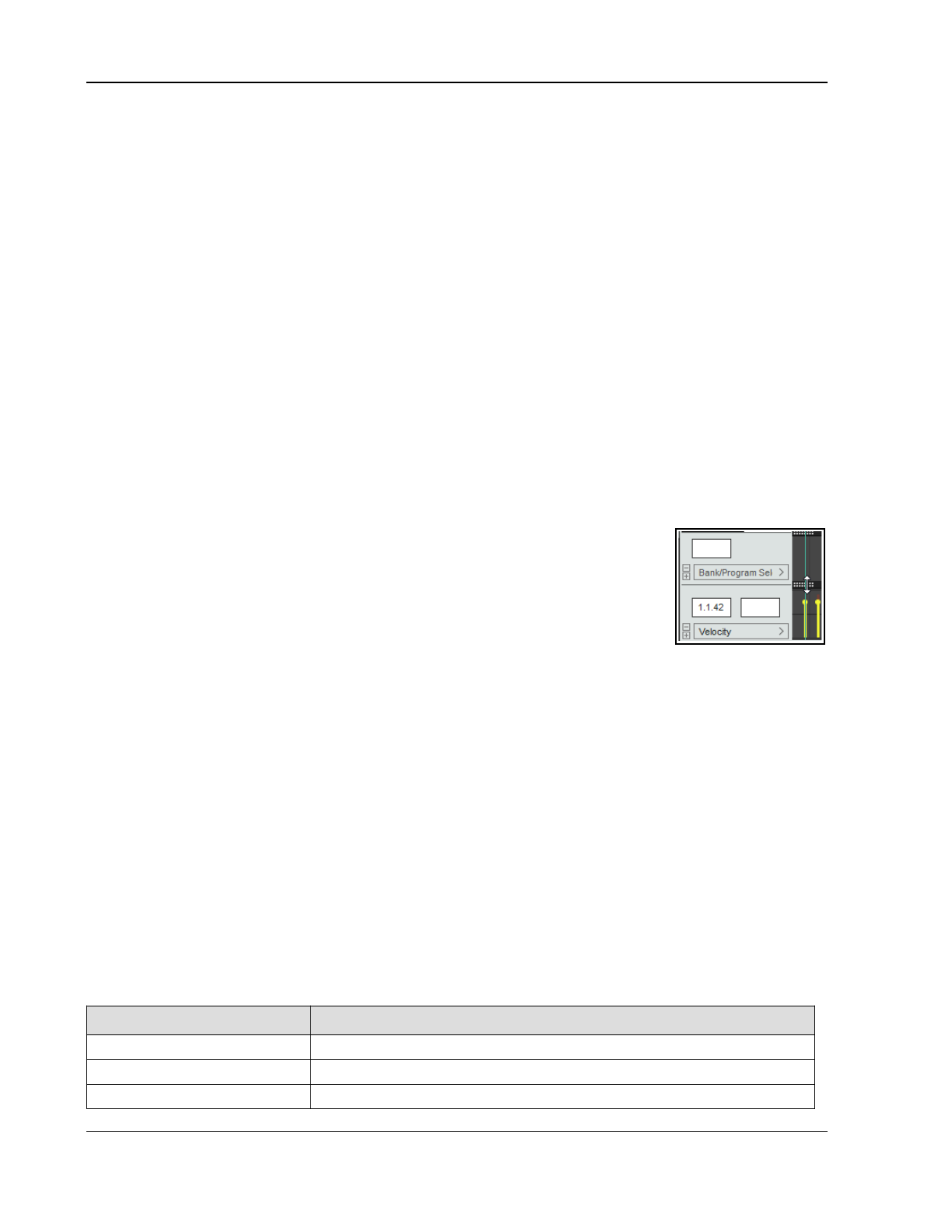
Up and Running: A REAPER User Guide v 7.81
13.10.4 Renaming0 CC Lanes
You can rename CC Lanes, importing your preferred names from a previously saved note names file. This is
explained in detail at the end of this chapter.
13.10.5 14-bit CC Lanes and Actions
The CC Lane drop down menu includes a complete range of options for 14-bit CC messages. These can be found
at the end of the drop down list. There are also actions that can be used to select any message type for any
lane. Use of the Actions List Editor is explained in detail in Chapter 15, but in brief:
1. From the MIDI Editor Actions menu choose Show action list …
2. In the Action List, select one of the actions CC: Set CC lane to ... (e.g.
Set CC lane to 007 Volume 14-bit
or
Set CC lane to 007 Volume MSB
). You can now assign a shortcut key to that action (see Chapter 15).
Close the Action List Editor.
3. Now you can at any time select a MIDI Editor CC lane and use the shortcut key to use that CC lane for the
chosen message type: existing data will be displayed and new data can be inserted and/or edited.
13.10.6 Resizing CC Lane Height
You have three options for changing the height of CC lanes. All involve clicking on the dotted “handle” (shown
here) on the “ceiling” boundary above the CC lane in question. The mouse cursor becomes a vertical double-
headed black arrow. You can then drag the mouse up or down. When you have only one CC lane displayed all
three actions do exactly the same thing. However, when there are two or more CC lanes shown, these three
actions will behave differently.
Control Click and Drag: Simply click and drag up/down to increase/decrease the portion of the MIDI Editor
window used to show the selected CC lane. Increasing this portion will decrease the
height of the piano roll window and vice versa. Other CC lane heights remains
unaffected.
Shift Click and Drag: Shift click and drag up/down will increase/decrease the height
of all CC lanes and adjust the height of the piano roll window accordingly.
Click and Drag: Control click and drag will adjust the height of just the one CC lane,
leaving other CC lane heights unchanged.
In addition, you can double-click on the dotted handle (also known as “grippy area”) of any open CC lane to
toggle between viewing and minimising it.
13.11 Navigating the MIDI Editor Main Window
The MIDI Editor’s menus and action list contain any number of techniques that you can use for precision
navigation: we’ll get to these shortly. First, you should familiarise yourself with the tools that you have available
for “broad brush” navigation. The horizontal and vertical scroll bars in the MIDI Editor window are used for
scrolling, and their respective plus and minus buttons can be used for vertical and horizontal zooming. You can
also use your mousewheel. This can be customized in the Actions List Editor (see Chapter 15), but by default the
settings are:
Mousewheel: Horizontal Zoom Ctrl Mousewheel: Vertical Zoom
Alt Mousewheel: Horizontal Scroll Ctrl Alt Mousewheel: Vertical Scroll
The keyboard shortcuts PageUp and PageDown can be used to zoom in/out vertically, and + and – to zoom in
and out horizontally. These too can be changed in the Actions List Editor if you wish.
13.12 Basic Note Selection and Manipulation
The MIDI Editor’s menus and action list contain any number of techniques that you can use for precision editing
and manipulation of your notes: we’ll get to these shortly. First, you should familiarise yourself with the most
basic tools that you have available for quick and basic editing.
To do this … You need to do this …
Add a note Click and drag in the MIDI editing area.
Delete a note Double-click on the note.
Select a note for editing Click once on the note.
250
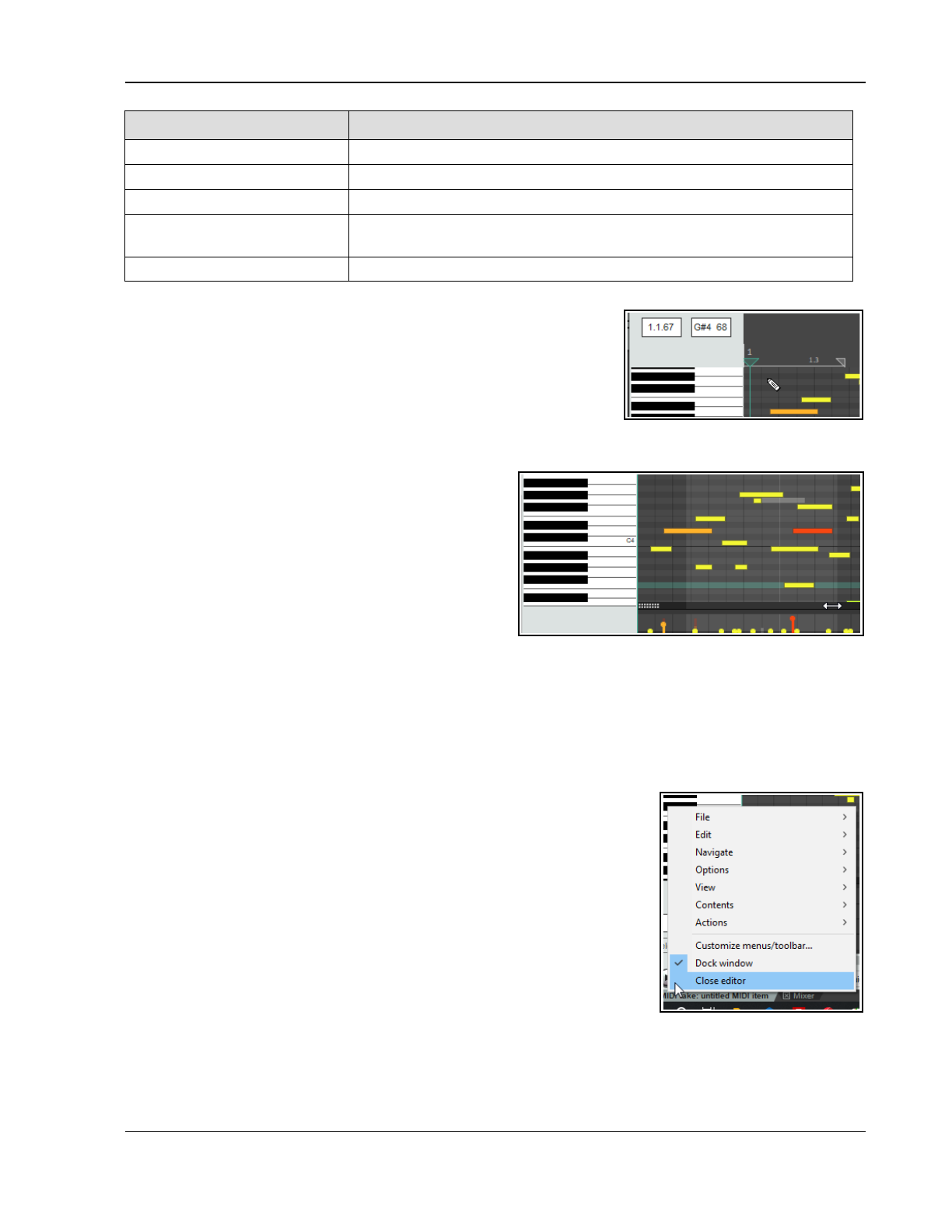
Working with MIDI Items
To do this … You need to do this …
Select a range of notes Right click and drag around the selection.
Select all notes in a range Right click and drag keys in piano roll.
Add to an existing selection Hold Alt and Ctrl while right clicking and dragging around notes.
Change a note’s length Hover mouse over the start or end of the note - the mouse cursor is now
a double headed black arrow. Click and drag left or right , as required.
Move a note Click and drag note to new position then release.
13.13 Loop/Time Selections and Smart Editing
To move the position of the cursor, click on the timeline (ruler) in the
MIDI Editor window.
Loop and time selection within the MIDI Editor will behave in accordance
with whether or not you have enabled the option Loop points linked to
time selection on REAPER's main Options menu. These notes assume
that you have this disabled.
You can select an area to be looped, as in the main REAPER window, by clicking and dragging along the MIDI
Editor timeline (see above right). You can also use the
REAPER arrange view timeline to define and modify loop
areas if you wish. Use the Toggle Repeat button on
the MIDI Editor Transport Bar to enable or disable
looping.
To make a time selection, click and drag along the
boundary between the piano roll display area and the
CC lane (see right). The mouse cursor becomes a
horizontal double-headed arrow. Notice that the time
selection is mirrored in REAPER's Arrange view.
This facilitates smart editing (see Chapter 7). For
example, within the docked MIDI Editor window you could work on the part of a MIDI item that you wish to copy
or move to another track and then, still in the MIDI editor, mark that as a time selection.
In Arrange view, you could then Ctrl Click Drag that area to another track (or elsewhere on the same track)
and create your copy. If using this feature, you should first decide whether or not you wish to enable Auto-
select CC when moving/copying within time selection from the Options menu.
13.14 The MIDI Editor Menus
This section is an overview of the MIDI Editor's main menu commands. When
docked, the main menu is not displayed, but you can access these commands
by right-clicking over the window’s tab in the docker. You can also access the
MIDI Editor menu by right-clicking just above the piano keys or timeline.
The File Menu
Rename MIDI take ...
Renames the MIDI Item.
Export to new MIDI file ...
Exports active MIDI track to a file. MIDI events are normally stored in the
Project file itself.
Notation: Export as MusicXML
Available in musical notation view only – see next chapter.
Lyrics
Used to import or export track lyrics in .txt format. Mostly useful with Notation Editor.
251
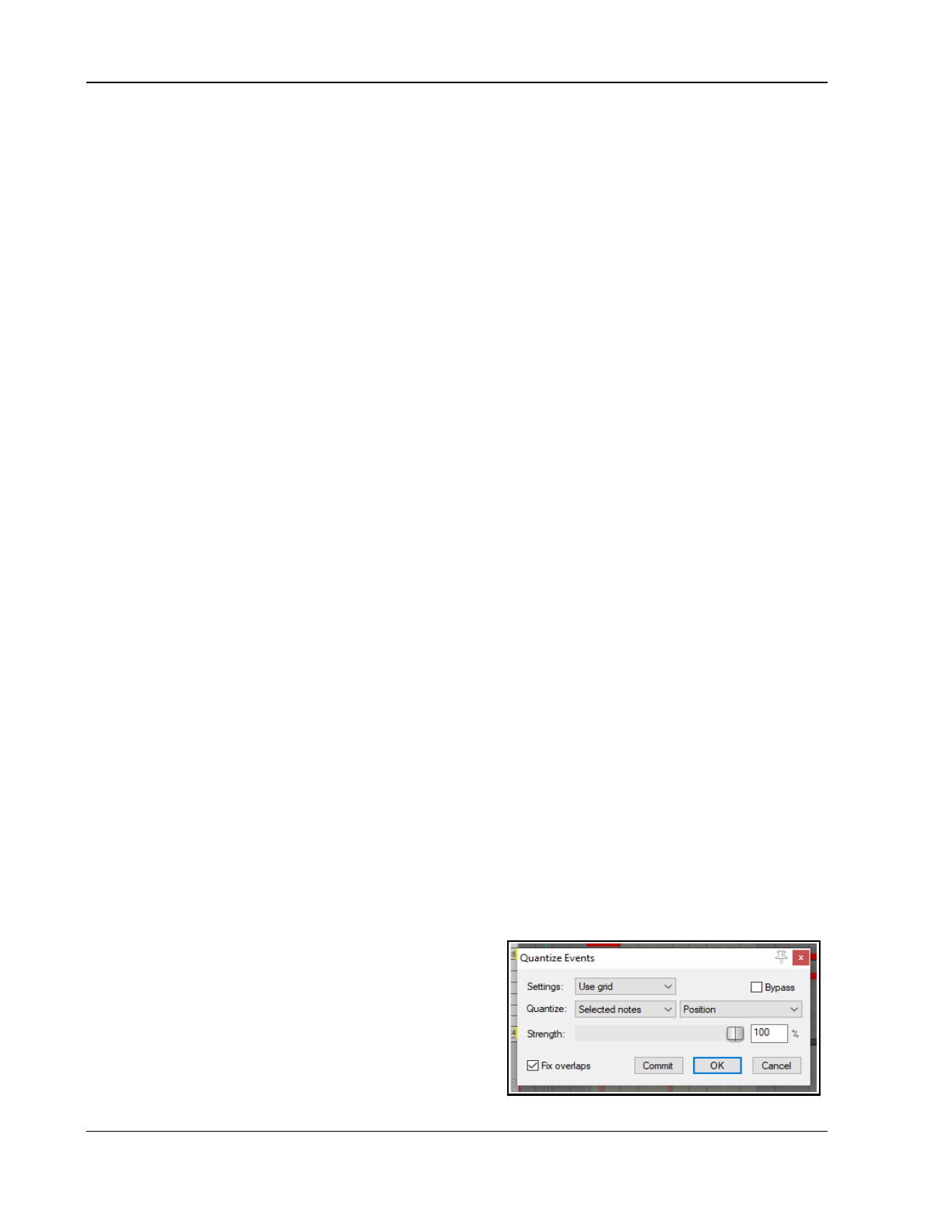
Up and Running: A REAPER User Guide v 7.81
Note/CC names
Displays a sub-menu. Rename last clicked note.... Use this in Piano Roll or Named Notes mode to name
the currently selected note. After entering a name you can use Tab to move to the next note in the piano
roll, Shift Tab to go to the previous note. Rename last clicked CC lane … allows you to select a CC
lane (in piano roll or named note view) and rename it.
Choose Load note/CC names from file... to browse the file list. Recently used files will also be displayed
on the menu. When loading from the recent file list, hold Shift with this command to merge imported
names with existing note names rather than replace them. See also Custom MIDI note and CC names.
Another option is to Save note/CC names to file...
There is an option to Clear note/CC names and a toggle option Note name actions apply to active
channel only.
Scale/chord definitions
Displays a sub-menu. Load/Unload ReaScale file. ReaScale files can include scale definitions, chord
keymaps, etc.
Close Editor
Closes the REAPER MIDI editor, and returns you to the main REAPER window.
The Edit Menu
Undo, Redo, Copy, Cut, Paste, Select all, Delete
These features work as expected on all selected MIDI notes. Note that you can cut, copy and paste
between MIDI Editor windows, and into some external applications.
Also, the Actions list includes several Select actions, e.g. various actions for selecting CC events in time
selection, actions to select CC events under selected notes, actions to select muted notes, actions for
selecting all notes in measure, and actions for selecting all notes at pitch cursor.
Paste, Paste preserving position in measure
Paste will paste to the current cursor position. Where a selection of notes (rather than a single note) has
been cut or copied, the entire selection will be pasted starting at the current cursor position.
Paste preserving position in measure pastes to the next measure after the cursor position, retaining the
relative position of the item pasted.
Select all
Selects all notes.
Delete
Deletes current note selection.
Mute
Mutes current note selection.
Insert note
Inserts new notes at the Edit Cursor.
Split notes
Splits selected notes (using the S key). If no notes are currently selected, all notes currently under the Edit
Cursor are split.
Join notes
Joins selected notes together.
Set note ends to start of next note (legato)
Sets ends of selected notes to start of next notes by adjusting end points of all notes in selected range.
Quantize ...
Opens Quantize Events dialog box. See also the
Quantize
section and the MIDI Toolbox section.
Quantize submenu:
Quantize using last settings
Quantize position to grid
Unquantize
` Freeze quantization
See the
Quantize
section for more information.
252
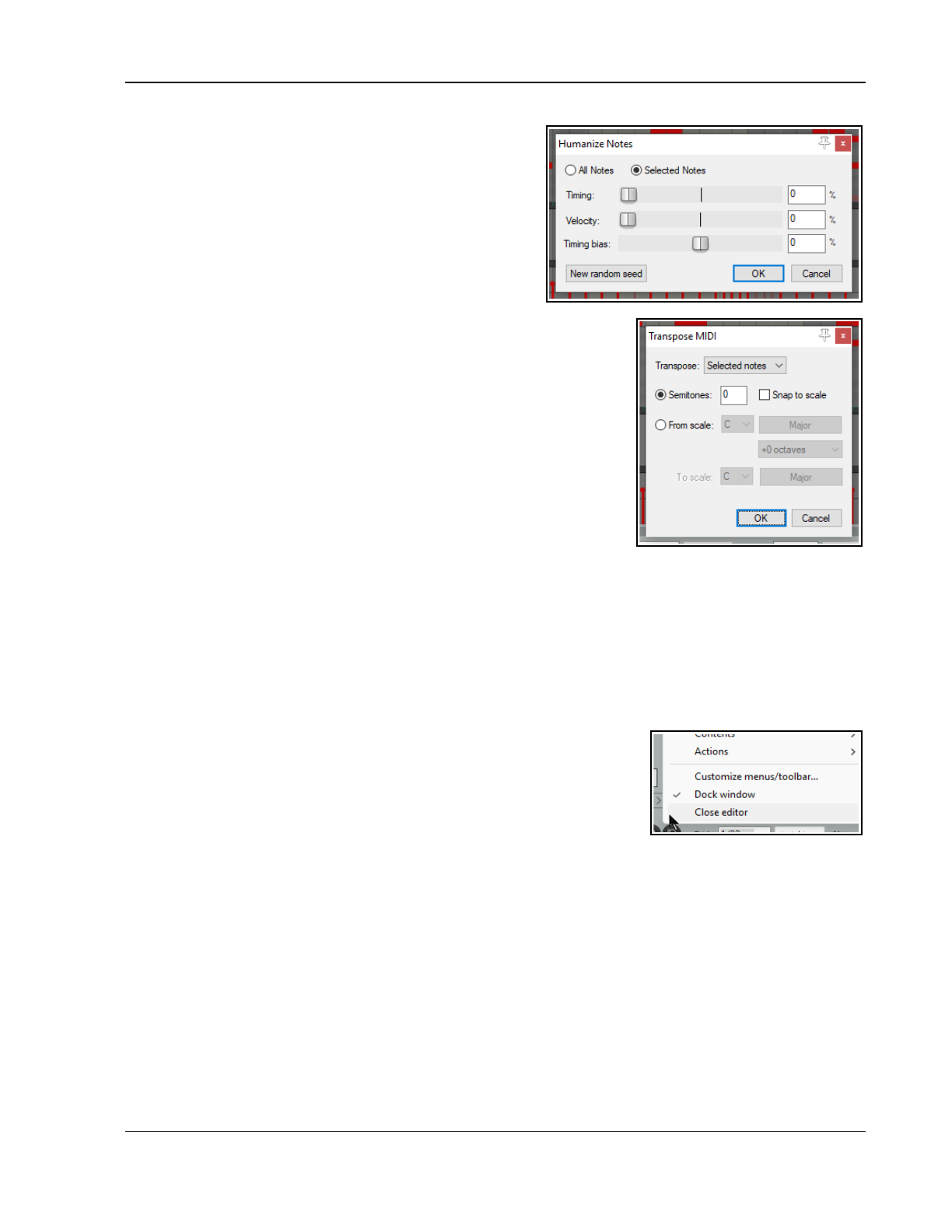
Working with MIDI Items
Humanize …
Opens the dialog box shown here. Humanizing can
make the exact timing of MIDI generated music sound
less “clinical” and more realistic. It does this by
allowing you to introduce random small and subtle
imprecisions in timing and velocity. This command is
also available as an assignable action.
Transpose ...
Opens the dialog box shown below, which can be used
to transpose all or a selection of MIDI notes. You can
transpose by a specified number of semitones, with a
snap to scale option, or from one specified key/scale to another.
The Navigate Menu
This menu presents a number of options for moving notes in any
direction, either by grid or by note:
Move cursor left by grid Move pitch cursor up a semitone
Move cursor right by grid Move pitch cursor down semitone
The following commands can be used to jump to and select a note,
either instead of or in addition to any current selection:
Select note nearest cursor
Add note nearest cursor to selection
Select previous note
Select next note
Select previous note with same pitch
Select next note with same pitch
Select all notes with same pitch
Add previous note to selection
Add next note to selection
Move edit cursor to start of selection
More note selection actions are available in the MIDI Editor's action list, including actions to select the next
note with higher or lower pitch.
The Options Menu
Dock window
Moves MIDI Editor to the Docker. The MIDI Editor’s main menu will no
longer be displayed. This menu can then be accessed by right-clicking
over its transport bar (right).
Sync editor transport to project transport
Synchronizes MIDI Editor transport to REAPER's main Timeline.
Use the same grid division in arrange view and MIDI editor
This makes the displays in arrange view and the MIDI editor consistent with each other.
Chase MIDI note-ons in project playback
When playback starts anywhere other than at the very start of a project, notes that begin just before the
playback position might not be heard. This could be the case, for example, if you start playback in the
middle of a long note. Leaving this option on prevents this from happening.
Snap Settings
Displays sub-menu of snap toggle options: Snap notes/CC to grid, Soft snap notes to other notes,
Always snap notes/CC to the left, Snap note ends to grid, Snap notes/CC relative to grid and
Snap to visible grid.
Note preview
Displays a sub-menu enabling you to select any or all of four situations when you would like notes to be
previewed (i.e. audibly heard) – Preview notes when inserting or editing, On velocity change, On
keyboard action, and/or All selected notes that overlap with selected note.
253
Up and Running: A REAPER User Guide v 7.81
CC events in multiple media items
Options are available to Draw and edit on all tracks, Edit on all tracks, Do not show CC events in
non-editable contexts and Do not show CCs in secondary contexts.
CC/velocity lane: Several options are available:
CC selection follows note selection and Bank program selection follows note selection
Default CC curve shape and Reduce CC events while drawing
Apply default CC shape to recorded events, Allow CC shape in bank and LSB lanes
Show note length in velocity lane, Edit CC/velocity only when mouse is near event andf
Draw CC events as gray
Selecting a single note sets the channel for new events
Causes channel for new events to automatically follow channel of last selected note.
Only show CCs on channels of selected notes
Filters out the display of CCs on channels that do not include any notes in current selection.
Drawing or selecting a note sets the new note length
Over-rides the default note length set by the drop down Notes box on transport bar.
Allow MIDI note edit to extend the media item
Ensures the media item length will be extended when a note is moved or copied within a time selection.
Display 14-bit MSB/LSB CC data as a single entry ...
If enabled, ensures that 14-bit MSB/LSB CC data will be shown as a single entry (rather than separate
entries) in event list view and properties,
Automatically correct overlapping notes
Toggles on and off the automatic correction of overlapping notes.
Use F1-F12 for step recording (see also section “Step Recording”)
Enables the function keys (F1 - F12) to be used to enter notes, mapped to the 12 Semitones of an Octave,
from F1 (lowest pitch) to F12 (highest). The starting pitch for F1 is set by the location of the highlight bar.
To bypass any snap settings when using step recording, hold Shift while pressing the function key.
Use all MIDI inputs for step recording
Toggles the use of MIDI inputs when step recording.
MIDI editor mouse modifiers
Opens the mouse modifiers page of your preferences window. Here you can select actions to be assigned
to mouse behavior in various contexts. This is discussed later in this chapter and in Chapter 15.
Customize menus/toolbars ...
Opens the Customize Menus/Toolbars window. See Chapter 15.
The View Menu
Filter events..., Quantize..., Humanize..., Transpose …
Opens one of these dialog boxes, which are individually discussed elsewhere in this chapter.
Event properties ...
Opens the Note properties dialog box. This topic is covered later in this chapter. Note properties now share
this common dialog box with other events including control change, pitch, and channel pressures.
Raw MIDI data
Opens a window displaying raw MIDI data for currently selected item.
Mode: piano roll
Displays a standard, white/black piano key view. This is the mode most commonly used for MIDI editing.
Mode: named notes
Replaces the Piano Roll view with note names. Note: Only works when using a VSTi that reports note
names, such as Fxpansion's BFD. Check the REAPER forum to see if a note namer plug-in has been posted
for the VSTi you want to use. For example there are EZDrummer note namers available.
Mode: event list
Displays the event list. This is explained later in this chapter.
Mode: musical notation
Displays MIDI notes in musical notation view. See next chapter.
254
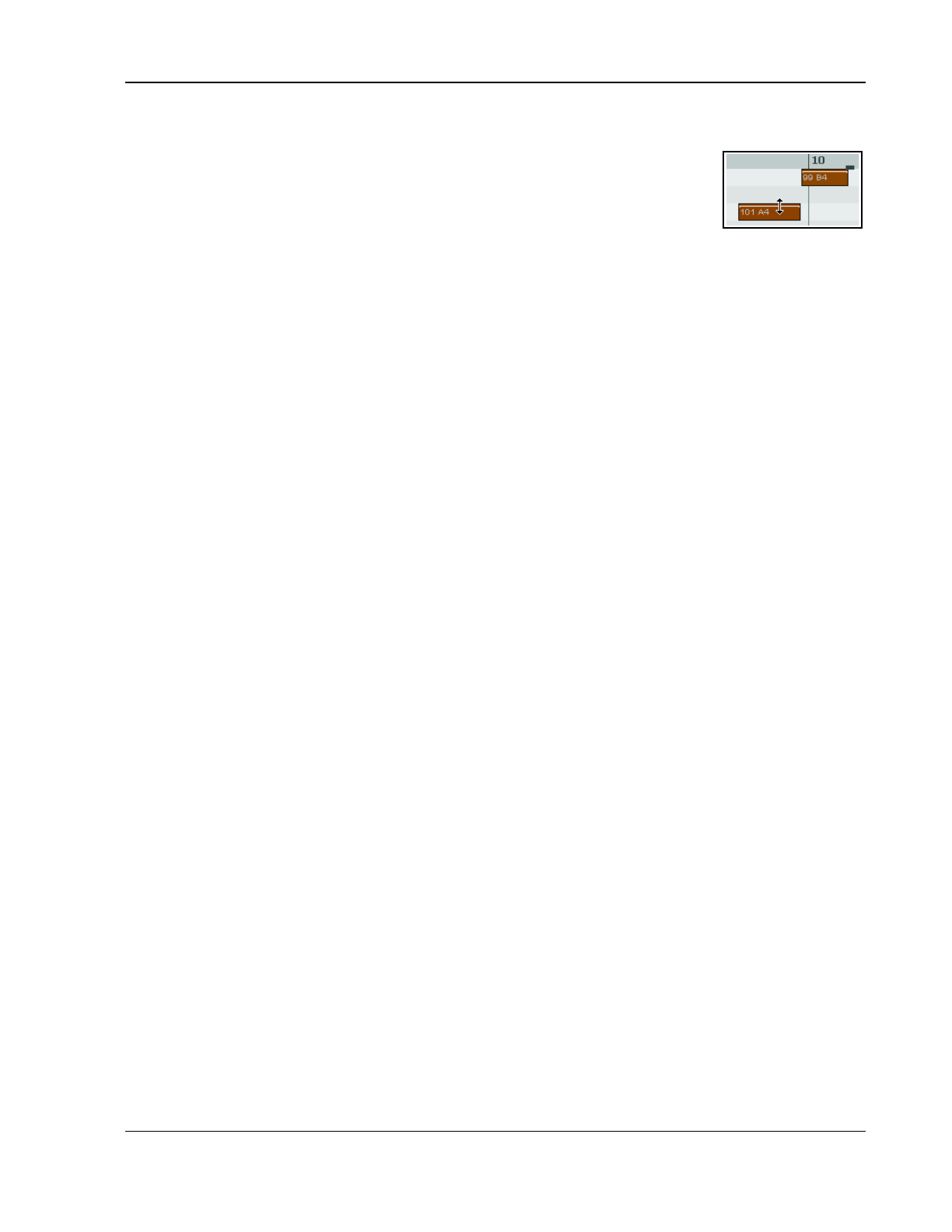
Working with MIDI Items
Piano roll notes
Displays a sub menu of Rectangles, Triangles and Diamonds to determine how notes are displayed.
There are toggle options to Show velocity handles on notes, Show velocity
numbers on notes, Show note names on notes, Show notation text on
notes and/or Show velocity and names only on active media item.
Color notes by
Selects the criteria used for coloring notes. Options are Velocity, Channel, Pitch,
Source (using color map), Track, Media item and Voice. When coloring by track or media item,
options are Use theme color for any or all of selected note body, selected note border, unselected
note body, and unselected note border. The MIDI editor actions list includes the action View: Load
note color map from file, as well as options to set color map by track or by media item, as you prefer.
Show/hide note rows.
Displays a sub-menu with four options: Show all note rows, Hide unused note rows, Hide unused
and unnamed note rows or Show custom note row view. Hide options exclude piano roll view.
Show note names on piano roll keys
Toggle option, on or off. Default is on.
Piano roll ruler
Options to display or hide project markers, project regions and/or tempo/time signature markers
on the piano roll ruler. These are displayed above the ruler, and tempo/time signature markers can be
edited by double-clicking on them. You can also right-click for a context menu.
Time format for ruler, transport, event properties
Gives you the choice of Measures.Beats.100ths or Measures.Beats.PPQ, option for Ruler in
Measures.Beats only. Also an option to Display project H:M:S[:F].
Piano roll timebase
Sets the timebase for the piano roll. Options are Project beats (the default), Source beats (from media
source item), Project time, or Project synced (which syncs the piano roll timebase to arrange view). For
more information, choose Timebase help from this menu. If you are opening several MIDI items in a
single MIDI editor, then choosing source beats can cause some MIDI editor functions to be disabled.
Notation view options
Displays a sub-menu of various options that are only relevant when working in notation view. These are
explained in the chapter immediately following this one.
The Contents Menu
Track List/Media Item Lane
Toggles the display of these panels which list and display tracks and MIDI items respectively.
One MIDI editor per
Opens sub menu where you can specify one MIDI editor window for each item, each track, or the project.
Behavior for “open items in built-in MIDI editor”
Select whether opening items in arrange view, using the media item menu, should Open the clicked item
only, Open all selected MIDI items, Open all MIDI items on the same track as the clicked item
or Open all MIDI in the project.
Options when using one MIDI editor per project
Options are Active MIDI item follows selection in main view, Media item is linked to visibility
and Media item selection is linked to visibility. There is also an option to Close editor when active
media item is deleted in arrange view. See section “Managing Multiple MIDI Tracks and Items.”
All media items to be editable in notation view: a toggle option.
List of project tracks/MID0I items
This menu lists all tracks which contain MIDI items and all items themselves. A tick indicates that the item
is currently open and the active item. Select an item from this menu to open it in the MIDI Editor window,
closing all other items: hold Shift while doing so if you do not wish to close all other items.
The Actions Menu
This has two default commands - Show action list and Show recent actions. Show action list opens the
Actions … window with the MIDI Editor section automatically selected. When Show recent actions is
enabled, your most recently used actions will be listed.
255
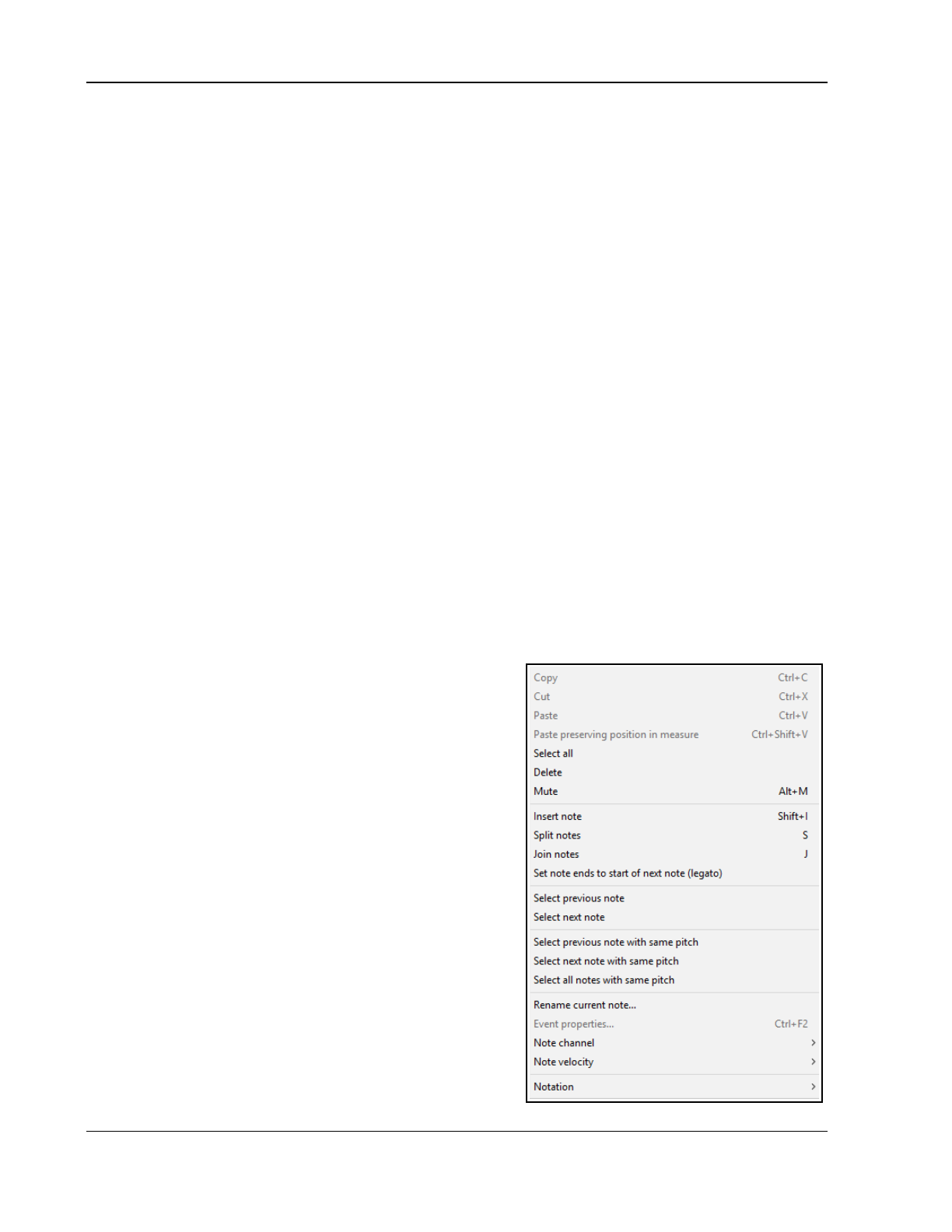
Up and Running: A REAPER User Guide v 7.81
13.15 Note Creating and Editing
Overview
A MIDI Item can contain data from up to 16 channels. The MIDI Editor can display and edit all 16 MIDI
channels, or you can use the Filter Events window or Channels drop down list to limit the channel display.
If you select Channel from the Color drop down list, each channel will be assigned an individual color, visible in
both the Piano Roll and the CC lane. The MIDI Editor uses as its default a Piano Roll interface to display and edit
MIDI information. Notes are displayed vertically according to their corresponding value on a Piano Keyboard, and
horizontally according to the duration of each note and their location within the MIDI Item or the Timeline.
Preview Keyboard
The Preview Keyboard at the left of the screen provides a visual representation of the value of the notes on the
Piano Roll, and allows you to audition a note without having to enter or edit it first. Clicking a key on the Preview
Keyboard will send a MIDI note of the corresponding value to the MIDI Instrument that is connected to the
Track. The Preview Keyboard can mimic a velocity sensitive keyboard. Clicking on the far left of a key will
generate a soft note, while clicking on the far right of a key will generate a loud note.
Entering / Editing Notes
MIDI notes can be recorded as part of a performance, imported from an existing MIDI file, or they can be
manually entered using the MIDI Editor.
Using the Mouse:
Notes can be entered by dragging your mouse from left to right across the Piano Roll. The duration of the note
will increase as you dra0g the Note. If Snap is enabled, the duration will Snap to the nearest Grid Line
(depending on the strength of your Snap settings0000). Notes can also be entered by double-clicking on the
Piano Roll (in a space not already occupied by another note). In this case, the duration of the note is determined
by the value of the Grid Setting. Notes can be deleted by double-clicking on the Note.
The duration of an existing note can be altered by dragging the edge of the note. While holding it, you can drag
the note out, move it up and down, etc. When you let go, the notes will be positioned according to your snap
setting. A note’s velocity can be adjusted by clicking and dragging up or down from the top of the note, in similar
fashion to that used for adjusting the item volume button or handle in REAPER’s main window. Notes can be
moved by dragging in any direction. Dragging left or right will change the location of the note in the Timeline,
while dragging up or down will change the note value.
The Right-Click Piano Roll Context Menu
Copy/Cut/Paste
These are standard Windows editing commands which
perform standard Windows functions.
Paste preserving position in measure
This pastes notes to the next measure after the cursor,
retaining the relative position of the item(s) pasted.
Select all
Selects all notes in this MIDI Editor window
Delete
Deletes all notes in current selection.
Mute
Mutes according to context the current note selection or
the note under the mouse cursor.
Insert note
A very quick way to insert notes. Inserts notes according
to the current snap values at the edit/play cursor position.
Split notes
Notes can be split at the Edit Cursor by selecting Split
notes (S) from the right-click menu. All notes that are
under the Edit Cursor will be split.
256
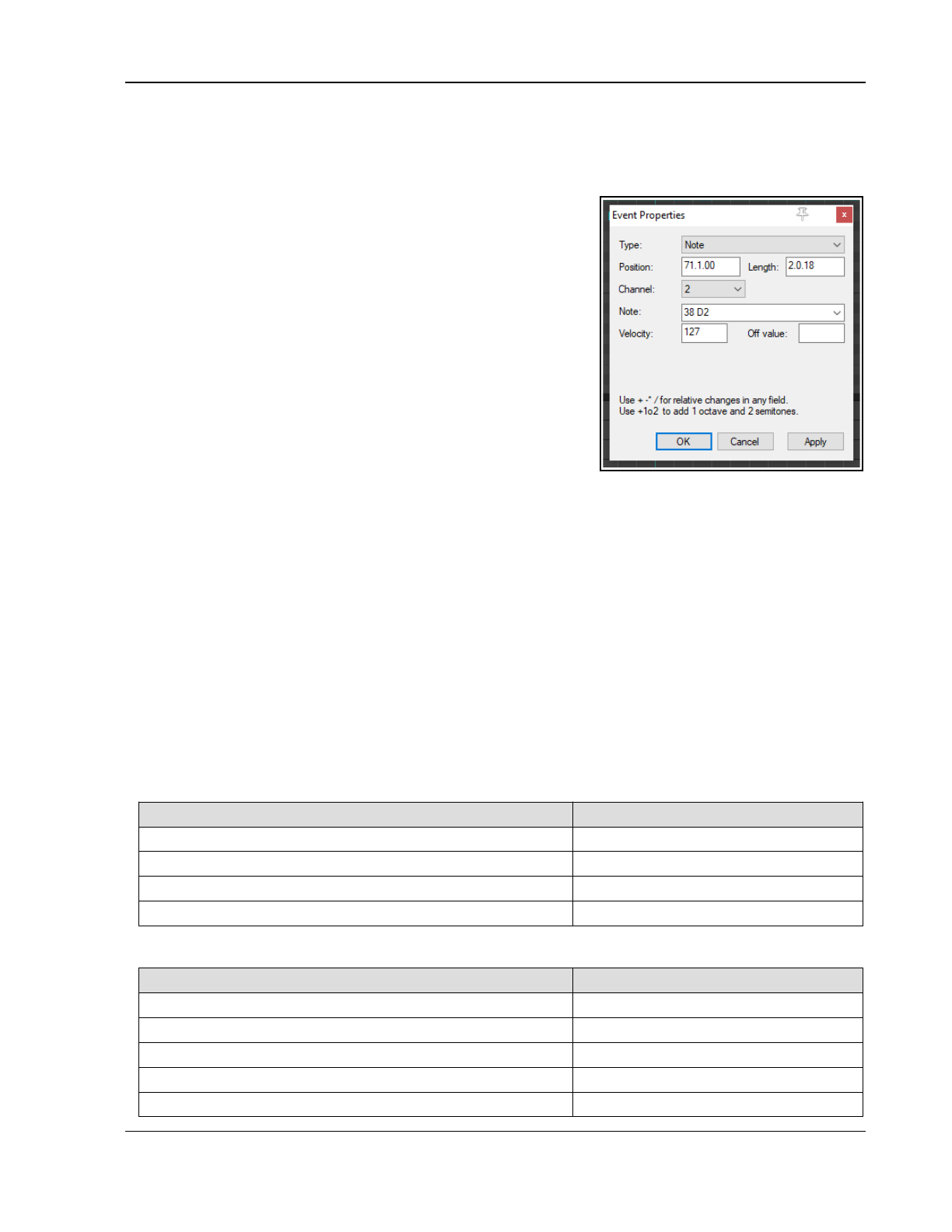
Working with MIDI Items
Join notes
Joins all notes in current selection to make one note per row.
Set note ends to start of next note
Extends the end of each note in a selection to the start position of the next note in the selection.
Select previous note/ Select next note
Selects previous or next note in place of current selection.
Select previous note with same pitch
Select next note with same pitch
Select all notes with same pitch
Selects previous, next or all notes with the same pitch as the
currently selected note.
Rename current note
Allows you to rename in the piano roll the note underneath the
mouse cursor.
Event properties (see right)
Certain events can be edited by entering values into text boxes.
For example, for notes you can change position, length,
channel, note, velocity, off value. You can use + or – to
make relative changes. For example, for note value, entering
+1o2 will raise the pitch by one octave and two semitones. You
can also enter note names directly into this field.
Other editable events include poly aftertouch, control change, program change, pitch, and song select.
Note channel (1-16)
A quick way to change the channel for the current note selection. For example, choosing channel 8 will
ensure that a note will use channel 8 -- and will send that note to the vsti or midi instruments channel 8.
Note velocity (1-127)
Used to change the velocity for a note or note selection to a specified value, within the range 1 to 127.
Notation
Presents a limited submenu of musical notation options – Voice, Phase/slur, Articulation, Ornament
and Note head. These are explained in the chapter immediately following this one. Notation data can be
displayed in a MIDI editor lane. It is selected in the same way as other data such as Velocity, Pitch, etc.
13.16 Using the Keyboard
Notes can be entered at the position of the edit cursor by using the Keyboard Shortcut I or at the mouse cursor
by pressing Insert. Looking at the right click Notes menu you can see that default keyboard shortcuts have
been assigned to many of these commands. There are others that are not shown on the menus. Some of the
most useful of these are listed here.
The Edit Cursor position on the Timeline is adjusted by using any of the following Keyboard Shortcuts.
To do this … … use this shortcut
Move edit cursor right by one grid division. Right
or
Ctrl Num 6
Move edit cursor left by one grid division. Left
or
Ctrl Num 4
Move edit cursor right by one pixel. Shift Right
or
Ctrl Alt Num 6
Move edit cursor left by one pixel. Shift Left
or
Ctrl Alt Num 4
Notes can be moved using any of the following Keyboard Shortcuts.
To do this … … use this shortcut
Move selected note(s) down one octave. Alt Num 2
Move selected note(s) down one semitone. Num 2
Move selected note(s) up one octave. Alt Num 8
Move selected note(s) up one semitone. Num 8
Move edit cursor left by one pixel. Alt Num 4
257
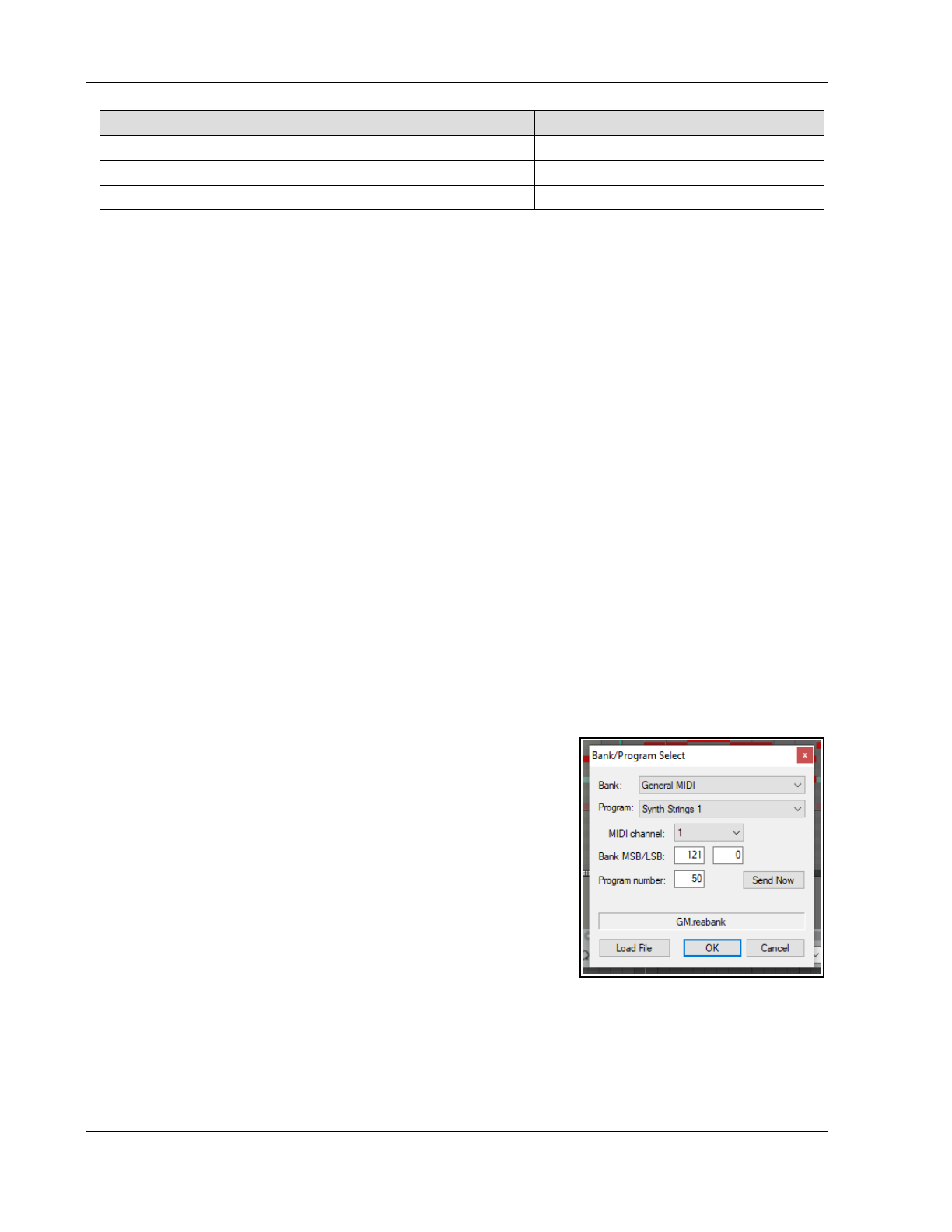
Up and Running: A REAPER User Guide v 7.81
To do this … … use this shortcut
Move edit cursor left by one grid unit. Num 4
Move edit cursor right by one pixel. Alt Num 6
Move edit cursor right by one grid unit. Num 6
Note display can be filtered for channels 1 to 10 using any of the shortcuts Shift 1 thru Shift 0. Shift `
removes the note filter and restores all notes to view.
Using F1-F12 as step sequencer:
When Use F1-F12 as step sequencer is selected, the keys F1 thru F12 can be used to enter notes. These
keys are mapped to the 12 Semitones of an Octave, with F1 having the lowest pitch and F12 having the highest
pitch. The method for using this is the same as already described under the MIDI Editor’s main Options menu.
Note Properties:
The keyboard shortcut Ctrl F2 can be used to open the Note Properties box, as an alternative to choosing the
command from the right-click menu.
Selecting / Editing multiple Notes:
Multiple notes can be selected by holding down the Ctrl or Shift keys while selecting notes with the mouse, by
drawing a Marquee (Right-click and drag) around a group of notes, or by using Select All (Ctrl A).
The value of all selected notes can be adjusted by dragging one of the selected notes.
The duration of all selected notes can be adjusted by dragging the edge of one on the selected notes.
The note velocity of all selected notes can be adjusted by dragging the Velocity handle (when active) of
one of the selected notes.
The default Velocity value for notes created in the MIDI Editor is taken from the last selected event - e.g. if the
Velocity of the last selected event was 70, then the Velocity value for the next created note will be 70.
13.17 Transposing Notes
As an alternative to using the Edit, Transpose command to transpose MIDI notes you can use a number of
keyboard shortcuts. First select the required notes, then use one of the following shortcuts:
Move notes up one octave Alt NumPad 8
Move notes up one semitone Ctrl Up or NumPad 8
Move notes down one octave Alt NumPad 2
Move notes down one semitone Ctrl Down or NumPad 2
13.18 General MIDI Program Patches
We have already seen that you can use a Bank/Program Select lane to
make program changes within an item. It’s worth noting that REAPER
includes a file GM.reabank (in the \Application Data\REAPER\Data
folder) which can be used to select standard General MIDI banks and
patches. An example is shown here.
If the General MIDI banks are not automatically available in the Bank
drop down list, click on the Load File button, navigate to the REAPER
data directory and select the file GM.reabank.
13.19 MIDI Preview Scrub
Within Piano Roll View and Named Note View you can preview your
MIDI material by clicking and dragging the edit cursor along the
timeline. This is similar to audio scrub: exact scrub behavior will be
determined by the settings under Options, Preferences, Audio, Playback.
13.20 F3 - The Panic Button
The F3 key can be your best friend when you are working in the MIDI Editor (and also when you are playing
back MIDI items in REAPER's main Arrange View). Pressing F3 will set all notes to all MIDI outputs off, until you
stop and recommence playback.
258
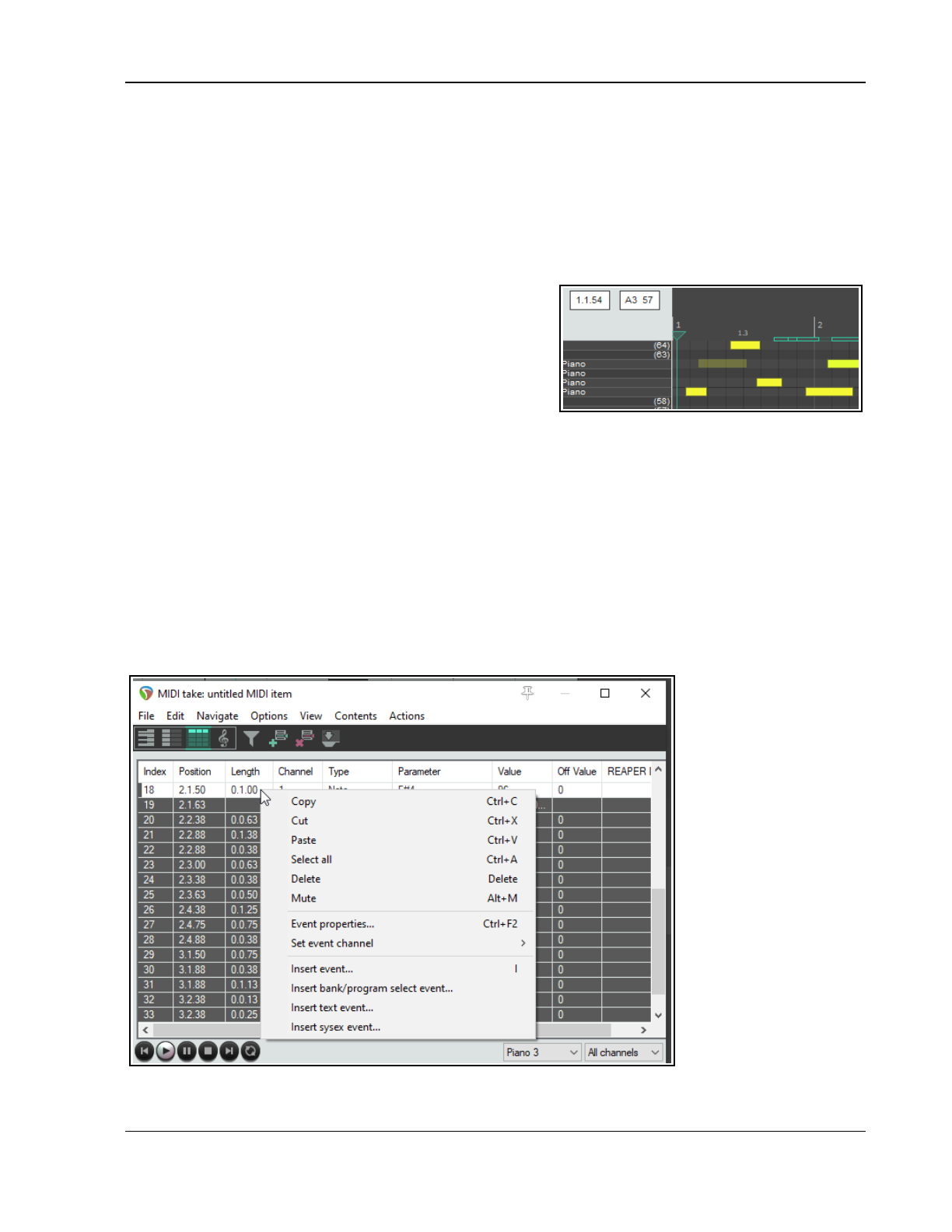
Working with MIDI Items
13.21 M0IDI Editor Modes and Views
13.21.1 Note Modes
The MIDI Editor has four modes, accessible from the Views menu.. These are Piano Roll (keyboard shortcut
Alt 1), Named Notes (Alt 2), Event List (Alt 3) and Musical notation (Alt 4). Musical notation view is
covered in the chapter immediately after this one.
Up until now, the only view used in this User Guide has been Piano Roll. Before moving on to examining the
other two views, there are a couple of points that you might find interesting.
Named Notes Mode:
In this mode you can double right click in the left pane to
enter text, as shown. If you select the option on the View
menu Piano roll notes, Show note names on notes, then
the names will be shown on the actual notes themselves. If
you leave this option enabled, the names will also be displayed
in Piano Roll View.
You can re-order the note rows into a custom order. Simply
hold the Control key while dragging a piano key up or down
the order.
In named note mode, you also have the options (View menu, Show/hide note rows command) to Show all
note rows, Hide unused note rows, Hide unused and unnamed note rows and Show custom note
row view. The first option is the default.
Hiding unused note rows can make it easier for you to navigate thru the MIDI Editor to work with existing notes
(see above right). However, problems may occur if you then want to add or move notes to rows that are
currently empty. The option to Hide unused and unnamed note rows can help you to get round this. By
taking the time
before
you choose this command to name any empty rows that you are likely to need, you will
ensure that these rows will still be available to you. Custom note row view causes the left piano roll column to
display any note names that you have added or imported rather than the piano keys.
Note names can be saved to, exported to and imported from note name files from the File menu.
Event List Mode:
Event List mode (View
menu) displays the MIDI
information as a list of
events, in tabular form.
In this mode you can use
the right click menu
(shown left) to i(for
example) insert, copy,
cut paste, delete or mute
0any events. The full
menu is shown above.
259
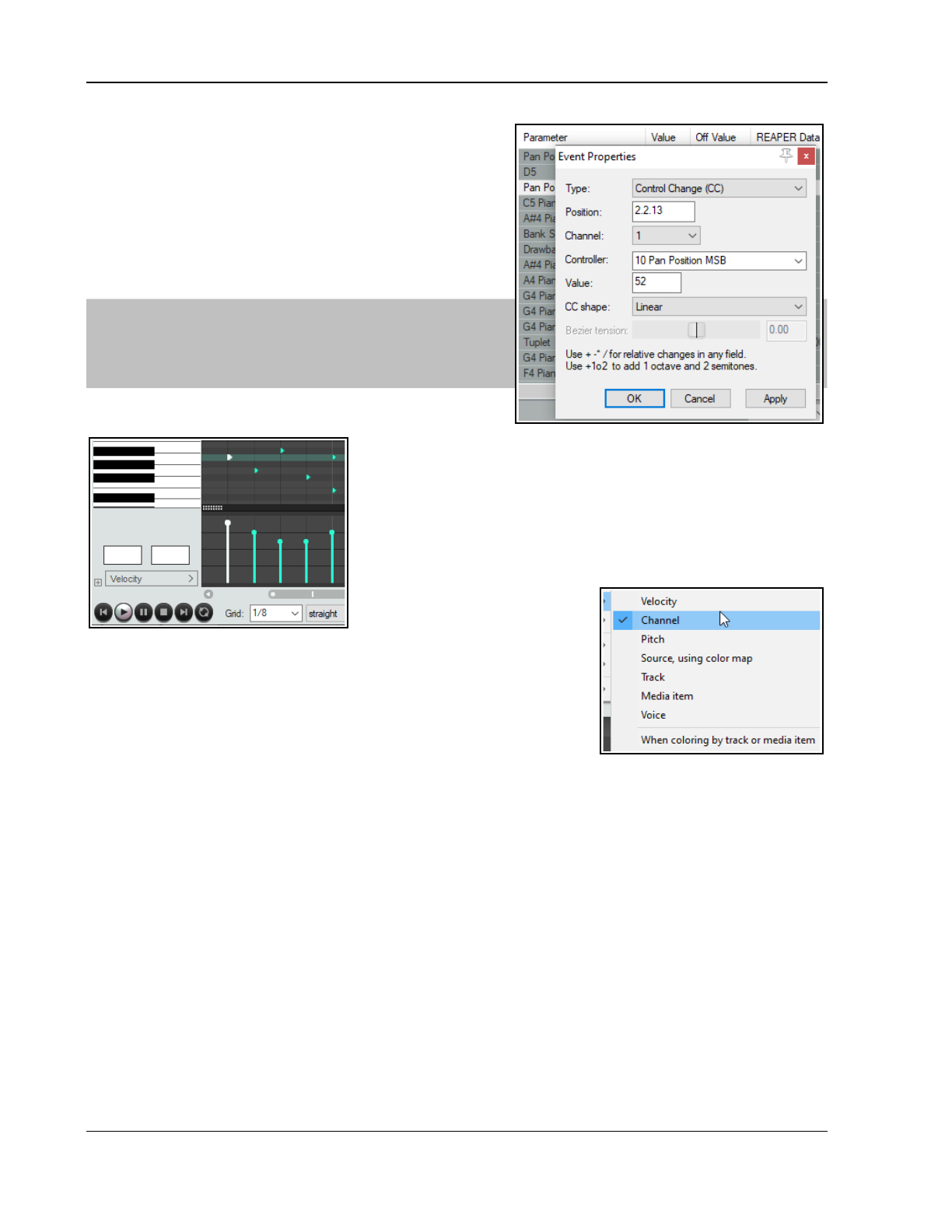
Up and Running: A REAPER User Guide v 7.81
You can also double click on any event to modify that event’s
properties (see example, right). The information displayed in
the Event Properties dialog box will in large measure depend
on the event type of event.
The Event List view toolbar is simpler than that of the other
two views. The Filter button is used to filter only those events
that you want displayed. The Add button will insert a new
event immediately before the currently selected event, and the
Del button will delete the currently selected event. The last
button toggles the docking of the MIDI Editor on and off.
Note: From the Options menu, the toggle command to
Display 14-bit MSB/LSB CC data as a single entry in
event list view and event properties dialog is by default
enabled. This causes 14-bit MSB/LSB CC data to be shown as
a single entry rather than separately.
13.21.2 Note Styles
The default display note style used by the MIDI Editor is rectangular. This is the style that has 0been displayed in
all of the Piano Roll View and Named Note View examples up to now. However, two further options are available,
specifically for use with drum sounds.
These are triangle and diamond modes. To choose a note style,click on the appropriate toolbar icon, or use the
View, Piano Roll Notes command and select Rectangle, Triangle or Diamond.
An example which uses triangles instead of the default rectangles is shown on the left.
13.21.3 Note Coloring Options
As briefly mentioned earlier, you have several options for how you wish to
color your MIDI notes. These are accessed via the View, Color notes by
command. By default, REAPER draws its colors from its own color map, but
you can import your own if you wish. Options are Velocity, Channel,
Pitch, Source, Track, Media Item, or Voice.
There are also options when coloring by track or media item whether
to use theme colors for note bodies and/or borders.
13.22 Arrange View MIDI Processing Options
Arrange view offers you a number of options for processing MIDI items as a whole (rather than working on notes
or note selections). These are available by selecting Item processing from the right-click context menu:
Explode multichannel audio or MIDI items to new one channel items: this will create a new track and
a new item for each channel that contains MIDI data. For example, if you have data on (say) channels 1, 4 and
5 this will create three separate items, one for each channel.
Explode MIDI items by note row (pitch): this will create a separate track/item for each row that contains
notes.
Convert active take MIDI to .mid file reference: creates a .mid file for the track MIDI data. If you now
view source properties you can confirm that this data is now stored in a .mid file.
Convert active take MIDI to in-project source data: this is the exact opposite of the previous command. It
converts data currently held in a .mid file into MIDI notes, as if they had been entered directly into the MIDI
Editor.
260
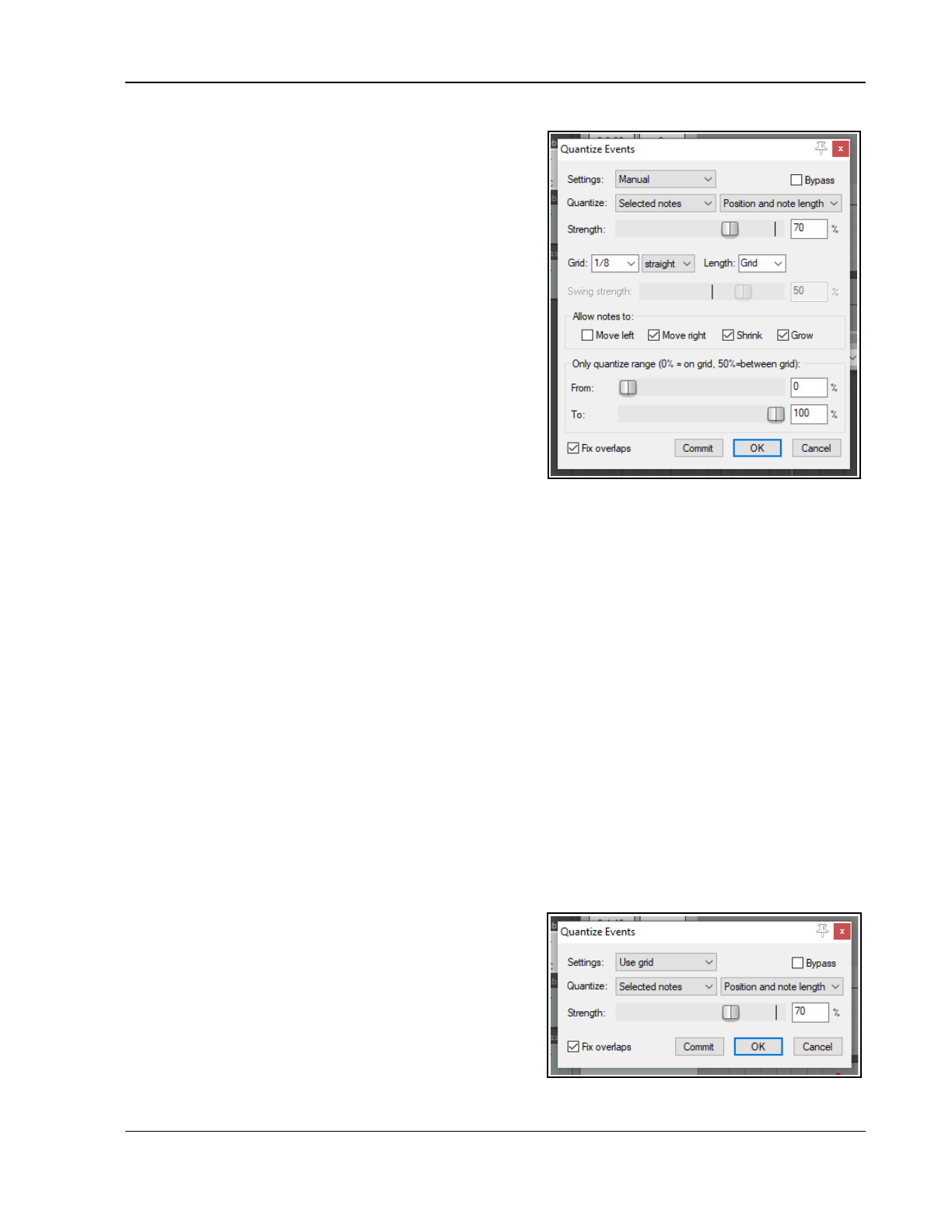
Working with MIDI Items
13.23 Quantizing MIDI Data0
The term Quantize refers to a process of aligning a set of
musical notes to a precise setting. This results in notes being
set on notes and on exact fractions of notes. When you
quantize a group of MIDI notes, the program moves each
note to the closest point on the timing grid.
The point of quantizing is to provide a more uniform timing
of sounds. It is often applied to MIDI notes created by a
musical keyboard or drum machine. Quantize is available by
choosing the Edit, Quantize events command from the
MIDI Editor menu. This causes the dialog box shown on the
right to be displayed.
The first choice you have is between the Use Grid and
Manual Settings option. We'll come to Use Grid shortly.
Shown right is the dialog box interface that appears when
the Manual option is selected. The various quantize
parameters are explained below.
Notice the Bypass option (top right). Disabled it lets you see
the result of different quantize parameter settings as you
tweak them. Enable this until you are finished if you don't want this to happen. Toggle it to compare how your
music sounds with and without quantizing applied.
All Notes, Selected Notes, All Events or Selected Events. The first Quantize drop down list allows you to
quantize selected notes or events (not just notes) or the whole sequence (all notes or all events). This can come
in handy if you just need to quantize a certain off section, or perhaps just a certain instrument, such as the hi-
hats of a drum section. The second Quantize drop down list works in conjunction with whatever selection you
make from the first. You can choose to have the quantizing of notes and/or events applied to the Position only,
Position and Note End, Position and Note Length, Note End Only or Note Length Only.
The Strength setting adjusts how strictly notes are quantized. The lower you set the strength, the less
'magnetism' the grid has to the midi notes. This introduces subtle imprecisions to the quantizing which can make
the outcome seem less clinical.
The Grid and Length values determine which units (measured as fractions of a note) are used for quantizing.
These can be selected from the drop down lists or entered manually in their respective boxes. They act in
conjunction with the Allow notes to options (see below). Grid type can be straight, triplet, dotted or swing. If
swing is selected, you will also need to specify swing strength.
Move left and Move right. If Quantize Position is enabled, these will ensure that notes are individually
quantized to the start or end of the specified note fraction, whichever is nearest. Move left only will only quantize
notes to the start, move right only will only quantize notes to the end.
Shrink and Grow. These are applied if Quantize Length is enabled. REAPER will extend or shorten notes by
moving the end position of each note. You can enable either or both of these options.
The Only quantize range faders let you specify a percentage range for quantizing. 50% represents the mid-
point between the grid lines. Values more than 50% are only really meaningful if “allow move right” or “allow
move left” is disabled. The distance is measured from the
grid line being quantized: normally it will select the closest
line so that you will never be more than 50% away.
Fix Overlaps can be enabled to stop notes from
overlapping as a result of being quantized.
When the Use Grid Setting is selected, the Quantize Events
dialog box will be as shown on the right.
From the Grid drop-down list (at the bottom of the MIDI
Editor window, next to the transport bar), select a note
length value (such as 1/32, 1/16 or 1/8) and then select an
item from the grid spacing type list. This can be straight, triplet, dotted or swing. If you choose Swing a
261
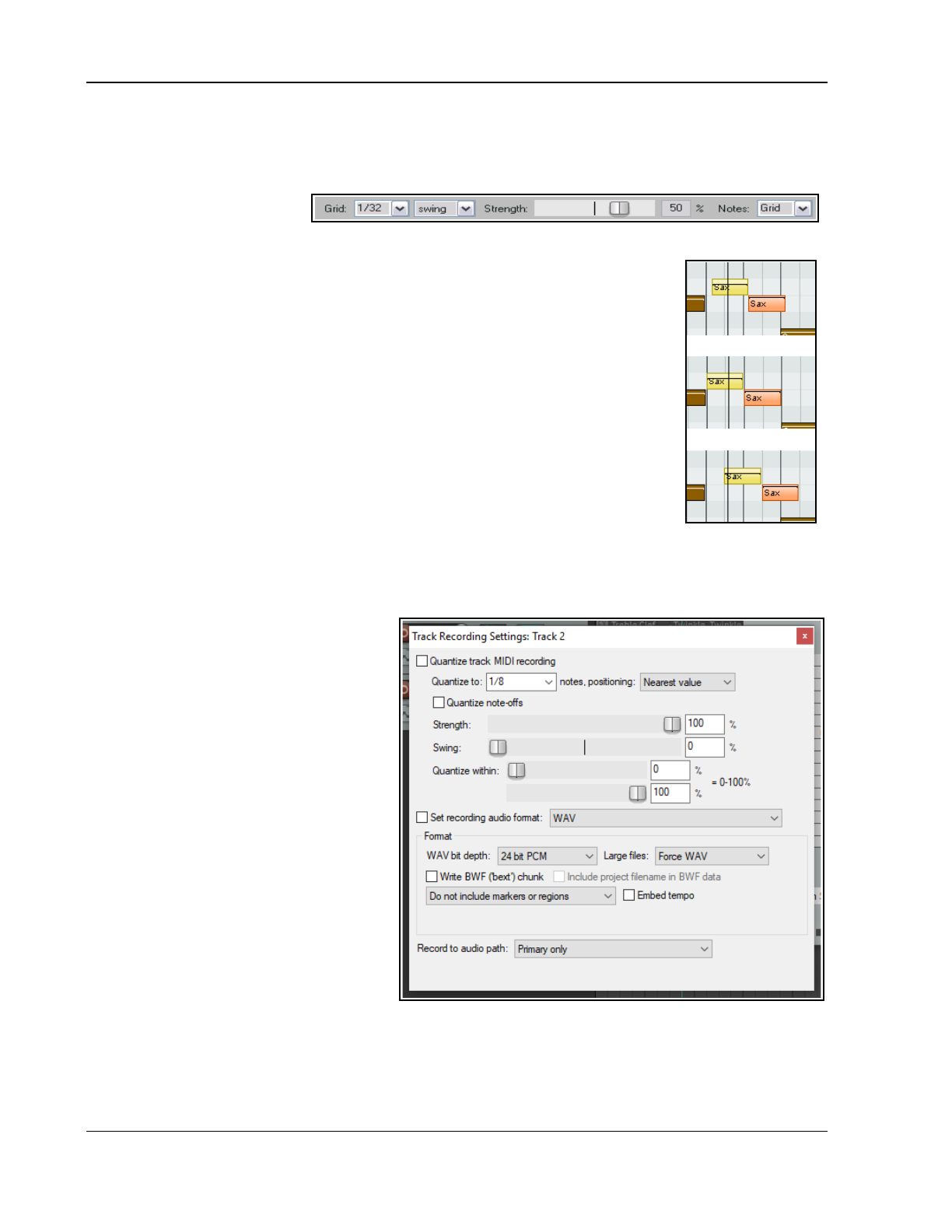
Up and Running: A REAPER User Guide v 7.81
strength fader is displayed (see above). This is used to adjust the swing setting within a range of -100% to
100%, or you can enter a value directly into the Swing % edit box to its immediate right. You should also set a
Notes value: left at Grid, this will take its value from whatever is chosen for the grid. Otherwise you may select
any other required value from the drop down list.
Used well, swing can result in a
more musically pleasing output.
In essence, you define a
percentage delay to be applied on the upbeat. For example, if you apply swing to 1/4 notes then those which
coincide with the 1/2 note divisions will be unaffected by the swing, those that fall
between these divisions will be delayed by the amount specified. Small amounts of
swing (even 5% or less) can help to prevent a part from sounding too rigid.
Quantize is non-destructive – that is to say, the process can be reversed at any time.
The various other commands on the Edit menu that are used with quantizing are:
Quantize notes using last settings
This bypasses the Quantize Events dialog box, making it easier for you to apply
the same quantization settings to various disparate selections.
Quantize notes position to grid
This quantizes notes according to your grid settings.
Unquantize events
Removes quantization and returns the no0tes to their previous state.
Freeze quantization for events
Freezes the quantization for all currently selected events.
Shown above is an example. The top picture shows two unquantized notes selected. In the second picture they
are quantized by moving them left. In the third picture, they are quantized by moving them to the right.
More quantize options are available in the MIDI Editor Action List, including actions to quantize note positions
to specific divisions, ranging from 1/4 down to 1/64.
13.24 Input Quantization
Input Quantization is a process by which
MIDI notes are automatically quantized as
they are entered. This could be, for example,
by playing your MIDI keyboard, or the
REAPER Virtual Keyboard.
Input quantization is applied on a per track
basis. Right click on a track’s red record arm
button (TCP or MCP) or on its record options
button (TCP) and choose Track Recording
Settings from the menu. The dialog box
shown on the right will be displayed.
Select the option to Quantize track MIDI
recording. Options then available include:
The note length to be used for
quantization (e.g. 1/8).
Quantize positioning preference.
Options are Nearest value,
Previous value and Next value.
Whether to quantize note-offs.
Quantization strength. A lower
setting will allow more subtle variation, creating a more “human” effect by allowing minor variations in
how strictly the quantization is applied.
Swing setting. This can be between 0% and 100%. You can use this setting to add a touch of delay to
those notes that do not fall on the upbeat. The best way to understand how these settings affect how
your notes sound is to try a few examples.
262
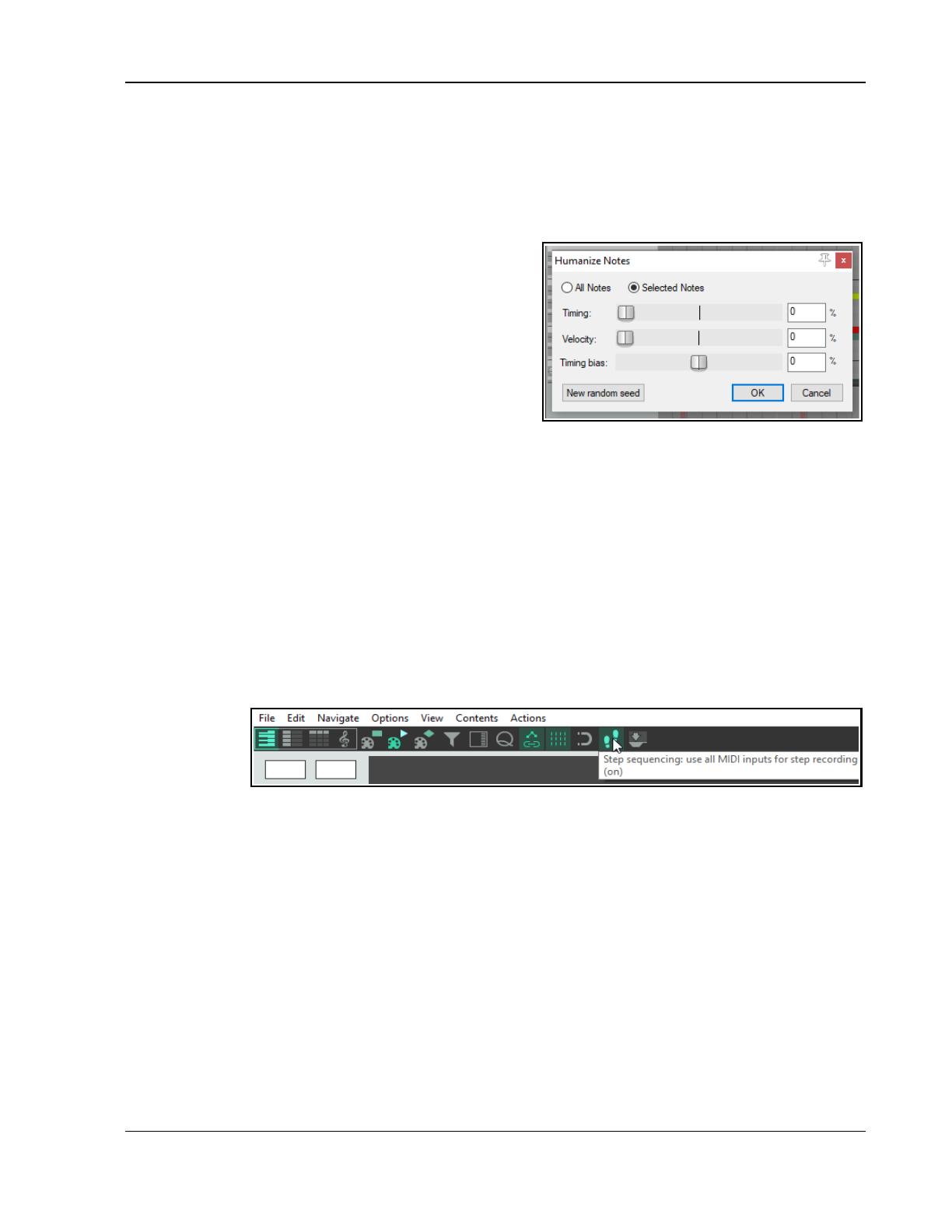
Working with MIDI Items
Quantize within % range. These are similar to the Nearly Quantized and Far From Quantized faders in the
Quantize Events dialog box (see previous section).
In addition, the Main (alt Recording) section of the Action List includes actions to:
● Toggle MIDI input quantize for all tracks, selected tracks, or last touched track.
● Enable or disable MIDI input quantize for all tracks, selected tracks, or last touched track.
13.25 Humanize Notes
Humanize Notes (from the Edit menu) can be used to
introduce subtle variations – some might say imperfections! –
to a MIDI item that is just too exact, too perfect. For
example, no human pianist will ever complete an entire live
performance on an acoustic piano with every key being
struck with exact precision and perfect timing. Therefore, you
might not want your MIDI items to be too perfect.
The Humanize Notes dialog box (right) can be used to
introduced random variations in timing and velocity to an
existing MIDI item to make it sound … well, more human!
13.26 Step Recording
Step recording is a method of recording a sequence of MIDI notes within REAPER's MIDI Editor, one step
at a time. In overview, you start by choosing a step size (such as a quarter or eighth note), then play your
notes using a MIDI keyboard or the function keys F1 to F12. Each note you play is recorded and the
insertion point is moved into position ready for the next note. You can then continue, playing more notes
as you wish. You can also, if you wish, change the note size while recording. Let's see how this is done:
1. From REAPER's main menu, choose Insert, Virtual Instrument on new track. Select your
instrument and click OK. The track will be inserted armed for recording, with input monitoring on.
2. Display the Input drop down list for this track and select a MIDI channel (or All channels) for your
MIDI keyboard.
3. Click and drag in the arrange area to define the length of your required MIDI item. From the menu,
choose Insert, New MIDI item to insert the item.
4. Open the item in the MIDI Editor. Double-click on item will do this, or you can choose Open in built-
in MIDI
editor
from the
right-click
context
menu.
5. If you are using a keyboard, enable step recording either by choosing Use all MIDI inputs for step
recording from the MIDI Editor Options menu, or by clicking on the equivalent toolbar button.
6. If you wish to Use F1 - F12 for step recording, enable this menu option. These keys are then
mapped to the 12 semitones of an octave. In this example, we'll use these keys. Remember, however,
you could use a MIDI keyboard if you have one.
7. Select a note length (e.g. 1/4, 1/8) from the drop down list next to the MIDI Editor's transport bar.
8. In the piano roll keyboard. select a note (e.g. C4). This note will now be represented by F1, with
subsequent function keys moving up the scale to higher notes. Press function keys as required to
enter notes and to advance the cursor according to snap settings (hold Shift if you wish for snap
settings to be ignored). These notes can be edited like any others, for example to adjust velocity.
9. Selecting a different note in the MIDI editor keyboard will reset the value of F1 (and all other function
keys accordingly).
These instructions represent the essentials of step recording. Depending on which virtual instrument you
use, and on your MIDI keyboard setup, you might need to “tweak” them to suit your exact requirements.
263
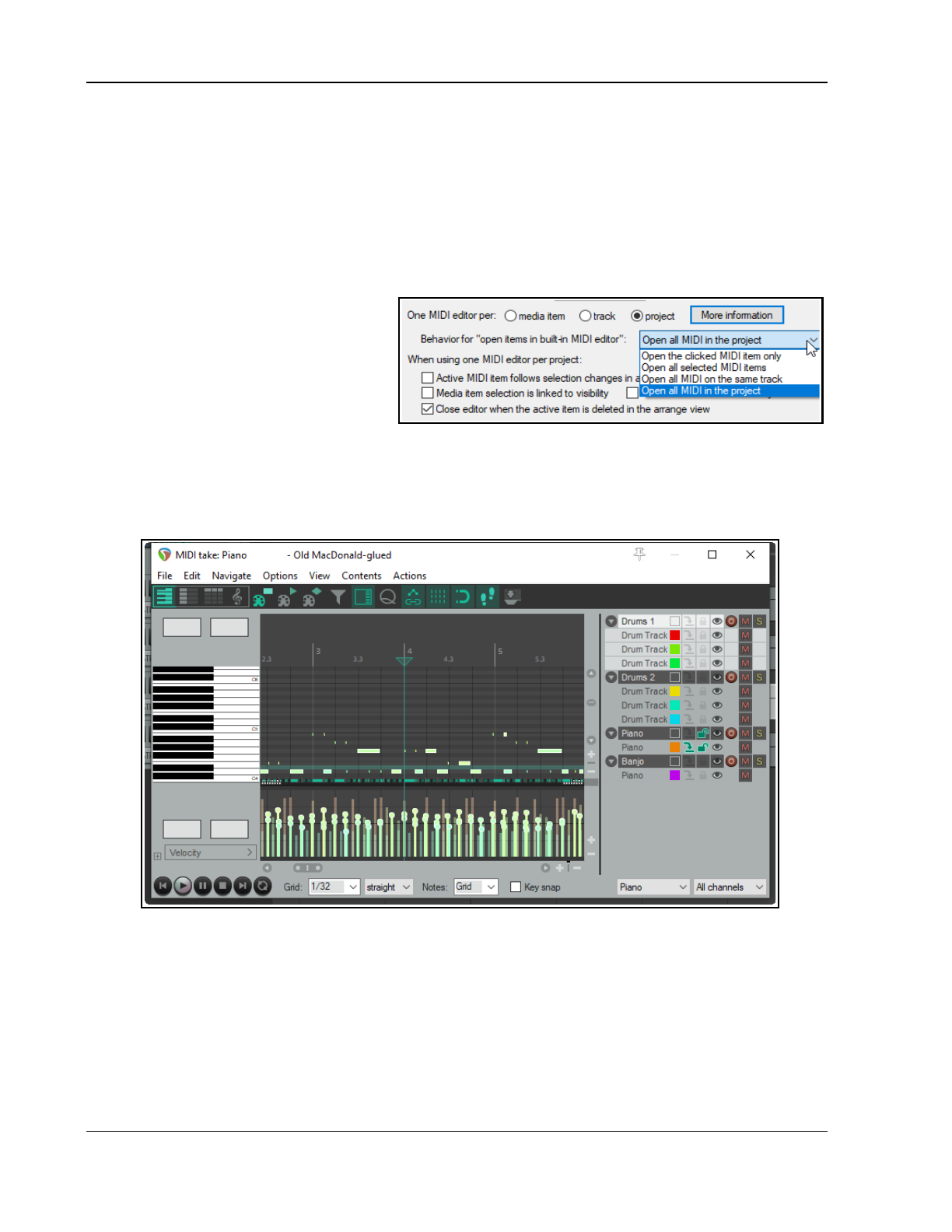
Up and Running: A REAPER User Guide v 7.81
13.27 Working with Multiple MID0I Tracks and/or Items (Overview)
From Arrange view by choosing the command Open in built-in MIDI editor (right click context menu) will
make MIDI items available for editing. This offers four mutually exclusive options – Open clicked MIDI item
only, Open all selected MIDI items, Open all MIDI on same track, and Open all MIDI in project. You
can set a default option in the Editing Preferences, MIDI Editor page of REAPER's preferences (see Chapter 22).
Double-clicking on the item opens the MIDI Editor according to your preferences. For example, if you set your
preference to one MIDI editor per media item, then each MIDI item you double-click on will open in a separate
MIDI editor instance. If set to one MIDI editor per project then all MIDI items being opened in the MIDI editor
when any single MIDI item is double-clicked: The double-clicked item will be the selected and active item.
If All MIDI in the project is specified you
should also specify whether to open the
clicked MIDI item only, all selected MIDI
items, all MIDI items on the same track, or
all MIDI items in the project (see right).
Within the MIDI Editor, your default
preference settings can be overridden on a
per project basis from the Contents menu.
This will be discussed shortly.
Tracks and items can be managed by displaying the Media Item Lane (second button on toolbar toggles) and
the Track List (first button on toolbar toggles). Both these options are also available on the Contents menu.
The illustration below shows an example of the MIDI Editor window opened with four MIDI tracks, some of
which include several items. Both the Track List (right of window) and the Media Item Pane are displayed.
In the MIDI Editor Contents Track List each item is assigned three qualities – active status, editability status, and
visibility status, These can be set as required to allow you to work with different items at different times.
Active means that the item can be used for inserting, copying, pasting notes, etc.
Editable means that mouse edits (move, lengthen, etc.) and commands such as quantize, transpose and
humanize can be performed on an item's notes. One and only one item at a time may be active, but as many
items as you wish may at any time be visible and/or editable.
Visible means the item and its notes are displayed in the MIDI editor window.
Note that:
● An item can be visible without having to be editable or active. One or more items may be visible.
● An editable item will also be visible but need not be active. One or more items may be editable.
264
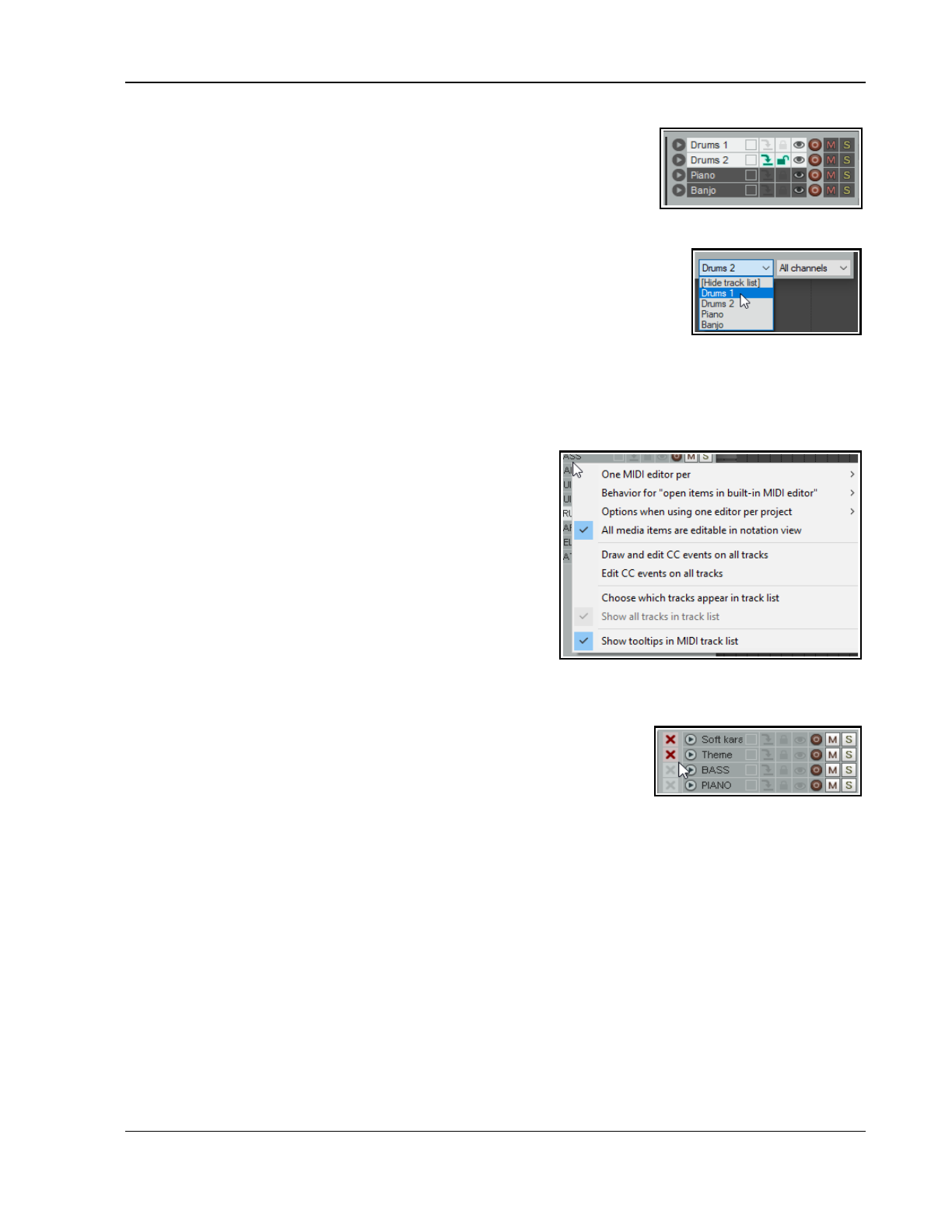
Working with MIDI Items
● An active item will also be editable and visible. One and only one item is
active at any time.
Any track or combination of tracks can be made active using the “eye” column
in the track list (see above right). A track can be made active by selecting it in
the track list, or from the Contents menu, or using the drop down list near
the end of the transport bar (see right). If the track contains only one MIDI
item, that item will be made active. If it contains more than one item, all items will be visible and editable but
only one item will be active.
The Filter Events window (accessed from the toolbar) allows you to select multiple
channels for display and editing. If you select two or more channels in this window,
the drop down channel list at the foot of the MIDI editor window will read
“Multichannel” or “All channels”. Alternately, you can simply use the drop down
channel list to select “All.”
The MIDI column in the Track Manager (Chapter 12) can also be used to open items in/remove items from the
MIDI Editor, and to show items in/hide items from the MIDI Editor track list. Tracks can also be selected to be
shown in or hidden from the track list using the track list's context menu.
13.28 Managing Multiple MIDI Tracks and Items
The Track List
Track List display is toggled on and off by the Track List icon
on the MIDI Editor toolbar, or from the Contents menu. Right-
click on the track list area to open the Track List context menu
(shown here). If you need to override the preferences default
setting, you can specify whether you want One MIDI editor
per media item, track, or project.
Behavior for “open items in built-in MIDI editor” options
are to open Clicked item only, All selected MIDI items,
All MIDI items on same track as clicked item or All MIDI
in project. These options are also found on the MIDI editor
Contents menu.
Two mutually exclusive options from the MIDI Editor Options menu are repeated here: these are Draw and
edit CC events on all tracks and Edit CC events on all tracks. You can enable neither or one of these at a
time, but not both.
You can run the action Choose which tracks appear in track list to hide
tracks from or restore them to the track list. Selecting this command causes
the X symbol to be displayed beside each track name. This toggles track
display. In its default gray state, the track is marked for display, when red it
will be marked to be hidden.
After making your selection, again select Choose which tracks appear in track list from the context menu to
implement this selection. Those tracks marked with a red X will now be hidden. The command Show all tracks
in track list will restore them to view. Also, you can choose whether to Show tooltips in MIDI track list.
The Options when using one MIDI editor per project command (also on the MIDI editor Contents menu)
includes further ways in which you can specify MIDI Editor behavior when selecting and editing items:
Item selection toggle commands are Active MIDI item follows selection changes in arrange view,
Selection is linked to visibility and Selection is linked to editability. Select any, all or none of these.
If both selection link options are set to off, then all items displayed in the piano roll can be edited.
However If item selection is linked to visibility, items which are visible but not editable will be displayed in
the piano roll window but cannot be edited (e.g. moved or deleted).
If item selection is set to editability, then those items defined as editable will be displayed and can also be
edited. Items defined only as visible will be displayed but cannot be edited.
● Item editing toggle options are Only MIDI items on the same track as the active item are editable
and Close editor when active MIDI item is deleted in arrange view. Enable both or neither of these.
265
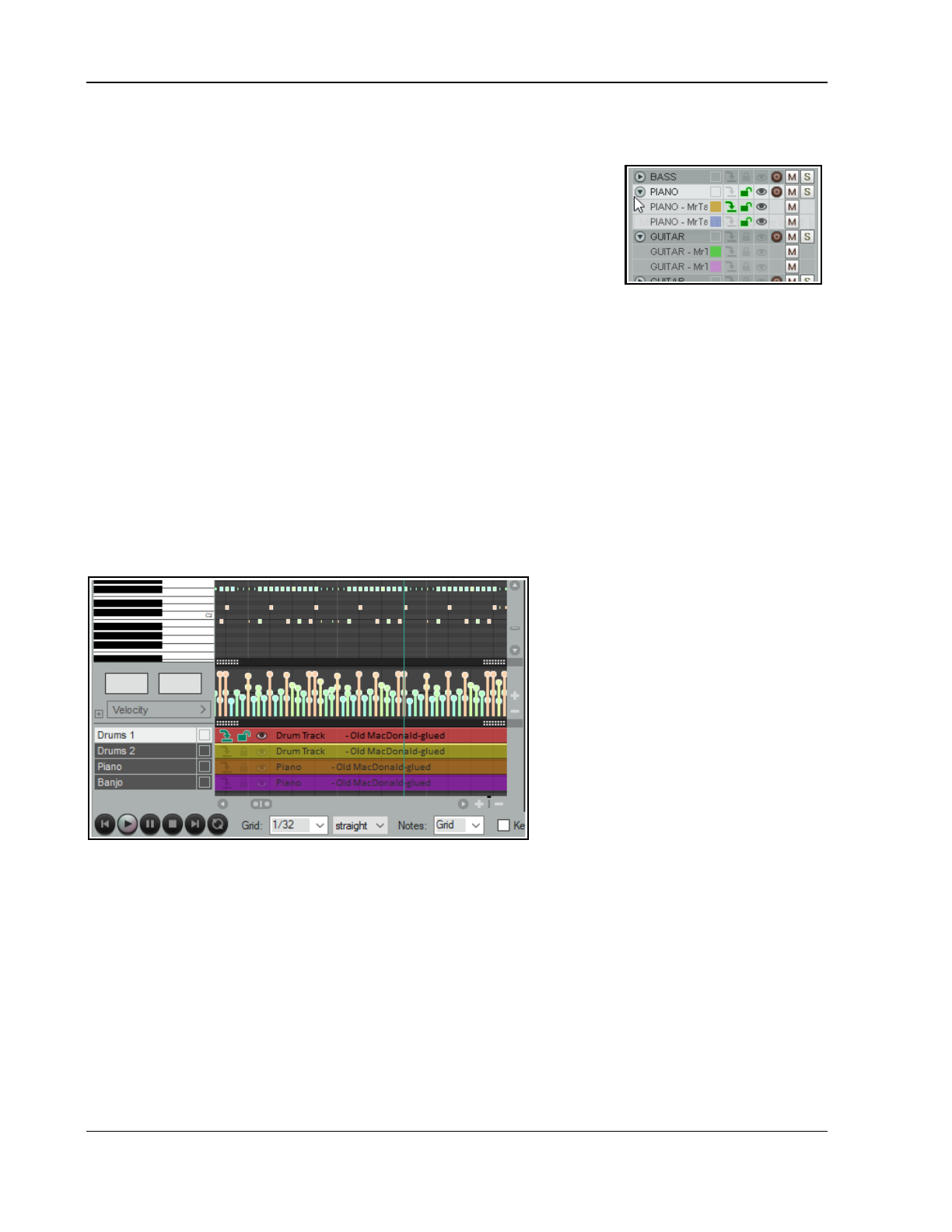
Up and Running: A REAPER User Guide v 7.81
In the example shown here (below) three tracks are listed and displayed, containing in total seven MIDI items.
The Piano and Bass tracks holds three items each. The Flute just one item.
● The symbol that contains an arrow (to the left of each track name) opens
and closes a list of MIDI items on that track.
● This track list operates in a similar fashion as the arrange view track list.
Click on an item name to select it, or on a track name to select all items
on that track. You can use control+click or shift+click to build a selection.
The first item in a built selection will be made active, but you can also
click on the “make active” icon of other items. You can use the various
other icons to set qualities such as icon color, solo, mute or editability for
the entire selection. The small colored square to the right of an item name opens the color picker: this
can be used to select a different color to be used for this item in the Media Item Lane.
● The column to the right of the color picker is the “make active” column. Click here to make any item
current for inserting events (shown by the green arrow). It will then also be made editable and visible.
● Click in the next column to the right of this to make any item visible and editable, indicated by the green
unlocked padlock icon. If contents do not appear visible, check 1) the scroll settings for the MIDI editor
window, and 2) the channel filter, to ensure that the required channel is included in the filter. This same
green icon can then be used to toggle editability.
● The eye symbol to the right of this toggles the visibility of any item (or item selection) in the MIDI Editor.
The gray/red circle to the right of this (for tracks) toggles record arm status for that track. This is used in
conjunction with the Record button on the Arrange view Transport Bar.
● Use the M button to the right of this to toggle mute status for individual tracks or items. Use the S button
to the right of this to toggle solo status for any track.
13.28.1 The Media Item Lane
The media item lane (Contents menu)
displays the MIDI items and their position
in the arrangement. Clicking on any item
highlights, selects it but does not make it
active. As with the track list, you can use
control+click or shift+click to build a
selection. The individual media item right-
click context menu offers you various
options for setting items to custom colors
or random colors.
The Media Item Lane duplicates most of
the features of the Track List, including
the color picker, target, padlock and eye
icons.
The Contents menu also includes (at the
bottom) a list of MIDI items that are currently open. Selecting any item from this menu makes it active and
displays its contents in the piano roll window.
13.29 Optimizing MIDI Editor Workflow
Working in REAPER’s MIDI Editor can be quite a challenge, especially for the newcomer faced with a projects
that contain multiple MIDI tracks and items. Happily, Seventh Sam has produced an excellent free guide How to
Set Up REAPER's MIDI Editor for Better Workflow which is available at:
https://seventhsam.com/guides/blog/6791049/how-to-set-up-reaper-s-midi-editor-for-better-workflow
13.30 Editing Multiple MIDI Items
In order to be able to edit different MIDI items at the same time you will first need to select those items that you
wish to make available for editing, as explained in the previous section. You can then perform normal mouse
editing activities on any part of the selection, such as copying or moving, adjusting velocity, stretching, shrinking,
etc. The table below gives some examples of how you can apply this to various MIDI editing tasks.
266
Working with MIDI Items
If you want to do this … … do this!
Change track/item name. Double-click on name in track list and edit.
Copy/move a note (or note
selection) to another item
within MIDI editor.
Make sure source item(s) editable. Select note(s), press Ctrl C (copy) or
Ctrl X (cut). Make the destination item active. If required, position play
cursor. Press Ctrl V (paste).
Copy/move a note (or note
selection) to another item in
Arrange view.
Make source item(s) editable in MIDI Editor. Select note(s), press Ctrl C
(copy) or Ctrl X (cut). Select destination item in Arrange view, make it
active in MIDI Editor, position play cursor. Press Ctrl V (paste).
Mouse edit a selection of notes
in more than one MIDI item.
Make items editable. Select notes and use mouse (e.g. drag to move,
click drag from edge of any note to lengthen or shorten notes).
Delete selection of notes across
more than one item.
Make items editable. Select notes and press Delete key.
Mute/Unmute note selection
across more than one item.
Make items editable. Select notes and press Alt M, or use Mute events
command from Edit menu.
Change note properties for a
selection of notes
Make items editable. Select notes and press Ctrl F2. Make changes then
OK.
Quantize, Humanize, Transpose
across multiple items.
Make all required items editable. Make note selection and choose Edit
menu command, e.g. Quantize, Humanize, Transpose.
Adjust velocity of notes selected
in two or more items.
Display velocity lane and make items editable. Select required notes.
Click/drag mouse up/down from top edge to increase/decrease velocity.
Edit CC data across multiple
MIDI items.
Display CC lane and make items editable. Select required events and
perform edit as required with mouse or via Event Properties dialog.
Show/Hide all MIDI items on
tracks in Track List.
Click (for one track) or Shift click (for all tracks) on diamond symbol to
the left of any track name in Track List (toggle).
Show/Hide all tracks/MIDI
items in Track Folder.
Click on circle symbol to left of folder name in Track List (toggle).
MIDI Editing with Multiple Items: Some Tips and Examples
These notes assume that you are by now familiar with the basic MIDI editor navigation and editing techniques
explained earlier in this chapter and, for example, shown in the exercise in section 13.26. Indeed, you are
advised not to experiment with editing multiple MIDI items until you are confident that you have mastered the
techniques for editing the contents of a single MIDI item.
13.31 MIDI Editor Mouse Modifiers
The Mouse Modifier dialog is opened by the Options, MIDI editor mouse modifiers command. Here you can
customize exactly how you would like the mouse to behave when you are working in the MIDI editor.
There are several areas in which you can modify mouse behavior within the MIDI Editor. These include MIDI
note, MIDI note edge, MIDI CC lane, MIDI CC event, MIDI Source loop and marker, MIDI ruler,
MIDI marker/ region lanes, MIDI piano roll and MIDI editor. In many cases, separate contexts are
available for left click, left drag and double-click behaviors. For example, if you wanted to, you could ensure that,
say. Shift Alt Left click is used to toggle a note's mute status.
For much more about mouse modifiers, including MIDI Editor mouse modifiers, see Chapter 14 and Chapter 15.
13.32 MIDI Editor Actions
REAPER’s Action list Editor lets you assign keyboard shortcuts to any command or action, or sequence of actions,
including many not shown on the MIDI Editor menus. Chapter 15 will show you how to do this, including adding
actions to the MIDI Editor menus.
267
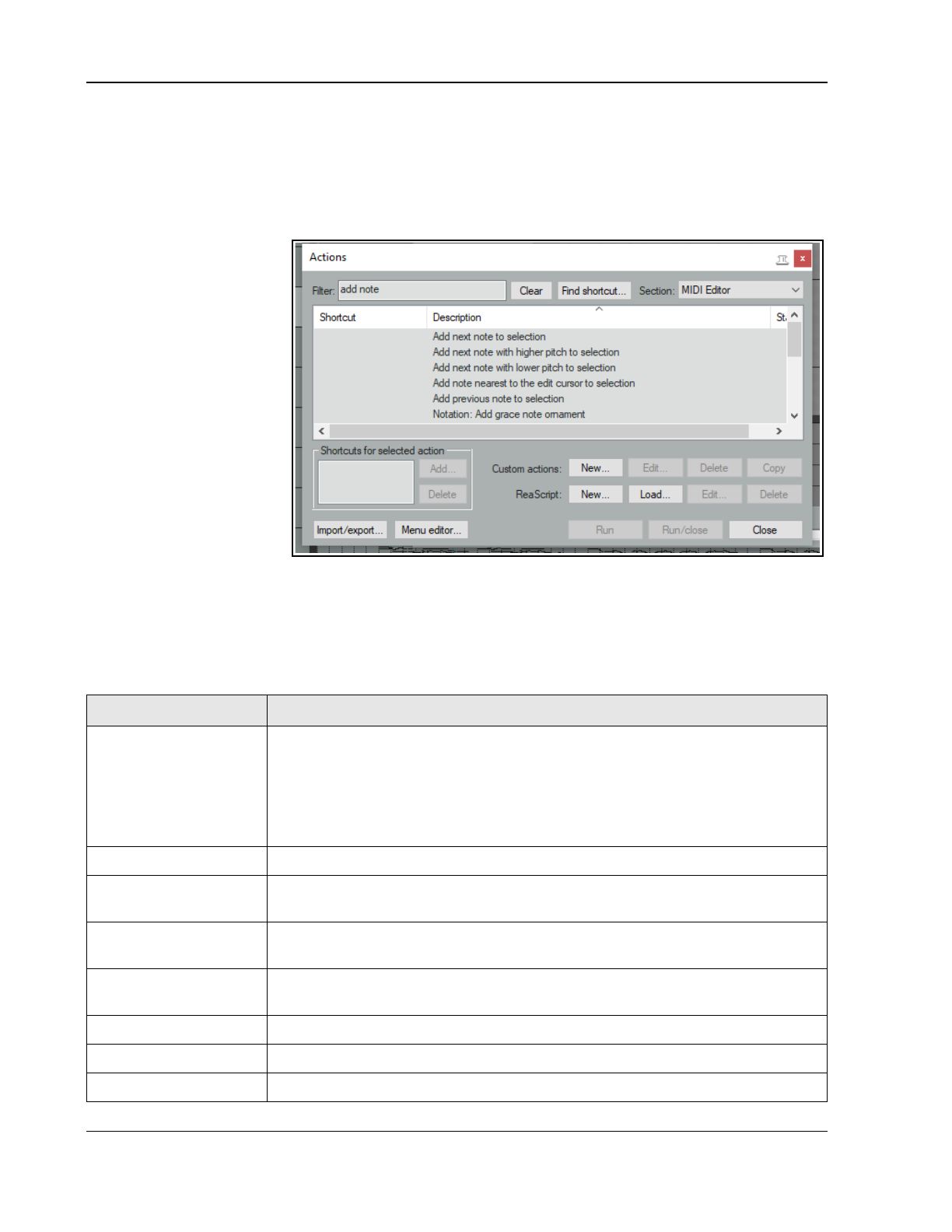
Up and Running: A REAPER User Guide v 7.81
The Action list is displayed by choosing Show actions list from the Actions menu. It contains a whole load of
assignable actions beyond those that are shown on REAPER’s menus. This means that you are able to create
your own keyboard shortcuts for any of these actions, and even for sequences of actions.
Notice (below right) that within the MIDI Editor Action List you can assign MIDI commands and actions to
keystrokes to specify their behavior when you are using the MIDI Editor. Quite a few have already had keys
assigned to them and you can assign your own keys to other actions.
Here’s a simple example.
If in the Action List filter box
you type (for example) add
note then only those
actions which included these
characters will be displayed
(see right). One of these is
Add next note to
selection. You can assign
this action a shortcut.
You’ll see in Chapter 15 that
the Actions List Editor lets
you do much more than
this. For example, you can:
Build a sequence of
actions that can all be
executed with a single
keystroke.
Add actions and custom actions to your MIDI Editor toolbar and/or the MIDI editor Actions menu, and/or
any of REAPER's MIDI Editor menu commands (File, Edit, Navigate. Options, etc.)
REAPER's MIDI Editor commands (such as Edit -> Delete events, Edit → Insert note, Edit → Quantize,
Navigate → Select next note, Options → Correct overlapping notes when editing, etc.) can all be found in
the Action list. In addition there are many hundreds of actions, some very precise, which are not shown on
the menus. The table that follows should help guide you thru many of these.
Category/Group
Examples of MIDI Editor assignable actions(not fully comprehensive)
Note/event selection Select all notes with same value, note nearest to edit cursor, notes at mouse
position, all muted notes.
Add next/previous note to selection, Add note nearest edit cursor to selection.
Select/unselect all CC events, Select/unselect all CC events in last clicked lane.
Select all notes in time selection, Select all notes starting in time selection, Select all
CC events in time selection (several variations).
Managing presets Load/save CC/velocity lane presets.
Activate item/track Activate next/next visible/previous/previous visible MIDI item. Activate next/next
visible/previous/previous visible MIDI track (if multiple items/tracks are open).
CC lane management Next/previous CC lane. Set CC lane to
parameter
. Set CC shape to xx. Set default cc
shape to xx.
Channel display Show only channel xx, Show only next/previous channel, Toggle channel xx, Color
notes/CC by channel, Allow CC shape in sustain lane.
Grid actions Set grid type (straight, dotted, triplet, swing). Adjust swing grid strength.
Navigation Actions to navigate by channel, voice, pitch (all views) or staff (notation editor).
Remove duplicates Separate actions to remove duplicate notes only/all duplicate events.
268
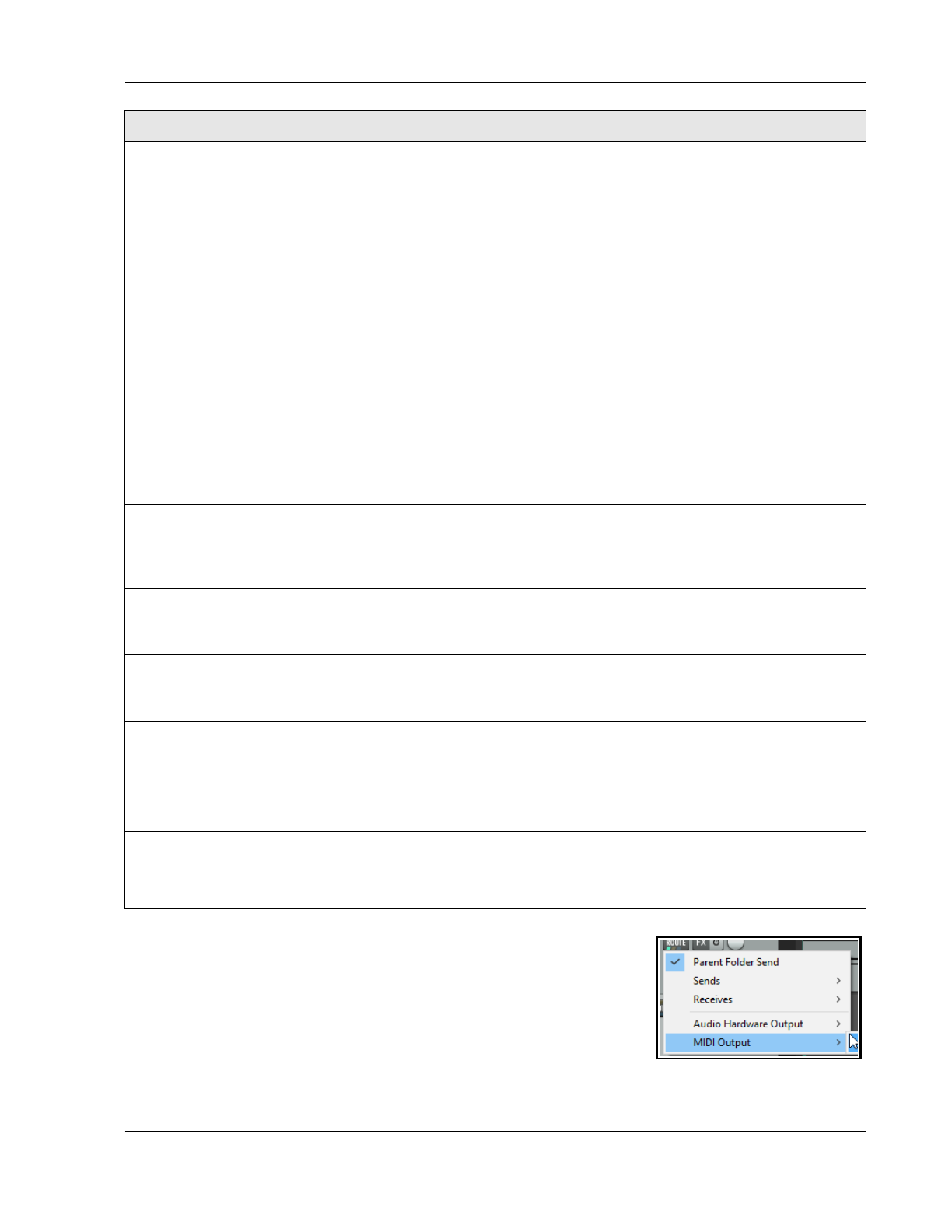
Working with MIDI Items
Category/Group
Examples of MIDI Editor assignable actions(not fully comprehensive)
Note coloring /
inserting / editing/
manipulating /
moving/
transposing
Color notes by velocity/channel/media item custom color/using colormap/by track
custom color.
Delete all notes/trailing notes less than [1/128 to 1/8] note in length.
Lengthen/shorten one grid unit/one pixel.
Make notes legato, preserving note start times/relative note spacing.
Move notes down/up one octave/semitone (transpose)
Move notes left/right one grid unit/one pixel.
Invert selected/all notes, Reverse selected/all notes, Invert chord voicings.
Edit note velocity +/- 01/10.
Set note length to grid size/double/half, Set length for next inserted note to grid.
Trim left/right edge of notes to edit cursor.
Insert note [1/128 to 1] note length.
Set note length to [1/128 to 1]
Set note ends to start of next note.
Set note position to edit cursor.
Split notes on grid.
Copy/cut/duplicate notes within time selection, Fit notes to time selection.
Paste events into active media item regardless of source media item
(allows items
to be copied from a selection of media items into a single media item.)
.
Loop/time selection Loop point: set start/end point. Remove loop point. Double/halve loop length.
Set time selection to selected notes, Remove (unselect) time selection, Remove
(unselect) time/loop point selection.
Move cursor to start/end of loop/time selection.
Cursor movement Cursor advance [1/128 to 1]. Cursor advance [1/32T to 1/4T].
Move cursor left/right one measure, To start/end of current measure.
Move edit cursor left/right by grid.
Lyric events Align lyric events with notes. Import lyrics for selected noted from file.
Insert/edit text/lyric event at first selected note.
Select next/previous lyric event. Shift lyric events backward/forward one note.
Mouse modifiers Actions are available to set mouse modifier behavior within the MIDI Editor for each
of the categories CC event left drag, CC lane left drag, MIDI editor right drag, note
edge left drag, note left click, note left drag, piano roll left click, piano roll left drag,
ruler left click and ruler left drag. The list of actions is exhaustive.
Playback Chase MIDI note-on/CC/PC/pitch in project playback (toggle).
Project sync actions Timebase: sync to arrange view –
syncs midi editor timebase to arrange view
.
Timebase: toggle sync to arrange view –
sets sync on/off
.
Toolbar management Options in MIDI Actions List to open custom MIDI toolbars 1-16.
13.33 MIDI Output Direct to an External Synth
The MIDI output of any track selection can be sent directly to an external
hardware synthesizer instead of (or as well as) to the master. From the track’s
right-click ROUTE button menu, choose MIDI output, then the device name,
then the channels. Optionally, you may also disable output to the master
send.
269
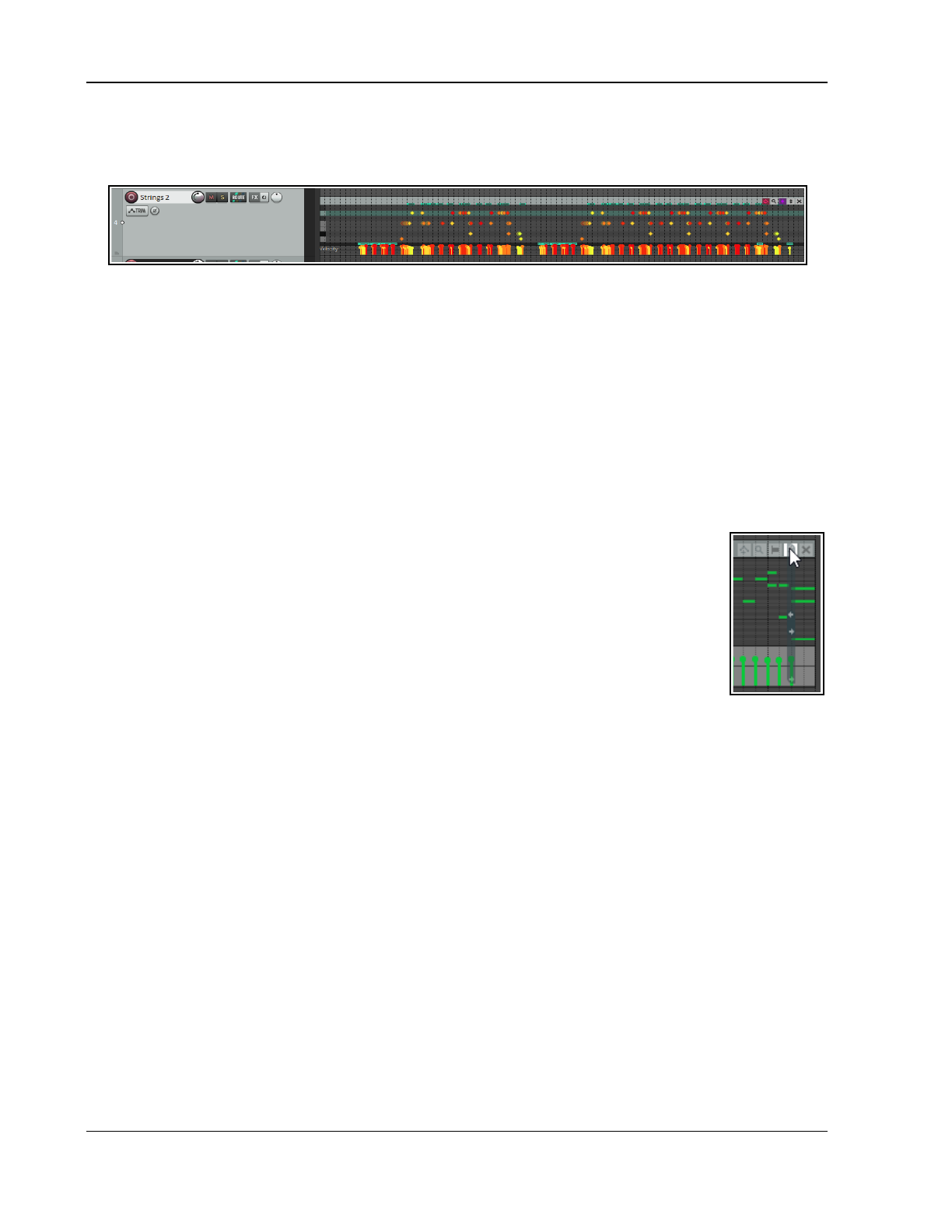
Up and Running: A REAPER User Guide v 7.81
13.34 In-Line MIDI Editing
To use the in-line MIDI editor im arrange view, first select the item then use the shortcut key E or from the right
click enu choose Open items in editor then Open in in-line editor. If necesssary, increase track height.
REAPER’s main MIDI Editor is recommended for serious editing. However, many common tasks can be
carried out using the in-line editor which lets you edit a MIDI item from within arrange view.
The in-line editor opens with piano roll view. Hover the mouse over the bottom border below the virtual
keyboard to see a double headed vertical arrow. Drag up to display the cc lane. This will display whichever cc
lane was displayed last time this item was opened in the MIDI editor.
Right-clicking over the editing area opens a menu showing which editing tasks can be carried out with the in-line
editor. In summary, the following types of commands and actions are supported within the in-line MIDI editor:
Note editing mouse actions, including change length, change velocity, marquee, move, delete and insert.
Most commands on the MIDI Editor’s Edit and View menus, including quantize and humanize.
When working with the in-line editor, any keyboard shortcuts and custom actions that you have defined in the
main MIDI Editor will apply, along with any defaults. For example, PageUp and PageDown will zoom vertically
in and out within the in-line editor. You can run your MIDI Editor custom actions within the in-line editor. The in-
line editor also displays a small toolbar in its top right corner. From left to right, the function of these tools is:
The Move CC with events toggle tool: serves the same purpose as its equivalent tool in
the MIDI Editor window.
The Show/Hide magnifying glass toggles between Show all note rows, Hide unused
and unnamed note rows, Hide unused note rows and Custom note row view.
The Item Style tool: toggles between rectangle, triangle and diamond note display.
The Vertical Scroll/Zoom tool. Click and hold on this and drag vertically up or down to
scroll vertically up and down, left and right to zoom vertically in and out (see example,
right). You can double-click on this button to zoom to contents.
The X tool. This closes the in-line editor and restores normal display.
The MIDI Editor and In-line Editor are designed for editing your MIDI
events
. Many of the
item
editing tasks, functions and activities explained in Chapter 7 can also be used on MIDI
items
. For example, in
arrange view items can be dragged and dropped, split, copied, muted, grouped in selection sets, locked and so
on. Plug-ins can be added to item FX chains. Selecting a MIDI item in arrange view and pressing F2 will display
its Item Properties window where you can shift pitch, change play rate, loop enable/disable, and do much more.
13.35 Copying MIDI Items in Arrange View
When you make a copy of a MIDI item in arrange view, then depending on your preferences and on how you
make the copy one of two outcomes will occur:
The first of these the new MIDI item becomes a discrete item in its own right, so that you can independently edit
either item without affecting the other.
The alternative is that the new item will be created as a new instance of the original item, and will use the same
source data as the original. This is known as pooled MIDI, In this case, any changes made to either item will
be applied to the source data, and therefore also to the other item – indeed, to as many items as have been
copied. This might be what you want, for example, if you have a melody, a bass line, or a drum pattern that you
wish to repeat throughout a project. You’re still working on the line, and you may need at some future time to
make changes to these items, and you wish to do this in such a way that when you make these changes to any
one item they will automatically be applied to all of the others. The items are added to the Project Media Bay
(see Chapter 12) where they are listed as MIDI pool items.
By default, when you copy and paste items using the menus or keyboard shortcuts (such as Ctrl Shift C and
Ctrl V), the former method (creating a new stand-alone item) is applied. The items are added to the Project
Media Bay and are listed as individual MIDI items.
270
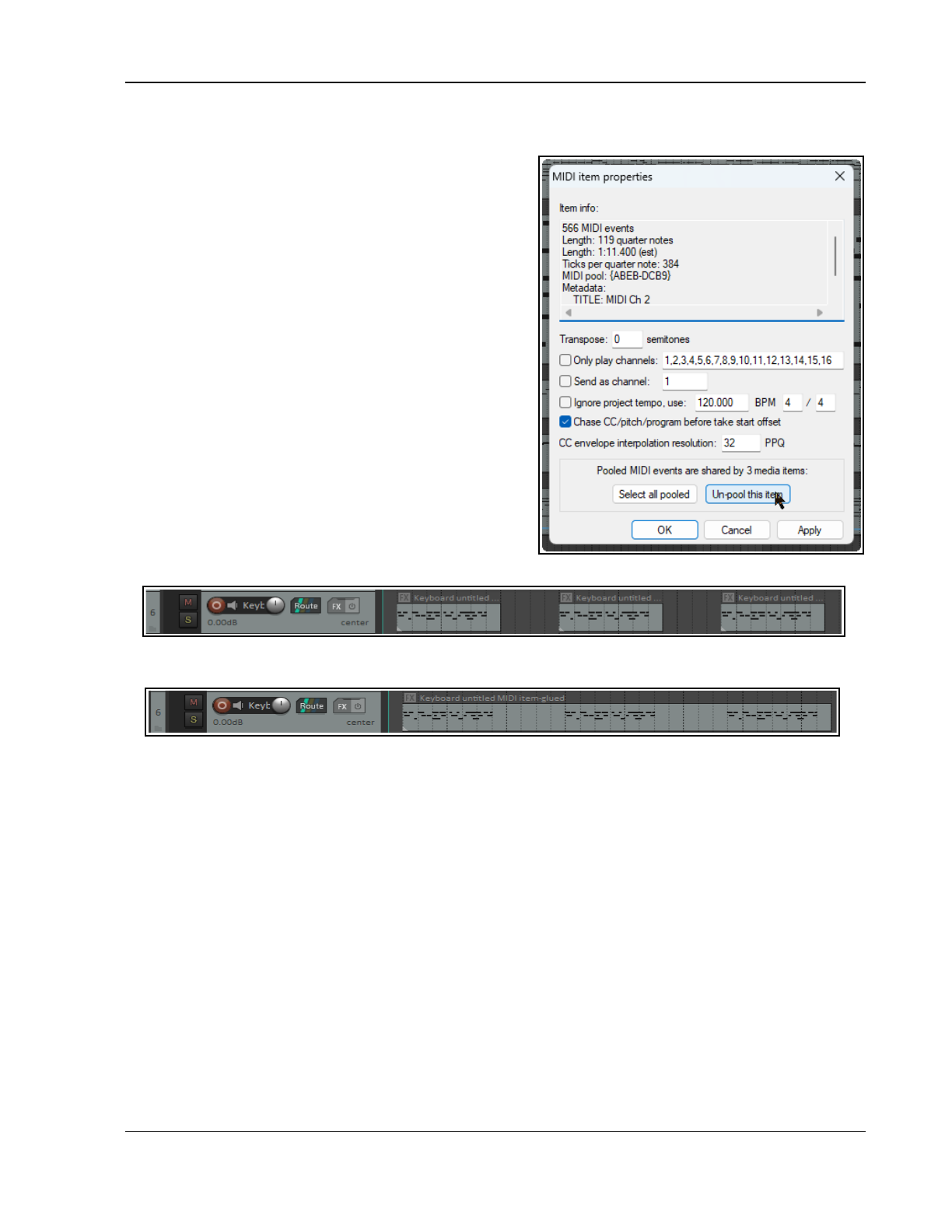
Working with MIDI Items
To change this default behavior, disable the preference (under Options, Preferences, Media, MIDI) to Pool
MIDI source data when pasting or duplicating media items (see also Chapter 22). Items will then by
default be copied as discrete items. A new MIDI pool item is
never created when an existing MIDI item is split. By default
MIDI items added to a project from the Project Media Bay
are not pooled.
Default behavior when you copy an item by dragging with
the mouse can also be modified according to your mouse
modifier settings Using Media item left drag. Shift Ctrl
Alt drag will by default cause the copied item to be pooled.
Other useful options include:
No modifier Move item
Ctrl Copy to new discrete item
Shift Ctrl Copy to new discreet item ignoring snap
Ctrl Alt Render item to new file
You can change any assignments if you wish. The method is
explained in Chapter 15.
You can remove a MIDI item's pooled status and convert it
into a discrete item. Display its source properties window
(Ctrl F2) and click on Un-pool this item then on Apply.
13.36 Joining MIDI Items
You can join a number of MIDI items together, perhaps to
create one loop enabled item, or to be able to edit them as
one item, or to be able to export them as a single MIDI file.
You can select all of the items (right-click and drag is often the easiest way to do this) and glue them together:
right-click anywhere on the selection and choose Glue items from the context menu.
You can then double-click on the glued item to open the MIDI Editor, from where you can export it as a single
MIDI file (File, Export to new MIDI file …).
13.37 Audio Items and MIDI Items: Essential Editing Differences
The fundamental difference between the way REAPER handles audio and how it handles MIDI is that REAPER’s
audio management is always non-destructive: the audio material is never stored in the .RPP project file, but
always elsewhere in its own media file (.AIFF, .WAV, etc), usually on your hard disk.
REAPER’s audio media items display a representation of the actual audio: changes made there (such as to pitch,
volume, etc.) are applied to the item display and reflected on playback, but they are not applied to the actual
audio file. itself To do that, you would need to use an external editing program such as Audacity or Wavosaur.
However, in the vast majority of cases you should have no need to do this.
MIDI data is just that – data, information, instructions. This information is stored in the .RPP project file. Any
changes (such as those you might make in the MIDI Editor) are written into that file.
The one area here that perhaps needs further explanation is pooled MIDI items.
When you create a pool of MIDI items, rather than having the same code replicated several times in the .RPP file
it is stored only once, and referenced elsewhere as needed. Thus, editing changes to any one member of the
pool will be applied to all pool members. The obvious exception to this is that deleting any member of the pool
will only cause that one item to be deleted, not the entire pool.
271
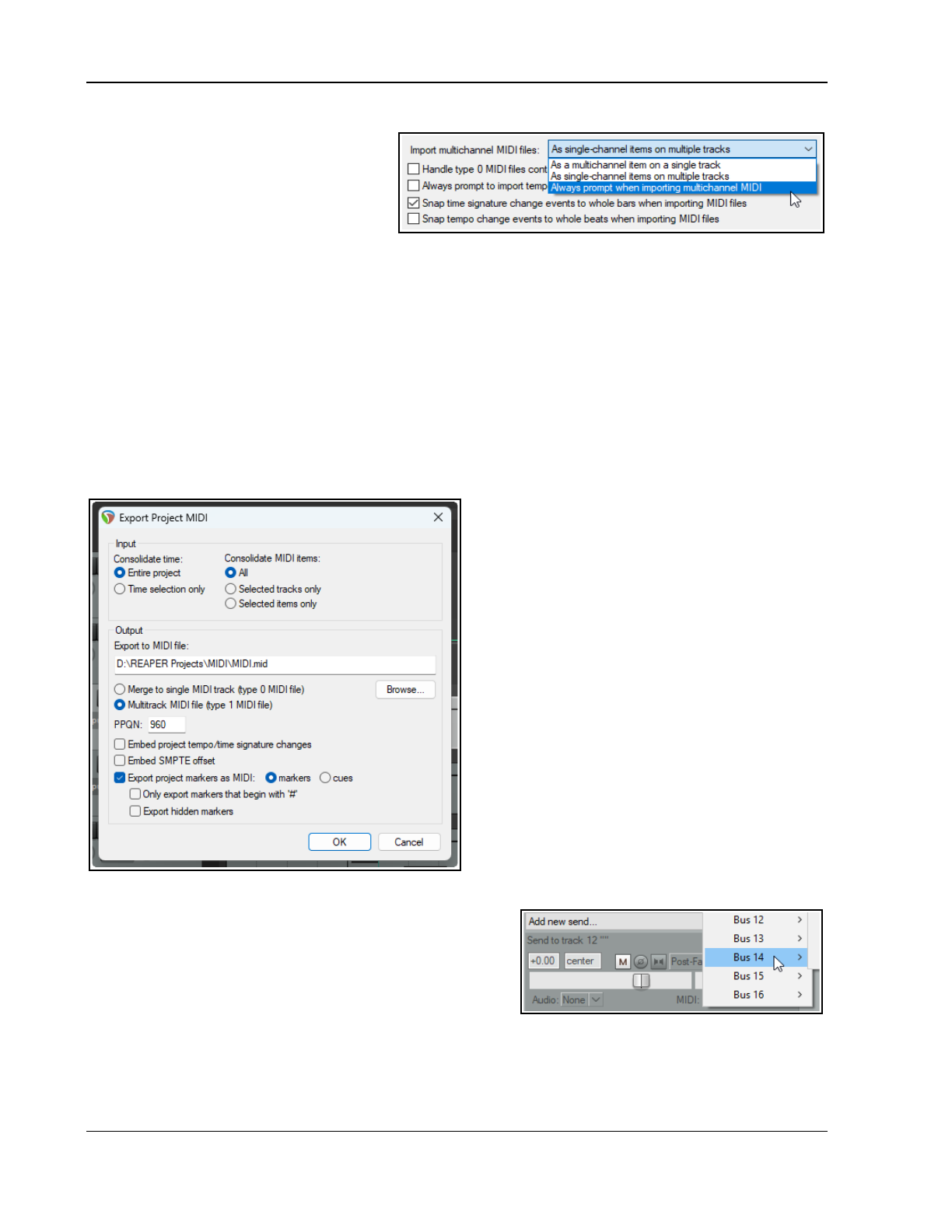
Up and Running: A REAPER User Guide v 7.81
13.38 MIDI Preferences Settings
To specify MIDI preferences, choose the
Options, Preferences command (Ctrl P)
and then select the Media, MIDI page.
You'll find these shown in detail in Chapter
22, but for now note that you can:
● Specify whether by default new MIDI
items are created as REAPER media items (the default) or .MID files.
● Specify how your edits to imported .MID files are to be interpreted – that is, whether to apply your edits
only to the item in the REAPER project file or also to the original file on your disk.
● Set the default behavior for imported multichannel MIDI files – as multichannel on a single track, as single-
channel items on multiple tracks, or always prompt to ask.
Using in project MIDI items (rather than separate .MID files) for your MIDI items bestows some important
advantages. For example, you can use your undo history to readily undo MIDI editing actions. You can also save
different versions of the same project with different MIDI arrangements. Overdub/replace recording will not work
correctly with .MID files.
13.39 Exporting Project MIDI
From Arrange view, the File, Export Project MIDI … command can be used to export either an entire MIDI
project or selected items or tracks, or a time selection within that project (all or selected items) to a single MIDI
file. If no time selection is made, data will be
exported for the entire timeline.
An example is shown here. It includes six tracks
with MIDI events ( a different channel for each
track), enclosed in a folder whose FX chain includes
a virtual instrument. For the most part, the options
shown here require little explanation.
You can choose to export the Entire project time
or the current Time selection only.
You can include All media items, or Selected
tracks only or Selected items only. In the
example shown, All MIDI items has been chosen.
You can merge MIDI tracks to a single MIDI track
as a type 0 file or export it as a Multitrack MIDI
file, with the integrity of the different tracks
maintained in the type 1 file.
You also have options to Embed project
tempo/time signature changes and/or Embed
SMPTE offset and/or Export project markers as
MIDI markers or cues. This includes options to
Only export project markers that begin with
# and whether to Export hidden markers.
13.40 MIDI Routing, MIDI Buses and ReWire
REAPER's track routing allows the use of MIDI buses. MIDI
tracks can use up to 256 MIDI buses, each comprising 16 MIDI
channels. When sending MIDI data from one track to another,
you can specify the bus/channel combinations for both source
and destination tracks (rather than just a channel). See the
section MIDI Routing: Track Sends and MIDI Buses.
These options are available in the drop down lists in the track’s routing windows.
Plug-ins can receive MIDI on a specified MIDI Bus and transmit MIDI on a specified (different) MIDI Bus.
MIDI data sent from one track to another in this way can be directly routed to any VST or AU synth in that
track's FX chain: right-click over the plug-in's “In/Out” button and choose the required MIDI Bus from the MIDI
272
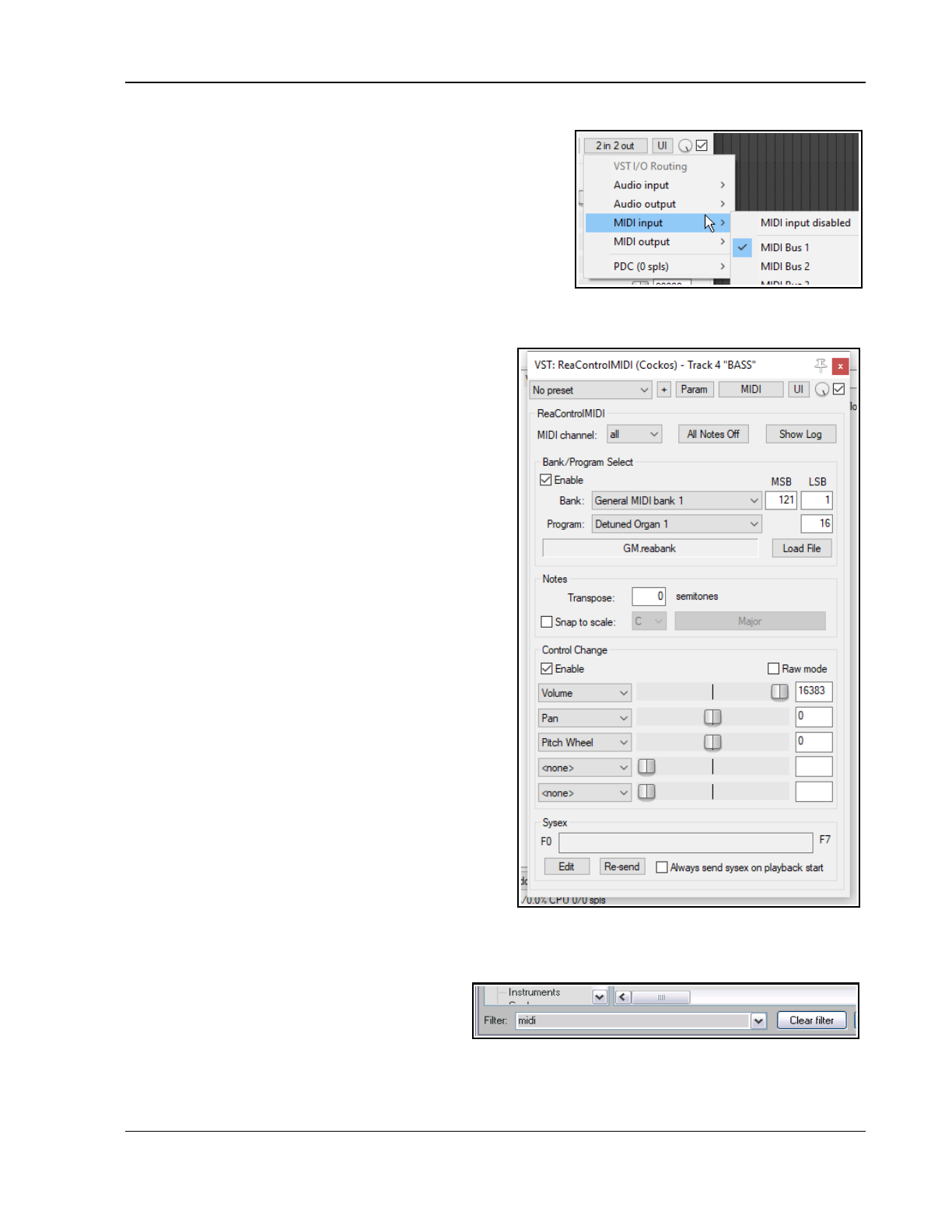
Working with MIDI Items
Input menu (below).
The same context menu can also be used to assign MIDI output
from that plug-in to any bus, and/or to assign the synth's audio
input or output to any track channel or channels.
When a track FX chain includes volume and pan MIDI controls
(e.g. ReaControlMIDI), moving the volume/pan fader within the
track’s routing window will generate MIDI CC7/CC10 events. When
a send's MIDI routing button is enabled, these CC events are sent
to the destination track.
ReWire users note that MIDI data routed in this way can be also
be mapped to ReWire, using any permutation of buses/channels that you require. For more information about
using ReWire with REAPER, see Chapter 17.
13.41 ReaControlMIDI
ReaControlMIDI can be used to set a track's various
MIDI parameters, including volume and pan. It can be
inserted from the track’s FX chain, or by right-clicking
over the track name or number and choosing MIDI
track control then Show MIDI track control panel
from the menu.
You can use different instances of this plug-per track to
send different MIDI messages to different channels (for
example, to send control messages to a synth or virtual
instrument placed after ReaControlMIDI in the FX chain).
Many DAWs have MIDI tracks with MIDI-specific
controls, like bank/program select, MIDI volume and
pan, etc. REAPER instead uses ReaControlMIDI, which
provides a MIDI track TCP for any track.
You can insert multiple instances of ReaControlMIDI, or
insert it at any point in an FX chain, either for the track
as a whole or for individual items. Notable features of
ReaControlMIDI include:
Load File: You can load a REAPER .reabank file or
Cakewalk .ins file of instrument definitions and then
select a preferred bank/program combination.
Control Change: Up to five CC items can be selected
from the drop down lists. Any and all of the items
available for CC lanes in the MIDI Editor are available.
Show Log reveals a log of MIDI activities. You can
choose to include any or all of control change, sysex,
all-notes-off and/or meta-message activities.
With ReaControlMIDI you can also create MIDI CC track
envelopes to automate of any of the plug-in's enabled
CC sliders. Automation will be explained in Chapters 18
and 19. You can also assign track controls to the TCP and/or MCP to manage its various parameters. This is
explained in Chapter 11.
13.42 Some MIDI Plug-ins
REAPER includes about 40 JS MIDI plug-ins that
can be placed in the FX chain of any of your MIDI
tracks or MIDI items. The basic steps involved in
inserting and using Track FX are covered in the section Track FX Basics. If you are unfamiliar with these steps,
you should review that section before proceeding.
If you display the Add FX window and type
midi
into the filter list box (as shown above), you will see a list of
those Midi FX that are currently available. Below are listed just a few examples.
273
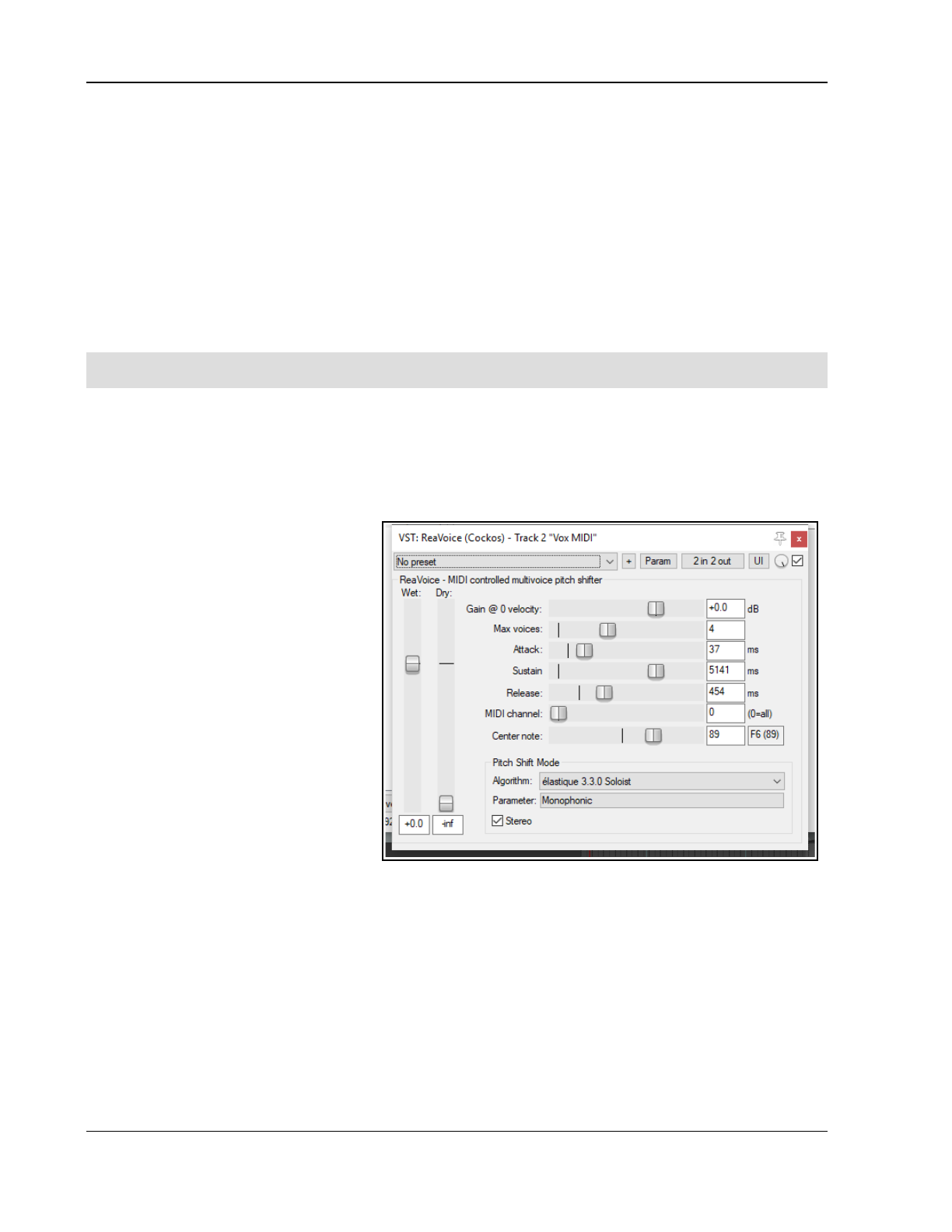
Up and Running: A REAPER User Guide v 7.81
MIDI CC LFO Generator A LFO Controlled CC generator.
MIDI Duplicate Note Filter Blocks duplicate notes.
MIDI Map To Key A MIDI key mapping utility.
MIDI Snap To Key This is a good cheat for bad pianists.
MIDI Router/Transpose Routes events from one channel to another
MIDI Tool and MIDI Tool II These do interesting and fun things to MIDI note events.
MIDI Transpose Notes Transposes a note or a range of note.
MIDI Velocity Variation Generator This is a pattern based velocity modifier.
MIDI Velocity Control Used to vary and control velocity on a MIDI track.
MIDI Pitch Wheel LFO A LFO Controlled automatic pitch wobulator.
These plug-ins can be made even more powerful by the use of automation envelopes, which can be applied to
any of their parameters. How to create, manage and apply automation envelopes will be covered in Chapter 18.
For more information about how to use these and other MIDI plug-ins, visit the Cockos web site, and in
particular http://www.cockos.com/wiki/index.php/Jesusonic_Effects_Documentation#MIDI
13.43 MIDI Controlled Pitch Shift with ReaVoice
The ReaVoice plug-in can be used in conjunction with a recorded vocal track to create pitch shift harmonies. As
with many other plug-ins, ReaVoice can be used in a number of ways. In this section we will take you thru just
one example. After completing this example you should be able to experiment with this plug-in’s capabilities for
yourself. The procedure for using ReaVoice is as follows:
Record the Vocal Track.
Insert a new track immediately
below the Vocal Track.
Create a send from the Vocal Track
to the new track. Initially at least,
this should be Pre FX.
Insert ReaVoice into the FX
Window of the new track.
Arm this track for recording. Make
your MIDI keyboard the Input
Device and turn Input Monitoring
on.
Mute all tracks except these two.
Play the song. As you do so, play
the keyboard, experimenting until
you find an appropriate range of
notes.
Work out what you want to play,
press W to return to the
beginning, then Ctrl R to record.
Stop recording when finished.
If you do not have a MIDI keyboard, you can either use REAPER’s Virtual keyboard, or you can enter the
notes by hand using the MIDI Editor.
If you wish, you can record more than one take, selecting Play All Takes for the MIDI track items.
After finishing recording, you can use the MIDI Editor to polish your work.
Example
In this example, you’ll have some fun and explore how ReaVoice works at the same time.
1. Open the file All Through The Night.rpp and save it as All Through The Night REAVOICE.rpp.
2. Mute all tracks except the Vox track.
3. Move the Vox track to the top, select it and press Ctrl T to insert a new track. Your Vox track is now track
1 and the new track is track 2.
274
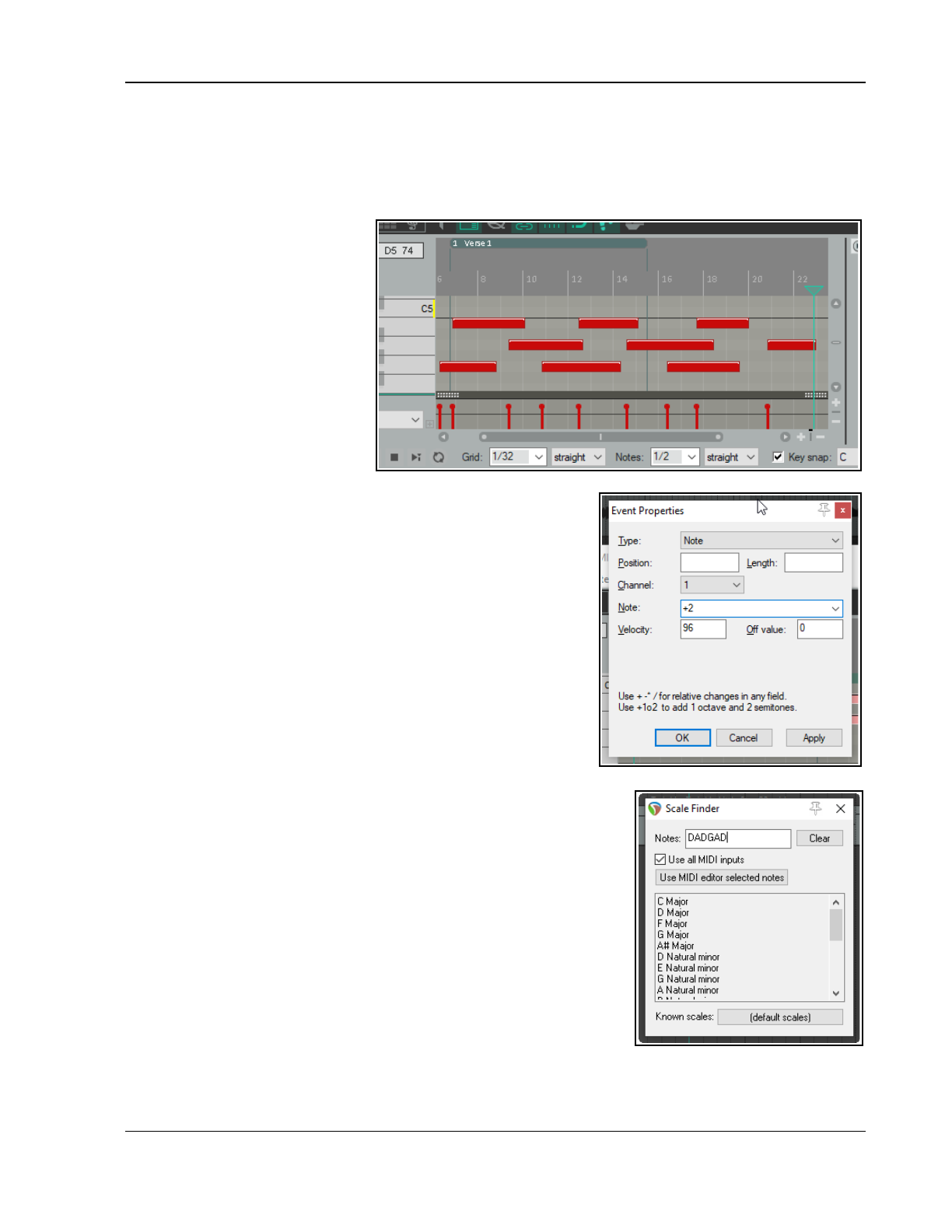
Working with MIDI Items
4. 0Name the new track Vox MIDI.
5. Display the Routing window for the Vox MIDI track and add a new Pre FX Receive on Audio 1/2
from the Vox track.
6. Insert the ReaVoice plug-in into the FX chain for this track. For now make its settings as shown above.
Note in particular the number of voices and the long sustain setting.
7. In the Vox MIDI track,
insert an empty MIDI item
from about the 13 sec mark
to about the 50 sec mark.
This should coincide with the
first vocal passage on the
Vox track.
8. Double click on this to open
it in the MIDI Editor.
9. Create a pattern of notes
similar to that shown above.
You don’t need to follow this
precise pattern!.
10. As you play the song, make
sure that the two vocal
tracks are soloed. You can of course edit any individual note
or notes, for example, by moving them up or down, by
lengthening them or shortening them, or by changing their
pitch. Here are some more possibilities, just for fun and to
give you some ideas.
11. Within the MIDI Editor window, press Ctrl A to select all
events.
12. Press Ctrl F2 to display the Event Properties dialog box.
13. Select Note as the Event Type. In the Note value box, type
+2 (as shown) then click on OK. This raises the entire
selection by two semitones.
14. Play the song. Notice the vocal effect!
15. Experiment with other settings as you wish. Save the file
finished.
16. Now experiment with adjusting some of the ReaVoice settings.
13.44 The Scale Finder
REAPER's main Arrange View includes a feature that MIDI users
may find useful – the Scale Finder. It can be used to identify
those scales which contain any given set of notes.
The Scale Finder is opened using the command View then Scale
finder. Notes can be typed directly or entered using a MIDI
device (including the Virtual MIDI Keyboard).
The file sample reascale (provided and installed with REAPER)
can be used with the scale finder, or you can click on the button
at the bottom of this window and use the Load command to
import a file of your own choosing.
You also have the option to use the notes that are currently selected in
the MIDI Editor.
275
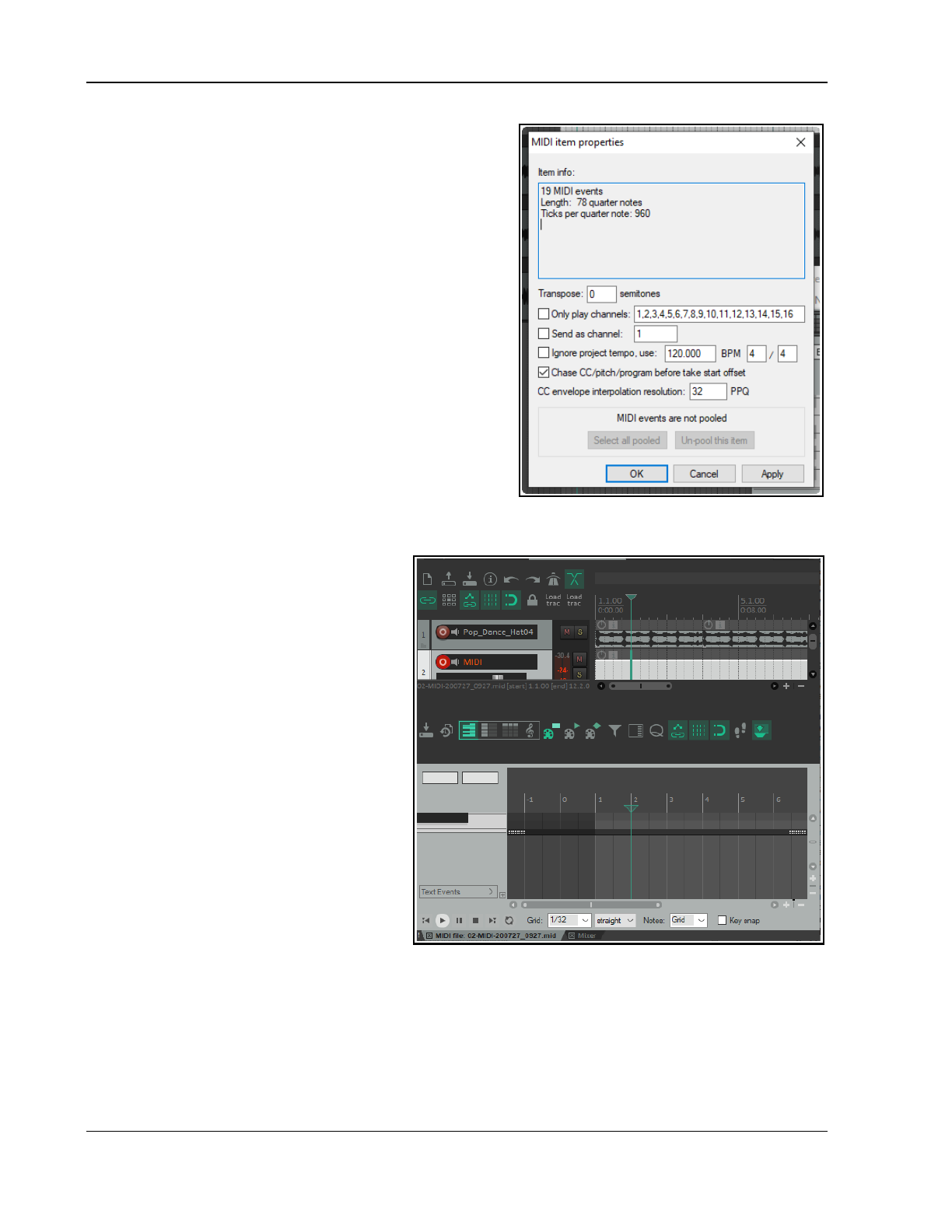
Up and Running: A REAPER User Guide v 7.81
13.45 MIDI Item Source Properties
The MIDI Item Source Properties dialog box (shown right) is
accessed from Arrange View my choosing Source
properties… from the right-click context menu.
This dialog displays basic information about the MIDI item,
such as the number of MIDI events it contains. In addition,
you are able to specify a number of options here, such as:
● Only play selected channels.
● Send as channel number.
● Overwrite project tempo.
● If the item is pooled, options to select all pooled items or
to unpool the item.
13.46 Feedback Routing with MIDI Tracks
We have already mentioned (Chapter 2) that REAPER's project
settings allow you to use feedback routing. You will need to
enable this feature if you wish to route MIDI output from one
track to another, then audio output from the second track back
to the first.
13.47 Working with Piano Roll Synced to Project Arrange View
Here is an example of how you can work with
the MIDI Editor piano roll synced to the
project. This is what we have done:
1. Imported a sample or recorded an
instrument as a wave file, then edited it
as we wished.
2. Created a new empty MIDI item and
double-clicked to open it in the MIDI
editor.
3. Used the MIDI editor command View,
Piano roll timebase, Project synced.
4. Right-clicked on title bar and chosen
Dock Window.
We can now work in the MIDI Editor as we
wish: any MIDI editor notes and/or other
events that we record/add will be visually
aligned with the recorded instrument.
13.48 Sequencer Megababy
Sequencer Baby is a pattern sequencer which
can be used to play a MIDI synthesizer under
program control. This section is intended to
introduce relatively new users to the concept of pattern sequencing, together with a simple example of how one
can be used. Beyond this, don't hesitate to explore and experiment for yourself!
We'll start by working thru a step by step example, then go on to examine Sequencer Megababy in more detail.
Example
1. Create a new file, and insert a single track.
2. Open the track's FX chain and add an instance of JS: MIDI Sequencer Megababy.
3. You need a synthesizer to use with Sequencer Megababy. You could use one of your choice, but for this
example insert an instance of ReaSynth. For now, leave its settings at their defaults, except (as a
276
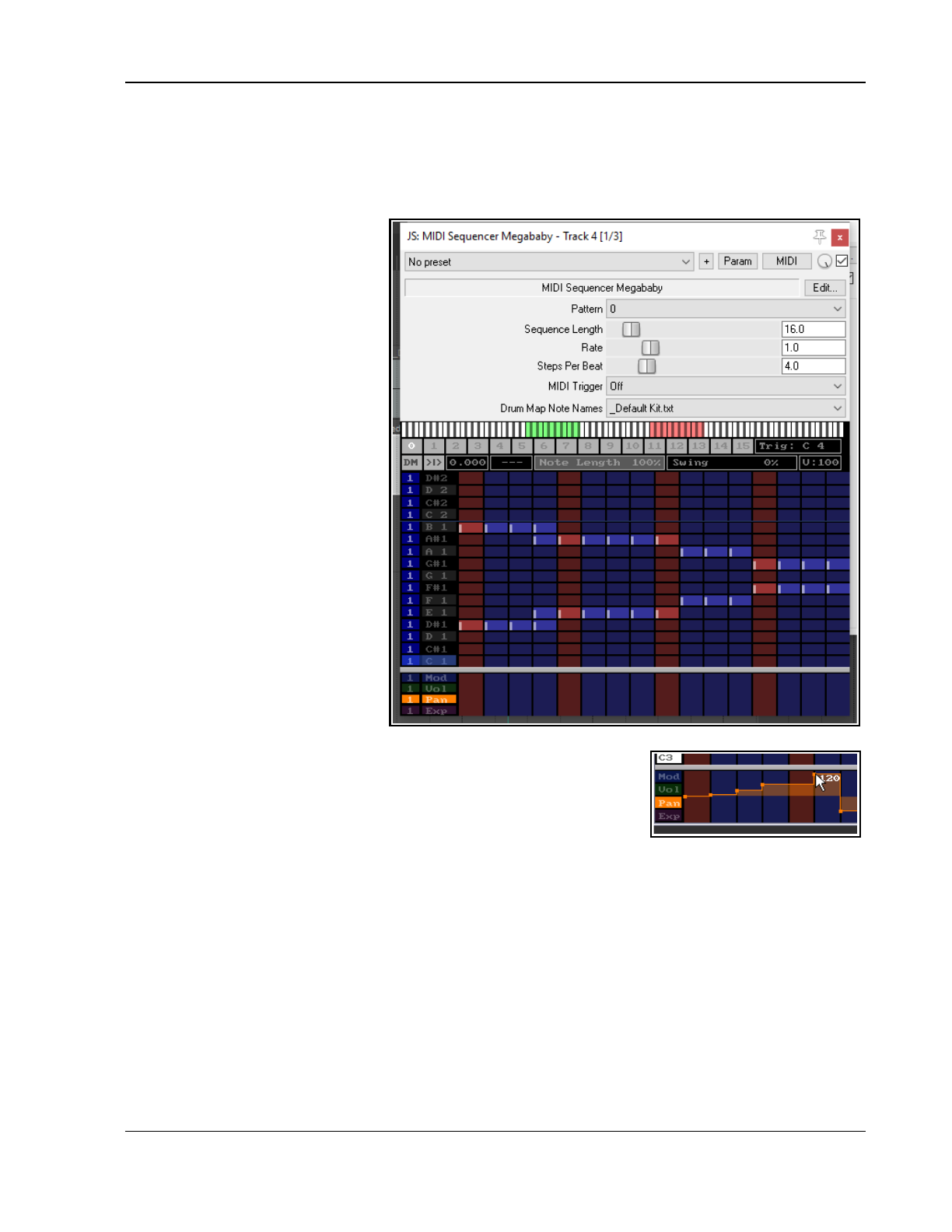
Working with MIDI Items
precaution) Volume. Set this to about -15 dB. If this turns out to be too low, you can later raise it.
4. Also as a precaution, insert the JS: MGA JS Limiter and set Ceiling to -3.0 dB.
5. Select the Sequencer Baby plugin. Some of its main controls are shown below.
6. Click and drag in a few places (example shown below) to enter a note pattern.
7. Click Play on REAPER's transport bar. This pattern will play over and over again.
8. Stop playback. Change the
Steps per beat value to 8 and
play again. Notice the music
plays faster.
9. Set this to 2: notice playback
becomes slower. Set this back
to 4.
10. Change Sequence length to
24. The sequence becomes
longer. Draw some more notes.
11.Click on the number 1 above the
pattern grid (but below the
parameter controls). A new
screen is shown: here you can
create another pattern. Do this!
12. Now hold the Alt button while
clicking on the number 1
button. Notice the column
headers change color.
13. Play the music. The two
patterns (0 and 1) are now
chained. You can chain up to
16 patterns.
14. If you wish, save the file.
15. You can also record the synth's
output as an audio item. Arm
the track for recording, choose
Record output (stereo)
from the record arm context menu, then press Ctrl R.
Note: The four lanes below the pattern grid area can be used to set
modulation, volume, pan and/or expression values for individual notes or any
sequence of notes. Click/sweep to create an envelope: right-click on any
node to delete it, right-click/sweep to delete entire envelope.
Summary Examples of Sequencer Baby Keyboard/Mouse Control Combinations
Left click-drag Draw new notes/ erase existing notes.
Right click-drag Audition notes without drawing.
Shift Ctrl Alt Left click-drag “Sweep” draw notes freehand / erase existing notes.
Ctrl Left click-drag Adjust note velocity.
Shift Left click-drag Adjust note start offset..
Ctrl Left-click / Ctrl Right-click Halve steps per beat, slow down / Double steps per beat, speed up.
Left click pattern number Select pattern number.
Ctrl right-click pattern number Clear pattern.
Alt Left-click pattern number Set pattern chain end.
A more complete list can be displayed by clicking on the plugin's Edit button.
277
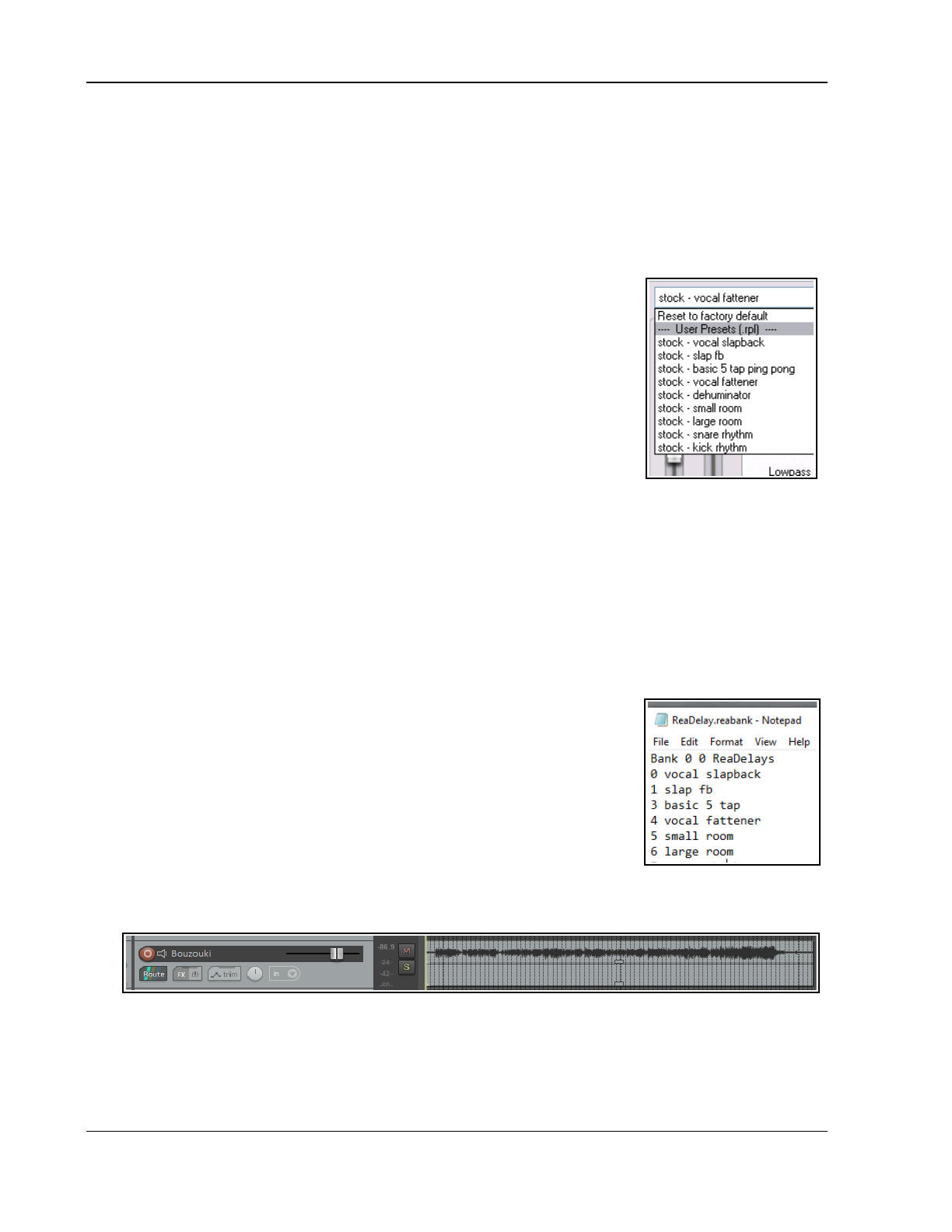
Up and Running: A REAPER User Guide v 7.81
13.49 Using MIDI CC Messages to Control FX Presets
This is an advanced topic and as such not recommended for novice users.
Bank/Program Select CC messages can be used to switch programmatically between presets for any FX on any
track during playback in real time. This can be done using a dedicated MIDI item that is placed on the same
track as the media item containing the FX whose presets you wish to automate. The procedure can be a little bit
“fussy” so be prepared to take your time over this, especially at first, until you get used to it.
1. After recording the item, insert the required FX into the track's FX chain and (if it is not already displayed)
import the required preset library. To do this, click on the + symbol to the right of the presets drop down
and choose Import preset library (.rpl).
2. The available presets can now be displayed from the presets drop down list.
The example here shows the default presets library for ReaDelay, but you
can do this for any plug-in. You could delete any presets that you do not
wish to keep and/or create and save more presets of your own if you wish.
The self-evident commands for doing this can be found on the same
presets + menu that you used in step 1. above. If you do this, it is
recommended that you then export the presets library with a new name.
For the purposes of this example, we will be content to use just the
supplied set of ReaDelay presets shown on the right.
3. You now need to create a .reabank patch/bank file. This is in fact an
ordinary text file, but it must be laid out in a certain way, and it must be
saved with a .reabank extension. You can use any text editor for this.
4. Joel Sampson has available (free of charge) on his web site an excellent and comprehensive five page
PDF manual explaining just about every aspect of reabank files and how to create them. Summary
instructions follow below, but I would strongly recommend that you download and study The Art of
Reabanks from www.djemberecords.com/reaper.html
5. An example of a reabank file for the default ReaDelay preset library is shown below. In this case, Notepad
has been used to create the file. Note the comments at steps 7 and 8.
6. The bank line is the first line of the file. It sets the most significant byte (MSB) and least significant byte
(LSB) of the Bank Select number, then the bank name. You can set both numbers at zero.
7. Each subsequent line consists of a patch number (starting at zero) and \name, which is shown here the
same as the name displayed in the FX presets drop down. However, you may use different names if you
wish, as the selection process is based on the patch number.
8. Save the file and close the text editor when finished. A sensible place to
save to is in a subfolder of your \Application Data\REAPER\Data folder or
equivalent (depending on whether you are using Windows or Mac).
9. Start REAPER and open the appropriate track's FX chain. Select the FX.
From the preset + menu select Link to MIDI program change and
select a channel (e.g. Channel 16).
10. In the track's context menu, set Free item positioning on to ensure that
you can place two or more items underneath each other on the same
track.. This command will now appear on this menu with a tick beside it.
11. Select the track with the media item whose FX plug-in presets you wish to control. Make a time selection
that includes this item. Now from the Insert menu choose New MIDI item to create an empty MIDI
item alongside (parallel to) the existing media item. The result of this is shown below:
13. Open the empty MIDI item in the MIDI Editor. Ensure that the Bank/Program Select lane is visible.
14. At the point where you want to make your first automated preset change, double-click in the
Bank/Program Select CC lane. This will display the Bank/Program Select dialog box.
15. Click on Load File. Navigate to and select the file that you saved at step 9. and click on Open.
16. The preset bank will now be loaded. Display the Program drop down list and select the required preset
(see right). Be sure to select the same channel as you specified at step 10. Click on OK.
278
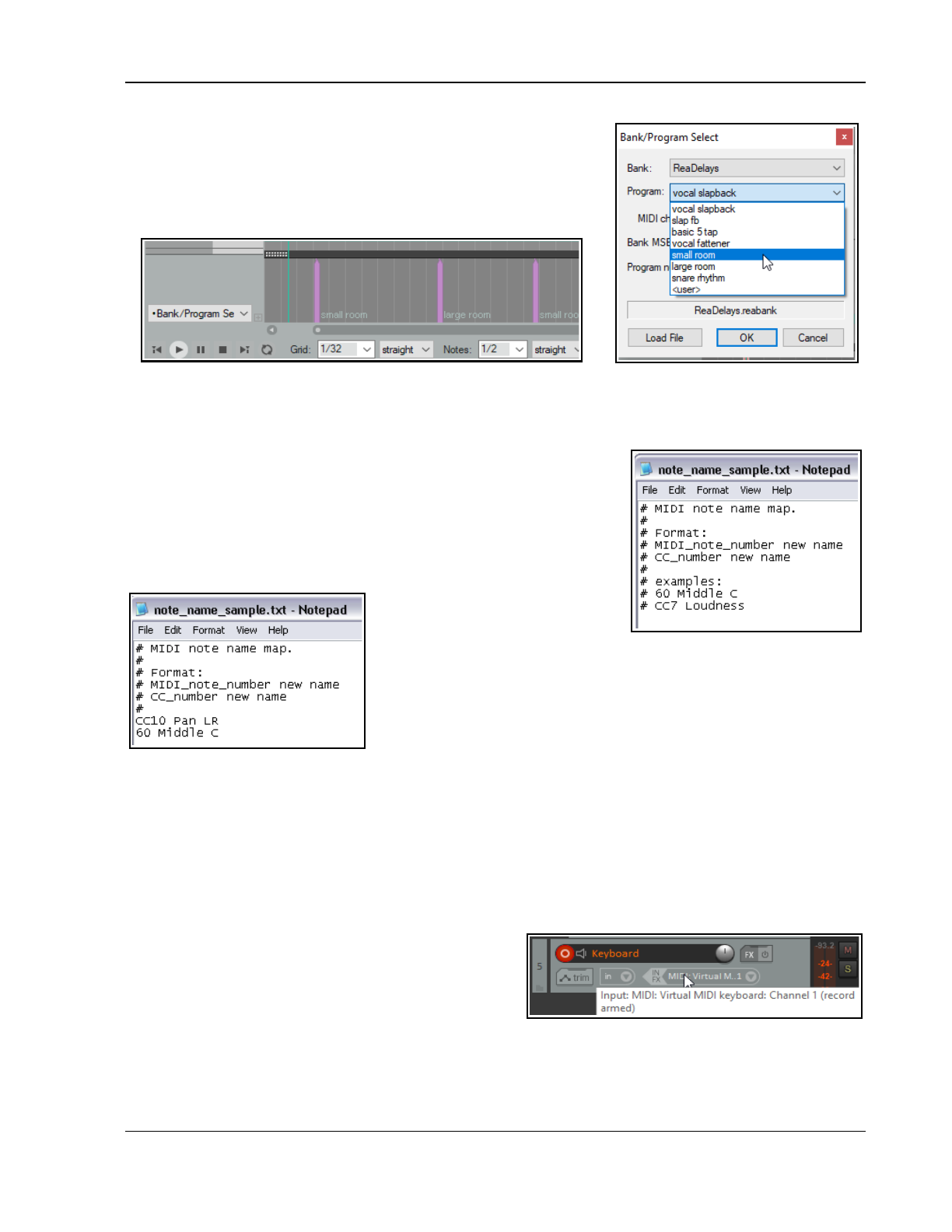
Working with MIDI Items
17. Repeat step 16. as many times as you wish to create as many
automated preset changes as you require.
18. You should now be able to see your program changes displayed
in the MIDI Editor CC lane (see below).
19. Play the song. Your ReaDelay presets will now automatically
change according to your instructions!
13.50 Custom MIDI Note and CC Names
You can define your own MIDI note and CC names and save them into a text file, which can then be imported
into any MIDI project file using the command File, Note names, Load note names from file. A sample file is
provided with REAPER: you can edit this file to suit your needs, or create
your own files using any standard text editor.
To locate the sample file, choose from the main arrange view menu the
command Options, Show REAPER resource path, then double-click
on the folder MIDINoteNames to open it. You should then see a file
named note_name_sample.txt. Right-click on this file name and
choose Edit from the context menu to open it in your default text editor.
The sample file content is shown here (right).
The # sign at the start of each
line means it is a comment for
illustration only and will be
ignored by REAPER. To create actual names, simply type the extra lines
in the format shown (without the #). An example is shown on the left.
You can also delete any comment lines that you do not wish to keep.
Save the file and close the text editor. This file can now be imported into
any project file, using the method described in the MIDI Editor Menus
section.
13.51 Recording and Routing thru MIDI Channels
Recording Thru MIDI Channels
If you don’t hear any sound coming from REAPER when you play your keyboard then (assuming the
keyboard is switched on and physically connected to your computer or sound card) most likely one (or
more) of these circumstances may apply:
● The MIDI Keyboard has not been installed for REAPER. See the section Setting Up For MIDI.
● Channel mismatch: the channel being used by your keyboard for MIDI output does not match the
channel selected on the REAPER track for MIDI input.
● The REAPER track has not been record armed.
● Input monitoring is not been enabled
Most MIDI keyboards let you select which channel is
used for MIDI output. Many use channel 1 by default.
You will need to check your keyboard’s documentation
to find out how to select a MIDI channel of your choice (from 1 to 16) for MIDI output.
To select a MIDI channel for REAPER input, first right-click on the track control panel over the red record
arm button. You should then choose (from the menu) Input MIDI, then the device, then select the
channel of your choice, or all channels.
279
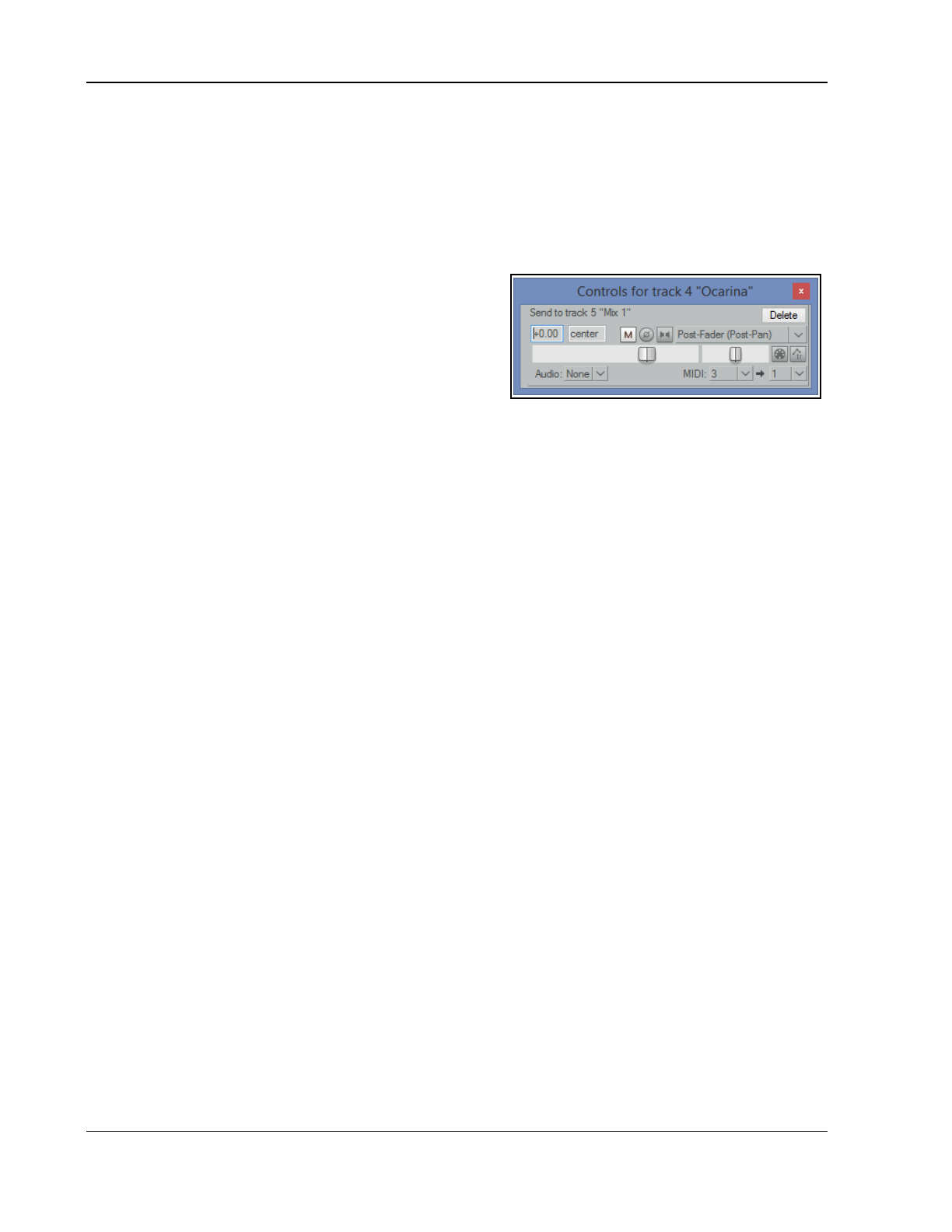
Up and Running: A REAPER User Guide v 7.81
Input monitoring can be enabled from the same menu. Record arm is enabled by clicking on the red button
to the left of the track name.
Within some instrument plug-ins (e.g. Kontakt, SampleTank) you can select which of the 16 MIDI channels
will drive each loaded instrument: you will need to check out the plug-in’s user manual.
The same applies for some effects plug-ins (e.g. those from MeldaProduction, where MIDI can be used to
automate the plug-in parameters).
See also the section Recording MIDI from Keyboard Check List.
Routing with MIDI Channels
The section REAPER Routing Essentials introduces track
sends in REAPER. You might wish to review this.
The same principles apply whether you are routing audio or
MIDI data from one track to another. You can send data from
any channel (or all channels) on one track to any channel (or
all channels) on another track.
In the example shown (above right), drag and drop routing
(from the send track’s routing button to the receiving track on the track control panel) has been used to send
MIDI data from track 4 channel 3 to track 5 channel 1. Note that the audio send is set to None.
Routing with MIDI Buses
REAPER's MIDI track routing capabilities includes the use of MIDI buses. By default, your MIDI tracks can use up
to 256 MIDI buses, each comprising 16 MIDI channels. When sending MIDI data from one track to another, you
are able to specify bus/channel combinations for both the source and destination tracks .
REAPER'’s 256 MIDI Buses vastly increase the MIDI routing options available to you. Each bus can carry up to 16
channels, offering you 2048 virtual MIDI channels.
This is an advanced topic, not recommended for novice users! You’ll find a detailed explanation of MIDI Buses
together with some practical examples in Chapter 17.
13.52 Retroactive MIDI Recording
REAPER’s action list (main section) includes five actions which enable you to record MIDI material retroactively.
This enables you to experiment with your keyboard so that if you create a passage that you like you can
retroactively record it. These actions (which can be assigned to a toolbar if you wish) are:
MIDI: Clear retroactive history
MIDI: Insert all available retroactively recorded for armed and selected tracks
MIDI: Insert all available retroactively recorded for armed tracks
MIDI: Insert recent retroactively recorded for armed and selected tracks
MIDI: Insert recent retroactively recorded for armed selected tracks
Example
This example uses REAPER’s Virtual MIDI Keyboard, but you could use any installed external MIDI input device.
1. In Arrange view, create a new track and add a virtual instrument (e,g, ReaSynth) to its FX chain.
2. Click on the track’s red record arm button to arm it. Right click over the button and make sure that Monitor
input is enabled.
3. Right click on the record arm button, select Input MIDI, then your input device (e.g. Virtual MIDI keyboard),
then a channel or All Channels.
4. Run the action MIDI: Clear retroacti7ve history to clear out any existing history from the buffer.
5. Arm the track but do
not
press the record or play buttons on the transport bar.
6. Make sure that this track is selected and play a few notes on your input device. Stop playing after a few
seconds.
7. Run the action MIDI: Insert recent retroactively recorded for armed and selected tracks
8. The notes that you have just played will be inserted as a new midi item.
280
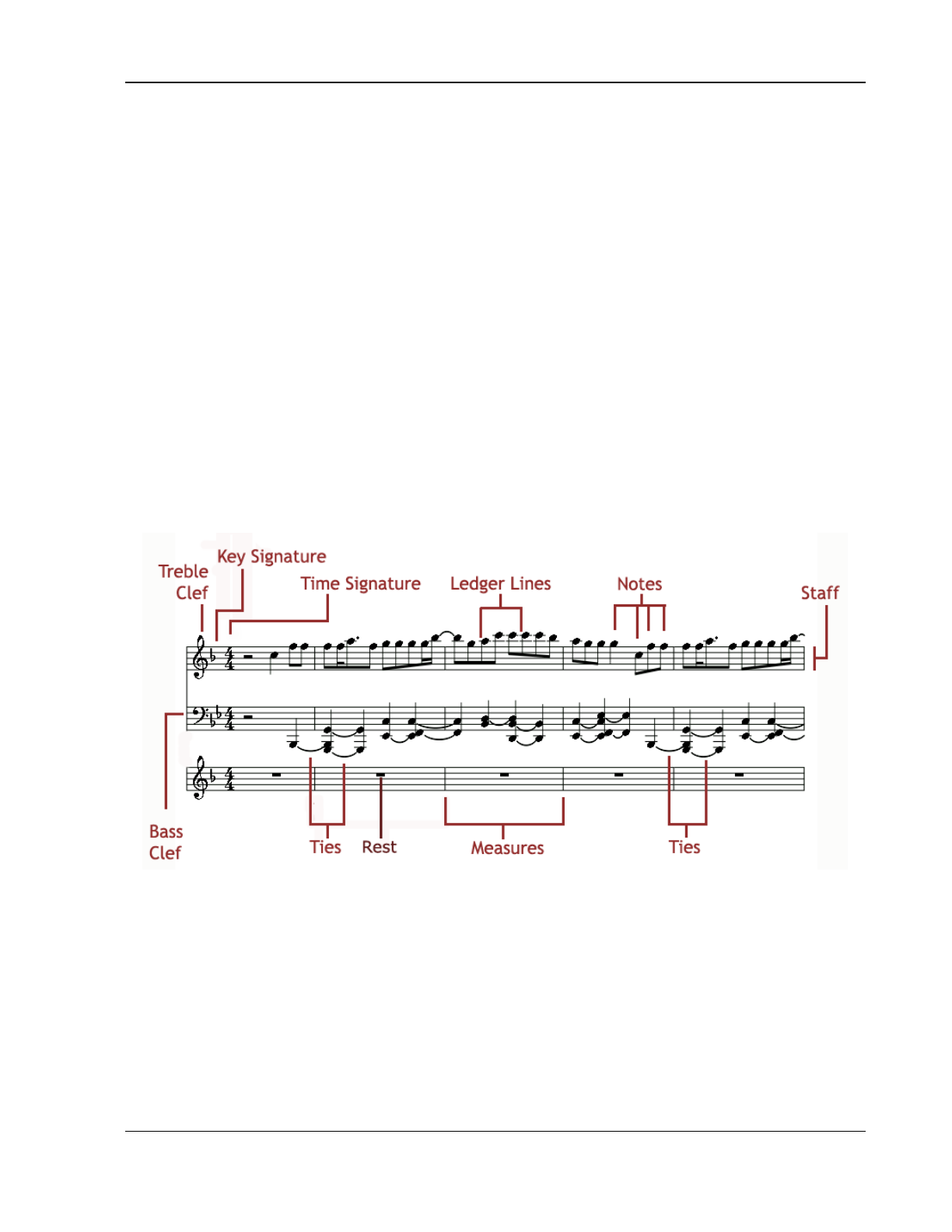
Music Notation and REAPER's Notation Editor
14 Music Notation and REAPER's Notation Editor
14.1 A Brief Introduction to Notation
In a broad sense, the term
notation
can be applied to any system that uses written symbols to represent musical
notes. Thus, the piano roll view of REAPER's MIDI Editor can be seen as a type of notation, as is the use of
guitar tabs, which you might have encountered elsewhere. However, in practice the term “notation” is often used
to refer to modern staff notation. This was developed for use with European classical music, but is now widely
used to represent music of many genres. This chapter will focus on the use of REAPER's notation editor for
modern staff notation. First, here is a general introduction.
The practice of notation writing is sometimes also known as
scoring
. Notation is a huge subject about which
there is much to learn, and the journey from complete beginner to competent achiever can be a long one. Many
books are available on the subject, including
Music Notation (Theory and Technique for Music Notation)
by Mark
McGrain and
Music Notation and Terminology
by Karl Wilson Gehrkens (available on line as a free download from
Gutenberg). A handy short general introduction to understanding music theory and notation can be found on line
at method-behind-the-music.com and tutorials at http://jkornfeld.net/complete_theory_text.pdf
If all this intimidates you, don't let it! You don't need to be able to read or write musical scores to be a musician.
Robert Johnson, John Lennon, Paul McCartney, Bob Dylan, Jimi Hendrix, Eric Clapton, Tommy Emmanuel and
many, many others are all proof of that!
This User Guide does not aim for the impossible goal of teaching everybody everything they could ever wish to
know about notation scoring and editing, in just a few pages! Its purpose is to help you to learn how to start
using REAPER's notation editor with such knowledge and skills as you can bring to the table.
Below are illustrated some of the basic elements and terminology of notation scoring:
The st0aff is the five line grid on which notes can be written, and which is used to display the notes. If a MIDI
item recorded using a keyboard or created by hand within the MIDI editor is opened in the notation editor, then
that item will be automatically scored. You can also edit that score, or add to it, within the notation editor. The
staff is divided into a number of measures for the duration of the piece. The number of beats to a measure is
itself determined by the time signature (see also below).
On the left end of the staff is displayed the clef. For the treble clef the first (lowest) line of the staff represents
E this goes up alternately thru grid spaces and lines to F, G, A, B, C, D, E, and F. The bass clef uses the same
musical alphabet but goes up G, A, B, C, D, E, F, G, and A. Where a note needs to be displayed above or below
the range covered by the staff, this is done using ledger lines.
A different symbol is used to represent each note, from double whole note or breve (not shown) thru (shown
from left to right below) whole note (semibreve), half note (minim), quarter note (crotchet), eighth note
(quaver), sixteenth note (semiquaver), thirty-second note (demi-semiquaver) and sixty-fourth note (semi-demi-
281
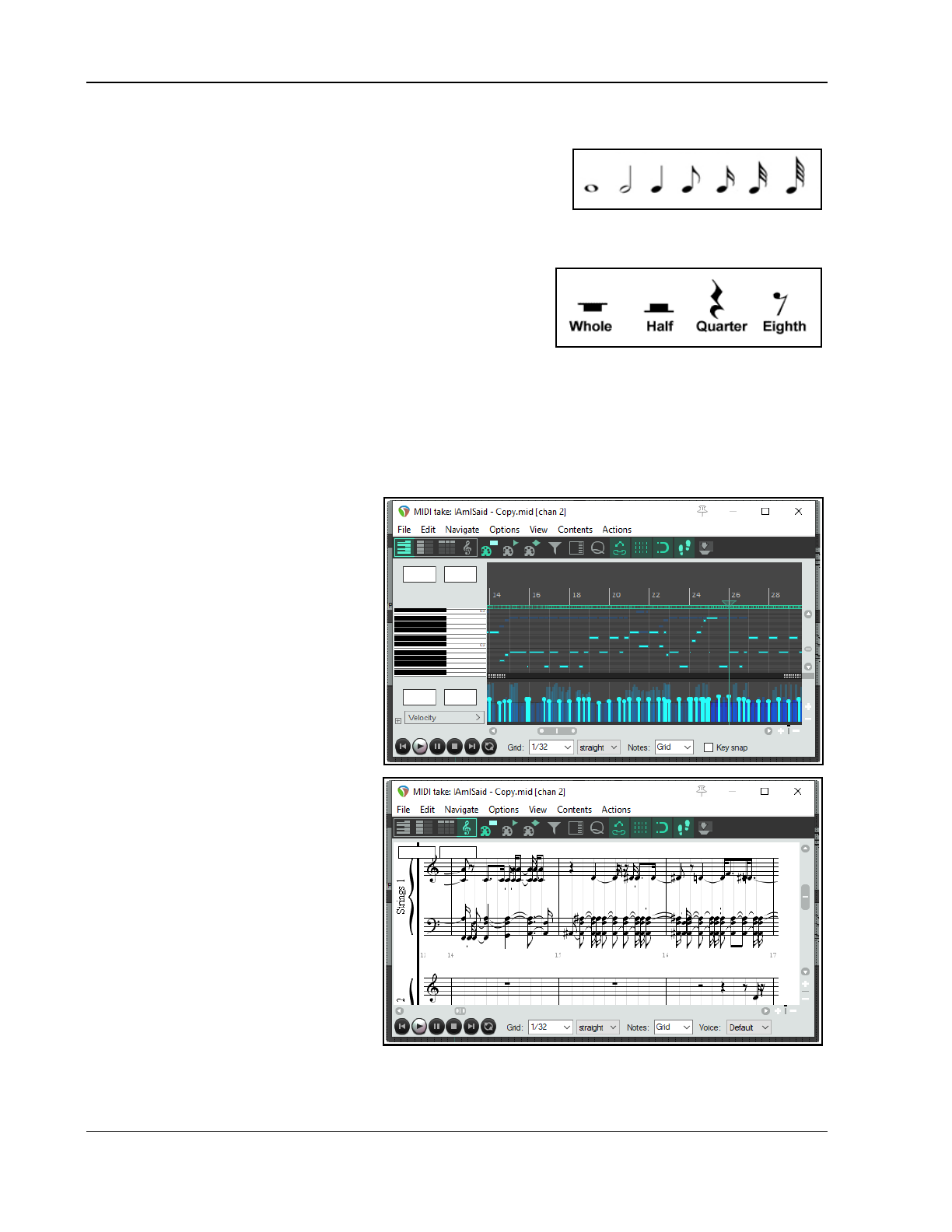
Up and Running: A REAPER User Guide v 7.81
semiquaver). Above you can see where ties have been used to join together two or more adjacent notes of the
same pitch, effectively creating a single longer note.
To the immediate right of the clef are the key signature (if present)
and the time signature. The key signature designates notes to be
played higher or lower than its corresponding natural note. The time
signature determines how many beats there are per measure, and
what kind of note gets the beat. For example, in 4/4 time there are four beats per measure with the quarter note
getting the beat. In 3/4 time also the quarter note will get the beat, but with only three beats in a measure.
Finally in the diagram you can see Rests. A rest represents a period
of silence in a bar. The duration of the rest corresponds to a note
length and is indicated by the symbol used, as illustrated in the
examples shown on the right.
14.2 REAPER's Notation Editor: a First Look
The single most important thing for you to understand about REAPER's notation editor is this:
It is a fully integrated part of the MIDI Editor, not a stand-alone module
. Any changes you make when
editing will be to the MIDI item itself, and will show up in every view. This architecture has a number of
significant advantages, such as:
● If you ar0e familiar with working in, say, piano roll view, then learning to use the notation editor presents a
significantly less steep learning curve than would otherwise be the case. Indeed, you would probably be
unwise to attempt to use the
notation editor without first getting
to know the MIDI Editor, and
especially piano roll view.
● You can make your edits (such as
moving, copying or modifying notes)
in whichever view you find it easiest
to work. The results of the edits will
be visible (and audible) in any view.
The MIDI Editor's different views are
selected from the View menu. The
different modes (already introduced in
Chapter 13) are:
Mode: piano roll (Alt 1)
Mode: named notes (Alt 2)
Mode: event list (Alt 3)
Mode: musical notation (Alt 4)
Consider the example on the right. This is
a fairly simple MIDI item. It could have
been imported from an external MIDI file,
recorded using a keyboard, or crafted in
the REAPER Midi Editor piano roll view or
musical notation view. It is shown here in
piano roll view (top) and musical notation
view. When you switch between views,
you are seeing exactly the same notes
each time.
You can also see that the MIDI editor
environment is also the same. For
example, the menus and toolbars are the
same, as is the essential MIDI Editor
functionality. In either of the two view shown here, for example, you can add, delete or move notes.
282
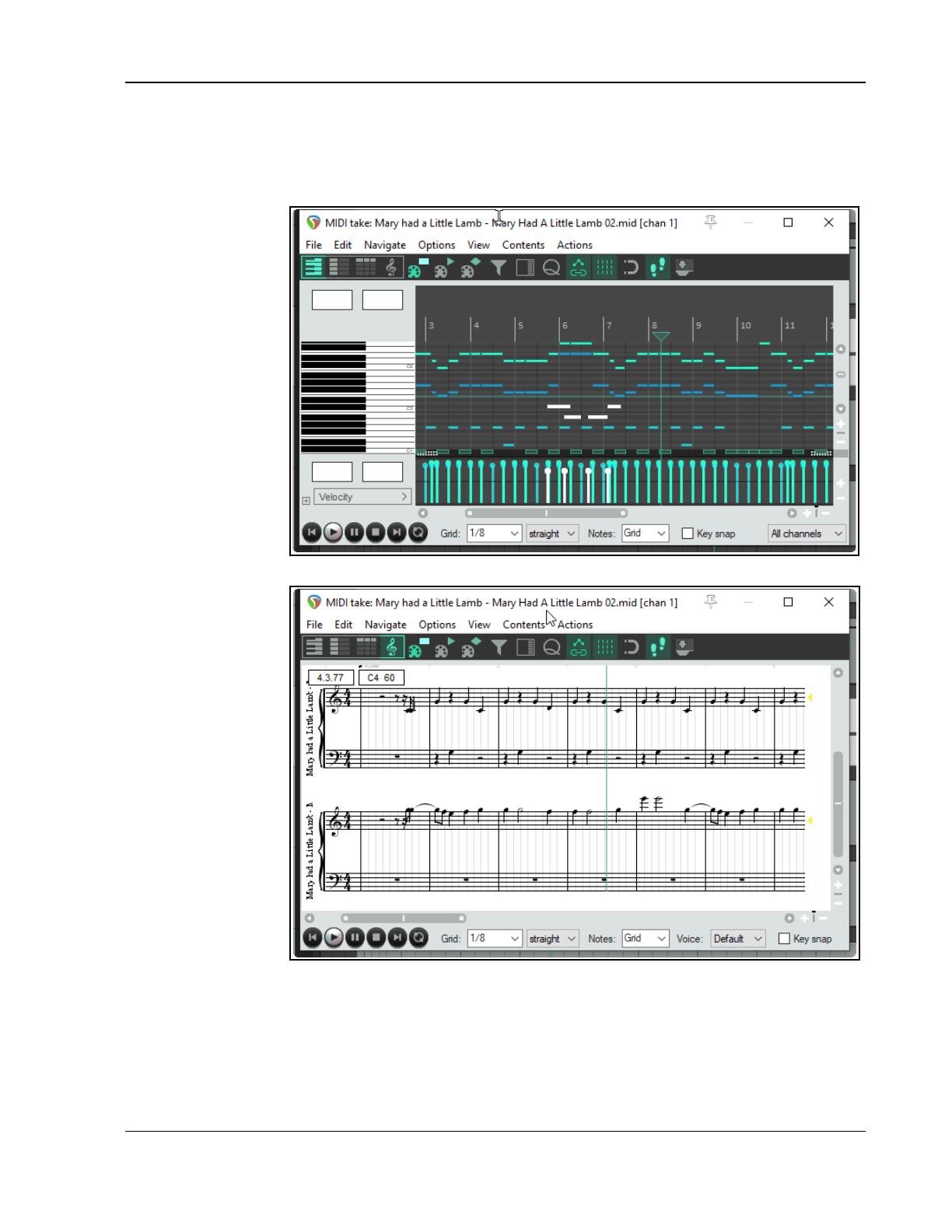
Music Notation and REAPER's Notation Editor
Note that a MIDI item can be displayed in only one view at a time (e.g. musical notation mode or piano roll
mode, but not both at once), although different items may be open at the same time in different views in
separate MIDI Editor instances.
Note also that the methods employed when working within the different views (or modes) are as far as possible,
the same.
For example, use
double-click to insert
a new note. Use right-
click-drag to select a
series of notes
(marquee). You can
perform tasks on your
selection such as
delete, move, copy,
quantize or humanize,
and so on.
As you will see later in
this chapter, musical
notation view also
incorporates a large
number of extra
features that are
specific to scoring
music.
First, let's return for a
moment to our simple
example.
For example, you
could add some more
notes in the piano roll
view.
When you switched to
musical notation view,
you would see that
your edits were also
displayed there.
Thus the process of
working and moving
between the different
modes is quite
seamless.
If you are working
with projects which
contain more than
one track with MIDI
items, and/or more
than one MIDI item
per track, it is important that you understand your options for managing how the MIDI Editor (including musical
notation mode) can handle these. You might already be familiar with this, from sections 13.27 to 13.29 of this
guide. If necessary, refer back to these sections, but there follows a brief summary.
283
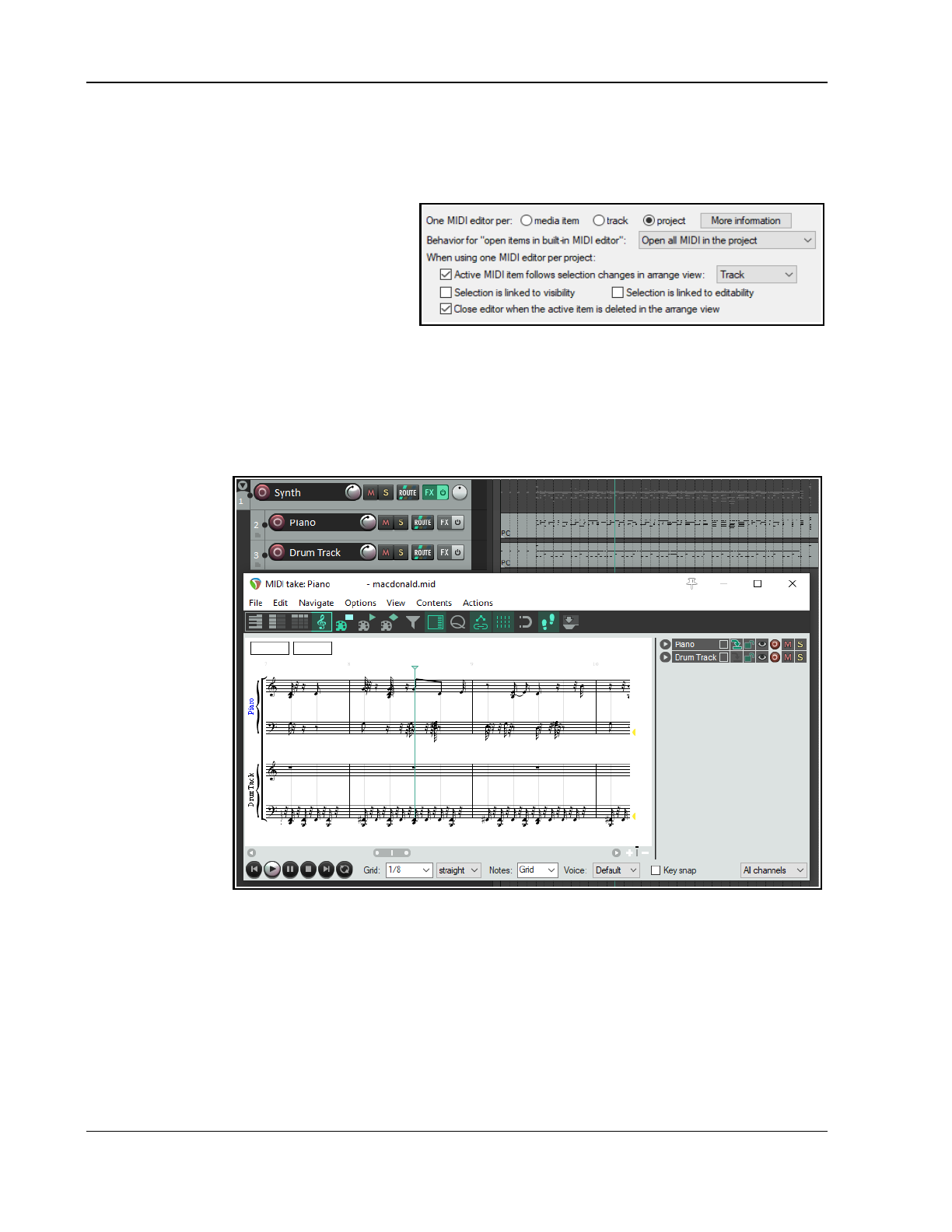
Up and Running: A REAPER User Guide v 7.81
14.3 Opening MIDI Items in the Notation Editor
Under Options, Preferences, Editing Behavior, MIDI Editor you can specify your default preference as to
whether you want one MIDI editor instance opened for each item, for each track, or for the entire project. When
in musical notation mode, it can often be helpful to have all MIDI items open together.
On the same page, you can also determine
what happens by default when you open a
MIDI item in the MIDI Editor, either by double-
clicking, or using the Open in built-in editor
command. The options are to open the clicked
item only, all selected MIDI items, all MIDI
items on the same track, or all MIDI items in
the project. Your default setting can be
overridden for individual projects from the MIDI Editor's Contents menu. There are also a number of other
options, shown above.
14.4 REAPER's Notation Editor: A Closer Look
Once opened, musical notation mode can be selected (View menu) and the option to view the track list should
be enabled from the Contents menu. This can be used, amongst other things, to determine which items are
visible and optionally editable, as well as which is to be used when inserting notes (see 13.27 to 13.29). You
should make sure
that you have a
sound
understanding of
the track list and its
features before
working in musical
notation view.
Shown here is an
example of a folder
with a synth
inserted in its FX
chain and two child
tracks, each
containing a MIDI
item. Both are open
together in the
MIDI Editor's
musical notation
view. By looking at
the panel on the
right you should be
able to see that
both tracks are
visible in this window. Both are currently selected as editable: the first has also been selected for inserting any
new notes.
Let's look first at some of the things that you can already see here:
● If more than one track is visible, track names are displayed to the left of the staff. Both track and item
names are visible in the track list panel. Clicking on the track name (in the notation or in the track panel)
will make that track the target track for inserting events, and will make the items on that track editable.
● Notes that are not currently editable are shown in a lighter shade of gray.
● There are two boxes at the top left corner of the display, just below the toolbar. If you hover your mouse
over any note, these boxes will display that note's time position and pitch.
● The tempo is displayed above and slightly to the right of the time signature.
284
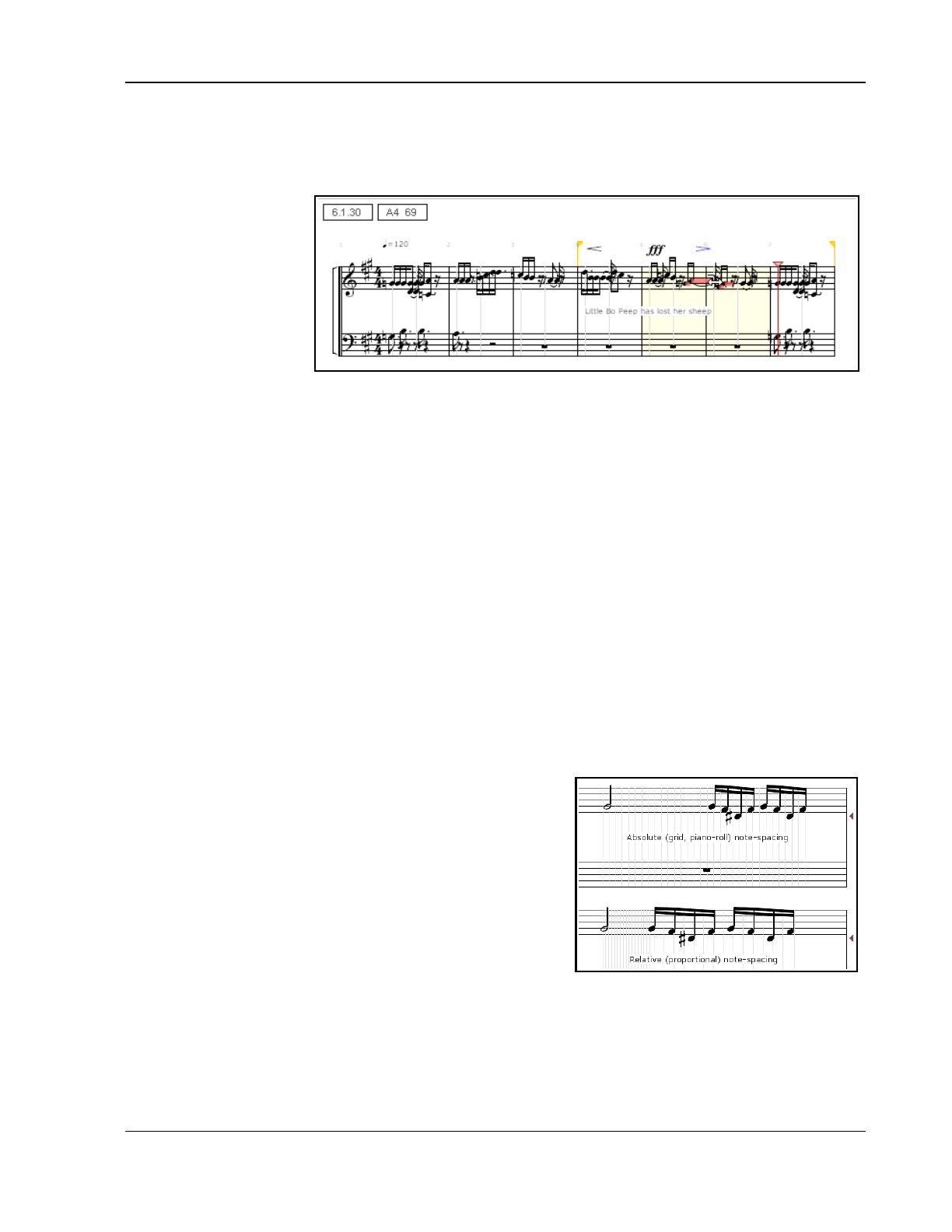
Music Notation and REAPER's Notation Editor
● To the right of the page, at the end of each pair of rows there is a pitch cursor in the form of a small gray
triangle. This shows the current pitch that will apply when keyboard actions such as insert note are
applied. An accidental (sharp or flat) will be shown beside it if the pitch is not in the current key. This
symbol is editable by dragging up or down with the mouse.
Now let's take a look at
some other features that
might not be as
immediately apparent. You
can see several things in
this illustration, which will
be explained shortly.
● Lyrics have been
added just below
the first staff.
● Notations (in this
example, crescendo, play very loud, and diminuendo) have been made above the staff.
● A time selection and separate loop selection have been made. This could initially have been done in
arrange view, but can also be edited in notation mode. For example, you can grab the handles with the
mouse to adjust the start and end points of the loop.
● Some notes are also marked with color. These are the currently selected notes. How they are colored will
depend which option you have set – channel or velocity or pitch, etc. Setting color to velocity can be
especially useful, as in notation (as opposed to piano roll view) there is no other way to display velocity.
Example
Before digging any deeper, familiarise yourself with the basics of the musical notation mode environment. Make
a copy of one of your MIDI projects, then, as a first exercise, strip it back to a few simple MIDI items on no
more than two or three tracks.
Open this in the MIDI editor and get used to the feel and flavor of musical notation mode. Don't yet be too
ambitious: restrict yourself at first to simple tasks like adding or deleting notes, moving or copying loop
selections, etc. Get to grips with switching between modes and editing in both. Don't worry if you mess it up
occasionally – it's just a scratch pad!
We'll get to explaining how you manage the other (and perhaps more interesting) features shortly, but there's a
couple of other points worth making first.
14.5 Notation Editor View Options
The MIDI Editor main menu View command includes a number of notation view specific options:
Proportional (musical) note spacing.
Enabling this option selects proportional note spacing rather than
absolute spacing (as in piano roll view) - see images, right. With
absolute spacing (top image), the timing grid is evenly spaced,
and the notes placed in their absolute timing positions on it.
With proportional spacing (lower image) the grid is adjusted to
suit this: longer notes need not take up their larger actual time-
portion of the bar and the grid tends to be narrowed, shorter
notes are no longer compressed into their actual short time-
space and the grid is widened accordingly.
Continuous view always, regardless of zoom level:
This toggle option determines how your notation is displayed in the MIDI Editor: it is explained in section 14.7.
Minimize ties for all notes by default: a toggle option.
Automatically double dot notes: a toggle option.
Automatically triple dot notes: a toggle option.
Display pedal events: A toggle to determine whether or not pedal events are shown.
285
Up and Running: A REAPER User Guide v 7.81
Bracket tracks by folder: Enabling this option will cause a bracket to be drawn to the left of the score to
indicate where a number of consecutive tracks belong in the same folder.
Color note heads: Determines whether or not note heads are colored in accordance with whichever option has
been selected (View, Color notes by command).
Position dynamics below the staff by default: a toggle option that determines positioning of dynamics on
the staff.
Automatically detect triplets: a toggle option. Tuplets and triplets are discussed later in this chapter.
Automatically voice overlapping notes: Voicing allows the notes that make up a chord to be arranged in
various ways so as to vary the sound. The automatic voicing of overlapping notes can be toggled on and off.
Show project tempo changes: A toggle to determine whether or not project tempo changes should be
displayed above the score in the notation editor.
Key signatures: Allows you to specify how key signature should be managed. Sub-menu toggle options are
Key signature change affects all tracks and Transposing display affects key signatures..
Display quantization: The default setting is 1/16 but you can use the slider to choose 1/64, 1/32 or 1/8.
Display quantization, Minimum note length: The default setting is 1/64, but you can use the slider to
instead choose 1/256, 1/128, 1/32, 1/16 or 1/8.
Neither your display quantization nor your minimum note length settings will affect the underlying MIDI in any
way. They only determine how notes are displayed. To understand how these two options work, you need to
consider them together.
The display quantization setting ensures that for display purposes all but the shortest notes will be rounded to
whatever value is selected. The minimum note length setting allows shorter notes to be displayed regardless of
the display quantization setting. For example, if display quantization is set to 1/16 and minimum note length to
1/64 (the default settings), then notes slightly longer or shorter than 1/16 will be displayed as 1/16, those
slightly longer or shorter than 1/8 will be displayed as 1/8, and so on. It will, however, still be possible to display
notes shorter than 1/16, such as 1/32 or 1/64.
In addition, the Contents menu includes a toggle option All media items are editable in notation view.
14.6 Basic Note Selection and MIDI Editor Tasks
Basic note selection and MIDI editing tasks are covered in detail in Chapter 13, including the commands on the
Edit menu. As well as the more obvious commands and actions, there are a number of mouse and keyboard
shortcuts. Most mouse behaviors that work in the piano roll will also work in musical notation mode.
Zoom and Scroll
Make yourself familiar with the MIDI Editor's zoom and scroll controls. In addition to the various buttons and
sliders displayed in the MIDI Editor window, the following mouse and keyboard actions are also useful:
Mousewheel: Horizontal Zoom (Num +, Num -) Ctrl Mousewheel: Vertical Zoom (Pg Up, Pg Dn)
Alt Mousewheel: Horizontal Scroll (Alt Left, Alt Rt) Ctrl Alt Mousewheel: Vertical Scroll (Alt Up, Alt Dn)
Common Tasks
Below are listed some common tasks that can be used in both the piano roll and musical notation mode..
Delete note or note selection Marquee to make selection, press Delete.
Move note or note selection Marquee to make selection, Click and drag to new position.
Copy note or note selection Marquee to make selection, Ctrl click and drag to new position.
The Action List
You also have available to you Actions: The MIDI Editor actions list includes the notation mode commands
as well as several actions not on the menus that are specific to notation mode, for example:
Notation: Hide selected notes Notation: Minimize ties for all notes by default
Notation: Unhide all notes Notation: Toggle minimize ties for selected notes
Notation: Select all notes in staff Notation: Identify chords on editor grid **
Notation: Remove all chord notation
** Applies to all notes playing, not just notes starting at the target time position.
Options like these can be enabled or disabled. You can also assign your own shortcut keys for any actions, or
add them to the MIDI Editor's menus or toolbars. The actions list is covered in more detail in Chapter 15:
some time spent browsing thru this list could prove to be time well spent.
286
Music Notation and REAPER's Notation Editor
Default Mouse Modifiers
REAPER includes a large number of default mouse actions. These can be customised thru the Editing Behavior,
Mouse Modifiers page of your preferences. Generally most useful when working in the notation editor is the
MIDI piano roll context, whose actions also apply in this environment. These are marked with ** in the table
below.
Listed below are some of REAPER's default mouse modifiers. MIDI Editor mouse modifiers were introduced in
Chapter 13, and you can learn more about them in Chapter 15.
This list includes examples of other categories (such as piano roll and MIDI note) that can be useful if your
workflow finds you switching back and forth between the notation editor and the piano roll.
Piano Roll Left click **
Default Deselect notes, move edit cursor.
Ctrl Ditto, ignoring snap.
Alt Deselect all notes.
Shift+Alt Insert note ignoring snap.
Shift+Ctrl+Alt Insert note.
Piano Roll Double click **
Default Insert note.
Shift Insert note, ignoring snap.
Piano Roll Left drag **
Default Insert note, drag to extend.
Shift Ditto, ignoring snap.
Ctrl Copy selected note(s).
Alt Erase notes.
Shift+Alt Paint notes, ignoring snap.
Ctrl+Alt Paint a straight line of notes.
Shift+Ctrl+Alt Paint notes and chords.
MIDI Note, Double click
Default Erase note
Shift Activate MIDI item
MIDI Item Edge, Left drag
Default Move edge
Ctrl Ditto, ignoring group/selection
Alt Stretch item
Ctrl+Alt Ditto, ignoring group/selection
MIDI Editor, Right drag
Default action Marquee select notes/CC.
Shift Marquee add to notes/CC selection.
Ctrl Marquee toggle notes/CC selection.
Alt Marquee select notes/CC and time
Shift+Alt Ditto, ignoring snap
Ctrl Alt Select notes touched while dragging
Shift+Ctrl+Alt Hand scroll
MIDI Note, Left drag
Default Move note
Shift Ditto, ignore snap
Ctrl Copy note
Shift Ctrl Move note on one axis only
Alt End note velocity
Shift+Ctrl+Alt Move note vertically, ignore scale
MIDI Note, Left click
Default Select note, move edit cursor
Shift Add range of notes to selection
Ctrl Toggle note selection
Shift Ctrl Select note, move cursor, no snap
Alt Select note-
Shift+Alt Select all notes in measure
Ctrl+Alt Select note and all later notes
MIDI CC lane, Left click/drag
Default Edit selected CC events if any
Shift Insert CC event
This list is by no means comprehensive. You can explore the other possibilities yourself through Options,
Preferences, Editing Behavior, Mouse Modifiers.
You should also make sure you understand the purpose of the MIDI Editor's other controls, especially those
located near the bottom of the window, to the right of the transport bar. These are labelled Grid, Notes, Scale,
etc. For example, the Notes drop down list sets the default length for new notes when they are inserted. If
necessary, refer back to Chapter 13, section 13.6.
14.7 Notation Editor Specific Tasks and Functions
Before delving too deeply into the notation mode's editing capabilities it's worth pausing to take on board a few
important points:
● If you have several MIDI items open together in a single notation editor you should display the track list
(Contents, Track list). This enables you to make sure that any item that you wish to work on is at least
editable, and, for many actions, also selected as the target for inserting events. One simple way of doing
this is to make it the only item visible at the time (below right).
● Within the MIDI editor track list, use Ctrl Click on any track name to close a track, or Alt Click to close
all other tracks.
287
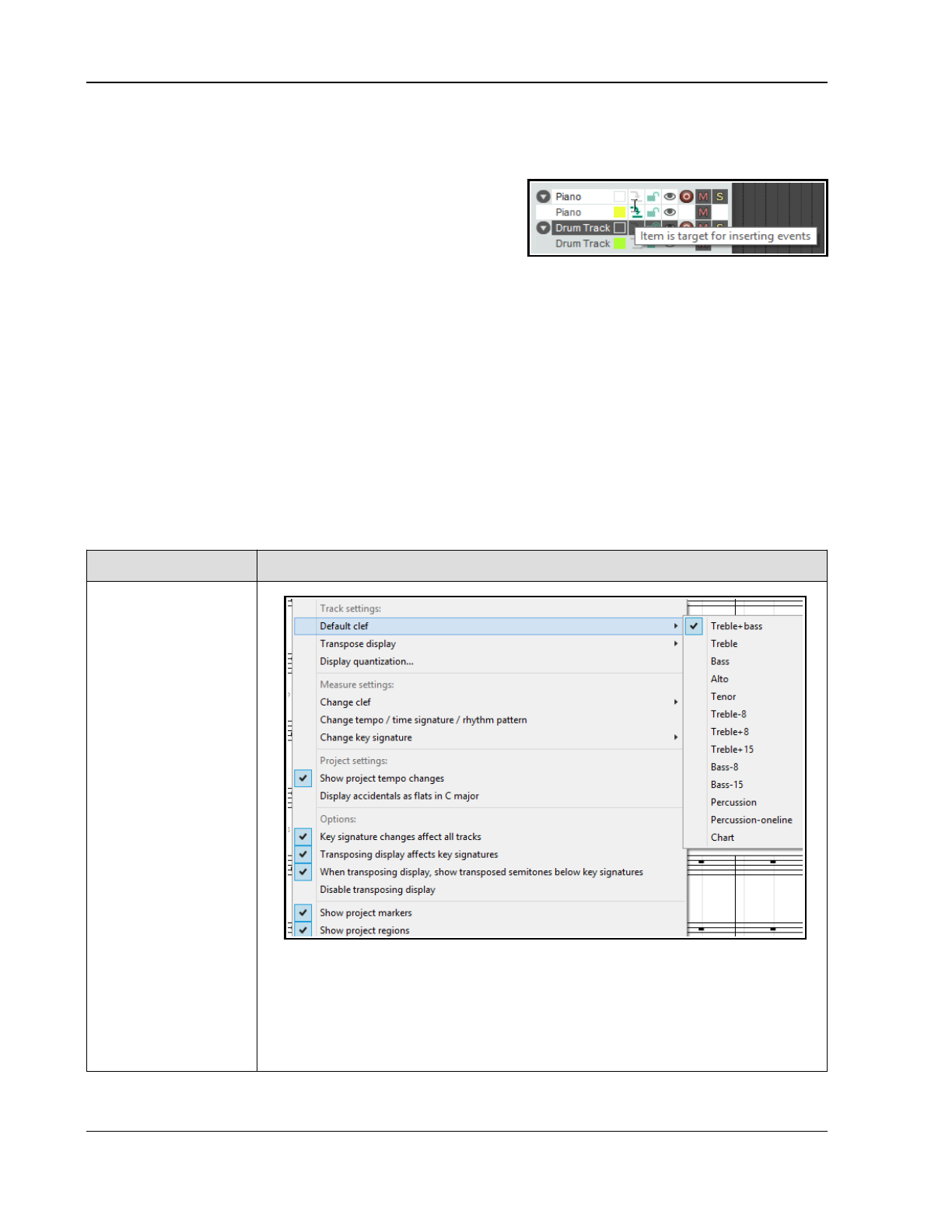
Up and Running: A REAPER User Guide v 7.81
● Each MIDI item can have its own key signature, or no key signature. If no key signature is specified for an
item, it will take its key signature from the previous item on the same track. If there is no previous item on
the same track and no key signature defined, it will not have a key signature.
● Only a relatively small number of the commands that are
exclusive to musical notation view
affect the actual MIDI
notes themselves
. These include deleting and inserting
notes and setting tuplets. Other actions such as
articulations, lyrics, notations, etc.
will only affect what is
drawn on the page, not the underlying notes themselves
.
● You can right-click on the timeline (which displays the bar/measure numbers) to access the MIDI editor's
general context menu.
How the score is displayed
When only a single track is being viewed, the notation will by default be displayed as a page, running from left
to right and top to bottom, unless you are zoomed so closely as to display less than one full measure.
When less than a full measure or more than one track is displayed, the display is continuous, running always and
only from left to right. The MIDI Editor's main View menu includes a toggle Notation view options,
Continuous view always. Enable this if you wish to use continuous view regardless of zoom level.
The Staff and Note Context Menus: Editing Commands and Options
The tables in this chapter use the default notation editor context menus, as they come with REAPER “out of the
box.” However, both the notation staff and the notation note context menus can be customised to suit your
particular requirements. How to customise menus is explained in the chapter following this one.
Track/measure task Method
Change default clef
To change the default clef, right-click over the clef and select Default clef from the
menu. Options include Treble + Bass, Treble, Bass, Alto, Tenor, Treble -8,
Treble +8, Treble+15, Bass -8, Bass-15, Percussion Percussion (one-line)
or Chart.
The chart option creates a staff with no notes, just beat markings, chords, and other
notations.
288
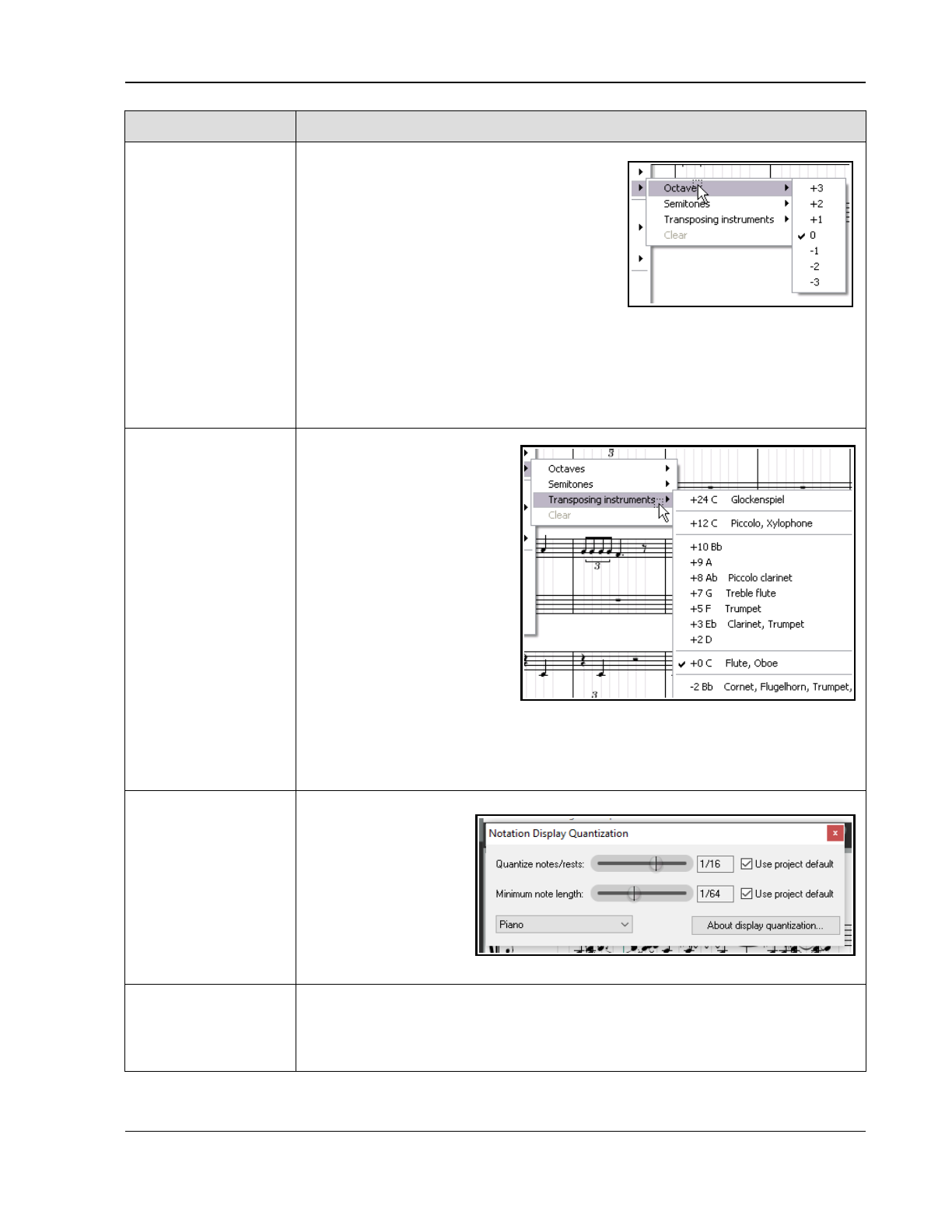
Music Notation and REAPER's Notation Editor
Track/measure task Method
Transposing note
display: Octaves and
Semitones
(See also Transpose
Options.)
The Transpose display command can be
used to cause the notes on a track to be
displayed up or down by up to 3 octaves and/
or 11 semitones. This affects only the way
notes are displayed, not the underlying MIDI.
Right-click at the start of a measure, choose
Transpose display from the context menu,
then select Octaves or Semitones.
Octaves can be transformed within a range
of +3 to -3.
Semitones can be transformed within a range of +11 to -11.
You can transpose by a combination of octaves and semitones if you wish: simply use
this command twice.
Use the Clear command from this menu to restore transposed notes to their previous
state.
Transposing note
display:
Instruments
(See also Transpose
Options.)
To transpose notes for a
specific instrument, choose
Transpose instruments
from the Transpose display
menu, then make your choice.
Part of the range of options for
transposing instruments is
shown on the right.
For example, to transpose the
display
for a clarinet you
would select +3 Eb.
Transposing display by itself
does not result in any changes
being made to the MIDI data.
Note, however, that you do
also have an option to allow transposing display to affect key signatures. This is
discussed towards the end of this table.
Use the Clear command from this menu to restore transposed notes to their previous
state.
Display quantization This command can be
used to quantize your
notation display, either
for the whole project or
on a per track basis.
Tracks can be selected
from the drop down list.
Click on About display
quantization... for
further information.
Changing the clef To insert a new clef at the start of a measure, right-click over the existing clef and
choose Change clef then select from the list of available choices. These choices are
the same as those available on the Default clef menu.
To delete such a clef, right click and choose Delete from the change clef menu.
289
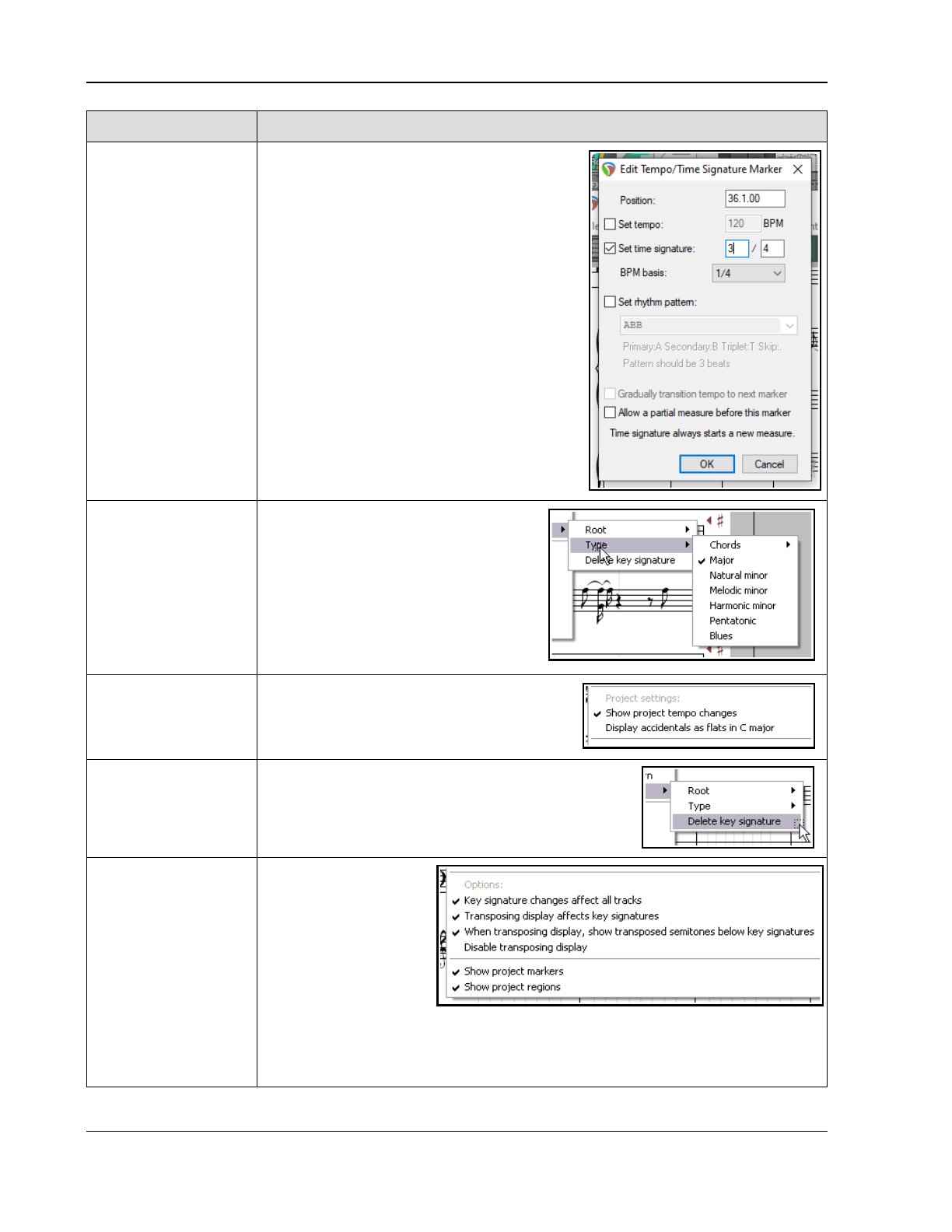
Up and Running: A REAPER User Guide v 7.81
Track/measure task Method
Change tempo/ time
signature/ rhythm
pattern
To insert a time signature change at the start
of any bar, right-click and choose Change
tempo/ time signature/ rhythm pattern
from the menu.
This opens a dialog box (shown right) where
you can make your changes.
You can also change an existing tempo, time
signature and/or the rhythm pattern setting in
this way.
Click OK to confirm.
Change key signature Use this command from the context
menu to insert a key signature change at
the start of a bar.
You can then select a root and type from
the flyout menu.
Project settings
options
After the measure setting options on the menu
there are two project settings toggle options to
determine the display of project tempo
changes and accidentals (see right).
Delete a key
signature
Right-click over the key signature and choose Change
key signature then Delete key signature from
context menu.
Options
This group comprises
various toggle options.
Key signature
changes affect all
tracks
Transposing display
affects key
signatures
When transposing display, show transposed semitones below key sigs
Disable transposing display
Show project markers
Show project regions
290
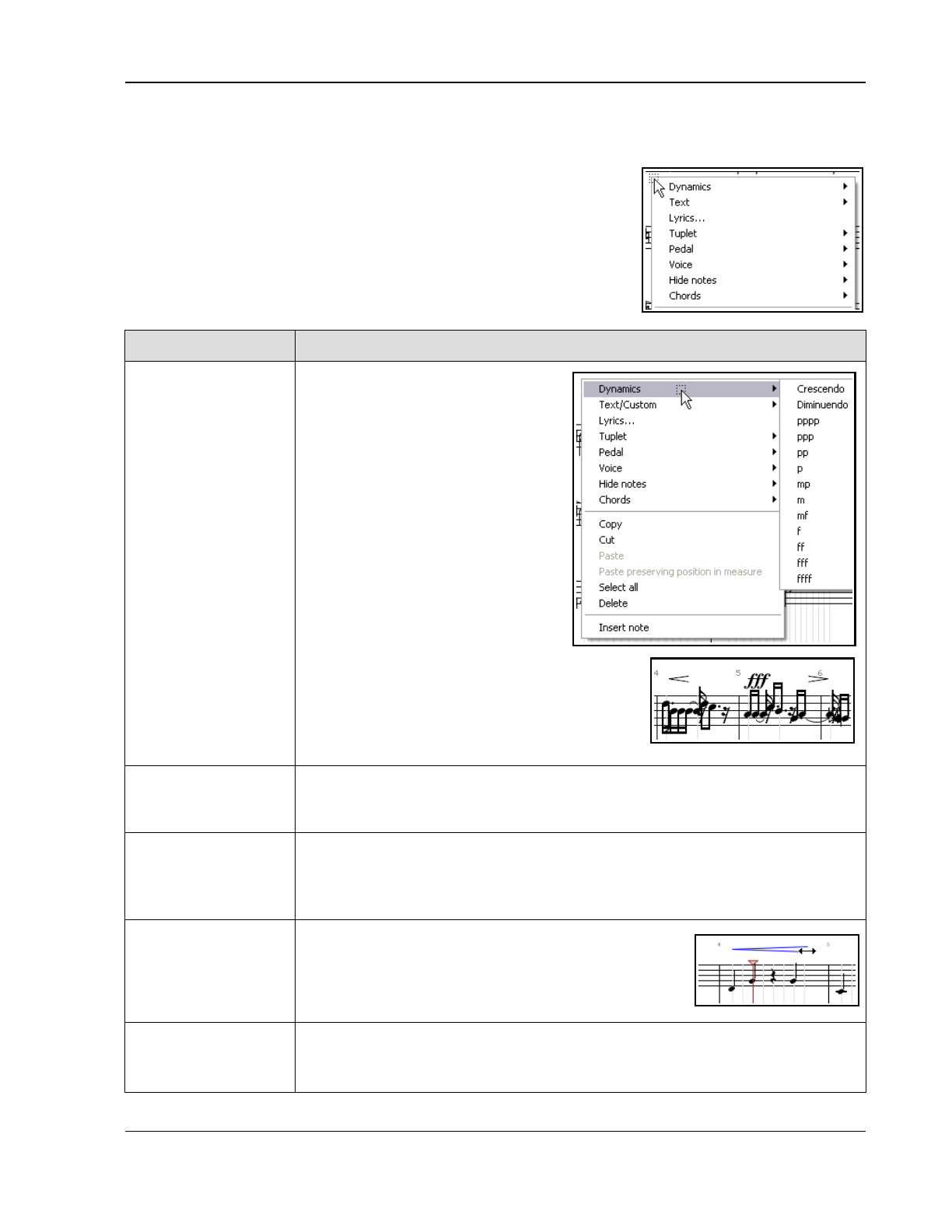
Music Notation and REAPER's Notation Editor
General Editing Commands and Actions
You can right-click just about anywhere except on a note or item to display a general menu of notation editing
commands. These include the usual general editing commands (Copy, Cut,
Paste, etc.) as well as these notation view specific commands:
Dynamics, Text, Lyrics, Tuplet, Pedal,
Voice, Hide Notes, Chords
These are explained in the table below.
Note also that on the MIDI Editor main menu, the View, Piano roll notes,
Show notation text on notes command can be used to display notation
text in piano roll view.
General editing task Method
Dynamics
Click on the staff to move edit cursor
to required position. Right-click and
choose Dynamics from the menu.
This causes a flyout menu to be
displayed, from which you can make
any of a number of choices, such as:
Crescendo (gradually increase
volume)
diminuendo (gradually reduce
volume)
pppp (as softly as possible), ppp
(very, very softly), pp (very softly), p
(softly)
mp (mezzo piano, moderately soft), m
(mezzo, moderately), mf (mezzo forte,
moderately loud)
f (forte, loudly), ff (fortissimo, very loud), fff,
(very, very loud) ffff (as loud as possible).
An example of how this is displayed is shown here.
These notations are performance instructions only:
they do not affect the MIDI data in the file.
Insert text above
score
Right click at required location, then choose Text/Custom and Enter text... from
menu. Type text and press enter. To edit existing text, right click over it and select
Text, Enter text... from menu. To remove, right-click and choose Remove.
Change a dynamic
notation
To change a dynamic notation from one menu item to another (e.g. from pp to
ppp), right click on the notation and make your selection from the menu.
To change a notation from a menu item (such as pp or ff or crescendo) to text,
double click on the notation, type the text and press Enter.
Insert custom
notation
From the context menu choose Text/Custom, then
Custom Notation, type a name in the Name box,
select a symbol and click OK. Your named custom
notation is also automatically added to the
Text/Custom menu for future selection.
Extend or shrink a
crescendo or
diminuendo
Hover your mouse over the start or end of the item, so that the mouse cursor
changes to a double-headed arrow. Click and drag left or right, as required.
291
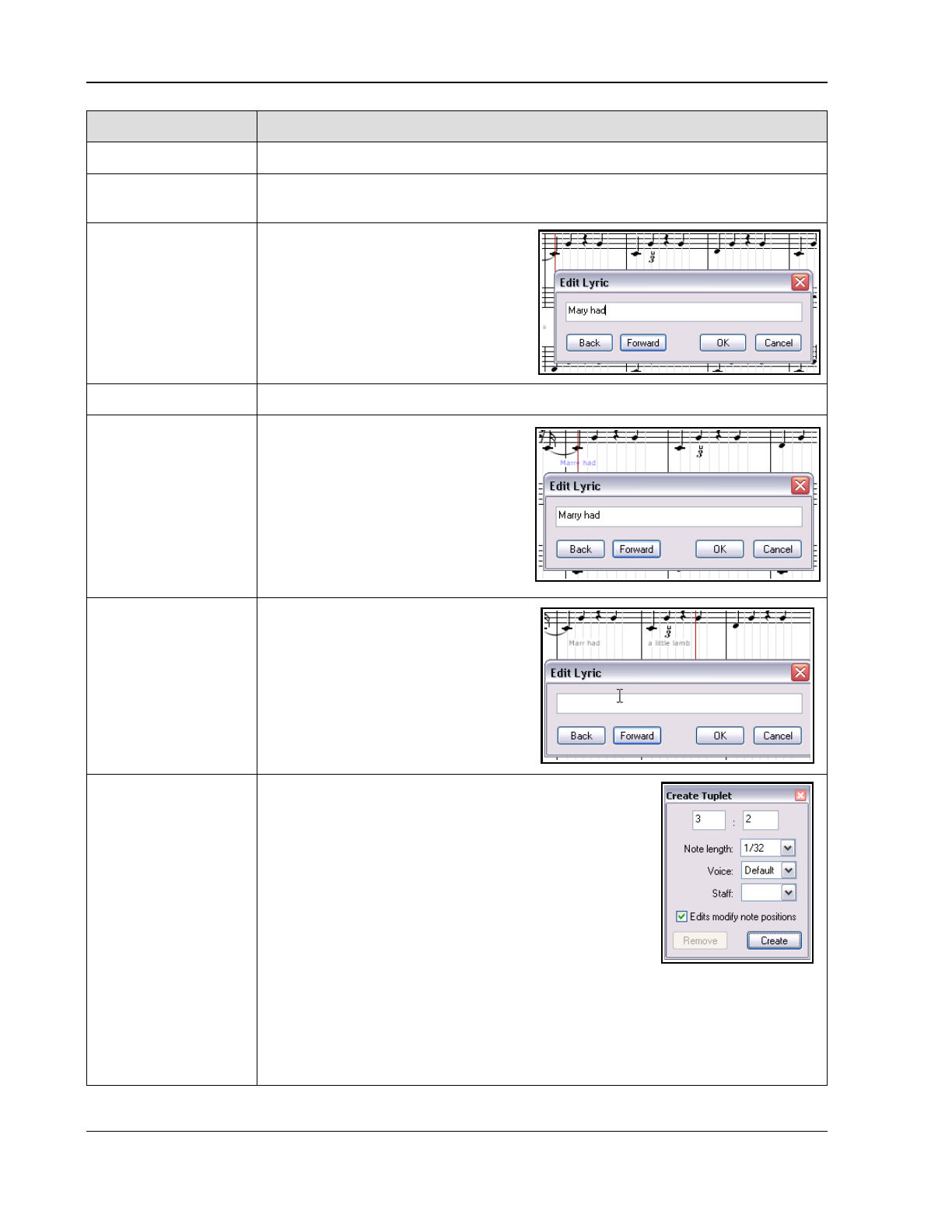
Up and Running: A REAPER User Guide v 7.81
General editing task Method
Remove notation Click on the notation, press Delete key.
Move a notation or
lyric
Hover your mouse over the middle of the item, then click-hold-drag to drag and drop
the item to its required position.
Insert a lyric Click on the staff to move the edit
cursor to the required position. Right
click and from the context menu
choose the Lyrics command. Type
your text and click on OK.
Remove lyrics Click on existing lyric text, press Delete key.
Edit lyrics Right-click over text to open text
window. Make your changes and press
Enter. You can also drag and drop to
move lyrics.
Lyrics can also be edited in event list
mode (as, of course, can other
events).
Insert sequential
lyrics
Type the first lyrics in the Edit lyric
box, then click on Forward. With the
cursor in the edit box, click Forward
to move forward as required, then type
the second part of the lyrics in the box.
Repeat as needed, then click OK.
The Back button can be used to move
back thru your lyrics, for example to
edit them.
Create tuplet
A tuplet is an irregular rhythm that involves dividing the
beat into a number of subdivisions which differ from
those usually allowed by the time signature. To insert a
tuplet, first position the edit cursor, right click and choose
Tuplet then Create tuplet... from the context menu.
This displays the Create tuplet dialog. By default, a
triplet (3:2) will be specified, but you can change this.
You can select a note length in the range 1/128 to 1/2,
and assign a voice (high or low) or accept the default.
Staff position may be top or bottom. Your other option is
whether to allow note positions to be modified.
Click on Create to create a tuplet bracket as a separate item on the staff. The Create
tu[let dialog then becomes an Edit tuplet dialog. You can drag and drop this around
as you wish. Click on Apply to “lock” the tuplet, then close the dialog box.
Tuplets will impact on the actual MIDI events, e.g. by changing the original note
position or length. Notes will snap to the tuplet stops as you edit them.
292
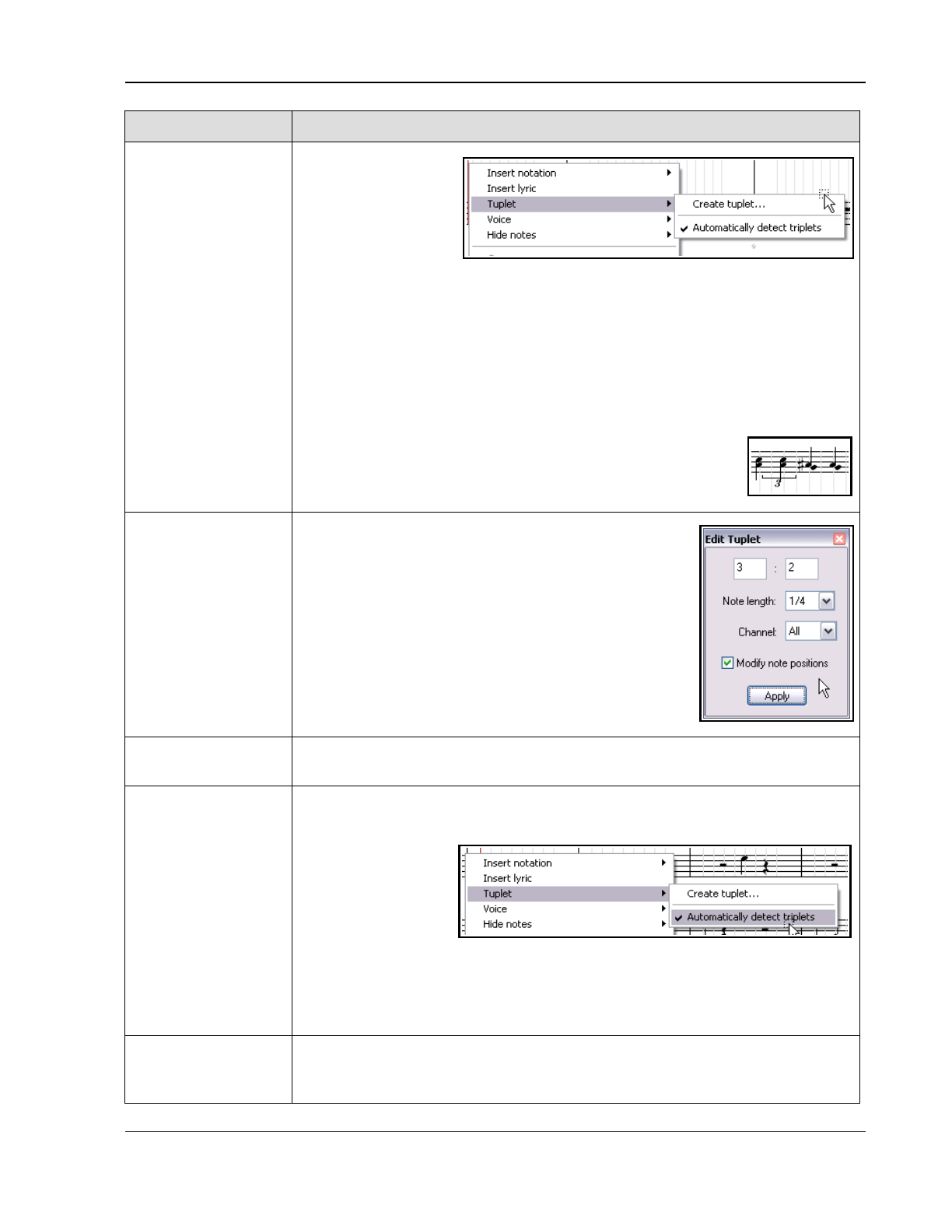
Music Notation and REAPER's Notation Editor
General editing task Method
Create tuplet (cont.)
For example, a
quarter note triplet
starting at the
beginning of the
measure will span the
first two beats of the
measure and contain
a stop at 2/3 beats and a stop at 4/3 beats (each quarter note triplet is 2/3 QN long,
because a triplet fits 3 notes in the duration normally taken by 2).
You can also alter the tuplet type after it's created: for example, you can switch a
quarter note tuplet *=(3 QN in the space of 2) to a quarter note duplet (2 QN in the
space of 3); the component notes will not change, but the tuplet itself will shorten.
More commonly used tuplets include 2:3 (duplet), 3:2 (triplet), 4:3, 5:4, 6:4. For
example, a quarter note (crotchet) can be divided into three (triplet), five
(quintuplet), six (sextuplet) or seven parts (octuplet). However, the Edit Tuplet dialog
allows you to define whatever specifications you choose.
Where necessary, rests will automatically be added for missing
notes in a tuplet. Rests are indicated by a symbol which represents
the length of the pause.
Move, Change or Edit
a tuplet
To move a tuplet, simply drag and drop to the required
position.
To change a tuplet, right-click on the tuplet, choose Edit
tuplet... from the menu, make your changes to dialog box
settings and click on Apply.
Remove a tuplet To remove a tuplet, click on the tuplet and press Delete. It can also be deleted
using the Remove button in the Edit tuplet dialog.
Understand and
manage tuplets
If the option Automatically detect triplets is enabled, them triplets will be auto-
detected. Auto-detected triplets will be displayed in gray. If you move or alter an
auto-detected triplet
(not the component
notes, but the tuplet
bracket itself) it will
remain until you
manually delete it.
Right-click on a tuplet
to open the Edit tuplet dialog. You can change note length, voice and/or staff
position, or use the Remove button to delete it.
Tuplets can also be added and attached to note selections as they are inserted. This
topic is covered in the next section.
Pedal notation Choose Pedal from the context menu for two pedal notation options – Engage
pedal and Release pedal. You also have a toggle option to determine whether
pedal notations should be displayed.
293
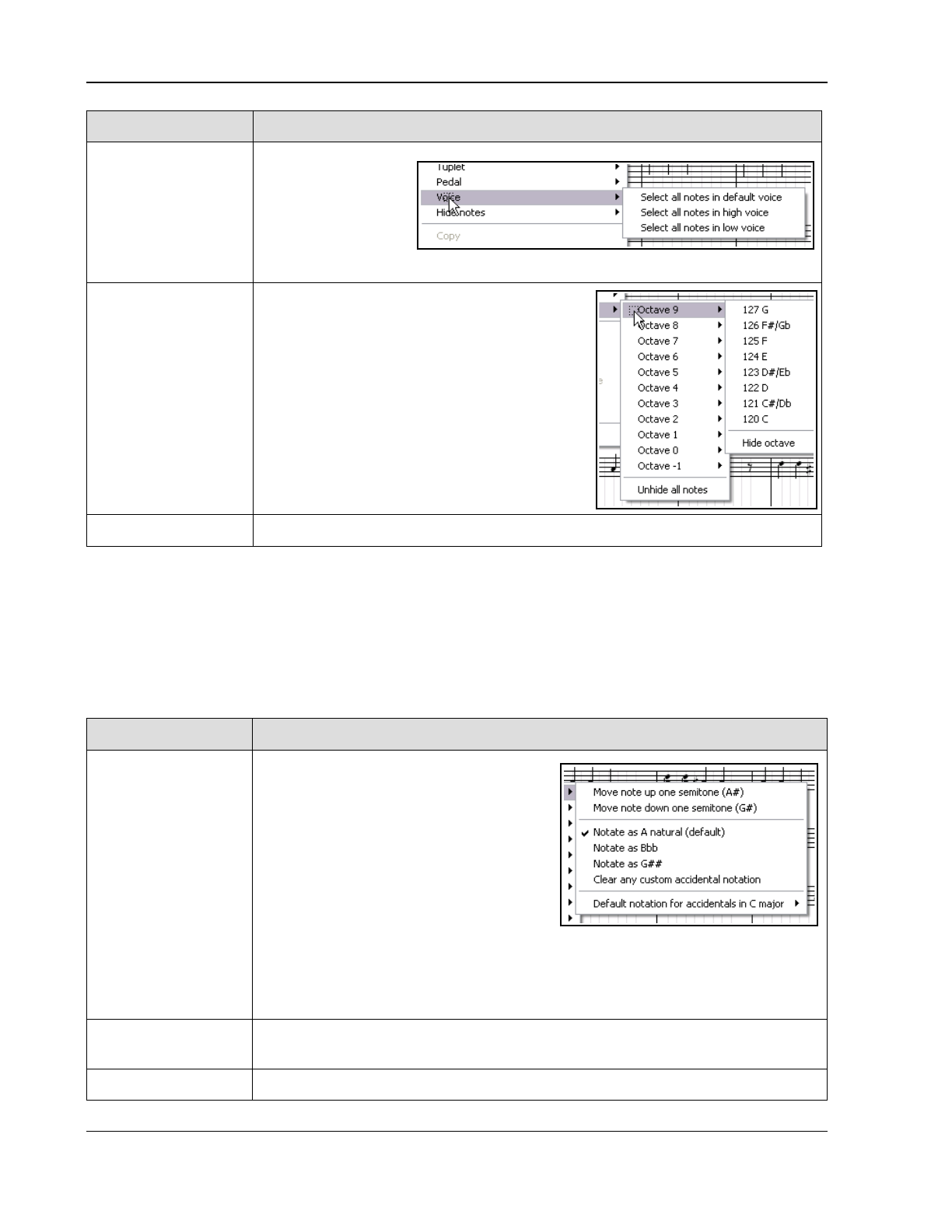
Up and Running: A REAPER User Guide v 7.81
General editing task Method
Set Voice The Voice command
can be used to select
All notes in default
voice, All notes in
high voice or All
notes in low voice.
The method for setting notes to a specified voice is explained in the next table.
Hide Notes The Hide Notes command can be used to hide
notes in any specified octave. It is useful for
hiding MIDI key switches or other events not
intended to be played as music.
Choose this command, then select your required
octave from the flyout menu. Next, select a
specific note from the list offered, or choose
Hide octave to hide all notes in that octave.
Repeat the same steps to unhide any specific
currently hidden note. To restore the display of
all currently hidden notes, choose Unhide all
notes from the menu shown here.
Chords Use this to access the toggle command Identify chords on editor grid.
14.8 Working with Notes and Note Selections
A number of commands specific to musical notation view are available from this view's own context menu. Select
a note (or series of notes) and right-click to display this menu.
It is well beyond the scope of this User Guide to attempt to teach music theory. Nevertheless, for those that
need to learn more, the information in the table below might serve as a starting point by introducing you to
some of these terms. These comments are offered for information and guidance only, and are not intended to be
comprehensive or water-tight definitions.
Note Option... Comments ...
Accidentals Accidentals (sharps and flats) are an
instruction to raise or lower the pitch of a
note by half a step. Select the note, right-
click and select Accidental from the
menu. You can then make your choice from
the flyout menu. Different values will, of
course, be available for different notes.
The last of the options on this menu,
Default notation for accidentals in C
major, can be set to Sharp or Flat.
The actions to move the note do actually move the note, not just change the display.
If a note can be ambiguously written in either of two ways (for example, C sharp or D
flat), the menu will offer a choice of which to display. This will not affect the actual
MIDI note, only the notation.
Stem This command enables you to over-ride the default stem direction for a note or note
selection. Options are Stem up, Stem down, or restore Default stem direction.
Lyrics Inserts lyric at selected note position. Explained in previous table.
294
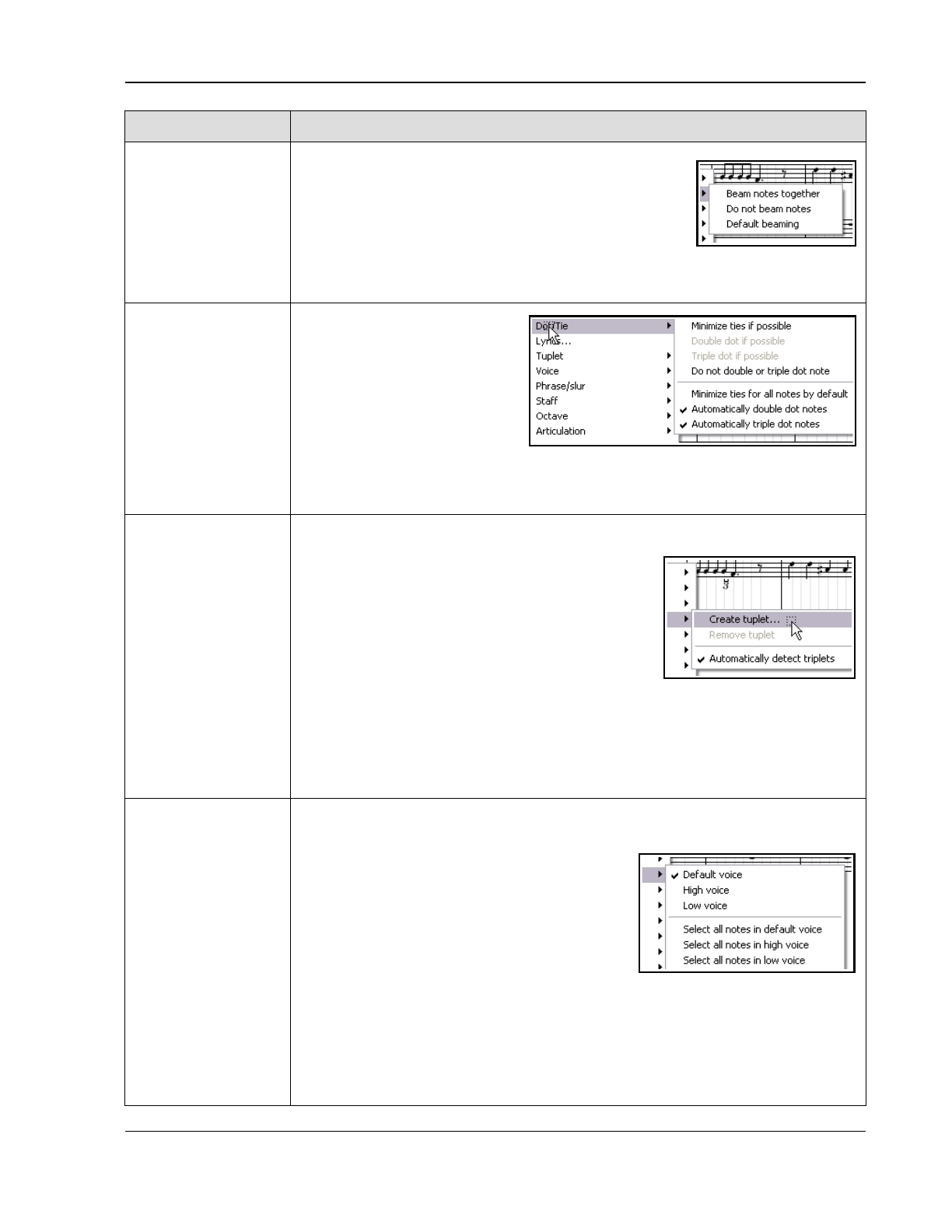
Music Notation and REAPER's Notation Editor
Note Option... Comments ...
Beam Right-click on a selected note and choose Beam, then
Beam notes together to start beaming on any note.
Do not beam notes can be used to remove beaming.
This allows you to break up sets of beamed notes to
better display the intended rhythm. For example, if four
1/16 notes are beamed together but intended to be
phrased as 1+3 then you might wish to start a new beam on the second note.
The option Default beaming restores a note selection to the default.
Dot/Tie This menu option can be used
with a note selection. Right-click
over the selection, then you can
choose Dot/Tie and Minimize
ties if possible to minimize the
number of ties in a note
selection. There is also an option
to Minimize ties for all notes
by default.
Options also exist to Double dot if possible, Triple dot if possible and Do not
double or triple dot note.
Tuplet
For detailed information about tuplets, see the preceding table General Editing
Commands and Actions.
Tuplets can also be defined as an attribute of a
selection of notes. For example, you could set
three notes to be a tuplet, and REAPER will do its
best to figure out the correct start, end, duration of
the tuplet based on the note positions, even as
they changed around.
To do this, make your note selection, choose
Tuplet, Create tuplet from the context menu, then enter your required values
in the Edit tuplet dialog box.
The result of this might not always be to your liking: for this reason, you might
prefer to use the method explained in the table General Editing Commands
and Actions.
Voice Notes can be set to High voice or Low voice. To do this, simply make the selection,
then right-click over it and choose Default voice, High voice or Low voice from
the context menu.
Notes in a given voice will be grouped and
beamed together, and have their stems point
away from the other voice, for visual
identification of separate musical lines.
You can also select a voice for a newly inserted
note in the same way. From Voice on this menu
(or from the general editing context menu), you
can Select all notes in high voice or Select all notes in low voice.
For high voice notes, articulations will be shown immediately above the notes: for low
voice notes they will be shown immediately below the notes.
Note also that the Color drop down box includes an option to specify that selected
notes should be colored by voice, and that the Voice drop-down determines which
voice is assigned to notes as they are inserted.
295
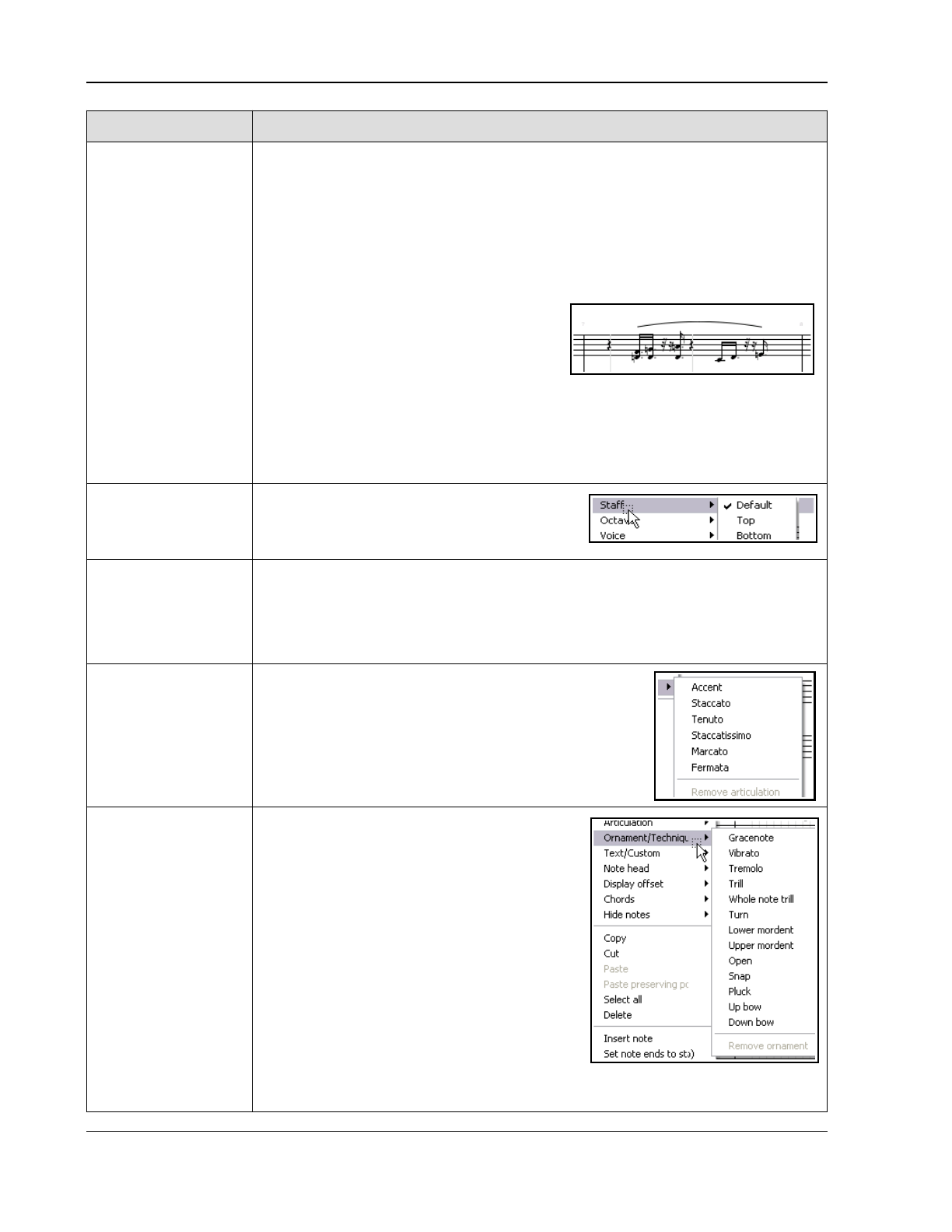
Up and Running: A REAPER User Guide v 7.81
Note Option... Comments ...
Phrase/slur Think of a musical phrase as being conceptually similar to a phrase in the English
language. Take the example of the old Irish song, Cockles and Mussels. The words
“alive alive oh” can be seen to make up a phrase. They belong together, and the end
of that phrase would be a suitable place for a very brief pause. Likewise, the musical
notes accompanying those words can be said to make up a musical phrase.
The curved line that denotes the notes included in the phrase is known as a slur.
Shown here is the default technique (normal). You can choose a different slur
technique (slide, bend, or hammer/pull) by choosing Phrase/slur, Technique from
the notes right-click context menu.
To define an actual phrase, first select the
notes then choose Phrase/slur, Make
phrase/slur from the right-click context
menu. A phrase is indicated by a curved line
(slur), as shown here. You can edit the phrase as a unit by clicking and dragging on
the phrase mark.
To select all notes in a phrase, select any note in the phrase, then right-click and
choose Phrase/slur, Select all notes in phrase/slur. Phrase/slur, Remove
phrase can be used to remove a phrase from a note selection.
Staff Use this command to move a note or selection
of notes from the treble clef to the bass clef, or
vice versa, or to restore its default position.
Octave Use this command to move a note selection outside the staff up or down the display
by 1, 2 or 3 octaves. This is another command that does not affect the underlying
MIDI notes themselves.
Notes that are very high or very low (and far away from the staff) can thus be moved
closer to the staff without their pitch being affected.
Articulation
Articulations are used to indicate how individual notes
within a passage are to be played – for example
emphasised (Accent), brief and detached (Staccato).
The options on this menu are shown on the right. These
are instructions only, articulations do not affect the actual
MIDI events. Up to two articulations and one ornament
per note are supported.
Ornament/
Technique
Used to insert an ornamentation on or after a
selected note, or each note in a selection.
Options available are Grace note, Tremolo,
Trill, Upper and Lower Mordent.
A grace note is an extra note that is added as
an embellishment and which is not essential to
the harmony or melody. Grace notes will affect
the actual MIDI events.
A trill (indicated by the letters tr) is used to
provide rhythmic, melodic and/or harmonic
interest thru a rapid alternation between two
adjacent notes, usually a semitone or tone
apart.
A turn is a short figure consisting of the note
above the one marked, the note itself, the note below the one marked, and the note
itself again.
296
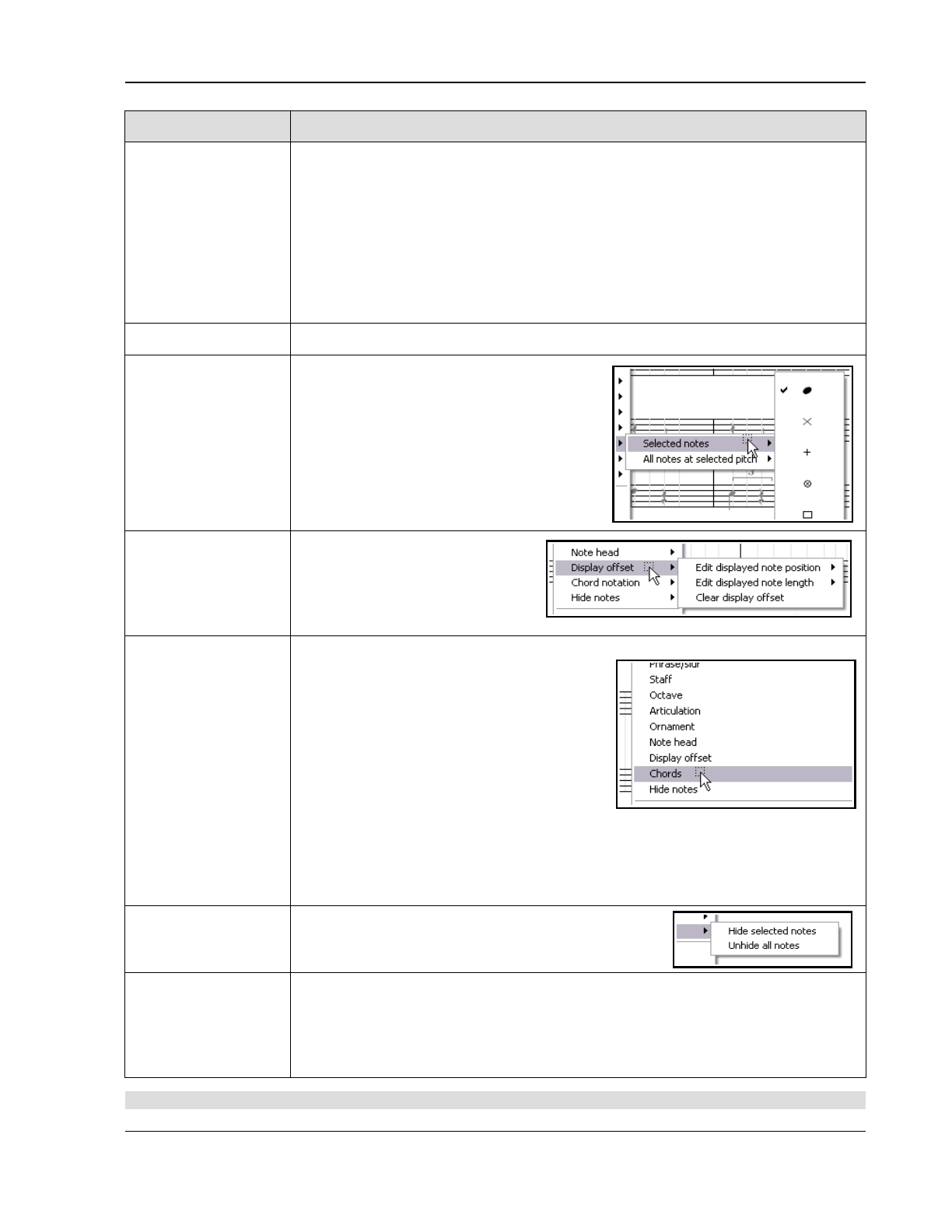
Music Notation and REAPER's Notation Editor
Note Option... Comments ...
Ornament (cont)
A lower mordent (also known as an inverted mordent) is a single rapid alternation
with the note below. An upper mordent is a single rapid alternation with the note
above. It is often called simply a mordent.
Snap is an instruction to snap the string, so that it snaps back on the fingerboard.
Pluck is an instruction to pluck a stringed instrument.
Up bow and down bow also apply to stringed instruments: up bow is an instruction
to draw the bow upwards or to the left, down bow downward or to the right.
An ornament can be removed by right-clicking on the note or note selection and
choosing Remove ornament from the context menu.
Text/Custom
Inserts text or custom notation. See General Editing Commands and Actions.
Note head You can change the graphic used to display
your note heads from the standard elliptical
symbol to any of a number of alternatives.
Right-click over any note or note selection,
then first choose Note head from the
context menu followed by either Selected
notes (only) or All notes at selected
pitch. You can then select from a list of
about 20 or so choices.
Display offset This command is used to modify a
selected note (or notes) position or
length by nudging left or right.
There is also an option to clear an
existing display offset.
Chords To identify and notate a basic chord, first
select the notes then choose Chords from
the context menu. If a chord is identified, it
will be shown as a menu option. Click on this
text to confirm the chord. The chord name
will then be displayed in the score.
There is also an option to choose Other and
enter the chords manually.
This menu also includes the toggle action
Identify chords on editor grid.
Note: As well as being able to select key type (major, minor, etc.) from the MIDI
Editor dropdown, you can also select Load... from that dropdown and import your
own .reascale file which can be used to define your own scales and chords. The file
sample.reascale is included with REAPER.
Hide Notes Use this to hide currently selected notes. To unhide
hidden notes, choose the Unhide all notes option
from the same menu, with any note or notes selected.
MIDI Editor Edit
Commands.
At the bottom of the notes context menu there is a section containing the several
MIDI Editor Edit menu commands – Copy, Cut, Paste, Paste preserving position
in measure, Select all, Delete, Insert note, Set note ends to start of next
note )legato), Select previous note, Select next note and Note Properties.
The Note properties... dialog is explained in Chapter 13.
Note: The notations created in musical notation view will also be shown in event list view (see Chapter 13).
297
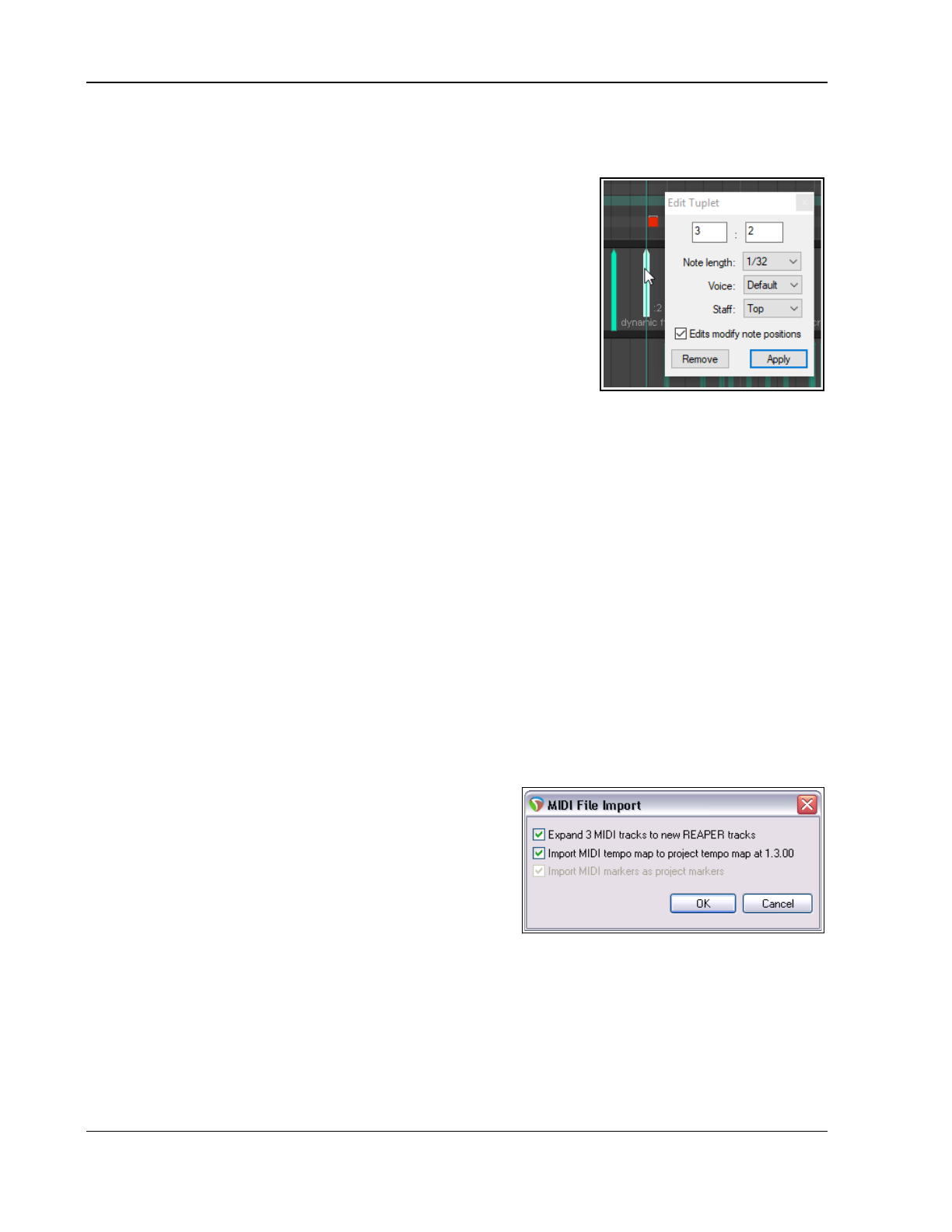
Up and Running: A REAPER User Guide v 7.81
14.9 Editing Notation Events in Other Views
Notes, of course, can be added, edited and deleted in REAPER’s other MIDI Editor views. This also applies in part
to dynamics and text/custom events and lyrics.
In event list view, these events are listed in sequence along with all other
events (notes, CC messages etc.). Select any dynamic, lyrics/text or track
(dynamics) event and use the Delete key to delete it. Lyrics/text events can
also be edited – double-click to make the event available for editing. New
lyrics/text events can also be entered by right clicking at the required
position and choosing Insert new text event… from the menu. In
In piano roll and named note views, a Notation Events lane can be
displayed in the CC lane area for lyrics/text, dynamics and tuplets. These
events will be displayed as vertical bars which can be moved (click and
drag), deleted (delete key) or edited (double click). Right-click in the event
lane at the required position to enter a new dynamic, text or custom
notation event.
14.10 Exporting MusicXML and PDF Files
It is currently not possible to print your musical notation score from within REAPER. However, you are able to
export your score in MusicXML format, which can be read by Finale, Sibelius, MuseScore, Forte, Cubase and
many other programs. REAPER also supports export in .PDF and .XML and .MXL (compressed .XML) formats:
1. Open the score in REAPER's MIDI Editor and select musical notation view.
2. From the menu, choose File, Notation: Export (PDF, MusicXML)
3. Accept the default directory offered, or navigate to another of your choosing. Select file type (.pdf, .xml
or .mxl) and type a file name. Specify page width and, optionally, author.
4. Select score-partwise or score-timewise (see note below).
5. Click on Save.
The difference between partwise and timewise lies in the priorities that are applied in arranging part and
measure elements. If a score contains more than one part elements, each of which contains one or more
measure elements, then score-partwise organises the score with part elements at the top of the hierarchy.
Score-timewise reverses this hierarchy. If you are unsure as to which to use, accept the default settling.
Note that REAPER's MusicXML export and import supports multi-layer music.
14.11 XML Import
You can import an XML file (for example, as might be produced by Finale Notepad) by dragging and dropping the
file from Windows Explorer or Mac Finder into REAPER's arrange view. This applies to both normal .XML files and
zip compressed .MXL files. When you do this, you will be
presented with a number of options:
Expand the MIDI tracks into an equivalent number of
REAPER tracks. If not selected, all imported MIDI tracks will
go on to one REAPER track.
Import the MIDI tempo map to the project tempo
and Import MIDI markers (if any) to project markers.
REAPER will import the file as an in-project MIDI item. This
can be opened and edited in the MIDI Editor like any other.
14.12 Making a Notation Editor Toolbar
If you've used other notation editing software, you might think that REAPER is missing something – i.e. a
dedicated notation toolbar. That's because you are able to start with a blank canvas and construct your own,
adding those commands, actions and options that are most important to you.
Exactly how to do this is explained in Chapter 15. If you search the MIDI Editor's action list you should be able to
find what you want. Especially useful might be a whole stack of actions for inserting notes, advancing the cursor
or editing notes, using the current note length division type.
298
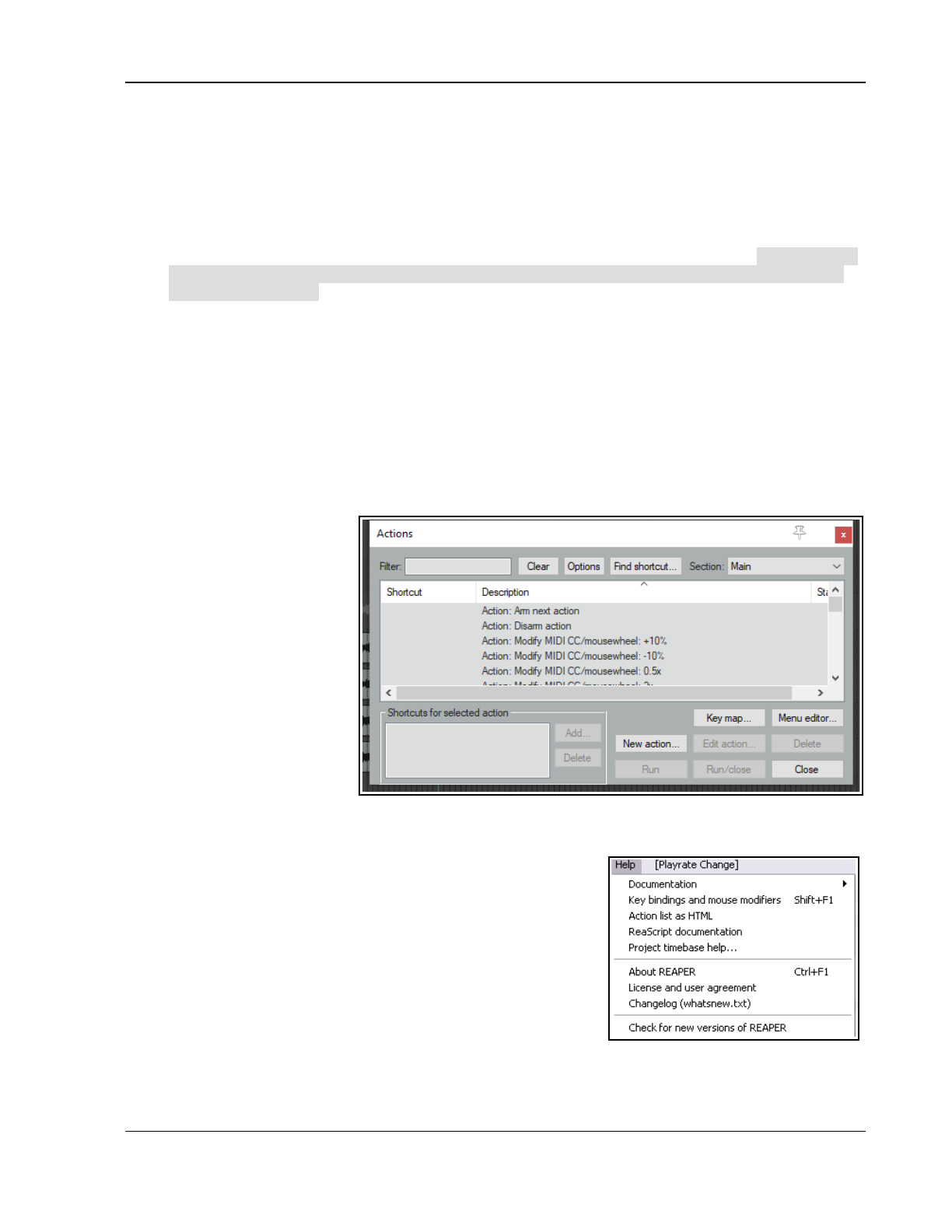
Customization: Actions, Mouse Modifiers, Menus and More
15 Customization: Actions, Mouse Modifiers, Menus and More
15.1 Introduction
Customization is the key to unlocking REAPER's real power and making the program work for you, for example
by creating your own actions, assigning your own shortcut keys and customizing mouse modifiers.
Actions. REAPER makes extensive use of keyboard shortcuts. It also has a library of hundreds of actions
that you won't find on any of its menus. You can string whole sequences of these actions together to
make your own custom commands which can then be triggered off by a single keystroke. This document
uses PC (Windows) shortcut keys: Mac users should refer back to Chapter 1 if you are unsure of which
equivalent keys to use.
Mouse Modifiers. REAPER uses the mouse extensively, for example for moving and copying media items
and making time and loop selections, and in many different contexts. These can be edited and redefined
to suit your own workflow.
Menus. Most REAPER menus can be edited to suit your own requirements. You can move to the top the
commands most important to you. You can hide the ones you never use. You can even add your own
custom actions and commands to these menus!
Toolbars. REAPER's toolbar might not be much to look at, with its lonely collection of just fourteen tools.
7Did you know, though, that you can add your own tools to it, as well as create your own extra toolbars?
These are the topics that will be covered in this chapter.
15.2 REAPER Actions Essentials
The Actions List and its editor
(shown right) are opened by
choosing the Actions command
from REAPER's main menu,
then Show action list..., or
simply by pressing the ? Key.
Before we look inside REAPER's
Action List Editor to explore the
world of shortcut keys, custom
actions, control surface
assignments and more, it's
worth taking stock of a couple
of useful resources that are
available to you.
Help, Key bindings and
mouse modifiers (from
REAPER’s main menu) opens your default web browser with a list of all current keyboard shortcut and mouse
modifiers. This list is searchable and can be printed.
Choose the Action list as HTML command from REAPER's Help
menu to open your default web browser with a list of all of REAPER's
many available actions, any of which can be assigned to a keyboard
shortcut and/or combined with other actions into your own custom
actions. This list is also searchable and may be printed. This
information is also contained within the Action List Editor itself, and
this editor is searchable.
ReaScript documentation. Just what ReaScript is will be explained
later in this chapter. In brief, ReaScript items can be used to add
additional functionality to REAPER. A number of sample scripts can
be found at, and downloaded from, stash.reaper.fm/tag/Scripts.
They need to be placed inside the Scripts sub-folder within your
REAPER applications data directory. They can then be selected and executed within REAPER's Actions list editor
by clicking on the Reascript Load button.
299
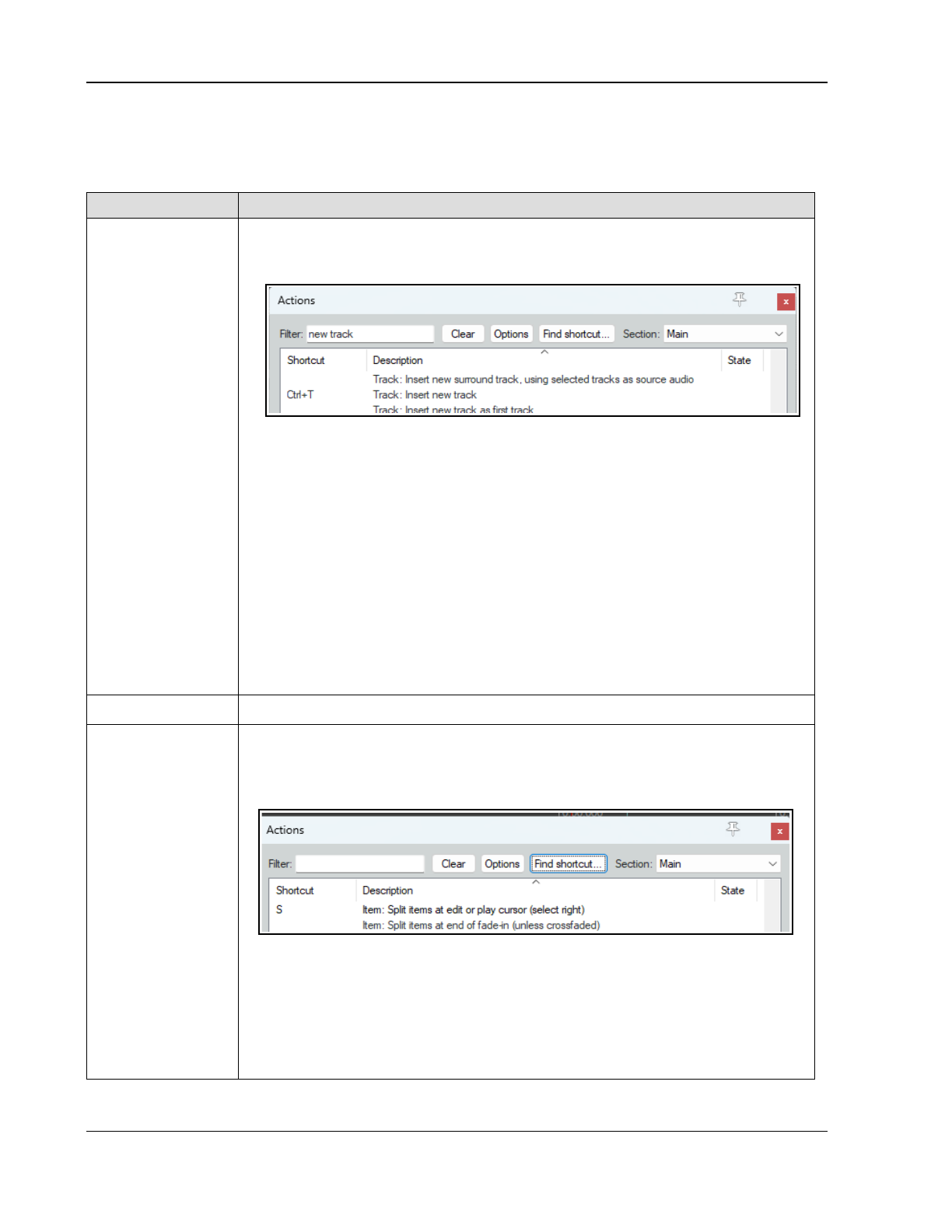
Up and Running: A REAPER User Guide v 7.81
15.3 The Action List Editor Environment
You'll get more out of REAPER's Action List Editor (shown below) if before trying to use it you take a little time
getting to know its interface, its structure and how you can navigate it.
Item Comments
Filter
See also section
Using Search Filters
for more advanced
options.
You can filter the list of displayed actions using any text string or strings that you
like. For example, in this screen shot the list has been filtered to show only those
actions that relate to new tracks:
Notice that one of these actions – Track: Insert new track – already has a
shortcut (Ctrl T) assigned to it.
Boolean search terms are supported. For example, you could search for any of these:
delete OR remove OR clear
insert ( item OR media ) (spaces before and after parentheses)
properties ( take NOT channel ) (spaces before and after parentheses)
Notice that where an existing keyboard shortcut exists it is shown to the left of the
action. For example, the ! Key is used to toggle the action View: Expand selected
track height, minimize others. Similarly, you can see that Ctrl Shift
Mousewheel can be used to adjust the height of any track selection.
Note: In the actions list, the terms “Ruler” and “Timeline” are synonymous.
For more examples of how to use Boolean search operators, see Chapter 6.More
advanced options are explored at https://www.ciap.health.nsw.gov.au/training/ebp-
learning-modules/module2/section-2-building-a-search-strategy.html
Clear The Clear button clears any current filter and restores all actions to the list.
Finding assigned
shortcuts
The Find shortcut... button is used to see if a particular keyboard shortcut has
already been assigned to any action. Click on this button and you are prompted to
type a key or move a MIDI controller. We'll come to MIDI controllers later in this
chapter. If the key is already in use, its assignment will be displayed (see below).
In the example above, we search to see if an assignment exists for the letter s. For
this kind of search, you should only type in upper case if you really are searching for
the combination of Shift with the letter.
You can use the filter to search more generally for existing shortcut assignments. For
example, typing alt+shift in the filter box would list all shortcuts which include both
the alt key and the shift key. This can be handy to help you establish (by elimination)
which keyboard combinations are and are not currently in use.
300
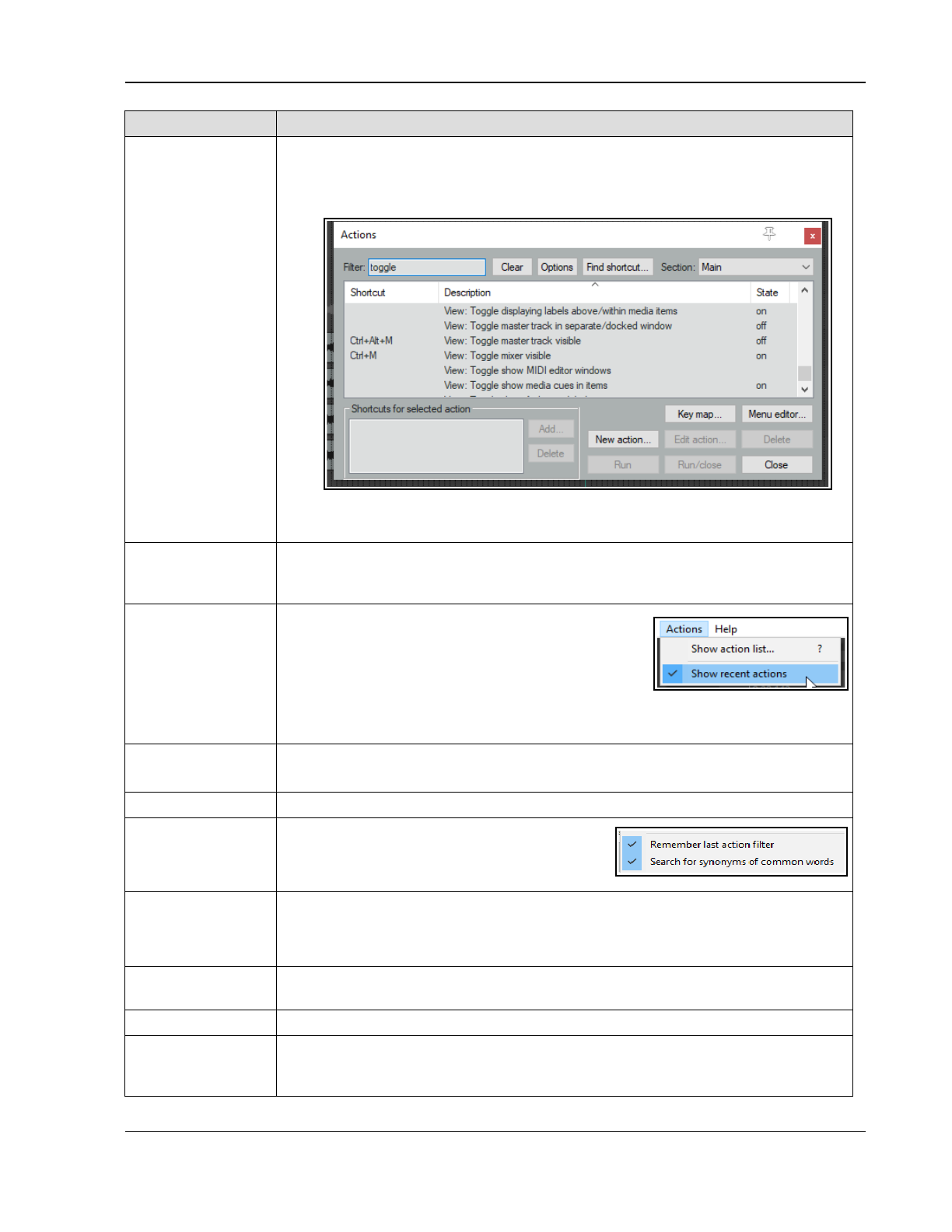
Customization: Actions, Mouse Modifiers, Menus and More
Item Comments
Column headers/
Sort keys
The State column indicates for toggle actions whether their status is on or off.
By default, actions are listed in alphabetical order of their description. You can click
on the Shortcut column header to sort instead on current keyboard assignments
with special characters and numbers at the top of the list (see below).
Click on the column header again to reverse the sort order. Click on Description to
sort them back into alphabetical order.
Sections The Action List is divided into a number of sections (or contexts). You can assign the
same keys to different actions in different contexts – e,g,, in the Main section S iwill
split an item. It can be assigned differently in, for example, the MIDI Editor.
Run An action can be executed within the action list
regardless of whether it has shortcut keys. Select
the action, then click the Run button.
If the toggle Show recent actions is enabled on
REAPER's main Actions menu (right) then any
actions executed during your current session will be added to REAPER's Action menu.
Closing REAPER, clears these actions from the menu.
Run/Close This button is similar to the Run button, the main difference being that after running
the selected action it closes the Actions window.
Close This closes the Actions window.
Remember last
action filter
When enabled (from the Action window right-
click context menu) REAPER will apply your
most recent filter next time the Actions window
is opened, even in a future work session.
Search for
synonyms of
common words
When enabled (from the Action window right-click context menu) REAPER will include
common synonyms with your search filter. For example, a search for “display” would
also find actions that include “show”. If you wish to define your own synonyms you
will need to customize a language pack with a section “actionlist_synonyms.”
Show command
IDs
From the right-click context menu, or Options button menu: shows/hides a column
displaying REAPER's action command IDs.
Open menu editor
Click this button to open the menu editor.
General The Action window exhibits the basic characteristics of other REAPER windows. For
example, you can use the pin symbol (top right) to keep it on top, or you can dock it
in the docker (from the right-click context menu).
301
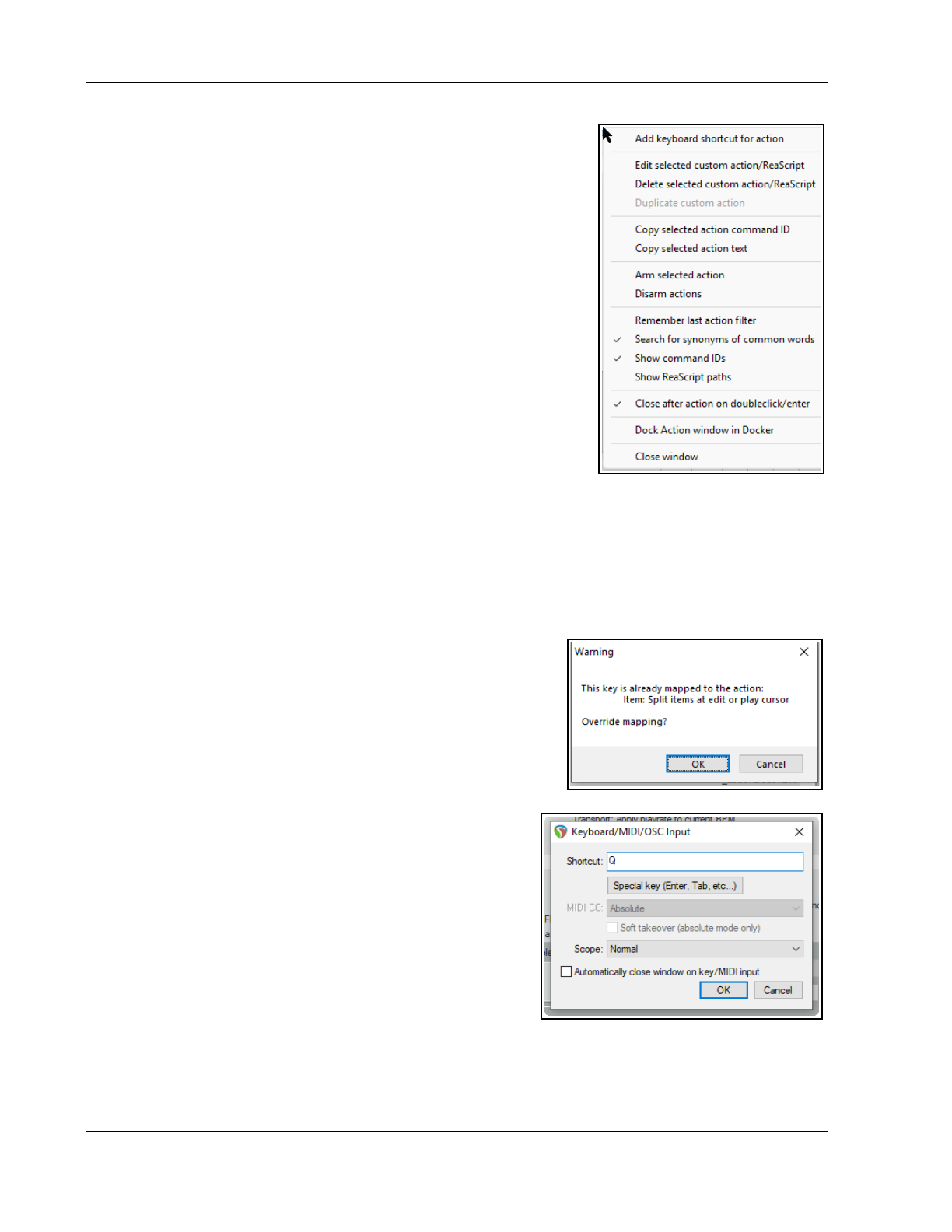
Up and Running: A REAPER User Guide v 7.81
15.4 The Actions List Context Menu
The Actions window right-click menu allows you to Add keyboard
shortcut for [currently selected] item.
This menu (shown here) also includes three options for managing custom
actions/ReaScripts: Edit, Delete or Duplicate.
There are two commands to Copy selected action command ID and
Copy selected action text. There are options to Arm selected action
and Disarm actions, Remember last action filter (when the list is
closed and later reopened), Search for synonyms of common words
and/or Close after action on double-click/enter.
Search for synonyms of common words lets your search be more
flexible. For example, a search for delete take would find actions whose
description include
delete take
or
remove take
.
The next two actions are mainly to assist script writers and developers.
These are Show command IDs, Show ReaScript paths.
Finally, there are the toggle actions to Close (window) after action on
doubleclick/enter, Dock Action window in Docker and Close
window.
Above the actions list there is also an Options button which gives you
direct access to five of the most commonly used of these commands:
Remember last action filter, Search for synonyms of common words, Show command Ids, Show
ReaScript paths and Close after action on doubleclick/enter.
15.5 Creating a New Keyboard Shortcut
In this next example, we will create a new shortcut. Let’s take as an example Solo in front. It can be useful to
toggle this on and off when listening to a soloed track. Filter the action list on “front” and you will see that
Options: Solo in front does not have any shortcut key assigned to it. Likewise, if you use the Find shortcut
… button to search for q, you should find that this letter does not
have any action currently assigned to it.
Trying to assign a key that is already assigned elsewhere, will produce
a message similar to that shown on the right. You can then choose
whether to change this assignment or leave it as it is.
Example
1. Choose the Actions, Show action list … command.
2. Click in the Find shortcut … window. Type lower case q. You
should see a message Shortcut not found. This keystroke is
available. Click on OK to close this message box.
3. In the Filter box type front then from the list select
Options, Solo in front.
4. Click on the Add button to open the Keyboard/
MIDI/OSC Input box. When it appears, untick the option
Automatically close window on key/MIDI input. This
makes it less likely that you will assign a wrong key by
mistake. Press lower case q – you will see Q displayed in
the Keyboard or MIDI Input box (right).
5. Click on OK so that the keyboard shortcut is assigned.
6. Close the Actions window. You can now use the shortcut
key lower case Q to toggle Solo in front when listening
to a soloed track.
Note: If you are assigning a combination of keys (e.g. Shift Q), then you need to press both keys together, at
the same time.
302
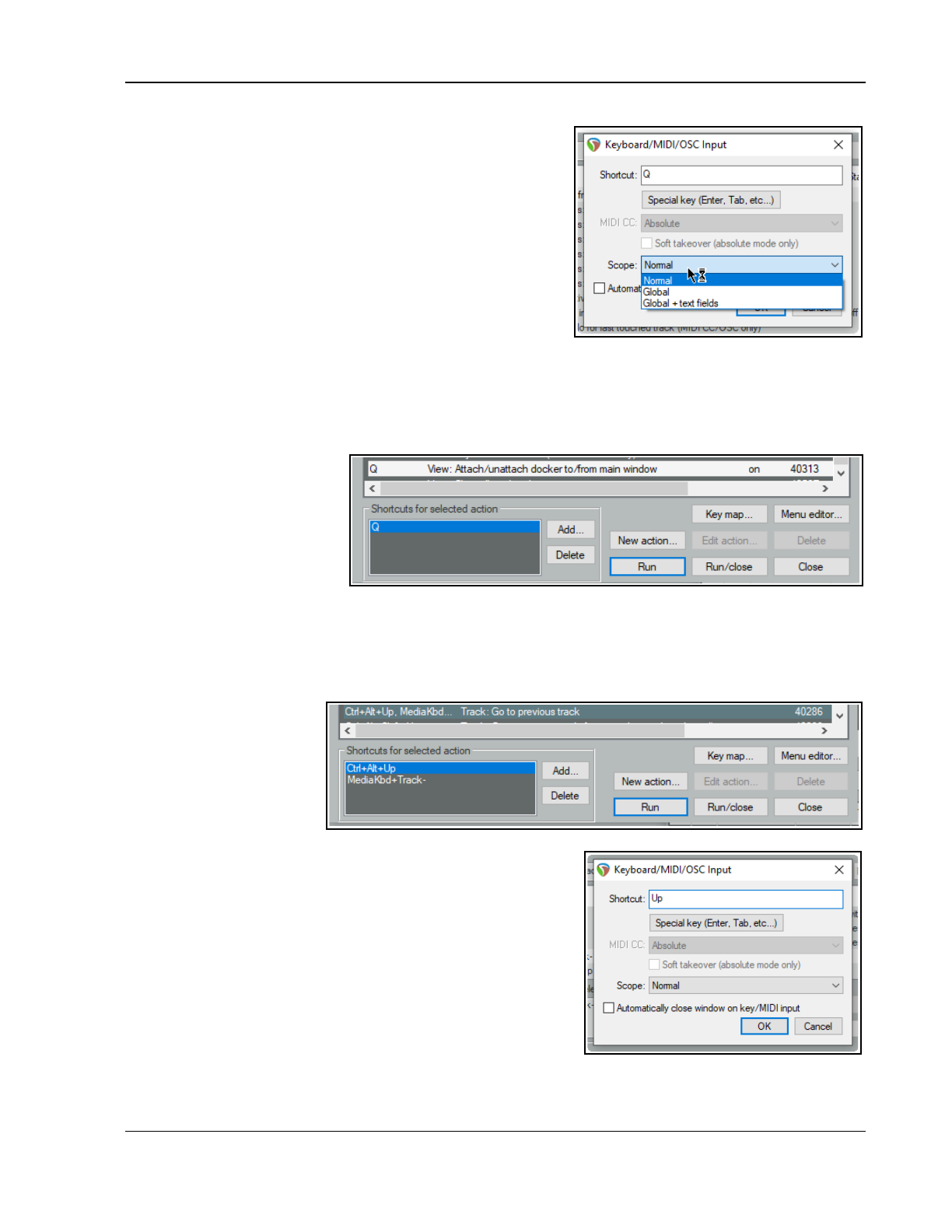
Customization: Actions, Mouse Modifiers, Menus and More
15.6 Global Shortcut Overrides
The Keyboard/MIDI/OSC Input window is opened by
selecting an action and clicking the Add button. This window
includes a scope option, which allows you to define a keyboard
shortcut as global. Defining a shortcut as global allows you to
use that shortcut in all action list sections. For example, in our
Solo in front example, making it global would allow you to toggle
this feature on and off when you were adjusting an FX
parameters within an FX window, or when you were working in
the MIDI editor.
Choosing global + text allows the shortcut to be used even
when you are editing a text field. Global overrides are shown in
the action list with (g) beside them - in this example, this would be (g)Q instead of just Q.
15.7 Removing a Shortcut or Changing a Key Assignment
Removing an existing shortcut is easy. For example, you might like to remove the shortcut that you just assigned
to the action View: Attach/unattach Docker to/from main window. Follow this sequence:
1. In the Action List, find and
select the action from
which you wish to remove
the shortcut. The current
shortcut(s) will be
displayed just below the
list. ( right).
2. Click on the shortcut
shown in the window (in this example, Q).
3. Click on the Delete button. The shortcut will be deleted.
The procedure for changing an existing key assignment combines the two techniques of creating a new shortcut
and removing an existing one. Let's take as an example assigning the Up and Down arrow keys to the actions
Track: Go to previous track and Track: Go to next track, instead of Ctrl Alt Up and Ctrl Alt Down (the
default assignments).
1. Find and select the
action Track: Go to
previous track.
2. In the displayed list of
shortcuts, select Ctrl
Alt Up ( right).
3. Click on Delete to
delete this shortcut.
4. Click on Add... to display the Keyboard or MIDI Input
window.
5. Press the Up arrow (see right), then click on OK.
6. When asked if you wish to override the current assignment to
View: Zoom in horizontal, choose OK. You will still be able to
use the Plus key to zoom in horizontal.
7. Use the same techniques as at steps as at steps 1. to 6. to
change the shortcut key for Track: Go to next track from
Ctrl Alt Down to just Down.
303
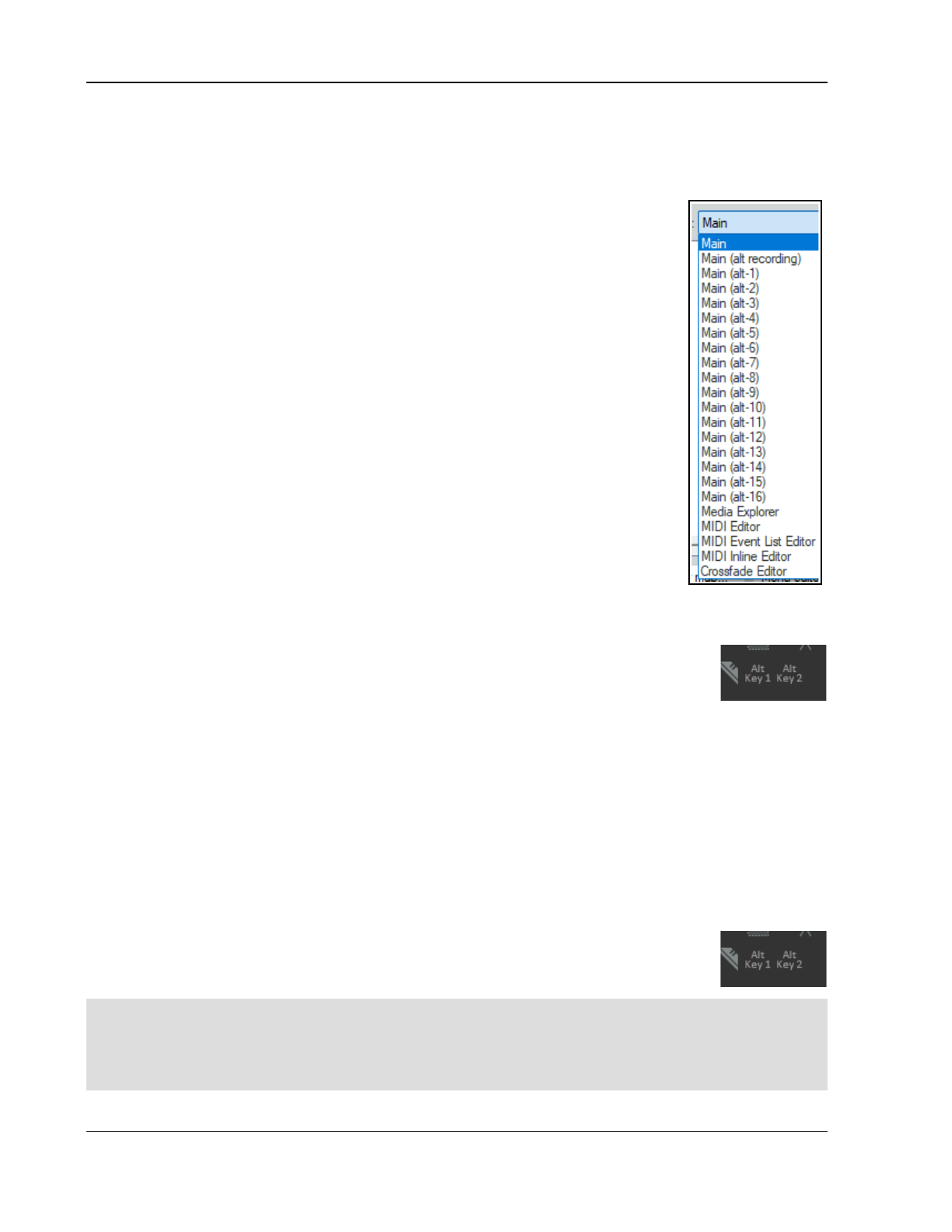
Up and Running: A REAPER User Guide v 7.81
15.8 Action List Sections
The different action list sections can be used in different environments. In most cases, these present you with
the actions (for example, when you are recording) that are most relevant to the particular context.
These are Main, Main (alt recording), Main (alt-1 thru Alt-16), lMedia explorer, MIDI editor, MIDI
event list editor, MIDI in-line editor and Crossfade editor.
Having separate sections for different environments lets you assign the same shortcuts
to different actions in different environments. Various combinations of keys could be
used in the MIDI editor to select what is displayed in a CC lane.
That same set of shortcuts could be used, say, in the MIDI Event List Editor to determine
which channels are displayed, and, say, in the Media Explorer to browse thru various
folders. None of the assignments that you make in any of the other sections will have
any impact on keyboard shortcuts in the Main section.
The options for alt-1 to alt-16, however, require further explanation. They allow you to
determine keyboard shortcut behavior in various
contexts
rather than
environments
.
No two people’s needs are likely to be the same, so let’s look at a couple of simple
examples. Try not to focus on the actual examples (which might or might not be relevant
to you) but rather on the technique.
By default S will split selected media items or, if no item is selected, all media items, at
the current cursor position. There will be times when this might be what you want, but
other times, perhaps at a certain stage of tracking, when you might prefer to use S to
solo/unsolo a currently selected track.
Likewise, at that same stage of your project you might not yet be ready to worry about
markers and will prefer to use M to mute/unmute a currently selected track, rather than
create a marker.
Example
You will want to create a shortcut for switching between the different shortcut sections, and also override the
REAPER’s default settings where necessary. With any project open, this is how this could be done:
1. Open the Actions window.
2. Find the action Main action section: Toggle override to alt-1. Select it.
3. Click the Add button, press Alt 1, then OK, and OK again to Override mapping.
4. With the Actions editor open, from the section drop down list select Main (alt-1).
5. Find the action Track: Toggle solo for selected tracks.
6. Click the Add button, type s in the Shortcut edit box, click OK. Again click OK to Override mapping.
7. Find the action Track: Toggle mute for selected tracks.
8. Click the Add button, type m in the Shortcut edit box, click OK. Again click OK to Override mapping.
9. You could continue to define more custom shortcuts for this section, but we’ll leave it at that for now.
10. Make sure the Main section is selected. Close the Actions editor.
11. Press m. A marker will be inserted. Press Ctrl z to undo. Select any track.
12. Press Alt 1. Now press m. The currently selected track will be muted. Press m again to unmute.
13. Press s. The track will be soloed.
14. Press v. A volume envelope is added – this action has been passed through from the main section.
15. Press Alt-1 to restore the main action list..
Tip: You can create custom icons for actions that alternative keyboard sets and add them to
tour toolbar. A single mouse click would then be all that was needed to toggle these sets on
and off.
Note: In the above example, we have defined the keyboard shortcut Alt 1 to toggle keyboard shortcuts
between Main and Main (alt-1) but we don’t seem to have added this definition in the alt-1 section as well.
This is because any and all keyboard Main section shortcuts that are
not
defined in an alternative section are
automatically passed thru to the alternative sections. In this case, for example, Ctrl S in the Main (alt-1)
section would still save the project, Ctrl Z undo, and so on.
304
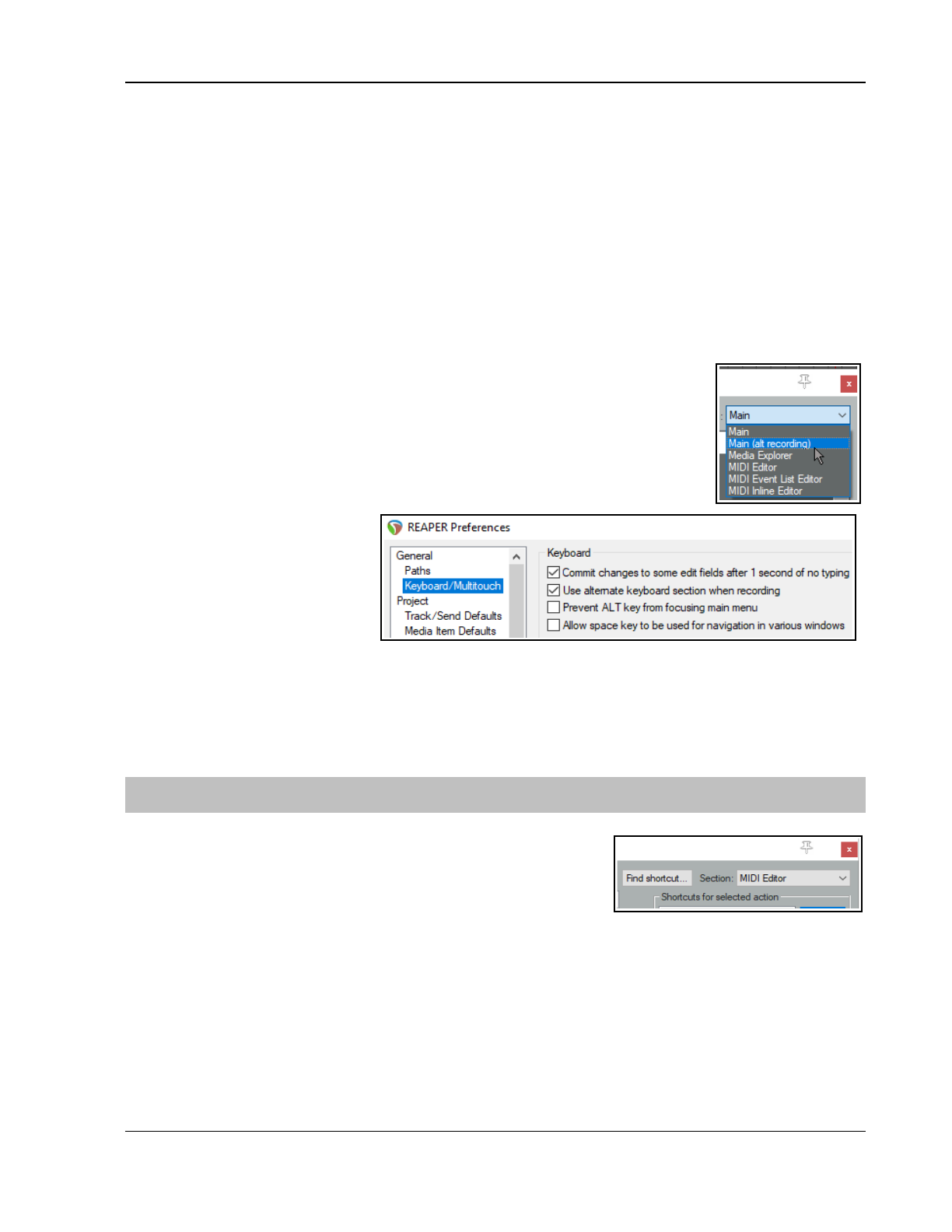
Customization: Actions, Mouse Modifiers, Menus and More
15.9 Deprecated Actions
As you explore the Actions List you might notice that some actions are flagged as “deprecated.” These actions
are considered no longer suitable and are not supported. You should not use them. The main reason they remain
in the Actions List is so that existing custom action macros which use these actions will not be broken.
15.10 Keyboard Shortcuts for Recording
In this section you will be shown how to create keyboard shortcuts to use when recording. In this simple
example you will create two keyboard shortcuts specifically for use when you are recording.
You will have noticed that when you stop recording, REAPER by default prompts you to confirm whether you
want to save or delete the new media items. The Main (alt recording) section of the Action List gives you the
opportunity to bypass this prompt by assigning keyboard shortcuts for those options that you use most often –
Save All and Delete All. As with the earlier examples, it is only an example. You'll probably find the exercise
worth completing even if you don't want to keep these keyboard shortcuts assignments.
1. In the Actions List, select the section Main (alt recording) – see right.
2. In the filter box type stop save. You should see the action Transport Stop
(save all recorded media). Select this action.
3. Click on Add … and type lower case S then click on OK.
4. Clear the filter box, then type in it: stop del
5. Select the action Transport: Stop (DELETE all recorded media).
6. Click on the Add button then type lower case D to assign this shortcut to the
letter D. Click on OK.
7. Clear the filter box again.
Close the Actions window.
8. Make sure that the option to
Use alternate keyboard
section when recording is
enabled. You’ll find this under
Options, Preferences,
General, Keyboard/Multitouch.
9. Click on OK to close the Preferences window.
From now on whenever you are recording, you will have the option of using the shortcut keys S or D to stop
recording, automatically saving or deleting the newly recorded media items. You can still use Enter if you wish
to be prompted. Remember too that when you are not recording, the keys S and D will revert to their normal
functions. For example, S can still be used to split media items when working in arrange view.
Tip: If you wish, you can assign macros such as these to an external device such as a keyboard pedal. We'll look
at this when we look at Using a Control Device with REAPER.
15.11 Keyboard Shortcuts for the MIDI Editor
Editing is one area where assigning actions to shortcuts can be
especially useful, and nowhere more so than when you are using the
MIDI Editor. Take the trouble to familiarise yourself with the contents
of the MIDI Editor section of the Action List and you should be well
rewarded. Notice also that there are separate sections for the MIDI Event List Editor and the MIDI Inline Editor.
The method of assigning shortcuts to actions, changing or removing existing assignments, etc. is the same as
that used in the Main section. Below are listed some examples of actions that you might find useful when
working in the MIDI Editor. Special thanks go to Susan G for compiling these lists.
To do this …. Use an action such as …
Channels Management
Specify a channel for new notes and events Action: Set channel for new events to 01 ...1 6
Show all or specified channels Channel: Show all/only/toggle channels 01 … 16
Change the channel for selected notes Edit: Set notes to channel 01 ... 16
305
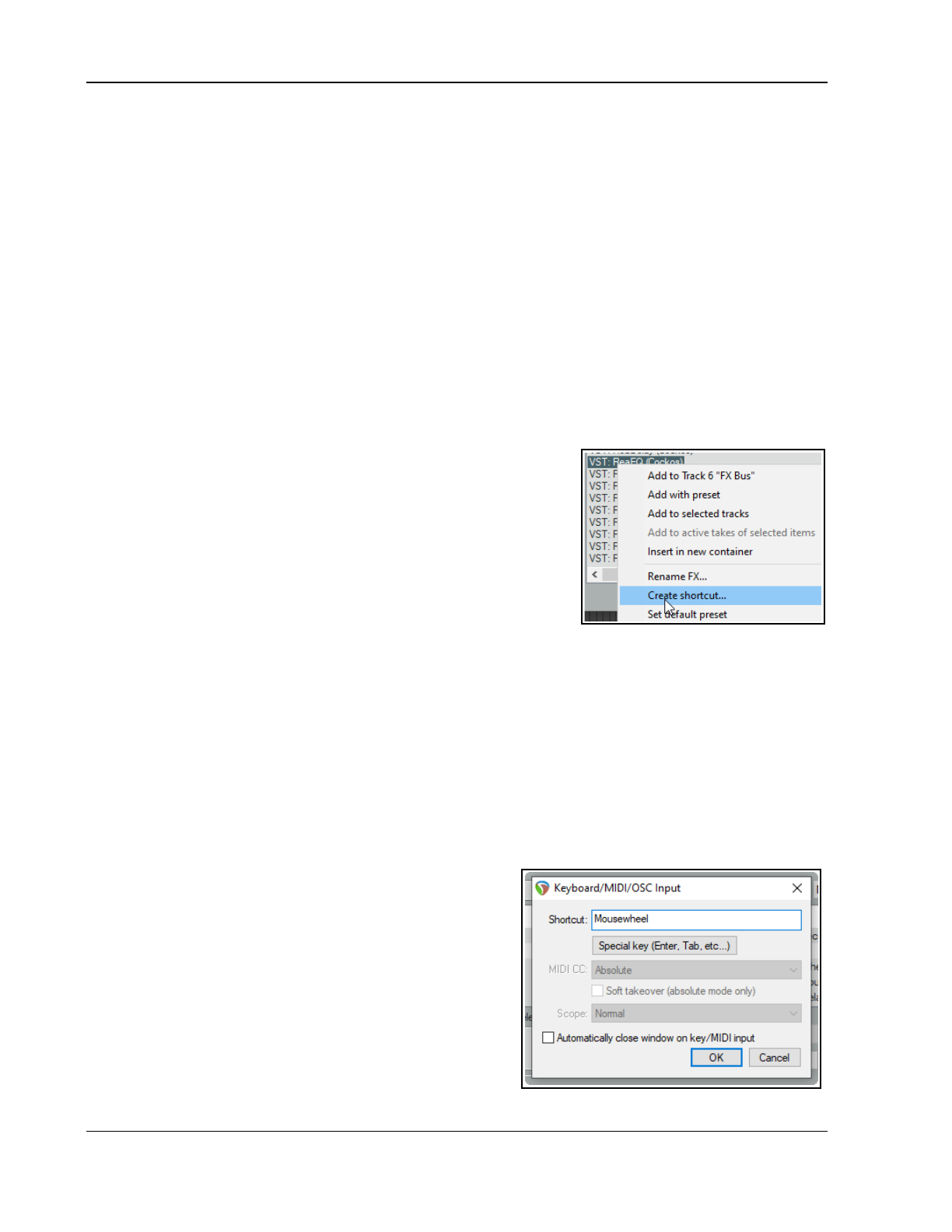
Up and Running: A REAPER User Guide v 7.81
Managing Notes
Insert notes of a specific length Insert note …. [range from 1/128 to 1/2 to whole note]
Make notes legato Set note ends to start of next note
Transpose notes Edit: Move notes up/down one octave/semitone
Adjust note lengths slightly Edit: Lengthen/Shorten notes one grid unit/pixel
Adjust velocities Edit: Note velocity +/-01, 10
Display only notes matching specified criteria Filter: Toggle filter on/off
Cursor/Grid Management
Advance the cursor by a note value Cursor: advance … [range from 1/128 ... to whole note]
Move the cursor by specific amount Edit: Move edit cursor right/left by grid/measure/pixel
Change the grid divisions Grid: Multiply grid size by... or Grid: Set division to…
Passing keys thru to main window
If you wish a shortcut keys to perform the same functions in the MIDI Editor as in arrange view, you can assign
the action Pass through key to main window to those keys.
For example, in the main window, the keys [ and ] will perform the actions to go to the previous/next marker. By
assigning Pass through key to main window to each of these actions in turn, you can ensure that these keys
will also perform these functions within the MIDI Editor.
15.12 Keyboard Shortcuts for FX and FX Chains
To create keyboard shortcuts for any of your favorite FX (or FX chains),
display the FX browser (View, FX Browser), then right-click over the
FX or chain name and choose Create shortcut… from the context
menu. You can then define the shortcut in the usual way.
Once assigned, the shortcut can be used to insert the FX into any track
or item, or any selection of tracks or items. These shortcuts can also be
added to REAPER’s menus and/or toolbars, as explained later in this
chapter.
15.13 Assigning Actions to the Mousewheel
One special type of action assignment that you can make is to the mousewheel, optionally also using modifier
keys. This way you are able change the REAPER default mousewheel assignments. This can be useful, for
example, if you wish the default behavior of the mousewheel to be to scroll rather than to zoom. Here's a
reminder of the default mousewheel assignments:
Mousewheel alone View: Zoom horizontally
with Ctrl View: Zoom vertically
with Alt View: Scroll horizontally
with Ctrl+Alt View: Scroll vertically
with Ctrl+Shift View: Adjust selected track heights
Again, the method for changing these is essentially the same as that which you have already used. Suppose, for
example, that you wish to use the mousewheel by itself to scroll horizontally.
1. In the actions list (Main section), find the action View:
Scroll horizontally (MIDI/CC
relative/mousewheel).
2. In the shortcuts list, select Alt + Mousewheel and click
on delete.
3. Click on the Add button, then scroll the mousewheel.
The text Mousewheel will be displayed, as shown on the
right.
4. Click on OK.
5. If you wished, you could now use the same method to
assign Alt + Mousewheel to the action View: Zoom
Horizontally.
306
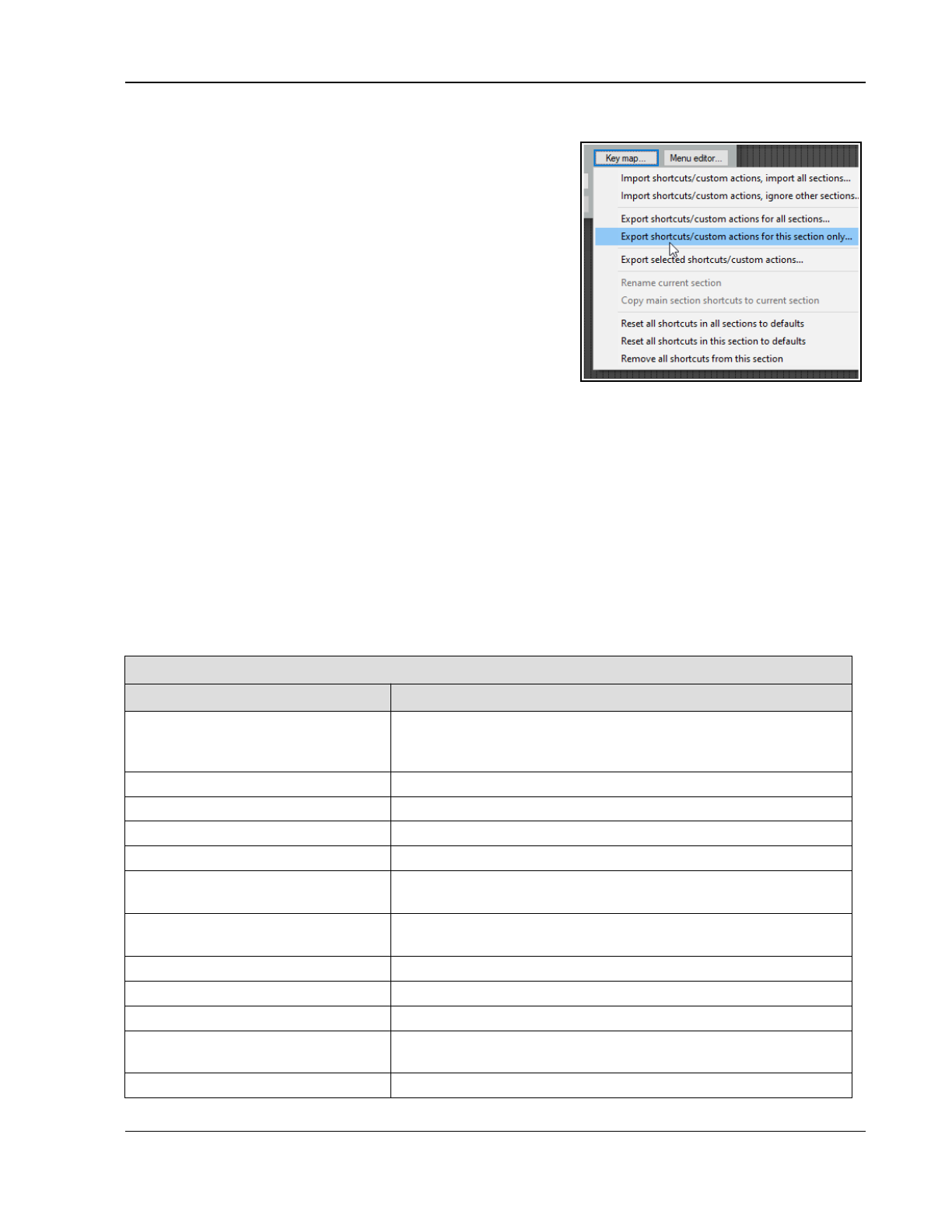
Customization: Actions, Mouse Modifiers, Menus and More
15.14 Exporting and Importing Key Maps
The Key map button near the bottom right corner of the Actions
window can be used backup or restore any or all of your keyboard
assignments. Exported keymap sets are by default saved
as .ReaperKeyMap files in the \KeyMaps directory of your \
Application Data\REAPER folder.
Import shortcuts/custom actions… Imports keyboard
assignments from an existing .ReaperKeyMap file, either all
sections or current section only.
Export shortcut keymap file … Exports all current keyboard
shortcut assignments to a .ReaperKeyMap file, either all sections
or current section only.
Export selected shortcut key mappings … Exports only items
currently selected to a .ReaperKeyMap file.
Reset all shortcut binding to factory defaults Removes your
custom keyboard assignments and restores all REAPER defaults, either for all sections or current section only.
Remove all shortcuts from this section: the nuclear option!
.ReaperKeyMap files can also be included when exporting/importing configuration settings (see Chapter 22).
15.15 Creating Custom Action Macros
You can assign an entire sequence of actions to a single keyboard shortcut if you wish. In fact, there is no preset
limit to the number of actions that you can assign to a single keystroke or keystroke combination. The process of
assigning more than one action to a keystroke is known as creating a custom action, or macro.
As you browse the actions list, you might at first be somewhat puzzled at some of the items that are there. You
might wonder, for example, why would anybody need an action for Item: Select item under mouse cursor
when it is surely easier just to click on the item.
Often with actions like this, the answer is that the real power of these actions comes not from using them on
their own, but in combination with other actions.
Managing Custom Actions (Macros) – Summary Table
In order to do this ... You do this ...
Create a new macro Either click on the New action... button or right-click in the action
list window, then choose New custom action... Type a name for
your macro.
Add actions to a macro Drag and drop from action list, or double-click.
Change order of actions Drag and drop up or down the list.
Remove action from macro Select action in right hand action list, click on Remove action.
Add macro to main Actions menu Enable the option Show in actions menu.
Consolidate macro into a single
undo point
Enable the option Consolidate undo points.
Show macro as active when
running (if added to a toolbar)
Enable the appropriate Show as active option in Create Custom
Action dialog.
Save macro Click on OK.
Assign shortcut key to a macro Select the macro in the Action List. Click on Add.
Edit an existing macro Select the macro in the Action List. Click on Edit action.
Run an existing macro Use shortcut key (if assigned), or select macro in Action List and
click on Run option.
Delete an existing macro Select the macro in the Action List. Click on Delete.
307
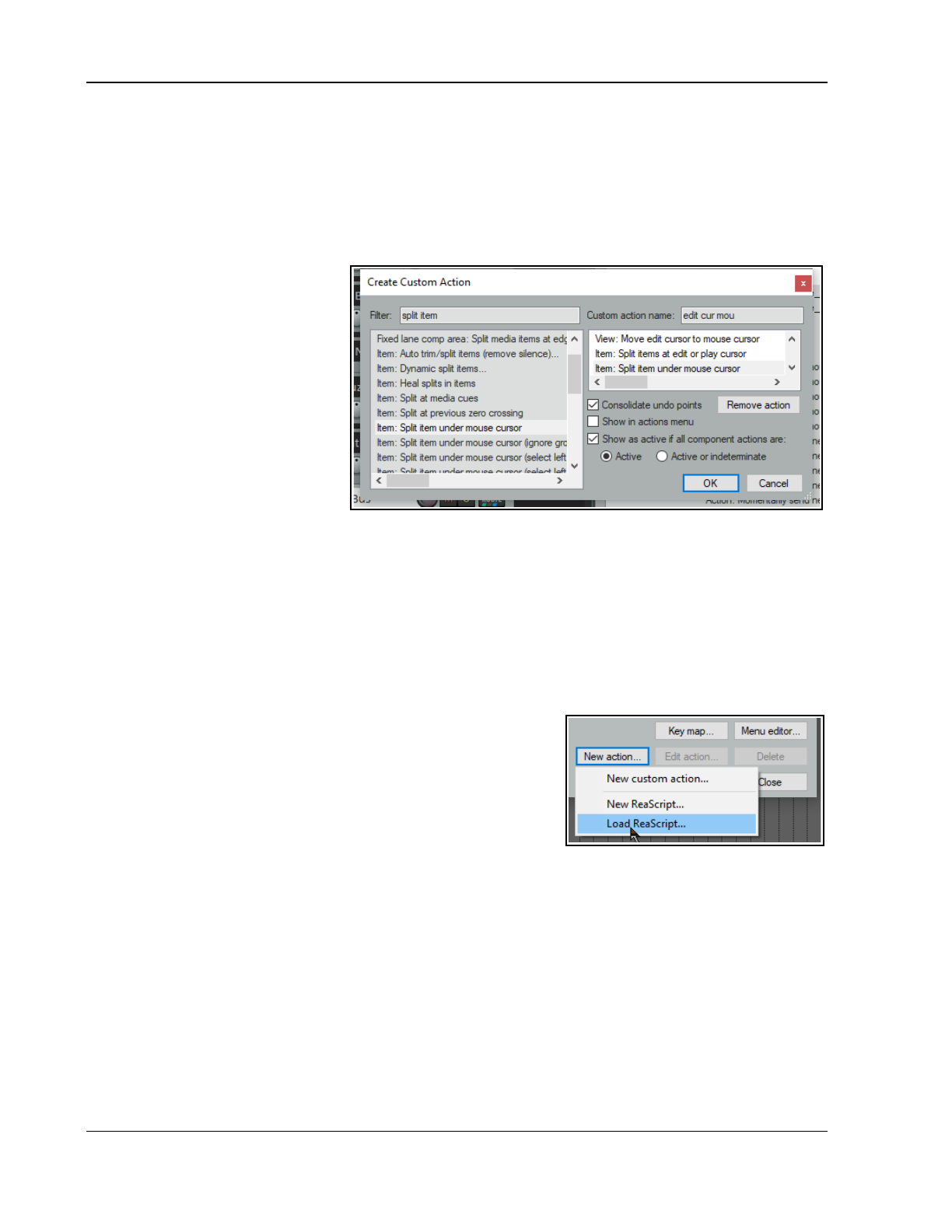
Up and Running: A REAPER User Guide v 7.81
Here’s a simple example. Normally, to split an item you need to select it, position the edit cursor at the required
position, and then press S. Using a custom action, we can combine this sequence into a single keystroke.
Example
1. In the Actions List, click on the custom actions New action... button, then New custom action. This
opens the Create Custom Action window (see below right). Type a name, such as Split under mouse.
2. In the list of actions in the left panel find View: Move edit cursor to mouse cursor. Double-click on this.
3. In the list of actions shown in the left panel. Find the action Item: Select item under mouse cursor.
Double-click on this action.
4. In this list of actions double-
click on Item: Split items at
edit or play cursor.
5. Click on the option
Consolidate undo points to
enable it. Click on OK to return
to the main Action List with
your new custom action
selected.
6. Click on Add and type lower
case c to assign c to your
macro. Click OK. Close the
Actions List.
7. Hover your mouse over any
media item and press lower case C. The item will be split at that point. One of the split items will still be
selected. If you don't like this, you can edit the macro.
8. Open the Actions List Editor, find your macro Split under mouse and select it. Click on Edit. Add to the
end of this macro the action Item: Unselect (clear selection of) all items. Click on OK.
9. Now test the macro again. This time it will split items without leaving anything selected.
This is just one example of a custom action macro in action. Think about other sequences of actions and
commands that you use together … think actions, think macros! You'll also find plenty of ideas and inspiration on
The Useful Macro Thread on REAPER's Q&A, Tips, Tricks and How To forum – at forum.cockos.com.
15.16 Importing and Loading Scripts
For more advanced programs which go beyond chaining together
actions, you can import into REAPER custom scripts that you may
have written or obtained (perhaps from the Reaper Stash at
https://stash.reaper.fm/tag/Custom-Actions) and which add
extra functionality to the program. Python, EEL and Lua scripts can
all be imported. For Windows users, to access actions written in
Python, Python will need to have been installed on your computer
and ReaScript enabled on the Preferences, Plug-ins, ReaScript page.
Once you have downloaded and stored your required scripts on your hard drive, you can load them into REAPER
by clicking first on the New action button, then Load ReaScript, then navigate to the appropriate directory,
then select the required file(s) and click on Open.
The topic of writing scripts is outside the scope of this User Guide, although there is a brief introduction to
ReaScript in Chapter 23. If you are interested in learning more you should visit the REAPER web site, and in
particular: www.cockos.com/reaper/sdk/reascript/reascript.php
ReaScript documentation can also be opened from REAPER's Help menu.
15.17 Introducing ReaPack
A useful source of scripts is the ReaPack plugin. This allows you to import and install several packages
containing any number of scripts that you might find useful. The plugin can be found at
https://reapack.com/. Instructions for downloading, installing, etc. are at https://reapack.com/user-
guide.
308
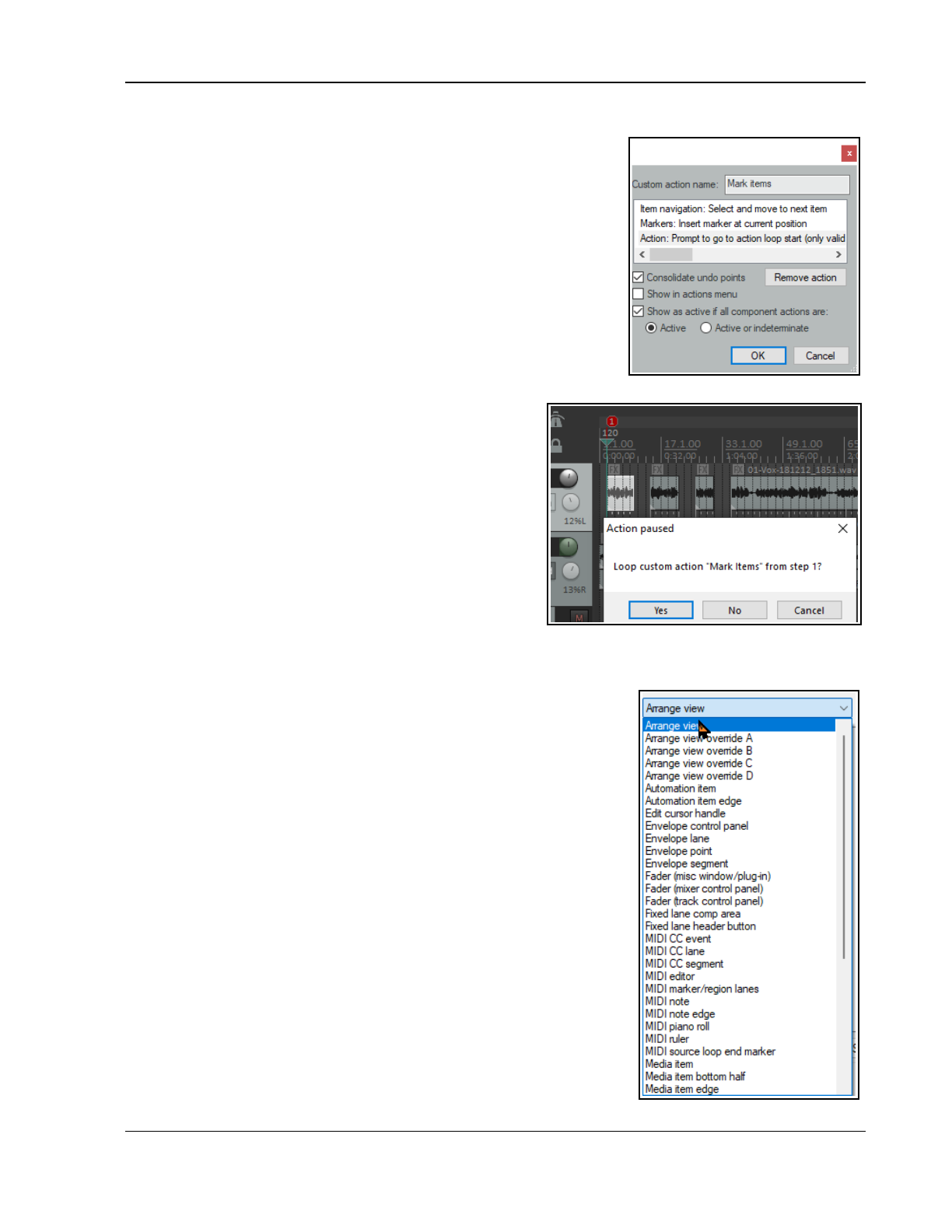
Customization: Actions, Mouse Modifiers, Menus and More
15.18 Meta Actions
Meta actions enable you to repeat the same macro as many times as you
wish without having to keep pressing the same shortcut keys. This
technique can be used, for example, to drop a marker at the start of
each verse of a song.
REAPER includes two meta action commands:
Action: prompt to continue, and
Action: prompt to go to action loop start
Example
Take a look at the example on the right. If you create this custom action
macro and assign it a keyboard shortcut (such as Ctrl Shift K), then you
can use it in this way.
Select any track which is made up of multiple items and position the play
cursor at the start of the timeline.
Run this macro. The cursor will move to the start of the first
item in the selected track and drop a marker at that point.
You will then be asked if you wish to continue to loop this
action (see right).
If you press Enter or click on Yes, the play cursor will move
to the start of the next item, insert a marker there, and ask
the question again. If you click on No, then the execution of
the macro will stop.
15.19 Mouse Modifiers
We've come across the mouse modifiers page of REAPER's
preferences settings several times already. This page is
where you can change any of REAPER's default mouse
modifier controls and also add more of your own. Some pointers to keep in mind:
Modifier keys. Windows users can use any of these modifier keys, in any combination, for any
mousewheel action: Shift, Ctrl, Alt, Win
Mac users may use any of these modifier keys, in any combination:
Shift, Command, Option, Control
Contexts. The Contexts drop down list on the Mouse Modifiers page
of your preferences window lists the contexts in which you could use
your mouse and for which you could need modifiers (see right). When
you select an item from this list, current mouse assignments for that
context are displayed.
For most contexts you will find a number of variations, depending upon the
exact kind of mouse action being undertaken. For example, separate mouse
modifiers can be applied to media items depending on whether the mouse
action being applied is a simple left click (which by default selects the
item), left drag (which by default moves the item) or a double-click (which
by default opens MIDI items in the MIDI editor, or displays media item
properties for audio items). Some contexts (e.g. Arrange view) also make
middle button mouse actions available.
You aren't going to learn all of these at once, and some of them you may
never need. For example, if you never do any work with MIDI then the
various MIDI contexts are unlikely to be important to you. Take the time to
identify those which you are likely to use the most and think about how you
can improve them. The procedure for customizing REAPER's mouse
modifiers is as follows:
309
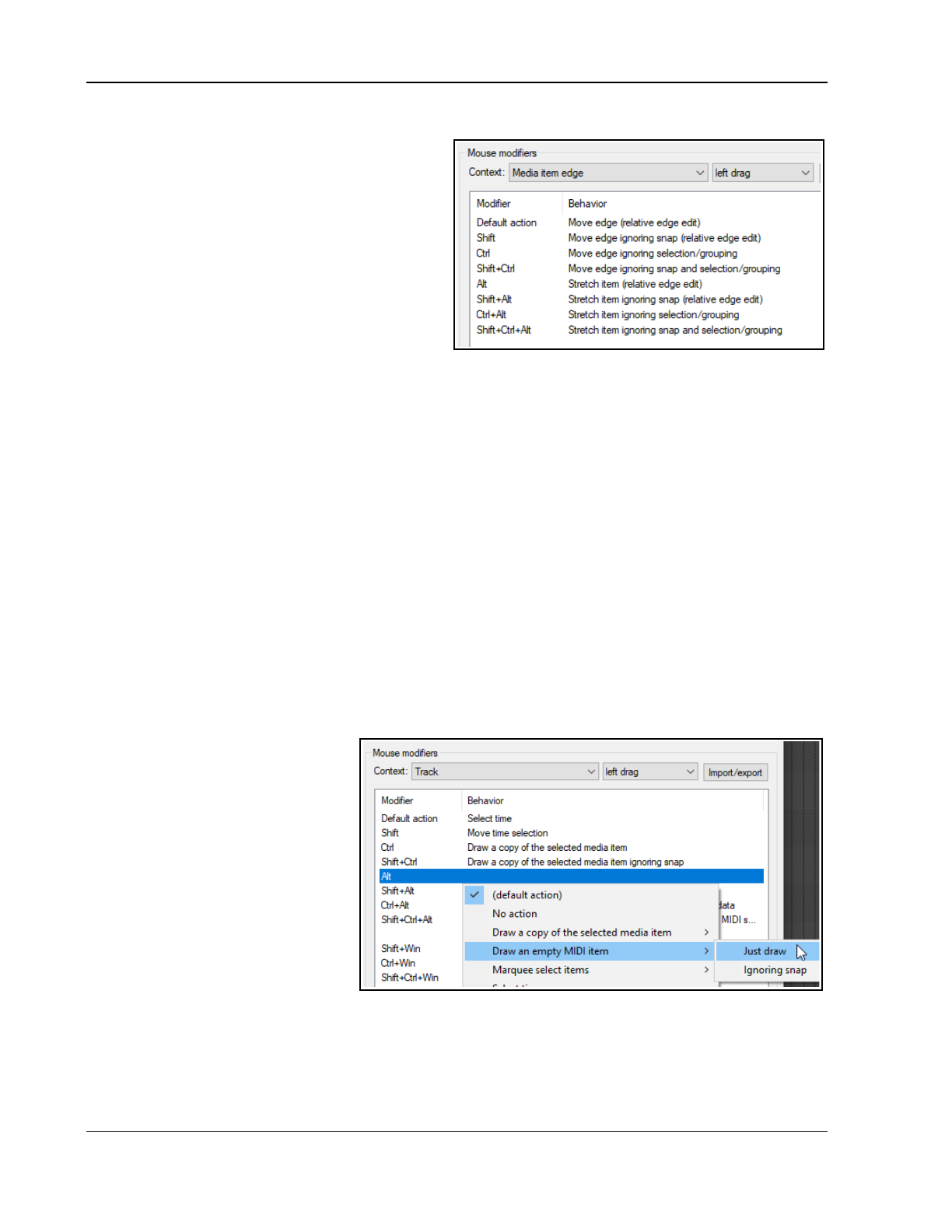
Up and Running: A REAPER User Guide v 7.81
1. Display the Mouse Modifiers page of REAPER's Preferences Window.
2. Display the Context drop down list and select an
entry from that list. A list of current modifiers for
that context is then shown. An example of this is
shown here, for Media item edge left drag.
3. In the Modifier column, double click on the item
that you wish to change. A list will be displayed
which shows
suggested
actions that you might
wish to assign to that modifier. You now have a
number of choices:
✔ Select any item from that list, or
✔ Select No Action to disable that modifier, or
✔ Select the item marked with a bullet to
restore the default action for that modifier,
or
✔ For some items only (including double-click items), use Action List … to open the Action List editor so
that you can assign one of REAPER's actions, or one of your own custom actions, to that context.
4. Click on Apply to apply your changes.
5. Repeat steps 1. to 4. as often as needed. When finished, click on OK to close the Preferences window.
There is a checkbox at the foot of this window for this context that can be used to Limit edits to source
media content for unlooped media items.
The Import/Export button can always be used to Restore modifiers to factory defaults in this context.
The examples that follow should help you to understand how REAPER's mouse modifiers work and how to use
them. Don't be concerned if not all of these mean a lot to you focus on the techniques:
Creating empty MIDI items on tracks.
Slip editing media items.
Adding FX to media items.
Toggling mute status of media items.
Setting and removing loop points.
That's (intentionally) a fairly mixed bag of activities. All of these are examples of activities that can be made
easier and/or faster and/or smarter by modifying REAPER's mouse modifiers.
Examples
This exercise will step you thru the above examples in the same order as they are listed.
1. Choose the Options,
Preferences command, then
select the page Mouse
Modifiers.
2. Select Track left drag from the
context menu. REAPER's default
mouse assignments for pencil
drawing copies of items will be
shown. Alt and Shift Alt are
currently unassigned.
3. Double click on Alt in the
Modifier column. A list of
possible actions will be shown.
4. In this list, click on Draw an
empty MIDI item then Just
draw or Ignoring snap (as you wish). This action is now assigned. The small dot shown next to this
Action on the list indicates a custom change that you have made yourself.
5. Click on Apply to apply the action.
6. Now select Media item edge drag from the context list. Let's suppose that we want to make Move item
edge ignoring snap the new default behavior when clicking and dragging from the media item edge.
310
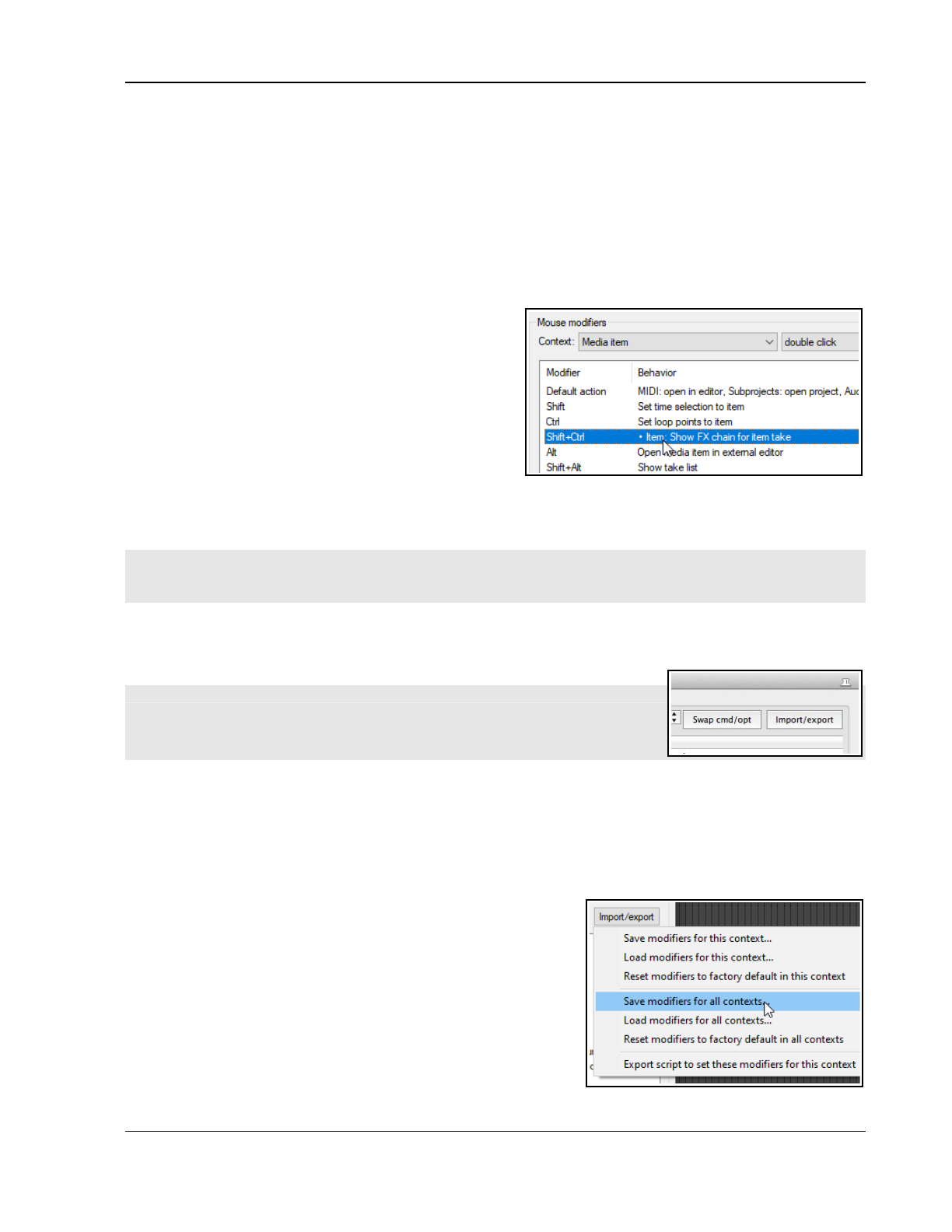
Customization: Actions, Mouse Modifiers, Menus and More
7. Double click on Default ac7tion and select Move item edge ignoring snap from the menu. Now
double click on the modifier Shift and select Move item edge from the menu.
8. Click on Apply. These two items have now been swapped over.
9. Now select Media item double-click from the context drop down list. Modifiers for this context will now
be displayed. Suppose that we want to create an action which can be used to open the item's FX chain
window, and that we wish to assign Shift Ctrl for this.
10. Double-click on the text Shift+Ctrl to display a menu. Click on Action List … to open the Action List
Editor. If you have worked thru the earlier examples in this chapter, this will be familiar! Find the action
Show FX chain for item take and select it. Click on Select/Close to return to the Mouse Modifiers
window. Click on Apply. This action is now your media Shift Ctrl double-click action (see below).
11. Repeat this procedure to apply the action Item
properties: Toggle items mute to the modifier
Shift+Win. Click on Apply.
12. Finally, we can add an action to the Ruler double-
click context so that the Shift modifier will remove
any current loop points.
13. Select Ruler double-click from the context drop
down list. Double click on Shift in the modifier
column and select Action List... from the menu.
Find the action Loop Points: Remove (unselect)
loop point selection, select it then click on Select/Close and then Apply.
14. Close the Preferences window.
If you do not wish to keep these assignments, use the Import/Export button to restore factory defaults.
Remember! When you are assigning actions to mouse modifier keys you are not limited to using REAPER's
native actions. Provided that you have installed the SWS extensions you can use any of the SWS actions. You
can also use any custom actions that you have created yourself.
Note: When you select a mouse modifier context, in some cases an option relevant to that specific context will
be displayed just below the list of behaviors. Look out for these. For example, for both the Track and Media
items contexts you can specify whether the item label area (above the media item) should be regarded as part of
the media item or as empty space.
Tip for MacOS Users:
Next to the Import/Export button you will find a Swap cmd/opt button. This
can be used to swap over all Cmd button and all Opt button assignments for
the currently selected mouse modifier context,
15.20 TCP and MCP Mousewheel Modifiers
It’s worth noting that REAPER has special mousewheel modifiers that can be used, for example, with various
track control panel and mixer control panel controls. For example, you can use these to modify the sensitivity of
these controls. Available options (which can of course be customised) are listed in the Mixer Control Panel and
Track Control Panel contexts.
15.21 Saving and Restoring Mouse Modifier Settings
Mouse modifier settings can be saved to and restored (loaded)
from REAPER mouse map files using the Import/Export button. This
can be for the current context only, or for all contexts (see right).
15.22 MIDI Editor Mouse Modifiers
Using mouse modifiers in the MIDI Editor is a topic that merits a
section of its own. Nowhere is this more true than when you are
editing MIDI notes and CC events.
A large number of actions are available for use in the MIDI editor.
One example is the MIDI note left click context (below). If you
use the MIDI Editor a lot then you should definitely take some time
to investigate and to identify which of these actions are most useful
311
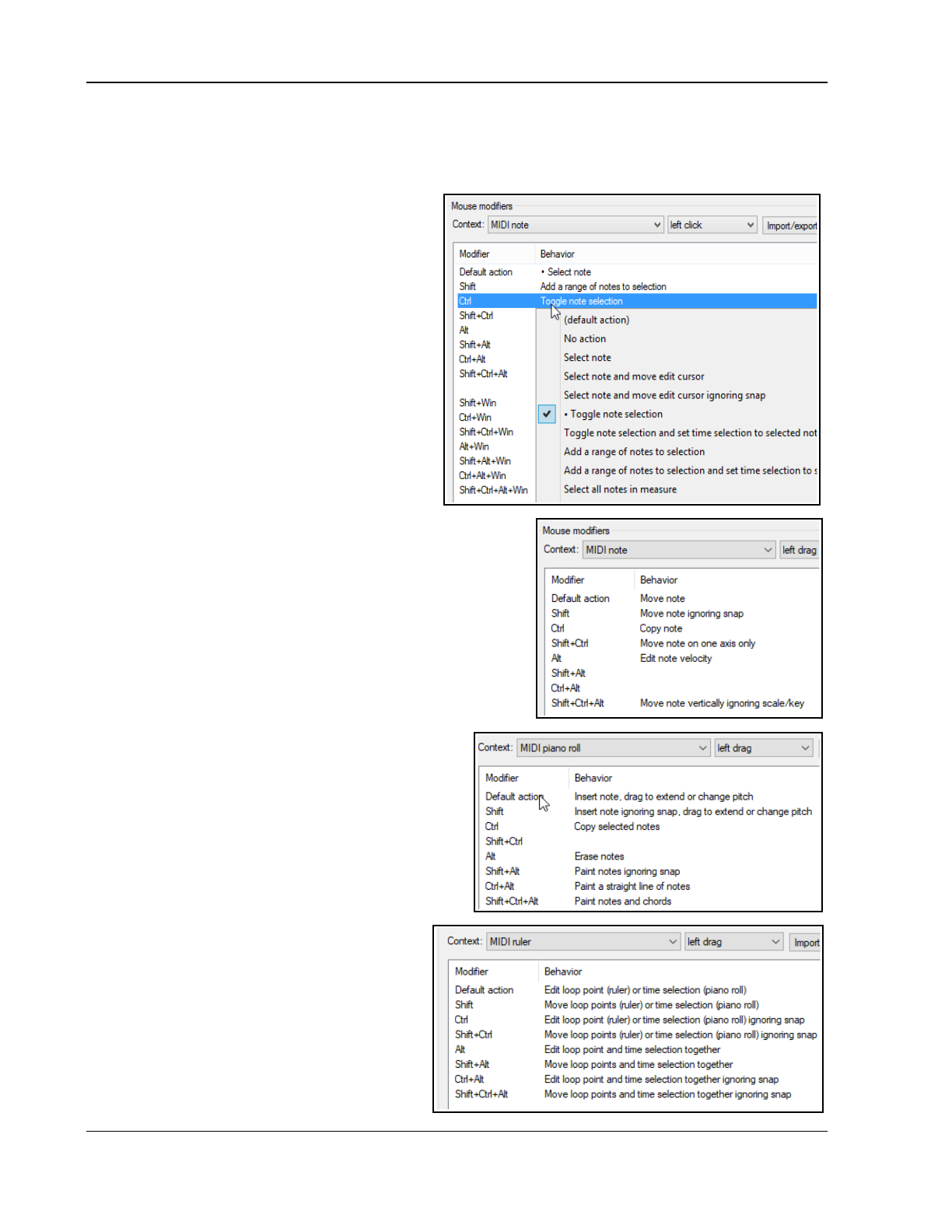
Up and Running: A REAPER User Guide v 7.81
to you. For example, you could reassign Alt to be used when clicking on any note to erase it. Notice that in
addition to the other shown on the menus, you can choose to open the Action list and select an action there.
All actions in REAPER's Action List MIDI Editor and MIDI Event List Editor categories (including any custom
actions of your own) are available to be assigned as a mouse modifier in most contexts within the MIDI Editor.
MIDI Editor mouse modifier contexts include:
MIDI note left click, MIDI note left drag
MIDI note double click
MIDI note edge left drag
MIDI CC event left drag
MIDI CC lane left click/drag
MIDI CC event double-click
MIDI CC lane left drag
MIDI CC lane double-click
MIDI source loop end marker left drag
MIDI ruler left click, MIDI ruler left drag
MIDI ruler double-click
MIDI marker/region lanes left drag
MIDI piano roll left click
MIDI piano roll left drag
MIDI piano roll double-click, and
MIDI editor right drag.
Let's take a brief look at some of these areas in which you can
modify mouse behavior within the MIDI Editor. Shown here are
the defaults for MIDI note left drag, MIDI piano roll left
drag and MIDI ruler left drag. In many cases separate
contexts are available for left click, left drag and double-click
behavior. You can define how your mouse behaves when it is
being used in any of these contexts.
Within most contexts you will find several different types of
mouse action. For example, when working with MIDI notes, a
different action will be required when (say) dragging a note from
when double-clicking on it. Thus, within the Mouse Modifier page
of your preferences, you can select not only a context
but also a type of mouse action.
Here are two examples: the default actions for the
contexts MIDI note left drag (above right) and MIDI
piano roll left drag (right). By default many actions are
already defined. For example, simply dragging a MIDI
note (or selection of notes) will by default move the
note(s), whereas holding Ctrl while you do this will
copy them. For example, holding Shift and Alt while
dragging a marqueed selection of notes will stretch the
selection out horizontally so as to arpeggiate the
notes.
Simple click and drag in the empty MIDI piano
roll area will first draw a note, then extend it as
the mouse is dragged. Various keys can be used
with this for other actions. For example, holding
Ctrl and Alt while dragging will paint a straight
line of notes between mouse up and mouse
down.
Many key combinations are not assigned. Click
on any of these for a list of actions that you can
312
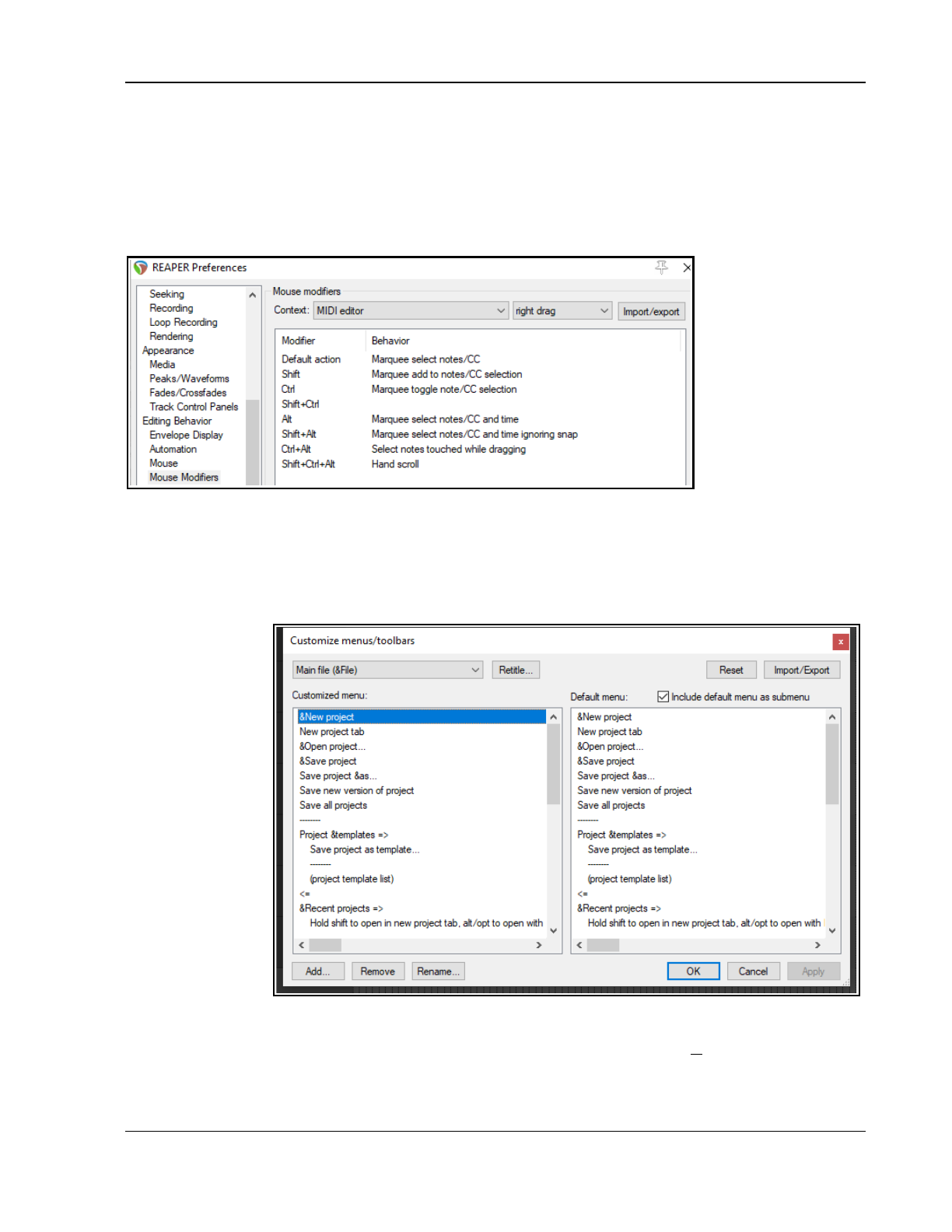
Customization: Actions, Mouse Modifiers, Menus and More
use. You can also use this method to change any existing assignments. Shown right are the default actions
which are assigned to the MIDI ruler left drag context.
If you use the MIDI Editor a lot, you should take the time to explore just what is available for the different
contexts.
Take the time also to look at the MIDI editor right drag assignments. As well as several variations to set
marquee behavior (select notes, add notes, toggle selection, etc.) there is also an action using Ctrl Alt to select
all notes touched while freehand dragging.
Note:
The Import/Export
button can be used to
export current settings
for any context or all
contexts to a
ReaperMouseMap file,
to import a previously
saved mouse map file,
or to reset all modifiers
to factory settings.
15.23 Customizing the REAPER Menus
You can customize REAPER's main menu and many context menus in a number of ways, including:
Removing from view commands that you never use.
Changing the order in which commands are listed.
Adding your own custom actions to an existing menu.
To open and display
the Custom Menu
interface, choose
from the main menu
the command
Options,
Customize
menus/toolbars.
This causes the
Customize
menus/toolbar
window to be
displayed. By
default, it will open
with the Main File
menu displayed.
The table below
summarizes the main
tasks that can be
carried out within
this window.
For Windows and Linux users, the & sign displayed before any letter indicates that when the menu is displayed,
that letter can be typed to select that command. On the menu itself, the letter will appear underscored. Thus, in
the example shown above, when you display REAPER's main file menu, the letter N in New project... will
appear underscored, and you can therefore type n to select this command.
313
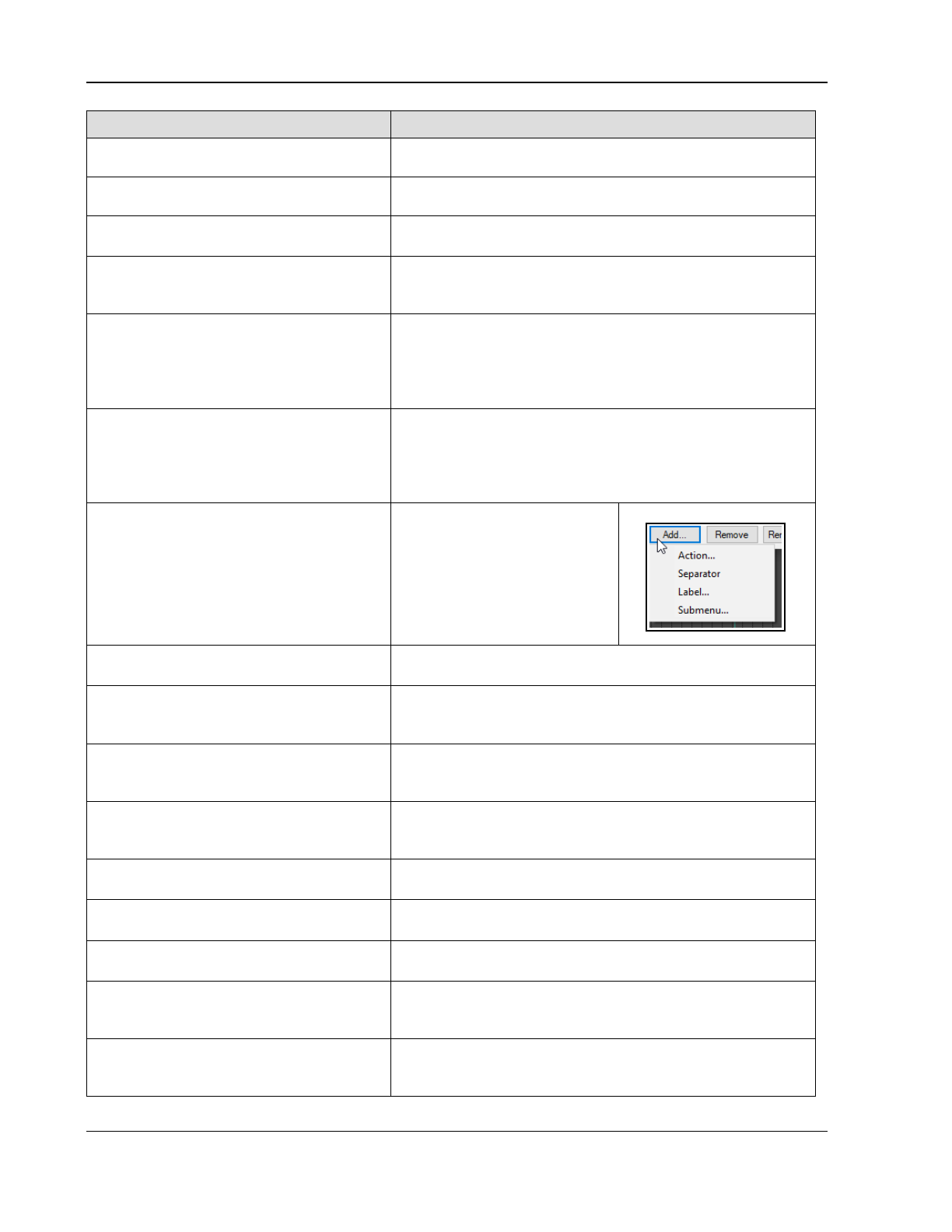
Up and Running: A REAPER User Guide v 7.81
In order to do this ... … you need to do this.
Select a menu for customization Display the drop down list (top left of window) and select the
required menu.
Change the name of a currently selected
main menu command
Select the command. Click on the Retitle... button. Type the
new name and press Enter.
Select a command or number of
commands to be modified
Click on command in the left pane, or use Ctrl click to build a
selection.
Remove command(s) from the currently
selected customized menu
Make selection in the left hand column. Right-click and choose
Remove from the menu, or click on the Remove button below
the customized menu pane.
Change the position of command(s) on
the customized menu (left column)
Either … in the left column, drag and drop the command or
command selection up or down to its required position.
Or … in the left column select the command(s) that you wish to
move. Press Ctrl X. Click at the position where you wish them to
be placed. Press Ctrl V.
Copy command(s) from one main level
menu to another
Select the first main menu from the menus drop down list. Select
the required command(s) and press Ctrl C.
Select the second main menu from the menus drop down list.
Click at the required position in the customized window (left)
pane and press Ctrl V.
Add a REAPER action or a custom action
to the current custom menu as a new
command
In the left column, click to select
the existing command above
which you wish to insert your
custom action. Click on the Add
button, then choose Action from
the menu. Select your item from
the list then click on the Select
button.
Rename a command on the custom
menu
In the left column, select the command, click on Rename, then
type the new name and press Enter.
Add a separator to the current custom
menu
In the left column, click to select the existing command above
which you wish to insert the separator. Click on the Add button,
then choose Separator from the menu.
Add a label to the current custom menu In the left column, click to select the existing command above
which you wish to insert the label. Click on the Add button, then
choose Label from the menu.
Add a submenu to the current custom
menu
In the left column, click at the position you want the submenu
inserted. Click the Add button, then on Submenu. Type a name
then press Enter.
Apply/Save changes made to the
current custom menu
Click on Apply button. The dialog remains open until you press
OK (to save changes) or Cancel (to lose changes).
Restore the one or all custom menus to
the default settings
Click the Reset button, then choose either Reset Current
Menu or Reset All Menus.
Export the current custom menu or all
menus as a ReaperMenuSet
Click on Import/Export, choose Export All or Export
Current, then type a name and click on Save.
Replace the current custom menu or all
menus with a previously saved Reaper
Menu Set
Click on Import/Export... then select the required menu set
file, then click on Open,
or
drag and drop .ReaperMenu
and .ReaperMenuSet files into REAPER from Windows Explorer.
Include REAPER's default menus with
your custom menus
Tick the Include default menu as submenu option (top right
of window). This is recommended especially if you are removing
any default commands from the menu.
314
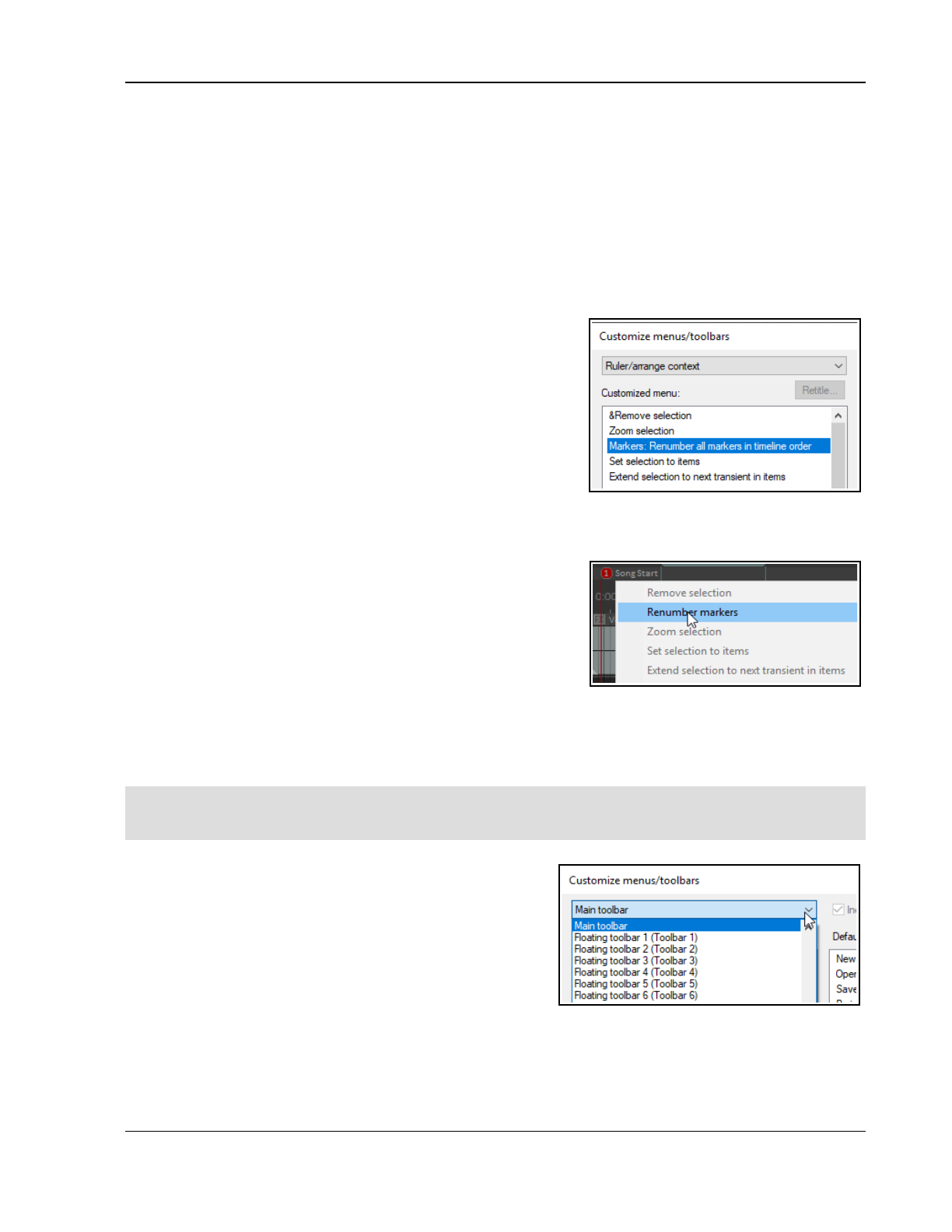
Customization: Actions, Mouse Modifiers, Menus and More
Example
Suppose that you do a lot of work with markers, and that you would like to renumber markers in timeline order
quickly and easily without having to remember a keyboard shortcut. You could add the action to the Ruler
context menu. While you're about it, you can also remove the command Insert empty space in selection
(assuming for the sake of the example that you think you do not need this command). Follow these instructions.
Example
1. From REAPER's Options menu, open the Customize menus/toolbars window.
2. Display the drop down menu list and choose Ruler/arrange context.
3. Click on any one of the commands in this menu – for example Set selection to items.
4. Click on the Add... button, then choose Action... This opens the Actions List Editor window.
5. In the filter box type: mark renum – this finds the action
Markers: Renumber all markers in timeline order.
6. Select this action then click on Select/close. The Actions
window will close and you will be returned to the Customize
menus/toolbars window. This action has now been added to
the menu and is selected (see right).
7. With the item still selected, click on Rename...
8. You will be prompted for a new name. Type: Renumber
markers and press Enter.
9. To move this up the menu, drag and drop it above Zoom
selection.
10. Now select the item (lower down the list) Insert empty space in selection. Click on Remove to
remove this from the menu.
11. Make sure you have enabled the option Include default
menu as submenu.
12. Click on OK.
13. Create some markers in this project, out of timeline order.
14. Right-click on the ruler/timeline (see right). Choose
Renumber markers to renumber your markers.
15. Notice at the bottom of this context menu the item Default
menu: Ruler/arrange context. This can be used to access the original context menu.
16. If you wish to restore this menu to its original state, open the Customize menus/toolbars window
again and with the Ruler/arrange context still selected, click on Reset then Reset current
menu/toolbar to default. Click on Save then Close.
Note: If you are customizing the Actions menu, you will need to place any commands that you wish to add
above Show recent actions, or you can remove Show recent actions altogether. If Show recent actions
is included in this menu it must always be the last item on this menu.
15.24 Customizing the REAPER Toolbars
You can customize REAPER’s main toolbar, the track panel
toolbar, or any of the other general or MIDI toolbars (by
default empty) that are available to you.
Customizing REAPER's main toolbars (including the MIDI
Editor toolbars) can help make REAPER work for you to work
the way that you would like it to.
For example, you can:
Remove any of the default icons/commands that you
do not wish to be shown.
Assign a different REAPER command or action to any existing icon.
Assign a different REAPER command or action to a new icon.
Assign a custom action or macro of your own to a new or existing icon.
315
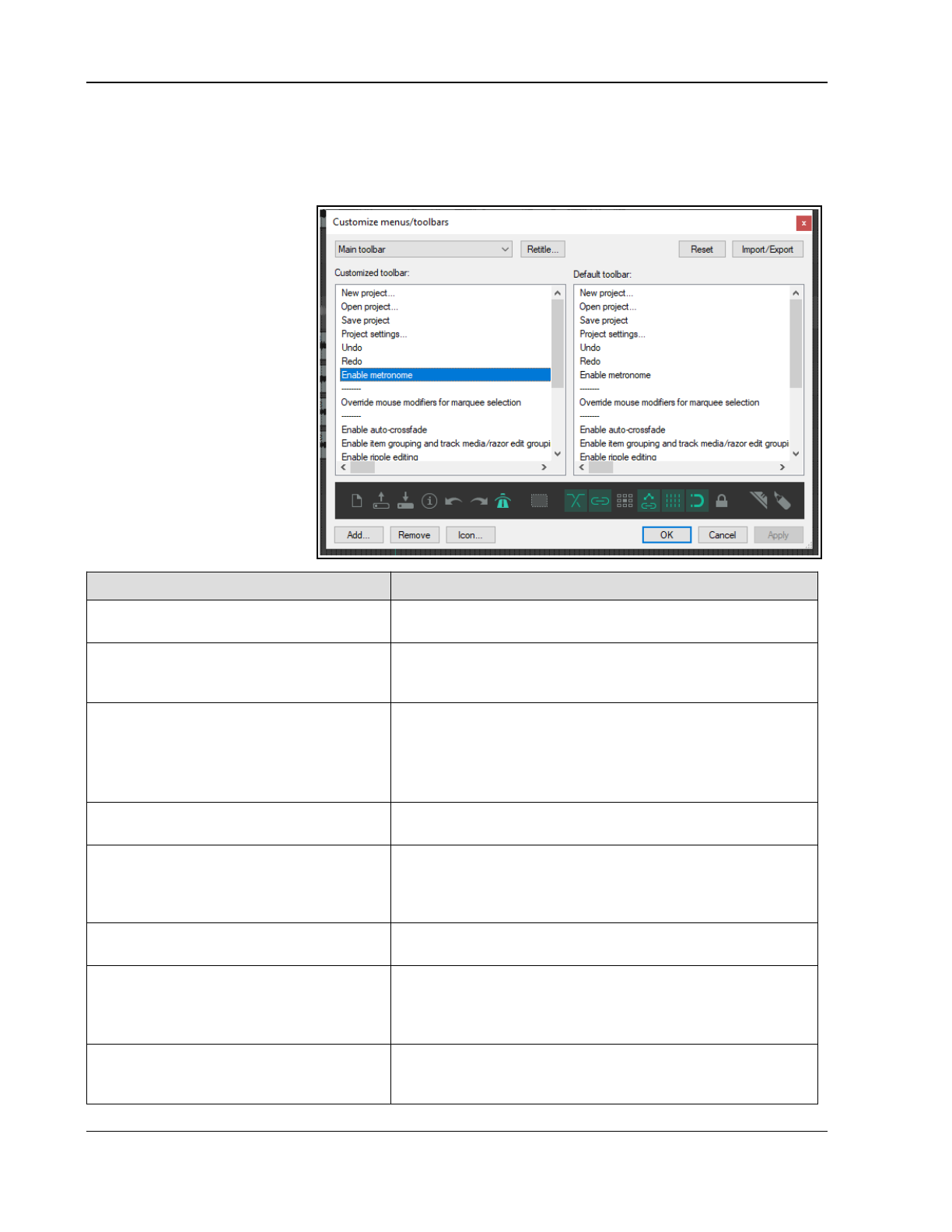
Up and Running: A REAPER User Guide v 7.81
The procedure is similar to that used for menu customization. Make your changes to the existing default toolbar
layout thru the Customize menus/toolbars dialog box. This can be displayed by right-clicking over the empty
area of the toolbar background, or by choosing Customize menus/toolbars from the Options menu. When
the Customize menus/toolbars window is displayed, choose Main Toolbar or one of the MIDI View toolbars
from the drop down list in the top left corner. We'll get to Floating toolbars a little later in this chapter.
The table below summarizes
the main tasks that can be
carried out within this window.
After the table there is an
example in which you can add
to the toolbar an item of your
own.
Purely as an example, we'll use
the action View: Toggle
master track visible for this.
In order to do this ... … you need to do this.
Change the name of a REAPER toolbar Select toolbar from drop down list. Click on Retitle..., type
new name then click on OK.
Remove an item from the toolbar Click on either the item name in the left panel, or on the icon
itself in the display just above the window's command
buttons. Click on the Remove button.
Add a new action or command to the
toolbar
In the customize toolbar area (left panel) select the item
before which you wish to add your item.
Click on the Add button to open the Actions window. Select
the command, action or custom script. Click on Select/Close.
REAPER will add this to your toolbar and assign an icon.
To add a separator space between two
toolbar items
In the customize toolbar area, right-click over the second of
these items and choose Add separator from the menu.
To change the icon used for any
toolbar item (including an item that
you have added)
Right click on the icon in the display near the bottom of the
Customize Menus/Toolbars window, just above the command
buttons. This opens the Select toolbar icon window. Select
your required icon, then close the Select toolbar icon window.
Replace a toolbar icon with text Right click over the item in the list in the left panel. Choose
Text Icon from the menu, type the text then click OK.
Change a button’s animation status
(toggle buttons only)
Right click on button name (left panel) Select Highlight with
animation based on toggle state. Choose to animate
whether enabled or disabled and select an effect (highlight or
blink) See also Animated toolbar icons section.
Change the action assigned to a
toolbar button
In the customize toolbar area (left panel) select the item that
you wish to change. Right click, choose Change action, then
select from the action list and click on Select/Close.
316
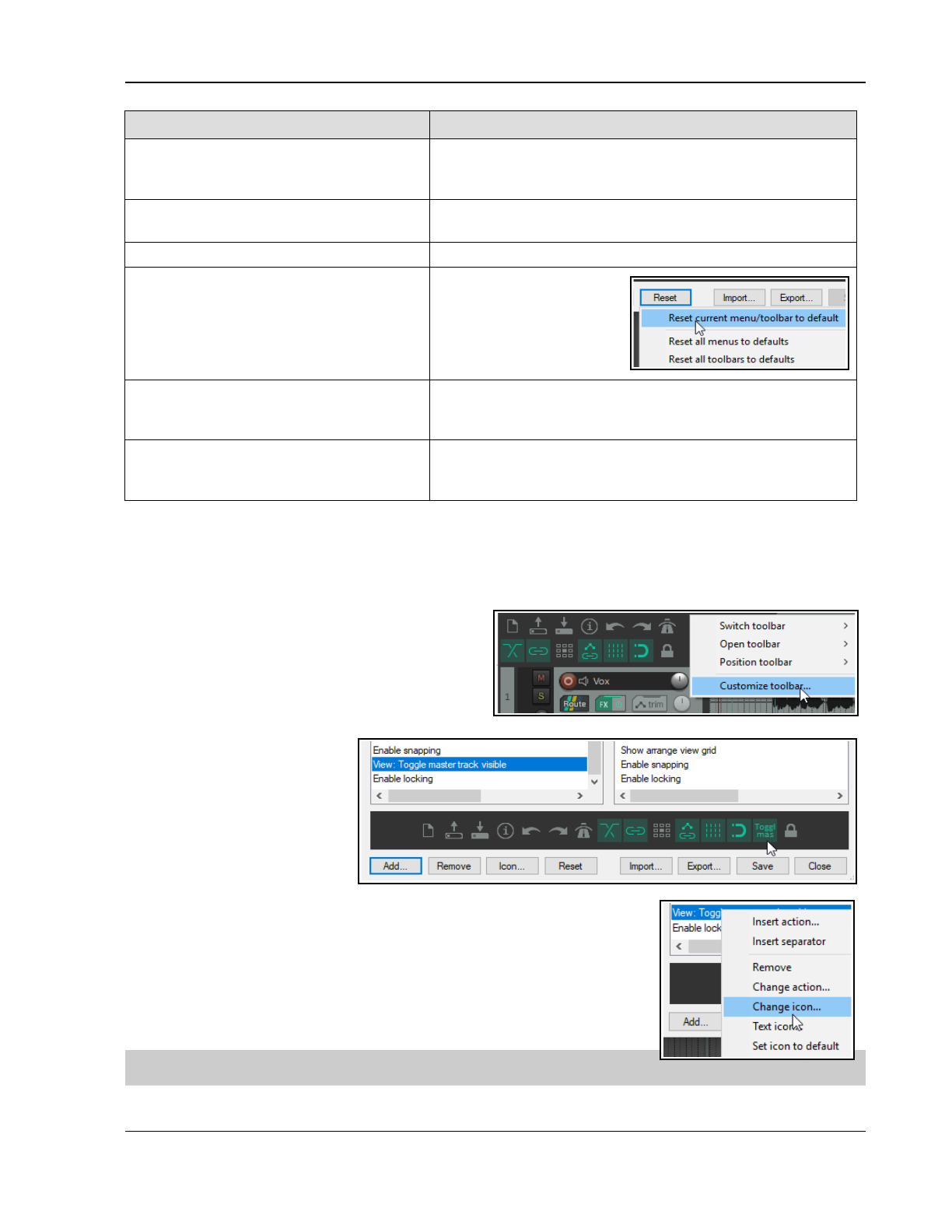
Customization: Actions, Mouse Modifiers, Menus and More
In order to do this ... … you need to do this.
Change the position of an item on the
toolbar
Use the mouse to drag and drop up or down the list shown in
the customized toolbar list. Ctrl X / Ctrl V may also be used, as
can Cut and Paste from the right click context menu.
Close the Customize Menus/Toolbar
Window without saving your changes
Click on the Close button. Choose No when asked if you
wish to save your changes.
Save the toolbar with your changes Click on the OK button.
Restore the toolbar to its default
status
Click the Reset button.
Choose Reset Current
Menu/ Toolbars to
Defaults from the menu.
Click Apply to confirm'
Export the current custom toolbar or
all toolbars/menus as a
ReaperMenuSet
Click on Export... , choose Export All or Export Current,
then type a name and click on OK (see also note below).
Replace the current custom toolbar or
all toolbars/menus with a previously
saved Reaper Menu Set
Click on Import... then select the required menu set file, then
click on Open.(see also note below)
Note: ReaperMenuSets can also be included when exporting/importing REAPER configuration preferences and
settings – see Chapter 22.
Example
The real benefit of this exercise will come from it teaching you a technique, not from the actual example.
1. Right-click over the toolbar area (but not any
specific tool) and choose customize
toolbars... from the context menu.
2. Click on the last item on the toolbar (Enable
locking) then click on Add... to open the
Actions List.
3. Find the action View:
Toggle master track
visible. Select this, then
click on Select/close.
This item will now be
added to the list of toolbar
items. In the icon display,
it will be labelled
something like “Tog Mast”.
4. Drag this item up or down
the list to whatever position you want it to take.
5. If you do not like the text Toggle Mas you can right-click over the item
in the list and choose either Change icon (to select an icon) or Text
icon (to type a different text label). If you choose text icon, you may
7also select a Double width toolbar button option for better text
display.
6. Click OK. If you don't want to keep this icon, access the customize
menus/toolbars window again and simply remove it.
Tip: The command Position toolbar can be used to change the position of
or float the main toolbar: see section immediately below this one.
317
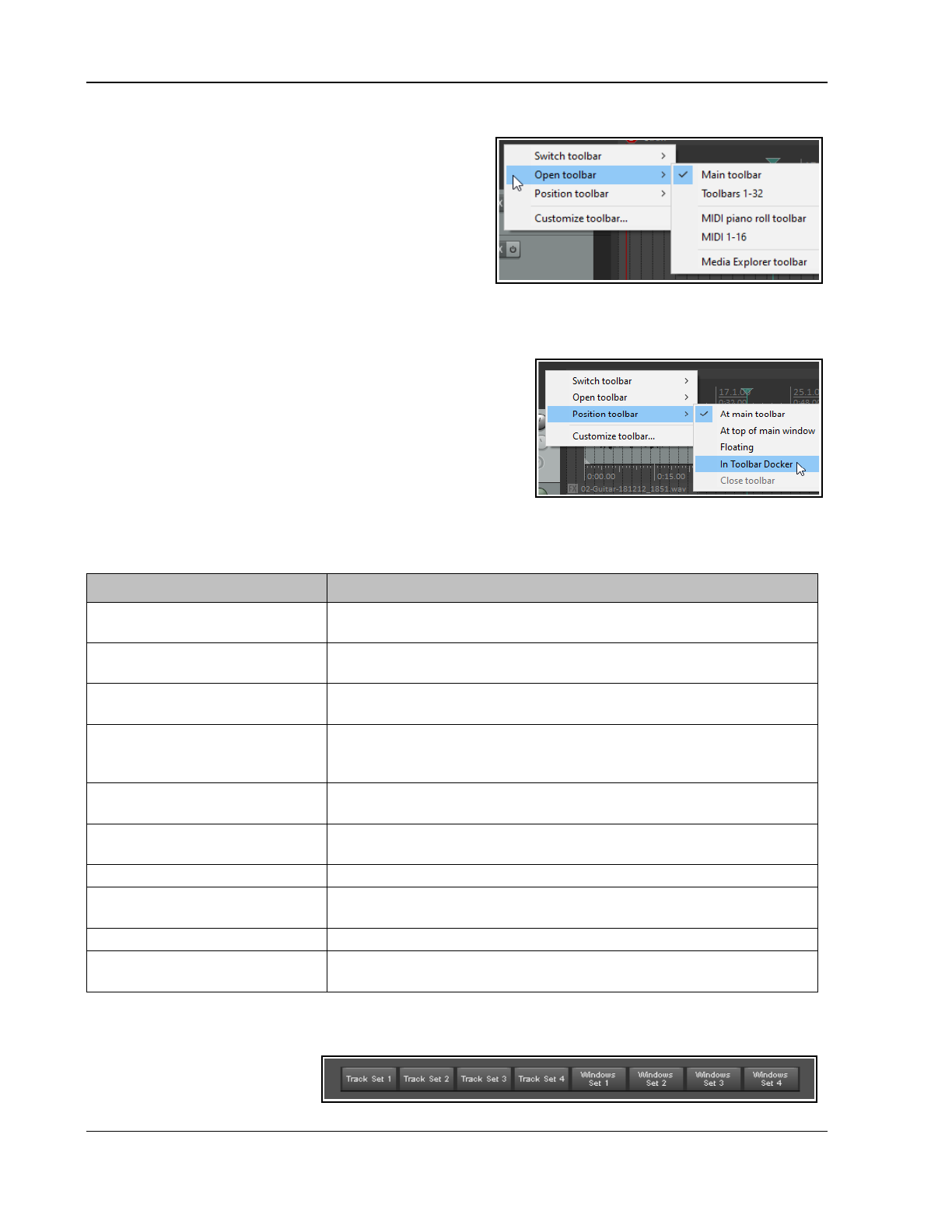
Up and Running: A REAPER User Guide v 7.81
15.25 Additional Custom Toolbars
REAPER supports up to 32 general and 16 MIDI only
additional toolbars that you can set up to suit your particular
requirements. By selecting which commands or actions are
added to these toolbars you are able create one click access
to your most important commands and actions. To toggle
the display of any toolbar, right-click over the empty area of
your main toolbar and choose the Open toolbar
command, then select a toolbar. You may display as many
of these toolbars as you wish. By default, each toolbar
contains one icon, labelled “Edit Me”. To change this, you will need to customize the toolbar (see below).
Each toolbar window can be dragged, resized and repositioned. It can be kept on top (using the pin symbol).
Right click over the empty area of any custom toolbar to again display the menu shown (below). Options are:
Switch toolbar: selects and displays a different toolbar.
Open toolbar: use this to open another toolbar.
Position toolbar: used to dock a toolbar at the main toolbar, at
the top of the main window, in the toolbar docker, or to float.
Customize toolbars: use this to open the Customize
menus/toolbars window to enable you to customize the
contents of any of the toolbars. By default, the currently displayed
toolbar will be selected for editing.
You can add commands to each or any of these toolbars as you wish. To select a different toolbar for editing
after opening the Customize menus/toolbars window, display the drop down list from the top left corner of
the Customize menus/toolbars window. The following table summarizes the main editing options.
In order to do this ... … you need to do this.
Change the name of any
tabbed toolbar
Select toolbar in the Customize Menus/Toolbars window, click on
Retitle... then type the new name then click on OK.
Add an action or command to
a custom toolbar
Click on Add... to display the Actions List. Select the command or action
and click on Select.
To edit a custom toolbar
button label
Right click over the item in the customized toolbar panel (left) and
choose Text Icon... Type the text then click OK.
To assign an icon instead of
text to a custom toolbar
button
Right click over the item in the customized toolbar panel (left) and
choose Change Icon... Select the required icon from those displayed,
then close the Select Toolbar Icon window.
To remove an item from a
custom toolbar
Select the item in the Customized Toolbar (left) panel and click on
Remove.
To change the order of icons
on a custom toolbar
Drag and drop items up or down the list displayed in the customized
toolbar (left) panel.
To save a custom toolbar set Click on the OK button in the Customize Menus/Toolbars window.
To export a custom toolbar
set
Use the Export... button and choose Export current menu/toolbar
to … Type a name and click on Save.
To import a toolbar set Use the Import... button, select the file name, click on Open.
To dock/undock the floating
toolbar
Right click on floating toolbar, choose Dock floating toolbar then
select one of the three options.
Example
1. With the Customize menus/toolbars window open select Floating toolbar 1.
2. Click on Retitle... and
type Screen Sets. Press
Enter.
318
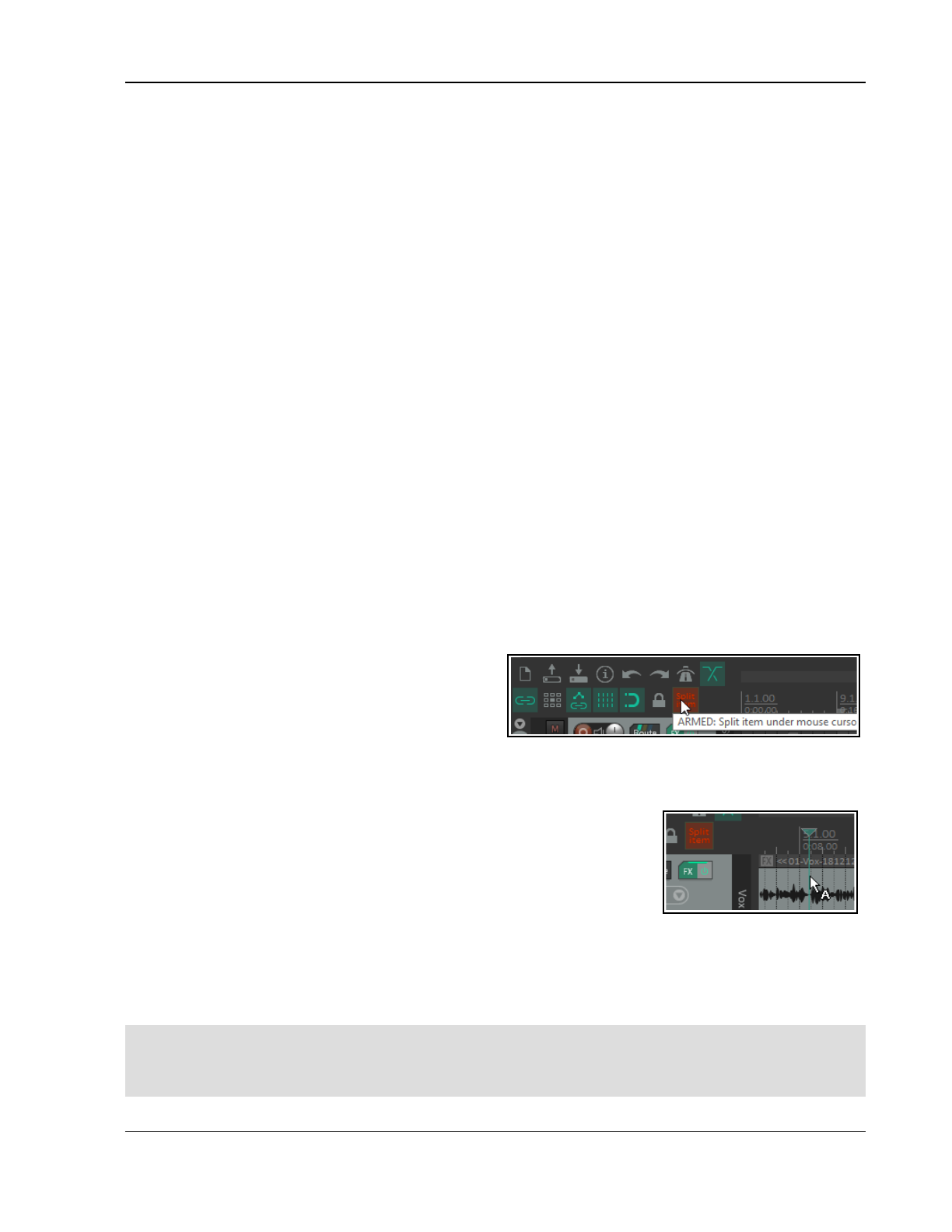
Customization: Actions, Mouse Modifiers, Menus and More
3. Use the Add... button to open the Actions List window. Select Screenset: Load window set #04, then
click on Select.
4. With the Actions List window still open, select the action Screenset: Load window set #03 and again
click on Select.
5. Repeat step 4 several times to select the other actions required for this toolbar..
6. Select the action Screenset: Load track view #01 then click on Select/close.
7. If necessary, drag and drop any of these items up or down the list to put them in your preferred order.
8. If necessary, remove any unwanted items on this toolbar.
9. Right-click over each item in turn and choose the Text icon command. Enter a label, such as Track Set 1
and enable the option Double width toolbar button.
10. Click on OK to save and close the Customize menus/toolbars window when finished.
Use custom toolbars for those activities that you use the most. For example, if you spend a lot of time editing
media items, make an item edit toolbar.
15.26 Toolbar Display Options
Right-click on any displayed toolbar for a menu of options which include:
Switch – switch to a different toolbar
Position- at main toolbar, at top of main window, in toolbar docker or floating.
A floating toolbar is not attached to anything, but can be dragged to any position where it floats, typically
above arrange view. Note that for floating toolbars your Preferences, Appearance settings includes an option
to make the toolbar frameless, making it more elegant in appearance and taking up less room.
Also, REAPER’s actions list includes actions to display any toolbar as a menu. Look for the actions Show toolbar
x
as menu and Show MIDI toolbar
x
as menu. Any of your custom toolbars can be displayed in this way.
15.27 Smart Tools and Armed Actions
If you have used other DAW software (such as Cubase, Pro Tools or Sonar) before coming to REAPER, then you
might be used to using a toolbar for various editing tasks, such as splitting, deleting or muting items. You have
already seen that this method of working is not native to REAPER. However, if you wish, you can create your
own smart tools whose actions can be armed and used in a way similar to that with which you are familiar.
The Actions List includes numerous of actions suitable
for this sort of treatment. This example will use the
action. Item: Split item under mouse cursor. Other
suitable actions include toggle item mute, item
properties toggle solo, or to delete items.
Without armed actions, any tool which makes reference to the mouse cursor, for example, would otherwise be
useless – because the mouse cursor will be over the toolbar, not any media item, when the tool is clicked! By
using smart tools we solve this problem.
To create a Smart Tool for any action or custom action, you first need to
assign the action or custom to the toolbar, as explained in the section before
this one. In this example, we have created a button to Split Item Under
Mouse Cursor. Then, to use it as a smart tool, simply do this:
1. Right click over the tool. If you hover the mouse there long enough, a
tool tip will be displayed. Move the mouse over any media item and it
will change to a letter A (indicating that the toolbar action is armed).
2. Left click on (in this example) the item to which you want the action applied, at the exact position that
you want the action to occur. In this case, the item beneath the mouse cursor will be split.
Once a tool is armed it will remain armed until you “unarm” it. For example, as long as a smart tool to toggle
item mute is armed then every time you click on an item the mute status of that item will be toggled on/off. To
unarm it, either right click on the armed tool. or press Esc immediately after using it.
Tip: A floating toolbar can be sized (made larger or smaller) by dragging its lower right hand corner in or out –
look for the small dotted triangular area. If you want to restrict just how large the icons may become when you
do this, enable the option
Don't scale toolbar buttons above 1:1
on the Appearance page of your preferences
window. There is also an option
Don't scale toolbar buttons below 1:1
.
319
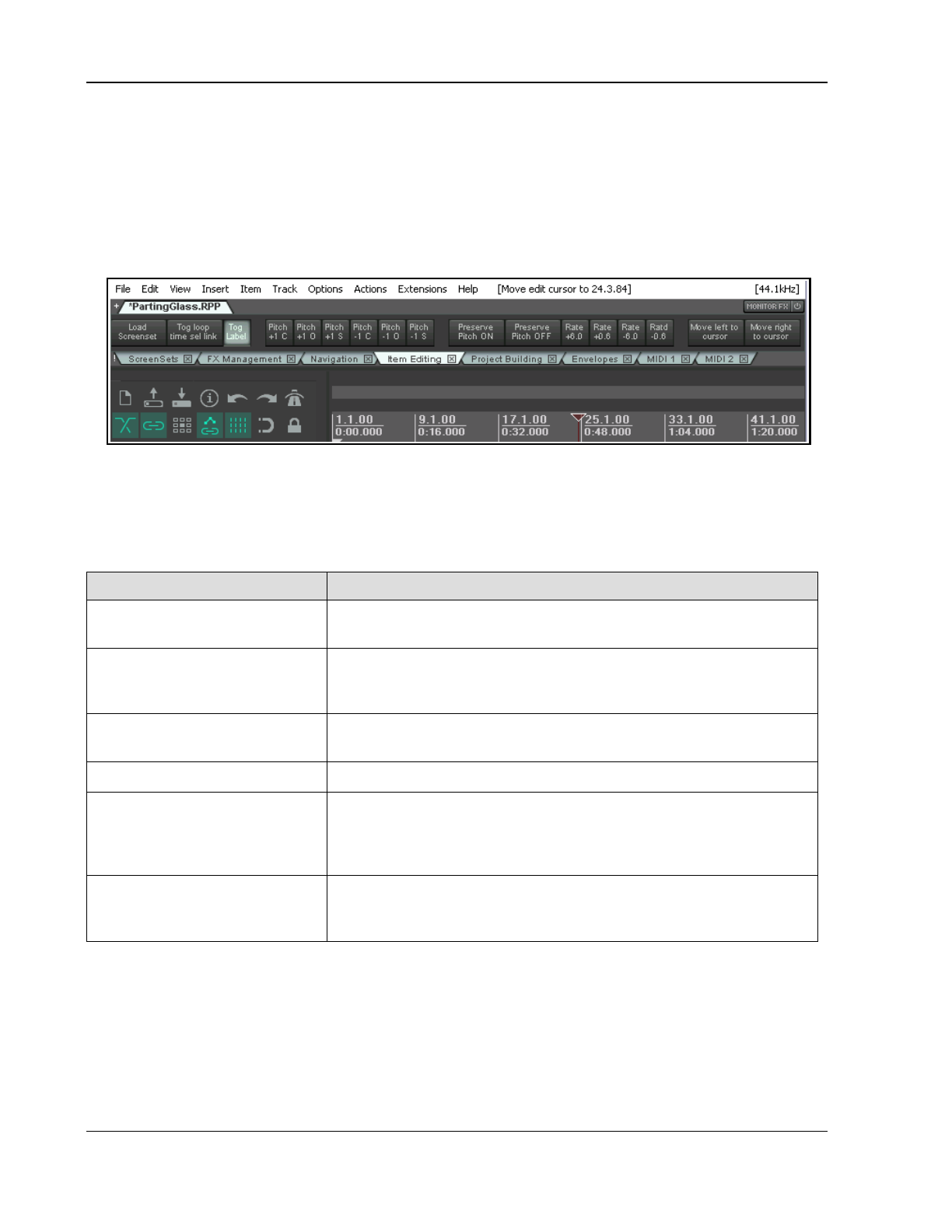
Up and Running: A REAPER User Guide v 7.81
15.28 The Toolbar Docker
If you have several custom toolbars, the toolbar docker can be a useful means of accessing your various toolbars
easily without creating a lot of screen clutter. It uses a tabbed layout that makes it easy to switch between your
various toolbars whilst only displaying the contents of one toolbar at a time. In addition to this, the toolbar
docker can itself be docked in any of REAPER's main dockers.
Shown below is an example where a user has created eight custom toolbars and made them all accessible from
the toolbar docker:
Display of the toolbar docker is toggled using the View, Toolbar docker command. A tip worth remembering is
that toolbar layouts (tool positions) are by default saved with windows screensets. This makes it easier to switch
between using and not using the toolbar docker, or using different toolbar selections in the toolbar docker at
different times.
The following table summarizes the main features of the toolbar docker.
In order to do this ... … you need to do this.
Add an open toolbar to the
toolbar docker
Right click over the toolbar background area, choose Position toolbar,
In toolbar docker.
Remove a toolbar from the
toolbar docker
In the toolbar docker, right click over the toolbar's name tab, choose
Position toolbar then Close toolbar or one of the display options
such as floating or at top of main window.
Replace one toolbar on the
docker with another
In the toolbar docker, right click over the toolbar's name tab, choose
Switch toolbar then select the required toolbar.
Display toolbar contents In the toolbar docker, click on toolbar name tab.
Dock the toolbar docker Click on the ! (exclamation mark) on the left end of the toolbar docker,
then choose any one of the four attach docker position options bottom,
top, left or right. In the example shown above, this has been docked at
the top.
Undock the toolbar docker Click on the ! (exclamation mark) on the left end of the docked toolbar
docker, then deselect the option Attach Toolbar Docker to main
window.
15.29 Toolbar Appearance Preferences
You have already seen that you can customize toolbar appearance in a number of ways, including by importing
your own icons. REAPER’s Appearance Preferences include a number of options which can be used in
conjunction with these options. These are to prevent toolbar scaling above and/or below a ratio of 1:1 (the
default size), and whether to use frameless floating toolbar windows.
320
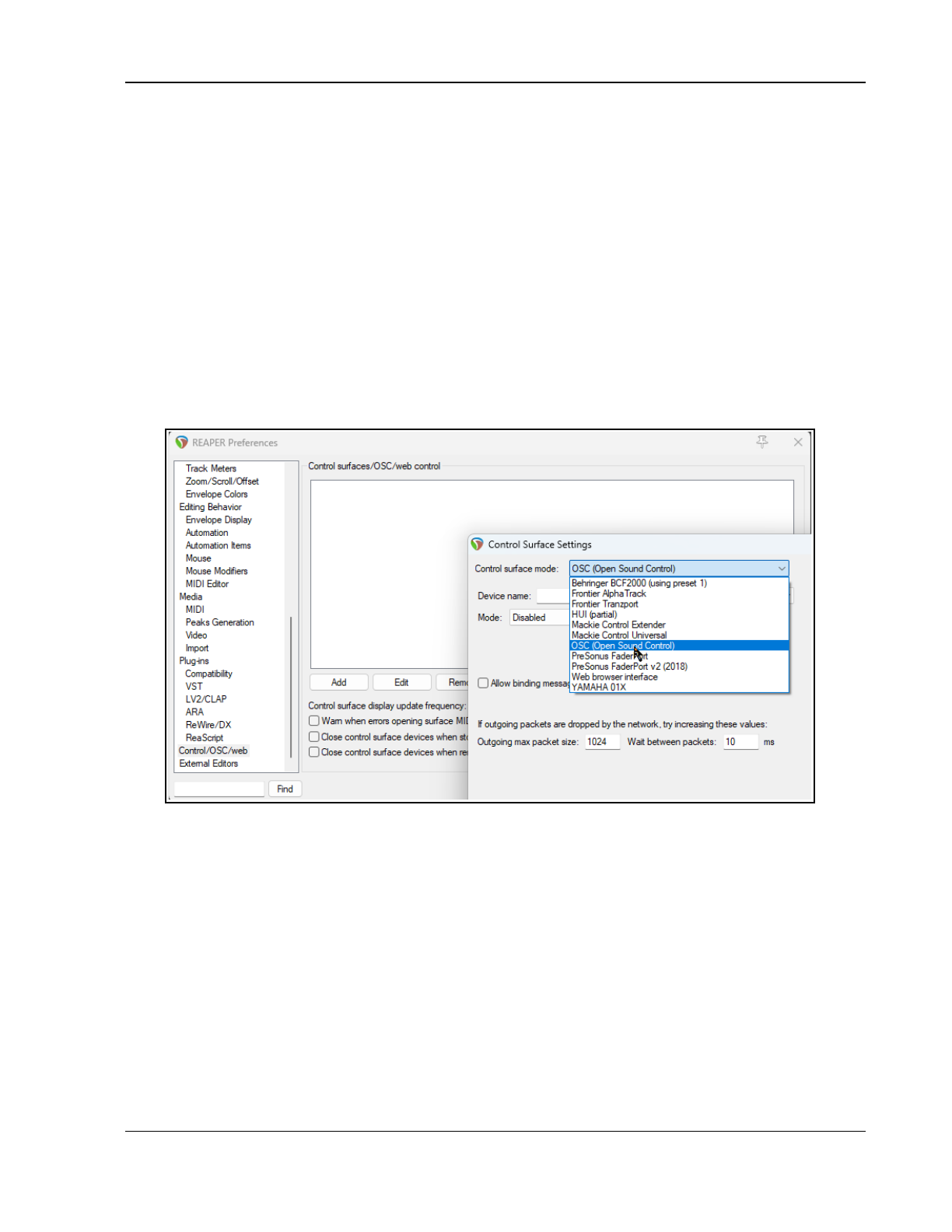
Customization: Actions, Mouse Modifiers, Menus and More
15.30 Using a Control Device with REAPER
A control surface can be used to control some of REAPER's actions. You might also be able to use your pedals
and other controls on a MIDI keyboard in a similar way. Examples might include track panning and volume, mute
and solo status, arming and starting/stopping recording, and possibly to physically map REAPER’s transport bar
for functions such as Play, Stop, Pause, Rewind, etc. You will need to know the characteristics of your particular
device, including how to install it, set it up and so on. That is obviously outside the scope of this User Guide.
Different control devices have different capabilities. Not all control surfaces can be used to control all actions,
even those that are listed as midi CC capable. Obviously it is also beyond the scope of this user guide to present
a detailed analysis and comparison of all these. In overview, however, they fall into two broad categories:
Devices which can be recognised by REAPER as a specific and individually named control surface.
Generic devices not specifically recognised but which can nonetheless be used as a control surface.
If you have a control device of a type listed in the illustration here, first make yourself familiar with its
documentation. Next, install the device and its drivers on to your computer in accordance with the
manufacturer's instructions. You should then be able to select it on the Control/OSC/Web page of REAPER's
Options Preferences settings. Of course, you should consult the manufacturer's documentation and/or web site
for further information. You may also be able to find further information on one of REAPER's on-line forums.
Choose the Options. Preferences command, then select Control/OSC/Web and click on Add to see a list of
available devices (see above). The list includes an entry for devices which conform to the OSC (Open Sound
Control) protocol. Familiarise yourself with its documentation and characteristics before proceeding.
If you choose this option from the list, the screen that then follows will give you the opportunity to specify a
device name and pattern configuration. This includes choices such as LogicTouch or LogicPad, or to tell REAPER
to write a sample (default) configuration file. This file will contain the default mappings and various appropriate
comments. You should also supply a port number (for the transfer of messages) and IP addresses for both the
host and the device itself. Go to http://www.cockos.com/reaper/sdk/osc/osc.php to learn more about
how REAPER handles OSC and about REAPER's Default.ReaperOSC file.
For non OSC control devices not shown on this list, you might be able to install them if they are capable of
emulating one of the devices that is listed (e.g. HUI or Mackie emulation).
REAPER preferences include options to Warn when errors opening surface MIDI devices, Close control
devices when stopped and not active application and Close control surface devices when rendering.
321
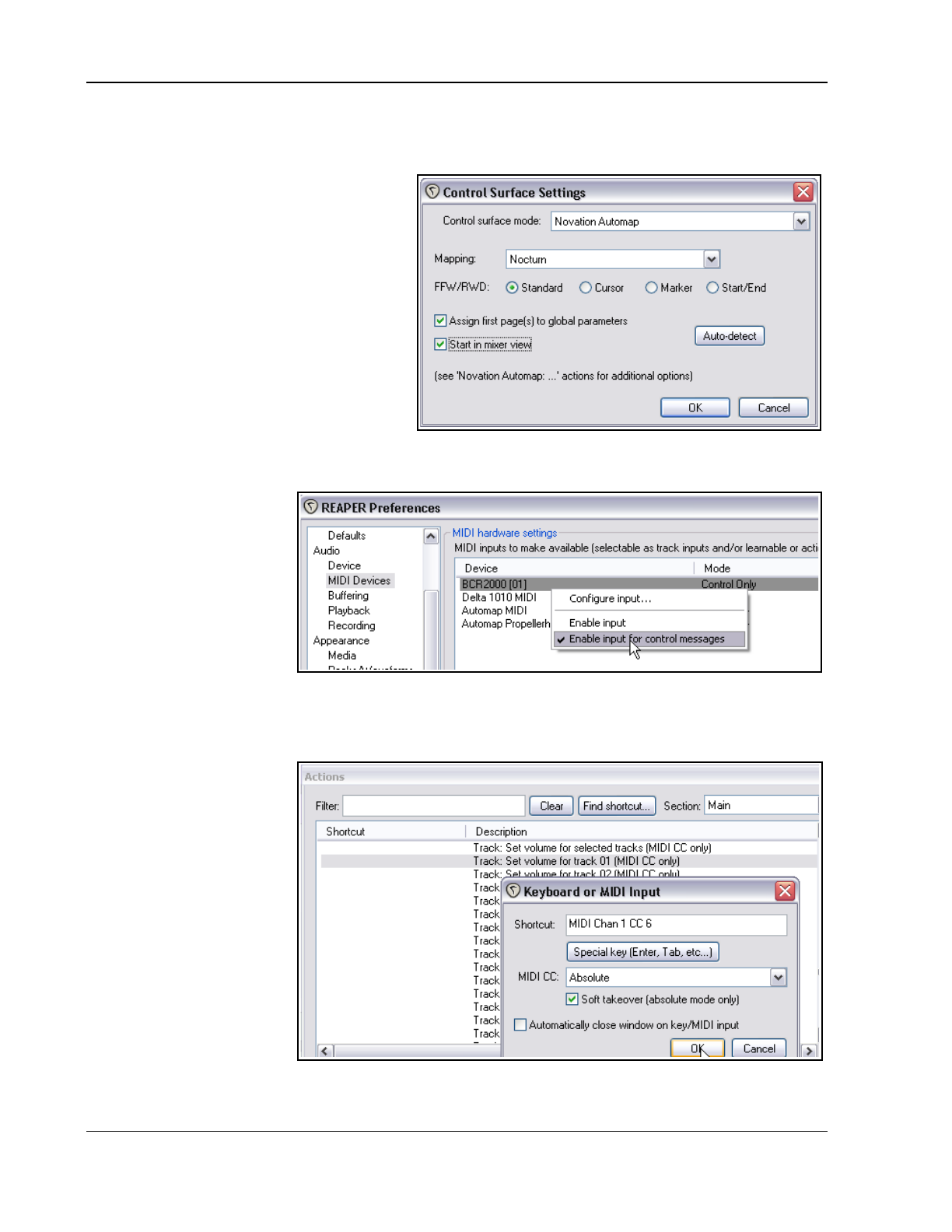
Up and Running: A REAPER User Guide v 7.81
In every case, make sure that you choose the options that are correct for your device from the various Control
Surface Settings options. Shown below is one example of such settings, with a Novation Nocturn. This sample
screen is not intended as a model for you to use with any particular product.
You might wish to install several devices in
this way. For example, you might wish to use
both a Frontier AlphaTrack and a Frontier
Tranzport. This is perfectly possible, so long
as each device is installed correctly.
You will need to consult the product
documentation to ascertain how then your
control surface(s) can be used with REAPER.
If your device is not on the list of recognised
control surfaces and cannot emulate any of
the items on that list, you can still use it with
REAPER. An example of such a product is the
Behringer BCR2000. Once it has been
physically set up and installed on your
computer, it will appear on the list of
REAPER's MIDI Devices. Depending on the actual product and which drivers you are using, it might appear on
this list with its own name or merely as a USB Audio Device.
Install it as a MIDI Device,
most likely Input Only and in
most cases for control
messages only. An example
of this is shown here. You
can double-click on the
device name to open the
Configure MIDI Input
dialog box. What you do
next will depend on the
device. You might also use
this method to use your
MIDI keyboard also as a MIDI controller (depending on whether the keyboard supports this feature).
Once such a device is installed, you can then assign any action listed as supporting midi CC control to one of the
knobs, faders, buttons or rotaries on your control device.
The procedure is similar to
assigning an action to a key
on your PC keyboard. Open
the Actions List from the
REAPER menu. Select the
action, click on Add then
instead of pressing a key on
the keyboard, tweak the
control surface control and
click on OK.
An example is shown on the
right - in this case we are
assigning a rotary control to
be used to adjust the
volume of track 1.
For further information,
including about the various
settings, you should consult
the documentation supplied with your device, the manufacturer's web site, or one of the REAPER forums.
322
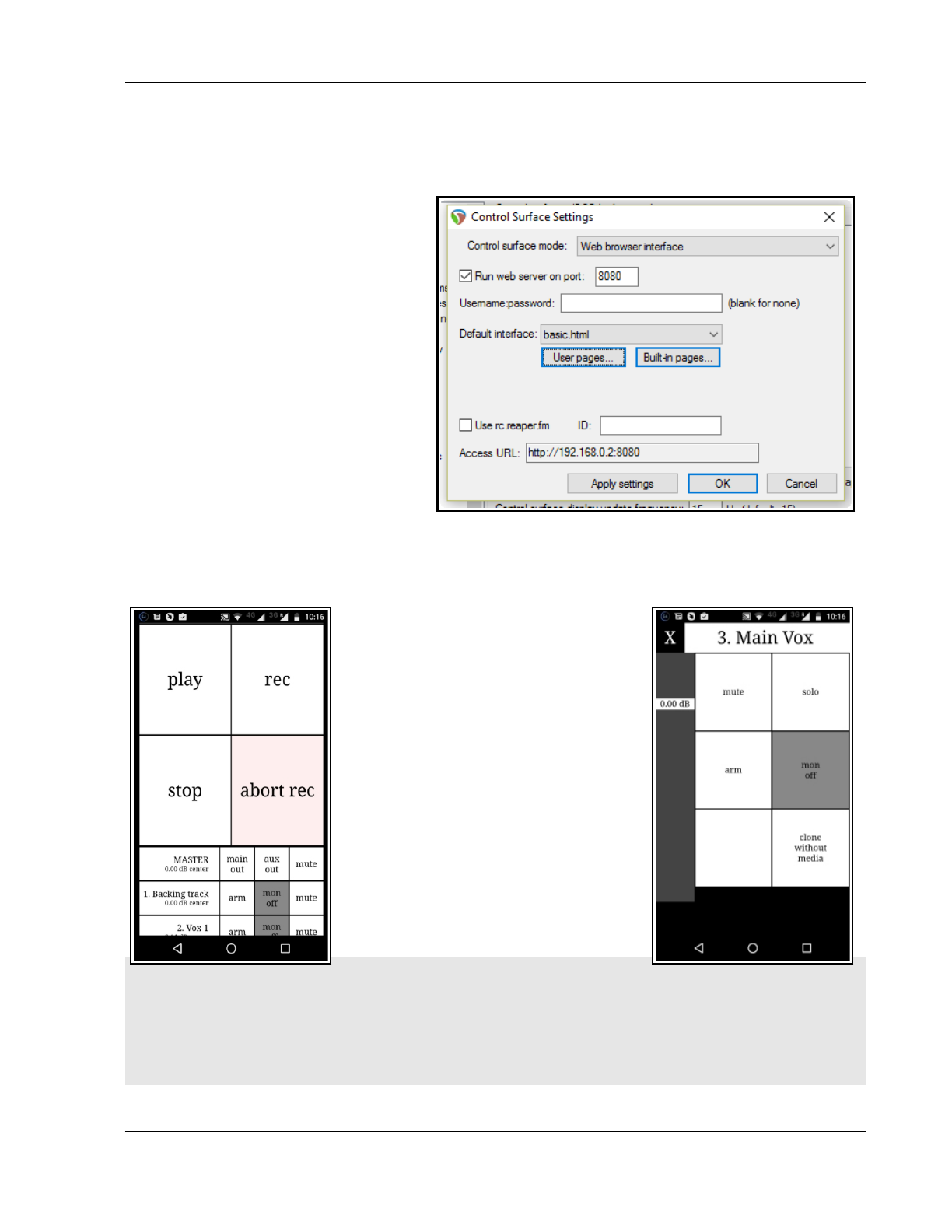
Customization: Actions, Mouse Modifiers, Menus and More
15.31 Controlling REAPER with a Web Browser Interface
You can use your mobile phone or tablet as a control surface for REAPER, for example to record tracks, play
them back, solo or mute tracks, and so on, using REAPER's web browser interface!
Make sure that your REAPER computer is
on-line. Open any project, or start a new
one. Open the Control/OSC/web page of
your Preferences. Click on Add and from
the Control surface mode dropdown
select Web browser interface, to open
the dialog shown here.
This example shows basic.html selected
from the Default interface dropdown: this
is a simple interface provided with REAPER.
If you prefer a graphical interface, try
index.html. Other options might be
available on the drop-down, or in Built-in
pages. The interface that you select will
determine, amongst other things, the look
and layout of the interface and exactly which
REAPER tasks you will (and will not) be able
to perform in your web browser. You can
store any interfaces that you create or
download yourself in the User pages folder.
Click on Apply Settings. Make a note of the
exact
Access URL shown on your screen.
Open any browser (e.g. Chrome or Safari) on your phone or tablet and enter the exact access URL code in its
search bar. You will be taken to a screen similar to that shown below (but see footnote below).
The four main buttons are play, stop,
record and abort record. Below these, your
tracks are listed, starting with the master
track. Individual tracks can be armed,
monitored or muted.
Touch any track to see it displayed as
shown here on the right. There is a vertical
volume fader on the left and various other
track controls as shown (mute, solo, etc.)
Click on the X to return to the main view.
The HTML interface file includes HTML,
CCS and Javascript. It defines what you
see on your phone and how it behaves.
In the finest REAPER tradition, users can
develop their own scripts for a customised
web mobile interface, or to make one
available to other users. Check out on the
REAPER Stash from time to time! You
never know what you might find there!
Footnotes: With some Windows
installations, in order to get this to work you might need to manually adjust some settings. In this example, 8080
is the port number. On most Windows systems, this is pre-defined as open, but you might wish to use a higher
number, e.g. over 9000. If so, you will need access your Windows Firewall settings to open the port that is being
used, and to give REAPER inbound and outbound access.
If you prefer, you can tick the Use rc.reaper.fm box. This will record your local IP and create a permanent URL
link which will always redirect to your local IP even if the local IP changes. Just follow the on-screen instructions.
323
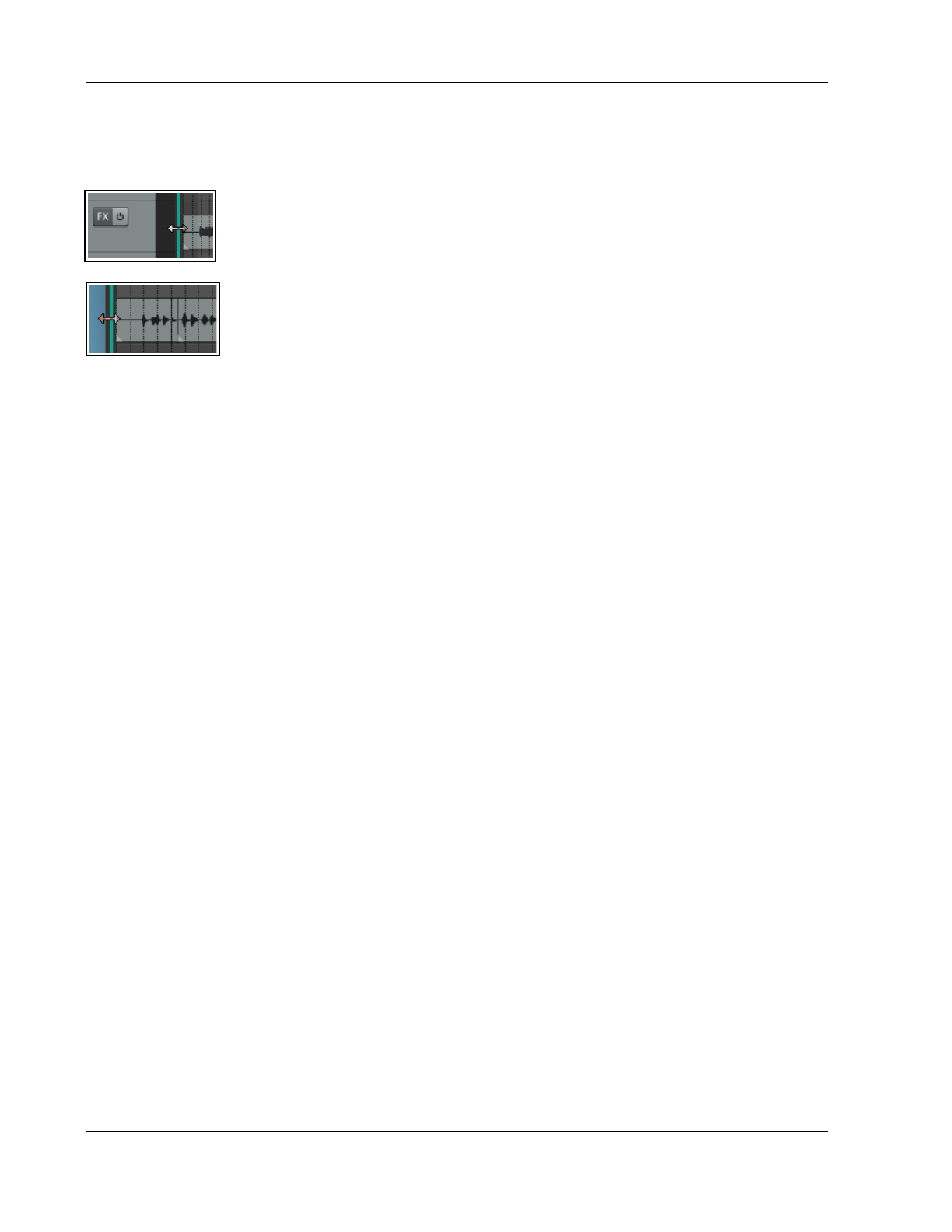
Up and Running: A REAPER User Guide v 7.81
15.32 Customizing Track Panel Area Width
There are any number of situations in which you might wish to change the width of the track panel area in
arrange view. For example, you might wish to make more space available for your actual arrangements.
If you hover your mouse over the border between the track panel and the main (arrange)
area then a vertical colored line with a double-headed arrow will appear (as shown here).
This line defines the boundary between the track panel and the arrange area.
This boundary line can be moved to adjust the width of the track panel relative to the main
area. Drag left and the panel will become narrower: drag right and it will become wider.
The first time that you double-click on that boundary line the TCP will be removed from
view altogether (as shown here). If you then move your mouse to just inside the left edge
of your REAPER window and hover there then the boundary line will again be displayed.
Double-click on this and the TCP will be restored to its previous position. Thus, double-
clicking on the boundary line will toggle you between the two states.
This trick can be handy, for example, if you wish to temporarily give the whole screen to the arrange area to
work there, knowing that the TCP can be restored at any time with a simple double-click. To summarize:
Double-clicking on the vertical boundary line between the TCP and arrange area will toggle you between
two states, i.e. the previous state will be restored, so that that now becomes the current state.
Dragging that line right or left will increase or decrease the TCP width for the current state.
Finally … when you close REAPER, it will remember your current boundary position and restore that when the
program is next reopened.
15.33 Reset VU Meter Peaks
During playback, your VU meters in both track view and mixer view will display the peak level recorded for each
individual track. To reset the peak reading for any individual track, click your mouse over the area where the
peak value is displayed. To reset the peak reading for all tracks, hold the Ctrl key while you click your mouse
over the area where the peak value is displayed in any one track.
You can disable the option under Track Meter Settings Reset meter peak indicators on play/seek. If you do
this, the current peak levels will be remembered even when you stop playback.
15.34 The Theme Adjuster (Overview)
The REAPER 7 Theme Adjuster (Options, Themes, Theme adjuster/Color controls) works with the default
REAPER 7 theme (Options, Themes, Default) in enabling you to customize various aspects of REAPER’s
appearance, in particular the track, envelope, mixer and transport panels.
The track and mixer panels are of special interest. For example, you can change the order in which the various
controls are laid out. You can also define alternative layouts for each of these, including different layouts to be
used in different scenarios – such as whether the track is selected, or not selected, or armed.
The script developer strongly advises that the best way to learn and master the theme adjuster is by exploring
and experimenting for yourself. With this in mind, be aware that:
Changes that you make to settings are saved automatically. In most cases your actions are not recorded in
the undo history.
Double-clicking on controls will generally restore them to their default setting, and, most importantly….
The theme adjuster is a self-contained script. Your changes to any of these panels will affect only the on
screen appearance of the track, envelope, mixer and transport panels. Nothing you can do here can
damage REAPER in any way.
If you get into strife, there is an option to Reset all values to their default.
324
REAPER Plug-ins in Action
16 REAPER Plug-ins in Action
16.1 What Are Plug-ins?
There’s a wonderful assortment of plug-ins supplied with REAPER - over 200 of them! These include the
Jesusonic and the VST Rea plug-ins from Cockos. This section will introduce you to some of these, to give you a
feel for what plug-ins are and how they work. Beyond this, you can explore for yourself.
Plug-ins are software that are used mostly to control and shape the sound generated when you play back the
media items in your tracks. Some simple examples of when and why you might want to use a plug-in are:
To make a vocal recording sound better, more lifelike. Plug-ins can add body, warmth and sparkle to
such a track, not by working magic, but by bringing out qualities that might be buried in the recording.
To smooth off peaks and dips in the volume of a track, making the overall track sound more even.
To add a “live” feel to a track or even a whole mix, making it sound more as if it were recorded in a
church or a concert hall, rather than in a boring old studio.
When working with plug-ins, keep these three guiding principles in mind:
1. It is better not to use a plug-in at all than to use it badly. A badly used or overused plug-in is likely to
make your mix sound worse, not better. If in doubt, underdo the use of plug-ins, don’t overdo them.
2. Never judge the quality of a plug-in by how much you like its presets. Presets reflect someone else’s
idea of how something ought to sound, not the quality of the plug-in, nor its potential. To get the best
out of any plug-ins, be they EQ, compression, reverb or anything else, you will need to take the trouble
to understand their various parameters. That takes time.
3. You can’t judge the quality of a plug-in by its cost. Some free ones are pretty awful, some are great.
Some plug-ins costing hundreds of dollars are quite ordinary. Others are excellent.
16.2 Five Types of Plug-in
Especially when you are new to digital audio, when you start to explore the world of plug-ins you might find
yourself feeling overwhelmed, if not utterly confused. Why? Because there is so much choice.
Heaven help me,
have I really got to understand all that lot to be able to use this recording caper?
No, you don’t. Learn in steps as you go. Broadly speaking, many plug-ins can be thought of as belonging in one
of five categories of plug-in (although there are exceptions). These five types are:
Sound Shaping: these plug-ins affect the frequency (pitch) of your track(s). An example is EQ.
Time-Based Effects: these plug-ins manipulate how your track(s) interact with time. Examples include
Delay, Chorus and Reverb.
Analytical Plug-ins: these display information, but don't in any way alter the sound of the track.
Volume Changing: these are plug-ins that determine the overall volume or perceived volume of your
track(s). Examples are Compressors and Limiters.
Routing Plug-ins: these do not shape the sound of your tracks as such, but are used for tasks such as
routing. Routing is generally beyond the scope of this chapter: we'll get to it in Chapter 17.
And those exceptions? Well, some plug-ins cut across more than one of these categories, performing more than
one job. An example is a Multiband Compressor, which in some ways acts as both an EQ and a Compressor.
It would be way beyond the scope of this User Guide to teach you the science between these various plug-ins –
that would require an entire volume in itself! Our objective is to give you an introduction to what REAPER offers
in this area, and to show you how REAPER's own interface is used to control them.
16.3 Adjusting Plug-in Parameter Controls
Cockos Rea Plug-in faders can be adjusted using any of four main methods. These are:
● Hover your mouse over the fader and scroll the mousewheel. Use Ctrl for finer adjustments.
● Click on a fader and drag the mouse. Hold the Ctrl key for finer adjustments. Hold Alt for “elastic”
auditioning: the control will return to its original position when the mouse is released.
● Click on the fader then use the Up and Down arrow keys.
● Click in the parameter value window (in the first example show below, you can see one of these to the
immediate right of each of the three horizontal faders) and type a value.
If you prefer not to use the first of these methods (for fear of making accidental adjustments), you can enable
on the Editing Behavior, Mouse page of your Preferences the option Ignore mousewheel on all faders.
325
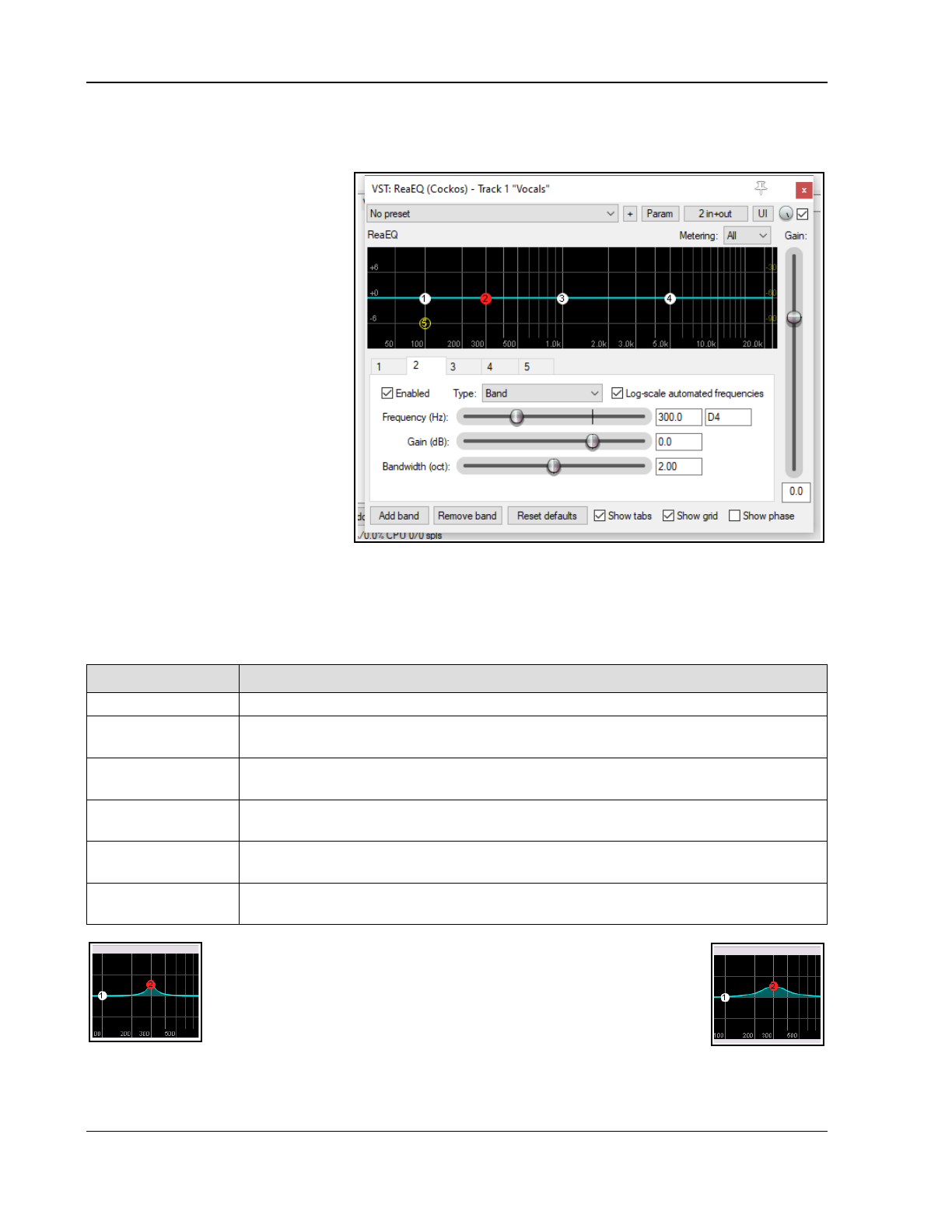
Up and Running: A REAPER User Guide v 7.81
16.4 Sound Shaping Effects: ReaEQ
EQ means “equalisation.” It is used to emphasise (or de-emphasise) selected frequencies.
ReaEQ is REAPER’s main EQ plug-in:
there are also several JS EQ plug-ins
but ReaEQ is the most powerful and
flexible. Let's take an example.
1. Open the project file All
Through The Night.RPP and
save it as All Through The
Night EQ.RPP. Select track 1.
2. Click the FX button, click on
Cockos then on VST: ReaEQ.
By default this has 4 band tabs.
3. Play the song. Select Band 4
and fade the Gain left to about
– 35 dB. The voice becomes
deeper. Double click on the
fader to return it to the centre.
4. Select Band 2. Fade the Gain
down to about – 14 dB. Notice
how tinny and even
disembodied the voice sounds.
Double-click to return to normal.
Now lift the Gain to about +3
dB. The voice should sound quite pleasantly fuller and warmer. Select Band 3 and set the Frequency to
about 4200. Observe what happens as the gain is adjusted between +3.5 and -3.5. When finished, return it
to 0.0. Save the file.
Frequencies are a huge subject and go way beyond the scope of this guide Here is a brief introduction. Exactly
how you divide up the frequency spectrum is to some extent arbitrary. Here’s one way that makes sense:
Frequencies Comments
16 to 60 Hz Very Low Bass. These frequencies are felt rather than heard.
60 to 250 Hz Bass. Herein dwell the fundamental notes of the rhythm section. A modest boost here
can help make a sound fuller, but too much gain will make it boomy.
250 to 2000 Hz The Mid Range. Too much gain here makes it sound like you’ve recorded from the
other end of a telephone. If a take sounds muddy, try cutting it here.
2000 to 4000 Hz Upper Mid Range. Often a tricky area. Too much can cause listening fatigue. Lower
this range a tad on the mix while boosting a tad on vocals can help a vocal stand out.
4000 to 6000 Hz Presence Range. The key range for clarity and presence of instruments and vocals.
Some gain here will bring the part forward in the mix. A drop can pull it back.
6000 to 16000 Hz High Range. This is where you find clarity and sparkle. Too much gain here produces
a searing, glassy effect. Not enough will sound dull ands “heavy”.
Now let’s look at bandwidth. ReaEQ measures bandwidth in octaves. A
narrow bandwidth setting means that you will raise or lower the sound
over a very small part of the frequency spectrum. A wide setting means
that you will be working on a much wider part of the spectrum.
Examples of how a narrow bandwidth (left) and a wider bandwidth (right)
can shape a sound are shown here. You will also see, if you display the
drop down list labelled Type that there are several type of band. Some commonly used are:
Band: the volume is raised or lowered either side of the frequency, the range being determined by the
bandwidth setting. Sometimes called a “peaking filter.”
326
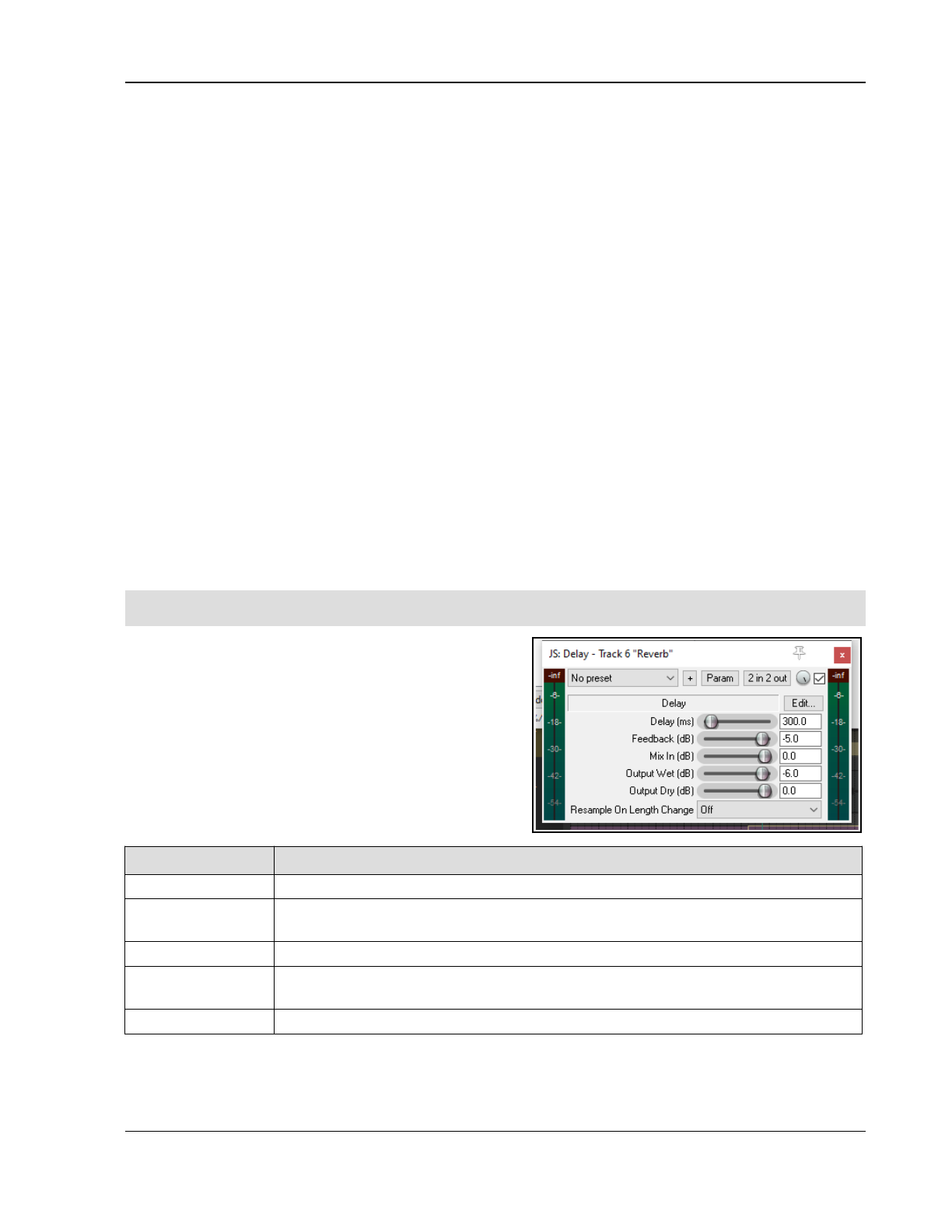
REAPER Plug-ins in Action
Low/High Pass: filters out frequencies above/below the frequency setting.
Low/High Shelf: causes the gain to be moved below/above the frequency setting.
Pass and Shelf will in most cases only be used (if at all) at very low frequencies or very high frequencies.
Parallel Band Pass: these run independently of each other and are then summed.
You can add or remove bands using the Add band and Remove band buttons. To adjust parameters of any
band you can use the fader controls (frequency, gain and bandwidth), enter values directly in the edit boxes, or
drag the handles on the graph display itself.
As well as the usual mouse controls, you can use Ctrl mousewheel to fine-adjust bandwidth and Ctrl Shift
drag when adjusting the point for fine adjustment of bandwidth. Right-click on any of the band handles on the
graph for a context menu whose options include:
Adding or deleting a band Flipping all bands Enable/Disable band (toggle)
Changing the band type Using large band handles
Reset current or all bands to 0 dB Setting analyzer slope (0 dB,3 dB or 5 dB per octave
Other toggle options to log-scale automated frequencies, show tabs , show grid and show phase
display. Note also the Gain fader (on the right), used to adjust output volume.
Wet/dry mix rotary control (near the top right corner of the FX window): this creates a mix of the wet and
dry signals. Full left is 100% dry, full right (the default) is 100% wet. Alt click to toggle on/off the option Delta
solo – the difference between dry and wet signals. This option is on all FX windows. See also Chapter 17.
EQ channel settings and channel analysis:
By default, your ReaEq settings will be applied to all track channels. For example, for a stereo item, the settings
will be applied to each channel. If you wish to change this (e.g. to EQ only the left channel of a stereo pair) you
can do this with REAPER’s pin connectors. These are explained in detail in the chapter that follows this one.
That said, even while applying the FX (for example) to both channels in a stereo pair you might wish to view the
effect of that FX on just one of those channels. This can be achieved by selecting the required channel(s) from
the Metering dropdown. For a normal stereo item, your options will be All, 1, 2 or none.
Tip: Don’t forget that you can create track parameter controls and/or automation envelopes for this or any other
plug-in by clicking on the Param button in the plug-in window – as explained in Chapter 11.
16.5 Time Based Effects: Delay
These include reverb, delay and chorus. Sound takes time
to travel: surfaces like walls and ceilings create reflections
which make the sound patterns more complex. Time based
FX use various techniques to artificially simulate this,
thereby creating a more “live” sound. But go easy!
About a dozen JS delay plugins are available, ranging for
simple delay to floaty delay, or delay with chorus, sustain,
stereo bounce, and more. Chorus options include mono,
stereo and ozzifier. Shown here is the JS Delay.
Parameter Description
Delay (ms) Sets the amount of time to pass between the dry sound and the delayed sound.
Feedback Determines the amount of the delayed signal that will be fed back into the delay itself.
This helps to prevent the delay from just being an echo.
Mix in (dB) Determines the overall output level.
Output wet (dB Determines the Output level of the Post FX signal. Lowering this relative to the dry
output will make the effect more subtle.
Output dry (dB) Determines the Output level of the Pre FX signal
Note: The plug-in ReaDelay is a powerful alternative to JS Delay. For example, it allows the use of multiple
taps to use different combinations of settings together. This (along with the other Rea effects) is described in
the free ReaEffects Guide - https://dlz.reaper.fm/userguide/REAPEREffectsGuide2021.pdf
327
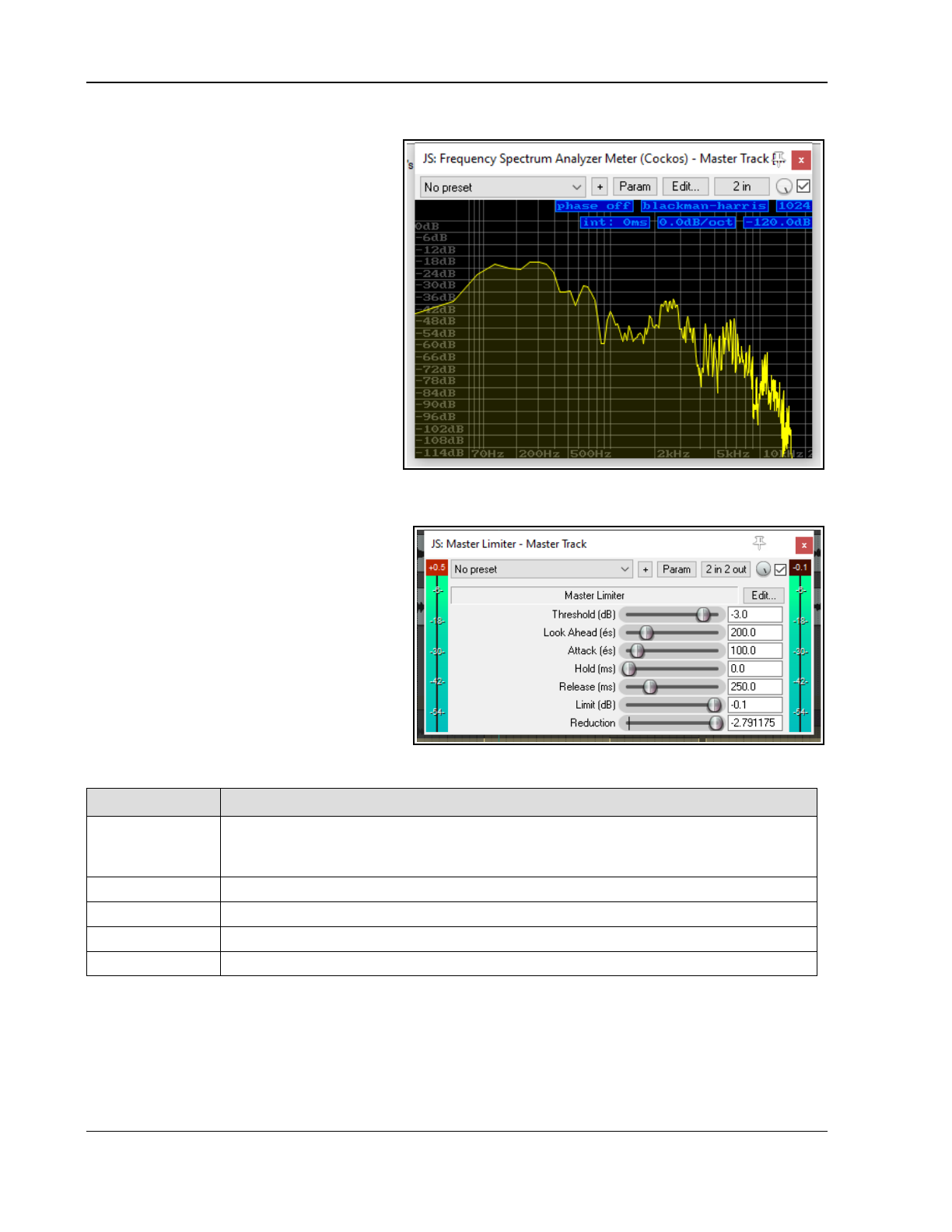
Up and Running: A REAPER User Guide v 7.81
16.6 Analytical Plug-ins: the Frequency Spectrum Analyzer Meter
Shown on the right is a JS: Frequency
Spectrum Analyzer Meter plug-in.
Insert this into any track 's FX chain (or the
master's FX chain and as the project is
played you are given visual feedback as to
the level of output at different frequencies.
This plug-in is explained in detail in the free
REAPER Cockos Effects Summary Guide.
Three Cockos plug-ins – ReaEQ, ReaFir and
ReaXComp - include an analytical display
similar to that shown here as part of their
standard interface.
Now that you've had a look some examples
of different types of plug-in. We can go on
and examine some more.
16.7 The JS Master Limiter and
ReaLimit
Several plug-ins are available which are
designed to limit the maximum volume either
on any track or on the master (e.g. MGA JS
Limiter, Simple peak limiter, Soft clipper).
The JS: Master Limiter can be added to the
FX Window for your Master to perform two
functions. These may at first appear to be
contradictory, but they are not:
To raise the overall volume of the mix,
but also …
To prevent the mix from “clipping”, i.e.
getting too loud at any point.
This example uses the JS: Master Limiter
which includes the following controls and parameters:
Parameter Description
Threshold Determines the level at which the other limiter settings will be applied. It may seem
paradoxical, but the lower the threshold, the higher will be the perceived overall
volume. As you lower the threshold, more of the song is lifted to the limit specified.
Look Ahead Determines how far ahead the limiter looks – this helps smooth out sudden peaks.
Attack Determines how quickly the limiter kicks in as the signal increases.
Release Determines how quickly the limiter recovers after a peak is encountered.
Limit This determines the maximum volume that cannot be exceeded.
Another available limiter is ReaLimit, which is a brickwall limiter.
Regular limiters drastically reduce the dynamic range: brickwall limiters take it a step further. A regular limiter
will mostly keep the volume at or below the threshold, but some sound may still pass the threshold, especially if
you’re pushing the gain on the track. When using a brickwall limiter, nothing will ever be louder than the
threshold.
More information about ReaLimit can be found in the chapter dealing with the mixer and the master.
328
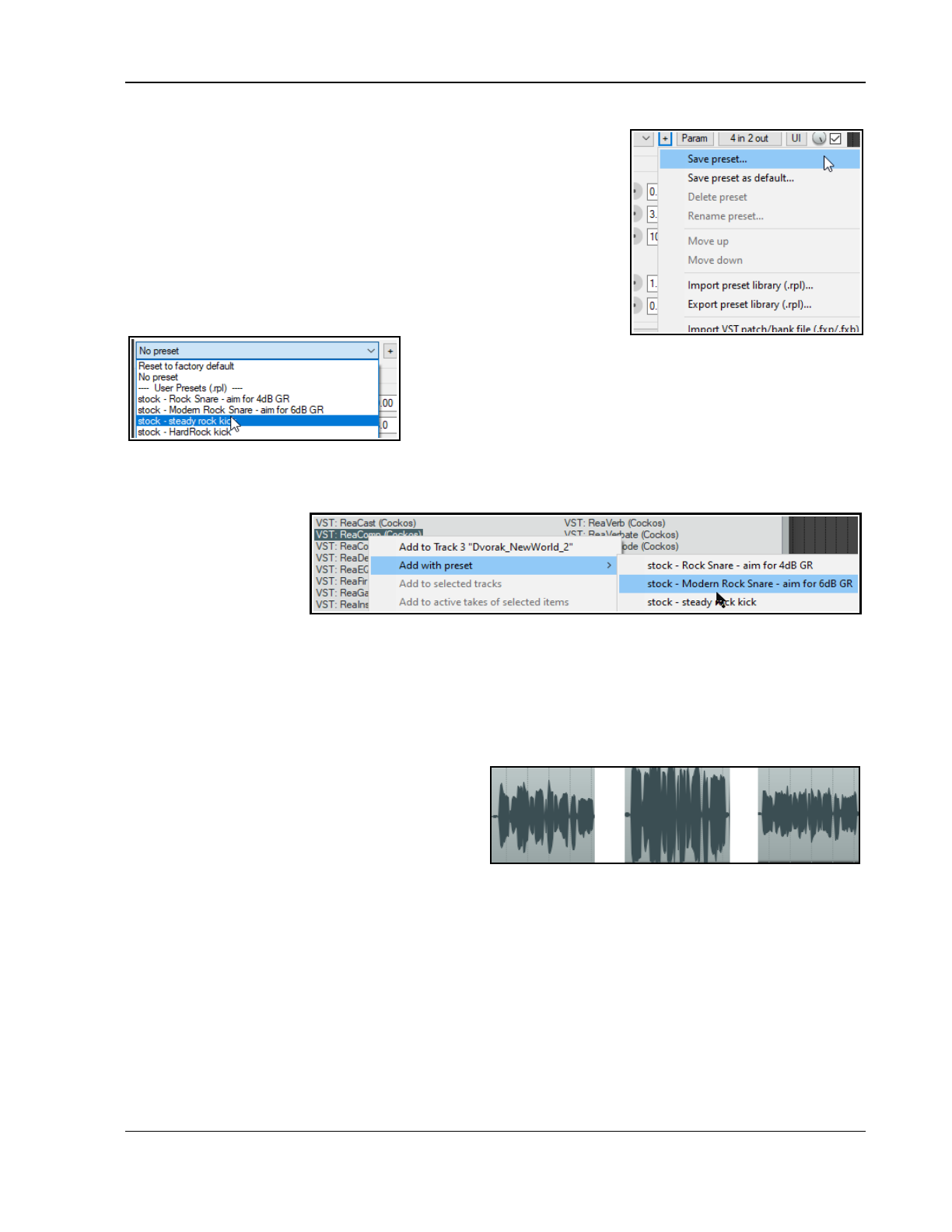
REAPER Plug-ins in Action
16.8 Using FX Presets
When you are satisfied with your settings for any plug-in, you might
wish to save them as a preset, so that you can apply them next time you
want to use it on another track:
1. Click on the + button just above the JS Delay plug-in when this
plug-in is selected.
2. Choose Save preset from the menu.
3. Type a name and click on OK.
To save these as default parameter settings for the plug-in when it is
used in the future, use the Save preset as default... command from
the same menu.
To import an existing
preset library (such as you might be able to download from the
REAPER web site) you would choose Import preset library. To
export your presets to a file (for backup purposes, or to use on
another computer) you would choose Export preset library.
To choose an existing preset (previously saved or imported, or
which were supplied with the plug-in), insert the plug-in into that track’s FX window, display the drop down list
of presets (see above), then select the one that you want.
Within the FX Browser,
you can select a preset
when adding an FX to
the FX chain. Right-click
over the plug-in name
then from the context-
sensitive menu choose
Presets, then select the required preset from the displayed list.
16.9 Volume Control with Compression: ReaComp
Earlier in this chapter, we encountered a Limiter. You can think of a limiter as being like imposing a ceiling – it
stops the volume of a signal from going above whatever level you set.
Because limiting can be harsh, it is often better to use a compressor on individual tracks. Think of it this way – a
simple limiter cuts in suddenly and severely,
whereas a compressor can be eased in much more
gently. It might help to get a visual picture of what
limiting can do to a recording compared to a well
applied compressor. The three illustrations show
the same waveform first as recorded, then how it
might look with limiting (center), and with
compression instead of limiting (right).
Notice that on the original waveform the volume varies considerably from time to time. Applying a limiter can lift
the quieter passages, but may make the overall effect too loud. The dynamics might be largely squeezed out of
the song. The illustration far right shows the same waveform after carefully using a compressor instead of a
limiter. The track no longer clips, and more of the dynamics of the recording have been preserved.
Software compressors vary from the simple to the complex. We’re going to concentrate here on just six
essential controls. There are other factors, but let’s just focus on these six for now.
Threshold - This is the volume at which the compressor will kick in. For example, if you set your
threshold at, say, -10dB, then nothing below that threshold will be compressed.
Ratio – This determines how gently or severely the compression is required. A relatively harsh ratio like 2
to 1 would ensure that for every 2 decibels the volume of the recording goes above the threshold, the
sound will be increased by only 1 decibel. A more gentle ratio such as 12 to 1 would mean that for every
12 decibels the recording goes over the threshold, the sound will increase by only one decibel.
329
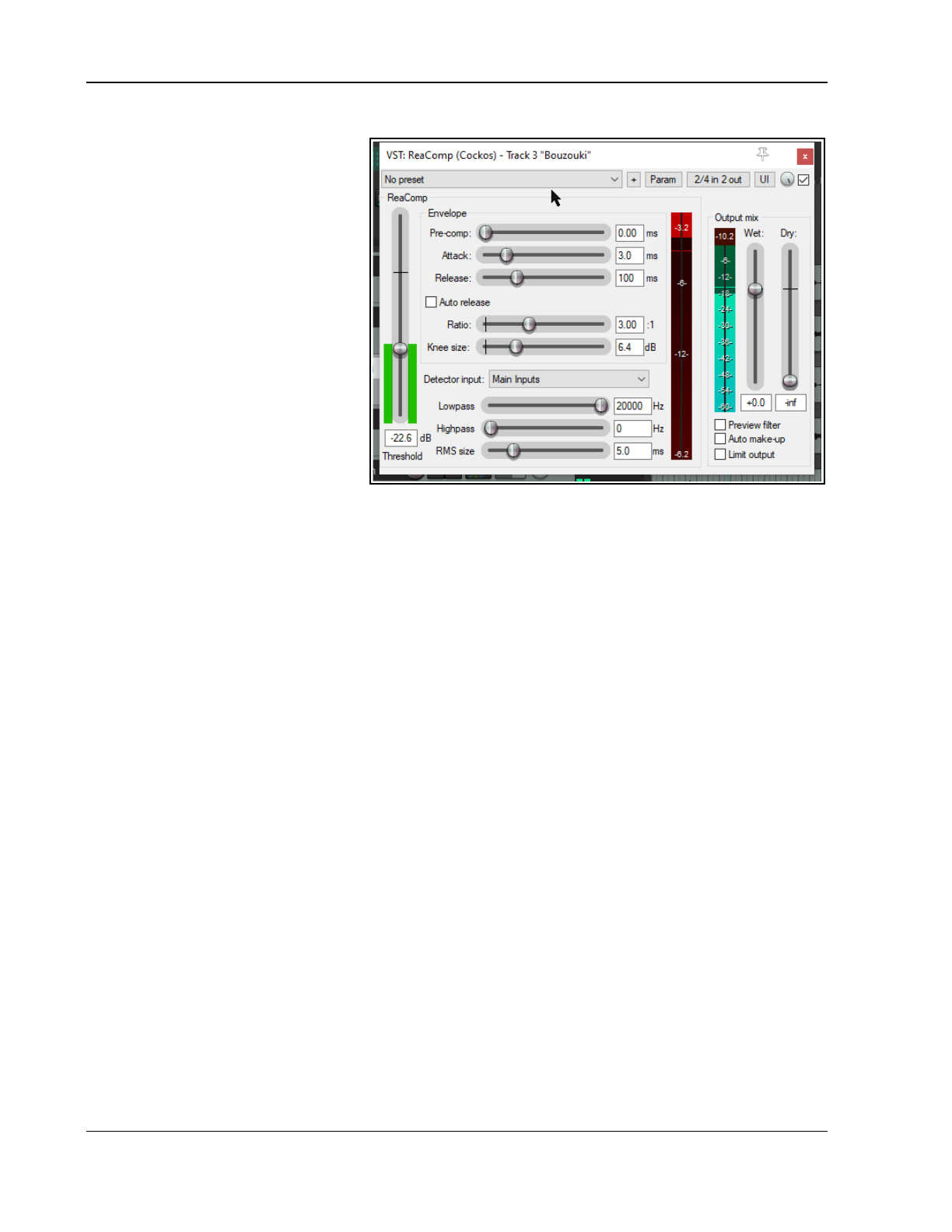
Up and Running: A REAPER User Guide v 7.81
Gain – Adjusts the volume of the track after compression. Often you will want to raise the overall sound at
least a little, to prevent the
overall volume of the track from
now being too quiet. The gain
control in ReaComp (above) is
labelled Wet.
Wet/dry rotary (top right).
Determines how much of the
unprocessed signal is mixed with
the processed signal. Fully right
(as shown) this will be 100% wet:
fully left will be 100% dry.
Bypass – this is the small tick box
in the top right corner, next to the
wet/dry rotary. When this is
ticked the plug-in is active. When
unticked it is set to bypass.
Limit Output (bottom right) –
This option will prevent the
compressor output from
exceeding 0 dB.
Note also the three controls attack, release and knee size. These help to control how the compression is
shaped and applied. Attack determines how long the compression takes to reach its full effect. The release
setting determines how quickly the compression will be removed when the signal falls below the threshold. Knee
determines how sharply or gradually the compression is applied.
For other more advanced controls, see the free ReaEffects Guide:
https://dlz.reaper.fm/userguide/REAPEREffectsGuide2021.pdf
Example
1. Open the file All Through The Night.RPP and save it as All Through The Night COMP.RPP
2. Solo the Bouzouki track. Look at its media peaks. You can see that it starts at a steady volume, but over
the last 30 seconds or so of the song it gets rather loud.
3. Play the track from the 55 second mark for about 15 secs then stop it. Try applying some compression to
kick in at about –12 or –13 dB.
4. Display the FX Window for this track.
5. Insert the VST: ReaComp (Cockos).
6. Create a loop to play over the last 20 secs or so of this instrument.
7. As you do so, experiment with setting the Threshold (vertical fader on the left) and the Ratio. Select the
option to Limit Output. You’ll probably end up with a setting of something like -16 on the Threshold and a
ratio around 4:1 or 5:1 (see picture).
8. Now save this file.
Channel Modes (Advanced topic)
By default, ReaComp operates in stereo mode: this means that all active audio channels (usually 1 and 2) will
be compressed based on analysis of the loudness of all such channels summed together. For many, if not most,
users, this will be the only method you need. Indeed, this mode is mandatory if you are using a compressor with
sidechaining (see chapter 17).
However, on the ReacComp I/O button right click menu there are also two mutually exclusive toggle options for
multi-mono and multi-stereo modes. In multi-mono mode, each channel is compressed separately (with the
same settings) based on an analysis of that channel. In multi-stereo mode, each individual pair of channels
channels is compressed independently (with the same settings) based on an analysis of that stereo pair.
Channel modes are also discussed variously in Chapter 17, in the contexts of channel routing.
330
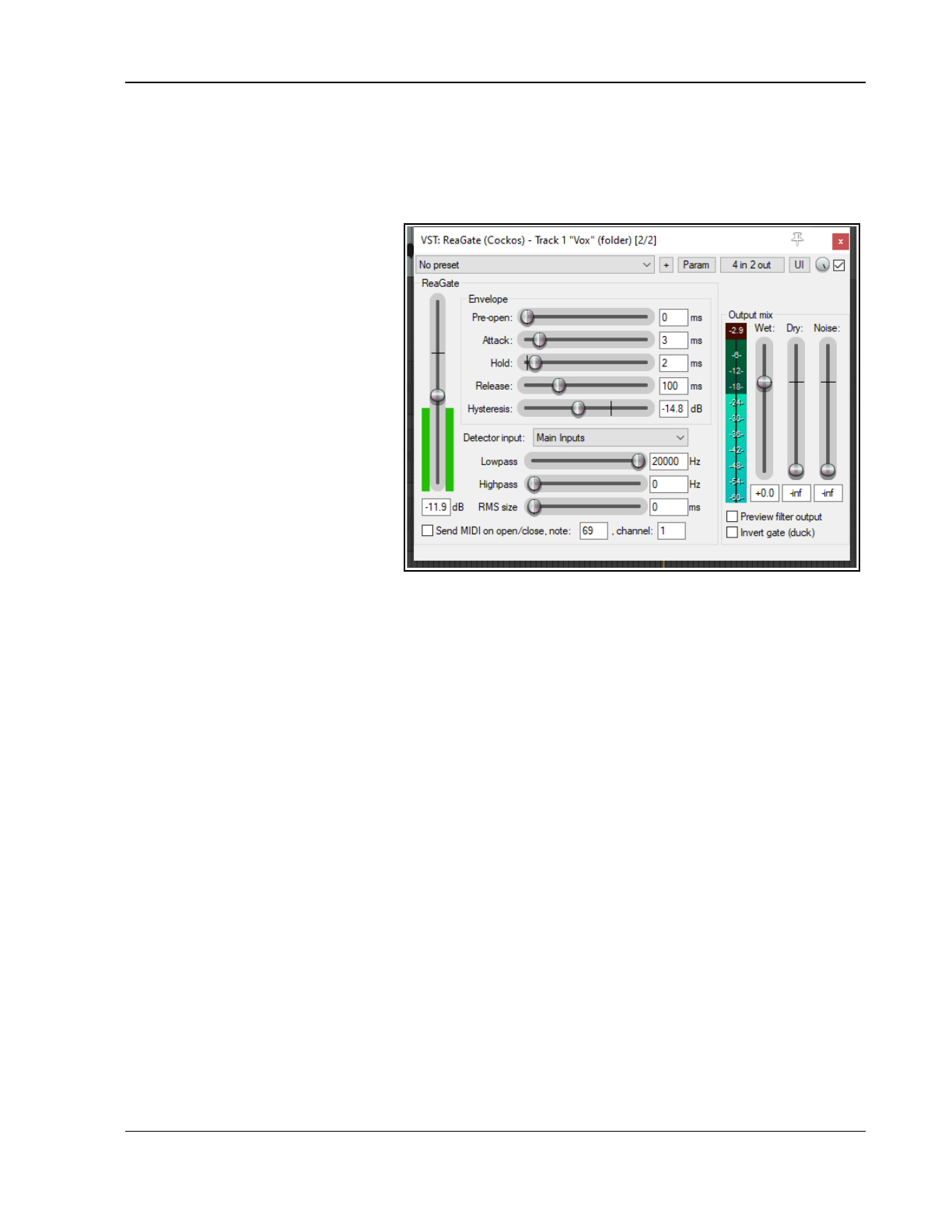
REAPER Plug-ins in Action
16.10 Volume Control with a Noise Gate
Noise gates control sound at the quiet end of the scale. When you record a track there might be sections of
silence, perhaps between verses. However, you might notice on playback irritating sounds have been recorded at
a low level during these periods. A noise gate can detect these and filter them out. Like the compressor, the gate
can be quite simple or more sophisticated. Here we are going to focus on the basic noise gate controls:
Threshold – Used to specify a
minimum sound level below which
the noise gate will kick in.
Attack – Specifies how quickly the
gate kicks in. Too soon can cause
the natural decay to be cut off.
Hold – Specifies how long the gate
remains open after the signal falls
below the Threshold.
Release – Determines how soon
the gate clo7ses after the signal has
fallen below the threshold.
Hysteresis – The degree of
tolerance allowed before opening or
closing the gate (rather like a
thermostat!).
This example, uses the project All
Through The Night COMP.RPP
Example
1. Solo the Vox track.
2. Play the song from just before the end of the first verse. If you listen carefully (especially thru headphones)
you can hear some unwanted sounds during the otherwise silent passage. Certainly you can see this on
the track’s VU meter.
3. Open the FX Window for this track and add Cockos VST ReaGate.
4. Play the song again. Adjust the Threshold fader (the first on the left) to a level just above that at which
the Threshold’s VU meter is peaking during the quiet passages (see below). This will shut out the sound –
visual confirmation is given by the VU meter on the right, which should now display no activity.
5. You will probably find that the default settings for Attack, Hold and Release work quite well, but experiment
with adjusting them if you wish. Save this file again.
You have just seen here a simple example of using a noise gate. Noise gates can be used to great effect and for
a large number of applications (including with a drum kit to cut out the bleed between mics). Applications like
that are more complicated and require a greater understanding of the noise gate's many parameters.
Channel Modes. Like ReaComp, ReaGate supports different-channel modes (see previous page). These can be
toggled on/off from the I/O button right-click menu. Multi-mono mode will cause the settings to be applied
independently to each channel: multi-stereo mode applies these settings independently to each stereo pair.
16.11 Time Based Effects: ReaVerb
ReaVerb is a VST plug-in that is supplied with REAPER. Reverb itself is a time-based effect, and ReaVerb uses a
type of reverb known as convolution reverb to create the illusion of space. This section will introduce you to
the basics of using ReaVerb. After that, it has more features that you can explore for yourself.
Most reverbs attempt to simulate the effect that the acoustic environment of, say, a hall or a room would have
on sound. However, the mathematics required is complex, so that few come close to sounding like real acoustic
rooms. Reverb plug-ins vary not only in their essential quality but also in the scope of their applications.
Convolution reverb can give you realistic reverb on a budget. It uses impulse responses of real acoustic spaces.
This is done by first generating a signal in the required environment and then recording the result.
ReaVerb allows you to both use recorded impulses from real environments to create your reverb, together with
something closer to traditional reverb techniques to modify that sound further.
331
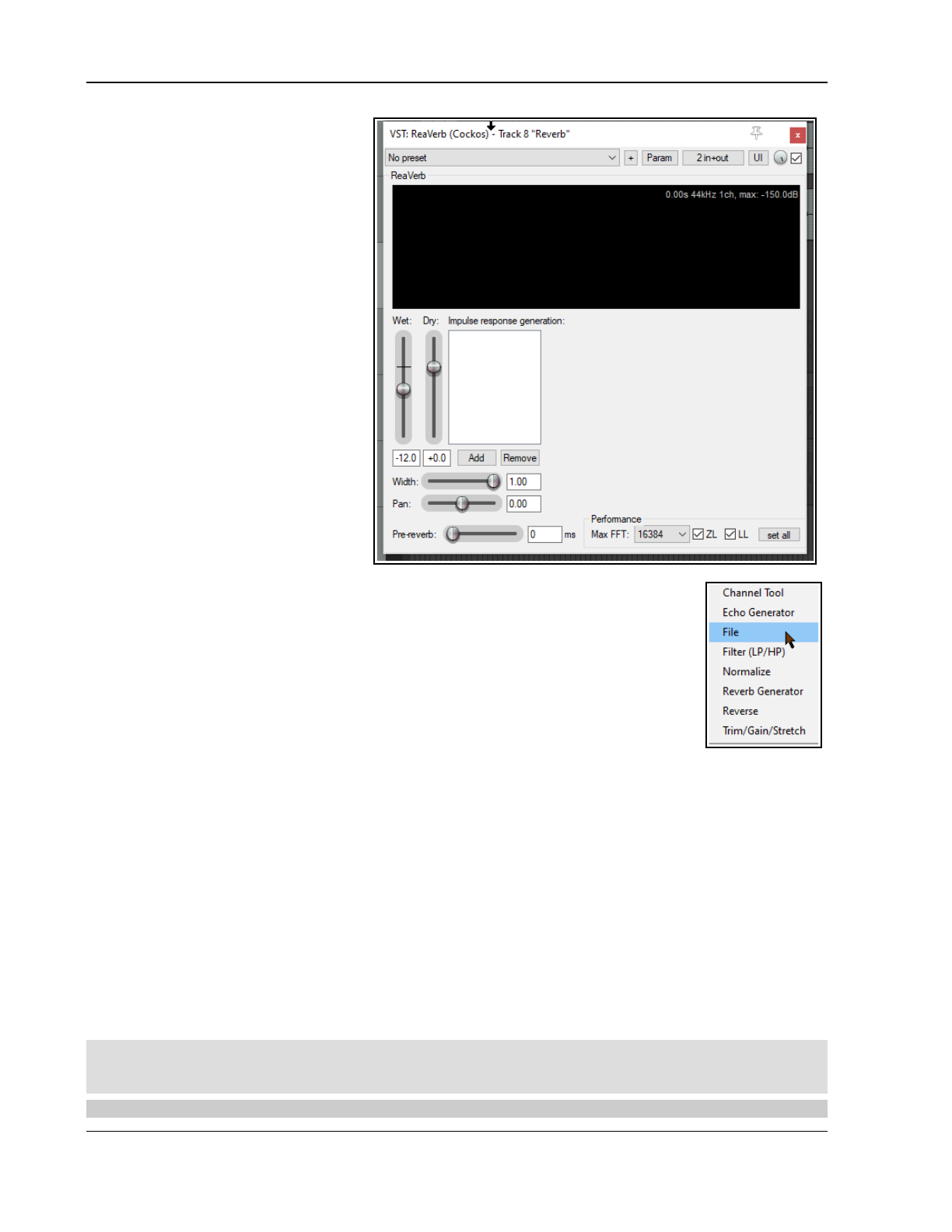
Up and Running: A REAPER User Guide v 7.81
To use convolution reverb you will need
impulse wave files. Search the net to find
all you want, many free. This example
uses files downloaded from
http://www.voxengo.com/impulses/ . In
the example that follows, these files
have been downloaded and stored in a
folder that we have created and named
C:\Program Files\REAPER\Reverb
Impulses\Voxengo\
Example
1. Open the file All Through The
Night.RPP and save it as All
Through The Night REVERB.RPP
2. Add a new track after the last track,
and name it Reverb FX
3. Add receives into this track from
each of the instrument tracks and
the Vox track. This will later enable
you to feed different levels of signal,
panned as required, from different
tracks into your Reverb Bus.
4. Display the FX Window for the
track Reverb FX and add ReaVerb
into this FX Window.
5. Fade the Wet level down to around –60 and the Dry level down to about –0.5, as
shown above. We will start by adding just a little reverb, then increase it as required.
6. Click the Add button and then on File to add a file at the start of your Reverb chain.
Navigate the file browser window to where your impulse files are stored and select
one. In this example, we will be using St Nicolaes Church.wav
7. Click on Open to insert that file into ReaVerb., which now shows a spectral display of
this file (see below). Files can also be inserted by drag and drop from media explorer.
8. Play the file. In the track window, lower the volume for the reverb bus to about –
10dB. Lower the master volume to about – 6dB. You can adjust this as if you wish.
9. In the ReaVerb window, raise the wet signal until you hear a pleasing amount of
reverb. This will probably be at about –10 dB. If you like, Solo the Reverb track for a while, so that you can
discern the effect more clearly.
10. We can now use the ReaVerb controls to adjust the Reverb effect. The Pre-reverb fader offsets the reverb
tail by delaying the signal that is sent to the reverb tail generator. Try it for yourself.
11. To add more controls to the Reverb chain, click on Add and choose Time/Gain/Stretch. Your window
suddenly has all these extra controls. These are used to stretch the impulse (make it longer), add in some
graininess, or trim the impulse (make it shorter). The best way to find out is to experiment!
12. Again click on Add and add a Filter (LP/HP). This causes a high pass and a low pass filter to be added.
This can be used to stop the reverb impulse from being applied to very low and/or very high frequencies.
13. When satisfied, you can save that set of pnicolaesarameters as a named preset that can by recalled for
other projects. Click on the + button, choose Save preset, name the preset and click OK.
Notice that when you are experimenting with ReaVerb you can:
Drag and drop to change the order in which modules are positioned in the reverb chain.
Untick the box to the left of any module’s name to bypass that module.
Important note: Processing FX in general, and especially delay based plug-ins such as reverb, can place an
especially heavy overload on your computer’s CPU. In some circumstances it can be possible to partially offset
this by enabling the Preferences, Audio option to Reduce CPU usage of silent tracks during playback.
Tip: When changing ReaVerb settings, stop and then restart playback for those changes to be employed.
332
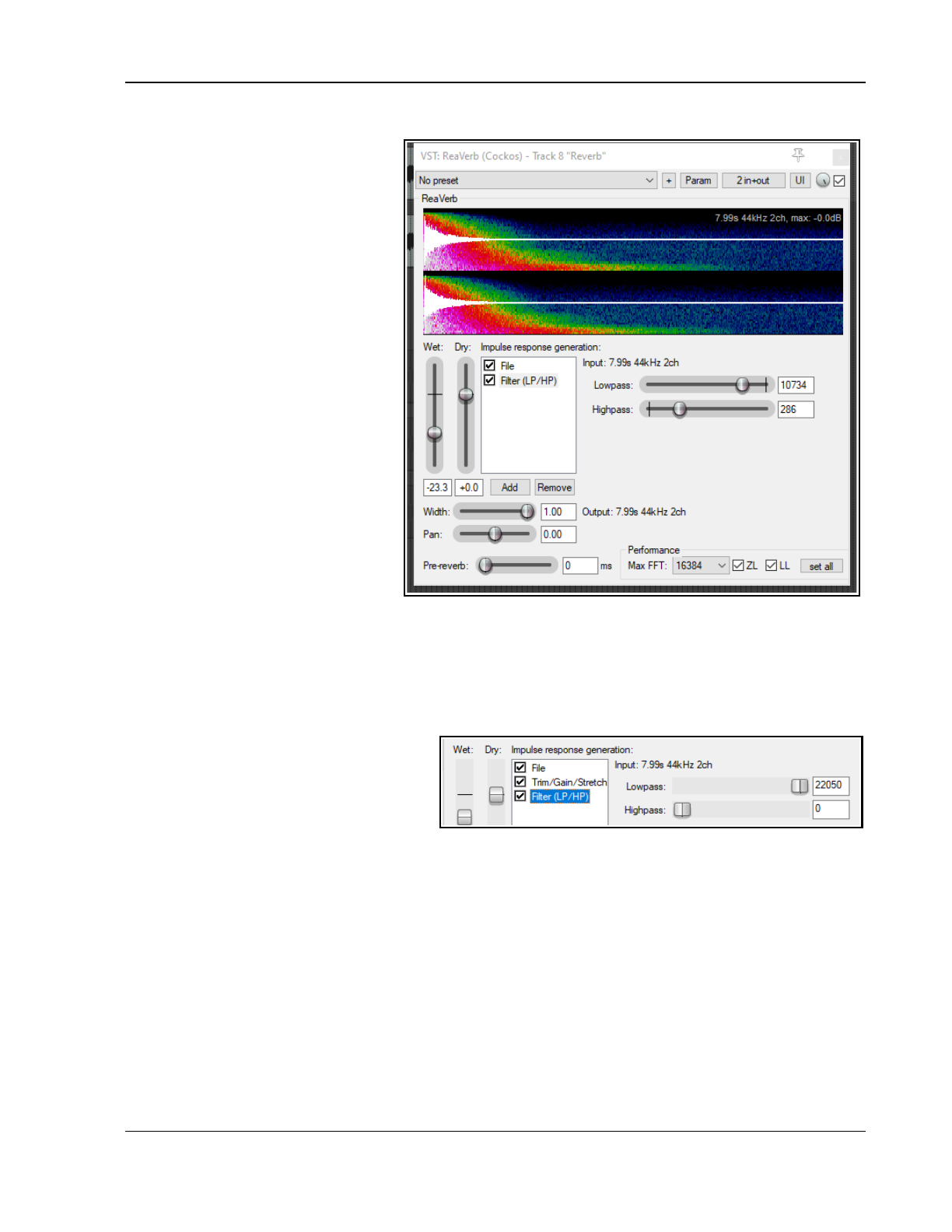
REAPER Plug-ins in Action
ReaVerb Features Summary
Channel Tool – this advanced feature
enables channel mapping and lets you
combine multiple file by channel.
Options include swap, copy, add to,
subtract from and convolve mode.
Echo generator - useful for "filling in
the gaps" of an impulse or creating
echo-decay.
File - inserts one or more impulse files.
High and low pass filter - force the
impulse not to work above or below a
certain frequency point.
Normalize - raise the gain of the
impulse to 0dBFS.
Reverb Generator – to create
artificial reverb based on length, room
size, dampening,etc.
Reverse – reverses the Reverb – a
nifty effect for vocals, guitar solos and
song intros/outros.
Trim/Gain/Stretch – trim or stretch
the impulse (make it shorter or longer),
add in some graininess.
Max FFT – FFT filters are a complex
mathematical topic. Google to learn
more details! Meanwhile, for the rest of
us, changing the FFT size changes CPU usage. A lower FFT setting means a higher CPU usage, but spread more
evenly. Higher FFT sizes will consume less CPU but result in more latency. FFT size will therefore affect
performance and possible dropouts, but it should not affect the sound itself. If unsure, use the default setting.
ZL – option to enable zero latency: useful when tracking while monitoring reverb levels.
LL – option to use an extra thread to improve low latency performance.
When rendering, better results might be obtained with both ZL and LL disabled.
Set all -apply these performance settings to
all instances of ReaVerb.
The Bandwidth determines how wide or
narrow will be the frequency range that is
compressed.
Threshold, Ratio and Gain work in the
same way as in a normal compressor.
16.12 Noise Reduction with ReaFir
ReaFir is a multipurpose dynamics plug-in that almost defies categorisation or description. It can act as an EQ, a
Compressor, a Noise Gate, and more. In this example, you will see how it can be used for noise reduction. The
need for a noise reduction plug-in can arise when an otherwise good track has some unwanted background noise
on it. This might, for example, be hiss or rumble, or the sound of an air conditioner.
ReaFir can be used to remove such sounds from your tracks in real time. In order to do this, you must first
identify a passage on the track (perhaps a second or two) where you have recorded the unwanted noise by
itself. This is likely to be at the very beginning of the track.
Example and Procedure
In overview, the procedure is this:
1. Insert ReaFir in the FX window of the track containing the recorded items with the unwanted noise.
2. Position the play cursor at the start of a passage containing just the unwanted noise.
333
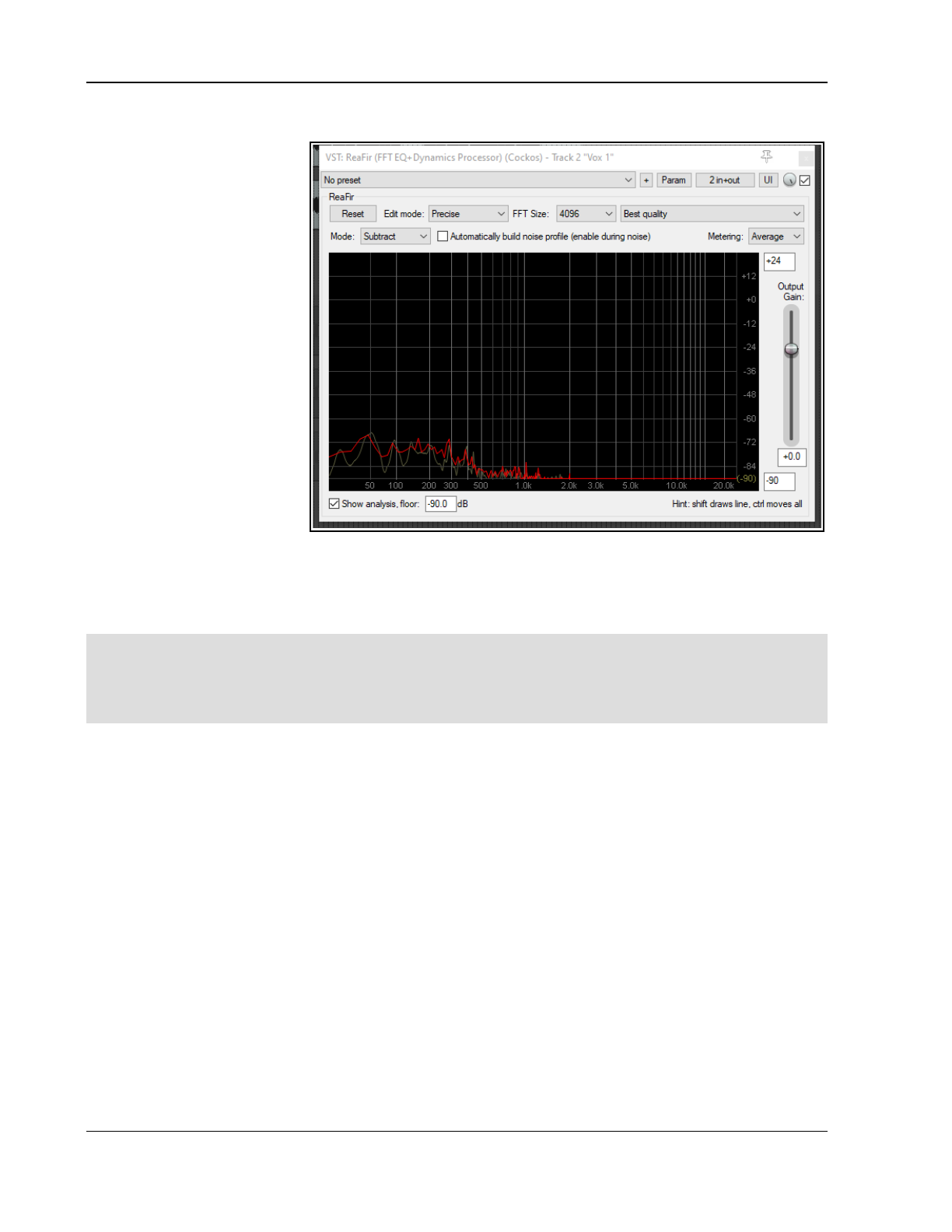
Up and Running: A REAPER User Guide v 7.81
3. Set ReaFir to Subtract mode. Set Edit Mode to Precise.
4. Select the Option
Automatically build
noise profile.
5. Play the track only the
part of the track that
containa the noise, then
stop the playback.
6. You should see that
ReaFir has built a profile
of the unwanted noise.
This will be marked with
a red line (shown right).
7. Now uncheck the box
labelled Automatically
build noise profile.
8. Return to the start of
the song and play it.
9. As the song plays, the
noise profiled by
following steps 1. to 5.
has now been removed
from your output.
ReaFir supports metering in
channel sum mode, max mode or selected individual channel mode. These modes are explained in the section
covering ReaEQ. Your choice of metering options does not affect output. Your choice of channel mode (e.g.
multi-mono or multi-stereo) from the right In/Out menu will, however, affect how the audio is processed.
Channel modes are explained in the section covering ReaComp. If unsure, accept the default settings.
Note 1: ReaFir is suitable for removing a background noise that is fairly constant, such as an electrical hum: a
noise gate is better at dealing with occasional noise, such as a vocalist's breathing sounds.
Note 2: As with other FX, ReaFir parameters can be automated (see Chapter 18). Moreover, of special interest
to screen readers, is an additional automatable parameter, EQ curve offset, which adjusts the gain of the EQ,
threshold or noise profile curve.
16.13 Multiband Compression with ReaXComp
Applied to the Master, Multiband Compression can be a useful tool for adding body, warmth and volume to your
final mix. It is outside the scope of this guide to suggest just how heavily or lightly you should apply your
Multiband Compressor. Many audio engineers believe quite strongly that the contemporary trend being currently
pursued by the major record companies takes multiband compression too far.
Be that as it may, a multiband compressor works by applying different rates of compression to different
frequency bands. This lets you shape the sound much more precisely than is possible with a simple compressor.
The ReaXComp default settings include 4 bands. These are 0 to 200 Hz, 200 Hz to 1,000 Hz, 1,000 Hz to 5,000
Hz and above 5,000 Hz. However you can add extra bands or delete superfluous ones. You can also change the
band frequencies as you wish. For example, if you increase the top frequency of Band 1 to, say, 250 Hz, then
that automatically becomes also the starting frequency for Band 2.
If you have not used a Multiband Compressor before, then you are advised to start cautiously and become more
adventurous as you gain in knowledge and confidence. You can experiment on any of the sample All Through
The Night project files that you have used elsewhere in this User Guide.
Metering: As with ReaComp and several other Cockos plug-ins, ReaXComp allows you to choose which channel
information is used for the visual display. This can be all channels (the default), all channels (with no FFT) or any
selected channel. Channel analysis is explained earlier in this chapter where ReaEQ is discussed.
Channel Modes: Multi-mono and multi-stereo channel modes are also supported, as well as the default
stereo mode. Channel modes are explained in the section where ReaComp is discussed.
334
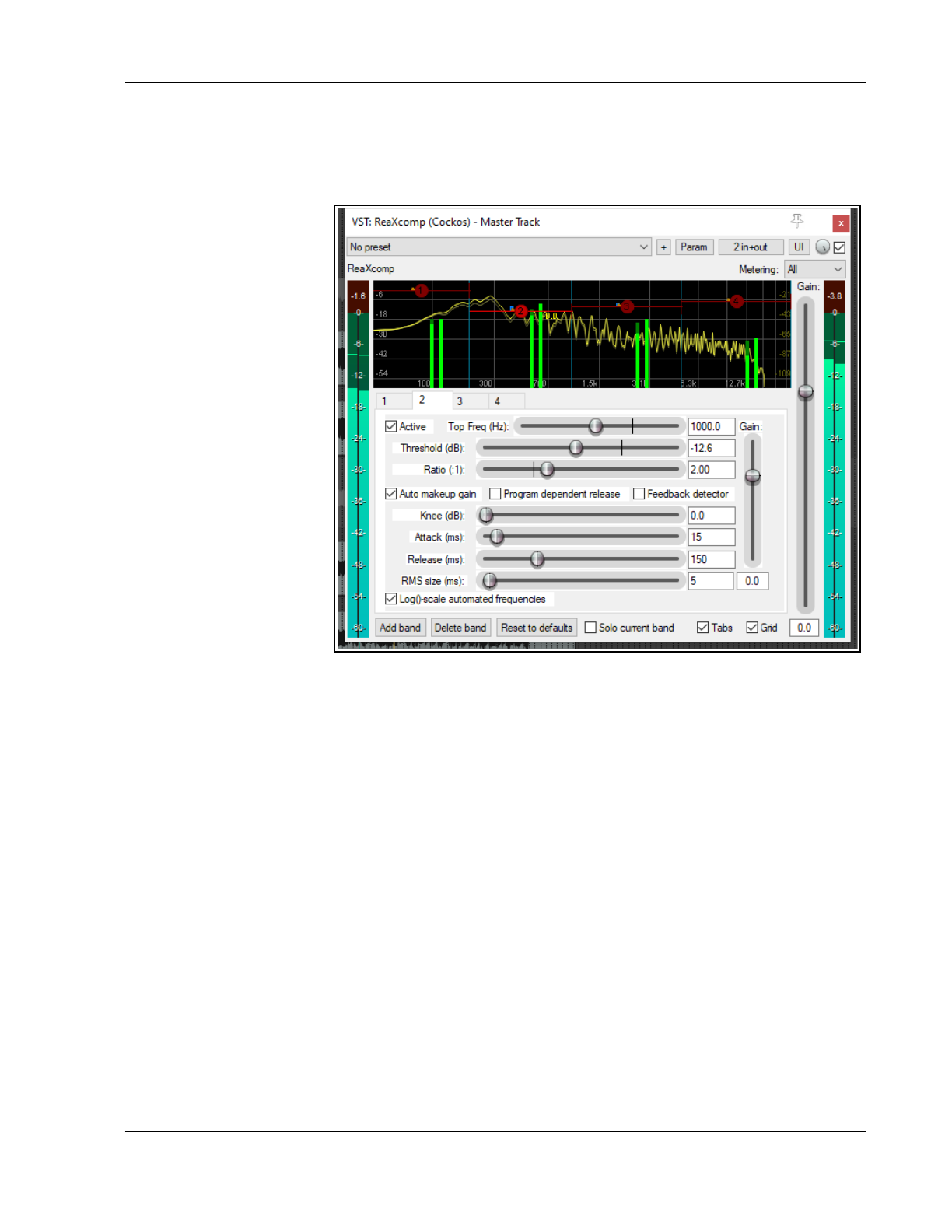
REAPER Plug-ins in Action
Using ReaXComp: Some Tips
Right-click over any band handle to display a context menu. Options include using large band handles.
Don’t use too many bands. Too many independently compressed bands can make your mix sound
disjointed. Many mastering engineers use only as few as three bands.
Listen closely to the
changes in sound
when adjusting
settings. Take your
time here.
The Attack setting
determines how much
time passes after the
signal rises above the
threshold before the
compressor kicks in.
The Release setting
determines how much
time passes after the
signal falls below the
threshold before the
compressor is
released.
Try to adjust the
Attack and Release
settings so as to make
the compressor come
in and out unnoticed.
Especially when first
using a Multiband
Compressor in the
Master, it is advisable to use the Gain settings only to compensate for loss of volume due to compression,
not to pump the signal up. A notable exception here might be where one bandwidth needs to be adjusted
slightly relative to the others.
Consider placing a limiter (e.g. LOSER’s Master Limiter) after the Multiband Compressor in your FX Chain.
Another, and completely, separate use for a Multiband Compressor is to compress a very specific
frequency within a track, for example as a de-esser or de-popper on a vocal track.
Note: ReaVerb, ReaFir, ReaXComp and the other Rea effects are described in more detail in the free
ReaEffects Guide - https://dlz.reaper.fm/userguide/REAPEREffectsGuide2021.pdf
16.14 ReaLimit: The Brickwall Limiter
Reaper plug-ins are covered in Chapter 16, but especially interesting is ReaLimit, which serves as more than a
simple track or master limiter. It can be used on individual tracks, but is more likely to be used on the track
master and possibly folders and submixes.
ReaLimit lets you specify a threshold and a ceiling: it then transfers sound from the threshold to the ceiling.
Sound that comes in at the threshold goes out at the ceiling. No signal can be output above the ceiling: any
input above the threshold is compressed. This usually results in a louder output. For example if the threshold is
set to -6 dB and the ceiling is set to +0 dB, the overall signal is boosted by +6 dB to transfer the threshold to the
ceiling. Input signal above -6 dB is compressed so that it peaks at exactly +0 dB.
ReaLimit’s visual interface provides live visual feedback in real time. For a menu of display toggle options right-
click over the graph. Your options are Freeze display when playback stops, Clear display when playback
starts and Autoscroll display.
The Metering drop down allows you to choose which channel(s) is/are to be metered. The default is All. Note
that channel selection here affects only the display, not the processing.
335
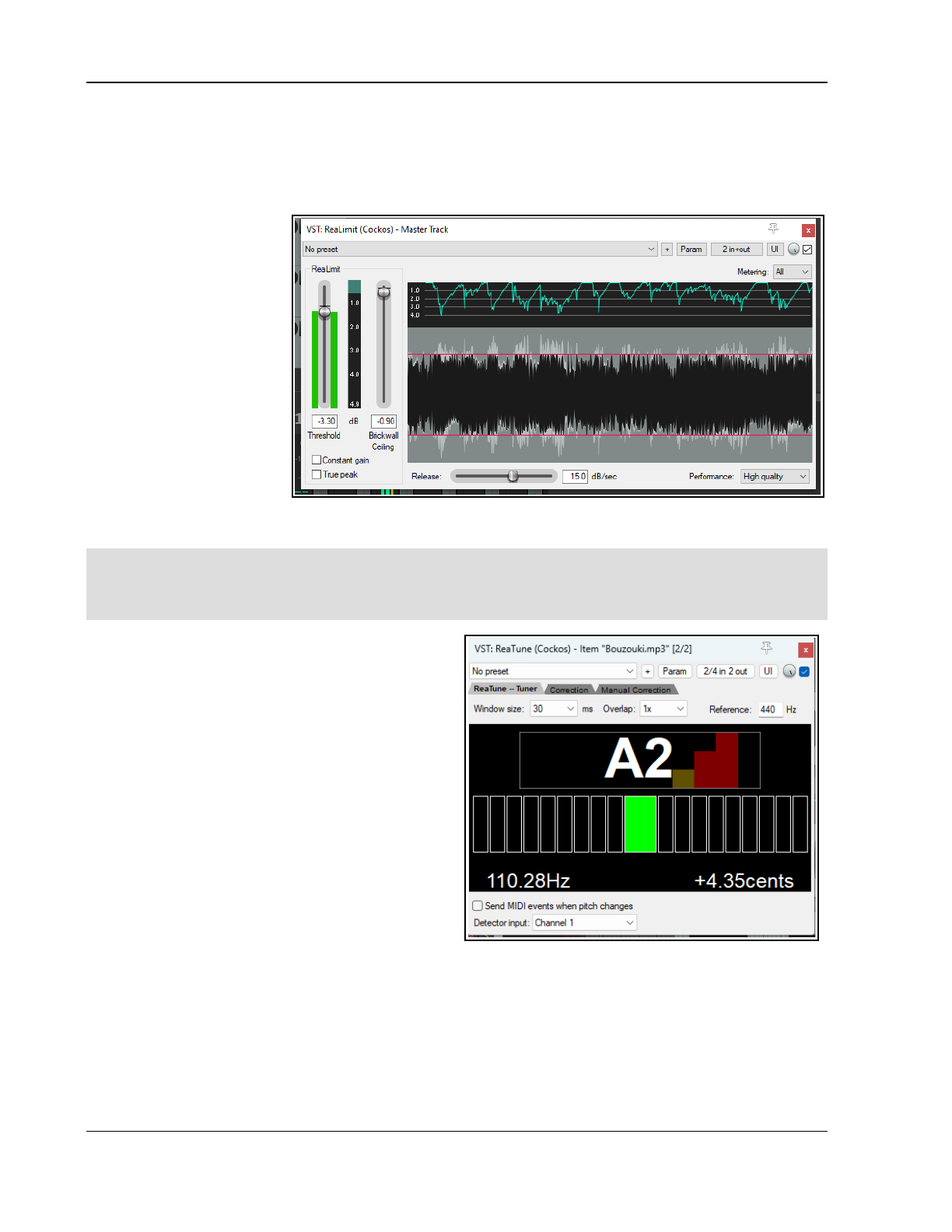
Up and Running: A REAPER User Guide v 7.81
The In/Out right click menu lets you choose from stereo, multi-mono and multi-stereo. In stereo mode all
master audio channels are compressed based on analysis of the loudness of all channels summed together. In
multi-mono mode, each channel is analysed and compressed separately. In multi-stereo mode, each pair of
channels is compressed independently as a stereo pair. Other features of the ReaLimit interface are:
Constant gain: manages threshold/ceiling controls so that either will be moved relative to the other.
True peak: whether to
show true peak (a more
accurate than peak).
Double-clicking on either
fader control will restore it
to its default value.
Release: determines how
quickly the limiter stops
working after the signal
drops below the threshold.
If it is overly long, you will
hear audible pumping, while
if it is too short, distortion
artefacts may result.
Performance: high quality
(the default) or low latency.
Note that ReaLimit’s
application is not confined to your master. For example, it can be used with folders to help “glue” or pump up a
submix, or on a per track basis with pre-mixed/bounced stems.
Track Gain Reduction Metering: Track gain reduction monitoring for plug-ins that measure gain reduction
and report it to the host can be enabled in Preferences, Project, Track/Send Defaults. Display the Track meter
display dropdown and enable Display gain reduction for plug-ins that support it. Track meter defaults
will be applied to new tracks only, not to existing tracks on existing projects.
16.15 ReaTune Revisited
In Chapter 10 you were introduced to ReaTune.
ReaTune can be used to help you correct pitch on
recorded media items. It can also be used to help you
to tune an instrument – select the ReaTune – Tuner
tab, as shown here (right).
Simply arm the track for recording in the usual way,
then tune your instrument in front of the microphone.
This is explained in detail in the free REAPER Cockos
Effects Summary Guide.
16.16 JS Plug-Ins and ReaPack: an
Overview
The REAPER install package includes more than 250
mostly third party JS plug-ins which cover a wide
range of functions. More are available by downloading
and installing ReaPack from https://reapack.com.
Keith Haydon has undertaken the massive task of documenting many of them! You’ll find his excellent and
monumental work at https://www.keithhaydon.com/Reaper/JSFX2.pdf
When searching for possible JS plug-ins within the Add FX window, you can make use of the filter text box (for
example comp OR lim to find all plug-ins with compressor or limiter in their name). There is also a menu
option to show JSFX filenames as well as descriptions. See “Using Search Filters” section for more examples.
For the more adventurous, the FX menu in the Add FX window (View, FX Browser) includes commands to
Rename FX, Edit JS FX, Create new JS FX and Duplicate JS FX
336
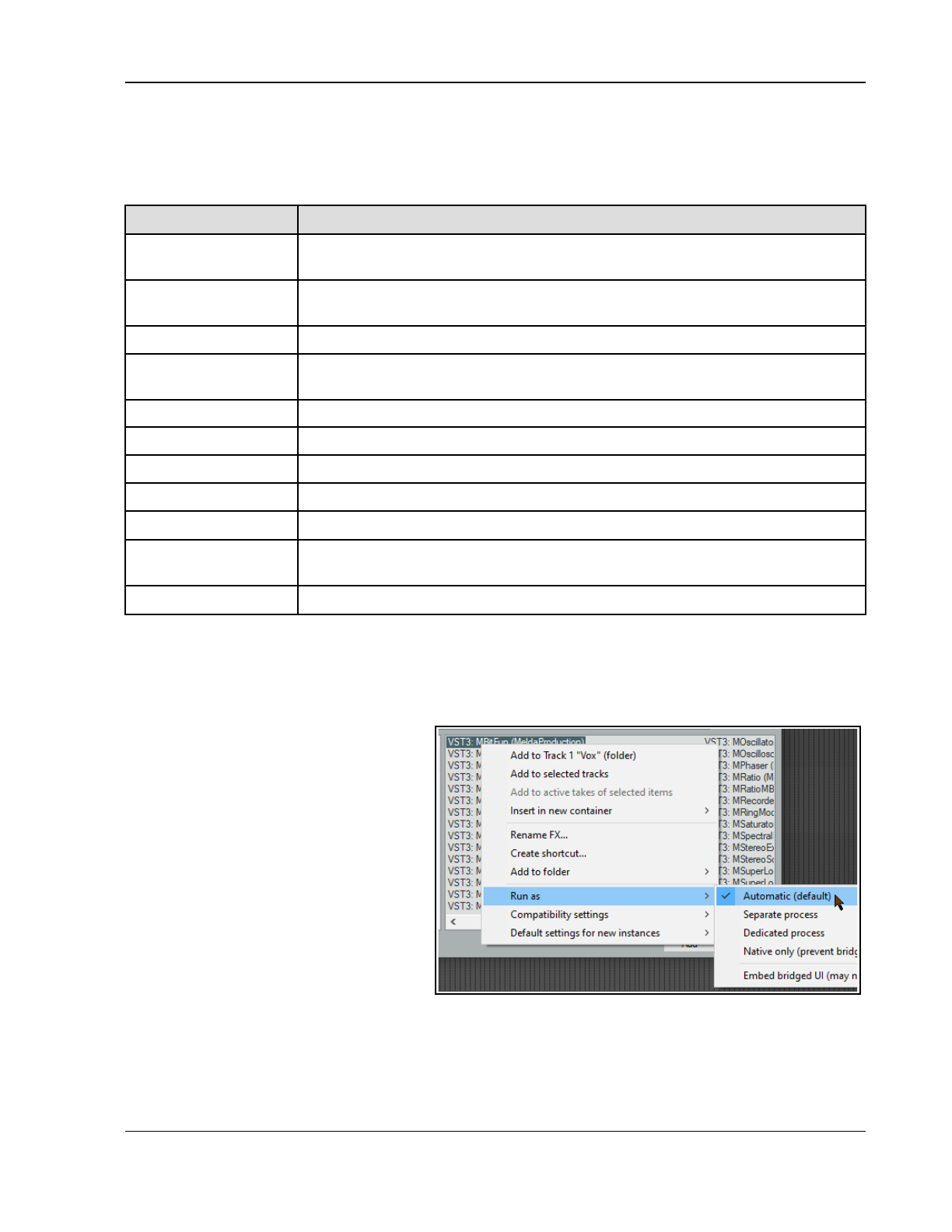
REAPER Plug-ins in Action
16.17 Summary Examples of JS Plug-In Categories
It is impossible to fit all JS plug-ins into tidy categories: the table that follows is indicative only. The order in
which the categories are listed is not significant. Note, though, that the wider you cast your net when specifying
a search filter, the more likely it is that your catch will include some that aren’t relevant to your needs!
Category Description
Eqs/Boosters/Filters Includes semi-parametric and graphic EQ plug-ins, and a range of filters, boosters
and exciters. Search example: eq OR filter OR excite OR shape OR boost
Compressor/Limiters Includes expanders, drum and percussion compressors and various limiters.
Example: comp OR lim OR expand
Chorus/Delay Various niche chorus/delay FX. Example: chorus OR delay
Guitar FX Enable the option show file names in JSFX list is enabled to find guitar FX. Example:
guit OR flange OR fuzz OR phase OR trem OR wah OR distort
Analysers Spectrum analyzers, Goniometers and more. Example: ana OR gon OR meter
Stereo manipulators Enhancers, manipulators, fakers and more. Example: stereo
Pitch shifters Pitch shifters. Example: pitch
Pan Manual and auto-panners. Example: pan
Volume Manual and auto volume adjusters. Example: vol OR loud
MIDI - See also MIDI
plug-ins section of guide.
There is a very wide range of MIDI plug-ins. Search for MIDI together with any
other term or terms – e.g. midi AND velocity
Channel split/join This topic is covered in the section Channel Routing Plug-ins.
16.18 Bridging and VST Plug-in Run Mode
If you are using 64-bit REAPER and wish to use older 32 bit plug-ins you can do so by bridging. By default,
REAPER will attempt to work out for you whether this bridging is required (Options, Preferences, Plug-ins,
Compatibility). To override this setting for any plug-in, choose Run as from its context menu, then select one of
three options:
Separate process: all bridged plugins for
which this is selected will be put into a single
process, external to the main Reaper
process. This minimises CPU load: however,
if one plugin crashes the bridge process, all
the other bridged plugins will die too.
Dedicated process: this puts each bridged
plugin into a separate bridge process of its
own. This will prevent a buggy plug-in from
crashing the entire bridge, but it has the
downside of increasing the overall CPU load.
Native only: the plug-ins are run inside the
main Reaper process.
Bridging can serve another useful function.
Even though it is primarily intended for use
with 32 bit plug-ins, you can if you wish also bridge (most likely in a dedicated process) any 64-bit plug-in. This
has the effect of firewalling REAPER against any adverse effects that could potentially arise from a buggy 64-bit
plug-in.
A further choice, Embed bridge UI, determines whether the bridged plug-in GUI is displayed in the FX Chain
wrapper window (or as a floating window) or is displayed in a completely separate (Windows / OSX) window.
The choice is provided as some bridged plug-ins behave better in one context than in the other.
337
Up and Running: A REAPER User Guide v 7.81
The Plug-ins, Compatibility page of your Preferences option to Terminate REAPER immediately if a
plug-in corrupts the process heap will cause REAPER to crash if it encounters a buggy or malicious plug-in.
Remember! You should not store 32 bit plug-ins in the same directory as 64-bit plug-ins.
16.19 Controlling FX Parameters on the Fly
If you have a controller (e.g. a Presonus Faderport), to assign a control on the fly to a VST FX parameter:
● In the FX window, click on the parameter control (e.g for ReaComp, perhaps the Threshold fader).
● In the FX window, click on the Param button. Under Last touched, select Learn from the menu
● Twiddle the required knob on your controller and specify your MIDI/OSC Learn options.
● Click on OK.
16.20 Sending FX Output to a Different Track
Use REAPER’s pin connectors. These are explained in detail in the chapter immediately following this one.
16.21 Third Party Plug-in Presets
You can use your favourite third party VST and DirectX plug-ins with REAPER, such as Wave Arts, Melda, and so
on. Many of these plug-ins are supplied with a number of presets. The method of accessing these will vary
depending on such factors as the plug-in’s native interface and which type of plug-in it is.
Many will access and save presets in their own interface, in which case their GUI will include a presets button
and/or dropdown. If no such control is present, you should be able to manage the plug-in’s presets using
REAPER’s interface (in the same way as you do for Rea and JS FX).
16.22 FX and FX Chain Options
The various menus in the FX chain window menu make available a number of options and preferences:
Options menu Comments
Auto float new FX windows Causes a new window to be opened for any FX added to the chain.
Ignore FX keyboard shortcuts Keyboard shortcuts are all passed through to the main window – e.g.
pressing spacebar will start/stop playback.
FX plug-in settings … Opens the Plug-ins page of REAPER’s preferences.
CPU utilization display CPU utilization (in the performance meter and elsewhere) can be
displayed as a percentage of the total capacity of all cores (e.g. 10%
as 10% of all cores), or in terms of the number of cores being utilised
(e.g. 0.2c as two tenths of one core).
Individual FX context menu Comments
Build multichannel routing for
output…
If the selected FX (e.g. MT PowerKit) outputs to multiple channels, the
necessary tracks are created for you, along with all required routing.
Build 16 channels of routing
to ...
For input to multitimbral instruments, 16 tracks will be created, each
with MIDI routed on a separate channel.
FX Menu Comments
Chain PDC mode Option for plug-in delay compensation to be calculated and applied to
the chain or to ignore plug-in delay.
Chain oversampling Oversampling can increase the rate at which audio is sampled by a
factor of typically 2x or 4x that at which it was recorded. This can
have the effect of reducing unwanted noise, but is also CPU intensive.
Options available are 88.2k/96k, 176.4k/192k, 352.8k/384k, or
705.6k/768k.
FX instance oversampling
Force auto-bypass on silence for
selected FX
This can be used, for example, to prevent a reverb tail during a silent
passage. The silence threshold is defined in advanced project settings.
Also available on the individual FX context menu.
338
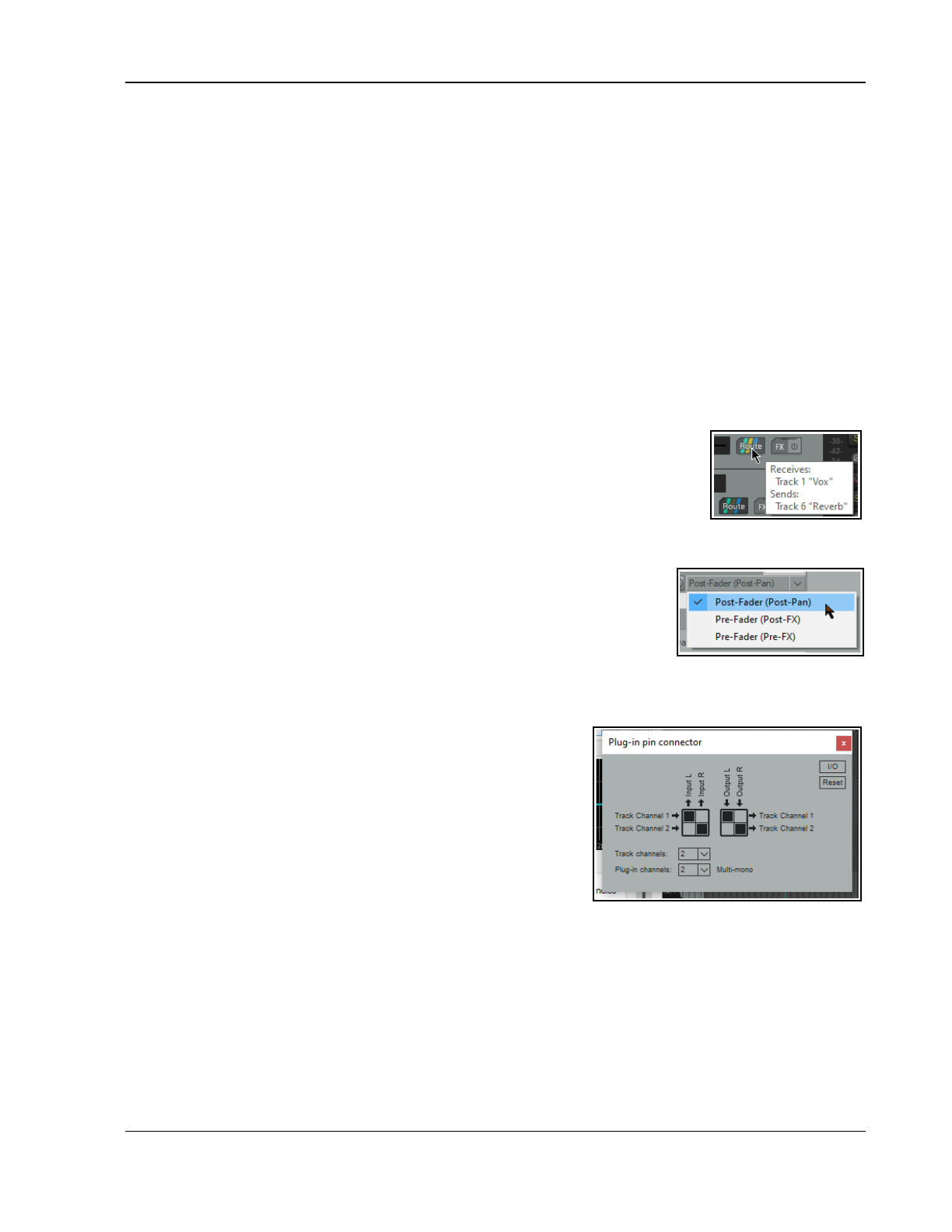
More Routing Examples
17 More Routing Examples
This section is mainly intended for more experienced users of DAW software.
REAPER’s basic routing capabilities
include buses, submixes and folders. Tracks in REAPER can in fact carry up to 128 channels of information.
These can be used for simple or complex routing of audio or MIDI material, making possible such features as FX
routing, channel splitting and parallel routing, audio ducking and more.
17.1 Understanding REAPER’s Channel Routing
Stereo (by definition) uses 2 channels - left (1) and right (2). When you pan a track with mono media, you are
determining how that track signal is balanced left-right between these two channels. By default, REAPER uses
channels 1/2 for your audio, e.g. when sending audio to the master. These same default channels are used by
the master to send audio to your speakers. More complex tasks might need more than just these two channels.
One example is parallel FX processing: for example, which allows different FX to be processed independently of
each other. We’ll get to this later in this chapter. Another example might be “ducking.” This is where the volume
of one track manipulates that of another – for example, to prevent a guitar from jumping up above a vocal.
Footnote: Your master has a virtual "switch box" (right click master volume fader). By default, channels 1/2 go
outputs 1/2, but any combination of REAPER channels can be routed to any hardware outputs.
17.2 The Track Routing Button
Familiarise yourself with the TCP's track routing button (Chapter 2). This displays for
each track one, two or three small “stripes” each of which will be on or off. The first of
these (green) indicates whether the master/parent send option is enabled; the second
(yellow) whether that the track has one or more sends; the third (blue) whether that
the track has one or more receives. Hover the mouse over the button for a tooltip.
Clicking this button opens a window which reveals full details of any send from and/or receives to that particular
track. You can also click and drag from this button to another track to create a send to that track.
17.3 Send and Receive Types
Every send is one of three types - Post-Fader (Post-Pan), Pre-Fader (Post-
FX), or Pre-Fader (Pre-FX). The default type is Post-Fader (Post-Pan), but
this can be changed in Preferences (Track/Sends defaults).
Different send types send the audio at different stages in the audio signal flow.
For example, the volume of a send that is Post-Fader (Post-Pan) will be affected by changes made to the source
track's volume fader. A send that is Pre-Fader (Post FX) will not. An audio send that is Pre-Fader (Pre-FX) will be
affected by the source track’s volume fader but not by any FX in the source track's FX chain. For more complete
information, consult the flow charts at the end of Chapter 6.
17.4 Pin Connectors and Channel Mapping
We encountered FX pin connectors and channel mapping earlier in
this User Guide, in Chapter 7. Channel mapping is accessed by
clicking on a plug-in’s In/Out button (typically labelled 2 in+out).
The pin connectors are like virtual cables, used in your FX to
determine the channels that are used for the audio signal flow. This
is shown in the pin connector interface.
Study the arrows and the black squares in the diagram (right). These
indicate from which track channel(s) the audio comes in to, and
(after processing) goes out of, the FX. The first grid shows two separate audio streams from the track being
input into an FX, from channel 1 (to the FX left input) and from channel 2 (to the FX right input). The second
grid shows the output from the left FX channel passed to track channel 1, and from the right FX channel to track
channel 2. What happens in between input and output is determined by the FX and its parameter settings.
Depending on the particular plug-in, you might have a choice of channel modes. These are explained in
Chapter 16 in the context of ReaComp. For example, ReaComp and ReaGate support stereo, multi-mono and
multi-stereo modes. ReaEQ and ReaVerb support stereo and multi-mono modes.
The JS Channel Mapper Downmixer, as its name implies, mixes channel inputs as required before passing
the signal “downstream.” Before looking at an example we need to understand a little more about the interface.
By default, REAPER tracks comprise two channels (left and right). However, if the track has more than two
channels then these channels will also be displayed in the plug-in pin connector.
339
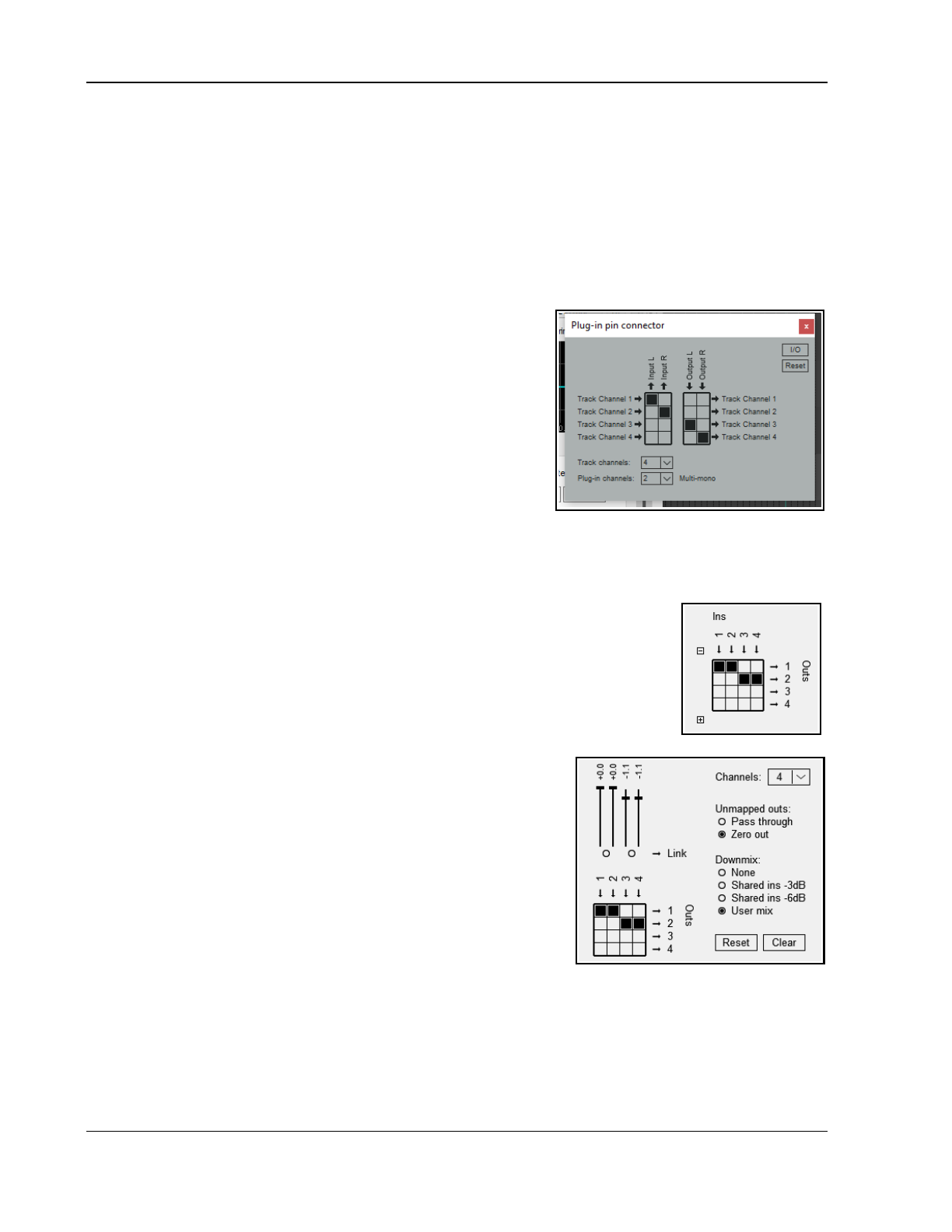
Up and Running: A REAPER User Guide v 7.81
The track channels dropdown can be used to increase or decrease the number of channels in the track (e.g.
from 2 to 4 or 6): the plug-in channels dropdown defines the number of channels available in the plug-in.
Remember that signal flow is sent from inputs to or removed from outputs by clicking in the boxes where the
input/output combination intersects. In the example below, the track has four channels, but the plug-in has only
two. The signal enters the FX from track channels 1 (L) and 2 (R) and after processing passes out to track
channels 3 (L) and 4 (R).
This configuration can also be managed from the I/O menu (Audio input/output, MIDI input/output, plug-in
channel configuration). Help is also available on this menu. Other I/O menu options include:
Delta solo (difference between dry and phase inverted wet). Toggled on/off by pressing Alt click on
the FX wet/dry mix control. Allows you to hear only the difference a plug-in is making to the signal. Examples
might be when soloing EQ bands to assess their effect, or when
adjusting threshold, attack and release settings in a compressor.
PDC: whether to apply plug-in delay compensation.
Pass thru unmapped output channels or Zero unmapped
output channel. Where a channel is not mapped (e.g. 1 to 1 and
2 to 2 in the second example above), whether to automatically
pass the unprocessed signal thru to that channel.
The Reset button can be used to restore some or all settings to their
defaults, or to clear settings. Options are:
Reset all Reset input Clear input
Clear all Reset output Clear output.
Example
This simple example is not necessarily something you will want to do, but it illustrates how pin connectors and
channel mapping work. In it, we will be adding reverb to just one channel of a track.
1. Into an empty FX chain we insert ReaVerbate, display the pin connector and add two channels. Direct
output to 3/4, as in the example
above right
. The option Pass thru unmapped
output channels is enabled so that the dry signal will pass thru this FX
unaffected.
2. We adjust the reverb parameters as required.
3. The JS: Channel Mapper Downmixer is added after ReaVerbate. Set it up so
that the mixer channels 1/2 (dry signal) are passed to the track’s channel 1 (left),
and 3/4 (wet signal) are passed to the track’s channel 2 (right).
4. We play the track, adjusting pan to suit, noticing that only the right channel will
include any delay. Headphones are a good way to test this!
The JS:Channel Mapper Downmixer
This contains interesting features beyond being a simple channel mixer.
The options to Pass thru or Zero out act as explained above.
There are also a number of options for adjusting downmix levels (see
right). Of these, perhaps the most interesting is the User mix option.
This will present you with a series of faders that can be used to adjust
the volume levels of individual channels.
Other options are None or -3dB or -6dB.
17.5 Sidechaining and Audio Ducking
The next example will show you how to use a technique known as
sidechaining to create a ducking effect. Put simply, this describes
what happens when a compressor is used to ensure that the volume on one track is automatically lowered
whenever the volume on another track is raised.
You might want to do this, for example, when working with a kick and a bass. In this example, we’ll use the
Bouzouki, Guitar and Vocal tracks in our sample project to show you how it’s done. We will use audio ducking to
ensure that the overall volume of the instruments is automatically lowered a little whenever there is a signal on
the Vocal track. This helps lift the vocal track slightly above the mix. In order to do this, we use multi channel
routing in conjunction with the ReaComp compressor. The diagram below shows how we can do this.
340
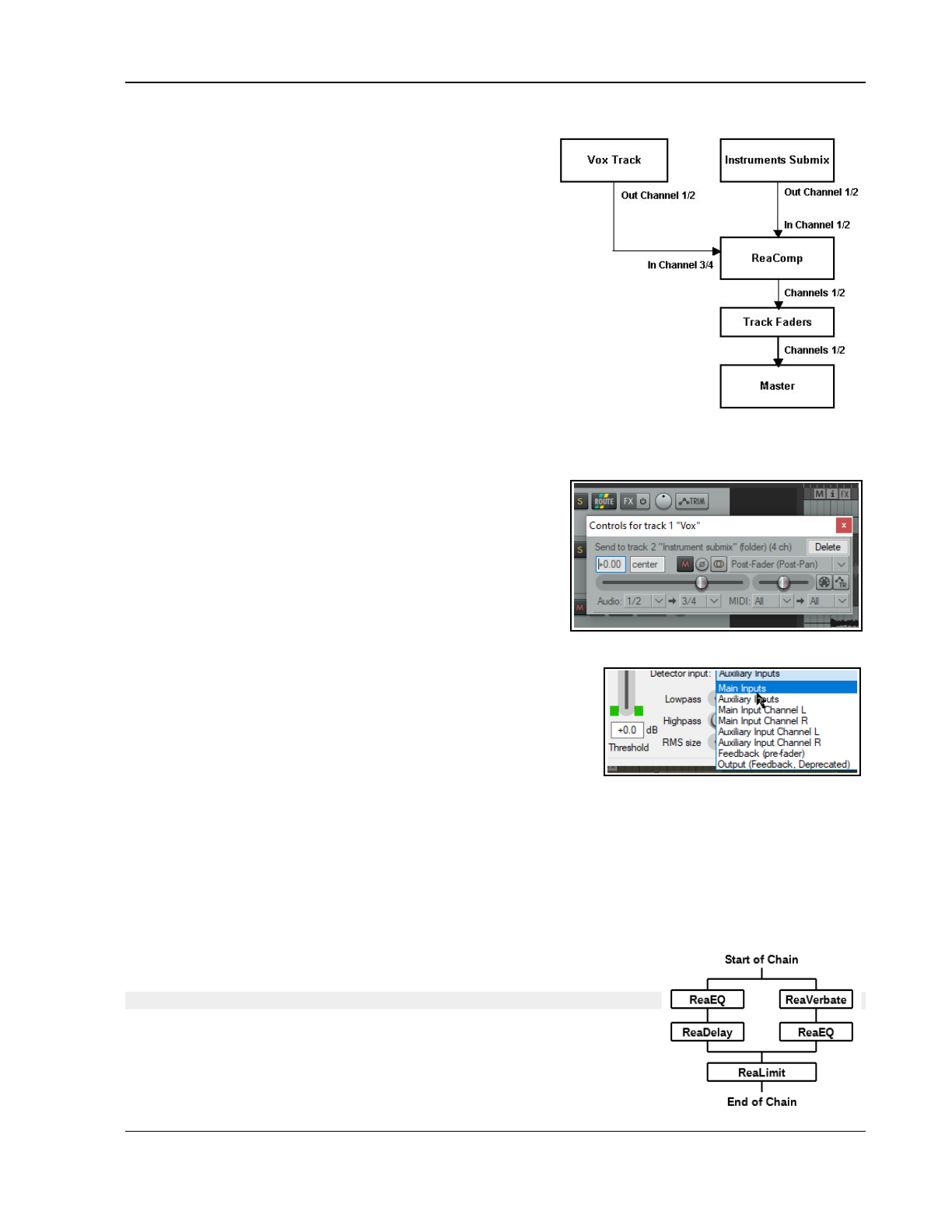
More Routing Examples
Example
1. Open the project All Through The Night.RPP and save
it as All Through The Night DUCK.RPP.
2. Delete any tracks other than Gtr Body, Gtr Neck, Vox
and Bouzouki. Make sure the track order is Vox Track
1, Gtr Body Track 2, Gtr Neck Track 3 and Bouzouki
Track 4. Adjust the volume and pan faders as you see fit.
3. In the TCP, select the Vox track and press Ctrl T to insert
a new track after this. Name this Instrument Submix.
4. Click on this track’s Folder icon to make this track a
folder. Make the Bouzouki the last track in the folder.
5. To add two more channels to the Instrument Submix
to allow it to receive a sidechain signal from the Vox,
right click on the Volume fader for this track and set the
number of channels to four.
6. Next, display the FX window for the Instrument Submix
track. Add the plug-in VST: ReaComp (Cockos).
7. Now for the clever bit. We could add channels 3 and 4 to the Instrument Submix manually, as in the last
example. We could also manually route an audio signal from the Vox track to the Instrument Submix, but
REAPER provides us with a handy shortcut.
8. Drag ands drop from the Vox track routing button to inside
the ReaComp window. The routing control window that is
automatically opened shows that this has been done.
9. This plug-in includes a setting called Detector input. This
is where we tell REAPER that we want the Vox level, not
the Bouzouki level to control when the compressor kicks in.
This Detector input offers two main choices – Main Input
and Auxiliary Input.
10. Display the Detector Input drop down list. Select Auxiliary Input L + R so that that the compression
applied to the instrument mix will be controlled by the volume
of the signal from the vox track on channels 3/4. When this
exceeds the threshold, the instrument mix will be compressed.
11. Now play the song. Adjust the Threshold (first vertical fader)
downward, so that during Vocal passages the VU meter peaks
above the fader level.
12. Slide the Ratio fader right until you are satisfied with the
overall reduction on the Instruments, probably be somewhere between 2:1 and 4:1. Observe the flashing
red bar to the left of the Output mix VU. This shows how much reduction is being applied to the submix.
13. Save the file. Notice what is happening here: the volume signal from one track (the vocal) is triggering the
compressor on the instruments folder.
Shown below are possible compressor settings that might be appropriate in this case. The trick is not to overdo
the compression, but to have it just lower the peaks of instrument mix a little to make room for the vocal. This
same technique can be applied to other REAPER plug-ins that support sidechaining, including ReaGate and
several JS plugins, such as Major Tom Compressor and Express Bus Compressor.
17.6 FX Containers and Parallel FX Processing
Introduction
This advanced topic is not really suitable for beginners.
REAPER’s FX containers allow you more flexibility and a greater capability in
creating and managing FX chains than simply running two or more FX in parallel
with each other. This advanced topic might take a little longer for you to get your
head around. It’s more appropriate for experienced users than for beginners.
To understand FX containers and how they work, let’s look at an example (right).
341
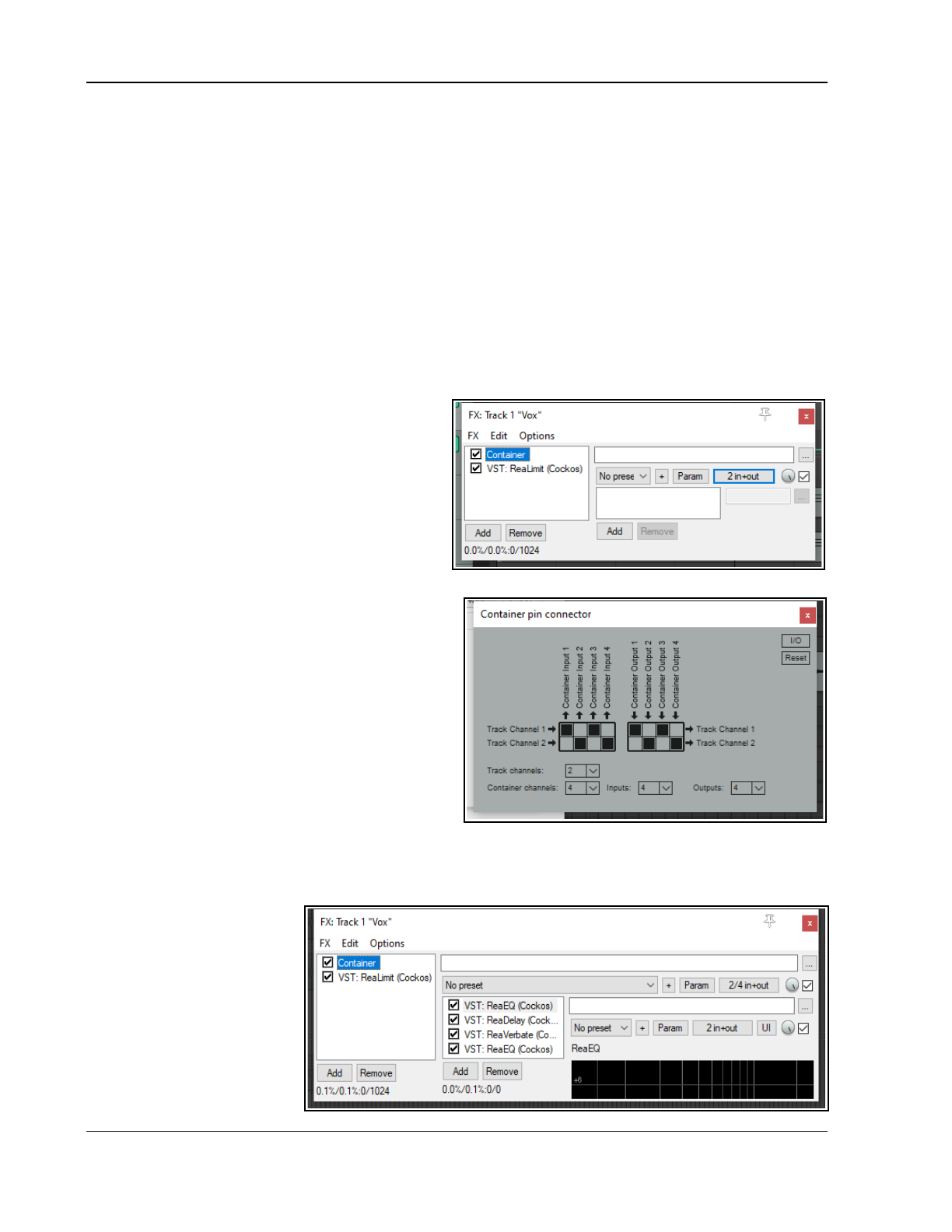
Up and Running: A REAPER User Guide v 7.81
In this example, as in the others, the actual FX being used are for illustration only and are not the focus of the
exercise. What matters is the technique, which could be applied using other FX of your choice. What we have
here is two parallel FX
chains
rather than just two parallel FX. To achieve this, REAPER will:
Pass the audio signal into a
container
.
This container will need to consist of enough channels as are needed to allow for (in this case) two parallel
chains, i.e. four channels in all, one pair for each chain.
As the audio stream exits the container, the outputs of the two parallel channels will need to be merged as
they are passed on thru channels 1/2 of the FX chain to any subsequent FX (in this example, ReaLimit). To
recap, channels 1/2 are used by default by the track to send audio output to the master.
So, to summarize, a container will need enough inputs and enough channels (in this example, four) to allow the
different streams to be processed independently of each other, and enough outputs (again, in this case four) to
allow the streams to be merged as they exit the chain.
That’s a lot of theory to take in! Let’s see how it’s done in practice.
Example 1
To set up the FX container described above:
1. Click on the track’s FX button, then Add, then
from the displayed list of FX double-click on
Container. A container is added to the FX
chain and its empty window displayed.
Immediately after the container, in the far left
column, add ReaLimit. Select the container.
Your track FX window should now resemble
that shown on the right.
2. Click on the
container
’
s
button labeled 2
in+out to open its pin connector window. Here
you can define its parameters. We’ll get to the
pin connectors shortly. First, notice that by
default the container inherits the same number
of input/output channels as the track – in this
case two.
3. Set the number of container channels, inputs and
outputs to (in this example) 4 and complete the
pin connector matrix as shown here (right).
Instead of 2 in+out, the connector button will
now read 2/4 in+out as shown below right.
4. This directs input from track channel 1 to
container inputs 1 and 3, and from track channel
2 to container inputs 2 and 4.
Output from container channels 1 and 3 will pass to track channel 1, and output from container channels 2
and 4 will pass to track channel 2.
5. Using the Add button
in
the container
window
we can now insert the
required FX into the
container’s FX chain –
for this example ReaEQ,
ReaDelay, ReaVerbate
and a second instance
of ReaEQ. Your FX
window should now
resemble that shown
(right).
342
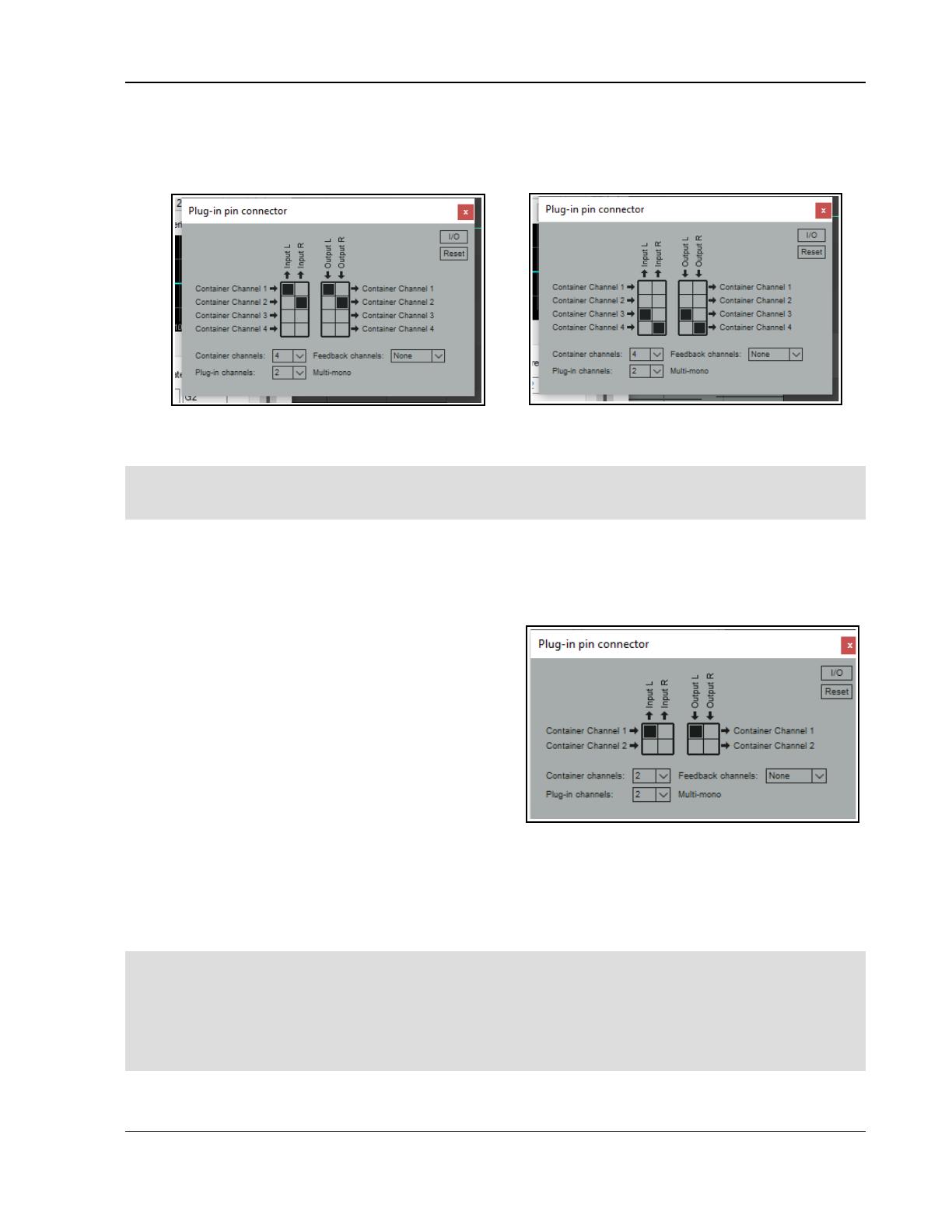
More Routing Examples
6. The pin connectors for the first two container FX will both need to be set to receive input from and send
output to container channels 1 and 2 only, as shown here (below left).
7. Similarly, the pin connectors for other two FX will both need to be set to receive input from and send
output to container channels 3 and 4 only (below right).
8. Finally, you can experiment with adjusting the various FX parameters – and save this file as a model that
you might find useful for future use.
Note: A new container can be added to an existing FX chain by choosing Add FX container from the FX menu.
You can also create a new container from this menu by selecting any FX or selection of FX in the chain and
choosing Move to container from the FX menu.
Example 2
In this example we will split an audio stream into two chains – left and right – and apply separate FX to each
stream before returning the signal to the FX chain, one FX to channel 1 (left) only and the other to channel 2
(right) only. A possible application for this technique could
be on a vocal, using one EQ instance to add body, the
other to add clarity.
In this case, the pin connector numbers should be left at
its default settings – two container channels, two inputs,
two outputs.
The pin connector settings for each of the two EQ
instances could then not be simpler. The first takes its
input from and sends its output to channel 1 only (as
shown here).
The second takes its input from, and sends its output to,
channel 2 only.
More Complex Applications
FX containers are handy, but even they do have their limitations!
More complex models can be created using REAPER’s pin connectors – for example, fine tuning your parallel
processing requirements, or directing the output from some FX to a different track. For these and other related
topics refer back to to the JS: Channel Mapper-Downmixer.
Tip 1: FX containers can be even more powerful when combined creatively with other REAPER features. For
example, you can have two or more containers running in parallel with each other!
Tip 2: You can select any FX or number of FX in a track or item’s FX chain, then choose Move FX to container
from their right-click context menu to move those FX into a new container.
Tip 3: An entire container, complete with its FX and its routing, can be saved as a preset which can be recalled
into other tracks and in other projects.
343
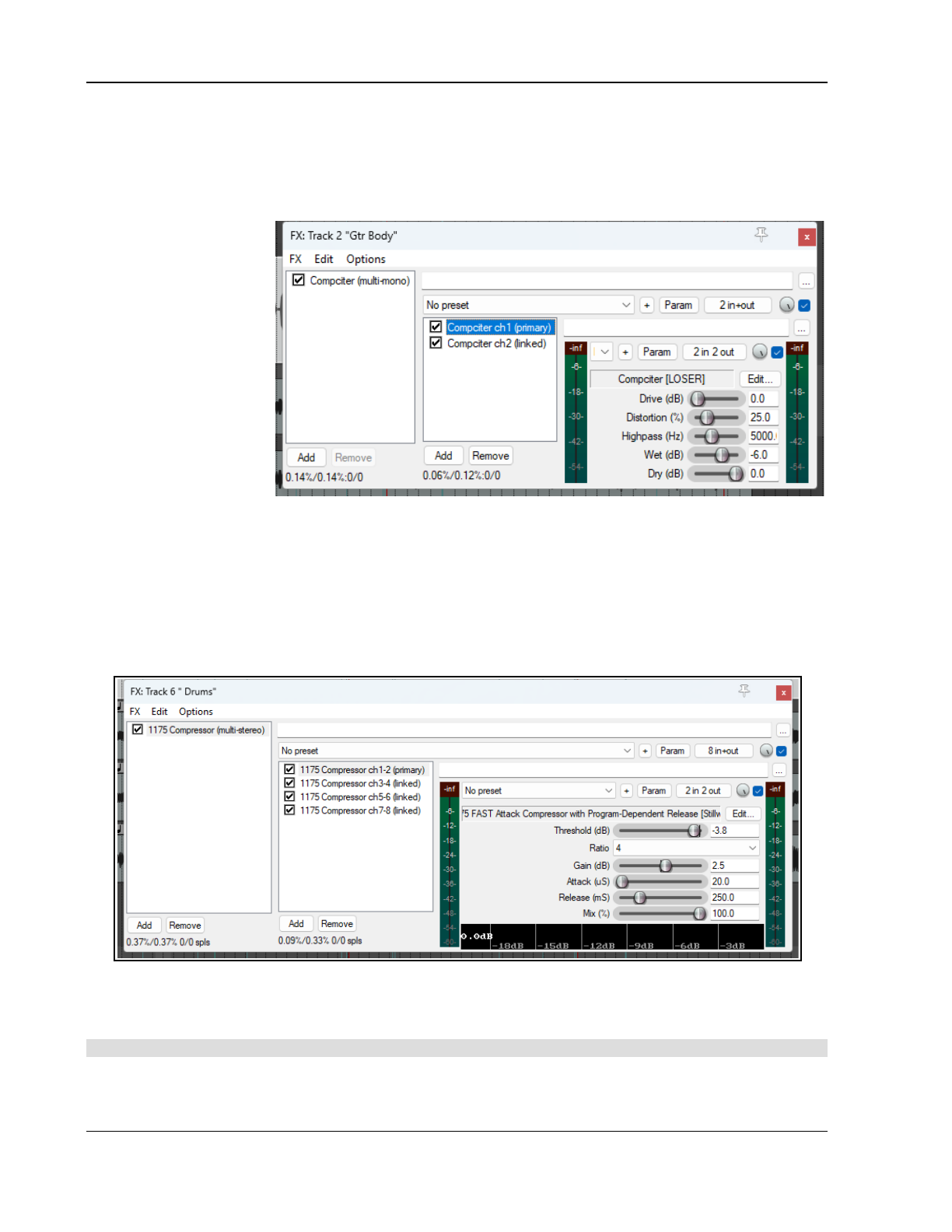
Up and Running: A REAPER User Guide v 7.81
17.7 Multi-mono/Multi-stereo FX
Multi-mono and multi-stereo FX can be used to apply separate instances of an FX to individual channels (or
paired channels) on a track. For example, you could apply different EQ, or delay, or compression instances to
different individual or paired channels. The method is quite simple. Insert the FX in the track’s FX chain in the
usual way, then right click over it and choose Build multi-mono FX or Build multi-stereo FX from the
context menu.
Typically, EQ and
compression FX lend
themselves to this
treatment. However,
multi mono/multi stereo
FX can be applied to a
range of other FX,
including many third party
plug-ins as well as
REAPER’s native FX.
For example, on a two
channel track, adding
(say) the JS Compciter
to the track’s FX chain,
then choosing Build
multi-mono FX from the context menu would give you a result similar to that shown above.
The Compciter parameters will be processed independently to each channel, with all of the settings linked.
The FX instances will normally be linked by default: thus, the same settings will be applied to each stereo pair
(independently of the others) and the results summed. Should you need to unlink them, this can be done by
disabling Link all FX parameters to primary instance from the Param menu. This would allow you to
tweak the parameter settings for individual channels.
In this second example, each of the four pairs on this eight channel track is processed separately, using the JS
1175 Compressor:
Note that running a stereo compressor on each pair will produce a different result from running a mono
compressor on each channel. Multi mono FX and Multi stereo FX can also be built from TCP FX slots and mixer
FX slots.
Tip: Multi-mono/multi-stereo FX models can also be built within containers.
344
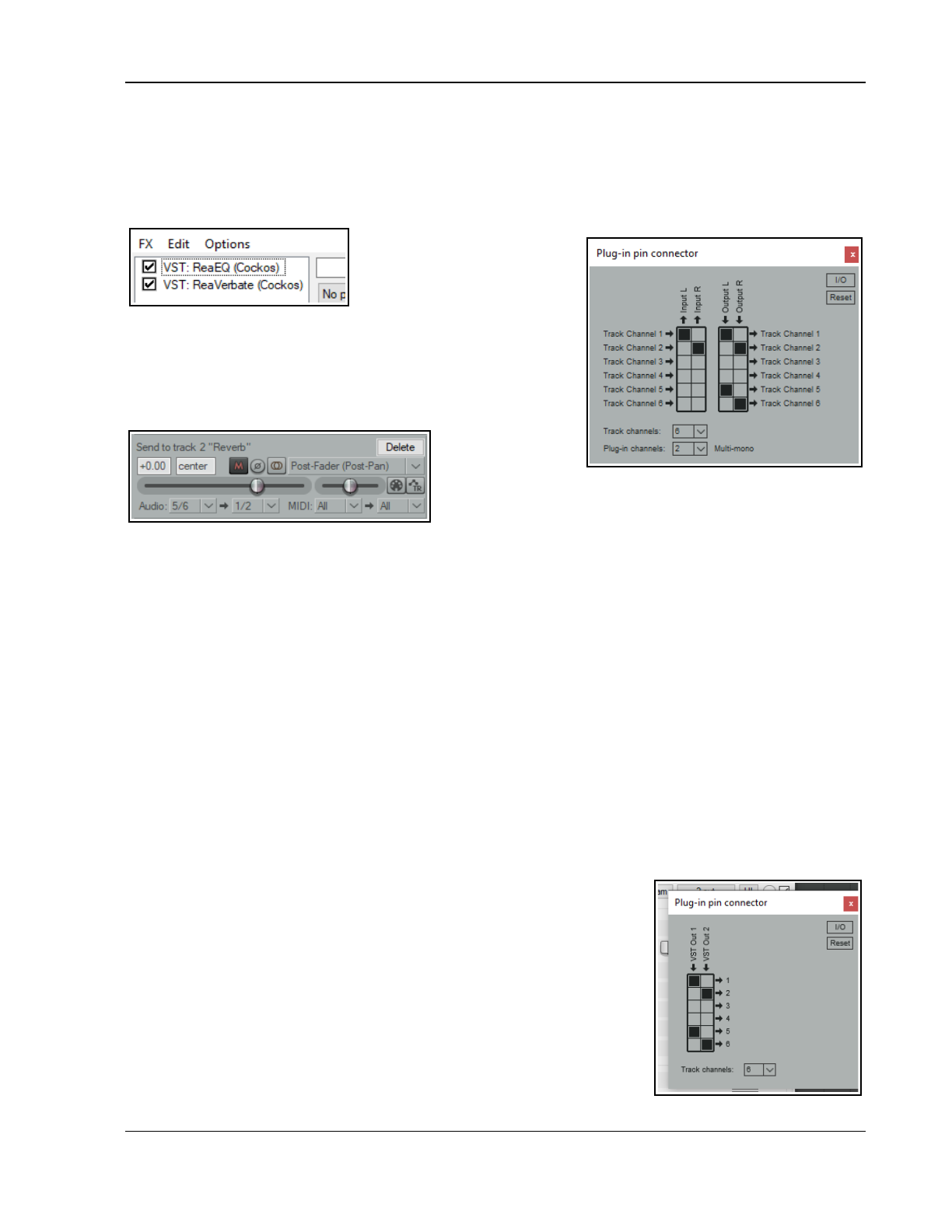
More Routing Examples
17.8 Sending FX Output to Another Track
You are able to send of any track FX output directly to any other track, instead of or as well as to itself.
Consider an example such as this. You have a track, say a mandolin, with an FX chain that includes eq, EQ and
compression. You want to create a send to, say, a reverb bus track, after the EQ and compression. In this case,
simply place the EQ first in the chain, and leave its output at the default, channels 1/2
Here is another example. Left is shown an FX chain for (say) Track 1 of a
project. Reverb is applied after
the EQ. You could send the
reverb output directly to
another track instead of track
1, to further work on it there.
To do this, click on the 2 in/out button on the FX interface.
Select the EQ and direct its output both to channels 1/2 and to any
other available pair (e.g. 7/8), as shown (right).
Now select the Reverb plug-in and using its pin connector direct
channel input from and output to only (for example) channels 7/8.
We can then
create a new
track – for
example, Track 2 immediately after the current track) and
create a send from channel 5/6 on the source track to channels
1/2 on the new track. Solo track 2 to hear the reverb by itself.
17.9 Other Channel Routing/Mixing Plug-ins (Overview)
Here is an overview of some of REAPER's other channel routing/mixing plug-ins. You can always check the web
sites and the forums for the latest information. This section introduces you to some other plug-ins (not used in
these examples) that are specifically designed for use in a multi-channel routing environment.
JS: 8x Mono to 1X Stereo Mixer and JS:& Stereo to 1X Stereo Mixer
Similar to each other, but allows eight separate stereo or mono audio streams to be mixed into one.
JS 8-Channel Input Switcher
This is a channel switching utility. Output Source selects which of up to four paired inputs channel is to be
monitored, and the Level faders adjust the gain independently for each pair. Useful for A/B comparisons.
JS SwixMitch
This crossfade utility allows you to feed up to four input pairs to two busses then mix those busses to output
channels 1+2. The destination for each of the four paired inputs can be set to Off, A, B, or A+B.
JS Channel Router w/ Polarity
Takes an input channel pair signal and modifies polarity according to the selected mode. The modified signal is
output on the selected output channels. Only the selected output channels are modified so, for example, a
signal received from inputs 1+2 and output on 3+4 will still be present in its original form at outputs 1+2.
The Input and Output parameters select which paired channels are used for input and output. Polarity Mode
can be set to Normal, Invert Left Channel Only, Invert Right Channel Only
or Invert Both Channels.
17.10 Further VSTi Signal Routing
The same technique that is used to send FX output to another track can also
be used to send the output of a VSTi instrument before FX to another track,
whilst also leaving the FX on the VSTi track. This is one possibility:
Click on the track channels drop down and select the number of channels
required (for example, 6). In the track routing window you can then create a
send from those channels (5/6) to channels 1 and 2 on another track.
VSTi output will now be directed without track FX to the other track, as well
as (in this example) with track FX to the VSTi host track (via channels 1/2).
With up to 128 channels available, you will not lack flexible options!
345
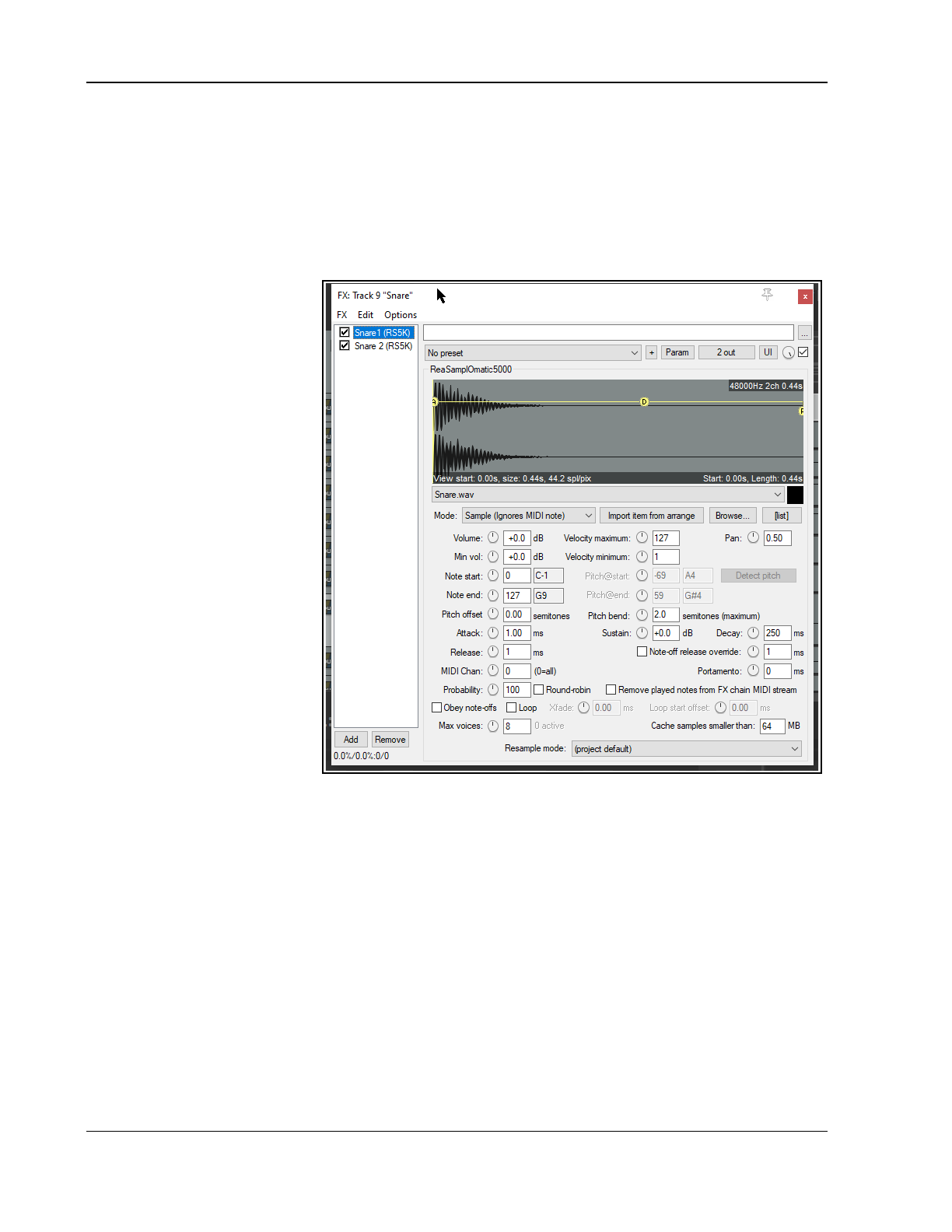
Up and Running: A REAPER User Guide v 7.81
17.11 Round-Robin Multisampling
The round-robin option can be used in conjunction with the probability setting to determine whether any given
instance will produce a sound from any given note. For example, at 100% it will play every note. At 50% it will
ignore every other note. Round robin makes the application of probability somewhat deterministic. If you have,
for example, a 20% chance, round-robin will ensure a response exactly every 5th note. With round-robin
disabled, each note is independently randomized. Consider an example where you use a separate track for each
percussion instrument – kick, snare, etc.
Shown here is a simple arrangement for the snare track, with two instances of ReaSampllOmatic5000, each
containing a separate and subtly
different snare sample.
For both instances, round-robin
and Remove played notes
from FX chain MIDI stream
have been enabled. For Snare 1
probability is set to 50%, for
Snare2 100%. This ensures that
during playback each of the two
instances (and therefore two
samples) will be used alternately,
in rotation. If in this example you
had three samples rather than
two, probabilities would be set at
33% (1 in 3), 50% (1 in 2) and
100% (1 in 1) respectively. Four
four samples, these settings
would be 25% (1 in 4), 33% (1 in
3), 50% (1 in 2) and 100% (1 in
1), and so on.
More complex variations are
possible. For example, a JS:
MIDI/midi_choke plug-in is
available which can be used in
conjunction with
ReaSamplOmatic5000 to help
control whether any sound will be
produced from a given note.
An example showing how this can be used can be seen here:
http://forum.cockos.com/showpost.php?p=1278385&postcount=28
17.12 ReaSamplomatic and ReaDrums
This example uses the ReaSamplomatic plug-in provided with REAPER in conjunction with the ReaDrums
track template created by jamester. You can download this template from the REAPER Stash on the REAPER
web site. To check the current address for this, visit the REAPER Forum and check jamester's signature, or do a
search. After downloading, it should be copied into your Track Templates folder. For XP users, this is C:\
Documents and Settings\User Name\Application Data\REAPER\TrackTemplates
The template does get modified from time to time, so that the version that you download might not be exactly
the same as the one used in the description that follows. This should not matter. Also, in the example, we will
using the MIDI Editor for demonstration purposes, but if you have a keyboard, you can use that instead.
Example
1. Create a new empty project file and save it as ReaDrums Example.RPP
2. Right click over the Track Panel Area and from the menu choose Insert track from template then your
ReaDrums template. Notice that a track will be inserted, with eight individual named instances of
ReaSamplOmatic5000 inserted in its FX chain.
346
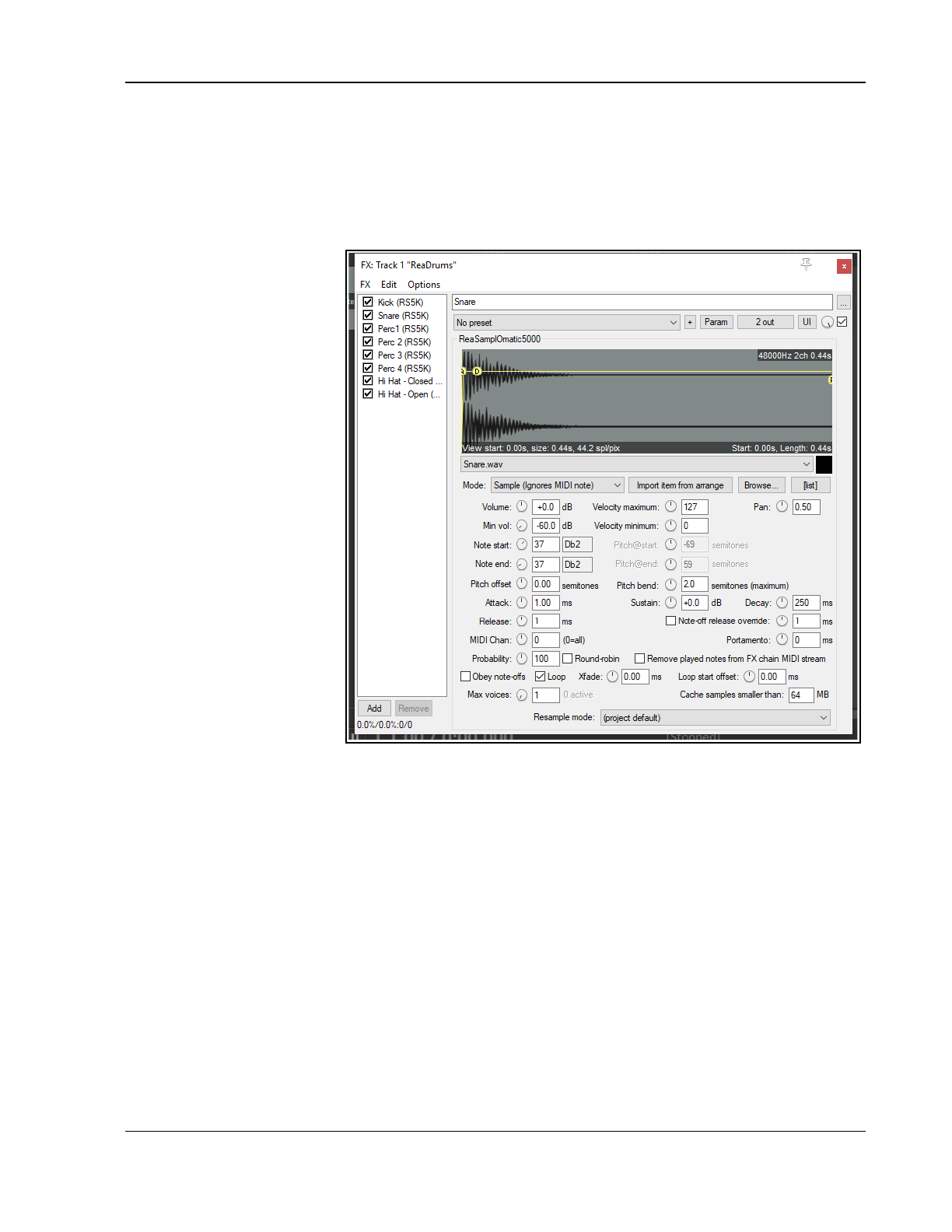
More Routing Examples
3. Notice that each instance of ReaSamplOmatic5000 is set up differently. From top to bottom, these are
Kick, Snare, Perc 1, Perc 2, Perc 3, Perc 4, HH Cl, HH Op
. Near the bottom left corner you can select a MIDI
channel for each sample. The default is 0, which means all channels. Shown here is the Snare, which has
been set to channel 1. In this example, an audio sample has also been inserted. That's the next step!
4. Display the Media Explorer – Ctrl Alt X – and select a folder where your samples are stored.
5. In the ReaDrums FX window select the item Kick. From REAPER's media explorer window you can drag with
your mouse the required sample file and drop it into the ReaSamplomatic window, in the black area above
the Browse button.
Alternatively, you can
either use the plug-in's
Browse button to make
your selection, or select
any existing item in
Arrange view and click on
Import item from
arrange. Another option
is to click on the [list]
button to open a window
to build up a list of
samples. This can be
sorted by file name, or by
peak or RMS values.
6. Repeat this process in the
other seven
ReaSamplomatic
instances, one at a time,
for each of the other
instruments, each time
inserting a different
appropriate sample. If you
wish, rename any of the
ReaSamplomatic5000
instances to reflect the
sample name.
7. Notice that each instance
of ReaSamplOmatic5000
uses different Note start and Note end settings. This makes allows the notes (and any other events) for
the different instruments to share a single MIDI item.
8. Make sure the ReaDrums track is not record armed. Save the file.
9. Along the timeline select the first 10 seconds or so. With your ReaDrums track selected, choose the Insert,
New MIDI Item command to insert a MIDI item.
10. Double click on this item to open the MIDI Editor. From the menu choose View, Piano Roll Notes,
Triangle and View, Mode, Named notes. If necessary, scroll up or down to display your samples. F or
each sample, its row number will correspond to its ReaSamplOmatic5000 note start/end setting. For
example, in this case the snare (shown below) will be row 37.
11. Compose a few notes, similar to the concept shown below. Make it a simple composition of your own.
12. Close the MIDI Editor and save your file.
13. If you wish, you can also use REAPER’s channel routing to send different parts to different tracks, where
you can add FX, adjust panning, volume, etc. Let’s suppose we wish to apply some FX to the kick and the
snare individually. Right click over the Volume fader for the ReaDrums track and set the number of
channels to four. We’ll start with just one or two.
14. Press Ctrl T twice to add two more tracks. Name the first of these tracks Kick, the second Snare.
15. In the ReaDrums track set the number of Channels to 4, and create a send to the new Kick Track
(using channel 3) and the Snare Track (using channel 4).
16. Open the FX Window for the ReaDrums track.
347
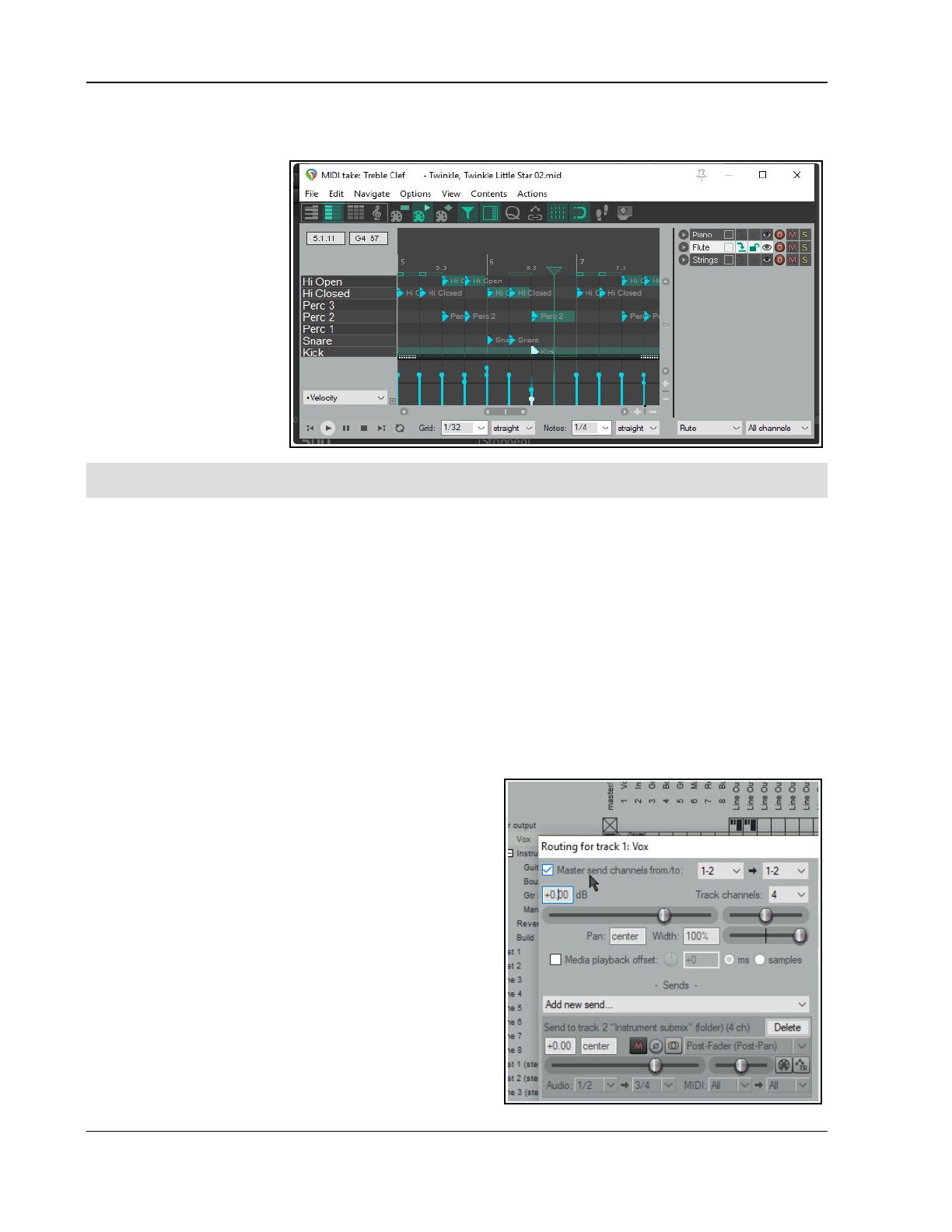
Up and Running: A REAPER User Guide v 7.81
17. Select the first ReaSamplomatic5000 instance, the Kick. Set both of its VST Outs to Channel 3.
18. Select the Snare ReaSamplomatic5000 instance and set both of its VST Outputs to Channel 4.
19. Now play the music.
Notice that the Kick
and the Snare have
been rerouted to
their respective
tracks. You could
now place any FX
that you wish in the
FX windows for those
tracks. Save the file.
20. If you add more
channels to the
original ReaDrums
track, you can now
repeat this effect for
any other of your
Drum parts.
Tip: If you download the track template ReaDrums Rack from the REAPER forum, you will find that in this
template all the individual tracks, along with their routing, have already been set up for you.
ReaSamplOmatic5000 is a very powerful and flexible piece of software. Its many capabilities and applications
extend well beyond the simple example outlined above, and beyond the scope of this User Guide. They could
well command an entire manual in their own right! For example:
● Each instance of ReaSamplOmatic5000 has its own independent set of controls (volume, pan, pitch bend,
attack, sustain, release, decay, etc).
● Changes made to the attack, delay, sustain and or release settings will be represented on the graph
(envelope) that is superimposed on the sample waveform in the ReaSamplOmatic5000 window.
● The Max Voices rotary can be used to select any number between 1 and 16. However, if you need more
than 16 you can type in any number up to 128. This, for example, allows ReaSamplOmatic5000 to be used
with long cymbal rides. Notice too that the number of active voices is shown during playback next to the
max voices value.
● For most of the controls you can create arrange view automation envelopes and/or control them using
parameter modulation. These topics are explained in Chapters 18 and 19.
17.13 REAPER’s Routing Interface
When using multiple track channels with sends and receives
you might wish to consider keeping the Routing Matrix in
view. You can use your routing matrix to make adjustments
to any of your sends and receives, or to specify the number
of channels required for any track. Some examples are
summarised below.
Right click over any track name (as shown above right) to
display the Track’s Routing Window and change the number
of Track Channels, or to adjust the parameters of any Send
or Receive associated with that track.
Right click over the Send/Receive signal at any intersection
on the Routing Matrix to adjust any of the parameters for
that Send or Receive (as shown below right). Click over any
vacant intersection on the Routing Matrix to create a
Send/Receive at that point.
Remember, of course, that you can also create, remove and
manage sends and receives in the TCP and the MCP. In
either case, you can click on any track’s ROUTE button to
348
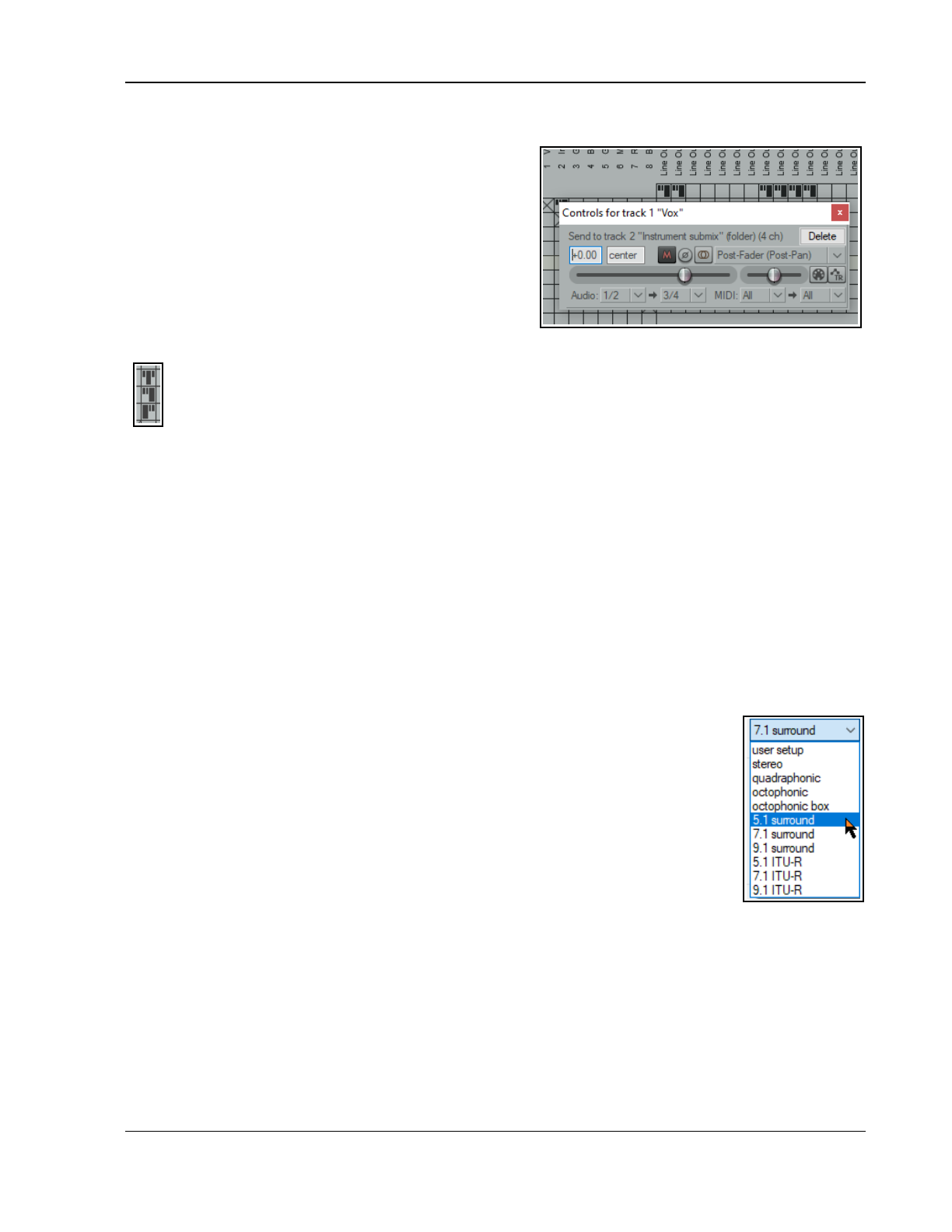
More Routing Examples
display that track’s Routing Window, or right-click over the ROUTE button and use the fly out menu to easily
add a Send or Receive.
Tip: Sends can be copied in the Routing Matrix from one
track to another: if you have created a send from (say)
track 1 to (say) an effects bus on (say) track 6, then to
create similar sends from other tracks you simply drag and
drop that send up and down the matrix column.
Note: The Routing Matrix right-click context menu can be
used to limit what is shown as destinations and as sources –
for example, any combination of master/parents, tracks,
audio hardware outputs, MIDI hardware and MIDI channels.
There are also options to display (or not) tooltips and input
activity indicators. The latter causes MIDI and audio input rows to light up in response to any input signal
Note: The three different send types are shown in the Routing Matrix by the symbols on the left. From
top to bottom these are Pre Fader (Post FX), Post Fader (Post Pan), and Pre fader (Pre FX). In
each case, the height of the large thick bar indicates the send volume level. The flow charts in Chapter 6
will help you to understand the differences between these.
17.14 Surround Panning with ReaSurround and ReaSurroundPan
REAPER includes two plug-ins for surround mixing – ReaSurround and the more fully featured ReaSurroundPan.
It’s advisable to read thru this entire section before deciding which is most suited to your own needs.
Surround sound production is a complex topic. It would be beyond the scope of this User Guide to attempt to
cover the principles, theory and practical issues that it involves. Whole books have been written on the subject:
you can also consult various web resources, such as “The Recording Academy's Producers and Engineers Wing
Recommendations for Surround Sound Production” (available as free PDF download). This section is intended for
those who are familiar with the principles of surround mixing and who need to know how to put these into
practise within REAPER.
REAPER's surround sound production capabilities can be found in three main areas:
1. Producing music in multichannel format. For how to do this see Chapter 3.
2. REAPER's channel routing capabilities. Remember that you can use item channel mapping to assign the
output of different media items to different channels.
3. The ReaSurround and ReaSurroundPan are in many respects similar, the most
important difference being that ReaSurround is a spatial positioning plug-in, whereas
ReaSurroundPan is a multi-channel panner.
REAPER-specific issues that you need to be aware of for surround sound production are:
Configurations
Both plug-ins support several surround sound configurations, such as 5.1, 7.1 and 9.1.
Specify your number of input channels and select your required configuration from the drop
down list (for ReaSurround, shown here). In addition, ReaSurroundPan also supports
surround 7.1.2, 7.1.4 and 3D ITU and Auro options. You can also specify your own custom
arrangements, by selecting User Setup (ReaSurround) or Custom Speakers
(ReaSurroundPan) from the speakers dropdown.
Recording
Record each track using the settings most suitable for that track. For example, for a lead vocal you might use a
two channel track with a single mono input (one mic). For a piano, you might record in stereo with two mics. For
ambient sounds you might prefer a four channel track with four mic inputs.
ReaSurround
Routing
ReaSurround, like any other plug-in, can be inserted into a track's FX chain from the FX Browser. REAPER then
offers you various routing options.
349
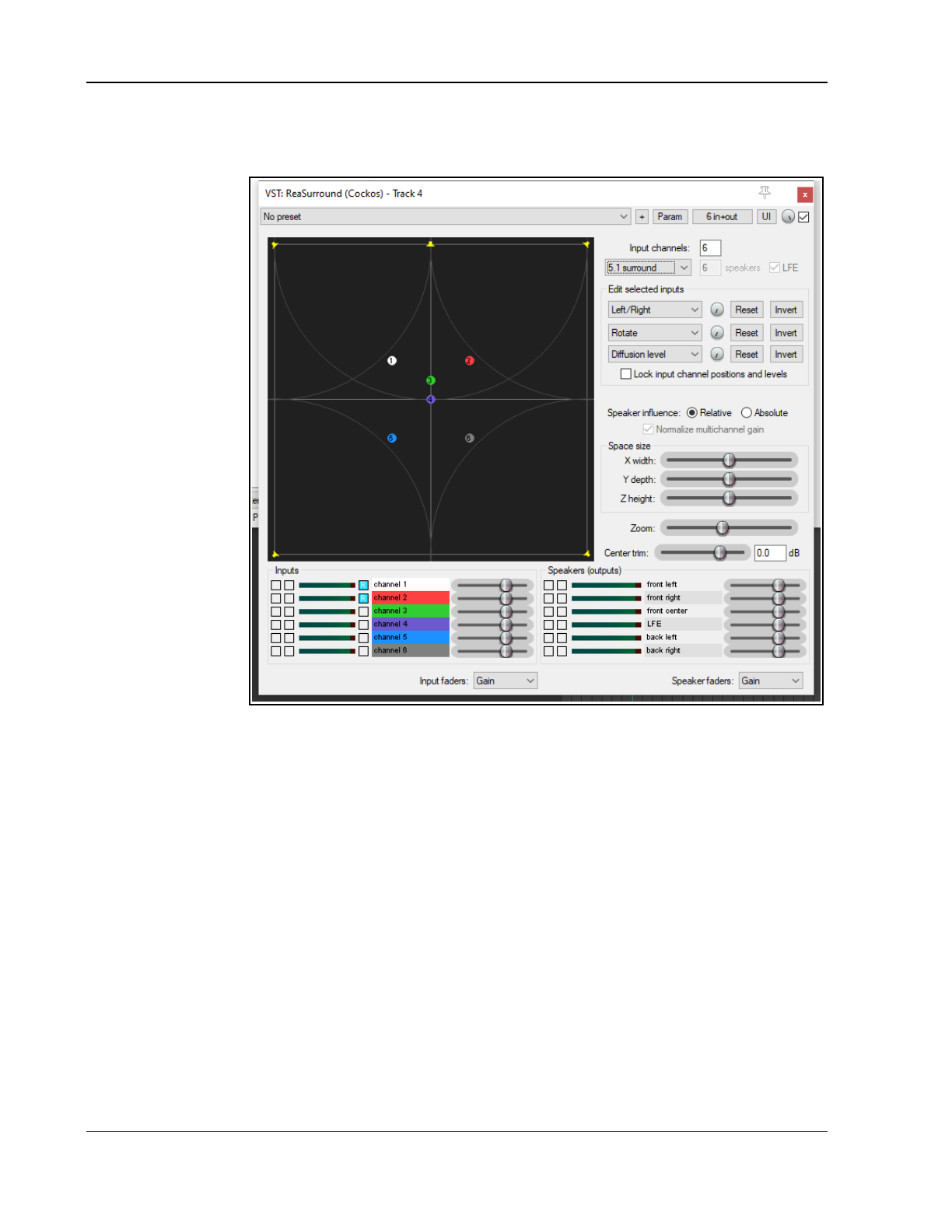
Up and Running: A REAPER User Guide v 7.81
For example, you can insert ReaSurround into each track individually, with each one directly routed to the
master. Another option is to create sends from all tracks to a single surround mixing bus and use a single
instance of ReaSurround there, disabling direct sends from individual tracks to the Master. In some respects, the
former method might
give you greater
flexibility and more
control but there are
other advantages in
folding down
multichannel audio to
fewer channels.
You will also need to
set up the necessary
routing for your
master outputs to
ensure the correct
signal flow from your
master to your
surround speakers.
Channel input pucks
can be positioned by
clicking and dragging
them across the
display. See also tips
below. In addition,
there are two further
sets of controls in the
ReaSurround window.
The three Edit drop
down lists and their
accompanying
rotaries can be used
as controls with any
three of the available
items shown (below). These vary according to the selected format. For example, for 5.1 they are:
Left/Right Front left/Back right Diffusion bias To front center
Back/Front Expand/Contract Diffusion rota To back left
Low/High Rotate To front left To back right
Back left/Front right Diffusion level To front right
These are explained in more detail in the section ReaSurroundPan.
Tips for managing inputs
As a rough guide, when mixing in 5.1 or 7.1 you can create individual stems or submixes of dialog, music and
sound effects, then start according to these guidelines:
Dialog: 100% center
Foley effects: Front L/R panned to phantom center
Hard effects: 100% front L/R plus 50% LFE
Backgrounds/Ambience: 50% front L/R, 50% sides/rear
Music: 75% front L/R, 25% sides/rear
Speaker influence can be set to Relative or Absolute. For example, if set to absolute, you should be able to
position a sound between (say) left front and center speakers without any sound leaking to the right.
The three horizontal Space size faders can be used to adjust the three dimensions of the surround
environment, width, depth and height, with the fourth fader acting as a zoom control.
The various Inputs and Outputs controls can be used to mute, solo and or adjust the levels for Gain or Low
Frequency Effects (inputs) or Gain or Influence (Outputs).
350
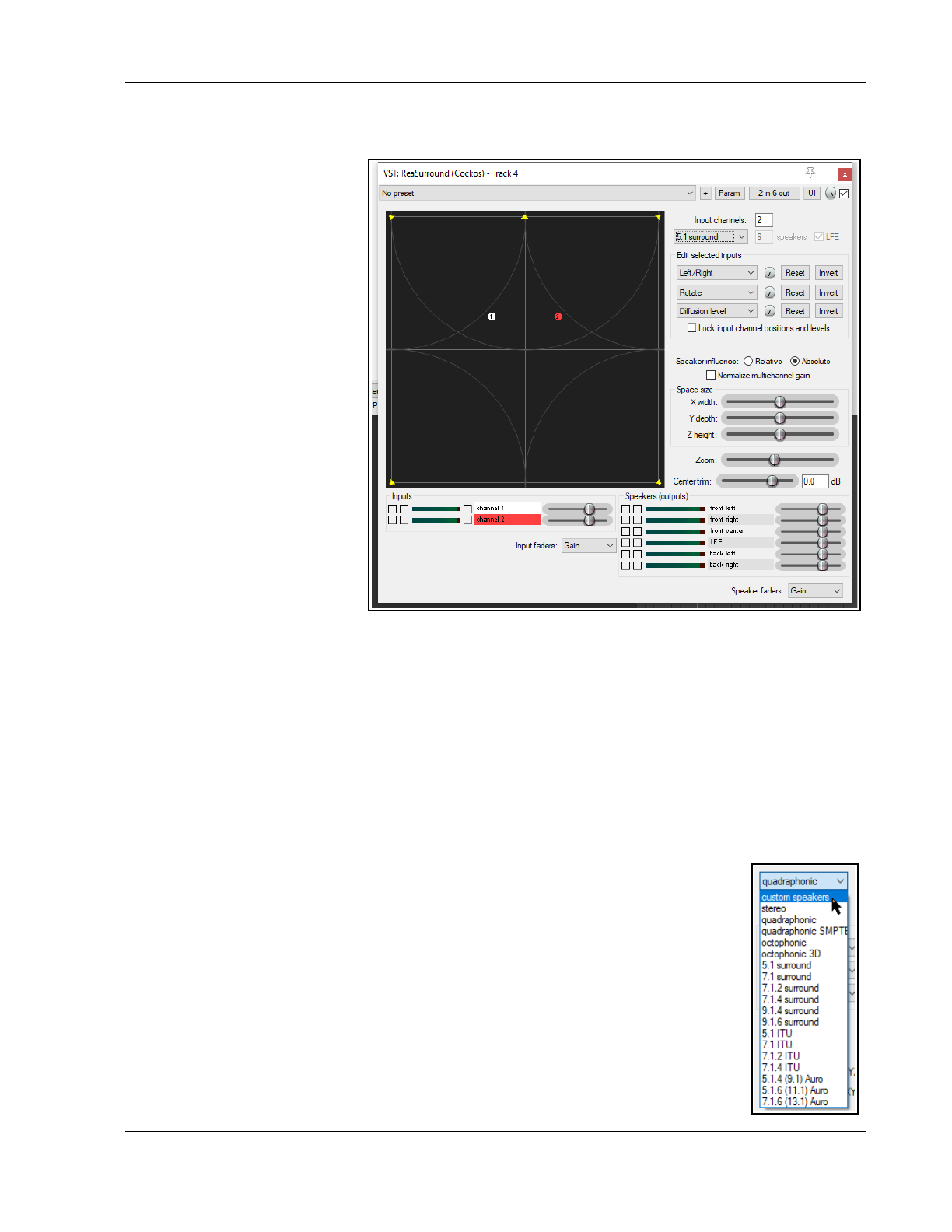
More Routing Examples
When adjusti7ng controls, holding Shift will make the control respond more swiftly: holding Control will slow it
down. Double-clicking a control returns it to its default setting.
You can select two or more input
“pucks” (control click or marquee
to make selection) and move
them together. Clicking the R
button for any input(s) will cause
it to mirror (reverse) the
movement of the other input(s)
in the selection. Holding Control
while dragging will temporarily
disable the mirroring.
Invert can be used to move the
left/right rotate positioning of a
puck to its mirror image.
Lock, as its name implies, locks
pucks into their current position
to prevent accidental movement.
Other controls are summarized
below.
In the example shown above, the
Surround Panner has been
inserted into a “normal” two
channel track with a mono
recorded media item.
The Surround Panner therefore
finds – and displays – only two
inputs this time.
Because 5.1 surround has been selected as the surround mode, even though the input is in mono, it can
nevertheless be directed to any or all of the six outputs shown. You also have an additional option to Normalize
multichannel gain. See also Chapter 21, Surround Rendering.
Additional ReaSurround Controls
Influence: each speaker has an influence area: when an input puck (the numbered circles representing the
input channels) is within a speaker's influence area, then that channel is heard through that speaker.
Diffusion: each input has a diffusion level: when diffusion is greater, the input puck is effectively "larger" and
therefore overlaps with the influence area of more speakers, so it is heard through more speakers. For example,
with a simple stereo setup, an input that is panned hard right is only heard through the right speaker because
it's only within the right speaker's influence area and not within the left speaker's influence area. If the diffusion
of that input is increased it will eventually also enter the left speaker's influence area
LFE: this represents a low frequency effects channel, a non-directional output channel like a subwoofer. The LFE
speaker is not displayed as a puck, but you can mix inputs into the LFE output via the input
sliders.
ReaSurroundPan
ReaSurroundPan gives you more mixing options than does ReaSurround. It is an ideal tool
to use, for example, when mixing sound for games or movie soundtracks. It supports most if
not all commonly recognised formats (see illustration, right).
Its basic controls are much the same as you’ll find in ReaSurround. For example, you select
your required format from the drop down and then specify the number of input channels.
The mixing window
The mixing window displays a different colored puck for each channel. The color coding used
is indicated in the Inputs section (bottom left of window). The number of pucks shown will
be determined by the number of channels that you specify in the Input channels box.
351
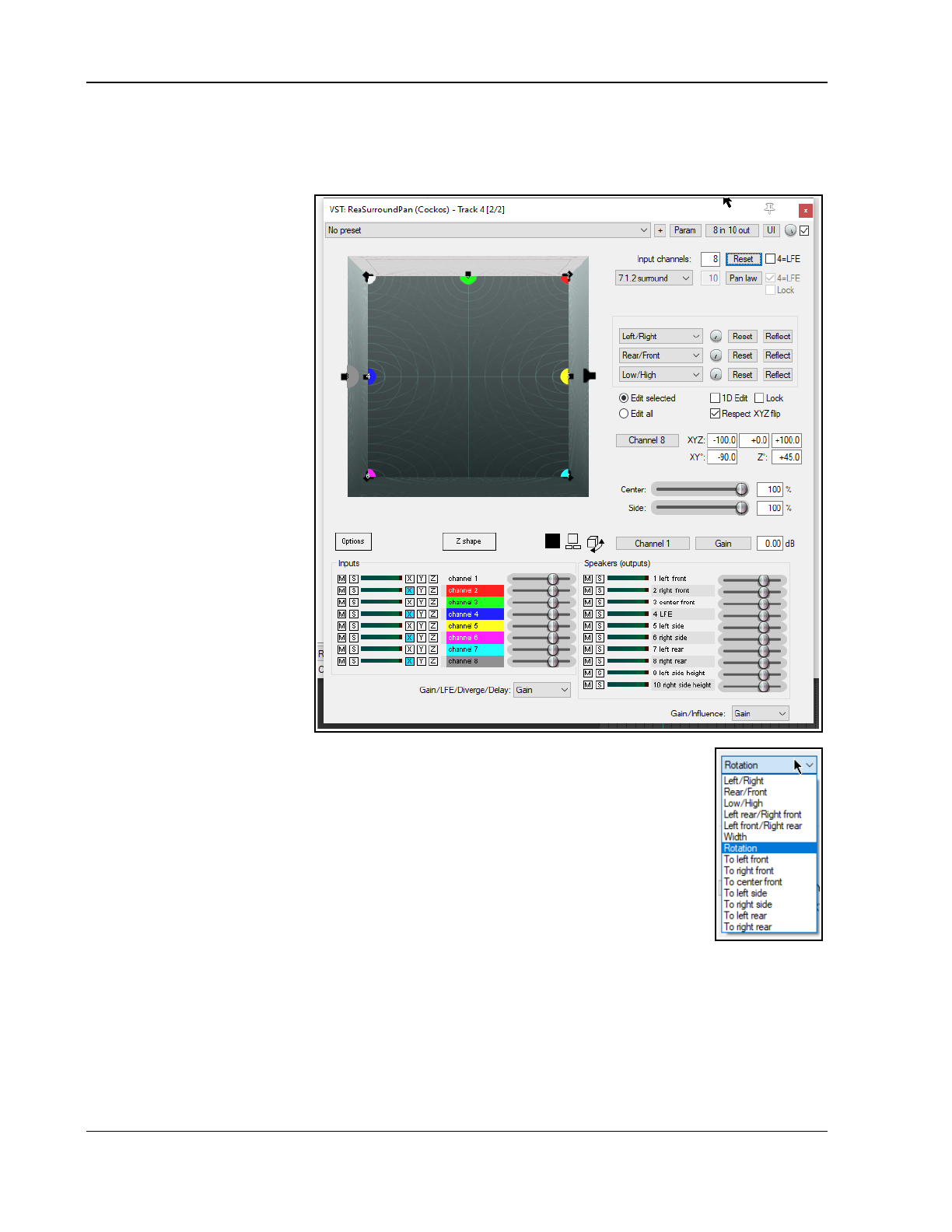
Up and Running: A REAPER User Guide v 7.81
Any of the small box diagrams just below the mixing window can be selected to change your view of the sound
field and the positioning of the various channel pucks within it – for example, from the front, from the side or
from the top. The first of these is the default, which shows the mix from above. The second offers a choice of
two dimensional view, the third three dimensional views, again from the front, the side or from above.
Moving the pucks
Click on any puck to select it.
You can marquee (right click
drag) to select a number of
pucks, or use control click to
build a selection. To move your
selection, drag any item within it
in one of the mixing window
displays, or use any of the three
rotary controls, which by default
are set to left/right, rear/front
and low/high. The reset buttons
restore selected pucks to their
original position in that plane.
Note that a LFE channel would
not normally be panned because
the wavelength is so long that it
is difficult for the human ear to
discern which direction it is
coming from.
Individual pucks can also be
moved by selecting the channel
from the dropdown and typing
in XYZ co-ordinates. X
represents left/right, Y
front/back and Z low/high. The
range for both X and Y is -100
to +100, and for Z 0 to +100.
These settings become
especially interesting when we
look at flipping (below).
Restricting Puck Movement
As with ReaSurround, the function any of the three dropdowns that control the rotary
controls can be changed by making a different selection from its dropdown list. For example,
by selecting rotation for one of the dropdowns you could ensure that that control could be
used to cause the selected puck or pucks to be rotated - see options list on the right.
Edit Option Controls
These are reasonably self-explanatory. The radio buttons offer you the choice at any time of
moving all pucks by moving any one, or moving only those you have selected.
Enabling Lock prevents any puck from being moved, and the 1D edit option can be used to
restrict movement to a single plane.
XYZ Flipping
This feature is enabled or disabled according to your Respect XYZ flip setting. It allows you to mirror
movements for whichever inputs you are moving.
For example, if you first select two channels and then enable X flipping, you can drag one so that they move
further apart from each other, or closer together.
The XYZ Angles
The XYZ, XY°, and Z° edit boxes allow you to enter an exact position for any input puck, either as cartesian or
spherical coordinates.
The Center and Side faders can be used to attenuate speakers that are closer to the center front/center rear,
or side left/side right. This enables you to create the effect of width without needing to move any of the input
352
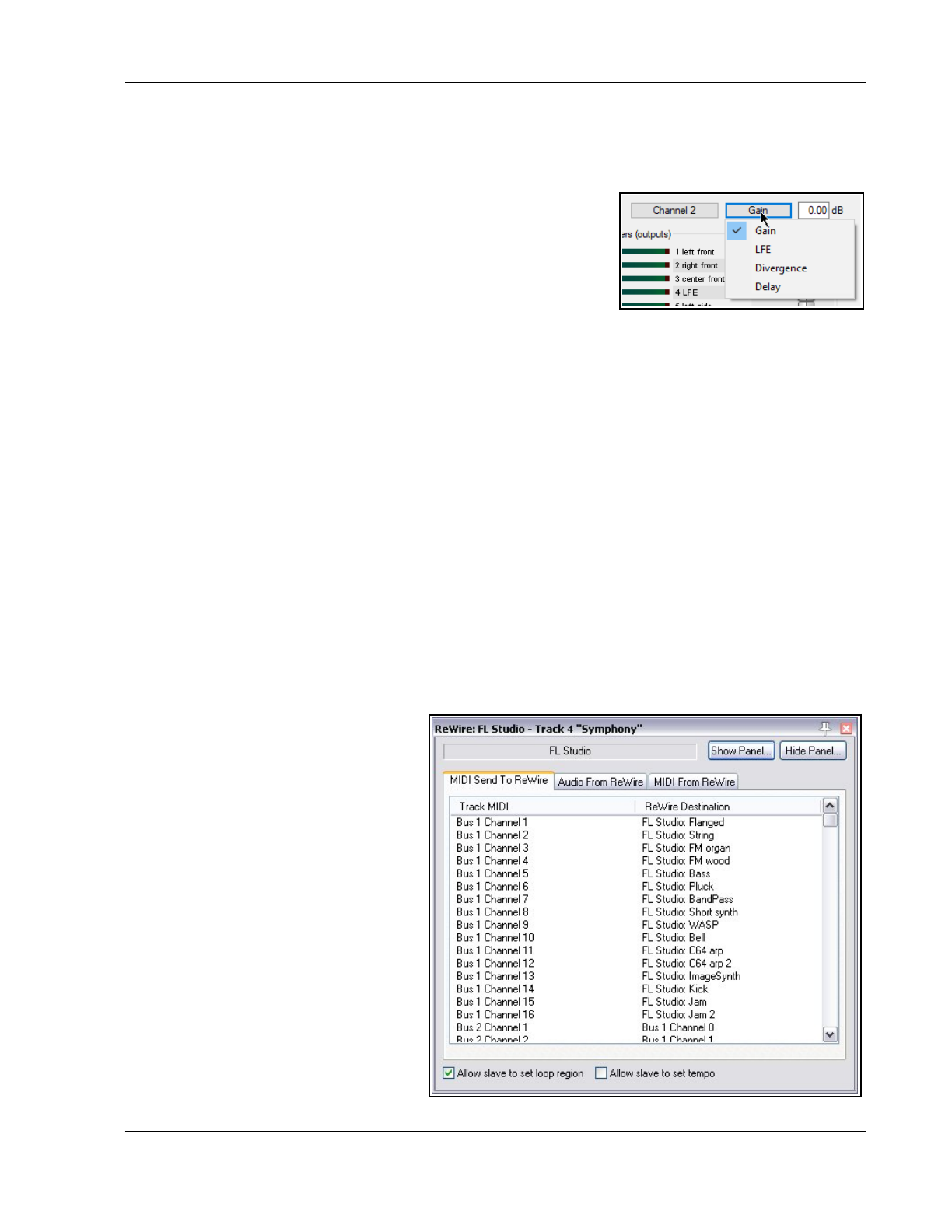
More Routing Examples
pucks. If either or both of these is disabled, it means that this feature is not possible with your selected format.
For example, 5.1 surround does not support side speakers.
Channel Input Faders
Each of these multi-function faders has four states – Gain, LFE, Divergence and Delay. You can select any of
these functions from the drop down box (which defaults to Gain).
LFE can be used to send input from that speaker to the LFE. Divergence
can be used, for example, to send a sound to the left and right so that it
comes from the center but appears to be from a wider source. Delay can
be used to add the Haas effect to a channel.
Speaker Output Faders
The same drop down can also be used to select a required function for
the dual function Speakers (output) faders. The two options are Gain and Influence.
Automation
Any parameter control can be automated to be applied during audio playback. To select a parameter for
automation, click on the Param button (top right), then choose FX parameter list, then Show track
envelope, then select the required parameter. Also, parameter modulation can be used to link parameters so
that one effectively controls the other.
17.15 Routing to/from Other Applications with ReWire
All of the examples up to now have involved routing audio or MIDI data within REAPER. We're now going to take
a look at how your music can also be routed to and from other applications.
For users of ReWire, REAPER supports ReWire (2.6). ReWire is jointly developed by Propellerhead Software and
Steinberg to allow applications to share audio, MIDI and synchronization data. Audio and MIDI data are
transferred between the two applications in real-time, allowing you to use the features in each application as if
they were one. See: http://www.propellerheads.se/technologies/rewire/
ReWire functionality is automatically installed along with REAPER on the MacOS. Windows users need to make
sure when installing REAPER that they have ReWire selected and enabled on the Choose components page of
REAPER's Install wizard under Additional functionality.
In a ReWire session, the first application acts as the host, and the second application acts as the client. The
client receives and sends signals via the host application. REAPER can be used as either host or client.
The ReWire system uses mixers, panels, and devices. Mixers are the host applications which typically do the
sequencing at one end and the final
mixdown at the other end. A device is a
dynamic link library that only generates
sound but has no user interface of its own.
A panel is a graphical interface for setting
the parameters of one device. For example,
you might use REAPER as your mixer and
Propellerhead Reason as your synthesizer.
In this case Reason would provide device
and panel to REAPER, which could then
send midi commands, sync timing and mix
Reason's output into its own effects chains.
ReWire can be used with any track(s) in a
REAPER projec0t. Display the track's FX
chain and select ReWire from the list of
plug-in categories (left column). This will
display (in the right column) a list of all
ReWire enabled applications that have
been installed on your computer. Select the
application (“client”) that you wish to use –
for example, this might be ReWire Ableton
Live, Rewire Reason or (as shown here)
ReWire FLStudio.
353
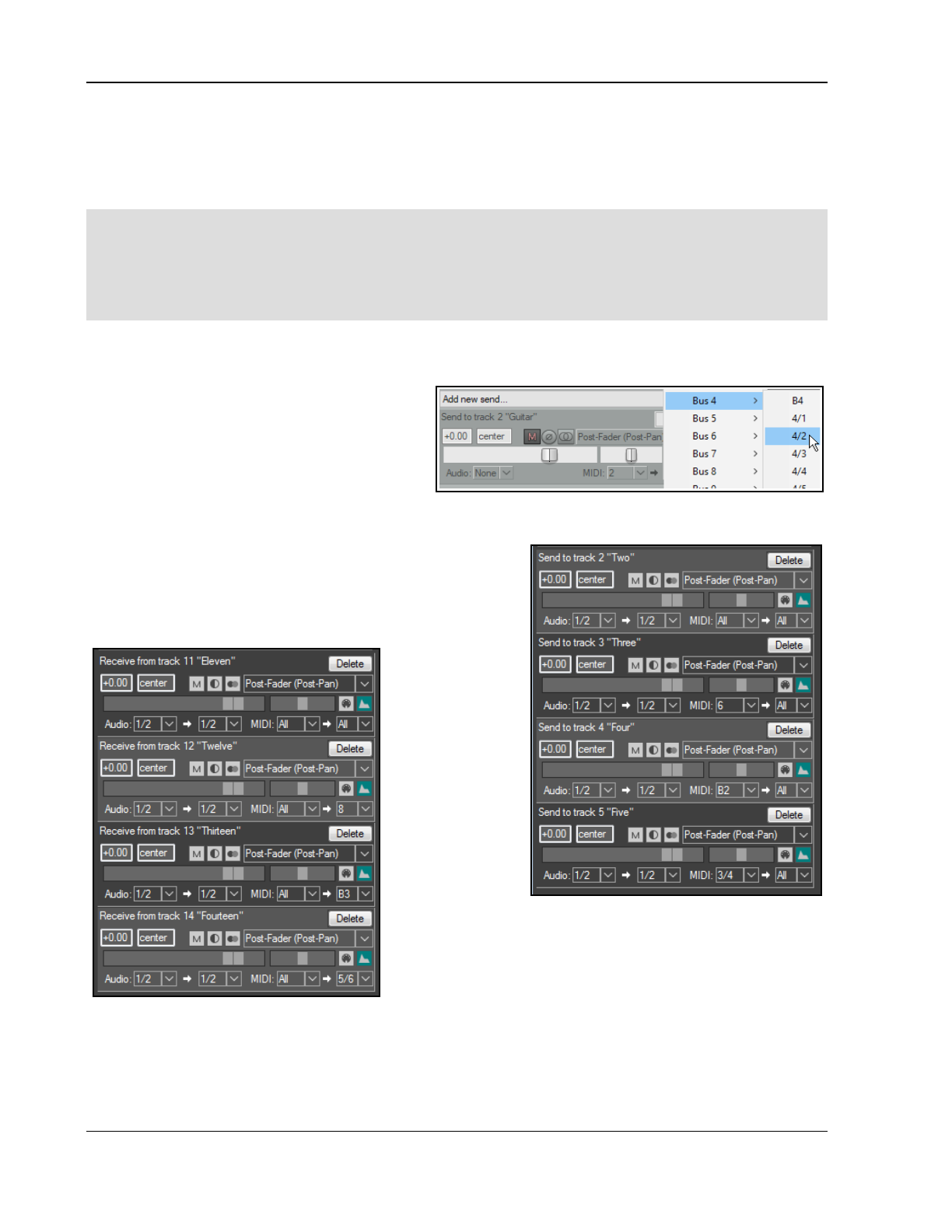
Up and Running: A REAPER User Guide v 7.81
Selecting your ReWire enabled application will cause the application to be opened. You can use ReWire to send
MIDI data to the client application (as shown here), to route audio from the client application into REAPER, or to
route MIDI data from the client application into REAPER.
By default, the tempo for both applications is set by the ReWire host. However, there is an option in REAPER's
ReWire window to allow the client application to set the tempo.
Note 1: There is an option (Options, Preferences, Audio) to Close audio device when inactive and
REWIRE devices are open.
Note 2: REAPER can be opened in client mode from the Windows Start, All Programs menu, or by first opening
the host application and by selecting REAPER as the client application there. You can also (in both OSX and
Windows) ReWire REAPER to itself by choosing Rewire REAPER from the Add FX window. For more information
about using ReWire with REAPER see: wiki.cockos.com/wiki/index.php/ReWire
17.16 MIDI Routing and MIDI Buses
REAPER's 128 MIDI Buses vastly increase your MIDI routing options. Each bus can carry up to 16 channels,
offering you 2048 virtual MIDI channels in all.
MIDI Buses can be used to to direct MIDI data to
specific instruments, e.g. on a single track
ReaSynth or ReaSamplomatic. It becomes more
useful with multi-timbral software (e.g. Kontakt).
You can also use MIDI buses to send MIDI CC
messages, including to specific FX. When you
create a MIDI send, as well as the usual channels 1 to 16 you have the option of selecting any of the 16
channels on any of the 128 MIDI buses. In the example shown (above), B4 means use bus 4 on current MIDI
channel, 4/2 means Bus 4 channel 2.
REAPER’s native MIDI routing capabilities are as powerful and as
flexible as its audio routing capabilities. The exact method is
different, but the concepts are similar. This is quite a complex
topic. Make sure you are familiar with REAPER’s general routing
essentials
described in this
chapter before
you attempt it.
REAPER uses MIDI
buses to
overcome the
limitations
imposed by the
standard of 16
MIDI channels.
REAPER’s 16 MIDI
buses extend this
capability. Each
bus can handle up
to 16 channels of MIDI data, making available to you 2048 virtual
MIDI channels in total! If no MIDI Bus is specified, then for plug-
ins the default, Bus 1, is used. Using MIDI buses any track can
receive MIDI data from and send MIDI data to as many or as few
of these channels as you wish. For example, using MIDI buses
you can:
● Host multiple VST instruments on a single track. You can “team” them so they can share the same MIDI
data and “split” them so that each receives different MIDI data on its own dedicated MIDI bus, as well as
sending MIDI data on any of the MIDI buses to other instruments on that track.
● Route MIDI Continuous Controller (“CC”) data to specific plug-ins (instruments or FX).
354
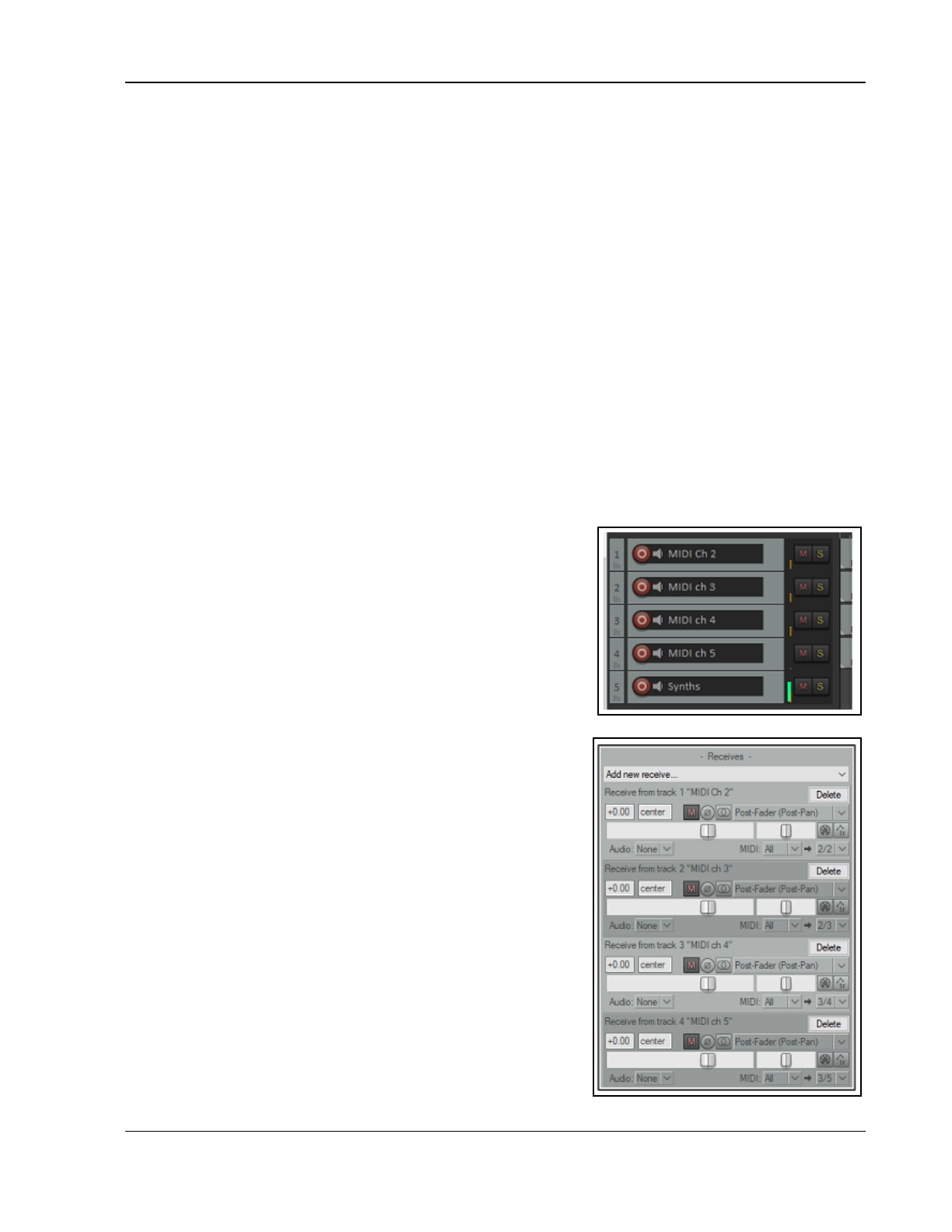
More Routing Examples
● Have more options for using parameter modulation to allow the MIDI data generated by manipulating one
instrument’s controls to also be passed via a MIDI bus to another instrument. This will be explained shortly.
When working with plug-ins in an FX chain, MIDI data can be placed on a MIDI Bus in two standard ways:
1. Using the track’s Routing capabilities: the MIDI data sent can be filtered by MIDI channel or MIDI Bus or
both. That filtered MIDI can be sent as filtered or to a selected MIDI Bus or channel or both, or
2. Setting the MIDI Output for a plug-in: the MIDI can be sent to any MIDI Bus (the MIDI channel cannot be
specified, that is determined by the plug-in).
Note that only standard MIDI events (that is, those on MIDI Bus 01) can be edited in the MIDI Editor Piano Roll.
The MIDI data on the other MIDI Buses is conveyed in MIDI SYSEX messages and is displayed in the SYSEX lane
in the MIDI Editor. You could edit those messages in that lane or in the Event List. Keep in mind also that MIDI
buses can convey not only CC messages but also notes and other information.
Example 1: Sending and Receiving MIDI Data
Let us look at the track send / filtering possibilities first (above right). Here are four sends from track 1:
1. The Send to track 2 sends all the MIDI data.
2. The Send to track 3 sends all the MIDI data on MIDI channel 6 only, regardless of the MIDI Bus.
3. The Send to track 4 sends all the MIDI data on MIDI Bus 2 only, regardless of the MIDI channel.
4. The Send to track 2 sends all the MIDI data on MIDI channel 4 on MIDI Bus 3 only.
And now, the receives. Here are four receives on track 15:
1. The Receive from track 11 receives all MIDI data, MIDI Buses and channels are unchanged.
2. The Receive from track 12 receives all MIDI data and changes MIDI channel to 8, MIDI Buses unchanged.
3. The Receive from track 13 receives all MIDI data, placing it on MIDI Bus 3, MIDI channels are unchanged.
4. The Receive from track 14 receives all the MIDI data, changes the
channel to 6 and places it on MIDI Bus 5.
As you can see, Reaper offers a powerful mechanism for filtering
MIDI events and rerouting that filtered MIDI.
Example 2: Teaming Multiple Instances of ReaSynth
The Model
This will show you how to team a number of instruments together in
a single track so that they work together to produce your music. For
the sake of simplicity we will use just two instances of ReaSynth, but
we could choose to use more if we wished. This is best understood by
working thru a relatively simple example.
Using MIDI buses, we can route the four MIDI tracks shown here
(each with data on a different channel) to a single audio track which
will contain our two VST instruments and several VST audio plug-ins.
In this example, each of the instances of ReaSynth uses different
parameter settings. We wish to set this up so that the output of
tracks 1 and 2 goes to the first synth, and tracks 3 and 4 to the
second synth. MIDI buses allow us to do this, and effectively use the
two synths almost as if they were a single multitimbral instrument.
The Routing
We start by inserting the two instances of ReaSynth into the FX chain
of a new track. We can rename them as ReaSynth 1 and ReaSynth 2.
Of course, you can use different instruments if you prefer. We can
then open this track’s routing window and create sends/receives
along the lines shown here.
Different combinations of MIDI data are sent to two MIDI buses –
Bus 2 and Bus 3. Each of these buses will be assigned in turn to one
of the two synths – Bus 2 to ReaSynth 1, Bus 3 to ReaSynth 2. We
could have used whichever buses we liked, although for reasons that
we’ll get to later you might wish to avoid Bus 1.
1. All the MIDI from track 1 is received on channel 2 on bus 2.
355
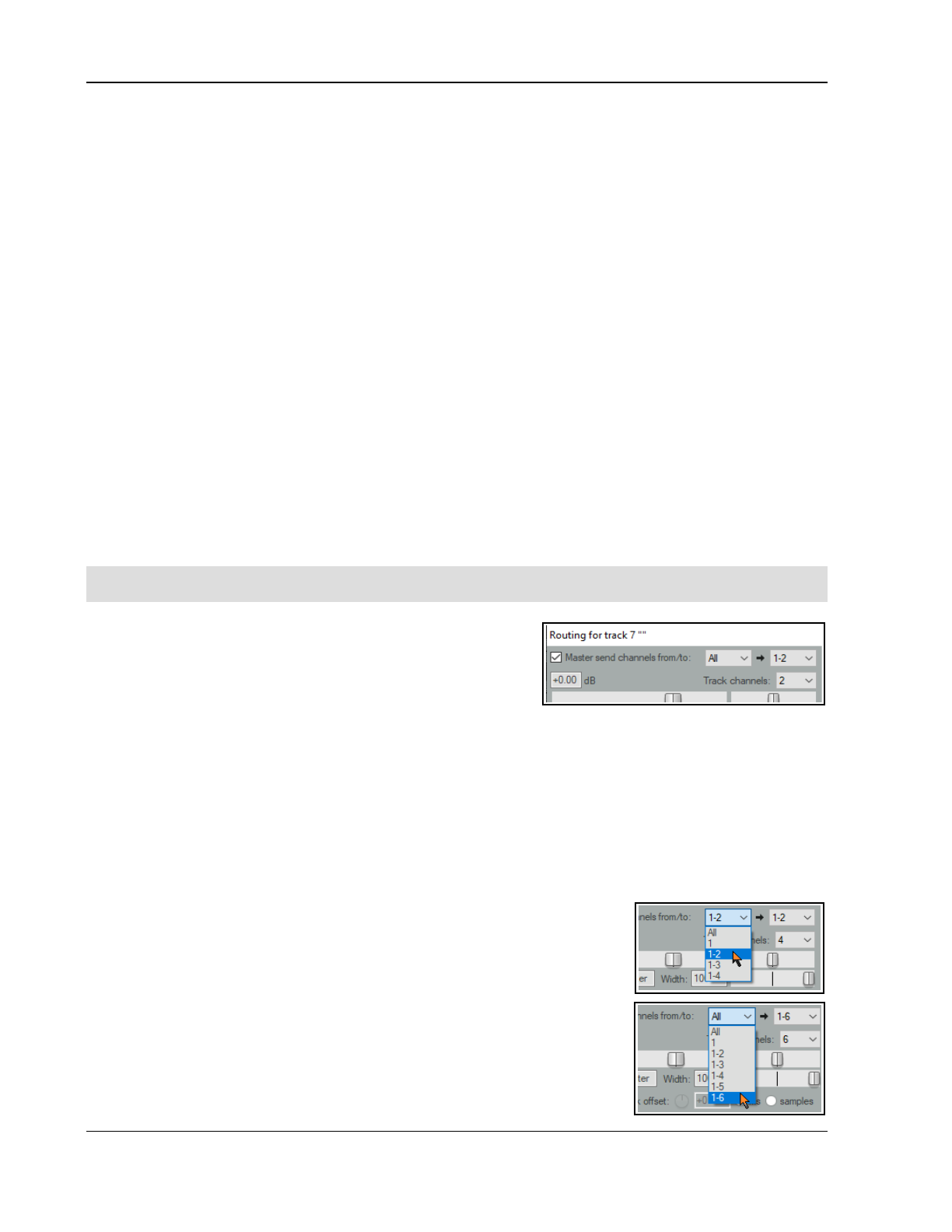
Up and Running: A REAPER User Guide v 7.81
2. All the MIDI from track 2 is received on channel 3 on bus 2.
3. All the MIDI from track 3 is received on channel 4 on bus 3.
4. All the MIDI from track 4 is received on channel 5 on bus 3.
We have used different MIDI channels so that the sources can be distinguished, if needed. ReaSynth processes
MIDI on any channel. If you were using a multitimbral plug-in, such as Kontakt, SampleTank or Falcon, then the
plug-in would receive all the MIDI data on the selected Bus (or that on Bus 1, if none is selected) and the MIDI
events on the different channels would drive different instruments / sounds loaded within the plug-in.
Assigning the Buses
The next step is to assign a separate bus to each of the synths. First, we can select ReaSynth 1, then right click
on the Routing [2 out] button, then select MIDI input, then MIDI Bus 2. We can repeat this process to assign
Bus 3 as the input for ReaSynth 2.
We can then add whatever audio FX we like to the FX chain – e.g. stereo width and reverb and play back the
music, adjusting any of the synth or FX parameters at will. If you wish to use different FX on the audio from
each synth you can make the track multi-channel and connect the synths and FX to the appropriate audio
channels, as described in channel splitting earlier in this chapter.
Example 3: Driving Multitimbral Samplers
We can take the previous example further and replace those instances of ReaSynth with (say) Kontakt and
Sample0Tank respectively. For Kontakt, we could set its MIDI Input Bus to 2 and load two instruments into the
rack, set one to MIDI chl 2 and the other to MIDI chl 3. For SampleTank, we could set its MIDI Input Bus to 3
and load two instruments into the instrument slots, set one to MIDI chl 4 and the other to MIDI chl 5.
On playback you would hear all 4 different sounds, each driven by its own original source track. And, of course,
the combined audio can be further processed with FX. In theory, you could have 16 multitimbral plug-ins, each
on a different MIDI Input Bus, and with 16 different sounds loaded in each plug-in. That would provide 256
different sounds, but it would be rather a cacophony.
Footnote: A huge thank you to Michael Schnell and DarkStar for their inexhaustible patience and invaluable help
with the production of this section.
17.17 Multichannel Parent-Child Relationships
Parent-child track relationships can be defined in the track’s routing
window, opened by clicking on its Route button in the track panel.
By default, REAPER assumes that you require two channels (1-2)
for new tracks, and 2 channels (1-2) for the master. These
channels (in this example 1 and 2, because that is all there are) are used to send output from the track to its
parent (which in this example is the master, as shown above right). The first of the paired dropdowns
determines and indicates the channels used to send output from the track to the master, the second indicates
the channels on the master to which they are to be sent.
Note that the parent will not always be the master. An example is when the track is contained within a folder. In
this case, instead of
Master send
channels from/to
the dialog will display
Parent send
channels from/to
,
and the
output will be directed to the folder track, not directly to the master.
There might be occasions when you will need more than two channels – for example when sidechaining, using
parallel FX processing, or if you are producing output in surround sound format. In any such case, you will need
to specify the number of track channels required and their relationship to their parent.
Example 1:
In this case the track has four channels (perhaps reserving channels 3-4 for
sidechaining detector input), but only channels 1-2 are to go to the parent
(master). We select 1-2 from the first dropdown, and from the second dropdown
we select 1-2 as our destination channels in the master.
Example 2
This next example would be suitable for surround mixing in 5.1 format. The
master has been defined as having six channels, as have the tracks. Hence, from
the first dropdown we can select either All or 1-6 channels: 1-6 is automatically
selected for the second dropdown, because once we have specified that we wish
to send all 6 channels that becomes the only possible option.
356
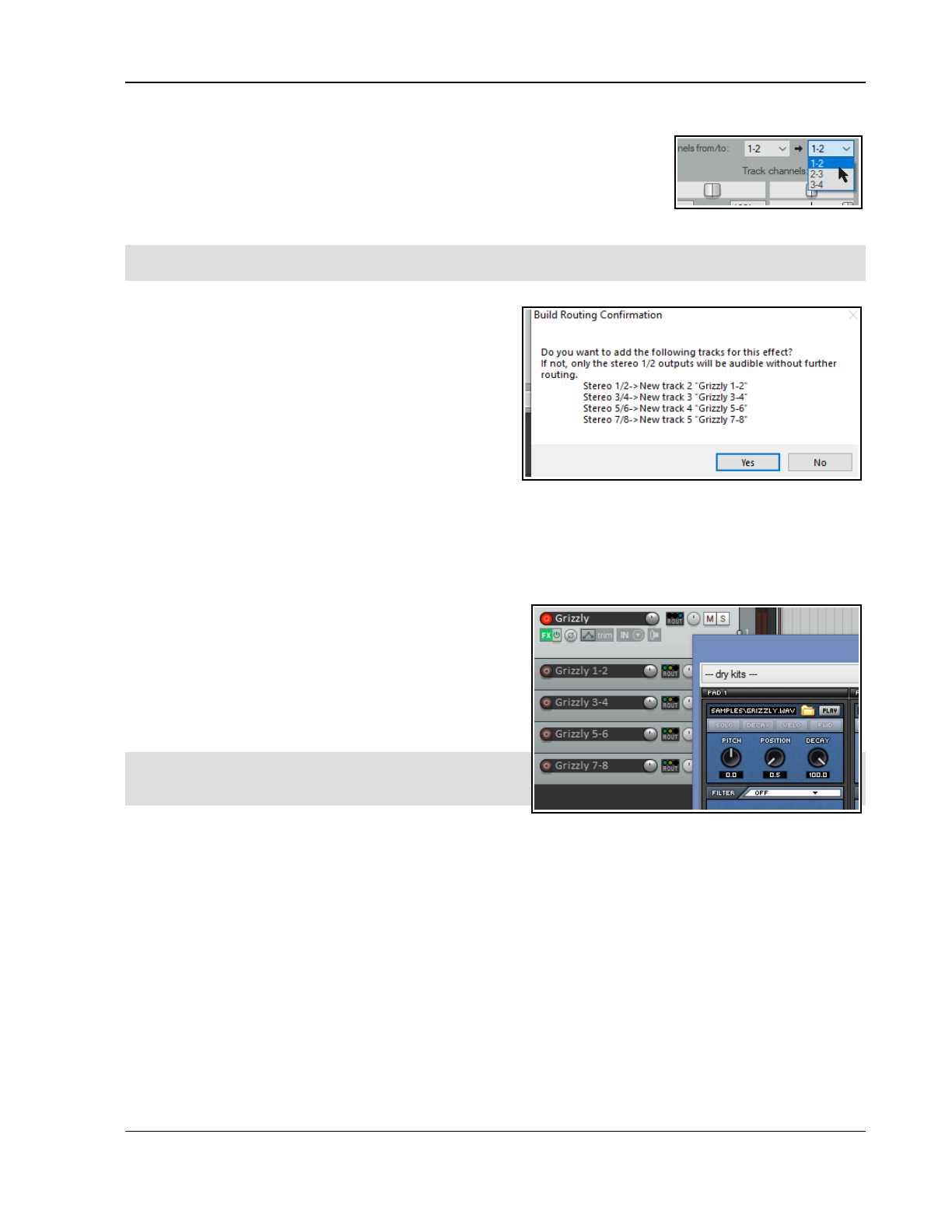
More Routing Examples
Example 3
This final example is for a child track within a folder. The track itself has only 2
channels, but the folder has 4 (perhaps for manipulating FX within the folder’s FX
chain). Here we select All or 1-2 from the first dropdown: because this track has
only two channels, in this case either of these will produce the same result.
However, because the parent contains four channel, we must also specify the
destination channels on the folder. If you do not make a selection, it will default to 1-2.
Tip: You can change the number of default channels for new tracks to any even number up to 64 on the
Advanced page of Project Settings. Here you can also change the default number of parent send channels.
17.18 Multi Output VSTi Plug-ins
This section shows you how to set up multi-output VSTis.
Example 1: Paired Audio Tracks
1. Right click over the empty area of the Track
Control Panel and from the menu choose Insert
virtual instrument on new track…
2. When the FX browser window is shown, double-
click on the required instrument. This example
uses the 8-output version of Grizzly (4 stereo
channels). You could use any multi output
instrument that you wish.
3. You will be asked to confirm whether you want the appropriate number of tracks built for the particular
instrument that you have chosen (above right). Click on Yes.
4. REAPER will now insert the instrument into the FX chain for the original track, name it. arm it for
recording, and create all the additional tracks.
5. You now have a single MIDI input track for the VSTi
together with four output audio tracks. Notice:
Channels 1/2 from Track 1 are directed to Track 2,
Channels 3/4 to Track 3, Channels 5/6 to Track 4
and Channels 7/8 to Track 5.
No direct output goes from Track 1 to the Master.
3. You're now ready to load your instruments (in this
example, a drum kit) and to start playing.
Note: Instead of steps 1 and 2, you can drag and drop the
VSTi from an open FX browser window direct to the empty
area of the track control panel.
Example 2: Separate MIDI Tracks
If you want a separate MIDI track for each VSTi output channel, you should use this method. Again, we'll use
Grizzly, but you would use the same method for any other multi-output synth.
1. Create and name a new track. Open the track’s FX window and add the VSTi to the track’s FX chain.
2. From the FX window Options menu choose Build 16 channels of MIDI routing to this track.
3. You now have one MIDI track for each channel. The MIDI output of each of the 16 tracks is sent to the
track on which you originally inserted the VSTi.
You have a number of options for assisting you with managing this set of tracks. For example, you can put the
MIDI Tracks in one folder, name the folder, color the tracks and hide them in the Mixer. To enable keyboard
input for the individual MIDI tracks:
Make sure that the VSTi track is
not
armed for recording.
Select all 16 MIDI tracks.
Right-click the Record Arm button and turn Input Monitoring button on for all 16 tracks.
For each track, set the MIDI input channel, from 1 to 16.
357
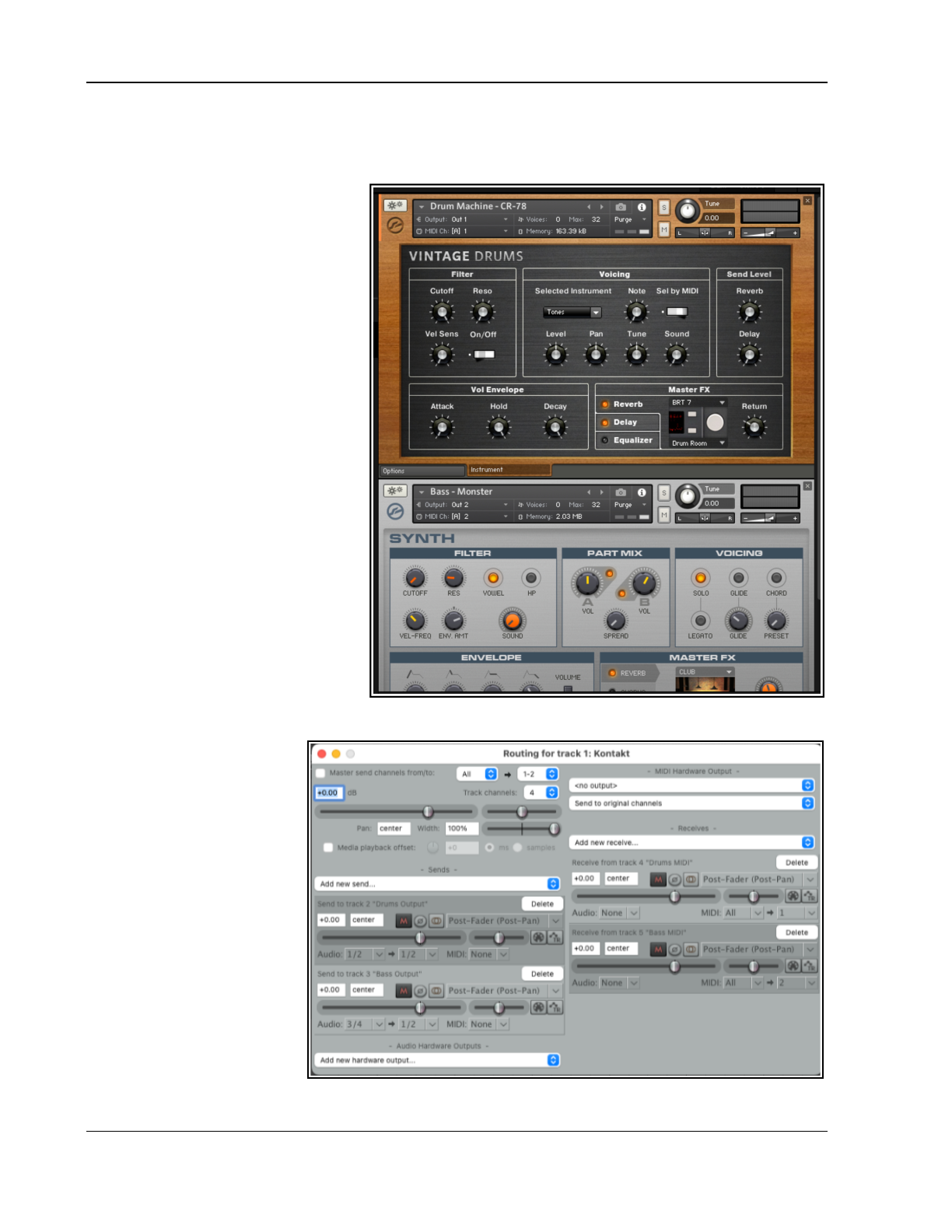
Up and Running: A REAPER User Guide v 7.81
17.19 Pre-receive Sends and Multichannel Routing
This is an advanced topic, not suitable for beginners. In particular a sound and solid understanding of REAPER’s
core routing capabilities is essential.
Pre-receive sends and multichannel
routing allow you to send audio from a
midi track to a synth and back to itself
without creating a feedback loop. The
best way to understand this is by
looking 77at a relatively simple
example.
Suppose you are using a sampler such
as Kontakt, and you wish to load it
with multiple instruments, perhaps
including a drum instrument and a
bass instrument. You would end up
with something like this (right).
In this example, the synth drum
instrument has been set to use MIDI
channel 1 only, with output to Out 2.
The bass instrument is set to use MIDI
channel 2, outputting to Out 1.
Previously, if you wanted to use
separate FX instances on each
instrument you would have put each
instrument on a separate track. Drums
would send MIDI to Kontakt on
Channel 1, whereas Bass would use
Channel 2.
Thus the Kontakt track’s routing would
look as shown here (below right). Of
course, the more instruments you used
the more unwieldy would be the routing window. You would also need to enable feedback routing, which
amongst other things would
disable plug-in delay
compensation.
However, multichannel
routing offers you a simpler
and more elegant way of
achieving this. All the FX
sends required are added to
a single track.
In your Preferences, Plug-
ins page, enable the option
Prompt to create routing
when inserting a new
instrument. Then,
whenever you insert a multi-
channel instrument you can
have REAPER set up the
routing for you.
358
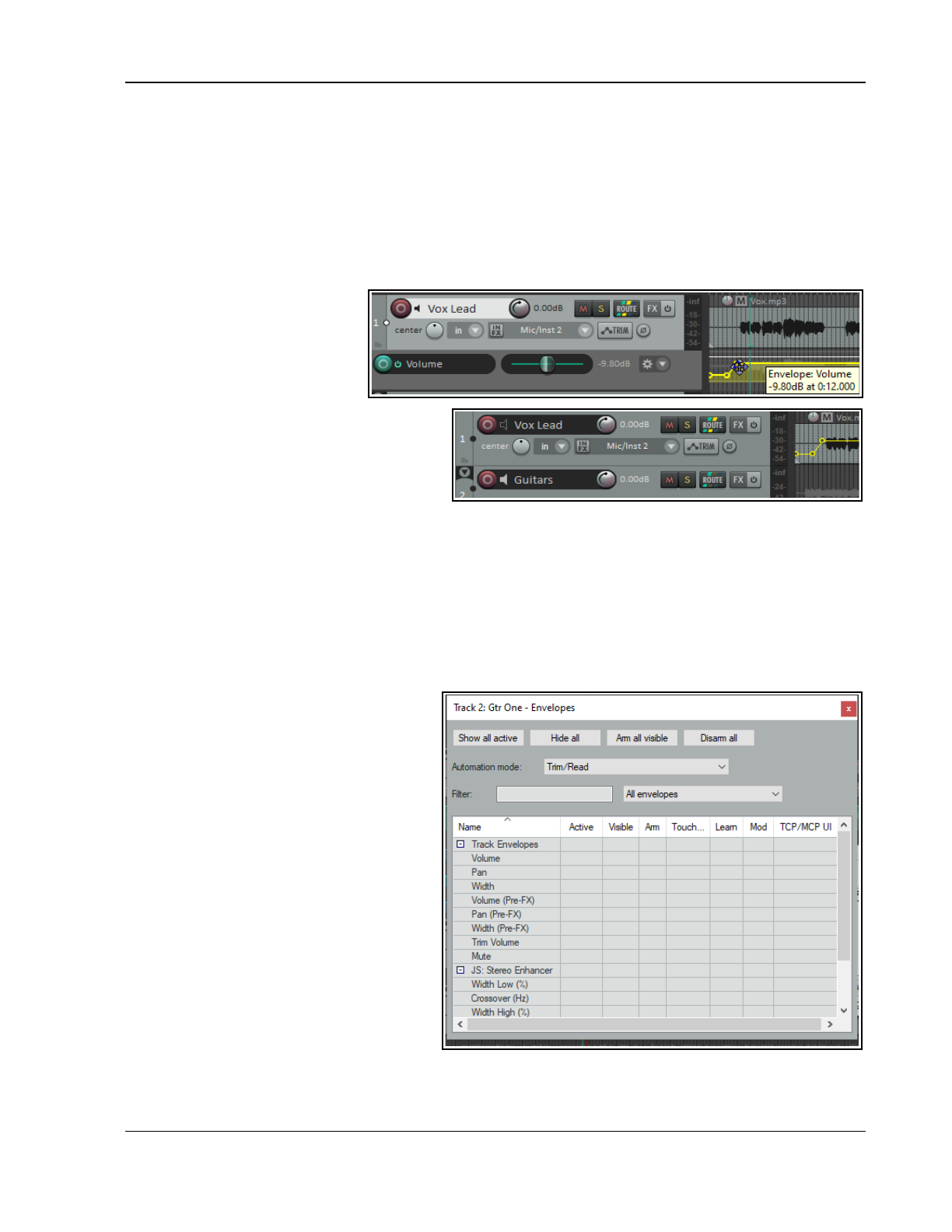
Automation – Envelopes and More
18 Automation – Envelopes and More
18.1 Understanding Automation
Automation is used to ensure that when your tracks are played, recorded changes in such parameters as volume
level or panning can be recalled with the music in real time. At its simplest, for example, automation can lift the
volume of a lead instrument during a particular break or passage, or add a little presence or warmth to the odd
phrase here or there on a vocal track, to make it stand out in the mix a touch more.
A simple example of an envelope (Volume) is shown here. The envelope here is displayed below the media item.
The TCP shows an envelope panel with its own controls. When the track is played, its volume will rise and fall
with the shape of the envelope.
In the second example (below)
the same envelope is displayed
not in its own lane but on top of
the media item. Both methods
have their advantages and
disadvantages. The first makes it
easier to work with the envelope, but uses
more space. The second takes up less space,
but makes editing tasks that little bit trickier.
How your envelopes are initially displayed will
depend on your Editing Behavior, Envelope
Display Preference Settings. You can change
the display mode of any envelope any time with the context menu Show envelope in lane toggle command.
REAPER features two main types of automation – one method uses
envelopes
alone, whilst the other uses a
rather more complex (and powerful) technique known as
parameter modulation
. This chapter will deal with
creating and using envelopes. Parameter modulation will be covered in Chapter 19.
18.2 The Track Envelopes Window
Any track’s envelopes can be managed from its Envelopes Window . This includes FX parameter and track
send envelopes, The window is opened by clicking on the track’s Envelope (Trim) button in either the TCP or
MCP. Basic functions of this window include:
Set the track’s Automation mode.
Create envelopes (e.g. for Volume or
Pan, or for a send or an FX parameter).
Show or hide any envelopes.
Arm or disarm automation envelopes.
The envelopes window includes options such
as showing or hiding all envelopes on the
track, arming or disarming all envelopes, and
automatically creating envelopes for the last
touched parameter, including FX parameters.
These options will be explored in the pages
that follow.
The Filter box can help you find a parameter
more easily. For example, type
pre
in this box
and only items whose name includes
pre
will
be displayed, i.e. Pre FX envelopes.
All plug-ins in the track’s FX chain will also be
listed. Shown here is a JS Stereo Enhancer.
Where FX are present on the track, the filter
box above the table allows you instead of
showing All envelopes to show only Active envelopes or only Last touched FX parameters. This helps
avoid screen clutter.
359
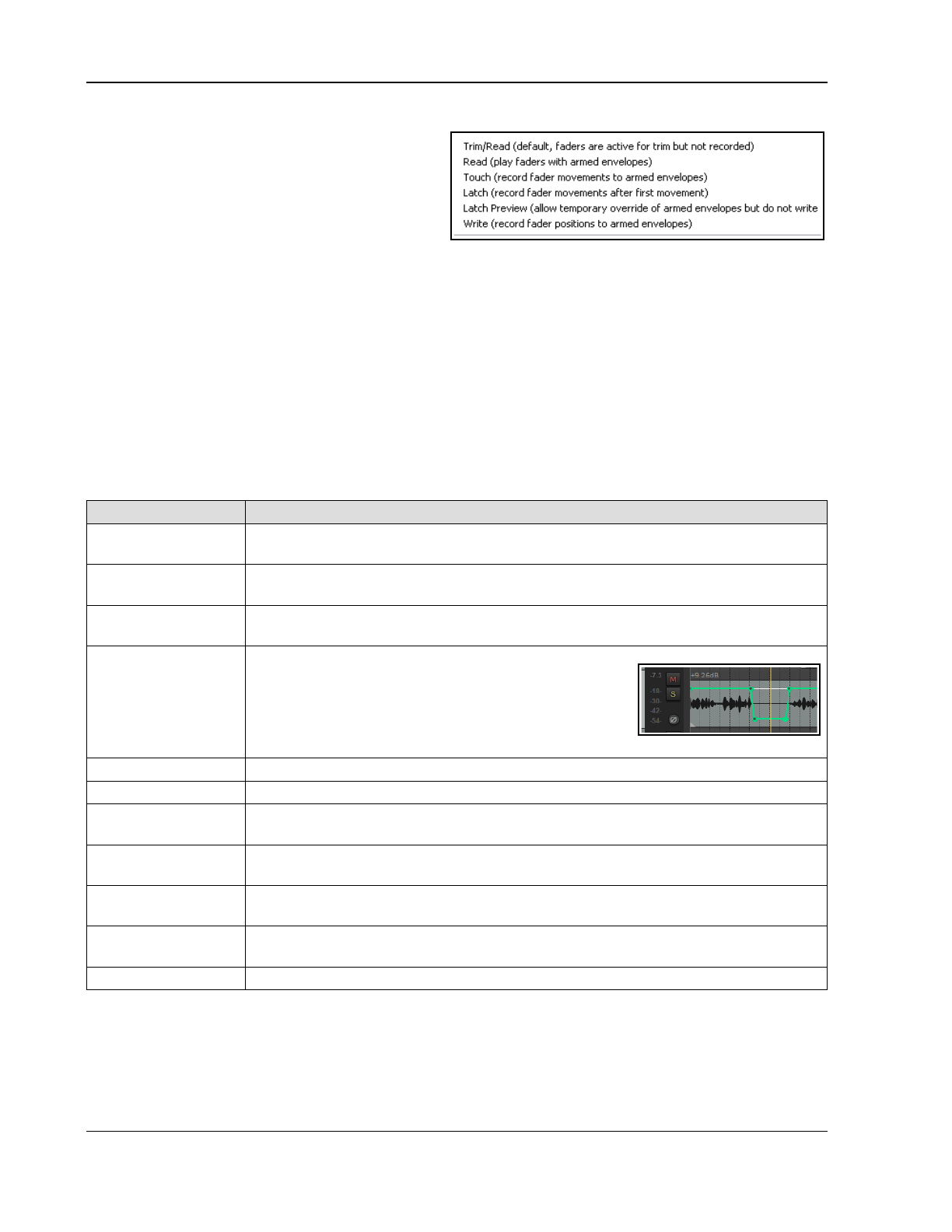
Up and Running: A REAPER User Guide v 7.81
18.3 Automation Envelope Methods
REAPER's various automation modes essentially
make available to you two main ways of using
envelopes for automating your projects. These are
writing automation and manually creating
envelopes.
Writing Automation: When writing
automation, REAPER will record your actions – such as adjusting a volume control – as your project is
played. An envelope is created to reproduce these during playback. The three different methods are write,
touch and latch (including latch preview).
Manually Creating Envelopes: Instead of using track control to create envelopes, shaping them manually
gives you more precise control. You can draw your envelope curves freehand, add points, and use your
mouse to manually move points. Trim/Read mode is used when you are creating or editing envelopes in this
way. You can write envelopes in, say, latch mode then edit them in Trim/Read mode.
The active mode is displayed on a track's envelope button. We'll explore the different automation modes shortly.
Different modes can be used on different tracks. All envelopes can be manually edited , or removed altogether.
18.4 Available Track and Send Envelopes
The following are the automation envelopes that by default are available for all tracks and sends. Envelopes for
plug-ins and FX will be discussed later in this chapter.
Envelope Description
Volume Adjusts the volume of the Track’s Output, after, for example, any item or track FX
have been applied. This sets the level of the signal that is sent to the Master Track.
Pan Moves the balance pan control more towards the left, right, or dead center: the signal
that is sent post FX from the track to the Master Track.
Width Moves the width control more towards the left, right, or dead center: the signal that is
sent post FX from the track to the Master Track.
Volume (Pre FX) Adjusts the volume of the track signal that is fed to the
track’s FX chain. This is generally equivalent to the gain
control that you can find on some desks and mixers.
This works directly on the media itself: media item peak
display will automatically be adjusted to match the
envelope, as shown here.
Pan (Pre FX) Similar to Pan control but before track FX or track faders are applied.
Width (Pre FX) Similar to Width control but before track FX or track faders are applied.
Trim Volume A rather different type of envelope that can be used to modify the track volume
envelope. This will be considered later in this chapter.
Mute This envelope has effectively only two states – On and Off. It is used to mute
passages of a track.
Send Volume Adjusts the volume of the track signal sent to the destination track. Can be used for
Post fader (Post Pan), Pre fader (Post FX) and Pre fader (Pre FX) sends.
Send Pan Adjusts the panning of the track signal sent to the destination track. Post fader (Post
Pan), Pre fader (Post FX) and Pre fader (Pre FX) sends.
Send Mute This has only two states – On and Off. It is used to mute passages on a send.
18.5 Writing Automation
To create automation envelopes using the Write feature:
● In the TCP, click on the Envelope Trim button to open the track's envelopes window.
● This button (below) shows the current automation mode for that track.: here it is Trim.
360
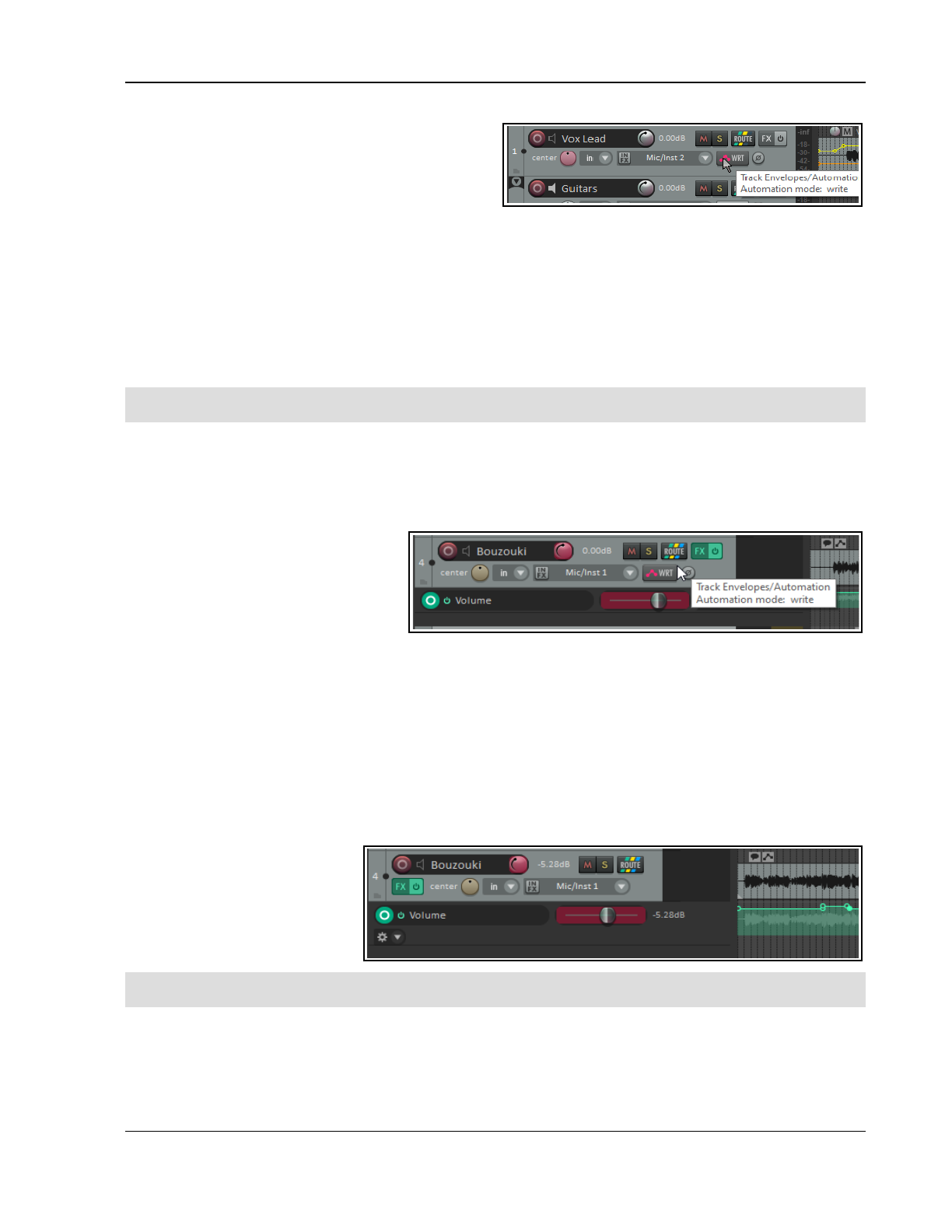
Automation – Envelopes and More
● Select the item (a track envelope or FX parameter)
that you wish to automate, and make sure to also
select the options Visible and Arm.
● Set Automation mode to Write.
● Close the Envelopes window. The envelope button
will now show WRT.
● Position the cursor where you wish to start.
● Play the song. As you do so, adjust the on screen control (in the envelope lane or FX window) which
controls the item you are automating. Stop play when finished.
● Right click over the Envelope button for that track and from the last section of the context menu select
Trim/Read or Read.
● Play the song. The automation will be applied. In Read mode, the parameter control will move to reflect
your changes.
Many of the envelopes window’s functions are also available on the Trim button’s right click context menu.
Tip: The option Automatically add envelopes when tweaking in automation write modes (Preferences,
Automation), allows you to create or modify envelopes by adjusting any control during playback.
Automation Write Example
1. Open the file All Through The Night.RPP. Save it as All Through The Night AUTO.RPP. We will add
an envelope to the Bouzouki to fade it up in the passage between the first and second verses of this song.
2. Increase the height of the Bouzouki track, to make it easier to see what you are doing.
3. Insert the MGA JS Limiter plug-
in to the master and to prevent
clipping set its threshold to –3.0.
Position the play cursor just before
the end of the first vocal passage
at about the 33 second mark.
4. Now click on the
Envelopes/Automation button for the Bouzouki track. Select Volume and make it both Visible and
Armed. Select the automation mode Write for this track (see above).
5. Close the Envelopes window. Notice that the Volume fader for this track is now colored red and a Volume
envelope has been created. The Envelope button now reads Write.
6. Play the song from about the 48 sec mark for about 15 sec. At the instrumental break, use your mouse to
raise the track fader for the Bouzouki volume (not the envelope volume fader) by about a three decibels.
Hold it there, then at the end of the instrumental break lower the fader to its original position. Stop play.
7. Right click over the Envelope button for the Bouzouki track and choose Automation Mode: Read from
the context menu. Zoom closely into the part of the song that goes from about 45 secs to about 65 secs.
8. The volume control is lane now green, with the automation envelope clearly visible (see below).
9. Play the song. The arrange
view and mixer volume
faders for this track will
automatically move to
show changes in volume
to reflect the changes you
recorded. Save this file.
Note: You do not need to select Automation Read mode for the automation to take effect. Trim/Read mode, for
example, also does this, but without 7moving the faders.
18.6 Envelope Points Options
The Options, Envelope points command helps determine envelope behavior. These are also available by right
clicking on the toolbar envelope tool. Move envelope points with media items should be enabled if you wish
an envelope to follow its media item when that item is moved or copied.
361
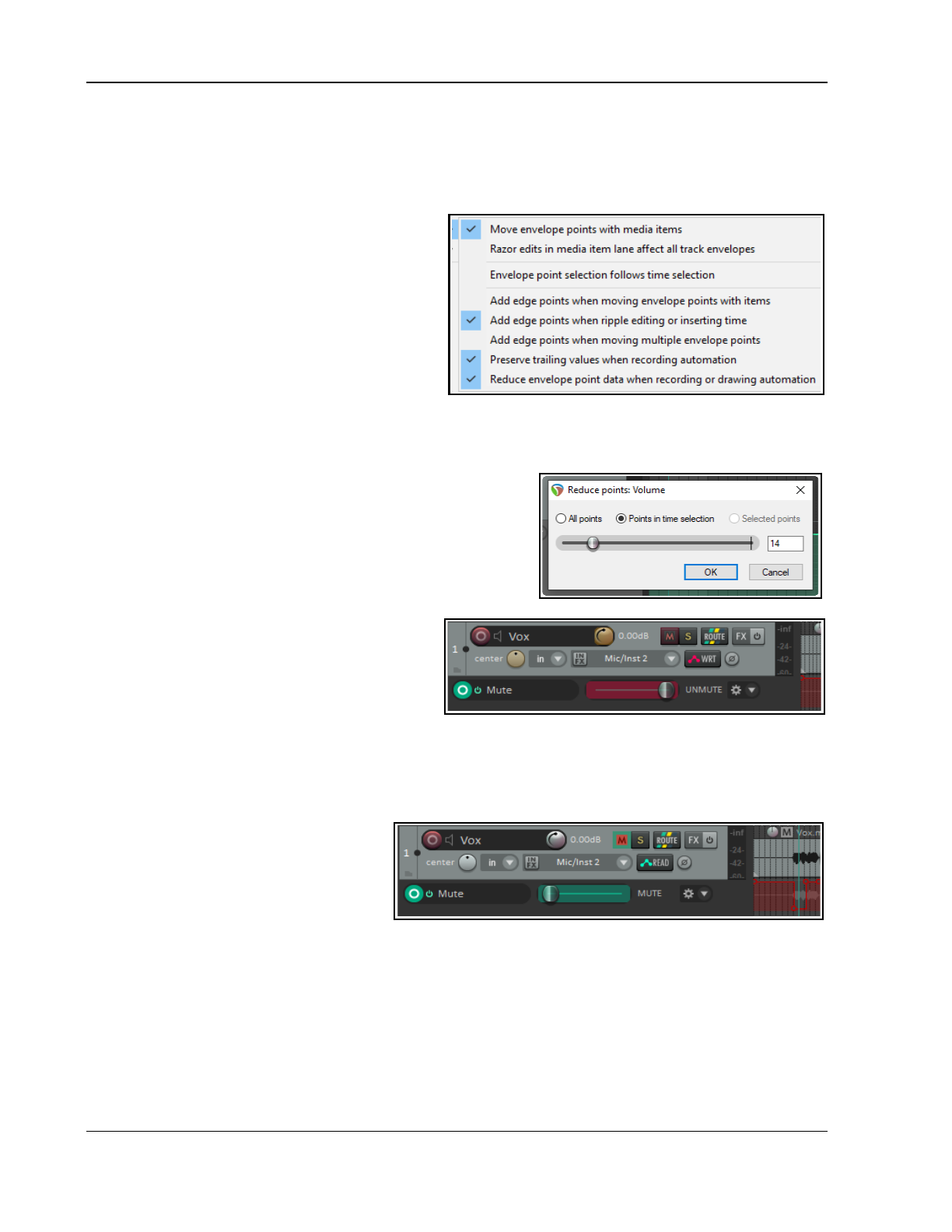
Up and Running: A REAPER User Guide v 7.81
Enabling Razor edits affect all track envelopes will link your envelopes with your media items when razor
editing. They will be moved, copied or deleted with the media. With this disabled, you may still include envelope
points/segments, etc. in your media item selections if you wish. There are some examples later in this chapter.
Be careful with Envelope point selection follows time selection. This will move all points within a time
selection when you click/drag on any one of them. If you don’t want this,, disable this option.
Edge points can make it visually easier when
moving a group of points. There are options to Add
edge points when moving envelope points
with items, when ripple editing or inserting
time and when moving multiple envelope
points. You can make a time selection, choose
Select all points in time selection from the
envelope context (right-click) menu, then click and
drag (left or right) any point within the selection.
There is also an option to Preserve trailing
values when recording automation.
Enable Reduce envelope point data when recording or drawing automation if more points are being
made than you want when, for example, you write automation data.
To reduce the number of points on an existing envelope that has already been recorded:
1. Select (click on) the envelope.
2. Define the required time selection.
3. Right-click over the envelope. From the menu, choose
Reduce Number of Points.
4. Select Points in time selection or (possibly) All Points.
5. Use the fader to set the number of points. Click on OK.
18.7 Writing Mute Automation
You can use a track’s Mute button to automatically
mute unwanted passages of a track. To do this
Click on the track’s Envelopes/Trim button
to display the envelopes window.
Select the Mute envelope and set the mode
to Write. Then close the Envelopes window.
The Envelopes/Automation button will read Write and the armed mute button will be highlighted in red.
Notice (above) how this mode is displayed.
Now play the track. Click on the track’s Mute button at the start and end of any passages to be muted.
When finished, stop playback. Automation mode for this track should now be set to Read.
In the example (right), a vocal track is
muted when it is not intended to be heard.
Read mode has been selected. During
playback, the color of the Mute button
changes to red during the muted passages.
18.8 Automation Modes
Automation mode can be set as already shown from inside the Envelopes/Automation window or by right-clicking
on the track envelopes/automation button. In fact, there are a number of ways that this can be done:
Select the required mode from the Envelopes window.
Right-click on the Envelopes/Automation button and select the required mode from the context menu.
In the TCP, right click over any automation lane and select the required mode from the context menu.
From the main menu, choose Track, Track automation mode (or right-click over the track number
and select this from the context menu).
362
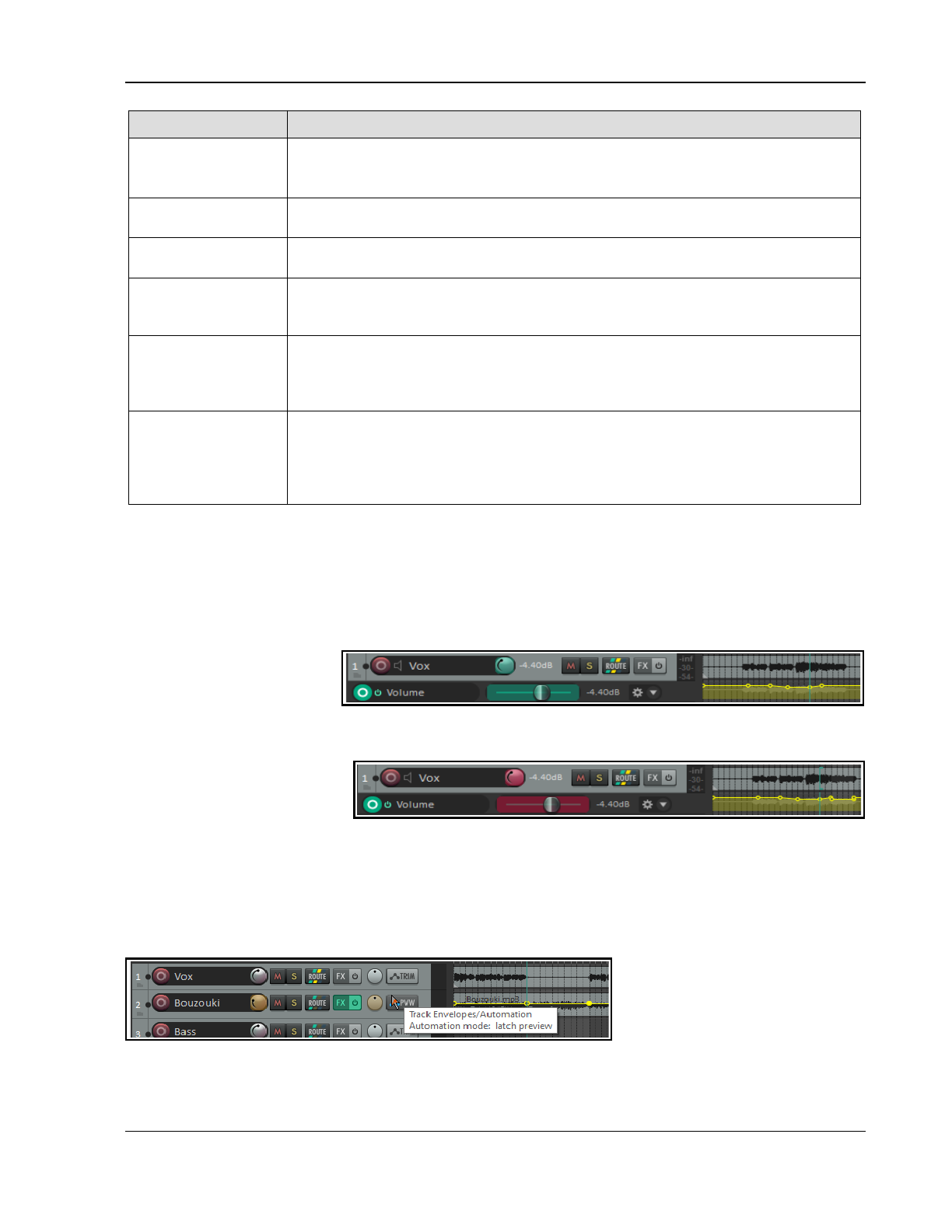
Automation – Envelopes and More
Automation Mode Description
Trim/Read
Existing envelopes are applied, but on-screen controls do not move.
Fader movements are not recorded. For example, adjusting a track’s Volume fader in
this mode will raise or lower the volume for the whole track relative to the envelope.
Read
Applies envelopes and moves controls for armed items, but does not write or
remember any changes that you make to them.
Touch
Similar to Latch, but stops making changes to points when you stop adjusting them.
If using a MIDI controller, however, Touch mode might function as Latch mode.
Latch
Writes and remembers any changes that you make to settings, and creates new
points on existing track envelopes. Changes commence when you first adjust a
setting, and continue to be remembered until playback stops.
Latch Preview
This mode enables you to try out changes to parameter values (e.g. volume level or
pan position) without actually writing them to envelopes. When you are happy with
your parameter settings you can then use an action to write them to your
envelope(s). This option will be considered in a section of its own, after this section.
Write
Writes and remembers current settings as edit points, along with any changes that
you make to settings for armed items during playback.
In this mode, previously
written envelopes for armed items will be over written.
REAPER's Automation
preferences include an option to automatically switch to another mode immediately
after recording automation in Write mode. By default, it will switch to Trim/Read.
In Latch, Touch or Write mode an envelope can also be armed by clicking on the Arm Record button in its
automation lane (where one exists). Remember also after using Write, Latch or Touch mode to change to Read
or Trim/Read mode, to prevent further automation from being accidentally recorded.
A number of actions are available in the Actions List for smart editing existing envelopes in latch, touch or
write mode. These let you copy the value of an envelope at the current cursor point all the way to the start or
end of a project or to a time selection. To see a full list of these actions, enter auto write into the Actions List
filter box. Some of these will be examined in the next section, Latch Preview Mode. Here is an example.
This track has a volume
envelope, currently in
trim/read mode. Note the
cursor position. Suppose we
want to set a later part to this same volume level.
In the second picture, we have selected write mode and made as a time selection part of the envelope to
change. We then, from the
actions list we run the action
Automation: Write current
values for all writing
envelopes to time selection. The envelope in this section is now set to the desired level.
18.9 Latch Preview Mode
This mode lets you try out changes to parameter values (e.g. volume level or pan position) without writing them to
envelopes. When your parameter settings are right you can then use an action to write them to your envelope(s). Let's
start by working thru a relatively simple example, before introducing some of the other options that are available.
Example
1. We want to increase the volume
of the featured instrument during
the break.
We have added a time selection
and a volume envelope to the track
and inserted points at the start and end of the break. Automation for the bouzouki is set to latch preview mode.
If the automation button is not visible this can be set from the right click context menu.
363
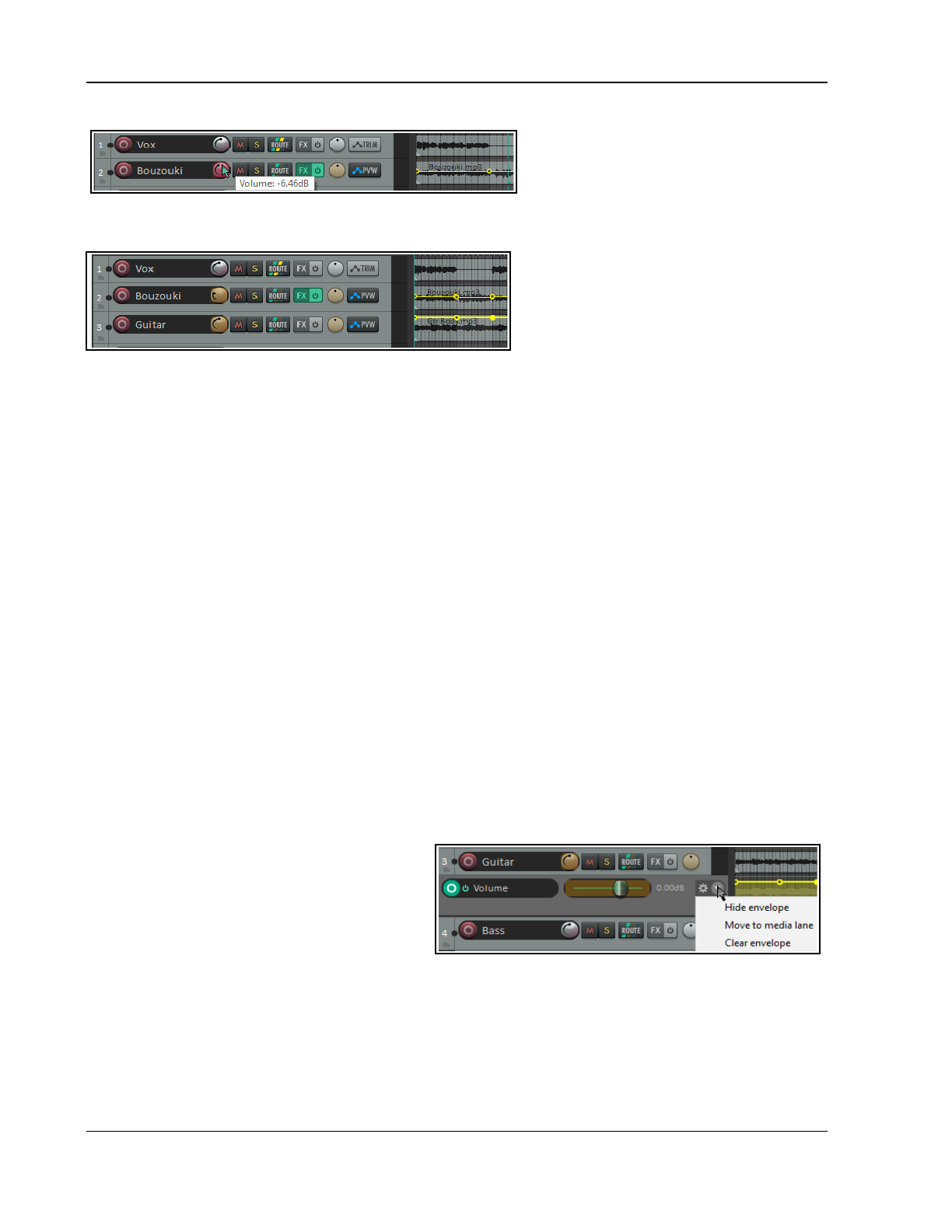
Up and Running: A REAPER User Guide v 7.81
2. We play the song, adjusting the volume control until we are happy with the level (in this case at +2.17dB).
Notice, however, that the envelope has not
yet been changed.
3. We now display the actions list (Actions,
Show action list) and run Automation:
Write current values for actively-writing envelopes to time selection. The envelope is now adjusted
(see below). Finally we can reset the track automation to trim/read mode.
You can use latch preview mode on more
than one envelope on a track, and/or on
more than one track. There are “write to”
options other than to time selection. Here are
some available actions. They can be assigned
to keyboard shortcuts, toolbars, and/or
menus (Chapter 15).
Set/Write/Clear Automation Mode Actions (see Actions List for full list)
Set automation mode actions:
Automation: Set track automation mode to … [latch
or
latch preview
or
read
or
touch
or
trim/read
or
write]
Automation: Set all tracks automation mode to … [latch
or
latch preview
or
read
or
touch
or
trim/read
or
write]
Global automation override: All automation in… [latch
or
latch preview
or
read
or
touch
or
trim/read
or
write]
Automation write actions:
Automation: write current values for actively-writing envelopes to [entire project
or
time selection]
Automation: write current values for actively-writing envelopes from cursor to [entire project
or
first touch
position
or
start of project]
Automation: write current values for all writing envelopes [from cursor to end project
or
from cursor to start
of project
or
to time selection]
Options: Preserve trailing values when recording automation.
Latch clear actions:
Automation: Clear [track
or
all track] envelope latches
These options together should provide you with all you need for your latch automation preview requirements.
18.10 Global Automation Override
The Global Automation Override (Global Auto) button on the transport bar is used to apply global options to
your envelopes. Right click on this button to display a menu which can be used to:
Toggle bypass on/off for all envelopes.
Select a single automation mode (e.g. Trim/Read or Read) for all tracks.
Toggle display of all active envelopes.
Global options are removed by the No global override command. Each track then returns to its previous
automation mode. Bypass is turned off.
18.11 Envelope Panel and Track Menu Controls
The envelope panel's fader is used to write
automation (write, latch or touch modes), show
automation changes (read mode) or adjust the
parameter value for the entire track or selected
envelope segment (trim/read mode).
When a track has other envelopes that are not
displayed in lanes, you can click on the envelope
name (shown above is Volume) and choose from the list a different envelope to display in its place.
The Track menu includes an Envelopes command which includes toggle options for managing all volume and
pan. For each of these, you can turn on or off their visibility and/or their active state.
Other controls are the Bypass toggle and next to that the Hide/Clear button (used to hide an envelope, move
it to the media lane, or clear it altogether). FX parameter envelopes may also have some additional controls, for
example to enable parameter modulation or learn mode (see later in this chapter and Chapter 19).
You can right-click on the envelope panel to display a context menu of envelope options, including to change the
envelope displayed in that lane, remove the envelope altogether, or change track automation mode.
364
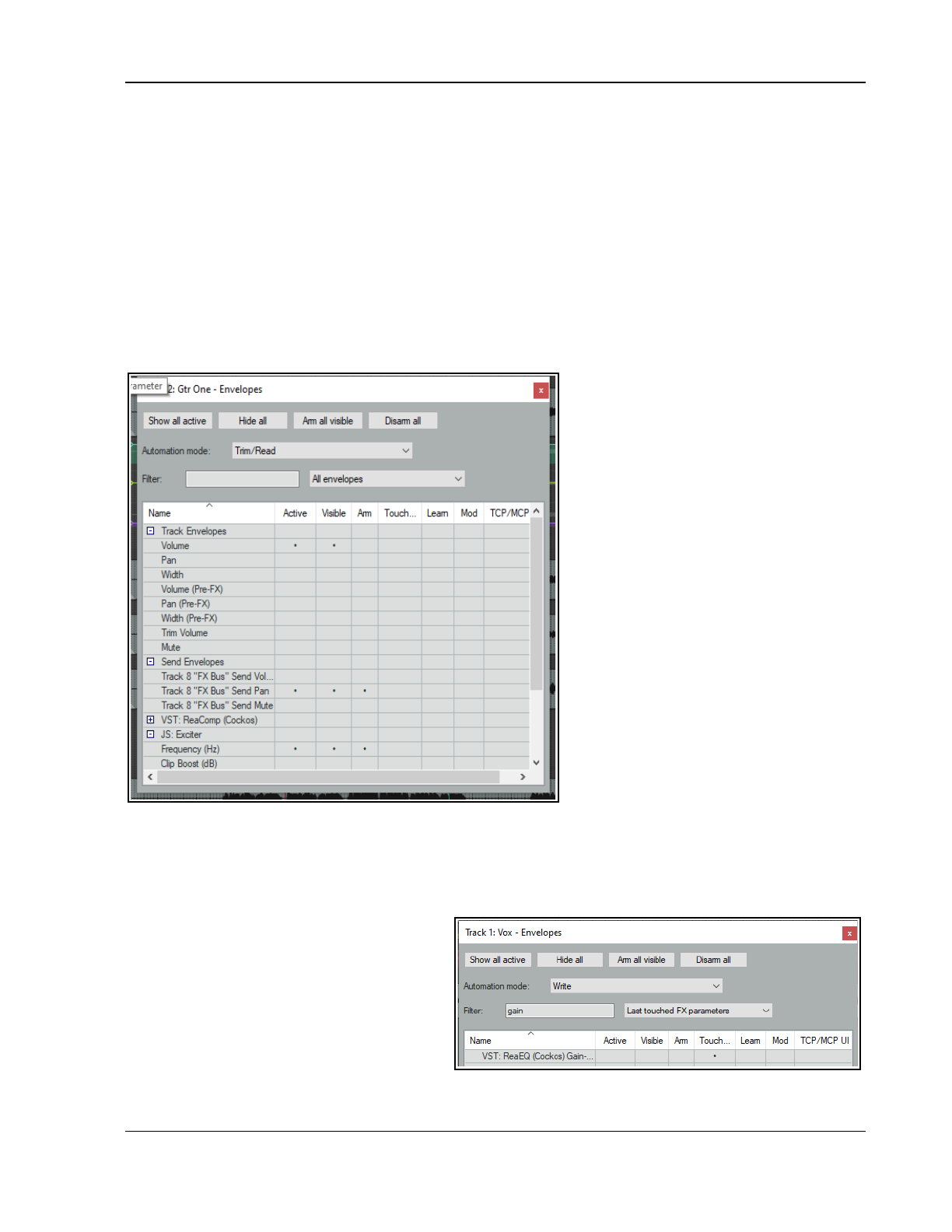
Automation – Envelopes and More
18.12 The Track Envelopes Window Revisited
Let’s now take a more in depth look at the track envelope window. The + and - buttons to the left of the
category or FX name is used to display or hide the track, send or FX parameters in the parameters list.
Name lists all parameter names, including track controls, sends and/or receives and FX parameters,.
Active indicates for each parameter whether an envelope exists. Click in the active cell for any parameter tol
create an envelope. The Visible and Arm cells respectively make an envelope visible and arm it prior to writing
automation in Write, Touch, Latch or Latch preview modes.
Learn sets the parameter up to be controlled by an external MIDI control device. For this to be available, you
will need to have a MIDI control device enables in your MIDI preferences. This topic is explored in more detail in
the subsection FX Automation: Learn Mode.
Mod activates parameter modulation for this parameter. This topic is covered in detail in the next chapter.
TCP/MCP/UI adds to the track panel a control which can be used to adjust this parameters value. This control
can be used when writing automation or independently of automation.
Hide all will hide all envelope panels on the
track panel: Show all active will restore
them to view and display their lanes in
arrange view.
Arm all visible will arm all visible
envelopes for automation. Disarm all will
disarm them.
The context menu (right click in shaded
area) offers options to manage FX display in
this window, including:
Auto-close window when focus
switches away
Expand all parameters
Collapse all parameters
Default: all FX parameters expanded
Default: all FX parameters collapsed.
Set default filter for track envelopes to
current filter
In the example shown here, ReaComp has
been collapsed and JS: Exciter has been
expanded.
Notice also that a control for the Exciter’s
Frequency parameter has been added to the
track panel.
The drop down list to the right of the Filter box allows you to focus on All envelopes or only Active envelopes
or Last touched parameters, including when filtering. All other parameters and envelopes will be hidden.
Choosing All envelopes will restore all envelopes to view.
Shown above we have three active envelopes – track Volume, Send Pan and the Exciter’s Frequency.
18.12.1 FX Parameters: Live Real Time Automation
FX parameters can be automated directly from
the Envelopes Window, without the need to
open a track’s FX chain or to delve into menus.
Consider a simple example. A track FX chain
might already include several FX, but for now all
we want to do is to write automation envelopes
for ReaEQ for the gain on bands 2 and 3.
365
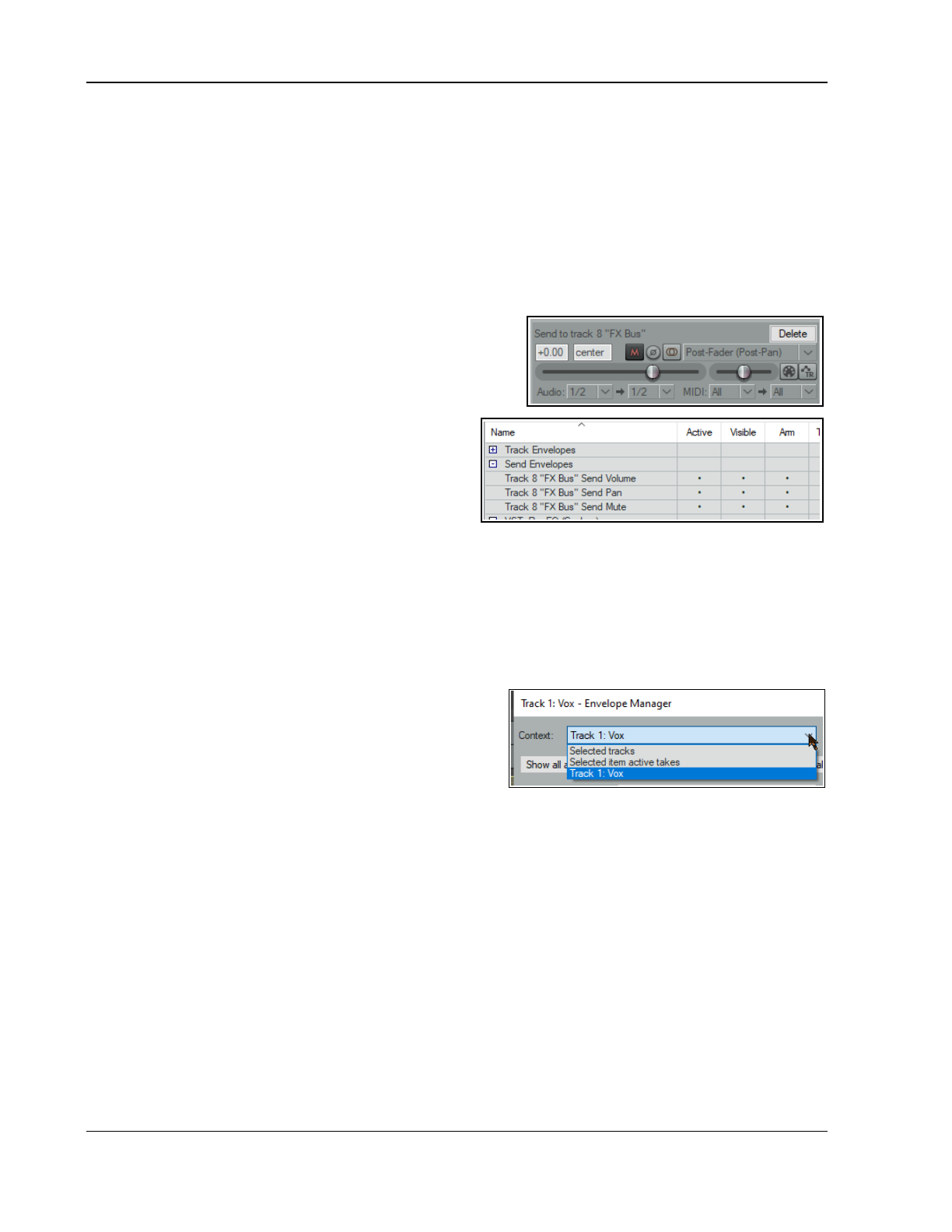
Up and Running: A REAPER User Guide v 7.81
1. We open the envelope window, type
gain
in the filter box, to check which parameters are available.
2. We set automation mode to Write and right-click over the text VST:ReaEQ and choose Float FX from
the context menu. This opens the ReaEQ window.
3. We set automation mode to Write and from the drop down list select Last touched FX parameter
(shown here).
4. Play the song, using your mouse to adjust the Gain for Band 2. After a few bars, stop playback.
5. Repeat this process, adjusting the Gain for Band 3.
The Envelope Window context menu includes options to Expand all FX parameters and Collapse all FX
parameters.
Note: As you will see shortly, this and other tasks task can also be undertaken in the Envelopes Manager.
18.12.2 Automation with Track Sends
This example uses sends in conjunction with an FX bus.:
1. First, create a track to serve as your FX Bus.
2. Select the track containing the media. Drag and drop
from its ROUTE button to the FX Bus to create a send.
Set send volume and pan levels as required.
3. Display the Envelopes window for the media track.
Set mode to Trim/Read. Envelopes are available
for your sends. Make sure that the Send
Envelopes are active, visible and armed (right).
4. Close this window. An envelope lane for each send
will now be visible just below track.
You can now adjust these envelopes as required. See also the section Automation with hardware sends.
18.13 The Envelope Manager
The Envelope Manager includes all the features of the Track Envelope Window, with the added benefit of letting
you manage automation from a single interface across your entire project rather than only for the one track. This
also includes managing item take and FX envelopes. There are two ways of opening the Envelope Manager:
Either:
Choose View, Envelope Manager from REAPER’s main menu,
Or:
Hold Shift while clicking on the automations (Trim) button of any track in a track selection.
The Envelope Manager includes an extra drop-down, Context
(see right). If you have opened it by shift clicking a track’s
automation button then this menu will include options to
select and work on that track only or on all selected tracks (as
shown here). Shift clicking on the TCP automation button of
another track within the selection will make that track the
selected track. If opened from the View menu, the Envelope
Manager menu will include no option to work on a named track.
18.13.1 The Envelope Manager Basics
Please read this carefully! It gets a bit tricky in places. It might take some time to understand it.
You can select one track or multiple tracks, as you wish, before opening the Envelope Manager. Use Ctrl
click to build a multiple track selection. After opening the Envelope Manager you can also use Ctrl click to
add tracks to or remove them from an existing track selection.
If you have only one track selected when opening the manager, then, as long as that remains the only
track selected, the first and last options on the menu are effectively the same. the Envelope Manager will
then behave in the same way as the track envelope window.
If from the Context dropdown you select a named track, then any options you select will be applied only to
that track. In the example shown above, this would be Track 1: Vox.
If you have multiple tracks selected with the Selected tracks option enabled, then your options will be
applied to all tracks in the selection. For example, if you have three tracks selected and make Volume and
Pan active and visible then Volume and Pan envelopes, active and visible, will be added to all three tracks.
To add automation to a track from within the Envelope Manager, select only that one track before adding
or writing the automation envelope.
366
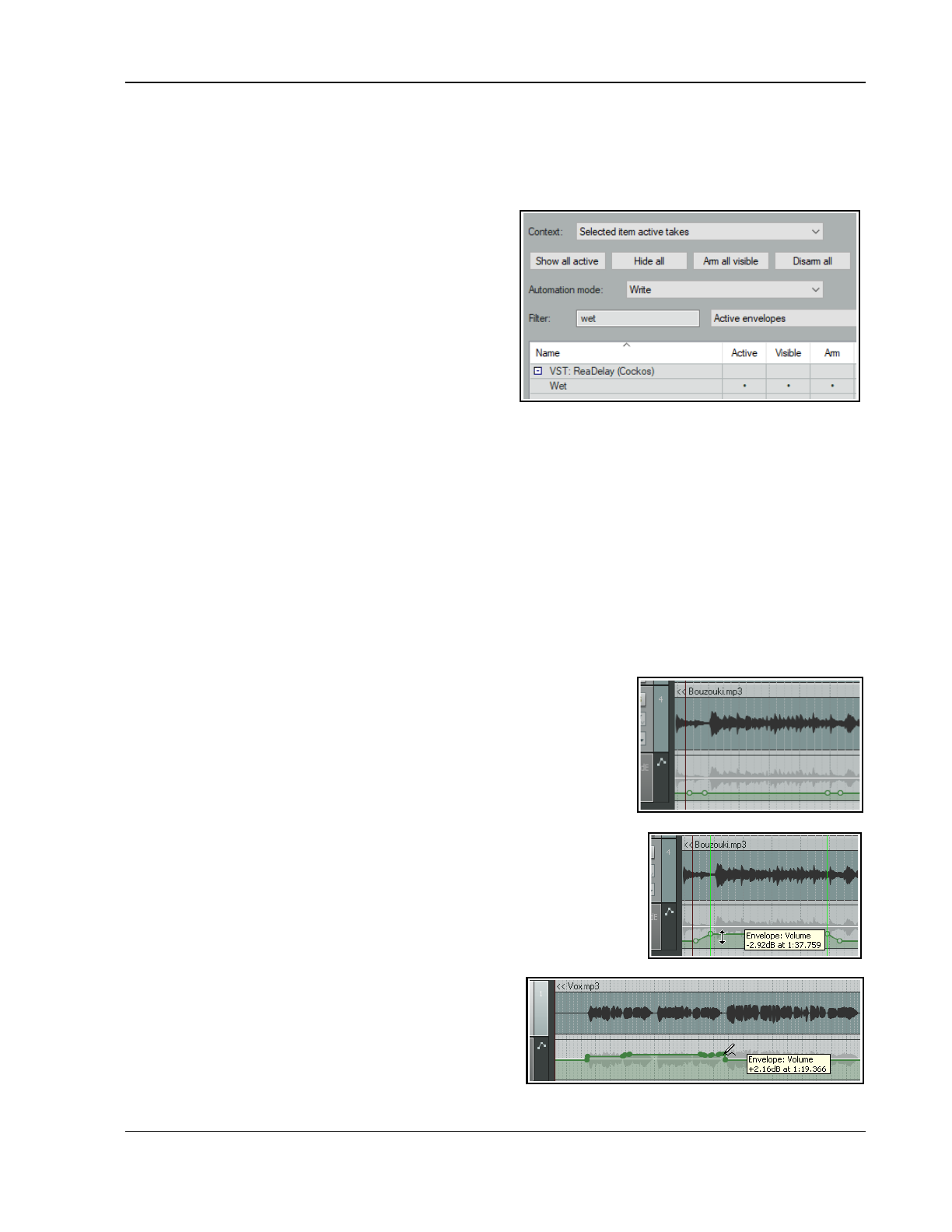
Automation – Envelopes and More
With the Selected tracks option, only those parameters present in all of the selected tracks will be
shown. For example, if all tracks in the selection contain ReaEQ – and only if they all do - then ReaEQ will
be shown in the Envelope Manager. You can then use the Envelope Manager to add, say, a band gain
envelope to all tracks in the selection. Adjustments to individual envelopes can then be made in Arrange
View.
18.13.2 Item FX and Take Envelopes
The Selected item active takes option from the
Context drop down menu allows you to manage item FX
and take envelopes.
Select the required item or take in Arrange View. You can
apply a filter (as here) and select either All envelopes or
Active envelopes. As in the track envelope window, you
can also select a required automation mode and float the
FX window if you wish (to control the FX from there).
Working with item FX and take FX envelopes is essentially
the same as in the Track Envelopes Window except that
the Envelope Manager will indicate (in the Touched column) any last touched FX parameter. This can also be
used to mark an FX parameter as touched without needing to use the FX GUI.
18.14 Manually Editing Envelopes
As an alternative to writing automation you can use your mouse directly within the envelope lane. For example,
you might see from observing the waveform that there is a peak that needs adjusting. Suitable actions include:
Shift Click for adding points to an envelope.
Ctrl Click Drag for freehand drawing of points and curves.
Click Drag for moving envelope segments freely up or down or envelope points in any direction.
These can be changed in your Mouse Modifier (Envelope segment) preferences if you wish. In this example, we
will assume that Click Drag is used to adjust segments, and Shift Click to add points.
The example that follows uses the mouse to raise the volume of an envelope a little for the duration of the short
instrumental break that occurs between the second and third verses. You will then draw an automation over part
of a track. This example assumes that the default mouse editing behavior settings are as shown above.
Example
1. Hover your mouse over the envelope, just before the start of the
second instrumental break. This will be at or near 1 min 36 seconds.
The mouse will change to a vertical double-headed black arrow.
2. Holding Shift click the mouse on the envelope to create a point.
3. Repeat this three times as shown, to add two points just before the
break and two points just after it.
4. Hover the mouse anywhere between the second and third point.
Click /drag upwards to raise the volume of this envelope a little, as
shown (right) Save this file.
5. Display the track's Envelope Window. Set the track’s automation mode
to Read, select the Volume envelope and set it to Visible and Arm.
6. Play the song. The Bouzouki volume will now be faded up for both
instrumental passages and then down after them.
7. Select the Vox track. Press V to display its Volume envelope. Zoom to
the passage from about 1 min 0 sec to 1 min 19 secs. We can make
this passage a little louder.
8. Hover the mouse over the envelope at 1:00. Hold
down Ctrl and drag the mouse pencil along to
about the 1:19 mark (right) then release it. This
will draw changes to the volume envelope.
9. Any excessive points can be removed using the
Reduce number of points command.
367
Up and Running: A REAPER User Guide v 7.81
Envelope Editing Actions
REAPER’s Actions List includes several actions that can be useful when editing envelopes. These include:
Add/edit envelope point value at cursor Insert 4 envelope points at time selection
Insert new point at current position Delete all selected points
Delete all points in time selection Invert selected points
Select all points Unselect (clear selection of) all points
Browse the Actions List to investigate what other actions are available!
Amplitude vs Fader Scaling: Right-click over a volume envelope for a context menu which includes Volume
envelope scaling (under the Envelope defaults option). Options are amplitude scaling (the default) and fader
scaling. With amplitude scaling, half as high, for example, is half as loud, whereas with fader scaling the
envelope height corresponds to the track fader. Fader scaling makes editing envelopes at low volume easier.
Changing your preference on an envelope with existing points will affect the volume produced by that envelope.
You can change the default setting from amplitude scaling to volume fader scaling on the Options,
Preferences, Project, Track/Send Defaults page. You should also familiarise yourself with the various
options under Preferences, Editing Behavior, Envelope Display (see Chapter 22)
18.15 Using the Mouse with Envelopes
The above exercise has introduced you to some examples, but there are many other techniques and mouse
tricks that can be used for manipulating and managing envelopes and their nodes. This table is a summary of the
most important. For a fully comprehensive list, consult the Mouse Modifiers page of your Preferences.
In order to do this ... ….you need to do this
Select all points on envelope inside time
selection.
Click and drag in envelope lane (not on envelope
itself) to create time selection.
Draw and shape envelope in freehand mode. Ctrl Drag anywhere on, above or below the envelope
Add a point. Shift Click on envelope.
Delete envelope point. Alt Click on any envelope point.
Select multiple envelope points. Hold Ctrl and click on envelope points one at a time.
Select all points in an envelope. Click on any point in an envelope, then press Ctrl A.
Select all points within the lasso area. Click on a point, then use right-click-drag to lasso
(marquee) a portion of an envelope. Release mouse.
Apply an envelope command to a selection of
points.
When you have several points selected, right click
over any selected point.
Move a point or selection of points freely. Click and drag any point in the selection.
Finely adjust a point's vertical position. Ctrl Alt Drag on any envelope point.
Allow an envelope point to be moved
vertically or horizontally only.
Click and hold mouse on any envelope point, hold
both the Ctrl and Shift keys while then dragging any
envelope point either vertically or horizontally.
Reset point to center (default value). Double-click on envelope point.
Most of these defaults can be changed in your Editing Behavior, Mouse Modifiers preferences settings.
18.16 Managing Automation Envelope Display
REAPER offers you a flexible range of options to determine how you display your automation envelopes. For any
track or track you can choose to:
Display all automation envelopes in separate lanes, or
Display all automation envelopes over the media items, or
Display some envelopes in lanes and others over the media items, or
Display some envelopes and hide others, or
Hide all automation envelopes.
368
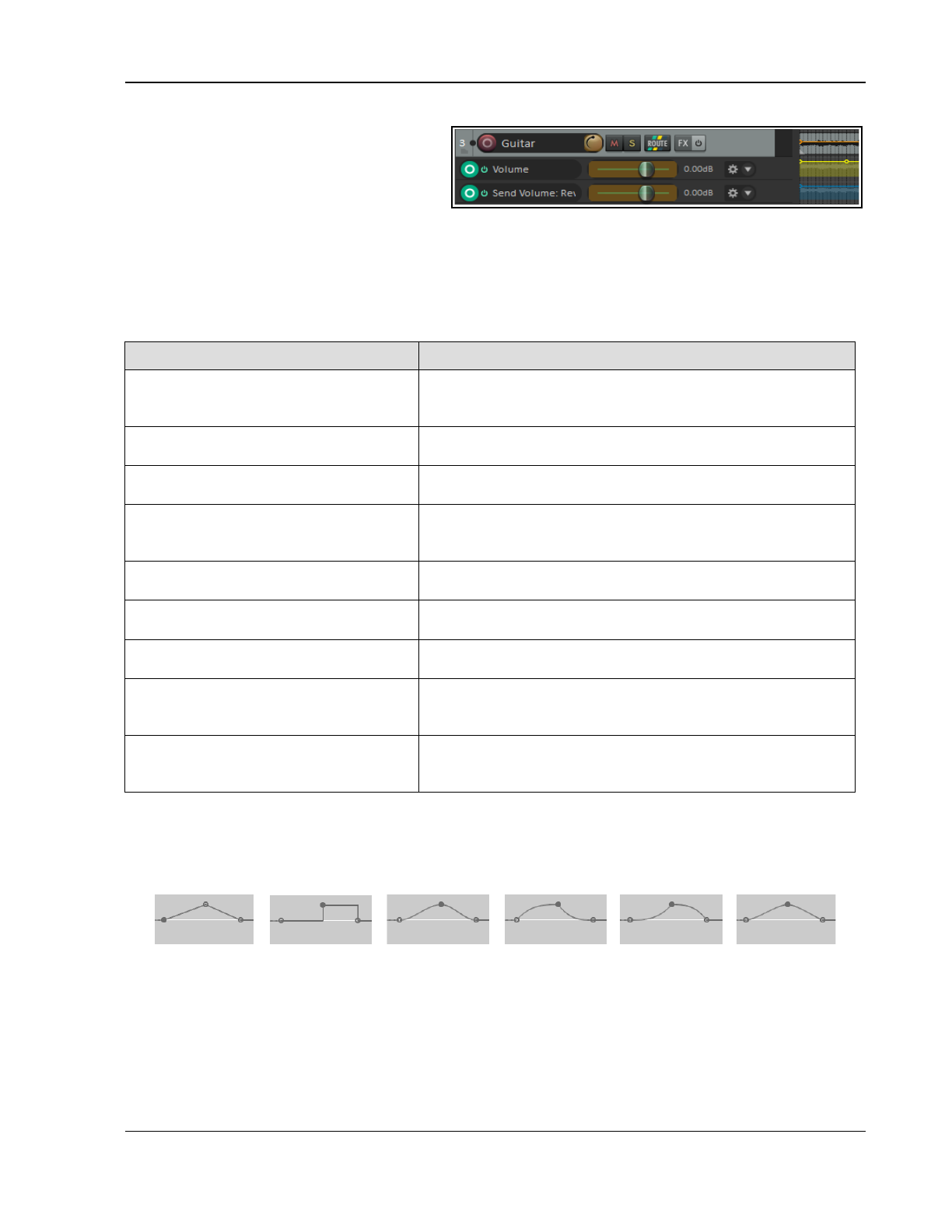
Automation – Envelopes and More
In the example shown here, a track is
displaying three envelopes. – one each for
Pan, Track Volume and the volume of a send
to an FX bus. One of these – Pan – is
displayed on top of the actual media item. The
other two each have their own lanes. The
Peaks/Waveforms preferences option to Draw faint peaks in automation envelope lanes has been enabled.
The summary table explains how you use these options.
You should also set the preference (Editing Behavior, Automation) When adding volume/pan
envelopes, apply trim to envelope and reset trim to Always. Your safest option is to set this to
Never to ensure that the envelope will be placed in the vertical center of the automation lane, thus leaving
adequate room both above and below the envelope for manual editing.
In order to do this … … you need to do this
Hide an individual envelope Right click over the envelope and choose Hide Envelope from
the menu, or, in the envelope panel, click on the Hide/Clear
button and choose Hide Envelope.
Display a currently hidden envelope Click on the Envelopes/Automation button in the TCP and
check the Visible box for that envelope.
Change the envelope displayed in a
particular lane
In the TCP, right click over the envelope name and choose
another parameter from the list.
Move an envelope from its own lane
to over the media item(s)
Right click over the envelope and disable the Show envelope
in lane option, or click on the Hide/Clear button in the
envelope panel and choose Move to media lane.
Move an envelope from over the
media item to its own lane
Right click over the envelope and enable the Show envelope
in lane option
Show all visible envelopes in
individual lanes
In the TCP, choose Show all visible track envelopes in
envelope lanes from envelope button’s right-click menu.
Show all visible envelopes over their
media item(s)
In the TCP, choose Show all visible track envelopes in
media lane from the envelope button’s right-click menu.
Show all active envelopes In the TCP, right click over the envelope button and choose
Show all active track envelopes, or open the Envelopes/
Automation window and click on Show all active.
Hide all envelopes In the TCP, right click over the envelope button and choose
Hide all track envelopes, or open the Envelopes/
Automation window and click on Hide all.
18.17 Envelope Shapes
Envelopes can be any of six shapes – Linear, Square, Slow Start/End, Fast Start, Fast End or Bezier. To
change the shape of an existing curve, right click over the envelope point, then choose Set Point Shape, then
the required shape from the menu. The examples below illustrate the different shapes:
Linear Square Slow Start/End Fast Start Fast End Bezier
Shapes other than square are usually best used for graduated parameters, such as volume and pan. Not all
shapes are available for all parameters. For example, for those with only on/off status (such as bypass and
mute) the only shape available is square. This principle applies to track, FX and MIDI CC envelopes.
You can specify your preferred default envelope point shape type from the Options, Preferences, Project,
Track/Send Defaults window.
Envelopes in Track Templates: If you save a track (or selection of tracks) as a track template (Track, Save
tracks as track template command) there is an option in the dialog box to Include envelopes in template.
369
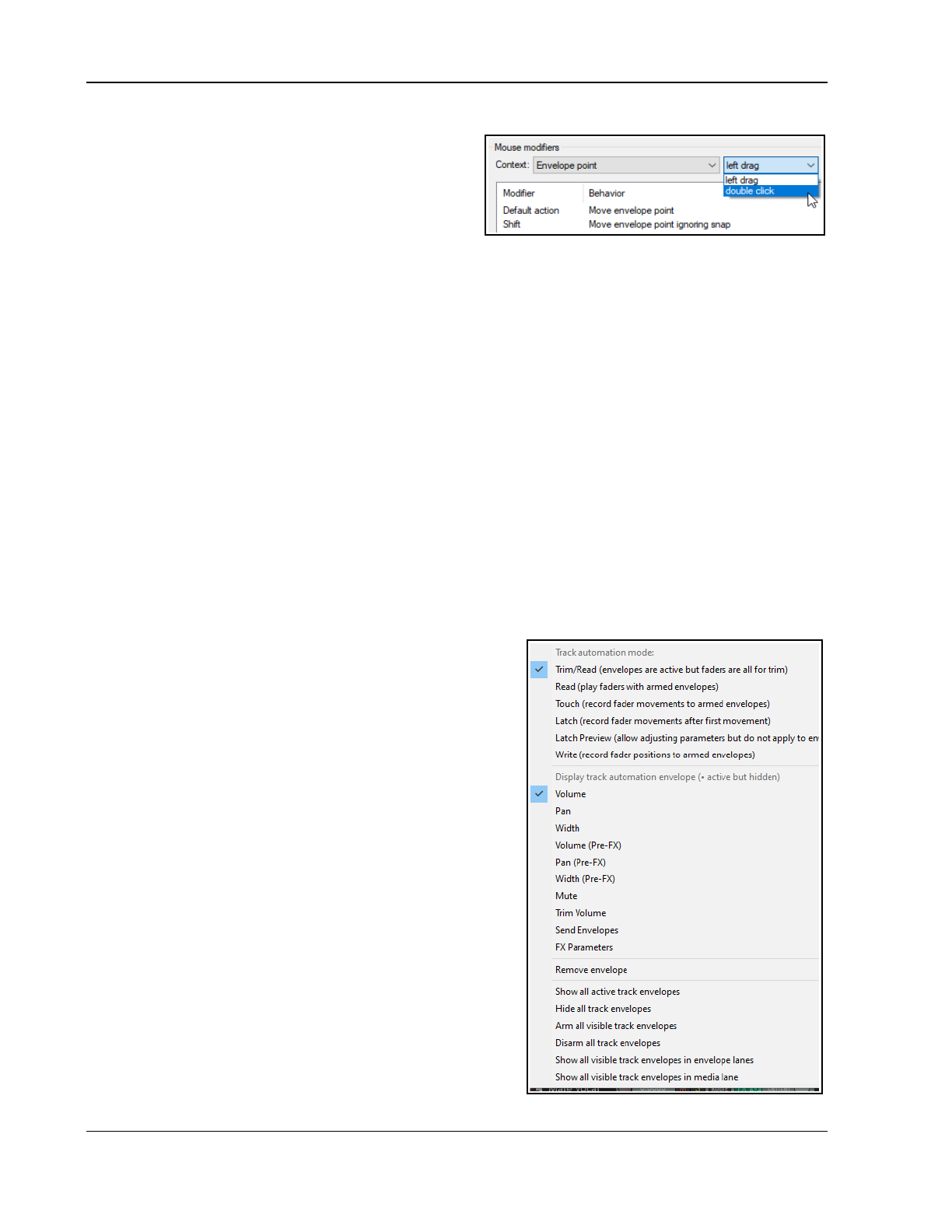
Up and Running: A REAPER User Guide v 7.81
18.18 Envelope Edit Mouse Modifiers
After working with envelopes for a while you might wish
to consider changing some of the default mouse modifier
settings to suit your personal workflow. There are several
contexts relevant here – Envelope lane (left drag and
double-click), Envelope segment (left drag and double-
click), and Envelope point (left drag and double-click).
Some examples of default behaviors are listed below: see also Options, Preferences, Mouse Modifiers
Envelope point left drag
Left drag Move envelope point
Shift left drag Move point ignoring snap
Ctrl left drag Freehand draw ignoring snap
Shift Ctrl left drag Move point on one axis only
Alt left drag Delete envelope point
Ctrl Alt left drag Move envelope point vertically
Envelope point double click
Double click Reset point to default value
Ctrl double click Open envelope point editor.
Envelope segment double click
Alt double click Reset segment curvature
Envelope segment left drag
Left drag Move ignoring time selection
Shift left drag Insert envelope point
Ctrl left drag Freehand draw ignoring snapping
Shift ctrl left drag Move envelope segment
(up/down)
Alt left drag Edit envelope segment curvature
Shift alt left drag Move preserving edge points
Ctrl alt left drag Move envelope segment (fine)
Envelope lane left drag
Shift left drag Insert envelope point
Ctrl left drag Freehand draw ignoring snap
Any of these default behaviors can be changed in the Preferences, Mouse Modifiers window.
For example, if you manually add points to envelopes a lot you might wish to change the default behavior for
Envelope double-click from
Reset point to default value
to
Envelope: Insert new point at current position.
You
might wish to set
Move envelope point horizontally
as one of your envelope point modifier instead of just
Move
envelope point
.
Also, by default, double-clicking on an envelope's control panel
will select all points on the envelope.
18.19 The Envelope Panel Controls
An envelope displayed in a lane can have its behavior and
characteristics modified from within the TCP, using its fader, its
buttons and its context menu. For example:
In Trim/Read mode, use the knob to raise or lower
envelope for its entire length or for a particular time
selection. For example, with no time selection active,
adjusting a pan envelope's control knob to the left (anti-
clockwise) would cause panning for the entire track to be
moved further to the left (maintaining the relative
movement between existing points). If a time selection is
active, then the envelope would be adjusted only within
that time selection.
Use the BP button to toggle bypass on and off.
Right clicking over the envelopes Trim button in the TCP
produces a menu which includes the following:
A list of all available envelopes (track and send
parameters plus any FX parameters). Choose one of these
to change the envelope displayed in this lane.
Various show/hide/remove envelope options.
A list of automation modes: this is one way to change a
track's automation mode.
370
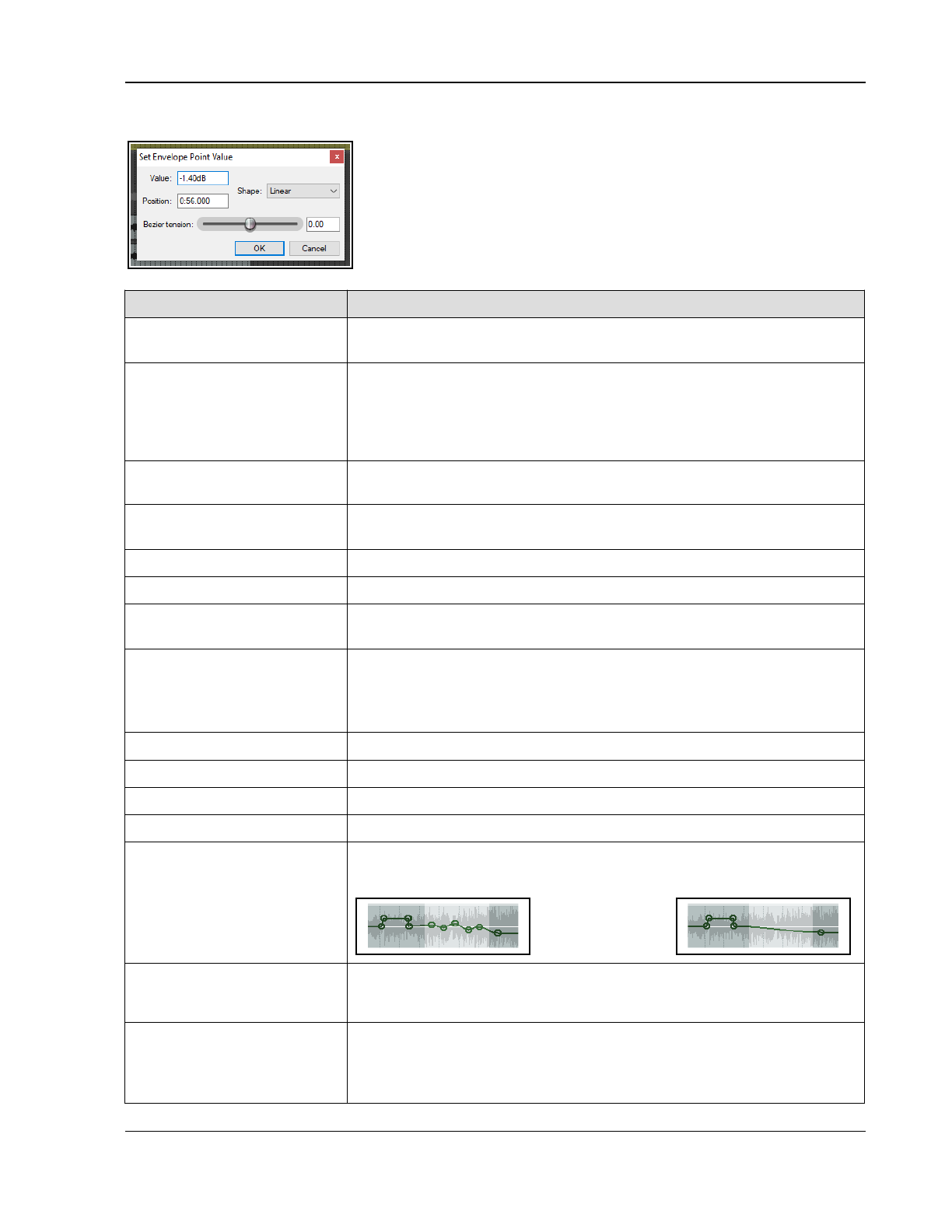
Automation – Envelopes and More
18.20 Managing and Manipulating Envelopes
The Envelope Point and Envelope Segment right-click context menus both
contain commands and options that are there to help you manage and
manipulate your envelopes. Which of these two menus will appear depends
on whether your mouse is hovering over an actual point or over a segment
when the right button is clicked.
In the table below, those commands which are on the Envelope Point menu
only are indicated by (P).
Command Explanation
Envelope defaults, Default
point shape
Sets default shape for new envelopes. Choose from Linear, Square, Slow
start/end, Fast start, Fast end, Square and Bezier (see also next section).
Set point value … (P)
Displays the Set Envelope Point Value dialog box. Can be used to change
the value, position, and/or shape of the current point. The units used for
position are determined by your ruler settings.
Optionally, you can assign Double Click (under Preferences, Mouse
Modifiers, Envelope Point) to Open envelope point editor.
Set point shape (P)
Changes the shape of the current point. The six available shapes are Linear,
Square, Smooth, Fast Start, Fast End and Bezier. See next section.
Set shape for selected
points
Allows you to choose a shape for multiple envelope points. The six available
shapes are Linear, Square, Smooth, Fast Start, Fast End and Bezier.
Select all points
Selects all points in current envelope.
Unselect all points
Unselects all points in current envelope.
Select all points in time
selection
If a time selection is currently active, all points on this envelope that fall
within the time selection will be selected.
Copy points Copies all points in current selection into clipboard.
Note: To apply a command to an existing selection of envelope points, you
should hold Shift while you right click over the envelope. This ensures that
the selected points remain selected when the context menu is displayed.
Cut points Cuts all points in current selection into clipboard.
Delete point (P) Deletes the envelope point.
Delete selected points Deletes all envelope points in current selection.
Move selection of points Use NumPad 4 (left) or NumPad 6 (right).
Delete points in time
selection
All points that fall within the current time selection will be deleted. Shown
here is a selection of points before and after using this command.
Double click on fader in
envelope panel to insert 4
points at time selection
Inserts two points at start and two points at end of time selection: allows
you then to easily move that envelope segment up or down.
Invert selected points
Causes all selected points to be inverted relative to their neutral position.
For example, a point on a Pan envelope set at 50% left would be changed
to 50% right. When items such as Volume use a logarithmic scale, the
calculation is less obvious.
371
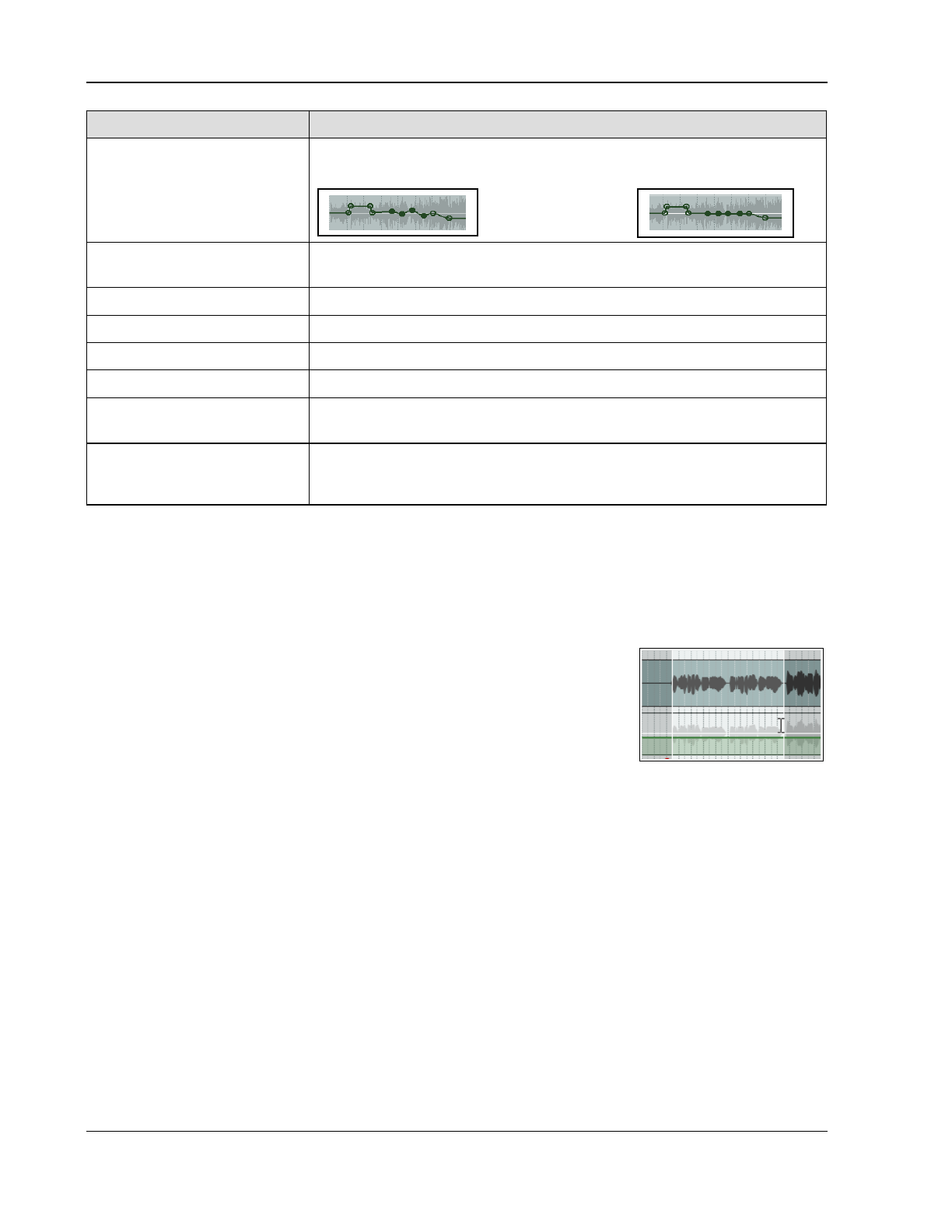
Up and Running: A REAPER User Guide v 7.81
Command Explanation
Reset select points to zero/
center
Sets all selected points back to a neutral position. Shown here is a selection
of points before and after using this command.
Reduce number of points …
Reduces the number of envelope points within a time selection or for the
whole envelope. This has already been explained in detail.
Arm envelope for recording
Toggles armed status of envelope on and off.
Show envelope in lane
Toggles the envelope into or out from its own envelope lane.
Hide envelope
Hides the envelope but keeps it active.
Bypass envelope
Toggles an envelope’s bypass status.
Clear or remove
envelope ...
Clears all points on an envelope, restores it to a straight horizontal line. You
will be asked if you wish also to remove the envelope.
Copy an envelope from one
track to another
Select all points on source envelope, press Ctrl C.
Add empty envelope to target track. Select target envelope, position cursor,
press Ctrl V.
18.21 Envelope Preferences0
REAPER's envelopes preferences fall into several different categories within your Options, Preferences
window. These are explained in more detail in Chapter 22. Meanwhile, it's worth taking note of the following.
The Appearance pages of your Options, Preferences window includes a number of useful options for
determining how your envelopes are presented on screen. In particular, pay attention to the options to:
Show solid edge on time selection highlight (Appearance page). Makes the boundaries of the time
selection more obvious.
Show guide lines when editing (Appearance page). Facilitates editing.
Draw faint peaks in automation lanes (Peaks/Waveforms page). Can
help to relate an envelope's position to the track's volume level.
Fill automation envelopes (Appearance page): this faintly colors the
area below the envelope.
The Editing Behavior, Automation page (see Chapter 22) includes important
options. It gives you the option, for example, to Automatically add envelopes when tweaking parameters
in automation write mode. This enables you to create envelopes on the fly without having to select the
required parameters from any menu.
Some of the options on the Project, Track/Send Defaults are also relevant to envelopes. These include:
Whether to have any envelopes (such as Pan and Volume) automatically displayed for all new tracks.
Your choice of default envelope shape for new points.
Your choice of default automation mode for new tracks.
Whether new envelopes are to be automatically armed.
18.22 Using an Envelopes Toolbar
Chapter 15 explains in detail how to create custom toolbars. If you work a lot with envelopes then this is one
area where you can achieve real productivity benefits.
18.23 Moving and Copying Envelopes with Items
You can choose whether or not to move and copy automation envelopes with media items by setting the option
to Move envelope points with media items on or off. This is accessed by right clicking on the Envelope tool
on the main REAPER toolbar, or by choosing Envelope points from REAPER's Options menu. In the Actions
editor you can assign a shortcut key to toggle this action on and off.
If this option is turned off, then envelopes will
not
be moved or copied with the media items.
372
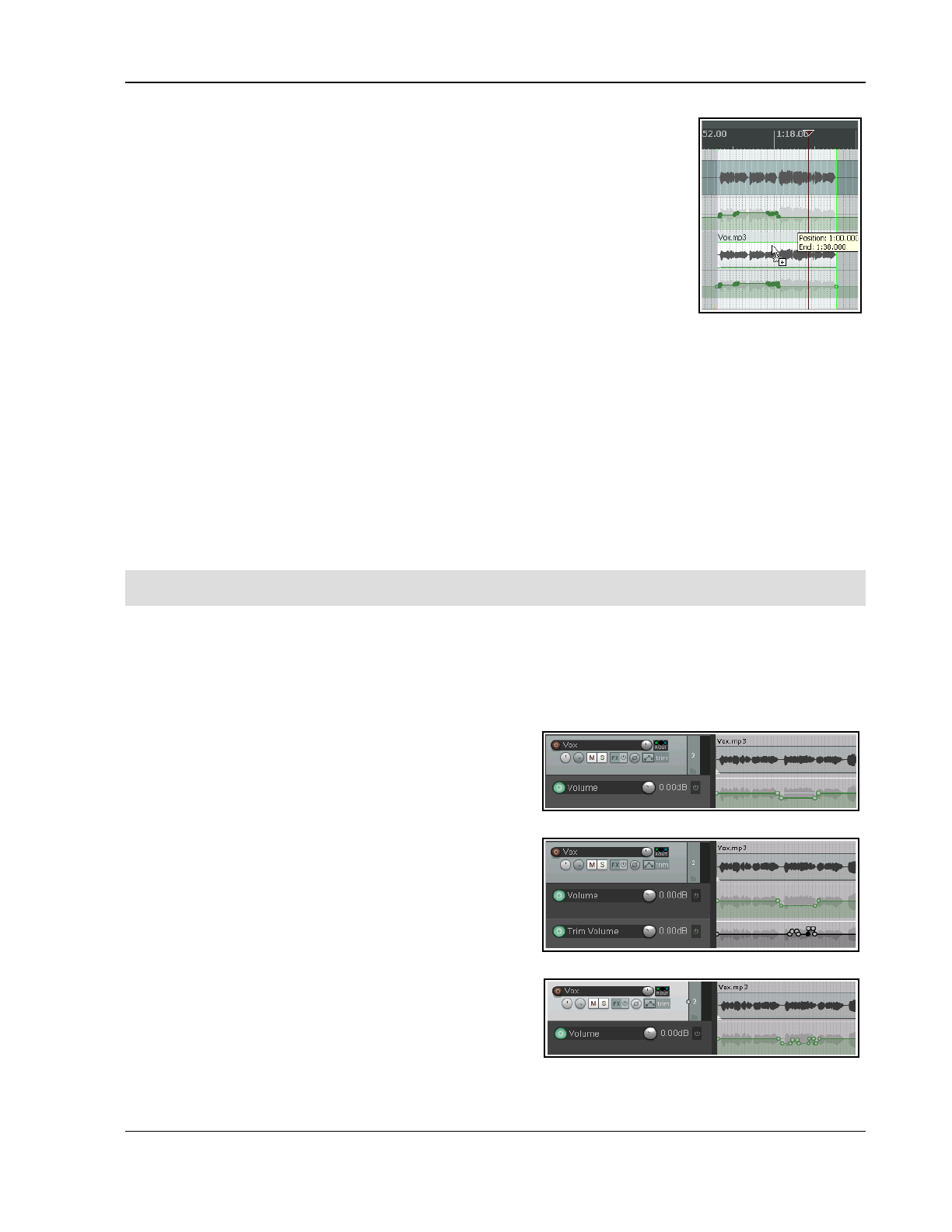
Automation – Envelopes and More
If this option is turned on, then the envelopes
will
be moved or copied with
the media items.
An example of this is shown here. A selected portion of the media item on the top
track is being copied to the track below it using the Ctrl drag and drop method.
There are options for Add edge points (at start and end of time selection) when
moving envelope points with items, ripple editing or inserting time, and/or moving
multiple envelope points. In the example shown (right), not only is the envelope
copied with the media item, but also the option to show guidelines has been
selected. Ripple editing options are also available by right-clicking on the ripple edit
tool on the toolbar.
18.24 Copying Points From One Envelope to Another
To copy a single point from one envelope to another (or to another location on the same envelope):
● Select the point and press Ctrl C.
● Select the timeline position on the destination envelope, press Ctrl V.
For more sophisticated tasks such as copying a range of points from one envelope to another you will need to
use the Actions List (Chapter 15). This example uses the action Envelope - Copy points within time
selection. You can assign a keyboard shortcut to this action if you wish.
To copy a range of points from one envelope to the other, or to a different position on the same envelope:
● Make the time selection containing the points and select the envelope. Run the action Envelope - Copy
points within time selection.
● Select the required position along the timeline in the destination envelope and press Ctrl V.
18.25 Automation with Trim Volume Envelopes
Note: The illustrations in this section use the REAPER 5 default theme. The method and instructions are the
same regardless of which theme you are using.
The Trim Volume is a special kind of envelope that can be used to fine tune or “tweak” a track's volume
envelope. This might be the case, for example, if you wish to experiment with different volume levels before
committing them to the volume envelope. Some points to note about trim envelopes are:
● It does not correspond to any track control and cannot be armed or written in write, touch or latch mode.
● While it is possible to use a trim envelope on its own, i.e. without also having a volume envelope, this
practice is not generally recommended.
Here is an illustration of how Trim Volume might be used:
Example
In this first illustration, (above right) a volume envelope has
been added to lower the vox during part of the song. On
playback, however, we might find that the occasional phrase
or word might be slightly buried in the mix.
A trim envelope is added to further adjust the volume of this
track (as shown). You can take this one step further and
lock the trim changes on to the volume envelope.
REAPER includes the following two actions:
Track: Apply trim envelope to volume envelope,
clear trim envelope, and
Track: Apply volume envelope to trim envelope,
clear volume envelope.
In the above example, you could run the first of these
actions to produce the result shown. The trim envelope could
then either be removed altogether, or used to again make
further changes to the volume envelope.
373
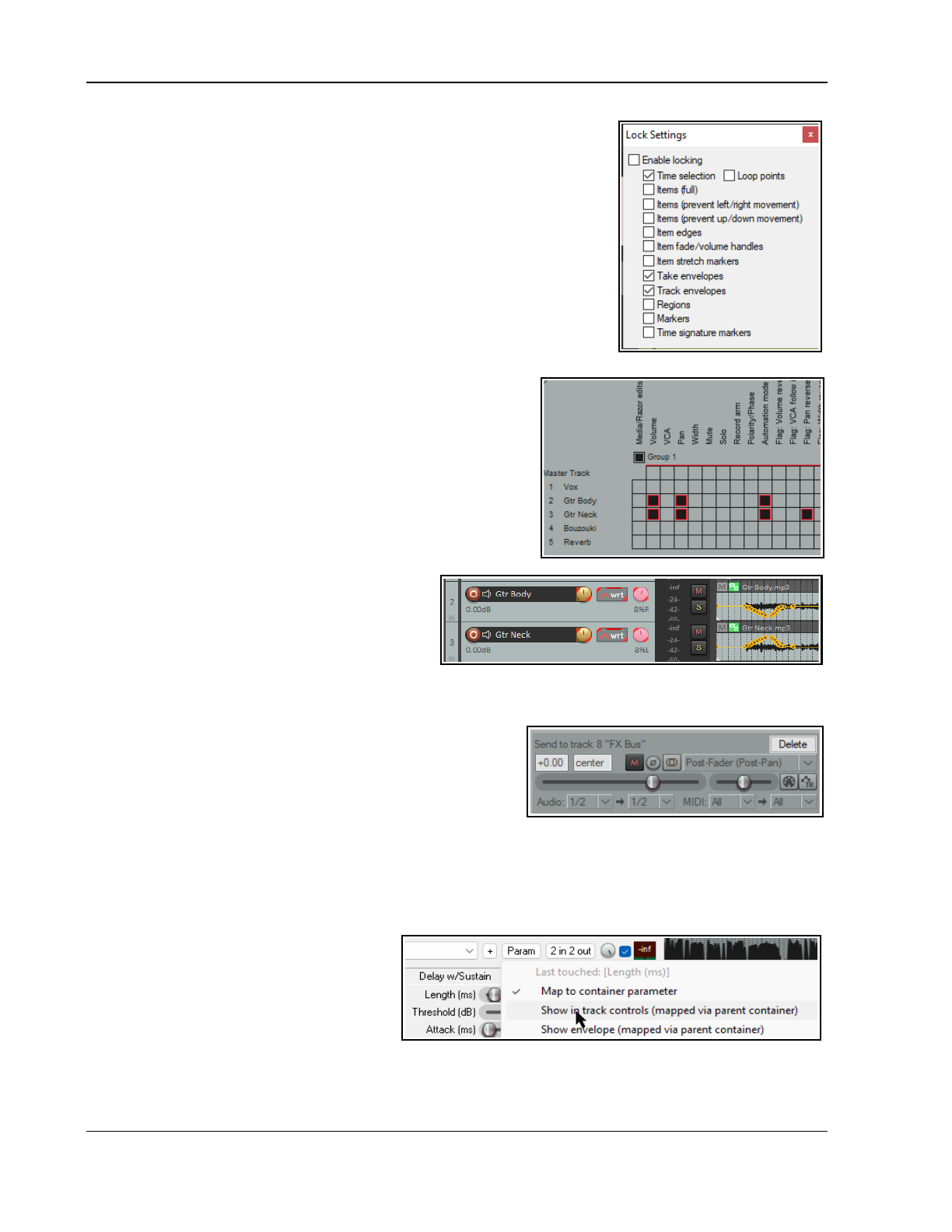
Up and Running: A REAPER User Guide v 7.81
18.26 Locking Envelopes
Envelopes can be locked in order to prevent any accidental changes or
deletions from taking place.
Pressing Shift L (or right-clicking on the Lock toolbar button) will cause the
Lock Settings window to be displayed (see right).
You should then select the Take envelopes and/or Track envelopes
options, along with any other aspects that you also require to be locked. You
can reverse these settings at any time.
Note that even with your envelopes options selected, locking will only be
applied if you also select the Enable locking option. The keyboard shortcut
L can be used to toggle lock enabled status on and off.
18.27 Automation with Grouped Track Parameters
If you have created track groupings in which you have defined
relationships between various parameters, you can ensure that
those relationships are maintained (or not, as you wish) when
automation envelopes are being written. This is done using the
group Automation Mode column on the Track Grouping Matrix.
As when the track parameters themselves are grouped, the
automation mode status for each track in the group can be set to
lead, follow, or both lead and follow. Here are examples. In each
case, the grouping is similar to that used in the exercise file All
Through The Night GROUPS.RPP. If you completed those
examples it might help you to open that file now.
Example
Both guitar tracks are set to act as both lead and
follow in automation mode. The flag pan reverse is
enabled. Both pan envelopes are armed (indicated
by the colored circular button on the pan controls).
Set either track to write (as shsown), touch or latch
mode and the other will change with it. Any automation movements will then be written to both tracks.
18.28 Automation of FX Parameters
You have already seen how FX parameter envelopes can be
created from thee Track Envelope Window or Envelope Manager.
They can also be created from inside the plug-in’s own window.
1. Click your mouse on the required parameter.
2. Click on the Param button then choose Show track
envelope from the menu.
Most FX can be automated in this way, but with some older plug-ins this might not be possible.
18.29 Automation of Container FX Parameters
In Chapter 17 we introduced and explained the use of FX containers. By default, these FX parameters are not
listed in the track’s envelope window. To create an envelope for any such parameter do this:
Click your mouse first on the control (such as
a fader) that you wish to automate, then on
the FX Param button.
From the Param menu choose Map to
container parameter. If you wish, also
choose Show in track controls.
An envelope for this parameter will now be available in the track ‘s envelope window, from where it can be
managed (made active, visible, armed, etc), just like your other FX parameters.
374
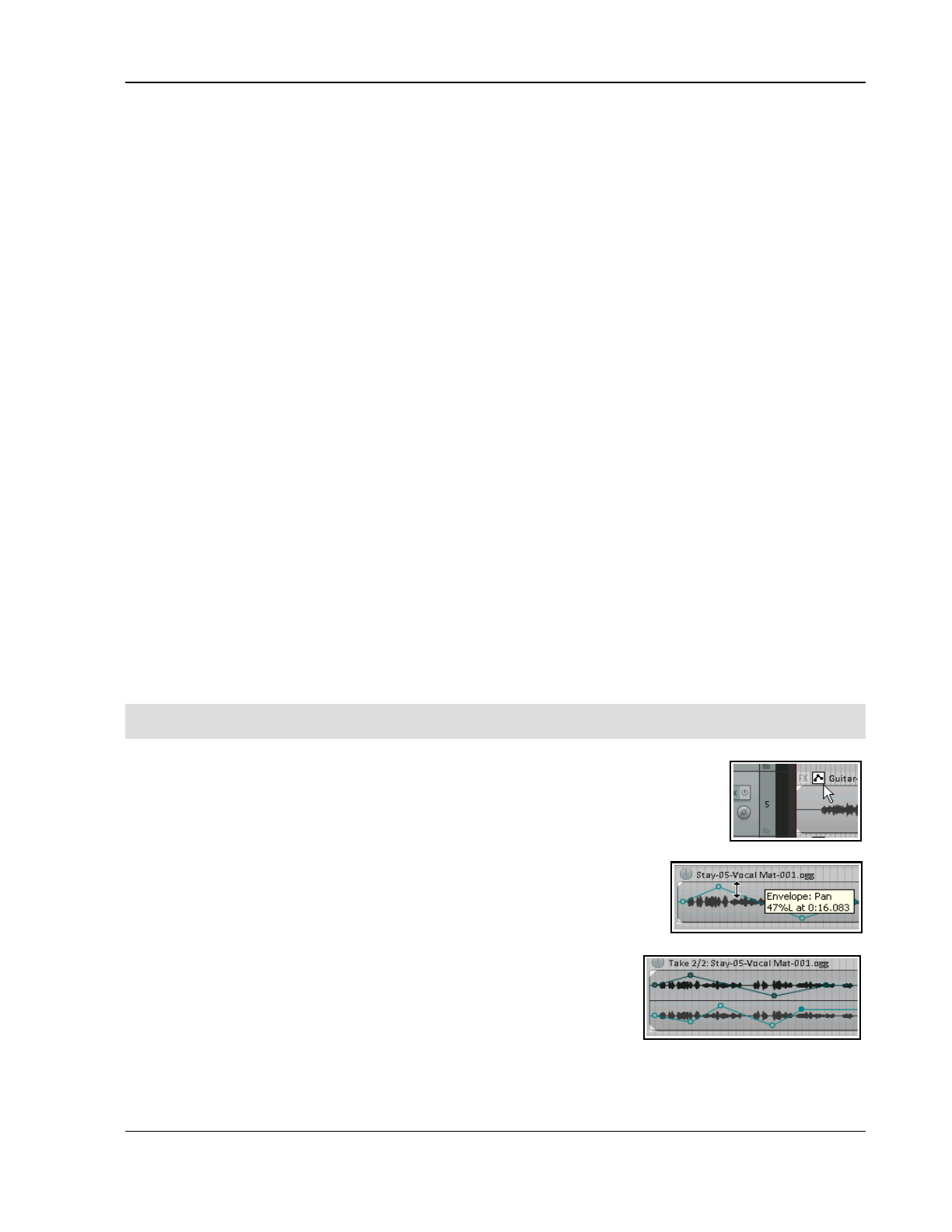
Automation – Envelopes and More
18.30 FX Automation: Learn Mode
A MIDI controller or control surface can be used in write, latch or touch mode to create FX parameter envelopes:
1. Within the plug-in window, click on the parameter, then on Param then on Learn . Tweak the button,
knob, or fader on the control device. A confirmation message appears in the Command field.
2. Select a CC mode: usually this will be absolute or one of the relative options. Consult the device's
documentation: if in doubt, try Absolute to begin with. For smoother operation, choose Soft takeover.
Toggle mode is also available: this allows FX parameters to be toggled on/off with a single mapping.
Optionally, select Enable only when effect configuration is focussed. This allows you to assign the
same control to another parameter in a different plug-in.
3. When the MIDI/OSC Learn dialog box is shown, tweak the control on the external device, select the
option Arm envelope for selected parameter and click on OK. The envelope will be displayed.
You can use the control device to write changes to the envelope during project playback (see section 18.5). In
Trim/Read mode you can use the control device to manually adjust the parameter.
18.31 Automating a VST with MIDI CC Messages
Depending on what gear you have, there are two other further methods you can possibly use to send MIDI CC
messages to automate a VST's parameters:
1. Send MIDI CC from a MIDI source (such as a MIDI keyboard controller, a MIDI track, ReaControlMIDI, or
an FX which outputs MIDI CC messages) directly to the VST. In some VSTs MIDI CC messages are hard-
wired to specific controls (e.g. LinPlug's Alpha), in others (e.g. Kontakt) the mapping is assignable.
2. Send MIDI CC from a MIDI source to MIDItoReaControlPath (S&M). This injects the MIDI CC
messages into the Reaper automation path and onwards to a track VST Parameter Envelope for which
MIDI Learn has been used to map the CC message to that envelope. To learn more about (and download)
this plug-in, go to forum.cockos.com/showthread.php?t=43741.
18.32 Automating FX Parameters on the Fly
If you turn on the Editing Behavior, Automation preferences option to Automatically add and arm envelopes
when tweaking parameters in automation write modes, then for any track set to write, latch or touch an
automation envelope will be created for you as you tweak the parameter settings during playback.
This feature can be used in conjunction with a control surface. Be careful, though, or you could end up creating
a whole heap of unwanted envelopes!
Note: When you finish recording automation envelopes in this way, change Automation mode to Read or
Trim/Read, otherwise every parameter you tweak will create another envelope, whether you want it to or not.
18.33 Automation with Item Take and Take FX Parameters
Individual media items and takes can be given their own Volume, Pan, Pitch and Mute
envelopes. Right click over the item, choose the Take command, and then select your
required envelope from the menu. Alternatively, you can click on the item's envelope
button (if visible) and make your selection from there. Item buttons can be selected to be
displayed from the Appearance, Media page of your Preferences window.
Envelopes with Media Items
In the example (right), a pan envelope is added using the Take, Take pan
envelope command. It is panned first away from the center and back again.
The envelope can be edited (points added, moved, and so on) like any other.
Right-click over any envelope point or segment for the context menus. You
can have different envelopes for different takes of the same item.
Envelopes with Multiple Takes
In the third example shown, pan envelopes have been added to the each
take for the last verse of a song, with different FX. The use of different
panning and the touch of ReaVerbate added to one of the takes can make
for an interesting vocal effect when the Play all takes option (media item properties) is enabled for this item.
375
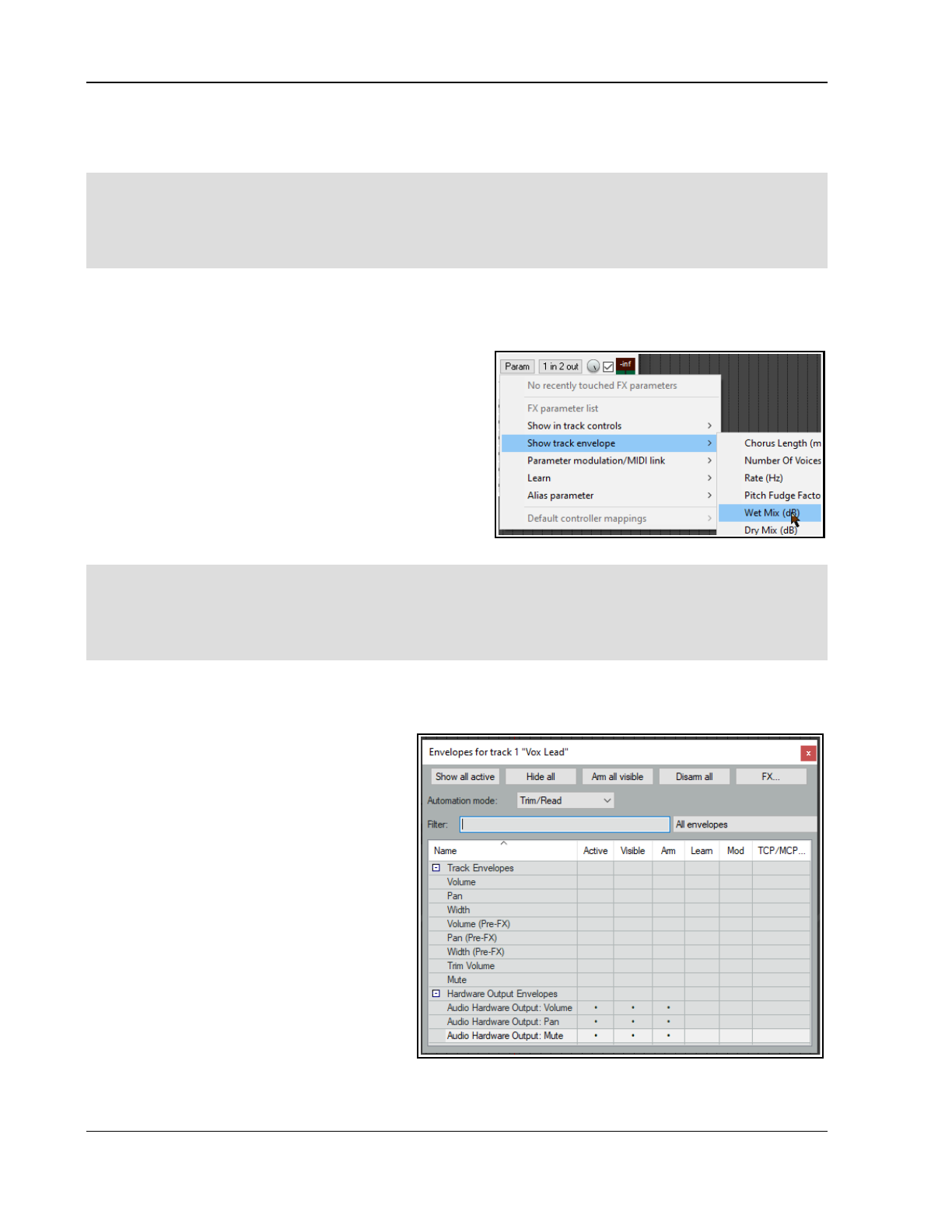
Up and Running: A REAPER User Guide v 7.81
To copy item take envelopes from one item to another on the same track, use Ctrl drag from envelopes button
to envelopes button. To move envelopes, use Alt drag. Display of these buttons can be enabled on the
Appearance, Media page of your Preferences window.
Tip 1: To automatically create an envelope for any FX parameter adjusted on the fly during playback, enable the
Preferences, Editing behavior, Automation option Automatically add envelopes when tweaking
parameters in automation write modes, then set track automation mode to touch, latch or write.
Tip 2: If you use Ctrl Shift Drag to copy an FX from one track or item to another, then any and all FX
parameter envelopes associated with that FX will be copied with it.
Envelopes with Per Take FX Parameters
Parameters on FX that have been added to individual takes can also be automated. These can be edited
manually, with points being added by hand in trim/read mode, or recorded in write, latch or touch mode. The
procedures for manually editing or write/recording
item/take FX parameter envelopes is essentially the same
as those used with track FX parameters. Parameters can be
selected for automation in either of two ways:
● From the media item's Envelopes for takes window.
To display this, click on the automation envelopes
button (if visible), or you can choose Take, Take
envelopes... from the take's right-click menu,
or
● Display the track's FX chain (Shift E), select the
required FX, then select the required parameter
envelope from the Param button menu. Note that
Learn mode is also supported.
Tip 1: Any FX chain can be copied from one media item to another by dragging and dropping the FX from the
first item's FX chain to the second item. Drag and drop the item FX button itself to copy the entire chain.
Tip 2: Envelopes can then be copied between media items by dragging and dropping the envelopes button.
Tip 3: The action Envelopes: View envelopes for last touched track/item will open the track’s or item’s
envelopes window. You can then add or remove envelopes to or from that track or item
18.34 Automation with Hardware Output Sends
If using hardware output sends with any of your tracks you will find that you can automate the Volume, Pan and
Mute parameters for these sends. These items
will appear in the track’s envelopes window as
shown on the right.
In the example shown, we have a send from
Track 1 to an Audio Hardware Output. We can
now control the send volume with an
envelope.
We can even go one better. We can use fader
movements to shape this envelope, but
without using Write mode for any other
envelopes that we may also have created.
This can be done from within the track’s
routing window.
In the screen shot below automation mode
has been set to Touch from within the routing
window, just for that one envelope. You could
now play your track, adjusting the audio
hardware output send fader in the window
shown below to adjust the send volume level
and create your envelope. You can also do this with Track Send envelopes.
376
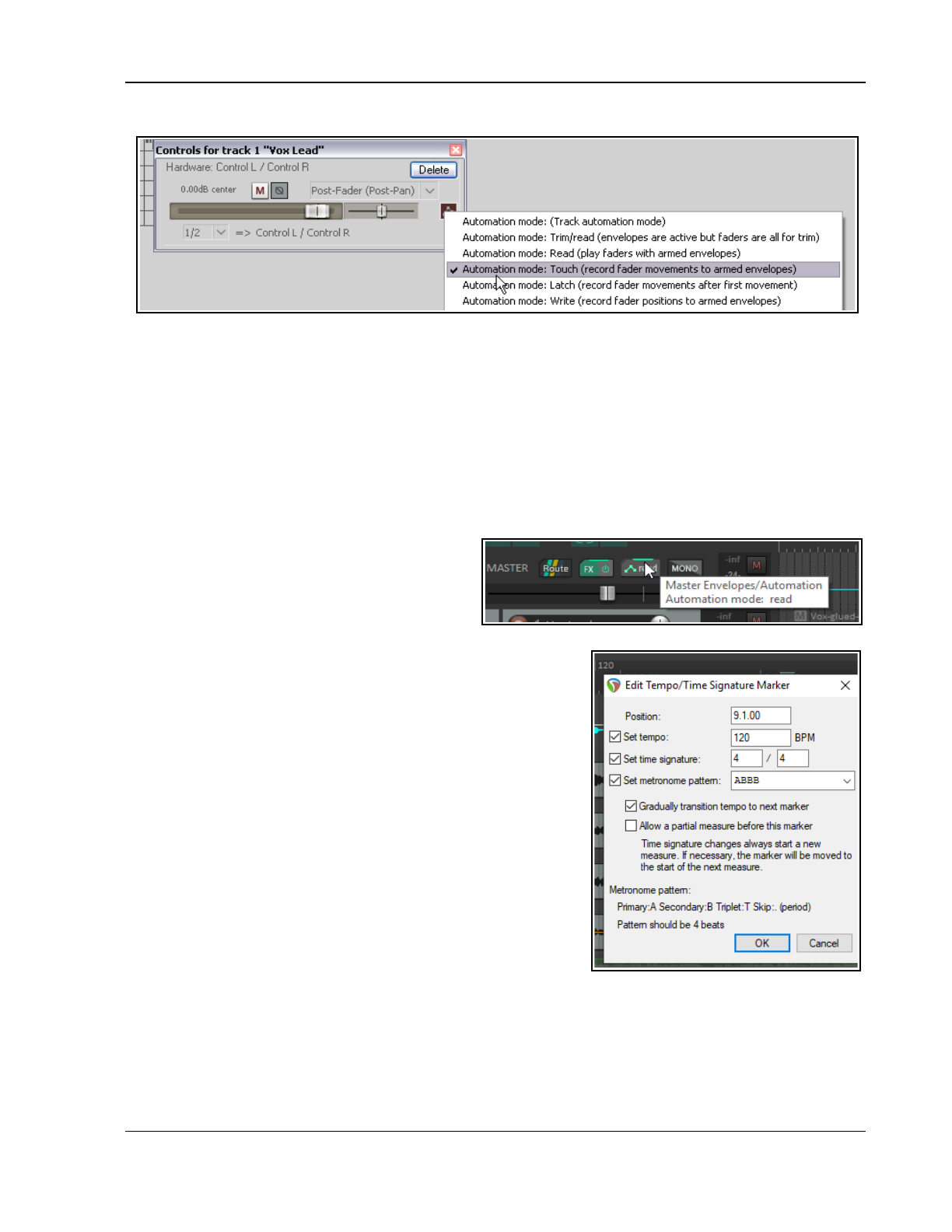
Automation – Envelopes and More
18.35 Automating the Metronome
Metronome behavior can be automated – e.g., to play only at the exact times that you require. To do this, create
a new track and use the command Insert, Click Source to insert a media item into your file. Treat this click
track like any other track – for example, add a mute envelope to mute certain passages, and so on.
To modify any click track properties, right click over the track and choose Source Properties from the menu.
For example, you can change the BPM setting, or use your own sample files to create the beats.
18.36 Tempo/Time Signature and Play Speed Envelopes
In Chapter 10, you learnt how to change time signature and/or tempo within a project. Another (and perhaps
more intuitive) way of doing this is to use the Tempo/Time Signature Envelope. To display this envelope in the
main REAPER arrange window:
1. From REAPER's main menu choose View,
Tempo envelope. This displays the Master
and its tempo envelope in arrange view.
2. Set the Automation mode for the Master
Track to Read.
With the tempo map visible an envelope appears on the Master
Track in arrange view. The default envelope range (bpm) is set in
your Editing Behavior, Envelope Display Preferences (Chapter 22).
You can vary this range for individual projects: right click over the
envelope and from the menu choose Envelope defaults, Tempo
envelope range to open a dialog where you can do this.
To select your preferred point shape, right click on the envelope and
from the context menu choose Envelope defaults, Default point
shapes, then either Linear or Square.
This envelope can be modified: you can add points (Shift click), or
draw freehand (Ctrl drag), move them, delete them, adjust them,
etc. The master tempo envelope cannot be modified by freehand
drawing. Editing multiple points at once on this envelope causes
each point to be adjusted
pro rata
, not by a constant BPM value.
With each envelope point a tempo/time signature marker is added
on the timeline - editing their values has the same effect as editing
the envelope points. If you move them, the points move with them
(and vice versa). REAPER's Actions List also includes an action
Adjust entire envelope tempo... This opens a dialog box which
offers you the options of adjusting the entire envelope by a percentage or by a set number of beats per minute.
You can also add to the Master a Playrate envelope which can be used to speed up or slow down playback. This
envelope is applied to all tracks, audio and MIDI. To do this:
1. Click the Envelopes button in the Track Master to display the Master Envelopes window. Now tick the
item Playrate. Make sure this item is marked as both Visible and Armed.
2. Close this window.
377
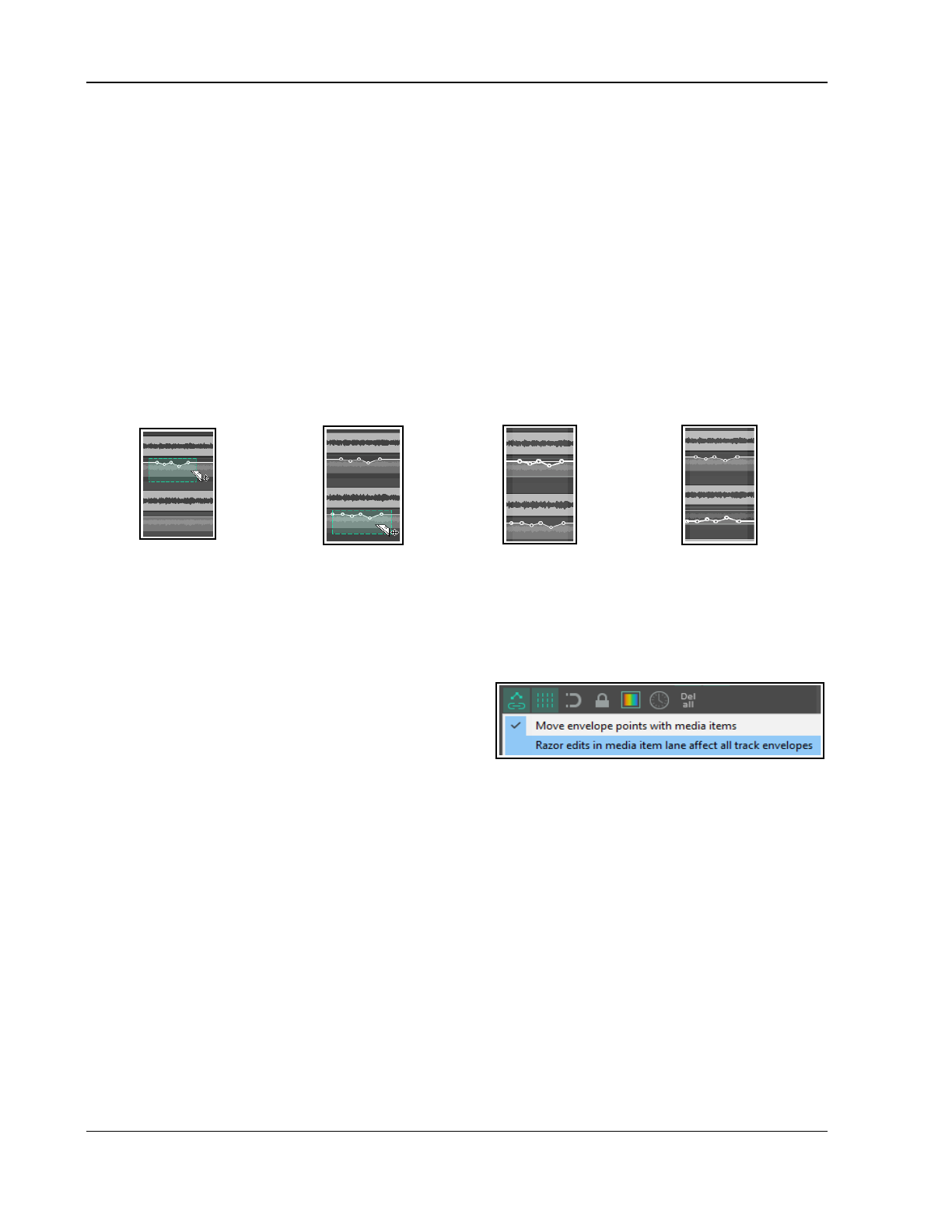
Up and Running: A REAPER User Guide v 7.81
18.37 More Envelope Tips
The next chapter of this guide – Parameter Modulation and Automation Tips – takes automation and envelopes a
step or two further. That chapter includes information that you’re likely to find useful when working with
envelopes as explained in this chapter.
This includes some nifty information on how you can customise and color code automation envelope appearance
to suit your precise requirements.
18.38 Razor Editing with Automation Envelopes
Razor editing lets you move or copy one part of an envelope to another envelope by dragging it. Razor selection
and razor editing techniques are explained in Chapter 2, including a table of the various options and basic mouse
modifiers. In addition Razor edit area mouse modifiers when working with automation items or envelopes are:
Shift Alt left drag Move areas ignoring envelope type and snap.
Ctrl Alt left drag. Copy areas ignoring envelope type.
Shift Ctrl Alt left drag Copy areas ignoring envelope type and snap.
Here is an example. We might want to ensure that during a section of the song two tracks are automatically
panned to move in opposite directions, i.e. against each other.
1. Panning is automated
on the first envelope and
the area is defined with
Alt right drag.
2. Ctrl left drag is used
to copy the segment to
the other track with snap
settings applied.
3. Select all points in
time selection is applied
from the context menu of
the lower envelope.
4. Invert points is now
chosen from the same
menu.
Note the option on the envelope tool right click menu Razor edits in media item lane affect all track
envelopes.
With this option disabled, you can select and move or copy
a segment of a media item, or any envelope, or envelopes
attached to that media item, or any combination of these.
Hidden envelopes will be excluded from the selection.
With Razor edits in media lane affect all track envelopes enabled, the media items and any/all associated
envelopes are essentially locked together when any one is being razor edited. Envelopes will be copied with
media items from one item to another even when these envelopes are hidden in the source item and do not
already exist on the destination item.
The destination envelopes can be automatically displayed or not, based on the envelope display preferences
option Automatically show affected envelopes when moving media items across tracks. However, if
there is no matching envelope at the destination (for example if you have an EQ low pass frequency envelope on
the source track but that FX does not exist on the destination track) then that envelope area will not be copied.
The only difference between razor edits and media item moves in this mode is that with razor edits, if there are
no matching envelopes at all on the destination track -- in other words if the edit would result in the entire razor
edit being discarded -- then edit will not be allowed.
Your mouse modifiers Razor edits area left drag section include available options to move or copy area
ignoring envelope type. You could, for example, assign these to Shift alt right drag and Ctrl alt right
drag respectively. This, for example, would allow you to copy a section of an envelope from (say) a volume
envelope to a trim volume envelope.
This feature is specific to razor edits. In this mode, areas are moved based on what you see is what you get. It
would not make sense to automatically create envelopes in this mode. If you were moving one envelope razor
edit area, REAPER would have to create literally every possible envelope on every track that you moved across.
378
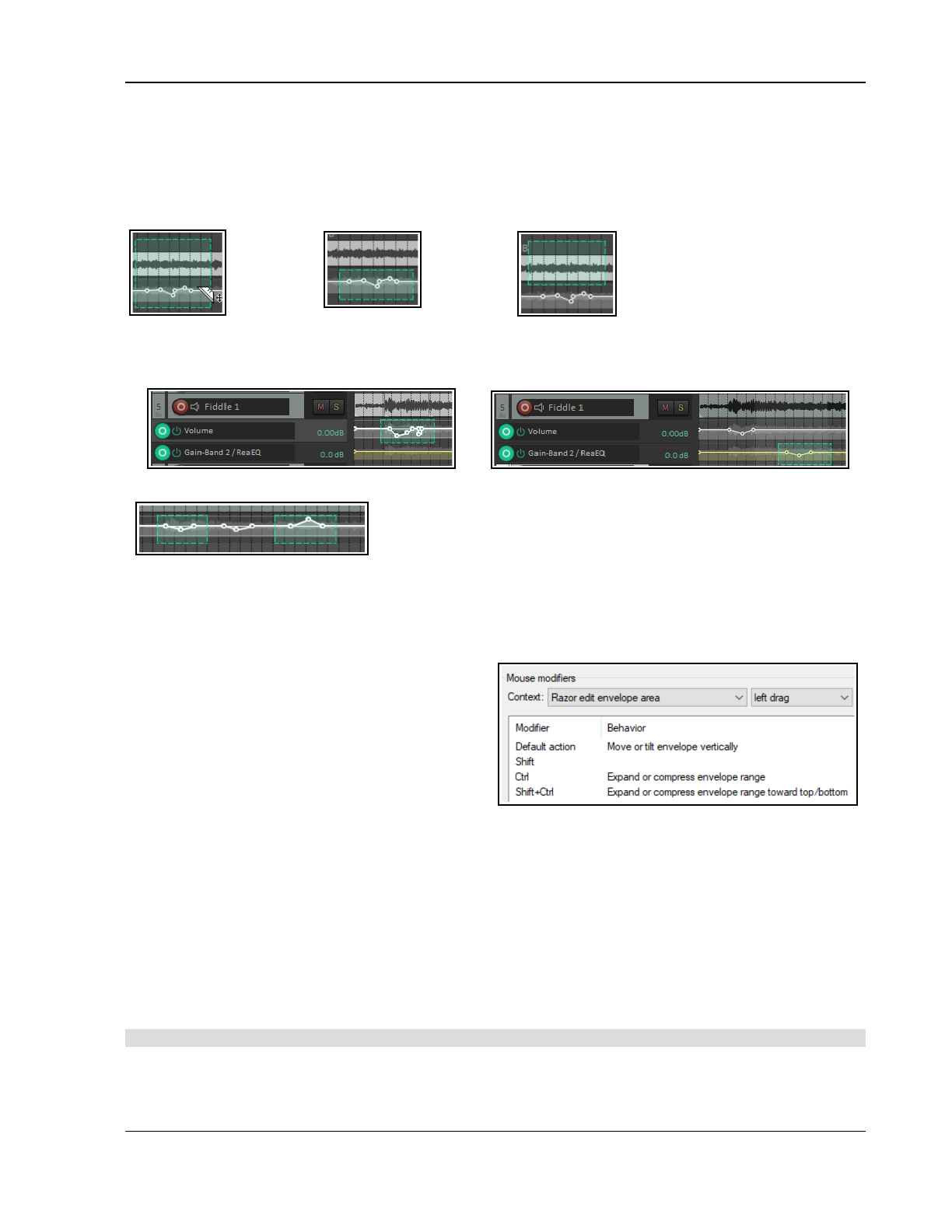
Automation – Envelopes and More
Make yourself familiar with the various mouse modifiers outlined in the razor edits section in Chapter 7.
It is also important to remember that your ripple editing settings will affect how razor editing behaves when
copying or moving automation.
Note: Razor editing can also be applied to envelopes on the master, except for tempo envelopes.
Examples: #1: With Razor edits affect all track envelopes disabled ….
1 ...you
could select
and move or
copy this ….
2 … or just
this …
3 … or this.
With this option on,
you could do 1, but
not 2 or 3. Hidden
envelopes would also
be included.
#2: Again, with Razor edits affect all track envelopes disabled , using a mouse modifier assigned to Copy
area ignoring envelope type and with ripple editing off ...
… an envelope segment can be selected ... … and copied to a different envelope type …
… or you could select multiple segments of an envelope and copy them
to another envelope of the same type, whether this option is on or off.
Razor Edit Envelope Mouse Modifiers and Actions
Razor editing as much as any other feature of REAPER is something that different people will want to use in
different ways. Core razor edit mouse modifiers are covered in Chapter 7. REAPER also includes a Razor edits
envelope, left drag context, as shown (right). These actions apply only to envelopes in lanes.
Move or tilt envelope vertically: moves
selected segment of envelope up or down.
Expand or compress envelope range:
increases (up) or decreases (down) distance
between highest and lowest point in the selection.
Expand or compress envelope range towards
top bottom: similar to Ctrl left drag but also
moves entire selection up or down.
Customize Mouse Modifier Preferences
These can be found in your Options, Preferences window Double click in the Behavior column for any mouse
modifier for a list of alternative tasks that can be assigned to that modifier.
Browse the Actions List
REAPER’s Action List includes literally dozens of razor edit actions that can be assigned variously to the contexts
Arrange view right drag, Media item bottom half left click, Media item left drag, Media item left click, Razor edit
area left click, Razor edit area left drag and Track left drag.
For example, if you need to copy a series of automation items or envelope segments within a project you could
run an action to set the mouse modifier for Razor edit area left drag to Copy areas on one axis only ignoring
envelope type, then at the end of that session reset it to its original default Move areas.
To explore other options, open the Actions List and search for the word razor.
Tip: Check out also the earlier section on Power Editing for more tips about working with razor edits.
379
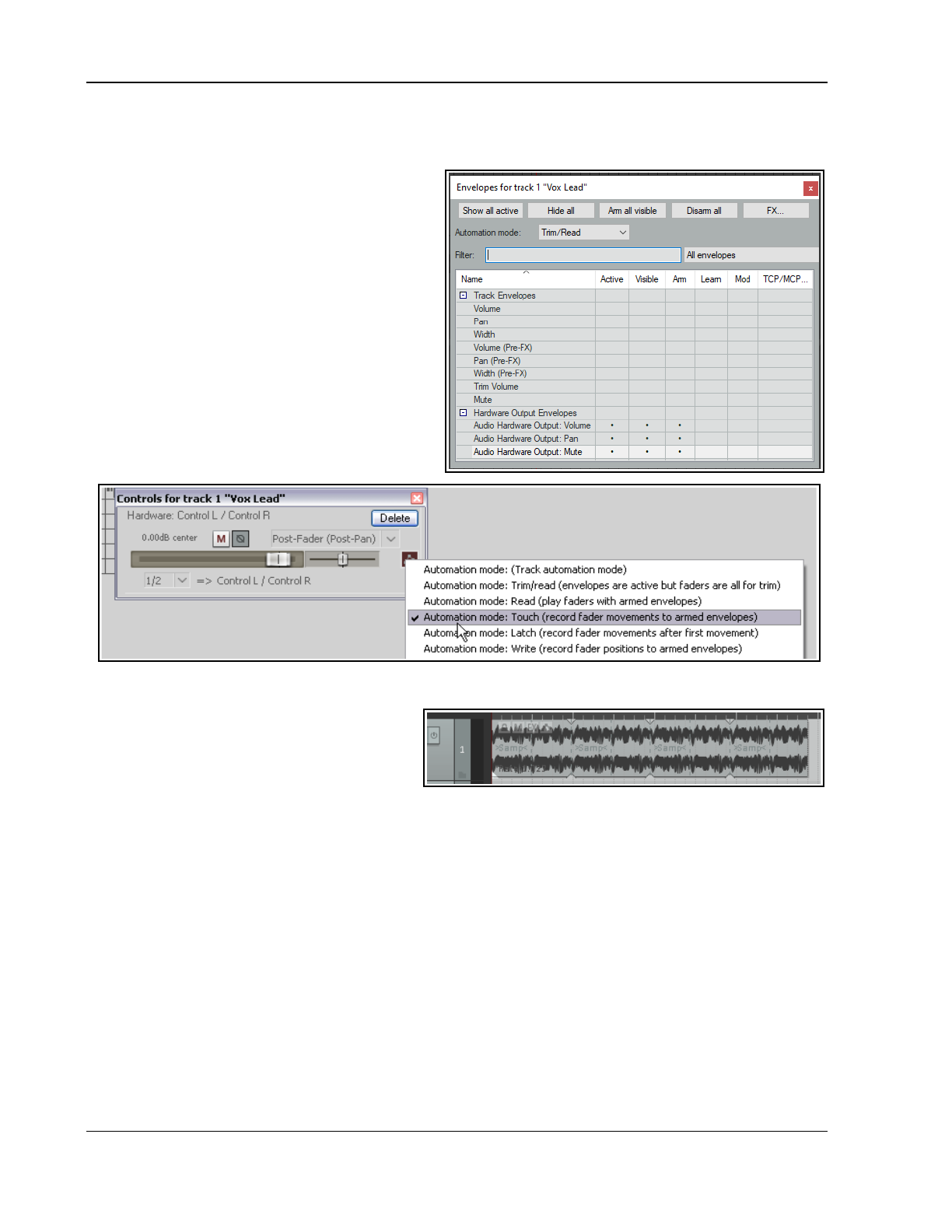
Up and Running: A REAPER User Guide v 7.81
18.39 Automation with Hardware Output Sends
If using hardware output sends with any of your tracks you can automate the Volume, Pan and Mute parameters
for these sends. These items will appear in the
track’s envelopes window as shown on the right.
In the example shown, we have a send from Track 1
to an Audio Hardware Output. We can now control
the send volume with an envelope.
We can even go one better. We can use fader7
movements to shape this envelope, but without
using Write mode for any other envelopes that we
may also have created. This can be done from
within the track’s routing window.
In the screen shot below automation mode has been
set to Touch from within the routing window, just
for that one envelope. You could now play your
track, adjusting the audio hardware output send
fader in the window shown below to adjust the send
volume level and create your envelope. You can also
do this with Track Send envelopes.
18.40 Automation Items
REAPER allows you to define an entire
automation envelope or a section of an envelope
(including video processor envelopes) as an
automation item, and then later apply that
automation item to any media item or items in
the same or any other project. The concept itself is not complicated, but there are many options and variations
in the ways in which you can apply it. Before exploring these, let's start by looking at a practical example, using
a low frequency oscillator to shape an envelope.
Example
This example is designed to introduce you to the basic concept of automation items.
1. First, we import a sample into a new track. We then extend the looped sample to repeat the pattern (as
shown, top right).
2. To add a low frequency oscillator to this item we first select the item and add a volume envelope.
3. We then make a time selection to cover the period of the original sample. Next, we right-click over the
envelope and choose Automation items then Insert new automation item from the menu. This
creates an automation item (with a title bar at the bottom). We right-click over the title bar and choose
Properties to open the Properties dialog box.
We adjust the parameters as we wish. An example is shown here. This creates points and defines the
envelope shape. We close this box when finished.
4. We can position the mouse just inside the item name area's right boundary (at the bottom of the item),
then click and drag all the way to the end of the item, as shown below.
380
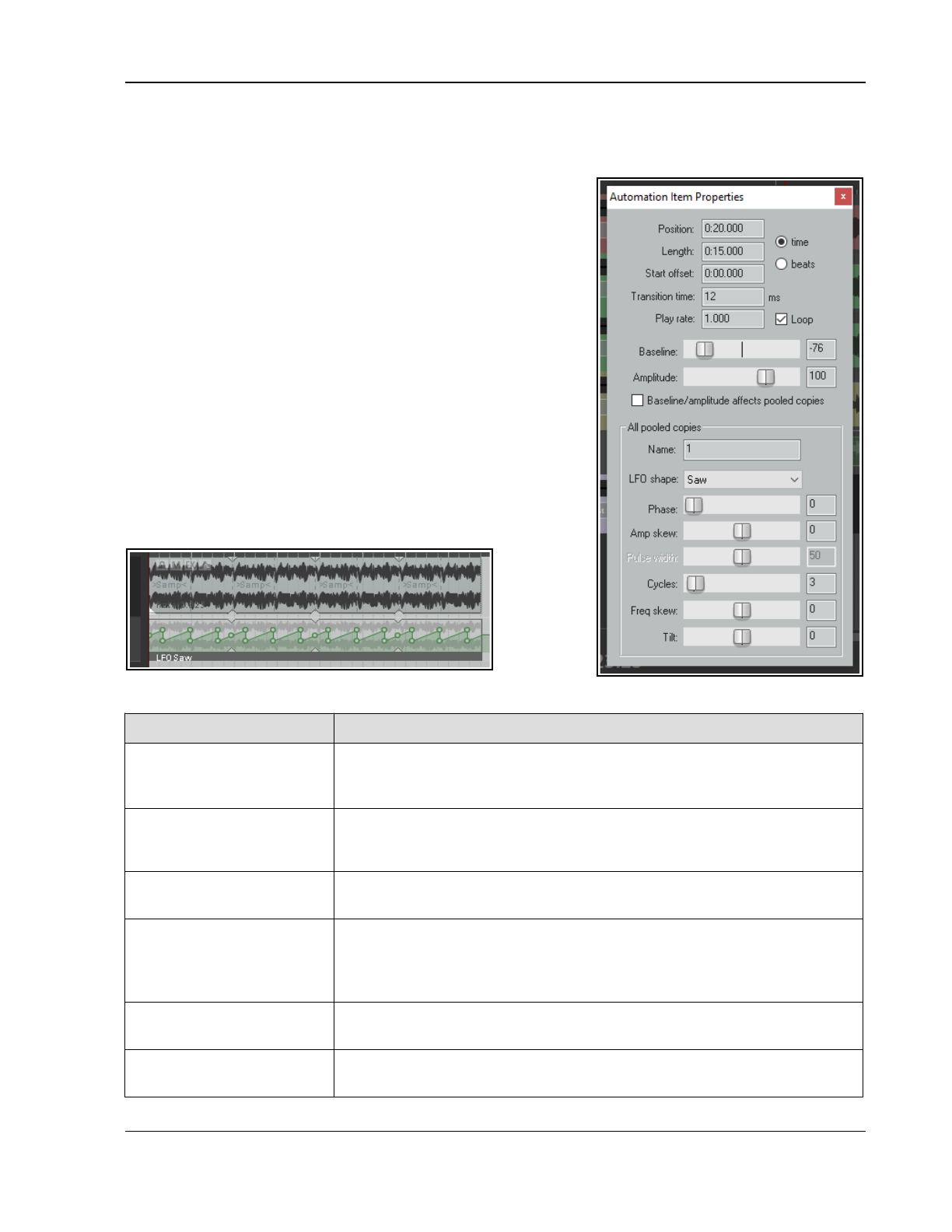
Automation – Envelopes and More
Our automation item now contains (in this case) four identical segments. Making a change to any one of the
segments will automatically make the same changes to the other three segments. These changes could include,
for example, edits made manually, or adjustments to the Automation Item Properties, including LFO parameters.
The next couple of pages explain automation items and how to use
them in more detail. Keep in mind that when working with
automation items normal windows techniques apply – e.g. Click to
select, Ctrl Click to build a selection, and Shift Click to select a
range of contiguous items.
Note: Automation items cannot be used with tempo envelopes.
Understanding Low Frequency Oscillation (LFO)
LFO is an electronic signal (usually below 20 Hz) that is used to
create a rhythmic pulse. It can be used to modulate synthesizers and
audio material in the production of electronic music, for example to
create effects such as tremolo, phasing and vibrato. LFO controls
include:
LFO Shape: None, Sine, Triangle, Saw, Square or Parametric.
Frequency: the number of times the shape occurs within the
item.
Baseline: raises or lowers the envelope baseline.
Amplitude: determines the depth of the modulation: the higher
the amplitude, the greater the curve.
Skew controls: these vary the intensity of each occurrence
within the item.
Working with Automation Items
In order to do this... Do this...
Create new empty
automation item on
envelope
Make time selection, right-click within time selection on envelope, choose
Automation items, New automation item
or
Hold Alt while dragging from
left to right just below the envelope.
Create new automation
item when writing
automation to envelope
Enable the Preferences option (Editing behavior, Automation) to Always
create new automation item when writing automation.
Insert a saved automation
item on to an envelope
Position cursor. Right-click on envelope, choose Automation items, Load,
then Load... Select item name and click on Open.
Add a LFO to an
automation item,
and/or change other
properties
Double-click on the item's title bar (at bottom of item) to open the
Automation Item Properties dialog box. Select LFO shape (parametric,
triangle, saw or square) and adjust other parameters as required (see below).
Close dialog when finished.
Convert existing envelope
into automation item
Add points to envelope. Make time selection, right-click on envelope within
selection, choose Automation items, New automation item.
Convert item to ordinary
envelope segment
Right-click on the item's title bar, choose Delete automation item preserve
points.
381
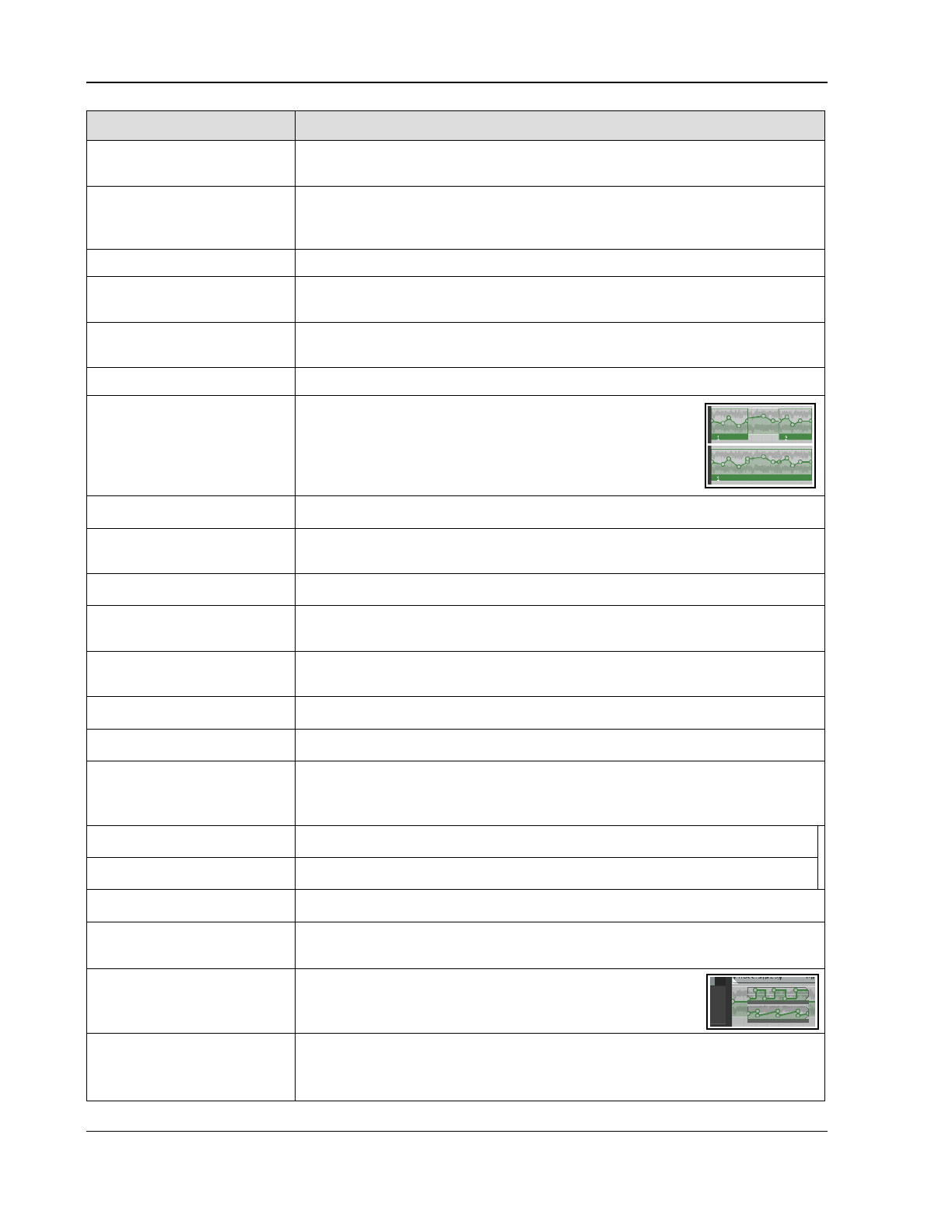
Up and Running: A REAPER User Guide v 7.81
In order to do this... Do this...
Disable envelope outside
automation items.
Right-click on envelope, enable the toggle option Disable envelope outside
automation items. Also known as “automation items only mode.”
Edit automation item Add, move, delete points etc. in exactly the same way as with any envelope.
To change LFO and other settings, double-click on item's title bar to open the
Automation Item Properties window.
Name or rename an item Open Automation Item Properties, type the name.
Define custom automation
item transition time
Enter transition time in Automation Item Properties dialog.
Move automation item Click and drag left or right on the item's title bar, or up or down to another
envelope, on the same or a different track or item.
Move item contents Hold Alt while dragging item's title bar left or right.
Copy automation item to
another location
Ctrl click (to copy unpooled) or Ctrl Alt click (to copy
pooled) on title bar, and drag to destination on same or
another envelope, on any track,
or
Select item, then Alt click drag below envelope at
required location.
Unpool automation item Choose Remove from pool from item's right-click context menu.
Use automation items with
FX parameters
Insert FX (e.g. compressor or delay) into the FX chain and add a parameter
envelope in the normal way. Create and apply items as per usual.
Mute automation item Right-click on the item’s title bar, choose Mute (toggle).
Extend/copy automation
item contents
Click and drag from just inside the item's title bar right edge to the right, or
from left edge to the left.
Extend automation item,
collecting existing points
Ctrl click from edge of title bar outwards. As the item is extended, existing
envelope points are collected into it.
Loop/unloop an item Enable/disable loop option in Automation Item Properties dialog.
Stretch/shrink item Alt click drag left/right from item title bar edge.
Join automation items
together
Ctrl click on title bars of each item to be joined,. Right-click over any one title
bar, choose Glue. The items will be made into a single item, including any
envelope portions between them.
Save automation item
Right-click on item title bar, Save..., select folder, type name and Save.
Delete automation item
Right-click on item title bar, choose Delete .
Split at cursor position
Right-click on the item's title bar, choose Split.
Duplicate automation item
as pooled
Right-click on the item's title bar, choose Create pooled duplicate. Any edits
made to any item in the pool will be made to all items in the pool.
Duplicate automation as
unpooled
Right-click on the item's title bar, choose Create unpooled
duplicate. Each item can be modified independently of
any/all other items in the pool.
Use multiple automation
items simultaneously on
the same envelope
By creating multiple automation items and dragging them around as required
you can enable two or more automation items to be used simultaneously on
the same envelope.s
382
Automation – Envelopes and More
Notes:
To ignore snap with any of the above click-drag actions, hold also Shift while performing the action.
The main difference between pooled and unpooled items lies in how they behave when edited. An
unpooled item is completely independent and can be edited without any other item being affected.
Changes made to any pooled item, however, will be applied to all items in its pool. However ….
When editing pooled items via the Automation Items Properties dialog, changes made to parameters
included in the All pooled copies box will be applied to all items in the pool. There is also an option you
can tick for Baseline/amplitude to affect pooled copies. Other changes made within the Automation
Item Properties box will only be applied to the individual item being edited.
If the option to Move envelope points with media item (Options menu) is enabled, then when a media
item is cut, copied, pasted, moved, duplicated, etc., any automation items attached to it will be moved
with it.. If the portion of the media item includes only part of an automation item, then only that part will
be moved or copied with the automation item.
Where automation items exist within regions, they will be moved and copied with the regions.
A project’s automation items can be managed from the Automation Items page of the Project Bay.
This shows all automation items currently used in the current project. You can perform many functions
described in this section, for example rename any item or mute it or adjust the volume of any instance.
Automation Item (AI) Preferences, Actions, Mouse Modifiers, Options – and the Media Explorer
Automation Item Preferences
The Editing Behavior, Automation Items and Editing Behavior, Envelope Display Preferences
(Chapter 22) include options to manage looping, pooled item behavior, and underlying envelope behavior.
Actions
The actions list includes various automation item commands and actions, including (but not limited to):
Options: Loop new automation items by default. (toggle)
Options: Always create new automation items when writing automation
Options: Automation item baseline/amplitude edits affect pooled copies
Options: Automation items attach to the underlying envelope on both sides/right side **
Options: Automation items do not attach to the underlying envelope **
Options: Chase non-FX envelopes to automation items when underlying envelope bypassed
Options: Reduce envelope data when recording or drawing automation
Options: Remove points from underlying envelope when creating automation items
Options: Trim content behind automation items when editing
Options: Add edge points when moving envelope points with items**
Options: Add edge points when ripple editing or inserting time **
Options: Add edge points when moving multiple envelope points **
Options: Reduce envelope point data when recording or drawing automation **
Envelope: Add edge points to automation item
Envelope: Convert all project automation to automation items
Envelope: Enable/disable envelope outside of automation items (AIs)
Envelope: Enable/disable envelope outside of AIs for all envelopes on selected track
Envelope: Enable/disable envelope outside of AIs for all envelopes in project
Envelope: Enable/disable envelope outside of AIs for all visible track envelopes
Envelope: Mute automation items
Envelope: Glue automation items
Envelope: Set loop points to automation item
Envelope: Set time selection to automation item
Envelope: Split automation items
Envelope: Toggle automation item loop.
** available on envelope tool on default toolbar
Moreover. all of the commands described in the above table are available as actions in REAPER's Actions Editor
and as such can be assigned to keyboard shortcuts, toolbar icons, and/or custom menus. See Chapter 15. Other
actions for options not on the menu include toggle actions to control underlying envelope behavior.
383
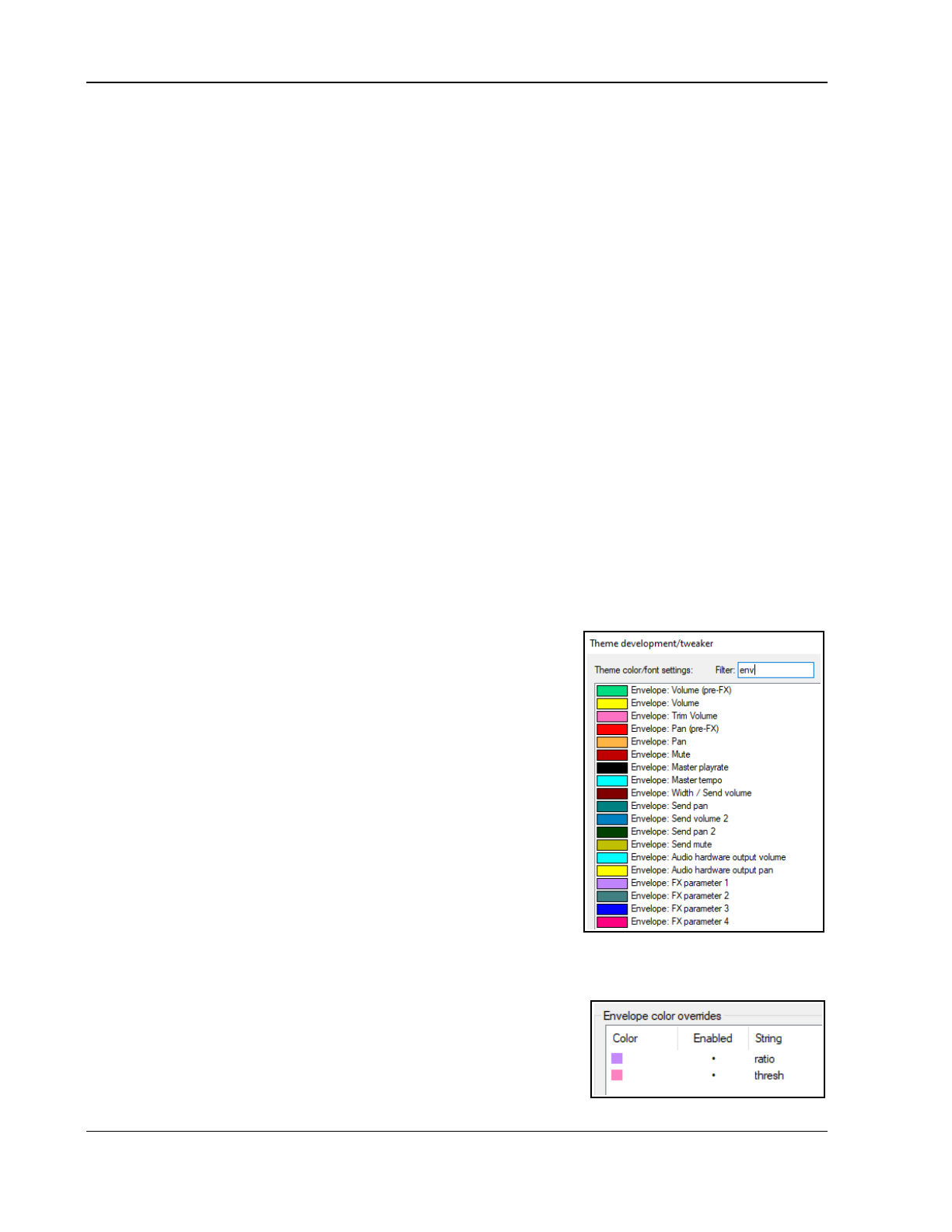
Up and Running: A REAPER User Guide v 7.81
Mouse Modifiers
REAPER's mouse modifiers include the contexts Automation item (left drag, double-click) and Automation
item edge (left drag). All of the mouse actions listed above are there, and several more. You can change
default mouse modifier assignments, rearranging modifier key behavior as you wish. There is also a mouse
modifiers preferences option Edits affect all pooled items at the same position.
Also, the Envelope lane mouse modifier left drag context includes several actions and options for drawing
copies of selected automation items.
Toolbar Envelope Button
In addition, you can right click the toolbar envelope button to access several toggle options to determine how
automation items interact with underlying envelopes. These are:
Bypass underling envelope outside of automation items
Automation items do not attach to the underlying envelope
Automation items attach to the underlying envelope on right side
Automation items attach to the underlying envelope on both sides.
Chase non-FX envelope to automation items when underlying envelope is bypassed.
These commands are also available on the envelope right click menu, as well as:
FX envelope overlapping automation item combination mode.
Automation Item Behavior
You should alsofamiliarise yourself with a small number of rules governing automation item behaviors:
When automation items are moved they will obey your media item preferences snap start/end options.
When recording automation creates new items, smaller items will be created if they intersect with
existing items.
When trim-behind is used to split automation items, your preference settings will be applied.
The Media Explorer
Automation Items can be managed from the Media Explorer like other media items. Simply navigate to the
correct directory to preview. Right click over any item name for a menu of options for inserting into the project.
18.41 Automation and Envelope Tips
18.41.1 Changing FX Parameter Envelope Colors
The Theme Development Tweaker (Chapter 12) can be used to change
the colors used for envelopes. Open the Actions List and run the Theme
tweak/development window action.
Customised colors can be selected for standard track and item envelopes
(such as volume, pan, mute, send).
In addition, up to four custom colors are available for FX parameter
envelopes: these are labelled FX parameter1 to FX parameter 4.
These colors are applied to your FX parameter envelopes in groups of four.
For example, if you automate six FX parameters on a track:
FX parameter 1 color will be applied to the first and fifth parameter.
FX parameter 2 color will be applied to the second and sixth parameter.
FX parameter 3 color will be applied to the third parameter.
FX parameter 4 color will be applied to the fourth parameter.
18.41.2 Envelope Color Overrides
Envelope color overrides allow you to customise the colors used for your envelopes. To use it to its full extent
you will need to understand something about boolean logic, explained in Chapter 6.
To access this feature, choose Options, Preferences, Appearance,
Envelope Colors.
To create an override rule, click the Add button then create your
definition. Here are two simple examples.
You might use a variety of compressors and often need to automate ratio
and threshold. You can define a color override so that ratio and threshold
envelopes always use your preferred color, regardless of the actual plug-in.
384
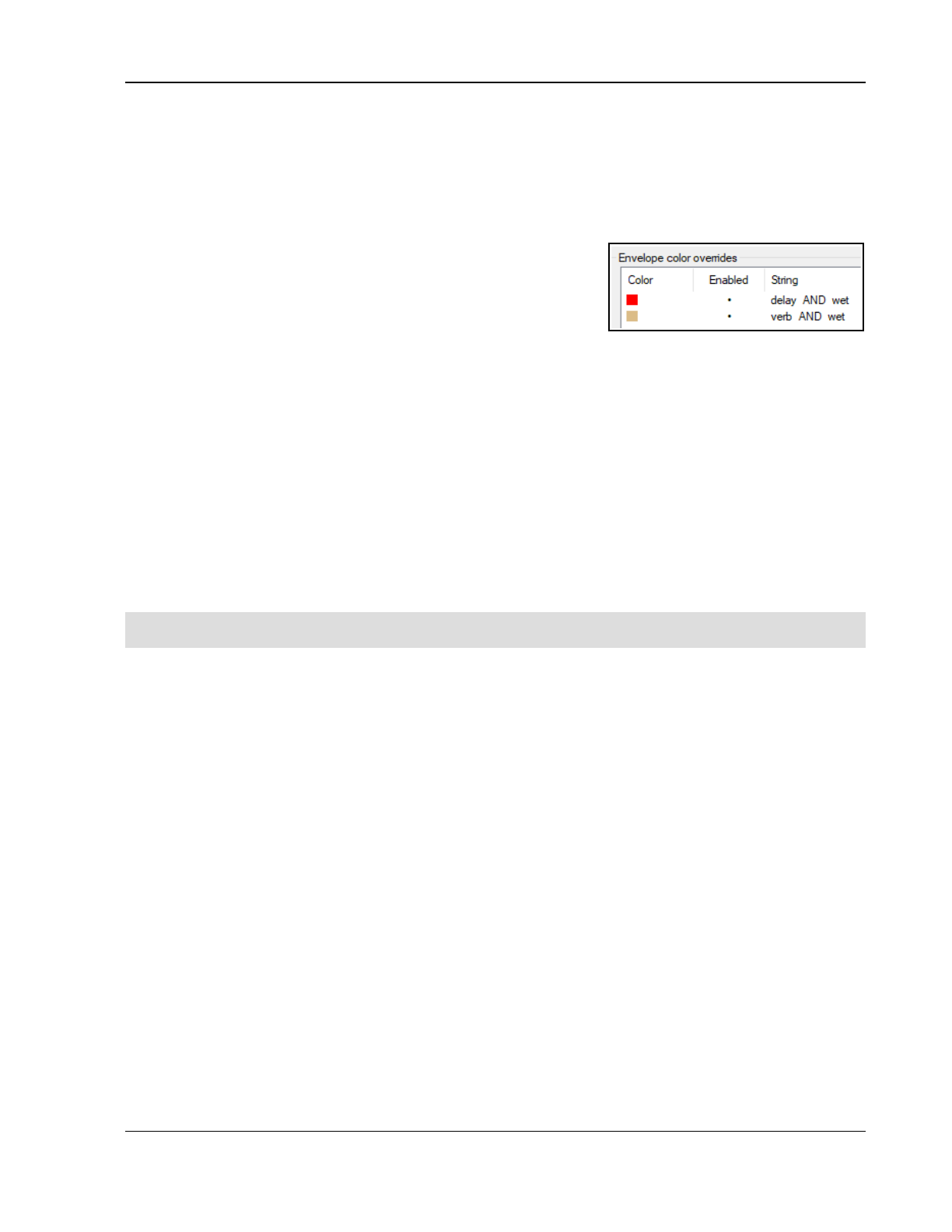
Automation – Envelopes and More
1. C7lick on the Add button. You will be asked to type a name. Type ratio, click OK.
2. Double click on the color shown, select your color and click OK.
3. Click again on Add, type thresh, click OK pick a color as before and click OK.
4. For both of these, if Enabled is not selected by default, click in the Enabled column to enable them. You
should see a mark (as shown on the right).
5. Now add a compressor of your choice to any track and add envelopes for both ratio and threshold. They
should conform to your color choices.
Let’s get a bit more clever. We might use delay and reverb often in our
mixes, and also often want to automate the wet parameter. We also
want to color code the envelopes so it is visually obvious whether this
is a delay envelope or a reverb one. The rules shown here (right) will
achieve this. Note that you will need to type spaces both before
and after the AND.
Now let’s throw a spanner in the works! Suppose your FX library includes a reverb plugin that doesn’t have
“verb” in its name? Let’s call it “SuperDoop.” What then? You can edit the rule to allow for this! We amend the
second rule to read:
( SuperDoop OR verb ) AND wet
Note that a space is required after opening and before closing brackets. Spaces are required before and after the
OR and the AND. You can also use a NOT operator. For example, look at these two rules:
gain AND rea and
gain NOT rea
This would allow you to apply separate color coding to a Gain parameter depending on whether it is one of the
Cockos Rea plug-ins or not. Note also:
The Remove button will remove a currently selected rule from the list.
The Export button can be used to export your current overrides to a .EnvColorList file.
The Import button can be used to import any previously exported color list file.
Note: If (presumably in error) two or more of your rules contradict each other, then REAPER will apply
whichever one is higher up in the list.
Tip: Automation techniques can be combined with other REAPER features in ways that can really speed up your
workflow. Here is just one example – increasing or decreasing the volume of part of a media item:
1. In arrange view, select the item that you wish to work on and make the time selection in the normal way/
2. Press V to add a volume envelope.
3. Hover the mouse over the envelope (within the time selection), then use Ctrl Shift Up arrow or Ctrl
Shift down arrow to raise or lower the volume of that section.
385
Up and Running: A REAPER User Guide v 7.81
386
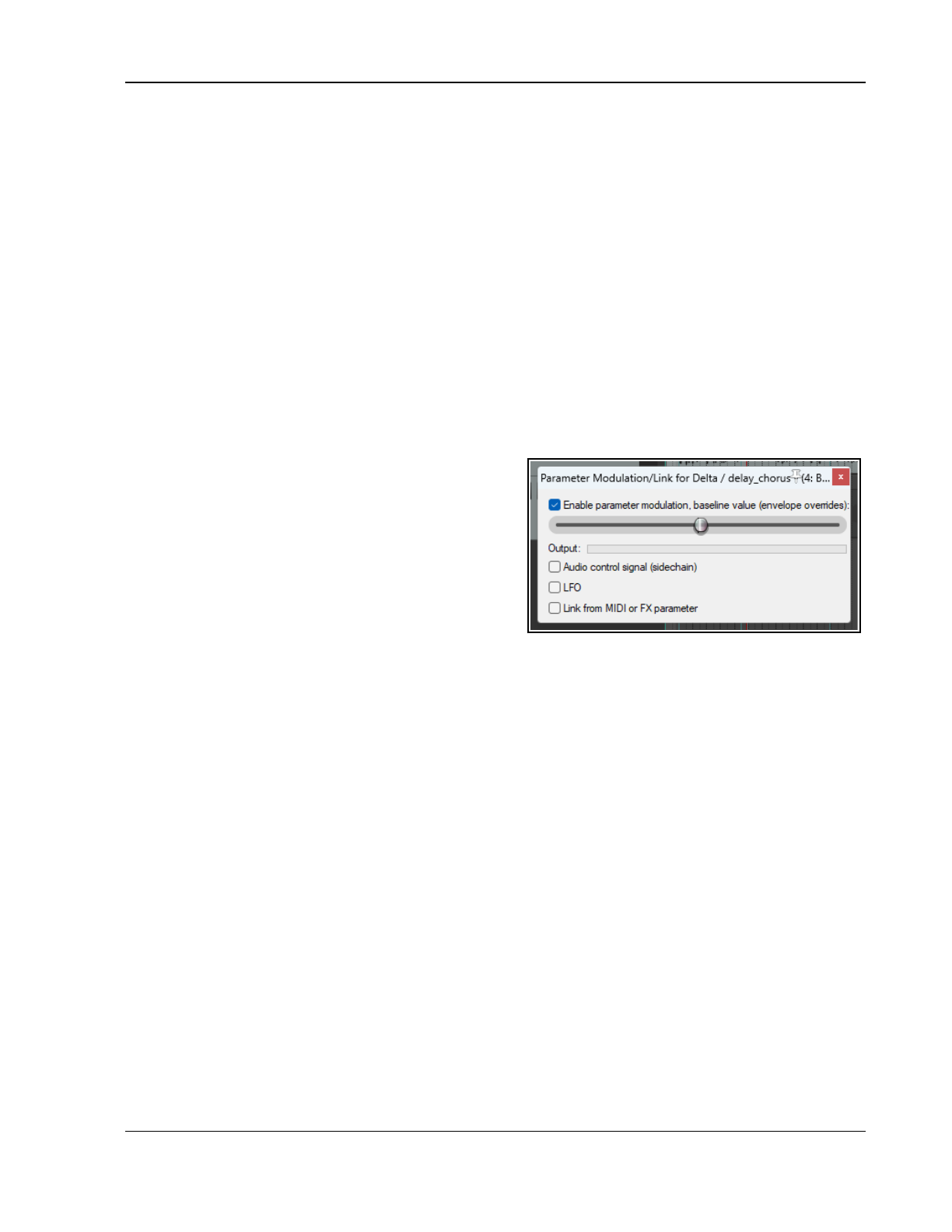
Parameter Modulation
19 Parameter Modulation
19.1 The Concept
This chapter serves as an introduction to parameter modulation. Because of the complexity of the topic it is
pitched at the relatively experienced user. Parameter modulation takes REAPER’s routing, channel splitting,
automation and sidechaining capabilities to new levels. You should probably not attempt this chapter unless you
already have a sound grasp of these concepts. If necessary, turn back to the section More Routing Examples
and work thru it again.
Parameter modulation at its simplest means using the level of a track's volume or one or more FX parameter to
control the behavior of one or more other FX parameters on the same track or on a different track or on a
number of tracks.
One relatively simple example might relate to the application of a chorus plug-in to (say) a guitar or bouzouki
track. Suppose that we wish to vary the wet level of the chorus throughout the track so that as the instrument’s
volume increases the wet/dry ratio is adjusted .
Incidentally, this particular example can create an interesting effect of space and distance on the instrument, but
that is not the main point of the exercise. Changes in an effect like chorus are relatively obvious to the human
ear. The main point of this exercise is to show you how parameter modulation is set up and used. It’s then up to
you to use and apply it in ways that you'll find will bring new life and vigor to your own mixes.
19.2 The Interface
We'll shortly look at some examples to show both how
parameter modulation works and how you go about using
it. First, here are a few basic terms and concepts.
When you select a parameter to be modulated, you will
initially see the window shown here (right). In this
example, parameter modulation is about to be applied to
control a compressor's threshold on a vocal track. This
initial window features five basic controls. These are:
● Enable parameter modulation, baseline
value. This needs to be ticked for the parameter modulation (PM) to be applied. Unticking this box sets
the PM to bypass.
● The horizontal baseline value fader. This determines the starting value of the parameter being
controlled. We'll come to an example shortly. Initially, leave this at its default setting (fully left).
● Audio control signal. Ticking this option will open a window which is used to define both which track
(or tracks) contains the audio signal that is to be used to control the parameter being modulated, and
how you want the modulation to be applied. Don't worry, we'll get to an example soon!
● LFO. This option allows you to use a low frequency oscillator signal (such as sine, square, triangle, etc.)
to generate a tone to control the parameter being modulated. This is more likely (but not exclusively) to
be used when it is a synthesizer parameter that is being modulated.
● Link from MIDI or FX parameter. This option allows you to link one FX parameter (on a track or
media item) to another. An example might be to ensure that as a track or item is compressed more
heavily, some presence is added to the EQ (to compensate for loss of dynamics). Another might be that
as the wet/dry balance on a delay effect is adjusted to add more delay, the pan position of the delayed
signal is automatically moved further out.
Linking from MIDI events will be covered separately, towards the end of this chapter.
19.3 Defining a Parameter for Modulation
Parameter modulation can be used with track FX and/or take/item FX.
Illustrated below is an example of the Parameter Modulation window with just the Enable parameter
modulation and Audio control signal options enabled. The table below that explains the main settings, what
they do and how they are used. We will then go on to work thru some examples to illustrate some of the many
ways in which parameter modulation can be used.
387
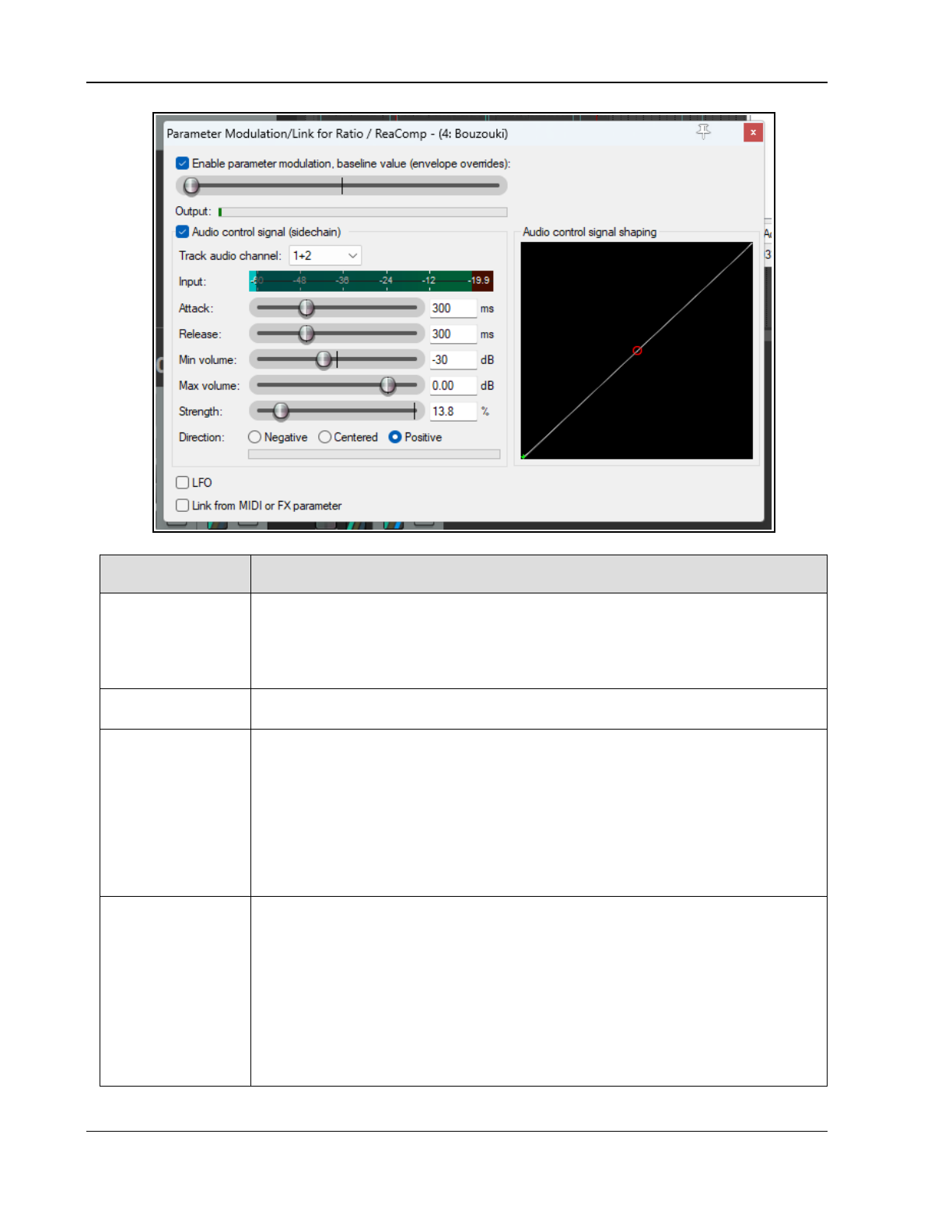
Up and Running: A REAPER User Guide v 7.81
Item Description
Enable parameter
modulation,
baseline value
with Fader
The checkbox enables/disables the parameter modulation. The fader sets a default
value for the specified parameter that is to be modified. If an automation envelope
exists for the same parameter then that envelope will determine the baseline and this
setting will be ignored.
Unticking the checkbox will disable the parameter modulation.
Audio control
signal
Enables/disables control of the parameter by the audio signal in the specified Track
audio channel.
Track audio
channel
Specifies which audio channel(s) – for example, 1/2 or 3/4 – contain the audio signal
that is going to control the parameter. The number of channels available will depend
on how many channels have been previously defined for the track.
In more straightforward applications, you will want to choose channels 1 + 2. This
will ensure that the parameter is controlled by the audio signal on its own track.
However, as you will see soon, you can choose a source other than channels 1 + 2 if
you want an FX parameter on one track controlled by the audio signal from a
different track. The latter case would be an example of sidechain parameter
modulation.
Attack and
Release
These two factors determines the speed with which changes in the level of the
incoming signal will be applied to the parameter. They work in a similar way to
Attack and Release on a compressor.
A higher attack setting causes the parameter to respond more slowly to changes in
volume in the source audio channel.
A low release speed causes the modulation to be adjusted rapidly as the volume then
falls. A higher speed will hold the modulation for a longer period before doing so.
Generally speaking, the higher the attack and the release settings the more gradual
will be the parameter modulation response. The lower these settings, the more
sensitive and immediate will be the response.
388
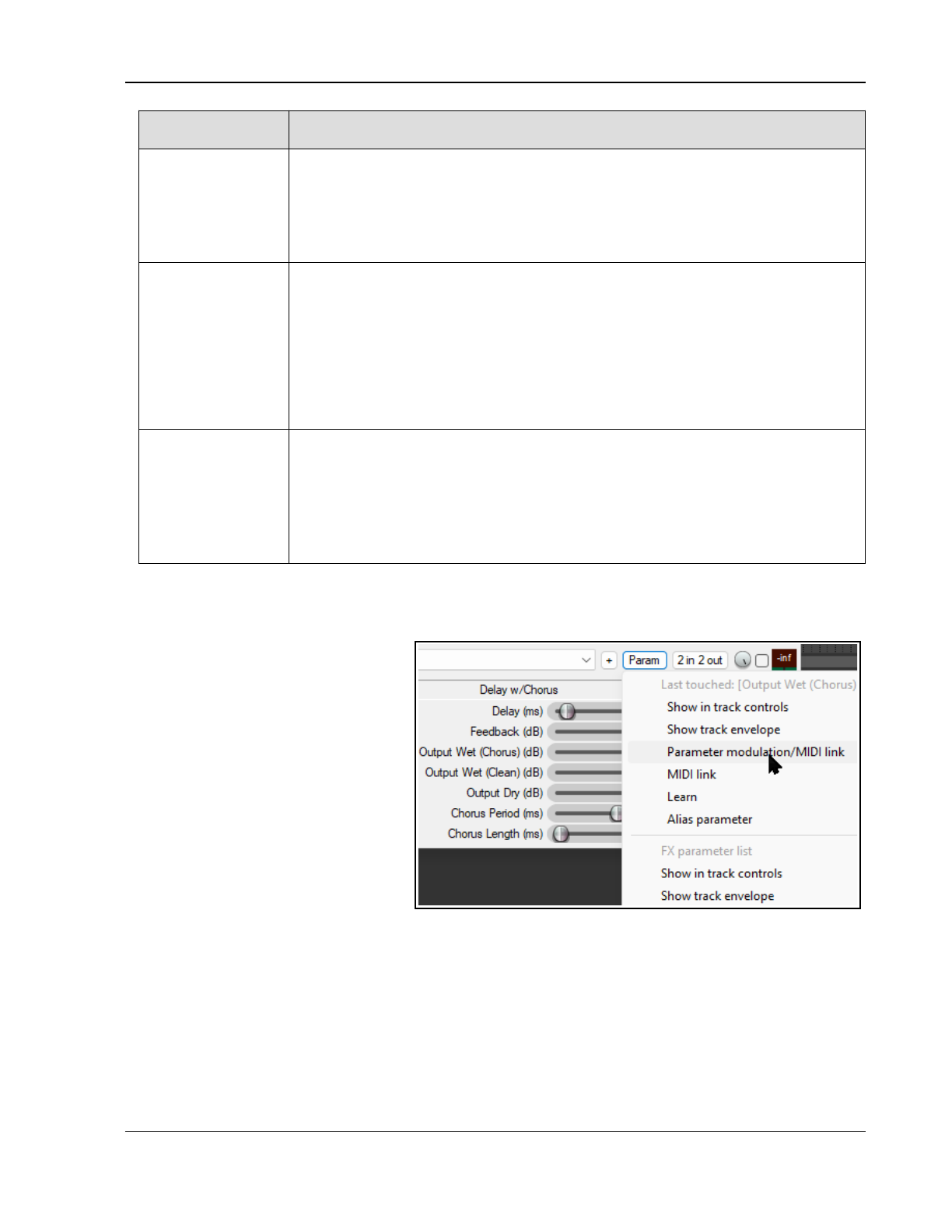
Parameter Modulation
Item Description
Min Volume and
Max Volume
These determine the range within which the signal on the track audio channel will be
used to modify the FX parameter.
For example, in the illustration shown, the parameter in question (threshold) on the
track in question (track 4, Bouzouki) will only be controlled by the audio signal on
channels 1 and 2 when its volume falls within the range - 30 dB to - 0.0 dB. If or
when the signal is outside this range parameter modulation is not applied.
Strength and
Direction
These determine the nature and the intensity of the relationship between the
incoming audio signal and the parameter being controlled. For example, set to 100%
positive as the incoming audio signal increases or decreases, then the parameter
being controlled will also increase or decrease to the same degree. At 50%, the
relationship will still be positive, but more moderate.
Likewise, a setting of 100% negative means that as the incoming audio signal
increases, the parameter being controlled will decrease in the same proportion, and
vice versa. At 50%, the relationship will still be negative, but more moderate. At 0%,
the effect will be completely neutral.
Audio Control
Shaping Signal
Graph
This graphical control helps shape the behavior of the parameter being modified.
For example, if the direction is set to positive, then pulling the small red handle (in
the centre of the diagonal line) on the graph fully to the bottom right corner will
result in the effect of the modification being more modest.
On the other hand, pulling the small red handle (in the centre of the diagonal line) on
the graph fully to the top left corner will result in greater increases in the value of the
parameter being modified.
19.4 Defining a Parameter for Modification
To select an FX parameter to be modified, follow either of these sequences:
1. Open the track or item plug-in’s
FX window.
2. With the mouse, click on the
control for the parameter that
you wish to modulate.
3. Click on the Param button in the
plug-in window, then choose
Parameter modulation/MIDI
link from the menu that is then
displayed (as shown here).
Or:
1. Display the track’s
Envelopes/Automation
window (Trim button) and click
on the + for any plug-in to
display the list of its controls.
2. Click in the Mod column for any parameter that you wish to have modified by an audio signal. You will
then see a small check box next to the Mod text for that item in the Envelopes window .
3. Close the Envelopes/Automation window.
Notice (right) that the name of the last touched parameter – the one to which parameter modulation will be
applied – is shown dimmed at the top of the Param button menu.
389
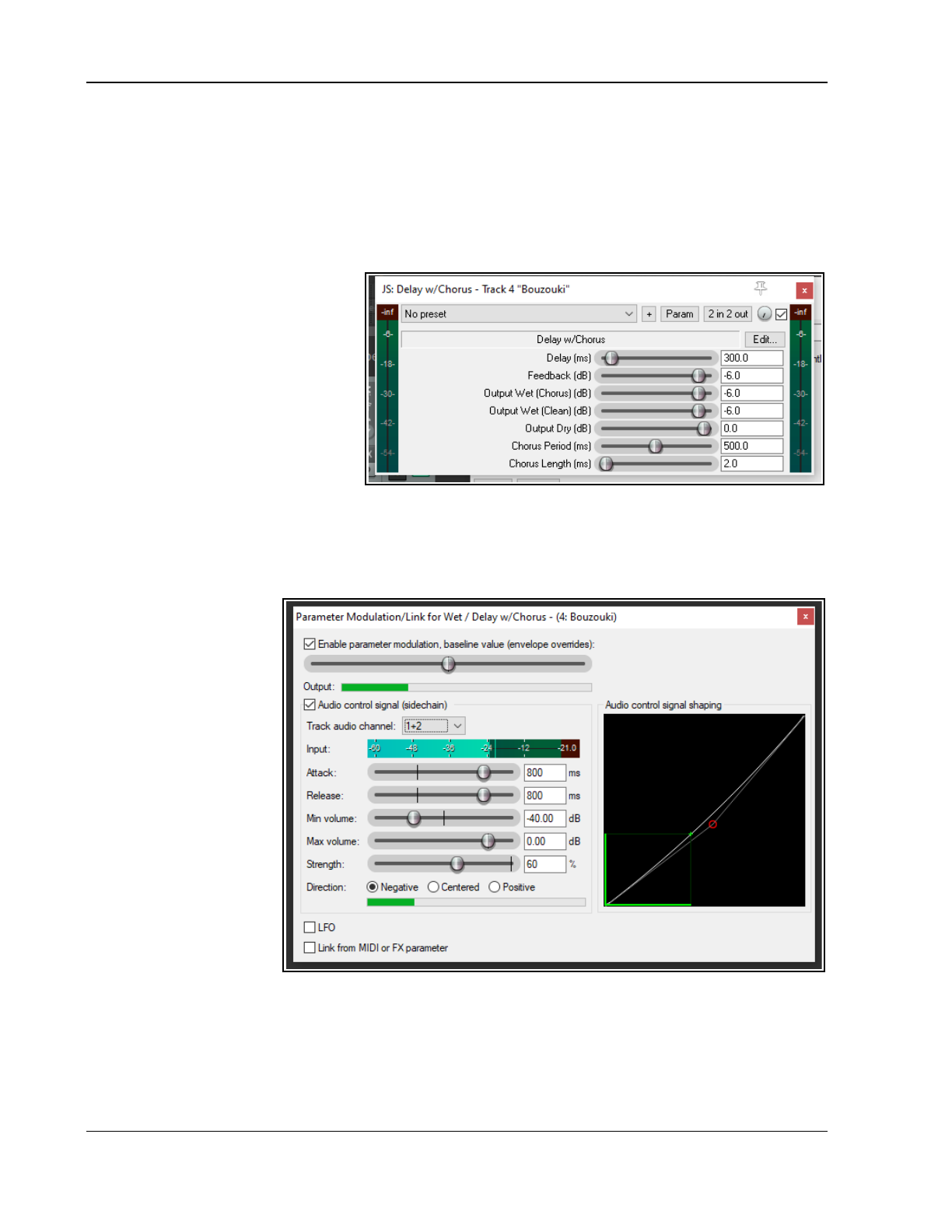
Up and Running: A REAPER User Guide v 7.81
19.5 Parameter Modulation with Audio Control
In this first example, we will insert a plug-in such as chorus into a track’s FX chain, then use that track’s audio
signal to control the way that plug-in behaves.
Example
1. Open the file All Through The Night and save it as All Through The Night MOD1.
2. Adjust track faders to get a reasonable mix. This could be Volume at -0.5 dB, center, Guitar Body at 0 dB,
55% left, Guitar Neck at 0 dB, 63% right, and Bouzouki at -4 dB, 15% left.
3. Solo the Bouzouki track. For
this example, this is the only
track that will be needed.
4. Insert the JS: Delay/
delay_chorus plug-in into this
track’s FX chain. Set the various
parameters as shown here.
5. Click once on the Wet/Dry mix
( rotary in this plug-in. Notice
that currently this is set at 0.0.
6. Click on the Param button, then
choose Parameter
Modulation/MIDI link from
the menu. This will open a parameter modulation window for the output wet parameter. Enable the option
Audio control signal and select as the Track audio channels 1 + 2. Play the track.
7. The wet rotary on the plug-in was initially at 100%, as shown here. However, as you adjust the baseline
fader (in the PM window) while the track is playing, the wet value in the Chorus window (shown to the
immediate right of the 2 in 2 out button) is also adjusted. Leave it with a wet mix level of about 50%.
8. Set the various items
in the Parameter
Modulation
window as shown
here and play the
track. You should
notice the wet mix
element of the
chorus being faded
down for louder
notes and passages
and up for quieter
notes and passages.
9. Now experiment!
You should find that:
Moving the
Attack and
Release
faders left will
result in the
wet mix chorus
fader
movements becoming more jerky. Moving them right should make them smoother.
Moving the Strength fader (negative) to the right will cause the wet mix chorus fader to be faded
down for louder notes and down up quieter ones. Selecting positive reverses this.
Moving the Min Volume fader left will lower the threshold at which the parameter modulation is
applied. Moving it right will raise the threshold.
10. When you have finished experimenting, adjust the settings to those shown here.
390
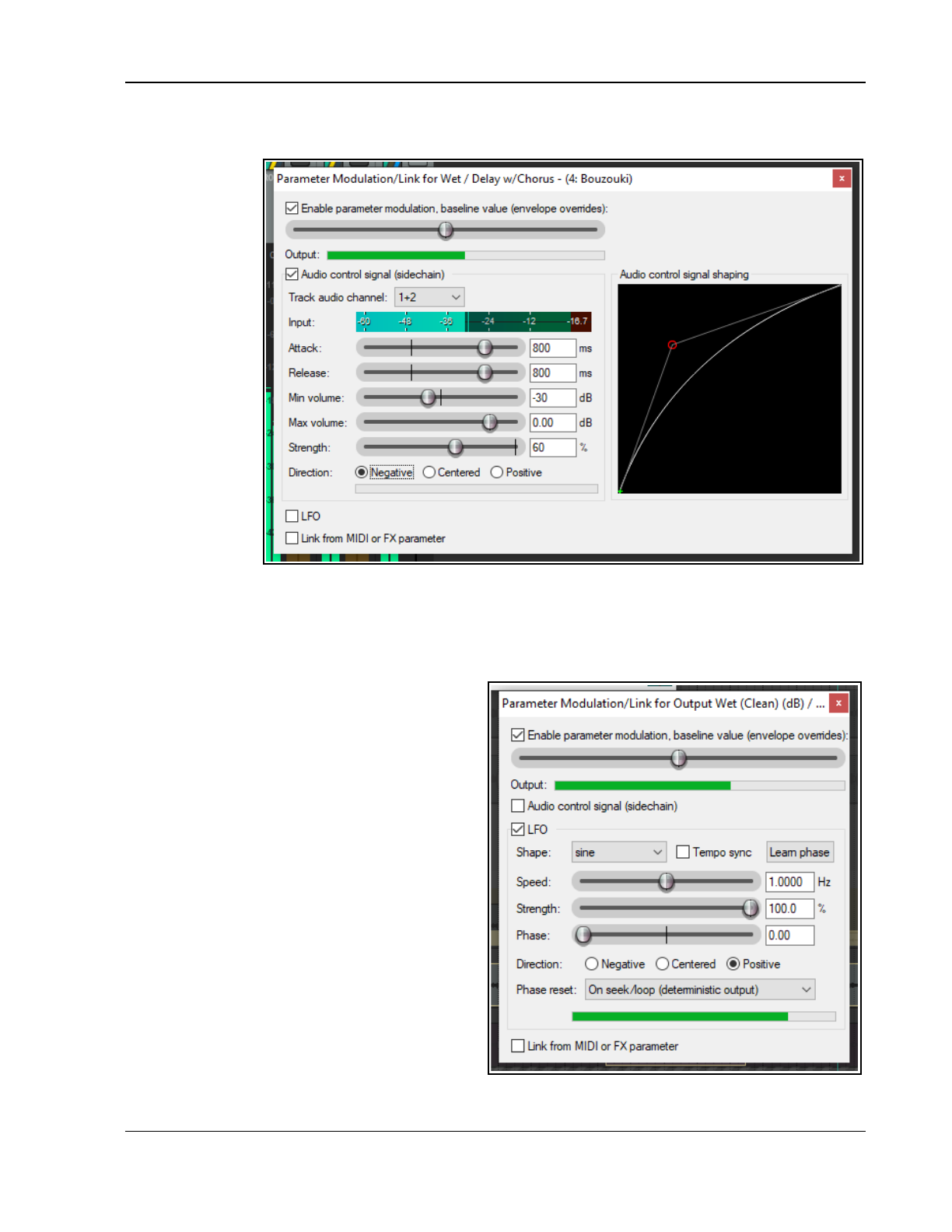
Parameter Modulation
11. This instrument becomes louder as the song progresses. Play it, with the Bouzouki unsoloed. By the end,
there is less chorus being applied to the bouzouki.
12. Now play the
song again.
Drag hold of
the handle on
the graph,
and use your
mouse to
drag it to the
lower right
position.
Notice that
the
movements of
the wet mix
fader now
become more
modest.
13. Now drag
hold of the
handle on the
graph, and
use your
mouse to
drag it towards the top left corner of the graph (as shown here). Notice that the movements of the wet mix
rotary now become sharper and the wet mix level reaches lower values.
14. Restore the graph to its earlier position (shown at step 10) when you have finished. Save the file.
19.6 Using an LFO Shape with Parameter Modulation
Now let's have some fun and use a low frequency
oscillator to further modify the way parameter
modulation is applied. Try disabling the audio
control and turning on the LFO option. Start with
some fairly conservative settings as shown below.
Selecting the Tempo Sync option should help
make for a fairly safe outcome!
The Speed setting controls the signal repeat rate.
Strength determines how much of the LFO signal
is applied.
You can also adjust the default Phase setting.
As in the previous examples, direction can be
negative, centered or positive.
Notice also the Learn phase button: this can be
used to assign control to a MIDI or OSC device.
Compare how the track now sounds with PM
enabled and disabled. If you are familiar with
working with low frequency oscillators, you might
wish to be a little more adventurous. Otherwise,
just save the file as All Through The Night
MOD1 LFO.
391
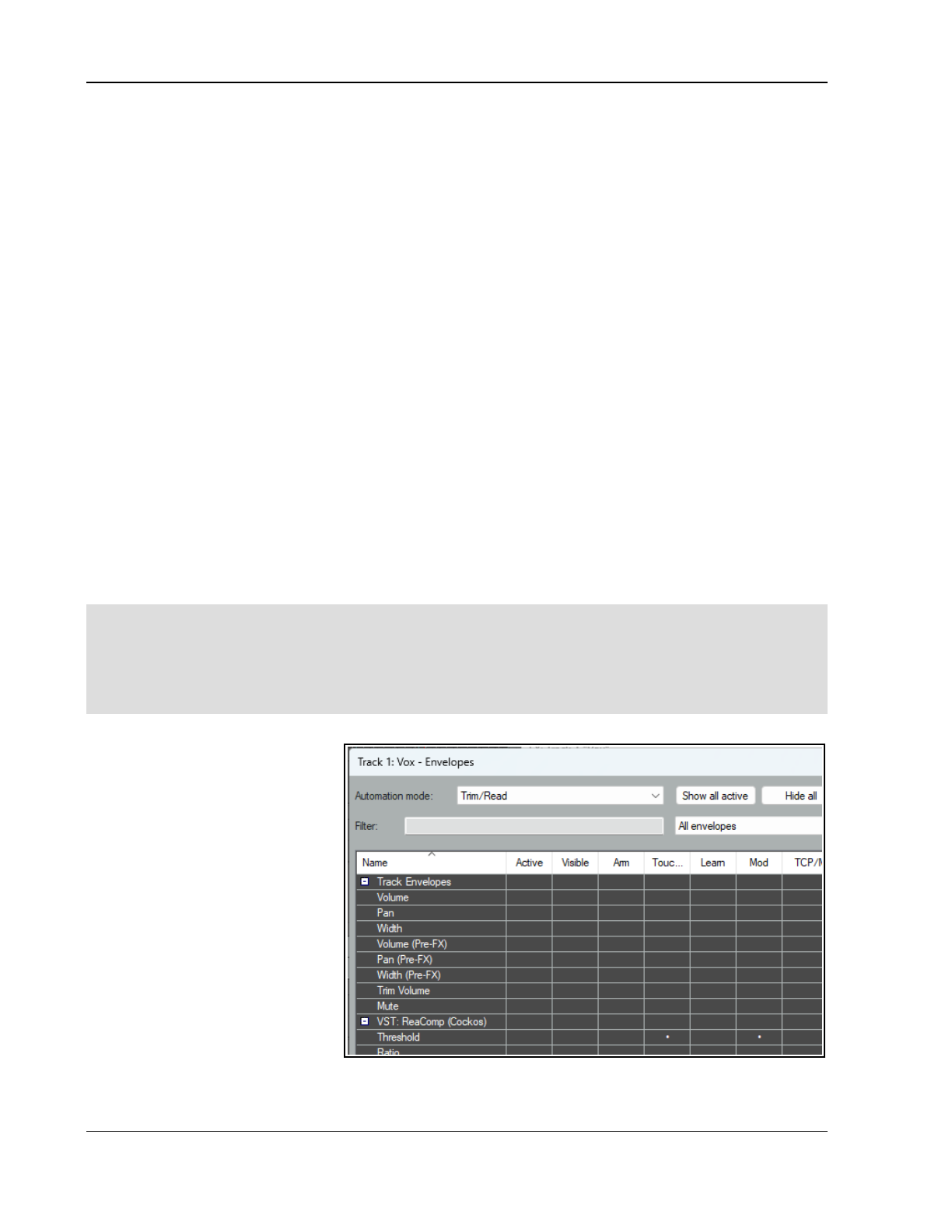
Up and Running: A REAPER User Guide v 7.81
19.7 Using Parameter Modulation for Dynamic Compression
In this next example, you will use parameter modulation to dynamically adjust the settings to compress a vocal
track in such a way that the threshold will automatically be adjusted during the louder passages. This gives you a
more precise control over the compressor’s operation than would otherwise be possible.
Example
1. Open the file All Through The Night MOD1 and save it as All Through The Night MOD1A.
2. Pan the Vocal track to the center and set its volume at about- 0.5 dB
3. Insert an instance of ReaComp into the FX Chain for the Vox track.
4. Set the Threshold to about –24 and the Ratio somewhere around 4:1. Set Knee size to around 15dB.
Set the Wet gain to about +1.6dB.
5. As you play the song, adjust the settings to suit.
6. As you play the track you might feel that the compression at times sounds about right but at other times is
being applied too heavily. This is where we can use the track’s own volume level to control its parameters.
In this example, we will do this with the threshold only, but it could also be done with the ratio if you
wished to.
7. Click once on the Threshold fader.
8. Click the Param button for this plug-in.
9. From the menu, then choose Parameter modulation/MIDI link then Audio control.
10. Study the suggested settings shown in the screenshot below and adjust your settings accordingly as you
play the song. Refer to the comments below.
11. Notice in particular how the attack and release setting levels, the shape of the curve and the volume
settings all help prevent the threshold from being adjusted too radically.
12. Save and close the file when finished.
Note: By setting the Min Volume in the PM window to the same level as the Threshold in the ReaComp window
we can ensure that the PM is only applied when the vocal is at its loudest. The Strength setting of 33%ensures
that for every 3 decibels by which the volume exceeds the min volume, the threshold will be lifted by about 1 dB.
Note: When you are using Parameter Modulation you should be prepared to tweak the various parameters
carefully. Sometimes even the slightest change to a parameter value can significantly change the result. If at first
you do not seem to get any result, experiment especially with adjusting the baseline value setting.
19.8 Bypass Mode
Whenever you create parameter
modulation for a parameter, this is
indicated in the Envelopes/
Automation window. Here you can
enable any of your parameter
modulations, or set them to bypass
mode (in which case they are
ignored). Otherwise you can do this
from inside the Parameter
Modulation window itself.
In the example here, PM settings
exist for the Threshold.
Also, note that clicking in the Mod
column where parameter modulation
already exists will cause that window
to be opened (even if it is currently
disabled) for you to view and/or edit
the settings.
392
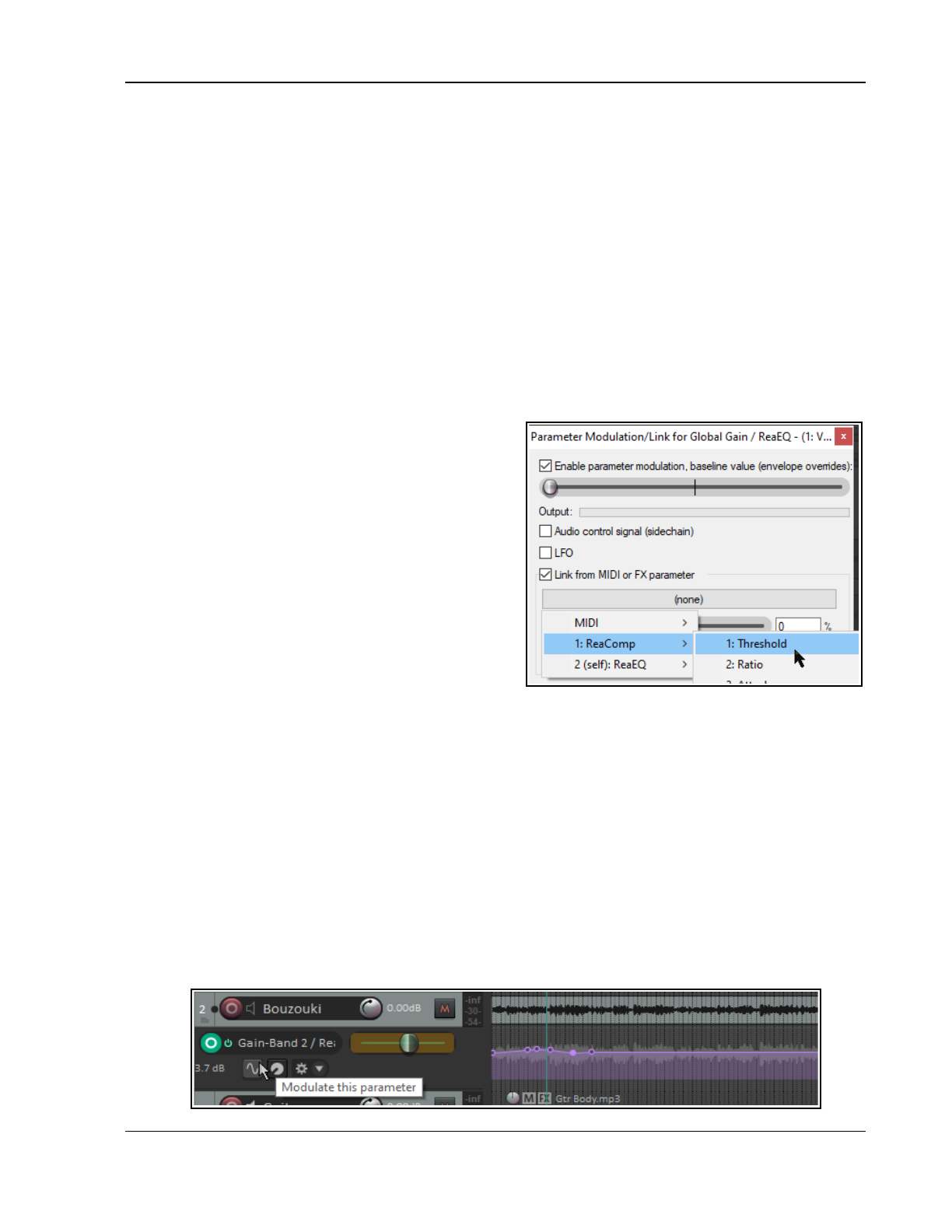
Parameter Modulation
19.9 Parameter Modulation Under Parameter Control
By linking parameters you can use dynamic changes in one FX parameter to directly control another. In this next
example you will do just this, linking a track's EQ gain with its compressor threshold, so that whenever the
compression threshold is raised a little more warmth is automatically added to the track.
1. Open the file All Through the Night MOD1A and save it as All Through the Night MOD1B.
2. In the vocal FX chain, add an instance of ReaEQ (after ReaComp). Select Band 2. Set the Frequency to
about 180 Hz, the bandwidth to about 2.00 octave and the Gain to 0.0 dB.
3. With the ReaEQ window open, click on the Band 2 Gain control, then the Param button, then Parameter
modulation/MIDI link to open the Parameter Modulation window. Select the option Link from MIDI
or FX parameter.
4. Click on the large button below the Link from MIDI or FX parameter option and choose ReaComp
then Thresh (as shown here).
5. Before playing the song, adjust the baseline value fader to restore the Gain on Band 2 in ReaEQ to 0 dB.
6. Set the Offset fader to 10% and the Scale to +100% (see notes below).
7. Play the song and save the file.
The two controls Offset and Scale control the extent to
which the controlling parameter (in this example the
compressor's threshold) modifies the controlled parameter
(in this case the EQ band gain).
The Offset fader increase (to the right) or decreases (to
the left) by a specified percentage the value of the
parameter being modified. The Scale fader ranges from -
100% to +100%. At -100% the relationship between the
controlling parameter (threshold) and the controlled
parameter (EQ band 2 gain) will be 100% negative: the EQ
gain will be lowered exactly as the threshold is raised. At
+100% the opposite will occur.
If you just want to control the whole range of the target
parameter then just set the Baseline [B] slider to the left
(0%), Offset [O] to 0% and Scale [S] to 100%.
To control part of the target parameter's range, first work
out what that part is in % terms. For example, consider an EQ gain band with a range of -24 dB to +24 dB and
you wish to control the value between -12dB and +12dB. The percentage range will be from 25% to 75%.
Be sure that you can see the target parameter on the FX's GUI and the Parameter Modulation window: set the
Scale [S] value temporarily to 0%. Drag the Baseline [B] slider 25% to the right until the target parameter
changes to -12dB. Set the Scale to 50% (that is 75% - 25%). That's it. There is no need to adjust the Offset.
In fact, you won't need the Offset often. It can be used to slide the range up or down. Please note that the
actual change is determined by the Offset % multiplied by the Scale %. Let's look at [B] = 50%, [O] = 0% and
[S] = 25%, this results in a range of 50% to 75%. If we now set [O] to -40% the range changes to 40% to 65%
the change is [O] x [S], that is -40% X 25% = -10%).
19.10 Using Parameter Modulation with an Envelope
When you have an automation envelope enabled for a parameter being modulated, then the baseline value will
be determined by that envelope rather than by the baseline value fader in the parameter modulation window.
When this happens, the baseline value that is actually applied will itself vary (according to the envelope)
throughout the song. This can produce some interesting results.
393
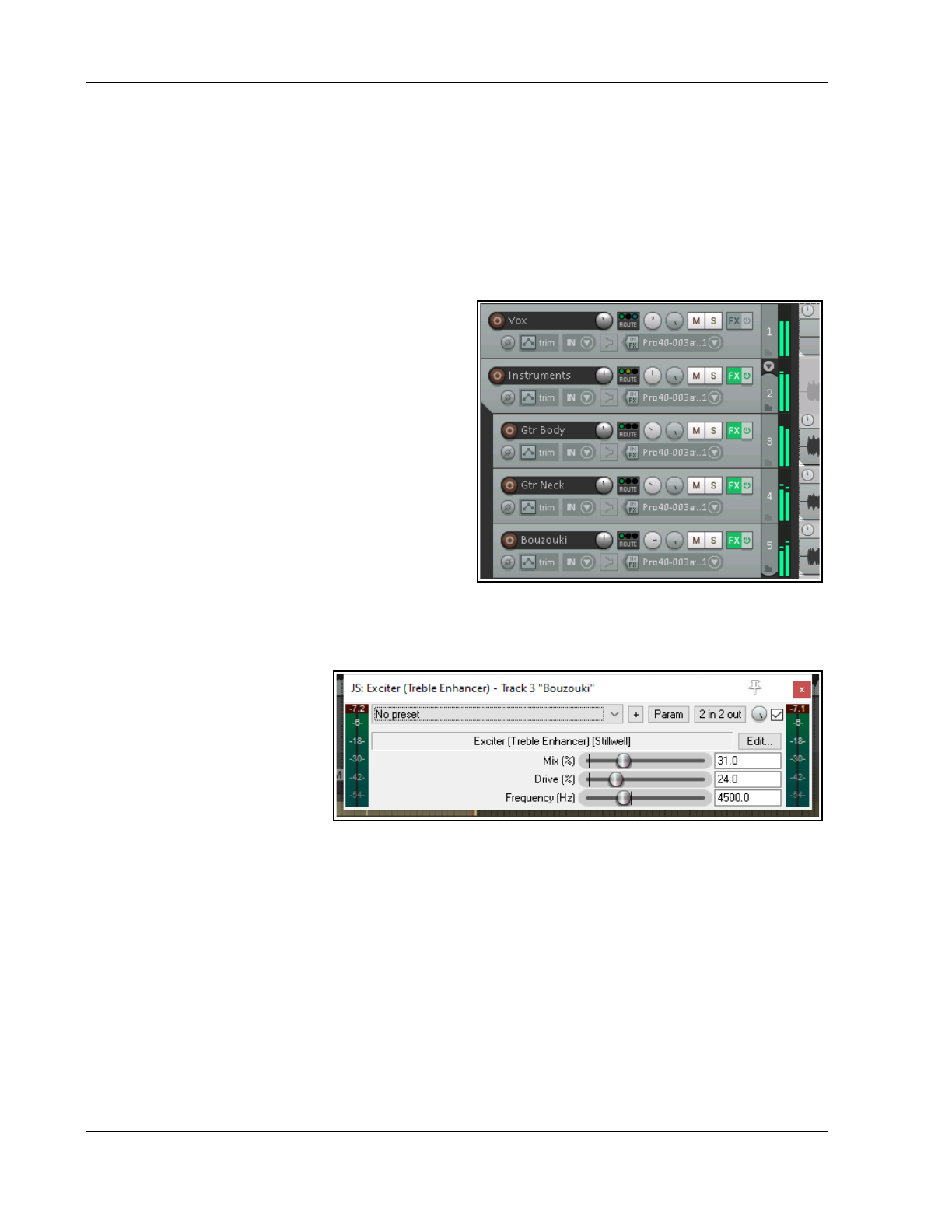
Up and Running: A REAPER User Guide v 7.81
Here we have added an envelope to control the Band 2 EQ Gain setting of ReaEQ. By clicking the Modulate
button in the envelope lane we are able to open the Parameter Modulation window and take the necessary steps
to ensure that the EQ gain will respond automatically to changes in the strength of the audio signal on this track.
In this example, when the envelope is lowered just after the current position of the play cursor, the baseline
value of the parameter being modulated will also be lowered.
19.11 Parameter Modulation under Sidechain Audio Control
This next example introduces another application for Parameter Modulation. In this case, we will use the audio
signal from one track (a vocal track) to shape the sound of an instrument submix (that is, a folder track
containing several instruments). This will be done in such a way as to cause the instruments to appear to pull
back slightly during the vocal passages.
Example
1. Open the file All Through The Night MOD1
and save it as All Through The Night MOD2.
2. Remove or set to bypass the delay plug-in in the
Bouzouki track's FX chain.
3. Insert a new track after the vocal track. Name
this track Instruments and make it into a
folder. Insert the three instrument tracks into this
folder, as shown on the right.
4. Add an i7nstance of ReaComp to the Bouzouki
track. This is needed because the volume of this
instrument increases significantly as the song
progresses. We wish to pull this back a little.
5. Set a threshold of around –15dB and a ratio of
around 4:1.
6. Select the Instruments folder and display its routing window. Set the number of track channels to 4 and
add a receive from channels 1/2 of the Vox track to channels 3/4 of the Instruments folder.
7. Open the FX Window for the Instruments folder and add an instance of JS: Exciter (Treble enhancer).
This will be used to
brighten up the instrument
a little.
8. Settings similar to those
shown here will definitely
brighten the instruments,
perhaps more than you
would like. For the sake of
this exercise, however,
these levels should be fine.
9. We are now going to use parameter modulation to ensure that audio signal from the vocal track drives
down the mix level of the exciter. This will have the effect of helping the vocal to just float over the
instruments a little.
10. Click on the Mix % (Wet/Dry rotary) control, then on the Param button and choose Parameter
modulation/MIDI link from the menu.
11. When the PM window is opened, enable parameter modulation and choose Audio control signal
(sidechain). Move the baseline value fader about a third of the way to the right.
12. Select Track audio channels 3/4 and make the direction Negative.
13. Adjust the other parameters so that as the vocal floats above the instruments the Mix % of the Exciter is
smoothly and gently faded down.
14. One possible solution to this exercise is shown below. But don't just dive straight in and copy these
settings. Try to get there by yourself!
15. Save the file when you are finished.
394
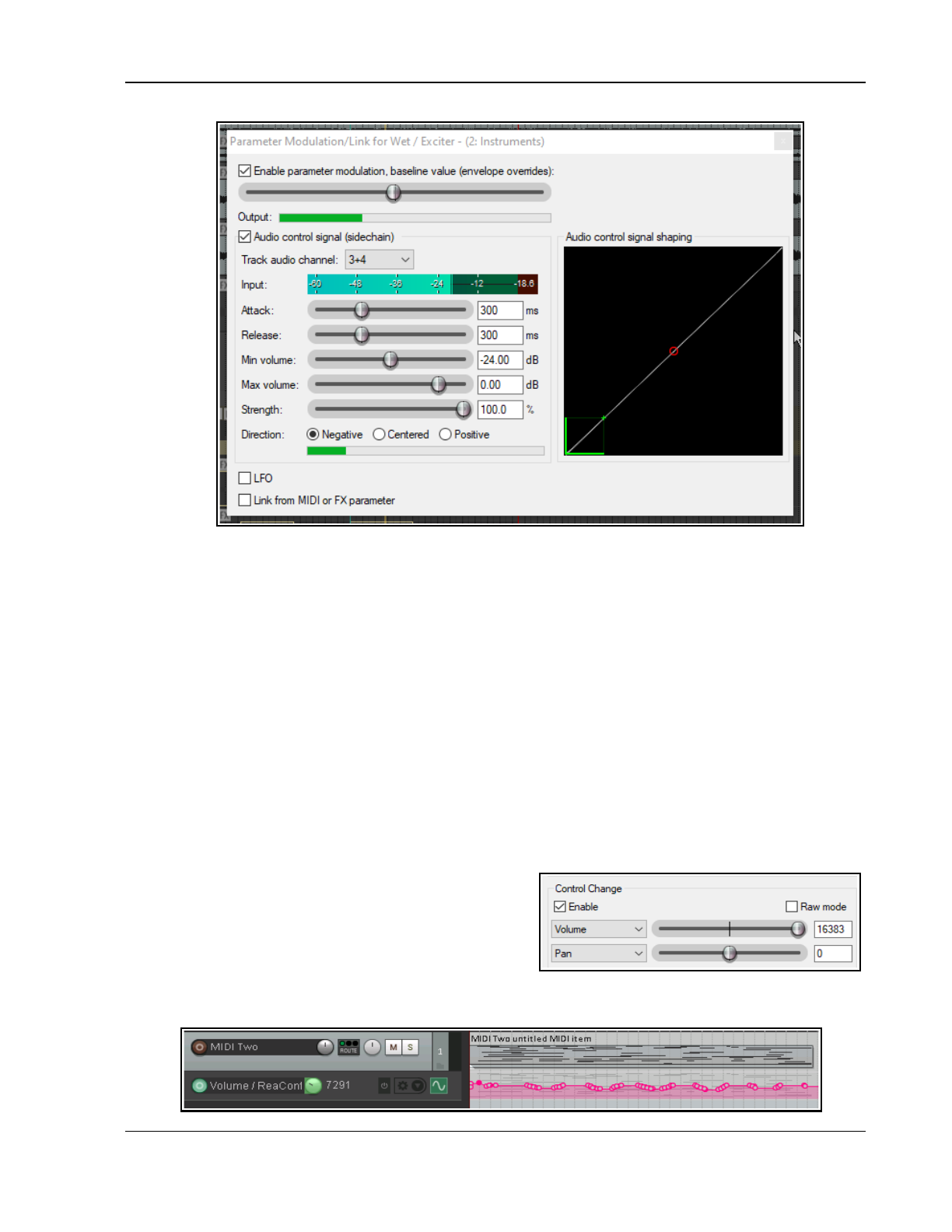
Parameter Modulation
19.12 Using MIDI Links for Parameter Modulation
You can also use MIDI data to control parameter modulation. For example:
● From a ReaControlMIDI parameter, live or recorded as an automation envelope.
● From data/events entered or recorded in a MIDI editor CC lane.
For example, you could use an automation envelope to record changes in ReaControlMIDI's volume parameter,
then use that envelope to control another FX parameter, such as the ratio setting on a compressor. Another
example might be to use a MIDI Editor CC lane to record changes in an instrument's pan position, then adjust
the wet/dry mix of an effect such as delay, so as to vary the delay length according to the pan position.
We'll start by looking at these two examples, then you can freely explore any of the many possibilities that are
available. For the sake of simplicity, both these examples use DSK Virtuoso. This synth is freeware and very easy
to use. If you wish to replicate this example, you can use any synth that you choose.
Example 1: Controlling ReaComp from ReaControlMIDI
1. Create a new project file, add a single track Insert in the track's FX chain first ReaControlMIDI, then a
synth of your choice.
2. In arrange view, insert a new MIDI item about 30 seconds long, open the MIDI editor and compose a
simple tune. Don't worry about the musicality – just enter enough notes to produce a simple sound.
3. Make whatever changes you wish to the synth
parameters, to produce a reasonable sound.
4. Open ReaControlMIDI. Make sure the Control Change
section is enabled.
5. Click on the volume control (to make it the last
touched item), then click on the Param button (top of
dialog box) and choose Show track envelope.
6. Either record or by manual editing (as you prefer) create an envelope
similar
to that shown below:
395
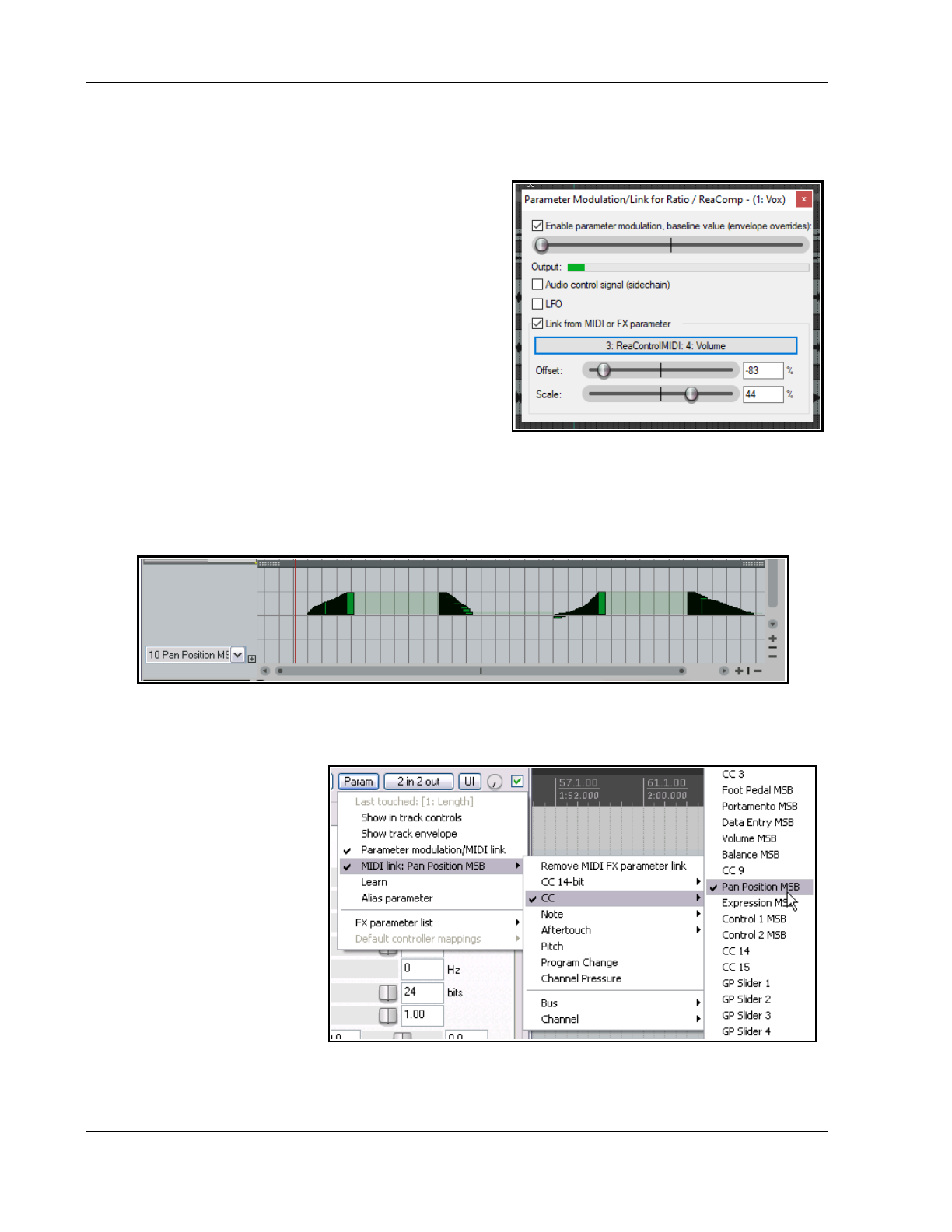
Up and Running: A REAPER User Guide v 7.81
7. At the end of the FX chain, add an instance of ReaComp.
8. Play the track. Set ratio to about 4:1 and adjust the threshold to engage the compressor during the louder
passages. Return the cursor to the start of the track.
9. Click on the ratio control, then on the Param button.
From the menu, choose Parameter
modulation/MIDI link.
10. Select Link from MIDI or FX parameter. Click on the
button and from the available options choose
ReaControlMIDI then Volume.
11. The two controls, Offset and Scale have the same
purpose as in the examples earlier in this chapter.
Carefully adjust the offset control to return the ratio
setting on ReaComp to about 4:1.
12. Play the track. Adjust the scale control so as to achieve
a gentle movement of the ratio control as the music
grows louder and quieter.
13. Save the file as PMMIDI. Do not close it.
Example 2: Controlling ReaDelay direct from a MIDI CC lane
You could create this example as a separate project or, as we are going to do here, add it to the existing file
PMMIDI.
14. Open your MIDI item in the MIDI editor. Add a CC lane for Pan Position MSB and draw in the necessary
events to pan out to the right then back to the center twice or more, as shown here.
15. In the FX chain, insert ReaDelay just before ReaComp. Set length (time) and length (musical) both to 0.0.
Set Feedback to about -50.0 dB.
16. Click on the Length (time) control to touch it, then on the Param button, then MIDI link, then CC, then
Pan Position MSB.
17. The Parameter Modulation/
Link dialog will be opened.
Click on the large button,
then select MIDI then CC
then Pan position MSB.
18. Adjust the Offset and
Scale settings so as to get
a smooth increase and
decrease in the delay length
as the pan moves out to the
right and back (while the
song is played).
19. Save the file!
396
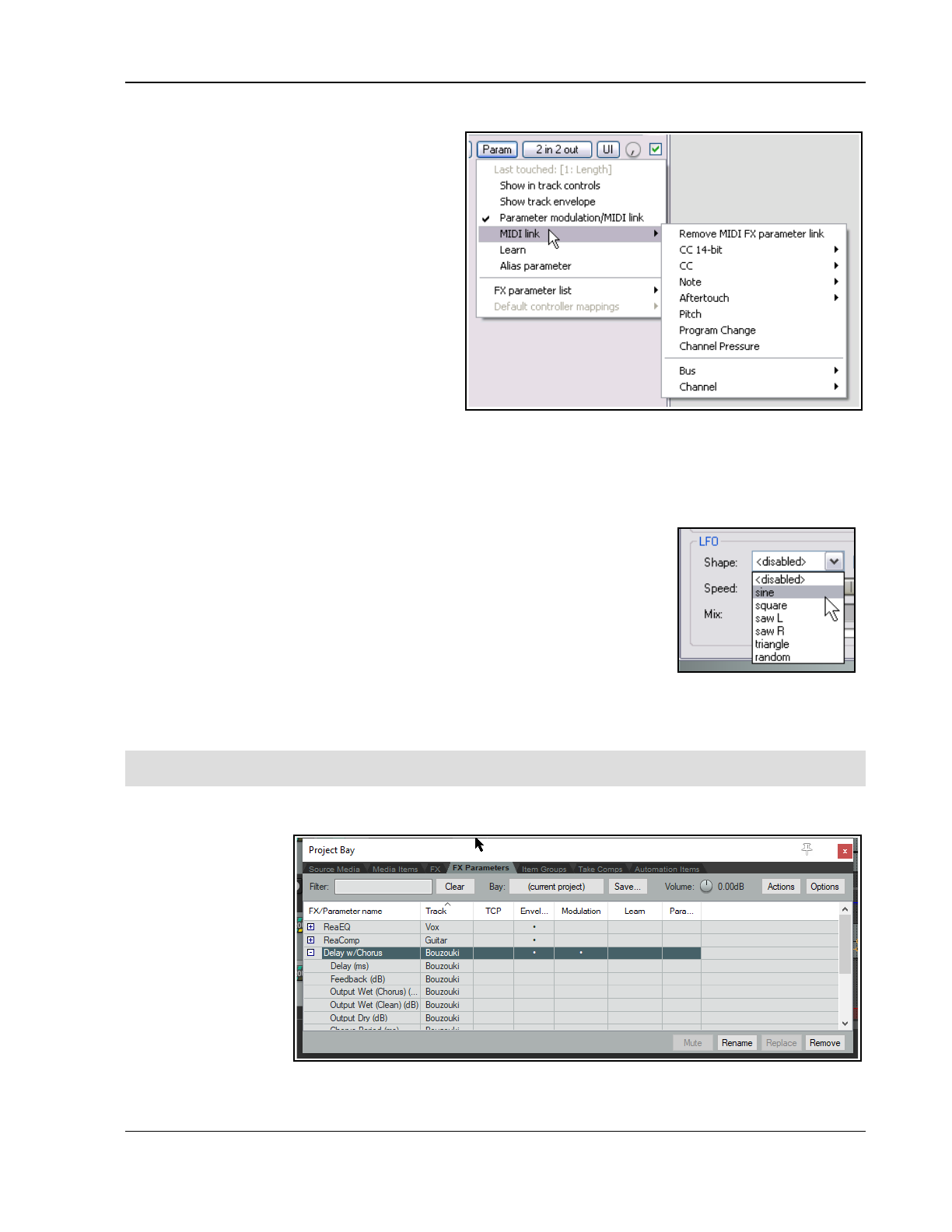
Parameter Modulation
More about MIDI links
In our two examples, we have built our MIDI
links using in one case ReaControlMIDI data, in
the other case Midi Editor CC lane events. Let's
look at some of the other possibilities.
You would have seen this menu when you were
creating your links in the earlier examples:
You can link from any of the event types shown
on the right.
For CC 14-bit or CC, use the sub menu to specify
the event type (this could be any MIDI editor CC
lane).
For note or aftertouch, you can select any note.
Other options are pitch, program change or
channel pressure.
You can also specify that the parameter
modulation is only to be applied to a specified bus or channel.
19.13 Further Applications
This chapter has introduced you to a few basic examples to show what REAPER’s parameter modulation is and
how it can be used. Here are some other points to keep in mind:
With parameter modulation, the signal from any track can be used to
control parameters on any other. For example, the signal from an audio
track can be used to control parameters on a synthesizer, and a
synthesizer’s output can be used to control signals on an audio track.
If you are familiar with working with synthesizers and low frequency
oscillators you may have developed an understanding of different types
of waveforms such as sine, square and triangle. You can use these LFO
shapes in your parameter modulation. The opportunities here can take
you well beyond the introductory example used earlier in this section.
Other applications for parameter modulation are limited only by your needs, your creativity and your
imagination. For example, with this technique you are able to use the audio signal from one track (or
group of tracks) to control specific parameters on a noise gate on another track (or tracks).
Tip: Your parameter modulation windows and their settings will automatically be saved with any FX chains and/
or track templates that you create.
19.14 Managing FX Parameters in the Project Bay
In Chapter 12 you were
introduced to the
Project Bay, including
the FX Bay which can
be used to help you
manage and organize
your various track, item
and master FX.
The Project Bay also
includes a FX
Parameters Bay
whose purpose is to
assist you in managing
the various FX
parameter features discussed in this chapter (and elsewhere). From this single interface you can manage track
397
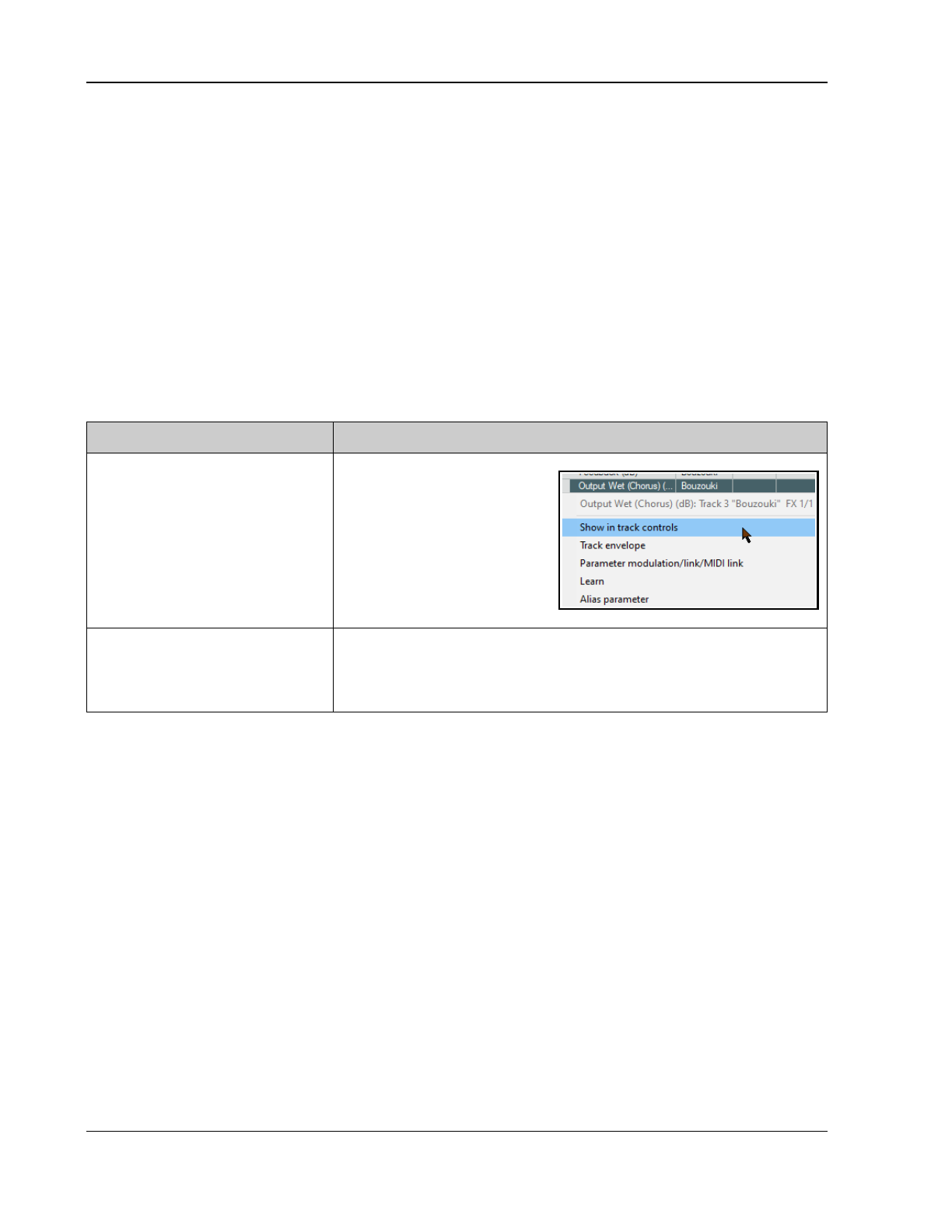
Up and Running: A REAPER User Guide v 7.81
controls, envelopes, parameter modulation and control surface assignment for all parameters for all active track,
item take and master track FX.
The FX Parameters tab is located next to the FX tab of the Project Bay, displayed by the View, Project Media/
FX command, and shown right. This bay supports the standard project bay features explained in Chapter 12,
including (where appropriate) the various commands on the Action and Options button, and from right-click
context menus. Here we will focus solely on those aspects that are specific to FX Parameter management.
Whenever any of these features is added to any FX parameter (e.g. from the individual FX window, or from the
FX bay), it will automatically be added to the FX Parameters Bay display. In the above example, Band 2 gain on
ReaEQ on track 1 uses parameter modulation: this is shown in the Mod column, which also indicates that they
are under the control of audio control signals (ACS). The Details column tells us that another parameter on this
plug-in, Band 4 gain, is linked to Band 2 gain. The Envelope column shows that two parameters from ReaDelay
on track 5 have armed and active automation envelopes. Two parameters from ReaComp on track 2 have had
their controls added to the track control panel (or TCP, as indicated by the dots in this column), and one
parameter from a Guitar/chorus plug-in (Track 3) has both a track control and an armed envelope. No parameter
is shown in the Learn column as being under control surface control.
The table below summarises how you the Parameter FX Bay can be used.
In order to do this … You do this ...
Manage or modify an existing
parameter's settings
Right-click on the FX name and
make your choice from the
menu. For track FX, these are
Show in track controls, add
a track envelope, parameter
modulation and learn (to
assign to a control surface).
For item/take FX, the options
are track envelope and learn.
Manage or modify a different
parameter on the same or
another FX
Click on the + sign next to the plug-in name and select a parameter.
Right click over it and choose an option (show in track controls, track
envelope, parameter modulation or learn) from the sub-menu, then
complete the required PM settings.
398
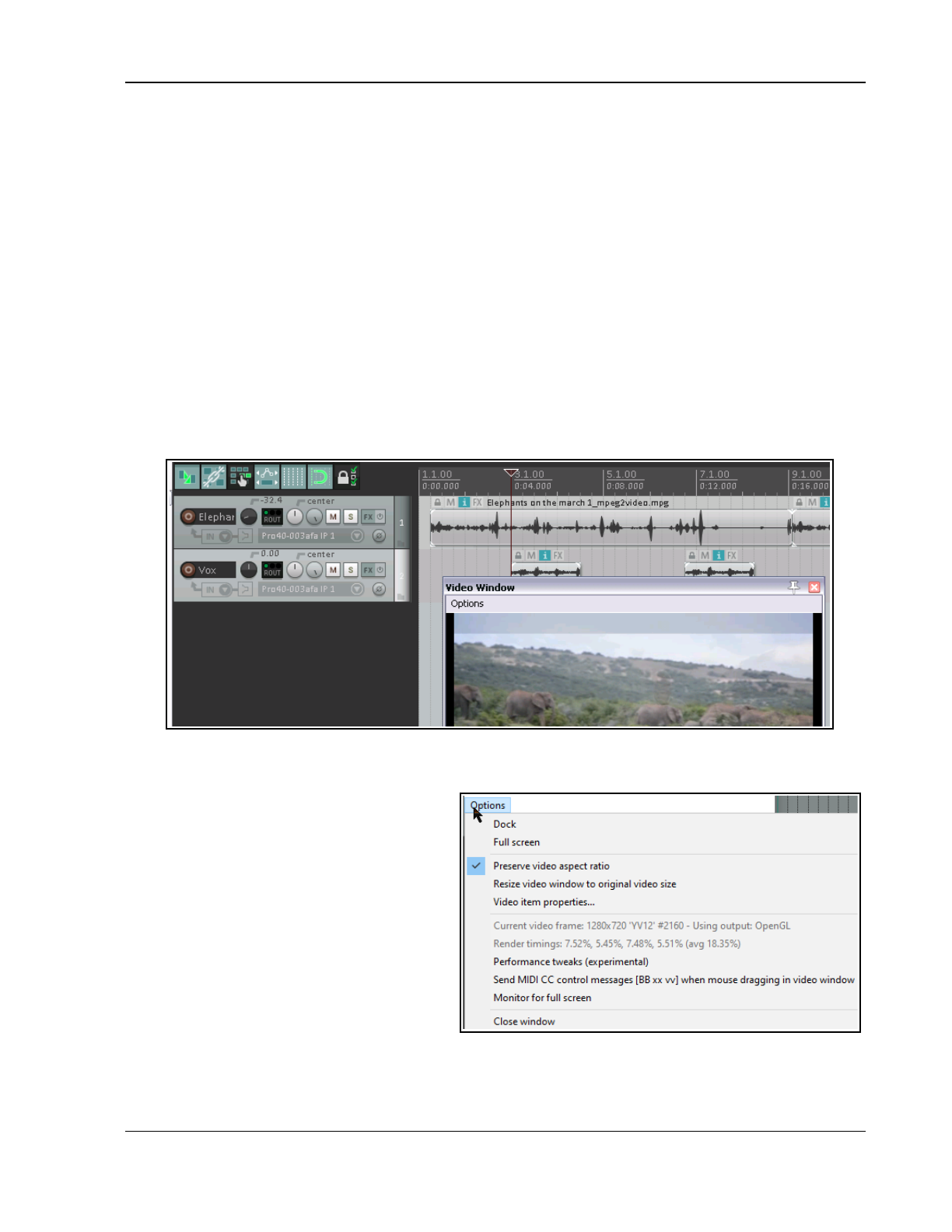
Using REAPER with Video
20 Using REAPER with Video
With the introduction of version 5.0, REAPER's video capabilities have been considerably enhanced and
expanded. In overview, you can:
● Carry out simple editing tasks like deleting, moving or copying parts of a video.
● Edit an existing video soundtrack.
● Add new sound to a video.
● Add various visual effects to a video track, such as fading and lighting.
● Edit or blend the contents of several video files into one, optionally using effects such as crossfade.
● Use automation envelopes to manage your video effects.
● Render the output of your project into a new video file.
Throughout this chapter a basic understanding and knowledge of REAPER's audio, editing and project
management features is assumed: only those aspects specific to video will be explained in detail. We'll start by
looking at and working thru some practical examples, then towards the end of the chapter deal with the more
technical aspects such as settings and preferences.
Later in this chapter we'll look at issues like video workflow, but first we'll look at how REAPER handles video.
20.1 Simple Video Editing
REAPER can be used to edit the soundtrack of your video files, such as .MOV, .WEBM, .AVI, .MPG, .VLC, .MP4
and .WMV files. These files are imported via the Insert, Media File command, or by dragging and dropping
into the Arrange window.
You can use the Track, Insert Track from
Template command to import data from
a .EDL file. Use the View, Video Window
command, Ctrl Shift V, to show the video
window (which is dockable). For Windows
users, video playback is handled by Direct Show
(but see 20.7): MacOS uses Quick Time.
You can edit the original soundtrack, and/or add
extra audio tracks and items to the existing
soundtrack (as shown above).
The Options menu in the video window (shown
right) offers a number of useful features,
including:
Dock: This option enables you to dock the video window. The same command will also undock an existing
docked window. Docking is discussed throughout this user guide. In particular, simple docking is explained more
fully in Chapter 2, and the use of multiple dockers is explored in Chapter 12.
399
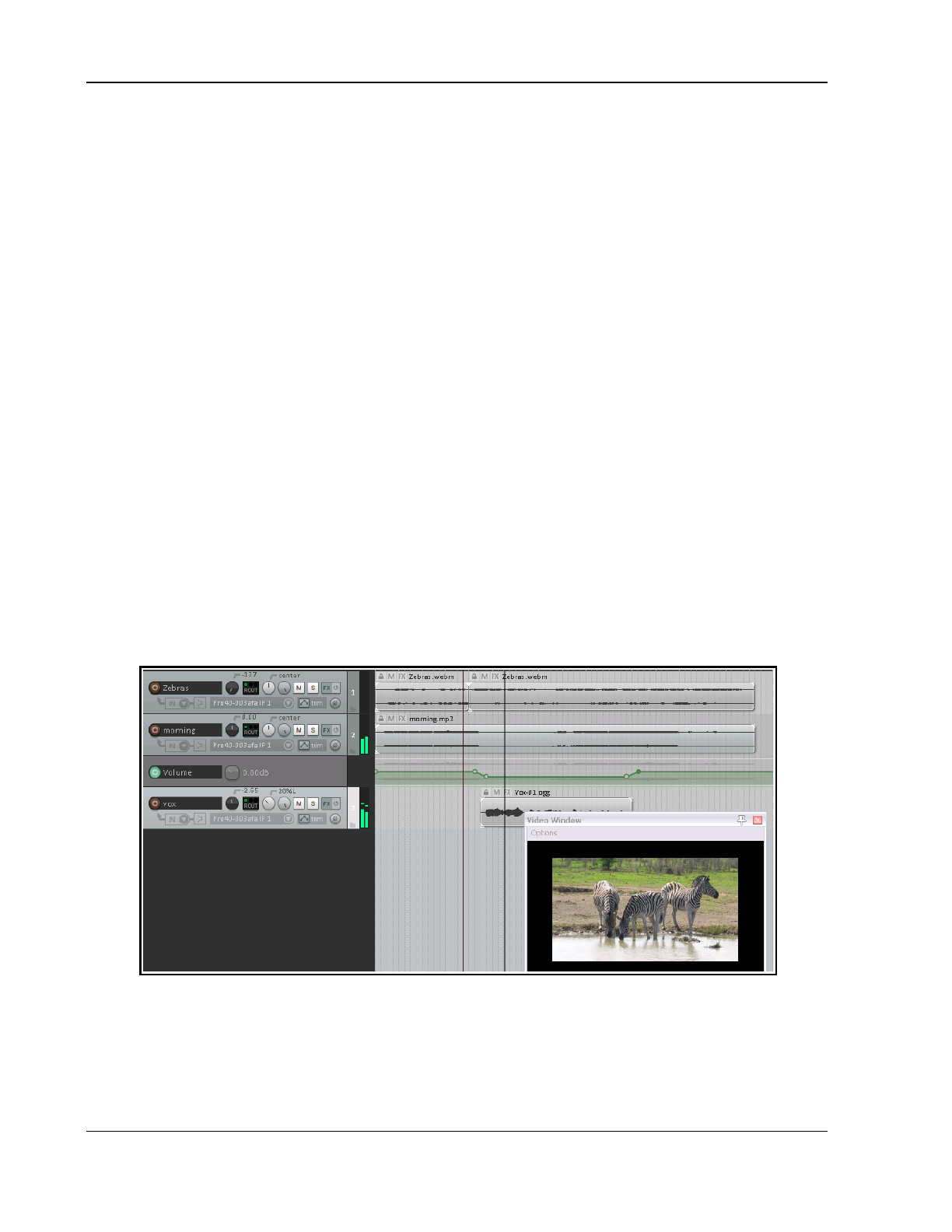
Up and Running: A REAPER User Guide v 7.81
Full screen: A toggle command used to expand the video window to cover the whole screen. In full screen
mode, right click anywhere to display this menu.
Preserve video aspect ratio: When enabled, this ensures that the height:width picture ratio is maintained no
matter how the window is resized.
Resize video window to original video size: Needs no explanation!
Video item properties. This opens a window revealing the properties (length, video, audio, decoding format,
etc.) of the video item.
Example 1
Download the sample file VideoSamples.zip from: https://dlz.reaper.fm/userguide/VideoExamples.zip
To open this, you may need to have a utility program such as AlZip or 7 Zip. The archive file contains two
folders, Wildlife and Zebras. The video items are in MOV format. If they do not display in REAPER, you may
need to install the VLC decoder. An easy way to do this is simply to download and install the free VLC media
player (see also Section 20.7). In the sample clips, video quality has been compromised to keep the file and
download size to a minimum.
In the first example we will start by performing some basic and simple editing tasks before getting a little more
ambitious and adding some effects.
You should not attempt these exercises unless you have at least a basic
understanding and experience of working within REAPER's arrange view environment
.
1. Open the project Zebras.RPP. You will find a video of about 45 seconds of zebras drinking at a water hole.
Let's decide we want to shorten it a little. First, save it as ZebrasDemo.RPP.
2. Display the Options menu and make sure that Ripple editing is enabled for all tracks.
3. Click on the media item Zebras.mov to select it.
4. Within the arrange view window, select the time from approx 8 to 20 secs. Right click on the media item
and choose Cut selected area of item. Press Esc to clear the time selection. Turn ripple editing off.
5. Now let's add a musical soundtrack. Turn the volume fader on the Zebras track all the way down.
6. Display Windows Explorer and from the Zebras folder drag and drop the file morning.mp3 into your
project as a new track. Shorten this track to make it the same length as the video. Save and play the file
7. If you wish, add a track to this project. On this track record a little spoken commentary, then use volume
envelopes so that the voice will sit nicely on top of the music. Your project will look something like this:
8. Save the file. Do not yet close it. We are going to add a video effect or two.
REAPER's video effects can be inserted into track or item take FX chains. They are flexible and powerful, but
they do take some time and effort to get to grips with and to master. Some of them do include parameter
control rotaries, but sometimes to get the best results you will need to be a little more adventurous. We'll dig
deeper into explanations later in this chapter, but for now let's just explore some of the simpler options.
400
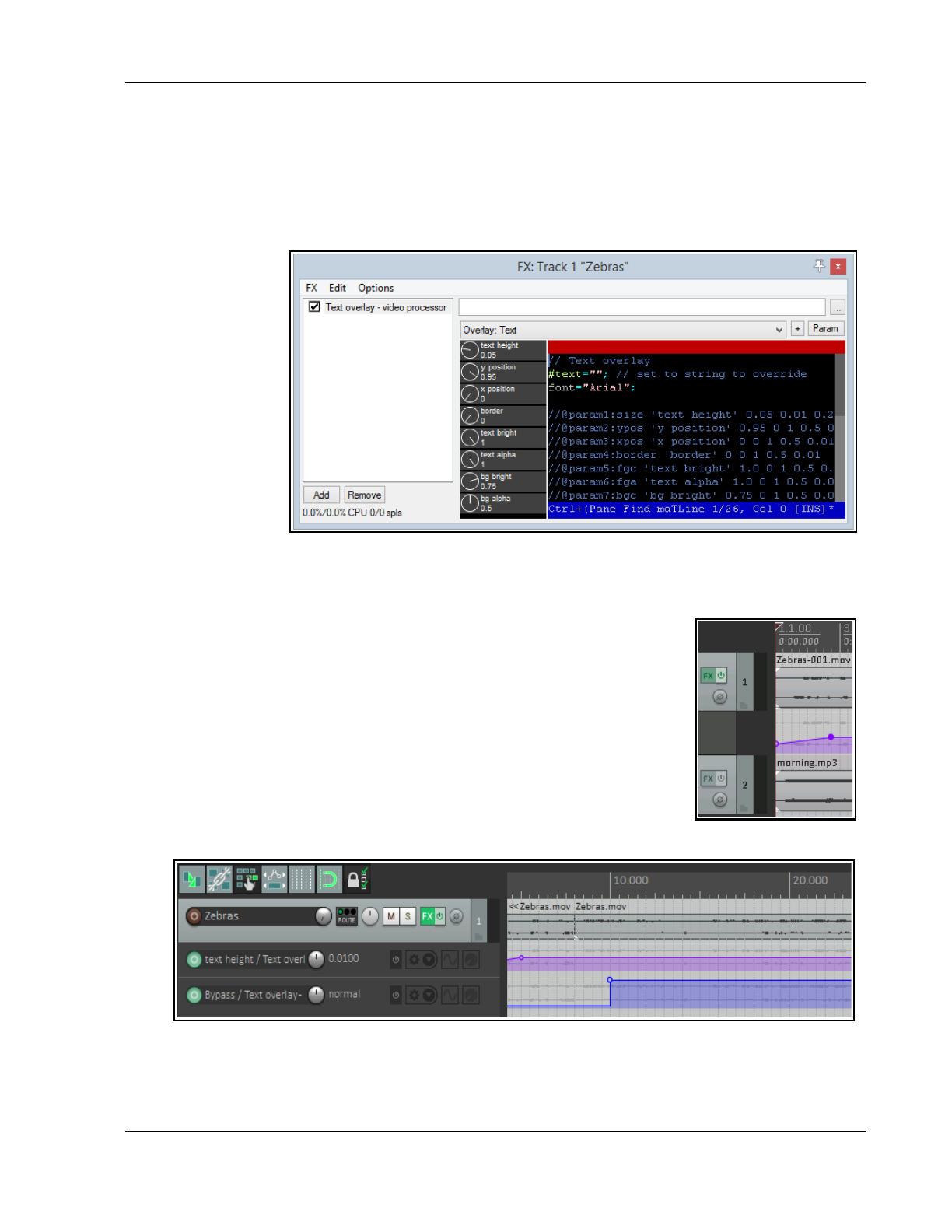
Using REAPER with Video
20.2 Video Effects
Example 1 (Continued)
9. Click on the FX button for the video track Zebras. When the Add FX window is displayed, make sure that
All Plugins is selected in the left pane. In the right pane click on Video processor then OK. Instead of a
window with a standard familiar plug-in interface you will see something quite different. Currently no effect
has yet been loaded.
10. Let's add a title.
From the presets
drop down list
choose
Overlay: Text.
This might look
a bit strange
(see right).
11. The first black
column displays
the parameter
controls. These
determine the
size, appearance
and position of
the text.
12. The second
column contains the actual EEL code used to create the effect. Notice that your video window currently
displays the message #text=””. Y Click in this pane and edit this line to read Text=”Zebras”; (edit only
the text between the quote marks, nothing else), then press Ctrl S to save. The text in your video window
changes.
13. Lets create some effects. Click first on this FX's text height parameter control
button, then on the Param button (top right), then Show track envelope.
Add points and adjust this envelope as shown here.
14. With your mouse adjust the y position knob to approx 0.07. Play the video.
The text will now appear higher up, starting very small and growing larger.
Setting text bright to 0 will make the text more clearly visible
15. Let's suppose we only want to display the title for 10 seconds or so. This can
be achieved by adding a bypass envelope. Click on the automation button for
the Zebras video track (labelled “trim”). Under the heading text overlay
select Bypass. Close the window: a bypass envelope will be displayed just
beneath the track.
16. At or around the 10 second mark, add a point to this envelope and drag that point up, as shown below:
17. Save the file and play the video.
18. Now let's add a visual effect. In the FX chain for the Zebras video track, add a second instance of the
video processor.
401
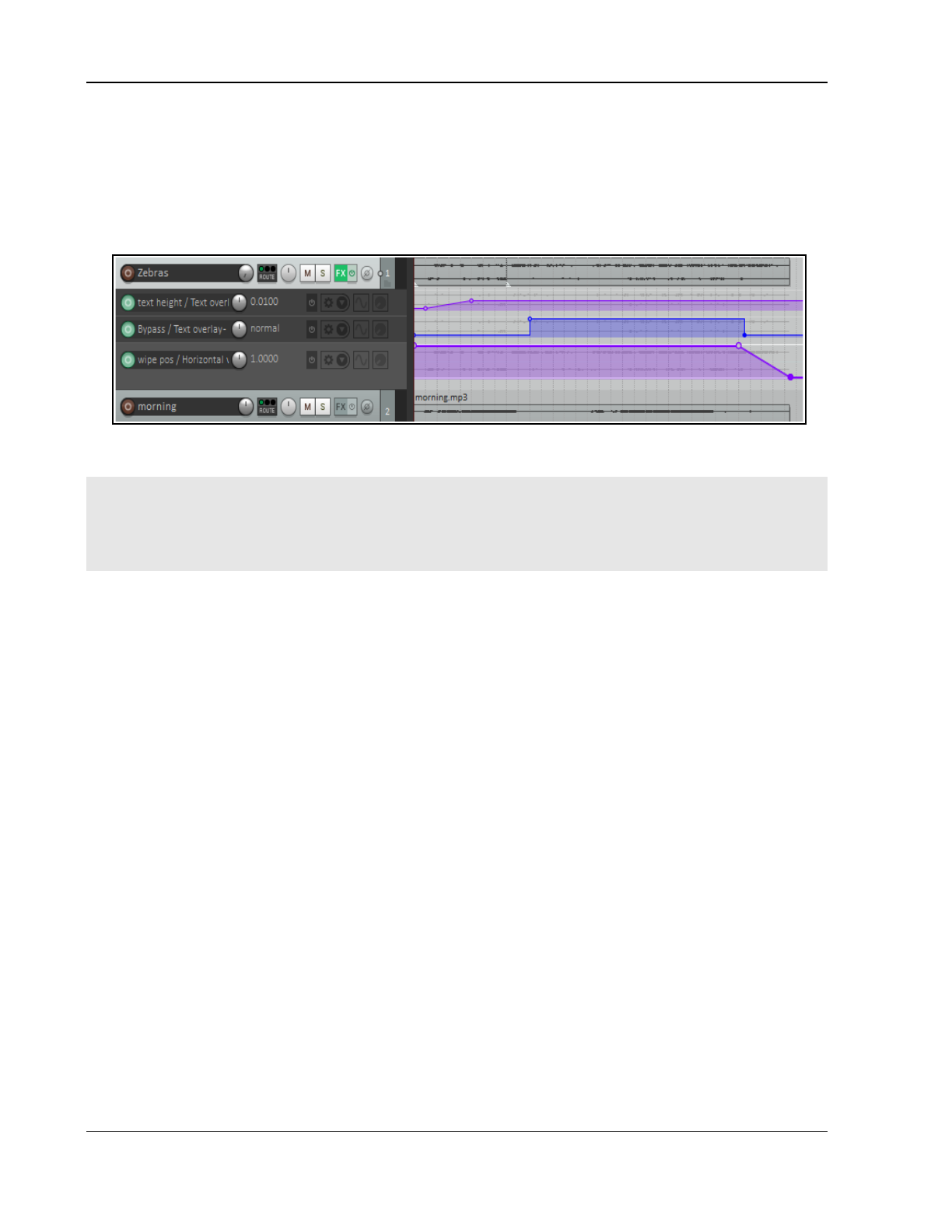
Up and Running: A REAPER User Guide v 7.81
19. Into this effect load the preset Transition: horizontal wipe. This preset includes the parameter
control, labelled wipe pos.
20. Save the file and play it. Notice you can now only see half of the picture in the video window: the other
half is blackened out!
21. We can fix this with an automation envelope. Add and envelope for this track for the parameter wipe
pos on the horizontal wipe effect.
22. Adjust this envelope as shown below: you do not need to be exact in positioning the points.
23. Save the file and play the video. The picture will now scroll out from the right at the end of the video.
In the next example we will be a little more ambitious with our use of effects.
Note 1: When you modify and the code of a video effect, you are only changing it for that single instance, you
are not changing the default. If you make a mistake or get confused, simply remove the plug-in from the FX
chain, reinsert it and start again.
Note 2: Pressing F1 from within a preset code window will open a help window which includes a list of
parameters used by that preset,.
20.3 Working with Multiple Video Tracks
There is one important fact that you will need to get your head around before you start working on projects with
more than one video track.
Unlike pure audio projects, when you are working with multiple video tracks the
track order is significant.
REAPER processes video tracks and items differently from the way in which it processes audio tracks and items.
By default, REAPER will audibly process all audio tracks and items. With video, however, the situation is different,
not least because you may have several video tracks all competing for the one video window. The
default
position is that where multiple video tracks are present, during playback only the item(s) on one of them will be
displayed in the video window. Which one this is will depend on which is assigned the highest priority.
The following summary indicates how priority is allocated. However, be assured (as you will see in the examples
later in this section) that by using transition effects and automation envelopes you can override the default
behavior and determine which and/or how many of your items are displayed at any one time during playback.
Video is by default processed from bottom to top, so that a lower numbered track will override a higher
numbered track. For example, if track 1 and track 2 both contain video items, then without the use of
envelopes and/or effects only the video contents of track 1 will be displayed in the video window during
playback. The master track is processed last.
A similar hierarchy exists on tracks with more than one video item and where free item positioning is used.
That is, by default the contents of only the bottommost item will be displayed in the video window.
Where video FX are used, video FX on the track process the output of the video FX on individual items.
There is an option on the Video page of your Project Settings which allows you to reverse the video processing
hierarchy if you wish, so that video will be processed instead from top to bottom.
Working with video files can be a resource hungry activity, especially on older computers. If you are
encountering performance difficulties during playback and/or editing, you may need to make tweaks to your
video preferences options which can improve performance. These are explained at the end of this chapter.
Video effects can be inserted in any of three places – in the video item itself, in the video track, or in a separate
video effects track. Depending on where you place them, the outcome can vary. If necessary, be patient, and be
prepared to learn by exploring!
402
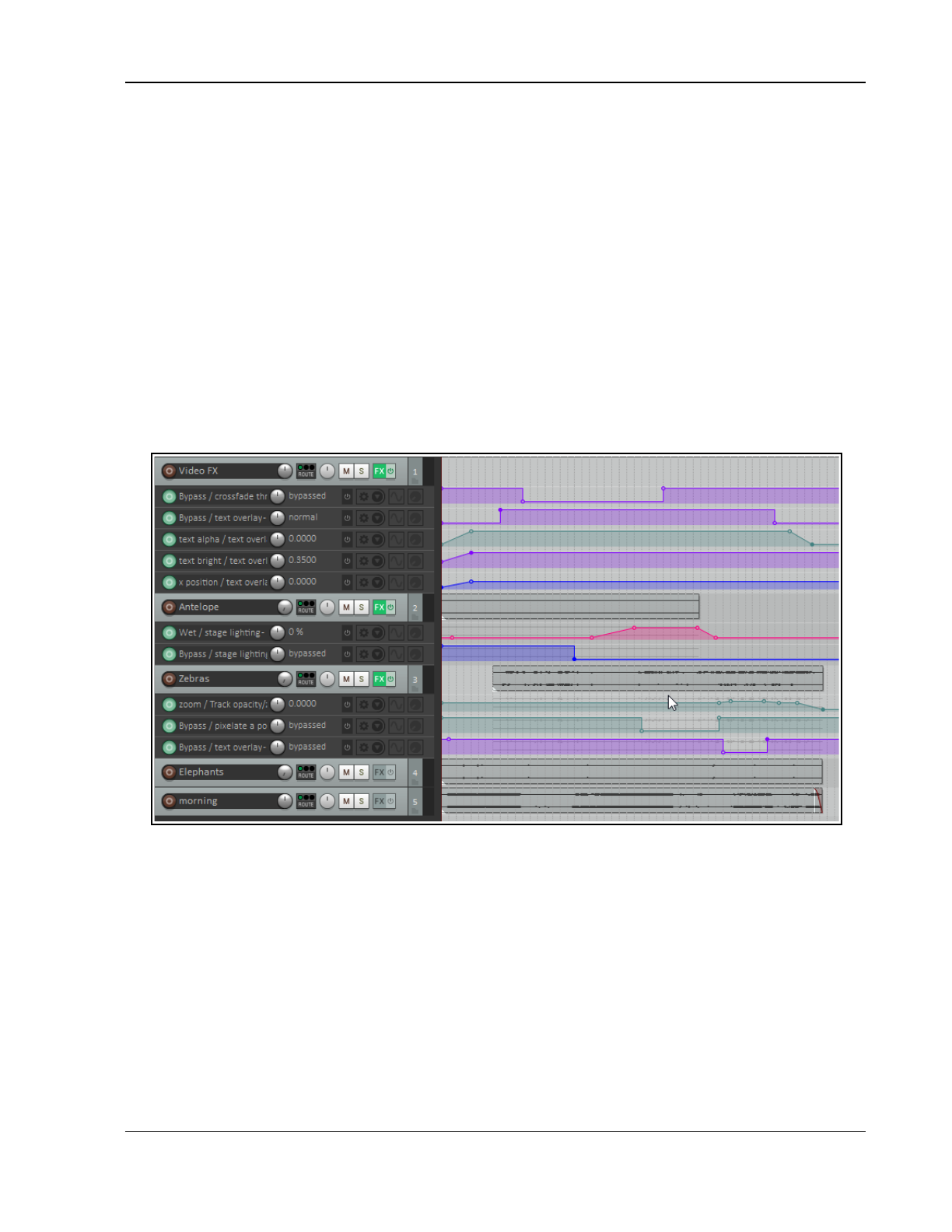
Using REAPER with Video
This next example uses a project file with three video tracks. If you have downloaded and unzipped the sample
files included in VideoSamples.zip you will find the folder Wildlife, which includes two projects, Wildlife1
and Wildlife2. Wildlife1 will be used for the practical exercises. Wildlife2 shows you the project with the
exercises completed, plus a few extra effects that we’ll get to later. A third file, Wildlife 3 also has some extra
effects.
Example 2
First, we will look at a project with some simple edits and video effects added. After that, we can discover how
this was done. Open the file Wildlife2 and play the video from the beginning. Notice in particular that:
● If you check the video page of your project settings (Alt Enter) you should see that Items in lower
numbered tracks replace higher is selected..
● There is a scrolling title.
● There are three video tracks, which have been edited so that at the beginning and end of the movie
these are shown one at a time, in sequence, but in between they are faded in and out.
● An additional track, Track 1, contains no media items, only various video processing plug-ins.
● Further visual effects are used from time to time..
● Let's see how this was done, starting with track 1, Video FX.
The Track Edits
Simple slip editing has been performed on the video tracks. Because these are processed with lower track
numbers having priority, when this is played you will initially see only the elephants (track 4), then only the
zebras (track 3) then only the antelopes (track 2). A number of envelopes have been added. In these
examples, the FX have been applied in each case to the entire track. Keep in mind, however, that you can
apply these effects directly to individual items if you wish. Explanations follow!
The Title
Position the play cursor at the very start of the video. A video processing effect instance has been added to
this track's FX chain (track 1), and the preset Overlay:text selected. The code has been edited with the text
changed to Morning in Africa
Some parameter values have been changed from their defaults, notably text height (0.1), y position (.49)
and text bright (0.35). This last setting hides the text by making it the same color as its background.
Envelopes have been added (see above) to first fade up the text to make it visible (text bright), then scroll
it across the screen to the center (x pos), then fade it out. A bypass envelope ensures that the title is
removed altogether at or around the 8 second mark.
403
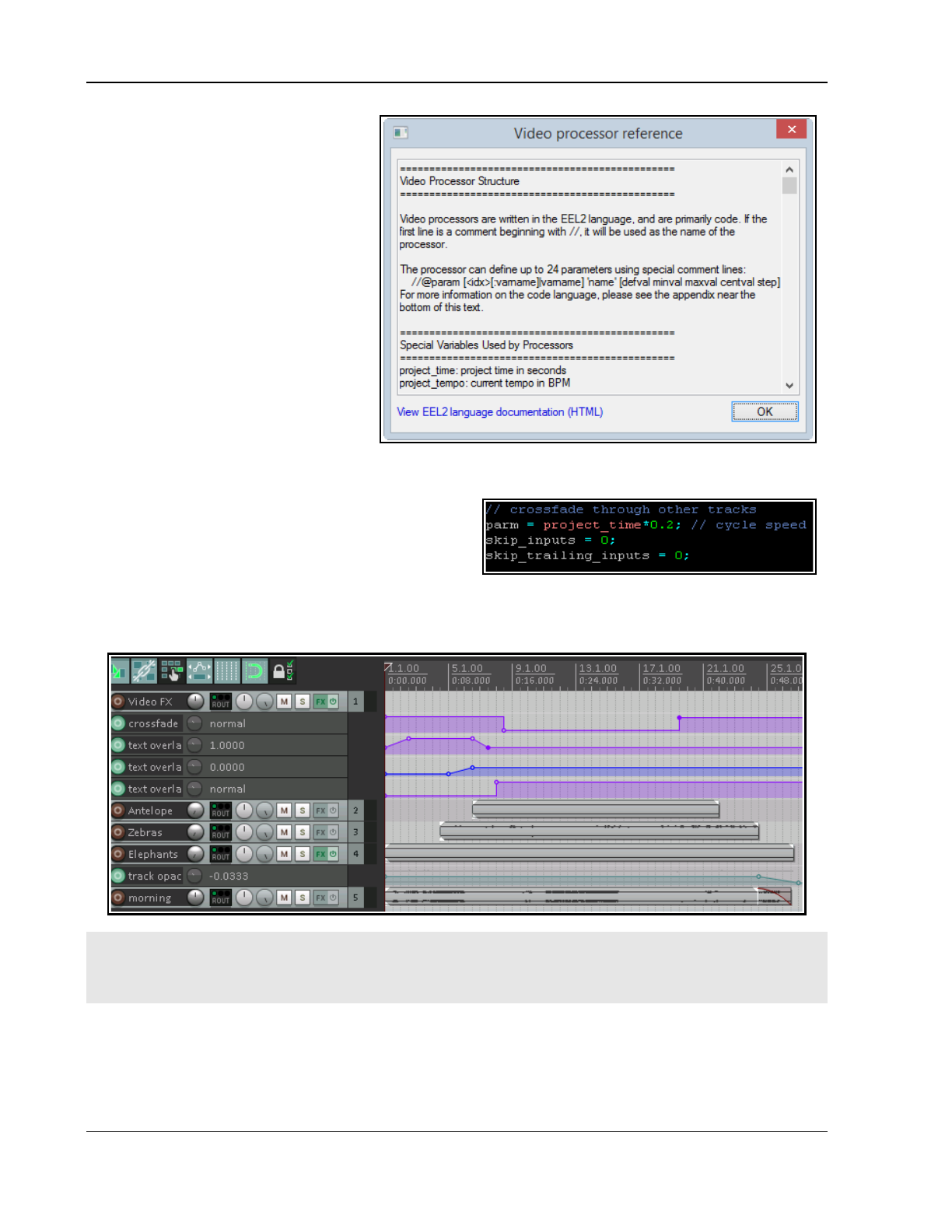
Up and Running: A REAPER User Guide v 7.81
Tips: To help you understand how the
video processor works, at any time
you can click in the window containing
the preset code and press F1 to
obtain further information (right).
If you wish, you can edit parameter
values directly in the code. The next
example does this.
The Crossfade Effect
A further video processor instance has
been added (above the text overlay)
to Track 1,using the Combine:
crossfade through inputs… preset.
A bypass envelope is used to ensure
that the crossfade is applied only
during the period of approximately 20
seconds in the middle of the movie.
The speed of the crossfade is
determined by the multiplier used to set value of the parameter project_time. The higher this value, the
faster the rate of crossfade. In this example, this has been edited from its default value of 0.5 to 0.2 (see
below right)
Notice that the order in which your FX are applied is
significant. In this case, the crossfade appears in the
FX chain
before
the text overlay.
The Zoom Effect
An instance of the video processor plug-in has been added to the Zebras track and the preset Basic
helpers: track opacity/zoom/pan added. A zoom envelope is used to zoom this track first close in to the
zebras, then right out at the very end. out completely at the very end.
Note: If you develop a serious knowledge and understanding of scripting languages such as Lua or EEL then
you have at your disposal an amazing scope for creating and using video effects in REAPER. However, as this
example has demonstrated, even a very limited knowledge and understanding such as is required for this
example places considerable power in your hands!
Try it yourself! Open the file Wildlife1, save it as Wildlife1a and have a go at reproducing these effects
yourself. Any time you make edits to any code, remember to press Ctrl S to save. If you have more time on
your hands, see what other effects you can find in this file that have not been described in this example! Don't
yet be too ambitious: in the next example we'll explore a slightly more complicated example.
404
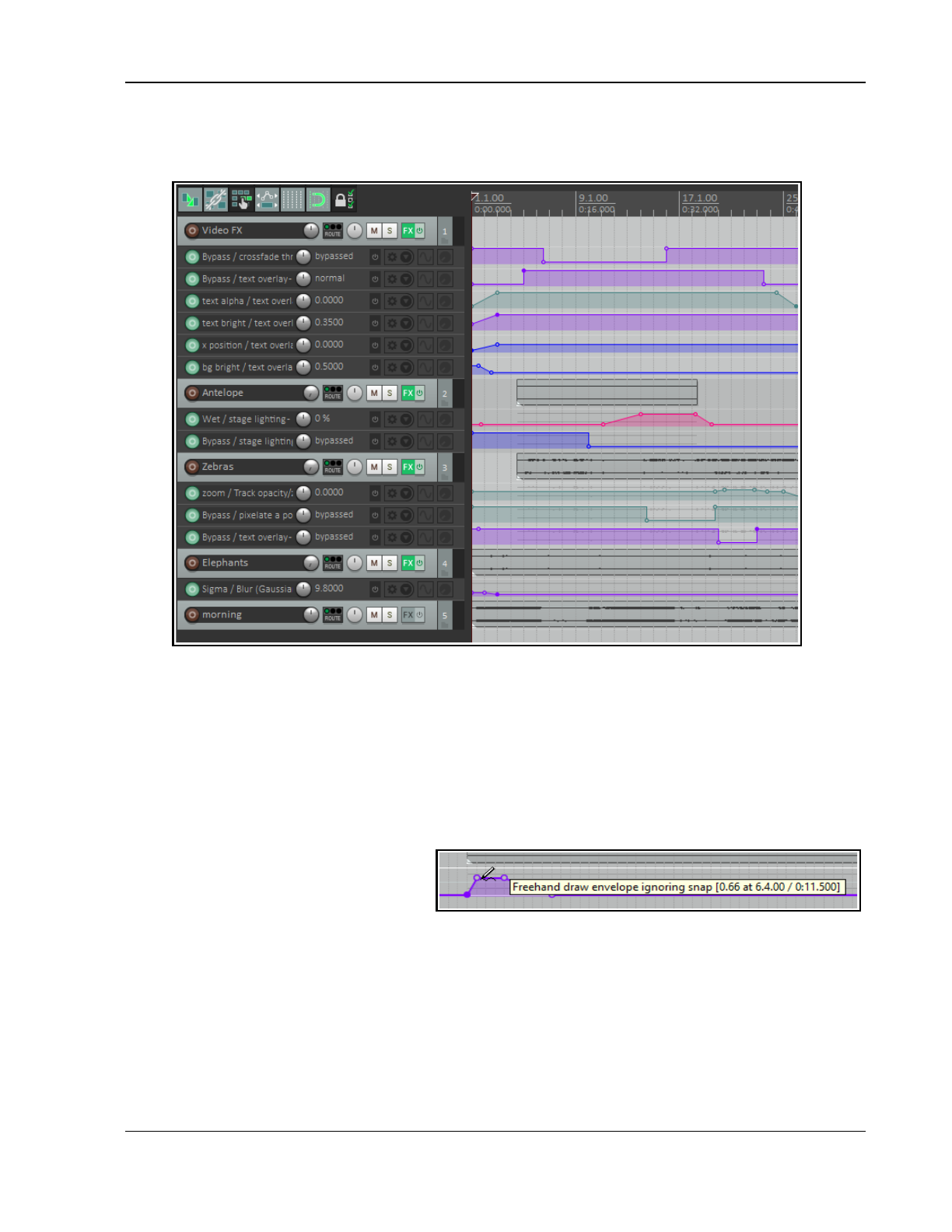
Using REAPER with Video
Example 3
This next example, Wildlife3 uses the same source media files but includes some extra effects and more
automation envelopes. Play this video from the beginning, then we can have a look at what has been added.
● The main title is centered on the video window, is larger, and fades up at the beginning before
disappearing. It reappears near the end and is faded down.
● There are more effects on the antelopes. They return at about the 10 second mark badly pixelated, then
gradually ease into a clean image before the lighting effect is applied.
● The zebras have their own track title displayed for a few seconds near the end of the video.
The Main Title: An envelope has been added for bg bright, starting at .5 and fading down to 0, so that the
background will now fade in with the text. The y position of the text overlayed has been lowered.
The Antelope Stage Lighting Effect: A stage lighting effect has been added to the Antelope video track.
Conservative values have been applied to the parameters to ensure that the effect is fairly subtle.
The Zebra Pixel Effect: An instance of the
video processor has been added to the
Zebra track FX chain, and the preset
FX:pixelate image has been added. This
preset comes with five parameter controls
(knobs), any or all of which can be tweaked and/or automated.
Together, the first four determine the positioning (horizontal and vertical) and size (width and height) of the area
covered by, the pixelated part of the screen. Experiment with these if you like. The fifth control determines the
size of each pixel: this is what we are going to look at now.
A pixelsize and a bypass envelope have both been added for this plug-in. The bypass envelope ensures that
the pixel effect is only displayed for the few seconds that it requires. The pixelsize starts at zero, rises sharply
to about 50%, then gradually decreases again to zero.
A gaussian blur effect has been added to the Elephants, so that the elephant herd gradually comes into focus
at the start of the video.
405
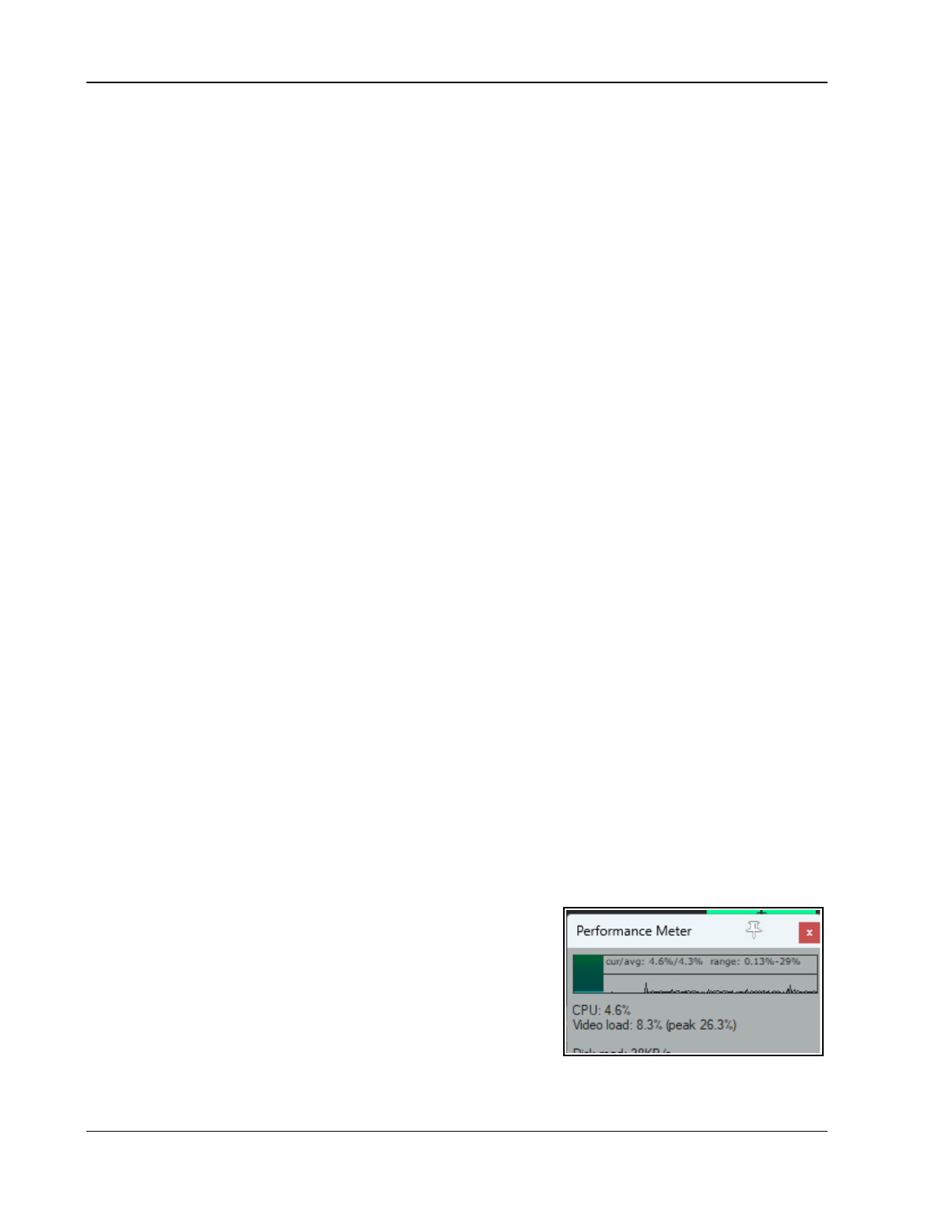
Up and Running: A REAPER User Guide v 7.81
Multi File Projects
You might need to work on audio material in one .RPP file which relates to video material in another. Open both
files, on separate project tabs. You can then right click on any project tab and choose the option Display video
from background projects if active project lacks video.
20.4 Video Processor Parameter Controls
The video processor plug-in includes the standard features of REAPER's audio plug-ins, explained in Chapter 6 of
this User Guide. For example, the + button can be used to save and load your own presets.
From a track's FX chain, click first on any of the plug-in's parameter controls then on the plug-in's Param button
then choose Show in track controls, Show track envelope, use Parameter modulation/MIDI link or
Learn (to assign the control to a controller). From an item's FX chain, you can add an automation envelope.
20.5 Supplied Video Effects Presets
These examples have introduced you to somel of the video presets available in REAPER. Each has its own
purpose, but all are capable of being edited and can be automated. Below is a summary of supplied presets.
In many cases, their purpose is self evident from its name (e.g. Basic helpers: Brightness/Contrast, Combine:
Crossfade thru inputs, FX: Colorize, Transition: Horizontal wipe). In others the terminology of the video world
might be less obvious (e.g. blur, YUV). A glossary of video terms such as is found here can be helpful.
https://www.manifest-tech.com/links/video_terms.htm .
Analysis
Color Peeker (Monitoring FX only)
Histogram (RGB)
Basic helpers
Apply track FX only where track has video items
Brightness/Contrast
De-interlace track/item
Decimate track/item frame rate
Item fades affect video
Resize track/item to project dimensions
Track opacity/zoom/pan
Combine
2 x 2 input matrix
Chroma-key (RGB version)
Chroma key (YUV version)
Crossfade through inputs
FX
Blitter feedback
Blur (Gaussian)
Blur (low quality
Colorize
Edge detection (vertical)
Invert colors
FX (cont)
Matrix of recent frames
Pixelate image
RGB decompose
Shadow/midtone/highlight RGB adjust
Show motion (subtract last frame)
Stage lighting
Overlay
Image overlay
Text
Panoramic
Equirectangular/spherical 360 panner
Spherical 360 to stacked panoramic slices
Synthesis
Decorative Oscilloscope with Blitter
Decorative Spectrum Analyzer
Transition
Horizontal wipe
Matrix wipe
Peephole wipe/vignette
Vertical wipe
Util
Screensaver (Monitoring FX only)
20.6 Video CPU Load
Video processor CPU use can be displayed as a percentage in the FX
chain, the project bay and/or the performance meter.
If necessary you can enable it in the performance meter by selecting
Display video load from the right-click context menu.
406
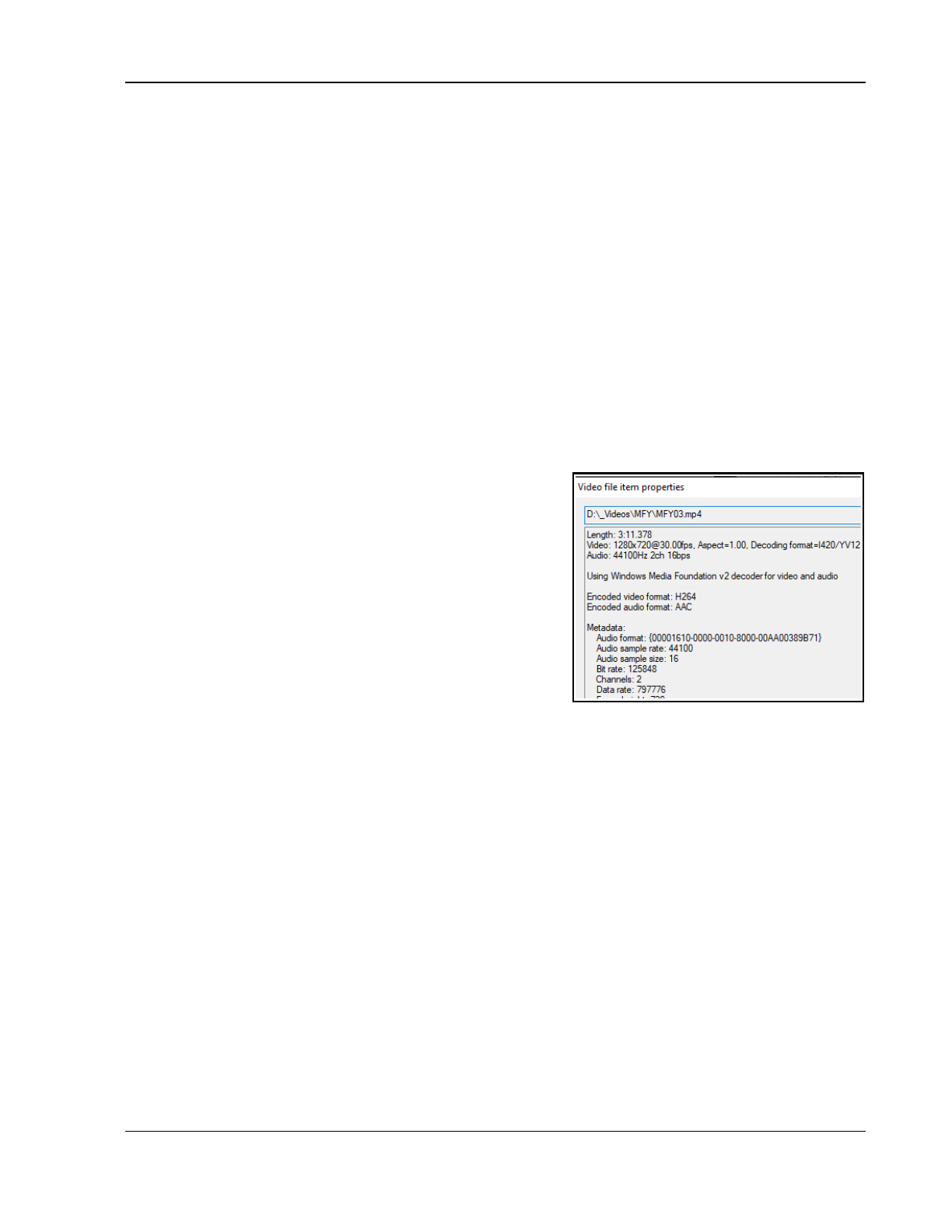
Using REAPER with Video
20.7 Understanding Video Formats
Newcomers to video often find the whole topic bewildering. This section aims to guide you thru some basic
concepts, so that you can at least confidently get started. It is not comprehensive and by no means covers
everything that you should eventually need to know.
Video files hold video and other data that exhibits a number of
attributes
such as frame rate, pixel dimensions
and audio channels. Different
formats
can be used for capturing, saving, editing and distribution of this data.
Different formats are characterised by the whichever
video container
and
codec
they use.
Video signal attributes
As with most things audio and video, the higher the numbers the better the quality and the larger the resulting
file size! In particular, video characteristics include:
● Frame size: the video frame's dimensions, measured in pixels, typically within the range 160 (width) by
120 (height) to 1920 by 1080 (Full HD).
● Frame rate: the speed with which each frame is first captured then played back. Each frame holds a still
image. The human eye starts to see motion (albeit “jerky”) at 8 frames per second (fps). The motion will
start to appear smooth at rates of 24 fps and above. The U.S. standard frame rate for 720 HD (1280 by
720 pixels) is 59.94 fps, often rounded up to 60 fps
● Aspect ratio:the ratio of width to height. This can be expressed either as whole numbers, e.g. 16 by 9, or
as a decimal ratio, e.g. 1.78:1. 16 by 9 is the ratio used by widescreen TV.
● Bit rate: the data transfer rate, i.e. from the file to the
screen. Bit rate is usually measured in megabits per second
(mps). By way of example, HD Blu-ray video typically uses a
bit rate of 20 mbps, standard DVD quality is around 6 mbps.
HD mobile phone, on the other hand uses rates of 2500
(HD) or 5000 (Full HD)
kilobits
per second (kbps).
● Audio sample rate: the number of samples per second
used to digitize recorded sound. This is discussed in Chapter
2 and Chapter 3.
Container files
Container files are files that contain video (and other related)
data. You are probably at least vaguely familiar with commonly
used container extensions such as .MOV, and AVI. Different
containers provide different degrees of support for (for
examples) different video and audio compression formats, subtitles, and so on. For example, several container
formats support multiple audio streams, others support only one. In fact, you can learn very little about a video
file from its container type alone. To do that, right-click over the video item within REAPER and choose Video
Item Properties... from the context menu. An example is shown above.
When rendering video in REAPER (see Chapter 21) available formats are AVI, QT/MOV/MP4, MKV and WEBM.
Codecs
If the container format provides a container for holding a file's data, then the codec (coder/decoder) is the
method by which that data is actually encoded. The very large number of codecs available makes this whole
topic something of a minefield. Important characteristics of codecs include their video quality, performance
factors (such as compression/decompression speed, supported profiles, options, supported resolution, and so
on). Some codecs are available free of charge, others you have to pay for. Because raw video files are so large,
file size compression is one of the most important aspect of video codecs. Indeed, most consumer standard
recording equipment captures video in the first place in compressed rather than raw video format.
When rendering in REAPER, your choice of codec will largely depend on which container format is selected.
Note: For more technical information, see: https://forum.cockos.com/showthread.php?t=82459
20.8 REAPER Video Processing Tips
1. For Windows users, if a video file won't play in REAPER, the chances are that you do not have a codec (coder/
decoder) required for that video format. Codecs are freely available on the internet. Download and install the
VLC decoder from http://download.videolan.org/pub/videolan/vlc/ Navigate down to the latest number
(at time of writing 3.0.9.2) and select it. Choose win32 or win 64 (depending on your system), then download
407
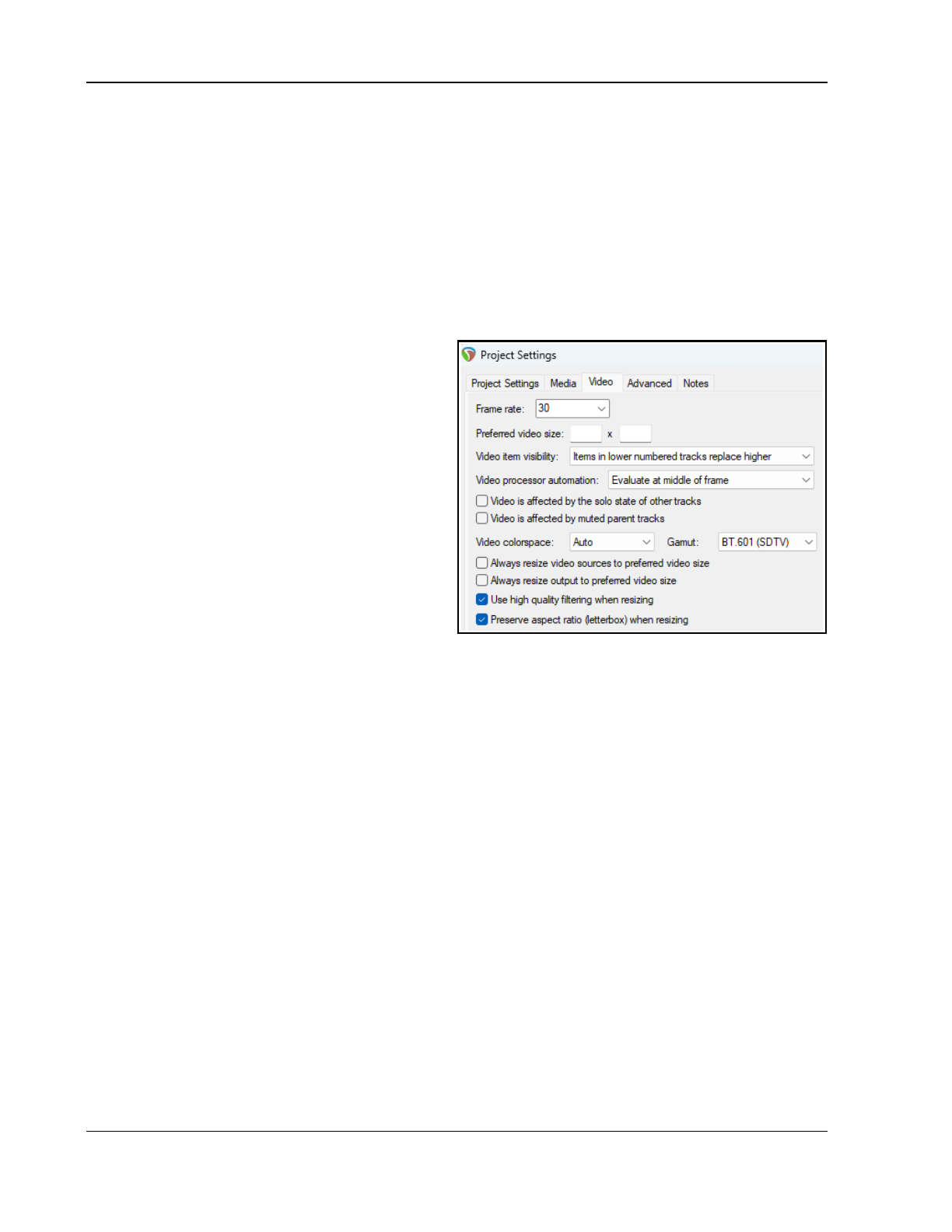
Up and Running: A REAPER User Guide v 7.81
and install the required .exe file. This will also install the codecs required for AVI, MKV, MP4, WMV, MPEG-1,
MPEG-2, DIVX and many other video formats. Moreover, video playback will now be handled by VLC rather than
Direct Show.
2. The Media, Video/Rex/Misc page of your Preferences includes an option for you to specify your own video
decoder priorities. If you get into trouble here, there is an option to Reset to defaults.
20.9 REAPER Video Settings and Preferences
Pressing Alt Enter displays the project settings dialog. Select the Video tab.
You can select a frame rate from the drop down list, or type in your own value.
Optionally, you may enter a preferred video size if you wish. If this is left blank, the video will try to size to
the active media being played. If your project has videos all recorded at the same dimensions, setting this is
unnecessary. If you have various videos at different resolutions, it can be advantageous to specify a size here. If
you provide only a width or a height, it will adjust
the other value to put things at a default 16:9 ratio.
Video item visibility determines the order in
which video items are processed. Items in lower
numbered tracks replace higher is consistent
with the approach taken by most video editing
programs, but 0you can select Items in higher
numbered tracks replace lower if you wish.
Options for video colorspace are auto,
1420/YV12, YUY2 or RGB. Both YUY2 and
1420/YV12 store data more efficiently than RGB and
offer an almost lossless form of file compression
(but see comments below).
The Video processor automation determines
whether automation is to be evaluated at the start
of the frame or in the middle of the frame.
There are also options to allow you to choose
whether or not video is to be affected by Solo state of other tracks and/or Muted parent tracks.
Video colorspace options are Auto, 1420/YV12, YUY2 or RGB. Auto will ensure that whatever colorspace
the media natively decodes will be used. Usually this is YV12.
YV12 is the output mode used by most modern codecs (such as h264, or MPEG-4, or MPEG-2, or WEBM), and is
usually the fastest because it can avoid colorspace conversions.
YUY2 is similar to YV12 but is less-often used, and offers a little bit better color resolution (due to using less
subsampling for luminance and chroma). Converting from YV12 to YUY2 is relatively inexpensive. YV12 and
YUY2 are both YUV standards.
RGBA is a completely different mode that matches the pixels on your screen. It is expensive to convert from
YV12 or YUY2 to RGBA, and processing video frames in RGBA is also slower. Using RGBA also causes the
chromakeyed blit functions (such as the chroma-key preset) to use a different algorithm, so it will look different.
In fact, things will generally look slightly different in RGBA mode.
Other settings are toggles for the options Always resize video sources to preferred video size, Always
resize output to preferred video size, Use high quality filtering when resizing, and Preserve aspect
ratio (letterbox) when resizing.
The option to Always resize video to preferred video size, if selected, will always resize the video if
necessary prior to any processing. This can simplify use of certain FX, but also can be less efficient (since other
FX can handle the resize natively as part of their own processing).
The option to Always resize output to preferred video size, if selected, forces a resize if necessary at the
output stage (meaning processing may happen at some other resolution, but at the end it is resized to the
specified size for display). When rendering to a file, this option is is effectively selected, with the preferred width/
height set to the rendering width/height output.
Shown below is the Options, Preferences, Media, Video window.
408
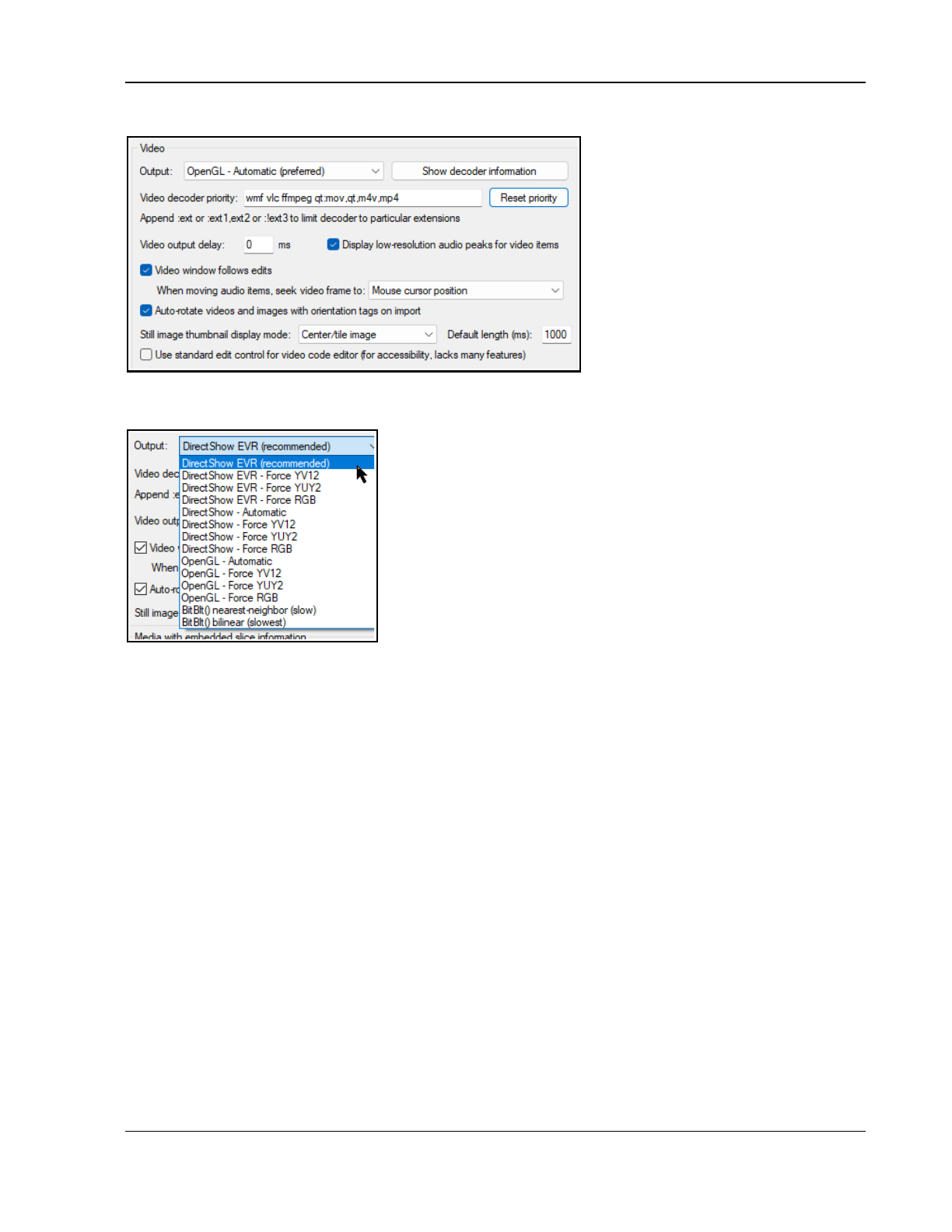
Using REAPER with Video
Output o0ptions are shown below that.
There is an option to open a window
within Preferences to Show decoder
information. You can, if you wish, edit
the Video decoder priority list to
change the order in which priority is
allocated. By default, VLC format is
assigned the highest priority.
The option to specify Video output
delay can be used if necessary to
improve playback synchronization. This
can be a small positive or negative
amount. There is also an option to
disable high-resolution peaks.
Enabling the option Video window
follows edits will synch the video window to the seek point when audio items are moved or resized.
Still image thumbnails can be hidden or displayed in center/tile mode, full height mode or stretch/image
mode. You can also specify the default length for thumbnail images.
There is also an option to use standard (accessible) OS editing
control for video code.
You can further choose your preferred behavior when audio items are
moved, so that the video window displays content at the mouse cursor
position, the start of the audio item, or a snap offset of the audio item.
Note also an option to Auto-rotate videos and images with
orientation tags on import.4
The Video file item properties dialog (accessed by choosing Source
properties from the item context menu) includes options to Ignore
audio and for handling Hi-res peaks. There is also an option to Copy
audio settings to all video sources.
In addition, the File, Render command can be used to export video from REAPER - see Chapter 21.
Note also that the Performance meter includes an option to Display video load.
Video actions
REAPER’s Actions List includes two actions specifically relevant to video. Remember that if you wish you can
assign your own keyboard shortcuts and/or toolbar icons for either or both of these:
Video: Show/hide video window
(by default Ctrl Shift V)
Video: Clear video cache/re-render frames
20.10 Video Workflow Tips
If you are new to video editing, you might find the following tips helpful. They make reference to many of
REAPER's tools and features (such as media explorer, screensets, track manager, markers and regions) that are
explained elsewhere in this user guide.
Of course, these tips are general. Whilst they are intended to help you, you will most likely also have
considerations specific to your own needs and workflow that might not be mentioned here, or that might make
aspects of this model less suitable for you.
1. Video files require large amounts of disk space. However, even if you are intending to distribute your work
over the internet, perhaps via YouTube, you should record and edit your material (video and audio) in
high quality, then use lossless codecs to convert your files for distribution. A number of freeware
programs are available for this, such as MediaCoder, Quick Media Converter and Super Video Converter.
2. Before you start editing, organize all your material. This might be scattered across various SD cards, hard
disks, USB sticks, or whatever.
Copy all your source materials into one place on the hard disk of the computer on which you use REAPER.
Create a folder for the project, and various sub-folders for your media, such as videos, audio music, audio
spoken, and so on. If necessary rename your various source files to make them more easily identifiable
409
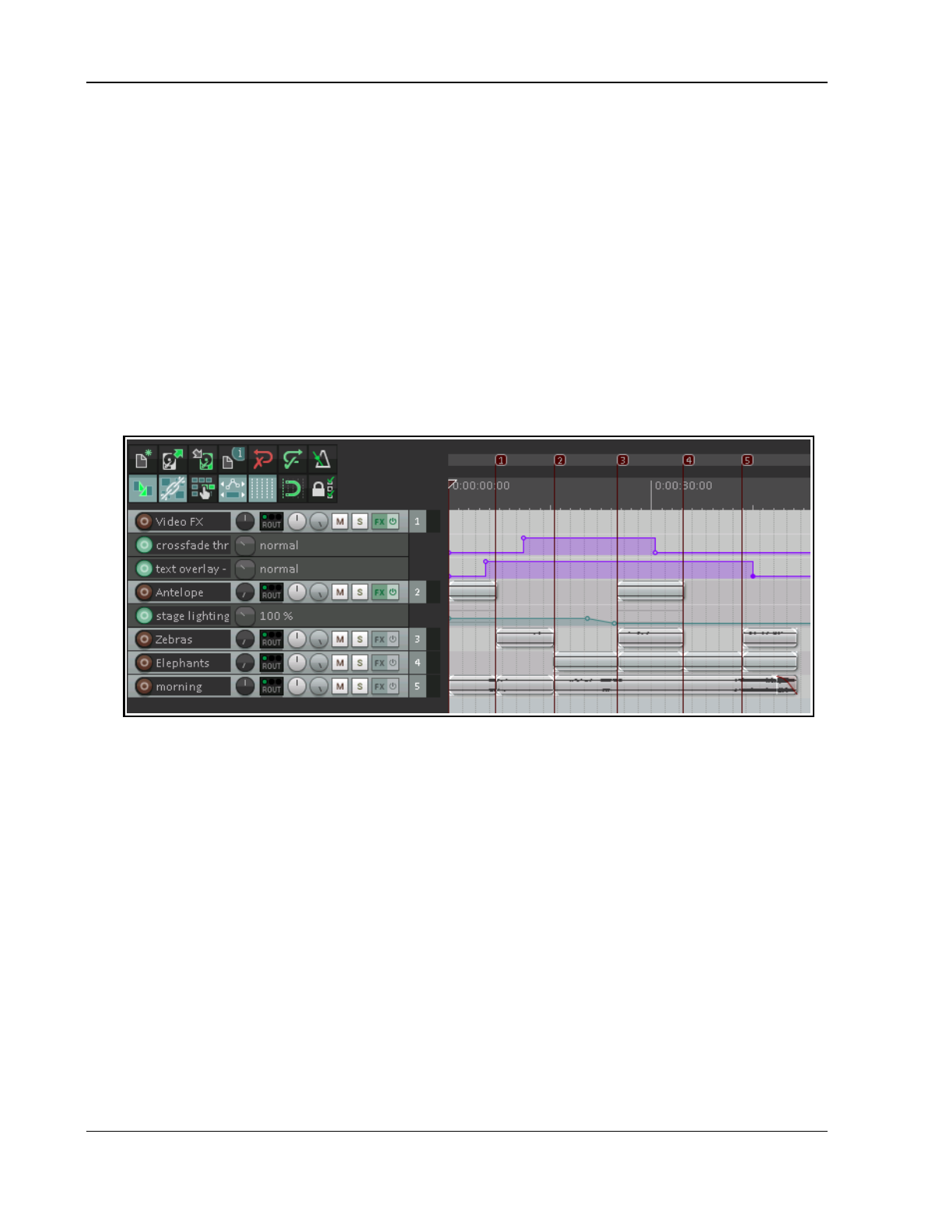
Up and Running: A REAPER User Guide v 7.81
and so as to present them in a logical order. Make sure that after
every
editing session you back this
folder up to at least two different destinations.
3. Create your project file in REAPER. Check your project settings, especially the video settings. Specify your
required timeline format: remember that available formats include Hours:minutes:Seconds:Frames
and Absolute Frames. Set up a windows screenset suitable for video editing, remembering, for example,
that the video window is dockable, that media explorer is available to you for managing and accessing
your source materials, and that track manager is available for managing your tracks.
4. Import your video files into your project. Video takes that run in parallel to each other (i.e. at the same
time) should be placed on separate tracks. Items that are sequential may be placed on a single track.
5. Use markers and regions to help manage the media items in your project. Make such edits as you need to
your video items.
6. If you need to replace the soundtrack of a video item with a separate audio item, display the video item's
Item Properties, then click on the Properties button and enable the checkbox Ignore audio. The
replacement audio item should be placed on a separate track.
7. Add transition effects and text titles.
8. Edit existing audio and/or add any new audio material that may be required.
9. When you are ready, render your project to a single file.
0
A simple example of such a project is shown above. This is included as Wildlife2a with your sample files.
20.11 Making a Home Music Video on a Budget
Here is an overview of one way that this process could be applied to making your own music video on a budget.
1. Work out your exact musical arrangement.
2. Video record the band playing the song to this arrangement. Make sure you include the sound in the
recording. Using more than one camera will potentially make for a more interesting final product, because
of the opportunities it offers to cut, crossfade, etc.
3. Create a new project file and import your video items, each to a separate track. Import also any
additional video items (e.g. not of the band playing) that you wish to use. If you have more than one
item, turn the volume on all but one track all the way down.
4. Using the video sound track as a guide track, overdub record every part (vocals and instruments) in the
studio, as you would for a non-video project. Add any other audio material that you need.
5. Edit and mix the audio material in your usual way. Edit your video tracks as required. Save and render.
410
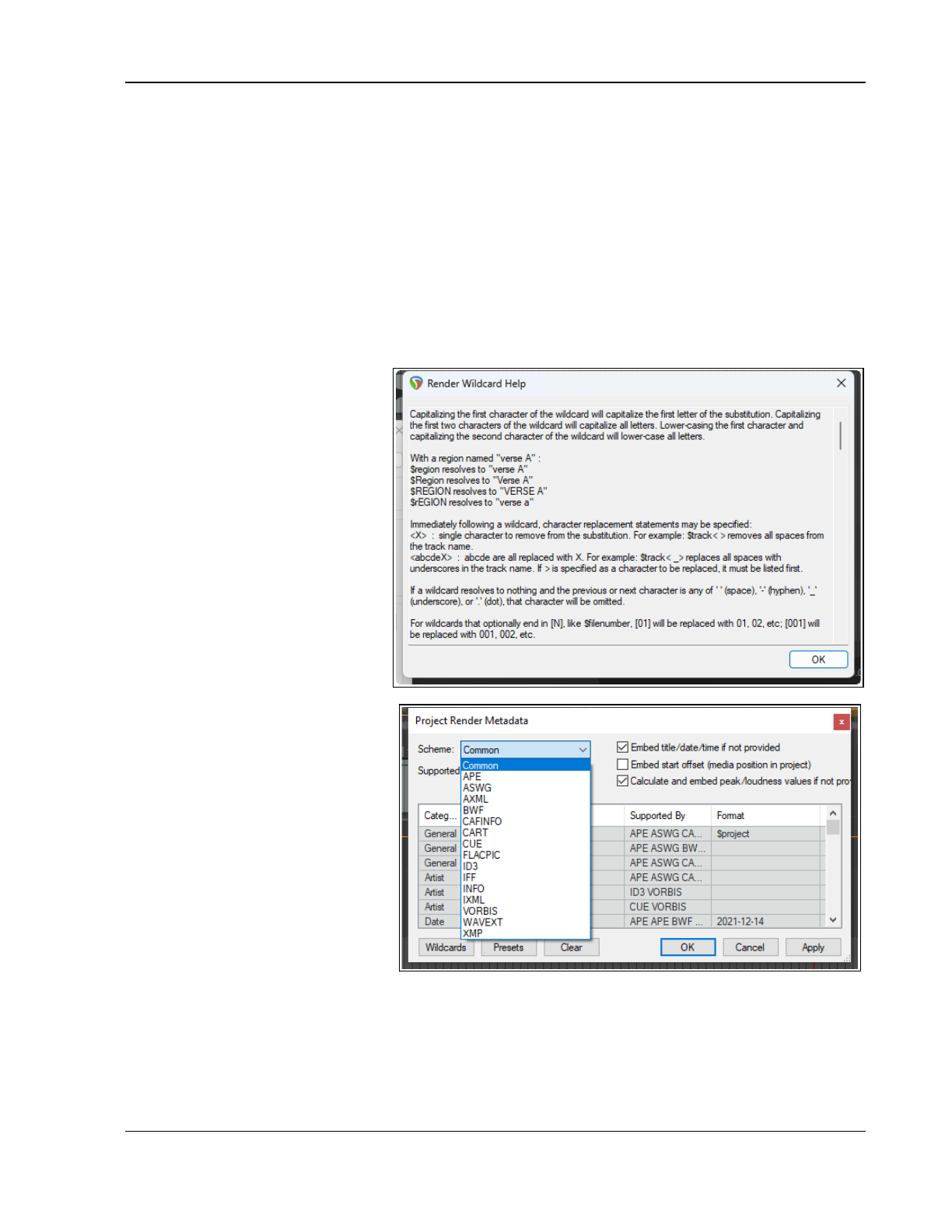
Exporting Files, Mixing Down and Rendering
21 Exporting Files, Mixing Down and Rendering
21.1 Introduction
There are three main tools available to you for taking your finished projects or tracks out of REAPER, for example
for final distribution or for further processing elsewhere. These are:
● Consolidate Tracks: this outputs tracks pre-processing (ignoring for example track FX and panning). Use
this, for example, if you are supplying files to be mixed/mastered by someone else.
● Render to File: this outputs your material post-processing (including for example all FX and panning). Use
this to produce a final mix of your songs ready for distribution.
● Batch File/Item Converter: this takes a list of files at any stage in your project and converts them all to
another format – e.g., to convert audio to MP3 for web distribution, or SFX for games to 22 kHz mono.
Both the Render to File and Batch Converter dialogs offer you the opportunity to make use of wildcards in your
specifications and metadata in your output. The Consolidate Tracks dialog also allows the use of wildcards.
21.1.1 Wildcards
Wildcards allow information of
specified types to be included in the
metadata or rendered file name.
For example, including $project in
the filename will cause the project
name to be included. Using a
backslash (Windows) or slash (Mac)
between wildcards causes a sub
directory to be created. For example,
naming your output files $project\
$track would cause a separate
subdirectory to be created for the
output of each track.
$author will include any text saved
in the project settings notes Author
field.
Clicking the Wildcards button in the
Consolidate Tracks, Render to Files or
Batch File/Item Converter dialog
diaplays a list of wildcards. Many are
self-explanatory (e.g. $project will
return the project name), but for
those that are not obvious you can
click on Wildcard help … in the
Wildcards sub-menu to open the
window shown above. This window
will stay open until you close it.
21.1.2 Metadata
Both the Batch File/Item Converter
and Render to File dialogs allow you to
include metadata in your output.
Metadata is information about a
recording (e.g. song title, artist name, track number) that is stored in the file along with the recorded material
itself. This information can then be read and used (and displayed) by other software and by electronic devices.
Different metadata schemes are used by different recording formats. ID3 is widely used (with MP3 files) but
other schemes include BWF (WAV and FLAC), INFO (WAV), CART (WAV), CAFINFO (.CAF) , VORBIS (FLAC, OGG,
OPUS) and Sony ASWG metadata. To include metadata with your rendered files, first click on the Metadata
button in the Render to File window to open and display the window shown above.
411
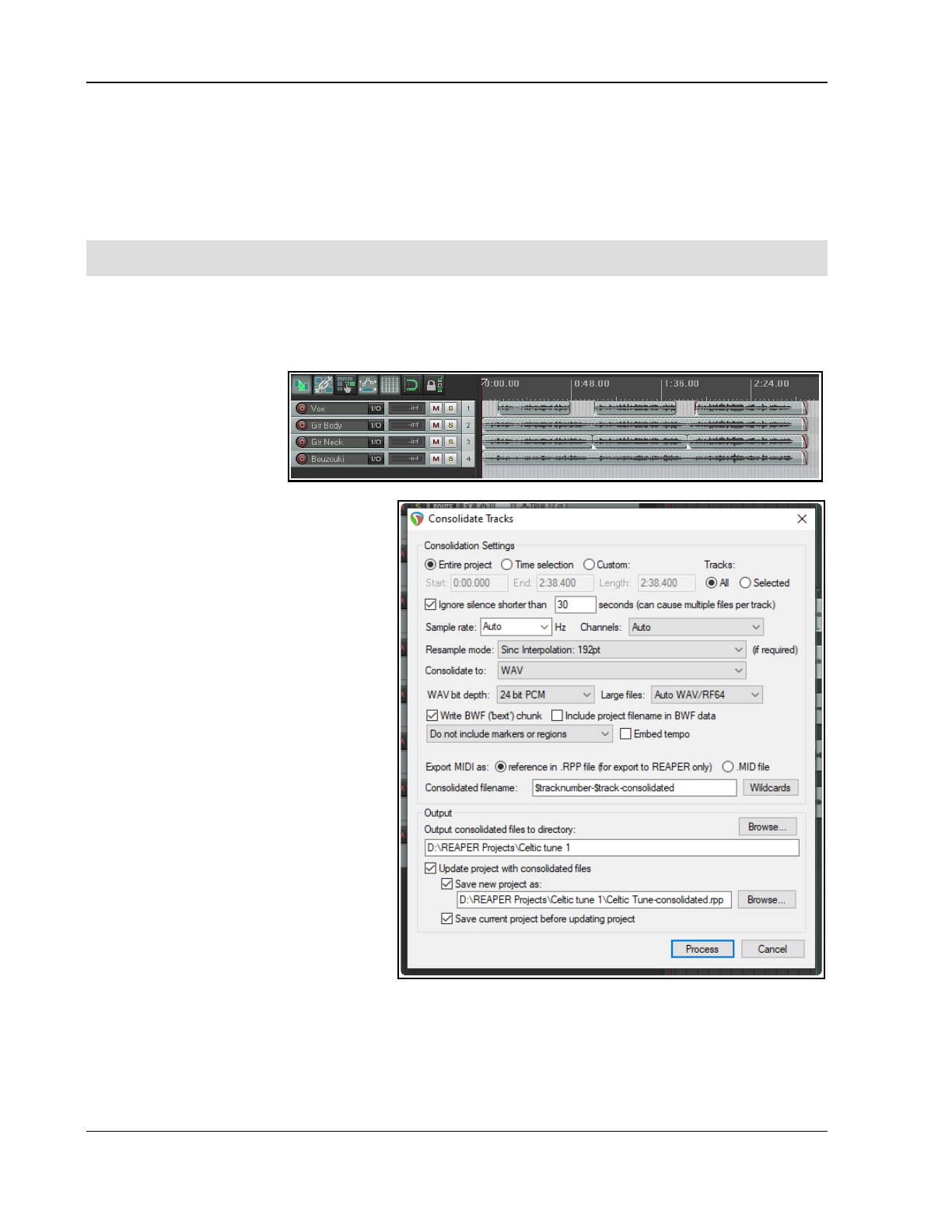
Up and Running: A REAPER User Guide v 7.81
Select your required scheme, then enter the information required in the appropriate fields. User defined fields
can be included where the scheme supports it. The example shown here uses a combination of text fields and
wildcards. Note also options to Always embed title/date/time and to Calculate and embed
peak/loudness values into rendered file metadata.. When finished you click on Apply to save this information
before clicking on OK to return to the Batch File Conversion dialog. Don’t forget to enable Embed metadata.
The Presets button can be used to save your current selection of settings as a preset which can be easily
recalled and applied to other future rendering projects.
Note: The project render metadata window can also be opened from the main menu using the File, Project
render metadata command.
21.2 Consolidating and Exporting
You might, for example, want to send your project to a friend to add vocal harmonies to your song. What if that
friend lives a long way away and doesn’t use REAPER? She might use a different DAW, or perhaps she will use a
commercial studio. In any case, the project can be consolidated and exported.
In the example here, the
Vox track is made up of
three items. If we sent the
six media files to someone
else, it would be difficult to
line the items up.
Consolidate and export
creates a new set of audio files, one per
track (minus FX, panning, etc.). When
inserted in another DAW, each starting at
zero time, one per track, then everything
will be in the right place for further mixing.
1. Depending on what you wish to
consolidate, if necessary make any
time selection and/or track selection.
2. From the main menu, choose File,
Consolidate/Export Tracks.
3. Choose Entire project or Time
selection or Custom selection, then
All or Selected tracks.
4. Ignore silence is a setting designed
to prevent multiple files per track. In
most cases you can leave this at its
default value of 30 secs.
5. Decide if you want to have sample
rate and number of channels
automatically determined, or whether
to specify these yourself.
6. Select a Resample Mode.
7. Specify consolidation format and bit
depth – WAV, AIFF, DDP, FLAC,
MP3, OGG Vorbis, OGG Opus,Video
LCF or WavPack. In the example
shown, WAV has been selected.
8. Select your required specifications for your chosen format. For example, for WAV files you need to select a
bit depth and specify whether you want to use BWF data, include markers and regions, and how to deal
with MIDI data. If in doubt, speak to the person to whom you will be sending the consolidated files.
9. Specify your Output directory (where the files will be written to).
10. Specify whether you wish to update your project with the newly consolidated files.
11. Specify a name for the new project file (or accept the default). Click on Process.
412
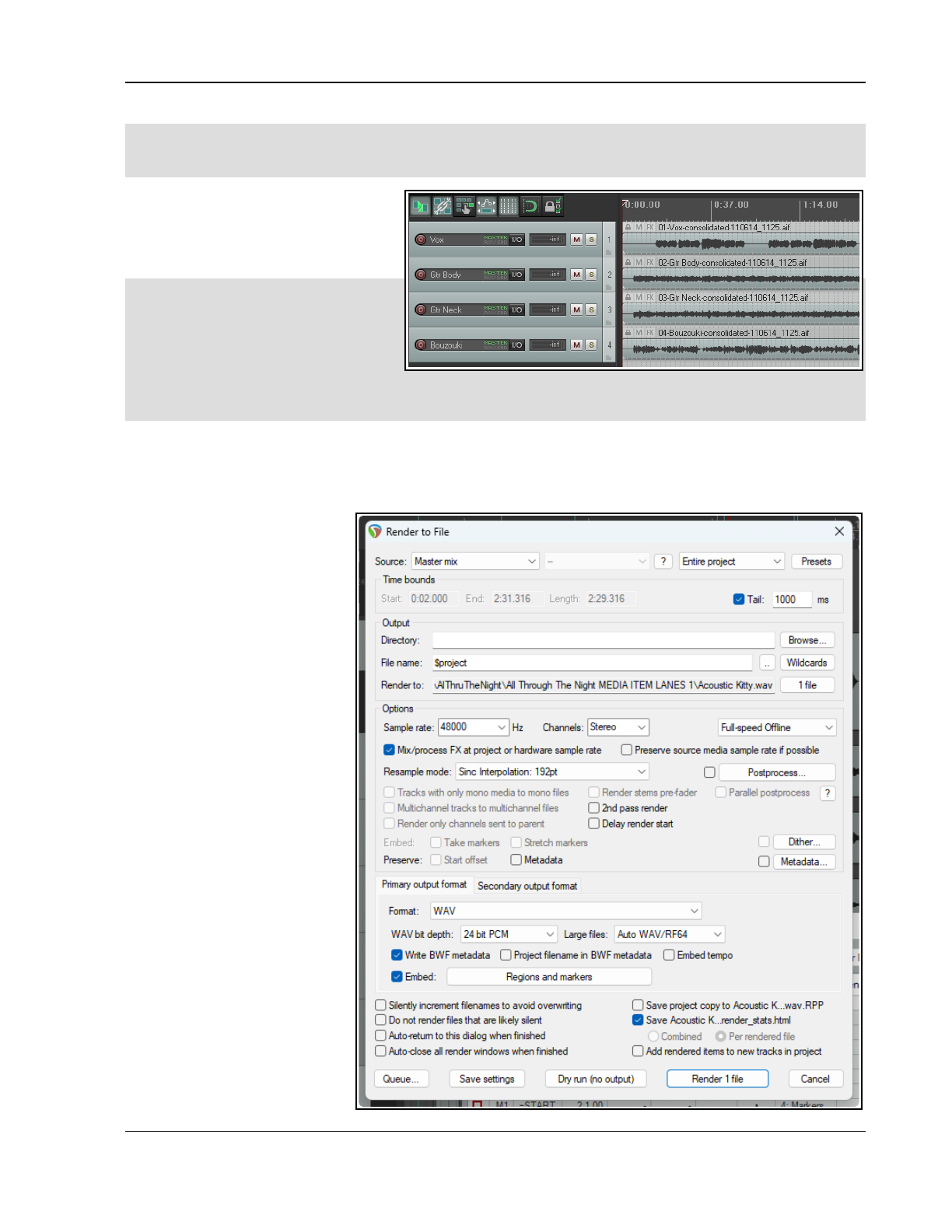
Exporting Files, Mixing Down and Rendering
Note: Be careful how you use the option to Embed tempo. It adds an ACID tempo tag to the audio file(s). This
may be interpreted by any tempo aware application so that the audio is stretched or processed when you do not
wish this to happen. Only enable this option if you are certain you want the tempo embedded.
Shown here is an example of a project
after consolidation, with one media item
per track. These four items can be easily
imported into any DAW program, with
vocal harmonies then added.
Note: To consolidate in MP3 format
you need to have the correct free Lame
encoder file for your platform and
REAPER version. For example, for
Windows 10/11 it will be either
libmp3lame.dll or lame_enc64.dll.
This file is included with the REAPER download. Likewise, for output video rendering you will require an encoder
such as Ffmpeg.dll, also included in the download.
When you consolidate media in this way your item settings and properties (e.g. take envelopes, take FX, item
pitch adjustment) will be incorporated in the output files, but track based properties (e.g. track FX) will not be.
To apply your track FX chain, track envelopes, etc. to your output media, use the Render to File dialog,
selecting Stems (selected tracks) from the Source drop down list.
21.3 Rendering A
Project
The File, Render... command
has several applications,
including rendering a project
down to a single stereo file.
When you have finished your
recording and edits, added FX
and automation, arranged all
your tracks …. now you want to
produce an end product for
distribution.
If you're distributing thru the
web, then probably you will
need stereo MP3 files.
If aiming for an audio CD, you
will need one 16-bit stereo wave
file for each song on the CD.
Regardless of format, each
project will ultimately need to
be rendered down to one file.
The File, Render command
(Ctrl Alt R) dialog shows the
various options. You must
specify a directory and file
name: if you wish, use the
Browse button for either or
both of these. Your other
choices will depend on the
nature of your material. A
summary of Render to File
dialog box options follows.
413
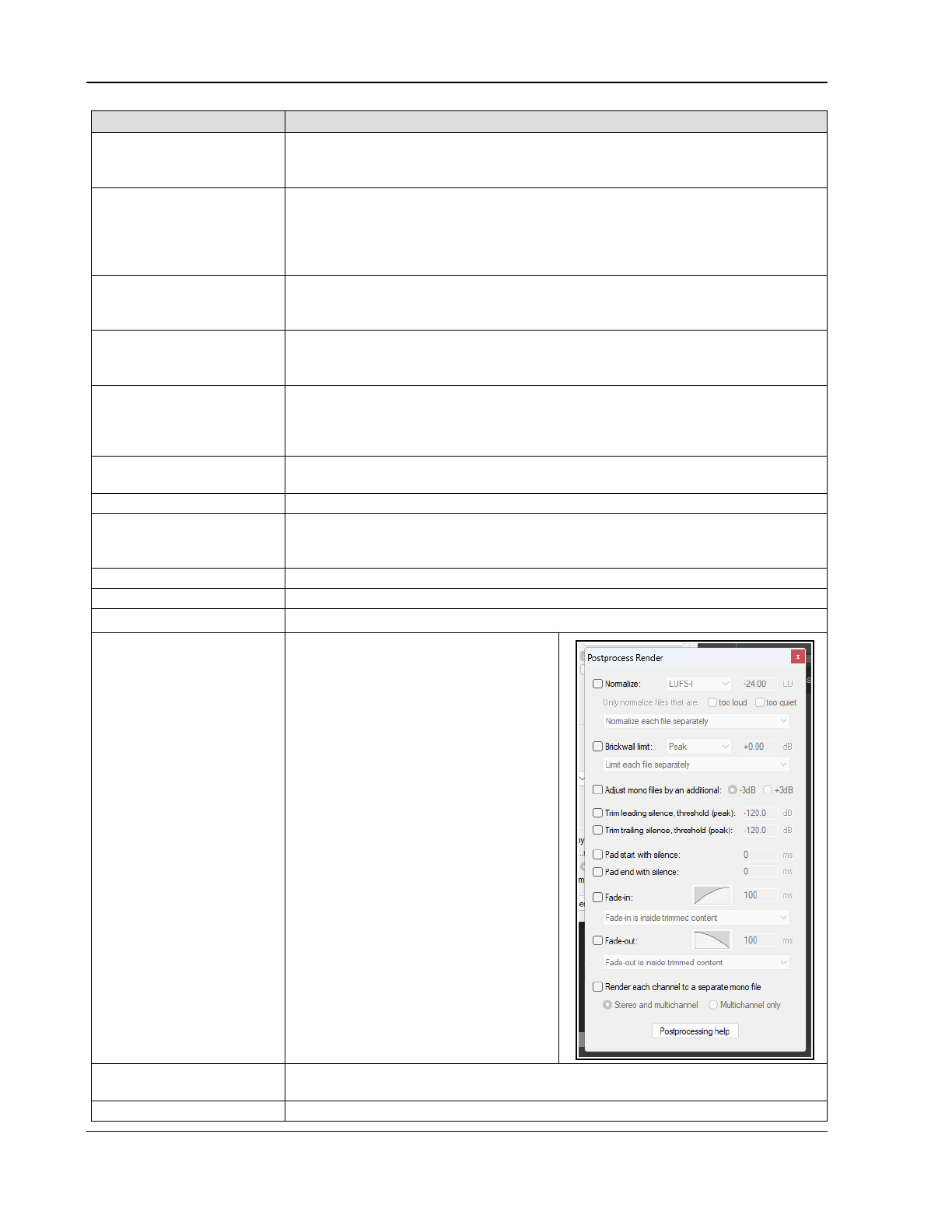
Up and Running: A REAPER User Guide v 7.81
Option Explanation
Source
(and ? button)
See section Rendering to File: Source Options. Note that, depending on which
source you select, some dialog box options may be disabled as not relevant.
Click on the displayed ? button for more information.
Bounds: options vary
according to Source (e.g.
bounds options for
Master Mix bounds are
shown here on right)
Select custom time range (use edit boxes), Entire project, Time selection
(made in arrange view), Custom time range (enter start and end times in dialog)
or Project regions (selected in Region/Marker Manager or Region Render Matrix).
For Entire project, markers named =START and =END (if present) will be used to
define start and end of project for rendering.
Bounds: project
markers/selected
markers
Choosing project markers causes a separate item to be rendered from each
project marker to the next. Choosing selected markers causes a separate item to
be rendered between each selected marker and the next marker.
Presets button Opens a menu to save settings as a preset, or load, rename or delete a previously
saved preset. Can be Bounds and output, Options and format or All settings.
Options include to replace existing preset with current settings.
Directory and
File name
Any directory specified in Preferences will be used by default. Otherwise, type in a
directory of your choosing or use the Browse button. Use Wildcards to include in
the filename data such as track name or number, date/time stamps, etc. (Chapter
21.2.1). Wildcards help is available from the wildcards menu.
Sample Rate Select a value in the range 8000 to 192000, depending on output format and other
factors. Some examples follow in the table after this one.
Channels Choose mono, stereo or select a number for multichannel output.
On or Off-Line Speed
(see also note below table)
Full-speed (default) for fastest rendering. Others include 1 x offline, online (play mix
while rendering), online (idle) and offline x 1 (idle). Idle assigns a lower system
priority to the render thread, freeing PC resources for other tasks.
Mix FX Allows project sample rate to be used for mixing and FX/synth processing.
Preserve sample rate Preserves source media sample rate if it is possible.
Resample mode Various options allow trade off between speed and quality. Default is 192.
Postprocess ...
Opens Postprocess
Render dialog.
Postprocessing options include:
Normalize to RMS-I, LUFS-I, True
peak, Peak, LUFS-M max or LUFS-S
max to a target level and/or Brickwall
limit to Peak or True peak.
Normalize each file separately, to
loudest file, or as if files play
together.
Also options to:
Adjust mono files by +3dB/-3dB.
Trim leading/trailing silence and/or
Pad start/end with silence.
Render each channel to a separate
mono file, stereo and multichannel or
multichannel only.
Fades can be applied (in and/or out) of
a length and shape you specify,
optionally inside trimmed content.
Further info is available there with
Postprocessing help.
Tracks with only mono
media ...
Enabling this ensures that mono channel rendering will automatically be applied to
tracks where all media items are mono or with a mono item setting.
Render stems prefader This option is available if the source option includes stems.
414
Exporting Files, Mixing Down and Rendering
Option Explanation
Multichannel tracks... These can be rendered to multichannel files. An example follows shortly.
2
nd
pass render Audio plays once before rendering, so that FX tails (e.g. reverb) are applied.
Parallel postprocess Enable/disable parallel postprocessing.
Only sent to parent If enabled, only channels sent to their parent will be rendered.
Parallel render
Click on ? for more
information.
Whether to use parallel rendering when rendering files via the master. If enabled,
multiple files will be rendered simultaneously (rather than one after the other). For
all other source options (not via master) parallel rendering is the default behavior.
Dither button
Whether to apply dithering or noise shaping to master or stems. Commonly
used when rendering 24 bit (or higher) audio to 16-bit WAV format for audio CD.
Creates a smoother transition to the lower sample rate in the rendering process.
Can be used on secondary format alone if primary format does not support dither.
Embed markers
Whether to embed take/stretch markers in rendered file(s). Commonly used
when rendering 24 bit (or higher) audio material to 16-bit WAV format for audio CD.
Creates a smoother transition to the lower sample rate in the rendering process.
Preserve if possible Preserve Start offset and/or metadata if possible. To Add new metTakeadata
click on the Metadata button. The wild cards button within the metadata window
includes an option to display wild cards help.
Primary/Secondary
output format
Select primary and optional secondary formats for rendering, e.g. to render a file in
WAV and another in MP3 format. Choose WAV, AIFF, CAF, Raw PCM data, Audio CD
image (CUE/BIN), DDP, FLAC, MP3, OGG Vorbis, OGG Opus, video (Ffmpeg/libav
encoder), video (GIF), or WavPack lossless compression.
Format specific options Other options depend on the format, e.g., for WAV or AIFF files, bit depth, for FLAC
encoding depth and data compression level, for MP3 mode and bitrate, and so on.
WAV files allow embedded markers and/or regions in the output file(s), and/ or
project tempo. The option Include project filename in BWF description is also
available for WAV format: it associates rendered files with the source project.
Embed tempo This option is available for WAV and AIF files only. See section Embedding
Transient Information when Rendering for detailed explanation.
Regions and markers
Option to embed regions and/or markers, include or exclude hidden markers.
Silently increment
filenames...
Prevents you from accidentally overwriting an existing file: an incremental number
(001, 002, etc.) will be added if an existing file name is used.
Delay queued render to
allow samples to load
Resolves problems that can be caused when samples (especially large samples)
need to be loaded before rendering.
Save copy of project to
outfile.xxx.RPP
Tells REAPER to make a time and date stamped copy of your project file, preserving
all settings exactly as they are at the time of rendering.
Do not render ... Optionally, do not render files that are likely to be silent.
Save all stats ... Options to save stats for rendered file either combined or individually.
Auto return …
Auto close all ….
Automatically return to this dialog box after rendering
or
Close all render windows when finished. These two options are mutually exclusive.
Disable both to keep the dry run render window open when finished.
Add rendered items to
0new tracks...
If enabled, causes your rendered file(s) to be added to the project as new tracks.
Queue Add to or open render queue for rendering.
Save settings Saves the render settings without rendering any files.
Render x files or
Dry Run (no output)
Choose render to render one or more files, according to your options. Choose dry
run to “test” render without actually rendering any files. After rendering, you will
have the option of playing your rendered file(s).
Note: Online vs Offline rendering: some plug-ins might perform and sound differently if rendered offline.
415
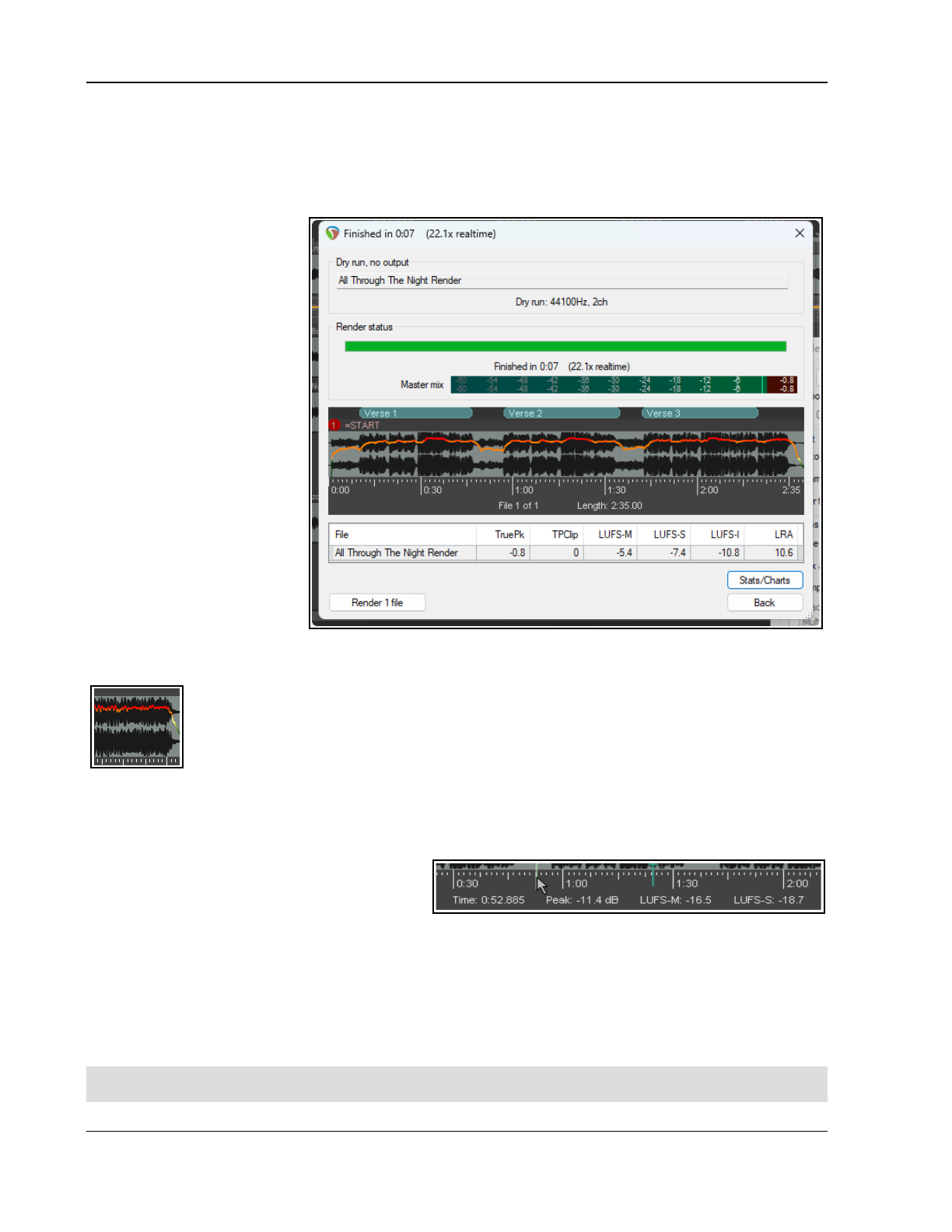
Up and Running: A REAPER User Guide v 7.81
21.4 Dry Run Render Stats and Options
When rendering to a file or doing a dry run this window (below) will open. and (depending on options) may stay
open until you close it. This helps to to identify potential issues (such as clipping) before finally rendering.
The display (below right) includes the rendered waveform, markers and regions, loudness statistics and
indications of any clipping. In the example shown here there is no clipping.
Click on the waveform display
to reposition the arrange view
cursor. Click and drag along the
waveform to mark a time
selection in arrange view. Other
options include to calculate and
show various statistics.
The Waveform and its
right-click context menu:
Click on the waveform to move
the arrange view cursor to that
position. Left click/drag to
make a time selection in
arrange view. Right click for a
context menu (below right).
Insert project marker /
Insert region: inserts marker
at cursor position/creates
region from time selection.
Clear time selection:
removes current time selection.
Set project edit cursor to
first clip position in
project / Set project edit cursor to loudest sample position in project: moves the cursor in the project
to whichever is selected.
Display momentary loudness graph / short term loudness graph/file length in
samples: superimposes whichever of these is selected over the waveform, as shown left.
Shade areas that do not contribute to LUFS-I: effectively, shade those areas that do not
pass through the noise gate..
Mark overs in peaks display: Marks display with a vertical red line when 0.0 dB is exceeded.
Notice also: Peaks/loudness stats are shown below the graph where the mouse is hovered.
The Stats/Charts button menu:
Open render statistic charts in web browser allows you to view statistical data even after the dry
run/render window is closed. It can be printed or saved to a file.
Other options include Customize render stats
chart,. Calculate stats when rendering,
Render statistics help and Set project edit
cursor to loudest sample position.
Calculate stats when rendering:
From the Calculate statistics when rendering menu choose peak or true peak and the four RMS-M, RMS-S,
RMS-I, RMS-RA or the four LUFS-M, LUFS-S, LUFS-I LRA. (These-terms are explained in the JS Analysis
Loudness Meter section in Chapter 6).
There are also options to customize Render peaks display settings. Options are Display momentary
loudness graph, Display short-term loudness graph or Display length in samples. You can also opt to
Shade areas that do not contribute to LUFS-1 and Mark overs in render peaks display.
Tip: The Actions list includes actions to Calculate the loudness of selected tracks via dry run render. This
can be ran directly from arrange view.
416
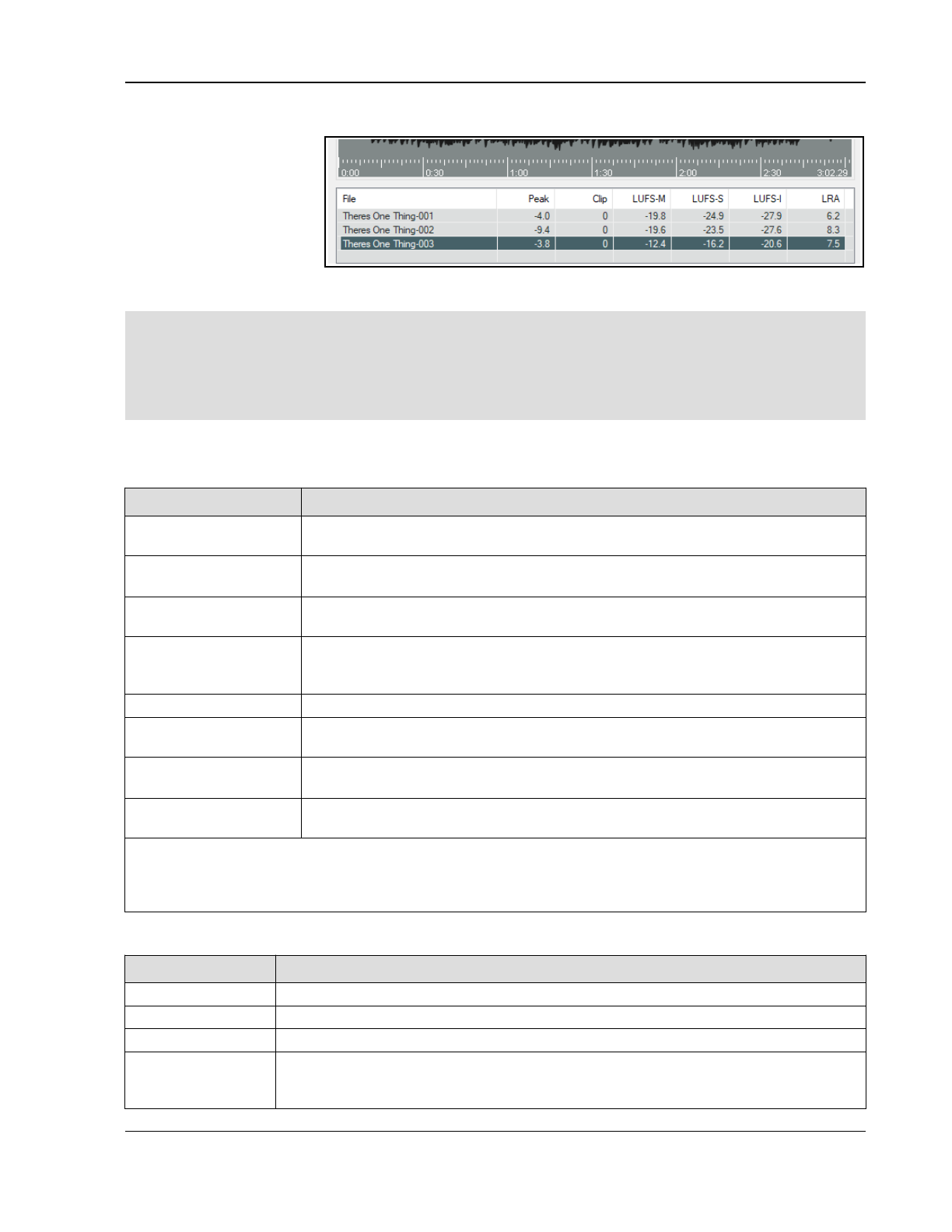
Exporting Files, Mixing Down and Rendering
Dry Runs with Multiple Outputs
If your render master
source options will produce
more than one rendered
file (e.g. selected tracks,
selected media items,) then
REAPER performs a
separate dry render for
each unit within the
selection. Use the list of tracks/media items/regions/razor edit areas displayed below the graph to select which
one to display and work on at any one time. Click on any column header to sort the list.
Tips
1. The Render x file(s) button: this will render to file without returning to the main Render to File window.
2. Running the action list action Dry run render project using the most recent render settings will
perform a dry run render without the need to open the File, Render dialog.
3. Running the action Calculate loudness of selected tracks via dry render in arrange view will identify
potential clipping etc. in individual tracks before rendering.
21.5 Render to File: Source Options
The table below summarizes the various rendering source options discussed in this chapter:
This option ... Causes this to be rendered ...
Master mix
Sends the output of the master track to a single file: includes master track settings
(volume, pan, mute, FX, sends. etc.) and automation.
Selected tracks
(stems)
Outputs to a separate file for each track selected, post FX, post-fader and post-pan.
Includes input from any tracks routed to that track (with faders/pans applied).
Master mix + stems
Outputs master to a single file, plus a separate file for each track selected:
effectively selects both the options Master mix and Stems (selected tracks).
Selected tracks via
master
Starts with same output as stems, but if in folder it passes thru folder (with folder
FX but without its other media). Includes any sends to other tracks (with those
tracks’ FX but without their media) before passing to the master FX/fader.
Region render matrix
See dedicated section Rendering Regions.
Selected media items
Outputs one file for each media item, or optionally as one file. Includes track and
item FX and faders but ignores sends from and receives to that track.
Selected media items
via master
Outputs in a similar way to Selected tracks via master, but with one file per item
selected instead of one file per track.
Razor edit areas
Outputs in a similar way to Selected media items (optionally via master) with one
file per area selected. Option to output as one file.
Note: If your selection of items to be rendered includes items previously rendered, you will be offered the
option of rendering previously unrendered items only.
Tip: to create a separate file for each track (or for selected tracks only) without FX, panning, faders etc.
included, rather than using File, Render, consider using the File, Consolidate/Export tracks… command.
21.6 Project Rendering Examples
Example Specification
DVD Audio Sample at 48000 HZ, Channels: Stereo, Higher Quality. Output: WAV format, 24 bit
CD Audio
Sample at 44100 HZ, Channels: Stereo, Higher Quality. Output: WAV format, 16-bit
Apple Mac AIFF Format. Preferred settings will vary with individual circumstances.
Web Site / Web
Audio
Sample Rate 44100 HZ, Channels: Stereo, Higher Quality. Output format: MP3
Other options trade off files size and download time against audio quality, but a typical
selection might be CBR (Constant Bit Rate) 96 or 128, Joint Stereo, Quality High
417
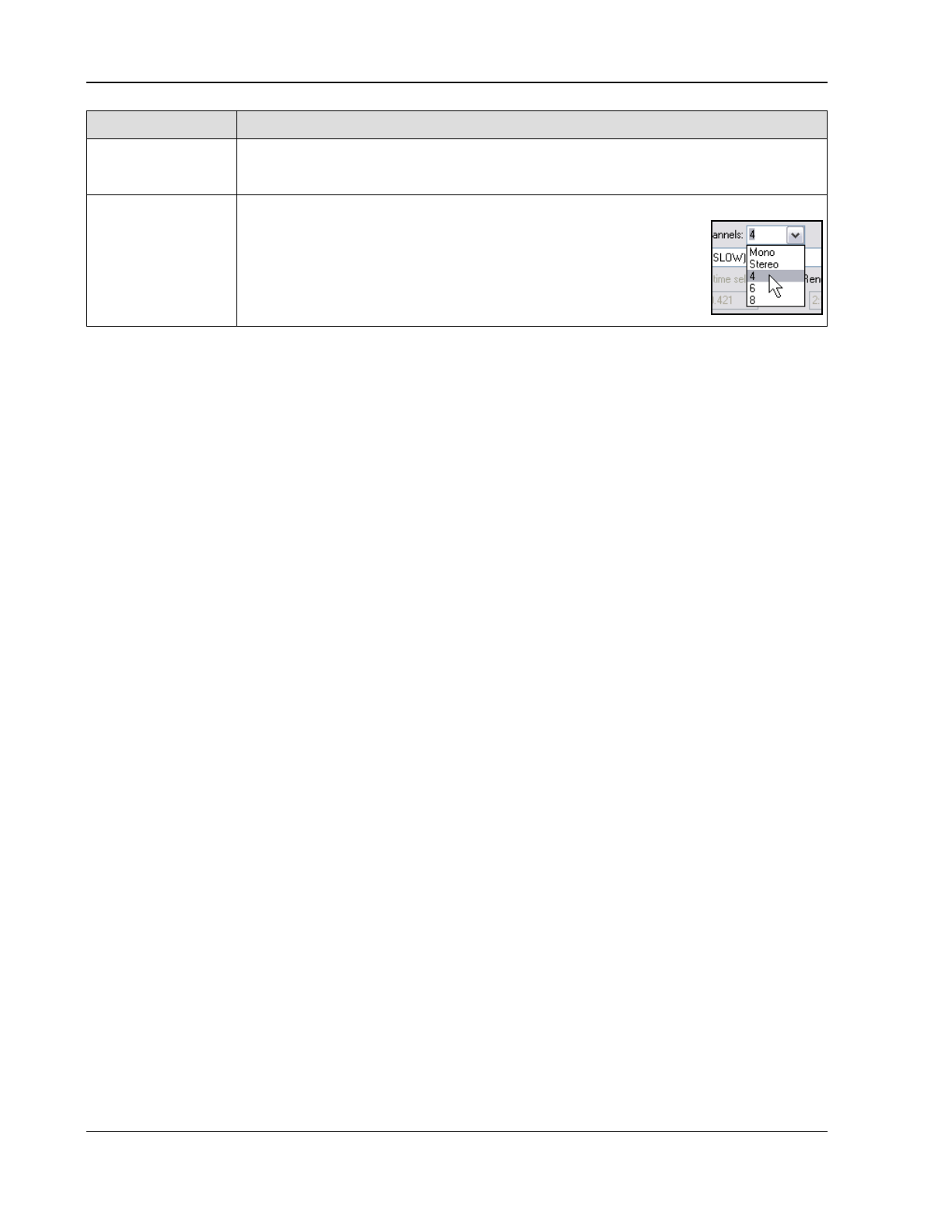
Up and Running: A REAPER User Guide v 7.81
Example Specification
Audio CD Image
(Cue/Bin) format
Specifications as for CD Audio. Burns output directly to CD, or creates image file to use
with CD burning software. You can use markers or regions to define tracks, including
using as track markers only markers whose name begins with "#".See section 21.9.
Multichannel
Tracks
We look at channel splitting and creating multichannel tracks in Chapter 17. Tracks can
be exported in multichannel format. Select the tracks in the TCP,
open the Render to file dialog and include the options:
Channels - Select the number of channels, e.g. 4, the select
Render stems (selected tracks) to similarly named files.
Select Render multichannel tracks to multichannel files.
Optionally, Add items to new tracks in project when finished.
The Action List includes many actions relevant to file rendering, including:
File: Render project using the most recent render settings with the additional options to also
autoclose render dialog when finished or with a new target file
File: Add project to render queue using most recent render settings
File: Save project and render RPP-PROX
File: Show project render metadata window
21.7 Rendering a Finished Song
When rendering a finished song some of your output format choices are likely to depend on what your final
destination is, e.g. for audio CD or the web. There are also considerations that are applicable in most cases.
Your recording might have a few seconds of silence before the song starts. If you do not wish to include this
period of silence in your rendered material, follow these steps before rendering:
1. Position the play cursor at the point where you wish the rendering to commence. Press Shift M to create a
marker at this point. Name this marker Start.
2. Position the play cursor at the point where you wish the rendering to stop. Press Shift M to create a
marker at this point. Name this marker End.
3. With loop points linked to time selection, double click on the marker line (above the timeline) anywhere
between the two markers. This selects the area between them.
4. From the REAPER menu, choose the File, Render command.
5. Select the required output format and other options as required, but be sure to include the option Time
selection from the Render Bounds drop down list.
6. Select other settings to suit, including whether you wish to embed metadata (see Chapter 21.2.2).
7. When you are ready, click the Render 1 file ... button in this dialog box to render your file.
21.8 Rendering a Group of Tracks to a Single Track
This example uses the Render to File dialog box: details and explanations of options and settings are explained
in Section 21.3. To apply stem rendering to a group of tracks to mix them down to a single audio file:
1. In Arrange View, put the required tracks into a track folder.
2. In the Track Control Panel, select the folder. No other track should be selected.
3. Choose the File, Render... command.
4. Selected options should include: Selected tracks (stems) and Channels Stereo or Mono (as you wish)
and whether to Render stems pre-fader. If you wish, also select the option to Add rendered items
to new tracks in project.
5. Select your output format (e.g. WAV) and format (e.g. 16 bit).
6. Click on Render 1 file...
For example, the output of a folder can be rendered to a single stereo track. This can be added to the project.
When working with multichannel tracks you can also render your output in multichannel format. You will need to
select the required number of channels from the Channels drop down list in the Render to File dialog box.
You'll learn more about file rendering, including multichannel rendering, in Chapter 21.
418
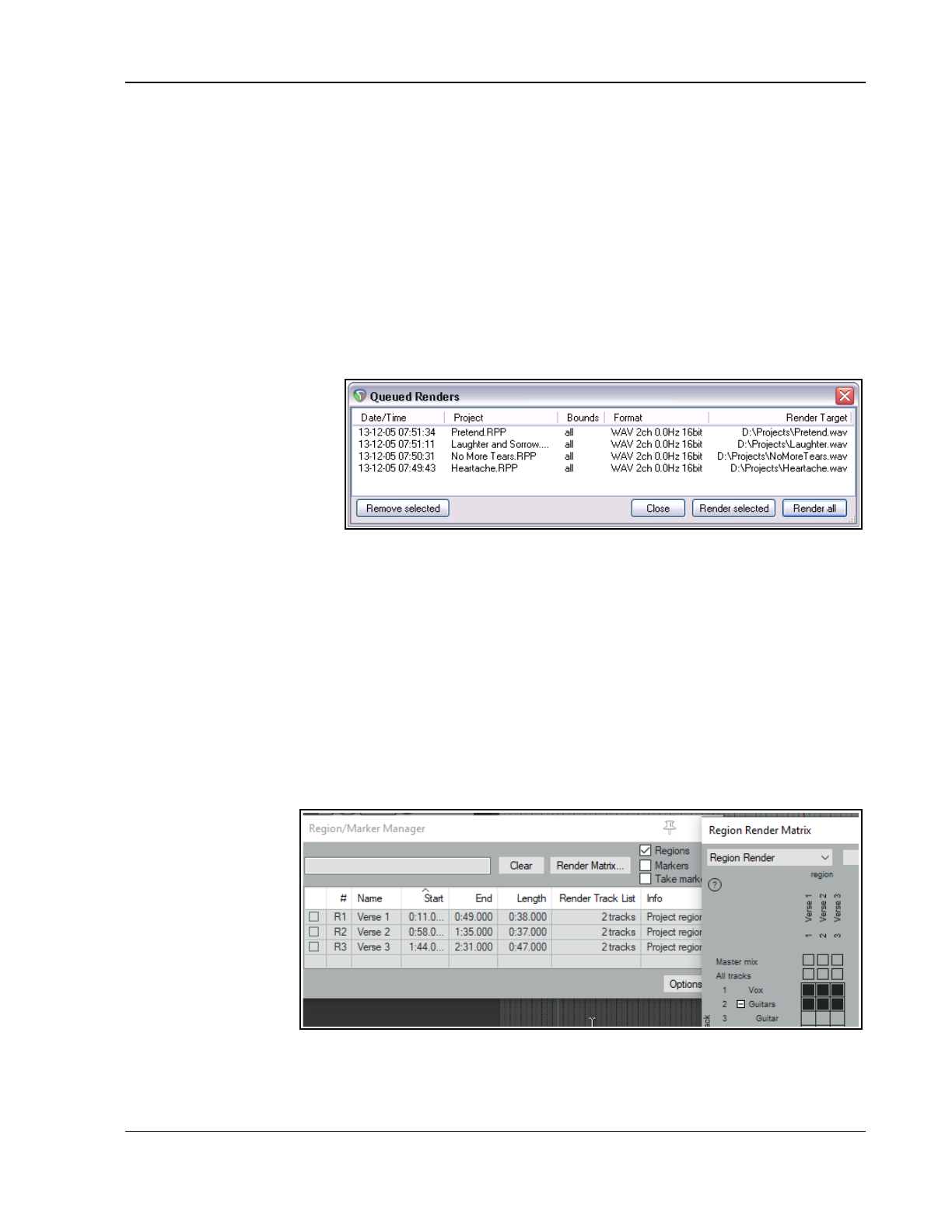
Exporting Files, Mixing Down and Rendering
21.9 Queued File Rendering
You might have a collection of songs that you wish to render together when the project is finished. That way,
you can go away while REAPER renders the whole set, and then come back later. Follow this procedure:
For Each Project to be Rendered:
1. Open the project and choose the File, Render command.
2. Choose your various settings and options, as explained in the previous sections. You will probably want to
select the same folder (directory) for all of the projects that will be included in the batch to be rendered.
3. Do
not
click the Render File button. Instead, click the Add to Render Queue button. When you add a file
to this queue it is saved as it is at that point in time. If you make any later changes to the file that you
wish to include, you should remove the file from the queue, then add it back again.
4. The dialog box will be closed, and nothing appears to happen. Save and close the file.
To Render the Queued Batch of Projects:
When you render the queue, each file will be rendered separately according to the settings and options that you
made for each file individually
when you set up the batch.
1. From the main REAPER
menu, choose File,
Open Render Queue.
2. This causes a dialog box
(right) to be opened,
listing queued files.
3. If you need to remove
any item from the list, select it and click on Remove Selected.
4.
Either
use Ctrl Click to build up a subset of items to be rendered and click on Render Selected
or
simply click on Render All to render all items in the queue, each of course to a separate file. The
Rendering to File box will be shown as each file is rendered and removed from the queue.
5. Close the Queued Renders dialog box when finished.
21.10 Rendering Regions
Defining your region rendering requirements can use a combination of three possible windows: Render to File,
Region/Marker Manager and Region Render Matrix. For the most part you will not need to use all three
together, but it will help you if you understand how these three windows can work together.
Of course, there are many reasons why you might wish to use and work with regions without rendering them as
regions. However, there are other circumstances when you might wish to do this. After making your choices in
the Render Track List column of the Region Render Matrix you could go to the Render to File dialog if you
wish, selecting Region render matrix or Region render matrix via master as appropriate, with bounds set
to All project regions.
However, there can be
advantages in taking
your Render Track
List specifications (for
example which regions
to render and which
tracks to include) into
the Region Render
Matrix where those
choices will
automatically be
reflected, as i shown
here.
The Region Render Matrix, presents you with a further options as well as offering a direct route via a button
to the Render… dialog. You can access this directly from arrange view, without needing first to visit the Region/
Marker manager. Thus, it can be accessed in any of three ways:
419
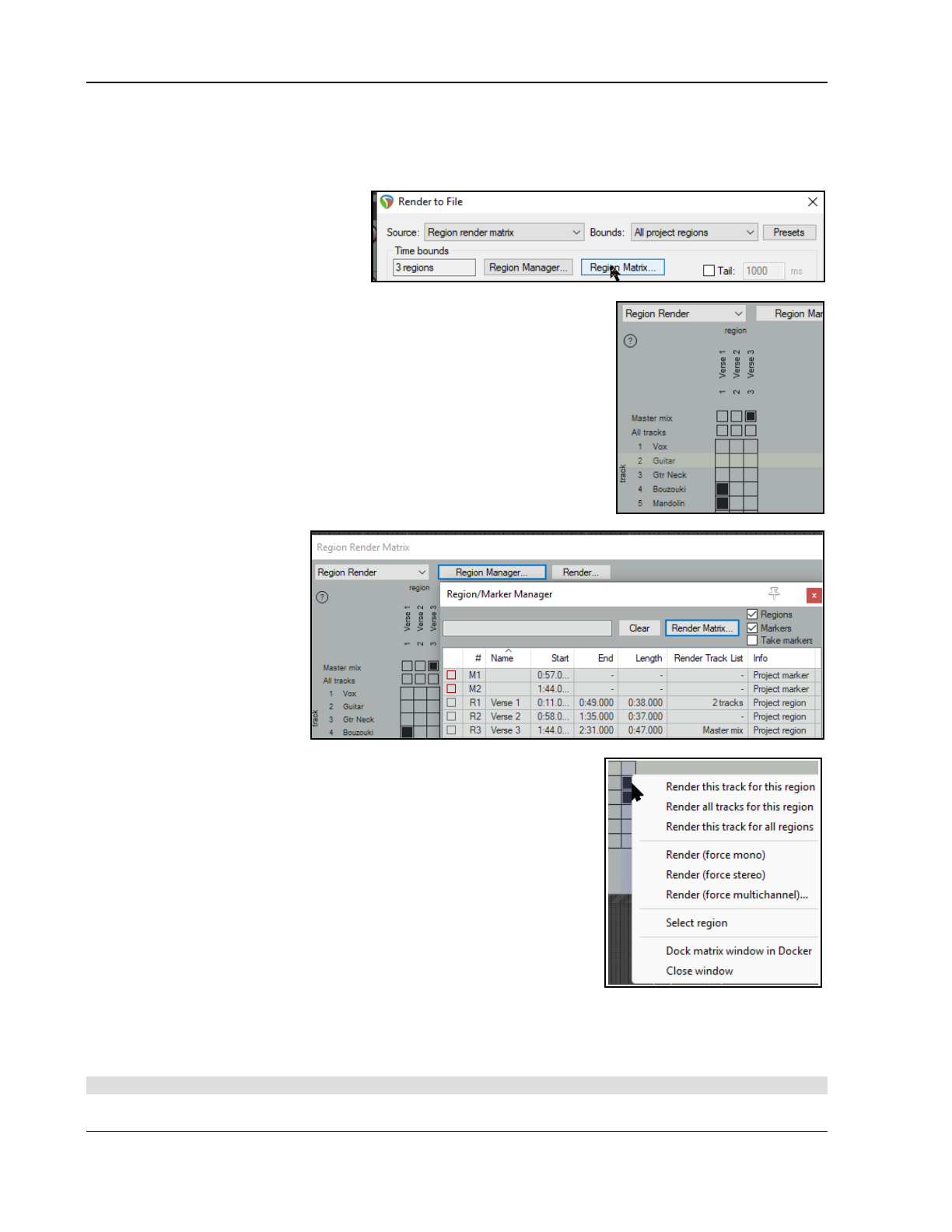
Up and Running: A REAPER User Guide v 7.81
From the main menu choose File then Region Render Matrix, or
Click on the Render Matrix... button in the Region/Marker Manager window.
In the Render to File dialog (File, Render...), select Region render matrix from the Render drop
down list, then click on the Region Matrix... button (see below right).
To understand how this matrix works,
look at the example below right. It uses
a simple project of five tracks (including
a folder). The song includes three
regions – Verse 1, Verse 2 and Verse 3 .
In the first column (Verse 1), two guitar
tracks (tracks 4 and 5) are checked. This would result in two files, one for
each of these tracks, being rendered for Verse 1.
If we had checked All tracks, a separate file would have been rendered for
each track, including the folder – five tracks in all.
In the second column (Verse 2) nothing is checked: this verse will therefore
not be rendered.
In the third column, Master mix is checked, resulting in just one file being
rendered for Verse 3 – a master mix of all tracks.
Within the Region Render Matrix, you can also click on the ? symbol (top left
corner) to open a Help screen with more information.
Remember, selections can be made in either the Region Render Matrix or the
Region/Marker Manager – the
other one will be automatically
updated, as shown here:
The Region Render Matrix right-
click menu offers some useful
shortcuts for selecting what is
to be rendered and other
options. This saves you having
to keep clicking within the
matrix to make your selections.
Render this track for this
region does what it says.
Render all tracks for this
region will render all tracks in this region to a single file.
Render this track for all regions will render all regions for this track to a
single file.
Render force mono/stereo/multichannel will render in the selected
format (mono, stereo or multichannel) whichever choice you make from This
track for this region, This region, or This track. For multichannel
rendering you will need to specify the number of channels.
Select region simply selects the region.
You can choose to Dock or Undock the matrix window in the docker.
After masking your choices, clicking the Render… button will open the
Render to File dialog, then select Region render matrix and All regions.
Output format, etc. are specified in the usual way. Use a backslash in the file
name to create subdirectories. For example, a file name $project\$region-
$track will include project file name, region name and track name in the output files, with each region's files
being allocated its own sub-directory. The file name $project\$track-$region would include project name,
track name and region name, with this time a separate subdirectory for each track.
When ready, choose Render xx files...or Queued Renders... to proceed.
Tip: The action list includes an action Region: Select/unselect all regions for rendering.
420
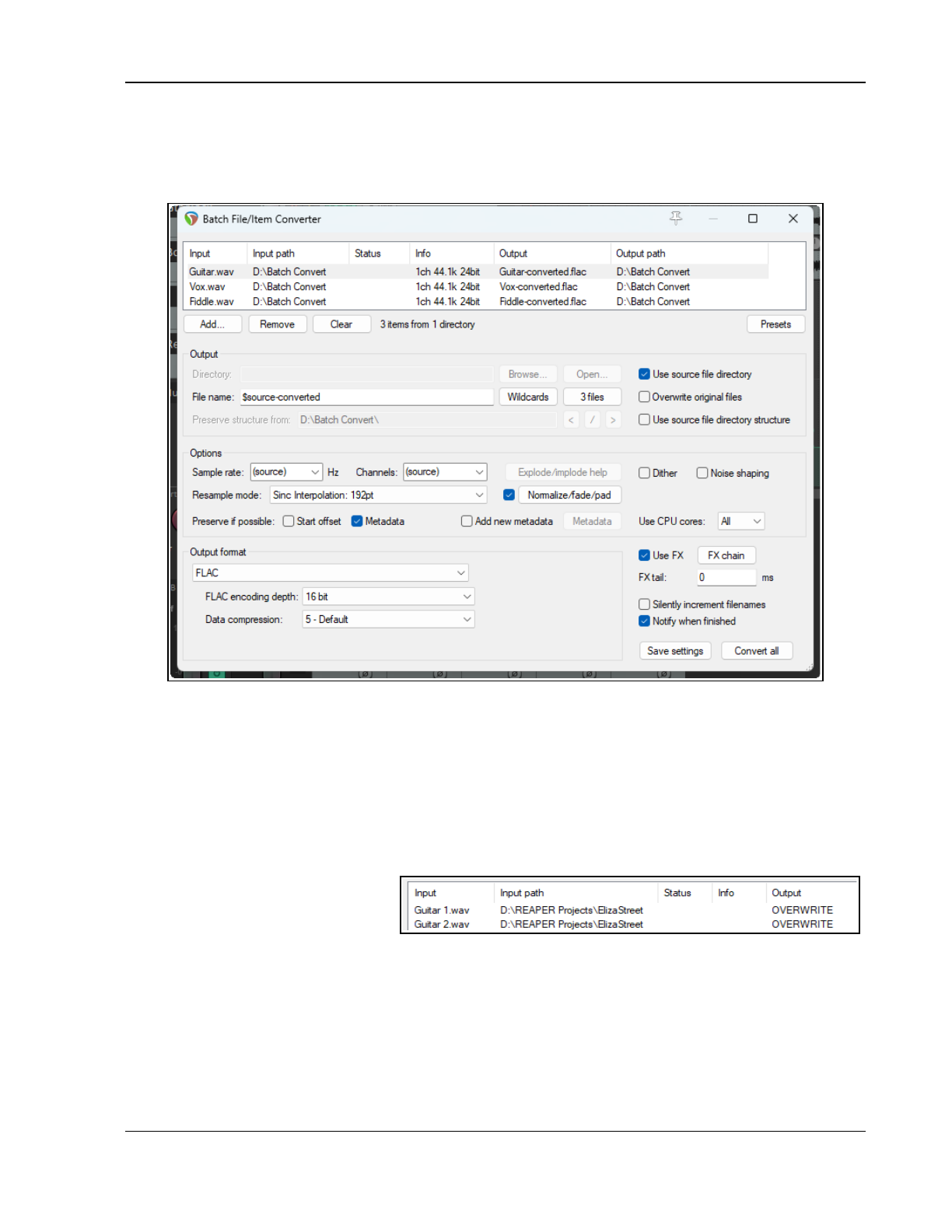
Exporting Files, Mixing Down and Rendering
21.11 Batch File/Item Converter
You might need to convert files or media items to a different format, for example from .WAV to .MP3, or to a
different bit depth or sample rate. This can be done in one pass. REAPER's batch file converter (File, Batch
File/Item Converter ) can be used to do just this. Below is a summary of its options and parameters.
Media Selection
The Add button adds either files to be converted, or selected media items from the current project : data
such as channel count, sample rate and bit depth will be shown. Clear and Remove are used to
selectively remove files/media items from the list, or to clear the list altogether. Drag up/down to reorder files.
Click on any header to sort the list.
Presets can be a handy time saver. For example, you can save output settings as a preset.
Output Options
You can accept Source Directory to direct your output to the same directory as the input files, or Browse/
Open explorer to select a different directory.
Alternatively, enabling the
Overwrite original files option will
cause y7our source files to be
replaced in their current directory by
the rendered file.
In addition, the right-click context menu includes options to Add output files to current project and/or
Replace input file with output file in current project and/or Open output file in Media Explorer.
File Name
Wildcards can be used to define a naming strategy for your output files. Wildcards are explained more at the
start of this chapter, but in brief ...
$source-converted will cause the output file to retain its original name followed by the text string
“converted”. For example, Vox 1.wav could be rendered to Vox 1-converted.flac. Click the Wildcards
button to select any that you wish, e.g. $project for project name, or $length for length.
421
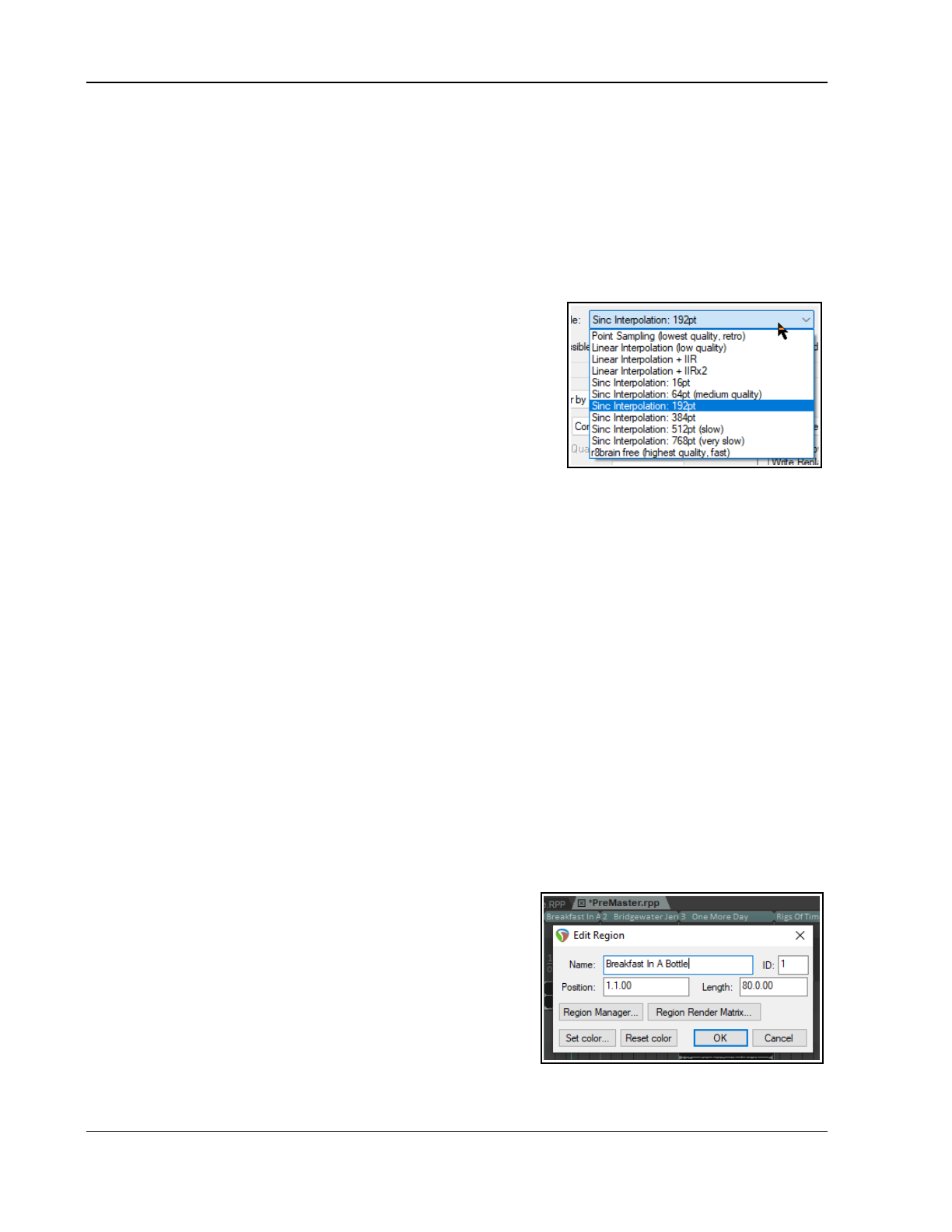
Up and Running: A REAPER User Guide v 7.81
Options
Sample rate and number of Channels will by default be the same as the source, Thus, a 48 k mono item will
be rendered to a 48 k mono item. Sample rate can be changed by making a selection from the drop-down –
e.g. 44100, 96000, etc.
Channels options can be rather more complex. Selecting source will cause the rendered item to preserve the
channel structure of the original – mono to mono, stereo to stereo, and so on. Beyond that, Explode/
implode help is available: here are some examples:
A mono item rendered to stereo will produce a two channel stereo media item with he original material
rendered identically to both channels.
A stereo item rendered to mono will produce a single mono media item.
A stereo item exploded will produce two separate mono files. A six
channel surround sound item exploded will produce six individual
mono files, one for each channel.
Resample mode.
Resampling can impact an item’s pitch, length or tempo: it should
only be attempted if you are confident about what you are doing.
Should you can make your selection from the dropdown.
Post processing render
Professional audio engineers should note that the
Normalize/trim/fade button opens a range of Postprocess render options. These are likely to be of
limited interest to casual home users, but in any event Postprocesing help is available. Options include:
Normalize peaks, using Peak levels or any of True peaks, LUFS-1, RFS-1, LUFS-MK max or LUFS-S max.
You can apply Brickwall limiting, with options to specify a dB level for peaks or true peaks.
Other options are to Trim leading silence and to Trim trailing silence. Pad start with silence and Pad
end with silence, as well as to select which Fade in/Fade out curves are to be applied.
The adjacent checkbox in the batch file converter window toggles all postprocess render options on/off.
Metadata
Metadata is information relevant to the project that can be stored in the actual audio file itself. You can find a
fuller explanation, with examples, at the beginning of this chapter. Here you have options to Preserve
existing meta data (if possible) and to Add new metadata.
CPU Cores. If you know how many cores your CPU has you can specify how many of these want to allocate for
your batch processing. The default setting is All. The more cores allocated, the quicker the procesing.
Use FX: This option can be used to create an FX chain to be applied when processing.
Available Output format settings and options will depend on your chosen output format. Shown in the page
above are the settings for FLAC.
21.12 Burning an Audio CD with REAPER
You might have a number of mastered projects to burn together to an audio CD. Another possibility is that you
might have one long continuous live performance recording and wish to burn that to an audio cd with one track
per song. In both cases the procedure is similar, with some slight differences in how you set the project up.
Preparing to burn a CD from several mixed files
1. Create a new project file. Open the Media Explorer, and
navigate to display your rendered stereo wave files.
2. Double click in turn on each of the files to include in your CD.
These are added to your project, lined up on separate tracks.
Name each track with the song name.
3. Notice that each media item is inserted so as to begin
immediately after the previous one, with no gap. It is not
necessary to move any of these in order to create gaps on
your CD. You will later be able to tell REAPER to do this
automatically for you.
422
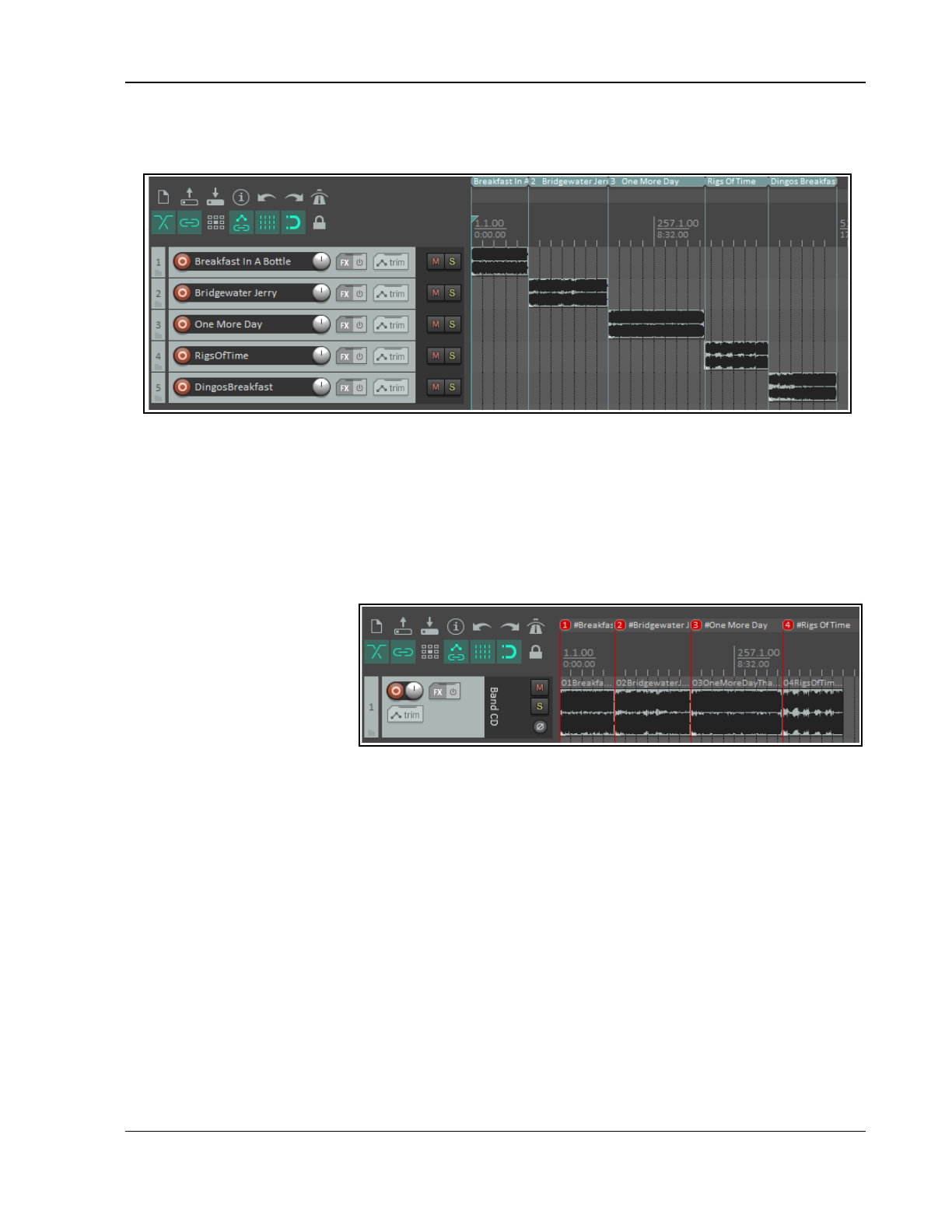
Exporting Files, Mixing Down and Rendering
4. Turn snapping off and create a separate region for each track. To do this, in each case select the item.
run the action Time selection: Set time selection to item then press Shift R. Name the region with
the name of the song.
5. Save the Project File. Now follow the instructions below for Burning the CD.
Preparing to burn a CD from one continuous recording
1. If the recording was made in REAPER, open the project file. Otherwise, create a new project file and use
Media Explorer to import the recording, using the method explained above.
2. It is
not
necessary to split up the media item. REAPER will take care of this when it burns the CD. However,
you will need to indicate where you want each track on the CD to start.
3. Disable snapping. Place the cursor at the very beginning of your project. Press Shift M to create and edit a
marker at this point. Name the marker name with a # followed by the song name..
4. Now move the cursor to the
start of the next song.
Again add a marker, and
again name the marker with
a # and the song name.
5. Repeat this to create a
marker at the start of each
song, as shown.
6. Save the Project File.
7. Now follow the instructions below for Burning the CD.
Burning the CD
1. Choose the File, Render command. You should now select the necessary options and settings for burning
your CD.
Format: Audio CD Image
Sample rate: 44100
Channels: Stereo
Render entire project
Render Master Mix
Output format: Audio CD Image (CUE/BIN Format)
Track mode
either
Markers define new tracks and Only use markers starting with #.
or
Regions define tracks
Burn CD Image after render
If you are not using a dithering plug-in, consider also enabling Dither and/or Noise Shape.
2. Optionally, you might wish to add Metadata (see note below).
3. In the case of the first of our two examples (with separate media items lined up on different tracks) you
might also want to specify a Lead in silence for tracks of 2000 ms.
4. Click the Render button and wait for the output file to be rendered. This might take a few minutes.
423
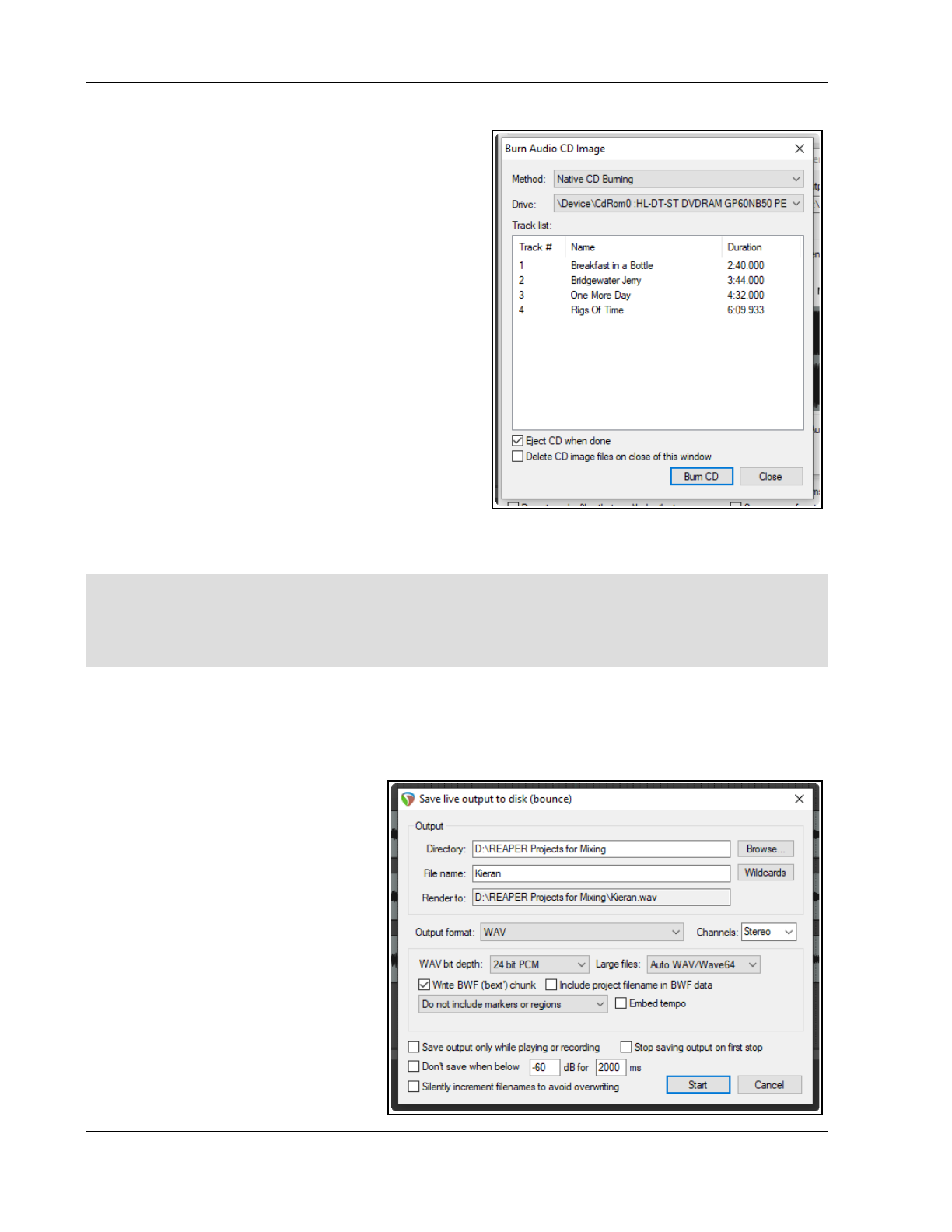
Up and Running: A REAPER User Guide v 7.81
5. When rendering is completed, the Burn Audio CD
Image screen will be displayed (see below).
6. Your preferred Method will depend on factors such
as your PC set up and operating system. If in doubt,
accept the default that is offered. Click on Burn CD.
7. Select Eject CD when done. Decide whether you
wish to keep or delete the CD image files when
done. It's probably worth keeping it, at least for
now. If you have any problems with burning the CD
itself here, you might well be able to use the image
file with another CD burning program such as Nero
or Toast.
8. Insert a blank CD into your CD drive and wait for it
to load, then click Burn CD.
9. Wait while the Burning in progress message is
displayed. Your CD will be burnt using the Disk at
Once mode, and as such will be suitable for use by
replicating or duplicating services.
10. When finished, the CD will be ejected. Click on
Close to close any messages still displayed.
Instead of using markers to define the start of your
tracks, you can if you wish create a separate region for
each CD track and use the Regions define tracks (other areas ignored) option. Only that material which is
included in your regions will be burnt to CD.
Tip: Before rendering direct to audio CD you should ensure that the media items that you are burning are in 16-
bit 44100 Hz .WAV format.
This can be specified in Project Settings as your Media format for apply FX, glue, open, copy, etc. Within
the project you can then glue any existing media item(s), while any media items you then import will be
automatically converted to this format.
To add Audio CD image CUE format metadata:
After opening the Metadata window, select the scheme CUE. Options such as title and performer are available
for the album as a whole and for individual tracks.
If you are using the Regions define tracks option, song titles will automatically be picked up from the region
names. The window also shows additional options for automatically adding metadata from markers.
21.13 Saving Live Output to
Disk
You can export live output to disk, using
the File, Save live output to disk
(bounce) command. This is similar to
File, Render, except that export live to
disk works in real time. You can make
adjustments on the fly to your settings
while your project is being mixed down.
Position the play cursor at the start of the
section you wish to save (e.g. the
beginning) and choose the File, Save
live output to disk command. Specify
output directory, file name, output
format, etc. Options include:
Whether to include markers
and/or regions, or
424
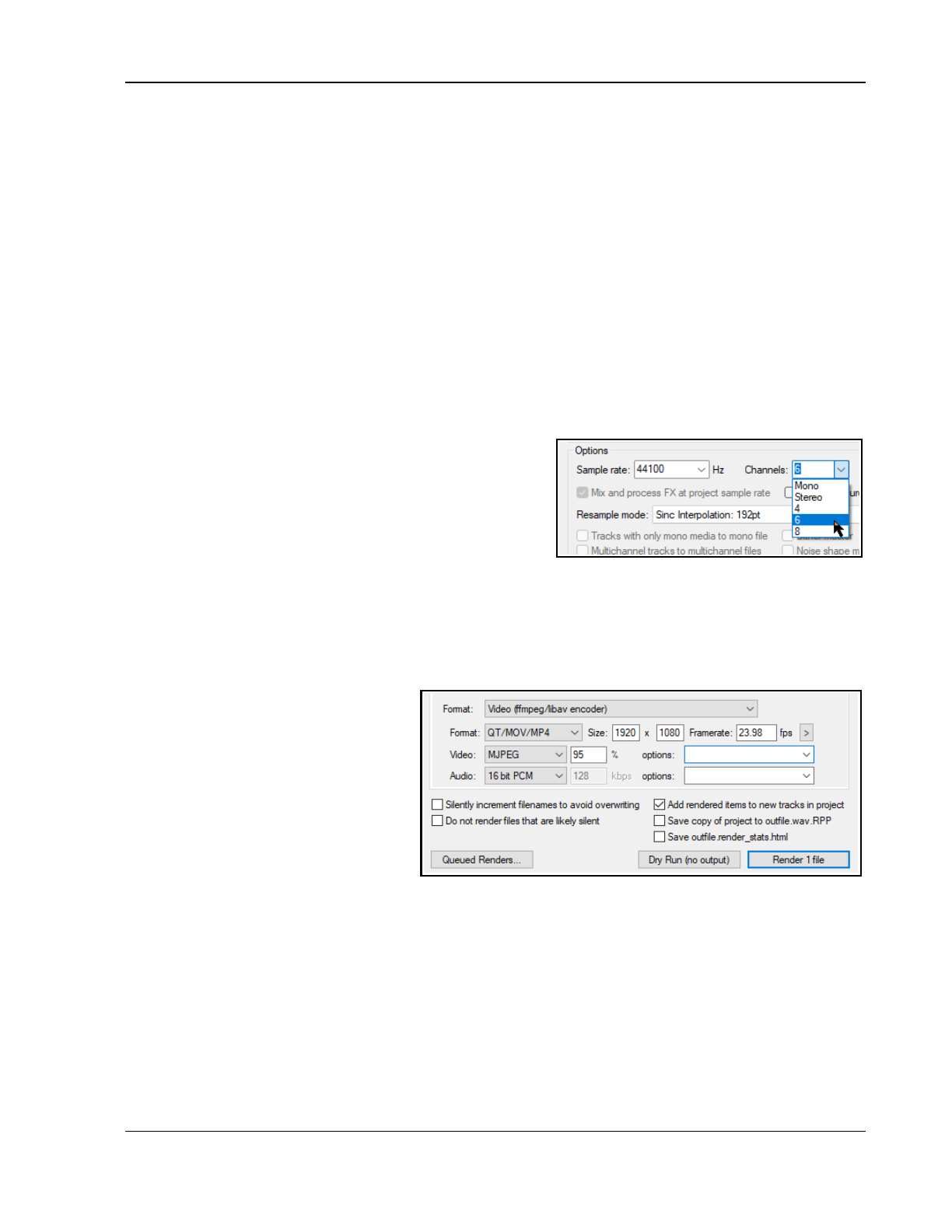
Exporting Files, Mixing Down and Rendering
markers/regions with #names in the rendered output.
Save output only when playing or recording: enables you to stop and start playback/recording whenever
you wish, then later start again to resume bouncing to disk /Stop saving output on first stop: ensures that
bouncing will finish when you stop playback or recording. It is unlikely that you would wish to enable both
these options at the same time.
Other options include Don’t save when volume drops below a specified level for a specified length of time, and
Silently increment file names to avoid overwriting.
When you have made your settings, click on the Start button to begin bouncing. Choosing Save live export to
disk (bounce) from the File menu will now cause the bounce to end.
This command has several uses, such as recording continuously a log of your sessions to a compact file format
such as MP3, so that later you can hear everything that was said about each take even though the transport was
stopped and nothing was being recorded on the tracks. One neat aspect of this is that you can use REAPER's
media explorer window to locate and play back this file even while it is still being recorded.
If you do set this to run non-stop, however, remember to stop the recording when you no longer need it.
Tip: The actions list includes the action Save live output to disk using most recent bounce settings.
21.14 Surround Rendering
When rendering a project for surround format, most settings
will be made as for any other project (such as a stereo mix).
The one important difference is that you should be sure to
select the correct number of channels.
For example, if the project is for 5.1 surround, 6 channels
should be selected (as shown here).
REAPER will render this project into a single multichannel file.
You may later need to convert the interleaved multichannel
file into multi-mono files of the type required by Dolby and DTS encoders.
REAPER itself does not do this easily, but there are a number of good tools available which will do this for you,
such as Wave Agent - https://www.sounddevices.com/product/wave-agent-software/.
21.15 Rendering a Video Project
Rendering a video project is similar to
rendering an audio project, but with a
small number of options and settings that
are specifically video oriented.
Most File, Render... dialog options serve
the same purpose as for audio projects
and do not need any further discussion
here. These include render bounds,
output files names and directory
locations, sample rate, etc. The important
differences can be found in the Output
format section.
Output format: Video(GIF) is an option if your project contains no audio, but mostly you will want to select
Video(libav/FFmpeg encoder). You will then need to select a container format: options are AVI,
QT/MOV/MP4, MKV or WEBM. Your choice of video codec and audio codec will depend on which container
format you have chosen.
This will cause audio content to be rendered in your chosen format. You can select your preferred size and frame
rate from the available list (see next page). Frames per second range from 24 to 60 and sizes range from 320 x
240 (QVGA) upwards. There are also options to Keep source aspect ratio and Get width/height/
framerate from current video item. Note that the Get width/height/framerate from project option can
only be applied if these values have been set in your project settings.
425
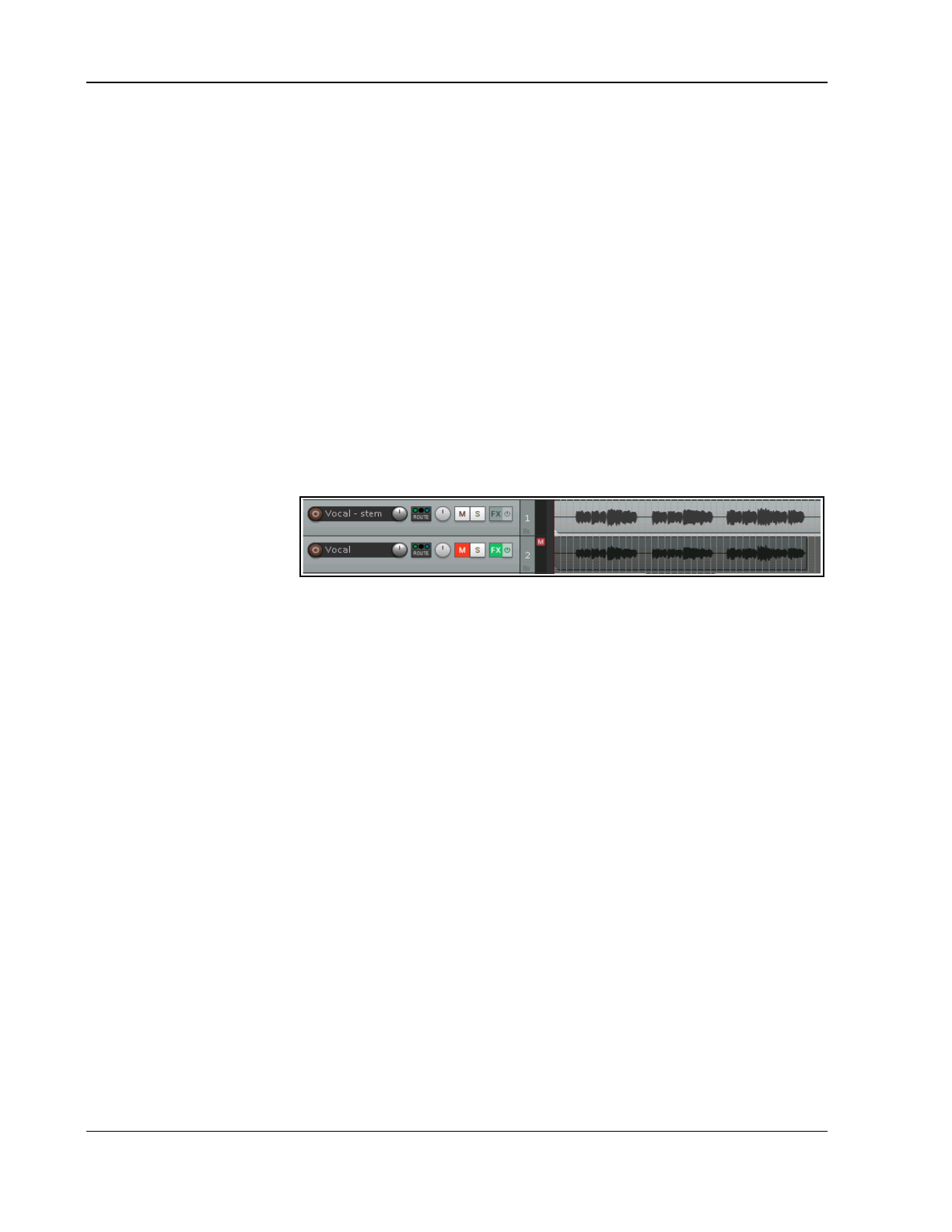
Up and Running: A REAPER User Guide v 7.81
If using the Video (ffmpeg/libav encoder) you will need the Video codec VP8 and Audio codec VORBIS.
Note that you do also have the option to render in audio only, or video only: in this case, select None as the
codec for whichever one you do not want. This applies to AVI, MP4 and WEBM formats.
The remaining options have already been explained. These include the options to Add to render queue for
processing later or Render file in real time now.
Note: REAPER supports rendering to common video formats on macOS "out of the box" by using AVFoundation.
Note that the AVfoundation encoder allows encoding of video only in .m4v or .mov formats.
For Windows, REAPER includes a limited version of FFMPEG. If you want or need more video rendering formats
you will need to install the full FFMPEG libraries. These are available for download from
https://ffmpeg.org/download.html
The downloaded and unzipped .DLL files will need to be placed in Reaper’s User Pllug-ins folder. This can be
accessed via REAPER’s Options, Show REAPER resource path in Explorer command.
Video preferences (Options, Preferences, Media, Video) include the field Video decoder priority. At or
near the start of the list you should see
ffmpeg
(and possibly also
vlc
). The order of these two decoders will
determine which is chosen first for playing video in REAPER (but not for encoding a video). You can edit this
order. Sometimes FFMPEG will work better than VLC; you may want to change the order of the video decoders if
you are having problems seeing video in REAPER.
21.16 Stem Rendering Media Items
Stem Rendering can be applied to ease your CPU load. The item(s) is/are rendered to a new track, whilst the
original track remains but is
automatically muted and its
FX are bypassed. If you later
wish to change the FX in a
stem rendered track, you
can delete it, unmute the
original, and make your changes. To make a stem track:
1. In the Track Control Panel area, right-click over the track number.
2. From the menu, choose Render/freeze tracks, then one of the Render tracks to … stem tracks
(and mute originals) commands. Your choices are mono, stereo or multichannel.
The first of these will render to a mono item (as shown here). The second will always produce a stereo item. The
number of channels produced when multichannel is selected will be determined by the number of channels that
you have defined for the track. By default, REAPER tracks comprise just 2 channels. As well as track FX, any
audio or MIDI received from sends from other tracks is included in the rendered material.
Stem rendering is similar effect to freezing tracks . One difference is that stem rendering leaves both the
rendered and the unrendered tracks in the project. If you do not wish to keep both tracks, consider using one of
the Render/freeze freeze actions instead.
Stem rendering is also available with an extensive range of options (such as output format and quality) using
the File, Render... command. This opens the Render to File dialog box.
Stem Render Actions
REAPER’s Actions List includes several actions that can be used to accommodate particular requirements when
stem rendering. To browse all these actions, search the Actions List for the text string
stem render
.
For example there are actions for:
2
nd
pass rendering: these ensure that REAPER will play the render area through a second time before
rendering: this ensures that effects such as reverb tails are included in the rendered item.
Rendering selected area of tracks to mono, stereo or multichannel, including other options, such as to mono,
stereo or multichannel.
Rendering selected area of tracks to multichannel (parent send only) stem tracks.
426
REAPER's Preferences and Other Settings
22 REAPER's Preferences and Other Settings
22.1 Introduction
At several places in this User Guide we have encountered the use of preferences and settings. In this chapter,
you will learn more ways in which you can use REAPER’s preferences and other settings to tailor the program
more closely to your particular requirements. Many options can often best be left at their default value.
REAPER’s preferences window is opened vis the Options, Preferences command, or by pressing Ctrl P.
Resizing the Preferences Window
Like many other windows, the Preferences window can be resized to suit if
you wish. Hover the mouse over any edge or corner (example shown here),
then drag outwards as required.
22.2 General Preferences
REAPER’s General Preferences page is explained in Chapter 2. You can refer back to that chapter to refresh your
understanding of these.
In addition, General Preferences includes a link to Advanced UI/system tweaks. These are discussed towards
the end of this chapter.
22.2.1 General, Undo Preferences
REAPER’s Undo
settings
determine not
only how undo
(Ctrl Z) will
behave in real
time but also
what events will
be stored in
(and can be
recalled from)
the Undo
History window.
Maximum undo memory: determines how much memory is available for the undo history.
Include selection: which action categories to respond to undo – e.g. actions pertaining to items. Tracks,
time, cursor position and/or MIDI events.
Whether to keep newest undo states when memory allocation approaches full.
Whether to store multiple redo paths where possible (see also section 22.13).
Whether to save the undo history with project files.
Whether to allow the load of undo history.
Whether to show the last undo point in the menu bar.
22.2.2 The Find Box
The Find box (bottom left of window) can be your best friend in searching for what
you want.
For example, type solo to find only those preference options pertaining to solo.
Type solo OR mute to find both solo and mute preferences. Every time you then click the Find button, the next
relevant preference will be highlighted. For more details and tips, see the section Using Search Filters.
The find mechanism will also search the help text as well as the actual item. For example, a search for beat
would also find many preferences referencing measure or tempo where beat is referenced in the help text.
22.2.3 Tooltips and Help Messages
Hovering your mouse over any preference option will cause a relevant help message to be displayed at the foot
of the preferences window, next to the Find button.
427
Up and Running: A REAPER User Guide v 7.81
22.2.4 Import and Export Configuration
Preferences, General, Export configuration can be used to export to a .ReaperConfig.Zip file any
permutation of your settings. Import configuration can be used to import a previously saved settings file back
into REAPER. This can also be done by dragging and dropping a .ReaperConfig.zip file from Explorer or Finder
into REAPER's arrange window. You will be prompted to confirm that you really want to do this.
Any permutation of the following elements can be selected for inclusion in a ReaperConfig.zip file:
Configuration
Color themes
Plug-in presets
FX Chains
JS FX
Project & track templates
Miscellaneous data
Cursors & key maps
Menus & toolbars
Actions & key bindings
Menu sets
Channel mappings
ReaScripts
Language Packs
Media Explorer Databases
Web Interface Pages
Automation Items
MIDI Note/CC Names
Unsaved/Cached Metadata
In the first column, tick the categories to be included. The second column will then show you which files have
been selected from the currently selected category for inclusion in your ReaperConfig.zip file. After making all
your selections in the first column, use the Save button to create the file.
Import and export configuration exists side by side with the individual import/export options that are available
within many of REAPER's different elements. For example, to export only your actions and key bindings you
would be most likely to use the Import/export... button within the Actions window.
If, on the other hand, you wish to export your actions and key bindings along with various other settings, such
as perhaps menu sets, FX chains and ReaScripts (perhaps to be imported into REAPER on another computer),
then you would be more likely to use the screen shown above.
Tip: It can be a good idea to create a .ReaperConfig.zip file that includes all the above elements and keep a
copy as a backup on a CD, external hard drive or flash drive (or all three!) in case of system failure.
22.2.5 Default Paths
You can set (separately) default paths for REAPER to use when saving new projects, rendering, recording,
and/or for storage of waveform peaks. The last of these will only be applied if under Preferences, Media the
option to Store all peak caches in alternate path is enabled. If no render path is specified, the project
directory will be used.
An alternative peak cache path can be specified for any paths you wish to specify. You can also disable
copying or moving media that you specify as Do not copy or move media from the following paths.
428
REAPER's Preferences and Other Settings
You can set a relative path for rendering, i.e. a default relative path when you open the File, Render dialog
box. A sub-directory of that name will be created in the project directory. For example, if you have a project
called
Hello
stored in C:\REAPER Projects\Hello, then your rendered file(s) will be placed in a directory C:\
REAPER Projects\Hello\Mixes.
Alternatively, if you specify (for example) C:\Reaper
Mixes as the default render path, then by default, C:\Mixes
will be used as the absolute output directory for rendered files, regardless of where the project is located.
22.2.6 Keyboards/Multitouch
This page consists of two main sections –
Keyboard and Multitouch. The keyboard
section includes the following:
Commit changes to some edit fields
after 1 second of typing. Enabled, this
allows, for example, a play rate to be
typed in to the Transport Bar field without
your needing to press Enter.
Use alternate keyboard section when
recording. Enable this if you wish to use
your Main (Alt recording) keyboard
shortcuts when recording.
Prevent ALT key from focussing main
menu. Stops main menu getting focus
when the Alt key is pressed.
Allow space key to be used for
navigation in various windows.
When space key is pressed in plug-in
text fields, send to main window.
Clicking on either of the two links will open the action list editor (Assign keyboard shortcuts ….) or your web
browser with a list of keyboard shortcuts (View keyboard shortcuts as …. ).
The other section allows you to customize the behavior of a Multitouch trackpad or similar device. Refer to the
Preferences, General, Keyboard window and your device's documentation for a list of options.
22.3 Main Project Preferences
REAPER's main Project settings include:
● Option to specify a default .RPP file
to use as a template for new
projects.
● Whether to prompt you to save
whenever a new project is created. .
● Whether to open and display the
project properties window when a
new project is created - for example,
if to set a project time signature or
timebase different from your default.
● Whether to look for project media in a
project directory before looking in
otherwise default paths.
● Whether to warn you if attempting to
load a project that cannot be found.
● Whether to show the file load status and REAPER's splash screen when a project is loading.
● Whether to save project file references with relative pathnames. This can be useful, for example, if a
project is likely to be moved from one disk to another.
● Options to specify a default wildcard pattern in file name when using File, Save as... command.
● Option to open Project Settings.
429
Up and Running: A REAPER User Guide v 7.81
22.3.1 Project Backups
In all Preferences dialogs you can hover your mouse over any option to see a Help message at the bottom of the
window. For further help, be prepared to ask questions on the REAPER forum.
Make yourself
familiar with the
various backup
options.
Good management
of backup
procedures can
achieve the twin
objectives of
keeping secure
copies of your
projects and media
files without
overloading your
disk(s) with
unnecessary file
clutter.
By default, when
you first install
REAPER these
options are all set to
off.
Backup options are:
Backups when saving project.
Preserve previous saved version as rpp-bak file,
or
Preserve all previously saved versions of project in one large rpp-bak file, or
Preserve previously saved versions of project as timestamped rpp-bak file, or
None of these.
Save timestamped backups to Backups project subdirectory. Helps to keep backup files organised
and accessible.
Limit [number of] backups to most recent
n
copies or unique days. Sets a limit to prevent obsolete
or redundant backups creating too much file clutter on your disk(s).
Auto-save options are:
Auto-save to timestamped file in project directory.
Save auto-saved project backups to Auto-Saves project subdirectory.
Limit auto-saved backups to most recent
nn
copies or unique days.
Specify directory for auto-saves to timestamped file.
Limit backups to most recent
nn
copies
for current project, or unique days for
current projects.
Auto-save to project file.
Set auto save interval to
nn
minutes when not recording, or when stopped, or any time. If
enabled, auto-save will also save at exit and restore when re-launching REAPER,
Save undo history (RPP-UNDO) (if enabled in General Prefs) with auto-saved projects.
Specify auto-save path for unsaved projects.
430
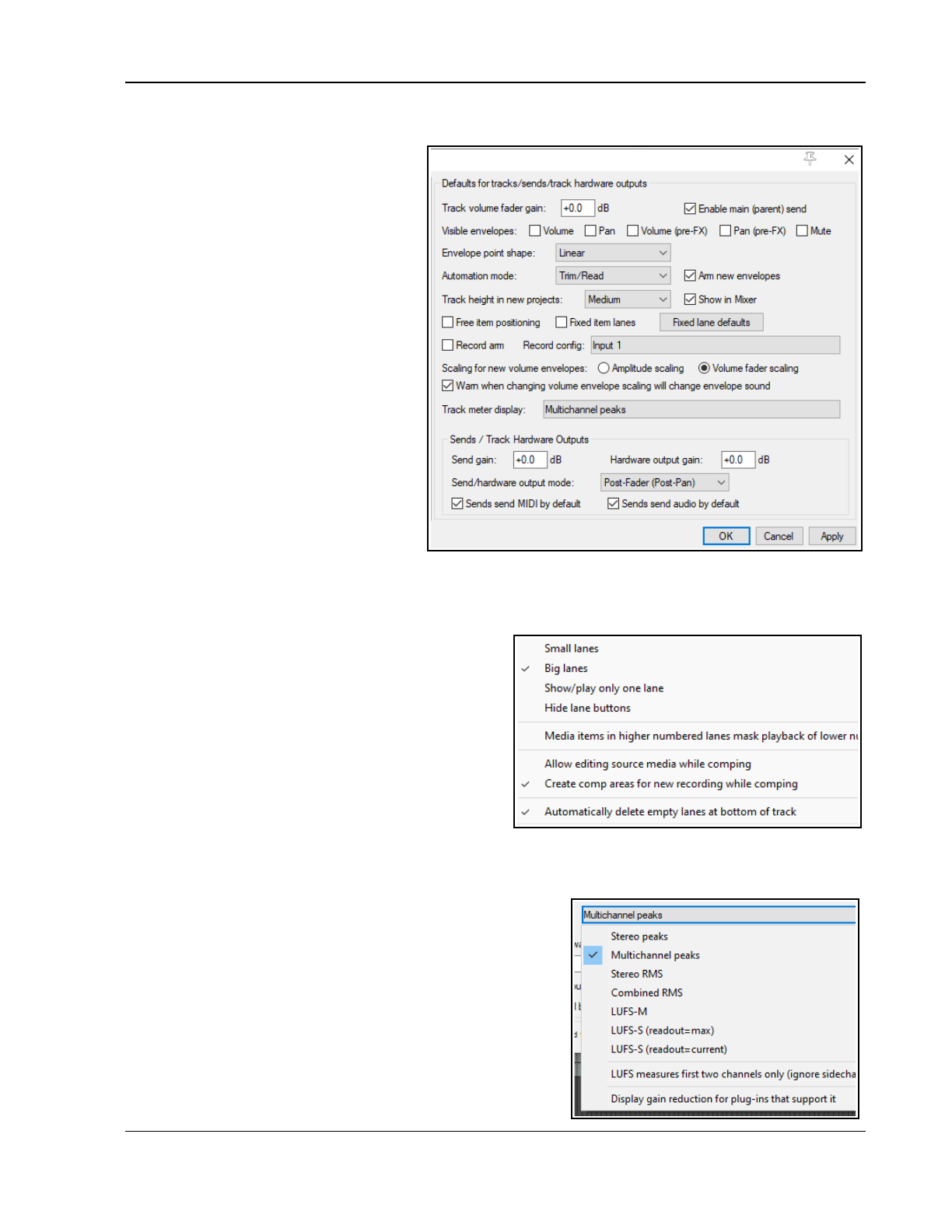
REAPER's Preferences and Other Settings
22.3.2 Project, Track/Send Defaults
There are two groups of default settings
here – one each for Tracks and Sends.
● Track volume fader default gain:
sets the initial volume fader level for
new tracks. Default is 0.0 dB.
● Default visible envelopes: allows
you to specify any track parameter
envelopes (e.g. Volume, Pan) that
you would like automatically
displayed for new tracks.
● Default envelope point shape:
sets the shape for new envelopes
(e.g. Linear).
● Default automation mode: sets
automation mode (e.g. Trim/Read)
for new tracks.
● Default track height in new
projects: choose from small,
medium and large.
● Show in mixer: whether or not new
tracks by default are shown in Mixer.
● Main (parent) send: whether send
to Master (top level tracks) or parent
folder (child tracks) is by default enabled for new tracks.
● Free item positioning: whether FIPM is by default enabled for new tracks.
● Whether by default to set new tracks as Fixed item lanes.
● Various default options for fixed lane defaults,
including Small or Big lanes, whether to
Show/play only one lane, Hide lane buttons ,
for Media items in higher numbered lanes to
mask playback of lower numbered lanes, to
Allow editing source media while comping. By
default REAPER will Create comp areas for new
recordings while comping and Automatically
delete empty lanes at bottom of track.
● Record-arm: whether new tracks are
automatically armed for recording.
● Record config: click to set default recording
settings for new tracks (see right): e.g. whether monitoring is on, whether to record audio input or MIDI,
default input source.
● Whether scaling for volume envelopes should default to amplitude or fader.
● Track meter display options for new tracks–
multichannel, stereo, RMS, LUFS, etc. There is an option to
show gain reduction for those plug-ins that support it.
● Sends/Track Hardware Outputs Send default gain:
default volume fader level for new track sends.
● Hardware output default gain: default volume fader
level for new hardware sends.
● Sends/hardware output default mode: set default to
Post fader/Post pan, Pre-fader/Post FX or Pre-fader/Pre-FX.
● Sends … by default: whether sends by default include
audio or MIDI or both.
431
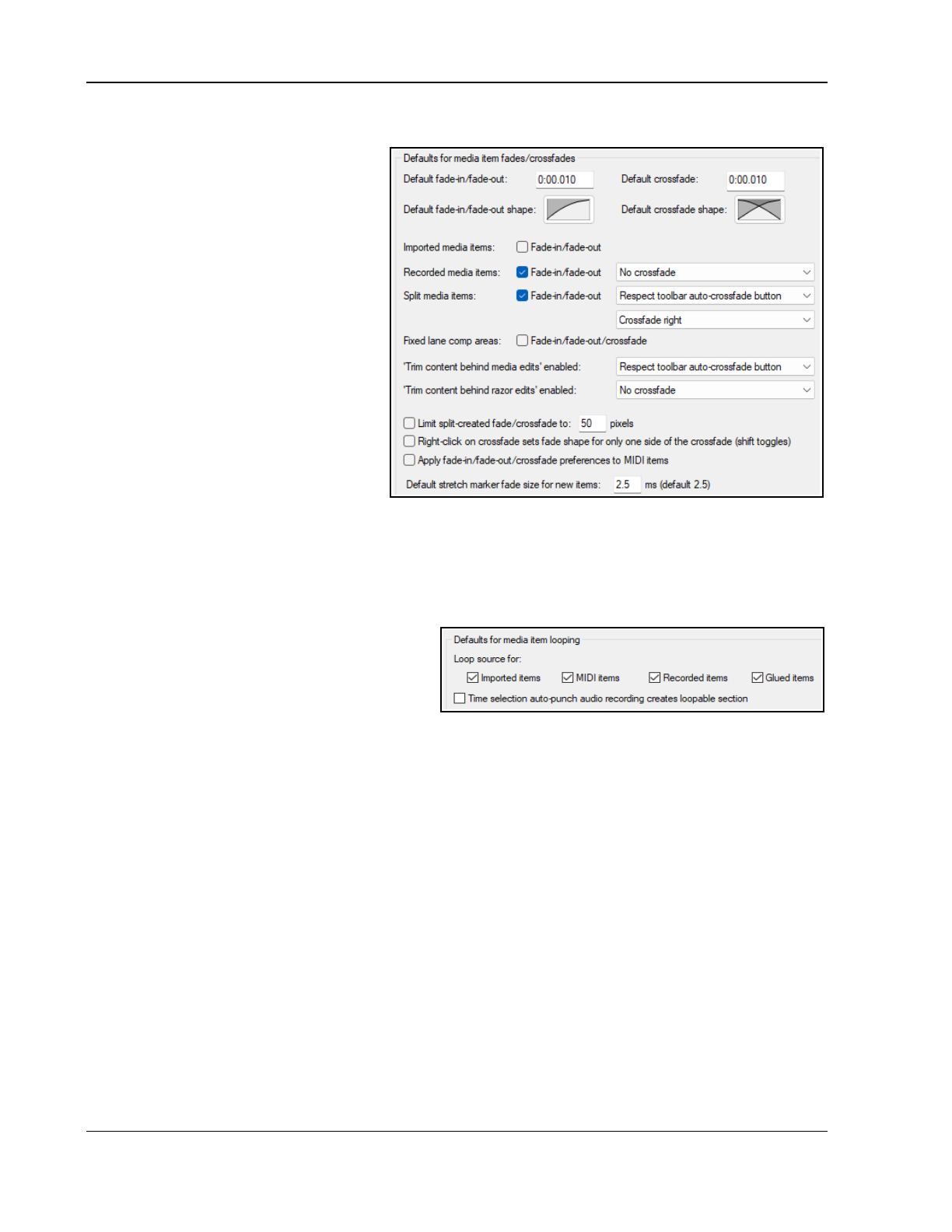
Up and Running: A REAPER User Guide v 7.81
22.3.3 Project, Item Fade Defaults
Options include whether to:
● Specify default fade lengths and
shapes. Click on either displayed
shape for a list of options, and to
open a Customize fade dialog.
● Use auto fade-ins/fade-outs on new
items, and how long they should be.
● Disable fades for imported items.
● Whether to apply fades to imported
items and/or fixed lane comp areas.
● Whether to overlap and crossfade
recorded media items and/or split
media items, or whether to respect the
toolbar crossfade settings.
● When crossfading, whether to
crossfade to the left or right, or center.
● Whether to enable trim content behind
media edits and/or razor edits.
● Specify max limit (default 50 pixels)
for fades/crossfades when splitting.
● Whether to ensure right-clicking on one side of crossfade set changes only that side (use Shift to
toggle).
● Whether to apply crossfade settings and project auto-crossfade setting to MIDI items. Fades on MIDI items
affect note velocity, not volume.
● Specify a stretch marker fade size for new items.
22.3.4 Item Loop Defaults
● Loop source any/all of imported items, MIDI
items, recorded items, glued items.
● Ensure time selection auto-punch audio
recording should create a loopable section.
22.4 Audio Configuration and Settings
Let’s look again at the Audio Device preferences screen. Two important issues here concern buffers and
latency. Understanding what these terms mean will help you in obtaining the optimum settings for your system.
Getting buffer size right is essential if you are to get the best performance from your audio interface. Make them
too small and you'll get audio clicks and pops; make them too large you'll notice delays in your headphones
when you’re input monitoring, especially with software synthesizers.
The goal is to achieve the lowest possible latency without experiencing dropouts. The optimum setting depends
largely on your audio interface (PCI sound card, firewire or USB device), your PC’s characteristics, as well as
which software you’re running. The use of plug-ins can also increase latency, some more than others.
Consider what happens when you are working at your DAW. As you play your tracks, a constant stream of data
passes from your hard disk and/or RAM to your sound card. Amongst other things, this converts the digital data
to an analog form, so that it can be sent to, and heard thru, your speakers or headphones. When you record the
reverse happens – the incoming analog audio stream has to be converted to a digital format.
During overdubbing both of these activities happen at once. With input monitoring, the track(s) being recorded
are actually being fed into the computer in analog form, converted to digital, processed, then converted back to
analog again as they are fed back to your headphones. Latency is a measure of this delay. Incidentally, you can
make this activity easier if your audio device itself supports input monitoring. In this case, the incoming audio
stream that is being recorded is fed straight back into your headphones before it even gets into the computer.
432
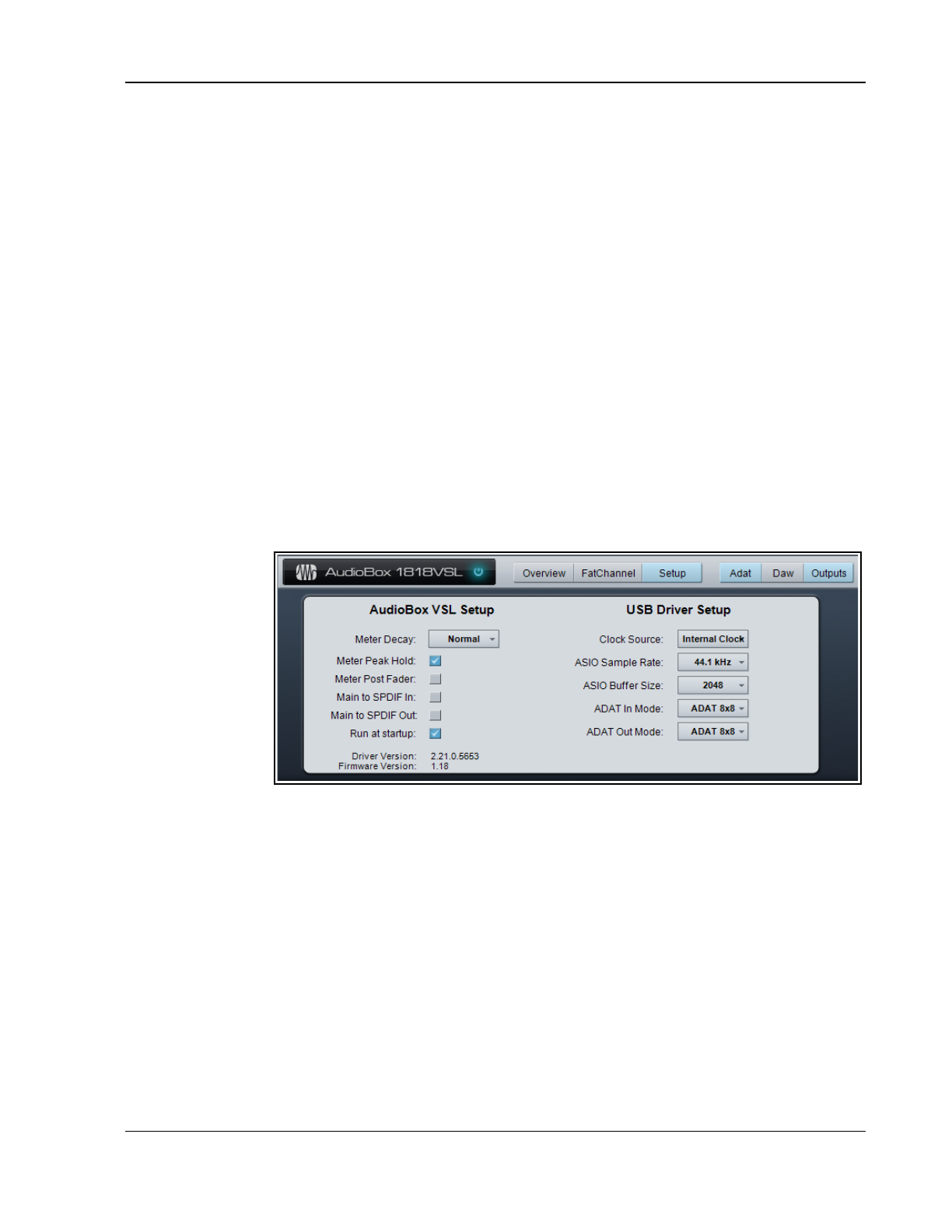
REAPER's Preferences and Other Settings
As if this wasn’t complicated enough, remember that your Mac or Windows computer is performing all sorts of
other tasks at the same time as you are recording. Windows users, for example, can view their Task Manager
and check the Processes page to have a look. That’s what we mean by multitasking.
So how is Windows able to keep up with its other 99 or so tasks at the same time as handling your recording? It
does so by dividing its resources between all the tasks at hand. In order to maintain a constant audio stream,
small amounts of memory are allocated to storing this audio stream. These areas are called buffers.
Thus, as you play back your audio, Windows hands over to your sound card a block of audio that the sound card
releases at a steady rate to your external amplifier. If it empties these buffers before Windows gets round to
handing it some more, then you’ve got a problem. The same principle applies, but in the reverse direction, when
you’re recording. And again, when you’re layering or overdubbing, or using REAPER’s input monitoring, both
activities are going on at the same time.
If the buffers are too small, you’ll get gaps in the audio stream. These can lead to pops, crackles and in some
cases even dropouts (that’s when playback and/or recording just stops suddenly and unexpectedly). Making
buffers larger is usually enough to fix this problem, but it brings with it another. Make them too large, and the
data at the end of the buffer has a long wait before it is processed. That’s when you experience unacceptably
large latency, such as the delay between pressing a keyboard and hearing the note in your headphones.
The macOS uses CoreAudio to manage these issues. PC users, on the other hand, are faced with a possibly
confusing choice as to which drivers to use.
ASIO drivers generally offer better latency than others. As a rule, the preferred order is ASIO, WDM, DirectX and
MME, in that order. This is where the ASIO Configuration button on the Audio Device screen is so important
(assuming, of course that you are using ASIO drivers). It opens the audio settings screen for your soundcard.
Shown below is an example of the settings page for one particular external soundcard. It is only an example -
don’t expect yours to look identical, although it is likely to contain similar settings (sample rate, buffer size, etc.)
The smaller the
buffer size, the
greater the load
on your
computer’s CPU.
So after making
changes to your
buffer size, check the
CPU usage on
REAPER’s
Performance Meter.
You can use this fact
to your advantage
when mixing.
As a rule, low levels of latency are only really needed for recording, not when you are only playing audio back.
Therefore, if you find that you are pushing your CPU close to its limits, you will often be able to fix this by
accessing your audio card’s control software and increasing the buffer size.
Sample Rate also affects CPU usage. Going from 44100 to 88200 doubles CPU usage.
This is an area about which there is much debate, but in reality few of us have ears that can really detect
whether a track has been recorded at 44100 or at 88200. Test this out for yourself and see what you think.
Check also your MIDI Devices settings preferences. This has been covered in Chapter 1.
22.5 Audio Glitches and Related Issues
Still getting audio performance issues? The problems could lie in your Windows settings. For more information
about this, see this page on the Native Instruments web site:
https://support.native-instruments.com/hc/en-us/articles/209571729-Windows-Tuning-Tips-for-Audio-Processing
A more comprehensive free book on optimizing audio performance can be downloaded here:
https://www.cantabilesoftware.com/glitchfree/
433
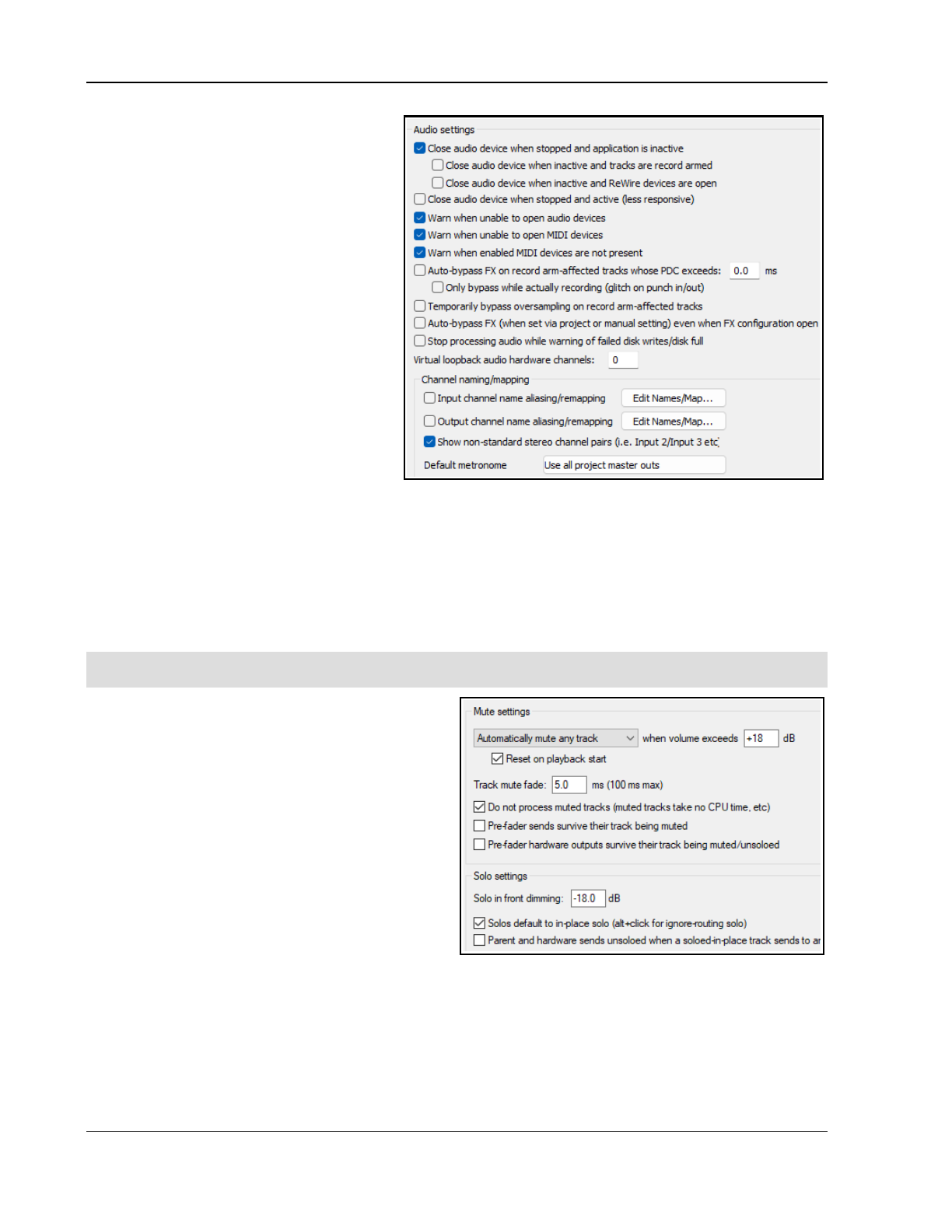
Up and Running: A REAPER User Guide v 7.81
22.6 Audio Preferences
Mostly leave at their default settings.
● Whether to Close audio device when
stopped and application inactive.
Enables you to switch between REAPER
and other open programs.
● Close audio device when inactive
and tracks are record armed. Allows
● An option to Close audio device
when inactive and REWIRE
devices are open.
● Close audio device when stopped
and active.
● Enabling Warn when unable to open
audio/MIDI devices and Warn
when enabled MIDI devices are
not present to help troubleshooting
hardware interface issues.
● Autobypass plug-ins whose PDC
exceeds a threshold when record-
armed. Option to Only bypass while actually recording.
● An option to Temporarily bypass oversampling on record arm affected tracks.
● An option to Auto bypass FX even when FX configuration is open (see tooltip for more info).
● An option to Stop processing audio in the event of disk failure/disk full.
● An option to specify a Virtual loopback audio hardware setting (see tooltip for more info).
● Input/Output Channel naming/mapping and Non standard stereo channel pairs. These features
let you give meaningful names to your audio input and output devices. It is explained in detail in Chapter 1.
● Output to be used for Metronome Output.
Note that Audio, Device preferences and settings are explained in Chapter 1.12 and Audio, MIDI Device
preferences and settings in Chapter 1.15.
22.6.1 Audio, Mute/Solo
● You can Automatically mute any track or the
Master track when a specified dB limit is
reached, or specify No automatic muting. You
can also Reset (clear auto mutes) on playback.
● Enabling Do not process muted tracks and/or
Reduce CPU use of silent tracks during
playback could lessen the load on your CPU.
● Obey Pre-fader sends regardless of whether or
not the track has been muted.
● Solos defaults to in-place solo. Soloed tracks
will be heard along with any sends to that track.
Disable to hear only the soloed track.
● Solo in front plays other tracks in background
when anytracks are soloed. This may help you to
place more in context the track that is being auditioned. The feature itself is enabled/disabled from the
Options menu: in your preferences you can set your preferred dB level for the background material.
● You can ensure the Master/parent send is unsoloed when a soloed in place track sends to
another soloed track.
● Solo via dedicated master bus: makes solo bus feature available for use with master track.
● Apply master fader to solo bus: use master fader on solo bus.
● Show metering on unsoloed tracks when in dedicated solo bus mode: self-explanatory.
434
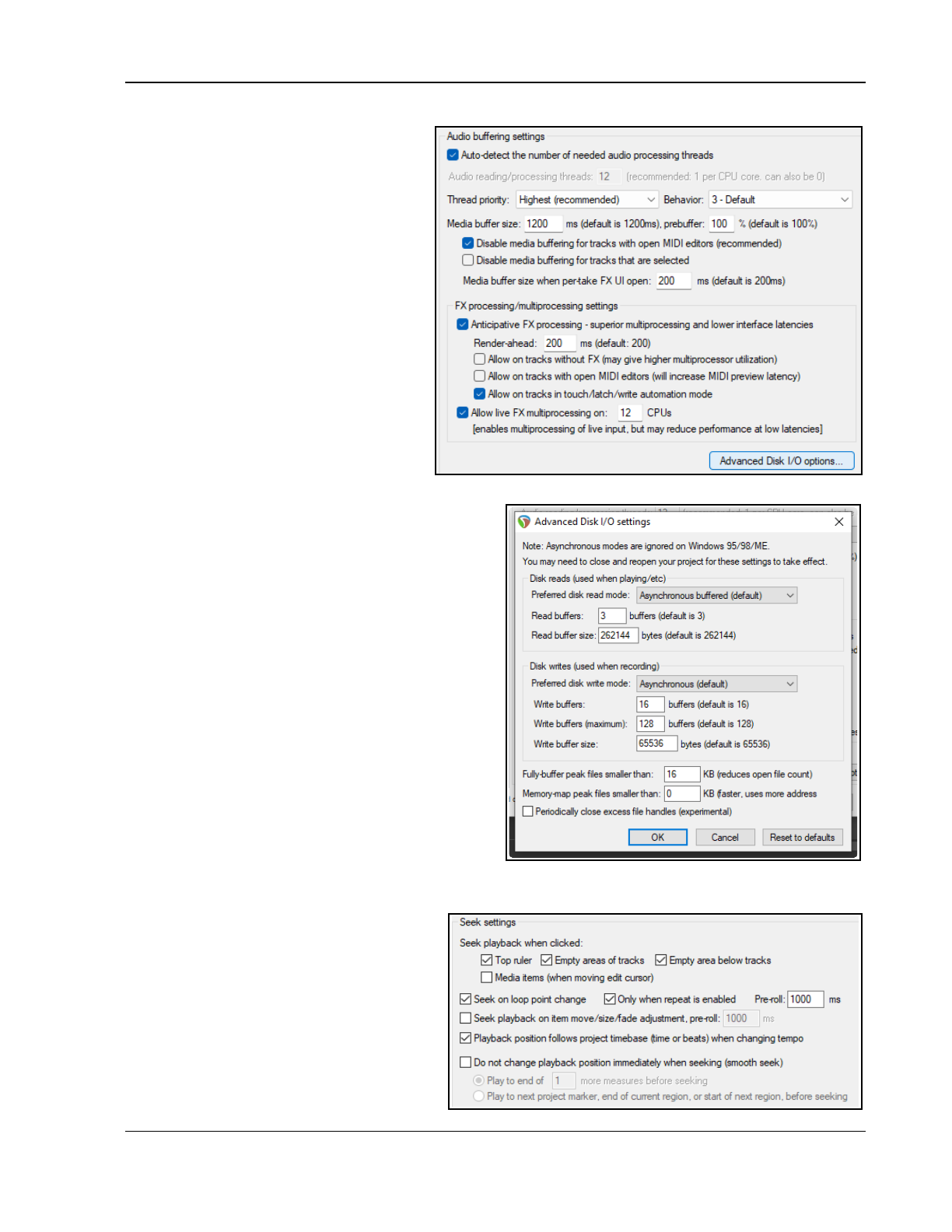
REAPER's Preferences and Other Settings
22.6.2 Audio, Buffering
Many users will be able to ignore these
settings and leave them at their defaults.
The option Disable media buffering for
tracks that are selected can be useful if
using a third party plug-in that does not
respond well to buffering. If you are not
technically minded you should leave most
of these settings at their default values. For
computers with two or more processors,
these options might be useful.
Anticipative FX processing On single
processors it makes REAPER more tolerant of
lower interface latencies (and more resistant
to plug-ins that do larger block-based
processing, such as ReaVerb and ReaFir). On
multiprocessor/ multicore systems it also
allows for very significant multiprocessor
usage. Enabling this feature can allow
improved latency.
Options include to allow on tracks without
FX, when a MIDI editor is open and on tracks in
touch/latch/write automation modes. However,
allowing FX multiprocessing when a MIDI editor is
open will increase preview latency.
Clicking on Advanced Disk I/O Options brings up
the selection of options shown on the right.
If unsure about what you are doing, it's better to
leave these settings at their defaults. Any changes
you do make should not come into effect until after
closing and reopening your project file.
22.6.3 Audio, Seeking
● Seek playback (repositioning the play cursor)
when clicking on any of the top ruler, empty
areas of tracks, empty areas below tracks, and/or
media items when moving cursor. Disabling any
of these will enable you to click or click and drag
in arrange view (for example, on the ruler to
define a loop, or in the empty area between
tracks to define a time selection) without
affecting existing playback.
● Seek playback when loop points are
changed and/or Only when repeat is enabled.
● Seek playback when an item is
moved/sized or has its fade adjusted.
● Specify playback position should follow
the project timebase when changing
tempo.
● Smooth seek: this lets playback go on to
the end of a defined number of measures,
or to the next marker or end of region,
before seeking. This can be toggled on /
off via REAPER’s main Options menu.
435
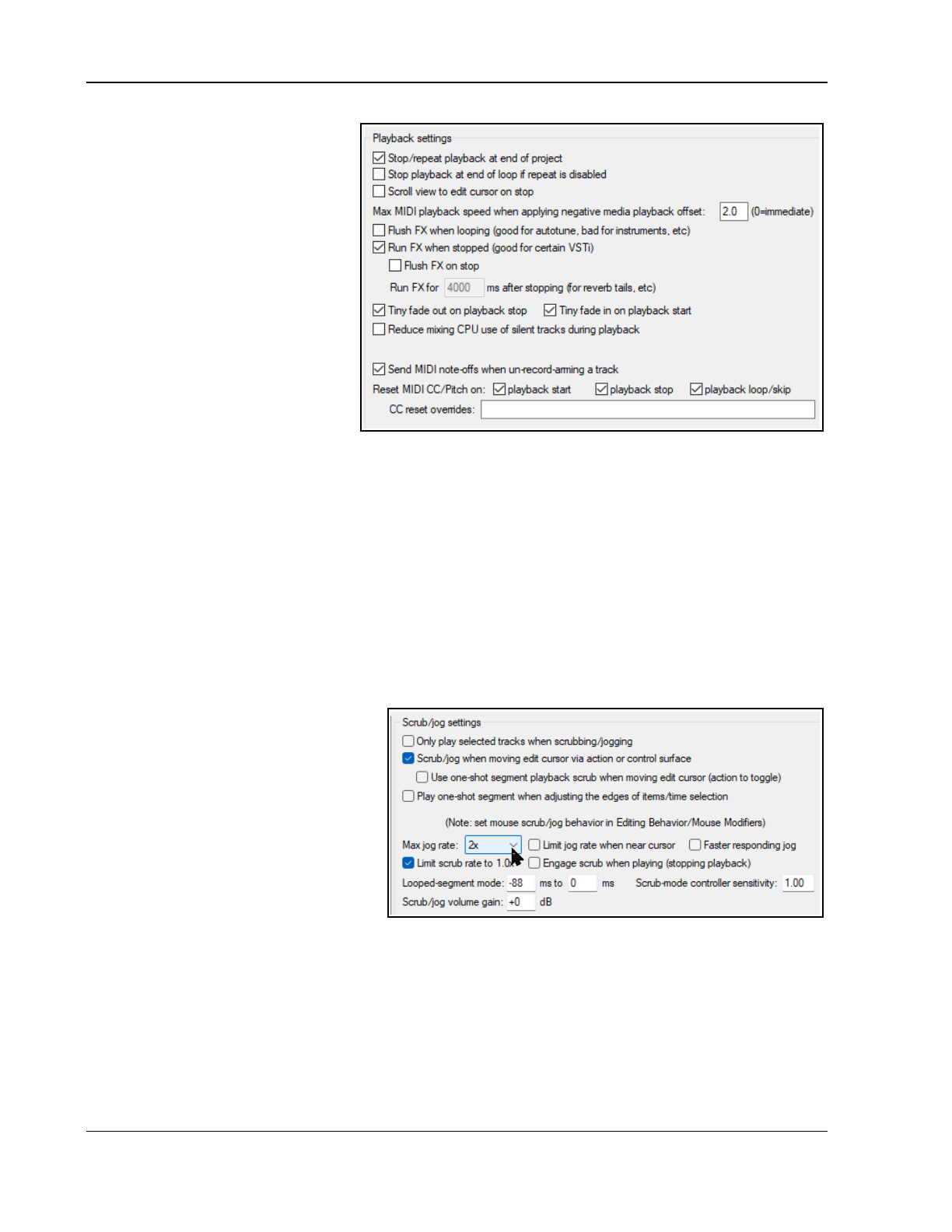
Up and Running: A REAPER User Guide v 7.81
22.6.4 Audio, Playback
Options include whether or not to:
● Stop/repeat playback at end.
● Stop playback at the end of a
loop if repeat is disabled.
● Scroll the view to the edit
cursor position when stopped.
● Specify Max MIDI playback
speed when negative offset is
applied.
● Flush FX when looping.
● Run FX when stopped: helps
evaluate the "after effect" of
reverb, chorus, etc.
● How long to Run FX on Stop.
● Insert tiny fades on playback
stop and/or On playback start.
● Reduce mixing CPU use of silent tracks during playback.
● Send MIDI note-offs when un-record-arming a track.
● Reset MIDI CC/Pitch on playback start and/or playback stop and/or playback loop/skip. Includes CC
reset overrides option.
Note that there is also a command on the Options menu to enable/disable Continuous scrolling.
22.6.5 Audio, Scrub/Jog
Scrubbing/jogging options include whether to:
● Only play selected tracks when scrubbing/jogging.
● Scrub/jog when moving edit cursor via action or control surface (requires mouse behavior to be set
in Editing behavior/Mouse modifiers).
● Use one-shot segnent playback when moving edit cursor and/orPlay one shot segment when
adjusting edges of items or time selection.
● Set maximum jog rate.
● Limit jog rate when near cursor.
● Engage Faster responding jog.
● Limit scrub rate to 1.0.
● Engage scrub when playing.
● Set speed for Looped segment
mode.
● Scrub-mode controller sensitivity.
● Scrub/jog volume gain (if any)
You can hover your mouse over any of
these options to view further information!
22.6.6 Audio, Recording
Audio Recording preferences are detailed and explained in Chapter 3.
22.6.7 Audio, Loop/Lane Recording
This page of settings determines how REAPER behaves when loop recording.
● Discard incomplete first or last takes if at least one full loop was recorded. Prevents unwanted
partial takes being saved, as might happen if you are a tad slow in stopping recording.
● You can define at what threshold (default 90% of loop length) recording is considered to be complete.
● Whether MIDI overdub/replace recording should always creates selection-length media item.
Enable this to ensure MIDI media item matches time selection length.
436
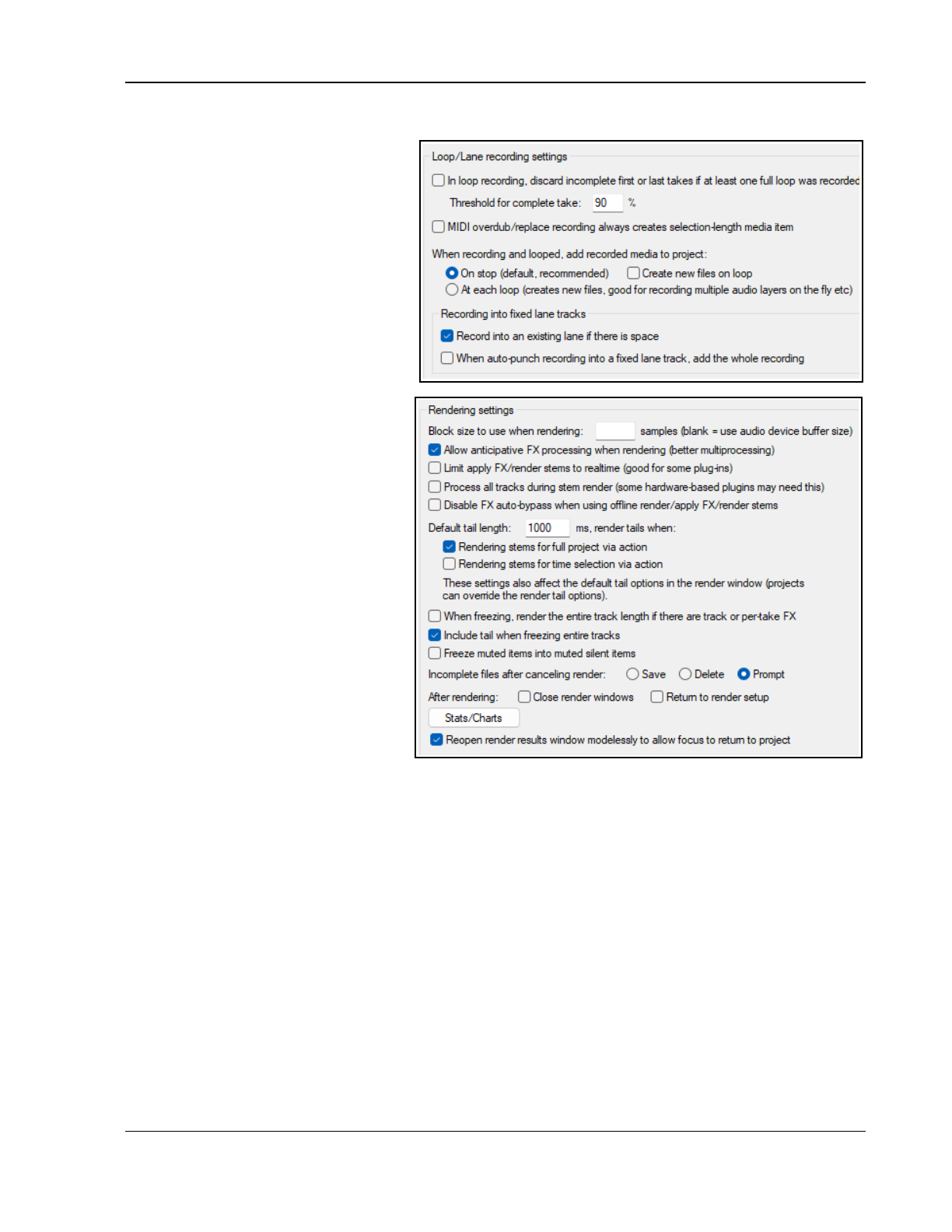
REAPER's Preferences and Other Settings
● When loop recording, to add recorded media to the project under which of the following circumstances:
On stop (recommended, optionally
Creating new files on loop), or
At each loop (good for recording
multiple layers on the fly).
● When recording into fixed lane tracks
whether to always record into an
existing lane if space.
● Optionally, when recording into fixed
lane tracks whether to add whole
recording whether or not comping.
22.6.8 Audio, Rendering
If unsure, leave at their system defaults.
● Block size to use when rendering
samples. If in doubt, leave blank.
● Allow anticipative FX
processing: may improve
multiprocessing performance.
● Limit apply FX/Render stems
to realtime (default is off).
● Process all tracks (inc muted
tracks). Makes rendering slower.
● Disable FX auto-bypass when using
offline rendering, applying FX, or
stem rendering.
● Specify FX tail length when
rendering entire project and/or
time selection/ regions, and/or
selected media items.
● When freezing, whether to render
entire track length if there are FX
whether to include reverb tails.
● Option to freeze muted items into
silent muted items.
● Option to always save or delete
incompletely rendered files without prompting, or to prompt.
● Option to enable/disable automatic close of render window when done.
● Render display and statistics Choose what information is calculated and displayed when a dry run
render is performed.
● Whether to reopen render results window modelessly to allow focus to return to project.
22.7 Appearance Preferences
The Appearance page lets you customise the look of your REAPER interface in arrange view. Settings include:
● To use tooltips for UI elements such as buttons and faders, media items and envelopes, etc.:
specify any delay to precede the tooltip being displayed.
● To show peak and loudness values when mouse is over a media item.
● To use faster text rendering .
● To draw vertical text bottom up.
● To display floating toolbar windows with or without frames.
● To limit the scaling of toolbar buttons. Enabling both these options will prevent the buttons from
becoming smaller or larger if you resize the main or floating toolbar.
● To Animate armed toolbar buttons or any toolbar buttons.
● Whether to Limit TCP spacer height to lane size.
437
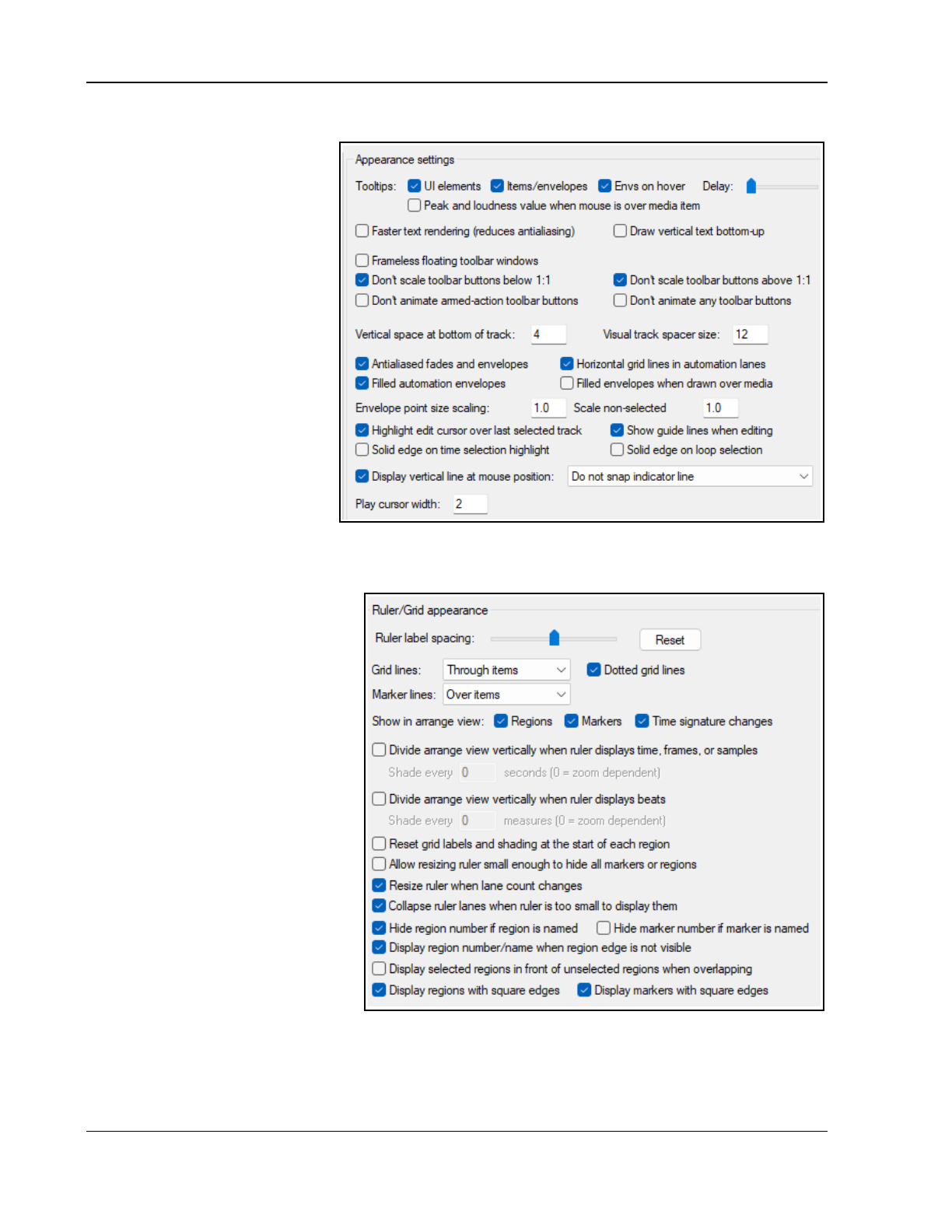
Up and Running: A REAPER User Guide v 7.81
● Vertical space between adjacent tracks and Vertical track spacer size.
● To use antialiased fades
and envelopes.
● To show horizontal grid
lines in automation lanes.
● To display filled automation
envelopes: enabling When
drawn over media will color
the area below the envelope.
● Set scaling for envelope
points when envelope is or is
not selected.
● To Highlight the edit
cursor over the last
selected track.
● To show guidelines when
editing.
● To apply solid edges to time
selection highlights. and/or
loop selection.
● To display vertical line at
mouse cursor position,
snapped, unsnapped or managed by control and/or shift key.
● Play cursor width. Default setting is 2 pixels.
22.7.1 Appearance, Ruler/Grid
● Ruler label spacing: adjust the
slider to determine the number of
increments used for ruler display.
● To show ruler markings for all
fractional beats as (X/Y).
● To display ruler markings for
triplets as (X/Y).
● To show grid lines over, through,
or under items.
● To show marker lines over,
through, or under items.
● To show dotted grid lines,
project regions and/or markers
in arrange and/or Time
signature changes in arrange.
● To divide arrange view
vertically when ruler displays
time, frames or samples and,
optionally whether to Shade every
xx measures.
● To divide arrange view
vertically when ruler displays
beats and, optionally, whether to Shade every xx measures.
● Whether to Reset grid labels at start of each region.
● To allow resizing ruler small enough to hide all markers and regions.
● Whether to Resize ruler when lane count changes and/or Collapse ruler lanes when ruler is too
small to display them.
438
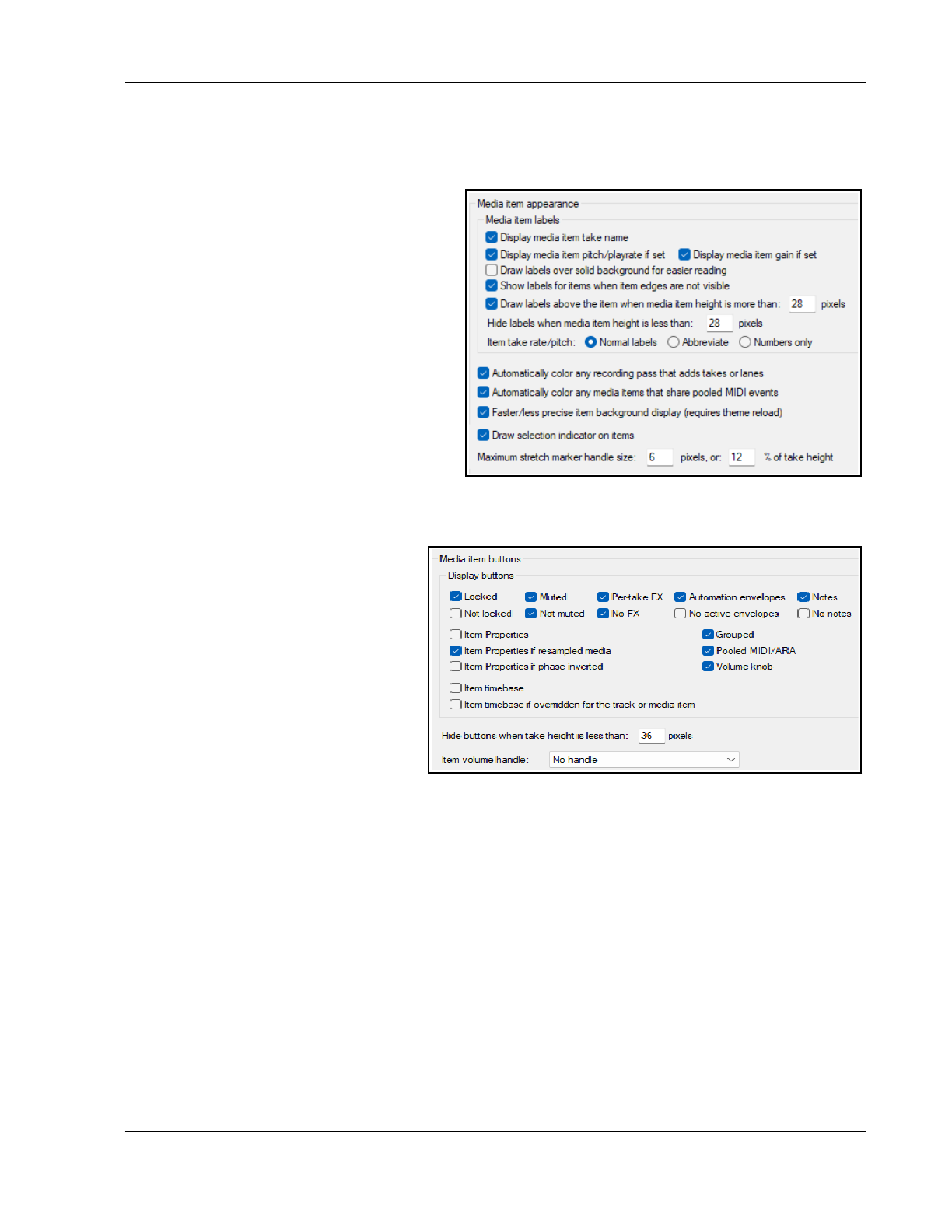
REAPER's Preferences and Other Settings
● Whether to Hide region number and/or Hide marker number if region is named.
● Whether to Display region number/name when region edge is not visible.
● Whether to Display selected regions in front of unselected regions when overlapping.
● Whether to Display regions and/or numbers with square edges.
22.7.2 Appearance, Media Items
Media item labels: Whether to display item
take names and/or media item pitch/play
rate and/or gain (if set).
Options to draw labels over solid background
for easier reading and/or show labels when
item edges not visible.
Whether to draw labels above the item.
Item take pitch rate display can be as normal
labels, abbreviated, or numbers only.
Options to Automatically color recording
passes that add takes or lanes and/or Media
items that share pooled MIDI events.
Option for Faster/less precise background
display (requires theme reload).
Enabling Draw selection indicator on items
causes selected items to be marked with a small white dot.
Maximum stretch marker handle size can be specified, either in pixels or as a percentage of the take height.
Labels will not be displayed if the item
height is insufficient.
Mac only: option to disable retina drawing
for arrange view.
22.7.3 Appearance, Media Item
Buttons
Mostly these are paired – Locked/Not
locked, Muted/Not muted, Per take
FX/No FX, Automation envelopes/No
active envelopes, Notes/No notes.
There are also buttons for Item
Properties, Item properties only if
resampled media, Item properties if
phase is inverted, Pooled MIDI, Grouped items,Item volume knob.
Item timebase buttons if displayed will activate the item timebase feature.
Any of these can be displayed above your media items. You can also specify Hide buttons when take lane
height is less than xx pixels.
An Item volume control handle can be displayed at the top or center of the.
22.7.4 Appearance, Peaks/Waveforms
These settings define the look of your audio peaks and waveforms.
You can specify whether to Display peaks for media items and/or Display peaks while recording.
Optionally, you can specify a minimum height, below which peaks will not be shown.
Options to show peaks Only display peaks for selected tracks and Only display peaks for tracks that
are soloed or not muted.
Sample view for zoomed in audio can be set to Dots and lines, Filled, Outlined or Stepped samples,
Smooth, Sinc smooth or Dots and sinc.
Other options are Draw waveform zero lines above peaks/waveforms and Fill waveforms to zero line.
You can Scale peaks to pre-FX volume/pan envelopes. Enabling Draw faint peaks in folder tracks
allows the output of a folder's child tracks to be displayed as waveforms in arrange view. You can also Draw
faint peaks in automation envelope lanes.
439
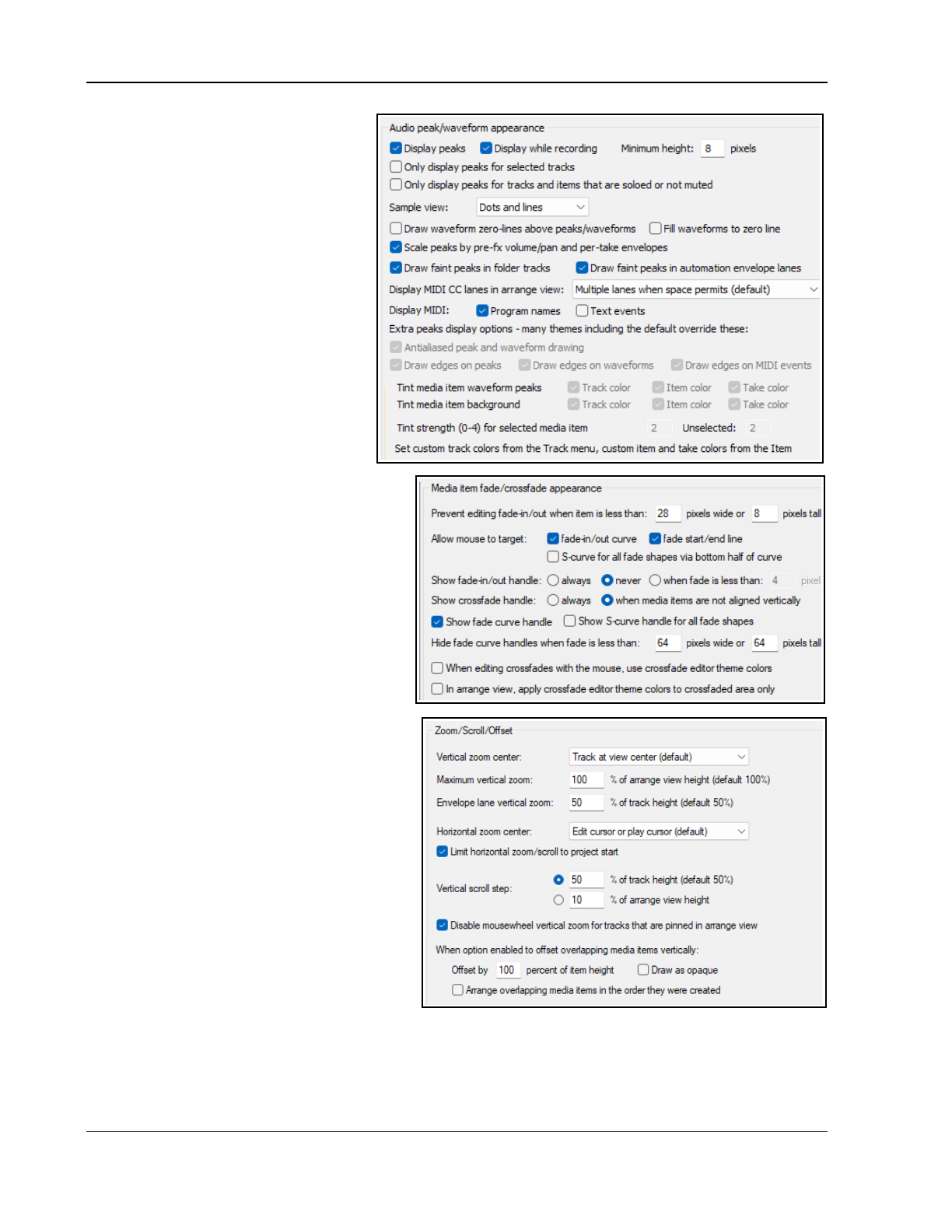
Up and Running: A REAPER User Guide v 7.81
You set MIDI CC lanes in MIDI tracks in
arrange view to Do not display CC
data, Only the first lane visible in
MIDI editor, One lane combining all
CC data, or Multiple lanes when
space permits (default).
Wheter to display program names and/
or text events in arrange view.
Enabling anti aliasing may give you a
more accurate representation
The edges options are cosmetic. Enable
them, if you like your peaks bordered
when using custom colors, otherwise
disable them.
These options are disabled
by some themes.
See also Chapter 11.
Automatically scale MIDI notes
and/or drum MIDI will fit the item as
displayed in arrange view.
Custom Colors. There are options to
Tint media item waveform peaks or Tint
item background to any of Track Color,
Item Color or Take Color. If more than one
option is enabled, then the lowest level has
precedence – e.g. take color wins over item and
track color. So
me themes disable this group of
options
.
You can set tint strength for media item
backgrounds within a range of 0 to 4, where 2
is the system default.
You can set custom colors from the Track
menu, custom item and take colors from
the Item menu. Also, hover your mouse over
any option for further information (if available).
22.7.5 Appearance, Fades/Crossfades
These options give you control over media item
fades and crossfades. You can:
● Set a minimum item width and/or height
for a fade to be editable.
● Enable or disable mouse editing of fade
curves and/or fade starts/ends.
● Decide when to display fade and
crossfade editing handles.
● Option to Hide fade curve handles
when fade is too small.
● Indicate whether you want to use
crossfade editor theme colors.
● In arrange view, apply crossfade
editor theme colors to crossfaded
areas only.
22.7.6 Appearance, Zoom/Scroll/Offset
● Set vertical zoom center to track at view center, top of view, last selected track or under mouse. Set
Max vertical zoom % of arrange view height and Envelope lane vertical zoom % of track
height.
440
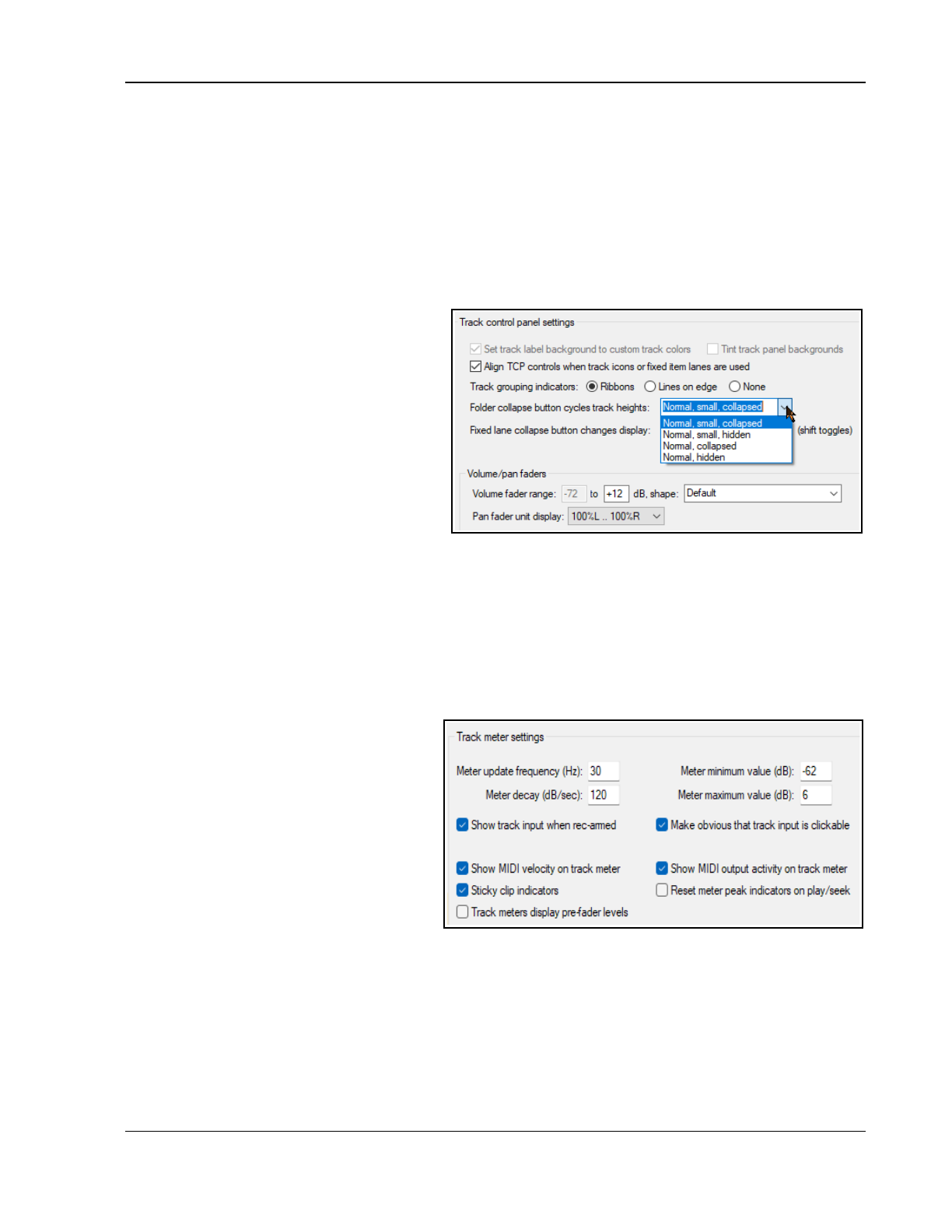
REAPER's Preferences and Other Settings
● Set horizontal zoom center to Edit or play cursor, Edit cursor, Center of view or mouse cursor.
● Whether o Limit horizontal zoom/scroll to project text,
● Set vertical scroll limits relative to track height.
● Disable vertical zoom for pinned tracks.
● When project settings enabled to offset overlapping media vertically by what percent of item
height to offset, whether to draw as opaque.
● Whether to arrange overlapping media items in the order they were created.
22.7.7 Appearance, Track Control Panels
● Whether to use custom track colors as a background color on track labels (in TCP and mixer) and to
tint track panels (in TCP and mixer).
These options are disabled by some
themes
. See Chapter 11 for more info.
● Whether to adjust the alignment of
TCP controls when track icons or
fixed item lanes are used.
● Whether to use track grouping
indicators (ribbons or lines).
● When cycling thru folder collapse
button select permutation of normal,
small, collapsed or hidden to use.
● Set default click/shift click behavior for
fixed lane collapse button – big/small
or one/many.
The final fader options can be used to restrict the adjustable range of your volume and/or pan faders.
The top of the volume range can be set to 0dB or higher. There is a drop-down box of volume fader
shape options: e.g., set this to 1.0 and the fader becomes a log curve. You can also display pan fader
units either as ranging from 100%L to 100%R or from -90 dB to +90 dB.
22.7.8 Appearance, Track Meters
These options will determine various aspects of your track panel meters appearance and behavior.
● Meter update frequency: determines the meter refresh rate, measured in Hz. The higher the value, the
more frequent the updates.
● Meter decay: determines the rate at
which the meter display will decay,
measured in dB/sec. The higher the
value, the faster the meters will decay.
● Meter minimum value: determines the
lowest value metered, in dB.
● Meter maximum value: determines
the highest value metered, in dB.
● Scale gain reduction from plugins:
Gain reduction from a plug-in that
passes to the host will be displayed in
the track meter.
● Show track input when track is armed: shows the recording source when the track is armed.
● Make obvious that track is clickable: draws a faint box around recording source name.
● Show MIDI velocity on track meters: when MIDI velocity is present this will be indicated by a thin line.
● Show MIDI output on track meters: shown as a thin line for velocity and a small square for others .
● Sticky clip indicators: enabled this ensures that peaks on the VU meter are marked with a bar for a few
moments after they have passed.
● Track meters display pre-fader levels: fader setting will not affect meter display.
Note: dB display options have been moved from preferences to theme tweaker.
441
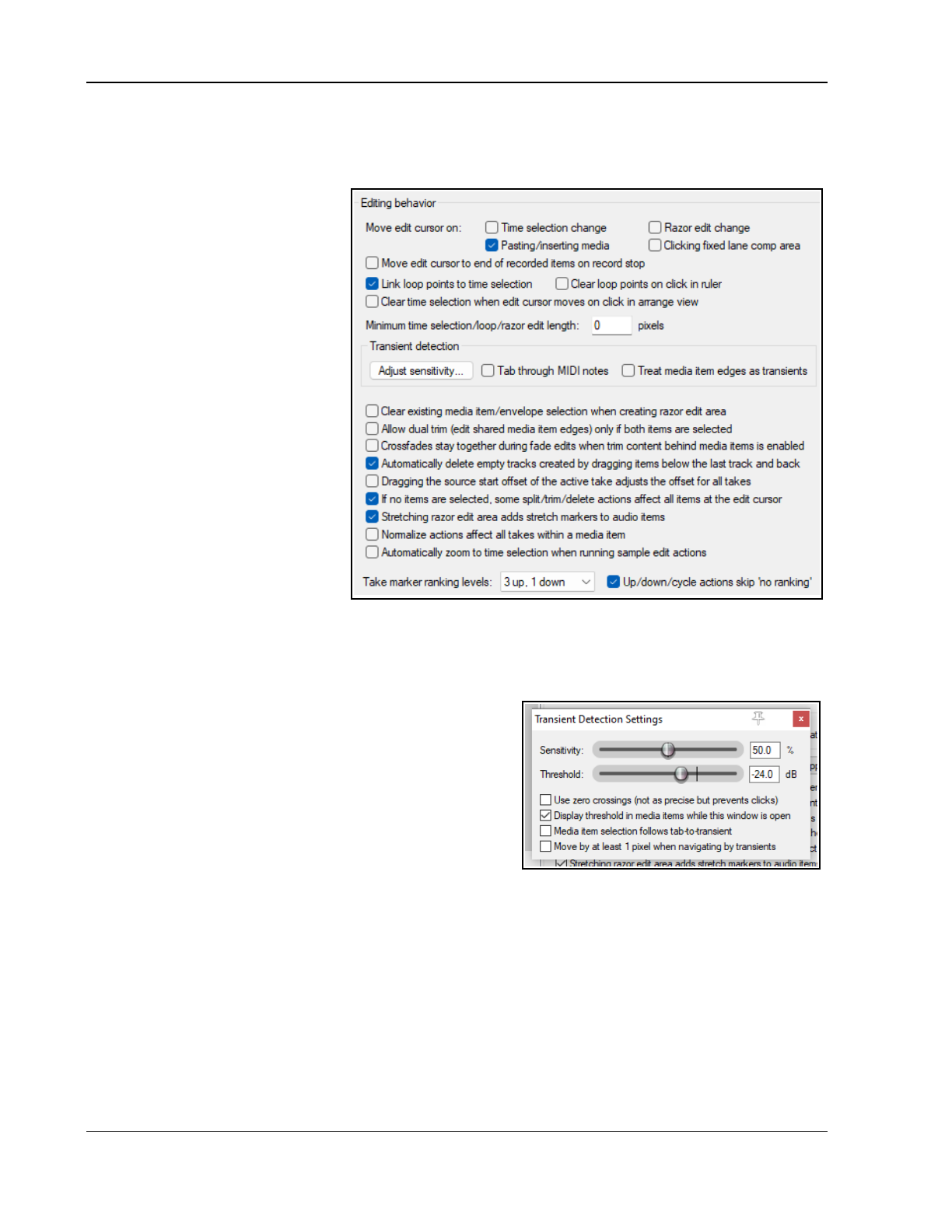
Up and Running: A REAPER User Guide v 7.81
22.7.9 Appearance, Envelope Color Overrides
Here you can define rules for coloring envelopes. See Automation and Envelope Tips, Chapter 19.
22.8 Editing Behavior Preferences
These include:
● Specify edit cursor behavior,
in particular for the edit cursor
to be moved when: Changing
time selection,
Pasting/inserting media,
and/or Stopping recording.
● Specify whether or not to
Move edit cursor on razor
edit change.
● By default link (or unlink) time
selection and loop points.
● Enable or disable the ability for
loop points to be cleared
by clicking on the ruler,
and/or time selection to be
cleared by clicking in
arrange view. E.g. if
clicking on the ruler as a
means of repositioning the edit
cursor you probably won't
want loop points cleared.
● Specify a Minimum time
selection/loop lemgh.
● Adjust tab sensitivity of transient detection, both percentage sensitivity and dB threshold. Click on
Adjust sensitivity to access the options in the Transient detection settings dialog (below right).
● You can also specify whether to Tab thru MIDI notes and/or Treat media item edges as transients.
● How REAPER is to behave with locked items included in a
ripple editing selection. Options are Locked items
interrupt ripple (ripple edit interrupted at first locked
item but can be completed by repeating the action as
often as required to choose which items are ripple
edited), Locked items interrupt ripple per-track
(similar but on a per track rather than per item basis),
Locked items unaffected by ripple (these are edited
normally but other items are ripple edited), or Locked
items are affected by ripple (lock ignored) (all
items in selection are ripple edited, inc locked items).
● Whether to Clear existing media item/envelope selection when creating razor edit areas.
● Whether to allow dual trim options shared media item edges only if both items are selected.
● Whether crossfades should stay together during fade edits.
● Whether to automatically delete empty tracks created when dragging items below last track.
● Whether dragging the source start offset of the active take should adjust the offset of all takes.
● Whether to split/trim/delete all items at edit cursor if splitting/trimming/deleting with no items
selected. Disabling this will prevent, for example, all items being split if you press S with no item selected.
● Whether to add stretch markers to audio items when stretching razor edit area.
● Whether Normalize actions affect all takes within a media item.
● Whether to Automatically zoom to time selection when running sample edits.
● Specify number of take marker up/down-rank levels.
442
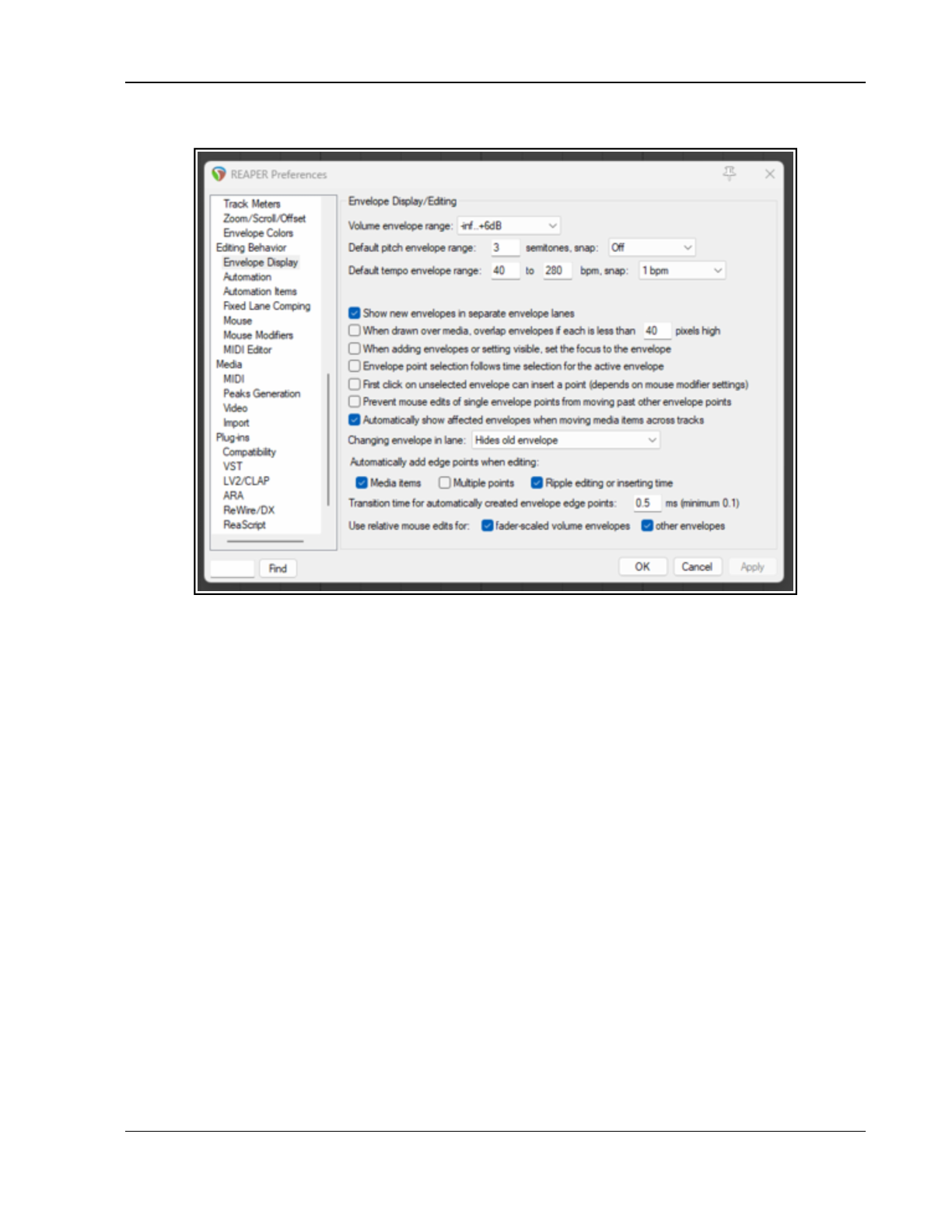
REAPER's Preferences and Other Settings
22.8.1 Editing Behavior, Envelope Display
7
● Select the default range within which volume envelopes can be adjusted. Options range from -inf...
+0dB up to -inf...+24dB.
● Specify a semitone range for per take pitch envelopes, also whether or not to snap.
● Specify a display range (beats per minute) for the master project tempo map envelope.
● Whether to enable snap, and if so, to whole or fractional bpm.
● Whether or not to Show new envelopes in separate envelope lanes by default.
● When drawn over media, overlap envelopes if each is less than x pixels high. Enabling this option may
create a more cluttered visual effect, but it will allow more height for editing envelope points.
● Option to set the focus to new envelopes as they are added, automatically selecting them for editing.
● Whether envelope points are also selected with a time selection.
● Whether the first click on an unselected envelope will insert a point: check also mouse modifier
settings.
● Whether to add a transition point on stopping playback after recording automation.
● Whether to Prevent mouse edits of single envelope points from moving past other points.
● Whether or not to Automatically show affected envelopes when moving data across tracks.
Showing these can sometimes be visually confusing.
● Whether Changing the envelope shown in any lane should cause the envelope previously there to be
hidden or moved to the media lane.
● Whether edge points (at start and end of time selection) are added to envelopes when media items are
edited, and/or when multiple points are edited, and/or when ripple editing or inserting time.
● You can also specify a required transition time for automatically created envelope edge points. A longer
setting can create a smoother transition.
● Whether to use relative mouse edits for fader scaled volume envelopes only, or also for other
envelopes. Note that relative mouse edits provide more Y-axis resolution, at the expense of the envelope
points not following the mouse cursor.
443
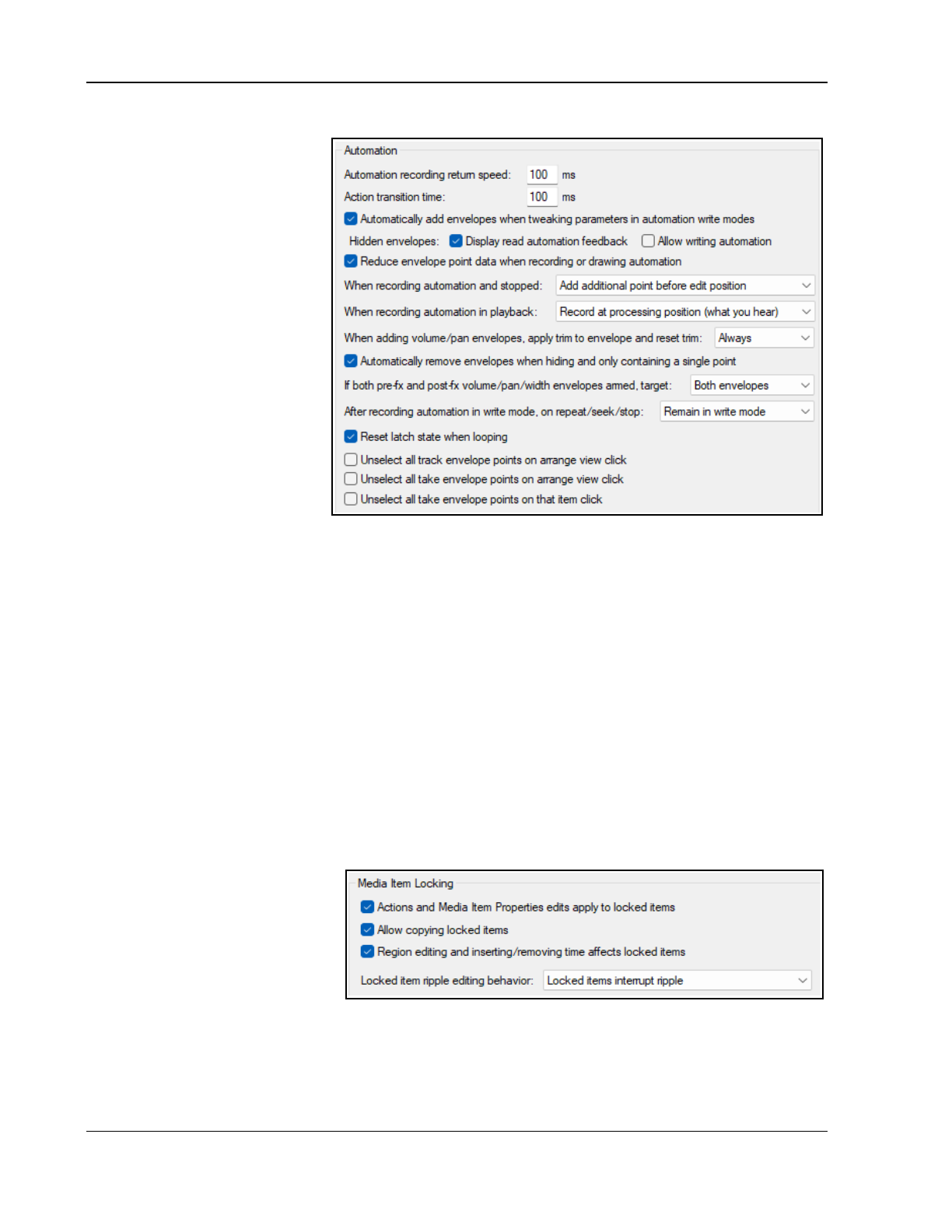
Up and Running: A REAPER User Guide v 7.81
22.8.2 Editing Behavior, Automation
● Set automation recording
return speed and action
transition time: for envelope
returning to its previous value
when using actions to write
envelope changes.
● Whether to Automatically
add envelopes when you
adjust any parameters in write
mode. You will not be able to
adjust any parameters in write
mode without creating
envelopes.
● For hidden envelopes,
whether to display read
automation feedback
and/or allow writing
automation. In read mode
allows (for example) a volume
fader on even a hidden
envelope to move with
changes in volume,. Allow
writing automation to hidden envelopes can risk making accidental changes to envelopes.
● Whether to reduce envelope point data when recording or drawing automation. Not enabling this can
lead to more points being created than you might like.
● When recording automation in playback whether to record at playback or processing position.
● When recording automation stops, whether to add an additional point before the edit position,
before and after the edit position, or not at all.
● When pan/volume envelopes are added, whether trim is reset when the envelope is drawn.
Options are Always, In read/write mode only, or Never. Setting this to Never may make the manual editing
of such envelopes easier (by leaving you plenty of room both above and below the envelope).
● Whether to Automatically remove envelopes when hiding and containing only a single point.
● Which envelopes to target if both pre fx and post fx volme/pan/width envelopes are armed.
● After recording automation in write mode whether to automatically switch to one of the other
modes. The trim/read option is handy if you are inclined to forget to do this manually!
● Whether latch mode envelopes should be reset to their initial states when looping during playback.
● Whether to unselect envelope on various mouse clicks.
22.8.3 Editing Behavior, Media Item Locking
● Whether actions and media
item properties should
apply to locked items.
● Whether to allow copying of
locked items.
● Whether region editing and
inserting/removing time
affects locked items
● Options to determine ripple edit behavior on locked items:
whether to interrupt ripple (global). Interrupt ripple per track, be unaffected by ripple, or
whether to ignore lock for ripple edited items.
444
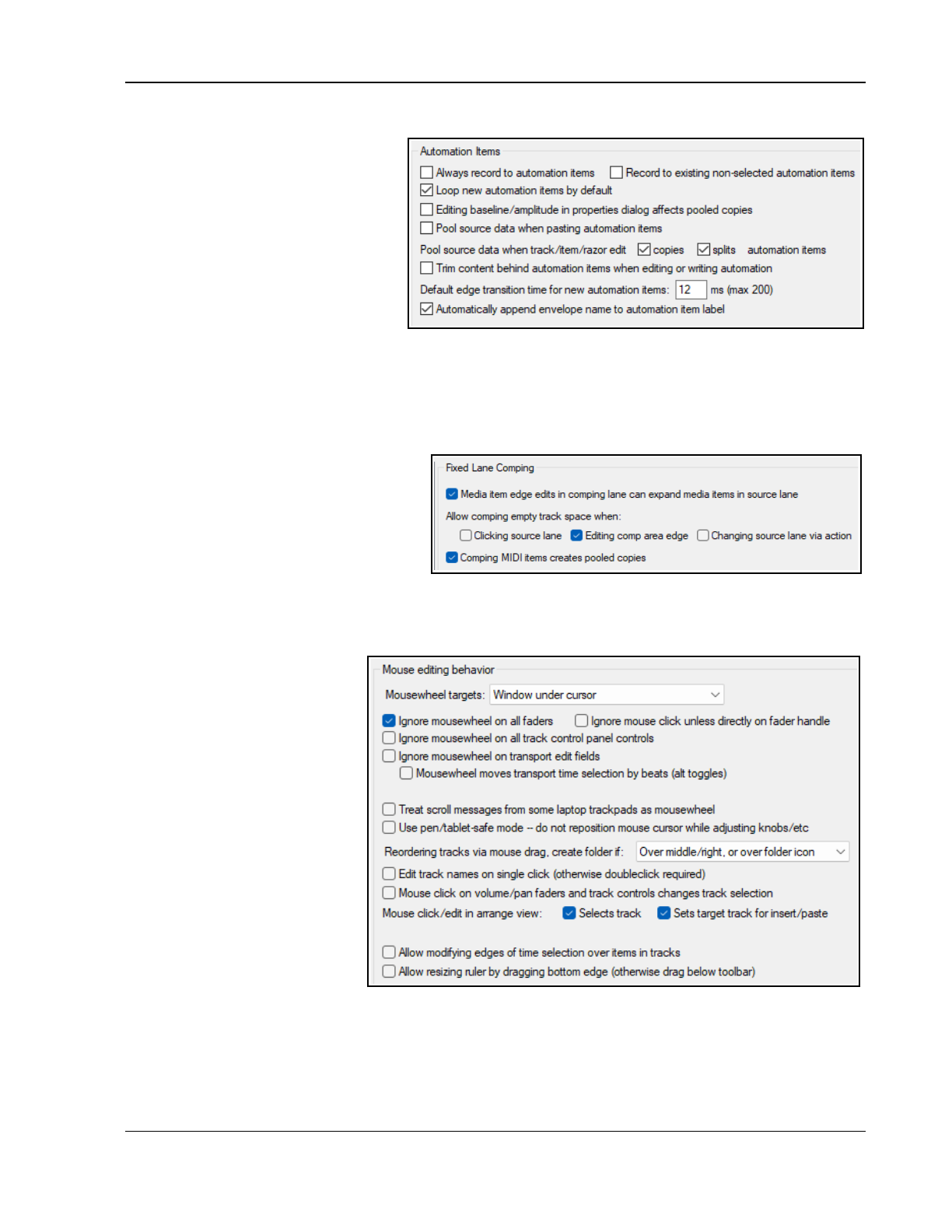
REAPER's Preferences and Other Settings
22.8.4 Editing Behavior, Automation Items
● Whether to Always record to
automation items and/or to
Record to existing non-selected
automation items.
● Whether new automation items
should be looped by default,
whether editing baseline/
amplitude in properties dialog
affects pooled copies, and
whether to Pool source data
when pasting automation items.
● Whether to pool source data When copied and/or split by track/item razor edits.
● Whether to Trim content behind automation items when editing.
● Option to set default edge transition time for new automation items (max 200 ms).
● Whether to automatically append envelope name to automation item label.
22.8.5 Editing Behavior, Fixed Lane Comping
● Whether to allow Media item edits in
comping lane to expand media
items in source lane.
● Whether to Allow comping empty
track space when clicking source
lane and/or Editing comp area
edge and/or Changing source lane
via action.
● Whether Comping MIDI items creates pooled copies.
22.8.6 Editing Behavior, Mouse Editing Behavior
● Mousewheel targets:
whether mousewheel acts on
the window currently
underneath the mouse or on
the last window to have
focus. Lets you to use adjust
the parameters of an open FX
window without having to
click on the window to get
focus. Focus can remain with
your mixer, or arrange view,
or wherever you were before.
● Whether to Ignore the
mousewheel on all faders.
Disable this or either of the
next two options to use your
mousewheel to adjust faders
on the TCP, the transport bar
and/or FX controls.
● Whether to Ignore the mousewheel on track panel faders.
● Whether to Ignore mouse clicks unless directly on fader handle.
● Whether to Ignore the mousewheel over transport edit fields. If disabled, you can edit text fields
such as BPM and play rate just by scrolling your mousewheel over the field. There is also an option to use
the mousewheel to adjust transport time by beats.
● Whether Horizontal mousewheel over the mixer scrolls tracks rather than arrange view.
445
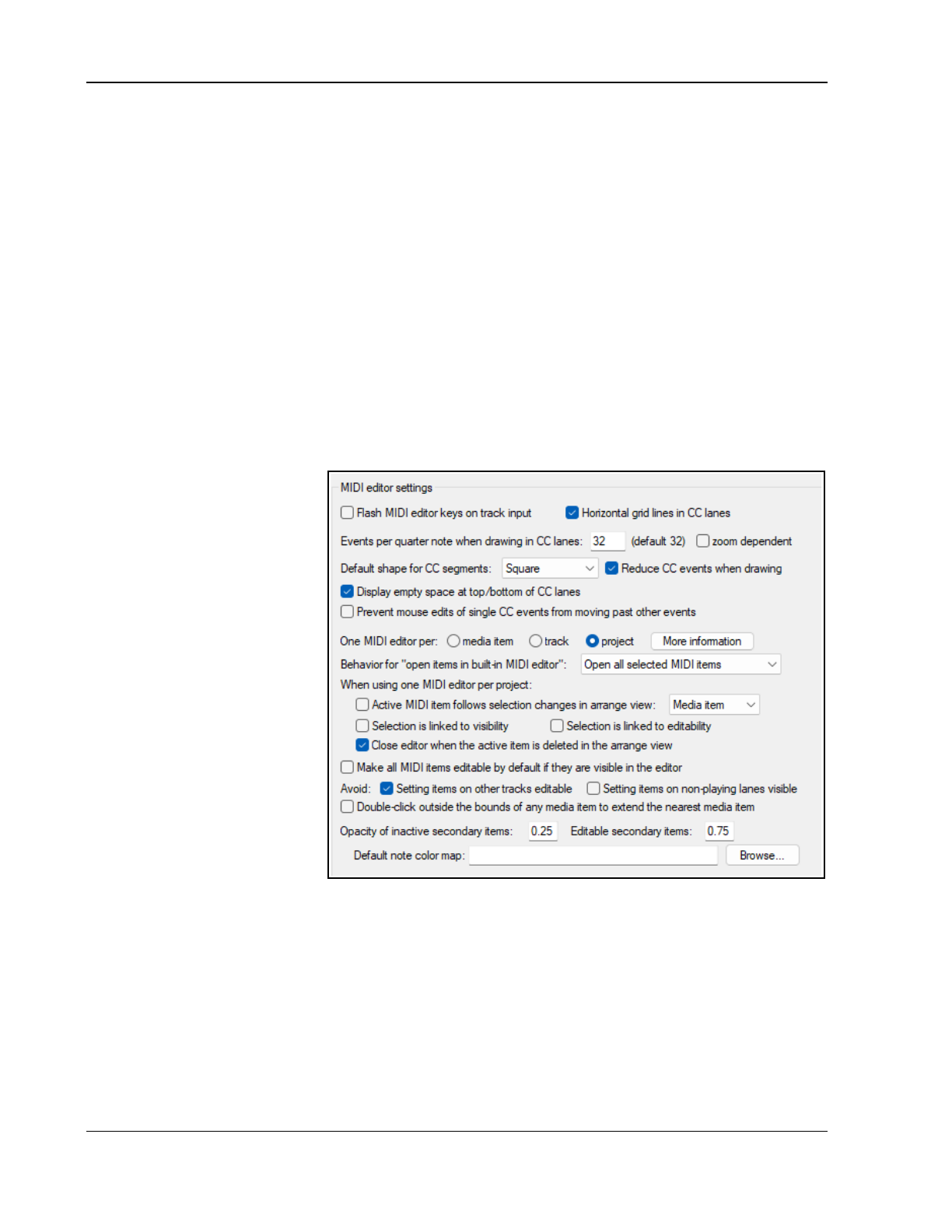
Up and Running: A REAPER User Guide v 7.81
● Whether to treat scrolling a laptop trackpad as being like using a mousewheel.
● Option to Use pen/tablet safe mode so as not to reposition mouse cursor when adjusting knobs, etc.
● When reordering tracks via drag and drop, hold shift key to control folder creation. If enabled,
dragged track will be inserted in folder when dropped.
● Whether Mouse click on track fader or button causes that track to become the currently selected track.
Disabling this allows you to adjust track faders, etc. without changing the track selection.
● Whether to require a single click or a double click when editing track names.
● Whether Mouse click/edit in arrange view changes the track selection and/or Sets track as the
target for insert/paste. Enabling the former will ensure that track selection will follow media item
selection.
● Whether to Allow modifying edges of time selection over items in tracks. Lets you click and drag
over a track (or between tracks) to adjust start or end of a time selection without affecting item selection.
● Allow resizing ruler by dragging bottom edge. Disable this if you do not want to allow the height of
the ruler area to be manually resized.
● In addition, for MacOS users on a Mac, there is an option Ctrl left click emulates right click. However,
it is a better practice to use your System Preferences to enable right-clicking.
Mouse Modifiers: The topic of Mouse Modifier preferences is covered in Chapter 15 and elsewhere.
22.8.7 Editing Preferences, MIDI Editor
Options are:
● Flash MIDI editor keys
on track input: allows a
brief color flash to appear
on the MIDI editor
keyboard when a MIDI
note-on input is received.
● Horizontal grid lines in
CC lanes: toggles display
of horizontal grid lines
on/off.
● Events per quarter note
when drawing in CC
lanes. Specific event
density or zoom
dependent.
● Default shape for CC
segments: square, linear,
slow start/end, fast start,
fast end or bezier: also
whether to Reduce
number of CC events
when drawing.
● Whether to Display empty space at top/bottom of CC lanes.
● Prevent mouse edits of single events from moving past other CC events.
● One MIDI editor per … Select whether a separate MIDI editor instance is required for each item, or for
each track, or one instance for the entire project. Depending on your choice you may have other options.
● Default Behavior for open items in built-in MIDI editor:
● If One MIDI editor per project is selected, specify whether to open clicked item only, all selected
MIDI items, all MIDI items on the same track or all MIDI items in the project.
You also have three more toggle options. These are:
● Whether Active MIDI item follows selection change in arrange view. This can be on a per
media item or per track basis.
● Whether Media item selection is linked to visibility and/or Selection is linked to editability.
446
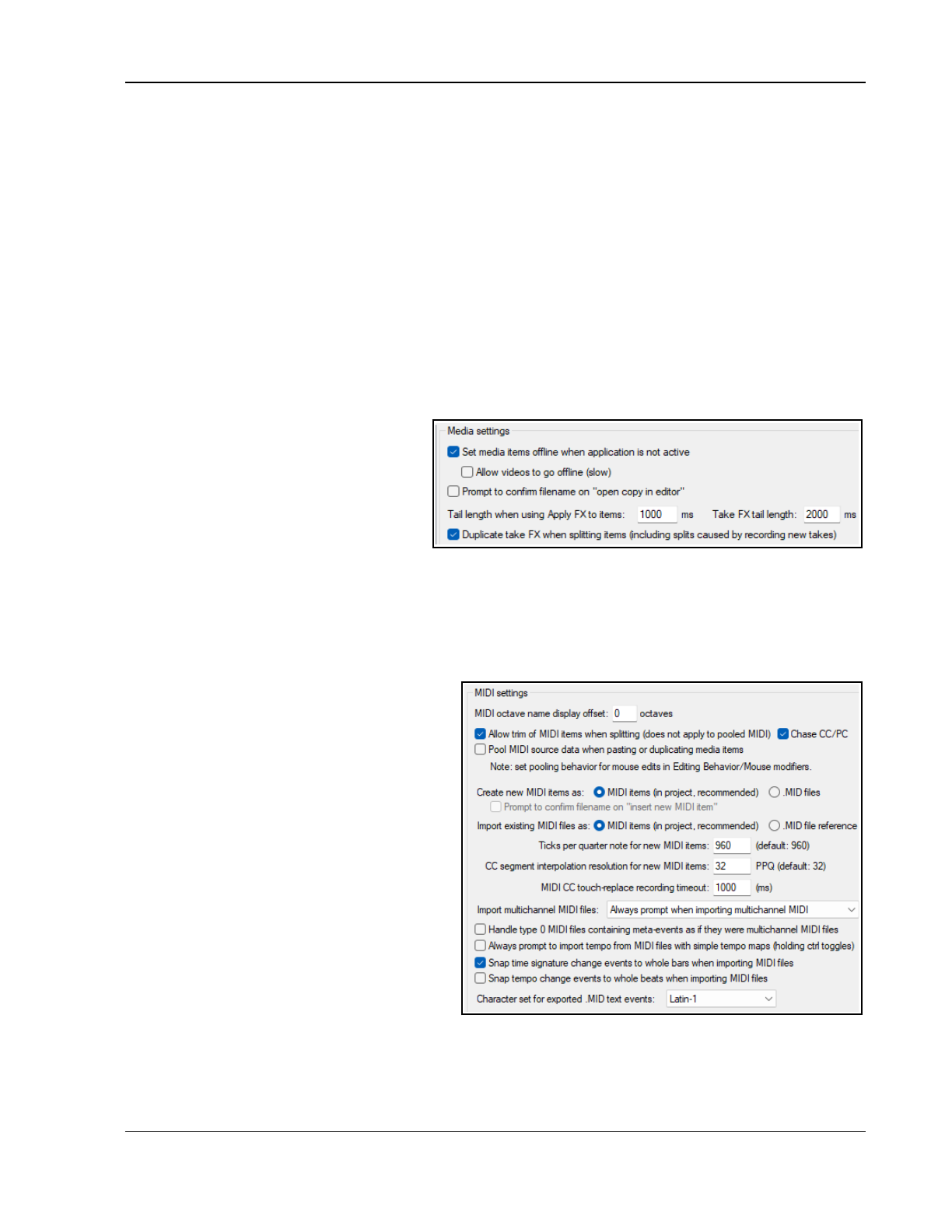
REAPER's Preferences and Other Settings
● Whether to Close MIDI editor when the active item is deleted in arrange view.
● Whether All MIDI items should be editable by default if they are visible in editor.
● Whether to Avoid setting items on other tracks editable.
● Whether to Avoid setting items on non-playing lanes visibled.
● Double-click behavior: Whether double-clicking a note should switch the active media item and, if so,
whether this should occur only when the media item is on the same track and/or already editable.
● Whether double-clicking outside the bounds of a media item should extend that media item.
● Option to display a panel showing more information about multiple media items in a single MIDI editor.
● Set Opacity of inactive secondary items and Editable secondary items. The higher the number, the
darker the notes.
● Default note color map: allows you to specify your own default note color map.
22.8.8 Editing Behavior, Spectral Edits
This page allows you to specify various default options for spectral edit default parameters, such as fades and
gain. Full details are shown at the end of Chapter 8.
22.9 Media Preferences
Options to Set media items off line
when application is not active and to
Allow videos to go offline.
Toggle option to Prompt to confirm
filename on “open copy in editor”.
Set tail length when FX applied to items
and takes.
Duplicate take FX when splitting: whether to copy any FX in an item to items created when the original
item is split.
22.9.1 Media, MIDI Preferences
MIDI octave name display offset: by default, middle C (MIDI note 60) is labelled C4. E.g. an offset of, say, -
1 would cause this to become C3.
Allow trim of MIDI items when splitting
adds a note-off message for any note that spans
the split point when a MIDI item is split. Toggle
option to chase CC/PC when splitting.
Pool MIDI source data is explained in Chapter
13. You can disable this.
Items created or imported as REAPER MIDI
items can be readily edited in the MIDI Editor.
.MID files are more portable between apps. You
can create MIDI items and later export to file.
Ticks per quarter note sets data resolution for
new MIDI items. The default setting of 960
equates to 2 ticks per microsecond at 120 bpm.
When Importing multichannel MIDI files
whether to create a series of single channel
tracks, one multichannel track, or always to
prompt. Whether to Always prompt to import
tempo from MIDI files with simple tempo
maps.
Snap behavior can be set so that time signature changes in imported MIDI files are set to whole bars, and that
tempo changes in imported MIDI files are set to whole beats.
Export MIDI text events in Latin-1, UTF-8 or ASCII (7 bit) format.
447
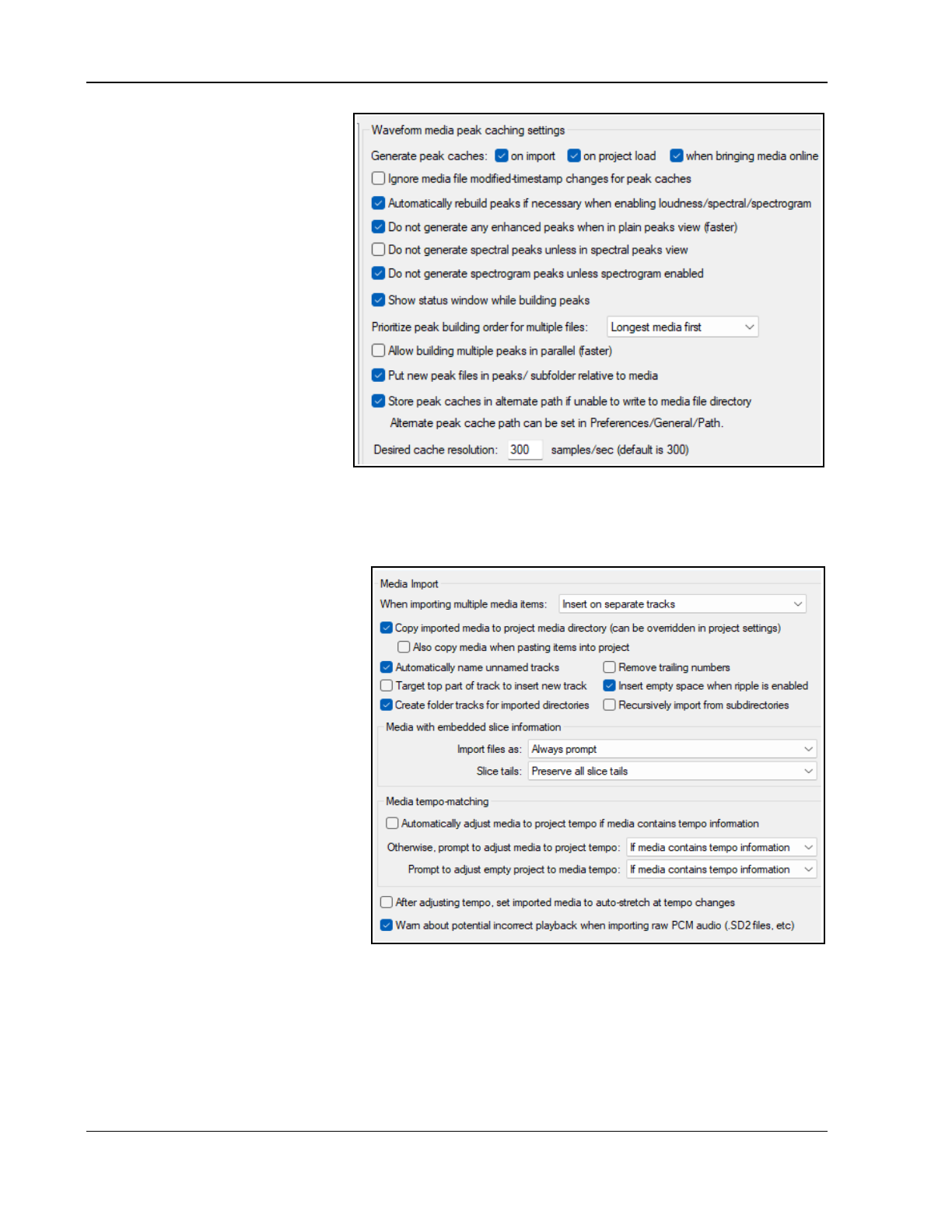
Up and Running: A REAPER User Guide v 7.81
22.9.2 Peaks Generation
Generate peak caches: Set peak
caches to be generated on import,
and/or on project load.
Whether to Ignore media file
modified timestamp changes for
peak caches.
Whether to Automatically rebuild
when loudness/spectral/spectrogram
enabled.
Not to generate enhanced peaks
when in plain peaks view/ unless
in spectral peaks view/ unless
spectrogram enabled.
Whether to Show status window
while building peaks.
Prioritize peak building order for
multiple files: longest media first,
project, track or filename order.
Whether to Allow building multiple peaks in parallel.
Whether to Put new peak files in peaks/subfolders relative to media and Store peak caches in
alternate path if unable to write to media file directory. Option to specify Desired cache resolution.
22.9.3 Video Preferences
For Video preferences see Chapter 20.
22.9.4 Media, Import Preferences
When inserting multiple media
items: Choose whether the default
behavior should be to insert as
separate tracks, to insert
sequentially in a single track, for
REAPER to determine which
appears the more appropriate, or
whether you wish to be prompted
each time.
Copy imported media items to
project media directory: helps you to
keep together files that belong together.
Whether to use the media file name to
Automatically name unnamed
tracks on media import and whether
to Remove trailing numbers.
Whether to Create folder tracks for
imported directories.
Option to Insert empty space when
importing media with ripple editing enabled.
Option to to adjust media or project bpm if media tempo is guessed from file length
Other Media Import options include how you wish to deal with embedded slice information, in particular
how to import files and how to handle slice tails.
Options for importing media with tempo information in metadata or file name depend on whether or not
the tempo is reliable or suggested. There are options After adjusting tempo, set imported media to auto-
stretch at tempo changes and to Warn about potential playback when importing raw PCM audio.
448
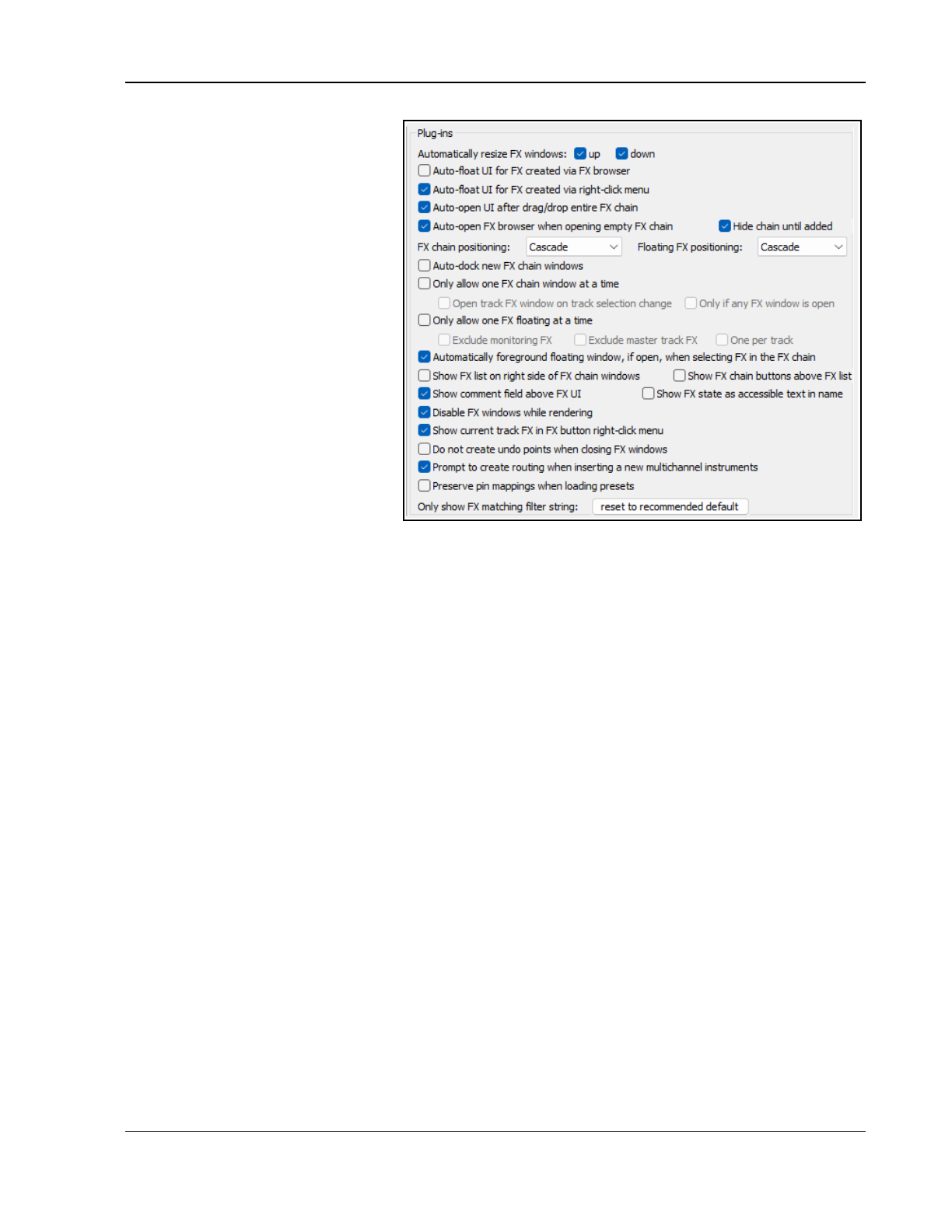
REAPER's Preferences and Other Settings
22.10 Plug-ins Preferences
Your two Automatically resize FX
windows options, if enabled, will
ensure as you browse thru a track's FX
chain that the FX window is
automatically resized to suit the
currently selected FX.
You can specify whether FX created
by browser or right click menu
should be auto-floated, if floated
FX windows should automatically be
placed on top, if newly created FX
windows should be floated, and if
windows should be automatically
opened for FX added from the TCP and
MCP menus.
You can specify whether or not to
auto-dock newly created FX
windows and whether you want the
Add FX window opened automatically
when you open an empty FX chain for
a track or media item. There are
options for only one FX chain at a
time to be visible and to only allow one FX at a time to be floated..
The two Positioning drop downs (FX chain positioning and Floating FX positioning) allow you to choose
Cascade, Automatic or Modal Default (set in Preferences, General, Advanced). These can ensure that
floated FX and/or FX chain windows will, where possible, be positioned other than cascaded on top of each
other. There are options to Not create undo points when closing FX windows, to Prompt to create
routing when inserting a multichannel instrument and to Disable FX windows when rendering.
Option to Preserve pin mappings when loading presets.
If you enable the option to Only allow one FX chain window open at a time you may also specify whether
you want the open window shown to change when you change track selection (Open FX window on track
selection change) and whether this is to happen only if an FX window is open.
Display preferences include whether by default to Show FX list on right side of FX chain window and/or
Show FX chain buttons above FX list and/or Show comment field above the FX UI and/or
Option to Use long names prefix for parallel FX.
You can also opt to have track FX added to the item FX button right click menu. This enables you to open
these FX directly from this button. You can also Disable Undo points when closing FX windows.
You can specify how many FX to show on the context menu Recently added list and whether current track
FX should be shown on the FX button context menu.
You can specify an FX filter string to be applied to all views in the FX browser (e.g.
NOT sony
if you do not
want these plug-ins to be shown). This is as well as to any filter you apply in the FX browser itself.
22.10.1 Plug-ins, Compatibility
Options available include:
to use pre-zero output buffers (enabled by default).
to reduce denormalization from plug-ins (enabled by default).
to specify the automation rate when interpolating between points.
To disable saving full plug-in state (not recommended).
The global option for plugin bridging was removed in REAPER 6.33: bridging is now controlled per-plugin via FX
browser. Discussions on how these options can be applied in can be found on the REAPER forums.
Note the option to Terminate REAPER immediately if a plug-in causes a corrupt heap. This will cause REAPER to
crash if a buggy or malicious plug-in is detected.
449
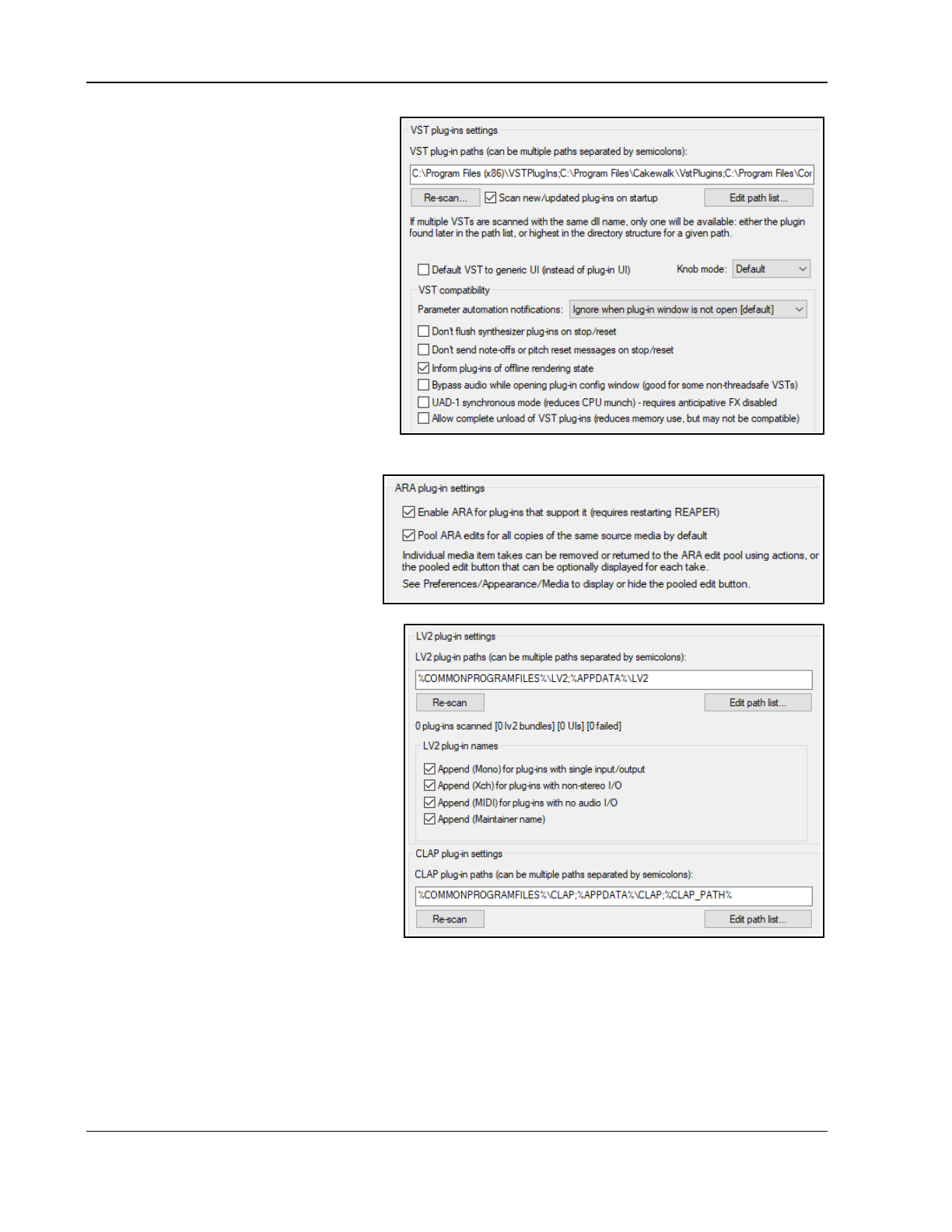
Up and Running: A REAPER User Guide v 7.81
22.10.2 Plug-ins, VST
Chapter 1 explained how to locate and
enable VST plugins. Other preferences are:
You can set VST plug-ins to by default be
displayed using REAPER’s UI rather than
that plug-ins GUI.
For handling VST parameter automation
notifications you can Ignore when
window not open, Ignore when not
from UI thread, Ignore all notifications,
and Process all notifications.
Other preferences depend on which plug-ins
you use. MIDI users note:
the options Don't flush synthesizer
plug-ins on stop/reset and Don't
send note-offs or pitch reset
messages on stop/reset.
to use any VST3 ARA plug-ins (Melodyne
4.2+, Revoice Pro 4+, etc.) then ARA must be enabled.
22.10.3 Plug-ins, ARA
Enable ARA for plug-ins that support
it – requires restart of REAPER.
Pool ARA edits for all copies of same
source media by default.
See Melodyne documentation for more
information about editing.
22.10.4 Plug-ins, LV2/CLAP
Options are available to determine LV2 plugin
paths, to re-scan for LV2 plug-ins, and to
determine how REAPER is to handle LV2 plug-
in names (shown right).
For CLAP plug-ins you are able to determine
the path list and to re-scan.
22.10.5 Plug-ins, ReaScript
The use of ReaScript is beyond the scope of
this User Guide, but you can find an overview
in Section 23.9.
22.10.6 Plug-ins, ReWire/DX
These are shown overleaf.
ReWire options include whether to:
Allow Rewire mixer support.
Auto-open panels when opening ReWire
devices.
Run FX on stop when ReWire devices are active.
Check for ReWire mixer device on startup and automatically enter client mode if present.
Use alternate configuration file (reaper-rewire.ini) when in client mode.
Specify ReWire client project settings.
Direct-X (DX) options are:
Enable FX plugins. Disable DX plug-in scanning.
Scan DX plug-ins on startup (not required). Scan/Rescan all DX plug-ins.
450
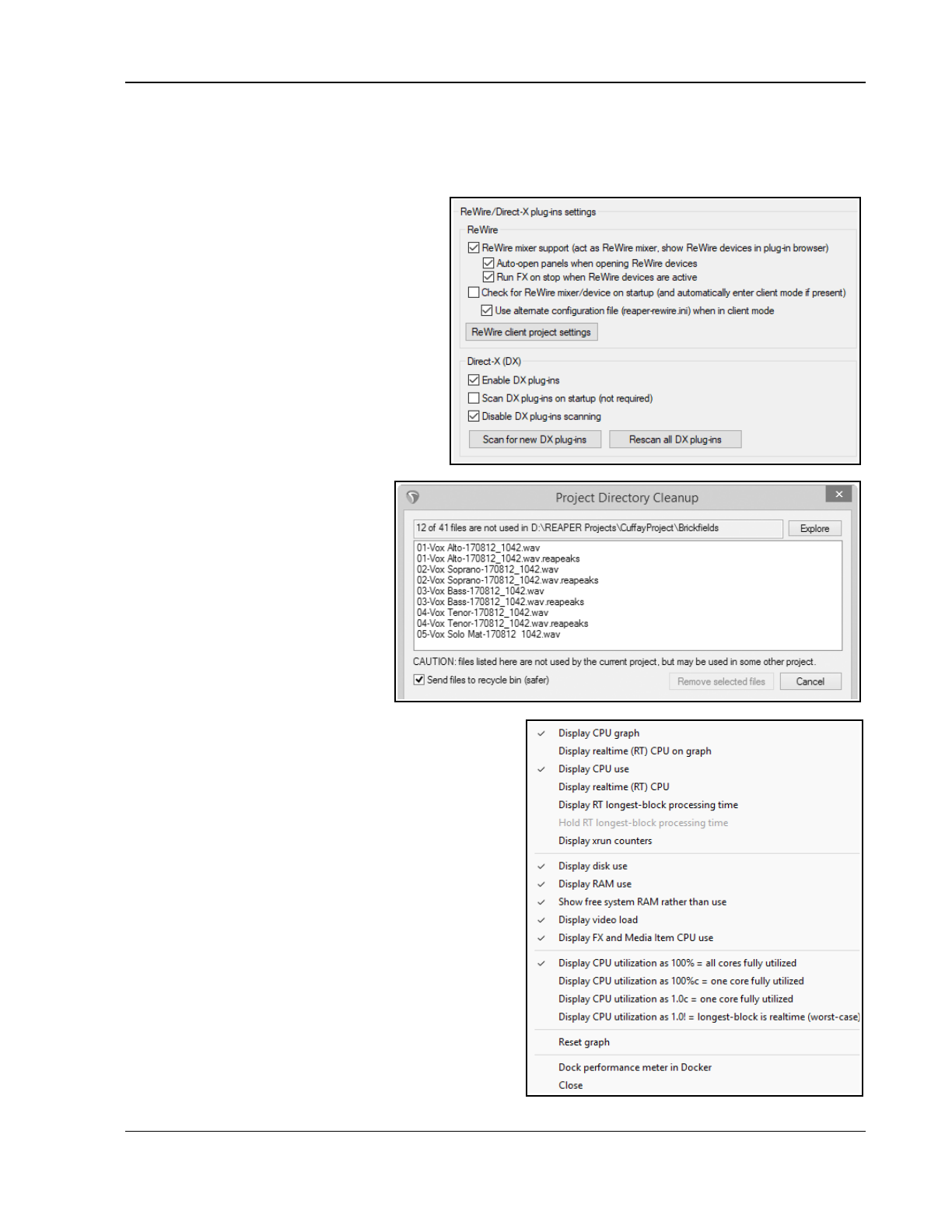
REAPER's Preferences and Other Settings
22.10.7 Plug-ins, Extensions
Here you can manage extensions, including enabling/disabling (for example) SWS extensions and ReaPack.
REAPER’s native extensions can also be managed here, but it would normally be unwise to disable any of these.
22.11 Project and File Management
You have already seen that when you save a
REAPER project file you have the option to
create a subdirectory for that project, and to
copy, move and store all of the project’s
media files into that directory. Making use of
this option will make it easier for you to keep
track of your work.
However, you will most likely find that as a
project evolves, it will accumulate any number
of media items, such as rejected tracks and
overdubs, or deleted items that are no longer
required. You can easily remove these
unwanted items, using the command File,
Clean current project directory.
The name of the current project folder
is shown below the title bar. You can
click on the Explore button to explore
the folder’s entire contents. Notice,
however, that all the files present in
the project directory but not belonging
to the current project are listed in the
Project Directory Cleanup window.
To select a file, click on its name. To
build a selection, hold the Ctrl key and
click on each required file name. To
select all files in the list, click on the
first file name then, holding the Shift
key, click on the last required name.
You have the option to either delete these files
permanently from your hard drive, or to send them to the
Windows Recycle Bin (as shown here). Click on the
Remove Selected Files button to remove them.
Don’t forget also to backup your work regularly, to a
flash drive, external hard disk, CD or DVD, or more than
one of these. The easiest way to back projects up is to
simply use the Windows file management system.
22.12 Customizing the Performance Meter
You can customize performance meter display, making
your selections from its context menu (see right).
Amongst the items that can be displayed or hidden are:
CPU Graph CPU Use Disk Use
RAM Use Free System RAM FX CPU use
There are also options to display CPU utilization with all
cores or one core fully utilized, or longest block is realtime
(worst case scenario). The last of these can help diagnose
problematic real-time plug-ins.
To sort the Performance Meter track list, click on any
column heading. It can also be docked or undocked.
451
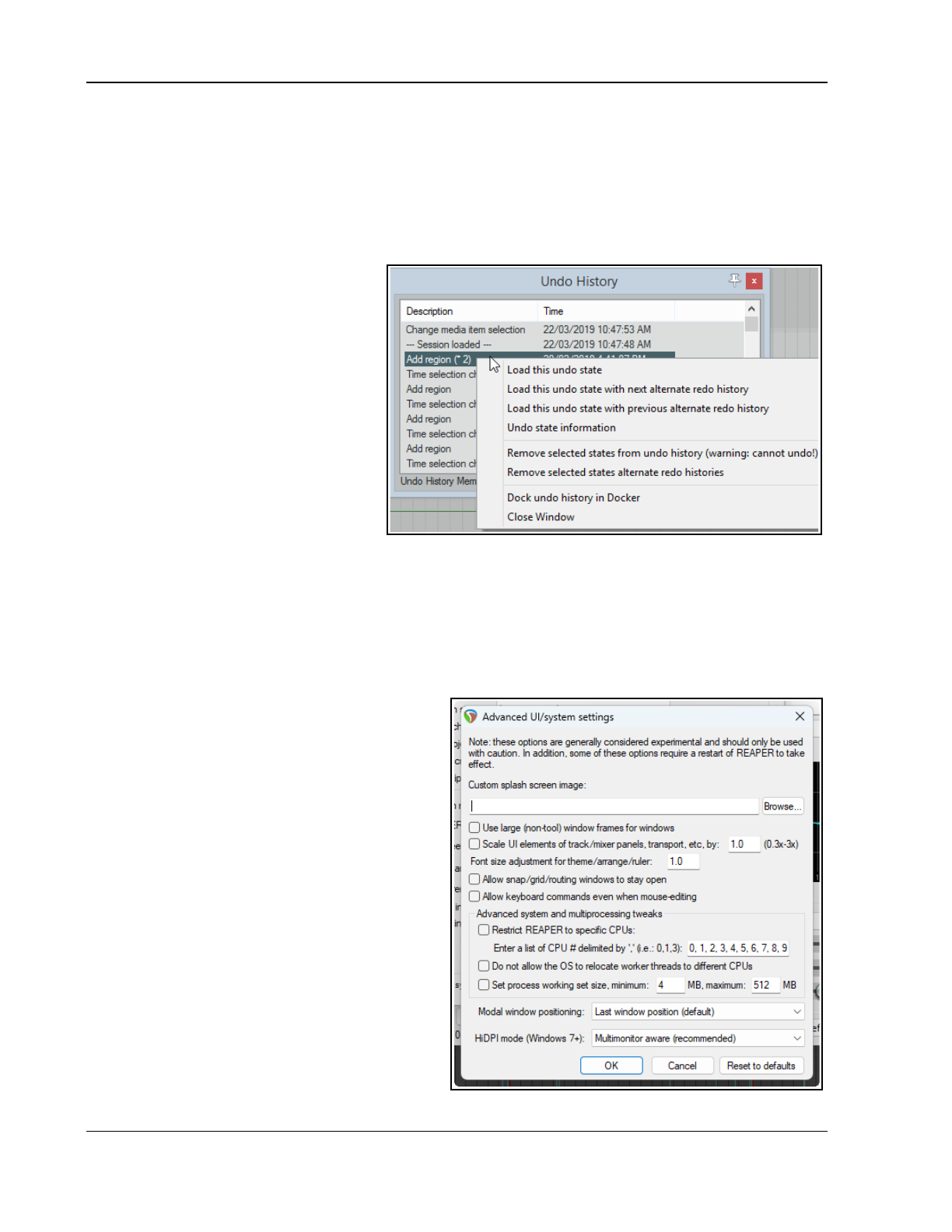
Up and Running: A REAPER User Guide v 7.81
Note: The RT ("Real Time") CPU meter measures the amount of CPU time used by the single audio thread
servicing the sound device. It reflects only the CPU time used by one core, and gives you an indication of how
much leeway you have in processing. With anticipative FX enabled (and few tracks record armed), RT CPU
should be pretty low, as most things should be done asynchronously, allowing the real time thread to quickly put
things together.
22.13 Customizing Undo History Behavior
As already discussed (Chapter 2), In General preferences you can customize your Undo History. including:
Add undo points for
item/track/envelope selection and/or
cursor movements.
Save Undo History with project files.
Allow load of Undo History.
Store multiple redo paths.
These features can be selected from the
Undo Settings section of the Options,
Preferences, General, Undo screen.
Enabling the option to Store multiple
redo paths where possible means that
whenever you to go back to an earlier
point any actions you take from that point
on will be stored as an alternate set:
REAPER will remember both paths
independently of each other. Moreover,
every time you return to that point, another new undo path will be created.
An example is shown above. The highlighted action Add Region is flagged with (*2). This means that as well
as the original set of actions, two more undo history paths exist where twice we have gone back to that point. By
right-clicking where shown, we are able to choose which undo state we wish to load, thus enabling us to restore
those commands and actions. There are also options to Remove selected undo states from undo history.
If enabled, Save undo history with project files and, Allow load of undo history will make the undo
history available to you next time you use this project, even if you have since closed and restarted REAPER.
22.14 Custom UI Tweaks (PC)
The General page of the Options, Preferences
window includes an Advanced UI/System tweaks
button which enables you to further customize
REAPER’s on-screen appearance. There are some
differences between Windows and OS options.
Shown right are the options for PC users:
Custom Splash Screen – A .BMP or .PNG file.
Use large window frames for windows.
Scale UI Elements (e.g. buttons on toolbars). Can
be useful if using high screen resolution. This can be
used to display some screen elements as larger (if
set above 1.0) or smaller (if set below 1.0)
Font size adjustment for theme/arrange/ruler
This allows you to increase the font size for these
screen elements – e.g. a value of 1.1 will increase
font size by 10%/
Allow track envelope/routing windows to stay
open. Stops track routing and envelope windows
from automatically closing when they lose focus.
452
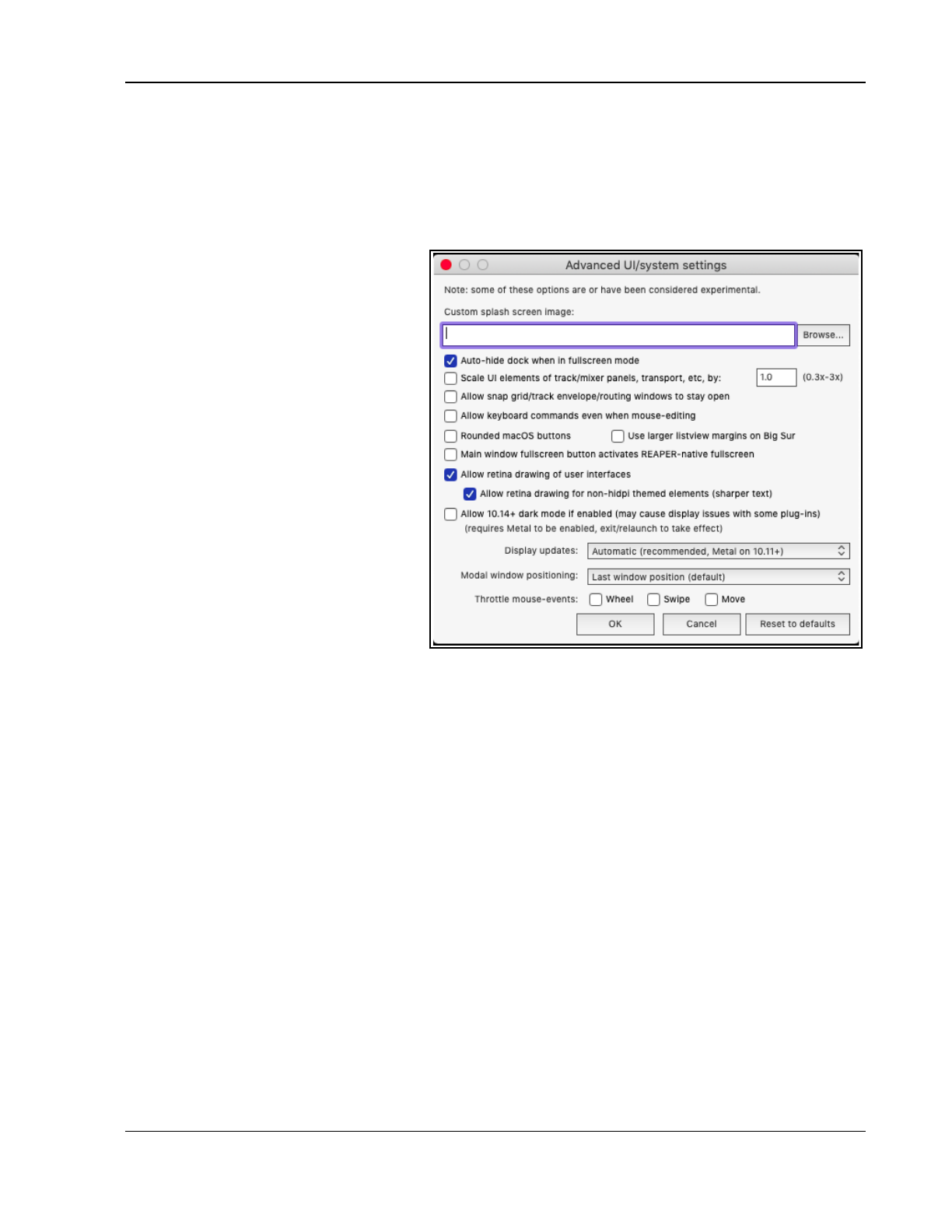
REAPER's Preferences and Other Settings
Advanced system and multiprocessing tweaks to determine how REAPER behaves on a system with two or
more processors. Use caution!
How you would like modal windows to be positioned on reopening: Last window position, Center on
current screen, Center on mouse cursor or OS positioning.
HiDPI mode (Windows 8.1+): Unaware, Aware, Multi-monitor aware or DPI ignorant.
22.15 Custom UI Tweaks (Mac)
The main different Mac options are:
Auto-hide dock when in fullscreen
mode – toggle on/off.
Toggle on/off the use of Rounded
mac/OS buttons and/or Use of larger
listview margins on Big Sur.
Setting Main window fullscreen button
to activate REAPER-native fullscreen.
Allow retina drawing of user interface
and For non hidpi themed elements:
this displays sharper text.
Allow 10.14+ dark mode. May cause
display issues with some plug-ins.
Modal window positioning: options are
Last window position (default)
Center on current screen
Center on mouse cursor
OS positioning
Display updates: options are -
Automatic (recommended, Metal on
10.11+)
Disable all optimized drawing
(reduces GPU use)
Force classic (10.5-10.9) drawing mode
Whether to enable (individually) the throttle mouse events Wheel, Swipe, and/or Move.
453
Up and Running: A REAPER User Guide v 7.81
454
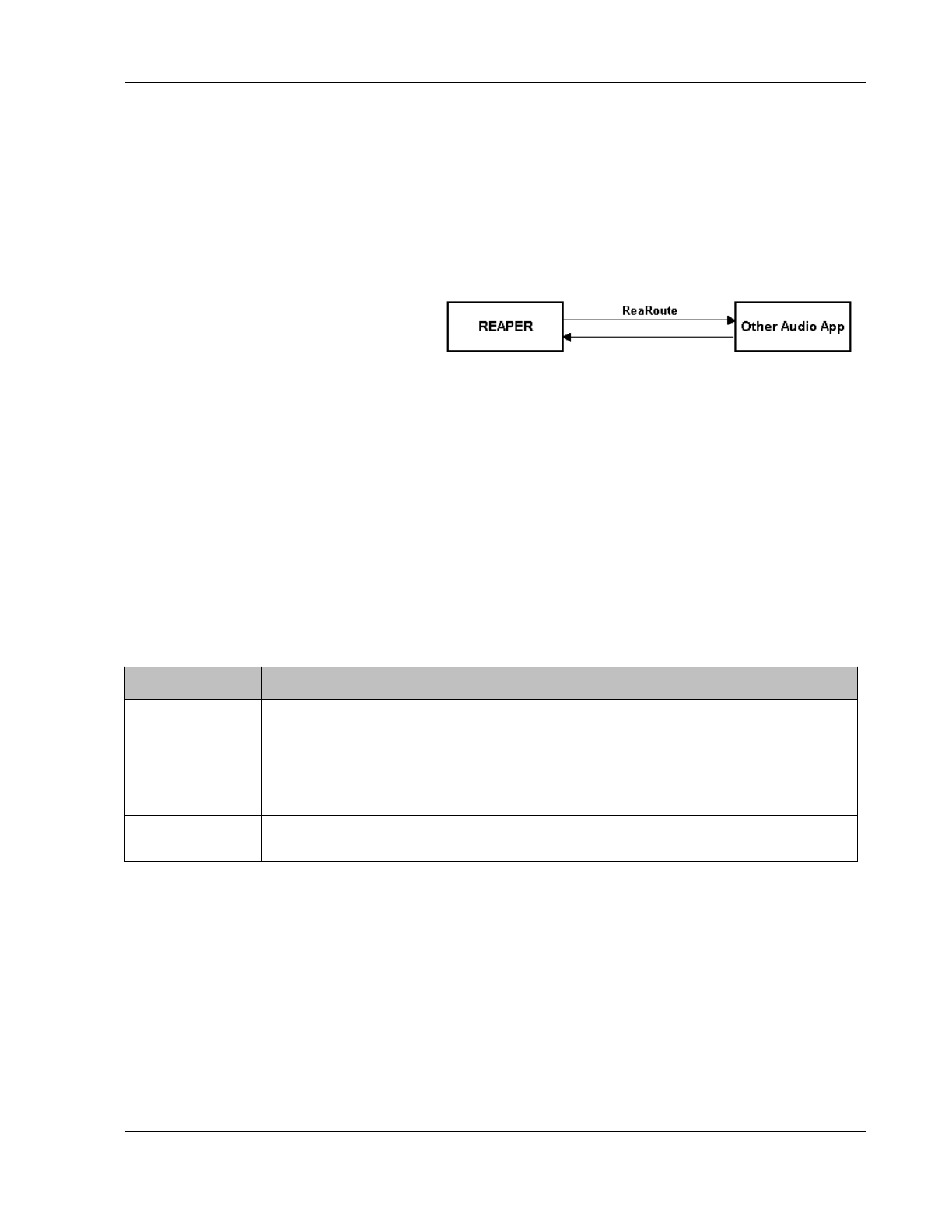
Using REAPER with Other Applications and Devices (Overview)
23 Using REAPER with Other Applications and Devices (Overview)
23.1 Introducing ReaRoute (PC Only)
ReaRoute is an ASIO driver that allows you to route audio to and from any other ASIO enabled application.
ReaRoute is only installed on your system if you select the ReaRoute ASIO driver during the REAPER
installation process. When you install ReaRoute, the ReaRoute ASIO driver appears in the ASIO driver list for
the other audio applications on your system.
Once ReaRoute has been installed, you can pass audio streams between REAPER and other audio applications.
This could, for example, be another DAW such as Cubase or Ableton Live, or a stand-alone synth.
Set up the other application to work
with ReaRoute.
Either
Send audio from REAPER to
another DAW and record it track by
track within that application.
Or
Send audio from the other DAW to REAPER, this time bringing it in as a series of submixes. You can
then apply REAPER features to that project.
Or
Use a stand alone synthesizer workstation such as Project 5 in conjunction with REAPER.
23.2 Setting Up Applications for ReaRoute
Before you can use any audio application with REAPER via ReaRoute, you need to ensure that the audio settings
for that application are set up correctly. There are usually one or two basic steps involved.
The first is to enable ReaRoute ASIO as the preferred driver, the second is to enable the various input and
output channels required to transmit audio between the application and REAPER. With some applications, this
second step is not required. The method will vary with the application, but always involve specifying your
preferences on the Audio Settings dialog box (or similar).
The table below gives some examples. They are accurate at the time this is being written, but be aware that all
software programs are likely to change over time. Note that before setting up or using any application for use
with ReaRoute, you should 1) make sure that the ReaRoute ASIO Driver has been installed (see previous page),
and 2) make sure that REAPER is open and minimised.
Application Instructions
Ableton Live
1. Options, Preferences then click on the Audio tab.
2. Set Driver Type to ASIO.
3. Set Audio Device to ReaRoute ASIO.
4. Click on Input Config then on each input channel to be enabled, then OK.
5. Click on Output Config then on each output channel to be enabled, then OK.
6. Close Preferences window.
FL Studio
Options, Audio Settings, then select ReaRoute ASIO for Output. Close Audio
Settings window.
23.3 S7ending Audio from REAPER to Another Application
This example looks at sending a project from REAPER to another DAW. You might wish, for example, to use one
of that DAW's native plug-ins on a track or tracks. If you know your other application well enough and have
already set it up to use ReaRoute you should be able to apply these guidelines. They are:
1. Open REAPER.
It is important that you open REAPER before the other application.
2. Open the project file that you wish to use. For each track that you wish to use, create a hardware
output to a different ReaRoute channel.
3. Open the other application (e.g. Sonar, Cubase, Ableton Live) and create a new project file.
4. Insert into your new file one new track for each track that you wish to bring in from REAPER. For
each track, the input should be set to correspond with the equivalent output used in REAPER. For
example, if in REAPER you set a track’s output to
ReaRoute Channel 1
, then the corresponding new
455
Up and Running: A REAPER User Guide v 7.81
track in your other DAW will need to have its input set to
Left ReaRoute ASIO ReaRoute REAPER
Channel 1
.
5. Within the second application, start recording. Within REAPER, play the song.
6. Stop both when the song finishes.
7. When finished, first close the other application and then close REAPER. You should always remember
–
Open REAPER first, close it last.
In many cases it would be easier and quicker simply to import the wave files directly into the other application.
There are, however, other instances when it may be advantageous to use ReaRoute instead. For example:
It might not be easily possible to line up all tracks. Some may start and finish at different times.
Others might consist of a large number of media items each of short duration. It would be difficult to
import these piecemeal.
Some tracks might consist of a combination of MIDI items and audio items. Many applications do not
let you mix MIDI and audio on the same track. This way, they are all taken across as audio.
23.4 Sending Audio From Another DAW App to REAPER
Staying with the same example, we are now going to use ReaRoute to take our open Sonar project and send an
audio signal back to REAPER. In overview, this is how it is done.
1. Open REAPER and create a new project file. Insert as many tracks as you need.
2. Assign ReaRoute inputs to these tracks as required. Arm these tracks for recording.
3. Open the other DAW. In that DAW, open the file you wish to work on, and assign outputs on a track
by track basis to your various ReaRoute channels as required.
4. Still in the other DAW, insert any FX that you may wish to use in these tracks. Play the song in the
other DAW, adjusting your FX to suit.
5. When ready, start recording in REAPER, then play the song in the other DAW, from the beginning.
6. When finished, stop both playback and recording.
23.5 Using REAPER With a Synth Workstation
ReaRoute can be used to make the functionality of a stand-alone synthesizer available to you when you are
working with REAPER. To be able to work thru this example, you will need to already posses a good working
knowledge of how to use the synthesizer.
Before proceeding, you will need to ensure that your ReaRoute ASIO drivers have been installed and that the
Synth Workstation program has been set up to use them.
1. Open REAPER. Open an existing project file, or create a new one and insert a track.
2. Arm this track for recording. Turn on input monitoring and set the track input to stereo. Assign a pair
of ReaRoute channels (probably 1 and 2) to this input.
3. Open the synth program and take whatever steps are needed by way of preparation.
4. Direct audio output to the same pair of ReaRoute channels that you selected at step 2. (above).
5. In REAPER, make sure the play cursor is positioned where you want it. Press Record.
6. Within the synth program, play the instrument(s) to compose a track to accompany your REAPER
song. As you do so, REAPER will record it as a wave file.
7. When finished, save your work.
23.6 Syncing to an External Device
If you are using REAPER in conjunction with an external device then you may need to ensure that your DAW is in
sync with that device, and to take its time clock from that device. For example, you may need to make REAPER
the client of another DAW, or to a video deck. Another example might be if you need to upload time-stamped
material from ADAT tape. To synchronize REAPER to an external timecode, follow this sequence:
Right click over the Play button on the Transport Bar. This opens the settings dialog box shown here.
Select the Input to be used. Available sync types include ASIO Positioning Protocol, MTC and SPP.
Complete the other settings and close the dialog box. You should consult the documentation of your
external device for further information.
To play REAPER in sync with an incoming timecode, hold Alt while right clicking on the play button to
toggle this client to timecode on and off.
456
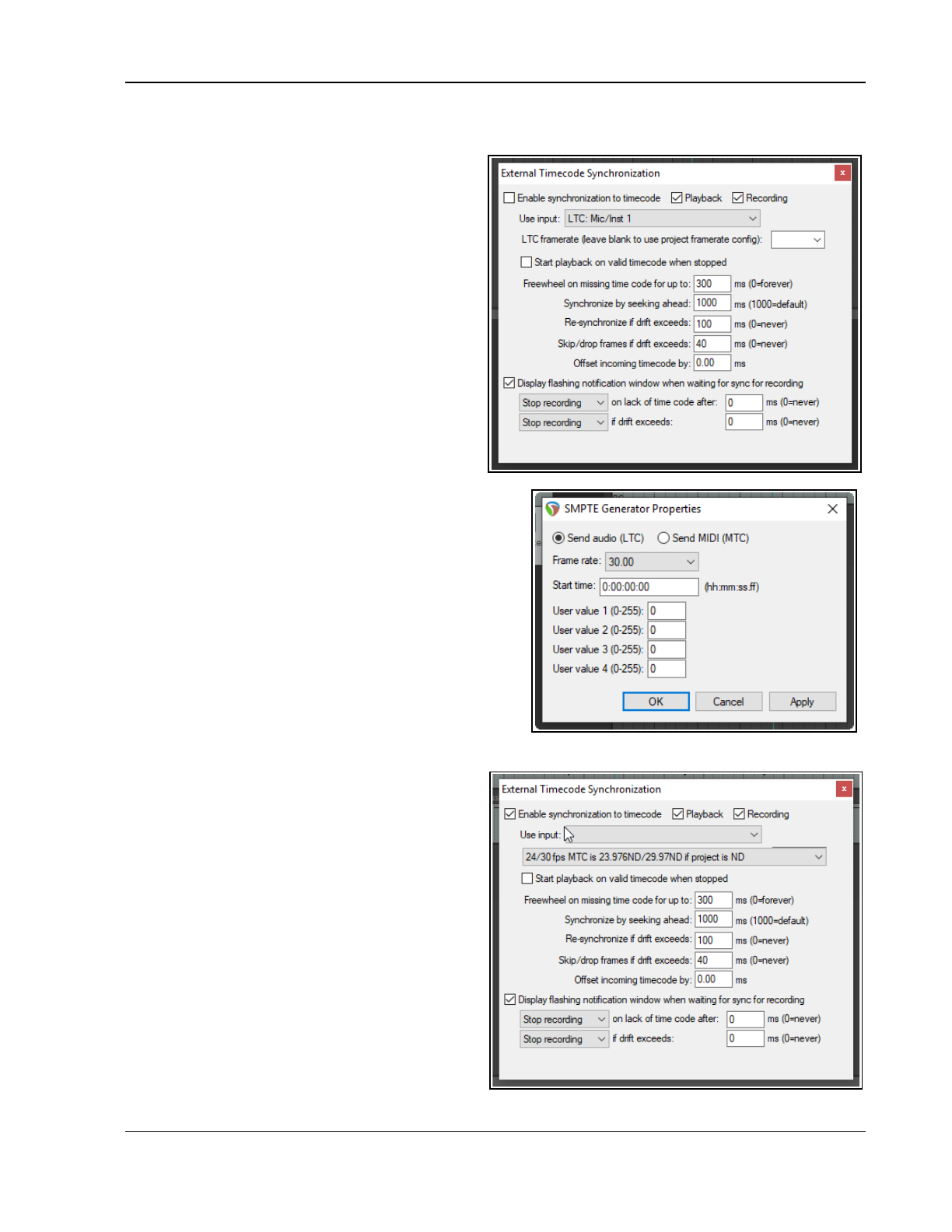
Using REAPER with Other Applications and Devices (Overview)
Sending Clock/SPP from REAPER to an external MIDI Device
To send Clock/SPP data from REAPER to an external MIDI device, you need first to have enabled the feature
under Options, Preferences, MIDI Devices.
Then ...
Double-click on the MIDI output device name to
open the Configure MIDI Output dialog box, and
select the option Send clock to this device. There
is an option to exclude song position pointer data
(SPP) from the MIDI clock signals. There is also an
option to Open device in low latency/low
precision mode.
23.7 Generating and Sending
Timecode
The command Insert, SMPTE LTC/MTC
Timecode Generator (from the main menu) can
be used to send a synchronization timecode from
REAPER to an external device. This command inserts
on to the current track a media item which is used
to generate the timecode.
Right-click over the item and choose Source properties
from the context menu to display the settings box (right).
Select LTC (linear/longitudinal time code) or MTC (MIDI
time code) and configure the various parameters as
required.
23.8 REAPER as Client to MIDI Sequencer
Software
REAPER can also be the client of a software MIDI
sequencer (such as Temper). You will need virtual MIDI
cable software, such as the highly popular MIDI Yoke. Here
is an overview:
1. Use MIDI Yoke to install a virtual MIDI cable to send
MIDI out from your other program and in to REAPER.
2. Start REAPER. Go to Preferences, Audio, MIDI
Devices. Right click over the MIDI device
labelled
In from MIDI Yoke: 1
(or similar)
and
choose Enable input for control messages.
OK preferences.
3. Right-click REAPER's Play button, enable the
Enable synchronization to timecode box
option (see right) and enable playback,
recording, or both. Select the required MIDI
input port (in this example
MTC: In from MIDI
Yoke 1
). When you close this dialog box, the
play button will display a small padlock and the
tooltip
client to timecode
.. Engaging this play
button will now mean it is ready and waiting for.
sync input.
4. In the external program, add a MIDI track and
direct its output to the same MIDI Yoke cable as
you used for input in REAPER. You may also
457
Up and Running: A REAPER User Guide v 7.81
need to enable
Send MTC
(Midi Time Code) in this program. How you do this in any specific program will of
course depend on its own features, interface and capabilities. You will now be ready to go.
For assistance with how to do this with any specific software, consult or ask on one of the REAPER forums.
23.9 ReaScript
ReaScript is a scripting language that takes your ability to customize REAPER well beyond that offered by the
Actions List editor. With ReaScript, you can not only create more powerful and sophisticated macros, you can
even create your own extension commands. To use ReaScript, you will need to have a good knowledge of a
scripting language such as EEL, Lua or Python. EEL and Lua are embedded in REAPER. You can download Python
from the Options, Preferences, Plug-ins ,ReaScript window.
ReaScript isn't for everyone – in fact, because it requires an understanding of programming it isn't for most
people. You can find out more by choosing ReaScript documentation from REAPER's Help menu, and by
clicking on the option View ReaScript Help on the Plug-ins, ReaScript page of REAPER's Preferences window.
For more about ReaScript see also http://www.cockos.com/reaper/sdk/reascript/reascript.php
To be able to use Python, enable it under Options, Preferences, Plug-ins, ReaScript (above). On the
External Editors preferences page you can also specify an external editor for writing and editing scripts.
458
Index
Index
1
14-bit CC messages..................................250
14-bit MSB/LSB CC data.........................254
A
accidentals................................................294
Action List Editor.....................................299
Actions.....................................................299
Add FX.....................................................112
Add FX Chain............................................41
Add Track...................................................59
Adjusting Track Height...............................36
Advanced Disk I/O Options......................435
aggregate device (OS X).............................22
AIFF...........................................................32
Aliasing......................................................22
allow feedback............................................33
alternative modifiers.................................150
Anticipative FX processing.......................118
appearance preferences.............................437
appearance settings...................................437
Application Data Directory.........................26
Apply track/take FX to items....................166
ARA.................................................201, 202
armed actions............................................319
articulation................................................296
ASIO Configuration............................21, 433
ASIO drivers.............................................433
associated project file...............................234
Attach Docker.............................................53
Attack.......................................................331
audio buffering.........................................435
Audio CD Image.......................................417
audio clicks and pops................................432
Audio device...............................................22
Audio Device..............................21, 432, 433
audio dropouts..........................................432
audio format, converting.............................80
Audio Hardware Outputs............................48
Audio inputs...............................................21
Audio Output..............................................38
Audio outputs.............................................21
Audio Preferences.......................................23
audio random access.................................201
audio seek settings....................................435
audio settings............................................434
Audio setup................................................21
audio stream.............................................433
Audio System.............................................21
auto arming tracks......................................61
auto name tracks.........................................95
auto punch..................................................65
auto punch recording..................................69
auto trim/split items..................................128
autocrossfade mouse modifiers.................147
Automatic record arm.................................61
Automating FX Parameters on the Fly......375
Automation...............................................392
automation envelopes...............................359
automation items.......................380, 381, 383
automation lanes, hiding...........................368
Automation Latch.....................................363
Automation Methods................................360
automation mode, set default....................431
Automation Modes...........................361, 362
Automation Read..............................361, 363
automation settings...................................444
Automation Write.............................361, 363
automation, hardware output sends...376, 380
Automation, Mute/Unmute.......................362
Automation, Trim/Read............................362
Automation, writing..................................360
autosave...................................................... 57
Auxiliary Input.........................................341
B
backup......................................................451
Bass..........................................................326
batch file converter...................................421
batch rendering.................................418, 419
beat correction..........................................187
beat detection............................................187
boolean search..........................................112
buffer size.................................................432
buffers......................................................432
Burn Audio CD.........................................424
Burn Audio CD Image..............................424
burn to CD................................................417
Bus............................................................. 43
Bus track.....................................................99
Bus, creating...............................................43
Bypass an FX..............................................41
C
calculate loudness.....................................147
CC Lane...................................................248
CC lane management................................268
CC lane, context menu..............................249
CC lane, marquee selection.......................249
CC lanes, resizing.....................................250
CC names..........................................250, 279
CD Audio..................................................417
CD burning...............................................417
CD Image.................................................417
Change rhythm pattern..............................290
Change tempo...........................................290
Change time signature..............................290
channel mapper.........................................144
channel routing.........................................339
channel routing/mixing plug-ins...............345
channel splitting........................................215
Channel Splitting......................................194
channels....................................................341
chord notation...........................................297
chromatic MIDI item, creating..................191
chromatic midi, using...............................191
Clean Current Project Directory................450
clef............................................................ 288
Click Source, inserting..............................377
client, REAPER to sequencer...................457
color, customizing.....................................221
color, set tracks to custom...........................96
color, set tracks to random..........................96
Commands..................................................17
comp sets, recalling..................................163
comp sets, saving......................................163
comping....................................................171
Compression.............................................329
compression, dynamic..............................392
configuration, export.................................428
configuration, import................................428
Consolidating a project.............................412
Context Menus......................................17, 20
continuous scroll.................................31, 436
control change messages...........................245
Control Channel Editing...........................246
control surface..........................................233
Control Surface, installing..........................23
control surface, setting up.........................321
control surface, using................................321
Controls......................................................17
copying envelopes with media items.........372
CPU usage................................................433
create new project.......................................28
Creating tracks............................................59
crescendo..................................................291
Crop Project to Selection..........................219
crossfade actions.......................................147
Crossfade Editor.......................................145
Crossfade Editor (see Chapter 7)..............162
crossfades.................................................136
Crossfades..................................................66
cursor behaviour.......................................442
custom actions, creating............................307
custom actions, using................................308
custom colors............................................440
Custom Splash Screen..............................452
custom toolbar, dock/undock....................318
D
databases.....................................................84
Delay........................................................327
deleted items, removing............................450
delta solo..................................................340
Desktop Icon...............................................16
Detector Input...........................................341
diminuendo...............................................291
Docker........................................................ 53
Docker, detaching.......................................53
dockers, multiple......................................234
Docking......................................................53
download REAPER....................................15
dry run......................................................415
Ducking....................................................340
DVD Audio...............................................417
DVD Audio Soundtrack............................417
dynamic compression...............................392
Dynamic split....................................188, 189
Dynamic Split...........................................198
Dynamic Splitting.....................................150
E
edit behavior.............................................442
Editing Items............................................123
Editing settings.........................................123
editing, trim content behind media item....137
Editor........................................................282
Embed tempo............................................413
Empty Events.............................................69
Empty Item.................................................69
Empty MIDI item, creating.......................242
Enabling plug-ins........................................24
envelope button........................................359
envelope display.......................................443
envelope lanes..........................................359
envelope panel..........................................364
envelope point, move................................368
envelope points, select multiple................368
459
Up and Running: A REAPER User Guide v 7.81
envelope settings.......................................438
Envelope Shapes.......................................369
envelope, play speed.................................377
envelope, point shapes..............................371
envelopes..................................................359
Envelopes.................................................361
envelopes preferences...............................443
Envelopes Window...........................359, 360
Envelopes, adjusting.................................367
envelopes, bypass mode............................364
envelopes, copying with media items........372
Envelopes, locking....................................220
envelopes, per media item.........................375
envelopes, per take...................................375
envelopes, sends.......................................360
equalisation...............................................326
Export Live Output to Disk.......................424
export notation..........................................298
export to MIDI file...................................271
Export Tracks...........................................412
Exporting..................................................412
external device, syncing to........................456
external drive, installing REAPER.............27
External Editor..........................................123
External FX, recording with.......................75
F
fade actions...............................................147
Fade In......................................................134
fade mouse modifiers................................147
Fades, adjusting........................................144
fades, duration............................................66
fades/crossfades........................................440
FFT........................................................... 333
File Locations.............................................25
file management................................450, 451
File, Reaper Peaks......................................29
File, Render..............................................423
File, Undo History......................................29
finished song, rendering............................418
fixed item lanes.........................................169
FLAC.........................................................32
Floating......................................................53
floating toolbar, dock/undock...................318
floating windows........................................53
folder controls.............................................99
folder drag and drop..................................100
folder management...................................100
folder, creating............................................99
folder, returning to track status.................100
folders, nested...........................................102
free item positioning.................................142
Free Item Positioning..................................69
Freeze quantization...................................262
freeze tracks..............................119, 227, 426
freeze, on-line FX only.............................120
freeze, selected FX...................................120
frequency bands........................................326
frequency spectrum...................................326
FX Bay.....................................................225
FX Bus.......................................................43
FX Bypass..................................................42
FX chain, create default..............................42
FX Chains.................................................113
FX containers...........................................341
FX copy...................................................... 41
FX Device, external....................................75
FX Groups................................................111
FX move.....................................................41
FX parameters, automating on the fly.......375
FX Performance Monitoring.......................45
FX performance, optimizing.....................118
FX plug-in parameter controls..................325
FX Plug-in Settings....................................42
FX presets...........................................40, 329
FX presets, creating..................................329
FX presets, exporting................................329
FX presets, importing...............................329
FX presets, using......................................329
FX processing...........................................435
FX Processing Plug-ins...............................16
FX Remove................................................41
FX Save Chain............................................41
FX Save Chain as default............................41
FX wet/dry mix..........................................41
FX, copy...................................................114
FX, filtering..............................................112
FX, move..................................................114
FX, per item..............................................113
FX, recently used......................................113
FX, rename...............................................114
FX, replace...............................................114
FX, save as tracks default...........................42
G
Gain..........................................................330
gain reduction...........................................214
Gain reduction..................................214, 336
global automation override.......................364
global shortcuts.........................................303
Glue..........................................................148
Glue selected item....................................175
Glue selected items...................................148
Glue Selected Items..................................161
grace note.................................................296
Grid actions..............................................268
Grid settings.............................................142
grid snap spacing......................................142
grid, set to frame.........................................97
Group controls: Follow only.....................104
Group controls: Lead only........................104
Group controls: Lead/Follow....................104
group mode, automation...........................374
grouped parameters, automation...............374
Grouping...................................................133
grouping items..........................................133
Grouping Matrix.......................................103
H
hardware outputs, specifying....................215
harmonies, creating...................................194
headphone mix...........................................64
headphone mix, creating.............................98
Headphone Monitoring...............................97
High Range...............................................326
hiss removal..............................................333
Hold.......................................................... 331
Horizontal Scroll........................................37
Horizontal Zoom........................................37
Humanize notes........................................253
Humanize Notes.......................................263
I
I/O Button...................................................48
image file..................................................417
implode items...........................................139
importing a project file...............................63
Importing Media.........................................81
In-Line MIDI Editing...............................270
Input Aliasing.............................................22
input assignment.........................................59
input monitoring.......................................432
Input Monitoring.............................64, 71, 75
Input Quantize..........................................262
inputs, sequential........................................61
insert multiple tracks...................................60
Insert note.................................................256
Insert, Empty space at time selection w....137
Inserting Track FX......................................39
Install Directory..........................................26
install REAPER OS X................................15
Install REAPER to USB key...........17, 28, 29
install REAPER, Windows.........................15
Installed Folders.........................................25
internet audio, recording.............................79
Item Channel Mode..................................144
item colours..............................................148
Item mix behavior.......................................33
item peaks................................................. 152
Item Properties..........................................134
item selection sets.....................................231
item take marker.......................................166
Item Timebase..........................................134
item volume control..................................135
Items, locking...........................................220
J
Jesusonic FX...............................................39
Jogging..................................................... 201
jogging, looped segment mode.................201
joystick MIDI device, installing..................23
Jump To......................................................47
K
key signature.............................................290
keyboard assignment, changing................303
keyboard settings......................................429
keyboard shortcut, assigning multiple actions
.............................................................307
keyboard shortcut, changing.....................303
keyboard shortcut, creating.......................302
keyboard shortcut, removing.....................303
keyboard shortcuts....................................228
Keyboard Shortcuts....................................17
keyboard shortcuts, assigning to a control
surface.................................................321
Keyboard Shortcuts, customizing.............299
keyboard shortcuts, exporting...................307
keyboard shortcuts, for MIDI editor.........305
keyboard shortcuts, for recording..............305
keyboard shortcuts, importing...................307
keyboard shortcuts, show list......................37
Keyboard, Virtual.......................................72
keymap sets, exporting.............................307
keymap sets, importing.............................307
L
Lanes.......................................................... 67
lanes, automation......................................359
language packs............................................27
Latch.........................................................363
latch preview............................................363
latency.........................................64, 432, 435
Layered Recording.....................................64
layouts........................................................ 97
Layouts.....................................................231
Layouts. Mixer.........................................231
Layouts. Track..........................................231
LFO.......................................................... 381
460
Index
Limiter......................................................328
Linear/longitudinal time code...................457
Link track volume/pan to MIDI..........94, 241
Live Output...............................................424
Lock Settings............................................220
lock track controls......................................37
Locking....................................................220
Locking Items...........................................220
Loop overdubbing.................................64, 74
loop points................................................136
loop points, link to time selection.............136
loop selection..............................................65
Loop Selection, locking............................220
Loop Selection, managing..........................46
loop selection, modifying...........................46
Loop, creating...........................................175
Looped points linked to time selection........46
looped time selection recording............64, 74
Looping....................................................175
Loops.......................................................... 46
loudness meter..........................................120
LTC..........................................................457
Lyric events..............................................269
M
macro, creating.........................................307
Main Input................................................341
Main Menu...........................................17, 20
Main Window.............................................19
Managing Tracks..................................50, 93
marker, coloring........................................176
Marker, inserting.......................................176
Marker, naming........................................176
marker, snap to.........................................177
Markers....................................................176
markers =END..........................................177
markers =START......................................177
markers, copying......................................182
Markers, locking.......................................220
Markers, navigating..................................176
markers, removing....................................178
Master Parent Send.....................................48
Master Track.............................................214
Master, display in Track View...............50, 93
Measures....................................................46
measures, creating from time selection.....187
media cues................................................184
media cues, converting to markers............184
media cues, creating from markers...........184
media explorer................................81, 87, 88
Media Explorer.........................................422
media explorer, databases...........................84
media explorer, import audio......................90
media explorer, import MIDI......................90
media explorer, management......................82
media explorer, metadata............................82
media explorer, preview..............................85
media explorer, searching...........................82
media item buttons....................................135
media item labels..............................135, 439
media item labels......................................135
media item mute.......................................135
media item notes.......................................135
Media Item Properties...............................143
media item, slip editing.............................136
media items, colours.................................148
media items, default settings.....................432
Melodyne..........................................201, 202
menus, customizing..................................313
Menus, customizing..........................299, 313
menus, exporting......................................314
menus, importing......................................314
meta actions..............................................309
Meta actions.............................................309
metadata.....................................................84
Metronome.................................................61
metronome output.......................................61
Metronome Settings....................................61
Metronome, automating............................377
Mid Range................................................326
MIDI..............................................................
event properties....................................141
Tempo Map..........................................377
Event List View..................................259
Named Notes View.............................259
MIDI actions.............................................268
MIDI buses...............................................272
MIDI data: 14 bit......................................260
MIDI Device, installing........................23, 24
MIDI Devices.................................23, 24, 74
MIDI editing, in-line.................................241
MIDI Editor......................................242, 251
CC Lane..............................................248
MIDI Editor Modes..................................259
MIDI editor settings..................................446
MIDI Editor window................................241
MIDI Editor, creating notes......................256
MIDI editor, manage tracks......................227
MIDI Filter Events window......................265
MIDI filters...............................................243
MIDI Hardware Output..............................48
MIDI input device......................................71
MIDI input with sequential channels..........73
MIDI Item..................................................72
MIDI item, creating..................................242
MIDI items, smart editing.........................251
MIDI items, time selection.......................251
MIDI latch-replace.....................................73
MIDI loop recording.................................436
MIDI Media Item Lane.....................264, 266
MIDI Media Item Selector........................264
MIDI Note preview..................................253
MIDI Output device, time offset.................23
MIDI overdub.............................................73
MIDI plug-ins...........................................273
MIDI ports..................................................71
MIDI preferences..............................272, 447
MIDI Recording.........................................71
MIDI replace..............................................73
MIDI scrub...............................................258
MIDI sends and receives...........................241
MIDI sends/receives.................................272
MIDI Setup.................................................23
MIDI snap settings....................................253
MIDI source data pool..............................271
MIDI time code........................................457
MIDI touch-replace....................................73
MIDI Track List................................264, 265
MIDI Track Selector.................................264
MIDI, chase note-ons................................253
MIDI, export to file..................................272
MIDI, sync transport to project.................253
Mixer........................................................205
mixer, managing FX.................................209
mixer, managing sends..............................210
Mixing Down............................................411
Monitor external synth..............................241
Monitor Input.............................................71
Monitor Input (Tape Auto Style).................64
Monitor track media when recording..........65
Monkey’s Audio.......................................412
mordent....................................................297
mouse modifier settings, save/restore........311
mouse modifiers 37, 138, 147, 148, 208, 242,
299, 309, 312, 369
mouse modifiers................................126, 132
mouse modifiers, changing.......................309
Mouse Modifiers, customizing..................299
mouse modifiers, in MIDI editor...............311
mouse modifiers, show list.........................37
Mousewheel................................................37
mousewheel assignments..........................306
Move all media into project directory.........58
MP3............................................................32
MP3 format...............................................417
MSB.........................................................260
MSB/LSB CC data...................................260
MTC.........................................................457
Multiband Compression............................334
multichannel recording...............................62
multichannel tracks.....................................62
multichannel VU meters......................62, 211
multiple audio outputs................................22
Multiple Item Properties...........................195
multiple notes, editing...............................258
multiple output VSTi..................................73
multiple project versions...........................234
Multiple Takes..............................66, 68, 161
multiple tracks, inserting.............................60
multisampling...........................................346
multitasking..............................................433
musical notation........................................282
MusicXML export....................................298
musicXML, exporting...............................298
musicXML, importing..............................298
Mute...........................................................35
Mute automation envelope, creating.........362
Mute Controls.............................................94
Mute Item.................................................134
Mute notes........................................256, 257
mute track, toggle.......................................45
N
Naming tracks.............................................59
Navigation.................................................. 36
New MIDI item, creating..........................242
New Project................................................57
Noise Gate................................................331
noise reduction..........................................333
non-destructive editing.............................123
non-standard stereo channels......................49
Normal Record Mode.................................59
notation.....................................................281
notation editor...................................282, 284
notation terms...........................................281
notation: navigation..................................286
notation: note spacing...............................285
Notation: transpose...................................289
notation: triplets........................................286
Note Channel............................................257
Note Names..............................................255
Note Properties.................................257, 258
note styles.................................................260
Notepad......................................................27
Nudge/set items........................................143
O
OGG Vorbis................................................32
oop recording settings...............................436
Opacity.......................................................53
Open file, FX set off line............................42
Open ifile n new project tab........................55
Open Items with Editor.............................123
461
Up and Running: A REAPER User Guide v 7.81
Open project...............................................55
Open Project...............................................31
ornamentation...........................................296
OSC (Open Sound Control)......................321
Output A.....................................................97
Output Aliasing...........................................22
output FX monitoring...............................118
Output, recording........................................71
Overdubbing...............................................64
overlapped items.......................................136
P
Pan controls................................................35
pan law.................................................33, 36
pan mode....................................................36
pan modes.................................................213
pan track, MIDI..........................................35
panic button..............................................258
parallel FX........................................116, 342
Parameter modulation...............................387
parameter modulation, linking parameters 393
peak levels, reset on VU meters................324
peaks.........................................................152
peaks/waveforms......................................439
peaks/waveforms preferences...................440
pencil mode..............................................138
performance meter....................................451
Performance Meter.............................45, 433
phase control...............................................35
Phase Control.............................................36
phrase.......................................................296
Piano Roll.........................................254, 262
pin connector....................................144, 339
pitch correction.........................................196
Pitch Correction........................................196
pitch correction, automatic........................196
pitch correction, manual...........................196
pitch envelope...........................................194
pitch manipulation....................................194
pitch shift..........................................135, 193
pitch shift plug-ins....................................194
pitch shift, MIDI controlled......................274
pitch shifting.............................................194
Pitch, changing.........................................193
pitch, preserve in audio items...................193
play cursor, managing.................................44
play loop selection......................................48
play rate, adjusting for project..................193
Play Speed envelope.................................377
Play Speed, automation.............................377
playback preferences................................436
playback rate.............................................134
Playback rate............................................134
Playback Rate, multiple items...................195
Playback Rate, single item........................195
plug-in delay compensation......................118
Plug-in Essentials.....................................325
plug-in settings.........................................448
plug-in, noise reduction............................333
Plug-ins..........................................................
Saving Presets........................................72
plug-ins preferences..................................448
plug-ins, compatibility..............................338
Plug-ins, enabling.......................................24
plug-ins, MIDI..........................................273
Plug-ins, ReWire/DX................................450
pooled MIDI.............................................270
pops and clicks......................................30, 64
Pre-fader track metering.............................35
pre-roll........................................................ 65
Preferences...........................................21, 22
Preferences, appearance............................437
Preferences, envelopes..............................443
Preferences, General...................................31
Preferences, MIDI....................................447
Preferences, playback...............................436
Preferences, plug-ins.................................448
Preferences, Project..................................429
Preferences, Project Defaults....................442
preferences, searching.................................95
Preferences, VU meters............................440
Presence Range.........................................326
Preserve Pitch...........................................195
preset, save as default...............................329
Presets......................................................329
Preview Keyboard....................................256
preview media item peaks...........................76
project file association..............................234
Project File Path.........................................32
project files, multiple versions..................234
project length..............................................33
project management..................................450
Project Media/FX Bay..............................221
project p....................................................429
Project Preferences.....................................57
Project rendering......................................413
Project Sample Rate....................................32
Project Settings...................................32, 184
Project Tabs................................................54
project tabs, multiple..................................54
Project Template.........................................63
Project Time Base, changing.......................33
project versions.........................................236
prompt to save............................................76
punch recording..........................................65
Punch Recording...................................64, 65
Q
quantize....................................................188
Quantize....................................252, 261, 267
Quantize events.................................261, 267
Quantize selected events...........................262
Quantize strength......................................261
Quantize track MIDI recording.................262
R
Ratio.........................................................329
raw MIDI data..........................................254
razor editing......................................125, 378
razor edits.................................................125
ReaComp..................................................330
ReaComp compressor...............................340
ReaDelay..................................................327
ReaFir.......................................................333
ReaGate....................................................331
ReaMote Client...........................................29
Reaper File Types.......................................29
REAPER Options.....................................452
REAPER Selections...................................17
REAPER Uninstall.....................................30
reaper-dxplug-ins.ini...................................26
reaper-vstplug-ins.ini..................................26
reaper.ini.....................................................26
ReaPitch............................................194, 195
ReaRoute..................................................455
ReaRoute ASIO driver..............................455
ReaRoute, sending audio into Sonar.........456
ReaRoute, setting up apps.........................455
ReaRoute, with Ableton Live....................455
ReaSamplomatic.......................................346
ReaScript..................................................458
ReaSurround.....................................349, 350
ReaSurroundPan...............................349, 351
ReaSynth.................................................... 72
ReaTune............................................196, 336
ReaVoice...................................................274
ReaXComp...............................................334
Receive levels.............................................44
Receives........................................48, 71, 349
Recent Projects...........................................31
Record........................................................ 60
record additional items...............................69
Record Arm..........................................59, 60
record arm, automatic.................................61
Record mode...............................................59
Record Multiple Tracks..............................60
Recording format........................................32
recording formats, mixed............................77
recording on the fly.....................................60
Recording output........................................71
Recording Preferences................................76
recording with a virtual instrument.............73
recording, default track settings..................77
recovery mode..........................................119
redo, store multiple paths..........................451
region.........................................................65
region, coloring.........................................179
Region/Marker Manager...........................180
regions......................................................419
Regions, creating......................................179
Regions, locking.......................................220
regions, rendering.....................................414
Registry...................................................... 25
relative edge fading...................................145
relative pathnames....................................429
Release..................................................... 331
Render items.............................................165
Render multichannel tracks.......................418
Render selected tracks to stem tracks........426
Render stems............................................418
render time range......................................414
Render to File dialog box..........................413
Rendering.................................................413
rendering a finished song..........................418
rendering preferences................................437
rendering, surround format.......................425
reset configuration to factory defaults.........28
resetting REAPER settings.........................55
Reverse items............................................166
reverse media item....................................135
Rewire...................................................... 353
ReWire...................................................... 273
ReWire client mode....................................28
ReWire,.....................................................353
ReWire, REAPER as client.......................353
ReWire, REAPER as host.........................353
ReWire/DX...............................................450
REX files....................................................92
Ripple Editing...........................................139
round-robin...............................................346
routing................................................48, 347
Routing Examples.....................................339
Routing Interface......................................348
Routing Ma.................................................49
Routing Matrix............................60, 101, 348
Routing Window.......................................348
routing, drag and drop.................................49
RPP Files....................................................16
rumble or hum removal.............................333
S
sample file................................................347
462
Index
Samples......................................................46
samples, saving.........................................191
Save new version of project......................236
Save Project................................................58
Scale Finder..............................................275
Scale UI Elements....................................452
Screen Set.................................................228
Screen Sets................................228, 229, 230
screen sets, auto-saving changes...............230
Screen Sets, Windows...............................229
scripts.......................................................308
scripts, importing......................................308
scroll track view.........................................76
Scroll Wheel...............................................35
scroll, continuous................................31, 436
Scrolling.....................................................37
scrub.................................................201, 258
scrub settings............................................201
scrubbing....................................................34
Scrubbing.................................................201
Seconds......................................................46
Seek playback when clicked.......................44
Send Master/Parent.....................................99
send types................................................. 339
Send, creating.............................................43
Sends.......................................43, 48, 98, 349
Sends default settings...............................431
sends, adding to Mixer..............................210
sequencer baby.........................................276
Set Time Signature....................................199
Show All Takes In Lane............................162
Show All Takes in Lanes.......................67, 68
Show audio configuration on startup..........28
Show audio hardware as sources.................98
Show Big Clock..........................................55
Show Navigator..........................................38
Show Screen Sets......................................228
Show Transport...........................................34
sidechaining......................................340, 387
silent passages, removing..........................150
skip time selection......................................48
Slip Editing...............................................136
slip-edit.....................................................136
slur............................................................ 296
smart tools................................................319
Smooth seek.............................................435
SMPTE..................................................... 457
SMPTE timecode generator......................457
Snap Distance...........................................142
Snap offset................................................134
Snap to Grid..............................................141
snap to marker..........................................177
Snap/Grid Settings....................................141
soft takeover.............................................233
Software Updates........................................17
Solo............................................................ 35
solo bus.....................................................216
Solo In Front...............................................95
sound card................................................432
Sound Shaping..........................................325
Sound Shaping Plug-ins............................326
Source Media Bay....................................223
Source Properties......................................141
spectral display.........................................152
spectral edits.....................................155, 156
spectral peaks...........................................153
spectrogram..............................................155
Split Events.......................................252, 256
SPP Send..................................................457
staff notation.............................................281
Start Menu Shortcuts..................................16
Starting REAPER.......................................17
Stem Rendering........................................426
step recording...................................254, 263
Step Sequencer.........................................254
Stereo to Mono conversion.......................144
stereo track, recording................................62
Stereo, reversing.......................................144
Stretch markers.........................................196
submix, rendering.....................................418
subprojects................................236, 238, 239
subprojects,...............................................236
Surround panner.......................................349
swing grid.................................................141
SWS Extensions.......................................232
Sync piano roll view to project.................276
sync to external device..............................456
synchronize external device to REAPER. .457
Synchronous FX multiprocessing.............118
Synthesizer.................................................72
SysEx messages........................................248
System tweaks..........................................452
T
Take command............................................68
take marker:..............................................166
take markers.............................................166
Take, next...................................................68
Take, previous.............................................68
takes, arranging.........................................161
takes, color coded.......................................67
takes, editing.............................................161
takes, envelopes........................................375
takes, explode in place..............................162
takes, explode to tracks.............................161
Takes, Explode to tracks.............................68
takes, imploding.......................................165
takes, propagating.....................................165
Takes, Slice and Dice................................162
TCP settings..............................................441
template.................................................... 429
Template, Project........................................63
template, set default..................................429
Template, Track..........................................63
tempo detection........................................187
Tempo Map Envelope...............................377
Text Events...............................................248
The Install Options.....................................16
the Microsoft GS Wavetable Synth.............74
Threshold..........................................329, 331
Time Based Effects...................................327
time selection............................................136
time selection recording..............................64
time selection recording, looped.................74
Time Selection, keyboard shortcuts............47
time selection, link to loop points.............136
time selection, modifying...........................47
Time Signature Marker.............................199
time signature marker, inserting................191
time stretch...............................................135
Time Stretching........................................195
Time-Based Effects...................................325
timebase......................................................32
timecode, inserting....................................457
timecodes, negative...................................200
timeline.....................................................200
Timeline.....................................................46
timeline: set units........................................46
toolbar......................................................109
Toolbar.......................................................18
toolbar docker...........................................320
toolbar, custom............................37, 315, 316
toolbar, custom envelope..........................372
Toolbars................................................17, 20
toolbars, custom........................................318
Toolbars, customizing...............................299
toolbars, exporting....................................317
toolbars, floating.......................................318
toolbars, importing....................................317
Touch........................................................363
Track Channels.........................................348
track color.................................................227
track color options......................................96
Track Control Modifiers.............................94
track control panel help.............................234
Track Controls............................................35
track controls, lock.....................................37
Track default settings................................431
Track FX.............................................39, 111
Track FX Order..........................................41
Track FX parameters..................................41
track group edits.......................................131
track group manager.................................130
track grouping...........................102, 128, 132
track grouping controls.............................106
track grouping global................................103
Track Manager..........................................226
track meter..................................................96
track pan, using for MIDI...........................35
Track Panel Width......................................36
Track Panels...............................................18
Track Performance Options......................118
track routing.............................................339
Track Routing.............................................48
Track Template, Inserting...........................63
track templates..................................233, 369
Track Templates..........................................63
Track View screen sets..............................228
Track Views..............................................228
track volume, using for MIDI.....................35
Track volume/pan, link to MIDI.................94
track wiring................................................51
Track, Add New Track................................43
Track, copy...........................................50, 93
Track, delete.........................................50, 93
Track, move..........................................50, 93
Track/Send Defaults.................................431
tracks, freeze/unfreeze..............................119
transient detection sensitivity....................128
transient detection settings................187, 442
transient guides.........................................196
transient, extend selection to.....................187
transients...................................................186
transients guides.......................................152
Transport Bar..............................................34
Transport Bar, dock/undock........................34
transpose MIDI.................................253, 267
transpose MIDI notes................258, 267, 269
tremolo.....................................................296
trill............................................................ 296
Trim content behind media items..............137
Trim Items to Selected Area......................140
tuning an instrument.................................336
tuplet......................................................... 295
U
UAD plug-ins...........................................118
UI Tweaks................................................. 452
Undo..................................................... 53, 65
Undo History Window................................53
Undo History, load with project file..........451
Undo History, save with project file....54, 451
Undo storage area.......................................54
Undo/redo paths, save multiple...................54
463
Up and Running: A REAPER User Guide v 7.81
unfreeze tracks..................................119, 227
Uninstall REAPER.....................................28
Uninstalling Reaper....................................30
Unquantize...............................................262
Upper Mid Range.....................................326
USB flash device........................................27
V
VCA grouping...................................107, 108
Velocity Handles.......................................255
Vertical Scroll.............................................37
Vertical Zoom.............................................37
video codecs.............................................407
video container files..................................407
video effects..............................................401
video item properties................................400
video processing hierarchy.......................402
video project, rendering............................425
video signal attributes...............................407
video soundtrack.......................................399
video tracks...............................................402
Video Window..........................................399
video workflow.........................................409
virtual instrument, recording with...............73
Virtual MIDI Keyboard.......................72, 346
virtual spacer..............................................38
voice.................................................294, 295
Volume controls..........................................35
Volume Controls.........................................94
volume envelope scaling...........................368
volume fader default gain.........................431
volume track, MIDI....................................35
VST..........................................................449
VST folders...............................................113
VST plug-in, generic interface..................338
VST plug-ins.......................................24, 325
VST Plug-ins, Auto detect..........................24
VSTi patch/bank files.................................72
VU meter preferences...............................440
VU meters, reset peaks.............................324
W
WASAPI drivers.........................................80
WAV format..............................................417
Web Audio................................................ 417
web browser interface!..............................323
Window screen sets..................................228
Window Views..........................................229
Windows Registry......................................25
Windows Start Menu..................................28
Write Automation.....................................360
X
Xenakios Extensions.................................232
Y
yric...........................................................292
Z
Zoom Selection.....................37, 46, 177, 219
Zoom to Time Selection..............................47
Zooming.........................................36, 37, 51
routing..................................................... 272
464
